How do I use the Vermeer Style with Abundant Ultramarine Blue template?
Choose the primary action to open PicX Studio with the available template settings. Review the model and format, personalize the creative direction, and generate when ready.
A user refined their Vermeer-style prompt for Nano Banana Pro (Gemini 3 Pro Image) by specifically requesting the use of 'Vermeer Blue' (lapis lazuli/ultramarine) abundantly. Change the subject, setting, or lighting one variable at a time.

フェルメールみたいな絵をフェルメールブルー(ラピスラズリ ウルトラマリン)をふんだんに使って作って出して!
Choose the primary action to open PicX Studio with the available template settings. Review the model and format, personalize the creative direction, and generate when ready.
Yes. You can change the subject, setting, lighting, mood, format, and available model controls before creating your image.
This template is free to open and customize. Generation usage is shown in PicX Studio before you create.
Start with Nano Banana 2, which is the model associated with this template. You can compare another compatible model for a different finish.
© 2026 PicX Studio. All rights reserved.

Follow a topic to a crawlable collection of related PicX Studio templates.
43,474 public templates available. Verified via the PicX Studio public templates API; refreshed hourly.


![A detailed technical blueprint illustration drawn in blueprint style — A detailed technical blueprint illustration of [CHARACTER], drawn in blueprint style on a](https://images.meigen.ai/tweets/2009585651554116028/0.jpg)







![Hyper-realistic 3D holographic blueprint projection of a emerging — Create a hyper-realistic 3D holographic blueprint projection of a [CAR NAME] emerging as a l](https://images.meigen.ai/tweets/2009945337788805362/0.jpg)



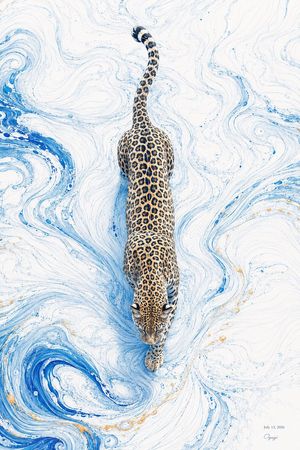








![Naive doodle-style subject illustration — A doodle-style {argument name="subject" default="[subject]"}, naive lines, humorous shape exaggeration](https://pbs.twimg.com/media/G6Wl2YxbsAARB2b.jpg)


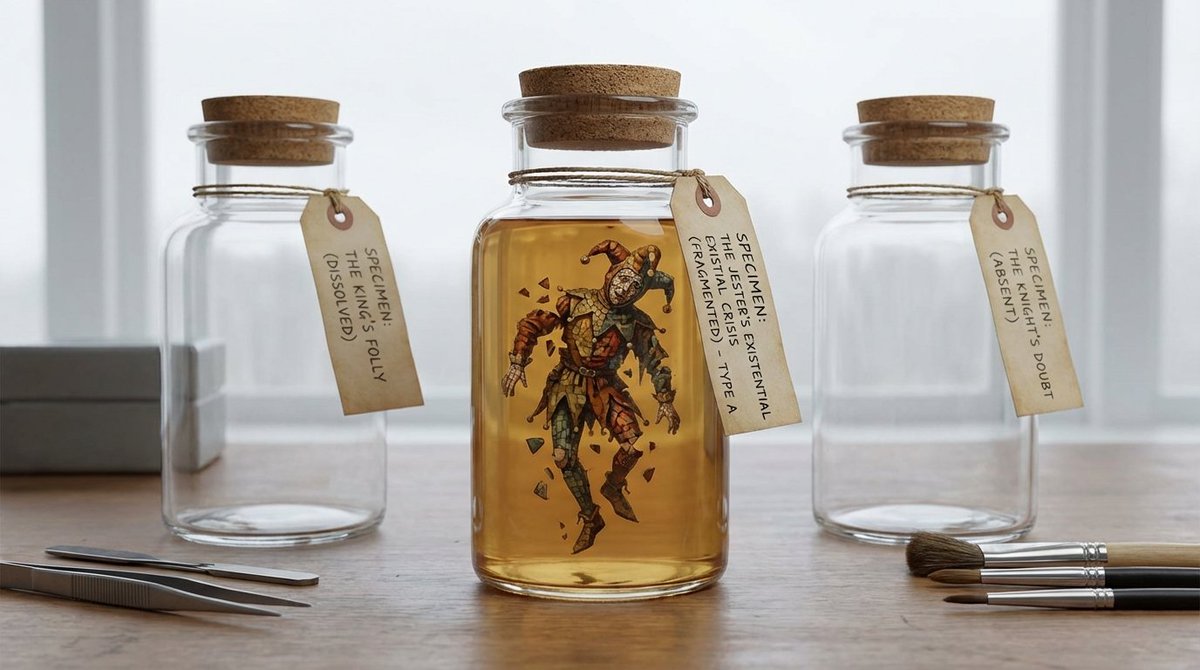





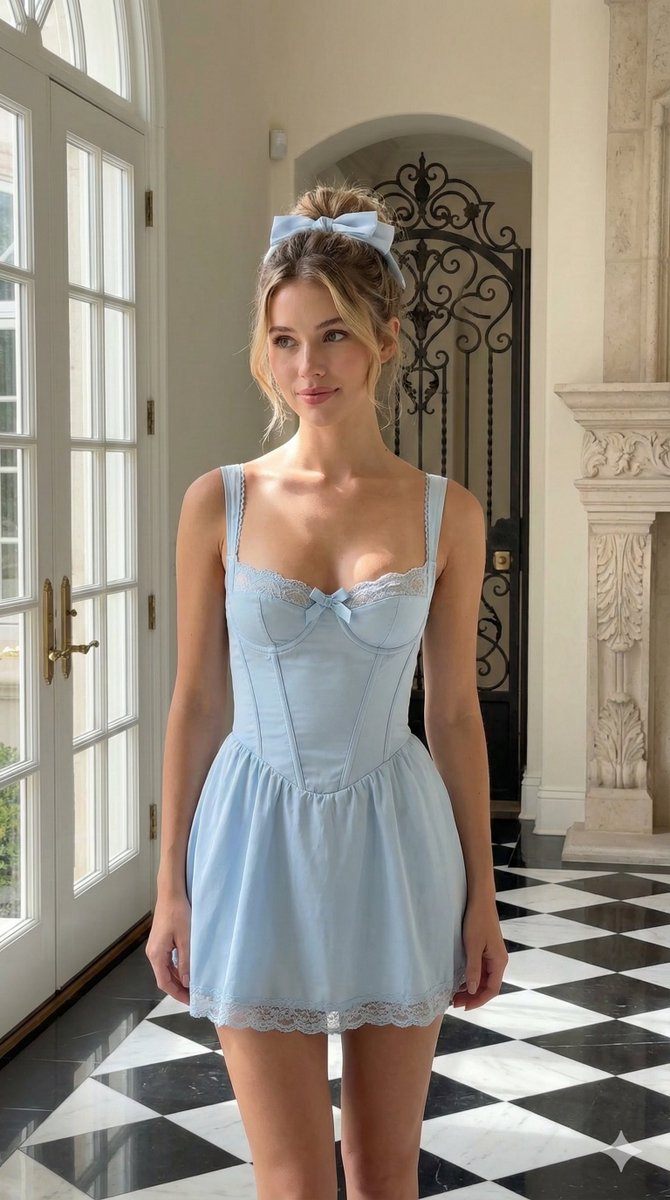


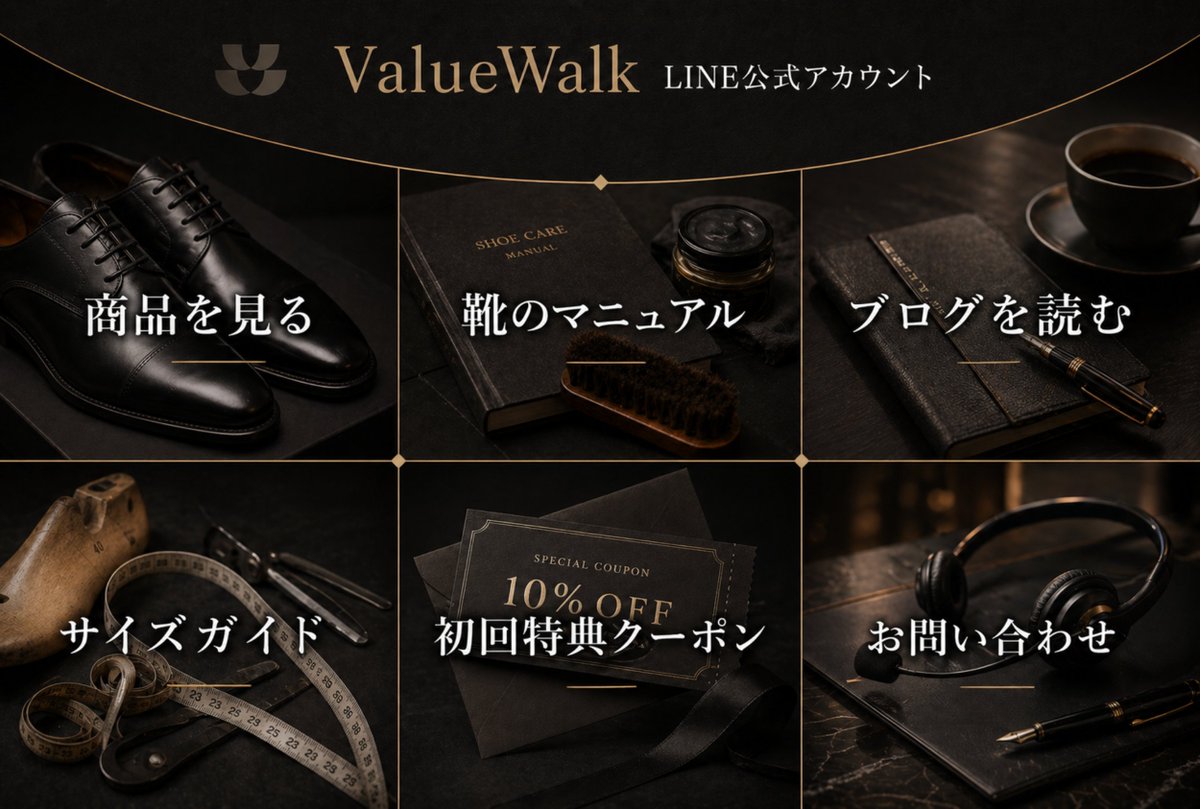

![Object as Shelter: Naturalistic Storytelling — A massive {argument name="everyday object" default="[EVERYDAY OBJECT]"} casually used as temporary shelter by tin](https://pbs.twimg.com/media/G9OWuRMaUAAELQY.jpg)