
Split-Screen Time Travel Scene
A detailed prompt template for generating a split-screen cinematic image that seamlessly blends two different eras, specifically the 1920s and the present day in Lalchowk, Kashmir, focusing on dynamic interaction and…
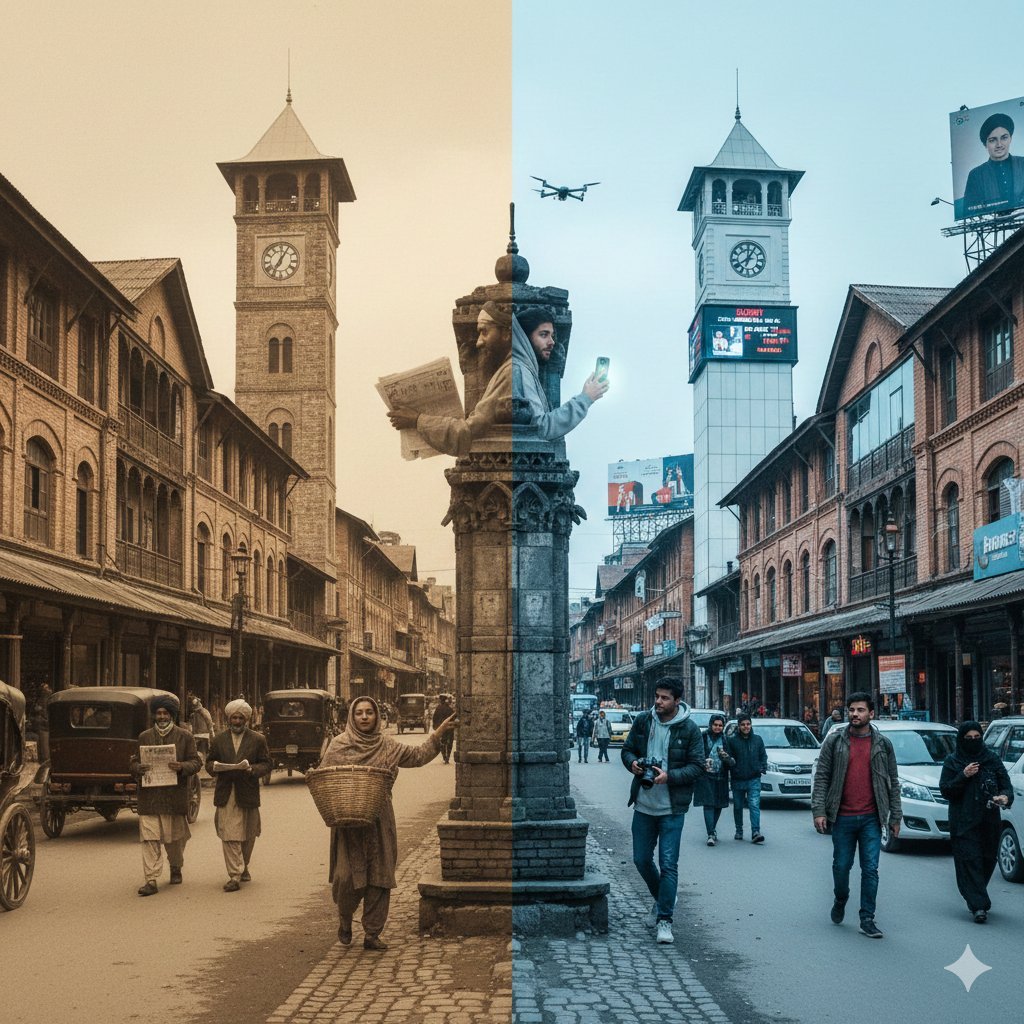
- Prompt included
- Model and format preset
- Free template
The prompt behind this image
Copy the exact prompt behind Split-Screen Time Travel Scene, or open it in the studio and make it yours.
A horizontal split-screen cinematic shot of {argument name="Scene" default="Lalchowk, kashmir india"}, seamlessly blending two different eras: {argument name="Era A" default="1920s"} on the left and {argument name="Era B" default="present day"} on the right (default: about 100 years ago vs. present day). On the left side ({Era_A}): show era-appropriate architecture, interior or environment design, materials, vehicles, and props that clearly belong to that historical period. People wear authentic clothing from {Era_A}, including hairstyles, accessories, and typical items in their hands (such as books, umbrellas, instruments, letters, newspapers, etc.). The overall mood feels nostalgic and historically accurate. On the right side ({Era_B}): show the same {Scene} in the modern era, with updated architecture or renovated structures, contemporary materials (glass, steel, LED screens, modern furniture), modern vehicles or equipment, and current technology (smartphones, laptops, cameras, etc.). People wear contemporary fashion that matches today’s style in this setting. In the center: the two eras merge and overlap organically, without a hard dividing line. Elements from {Era_A} and {Era_B} visually interact: people from different times look at each other, walk through each other’s space, or seem surprised by the other era’s technology and objects. Architecture and environment smoothly morph from old to new (for example, stone gates turning into modern campus gates, classical concert hall décor fading into a futuristic stage, old street shops transforming into neon-lit storefronts). Make sure the scene is not just a simple left/right comparison but a dynamic time-travel interaction where buildings, clothing, props, and human gestures clearly emphasize the contrast and fusion between the two eras. Photorealistic, 8k resolution, cinematic lighting, wide angle, highly detailed textures, rich sense of time-travel storytelling.
How to use Split-Screen Time Travel Scene in 3 steps
- 1
Open
The prompt is already in the box next to the preview, with the template's model and format selected.
- 2…a portrait of your subject in softgolden-hour light, 85mm…
Personalize
Edit the subject and creative details for your destination.
- 3Generate
Generate
Press Generate — your image is created in PicX Studio, so you can compare it with the original and refine one variable at a time.
More like this
Templates with the same subject, style or setup. Open one to see its prompt.

Split-Screen Cinematic Time Travel Prompt
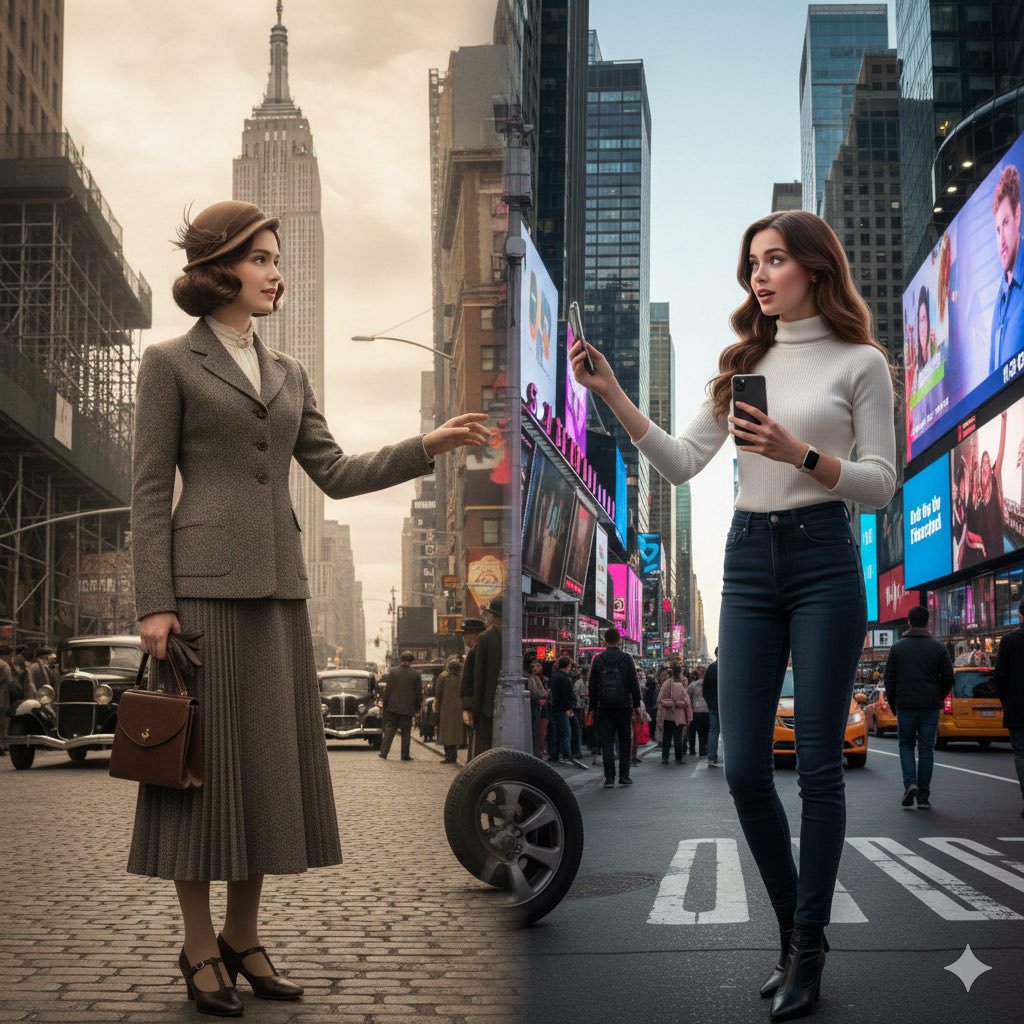
Split-Screen Cinematic Time Travel Prompt
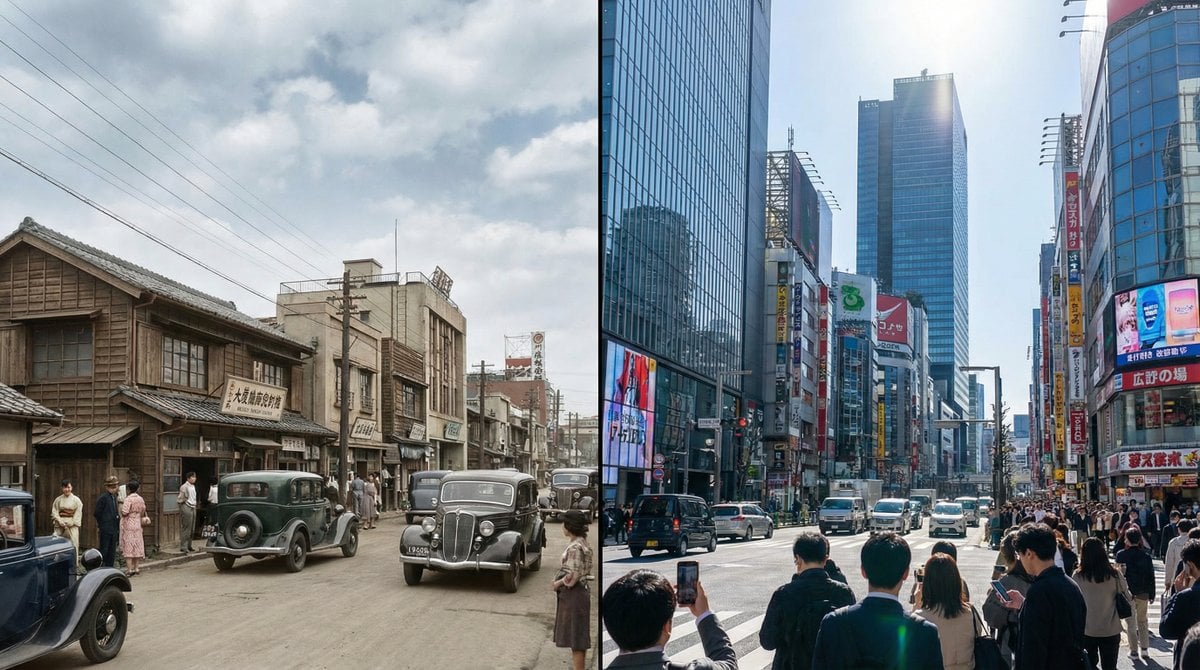
Split-screen time-lapse of same location by coordinates
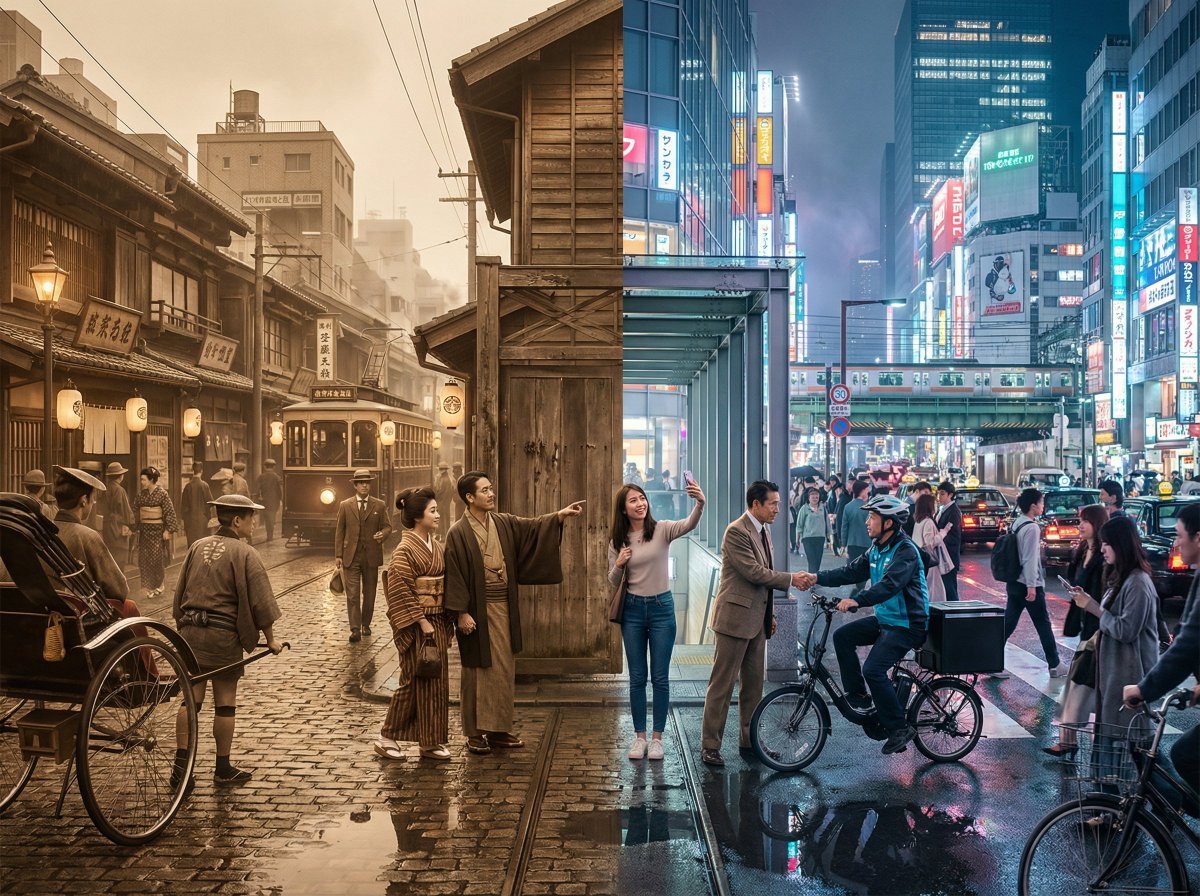
Tokyo Time-Blend Split-Screen
Split-Screen Surreal Printmaking Design

Japan Travel Brochure Poster
Miniature Travel Diorama Postcard
Boardwalk Fashion Portrait
Split-Screen MR2 Touge Drive
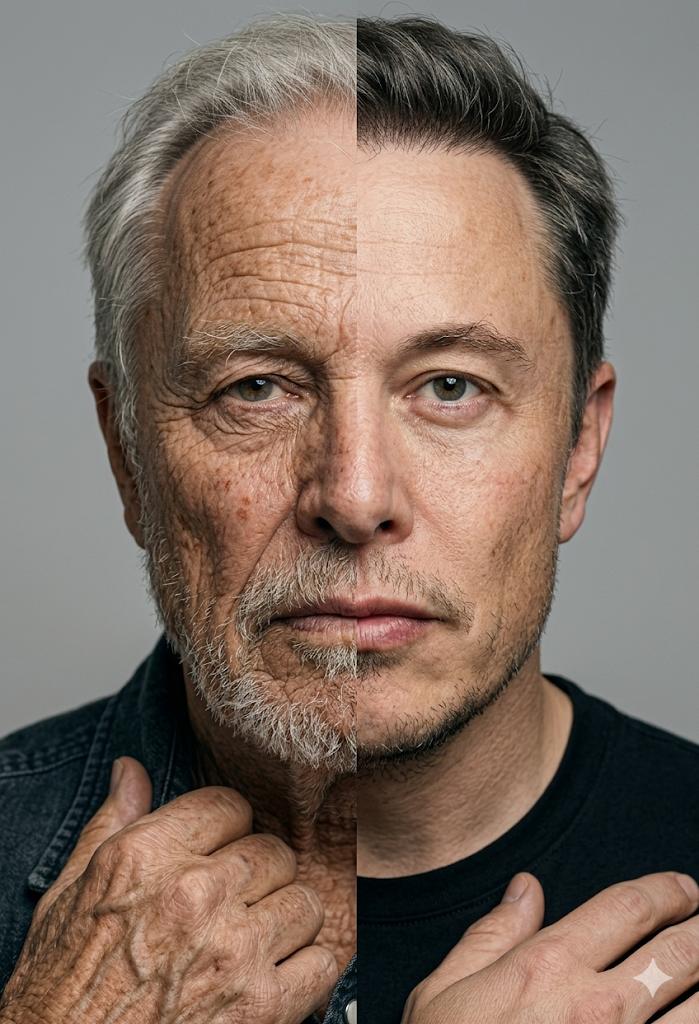
Split Screen Aging Effect
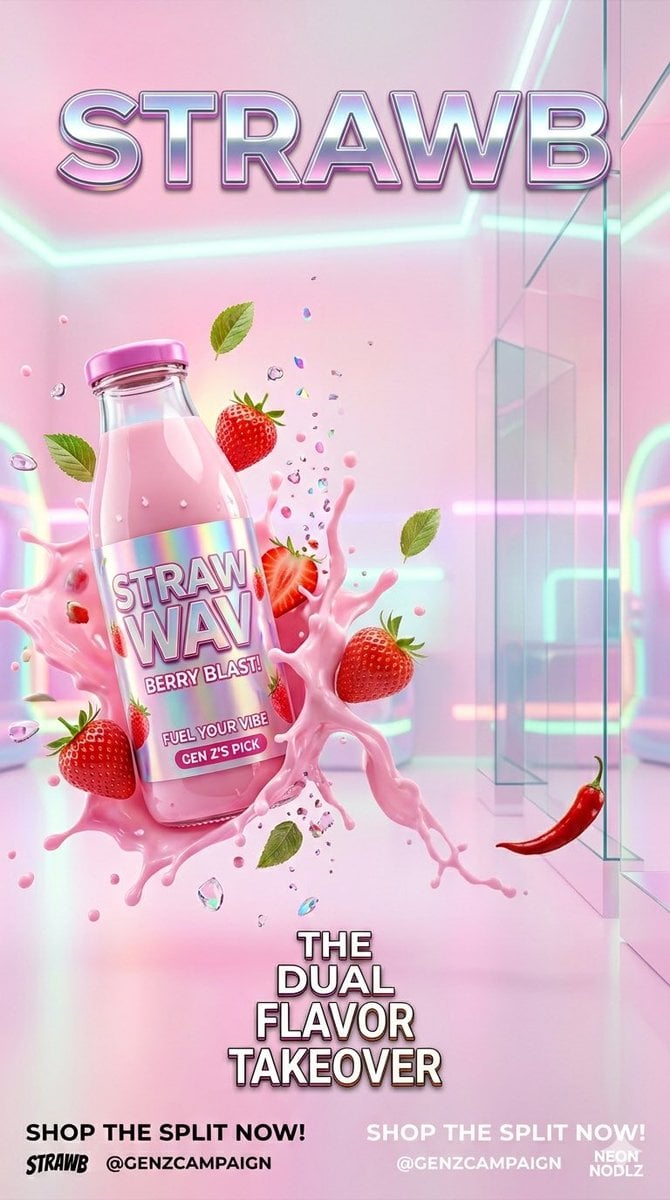
Gen Z Split Screen Advertising Poster
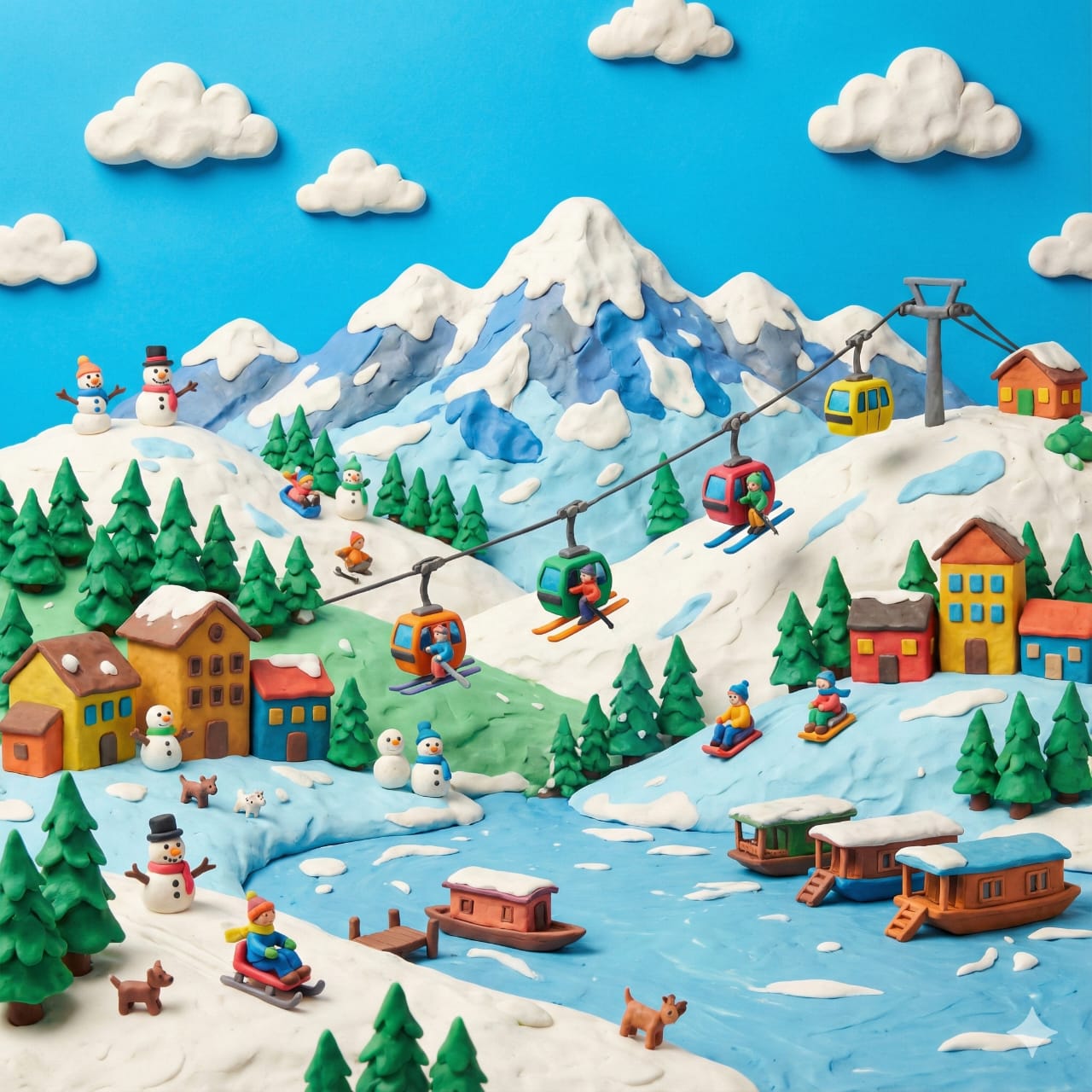
Clay Miniature Landmark Travel Diorama
Make it yours
Split-Screen Time Travel Scene works as-is. These are the safest ways to change it without losing the look.
Change one field
Copy a single group, rewrite it, and generate again so you can see what that field is doing.
Keep the frame, change the subject
Hold the composition and light of Split-Screen Time Travel Scene, then swap wardrobe, props or the person for a new take.
| If the result… | Why | Fix |
|---|---|---|
| The result drifts from the preview | Too many fields changed at once. | Reuse Split-Screen Time Travel Scene as-is first, then change one group — subject, light, or setting. |
| The model over-stylizes the scene | The prose prompt leaves finish and camera underspecified. | Add one camera or lighting sentence and stay on Nano Banana 2. |
More Nano Banana 2 templates
Other prompts made for Nano Banana 2.

Photorealistic Leaf Shaped Like a Dragon

K-Pop Idol Portrait Grid for Rapid Selection

Poetic Rain Forest Portrait During Golden Hour

Urban Street Portrait with Cartoon Inner Self Duo

Candid Nighttime Photo with Cat Prompt

High-Concept 3D Diorama Generation Prompt

Cinematic Futuristic Studio Portrait Template

Skincare Editorial Photography Collage Prompt

Hyper-Realistic Commercial Product Photography (Splash Effect)

Hyper-Realistic Nightclub Portrait Prompt
More image prompts
Fresh picks from across the catalog.
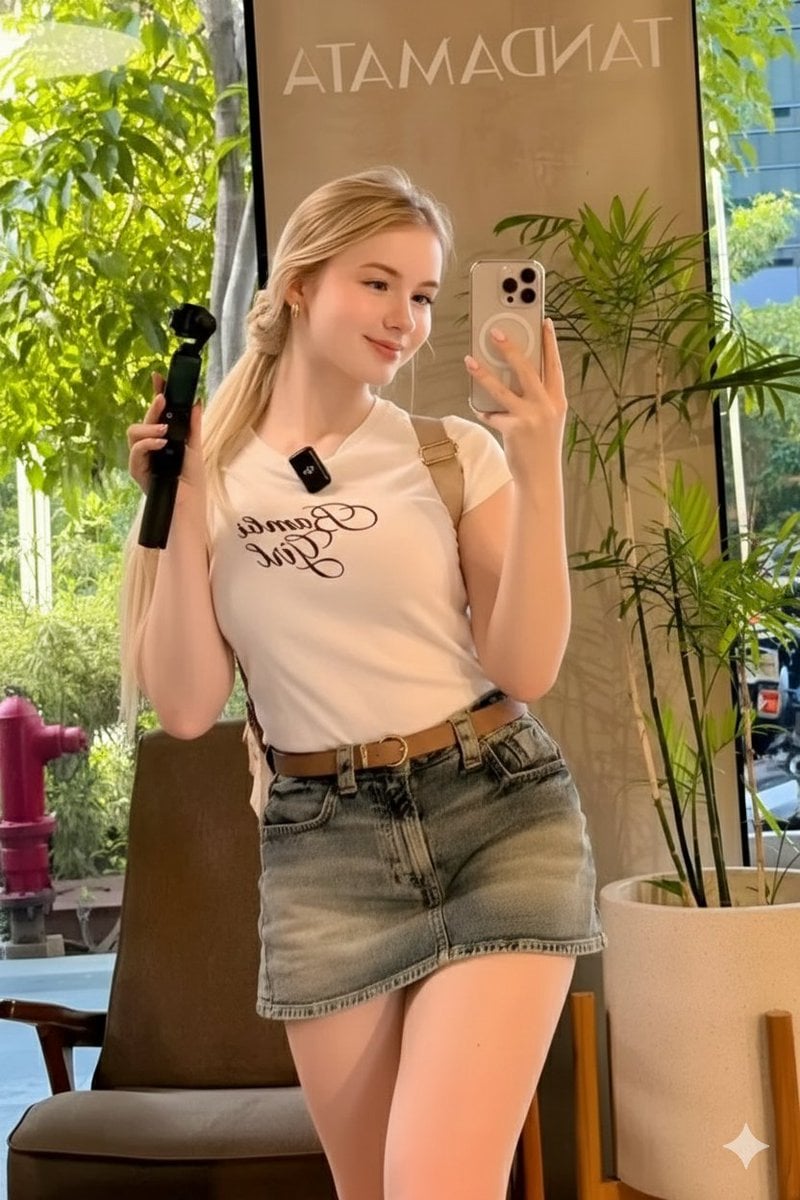
Ultra-Realistic Mirror Selfie in a Café

Low-Angle Anime Summer Hand Reach
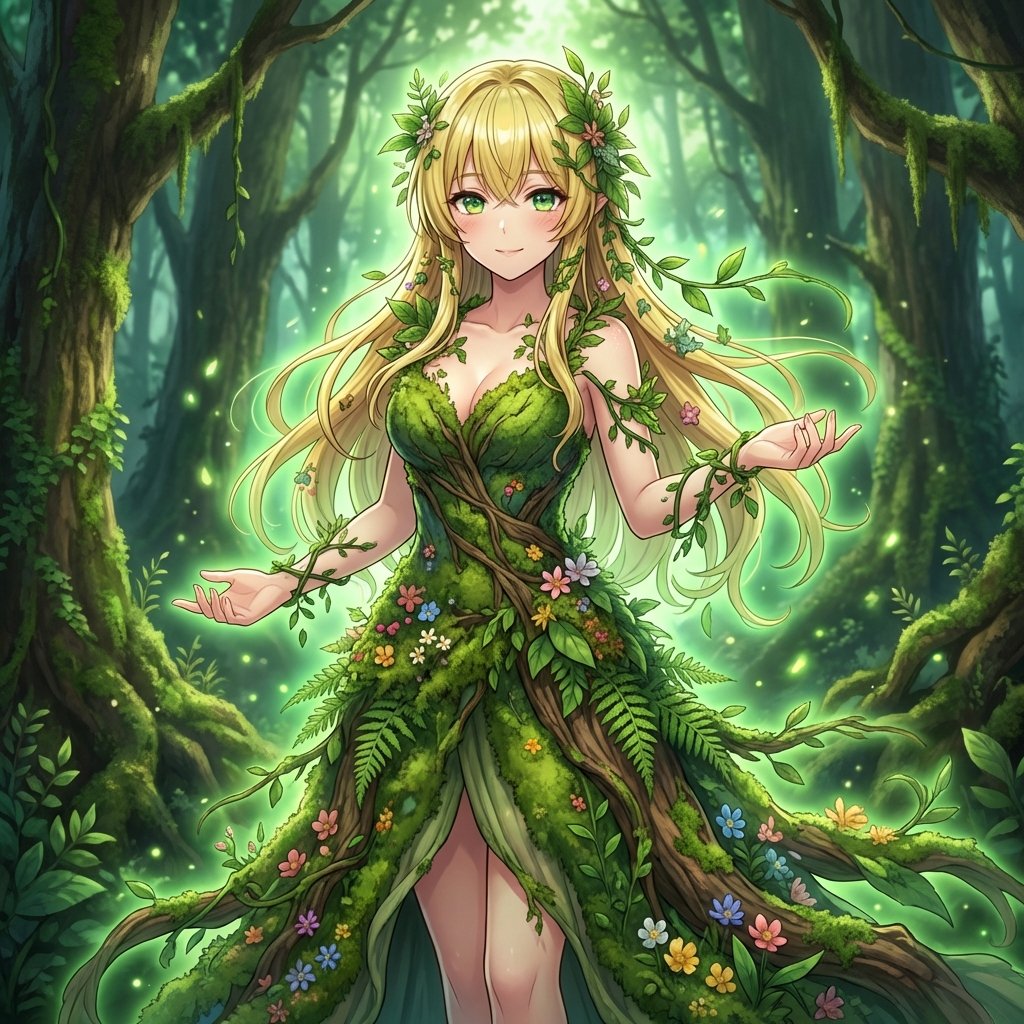
AI Transformation to Dryad
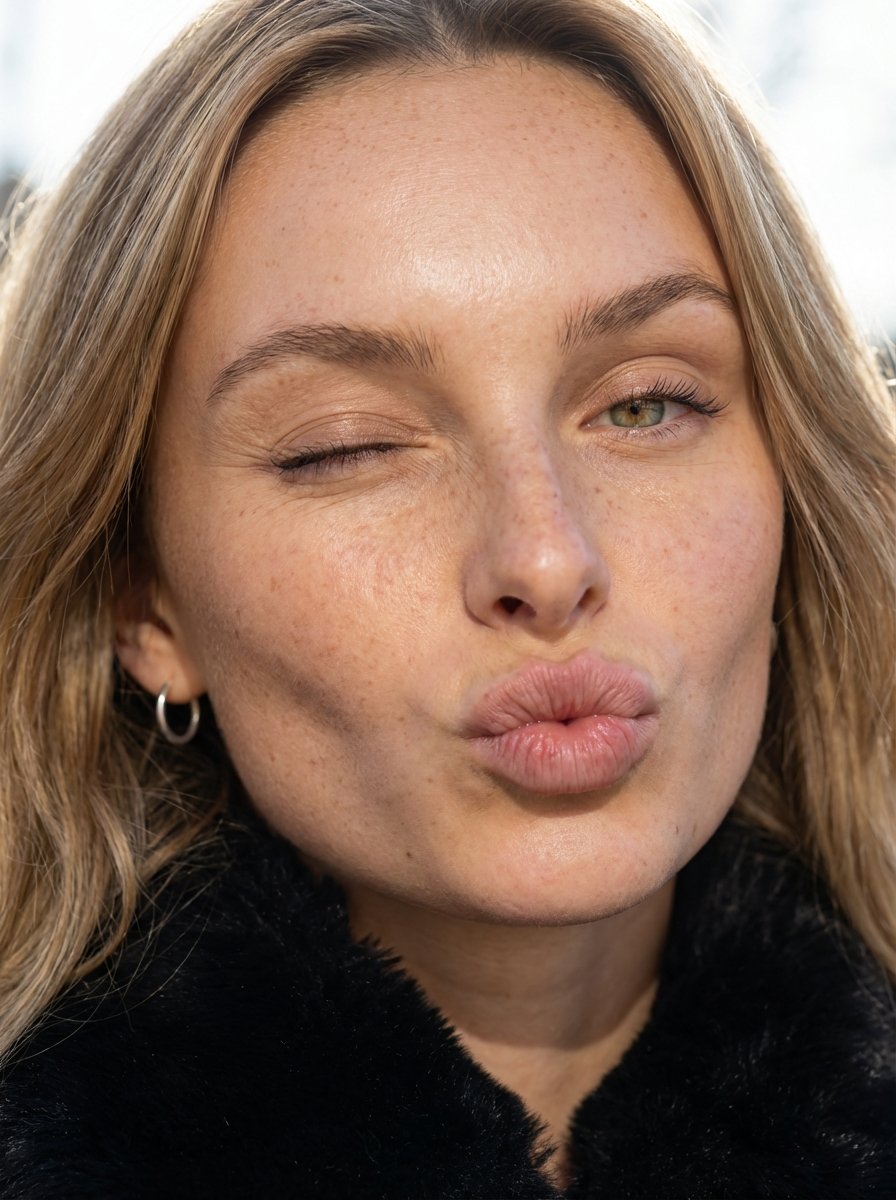
Macro Portrait with Wink and Pucker
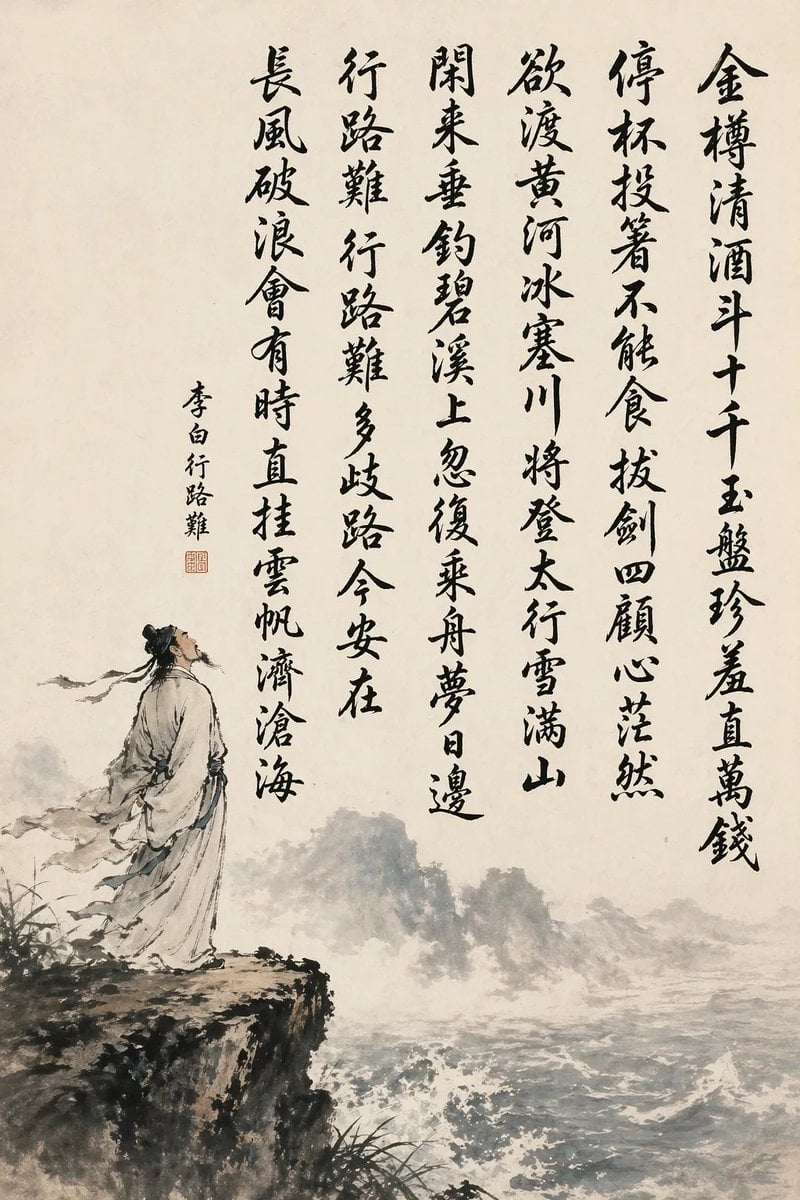
Chinese Calligraphy Poem Landscape
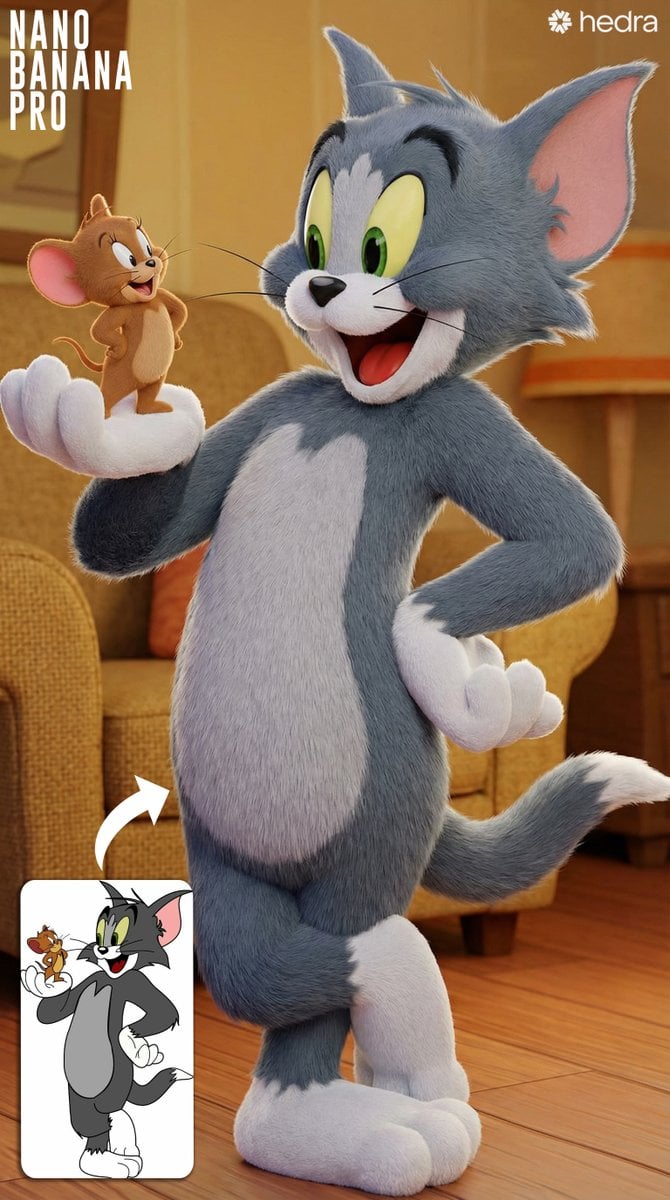
Convert 2D Sketch to 3D Animated Style
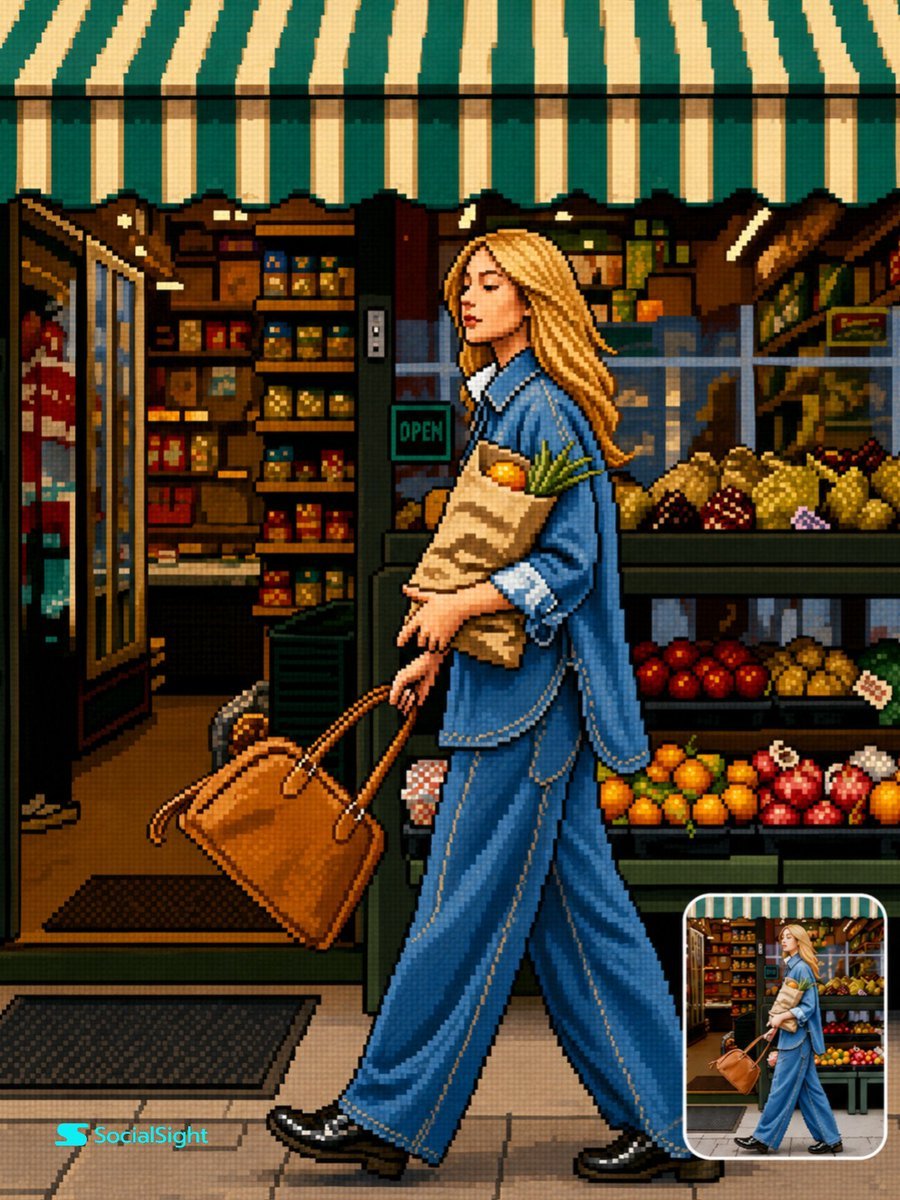
Retro 16-Bit Pixel Art Transformation
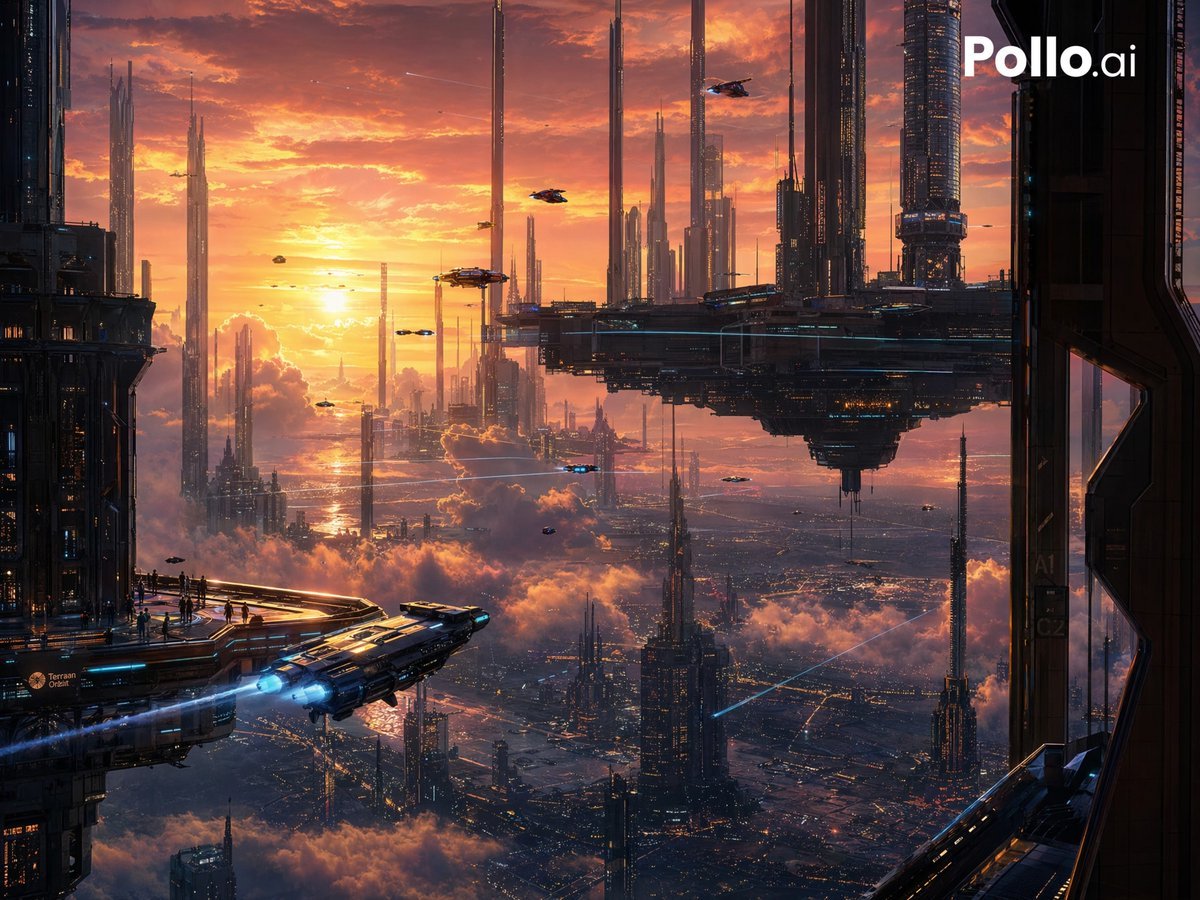
Sunset Futuristic Megacity Panorama
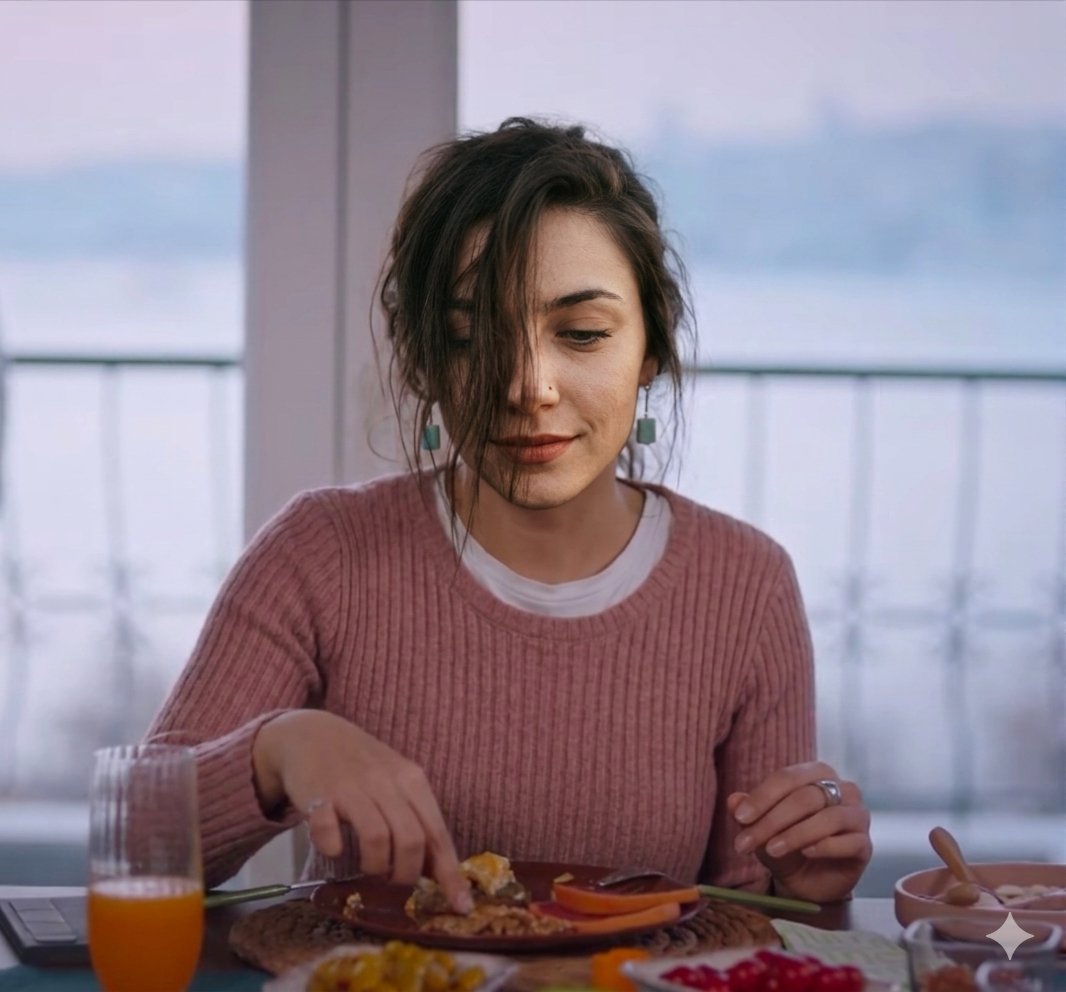
Cinematic Realism of Morning Breakfast on a Balcony
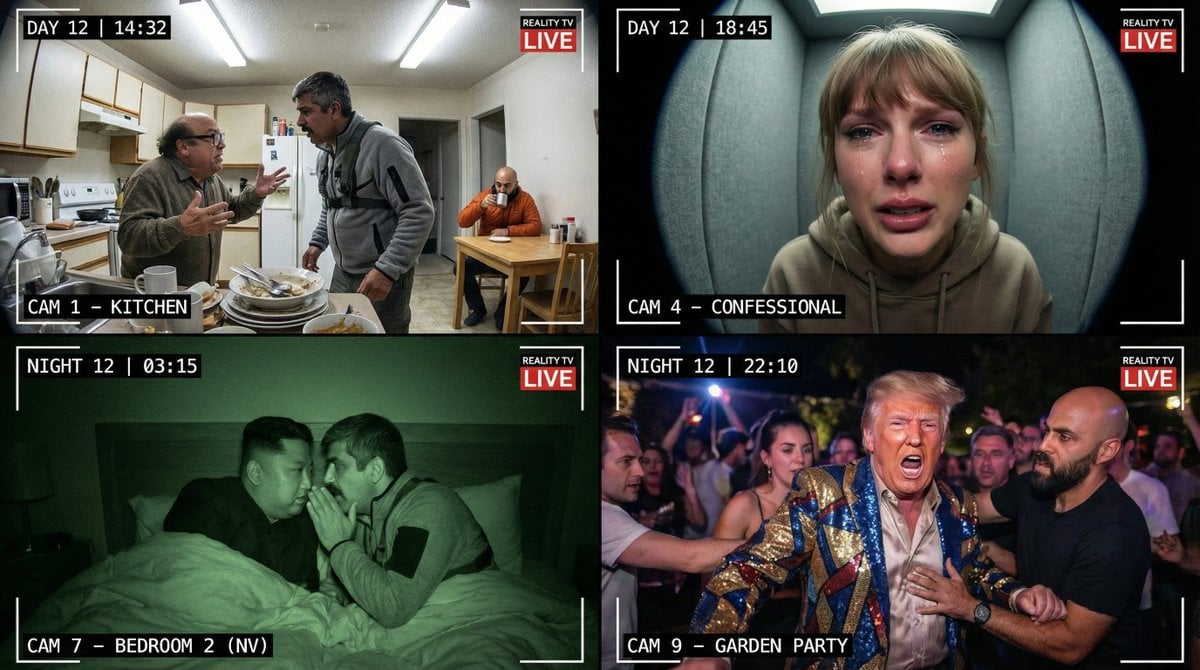
Raw Reality TV Broadcast Screenshots (2x2 Grid)
Browse template categories
Split-Screen Time Travel Scene questions
How do I use the Split-Screen Time Travel Scene template?
Add your photo if the template asks for one, edit the prompt if you like — the template's model and format are already selected — and press Generate. Your version opens in PicX Studio.
Can I customize the Split-Screen Time Travel Scene template?
Yes. You can change the subject, setting, lighting, mood, format, and available model controls before creating your image.
Is the Split-Screen Time Travel Scene template free?
Opening and editing this template is free. Generating uses credits, shown on the Generate button when you are signed in.
Which AI model should I use?
Start with Nano Banana 2, which is the model associated with this template. You can compare another compatible model for a different finish.
Looking for something else? Browse all templates.

Your photo, any look
Thousands of ready templates for every top image and video model, from one credit balance.