
Google Fonts Japanese Infographic
A clean Japanese presentation-style infographic explaining Google Fonts, suitable for social posts, slides, or educational design content.
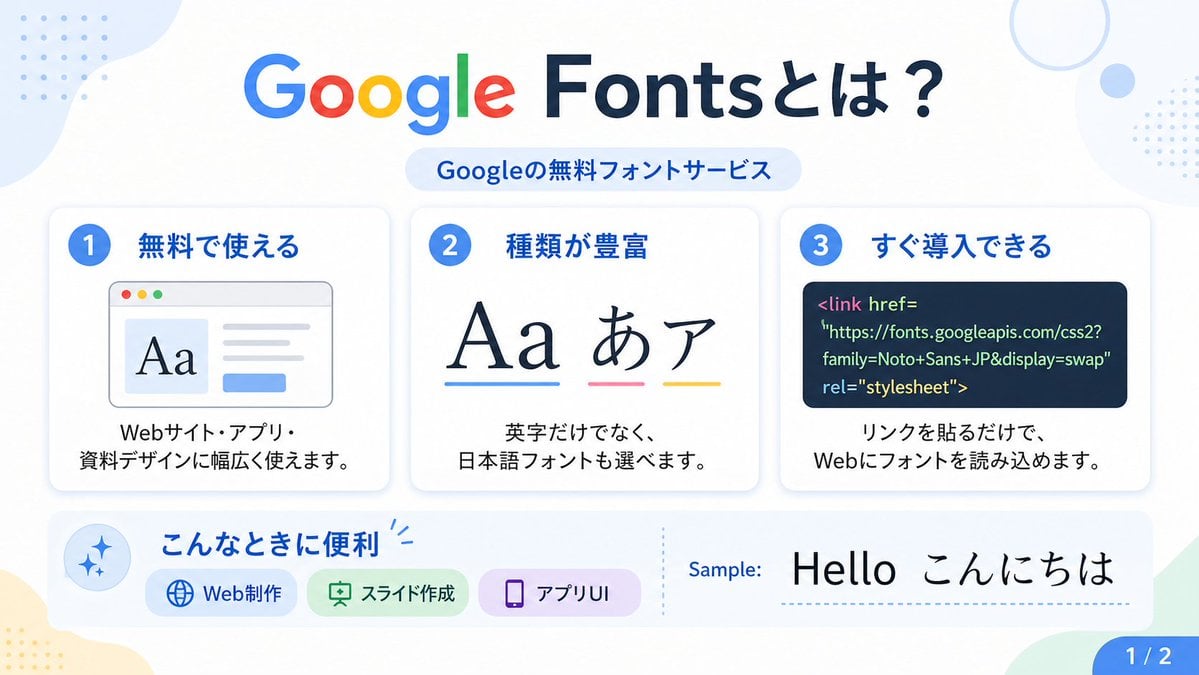
- Prompt included
- Model and format preset
- Free template
The prompt behind this image
Copy the exact prompt behind Google Fonts Japanese Infographic, or open it in the studio and make it yours.
- Type
- Japanese infographic poster
- Topic
- Google Fonts introduction
- Style › Look
- clean flat modern presentation slide
- Style › Palette
- white background with soft pastel blue, green, yellow, and lavender accents
- Style › Aspect Ratio
- 16:9
- Style › Lighting
- bright even digital graphic lighting
- Style › Finish
- crisp vector-like infographic with subtle shadows and rounded cards
- Text › Headline
- {argument name="headline text" default="Google Fontsとは?"}
- Text › Subheadline
- Googleの無料フォントサービス
- Text › Sample Label
- Sample:
- Text › Sample Text
- {argument name="sample text" default="Hello こんにちは"}
- Text › Page Indicator
- 1 / 2
- Layout › Sections › 0 › Title
- top header
- Layout › Sections › 0 › Position
- top center
- Layout › Sections › 0 › Count
- 2
- Layout › Sections › 0 › Labels
- Google Fontsとは?, Googleの無料フォントサービス
- Layout › Sections › 1 › Title
- feature cards
- Layout › Sections › 1 › Position
- middle row
- Layout › Sections › 1 › Count
- 3
- Layout › Sections › 1 › Labels
- 1 無料で使える, 2 種類が豊富, 3 すぐ導入できる
- Layout › Sections › 2 › Title
- use cases bar
- Layout › Sections › 2 › Position
- bottom left to center
- Layout › Sections › 2 › Count
- 4
- Layout › Sections › 2 › Labels
- こんなときに便利, Web制作, スライド作成, アプリUI
Raw JSON
{"type":"Japanese infographic poster","topic":"Google Fonts introduction","style":{"look":"clean flat modern presentation slide","palette":"white background with soft pastel blue, green, yellow, and lavender accents","aspect_ratio":"16:9","lighting":"bright even digital graphic lighting","finish":"crisp vector-like infographic with subtle shadows and rounded cards"},"text":{"headline":"{argument name=\"headline text\" default=\"Google Fontsとは?\"}","subheadline":"Googleの無料フォントサービス","sample_label":"Sample:","sample_text":"{argument name=\"sample text\" default=\"Hello こんにちは\"}","page_indicator":"1 / 2"},"layout":{"sections":[{"title":"top header","position":"top center","count":2,"labels":["Google Fontsとは?","Googleの無料フォントサービス"]},{"title":"feature cards","position":"middle row","count":3,"labels":["1 無料で使える","2 種類が豊富","3 すぐ導入できる"]},{"title":"use cases bar","position":"bottom left to center","count":4,"labels":["こんなときに便利","Web制作","スライド作成","アプリUI"]},{"title":"sample area","position":"bottom right","count":2,"labels":["Sample:","Hello こんにちは"]},{"title":"page marker","position":"bottom right corner","count":1,"labels":["1 / 2"]}],"background_decorations":{"count":7,"items":["pale blue organic blob in top left","small blue dotted grid in top left","thin pale blue ring in top right","small pale blue circle near top right","small blue dotted grid at upper right edge","pale yellow organic blob in bottom left","pale green angular shape in bottom right"]}},"cards":[{"number":"1","title":"無料で使える","description":"Webサイト・アプリ・資料デザインに幅広く使えます。","visual":"rounded white card with light shadow, blue number badge, browser window illustration showing large serif Aa on the left, gray text lines on the right, and a small blue button below"},{"number":"2","title":"種類が豊富","description":"英字だけでなく、日本語フォントも選べます。","visual":"rounded white card with light shadow, blue number badge, large typography samples reading Aa あ ア, each with colored underline in blue, pink, and yellow"},{"number":"3","title":"すぐ導入できる","description":"リンクを貼るだけで、Webにフォントを読み込めます。","visual":"rounded white card with light shadow, blue number badge, dark navy code panel containing HTML link tag for Google Fonts"}],"lower_band":{"left_icon":"blue sparkle icon inside pale blue circle","title":"こんなときに便利","chips":{"count":3,"items":[{"label":"Web制作","color":"light blue","icon":"globe"},{"label":"スライド作成","color":"light green","icon":"presentation board"},{"label":"アプリUI","color":"light purple","icon":"smartphone"}]},"divider":"vertical dotted line","sample_preview":"large black typography sample on white background"},"typography":{"headline_font":"{argument name=\"headline font\" default=\"Google Sans-like rounded sans serif\"}","body_font":"{argument name=\"body font\" default=\"clean Japanese sans serif\"}","notes":"The word Google in the headline uses the official multicolor Google logo style: blue G, red o, yellow o, blue g, green l, red e; the rest of the headline is dark navy."}}How to use Google Fonts Japanese Infographic in 3 steps
- 1Upload ImagePNG, JPG or paste
Add your photo
Upload the photo the template builds on. The prompt, model and format are already set.
- 2…a portrait of your subject in softgolden-hour light, 85mm…
Personalize
Edit the subject and creative details for your destination.
- 3Generate
Generate
Press Generate — your image is created in PicX Studio, so you can compare it with the original and refine one variable at a time.
More like this
Templates with the same subject, style or setup. Open one to see its prompt.
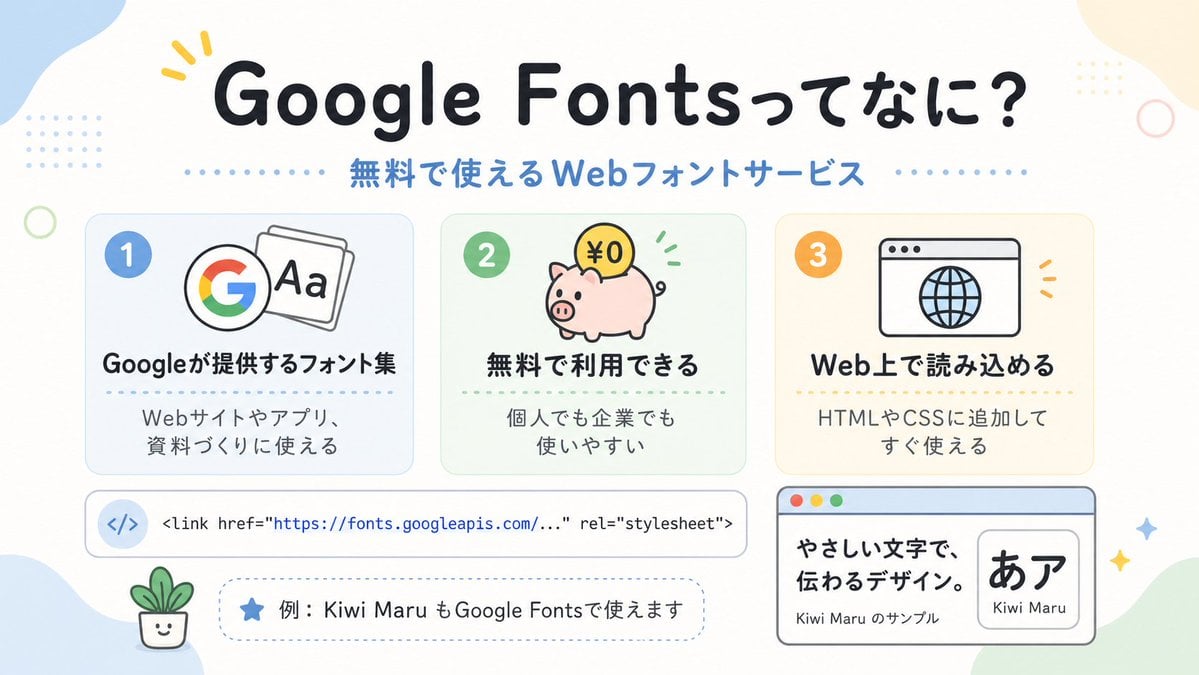
Cute Google Fonts Japanese Infographic
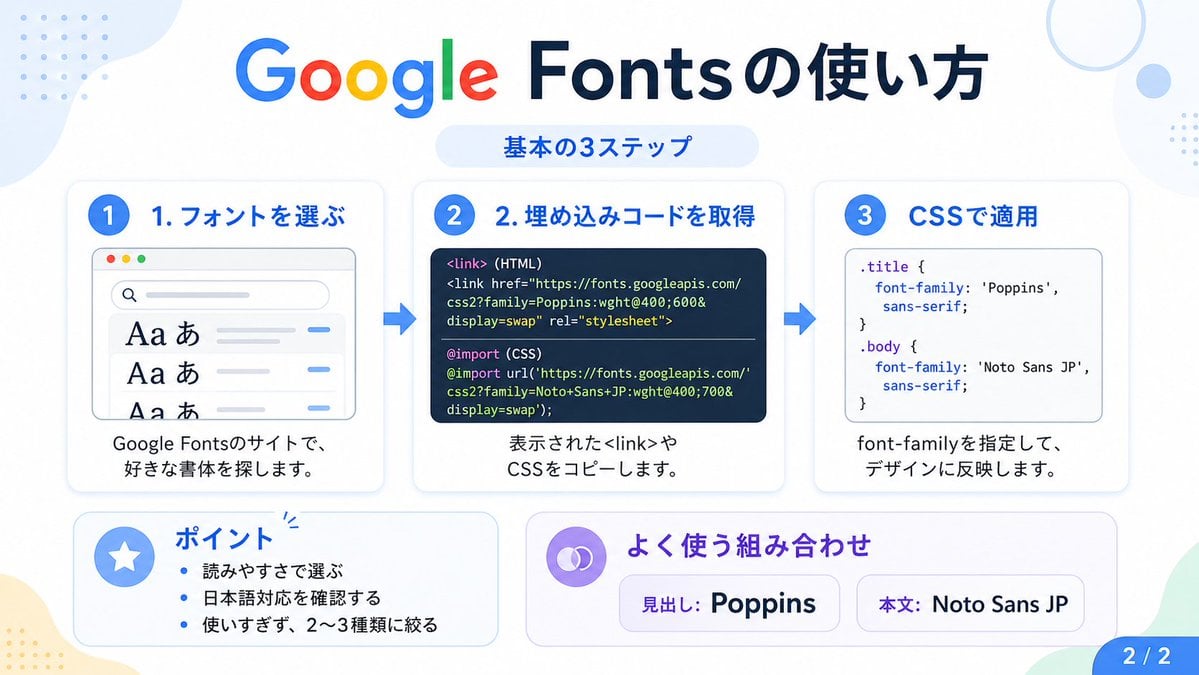
Google Fonts Japanese Tutorial Infographic
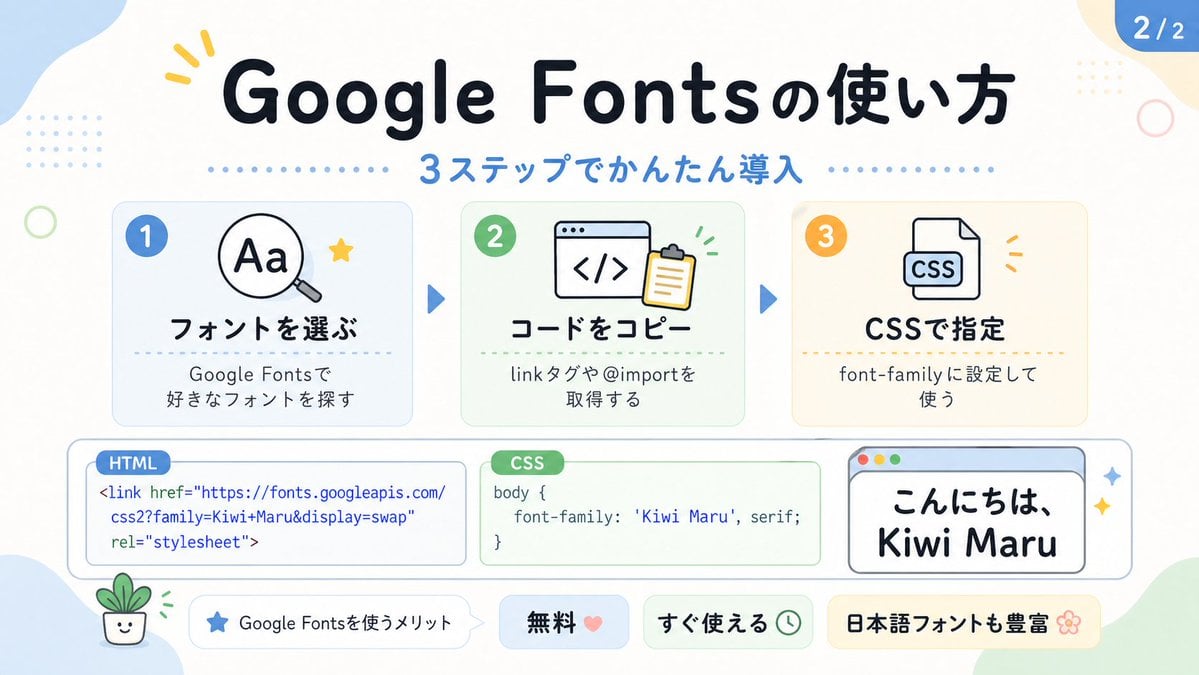
Cute Google Fonts Tutorial Infographic
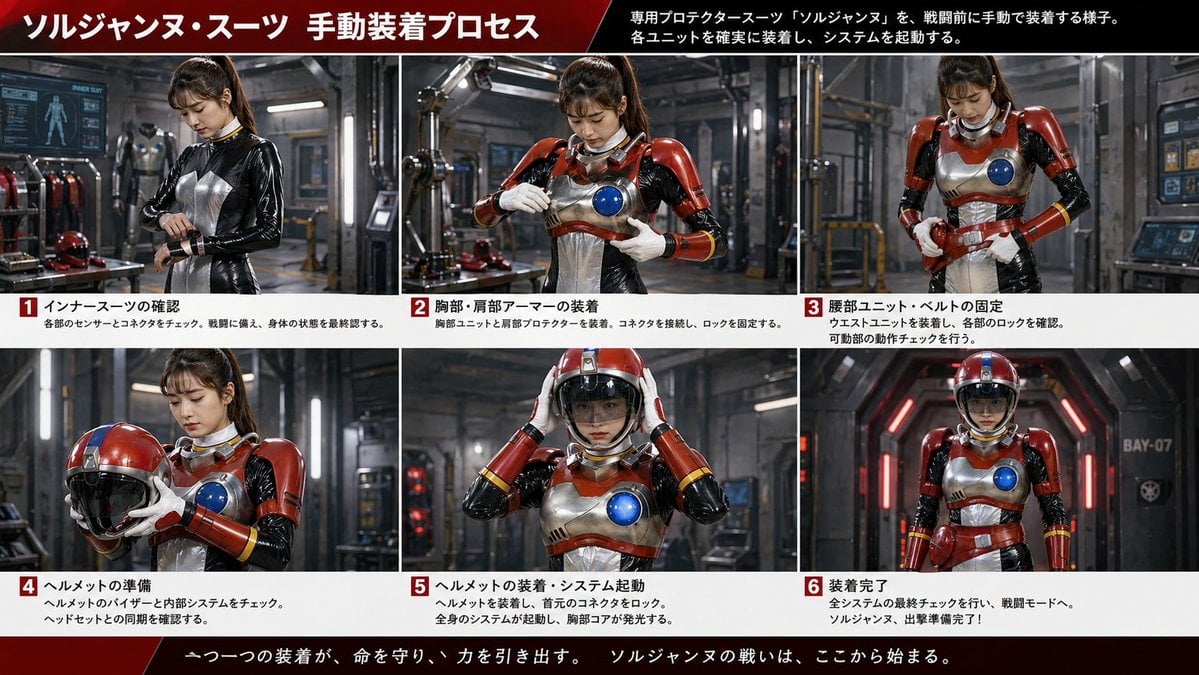
Gpt2 Infographic Edu Visual Japanese Sci Fi Suit Up Process Board

Minecraft Japanese Research Lab Exploration

Japan Travel Brochure Poster
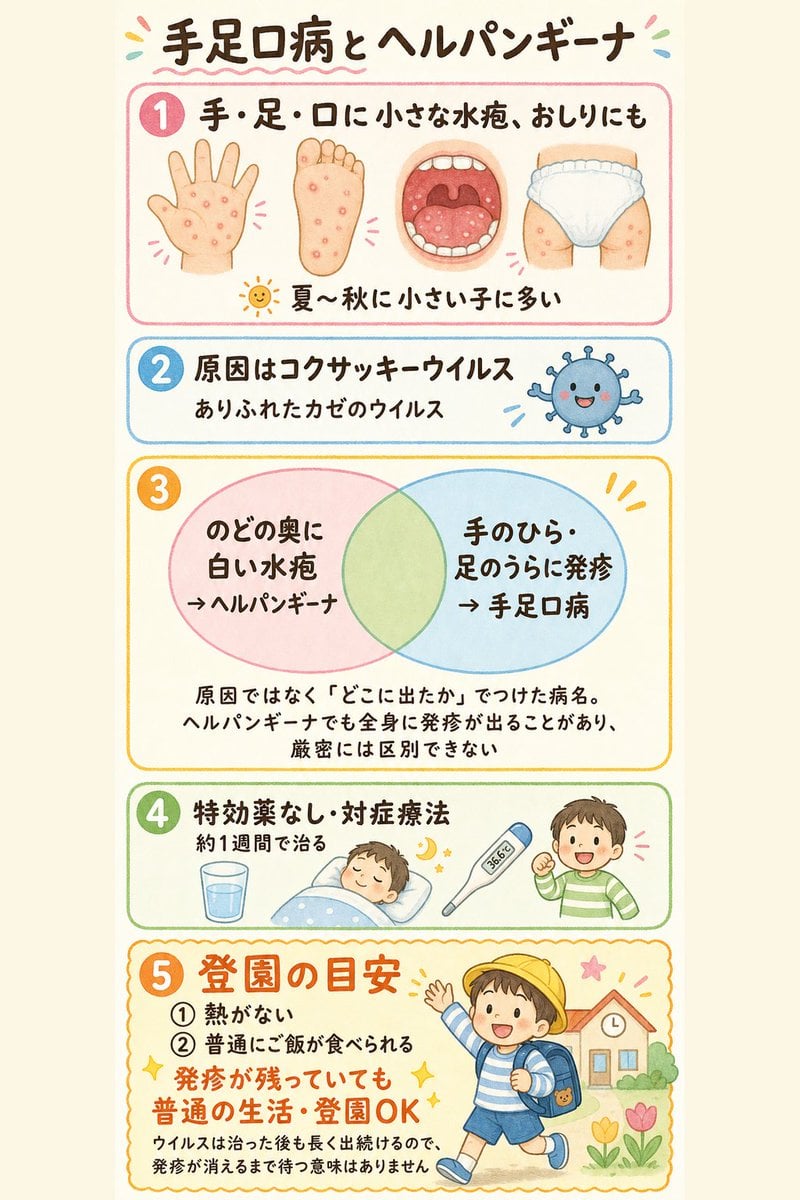
Japanese Pediatric Disease Infographic
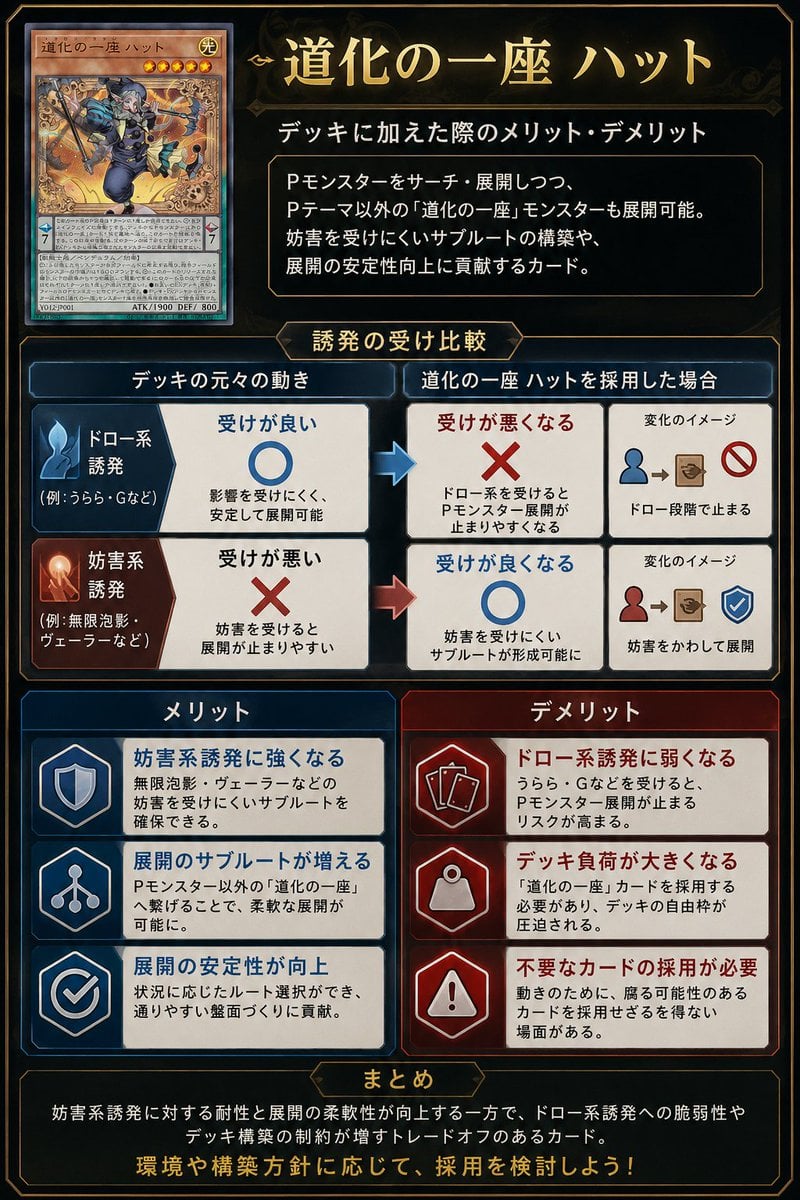
Japanese TCG Strategy Infographic
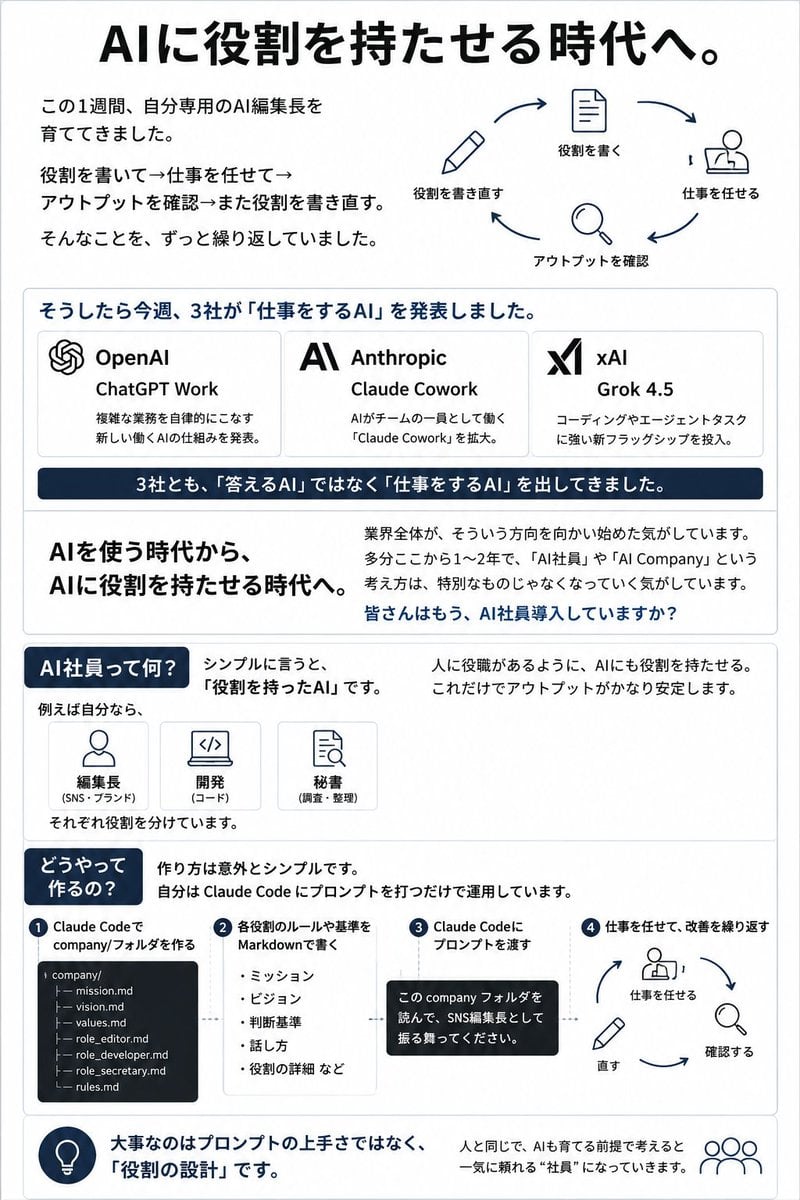
Japanese AI Employee Infographic
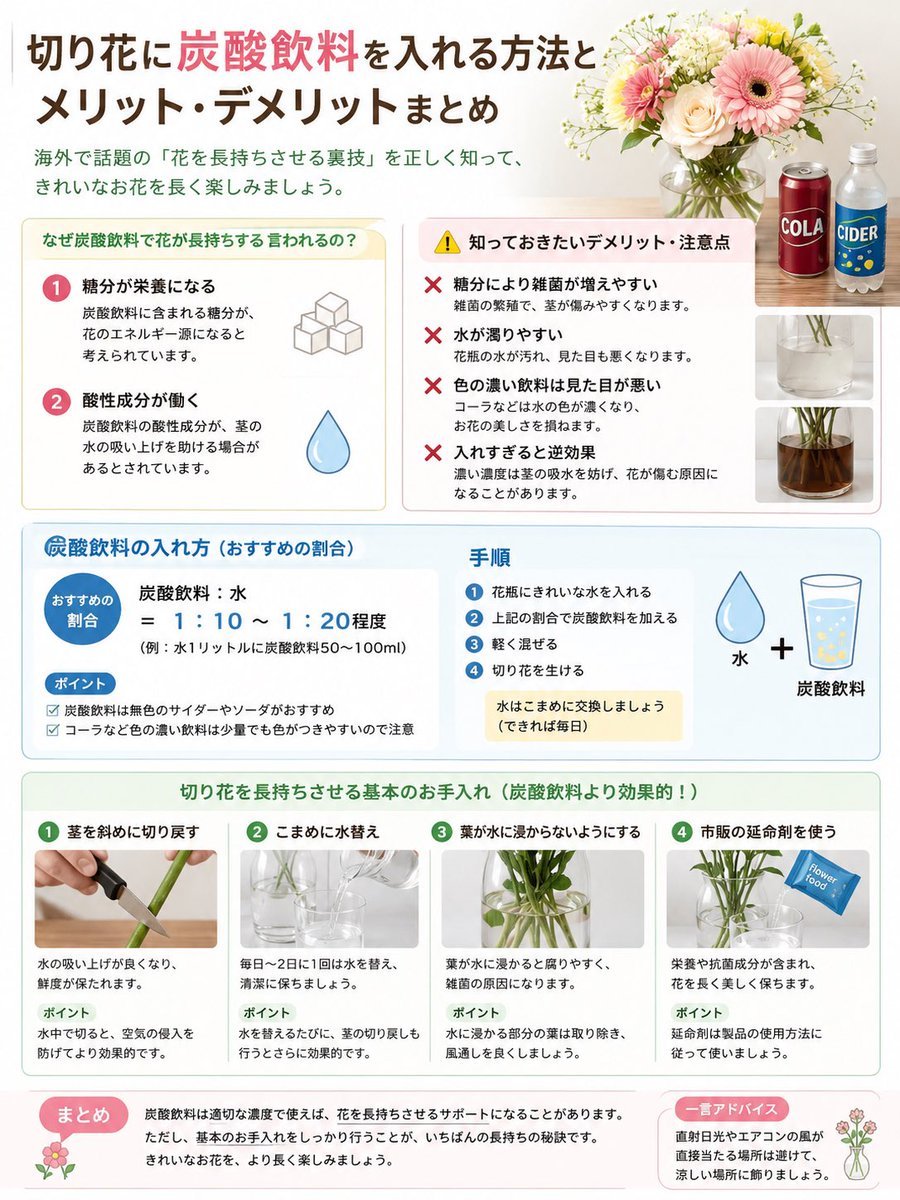
Japanese Cut Flower Soda Care Infographic

Japanese Architectural Concrete Studio Fashion Campaign

Japanese Minimalist Concrete Studio Fashion Editorial
Make it yours
Google Fonts Japanese Infographic works as-is. These are the safest ways to change it without losing the look.
Swap the setting
Keep the rest of the prompt and replace the location block. The current setting is “7”.
Swap the light
One lighting change is enough to compare takes. Current light: “bright even digital graphic lighting”.
Change one field
Copy a single group, rewrite it, and generate again so you can see what that field is doing.
| If the result… | Why | Fix |
|---|---|---|
| The result drifts from the preview | Too many fields changed at once. | Reuse Google Fonts Japanese Infographic as-is first, then change one group — subject, light, or setting. |
| GPT Image 2 ignores part of the JSON | Some models flatten or skip nested keys. | Keep the same values and paste them as a short paragraph instead. |
More GPT Image 2 templates
Other prompts made for GPT Image 2.

Six VTuber Japanese Logo Sheet

Realistic Portrait of Woman and Deer

The Vista Modular Condo Poster

AI Model Routing Comparison Infographic

2.5D Anime Art Board

Isometric Productivity Desk Scene

New York Double Exposure Poster

Four-Panel AI Landscape Comparison

Japanese Tatami Lifestyle Magazine Cover

NESCAFÉ Coffee Map Poster
More image prompts
Fresh picks from across the catalog.
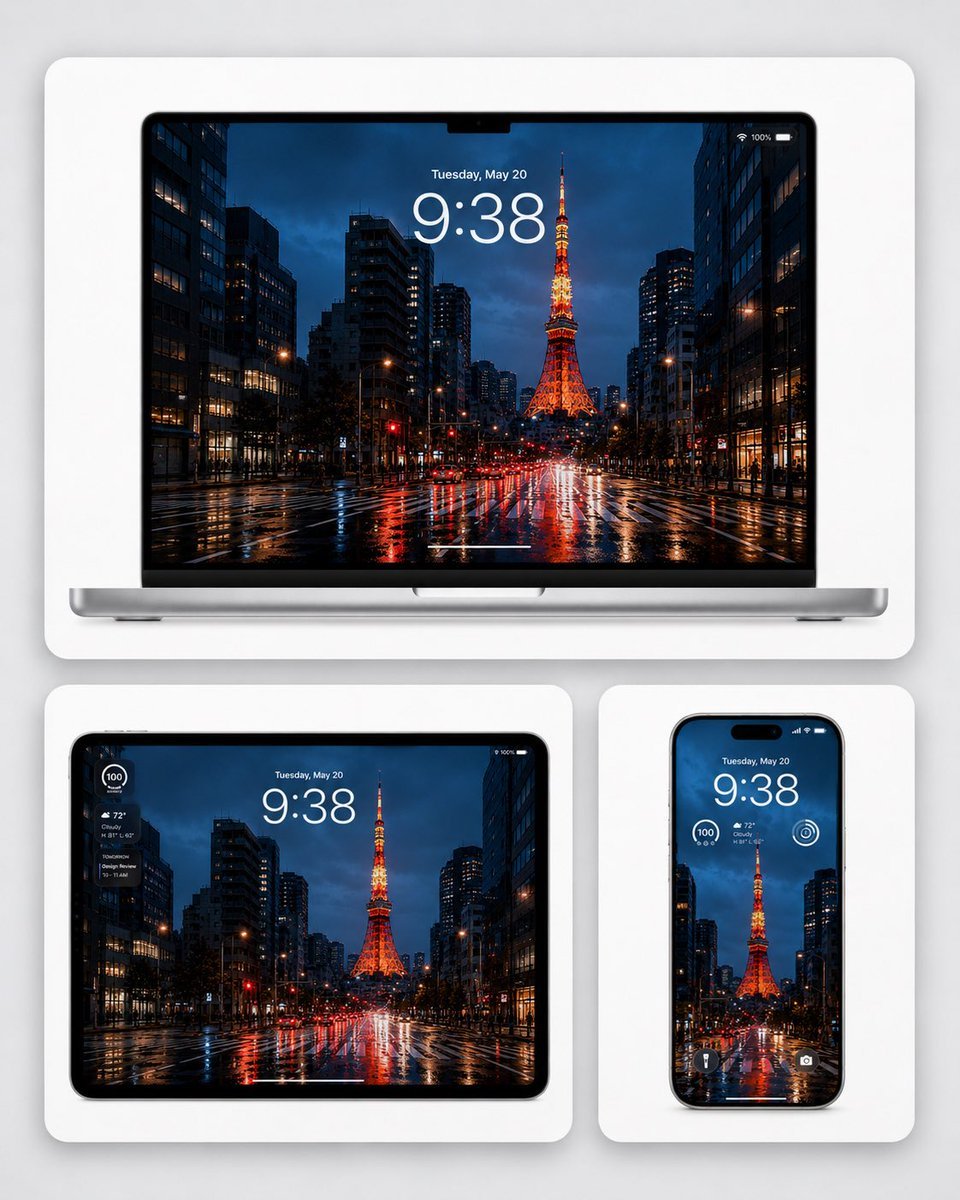
Rainy Tokyo Tower Device Mockup

Modern Coquette Glamour Editorial Aesthetic Prompt

Moonlit Snow Leopard Leap
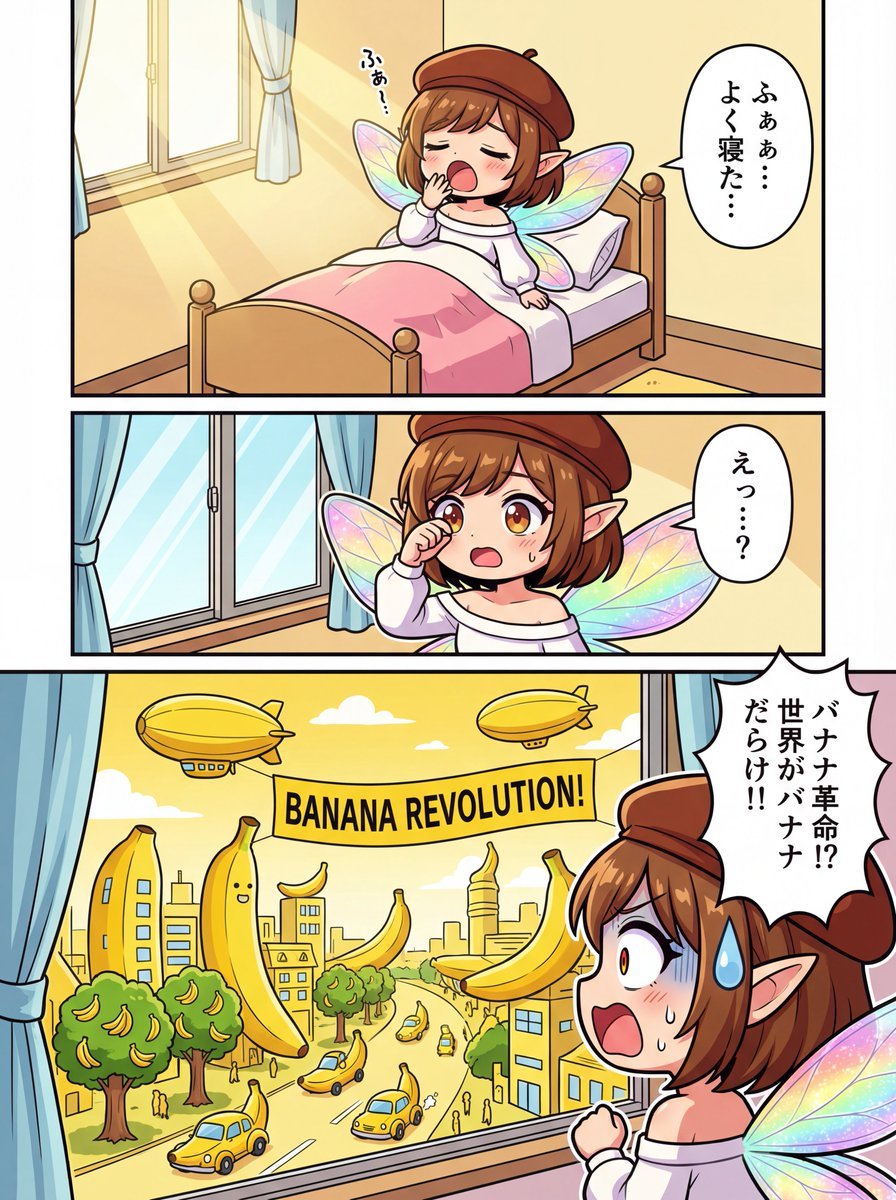
One-page color manga about the Banana Revolution
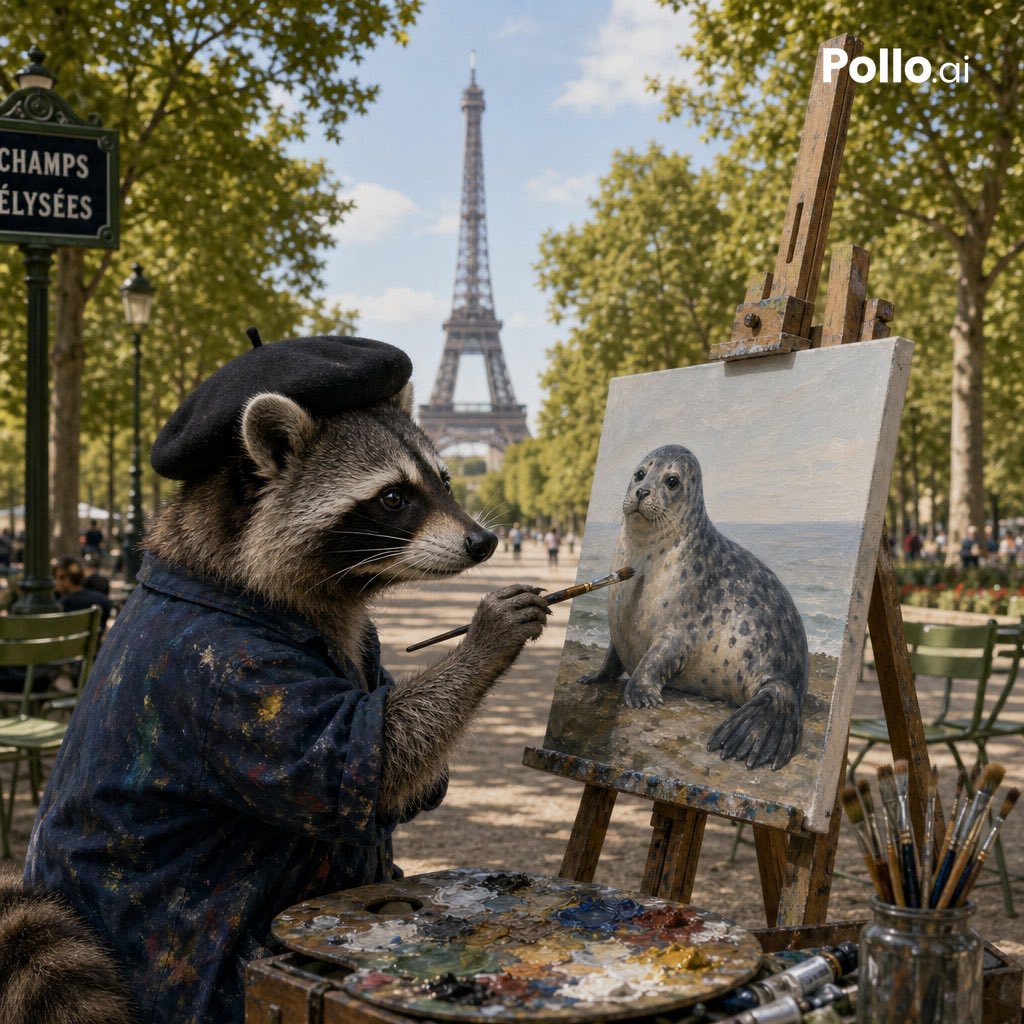
Photorealistic Raccoon Painter in Paris
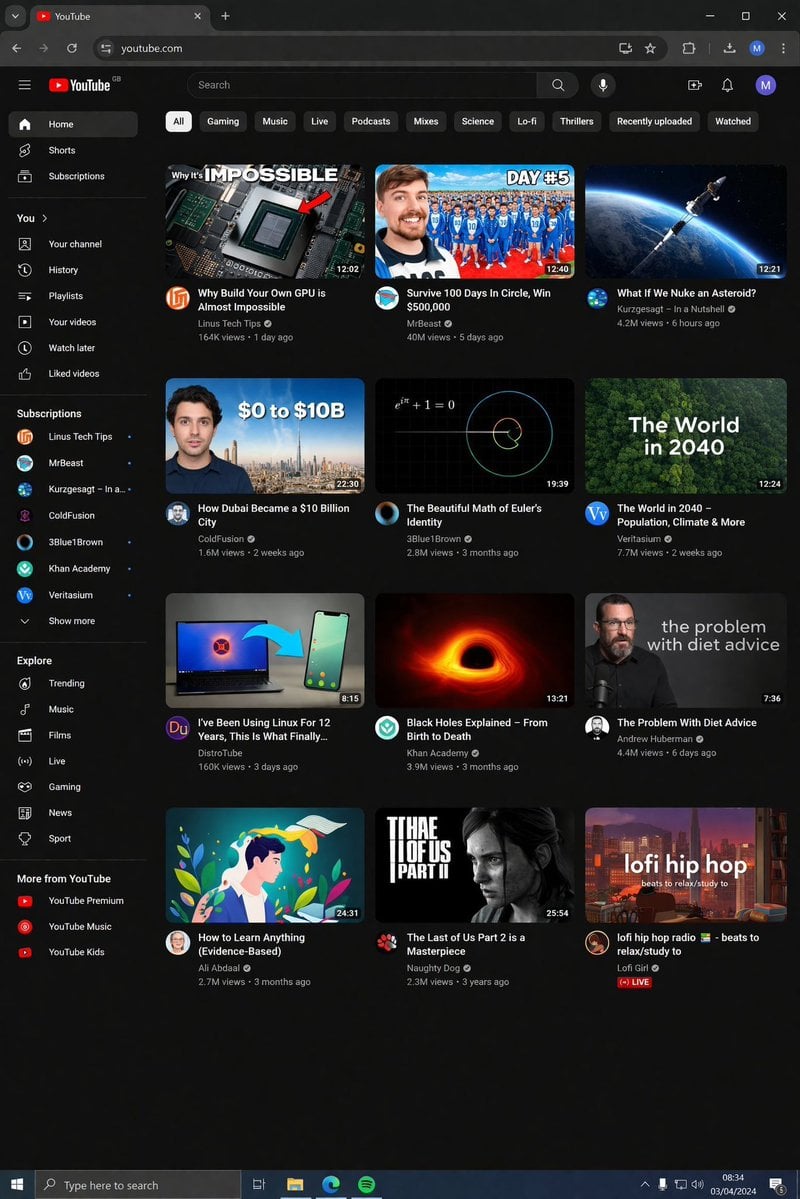
YouTube Dark Mode Desktop UI Mockup
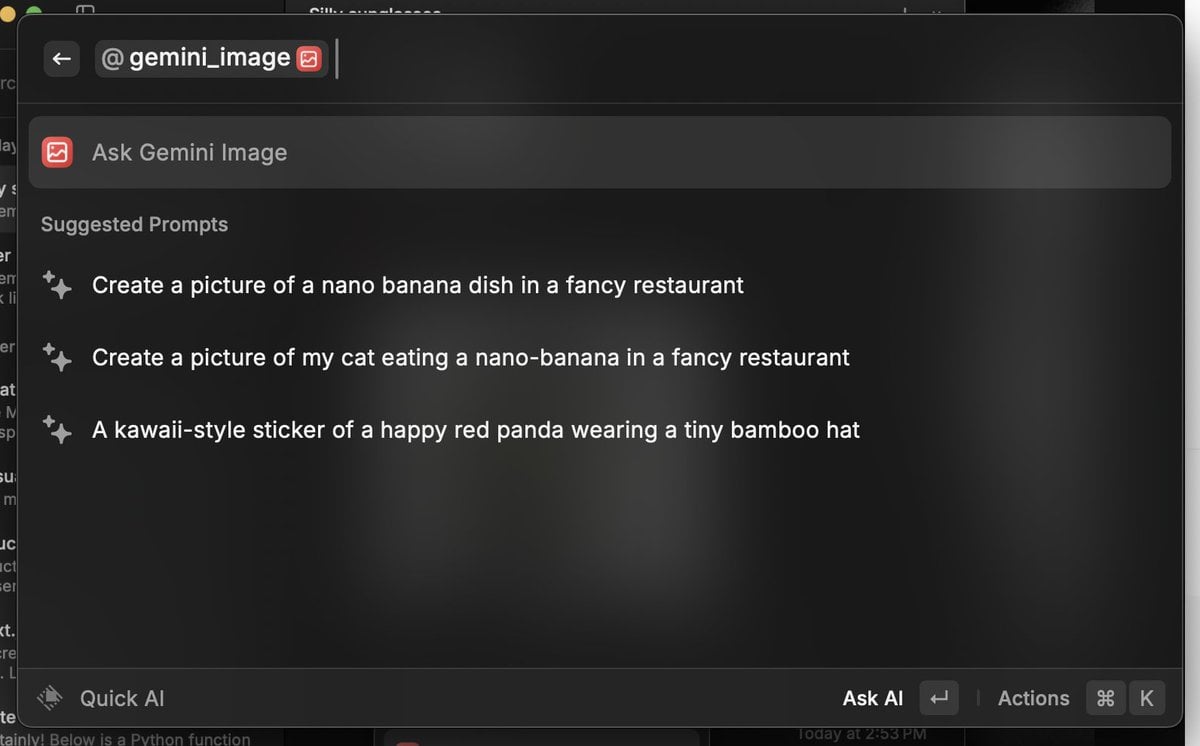
Various playful test prompts for Nano Banana

Underwater Fantasy Portrait in Okinawa Sea

Silver Wolf Gaming Character Art
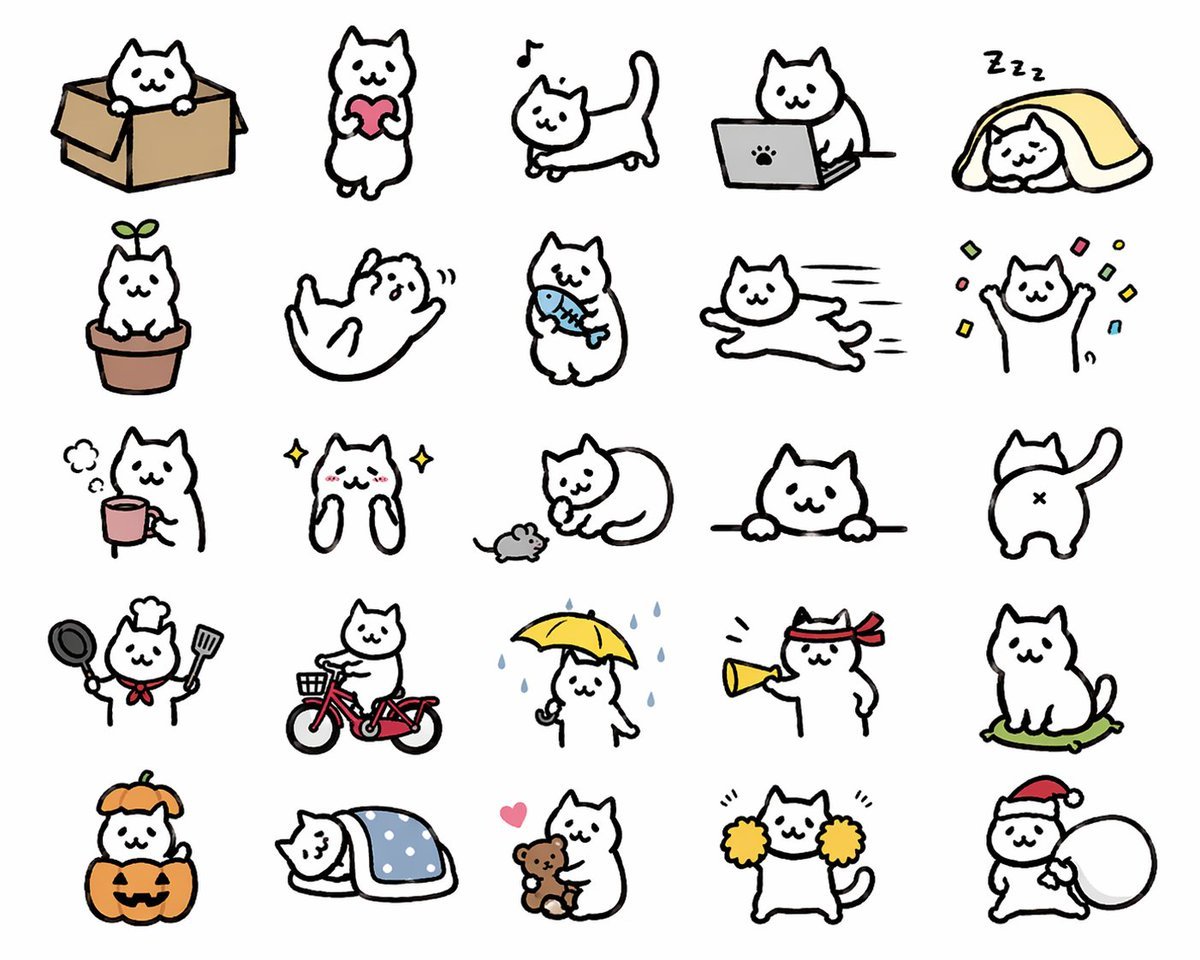
Kawaii Cat Sticker Sheet
Browse template categories
Google Fonts Japanese Infographic questions
How do I use the Google Fonts Japanese Infographic template?
Add your photo if the template asks for one, edit the prompt if you like — the template's model and format are already selected — and press Generate. Your version opens in PicX Studio.
Can I customize the Google Fonts Japanese Infographic template?
Yes. You can change the subject, setting, lighting, mood, format, and available model controls before creating your image.
Is the Google Fonts Japanese Infographic template free?
Opening and editing this template is free. Generating uses credits, shown on the Generate button when you are signed in.
Which AI model should I use?
Start with GPT Image 2, which is the model associated with this template. You can compare another compatible model for a different finish.
Looking for something else? Browse all templates.

Your photo, any look
Thousands of ready templates for every top image and video model, from one credit balance.