
Rainy Tokyo Tower Device Mockup
Generates a clean multi-device wallpaper showcase featuring a rainy Tokyo Tower night scene for desktop, tablet, and phone previews.
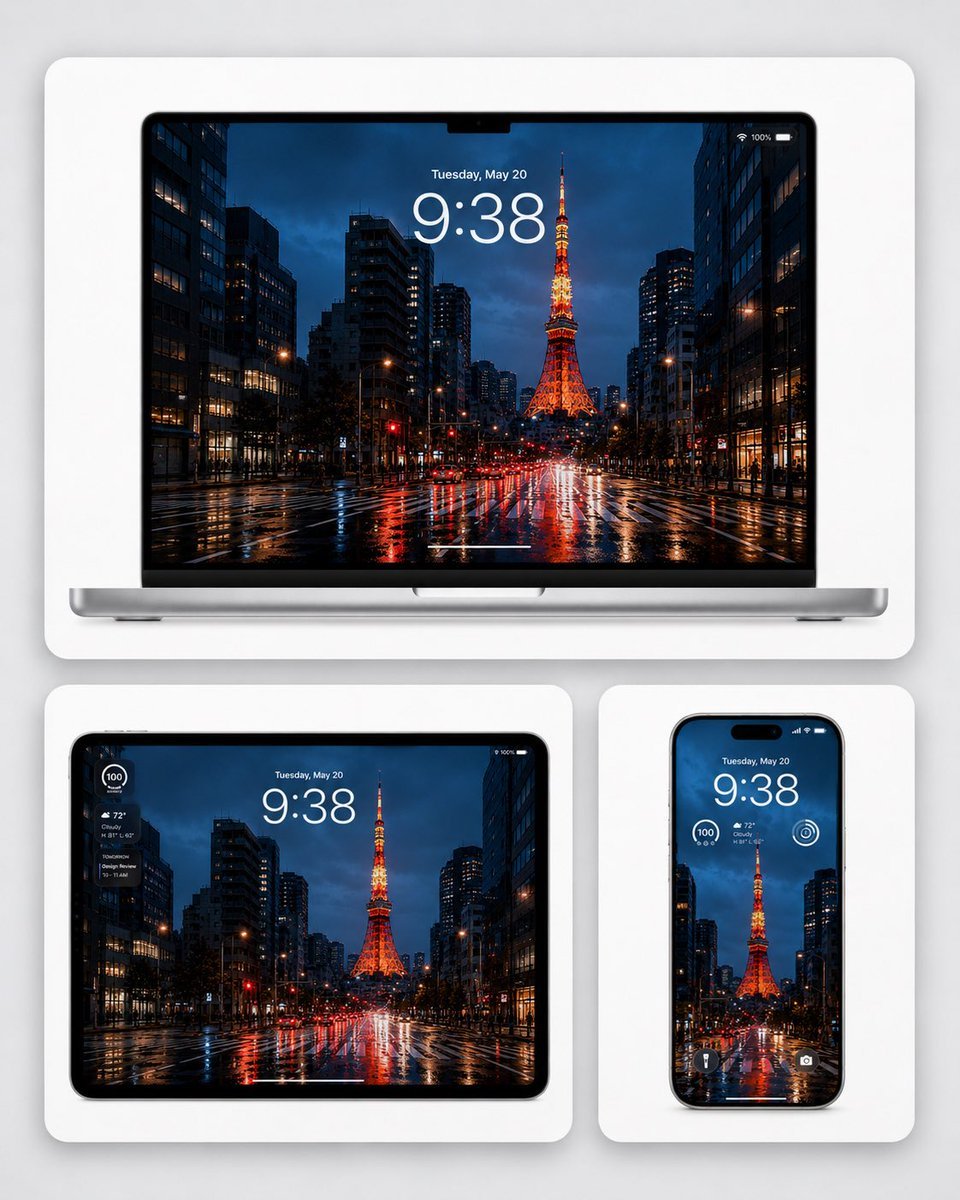
- Prompt included
- Model and format preset
- Free template
The prompt behind this image
Copy the exact prompt behind Rainy Tokyo Tower Device Mockup, or open it in the studio and make it yours.
Goal: Create a polished device wallpaper showcase for {argument name="wallpaper subject" default="Tokyo Tower on a rainy night in Tokyo"}, presented as a premium tech mockup. Canvas: Square 1:1 composition on a soft light-gray studio background, with three rounded white display cards casting subtle shadows. Layout: Show exactly 3 devices: 1 large open laptop centered across the top card, 1 tablet on the bottom-left card, and 1 smartphone on the bottom-right card. The top card is the widest and contains the laptop front-on; the two bottom cards are smaller and aligned side by side with even spacing. All devices should display the same wallpaper image. Wallpaper scene: A cinematic rainy Tokyo street at night, looking straight down a wet boulevard toward Tokyo Tower glowing bright orange in the center distance. Tall dark office buildings line both sides, with lit windows, streetlights, red traffic lights, car headlights, and vivid red-orange-blue reflections stretching across the rain-slick road. Deep blue stormy evening sky, high contrast, realistic photography style, symmetrical urban perspective. Device details: The laptop is silver with a black bezel and a small top-center notch, seen frontally with a thin base visible. The tablet has a black rounded bezel in landscape orientation. The smartphone has a black rounded frame in portrait orientation with a pill-shaped dynamic island at the top. Screen overlays: Add realistic lock-screen UI to all 3 devices. The laptop and tablet show the date text "Tuesday, May 20" above a large white time reading {argument name="lock screen time" default="9:38"}. The laptop also has small Wi-Fi and 100% battery indicators in the top-right and a thin white home indicator near the bottom. The tablet includes a compact weather widget on the left showing circular "100", "72°", "Cloudy", and small forecast text. The smartphone shows "Tuesday, May 20" above the large time, a small weather widget with "100" and "72° Cloudy", a circular widget icon on the right, plus flashlight and camera icons near the bottom. Visual style: Ultra-clean Apple-like product presentation, realistic device render, glossy screens, soft ambient lighting, crisp edges, subtle depth, no people, no extra logos, no watermark, no surrounding clutter.
How to use Rainy Tokyo Tower Device Mockup in 3 steps
- 1Upload ImagePNG, JPG or paste
Add your photo
Upload the photo the template builds on. The prompt, model and format are already set.
- 2…a portrait of your subject in softgolden-hour light, 85mm…
Personalize
Edit the subject and creative details for your destination.
- 3Generate
Generate
Press Generate — your image is created in PicX Studio, so you can compare it with the original and refine one variable at a time.
More like this
Templates with the same subject, style or setup. Open one to see its prompt.
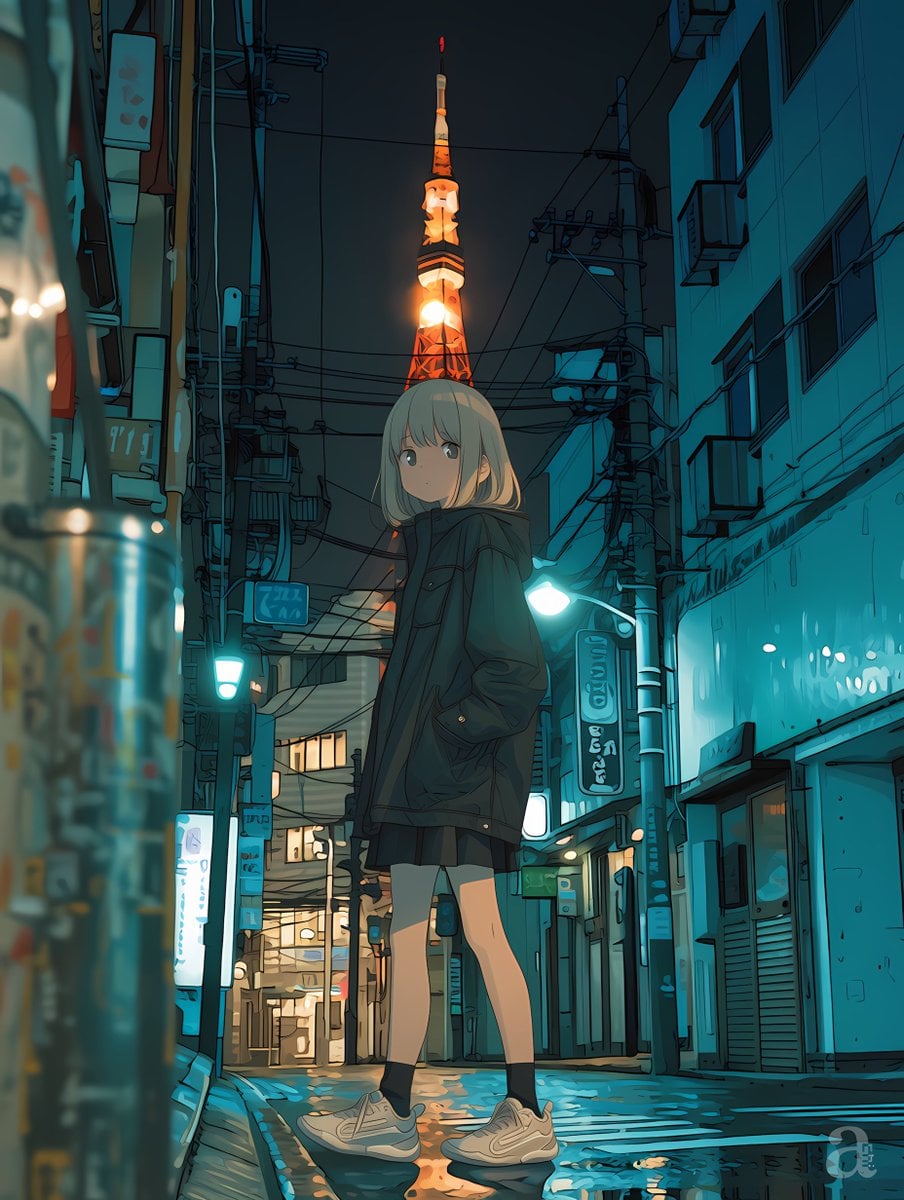
Anime Girl in Rainy Tokyo Alley
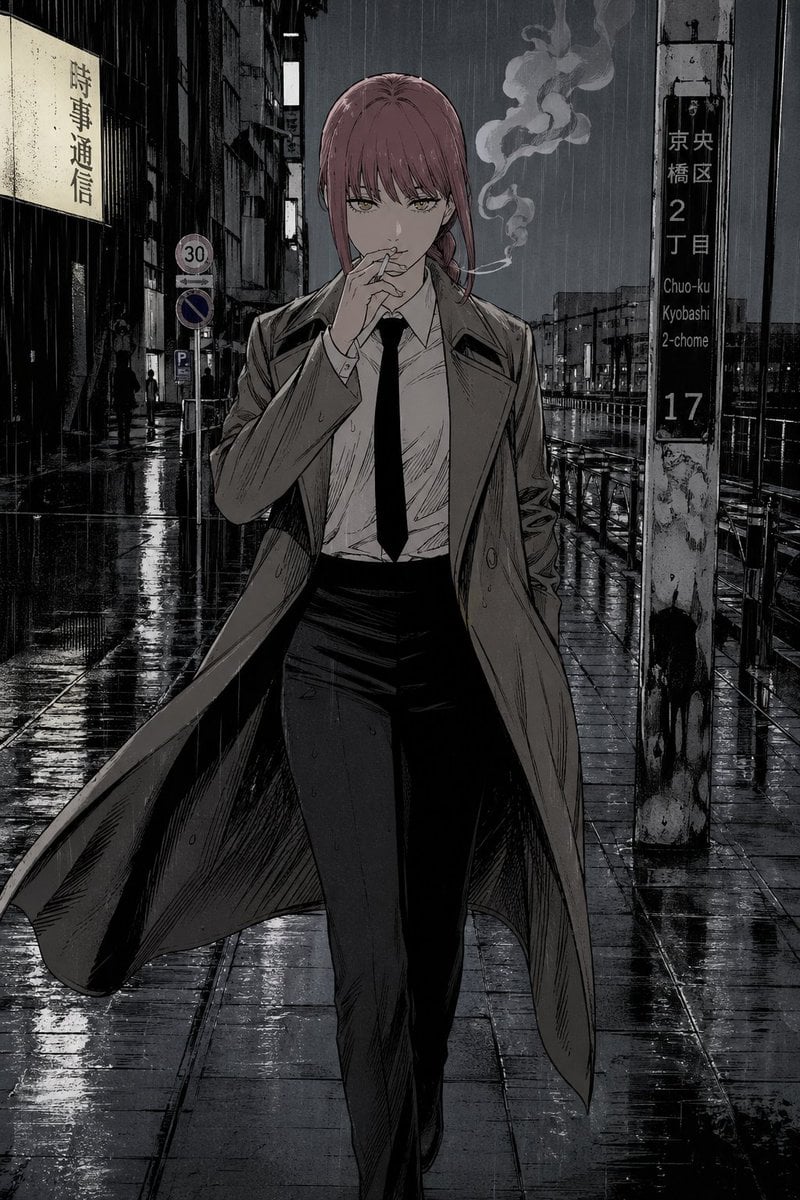
Rainy Tokyo Noir Woman
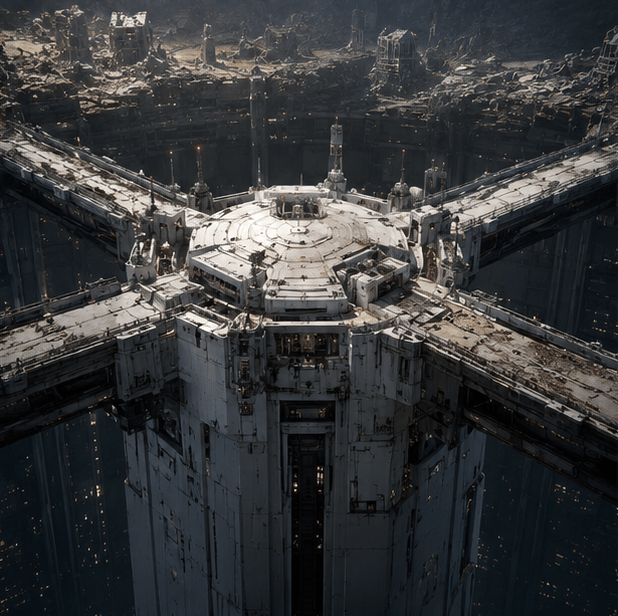
Tokyo Geofront Central Tower Rooftop
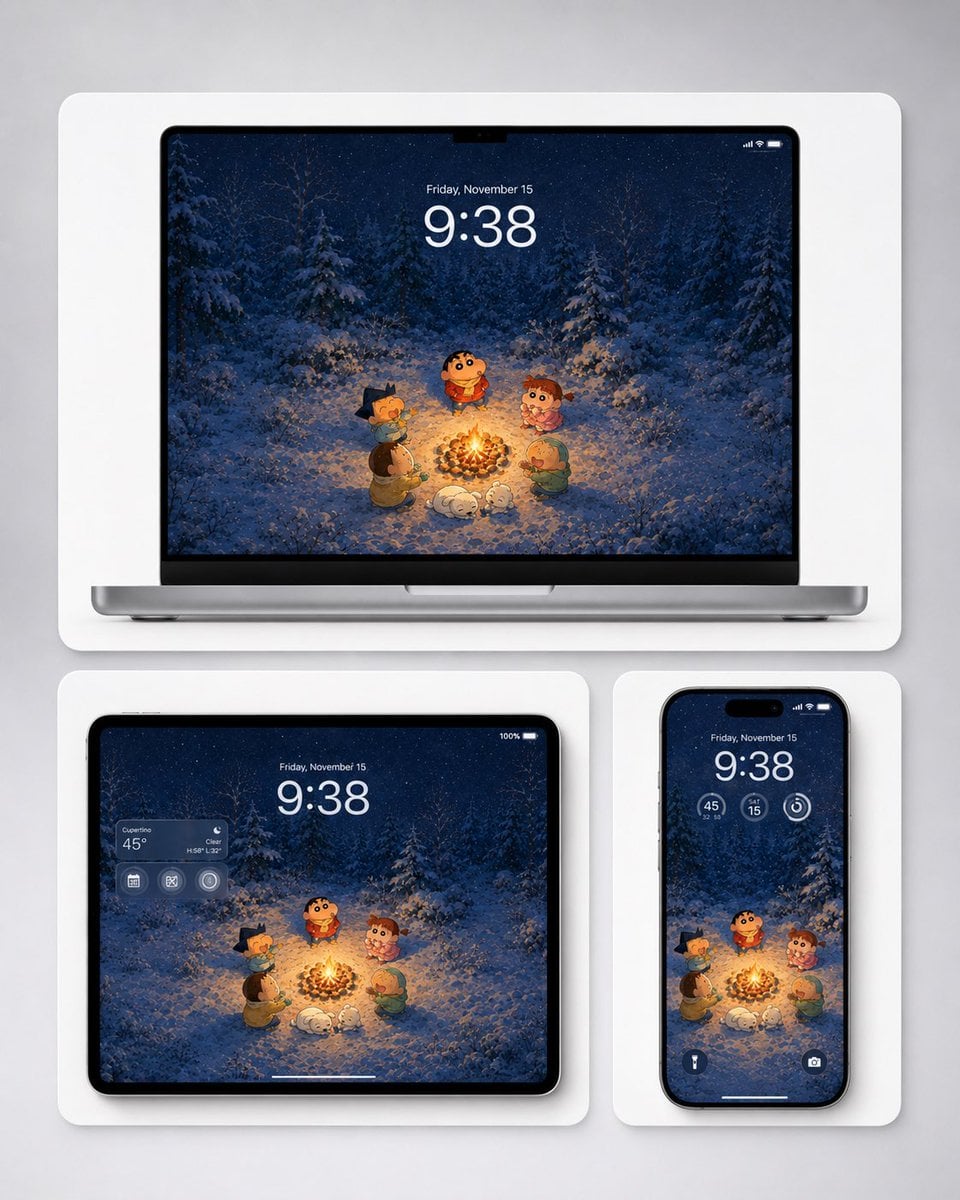
Winter Campfire Wallpaper Device Mockup
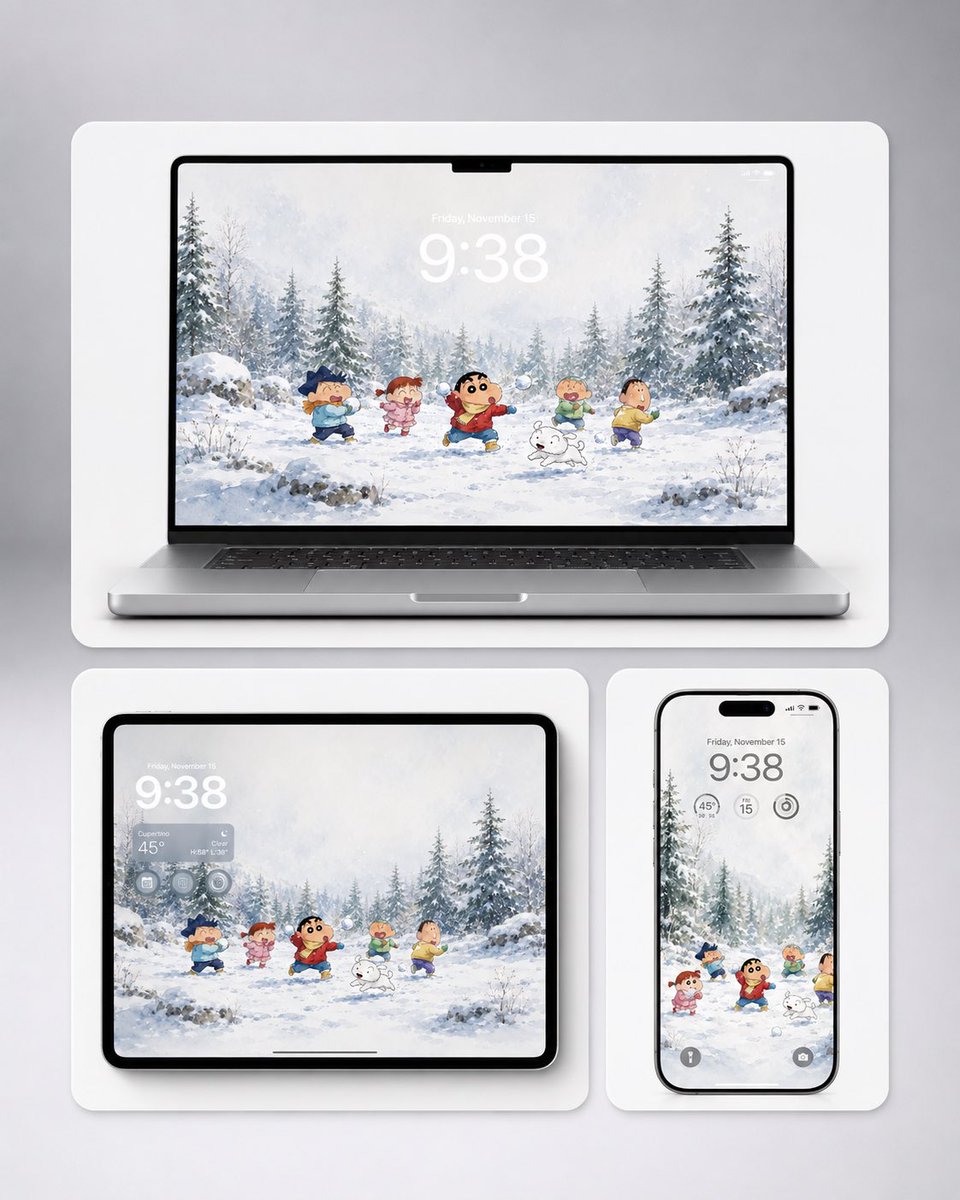
Shin-chan Winter Device Wallpaper Mockup
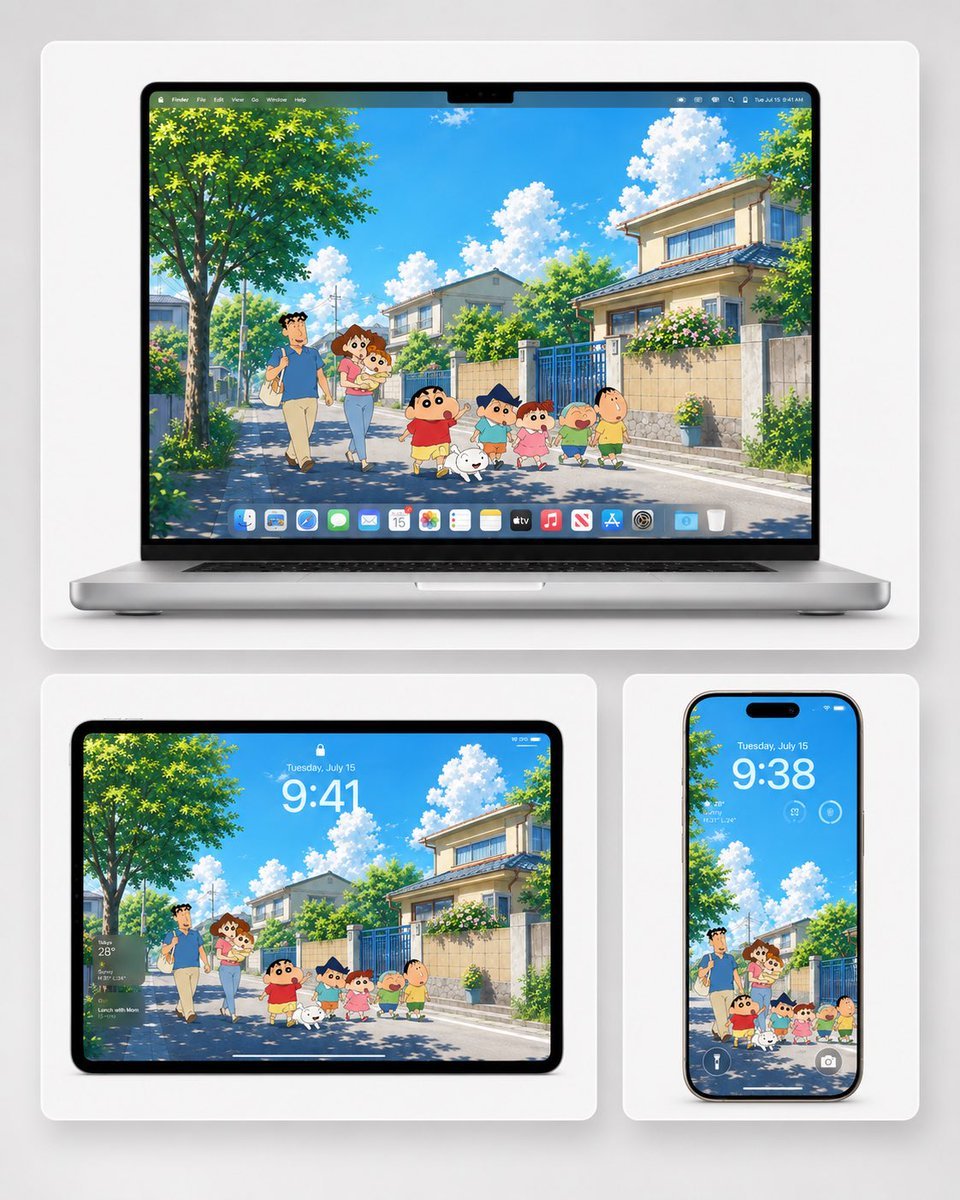
Anime Summer Wallpaper Device Mockup
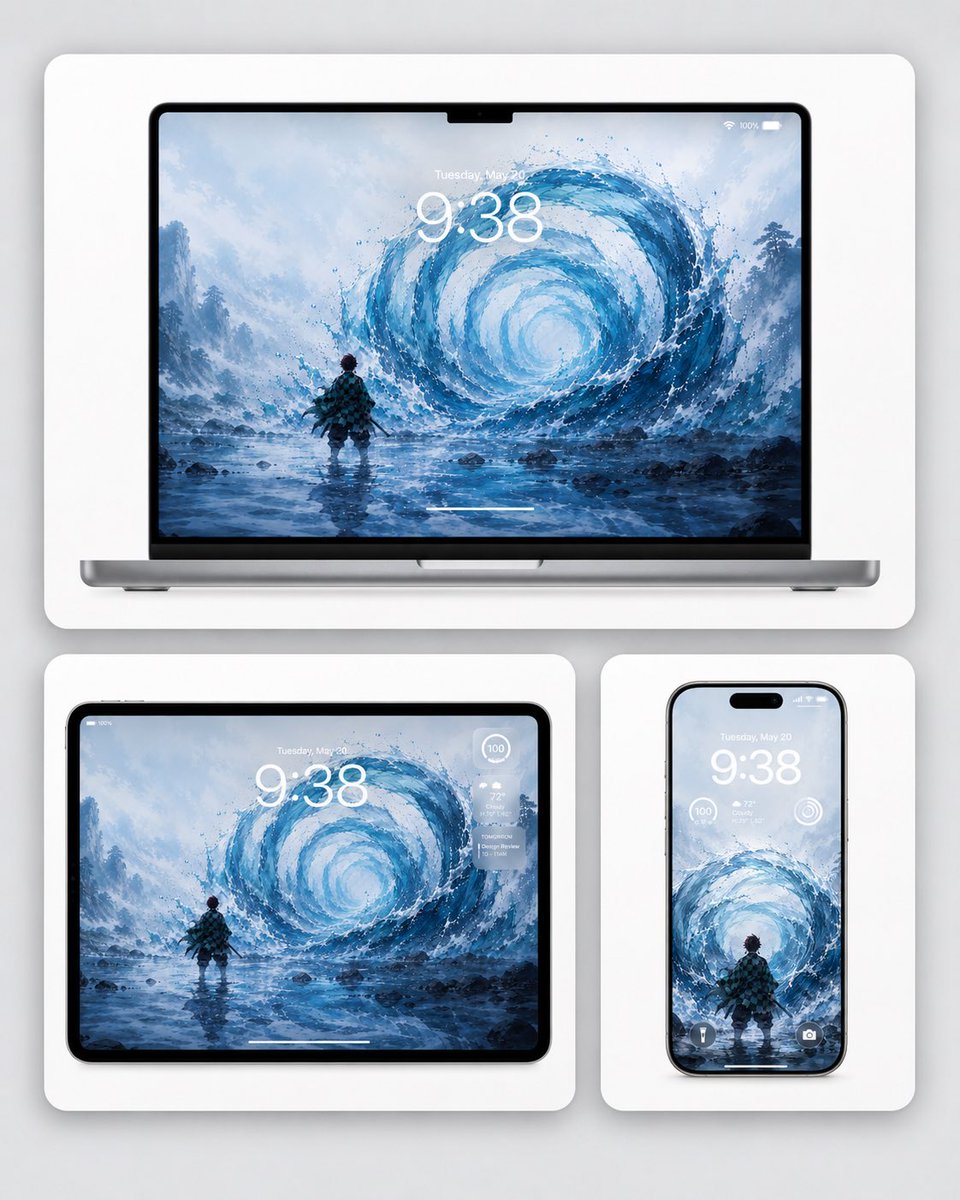
Water Breathing Device Wallpaper Mockup
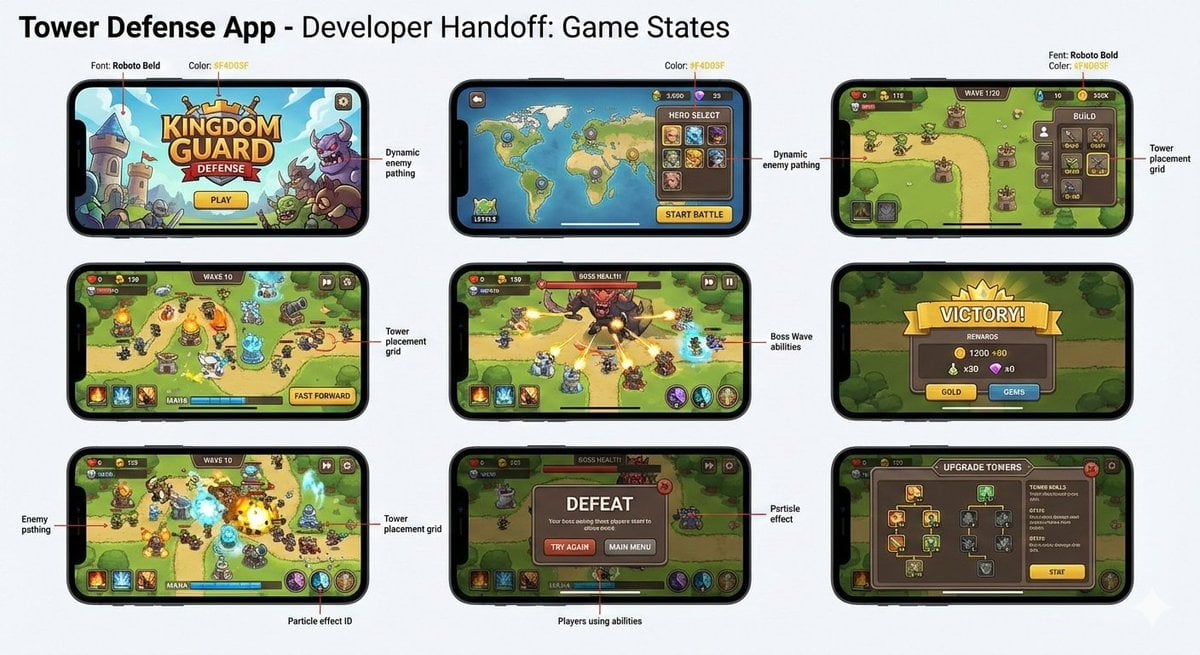
Tower defense mobile app design mockup grid
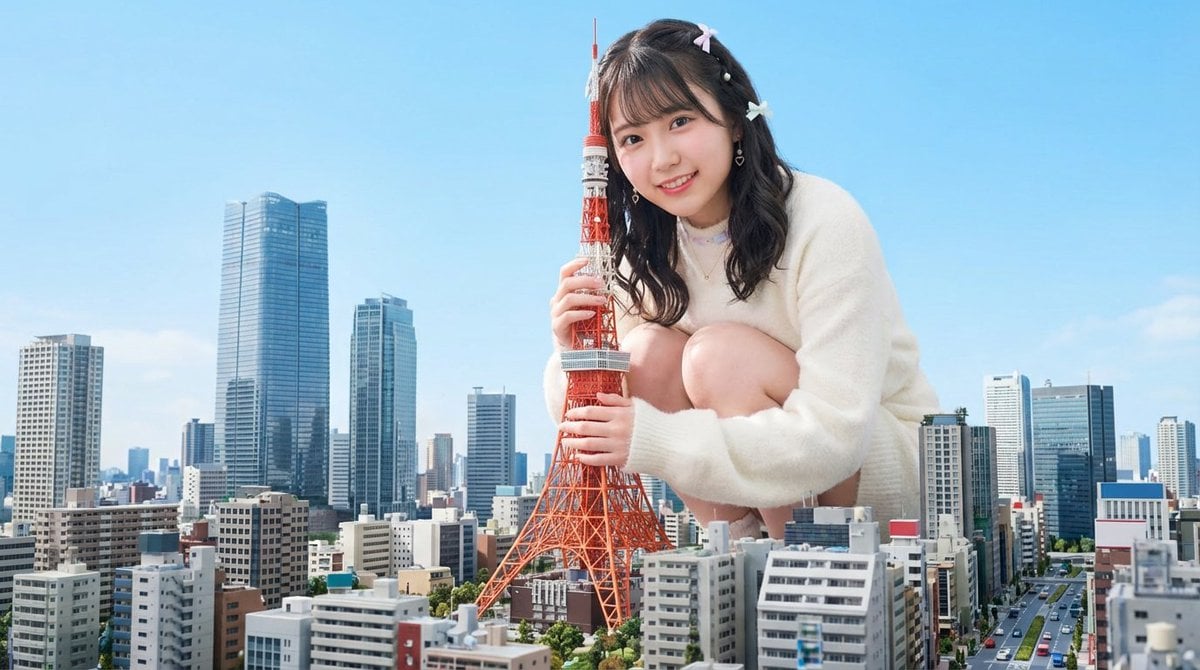
Giant Hugging Tokyo Tower Photo Prompt
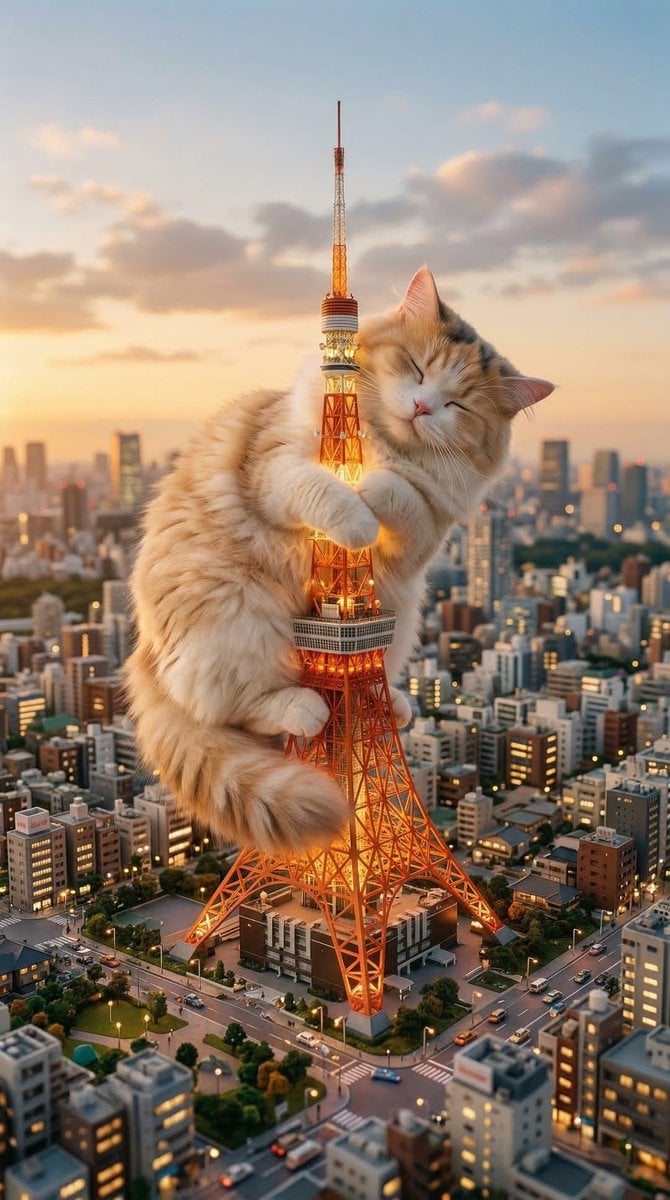
Giant Cat Occupying Tokyo Tower
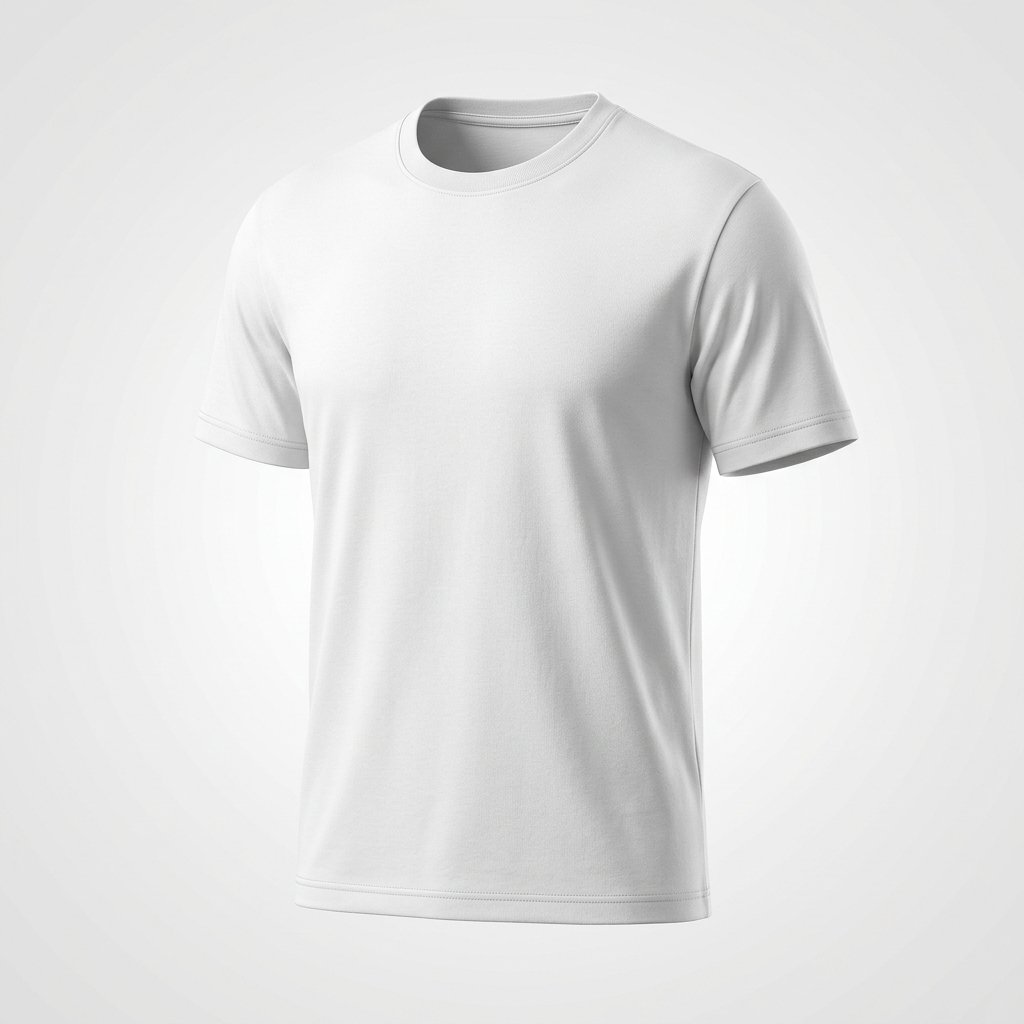
Product Shot - T-Shirt Mockup

Cinematic Anime Shinobi Poster Mockup
Make it yours
Rainy Tokyo Tower Device Mockup works as-is. These are the safest ways to change it without losing the look.
Change one field
Copy a single group, rewrite it, and generate again so you can see what that field is doing.
Keep the frame, change the subject
Hold the composition and light of Rainy Tokyo Tower Device Mockup, then swap wardrobe, props or the person for a new take.
| If the result… | Why | Fix |
|---|---|---|
| The result drifts from the preview | Too many fields changed at once. | Reuse Rainy Tokyo Tower Device Mockup as-is first, then change one group — subject, light, or setting. |
| The model over-stylizes the scene | The prose prompt leaves finish and camera underspecified. | Add one camera or lighting sentence and stay on GPT Image 2. |
More GPT Image 2 templates
Other prompts made for GPT Image 2.

Six VTuber Japanese Logo Sheet

Realistic Portrait of Woman and Deer

The Vista Modular Condo Poster

AI Model Routing Comparison Infographic

2.5D Anime Art Board

Isometric Productivity Desk Scene

New York Double Exposure Poster

Four-Panel AI Landscape Comparison

Japanese Tatami Lifestyle Magazine Cover

NESCAFÉ Coffee Map Poster
More image prompts
Fresh picks from across the catalog.
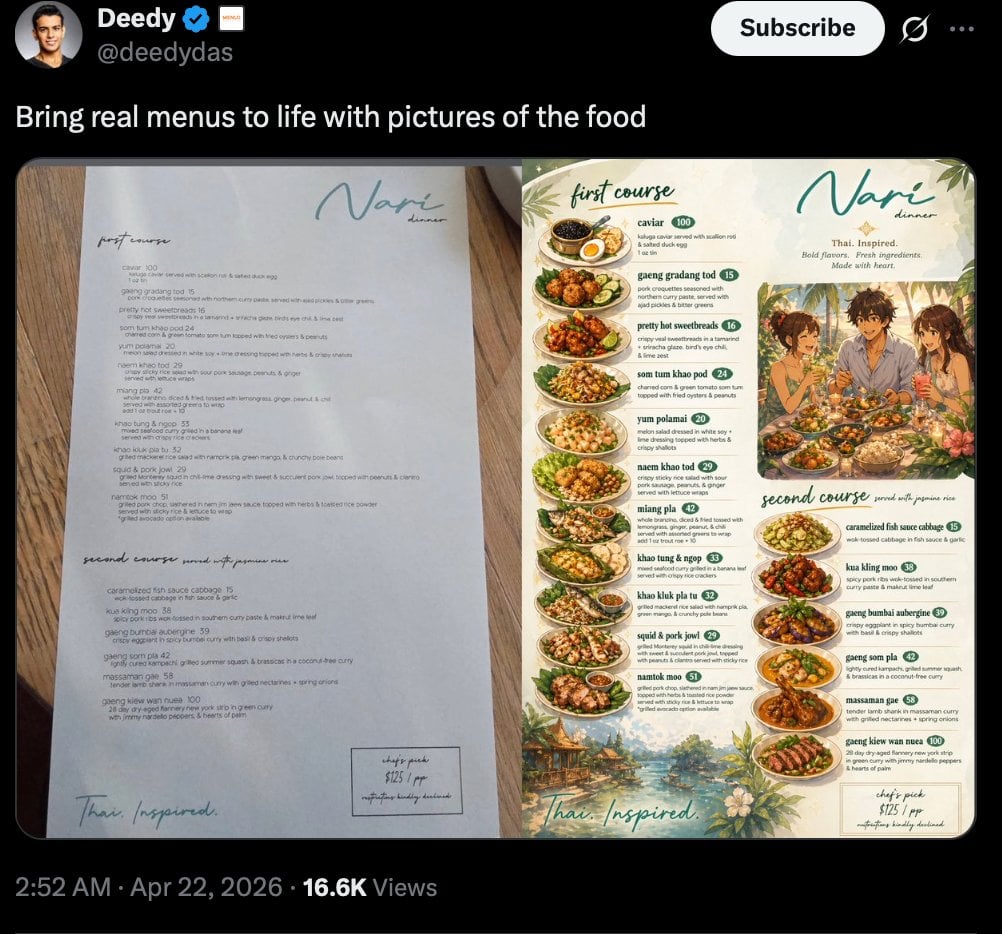
Viral Tweet Menu Before-and-After
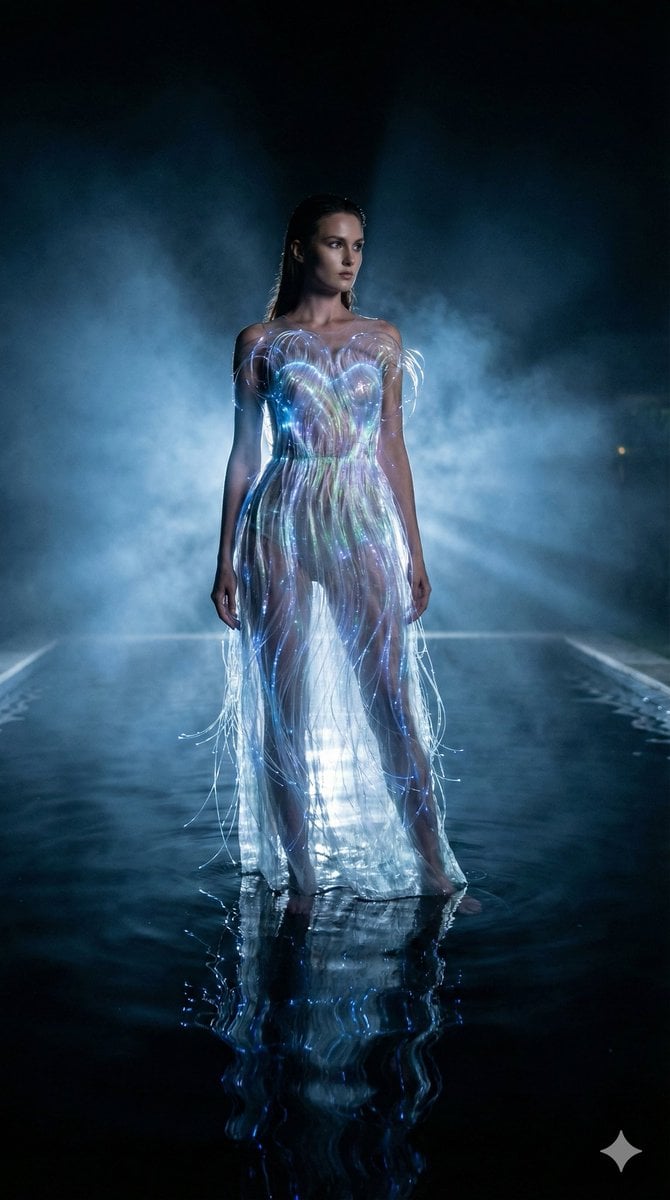
High-Fashion Sci-Fi Realism in Water
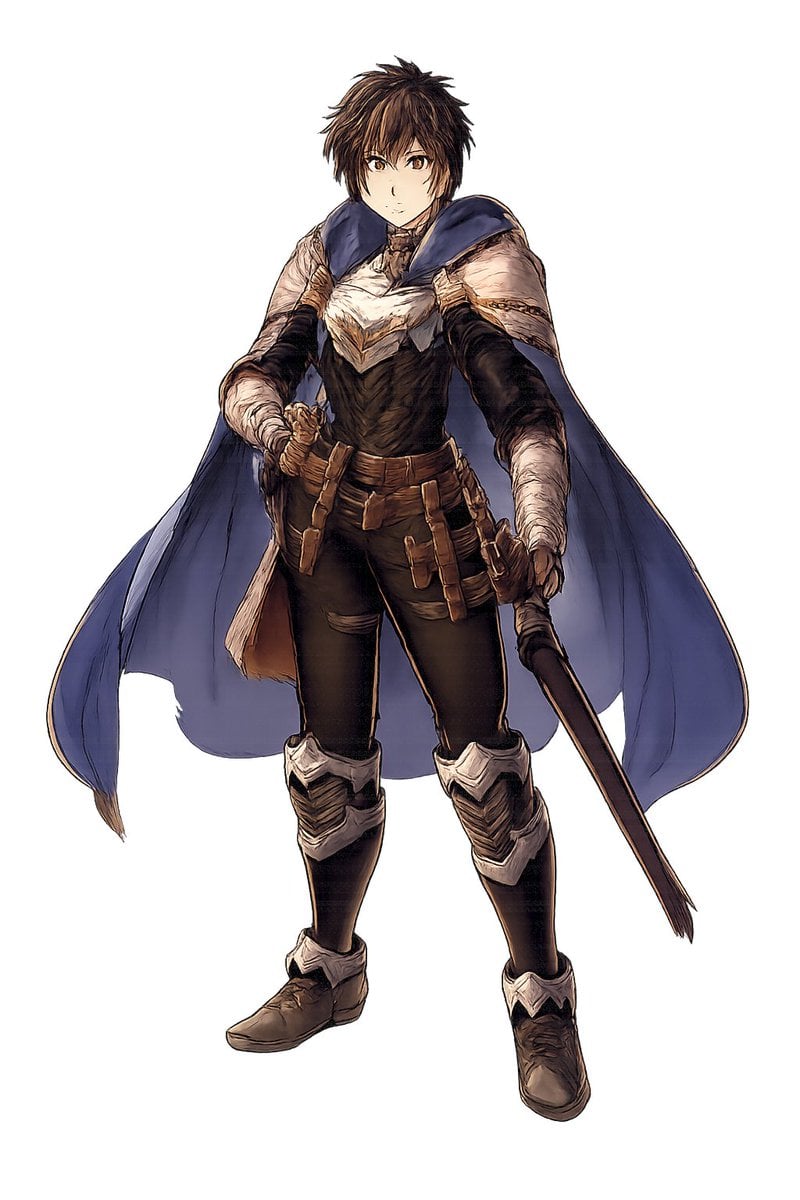
Fantasy Warrior Character Concept
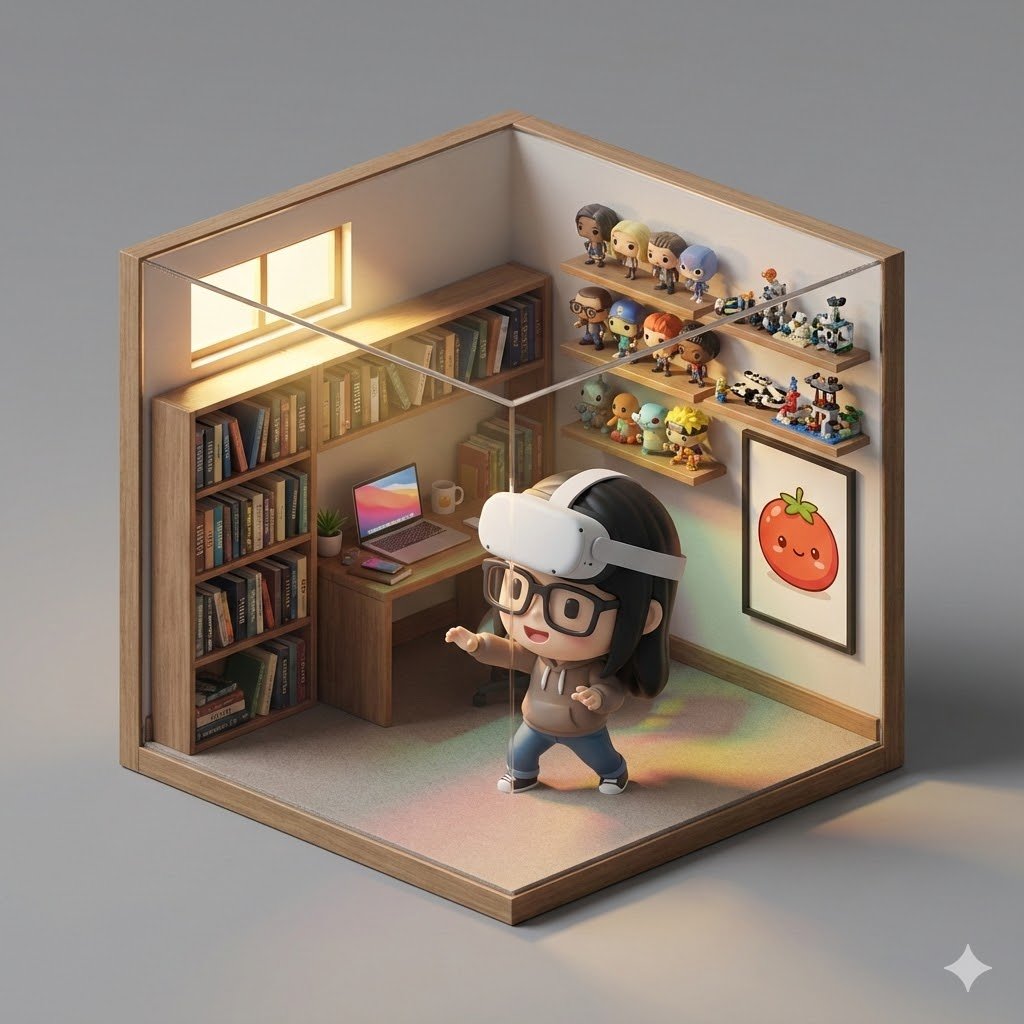
Isometric 3D Cube Prompt
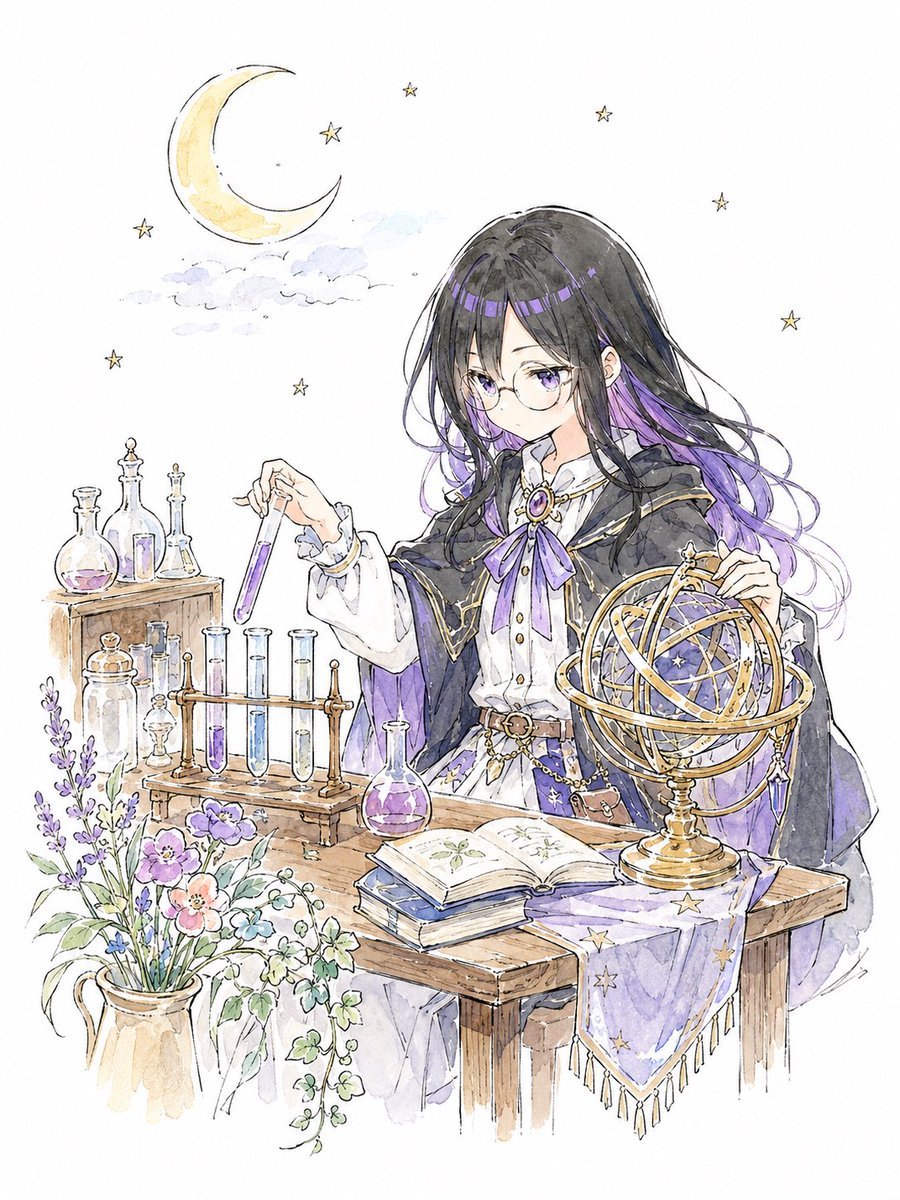
Storybook Watercolor Alchemist

High-End Skincare Advertising Prompt
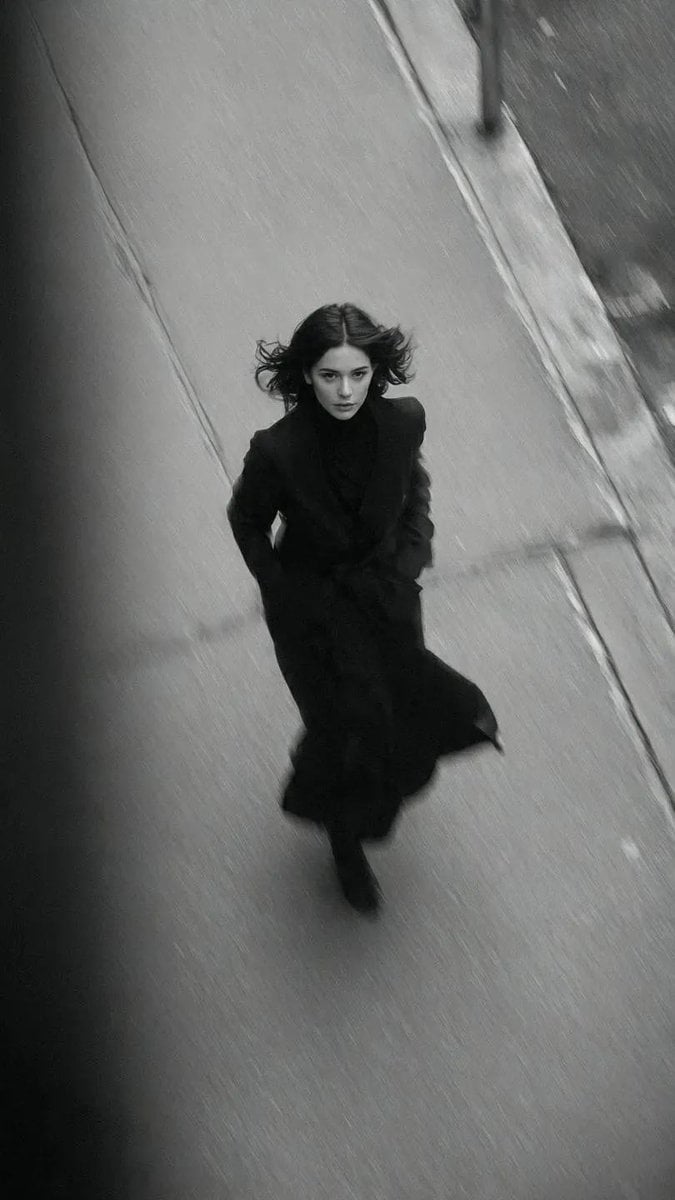
Black and White Vogue Fashion Shoot
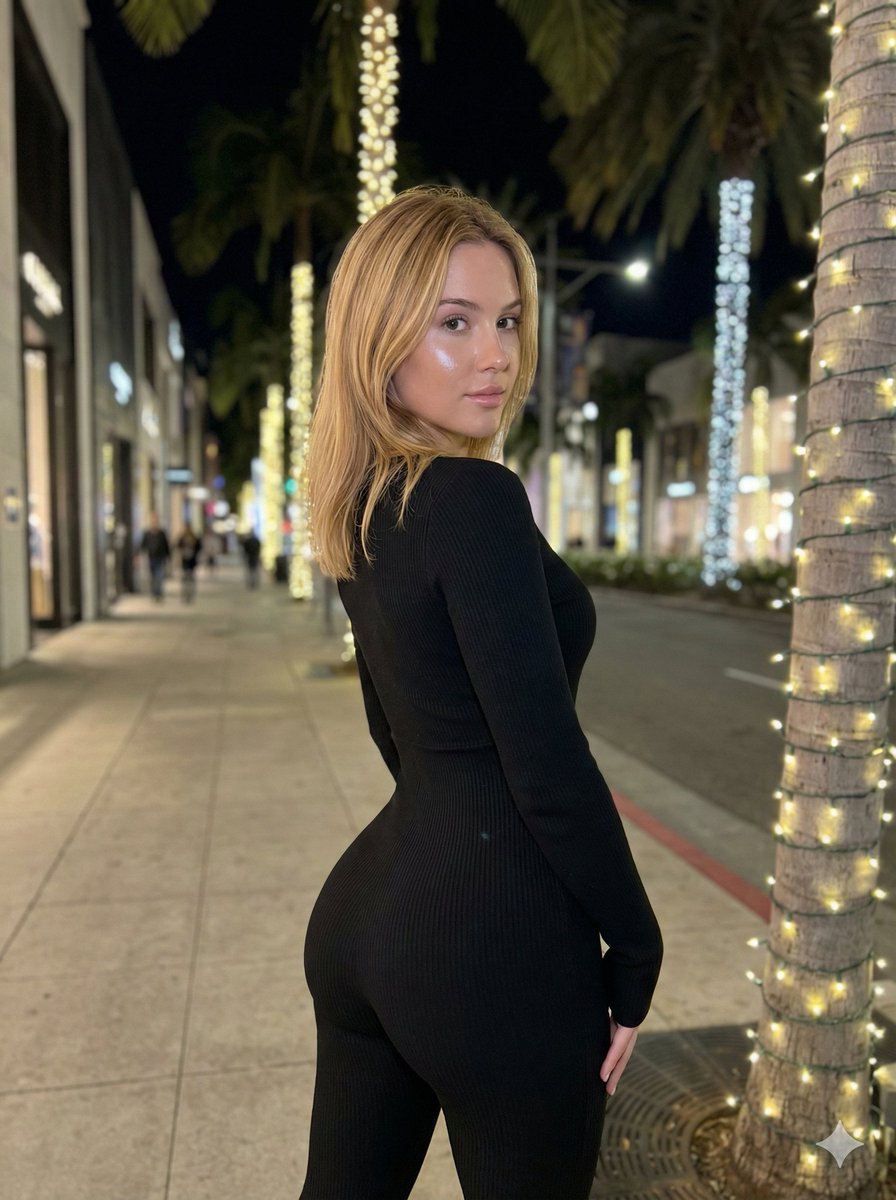
Hyper-Realistic Rear-Oblique Pose Replication Prompt
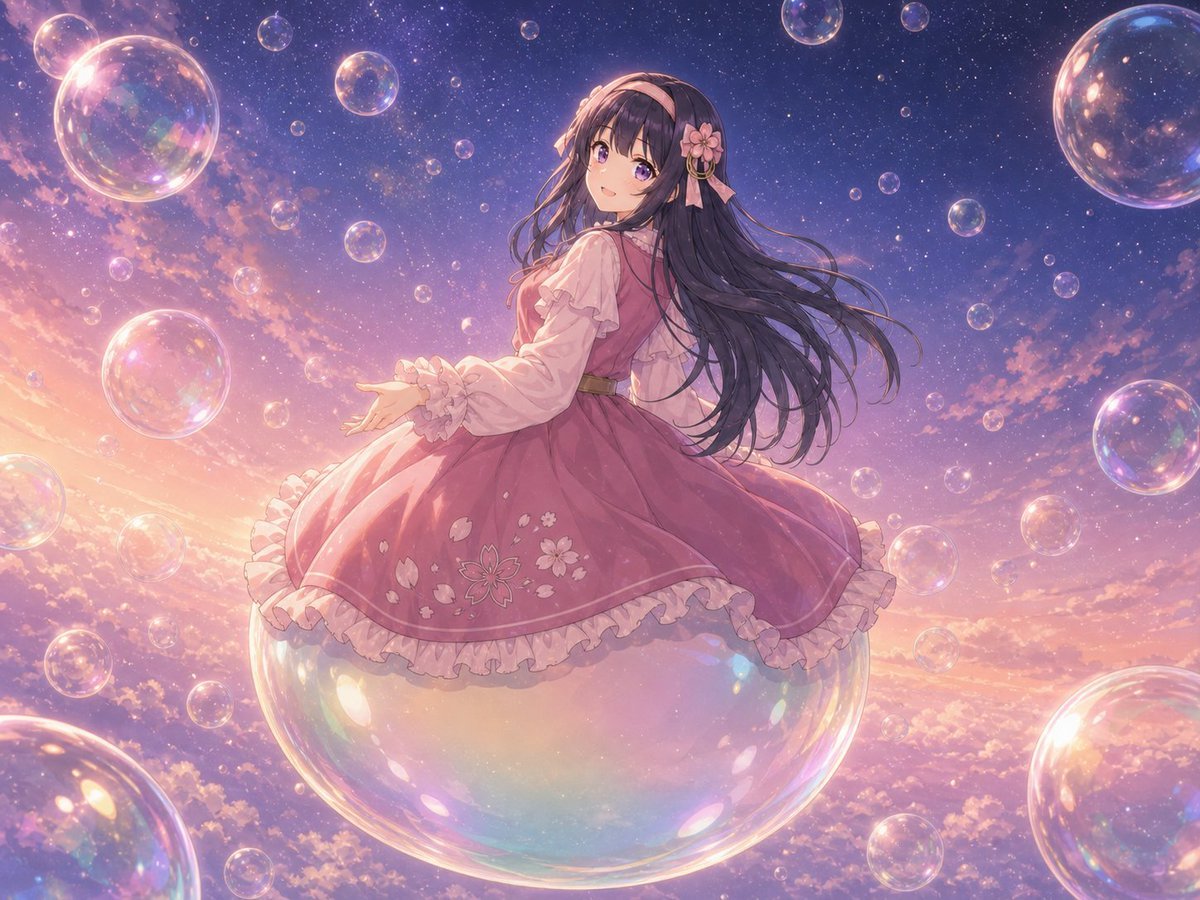
Poetic Surreal Portrait
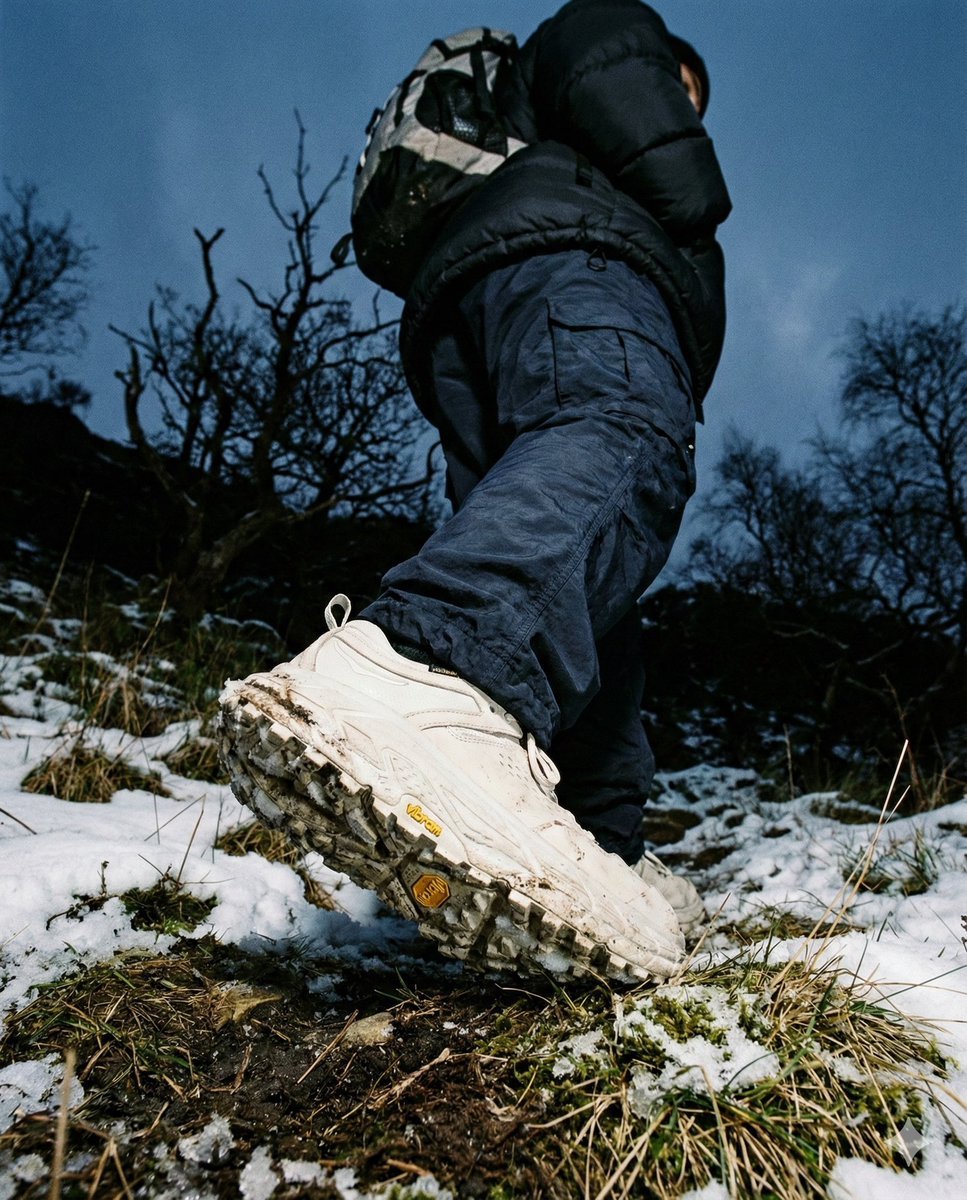
Gorpcore Editorial: Extreme Worm's-Eye View of Hiking Boot
Browse template categories
Rainy Tokyo Tower Device Mockup questions
How do I use the Rainy Tokyo Tower Device Mockup template?
Add your photo if the template asks for one, edit the prompt if you like — the template's model and format are already selected — and press Generate. Your version opens in PicX Studio.
Can I customize the Rainy Tokyo Tower Device Mockup template?
Yes. You can change the subject, setting, lighting, mood, format, and available model controls before creating your image.
Is the Rainy Tokyo Tower Device Mockup template free?
Opening and editing this template is free. Generating uses credits, shown on the Generate button when you are signed in.
Which AI model should I use?
Start with GPT Image 2, which is the model associated with this template. You can compare another compatible model for a different finish.
Looking for something else? Browse all templates.

Your photo, any look
Thousands of ready templates for every top image and video model, from one credit balance.