
Viral Tweet Menu Before-and-After
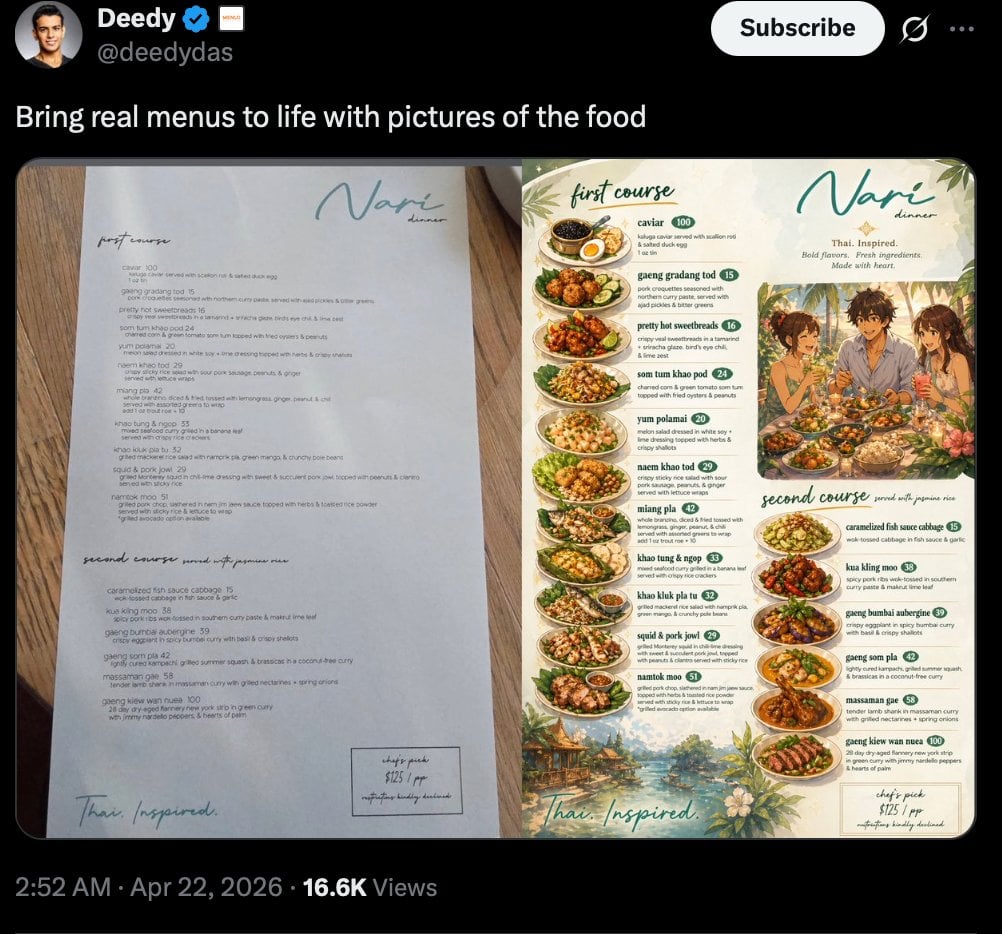
A realistic social media screenshot showing a verified post comparing a plain restaurant menu with a richly illustrated food-photo version, ideal for showcasing AI-powered menu redesigns.
- Prompt included
- Model and format preset
- Free template
The prompt behind this image
Copy the exact prompt behind Viral Tweet Menu Before-and-After, or open it in the studio and make it yours.
A realistic dark-mode social media screenshot styled like an X/Twitter post on a black interface. At the top left is a profile avatar, the display name {argument name="profile name" default="Deedy"} with a blue verification badge, and the handle {argument name="handle" default="@deedydas"}. On the top right is a large white Subscribe button and small interface icons. The post text reads {argument name="post text" default="Bring real menus to life with pictures of the food"}. Below the caption is a side-by-side comparison image of 2 menu pages placed on a warm wooden tabletop. The left page is a minimalist fine-dining menu on white paper with sparse elegant typography, the restaurant name {argument name="restaurant name" default="Nari"} in teal handwritten script near the top right, small section headings for first course and second course, and a short list of dish names with prices in a clean editorial layout. The bottom left of the page says “Thai. Inspired.” in loose script, and a small boxed chef’s pick note appears at the lower right. The right page is a transformed illustrated menu version of the same restaurant, keeping the same restaurant name in teal script at the top and the subtitle “Thai Inspired. Bold flavors. Fresh ingredients. Made with heart.” This page is richly decorated with painted tropical leaves, flowers, and scenic borders in cream, green, and warm earth tones. It contains 2 labeled sections, “first course” at the upper left and “second course” near the middle-lower area. The first course section shows 8 plated dishes in a vertical arrangement with dish names, short descriptions, and green circular price badges: caviar, gaeng gradang tod, pretty hot sweetbreads, som tum khao po, yum polamai, naea khao tod, miang pla, and khao tung & ngor. The second course section shows 8 plated dishes with the same treatment: caramelized fish sauce cabbage, kua kling moo, giang bumbai aubergine, gaeng som pla, massaman ge, gaeng kiew wan nuea, grilled pork jowl, and naemtok moo. Near the upper right center of the illustrated page is a warm lifestyle painting of 3 diners sharing food at a table outdoors. Every dish is shown as an appetizing overhead or three-quarter plated food photo-illustration integrated into the menu layout. At the very bottom of the full screenshot, the post metadata line reads “2:52 AM · Apr 22, 2026 · 16.6K Views”. The overall image should feel like a polished viral demo screenshot showing before-and-after menu design enhancement, highly legible, photoreal UI framing with detailed editorial food-menu artwork.
How to use Viral Tweet Menu Before-and-After in 3 steps
- 1Upload ImagePNG, JPG or paste
Add your photo
Upload the photo the template builds on. The prompt, model and format are already set.
- 2…a portrait of your subject in softgolden-hour light, 85mm…
Personalize
Edit the subject and creative details for your destination.
- 3Generate
Generate
Press Generate — your image is created in PicX Studio, so you can compare it with the original and refine one variable at a time.
More like this
Templates with the same subject, style or setup. Open one to see its prompt.
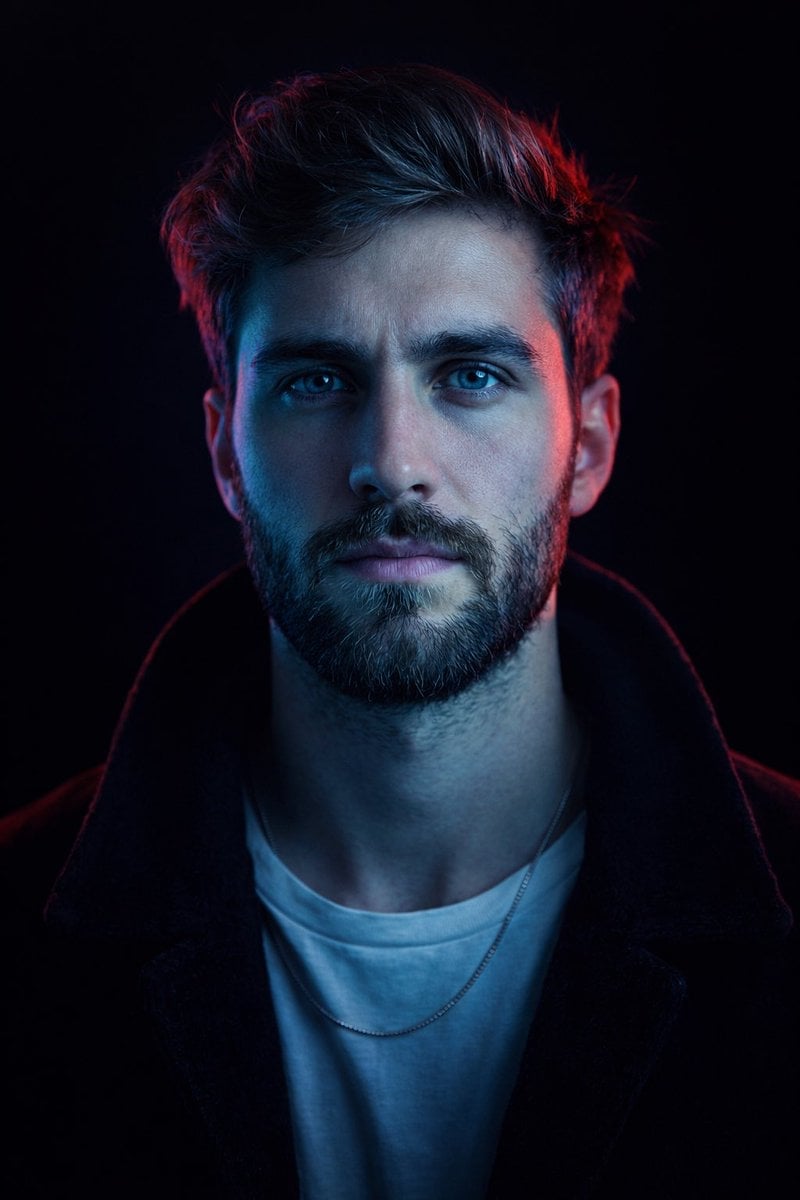
Mirror Selfie Chibi Characters Pixar Style
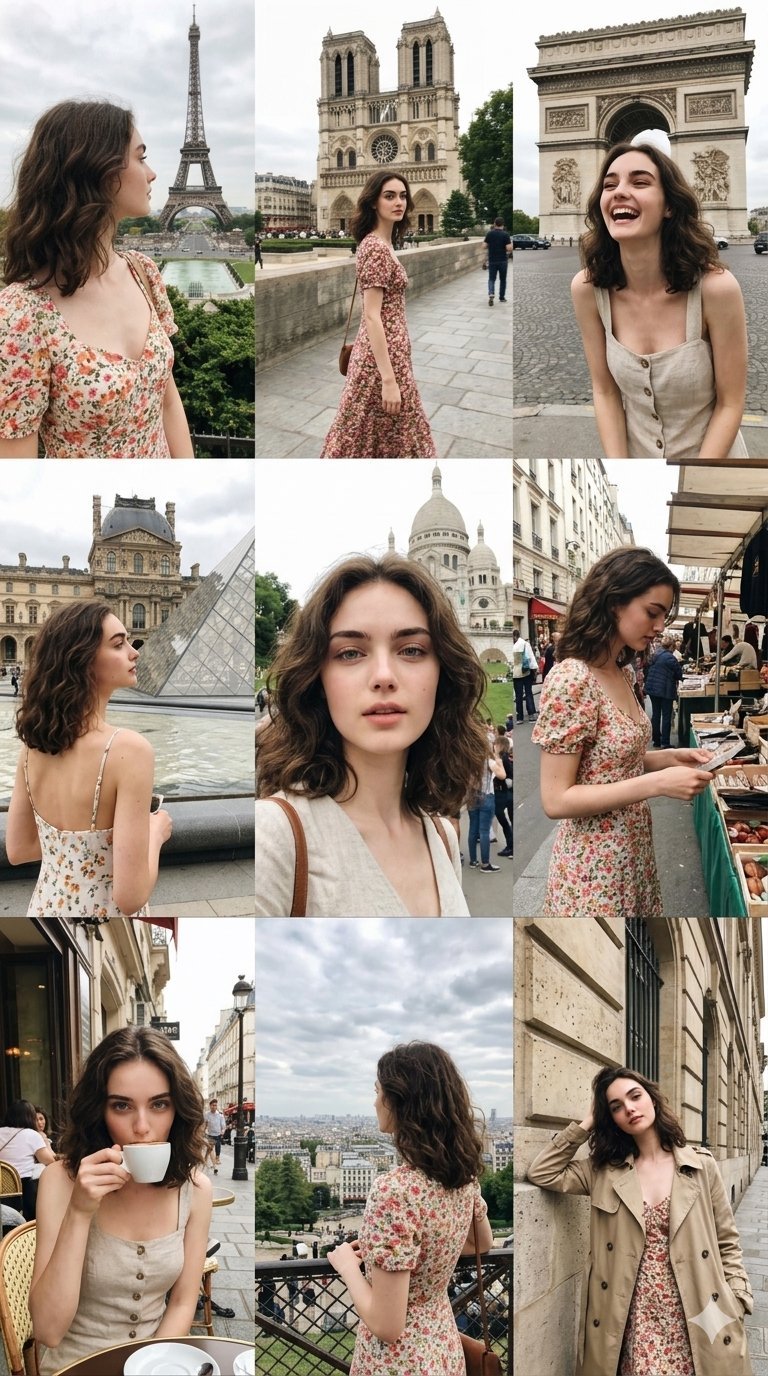
Paris Travel Collage Grid - Face Reference
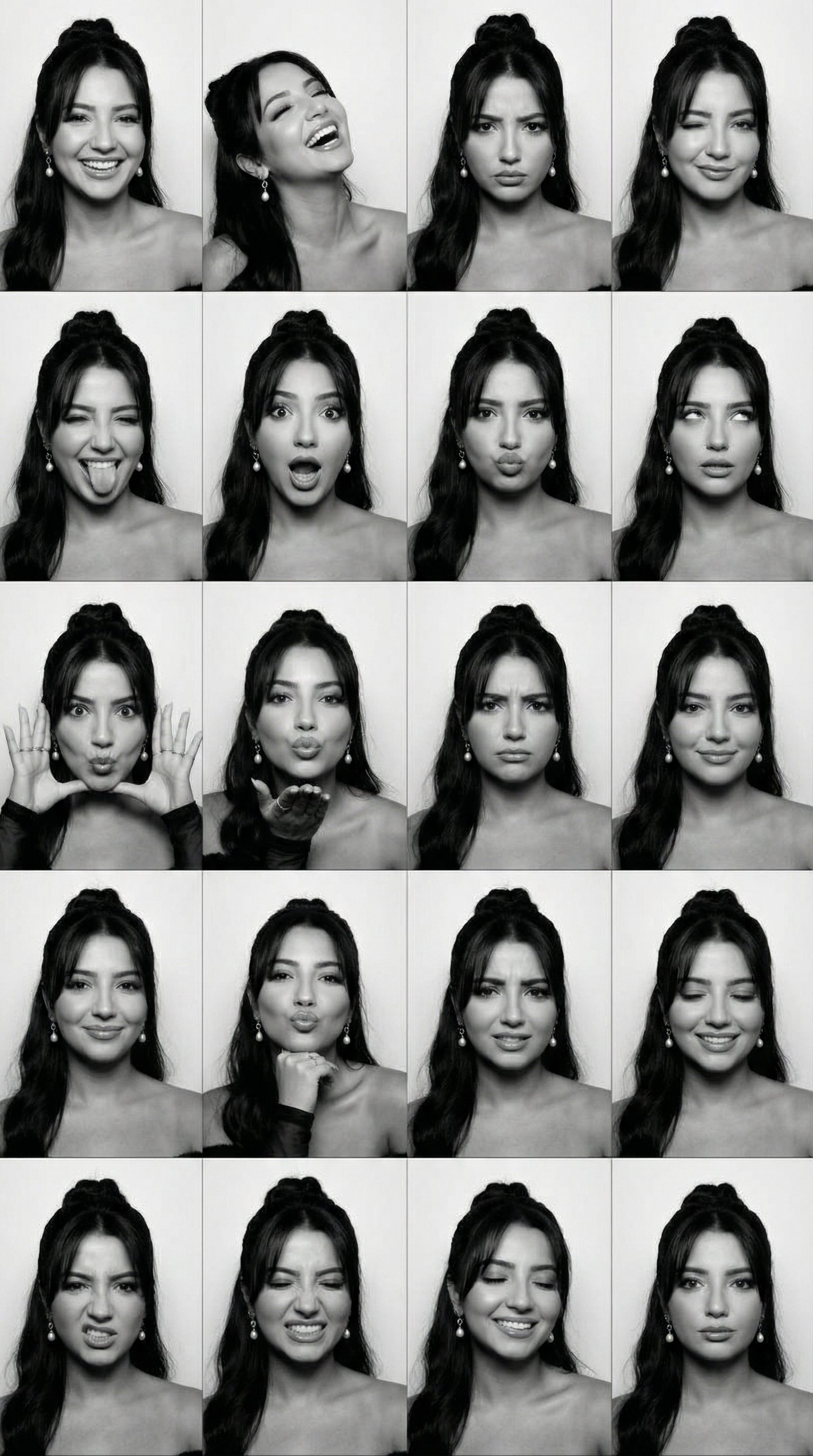
B&W Photobooth Expression Grid 4x4 — Nano Banana
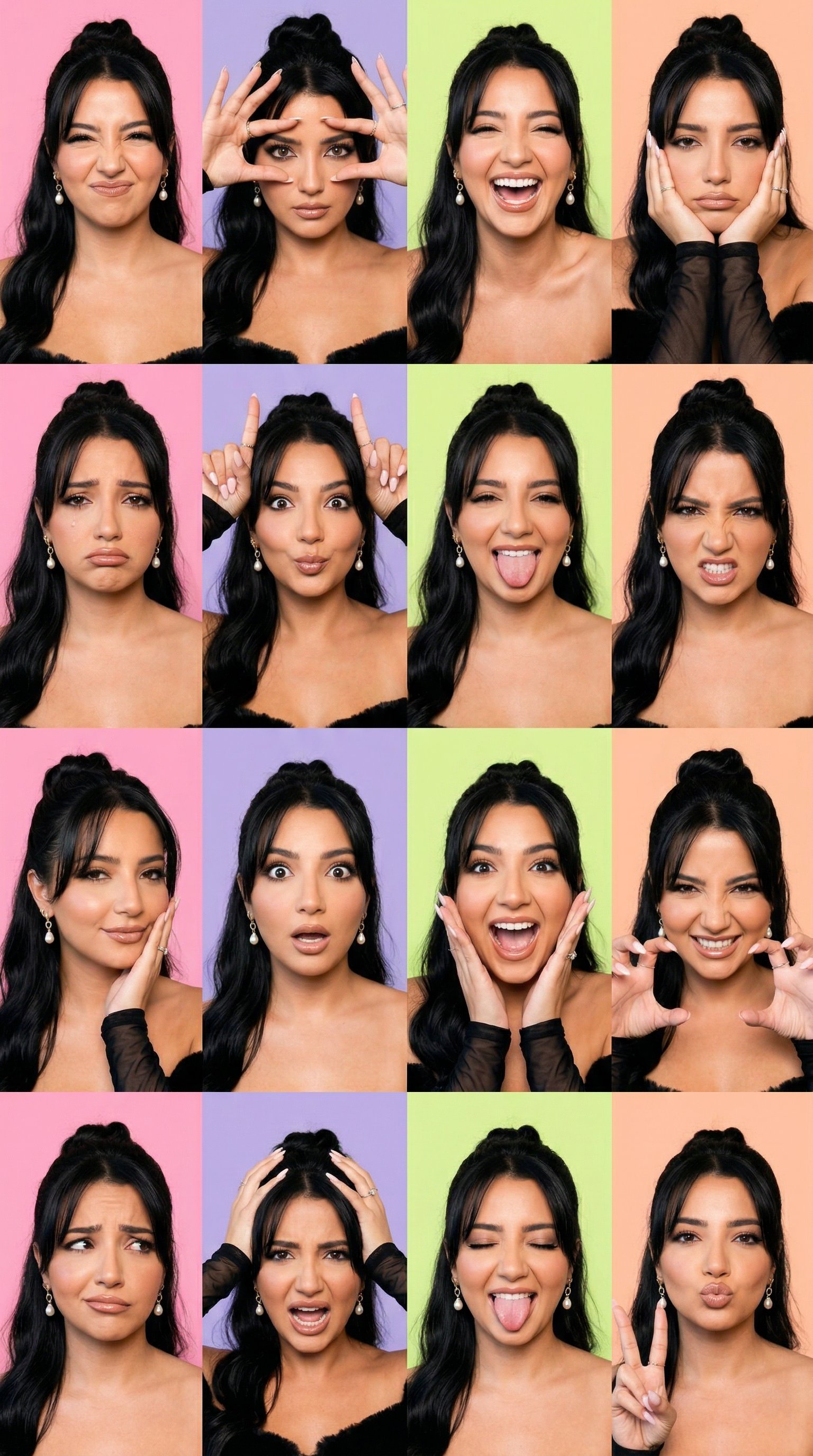
Gen Z TikTok Viral Expression Grid 4x4 — Nano Banana
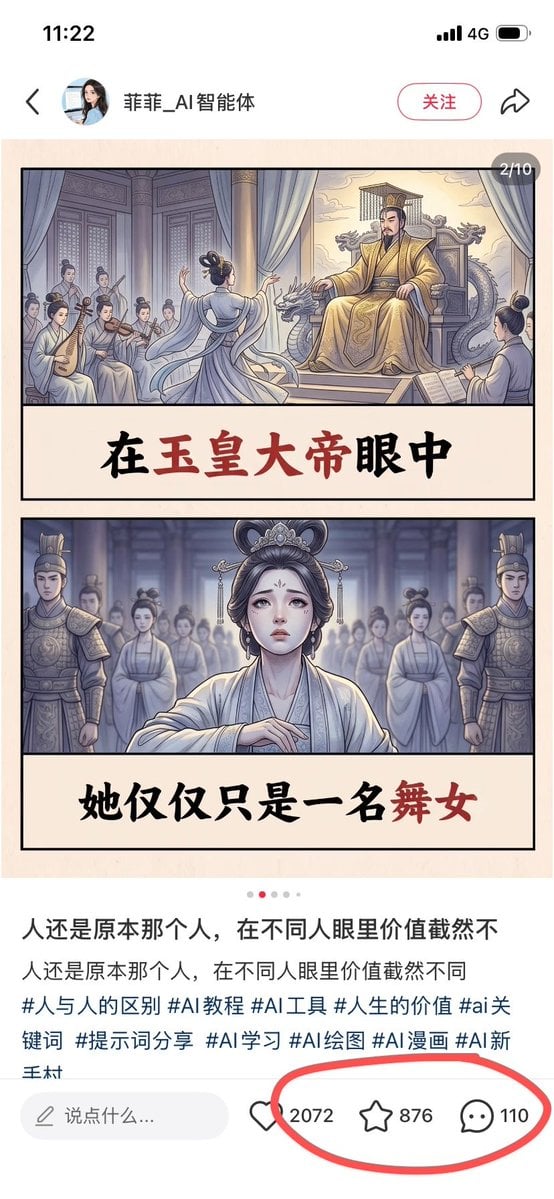
Chinese Viral AI Comic Post Screenshot
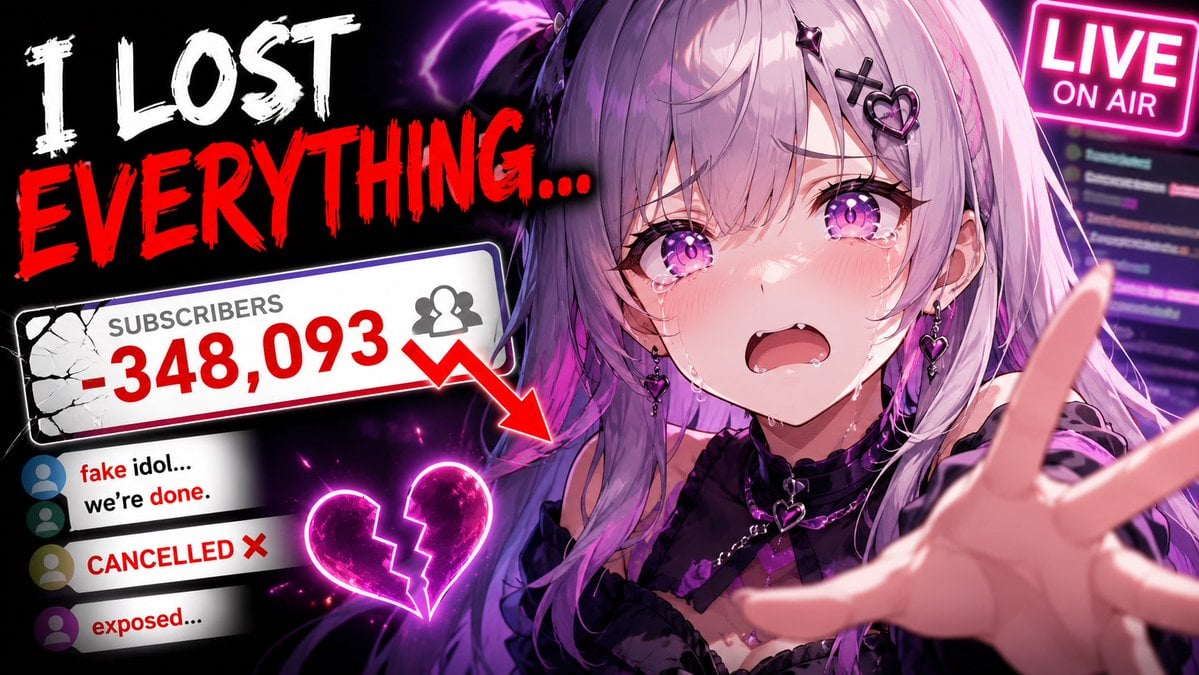
Viral YouTube Thumbnail Template
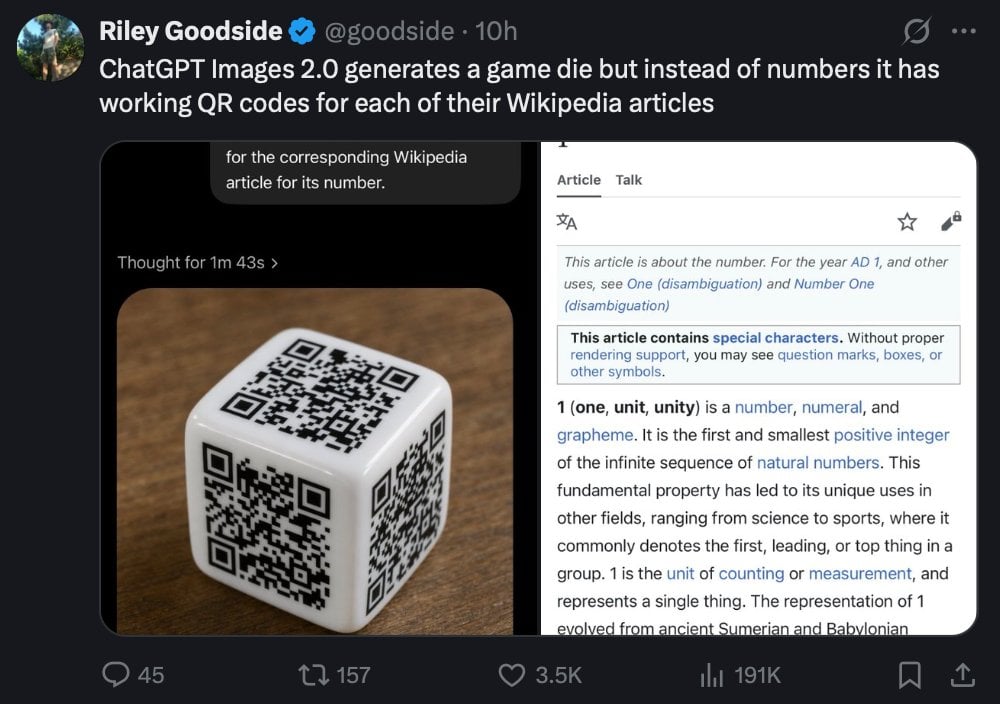
Tweet Screenshot of QR Code Dice Demo
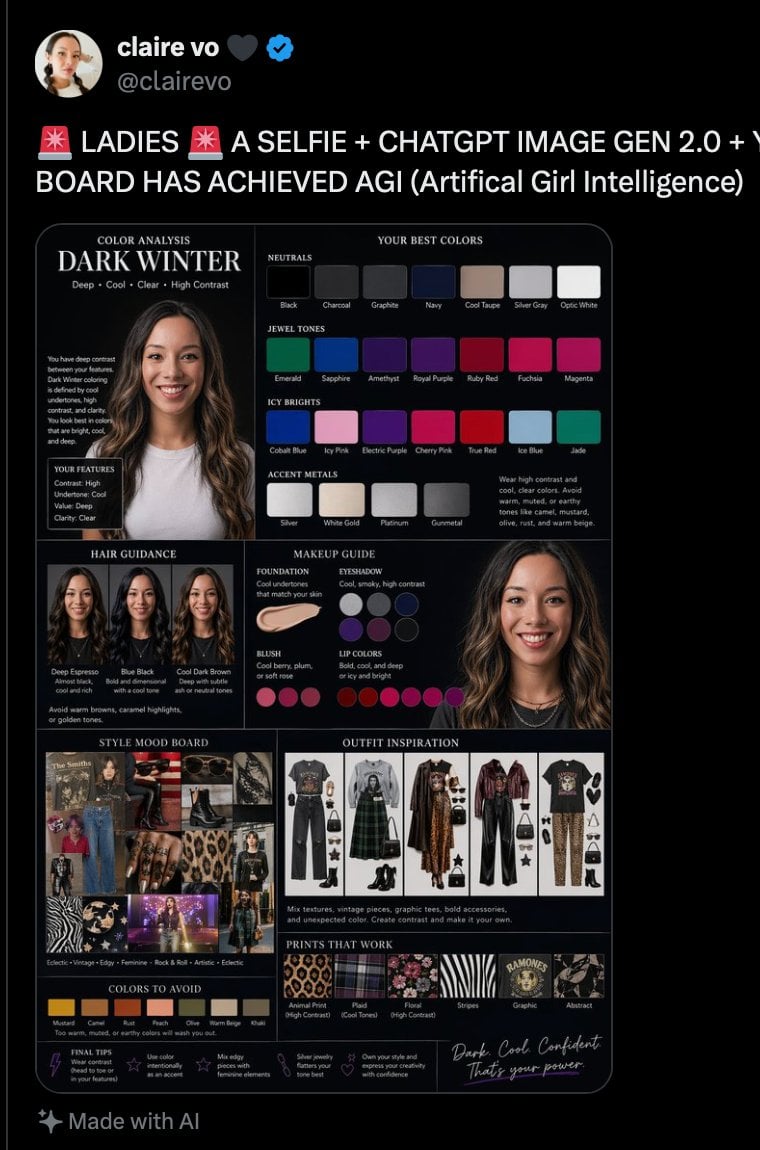
Dark Winter Color Analysis Tweet
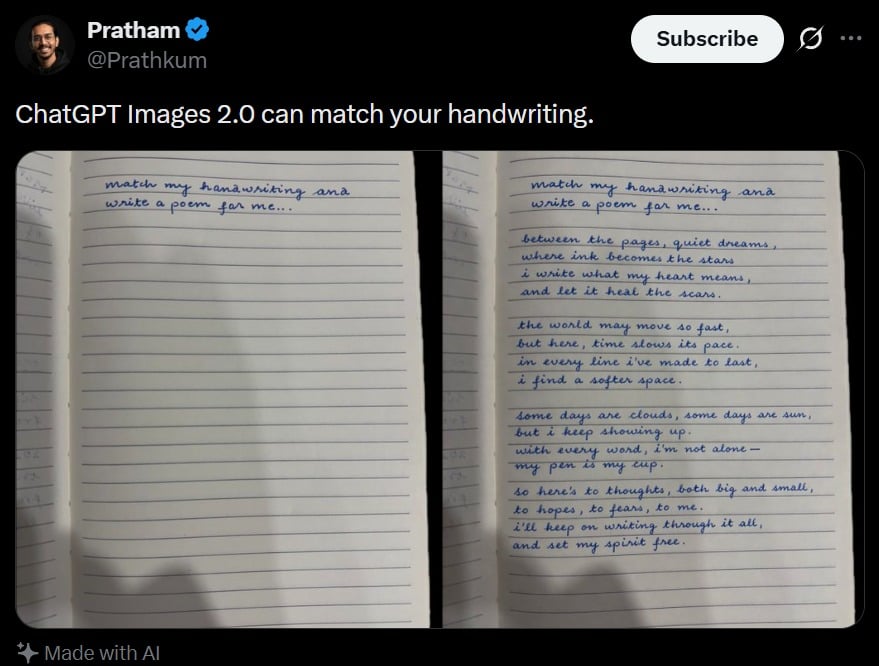
Tweet Screenshot With Handwriting Match
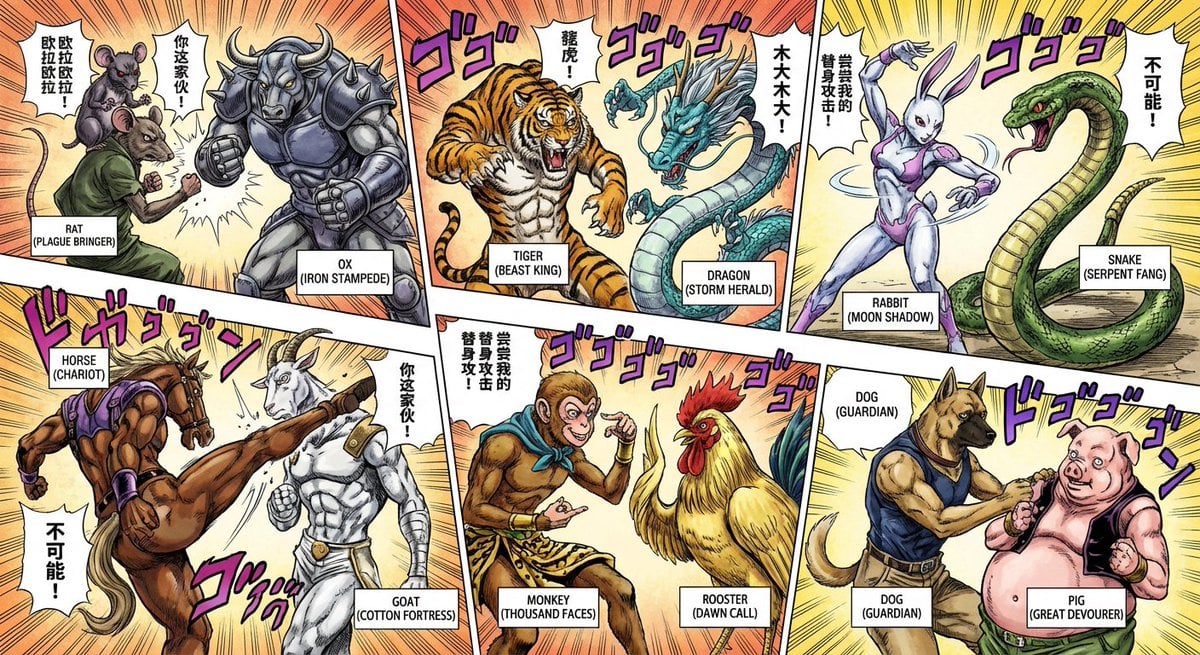
Nano Banana Pro brand hero image (variant tweet)
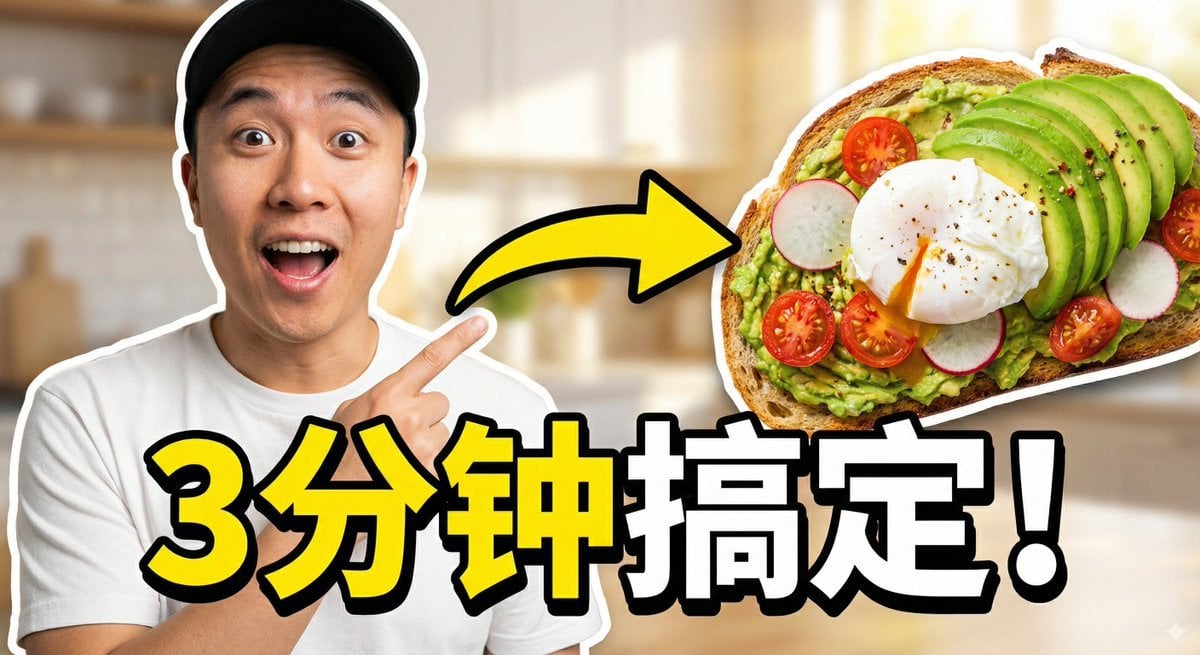
Viral Thumbnail: Excited pointing, avocado toast, “Done in 3 Minutes!”
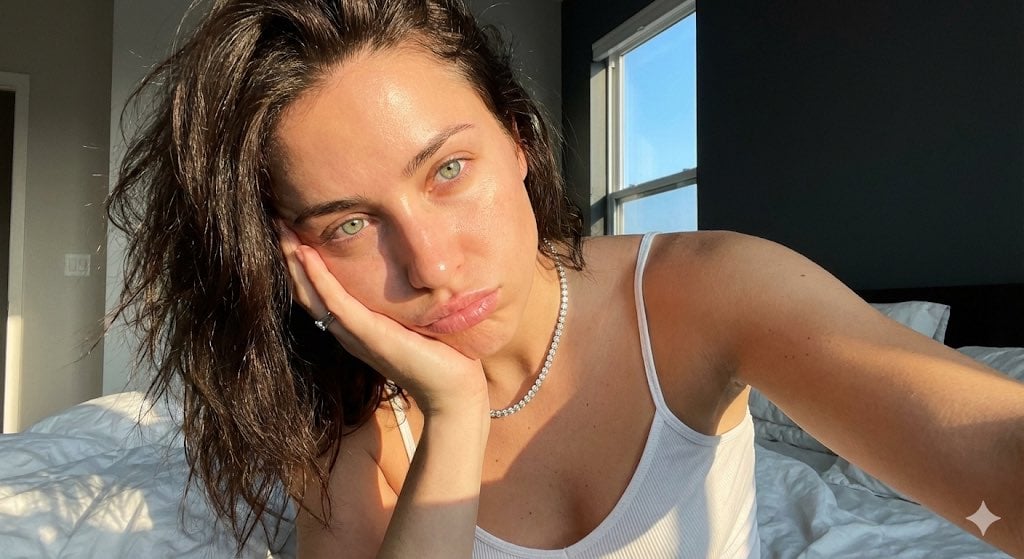
Detailed JSON Prompt for Viral Close-Up Selfie Image Generation
Make it yours
Viral Tweet Menu Before-and-After works as-is. These are the safest ways to change it without losing the look.
Change one field
Copy a single group, rewrite it, and generate again so you can see what that field is doing.
Keep the frame, change the subject
Hold the composition and light of Viral Tweet Menu Before-and-After, then swap wardrobe, props or the person for a new take.
| If the result… | Why | Fix |
|---|---|---|
| The result drifts from the preview | Too many fields changed at once. | Reuse Viral Tweet Menu Before-and-After as-is first, then change one group — subject, light, or setting. |
| The model over-stylizes the scene | The prose prompt leaves finish and camera underspecified. | Add one camera or lighting sentence and stay on GPT Image 2. |
More GPT Image 2 templates
Other prompts made for GPT Image 2.

Six VTuber Japanese Logo Sheet

Realistic Portrait of Woman and Deer

The Vista Modular Condo Poster

AI Model Routing Comparison Infographic

2.5D Anime Art Board

Isometric Productivity Desk Scene

New York Double Exposure Poster

Four-Panel AI Landscape Comparison

Japanese Tatami Lifestyle Magazine Cover

NESCAFÉ Coffee Map Poster
More image prompts
Fresh picks from across the catalog.
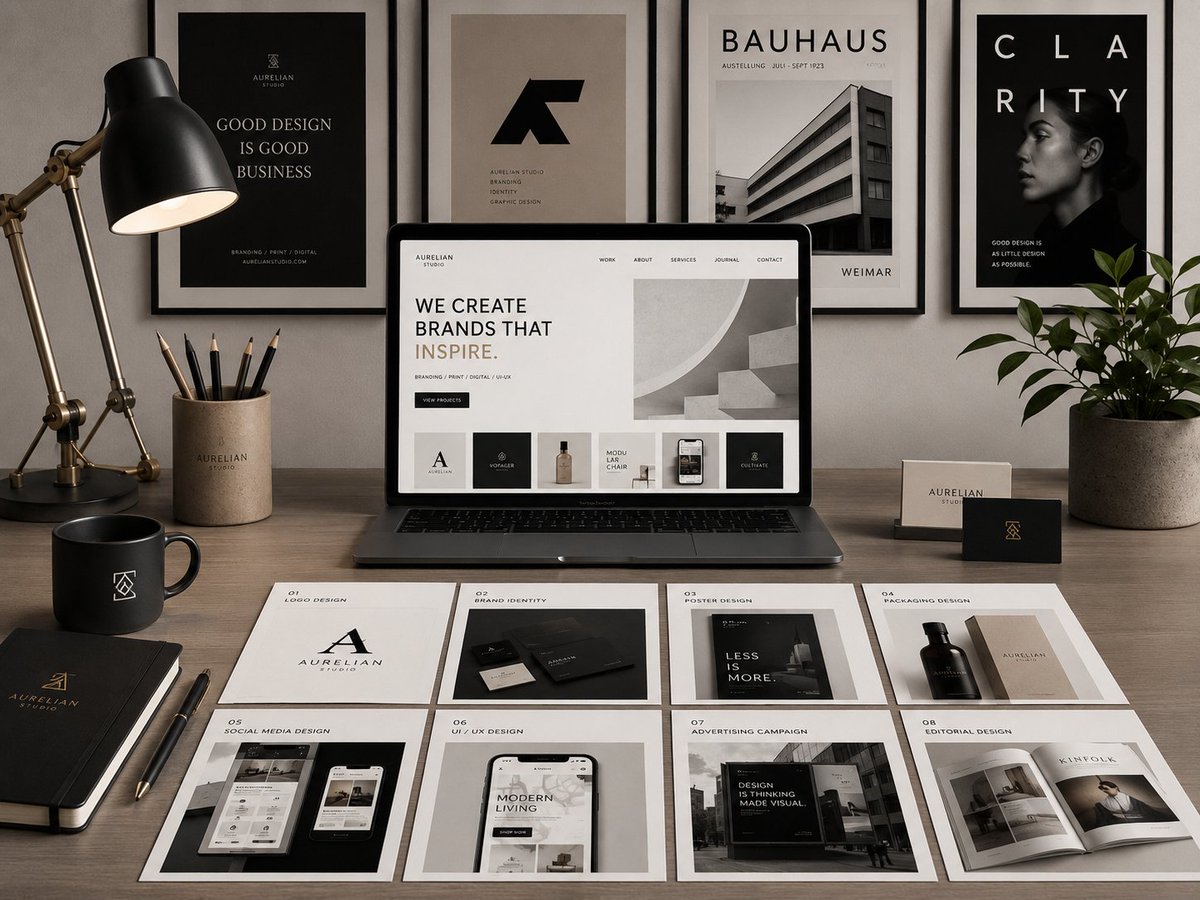
Premium Graphic Design Portfolio Mockup
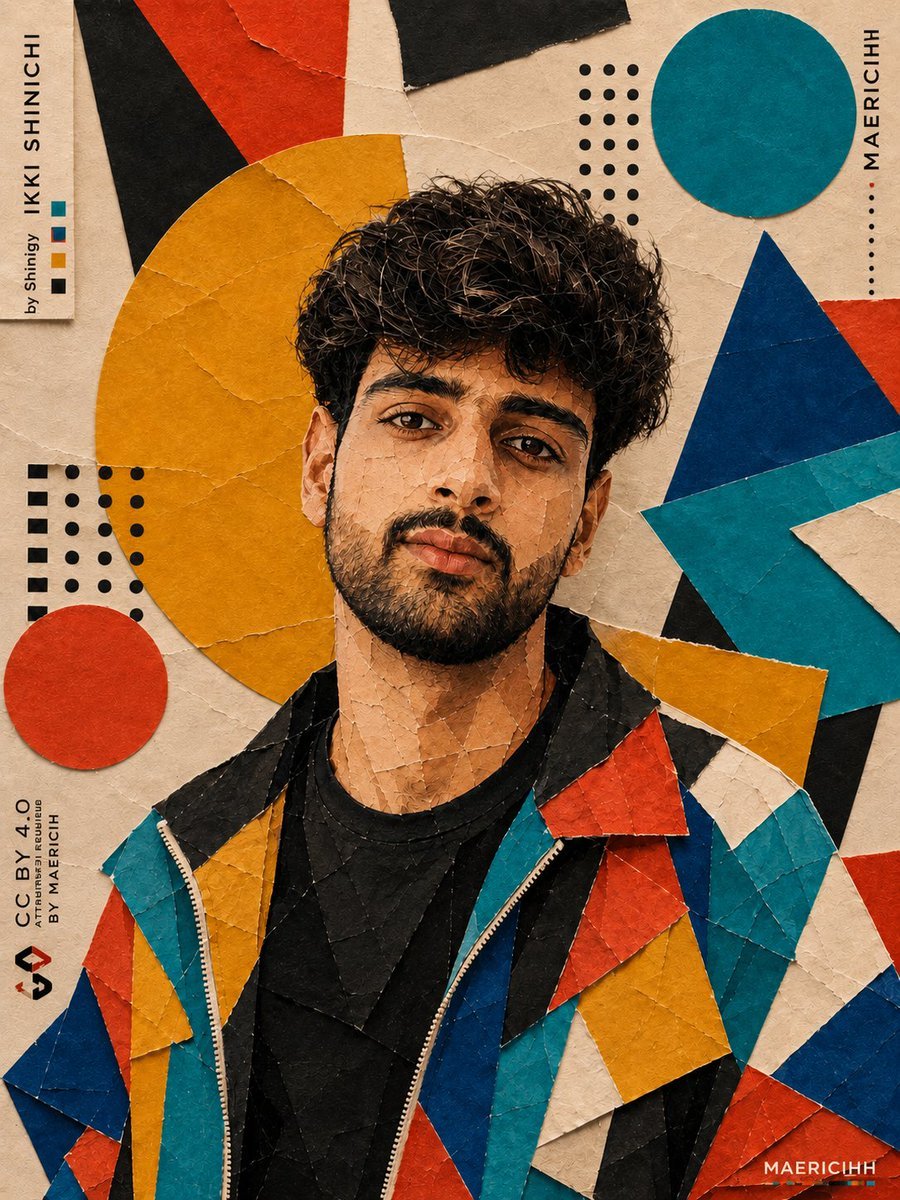
Bauhaus Artistic Fashion Portrait
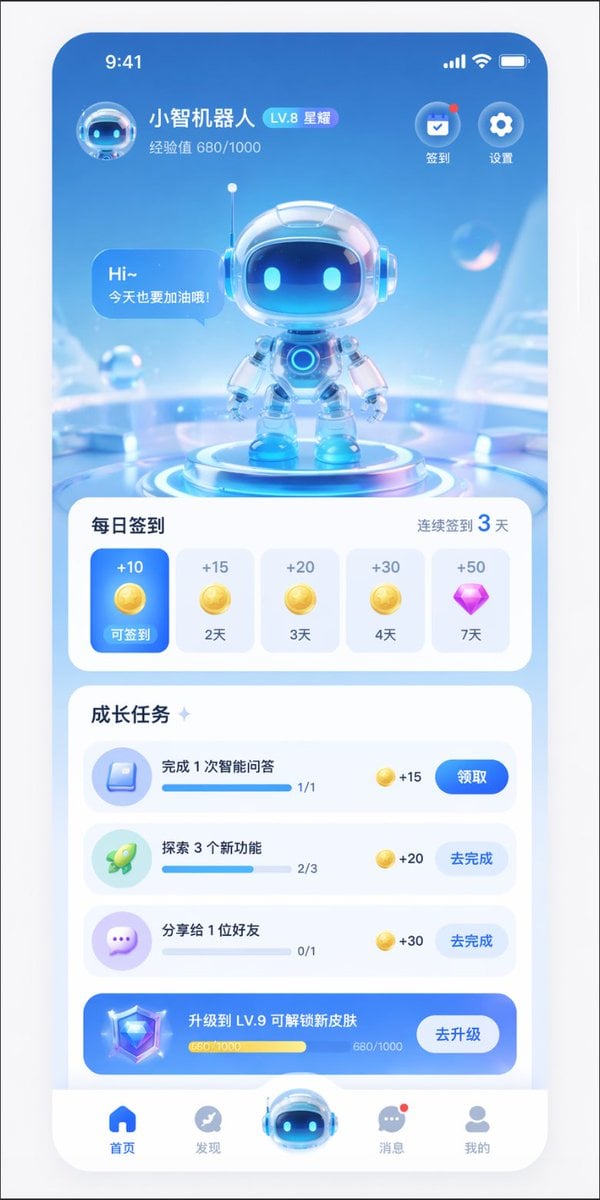
AI Assistant App UI Mockup
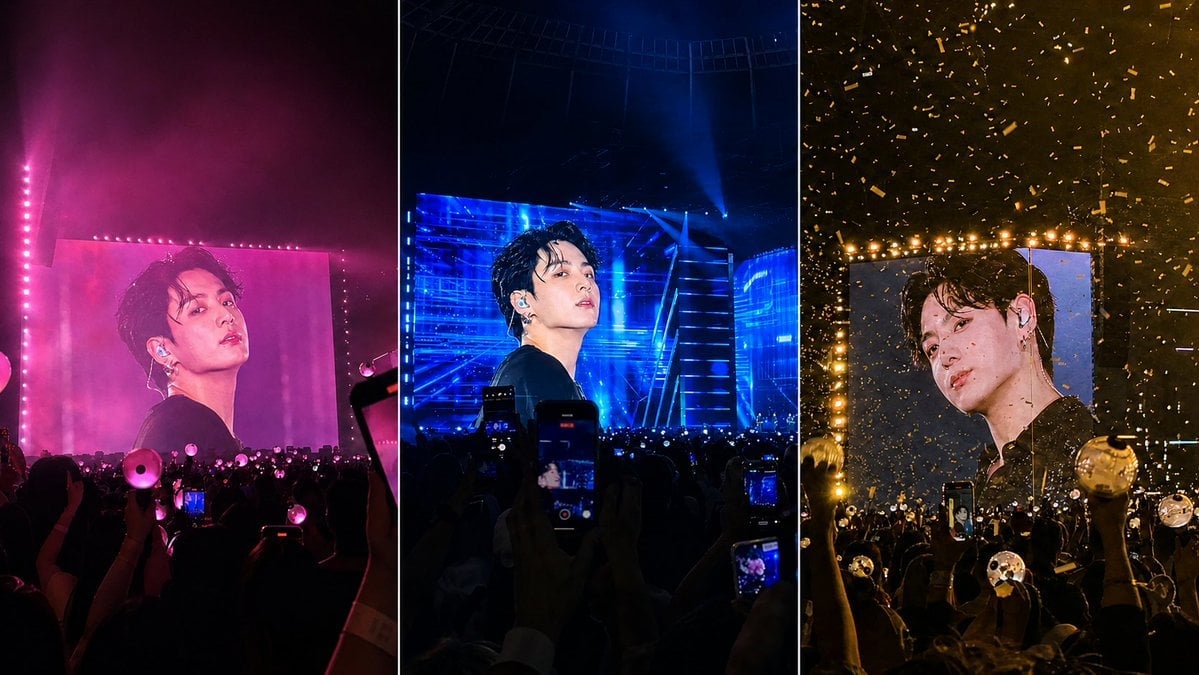
K-Pop Jumbotron Concert Collage
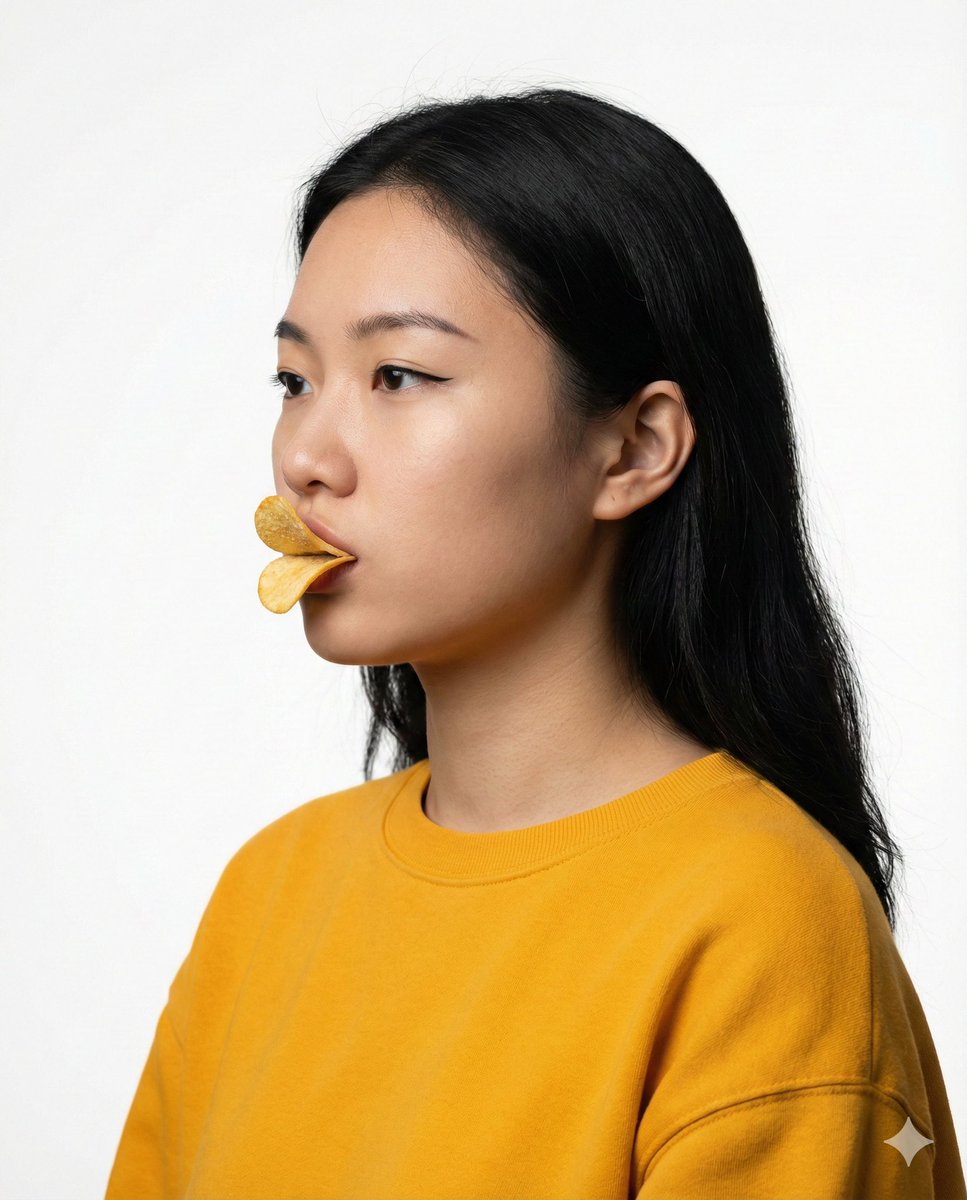
Conceptual Beauty Portrait: Pringles Duck Lips
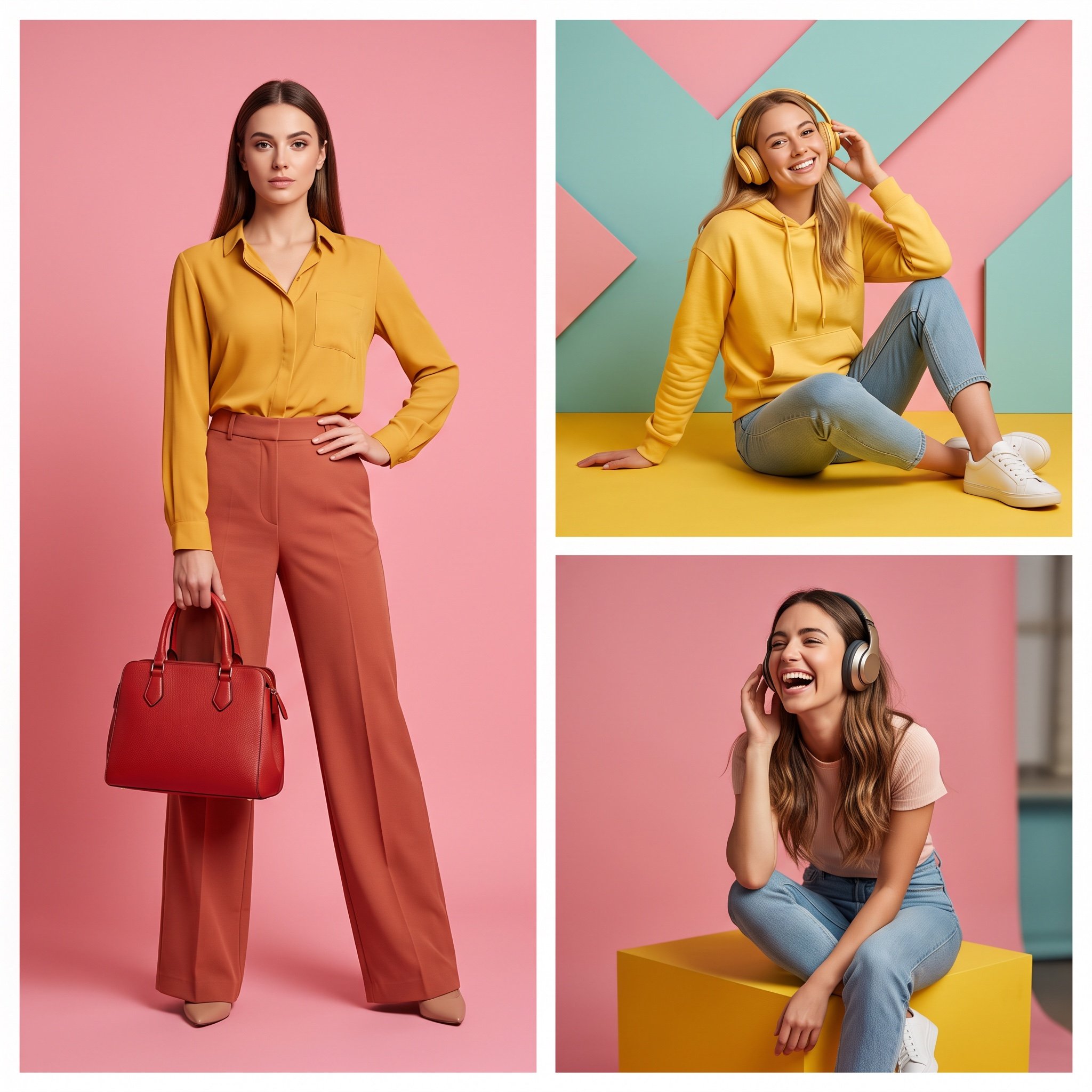
High-Resolution Editorial Collage Prompt for Gemini Nano Banana Pro
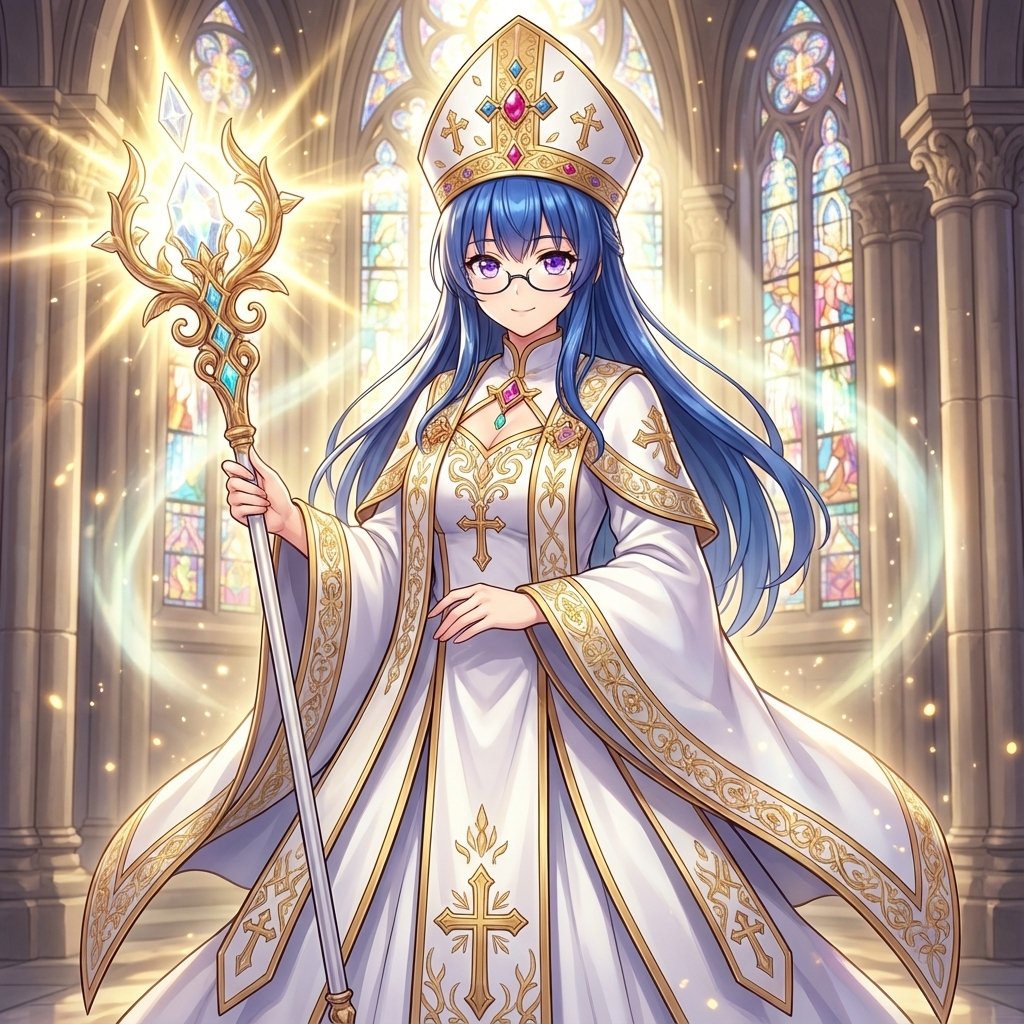
Bishop Transformation with Healing Light and Glasses
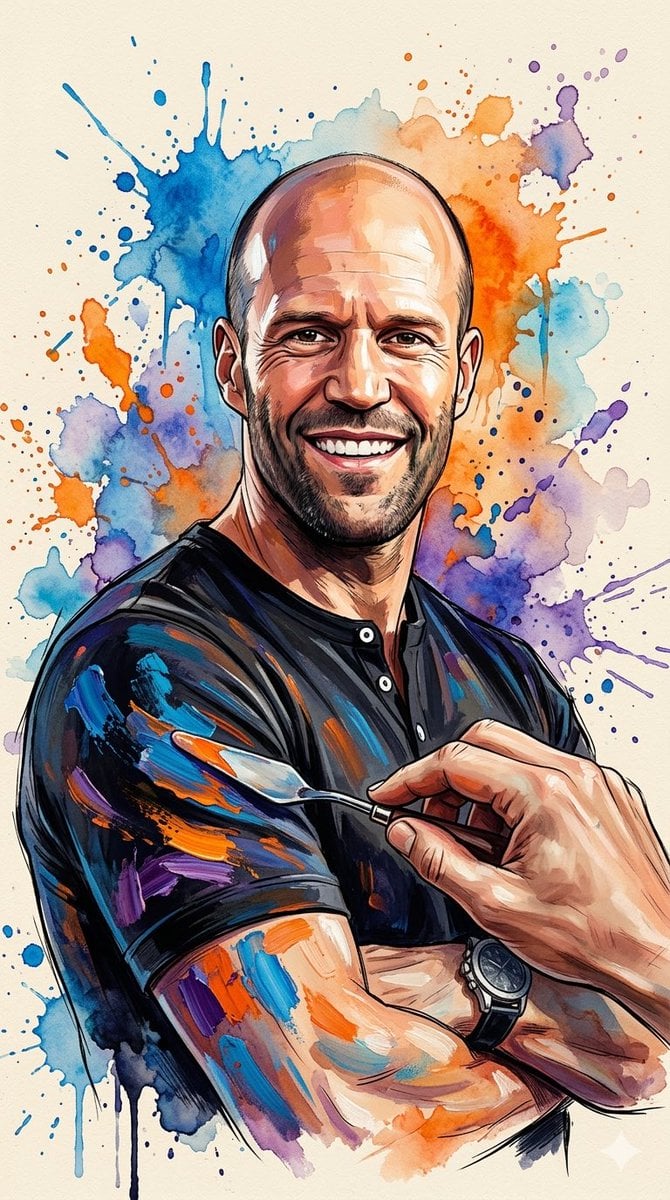
Oil Painting Style Portrait Prompt with Reference
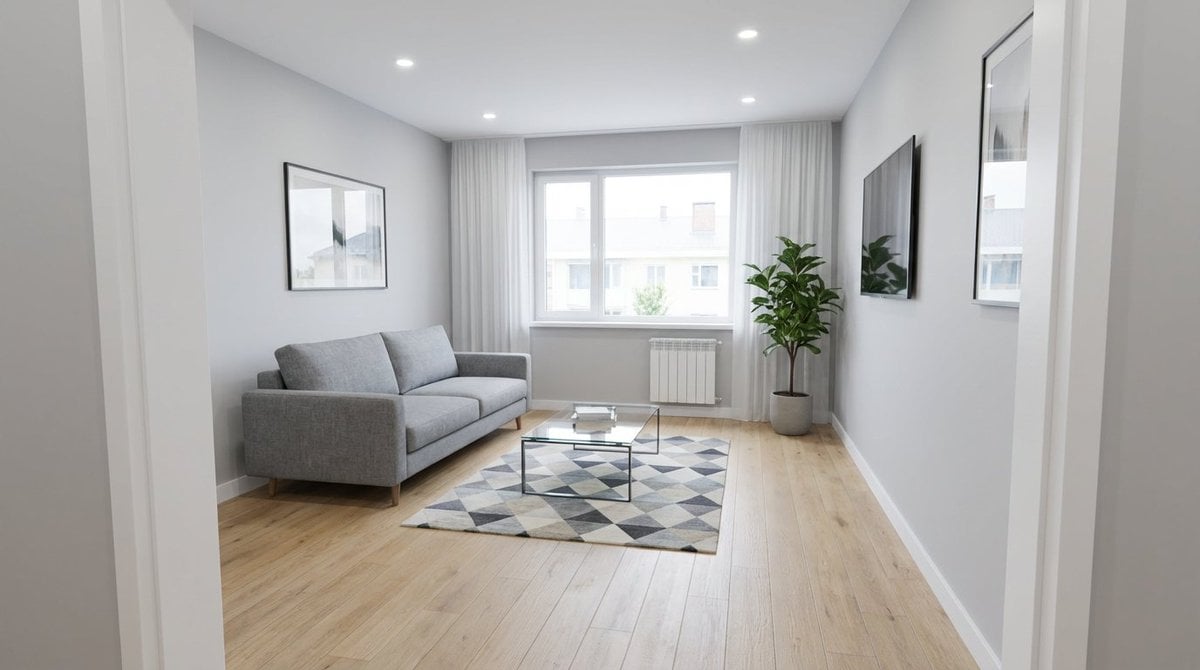
Renovation Visualization: After Frame
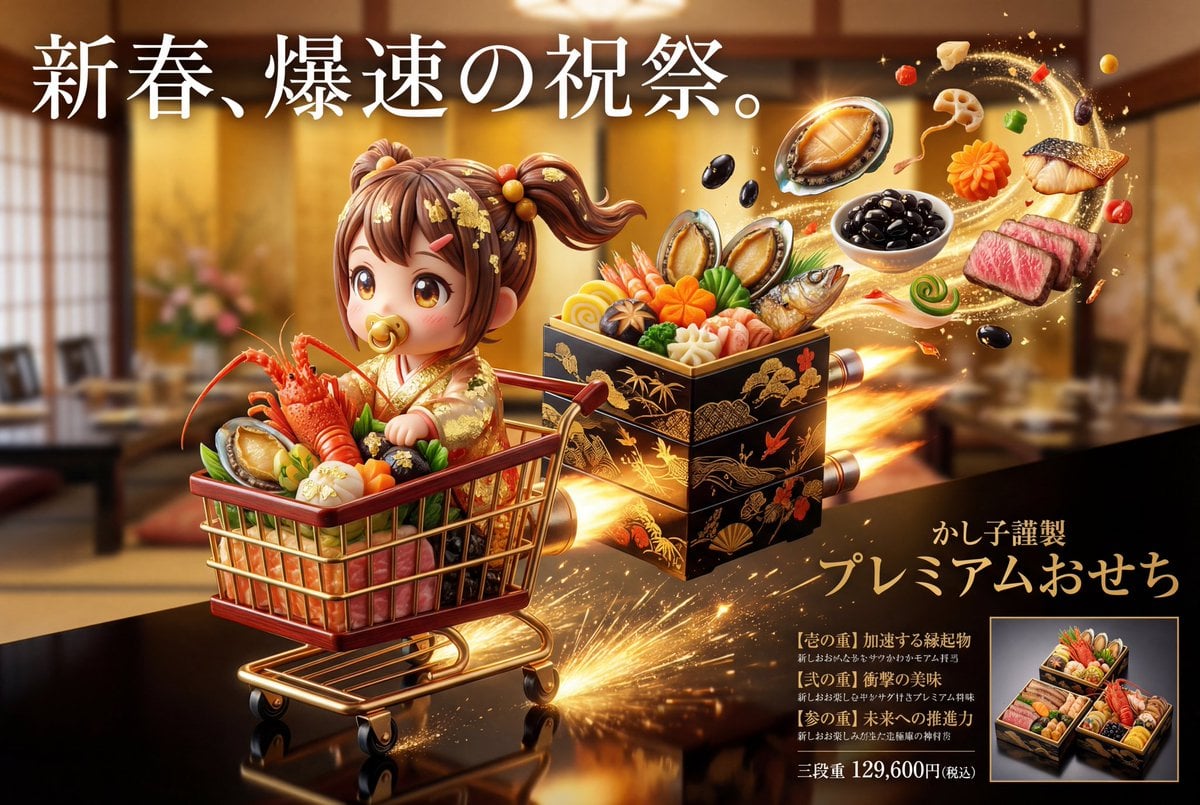
Luxury Osechi (New Year's Food) Key Visual Generation Prompt
Browse template categories
Viral Tweet Menu Before-and-After questions
How do I use the Viral Tweet Menu Before-and-After template?
Add your photo if the template asks for one, edit the prompt if you like — the template's model and format are already selected — and press Generate. Your version opens in PicX Studio.
Can I customize the Viral Tweet Menu Before-and-After template?
Yes. You can change the subject, setting, lighting, mood, format, and available model controls before creating your image.
Is the Viral Tweet Menu Before-and-After template free?
Opening and editing this template is free. Generating uses credits, shown on the Generate button when you are signed in.
Which AI model should I use?
Start with GPT Image 2, which is the model associated with this template. You can compare another compatible model for a different finish.
Looking for something else? Browse all templates.

Your photo, any look
Thousands of ready templates for every top image and video model, from one credit balance.