
Google Fonts Japanese Tutorial Infographic
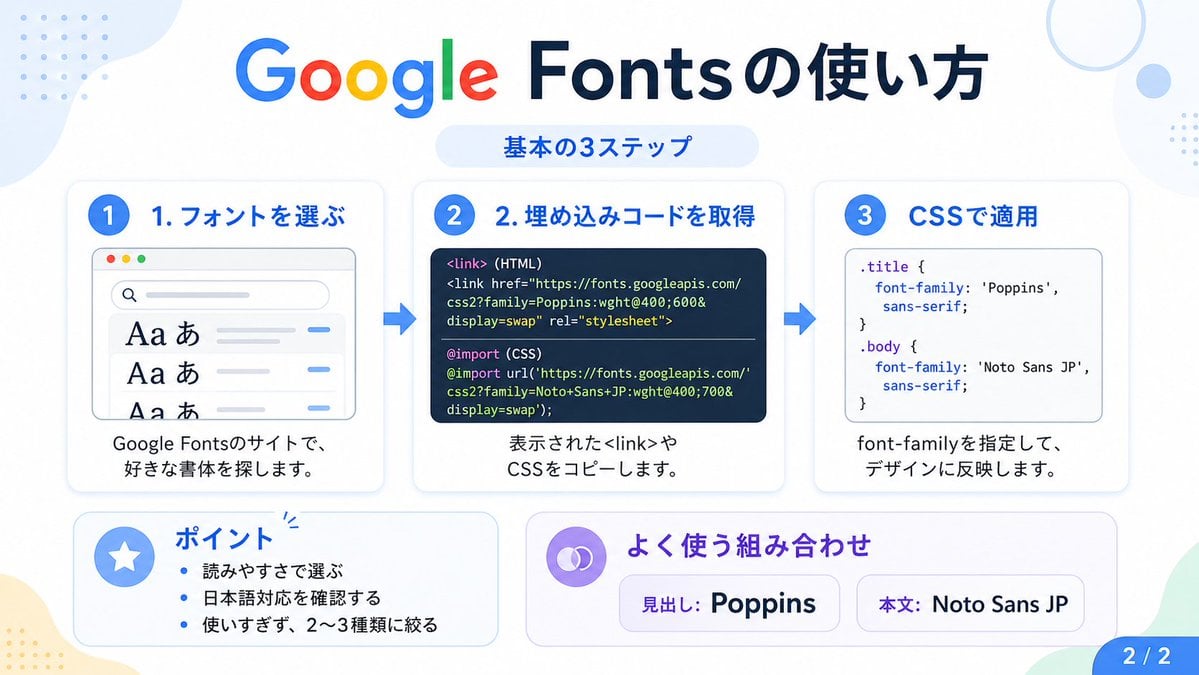
This prompt generates a clean Japanese infographic explaining the three basic steps for using Google Fonts, suitable for social posts, tutorials, and presentation slides.
- Prompt included
- Model and format preset
- Free template
The prompt behind this image
Copy the exact prompt behind Google Fonts Japanese Tutorial Infographic, or open it in the studio and make it yours.
- Type
- Japanese infographic
- Topic
- How to use Google Fonts
- Style
- clean modern flat design, white background, soft pastel blue and mint corner blobs, rounded cards with subtle shadows, tech tutorial aesthetic, crisp vector typography and UI illustrations
- Canvas › Aspect Ratio
- 16:9
- Headline › Main
- Google Fontsの使い方
- Headline › Sub
- 基本の3ステップ
- Layout › Sections › 0 › Title
- 1. フォントを選ぶ
- Layout › Sections › 0 › Position
- left
- Layout › Sections › 0 › Count
- 1
- Layout › Sections › 0 › Labels
- 1. フォントを選ぶ
- Layout › Sections › 0 › Card Style
- rounded white panel with light blue border/shadow
- Layout › Sections › 0 › Icon
- blue numbered circle with 1
- Layout › Sections › 0 › Illustration
- browser window showing a font search interface, 3 visible font preview rows with large Aa あ samples, a search bar at top, small colored window buttons, light gray interface lines and blue accent dashes
- Layout › Sections › 0 › Body Text
- Google Fontsのサイトで、好きな書体を探します。
- Layout › Sections › 1 › Title
- 2. 埋め込みコードを取得
- Layout › Sections › 1 › Position
- center
- Layout › Sections › 1 › Count
- 1
- Layout › Sections › 1 › Labels
- 2. 埋め込みコードを取得
- Layout › Sections › 1 › Card Style
- rounded white panel with light blue border/shadow
- Layout › Sections › 1 › Icon
- blue numbered circle with 2
- Layout › Sections › 1 › Illustration
- dark code panel with two labeled code examples separated by a thin divider
- Layout › Sections › 1 › Code Blocks › Count
- 2
- Layout › Sections › 1 › Code Blocks › Labels
- <link> (HTML), @import (CSS)
- Layout › Sections › 1 › Code Blocks › Content
- <link href="https://fonts.googleapis.com/css2?family=Poppins:wght@400;600&display=swap" rel="stylesheet">, @import url('https://fonts.googleapis.com/css2?family=Noto+Sans+JP:wght@400;700&display=swap');
Raw JSON
{"type":"Japanese infographic","topic":"How to use Google Fonts","style":"clean modern flat design, white background, soft pastel blue and mint corner blobs, rounded cards with subtle shadows, tech tutorial aesthetic, crisp vector typography and UI illustrations","canvas":{"aspect_ratio":"16:9"},"headline":{"main":"Google Fontsの使い方","sub":"基本の3ステップ"},"layout":{"sections":[{"title":"1. フォントを選ぶ","position":"left","count":1,"labels":["1. フォントを選ぶ"],"card_style":"rounded white panel with light blue border/shadow","icon":"blue numbered circle with 1","illustration":"browser window showing a font search interface, 3 visible font preview rows with large Aa あ samples, a search bar at top, small colored window buttons, light gray interface lines and blue accent dashes","body_text":"Google Fontsのサイトで、好きな書体を探します。"},{"title":"2. 埋め込みコードを取得","position":"center","count":1,"labels":["2. 埋め込みコードを取得"],"card_style":"rounded white panel with light blue border/shadow","icon":"blue numbered circle with 2","illustration":"dark code panel with two labeled code examples separated by a thin divider","code_blocks":{"count":2,"labels":["<link> (HTML)","@import (CSS)"],"content":["<link href=\"https://fonts.googleapis.com/css2?family=Poppins:wght@400;600&display=swap\" rel=\"stylesheet\">","@import url('https://fonts.googleapis.com/css2?family=Noto+Sans+JP:wght@400;700&display=swap');"]},"body_text":"表示された<link>やCSSをコピーします。"},{"title":"3. CSSで適用","position":"right","count":1,"labels":["3. CSSで適用"],"card_style":"rounded white panel with light blue border/shadow","icon":"blue numbered circle with 3","illustration":"white code card containing CSS with two selectors and font-family rules","code_blocks":{"count":2,"labels":[".title","body"],"content":[".title { font-family: 'Poppins', sans-serif; }","body { font-family: 'Noto Sans JP', sans-serif; }"]},"body_text":"font-familyを指定して、デザインに反映します。"},{"title":"ポイント","position":"bottom-left","count":3,"labels":["読みやすさで選ぶ","日本語対応を確認する","使いすぎず、2〜3種類に絞る"],"card_style":"rounded white panel with pale blue tint","icon":"blue star in a circle","body_format":"bullet list"},{"title":"よく使う組み合わせ","position":"bottom-center-right","count":2,"labels":["見出し: Poppins","本文: Noto Sans JP"],"card_style":"rounded white panel with pale lavender tint","icon":"purple linked-rings symbol","body_format":"two pill-shaped example boxes"}],"connectors":{"count":2,"style":"large blue right-pointing arrows between the 3 top cards"},"pagination":{"text":"2 / 2","position":"bottom-right","style":"blue rounded corner tab"}},"text_language":"Japanese","color_palette":{"primary_blue":"#2f80ff","navy":"#0f2b5b","google_colors":["#4285F4","#DB4437","#F4B400","#0F9D58"],"lavender":"#8b6cff","background":"#ffffff"}}How to use Google Fonts Japanese Tutorial Infographic in 3 steps
- 1Upload ImagePNG, JPG or paste
Add your photo
Upload the photo the template builds on. The prompt, model and format are already set.
- 2…a portrait of your subject in softgolden-hour light, 85mm…
Personalize
Edit the subject and creative details for your destination.
- 3Generate
Generate
Press Generate — your image is created in PicX Studio, so you can compare it with the original and refine one variable at a time.
More like this
Templates with the same subject, style or setup. Open one to see its prompt.
Cute Google Fonts Tutorial Infographic
Cute Google Fonts Japanese Infographic
Google Fonts Japanese Infographic
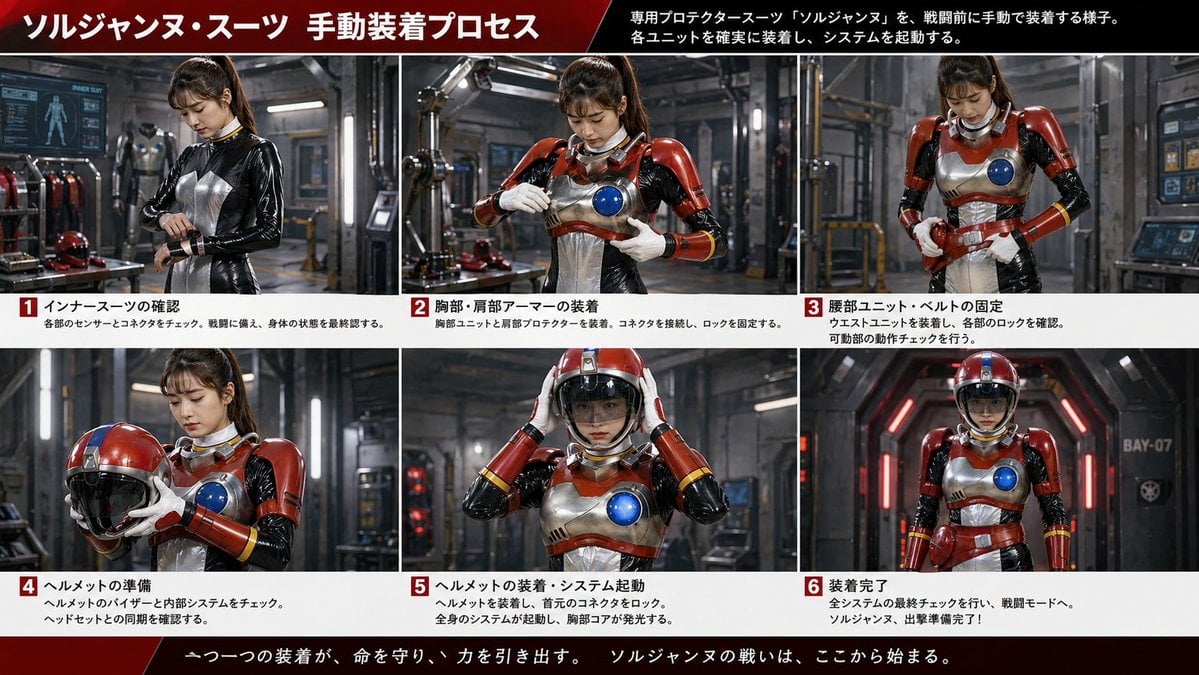
Gpt2 Infographic Edu Visual Japanese Sci Fi Suit Up Process Board
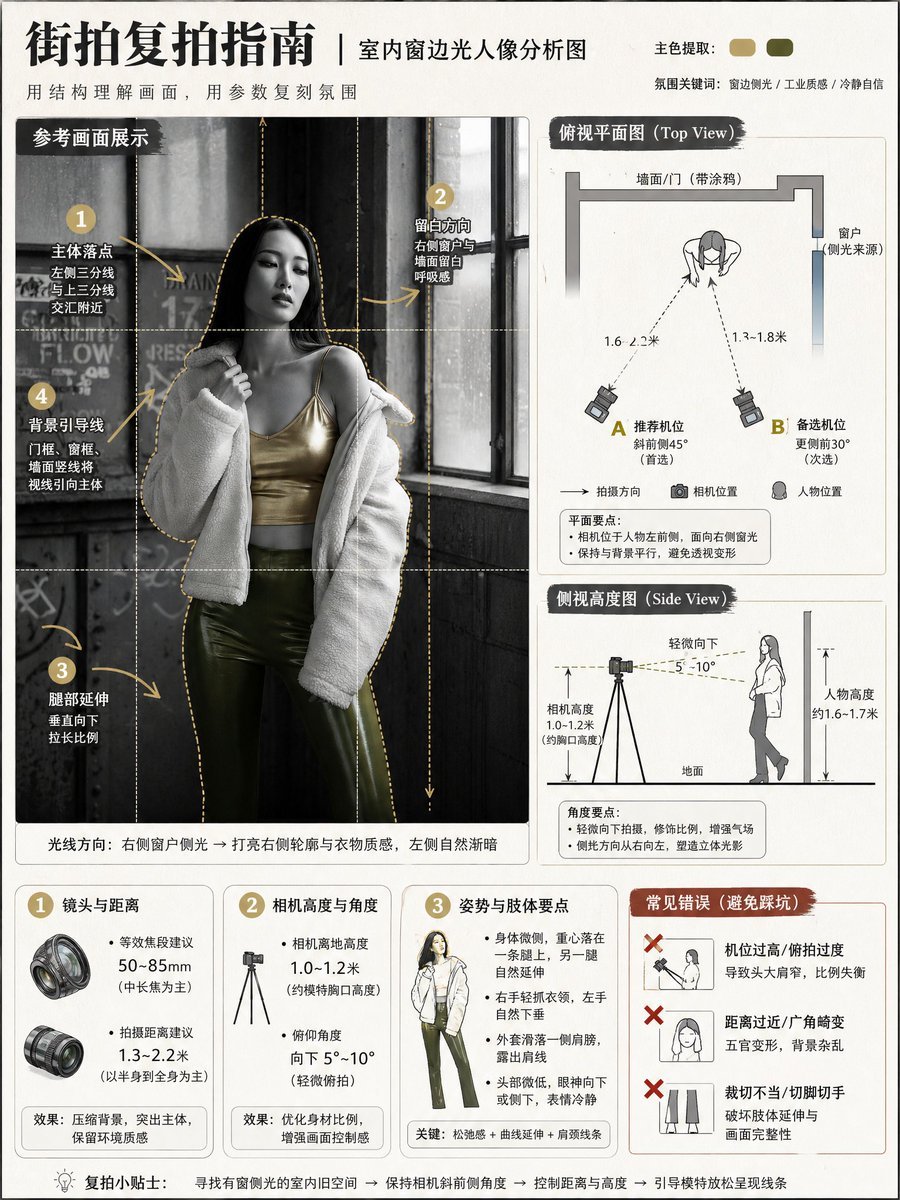
Photography Tutorial and Camera Setup Infographic

Minecraft Japanese Research Lab Exploration

Japan Travel Brochure Poster
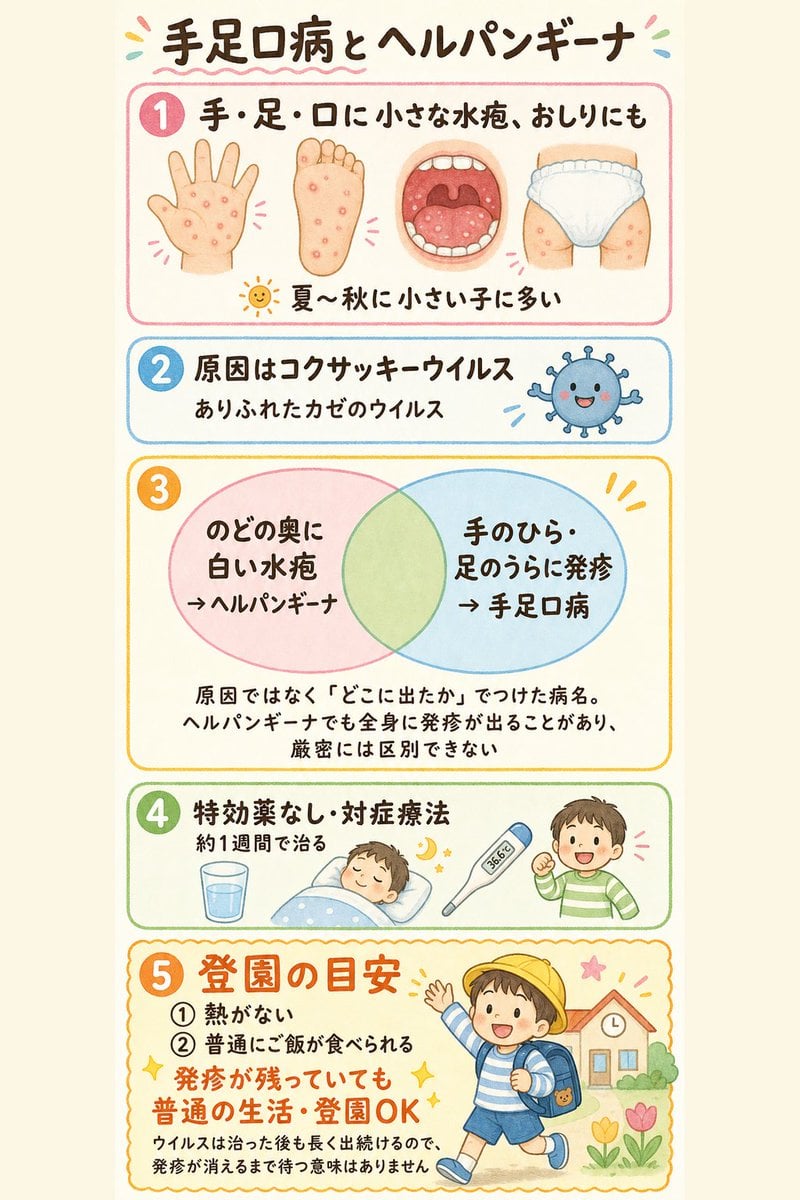
Japanese Pediatric Disease Infographic
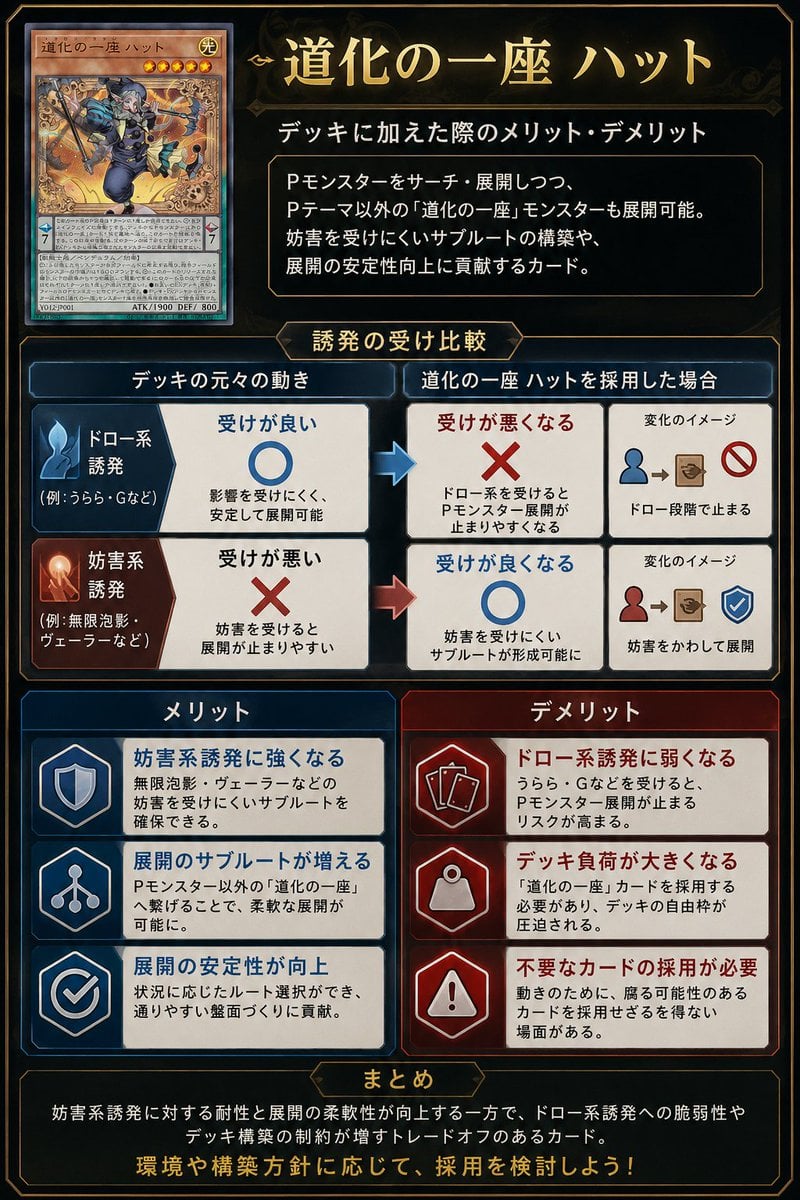
Japanese TCG Strategy Infographic
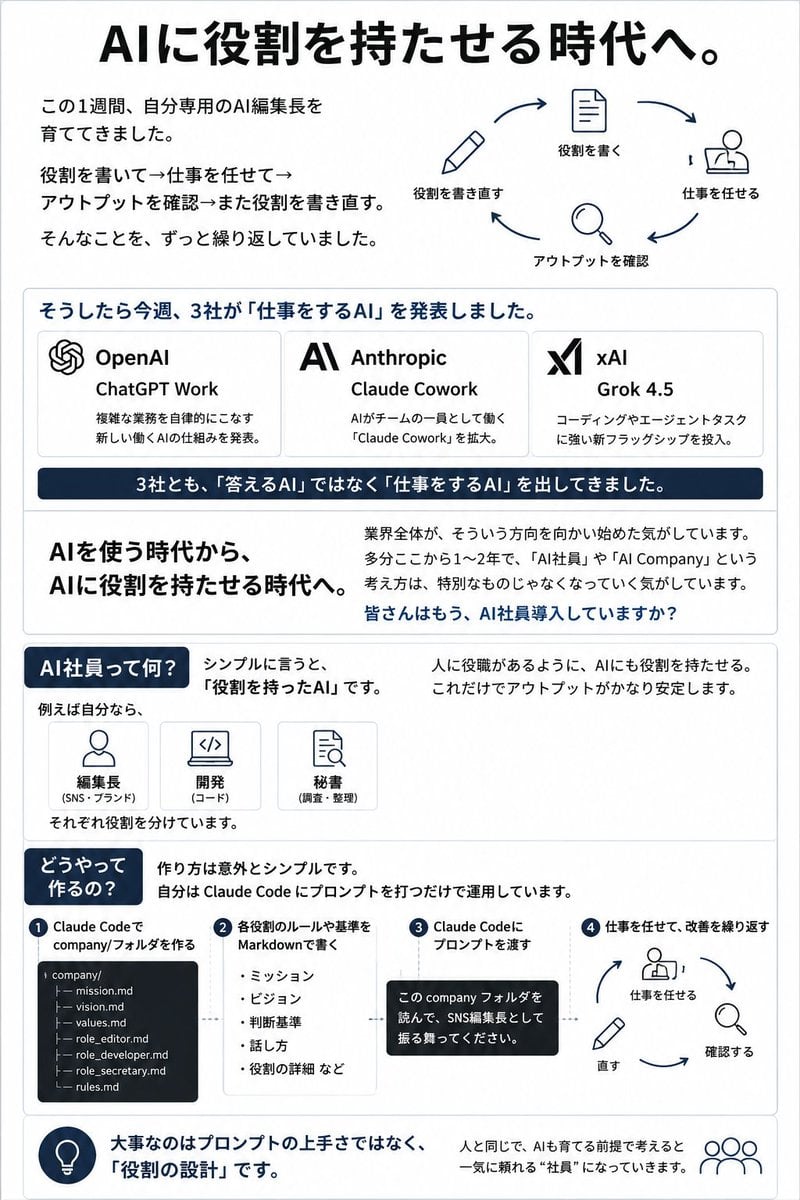
Japanese AI Employee Infographic
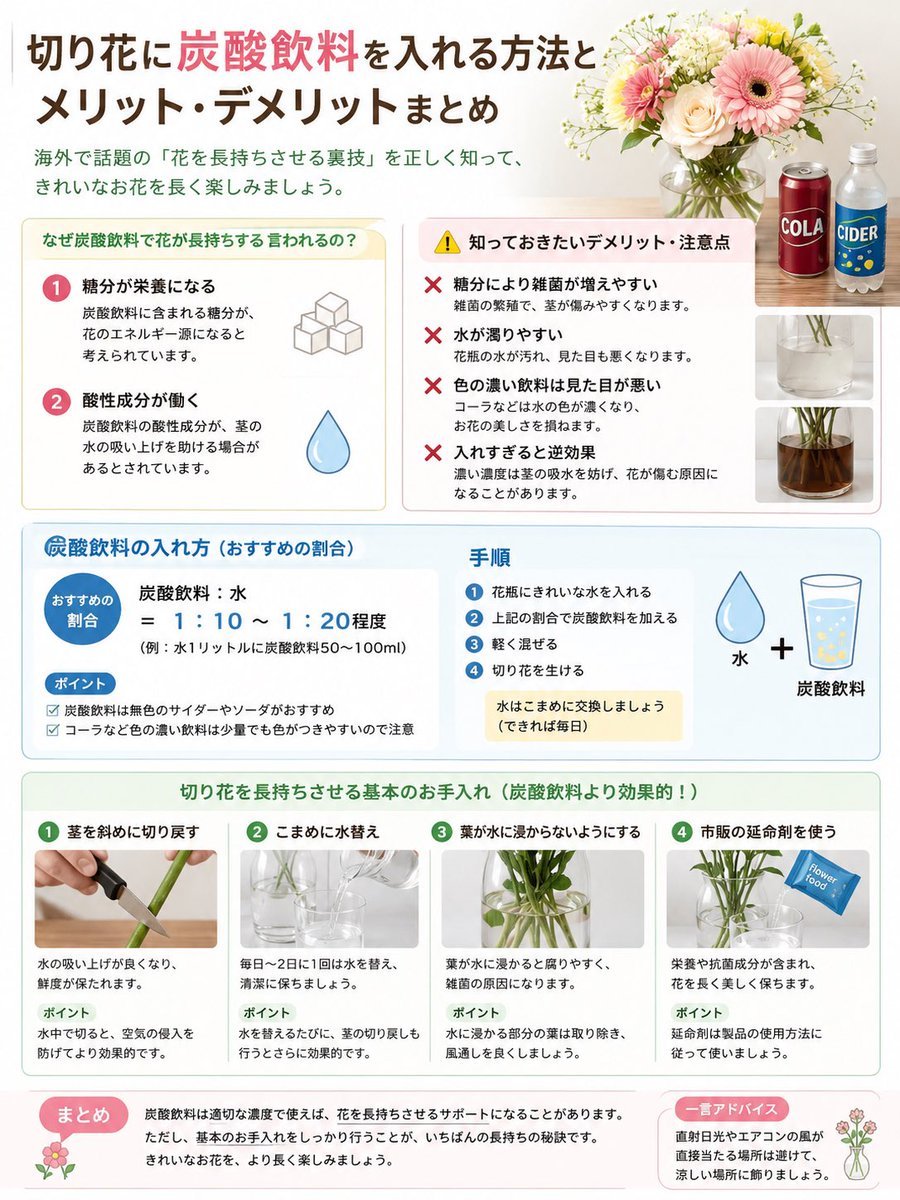
Japanese Cut Flower Soda Care Infographic

Japanese Architectural Concrete Studio Fashion Campaign
Make it yours
Google Fonts Japanese Tutorial Infographic works as-is. These are the safest ways to change it without losing the look.
Swap the setting
Keep the rest of the prompt and replace the location block. The current setting is “#ffffff”.
Change one field
Copy a single group, rewrite it, and generate again so you can see what that field is doing.
Keep the frame, change the subject
Hold the composition and light of Google Fonts Japanese Tutorial Infographic, then swap wardrobe, props or the person for a new take.
| If the result… | Why | Fix |
|---|---|---|
| The result drifts from the preview | Too many fields changed at once. | Reuse Google Fonts Japanese Tutorial Infographic as-is first, then change one group — subject, light, or setting. |
| GPT Image 2 ignores part of the JSON | Some models flatten or skip nested keys. | Keep the same values and paste them as a short paragraph instead. |
More GPT Image 2 templates
Other prompts made for GPT Image 2.

Six VTuber Japanese Logo Sheet

Realistic Portrait of Woman and Deer

The Vista Modular Condo Poster

AI Model Routing Comparison Infographic

2.5D Anime Art Board

Isometric Productivity Desk Scene

New York Double Exposure Poster

Four-Panel AI Landscape Comparison

Japanese Tatami Lifestyle Magazine Cover

NESCAFÉ Coffee Map Poster
More image prompts
Fresh picks from across the catalog.

Ultra Realistic Dim Bedroom Scene Prompt

Summon Dash Roblox Fantasy Thumbnail

Ultra-realistic Portrait of a Blonde Woman in Crochet Outfit

Minimalist Retro Anime Template

Cinematic Indoor Portrait Prompt for Gemini Nano Banana Pro

Gpt2 E Commerce Main Image Tropical Citrus Soda Ad Poster

Cinematic Interior Shot of a Man on a Dimly Lit Bus

Hyper-Realistic Two-Panel iPhone Portrait Prompt

Cinematic Storytelling Scene Generation Prompt
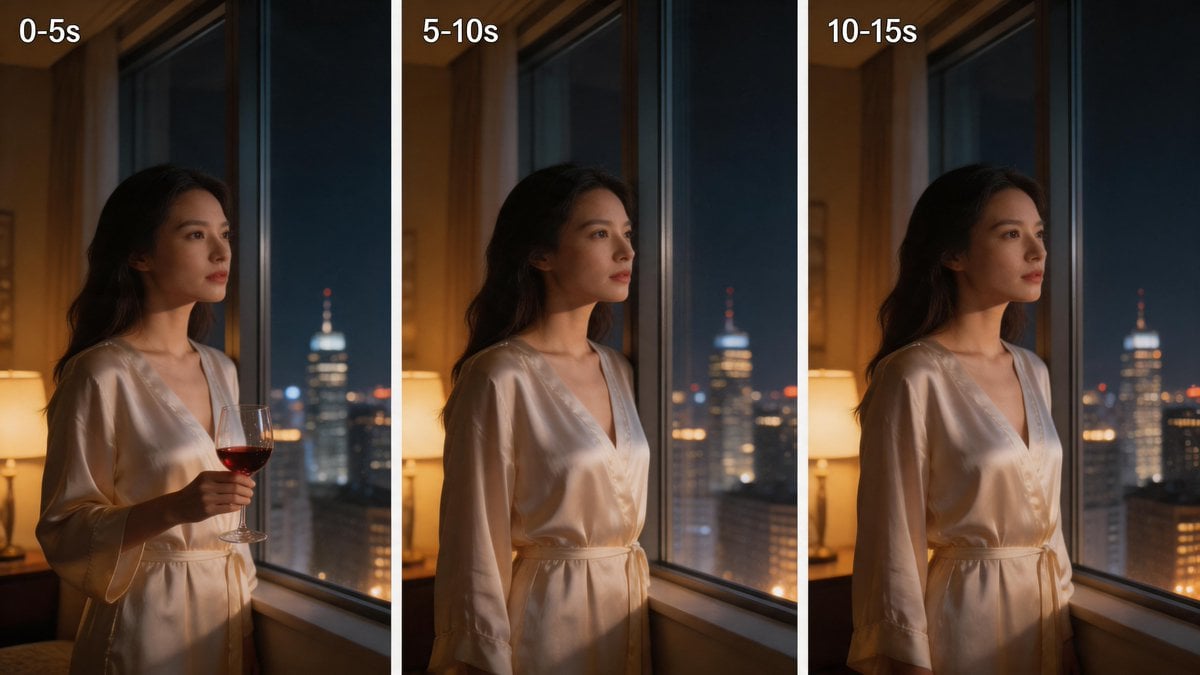
Three-Panel Night Window Comparison
Browse template categories
Google Fonts Japanese Tutorial Infographic questions
How do I use the Google Fonts Japanese Tutorial Infographic template?
Add your photo if the template asks for one, edit the prompt if you like — the template's model and format are already selected — and press Generate. Your version opens in PicX Studio.
Can I customize the Google Fonts Japanese Tutorial Infographic template?
Yes. You can change the subject, setting, lighting, mood, format, and available model controls before creating your image.
Is the Google Fonts Japanese Tutorial Infographic template free?
Opening and editing this template is free. Generating uses credits, shown on the Generate button when you are signed in.
Which AI model should I use?
Start with GPT Image 2, which is the model associated with this template. You can compare another compatible model for a different finish.
Looking for something else? Browse all templates.

Your photo, any look
Thousands of ready templates for every top image and video model, from one credit balance.