
AI Model Router App Store Screenshot
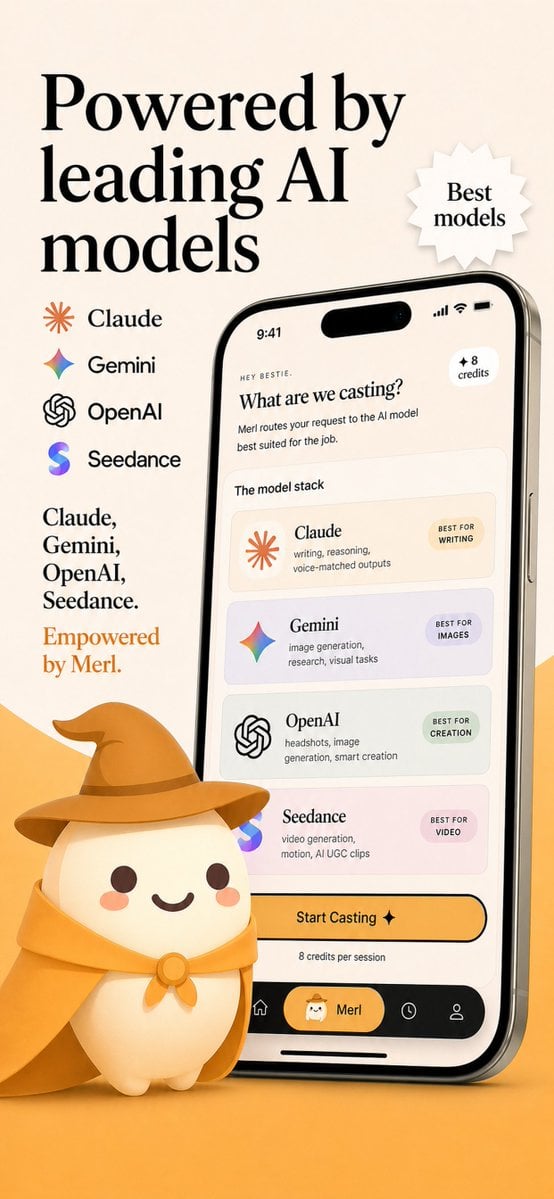
A premium mobile app marketing screenshot showing a branded AI model-routing interface with provider logos, promotional copy, and a cute mascot, ideal for App Store listings or startup launch visuals.
- Prompt included
- Model and format preset
- Premium template
The prompt behind this image
Copy the exact prompt behind AI Model Router App Store Screenshot, or open it in the studio and make it yours.
Create a polished App Store promotional screenshot in a warm beige and golden-orange brand palette, portrait orientation, with a premium friendly startup aesthetic. The layout is a single vertically composed marketing graphic with a soft cream background and an orange gradient floor at the bottom. On the left upper side, place a very large elegant black serif headline split across 3 lines reading {argument name="headline text" default="Powered by leading AI models"}. To the right of the headline, add a small white jagged starburst badge with a subtle drop shadow containing 2 lines of serif text: {argument name="badge text" default="Best models"}. Beneath the headline on the left, show a vertical list of exactly 4 AI providers with icon plus name, evenly spaced: Claude with an orange sunburst icon, Gemini with a multicolor four-point sparkle icon, OpenAI with a black knot logo, and Seedance with a purple-blue gradient S icon. Below that, add a left-aligned serif body copy block with 2 parts: first a black text list on 4 lines reading "Claude, Gemini, OpenAI, Seedance.", then a final brand-colored orange line reading {argument name="tagline text" default="Empowered by Merl."}. On the right half, place a large realistic modern smartphone angled slightly left, with a reflective silver frame, black screen border, dynamic-island style top cutout, visible side button, and soft shadow. The phone screen should show a clean cream-colored app UI for an AI model-routing app. At the very top of the phone display, include the status time 9:41 and standard signal, wifi, and battery icons. Inside the app, show a tiny greeting line "HEY BESTIE.", then a bold serif question title {argument name="screen title" default="What are we casting?"}, followed by a short sans-serif subtitle about routing the request to the best AI model for the job. Add a small rounded badge in the upper right of the app content reading "+ 8 credits". Below that, include a section label "The model stack" and a stack of exactly 4 rounded cards, each in a lightly tinted pastel background. Card 1: Claude, with orange sunburst icon, description "writing, reasoning, voice-matched outputs", and a small pill label "BEST FOR WRITING". Card 2: Gemini, with multicolor sparkle icon, description "image generation, research, visual tasks", and pill label "BEST FOR IMAGES". Card 3: OpenAI, with black knot icon, description "headshots, image generation, smart creation", and pill label "BEST FOR CREATION". Card 4: Seedance, with purple-blue gradient S icon, description "video generation, motion, AI UGC clips", and pill label "BEST FOR VIDEO". Under the cards, place a large rounded yellow-orange CTA button reading "Start Casting ✦", with a small line below saying "8 credits per session". At the bottom of the phone UI, create a black tab bar with exactly 4 navigation items: home icon, a selected center pill with a small mascot face and the label {argument name="app name" default="Merl"}, a clock/history icon, and a profile icon. In front of the lower left of the phone, place a cute 3D mascot character: a rounded cream-colored blob with tiny feet, dark brown dot eyes, rosy cheeks, and a smiling mouth, wearing a golden wizard hat and matching cape tied with a round clasp. The mascot should overlap the phone slightly and sit on the orange floor, casting a soft shadow. Overall style: luxury-friendly tech branding, crisp typography, subtle realism, soft shadows, clean app mockup, App Store screenshot quality, consistent visual branding, highly legible, high resolution.
How to use AI Model Router App Store Screenshot in 3 steps
- 1Upload ImagePNG, JPG or paste
Add your photo
Upload the photo the template builds on. The prompt, model and format are already set.
- 2…a portrait of your subject in softgolden-hour light, 85mm…
Personalize
Edit the subject and creative details for your destination.
- 3Generate
Generate
Press Generate — your image is created in PicX Studio, so you can compare it with the original and refine one variable at a time.
More like this
Templates with the same subject, style or setup. Open one to see its prompt.

Minecraft Next-Gen Voxel World Screenshot
Premium Vertical Product Campaign Poster
ChatGPT App Screenshot With Cute 4-Panel Comic
AI Model Eyewear Store Comparison
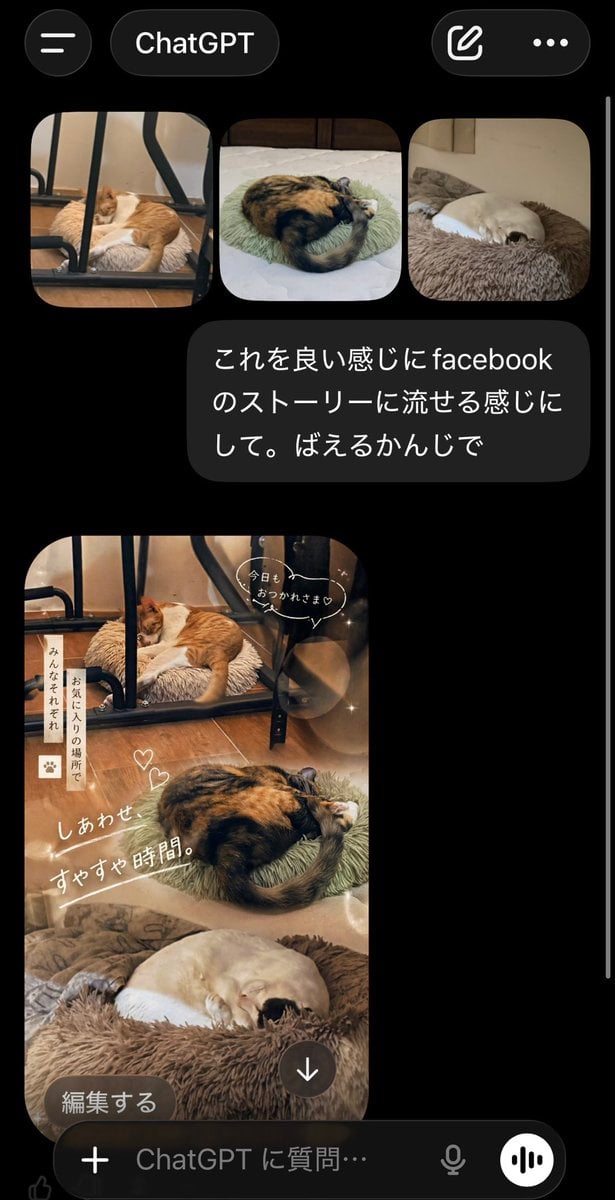
ChatGPT App Cat Story Screenshot
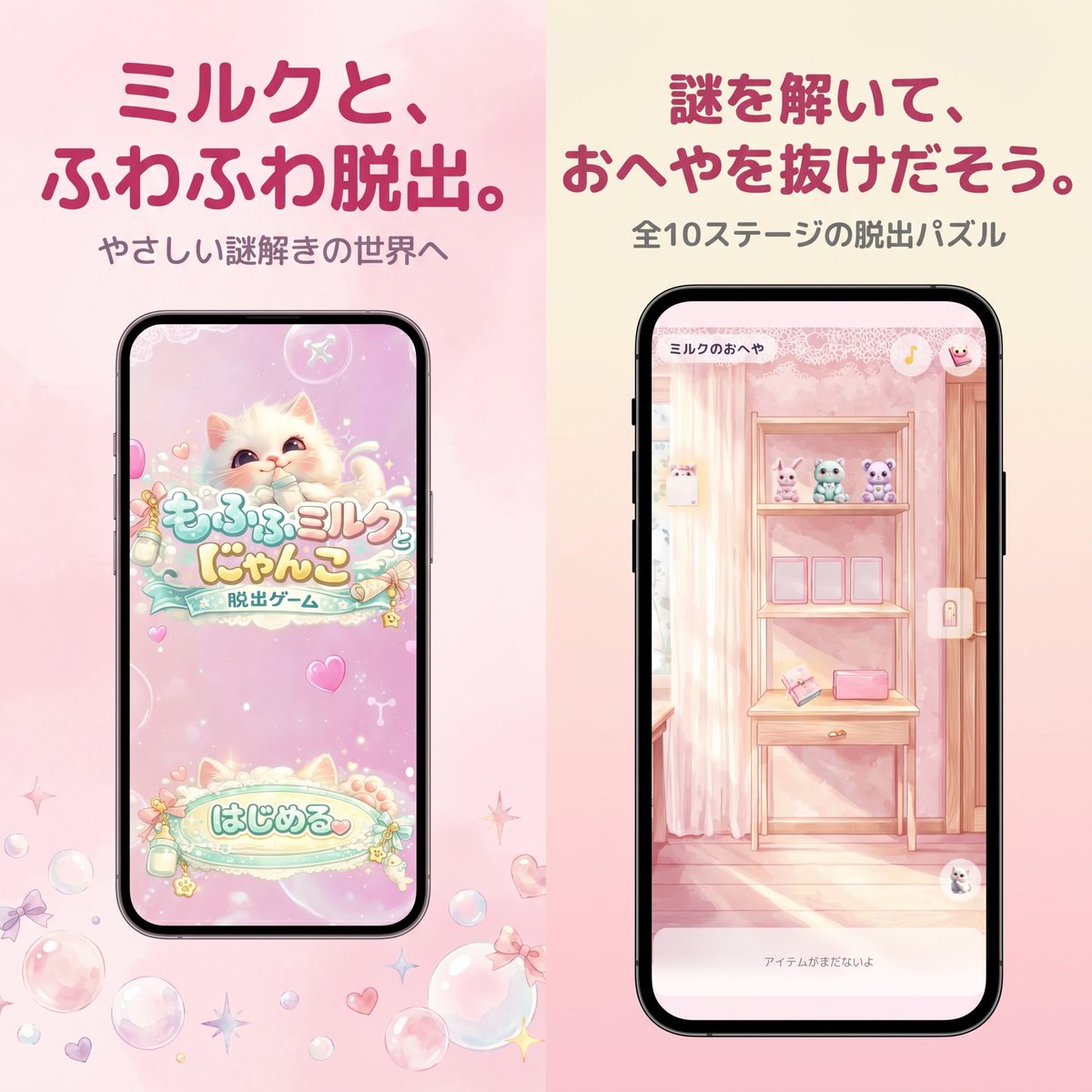
Pastel Japanese Mobile Game Store Screenshot
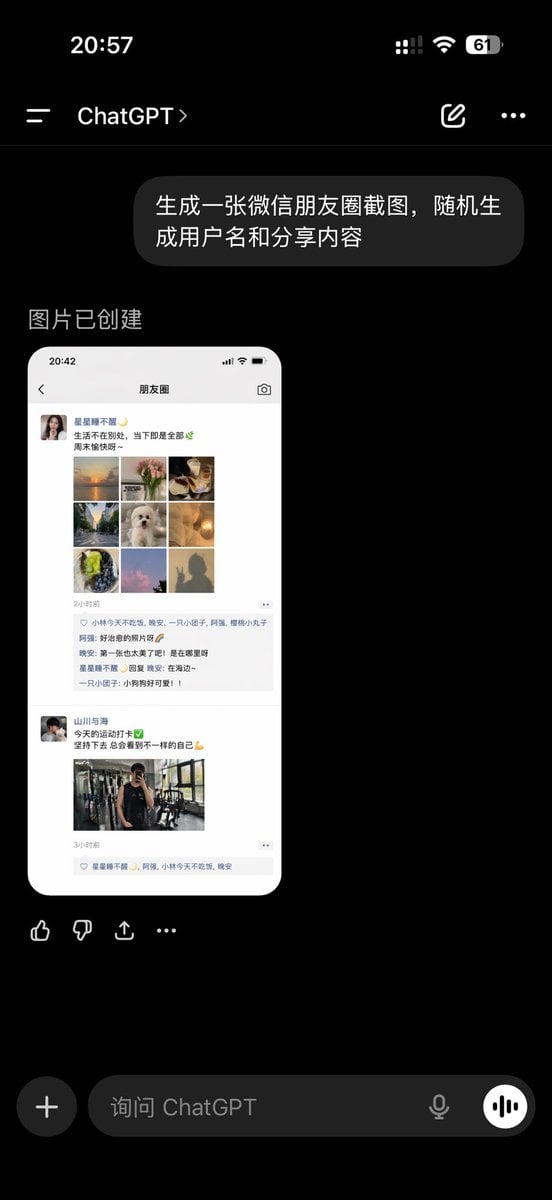
ChatGPT App Showing WeChat Moments Screenshot
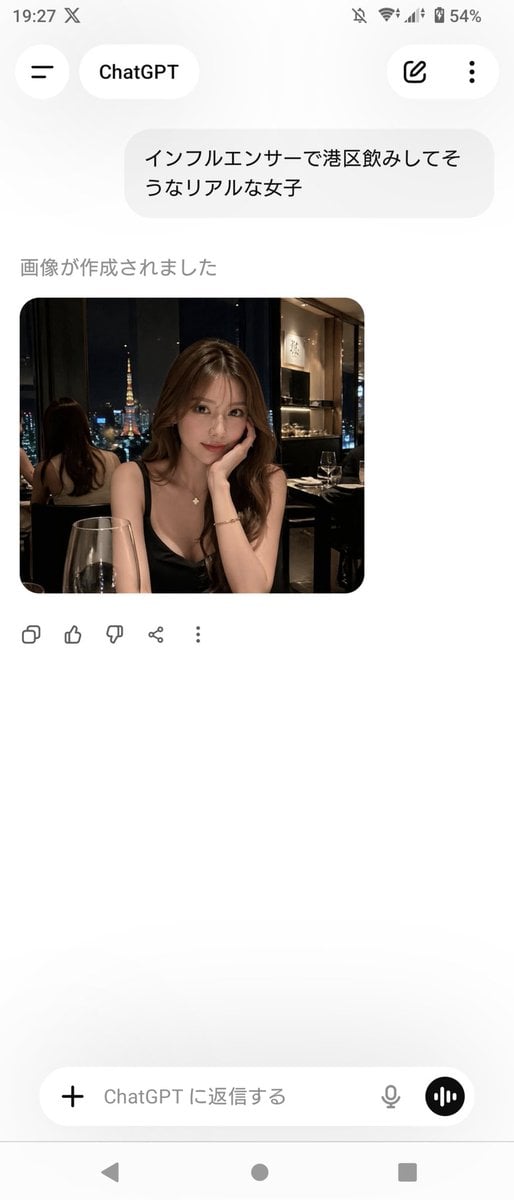
ChatGPT App Screenshot With Generated Portrait
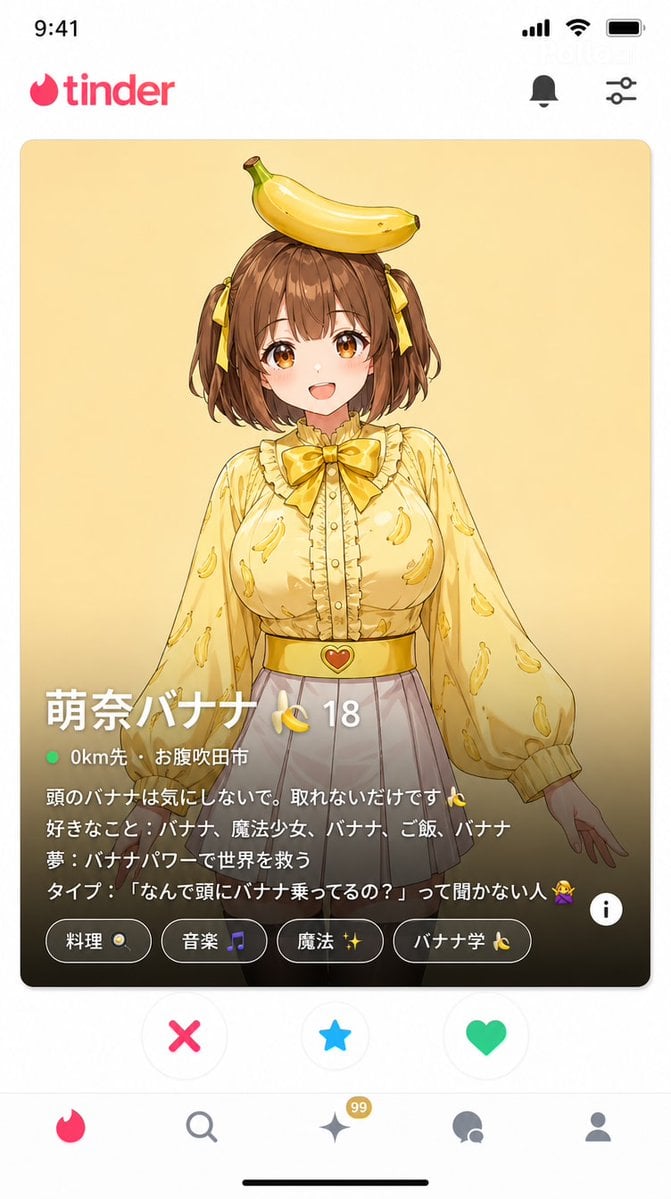
Dating App Screenshot Recreation
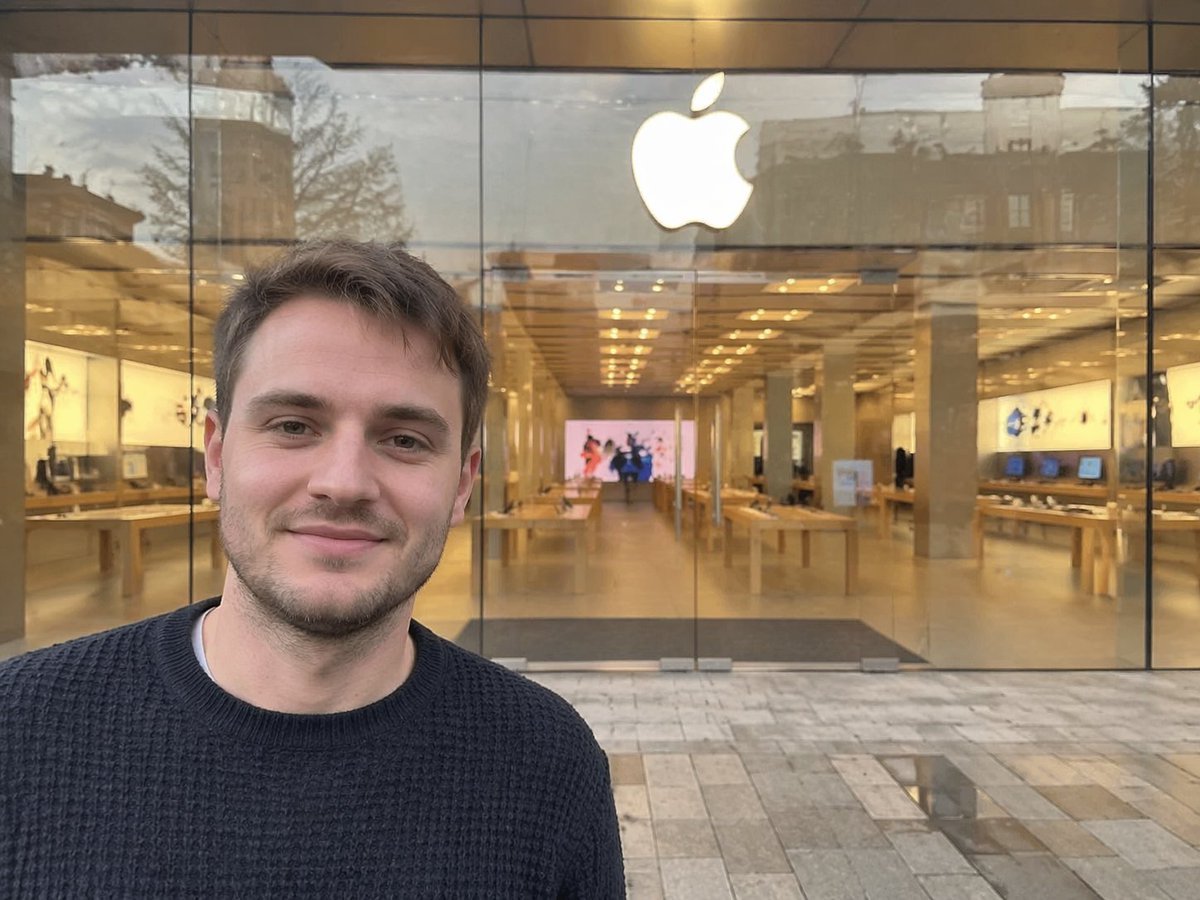
Amateur Apple Store Photography
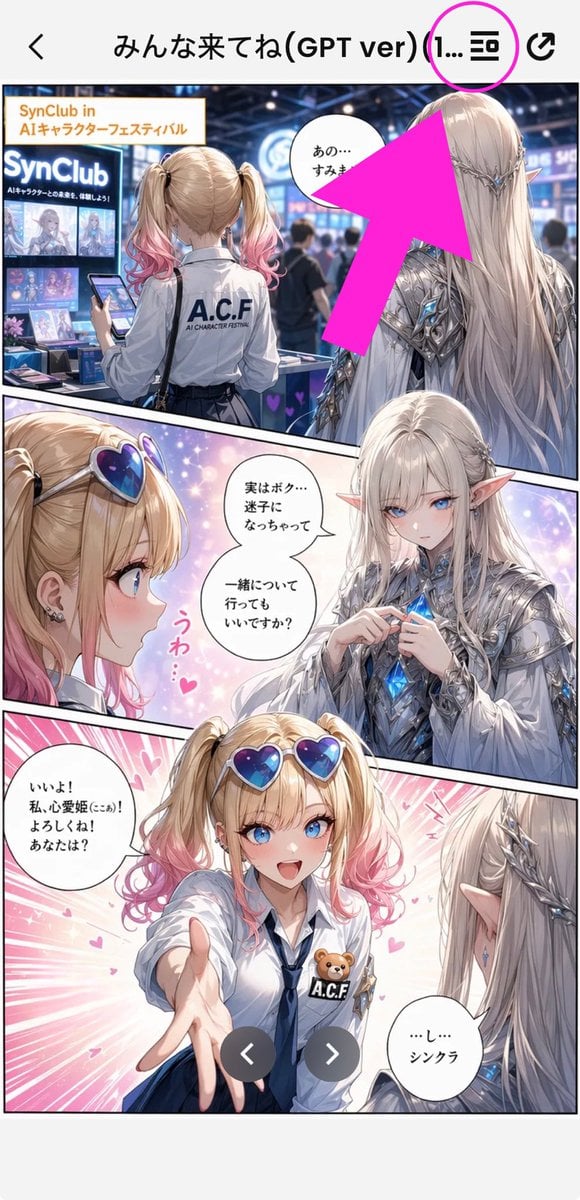
Annotated Manga App Screenshot
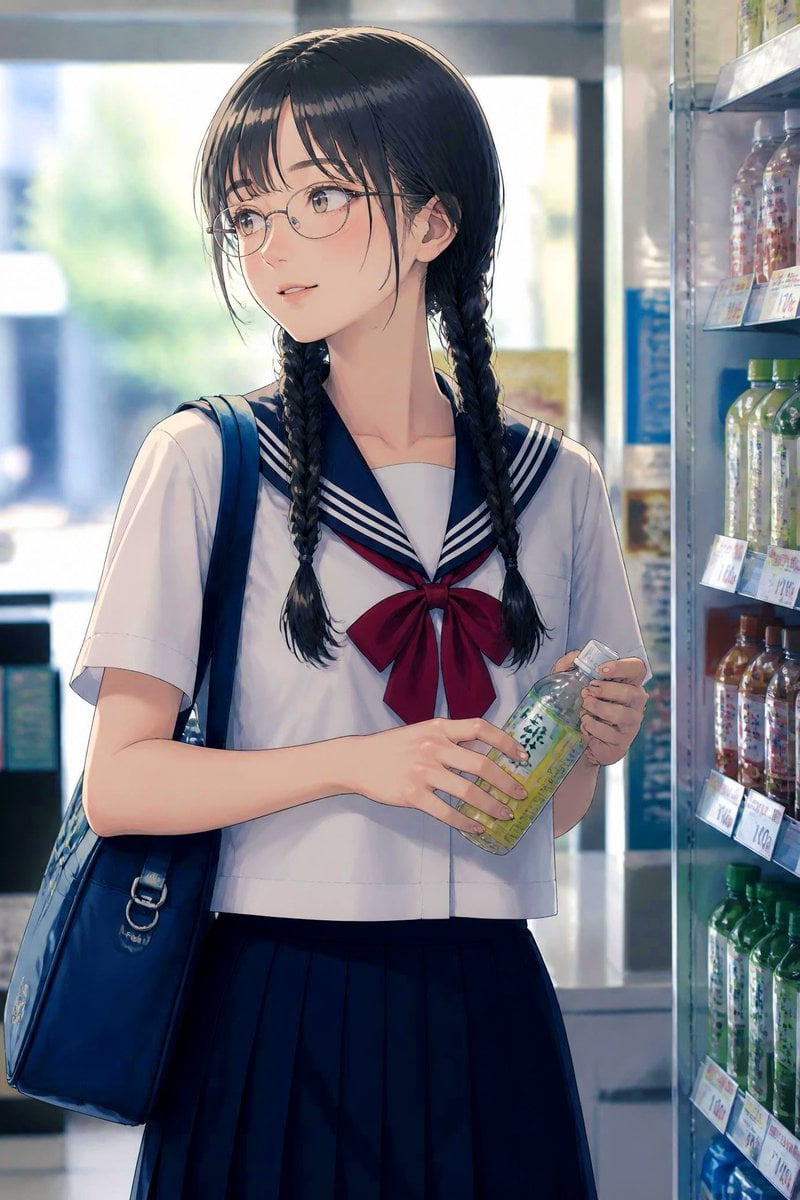
Anime Schoolgirl in Convenience Store
Make it yours
AI Model Router App Store Screenshot works as-is. These are the safest ways to change it without losing the look.
Change one field
Copy a single group, rewrite it, and generate again so you can see what that field is doing.
Keep the frame, change the subject
Hold the composition and light of AI Model Router App Store Screenshot, then swap wardrobe, props or the person for a new take.
| If the result… | Why | Fix |
|---|---|---|
| The result drifts from the preview | Too many fields changed at once. | Reuse AI Model Router App Store Screenshot as-is first, then change one group — subject, light, or setting. |
| The model over-stylizes the scene | The prose prompt leaves finish and camera underspecified. | Add one camera or lighting sentence and stay on GPT Image 2. |
More GPT Image 2 templates
Other prompts made for GPT Image 2.

Six VTuber Japanese Logo Sheet

Realistic Portrait of Woman and Deer

The Vista Modular Condo Poster

2.5D Anime Art Board

Isometric Productivity Desk Scene

New York Double Exposure Poster

Four-Panel AI Landscape Comparison

Japanese Tatami Lifestyle Magazine Cover

NESCAFÉ Coffee Map Poster

Brutalist Cogito Chinese Typography Poster
More image prompts
Fresh picks from across the catalog.
Cinematic Melancholic Portrait with Face Lock Prompt
Luxury Fashion Illustration
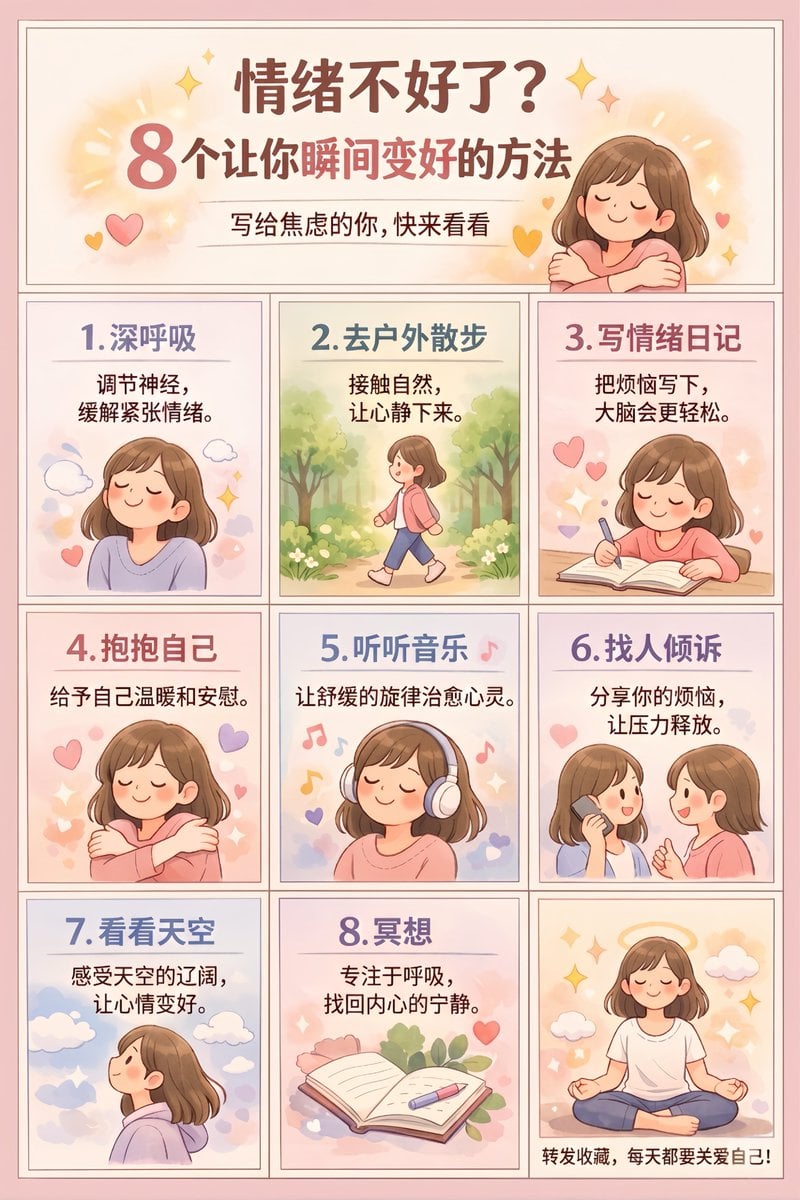
Panel Self-Care Infographic Grid
Translucent Airy Japanese Idol Photoshoot
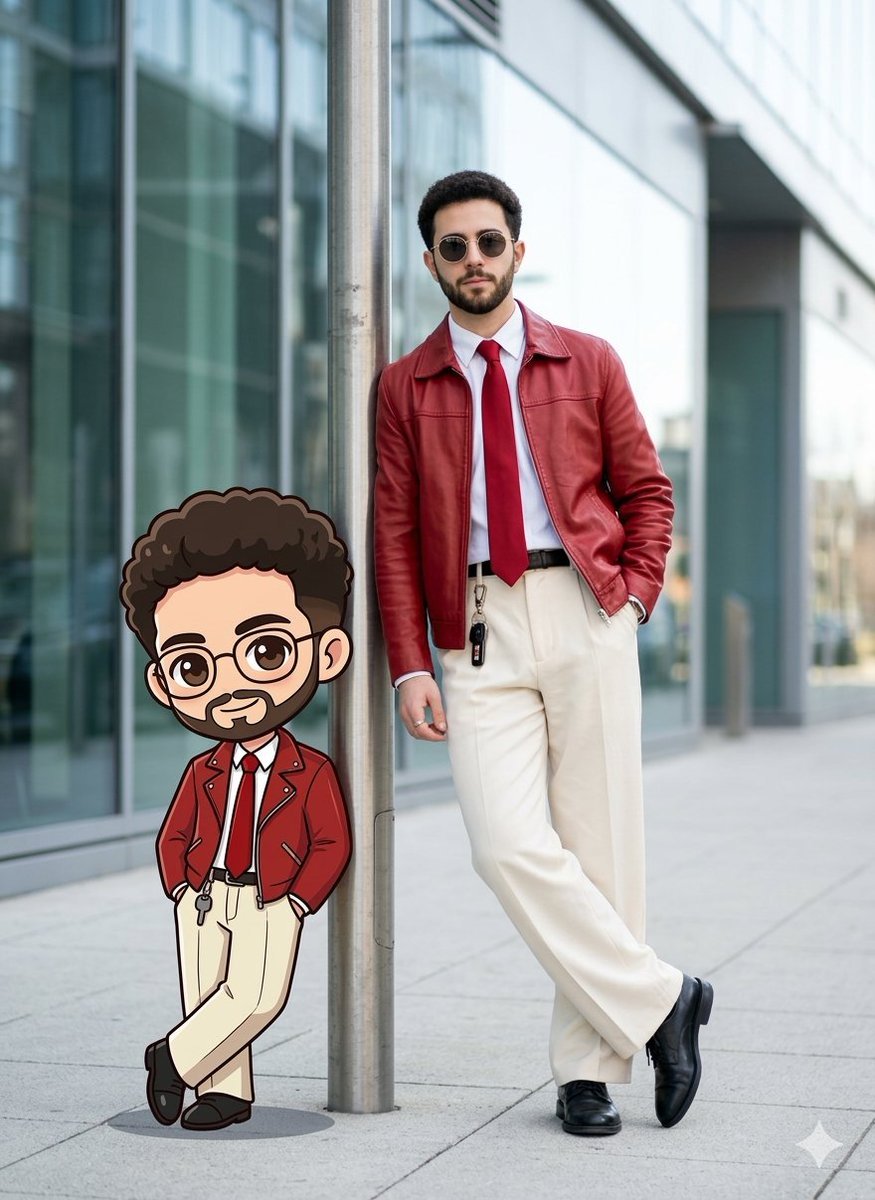
Cinematic Urban Street Style Transformation Prompt
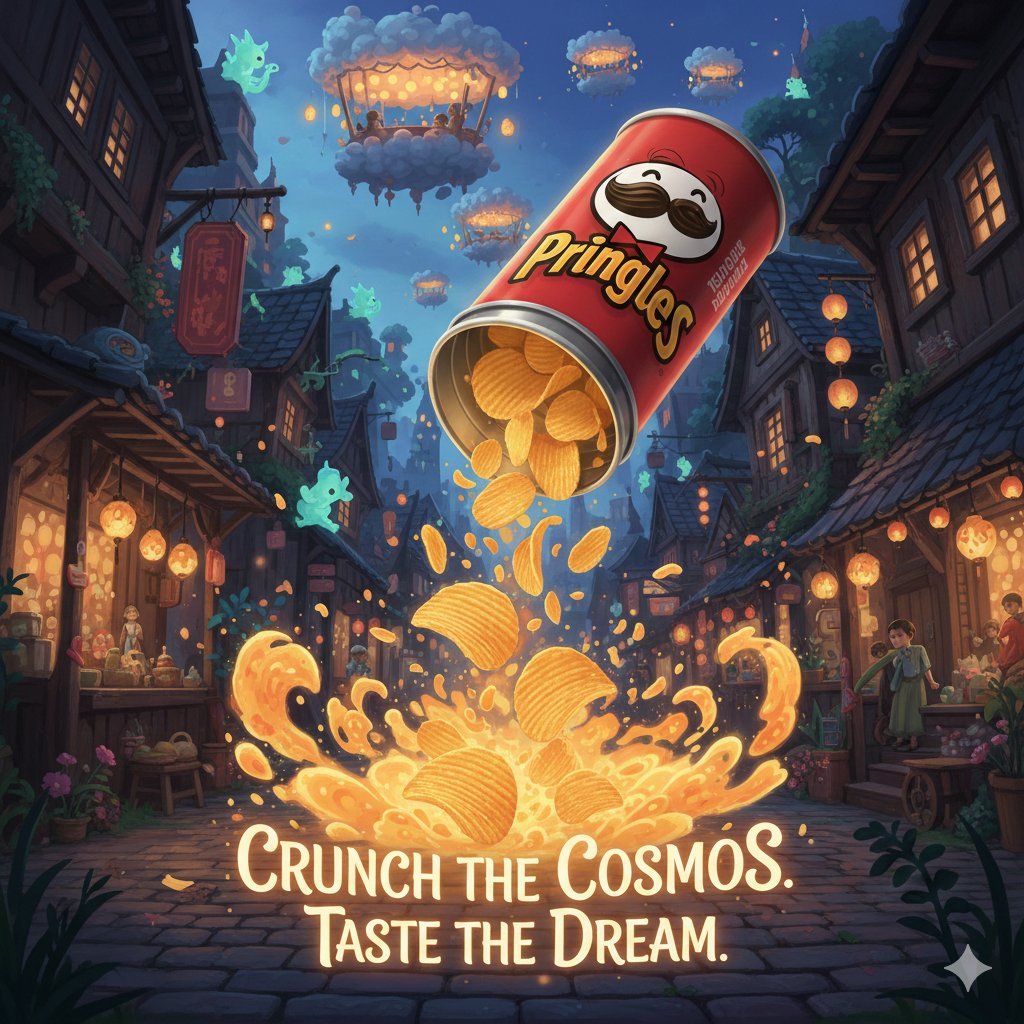
Surreal Studio Ghibli food advertisement prompt
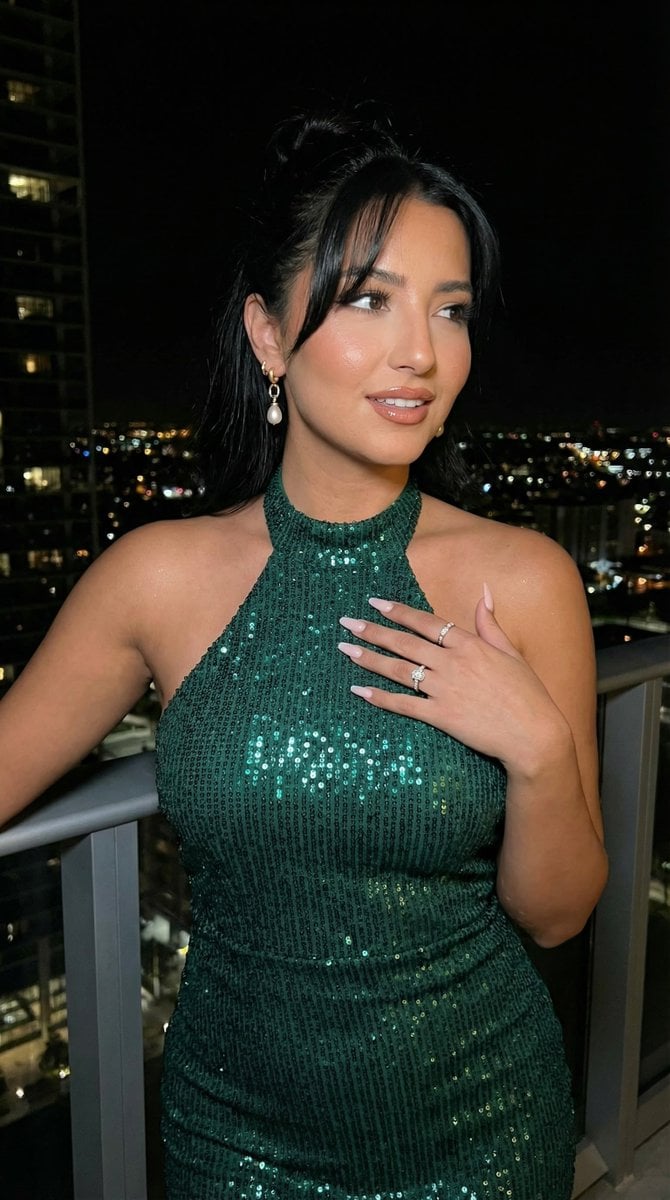
High-Fashion Editorial Scene Relocation Prompt
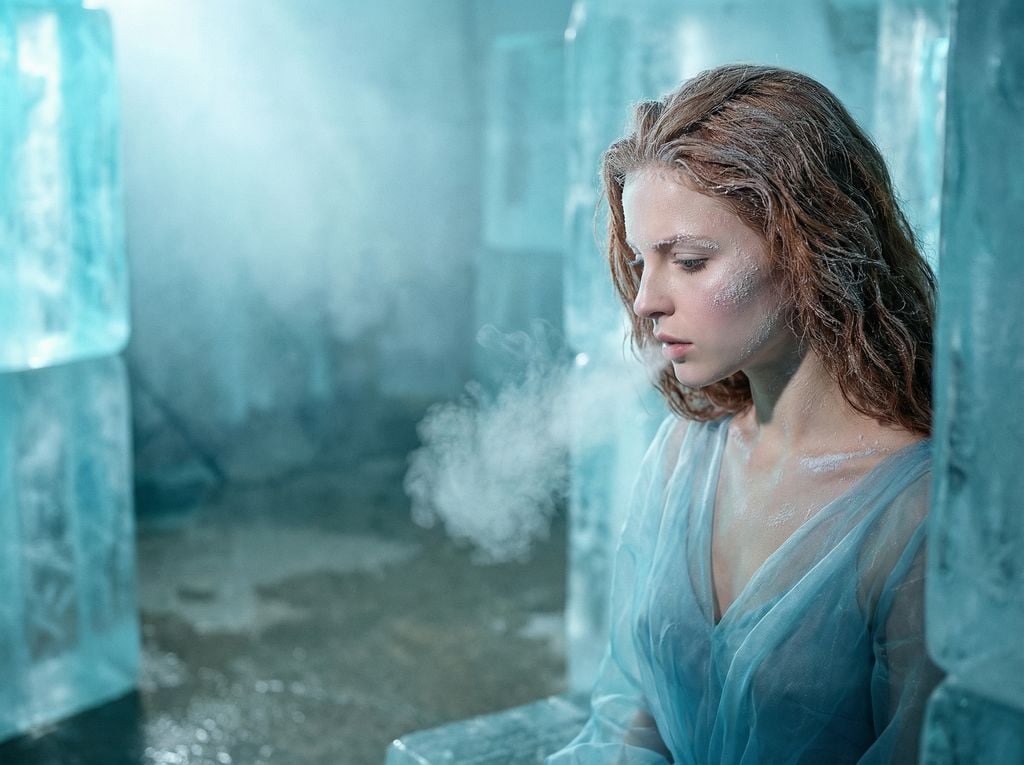
Crystallized Melancholy Ice Sculptor's Atelier
Aisha Wing Character Transformation
Tactile Wax Seal Logos
Browse template categories
AI Model Router App Store Screenshot questions
How do I use the AI Model Router App Store Screenshot template?
Add your photo if the template asks for one, edit the prompt if you like — the template's model and format are already selected — and press Generate. Your version opens in PicX Studio.
Can I customize the AI Model Router App Store Screenshot template?
Yes. You can change the subject, setting, lighting, mood, format, and available model controls before creating your image.
Is the AI Model Router App Store Screenshot template free?
Opening and editing this template is free. Generating uses credits, shown on the Generate button when you are signed in.
Which AI model should I use?
Start with GPT Image 2, which is the model associated with this template. You can compare another compatible model for a different finish.
Looking for something else? Browse all templates.

Your photo, any look
Thousands of ready templates for every top image and video model, from one credit balance.