
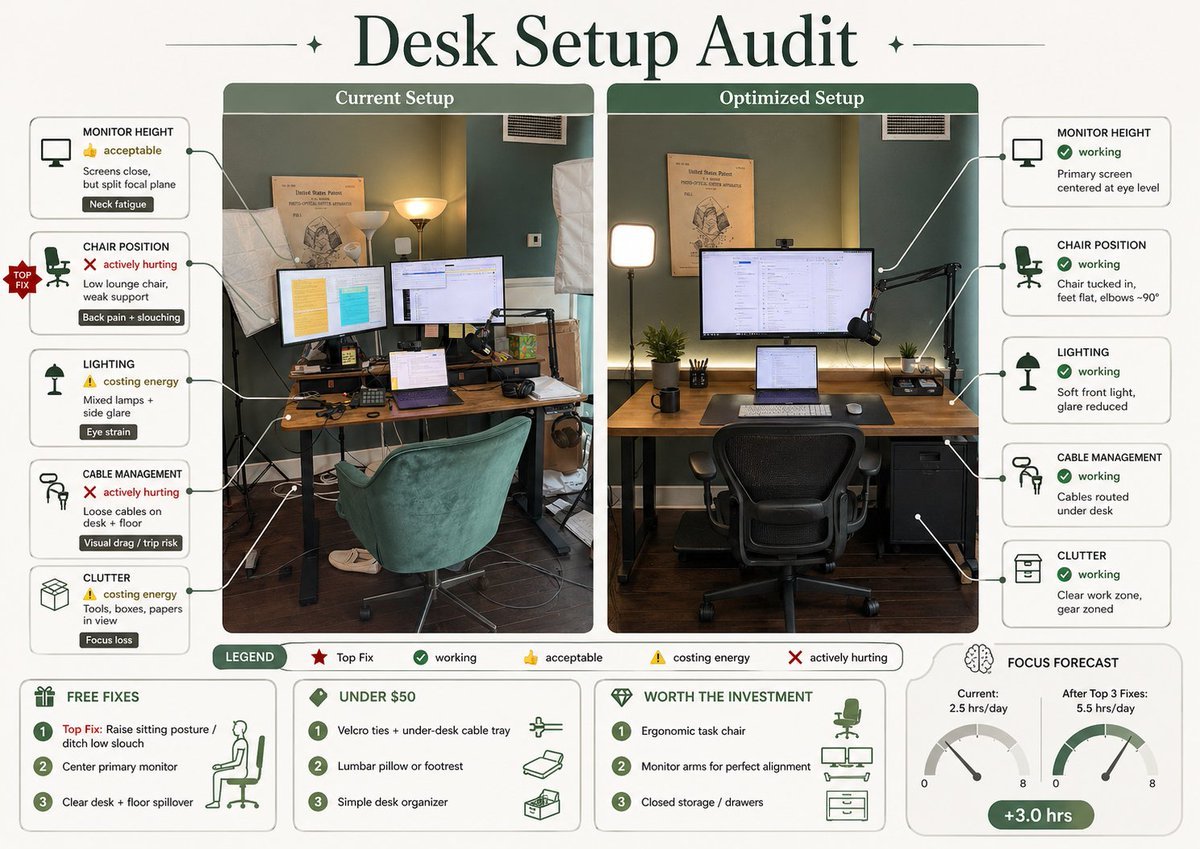
Desk Setup Audit Infographic
This prompt turns a desk photo into a polished side-by-side ergonomic audit infographic for workspace improvement and social sharing.
- Prompt included
- Model and format preset
- Free template
The prompt behind this image
Copy the exact prompt behind Desk Setup Audit Infographic, or open it in the studio and make it yours.
Using REFERENCE_0, turn the attached desk photo and its written brief into a clean editorial-style infographic poster. Create a side-by-side comparison with exactly 2 labeled photo panels: “Current Setup” on the left using the original scene, and “Optimized Setup” on the right showing a plausible improved version of the same room and desk from a matching angle. Add a large serif headline at the top reading {argument name="headline text" default="Desk Setup Audit"}. Around the left panel, add exactly 5 issue callout cards connected by leader lines: 1) MONITOR HEIGHT — 👍 acceptable — “Screens close, but split focal plane” — tag “Neck fatigue”; 2) CHAIR POSITION — ❌ actively hurting — “Low lounge chair, weak support” — tag “Back pain + slouching”; 3) LIGHTING — ⚠️ costing energy — “Mixed lamps + side glare” — tag “Eye strain”; 4) CABLE MANAGEMENT — ❌ actively hurting — “Loose cables on desk + floor” — tag “Visual drag / trip risk”; 5) CLUTTER — ⚠️ costing energy — “Tools, boxes, papers in view” — tag “Focus loss”. Add a small red “TOP FIX” badge pointing to the chair position issue. Around the right panel, add exactly 5 improved callout cards: 1) MONITOR HEIGHT — ✅ working — “Primary screen centered at eye level”; 2) CHAIR POSITION — ✅ working — “Chair tucked in, feet flat, elbows ~90°”; 3) LIGHTING — ✅ working — “Soft front light, glare reduced”; 4) CABLE MANAGEMENT — ✅ working — “Cables routed under desk”; 5) CLUTTER — ✅ working — “Clear work zone, gear zoned”. In the optimized panel, visibly show the improvements: one main monitor centered, laptop centered below it, ergonomic office chair, cleaner desktop, cable routing hidden under the desk, softer balanced lighting, and a small drawer cabinet on the right while keeping the same room recognizable. Add a bottom legend with exactly 5 items: “LEGEND”, “Top Fix”, “working”, “acceptable”, “costing energy”, “actively hurting”. Along the bottom, add exactly 4 boxed sections: 1) “FREE FIXES” with 3 numbered items — “Top Fix: Raise sitting posture / ditch low slouch”, “Center primary monitor”, “Clear desk + floor spillover”; 2) “UNDER $50” with 3 numbered items — “Velcro ties + under-desk cable tray”, “Lumbar pillow or footrest”, “Simple desk organizer”; 3) “WORTH THE INVESTMENT” with 3 numbered items — “Ergonomic task chair”, “Monitor arms for perfect alignment”, “Closed storage / drawers”; 4) “FOCUS FORECAST” showing 2 gauges labeled “Current: 2.5 hrs/day” and “After Top 3 Fixes: 5.5 hrs/day”, plus a green pill reading “+3.0 hrs”. Use a refined magazine infographic aesthetic, muted green and cream palette, rounded boxes, minimal text, crisp icons, thin connector lines, and polished layout suitable for sharing on social media.
Reference images included
Desk Setup Audit Infographic needs input media to work. They load alongside the prompt when you open it in the studio.
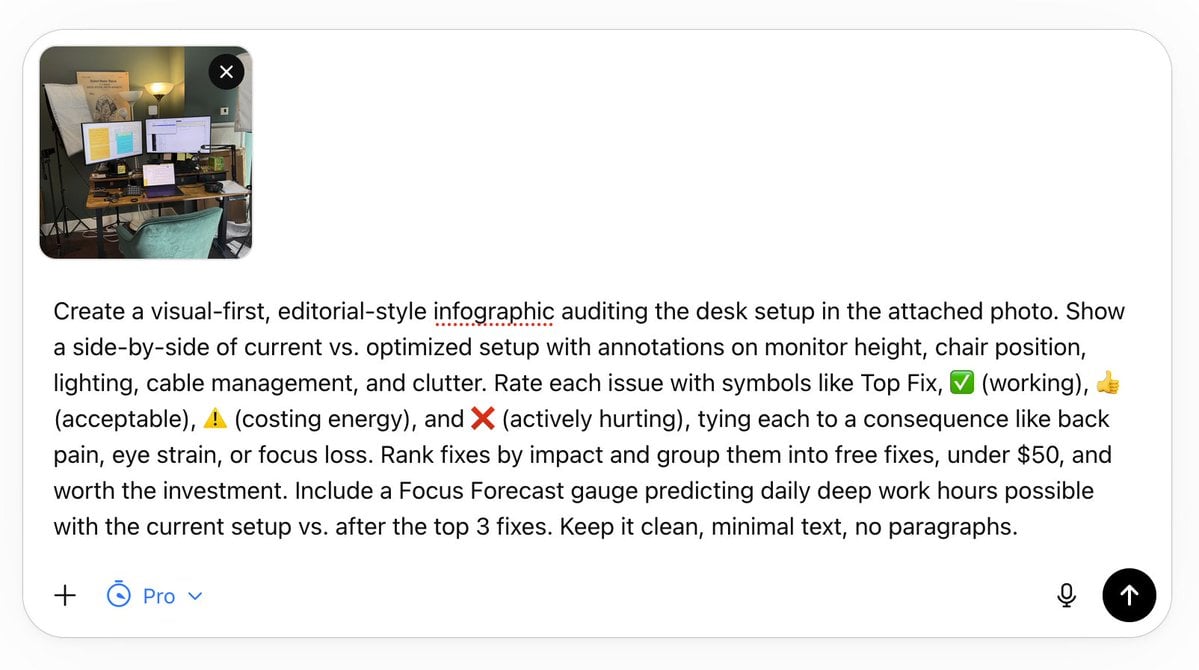
How to use Desk Setup Audit Infographic in 3 steps
- 1Upload ImagePNG, JPG or paste
Add your photo
Upload the photo the template builds on. The prompt, model and format are already set.
- 2…a portrait of your subject in softgolden-hour light, 85mm…
Personalize
Edit the subject and creative details for your destination.
- 3Generate
Generate
Press Generate — your image is created in PicX Studio, so you can compare it with the original and refine one variable at a time.
More like this
Templates with the same subject, style or setup. Open one to see its prompt.

Japan Travel Brochure Poster

Isometric Process Educational Diorama

Isometric Vehicle Teardown Infographic Template
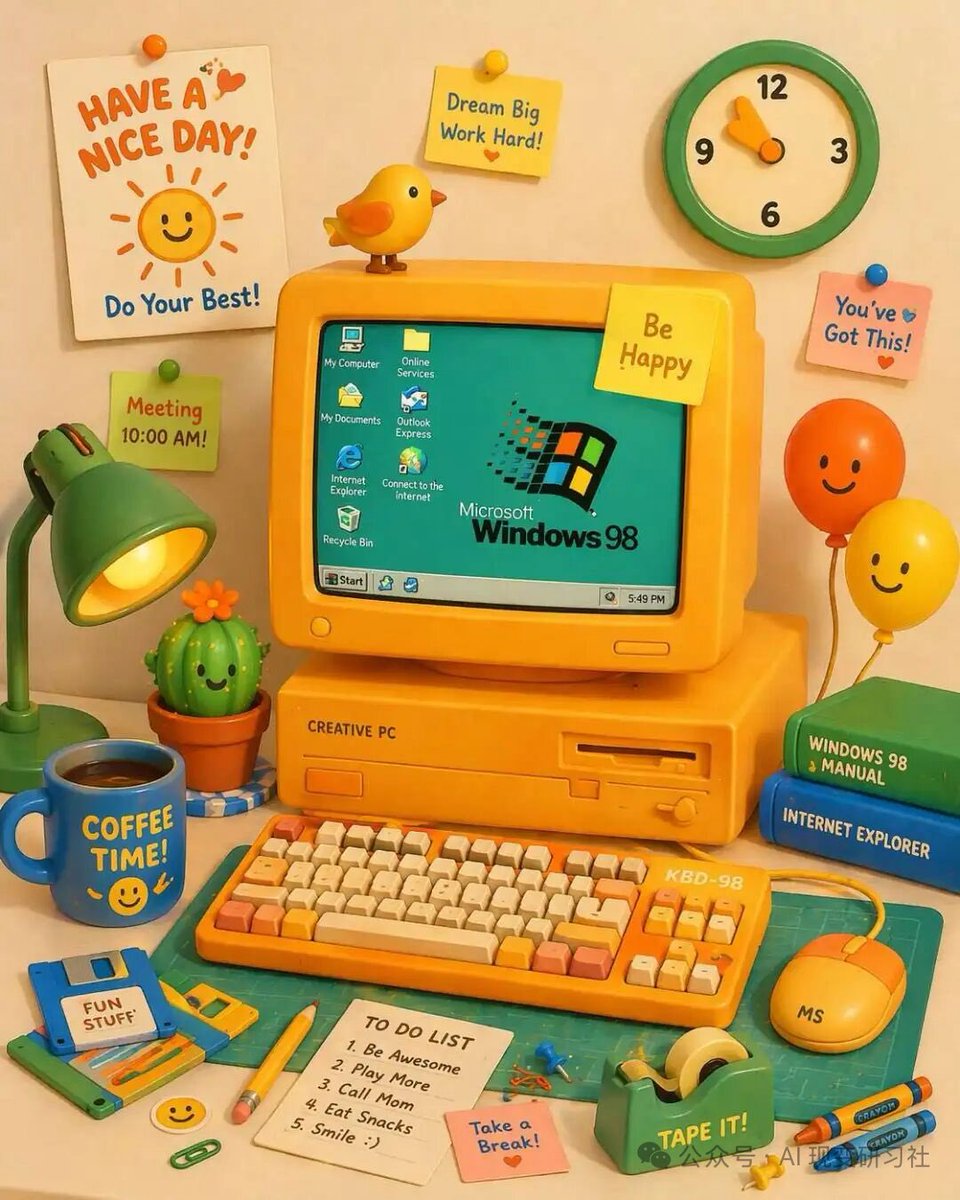
Retro 3D Claymation Desk Setup
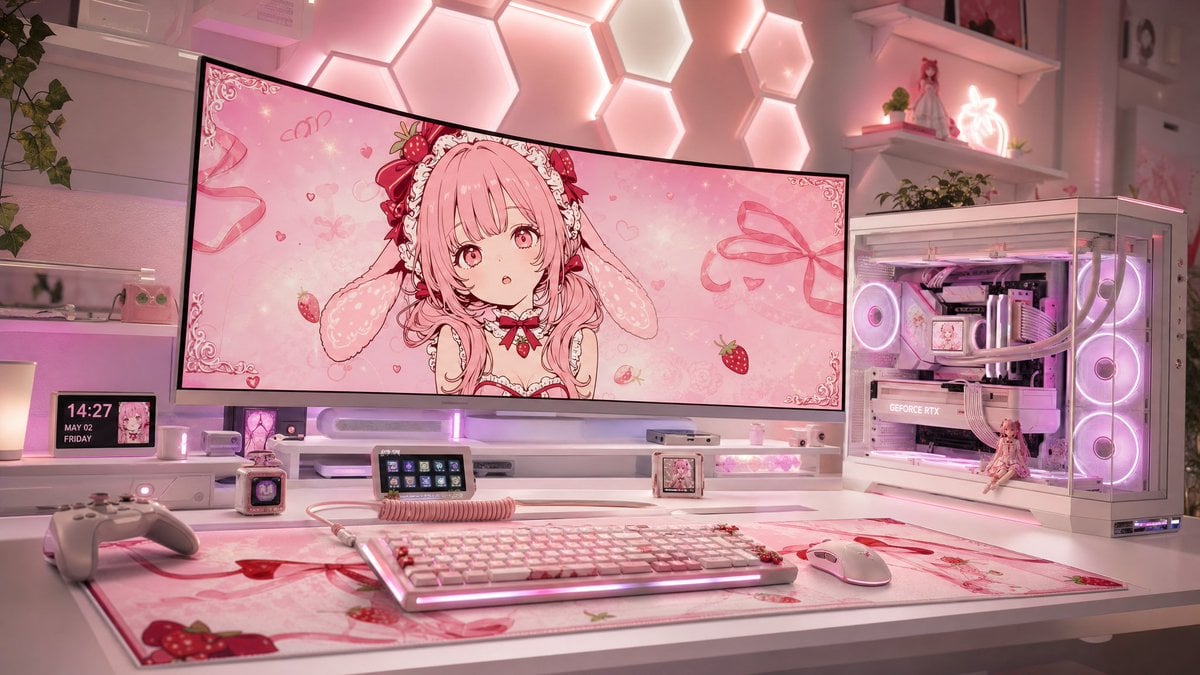
Pastel Pink Anime Gaming Desk Setup
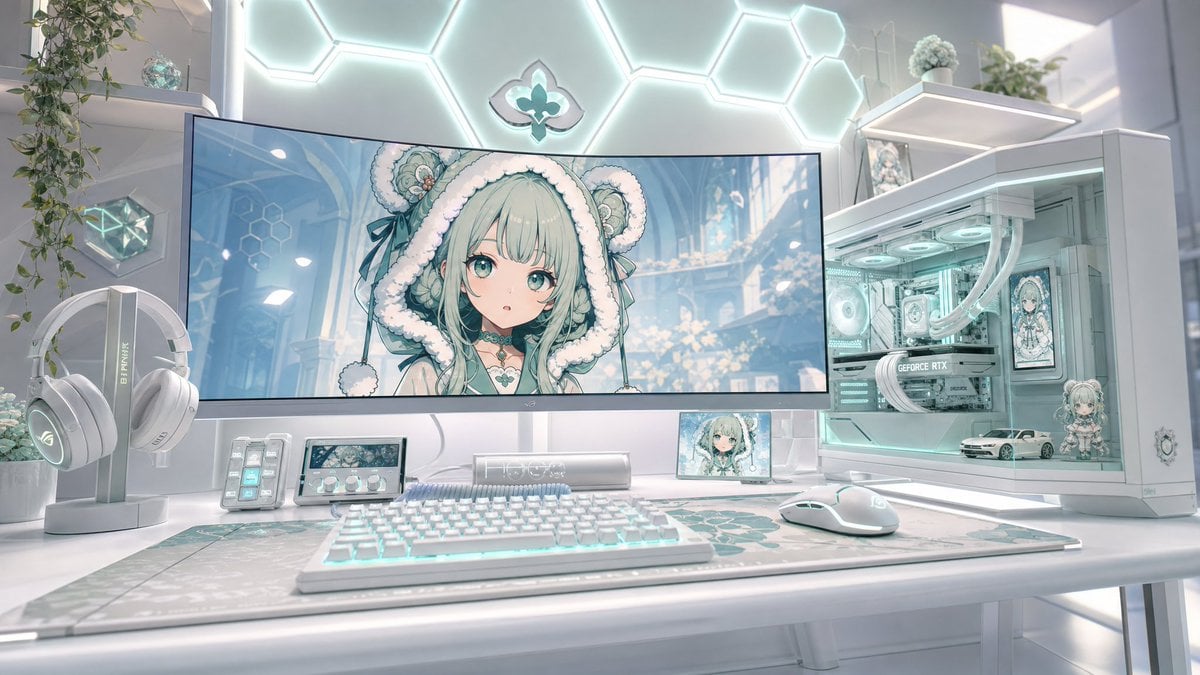
Pastel Anime Gaming Desk Setup

Gpt2 E Commerce Main Image Earbuds E Commerce Infographic

Gpt2 Infographic Edu Visual Alishan One Day Travel Poster

Gpt2 Infographic Edu Visual Ethnographic Plate for Tibetan Ceremonial Hat
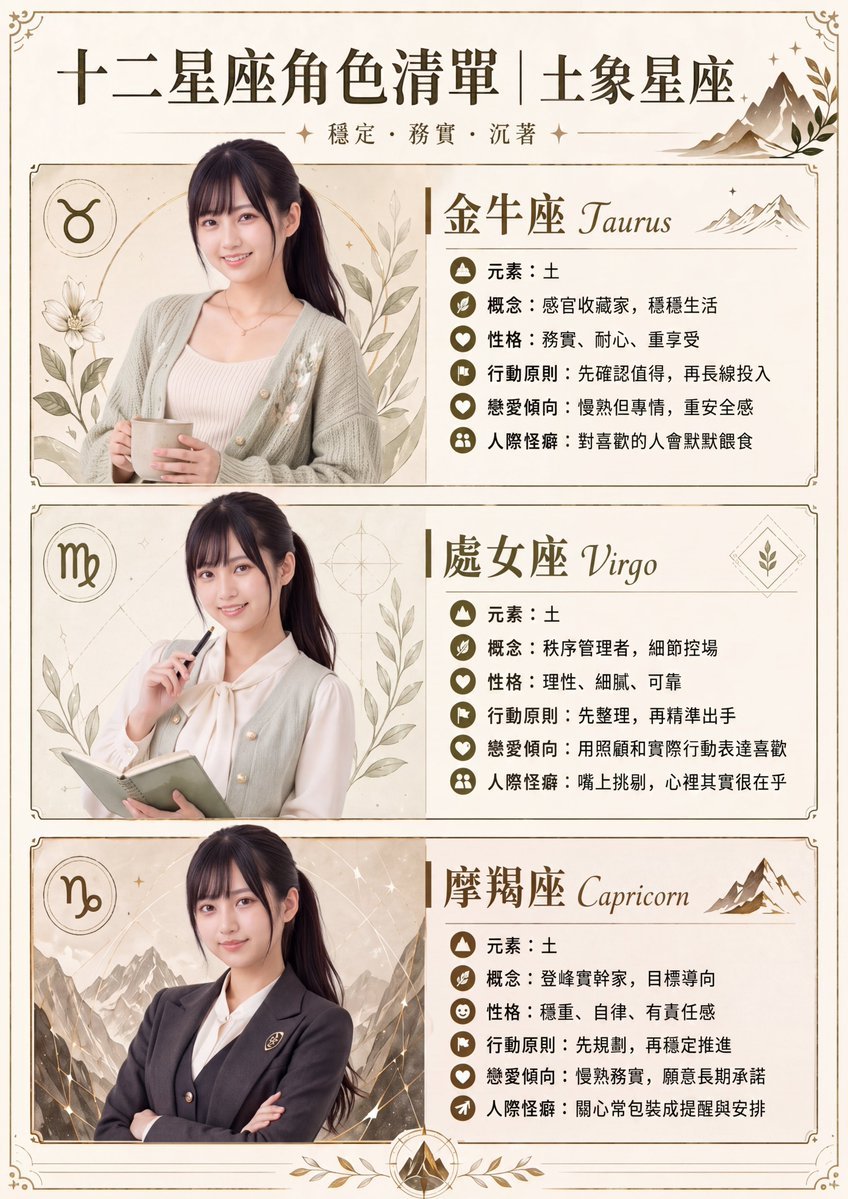
Gpt2 Infographic Edu Visual Earth Signs Zodiac Character Poster
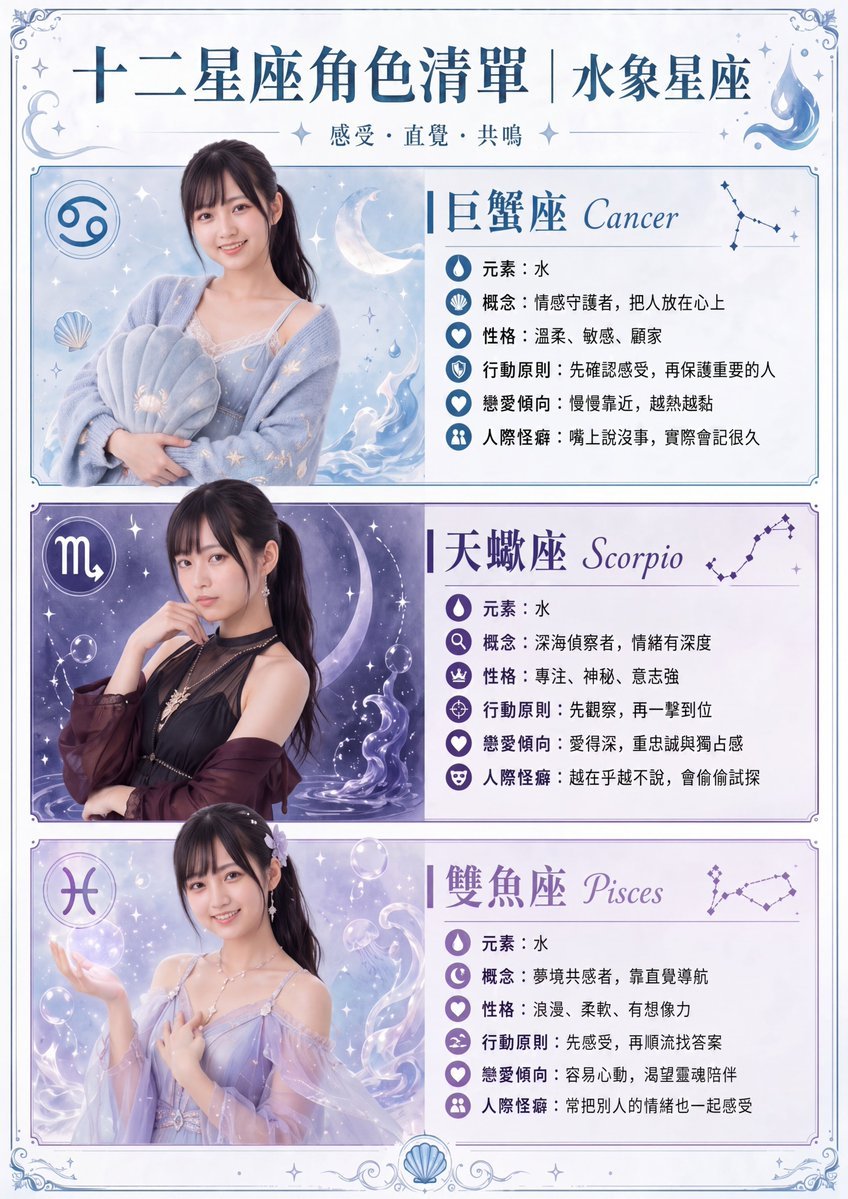
Gpt2 Infographic Edu Visual Water Signs Zodiac Character Poster
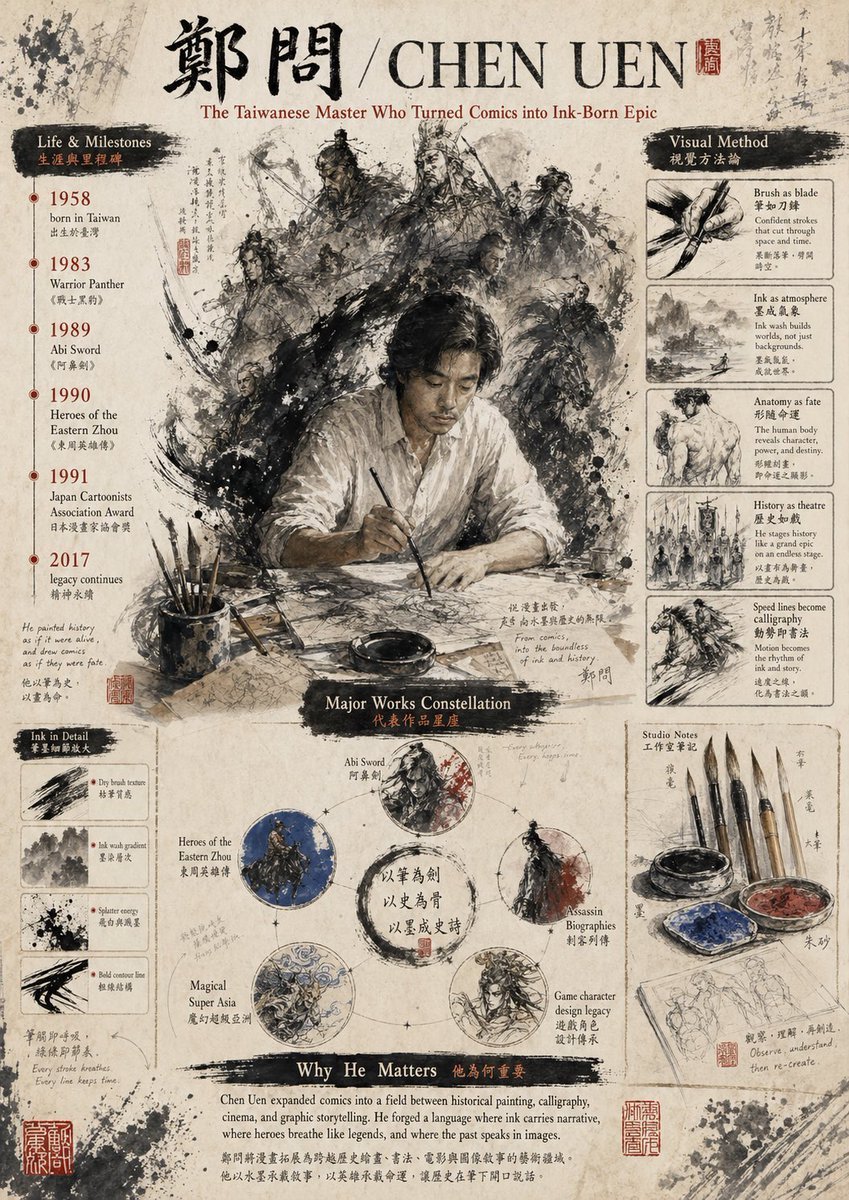
Gpt2 Infographic Edu Visual Ink Wash Tribute Poster for Chen Uen
Make it yours
Desk Setup Audit Infographic works as-is. These are the safest ways to change it without losing the look.
Change one field
Copy a single group, rewrite it, and generate again so you can see what that field is doing.
Keep the frame, change the subject
Hold the composition and light of Desk Setup Audit Infographic, then swap wardrobe, props or the person for a new take.
| If the result… | Why | Fix |
|---|---|---|
| The result drifts from the preview | Too many fields changed at once. | Reuse Desk Setup Audit Infographic as-is first, then change one group — subject, light, or setting. |
| The model over-stylizes the scene | The prose prompt leaves finish and camera underspecified. | Add one camera or lighting sentence and stay on GPT Image 2. |
More GPT Image 2 templates
Other prompts made for GPT Image 2.

Six VTuber Japanese Logo Sheet

Realistic Portrait of Woman and Deer

The Vista Modular Condo Poster

AI Model Routing Comparison Infographic

2.5D Anime Art Board

Isometric Productivity Desk Scene

New York Double Exposure Poster

Four-Panel AI Landscape Comparison

Japanese Tatami Lifestyle Magazine Cover

NESCAFÉ Coffee Map Poster
More image prompts
Fresh picks from across the catalog.

Banner Generation Prompt for Model Comparison

Cinematic Evening Fashion Portrait with Identity Lock

Cinematic Portrait on a Bustling City Street at Twilight

Christmas Angel Design Course Eyecatch Prompt (YAML Structure)
KBO Baseball Fan Television Broadcast Storyboard

Golden Hour Coastal Lifestyle Photograph

High-Fashion Streetwear Editorial Grid Collage
Dynamic 3D Floating Head Portrait

Guinea Pigs with Fashion Accessories

Stormy Icelandic Fisherman Portrait
Browse template categories
Desk Setup Audit Infographic questions
How do I use the Desk Setup Audit Infographic template?
Add your photo if the template asks for one, edit the prompt if you like — the template's model and format are already selected — and press Generate. Your version opens in PicX Studio.
Can I customize the Desk Setup Audit Infographic template?
Yes. You can change the subject, setting, lighting, mood, format, and available model controls before creating your image.
Is the Desk Setup Audit Infographic template free?
Opening and editing this template is free. Generating uses credits, shown on the Generate button when you are signed in.
Which AI model should I use?
Start with GPT Image 2, which is the model associated with this template. You can compare another compatible model for a different finish.
Looking for something else? Browse all templates.

Your photo, any look
Thousands of ready templates for every top image and video model, from one credit balance.