
Studio Product Render From Blueprint
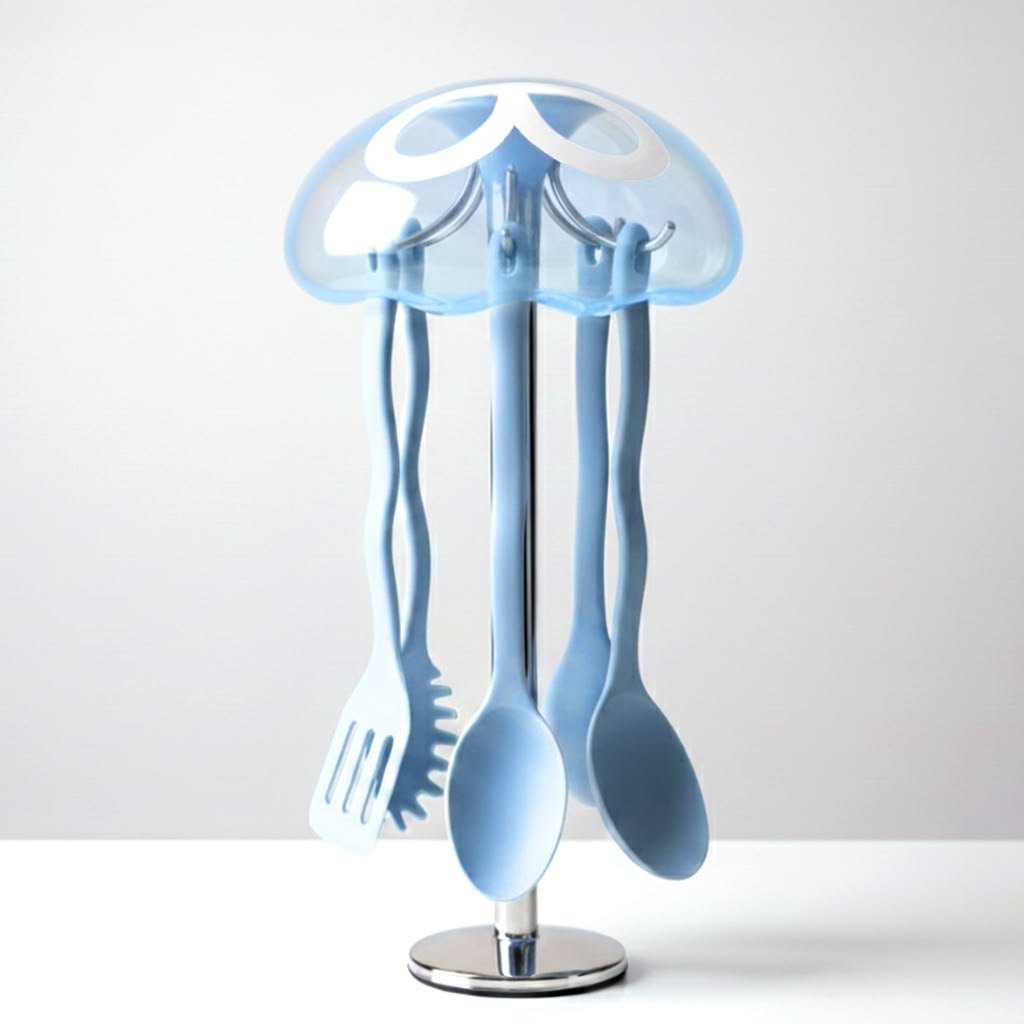
This prompt converts a technical product drawing into a minimal photorealistic hero shot for catalog, industrial design, or e-commerce presentation.
- Prompt included
- Model and format preset
- Free template
The prompt behind this image
Copy the exact prompt behind Studio Product Render From Blueprint, or open it in the studio and make it yours.
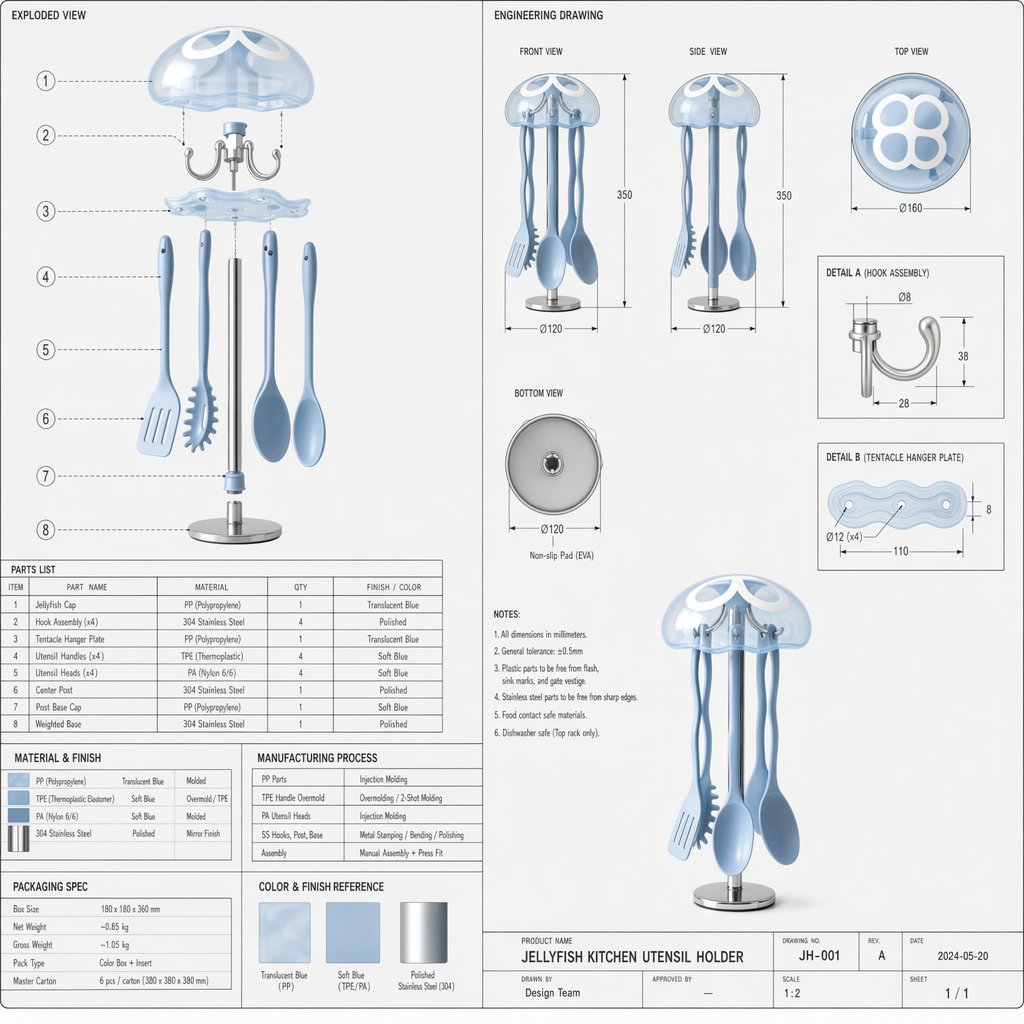
Using the provided reference image, turn the technical engineering spec sheet into a clean studio product hero render of the same jellyfish-shaped kitchen utensil holder. Keep the overall product design, translucent blue dome cap, silver base, and the same 4 hanging utensils: 1 slotted spatula, 1 pasta server, and 2 spoons. Remove all blueprint elements, including the exploded view, dimension lines, labels, tables, notes, and title block. Show only the assembled product centered in frame, front-facing, isolated against a minimal light gray background with a white surface, soft diffused lighting, subtle realistic shadows, and glossy premium materials. Make it look like a contemporary industrial design catalog or e-commerce product photograph.
Reference images included
Studio Product Render From Blueprint needs input media to work. They load alongside the prompt when you open it in the studio.
How to use Studio Product Render From Blueprint in 3 steps
- 1Upload ImagePNG, JPG or paste
Add your photo
Upload the photo the template builds on. The prompt, model and format are already set.
- 2…a portrait of your subject in softgolden-hour light, 85mm…
Personalize
Edit the subject and creative details for your destination.
- 3Generate
Generate
Press Generate — your image is created in PicX Studio, so you can compare it with the original and refine one variable at a time.
More like this
Templates with the same subject, style or setup. Open one to see its prompt.
Soft Shadow Studio Minimalist Product Shot

80s Couple Studio Portrait
1985 Studio Portrait

A k.pop idol on the stage with mic
Trendy Cafe Drink Promo Poster

Japanese Architectural Concrete Studio Fashion Campaign
Cinematic Low-Angle Fashion Portrait Smoke Editorial
High-Fashion Bauhaus Geometric Cutout Editorial
High-Fashion Bauhaus Geometric Cutout Editorial
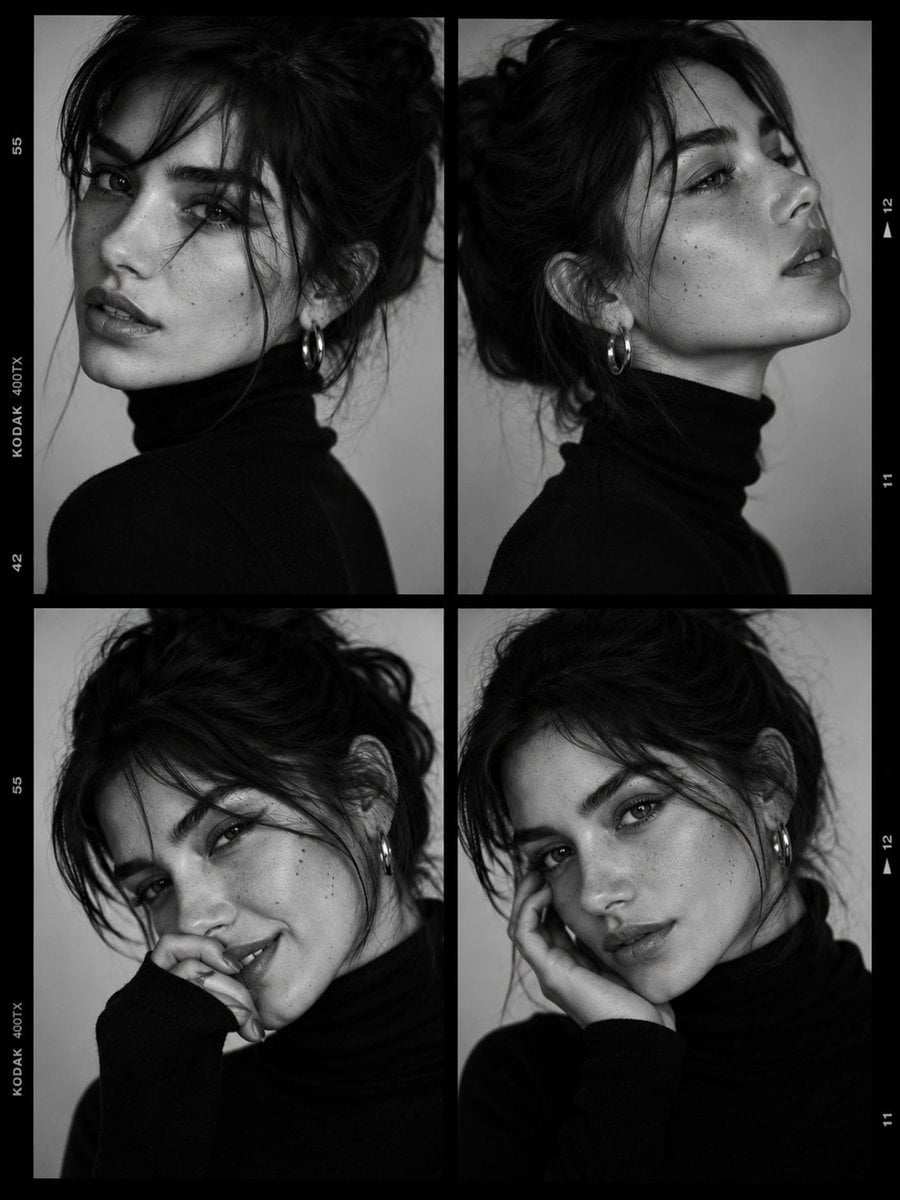
Luxury Black-and-White Fashion Contact Sheet
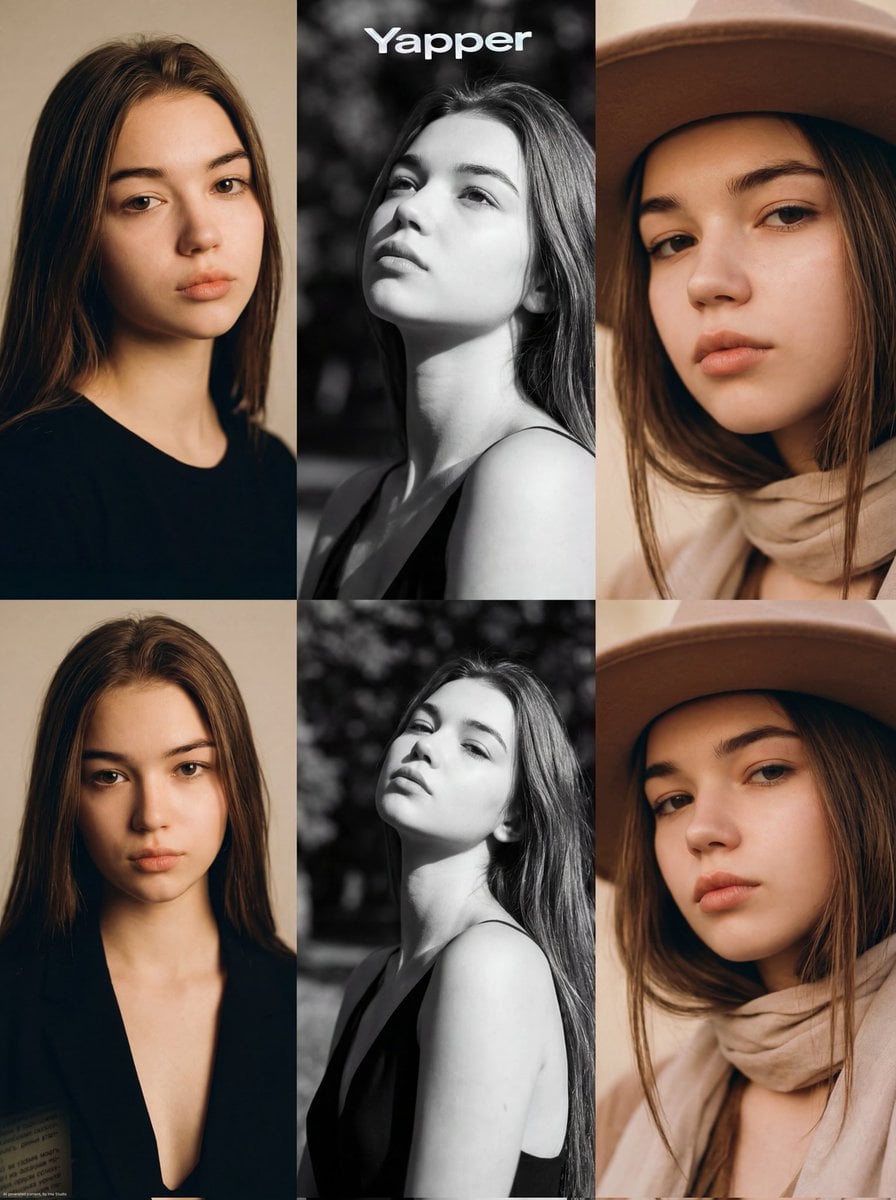
Ultra-Realistic Vogue-Style Editorial Fashion Grid
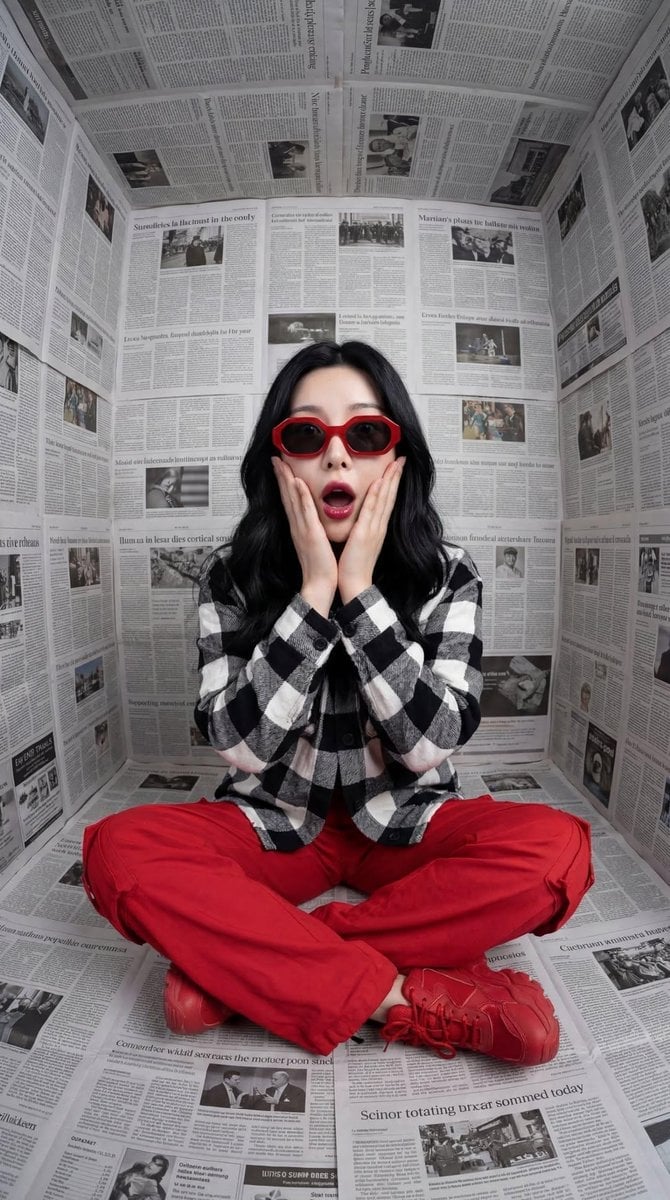
Stylized Fashion Portrait Bold Color Contrast Editorial
Make it yours
Studio Product Render From Blueprint works as-is. These are the safest ways to change it without losing the look.
Change one field
Copy a single group, rewrite it, and generate again so you can see what that field is doing.
Keep the frame, change the subject
Hold the composition and light of Studio Product Render From Blueprint, then swap wardrobe, props or the person for a new take.
| If the result… | Why | Fix |
|---|---|---|
| The result drifts from the preview | Too many fields changed at once. | Reuse Studio Product Render From Blueprint as-is first, then change one group — subject, light, or setting. |
| The model over-stylizes the scene | The prose prompt leaves finish and camera underspecified. | Add one camera or lighting sentence and stay on GPT Image 2. |
More GPT Image 2 templates
Other prompts made for GPT Image 2.

Six VTuber Japanese Logo Sheet

Realistic Portrait of Woman and Deer

The Vista Modular Condo Poster

AI Model Routing Comparison Infographic

2.5D Anime Art Board

Isometric Productivity Desk Scene

New York Double Exposure Poster

Four-Panel AI Landscape Comparison

Japanese Tatami Lifestyle Magazine Cover

NESCAFÉ Coffee Map Poster
More image prompts
Fresh picks from across the catalog.
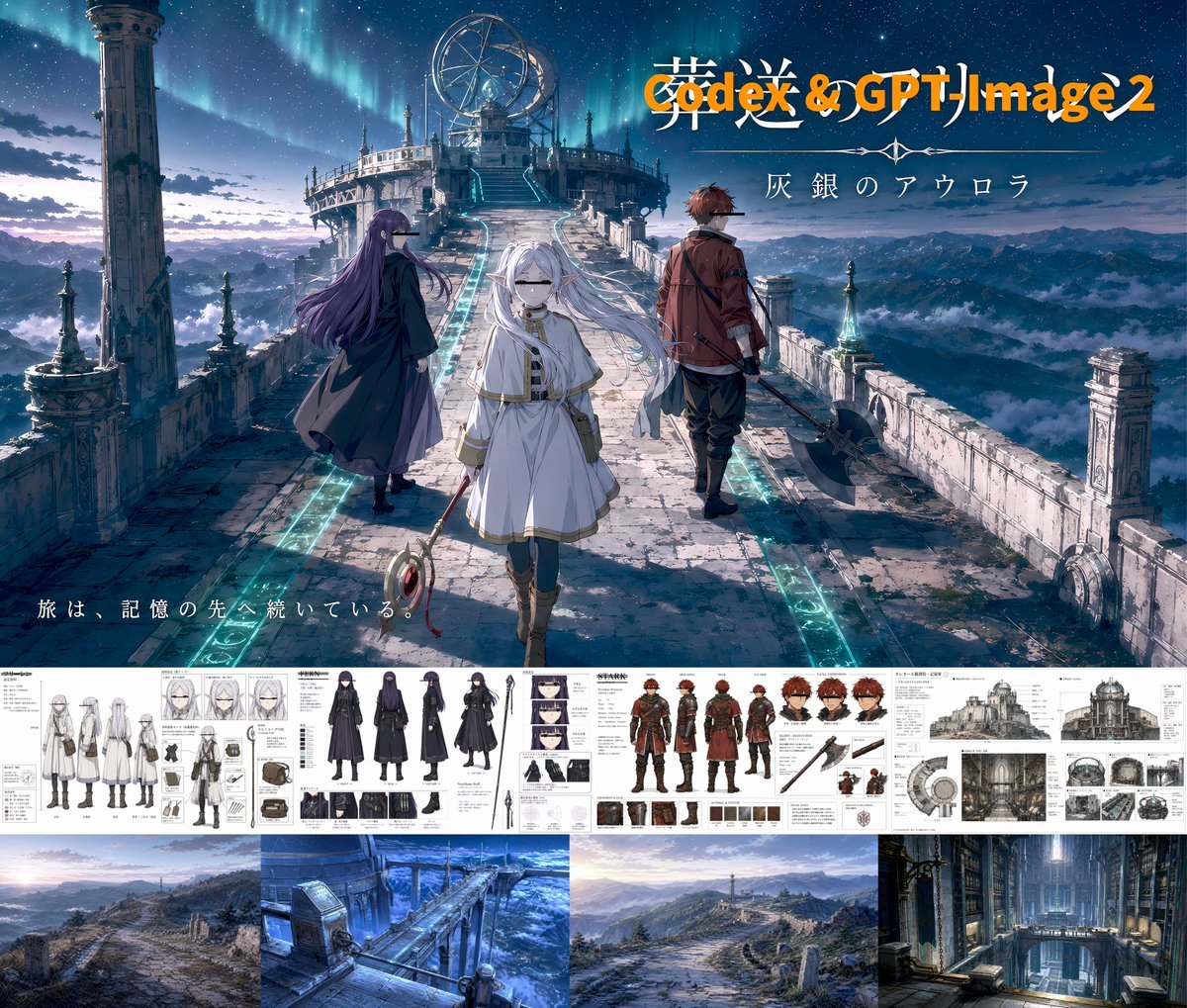
Anime Fantasy Key Visual Board
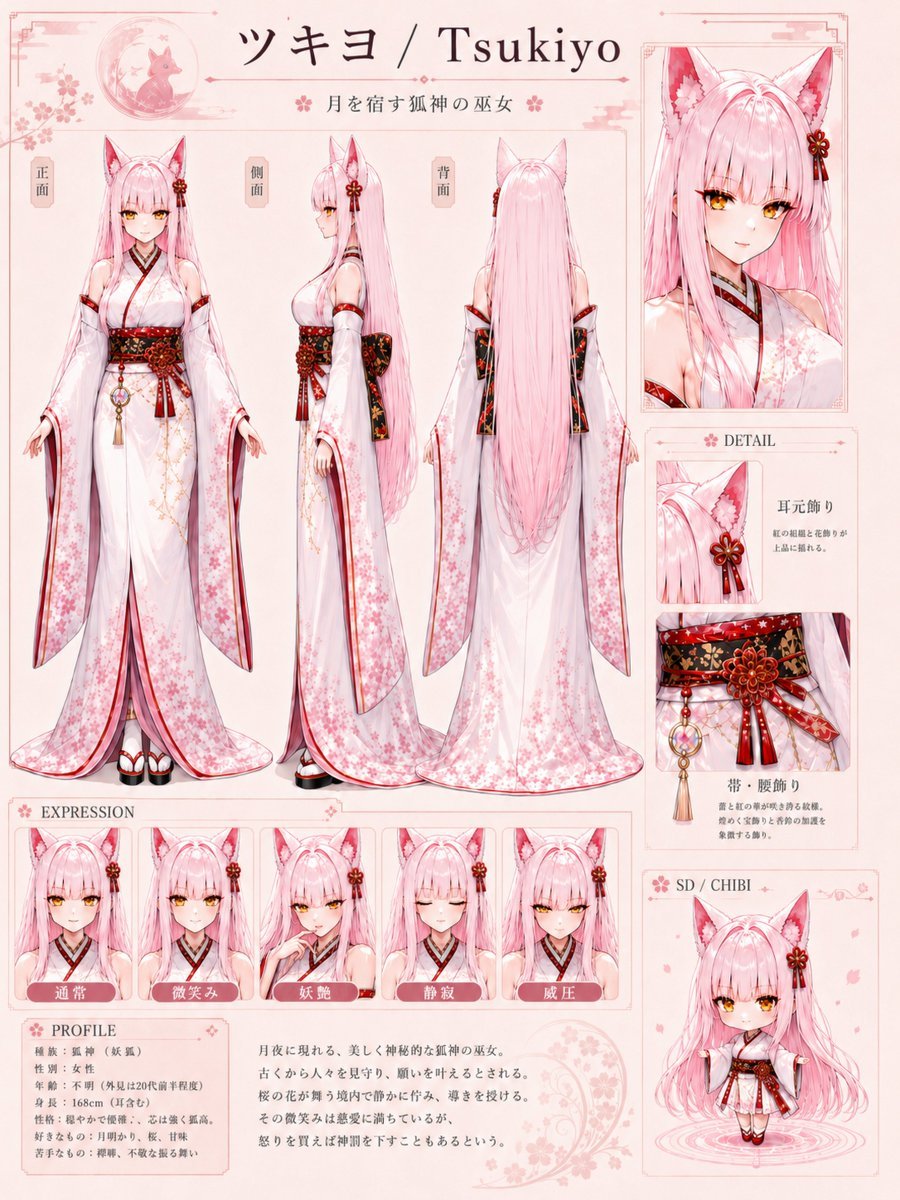
Tsukiyo Fox Shrine Maiden Reference Sheet

Gpt2 Product Marketing Dark Mode Marketing Case Study Ui
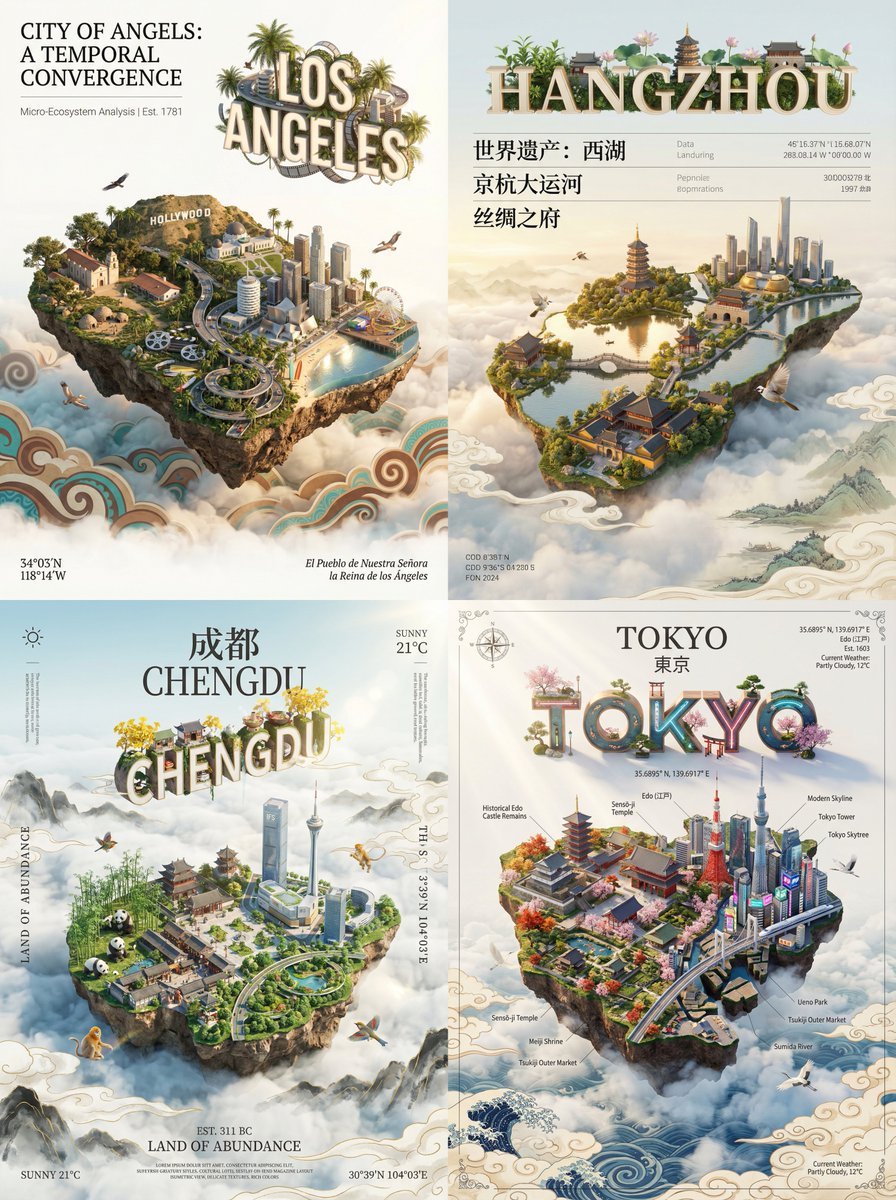
City Poster Digital Art Prompt

3D Dance Game Screen Prompt for Nano Banana Pro
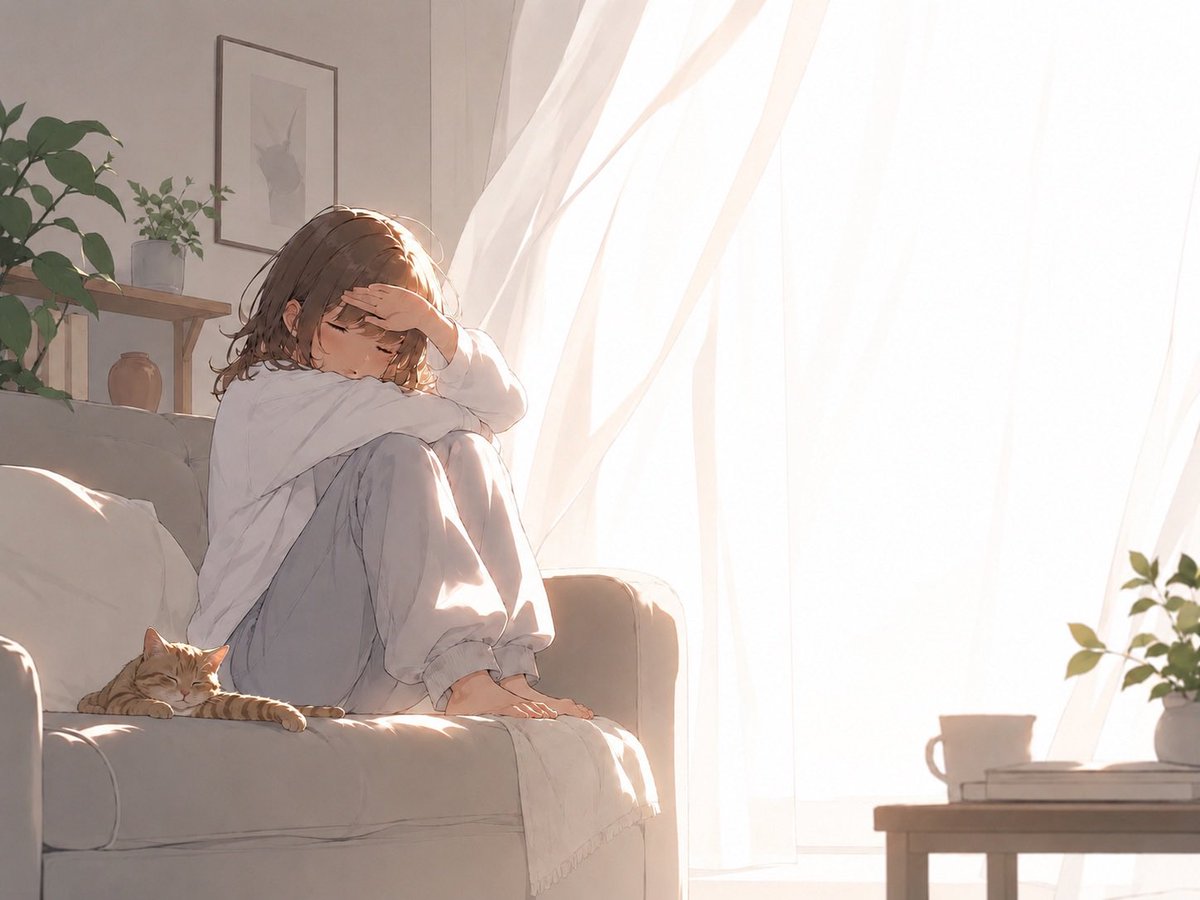
Backlit Morning Sofa Anime Scene
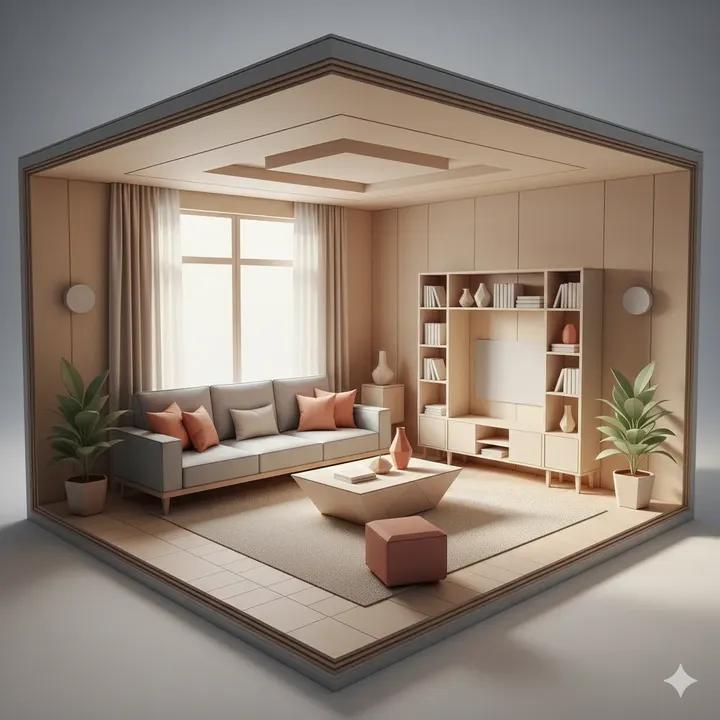
Origami Living Room Architecture Concept
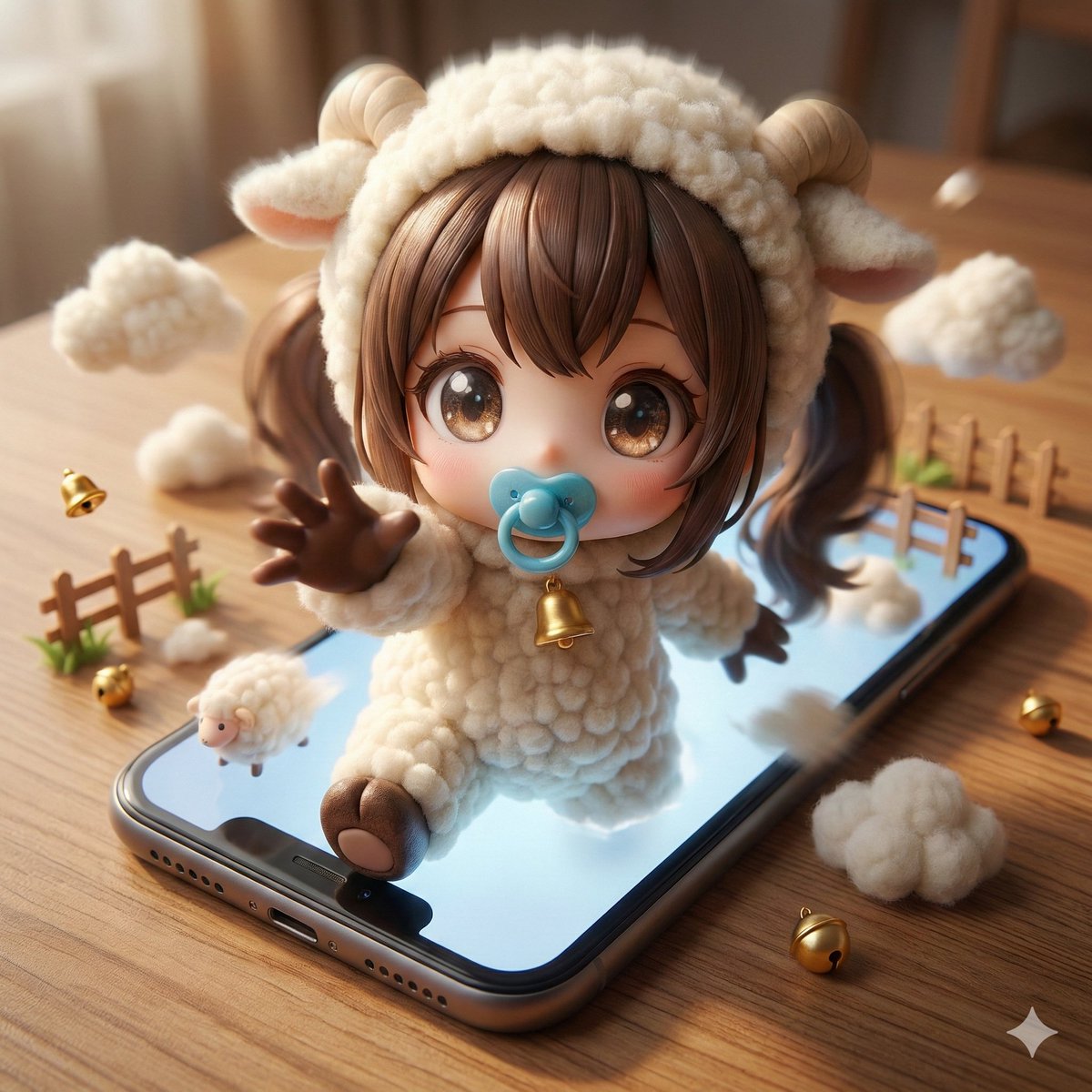
Character Emerging from Smartphone Screen (Forced Perspective)
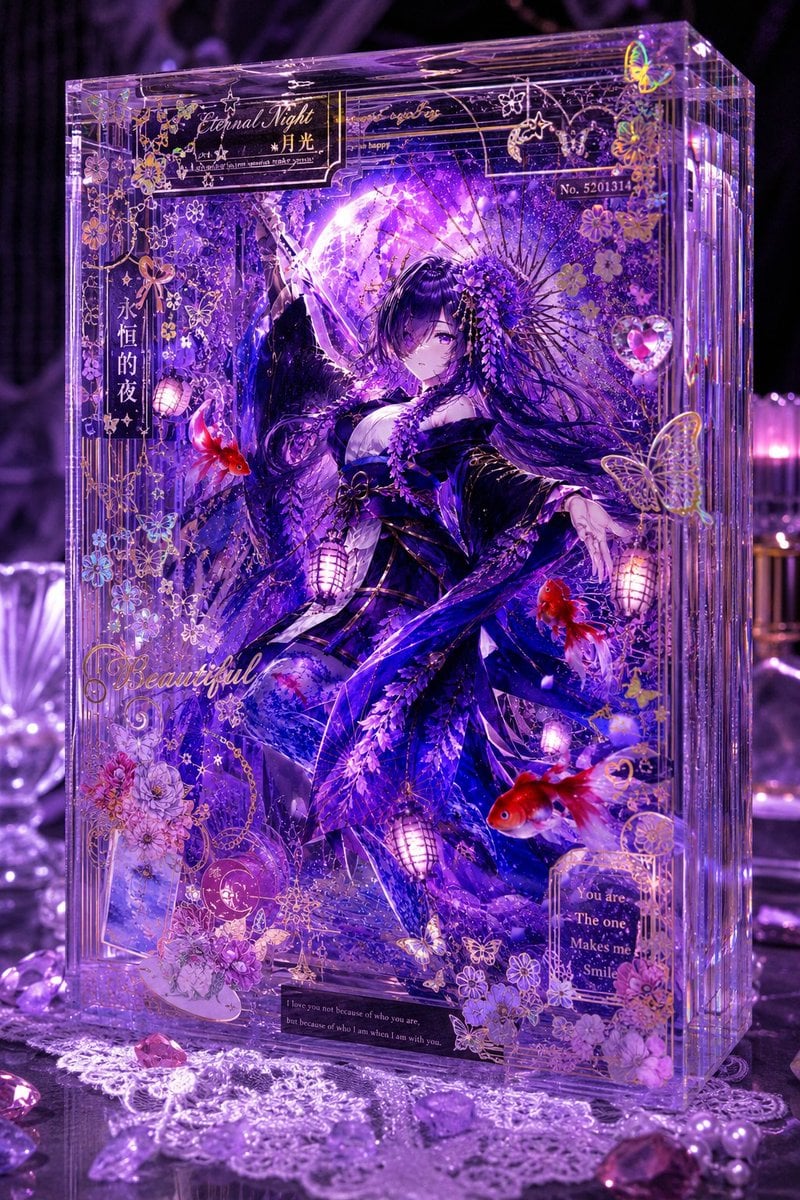
Luxury Purple Anime Acrylic Block
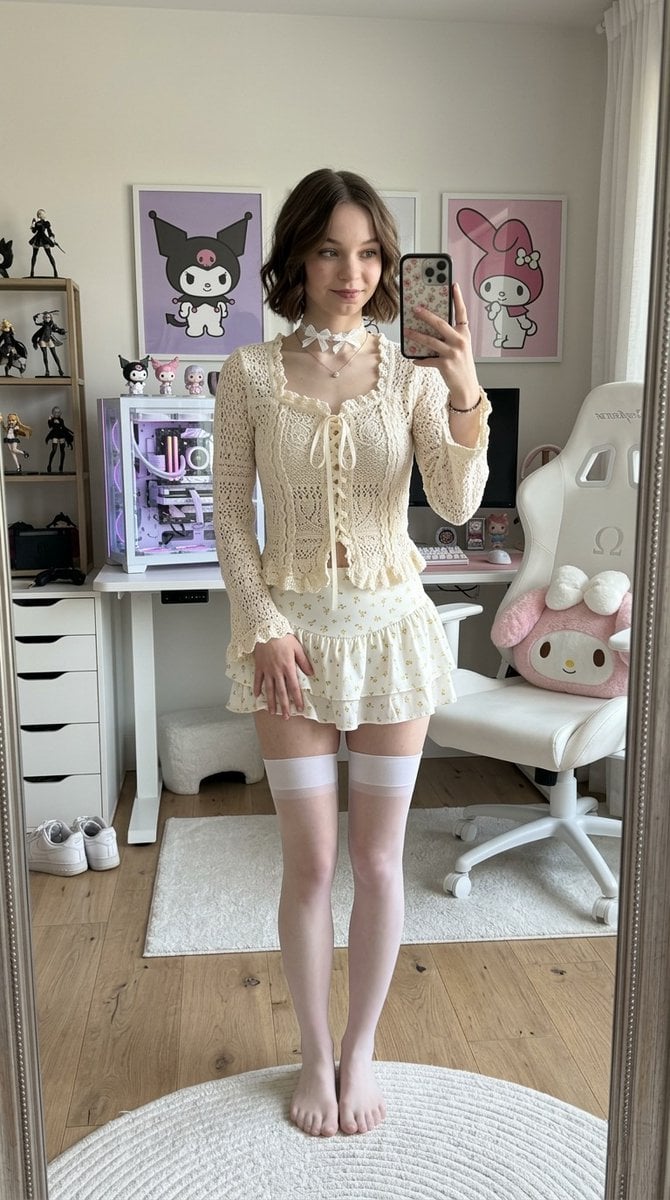
Olivia Rodrigo Gamer-Chic Mirror Selfie
Browse template categories
Studio Product Render From Blueprint questions
How do I use the Studio Product Render From Blueprint template?
Add your photo if the template asks for one, edit the prompt if you like — the template's model and format are already selected — and press Generate. Your version opens in PicX Studio.
Can I customize the Studio Product Render From Blueprint template?
Yes. You can change the subject, setting, lighting, mood, format, and available model controls before creating your image.
Is the Studio Product Render From Blueprint template free?
Opening and editing this template is free. Generating uses credits, shown on the Generate button when you are signed in.
Which AI model should I use?
Start with GPT Image 2, which is the model associated with this template. You can compare another compatible model for a different finish.
Looking for something else? Browse all templates.

Your photo, any look
Thousands of ready templates for every top image and video model, from one credit balance.