
Censored Man Holding Cat Portrait
A monochrome surreal studio portrait of a man holding a fluffy tabby cat in front of his face with a central gray censor block.
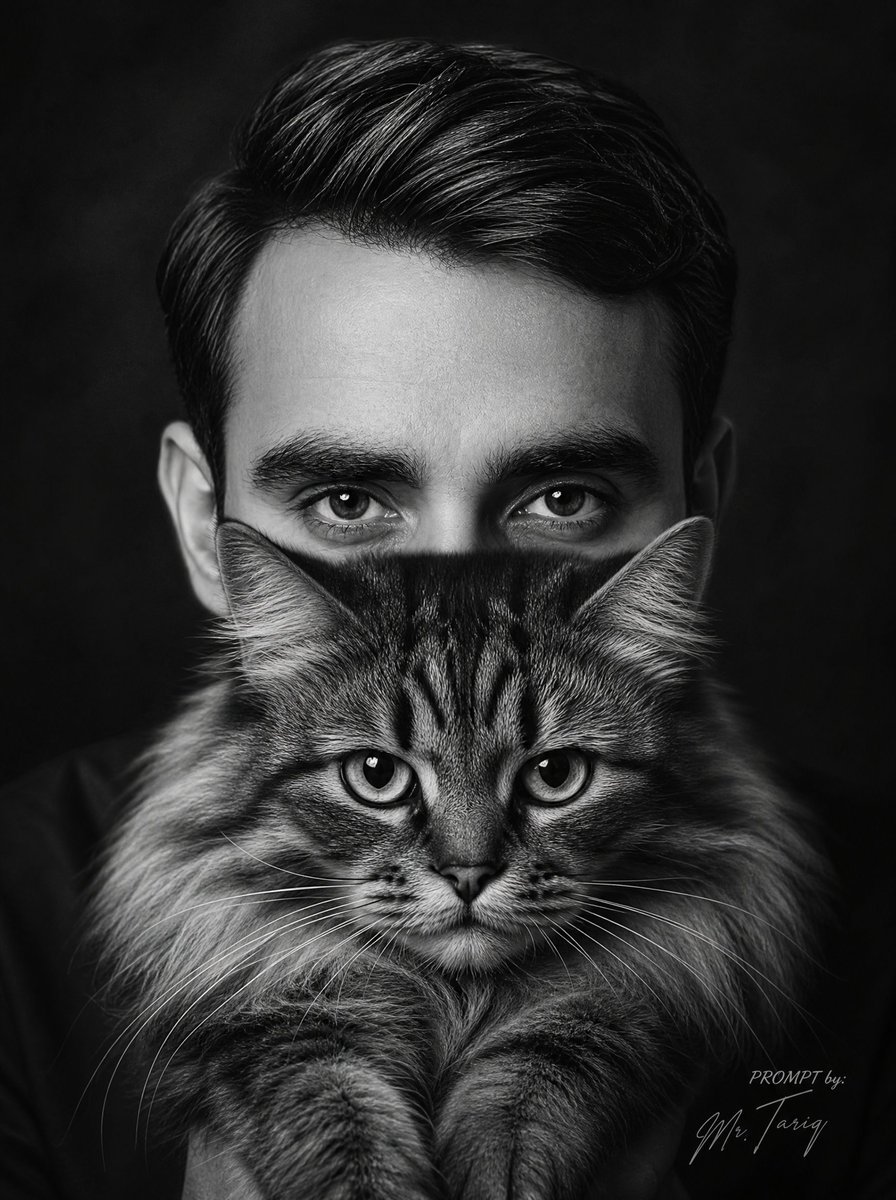
- Prompt included
- Model and format preset
- Premium template
The prompt behind this image
Copy the exact prompt behind Censored Man Holding Cat Portrait, or open it in the studio and make it yours.
Create an ultra-realistic black-and-white surreal studio portrait of a {argument name="subject age and gender" default="25-year-old man"} facing straight toward the camera in a tight vertical crop. He has thick, dark, glossy hair swept back with a side part, visible ears, and wears a dark shirt that blends into the shadowy background. He holds a large fluffy {argument name="cat type" default="long-haired tabby cat"} directly in front of his face like a living mask; the cat is centered, with its lower face, nose, whiskers, mane-like fur, and two front paws visible near the bottom of the frame. Add a large opaque square censor block in the center of the image, medium gray with a subtle left-to-right gradient, covering most of the man's face and the upper half of the cat, leaving only the man's hair and ears visible above and around it and the cat's muzzle, whiskers, chest fur, and paws visible below it. Use dramatic low-key lighting, high contrast monochrome tones, crisp fur texture, sharp hair detail, a dark vignetted studio backdrop, and a cinematic editorial fashion-photography mood. Place a small handwritten signature-style credit in the bottom-right corner reading {argument name="signature text" default="PROMPT by: Mr. Tariq"}. No color, no extra props, no text other than the small signature.
How to use Censored Man Holding Cat Portrait in 3 steps
- 1Upload ImagePNG, JPG or paste
Add your photo
Upload the photo the template builds on. The prompt, model and format are already set.
- 2…a portrait of your subject in softgolden-hour light, 85mm…
Personalize
Edit the subject and creative details for your destination.
- 3Generate
Generate
Press Generate — your image is created in PicX Studio, so you can compare it with the original and refine one variable at a time.
More like this
Templates with the same subject, style or setup. Open one to see its prompt.
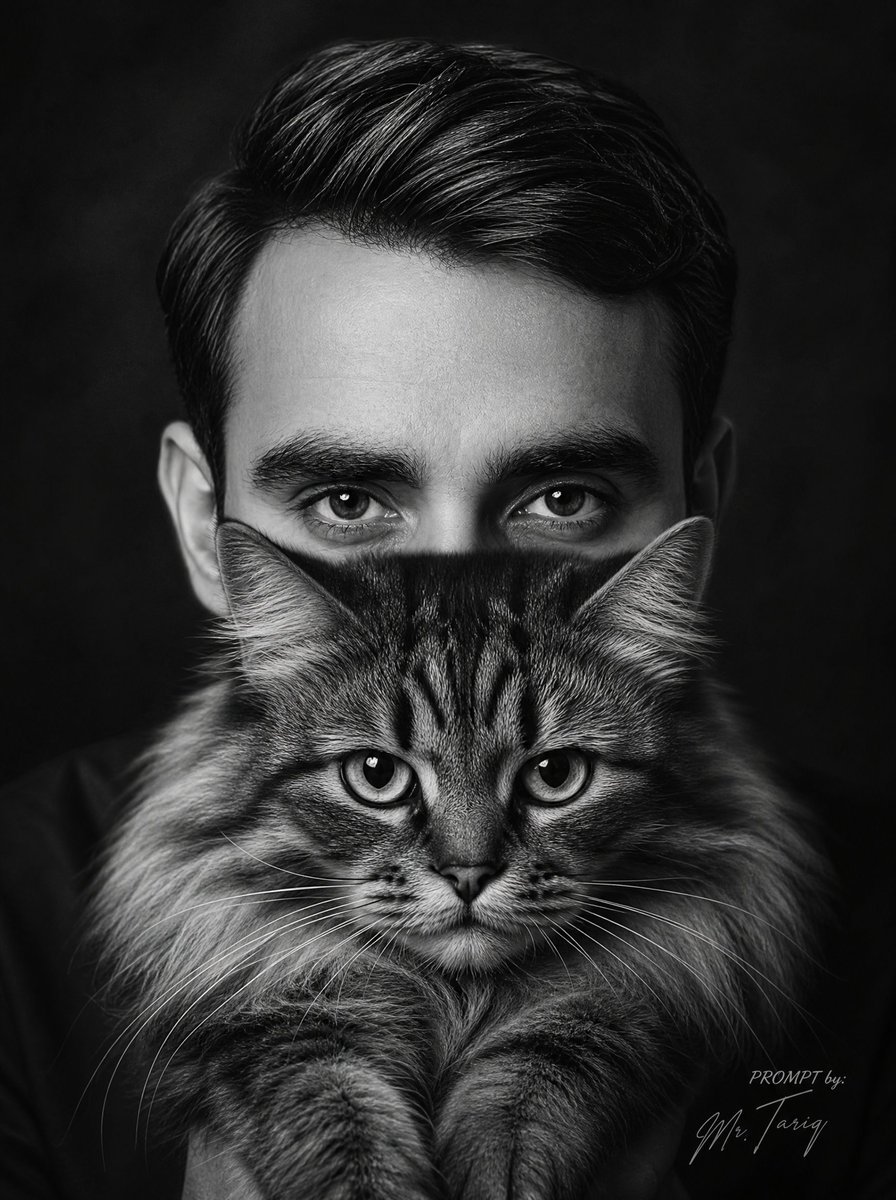
Monochrome Man Holding Cat Portrait
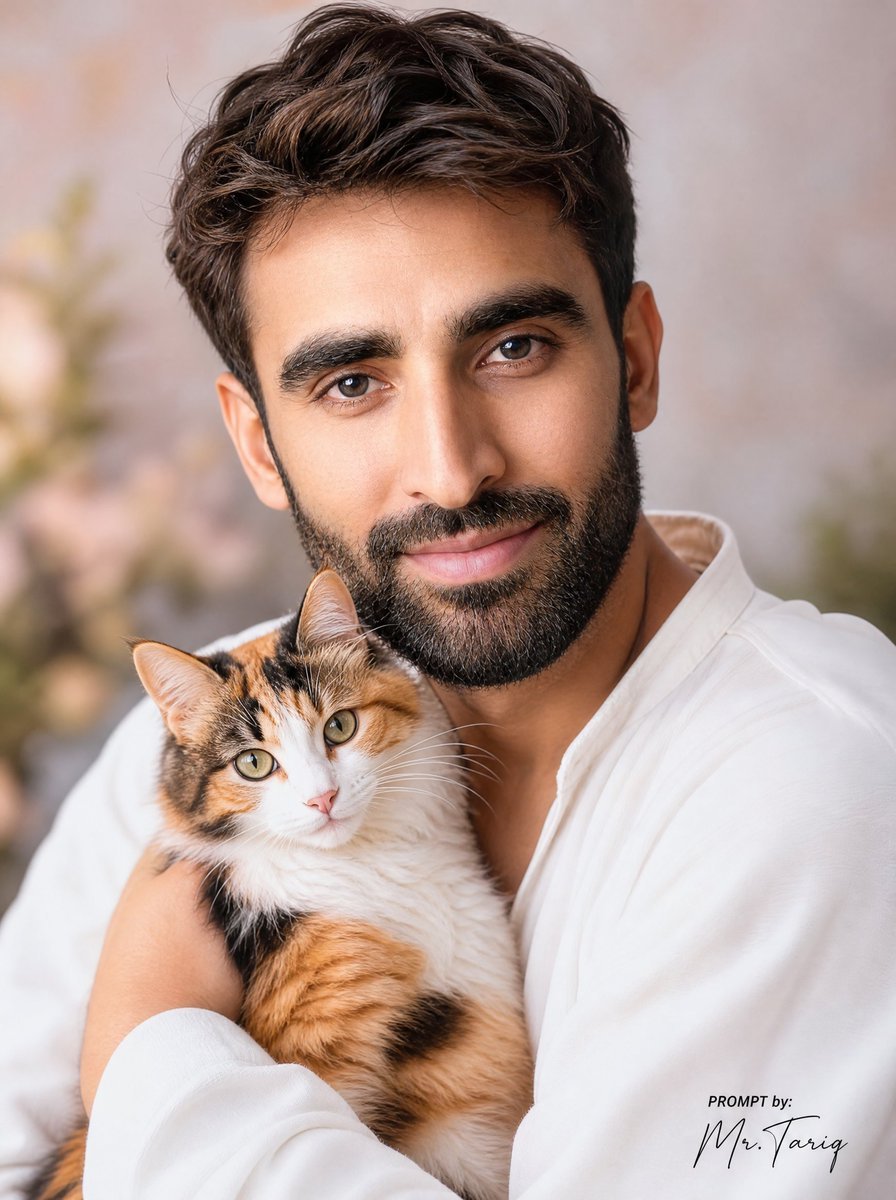
Dreamy Man Holding Calico Cat Portrait
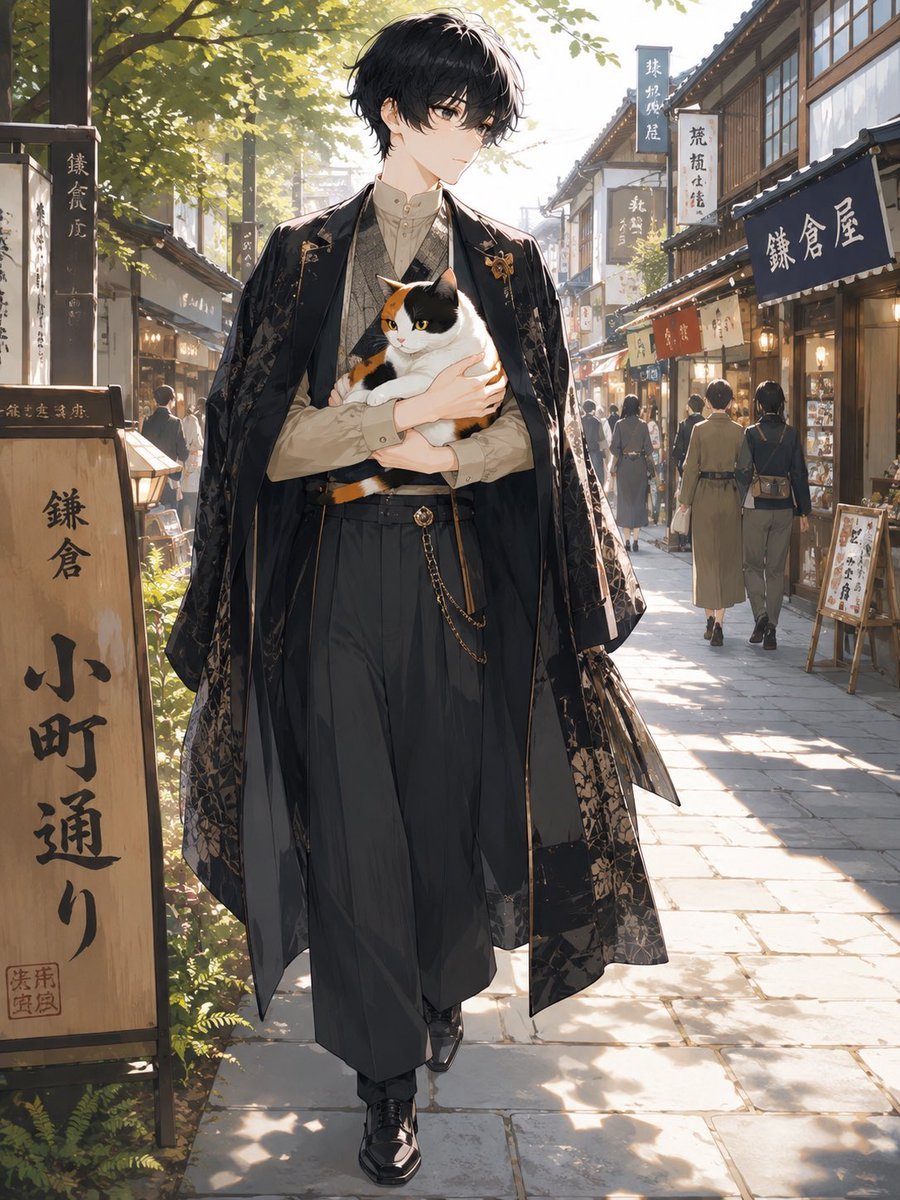
Faceless Anime Man Holding Calico Cat
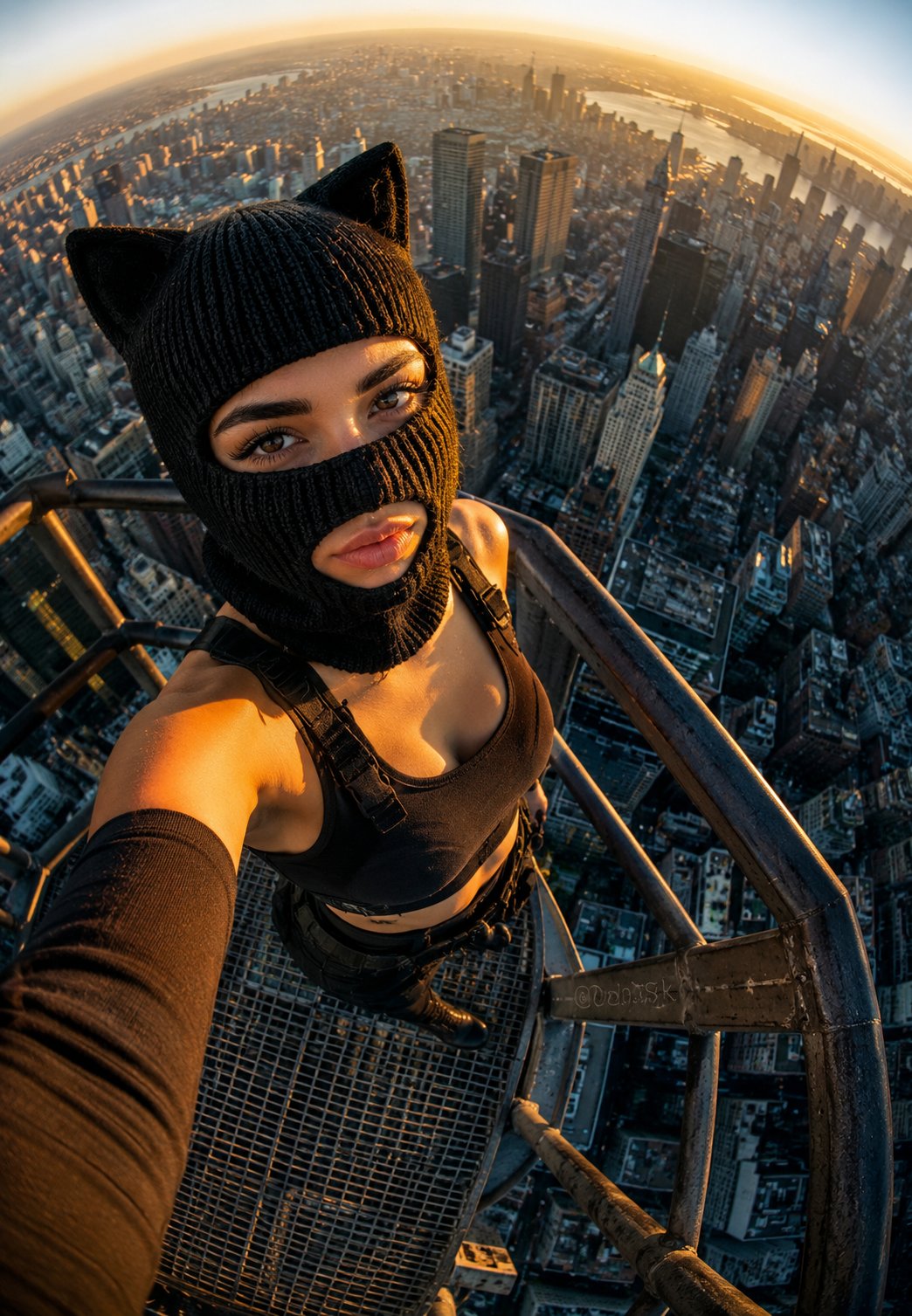
Rooftop Fisheye — Cat-Ear Balaclava at Golden Hour
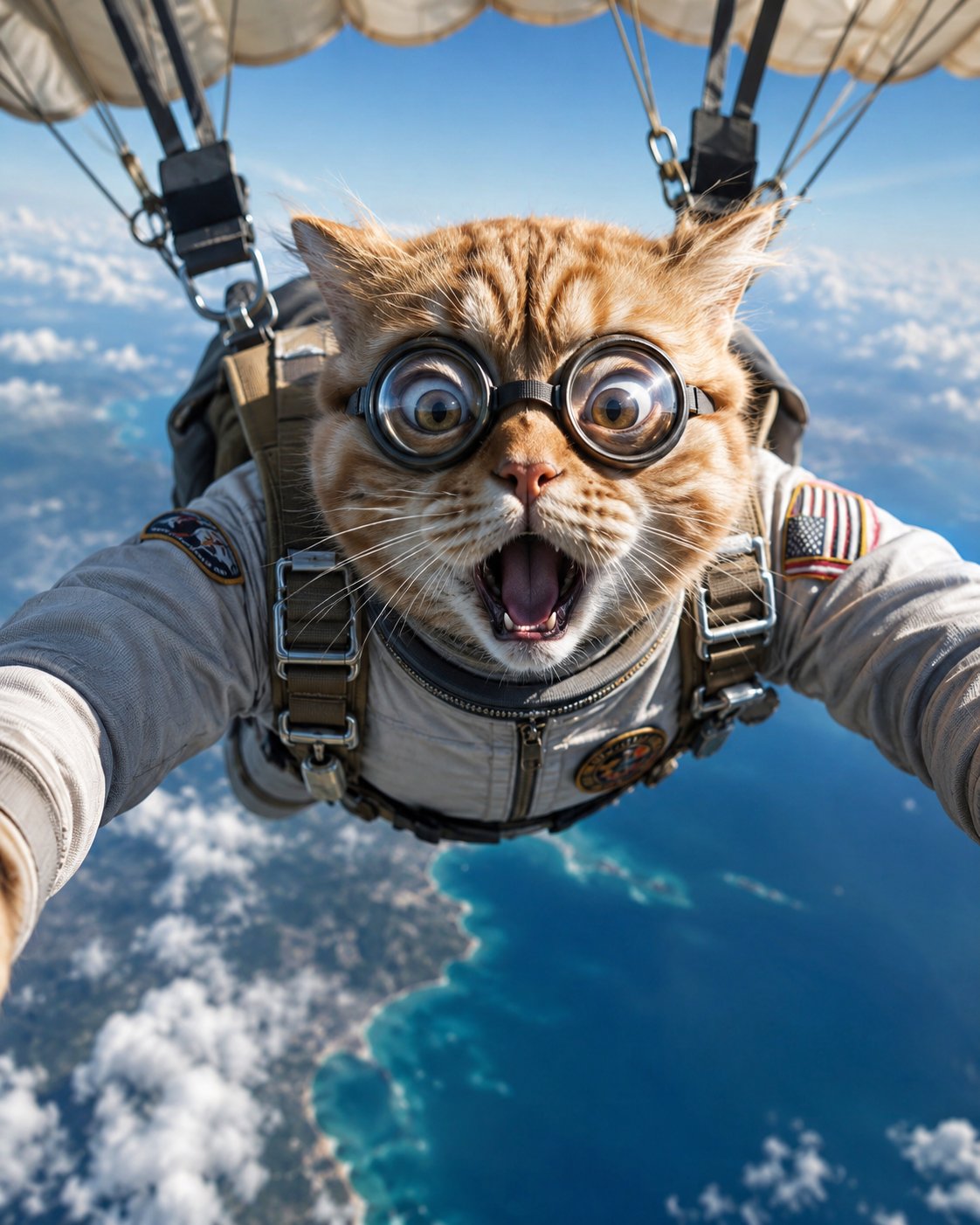
Surreal Cat Astronaut — Humanoid Face Freefall
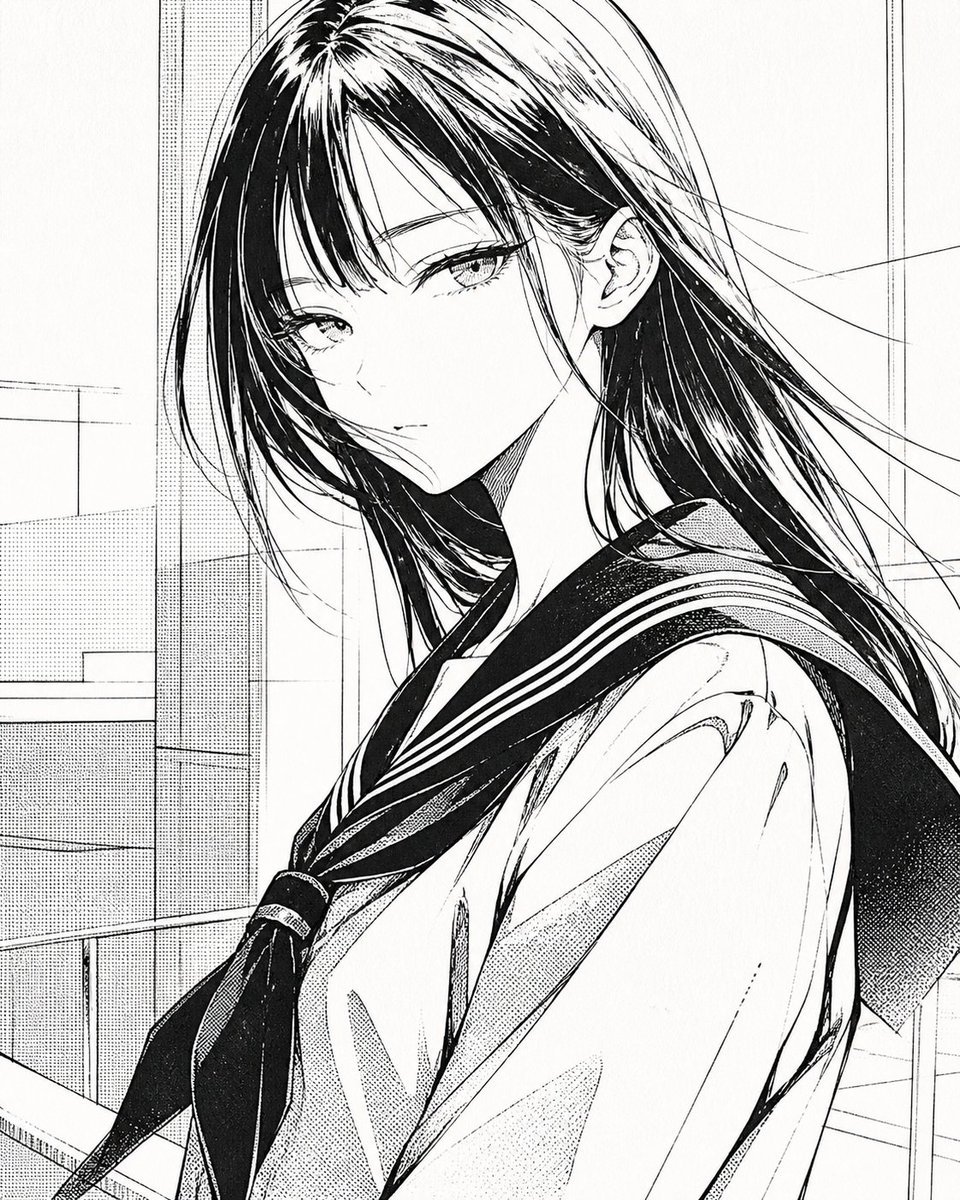
Censored Manga Schoolgirl Portrait
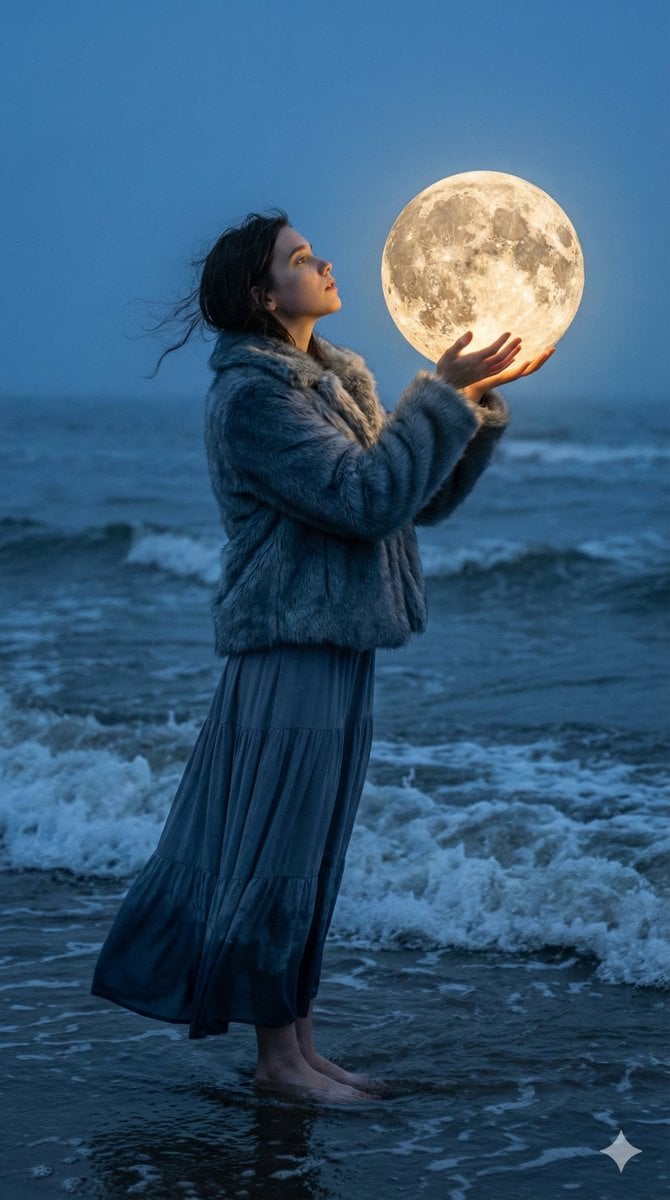
Magical Realism Portrait: Woman Holding a Glowing Moon Orb at Twilight
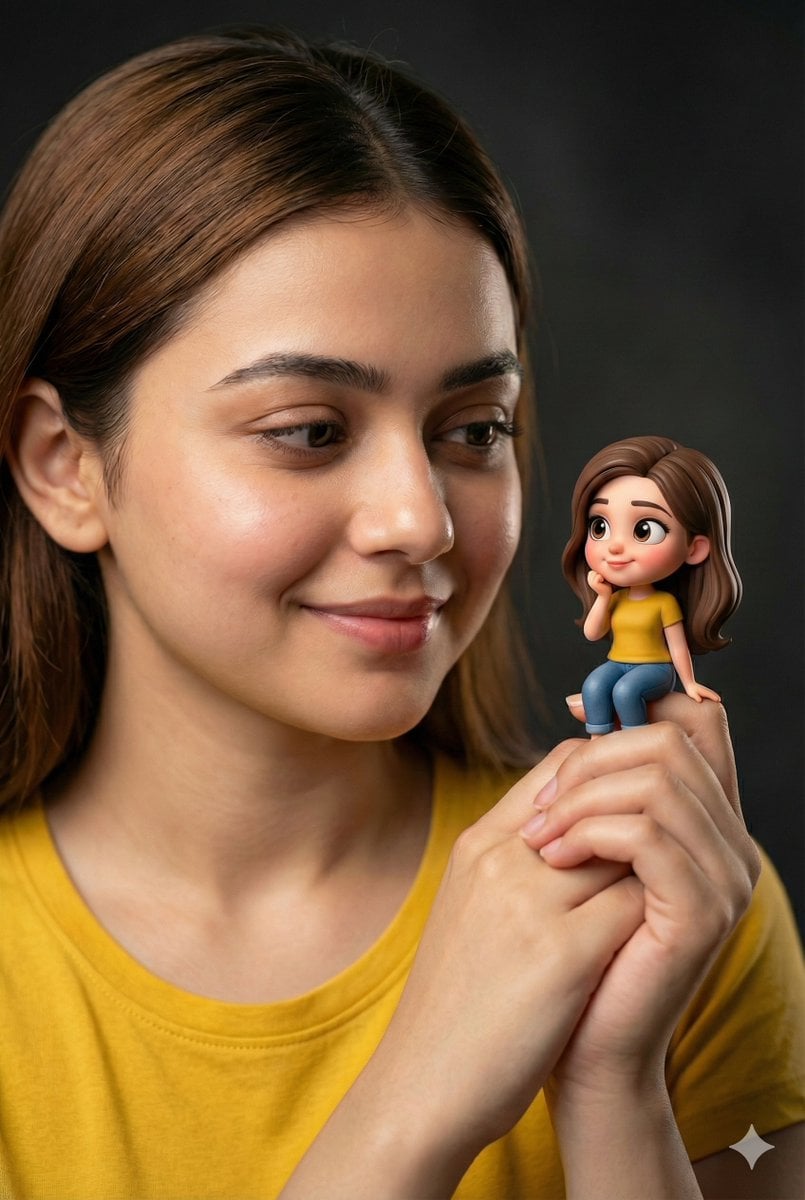
Woman Holding Miniature Figurine Portrait Prompt
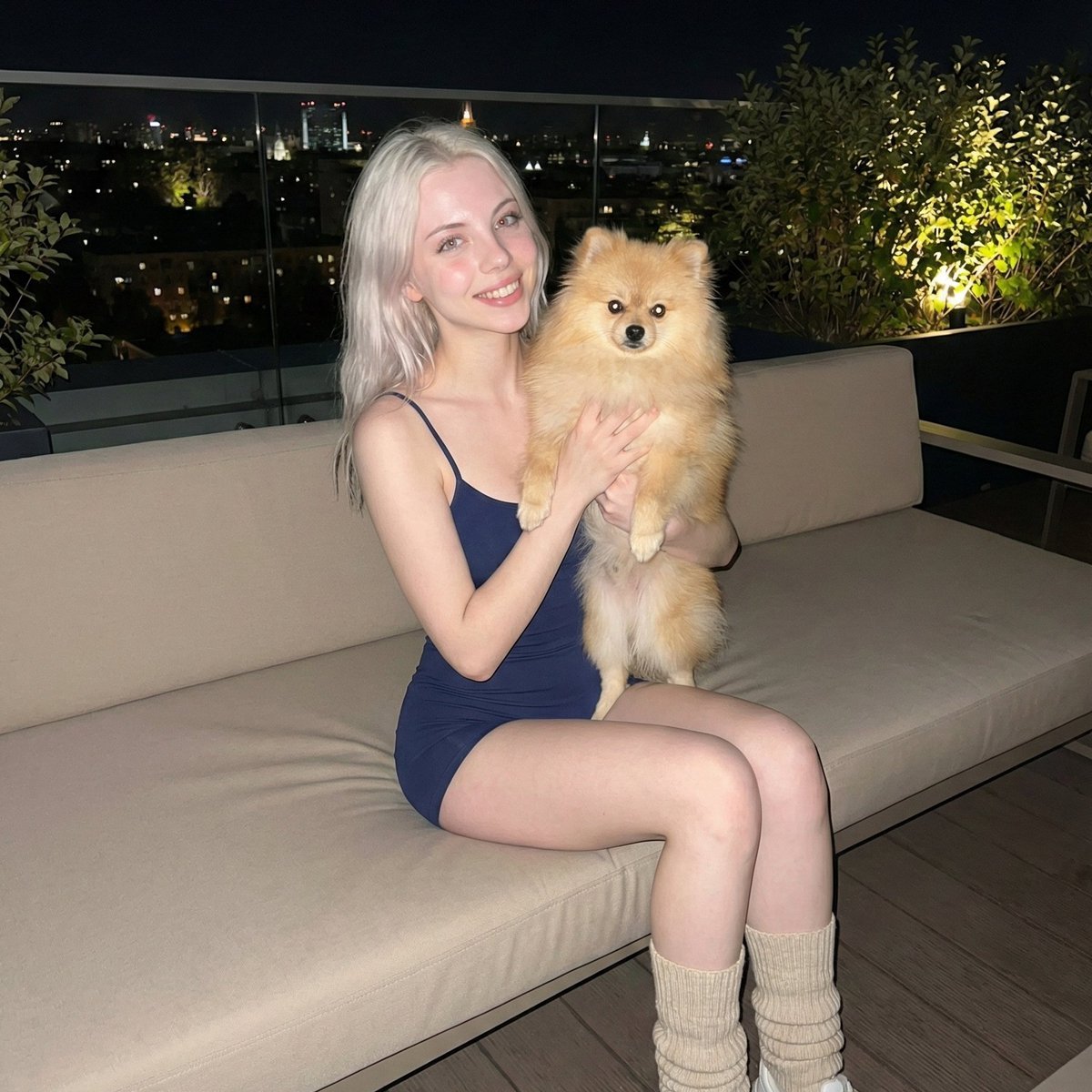
Photorealistic Portrait of Woman Holding a Pomeranian (iPhone Style)
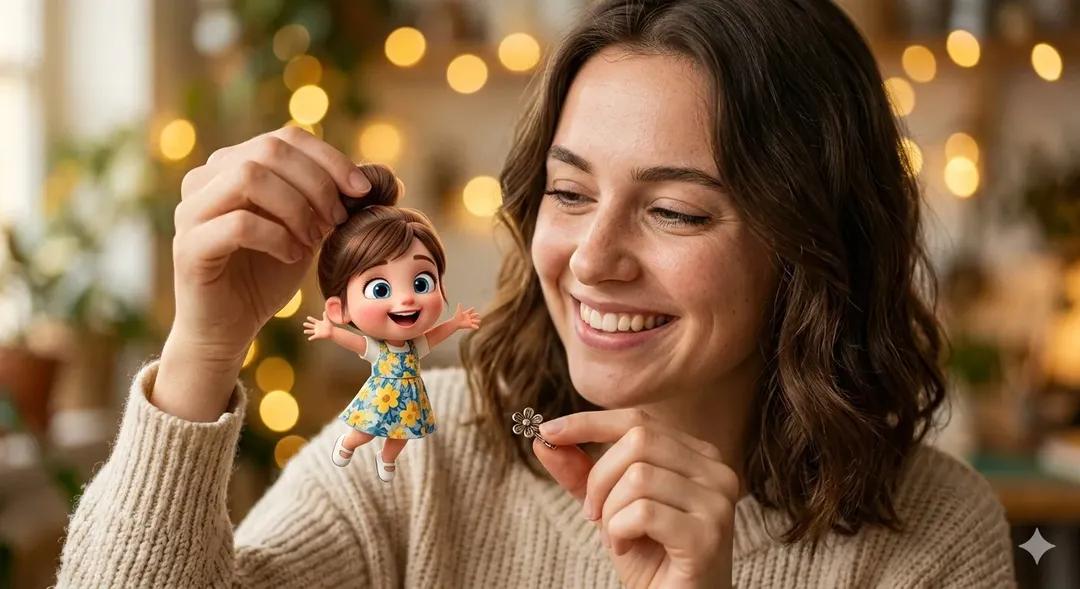
Surreal Portrait: Woman Holding Tiny Cartoon Girl
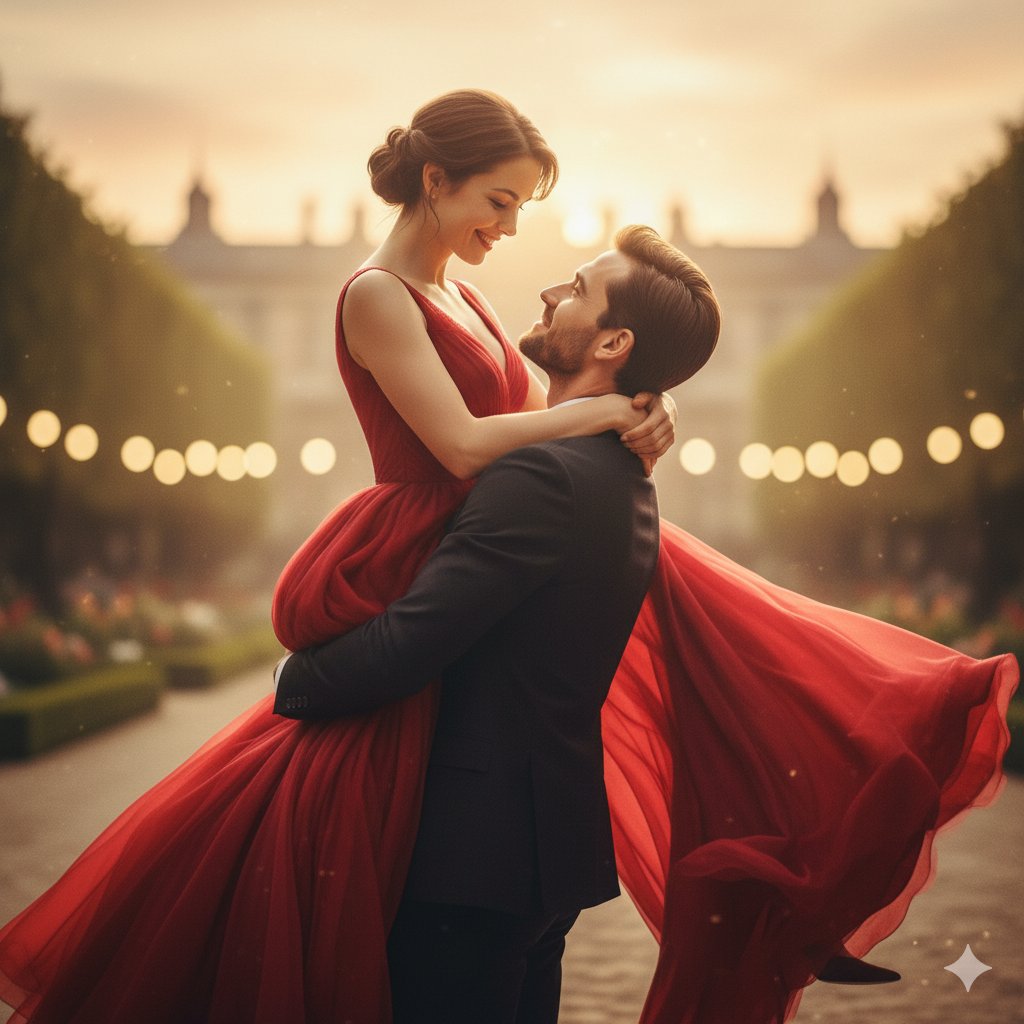
Romantic Cinematic Still of a Couple in
Snowy Locations Views Winter Special
Make it yours
Censored Man Holding Cat Portrait works as-is. These are the safest ways to change it without losing the look.
Change one field
Copy a single group, rewrite it, and generate again so you can see what that field is doing.
Keep the frame, change the subject
Hold the composition and light of Censored Man Holding Cat Portrait, then swap wardrobe, props or the person for a new take.
| If the result… | Why | Fix |
|---|---|---|
| The result drifts from the preview | Too many fields changed at once. | Reuse Censored Man Holding Cat Portrait as-is first, then change one group — subject, light, or setting. |
| The model over-stylizes the scene | The prose prompt leaves finish and camera underspecified. | Add one camera or lighting sentence and stay on GPT Image 2. |
More GPT Image 2 templates
Other prompts made for GPT Image 2.

Six VTuber Japanese Logo Sheet

The Vista Modular Condo Poster

AI Model Routing Comparison Infographic

2.5D Anime Art Board

Isometric Productivity Desk Scene

New York Double Exposure Poster

Four-Panel AI Landscape Comparison

Japanese Tatami Lifestyle Magazine Cover

NESCAFÉ Coffee Map Poster

Brutalist Cogito Chinese Typography Poster
More image prompts
Fresh picks from across the catalog.
Pale Watercolor Line Art Transformation
Student Hangout Room Transformation
Photorealistic Indoor Lifestyle Scene
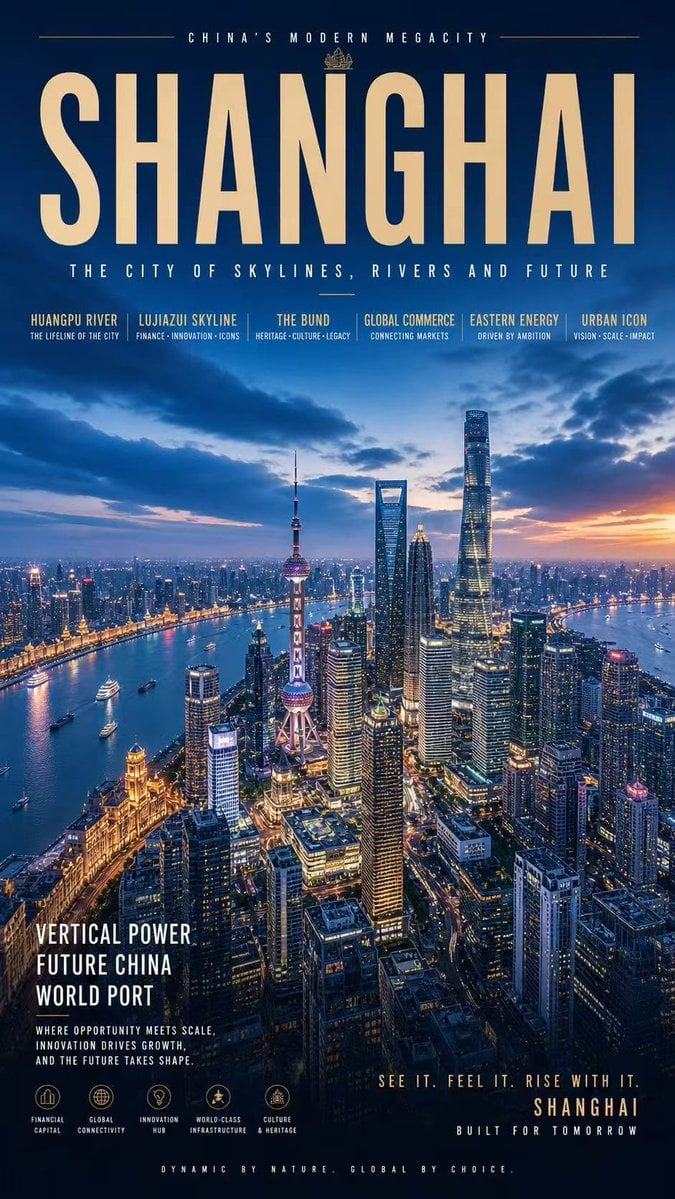
Shanghai Megacity Night Poster
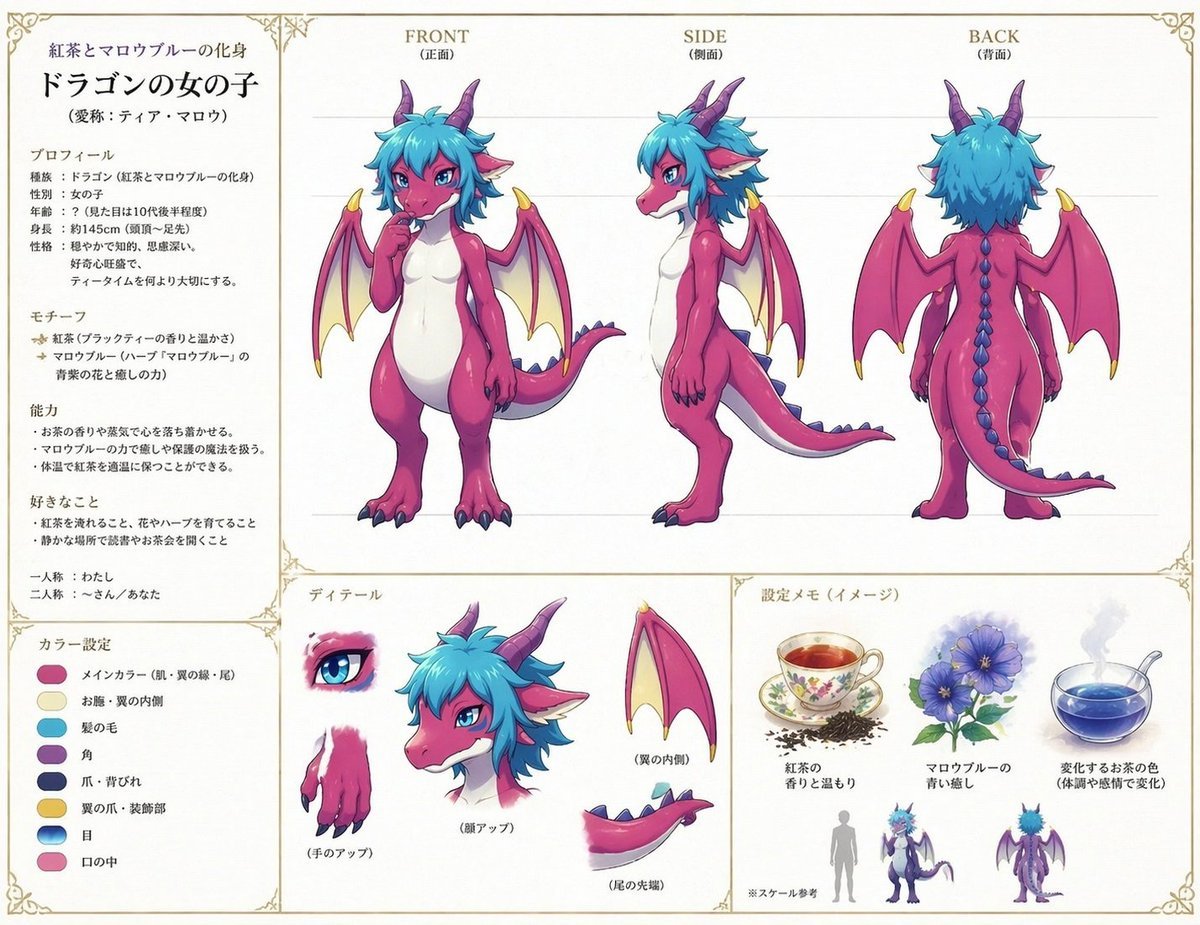
Anime Dragon Girl Reference Sheet
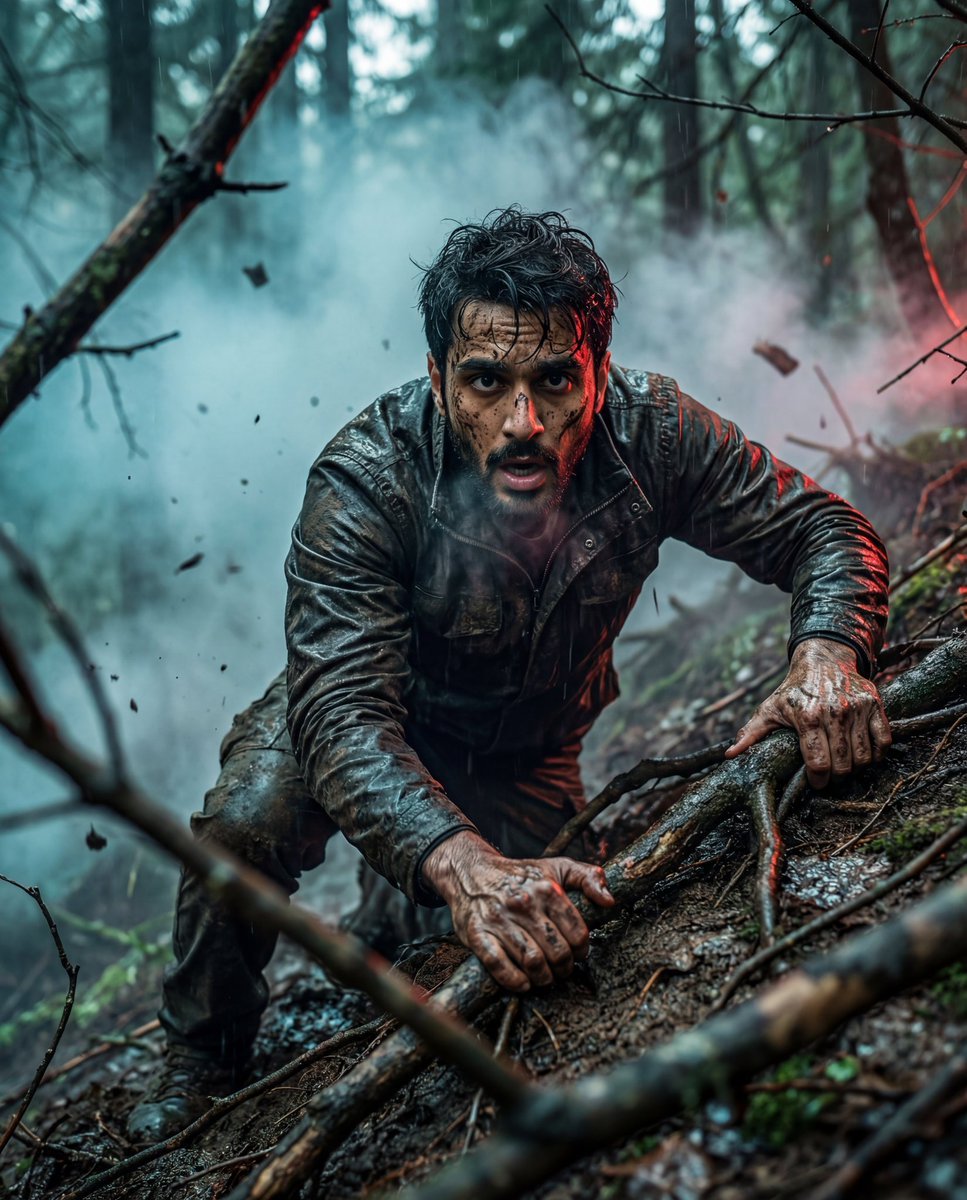
Hyper-Realistic Survival Cinematic Still Prompt
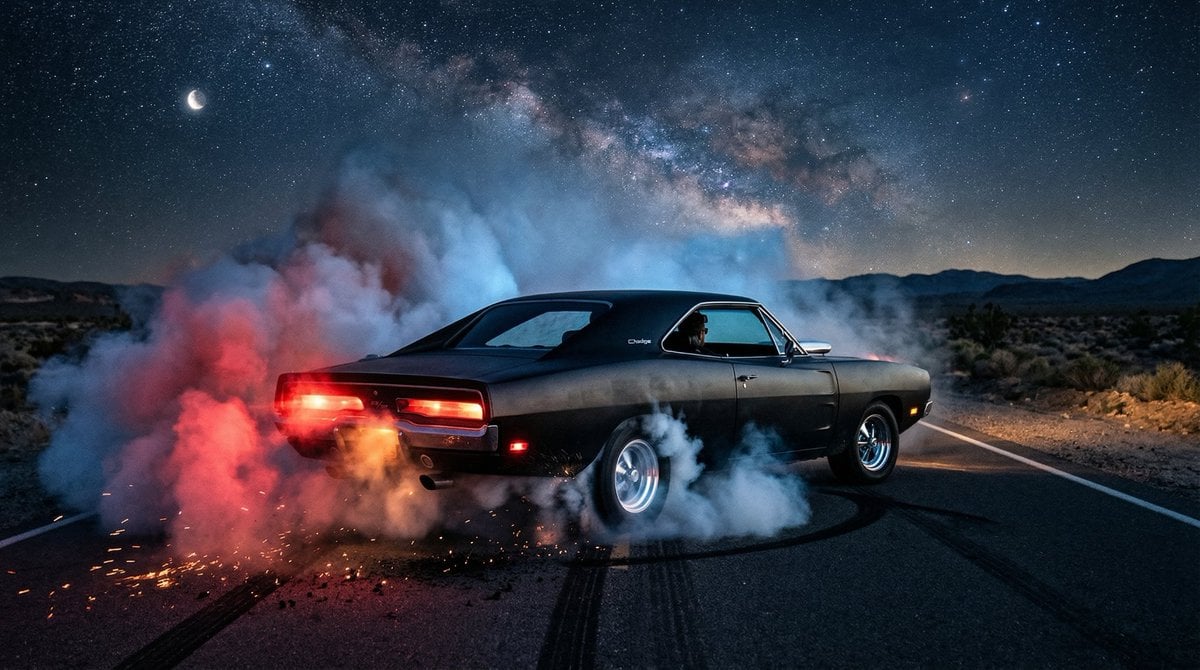
1970 Dodge Charger Burnout Prompt for Nano Banana 2
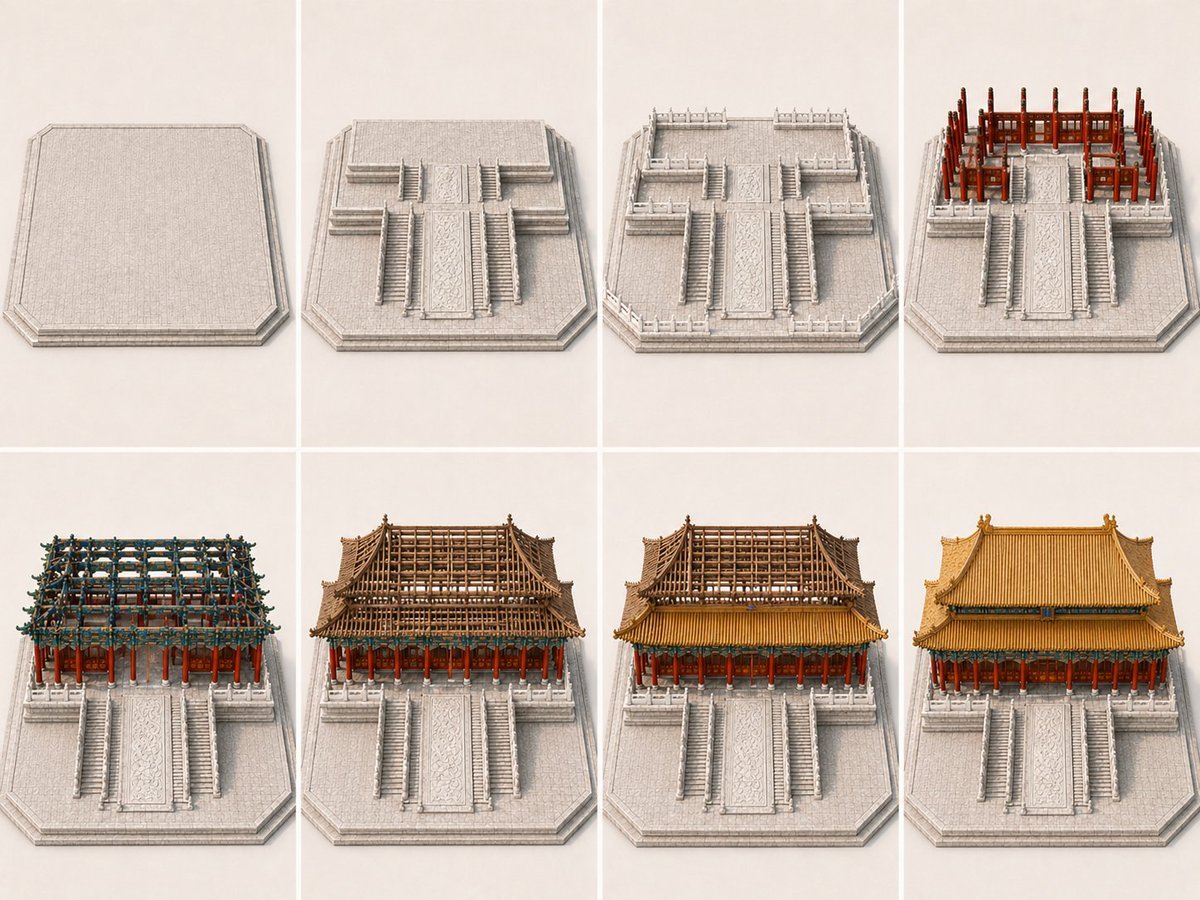
Panel Palace Hall Construction Board
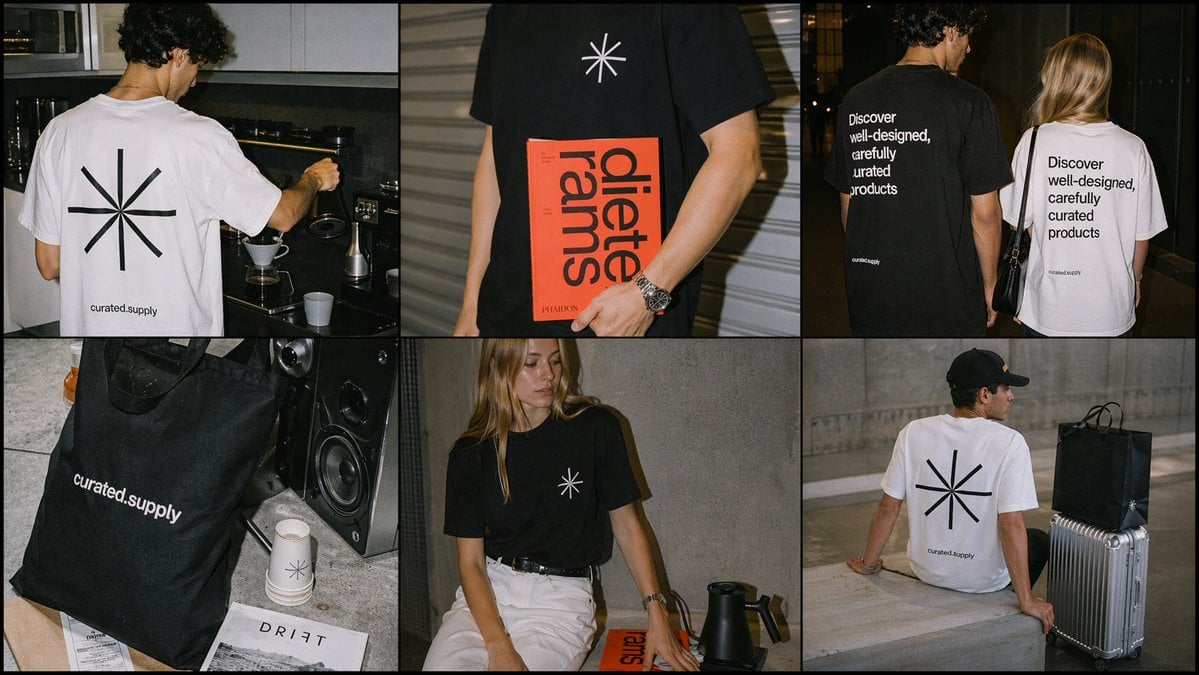
Minimal Streetwear Merch Campaign Grid
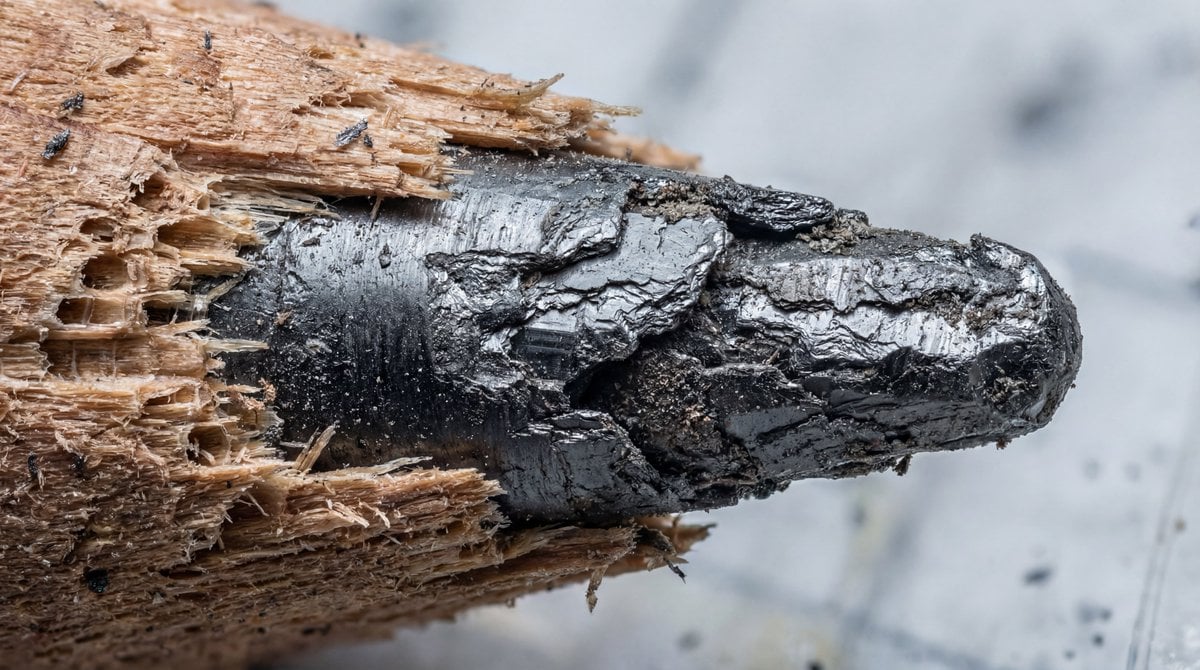
Microscopic View of a Pencil Tip
Browse template categories
Censored Man Holding Cat Portrait questions
How do I use the Censored Man Holding Cat Portrait template?
Add your photo if the template asks for one, edit the prompt if you like — the template's model and format are already selected — and press Generate. Your version opens in PicX Studio.
Can I customize the Censored Man Holding Cat Portrait template?
Yes. You can change the subject, setting, lighting, mood, format, and available model controls before creating your image.
Is the Censored Man Holding Cat Portrait template free?
Opening and editing this template is free. Generating uses credits, shown on the Generate button when you are signed in.
Which AI model should I use?
Start with GPT Image 2, which is the model associated with this template. You can compare another compatible model for a different finish.
Looking for something else? Browse all templates.

Your photo, any look
Thousands of ready templates for every top image and video model, from one credit balance.