
Microsoft Office Parody Banner
A polished faux Microsoft-style product banner featuring layered Office-like icons and a satirical software title, suitable for memes, parody branding, or social media posts.
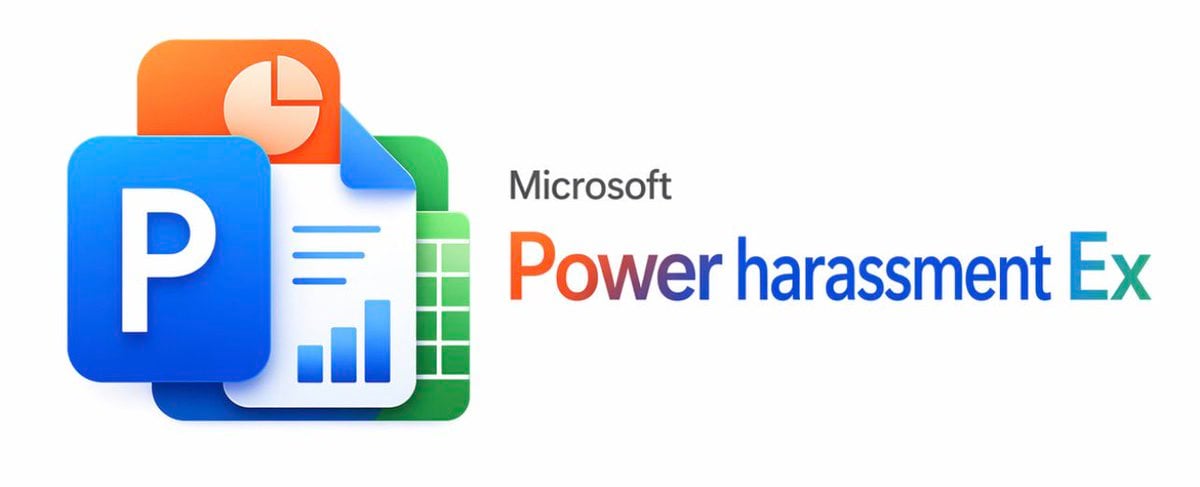
- Prompt included
- Model and format preset
- Free template
The prompt behind this image
Copy the exact prompt behind Microsoft Office Parody Banner, or open it in the studio and make it yours.
A clean corporate parody graphic on a plain light gray background, centered horizontally, styled like an official Microsoft product banner. On the left, show a layered cluster of 4 overlapping Microsoft Office-like app icons with glossy 3D depth and soft shadows: 1 large blue square tile in front with a bold white capital letter P, 1 orange rounded rectangle behind it at the upper left with a white pie-chart symbol, 1 white document sheet in the middle with a folded top-right corner, three blue horizontal text lines and a blue bar chart at the bottom, and 1 green spreadsheet tile behind on the right with a white grid pattern. On the right side, place the word Microsoft in small dark gray sans-serif type above a large product-name line that reads {argument name="headline text" default="Power harassment Ex"}. Render the large title in a Microsoft-style multicolor gradient spanning warm orange-red into purple-blue and cyan, with a crisp modern sans-serif look. Keep the composition minimal, wide, and balanced, with lots of empty space, resembling a polished tech company branding image or fake software logo announcement.
How to use Microsoft Office Parody Banner in 3 steps
- 1Upload ImagePNG, JPG or paste
Add your photo
Upload the photo the template builds on. The prompt, model and format are already set.
- 2…a portrait of your subject in softgolden-hour light, 85mm…
Personalize
Edit the subject and creative details for your destination.
- 3Generate
Generate
Press Generate — your image is created in PicX Studio, so you can compare it with the original and refine one variable at a time.
More like this
Templates with the same subject, style or setup. Open one to see its prompt.
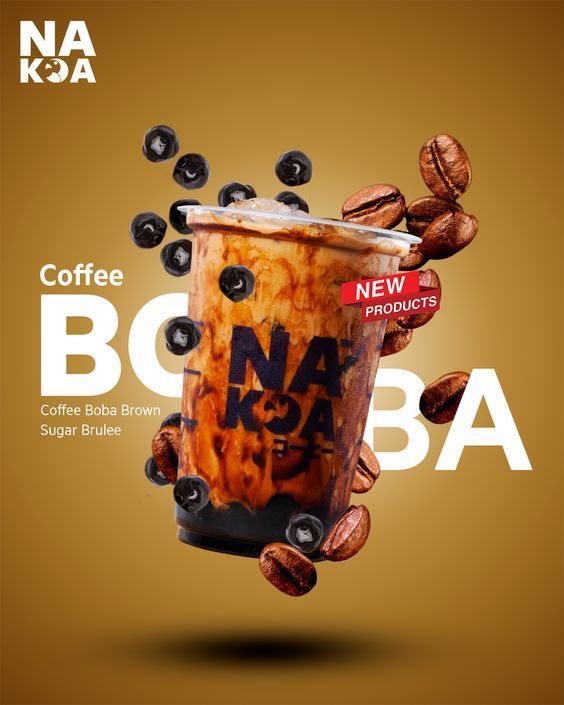
Coffee Boba Product Poster
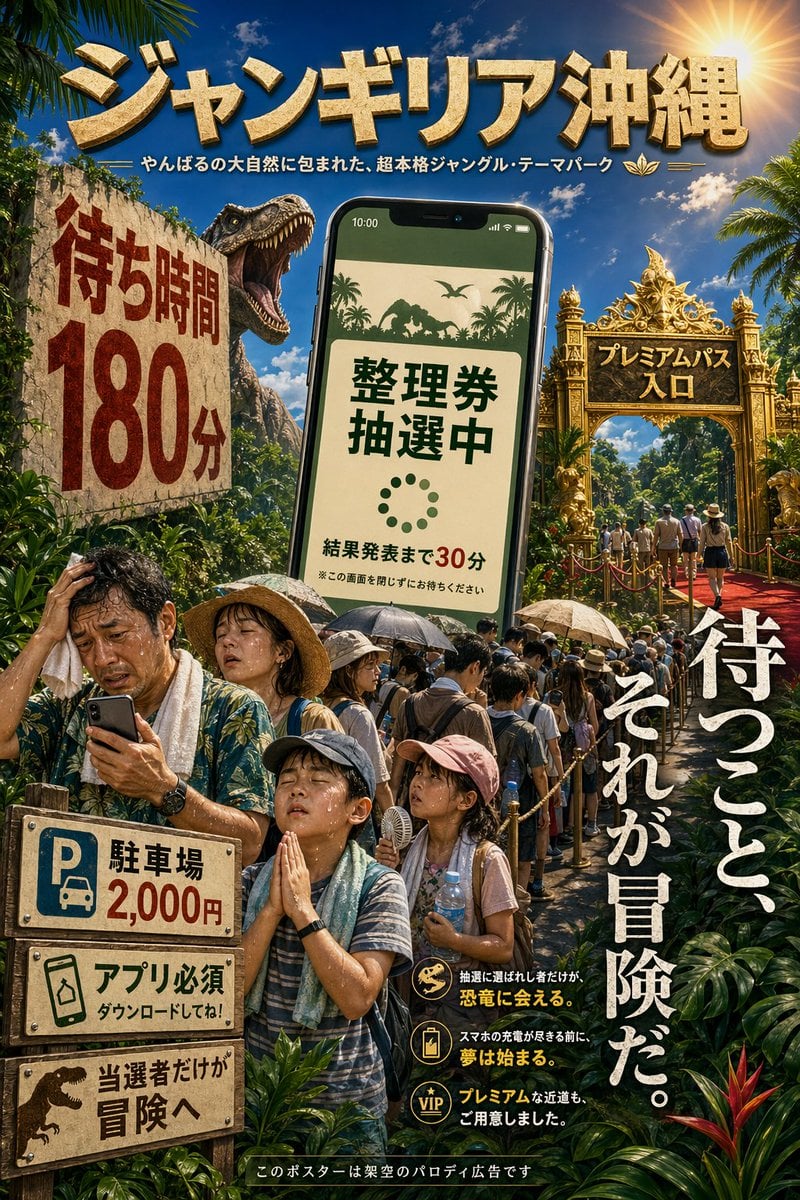
Japanese Jungle Theme Park Parody Poster
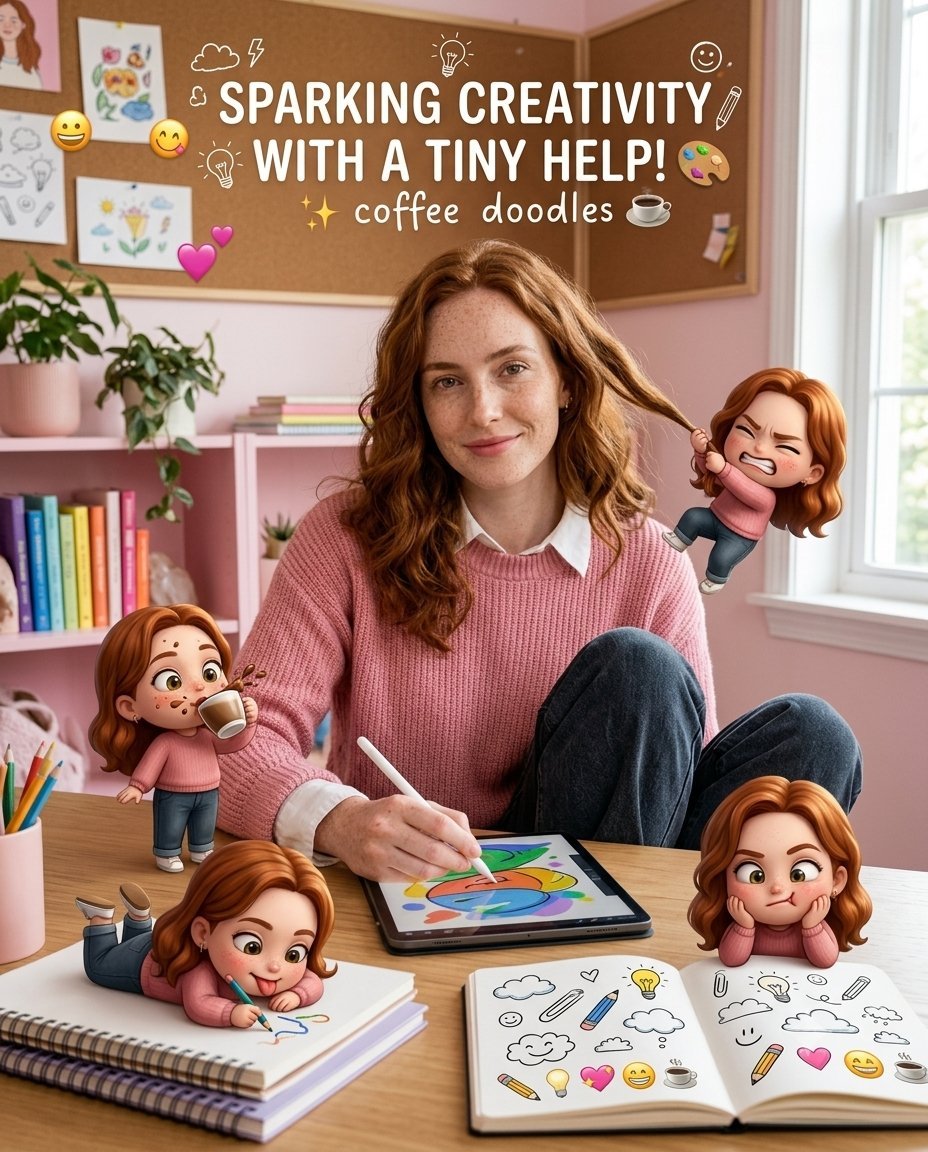
Creative Character in Pink Office
iPhone Style Minimalist Office Portrait
Realistic Office Elevator Candid
Demon Office Girl Morning Drink
Dark Academia Anime Legal Officer
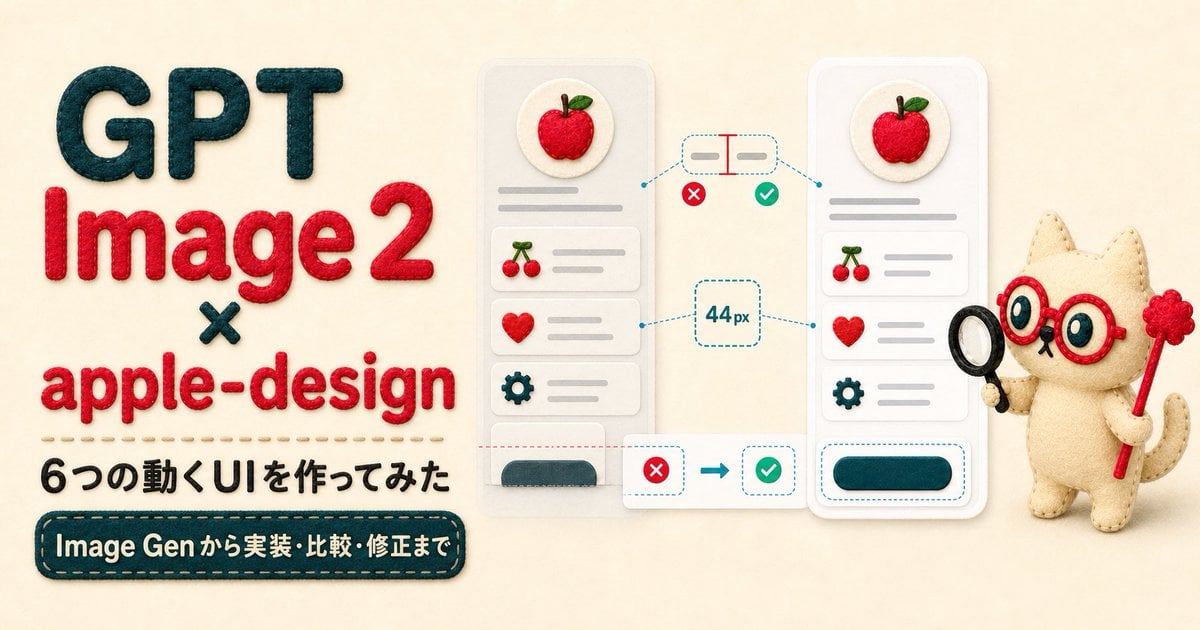
Felt GPT Image 2 Apple Design Banner
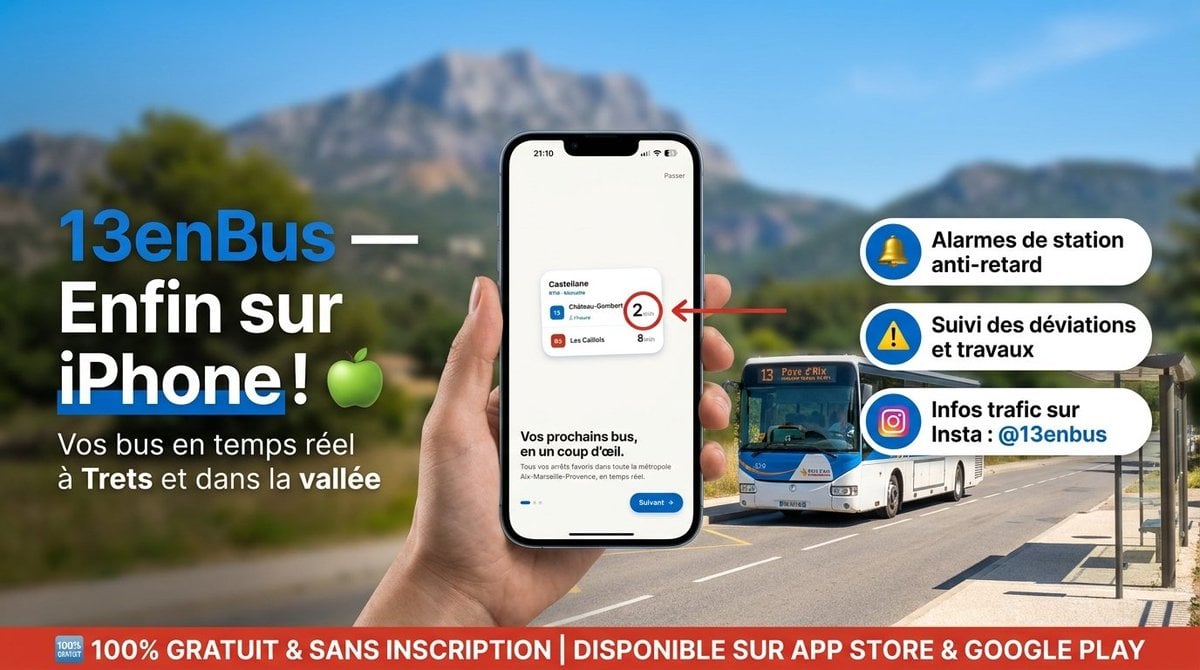
13enBus iPhone Launch Banner

ChatGPT Bonus Banner Screenshot

Felt Craft Apple Design UI Banner
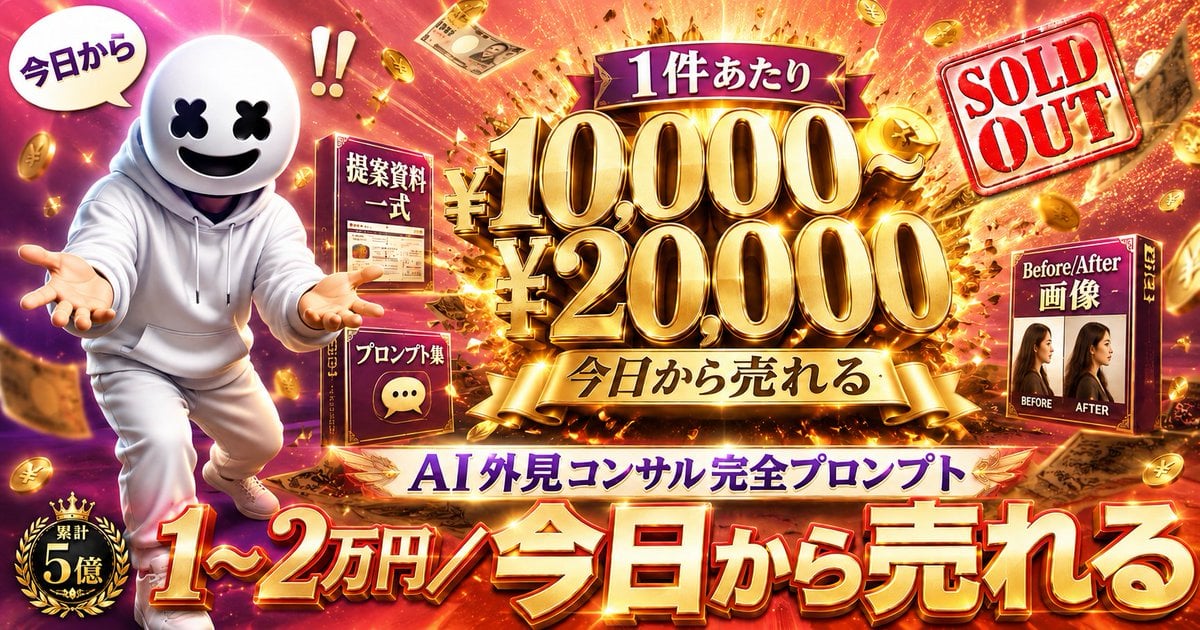
Flashy AI Appearance Consulting Sales Banner
Make it yours
Microsoft Office Parody Banner works as-is. These are the safest ways to change it without losing the look.
Change one field
Copy a single group, rewrite it, and generate again so you can see what that field is doing.
Keep the frame, change the subject
Hold the composition and light of Microsoft Office Parody Banner, then swap wardrobe, props or the person for a new take.
| If the result… | Why | Fix |
|---|---|---|
| The result drifts from the preview | Too many fields changed at once. | Reuse Microsoft Office Parody Banner as-is first, then change one group — subject, light, or setting. |
| The model over-stylizes the scene | The prose prompt leaves finish and camera underspecified. | Add one camera or lighting sentence and stay on GPT Image 2. |
More GPT Image 2 templates
Other prompts made for GPT Image 2.

Six VTuber Japanese Logo Sheet

Realistic Portrait of Woman and Deer

The Vista Modular Condo Poster

AI Model Routing Comparison Infographic

2.5D Anime Art Board

Isometric Productivity Desk Scene

New York Double Exposure Poster

Four-Panel AI Landscape Comparison

Japanese Tatami Lifestyle Magazine Cover

NESCAFÉ Coffee Map Poster
More image prompts
Fresh picks from across the catalog.
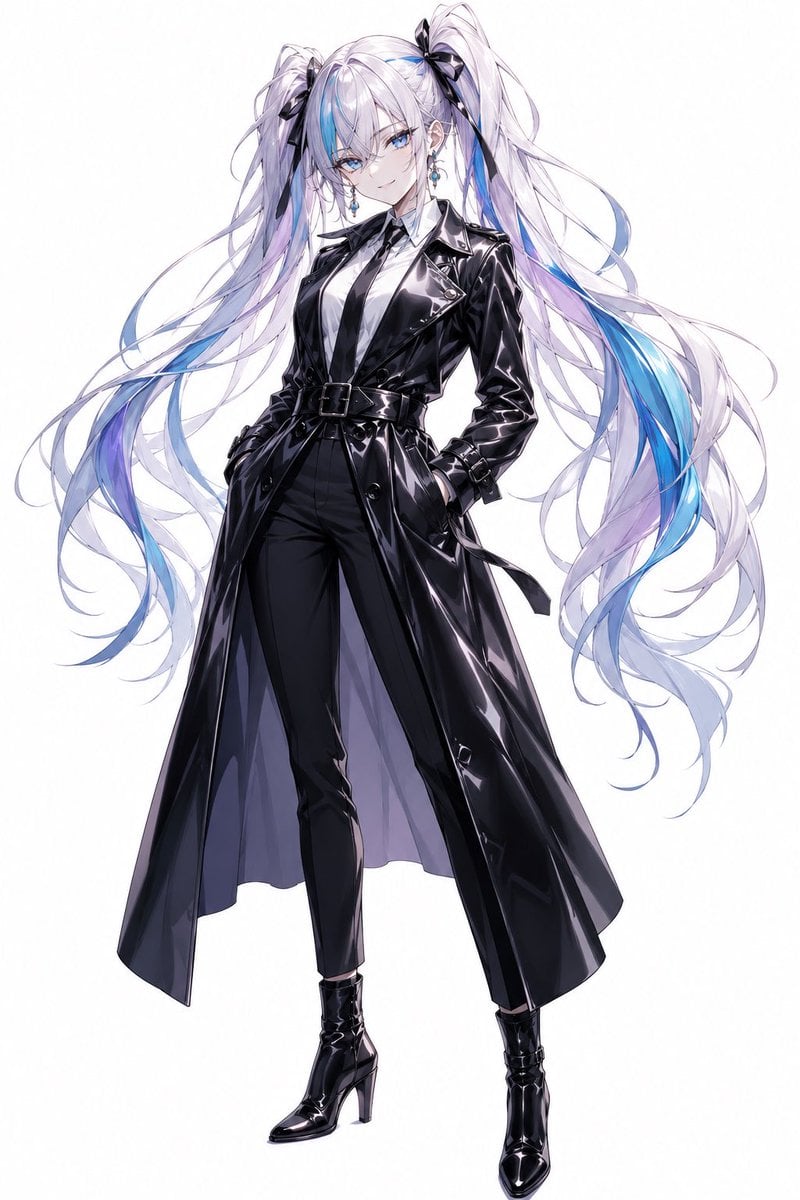
Anime Twin-Tail Patent Trench Fashion
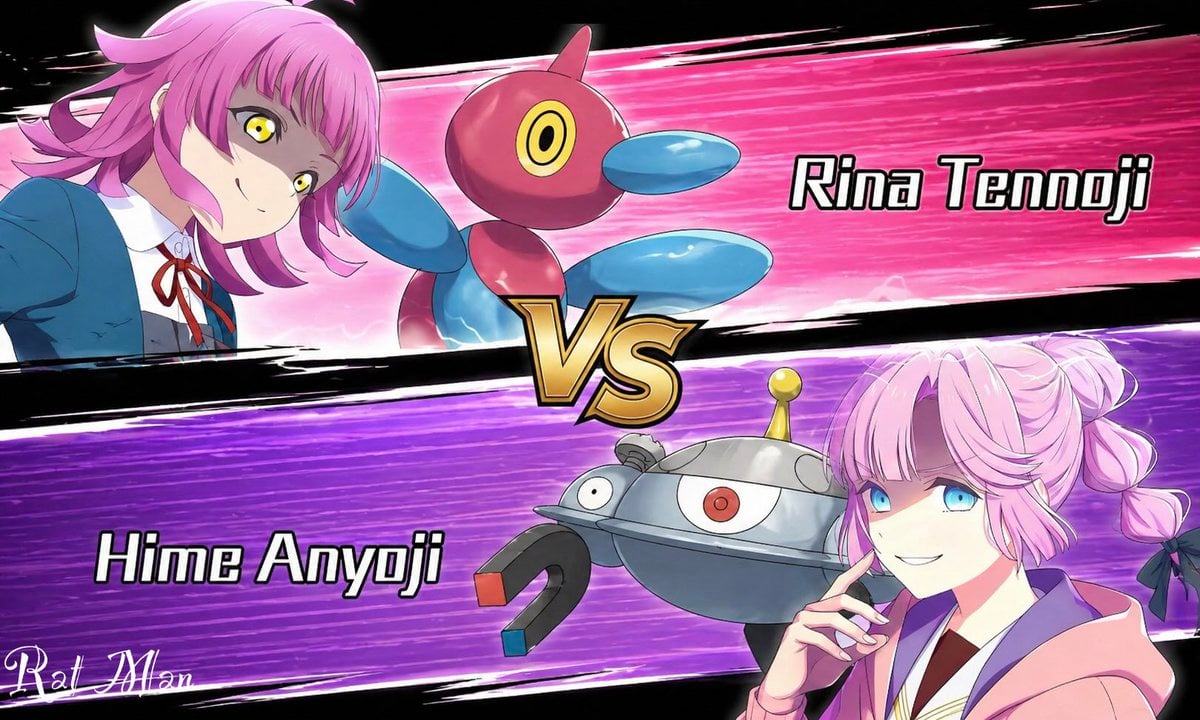
Anime Pokémon-Style Versus Screen
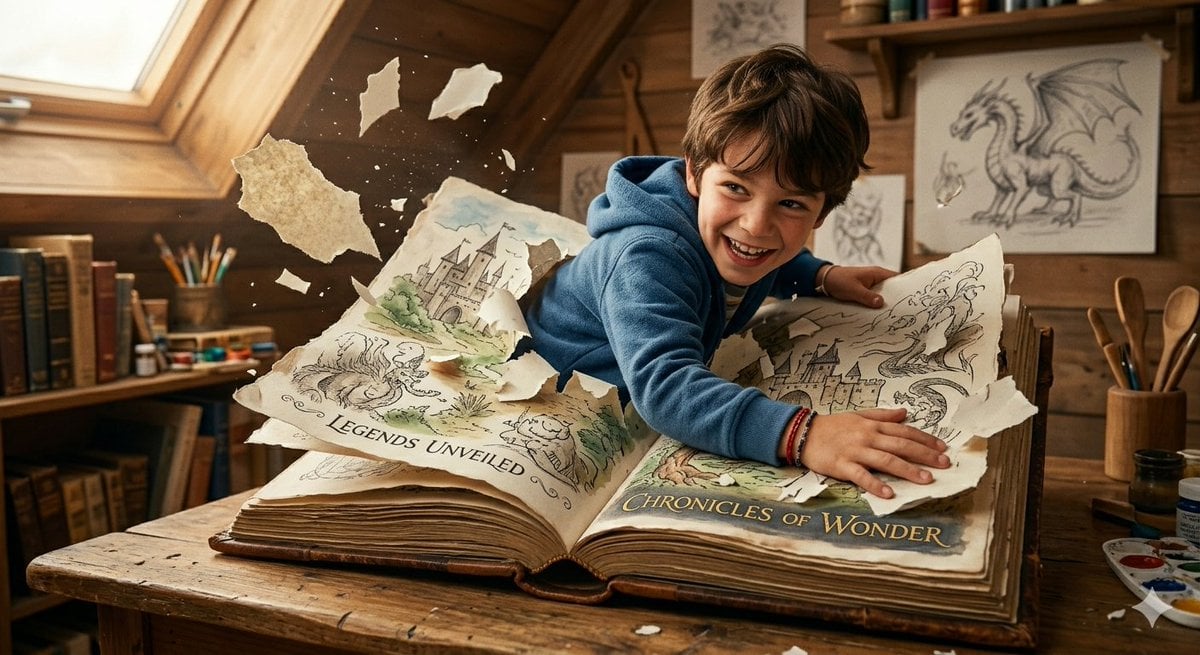
Imagination Coming to Life
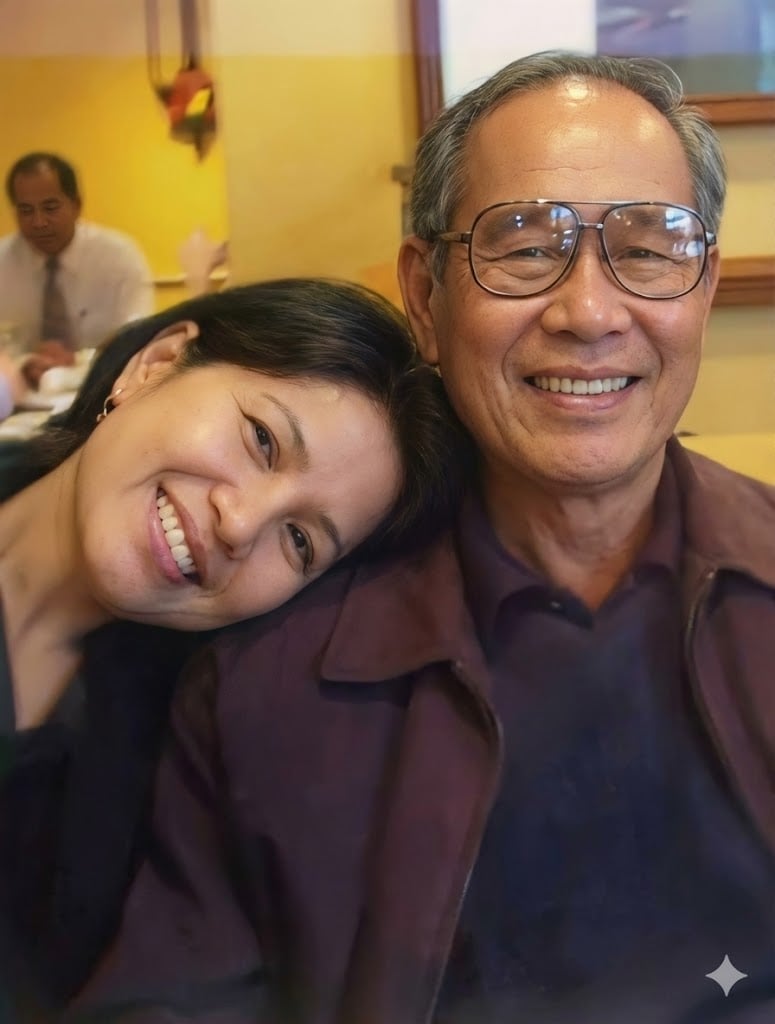
Old photo restoration prompt
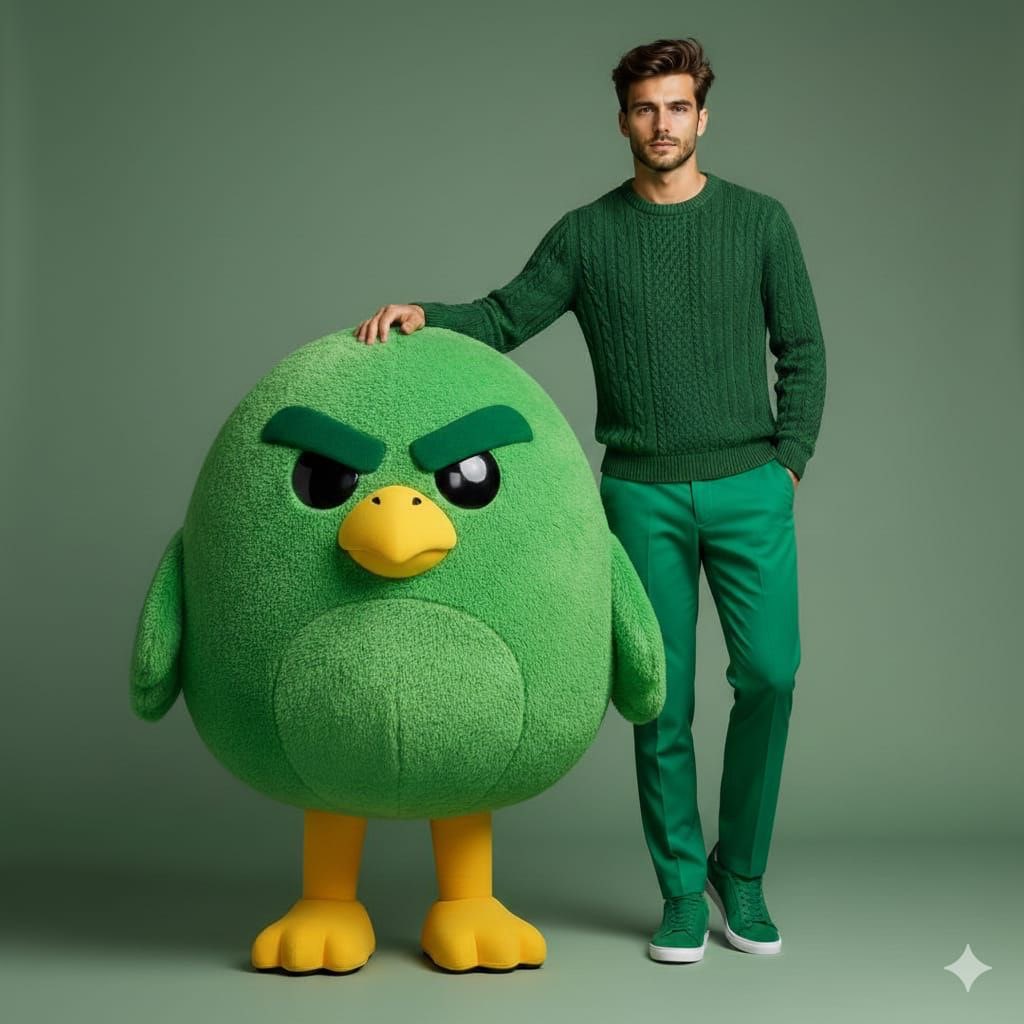
High-end fashion portrait with plush cartoon mascot
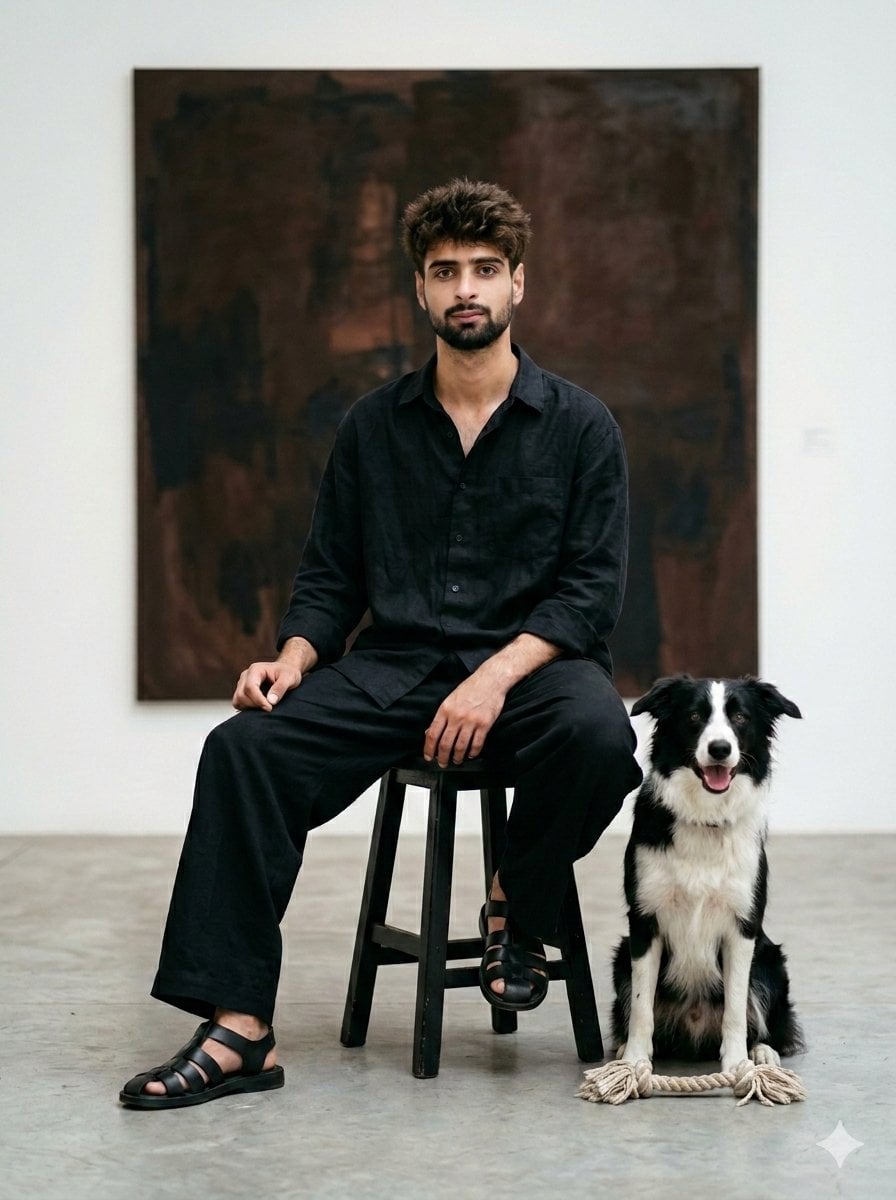
Minimalist Art Gallery Fashion Editorial Prompt
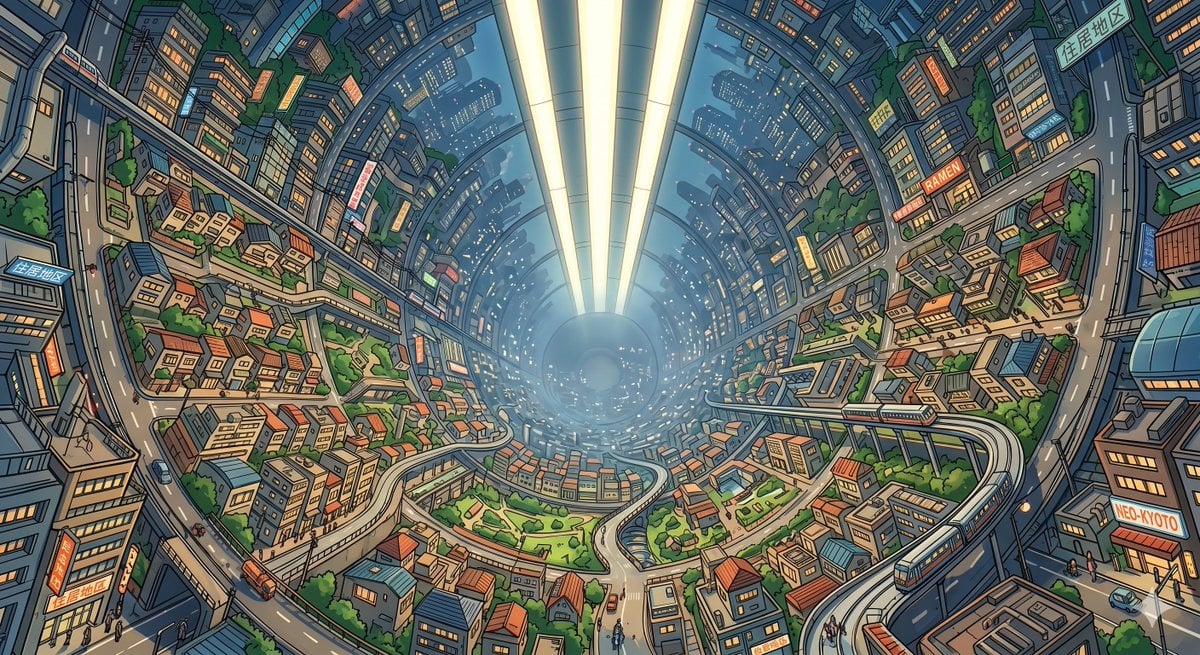
Enclosed O'Neill Cylinder City
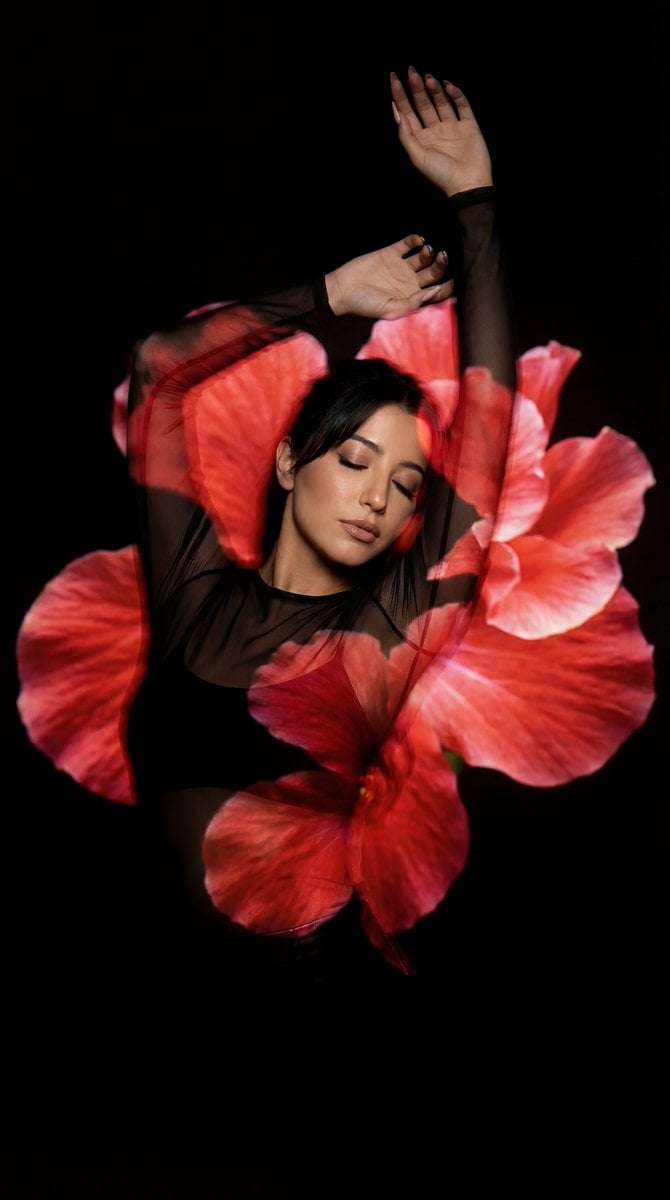
Surreal Fine Art Portrait with Red Flower Projection
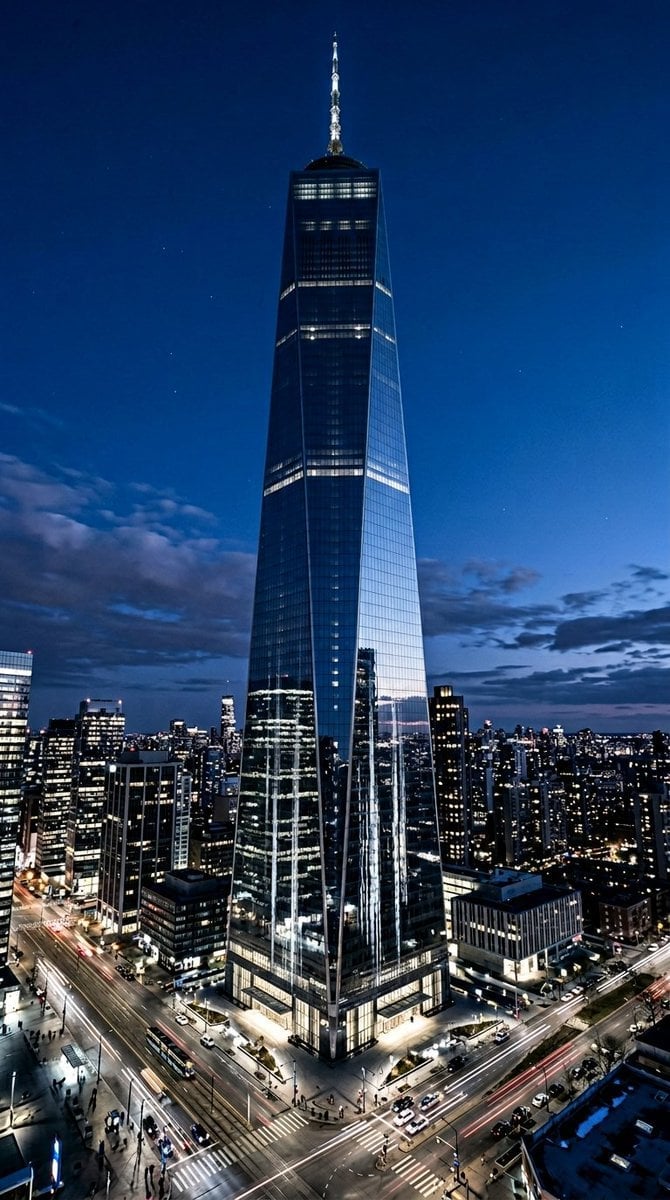
Futuristic Skyscraper Image Prompt (Nano Banana 2)
Multi-Step Prompt Generation Workflow for Product Posters
Browse template categories
Microsoft Office Parody Banner questions
How do I use the Microsoft Office Parody Banner template?
Add your photo if the template asks for one, edit the prompt if you like — the template's model and format are already selected — and press Generate. Your version opens in PicX Studio.
Can I customize the Microsoft Office Parody Banner template?
Yes. You can change the subject, setting, lighting, mood, format, and available model controls before creating your image.
Is the Microsoft Office Parody Banner template free?
Opening and editing this template is free. Generating uses credits, shown on the Generate button when you are signed in.
Which AI model should I use?
Start with GPT Image 2, which is the model associated with this template. You can compare another compatible model for a different finish.
Looking for something else? Browse all templates.

Your photo, any look
Thousands of ready templates for every top image and video model, from one credit balance.