
Critical Rescue Suit Monitoring HUD
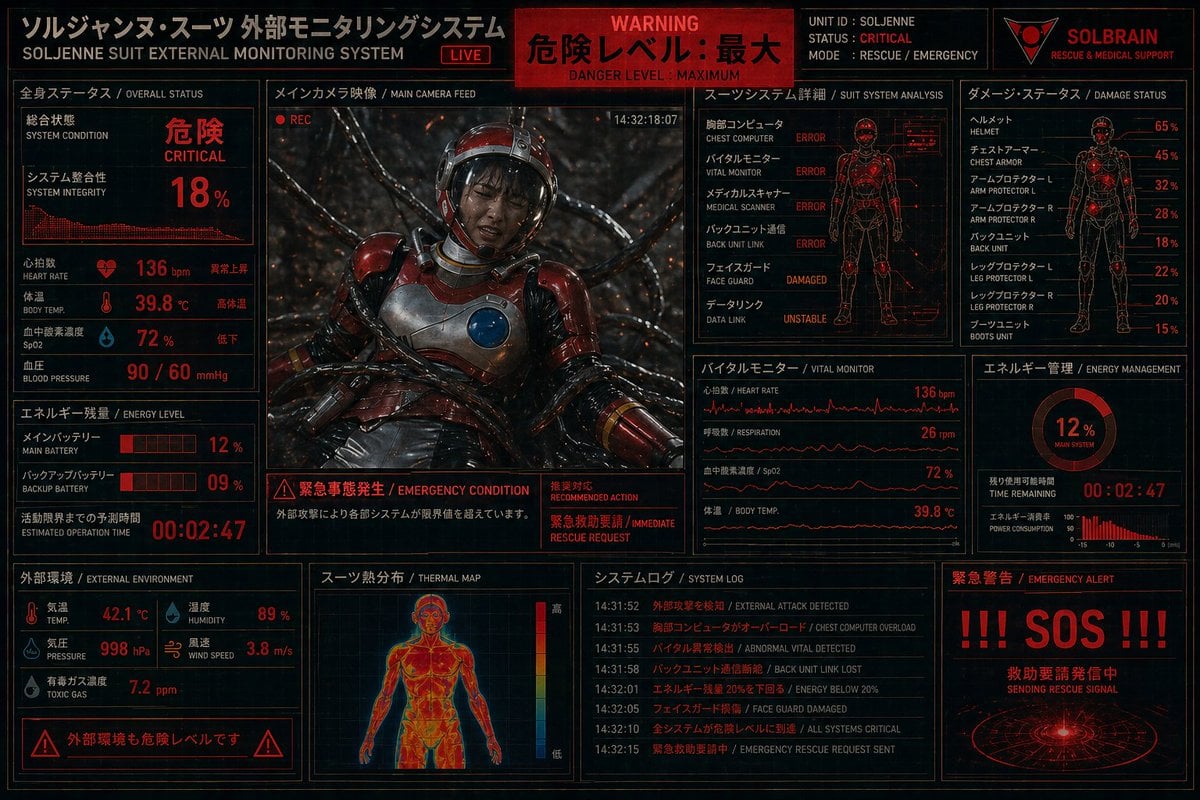
A dense red-and-black sci-fi monitoring interface showing a critically damaged rescue suit and emergency telemetry, ideal for cyberpunk dashboard art and fictional system screens.
- Prompt included
- Model and format preset
- Free template
The prompt behind this image
Copy the exact prompt behind Critical Rescue Suit Monitoring HUD, or open it in the studio and make it yours.
Create a dense futuristic Japanese sci-fi emergency HUD screen, a full-screen suit telemetry dashboard for {argument name="unit name" default="SOLJENNE"}. Black background with glowing red and orange interface graphics, thin cyan-blue grid accents, distressed industrial UI styling, and a high-contrast cyberpunk control-room aesthetic. The display is a single unified monitoring panel divided into 12 clearly separated sections with Japanese titles and smaller English subtitles. Top header bar: left title block reading "ソルジャンヌ・スーツ 外部モニタリングシステム" with English subtitle "SOLJENNE SUIT EXTERNAL MONITORING SYSTEM" and a small red "LIVE" tag; center red warning banner reading "WARNING", "危険レベル: 最大", and "DANGER LEVEL : MAXIMUM"; right identity block with 4 elements, the text "UNIT ID : SOLJENNE", "STATUS : CRITICAL", "MODE : RESCUE / EMERGENCY", and a red triangular logo above the word "SOLBRAIN" with subtitle "RESCUE & MEDICAL SUPPORT". Middle-left section titled "全身ステータス / OVERALL STATUS" showing system condition "危険 / CRITICAL", system integrity "18%", a waveform graph, and 5 vital readouts: heart rate 136 bpm, body temp 39.8°C, SpO2 72%, blood pressure 90 / 60 mmHg, plus one additional label line for heart beat status. Center large section titled "メインカメラ映像 / MAIN CAMERA FEED" containing the main image: a wounded astronaut in a glossy red-and-silver rescue suit slumped backward in a dark biomechanical environment, thick black cables or tendrils plugged around the body, sparks and debris in the background, helmet visor reflecting light, chest plate with a circular blue device, cinematic lighting, a small red "REC" indicator, and a timestamp "14:32:18:07". Directly under the camera feed, an emergency message strip with 3 blocks: left warning icon and text "緊急事態発生 / EMERGENCY CONDITION", center explanatory Japanese sentence about external attack causing systems to exceed operational limits, and right red text block including "推奨対応 / RECOMMENDED ACTION" and "緊急救助要請 / IMMEDIATE RESCUE REQUEST". Upper-middle-right section titled "スーツシステム詳細 / SUIT SYSTEM ANALYSIS" with a red outlined human figure and 7 subsystem rows: chest computer ERROR, vital monitor ERROR, medical scanner ERROR, back unit link ERROR, face guard DAMAGED, data link UNSTABLE, and one more upper body subsystem error row. Upper-right section titled "ダメージ・ステータス / DAMAGE STATUS" with a human silhouette damage diagram and 8 labeled damage lines: helmet 65%, chest armor 45%, arm protector L 32%, arm protector R 28%, back unit 18%, leg protector L 22%, leg protector R 20%, boots unit 15%. Right-middle section titled "エネルギー管理 / ENERGY MANAGEMENT" with a circular meter showing "12%" and "MAIN SYSTEM", a countdown timer "00:02:47", and a small power consumption bar chart. Middle-lower-right section titled "バイタルモニター / VITAL MONITOR" containing 4 stacked waveform panels labeled heart rate 136 bpm, respiration 26 rpm, SpO2 72%, and body temp 39.8°C. Lower-left-middle section titled "エネルギー残量 / ENERGY LEVEL" with 3 readouts: main battery 12%, backup battery 09%, estimated operation time 00:02:47, each using red segmented bars and bold numerals. Bottom-left section titled "外部環境 / EXTERNAL ENVIRONMENT" with 5 environmental readings: temp 42.1°C, humidity 89%, pressure 998 hPa, wind speed 3.8 m/s, toxic gas 7.2 ppm. Bottom-left warning strip beneath it with hazard icons and Japanese text "外部環境も危険レベルです". Bottom-center section titled "スーツ熱分布 / THERMAL MAP" showing a front-view human thermal body scan in hot reds, oranges, and yellows, with a vertical color scale. Bottom-center-right section titled "システムログ / SYSTEM LOG" with 7 timestamped entries in Japanese and English, including external attack detected, chest computer overload, abnormal vital detected, back unit link lost, energy below 20%, face guard damaged, all systems critical, and emergency rescue request sent. Bottom-right section titled "緊急警告 / EMERGENCY ALERT" with gigantic red text "!!! SOS !!!", Japanese text indicating a rescue signal is being transmitted, and a circular radar-like beacon graphic. Use ultra-detailed UI typography, compact technical panel layout, glowing lines, scanlines, subtle screen noise, red warning highlights, and a grim life-support-crisis mood.
How to use Critical Rescue Suit Monitoring HUD in 3 steps
- 1Upload ImagePNG, JPG or paste
Add your photo
Upload the photo the template builds on. The prompt, model and format are already set.
- 2…a portrait of your subject in softgolden-hour light, 85mm…
Personalize
Edit the subject and creative details for your destination.
- 3Generate
Generate
Press Generate — your image is created in PicX Studio, so you can compare it with the original and refine one variable at a time.
More like this
Templates with the same subject, style or setup. Open one to see its prompt.
Futuristic Rescue Suit Monitoring HUD
Minecraft Voxel Pixel Art Aesthetic System

Minecraft Next-Gen Voxel World Screenshot
Cyberpunk Neon Profile Fashion Portrait
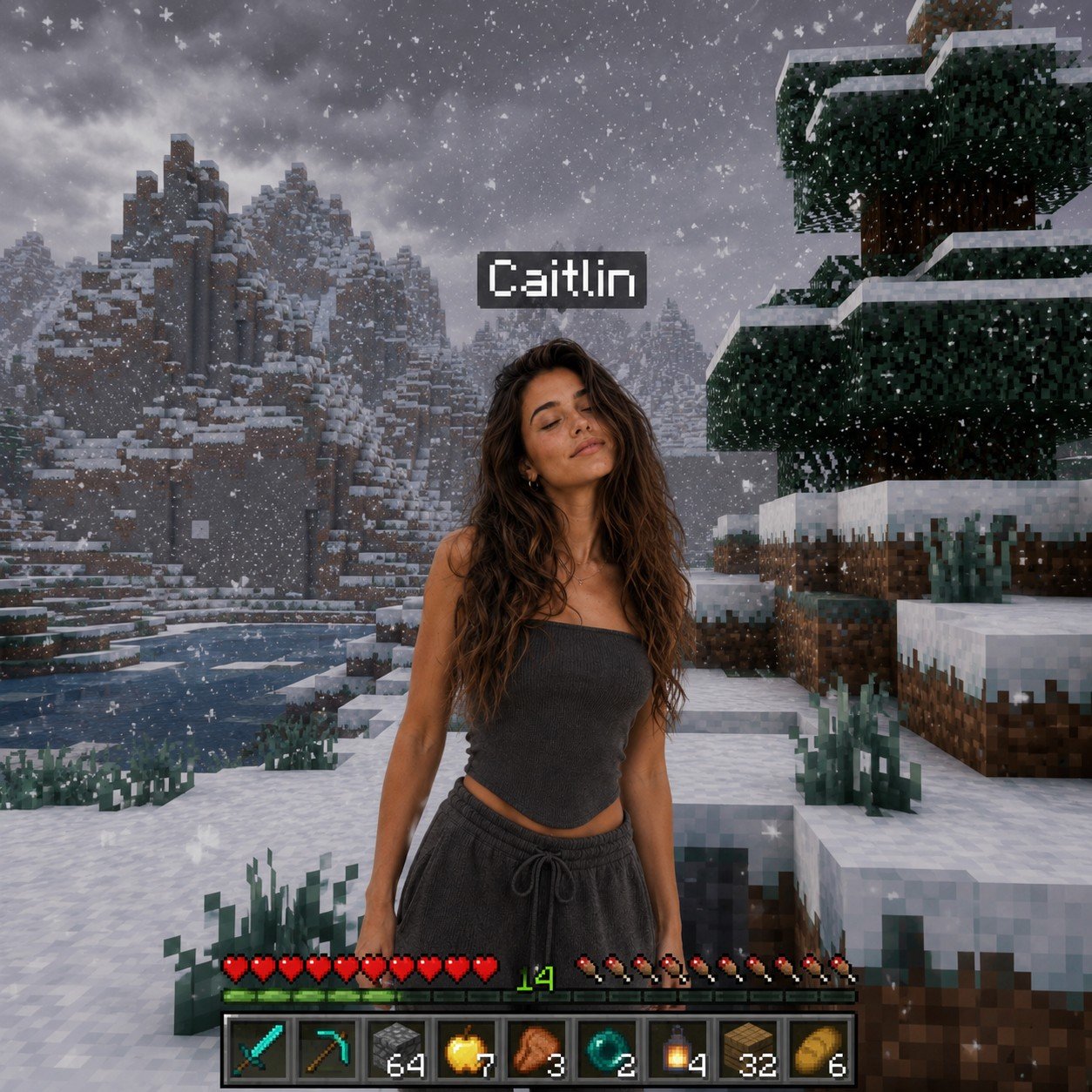
Photoreal Snow Biome Name Tag UI
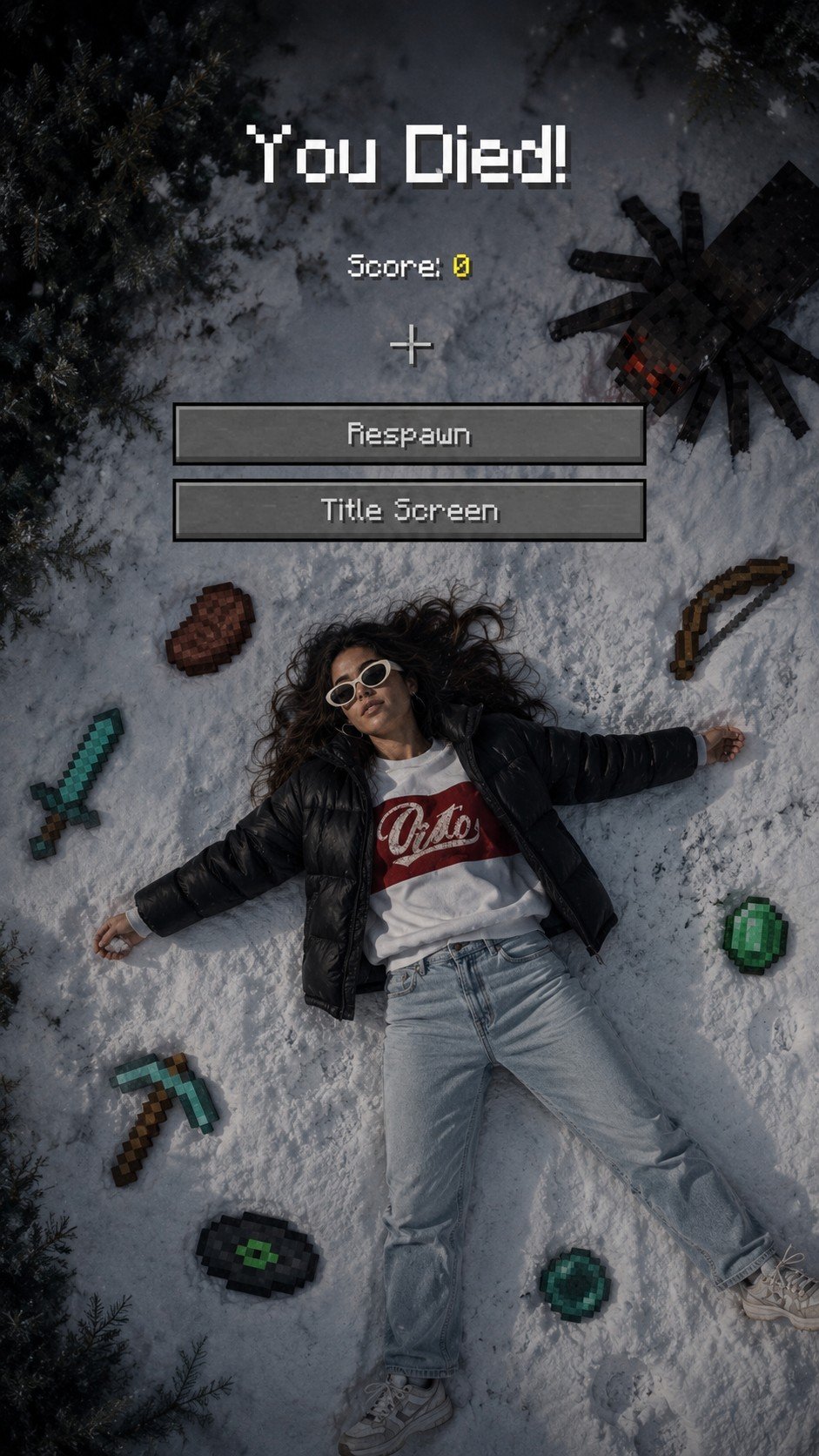
Minecraft You Died Winter Death Screen
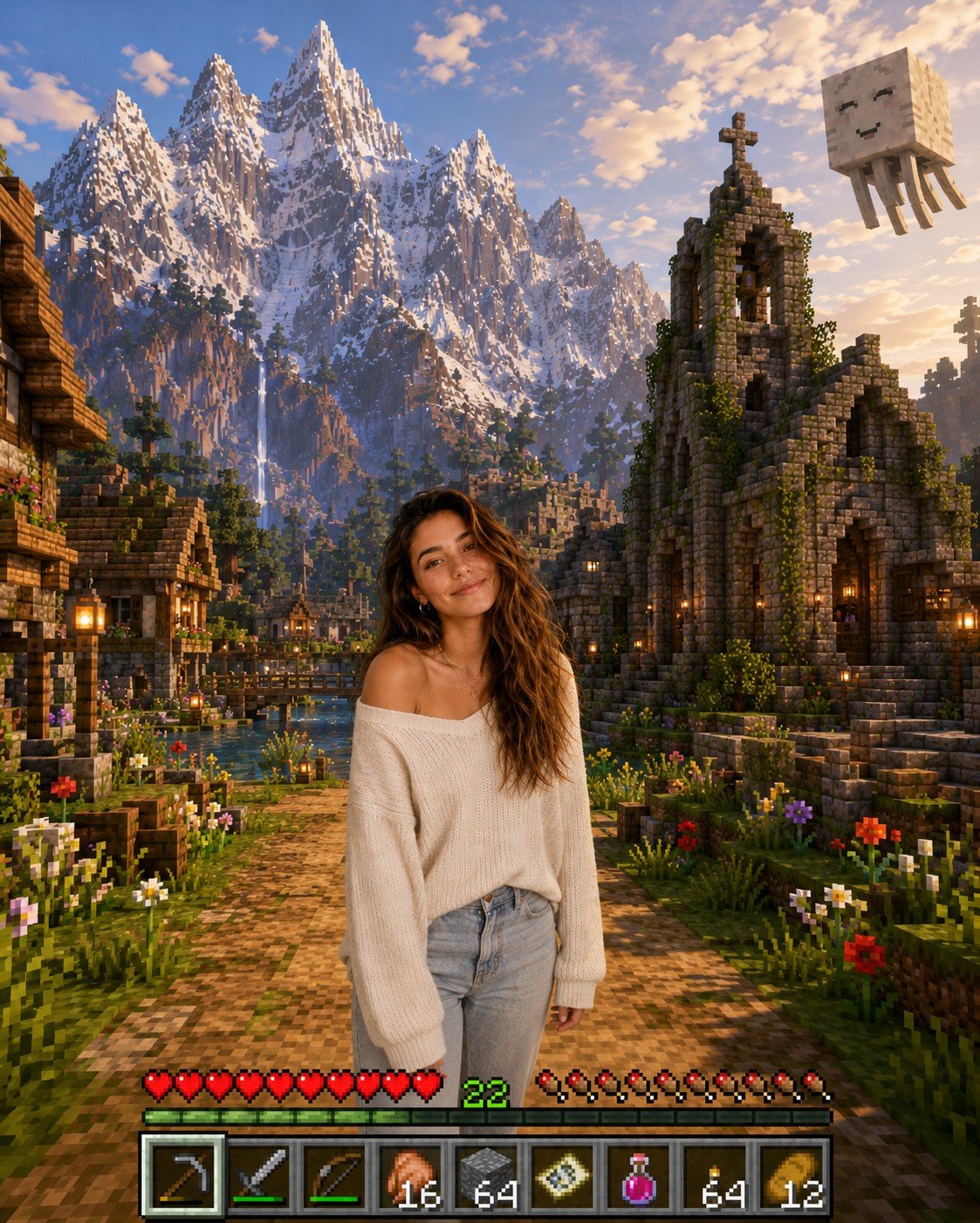
Photoreal Selfie Minecraft Village Ghast UI
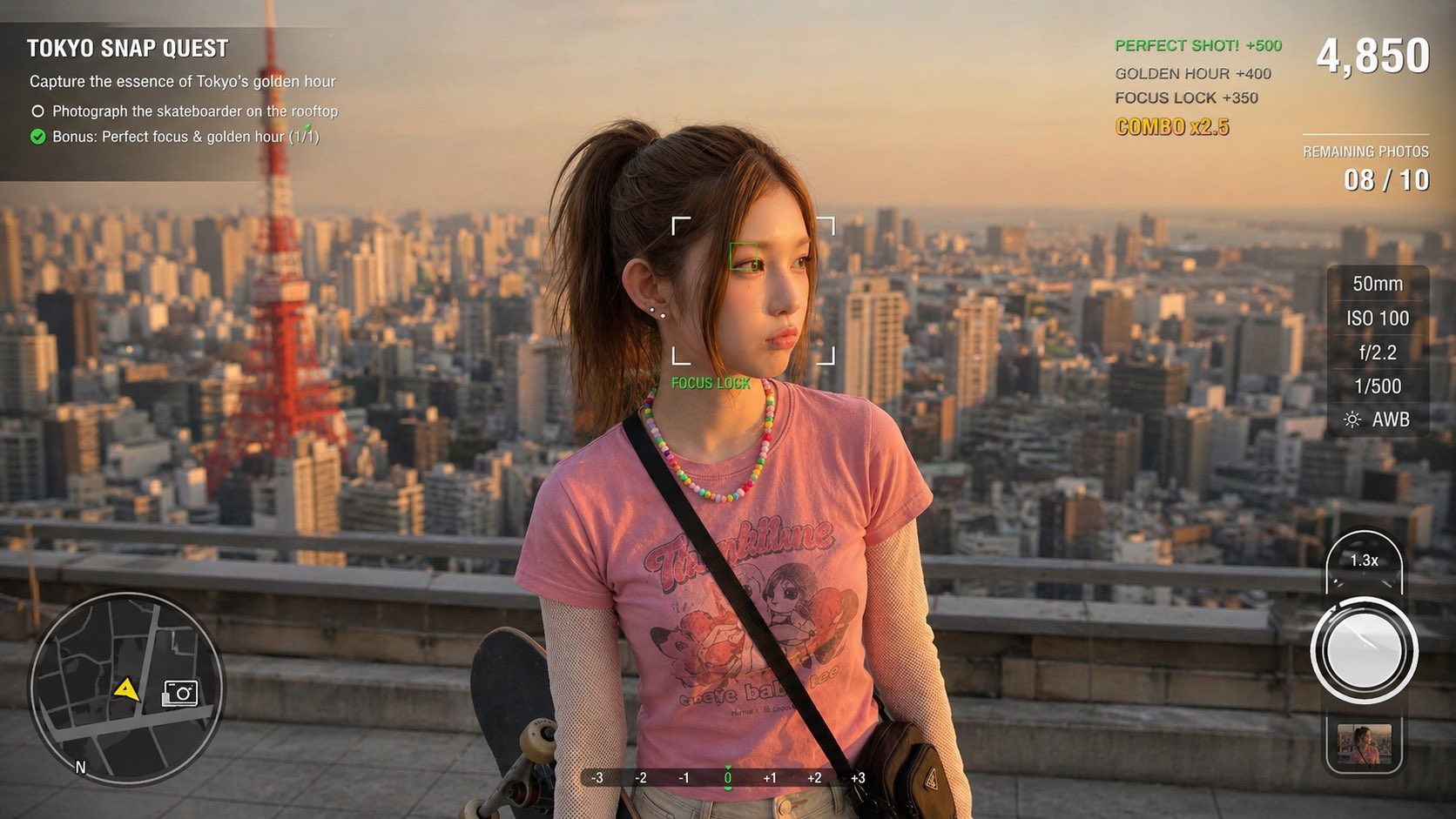
Photography Game Cinematic Capture
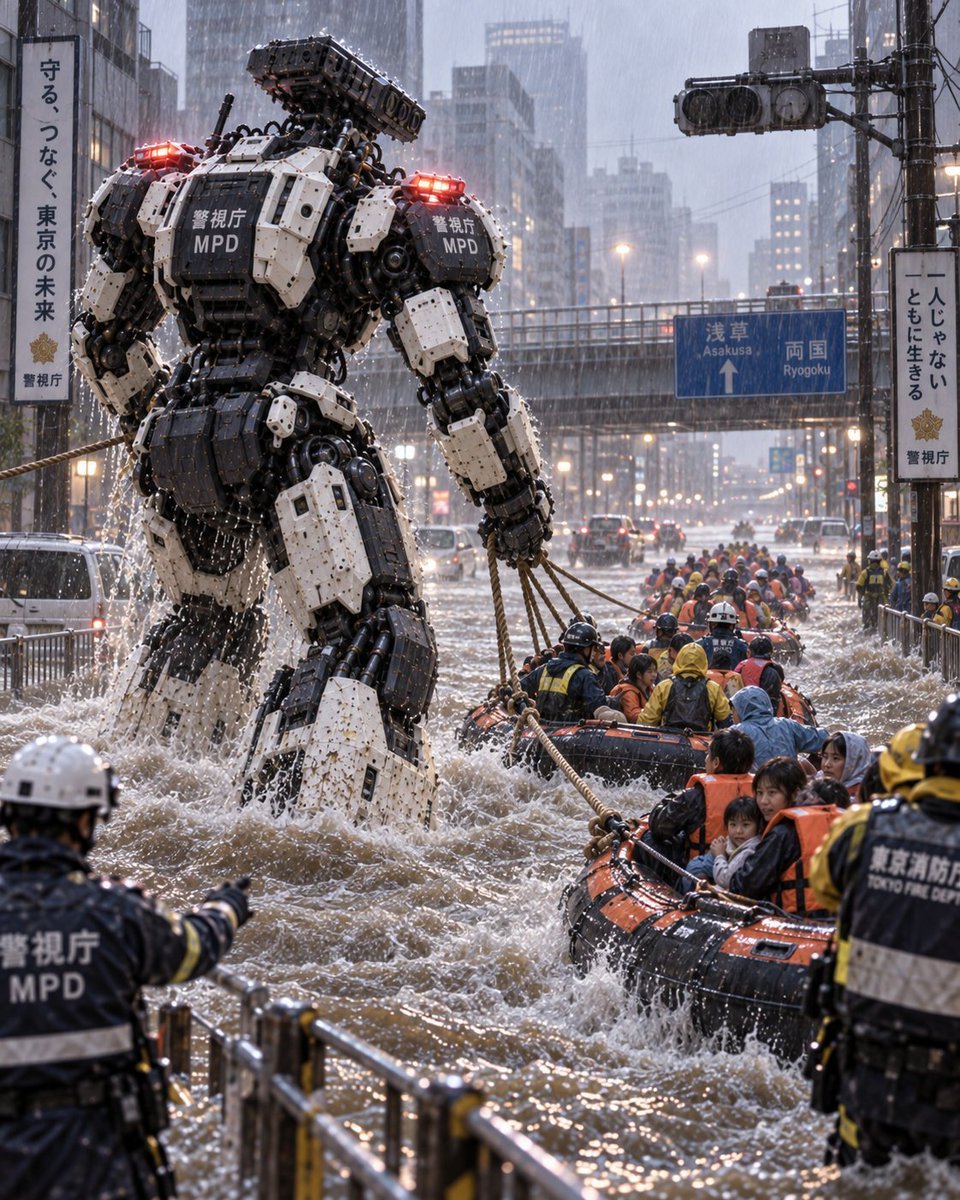
Police Robot Rescue Scene
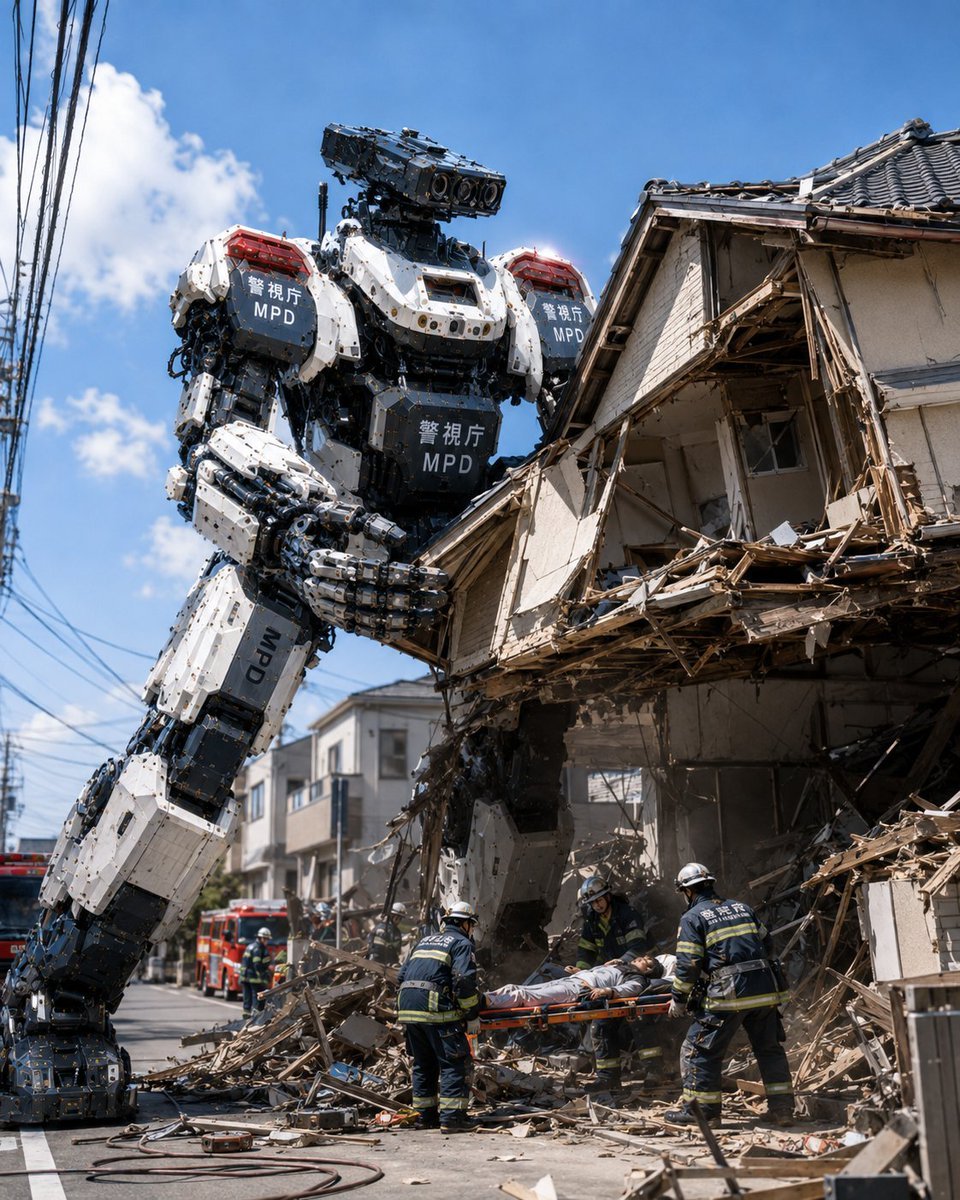
MPD Robot Collapsed House Rescue
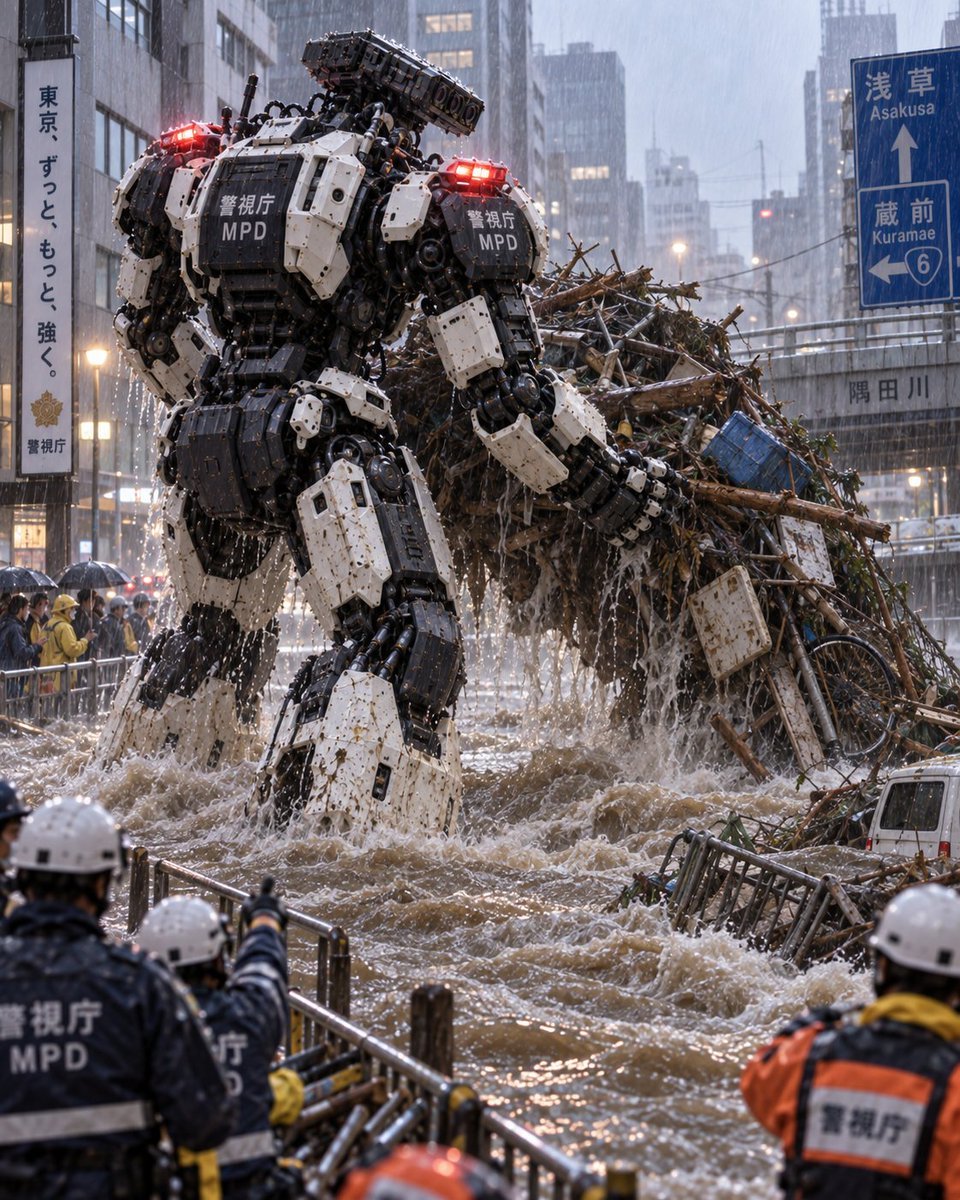
Tokyo Police Flood Rescue Mech
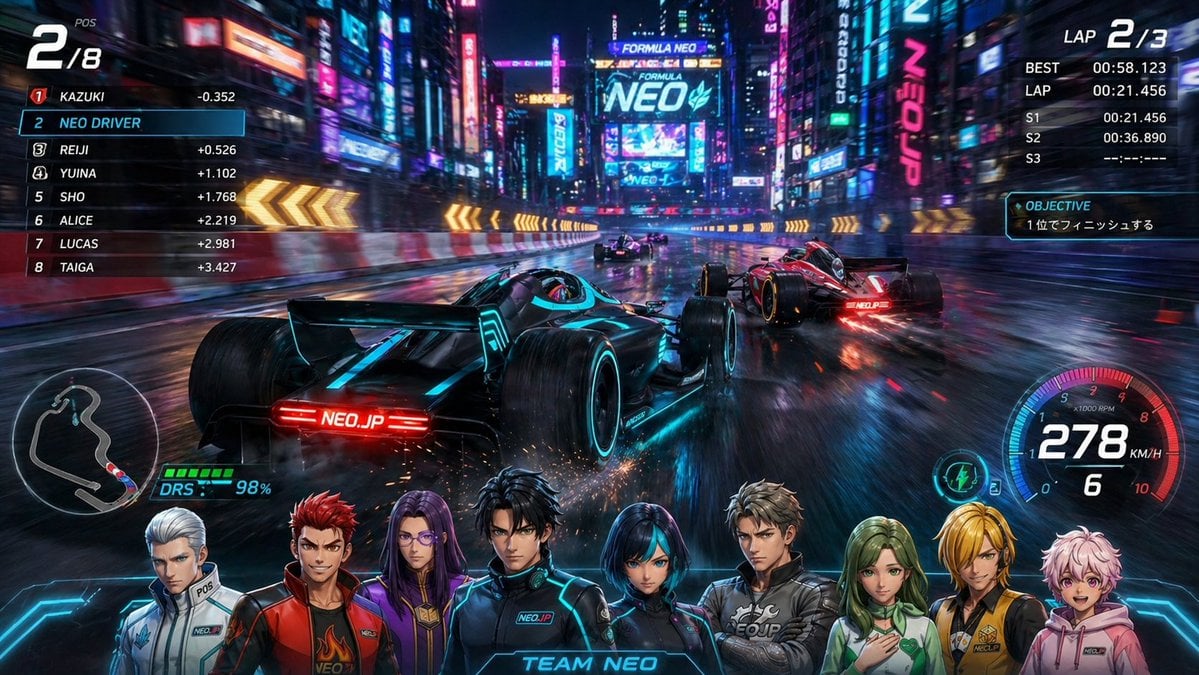
Cyberpunk Formula Neo Racing HUD
Make it yours
Critical Rescue Suit Monitoring HUD works as-is. These are the safest ways to change it without losing the look.
Change one field
Copy a single group, rewrite it, and generate again so you can see what that field is doing.
Keep the frame, change the subject
Hold the composition and light of Critical Rescue Suit Monitoring HUD, then swap wardrobe, props or the person for a new take.
| If the result… | Why | Fix |
|---|---|---|
| The result drifts from the preview | Too many fields changed at once. | Reuse Critical Rescue Suit Monitoring HUD as-is first, then change one group — subject, light, or setting. |
| The model over-stylizes the scene | The prose prompt leaves finish and camera underspecified. | Add one camera or lighting sentence and stay on GPT Image 2. |
More GPT Image 2 templates
Other prompts made for GPT Image 2.

Six VTuber Japanese Logo Sheet

Realistic Portrait of Woman and Deer

The Vista Modular Condo Poster

AI Model Routing Comparison Infographic

2.5D Anime Art Board

Isometric Productivity Desk Scene

New York Double Exposure Poster

Four-Panel AI Landscape Comparison

Japanese Tatami Lifestyle Magazine Cover

NESCAFÉ Coffee Map Poster
More image prompts
Fresh picks from across the catalog.
Anime Schoolgirl Guitarist on Stage
Cinematic Golden Hour Photography of a Young Woman

Luxury Golf Fashion Editorial Campaign
Cinematic Scene Generation for Video Input
Photorealistic Diorama Isometric Map Prompt
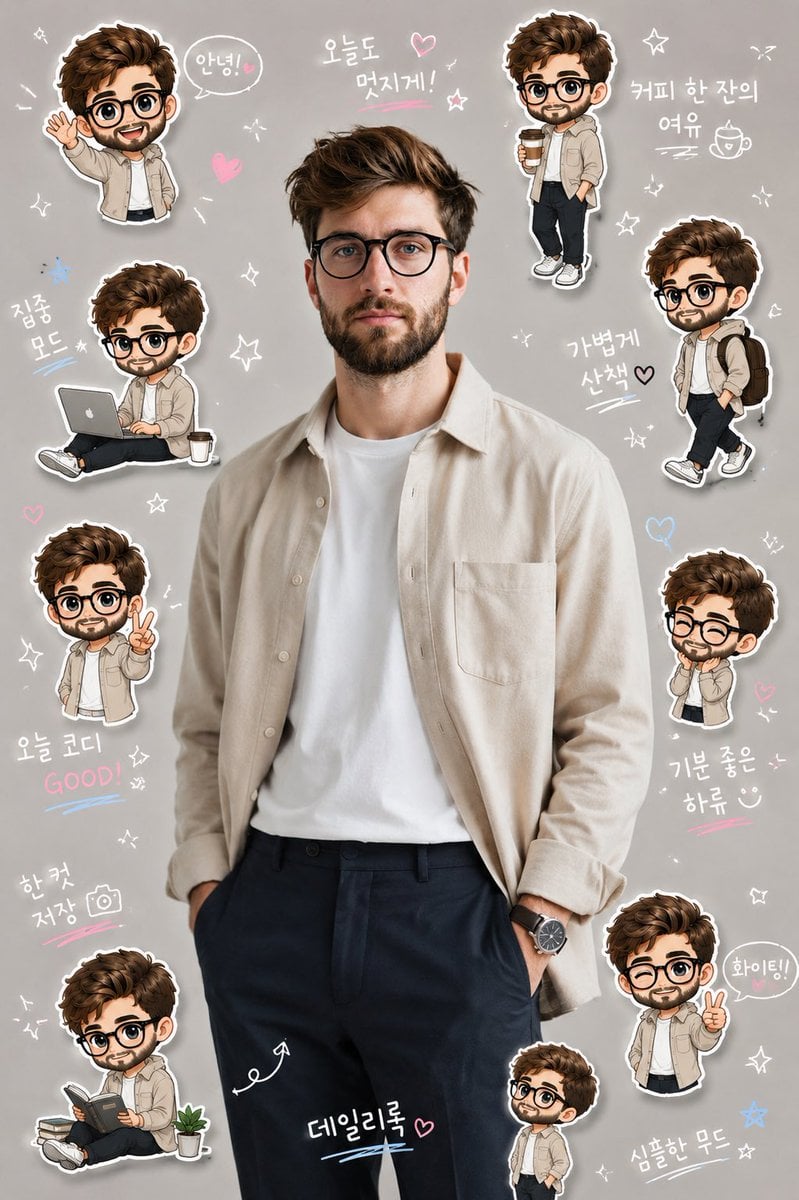
Korean Chibi Sticker Diary
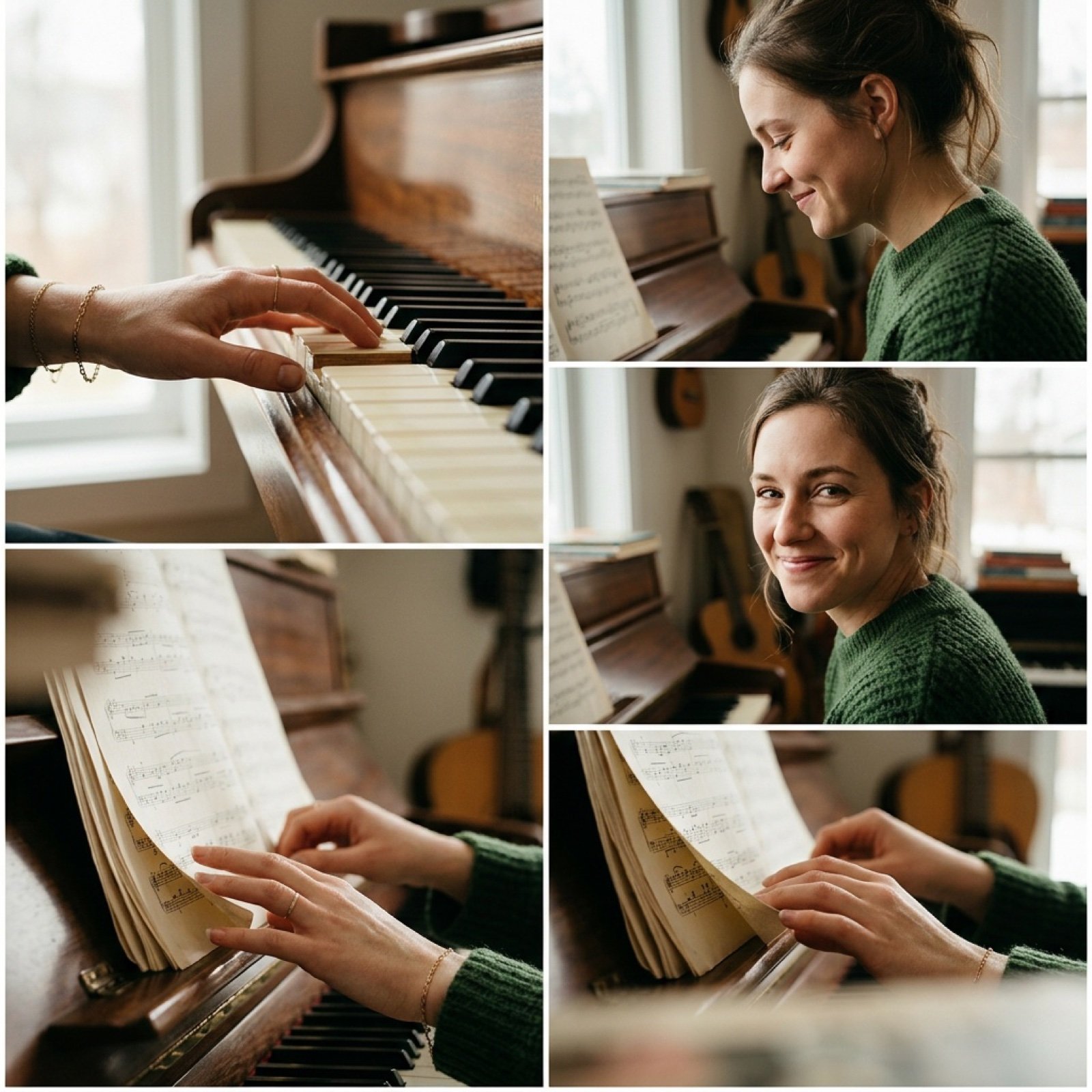
Cinematic Piano Performance Scene

X Sheldon056 Ultra Realistic Fashion Campaign Poster Featuring
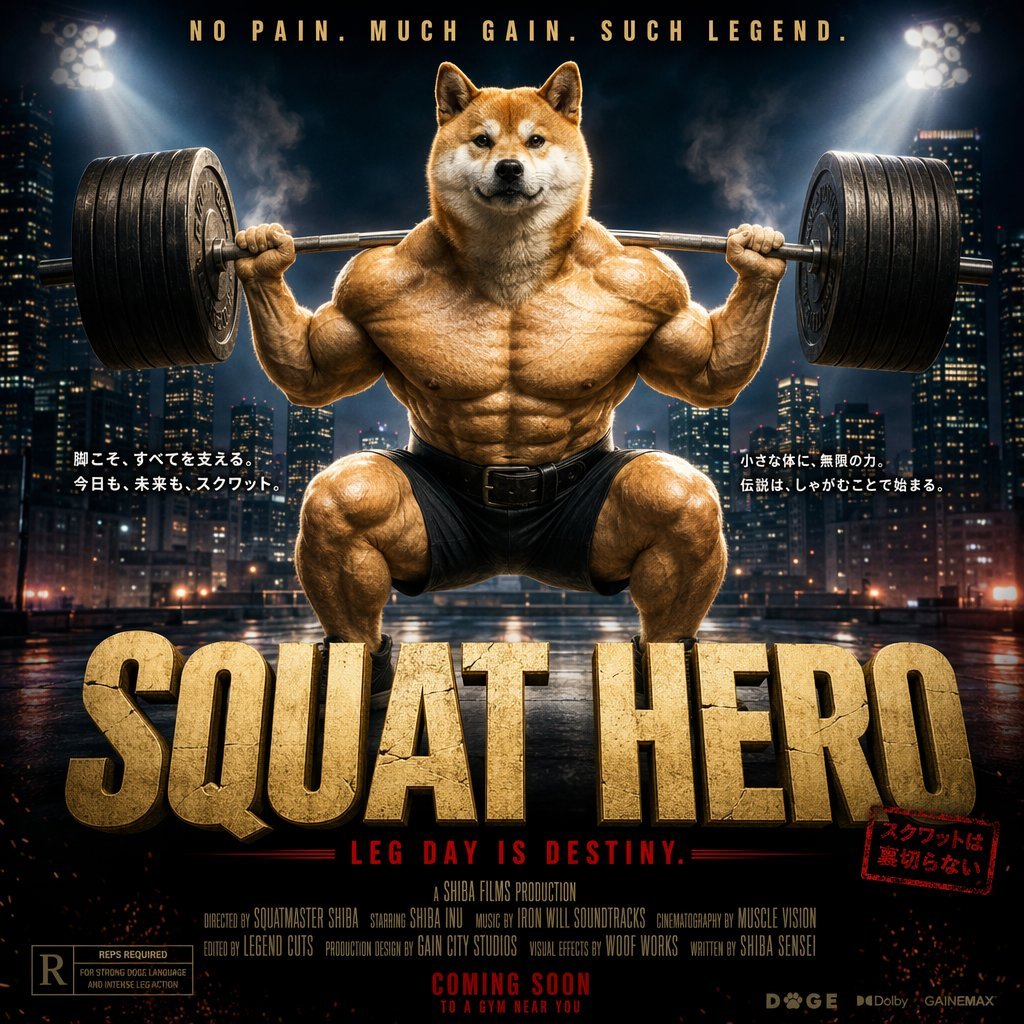
Cinematic Shiba Squat Hero Poster

Gym Besties Mirror Selfie
Browse template categories
Critical Rescue Suit Monitoring HUD questions
How do I use the Critical Rescue Suit Monitoring HUD template?
Add your photo if the template asks for one, edit the prompt if you like — the template's model and format are already selected — and press Generate. Your version opens in PicX Studio.
Can I customize the Critical Rescue Suit Monitoring HUD template?
Yes. You can change the subject, setting, lighting, mood, format, and available model controls before creating your image.
Is the Critical Rescue Suit Monitoring HUD template free?
Opening and editing this template is free. Generating uses credits, shown on the Generate button when you are signed in.
Which AI model should I use?
Start with GPT Image 2, which is the model associated with this template. You can compare another compatible model for a different finish.
Looking for something else? Browse all templates.

Your photo, any look
Thousands of ready templates for every top image and video model, from one credit balance.