
Modern MPLUS Link UI Redesign
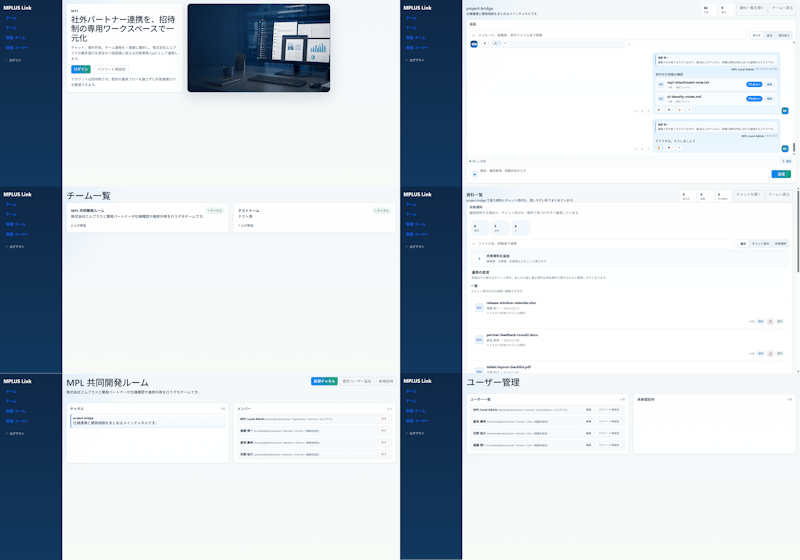
Transforms an existing dense Japanese collaboration SaaS UI into a clean six-screen modern mockup for design improvement presentations.
- Prompt included
- Model and format preset
- Free template
The prompt behind this image
Copy the exact prompt behind Modern MPLUS Link UI Redesign, or open it in the studio and make it yours.
Using REFERENCE_0 as the source UI, redesign the Teams-like internal/external collaboration system into a cleaner, more modern product mockup while preserving the MPLUS Link brand, the dark navy left sidebar navigation, and the overall set of app functions. Create a polished 2-column by 3-row presentation showing exactly 6 redesigned screens: 1) a welcome/login landing screen with a large hero card, Japanese headline {argument name="headline text" default="社外パートナー連携を、招待制の専用ワークスペースで一元化"}, login tabs/buttons, and a realistic desktop-monitor hero image; 2) a project bridge chat screen with right-aligned chat cards, action chips, and a message composer; 3) a team list screen simplified into two clean team cards; 4) a materials/document list screen with upload controls, search/filter area, and file rows; 5) a shared collaboration room screen titled {argument name="room title" default="MPI 共同開発ルーム"} with a project overview card and compact member/status list; 6) a user management screen titled {argument name="admin title" default="ユーザー管理"} with user rows and an empty detail panel. Make the new mockups much more spacious than the reference: fewer table rows, larger margins, softer dividers, pale blue-gray backgrounds, white rounded cards, subtle shadows, and small blue/green accent buttons. Keep the Japanese enterprise SaaS feel and dummy-data nature, but remove the dense micromanaged tables and replace them with simplified, presentable mock UI suitable for a design-improvement comparison. Use brand name {argument name="brand name" default="MPLUS Link"} in the sidebar, keep the sidebar consistent on every screen, and avoid adding unrelated features, watermarks, or decorative clutter.
Reference images included
Modern MPLUS Link UI Redesign needs input media to work. They load alongside the prompt when you open it in the studio.
How to use Modern MPLUS Link UI Redesign in 3 steps
- 1Upload ImagePNG, JPG or paste
Add your photo
Upload the photo the template builds on. The prompt, model and format are already set.
- 2…a portrait of your subject in softgolden-hour light, 85mm…
Personalize
Edit the subject and creative details for your destination.
- 3Generate
Generate
Press Generate — your image is created in PicX Studio, so you can compare it with the original and refine one variable at a time.
More like this
Templates with the same subject, style or setup. Open one to see its prompt.
Paper Cut Craft Illustration
Premium Editorial Branding Poster Charcoal Green

Stylized Fashion Portrait Bold Color Contrast Editorial

Woman in Mall with Chanel Bag - Heart Gesture

Watercolor Fantasy Knight Redesign

Angular Manga Character Redesign
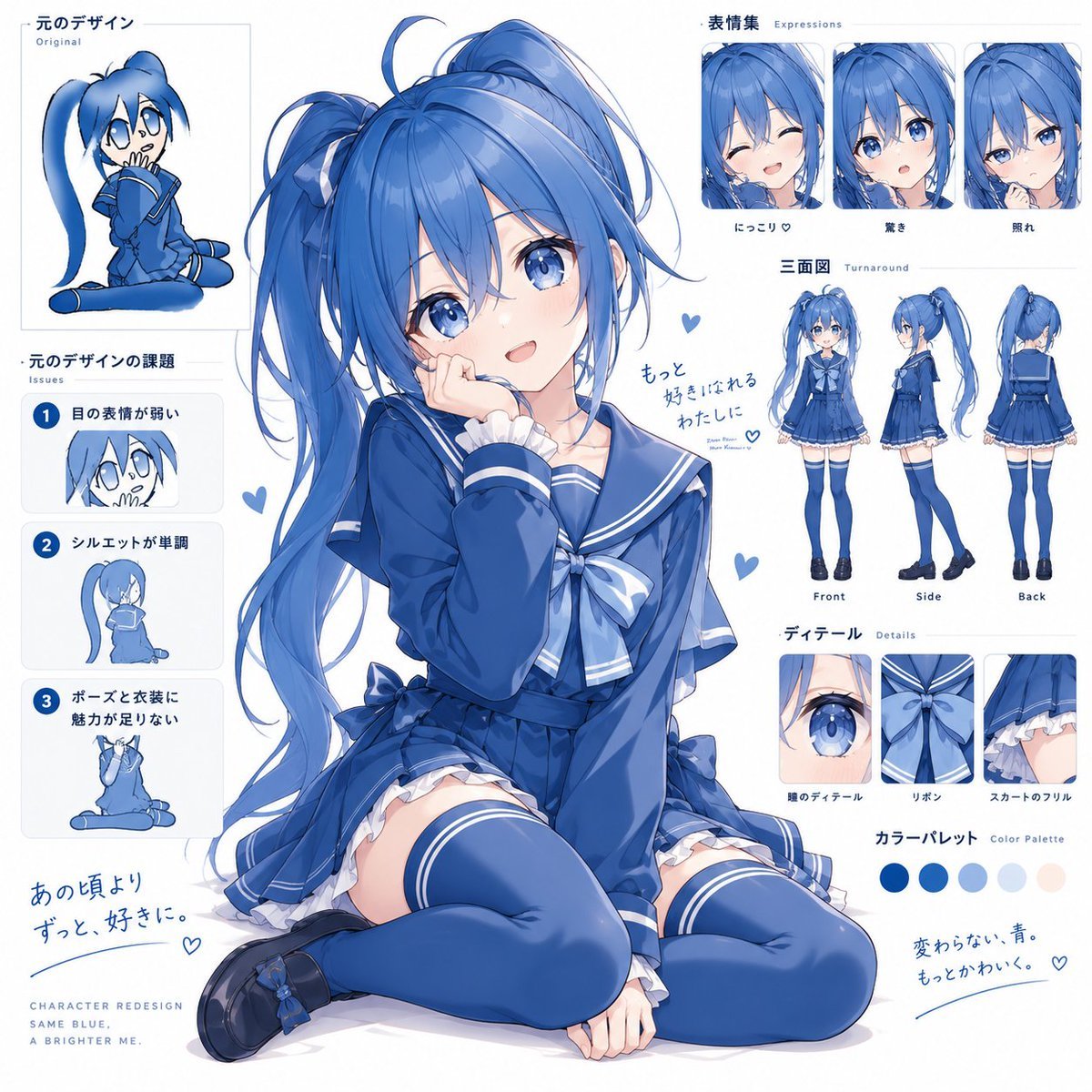
Blue Anime Character Redesign Sheet
Glossy AI Logo Redesign Row
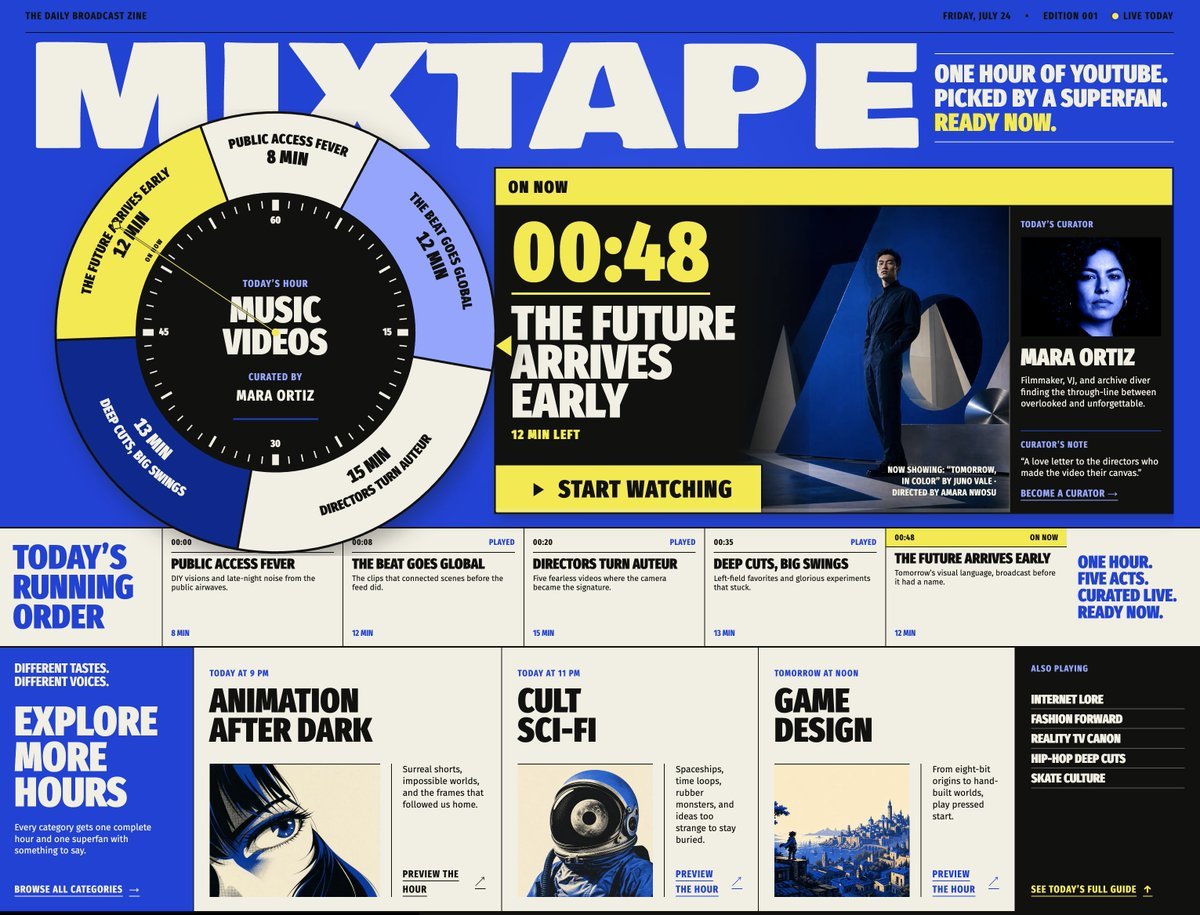
Mixtape Zine Webpage Redesign
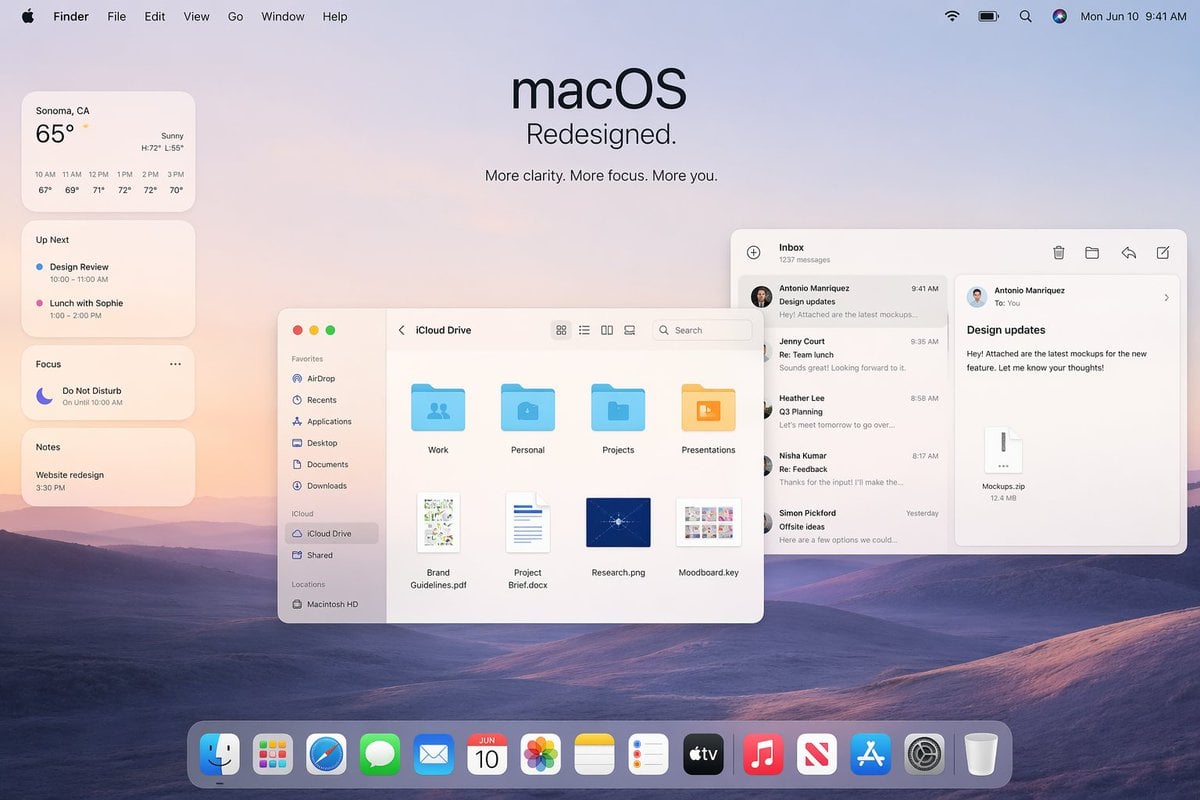
Apple macOS Redesign Promo Mockup
Dark AI News Archive Redesign
Dark News Article UI Redesign
Make it yours
Modern MPLUS Link UI Redesign works as-is. These are the safest ways to change it without losing the look.
Change one field
Copy a single group, rewrite it, and generate again so you can see what that field is doing.
Keep the frame, change the subject
Hold the composition and light of Modern MPLUS Link UI Redesign, then swap wardrobe, props or the person for a new take.
| If the result… | Why | Fix |
|---|---|---|
| The result drifts from the preview | Too many fields changed at once. | Reuse Modern MPLUS Link UI Redesign as-is first, then change one group — subject, light, or setting. |
| The model over-stylizes the scene | The prose prompt leaves finish and camera underspecified. | Add one camera or lighting sentence and stay on GPT Image 2. |
More GPT Image 2 templates
Other prompts made for GPT Image 2.

Six VTuber Japanese Logo Sheet

Realistic Portrait of Woman and Deer

The Vista Modular Condo Poster

AI Model Routing Comparison Infographic

2.5D Anime Art Board

Isometric Productivity Desk Scene

New York Double Exposure Poster

Four-Panel AI Landscape Comparison

Japanese Tatami Lifestyle Magazine Cover

NESCAFÉ Coffee Map Poster
More image prompts
Fresh picks from across the catalog.

Xianxia Cityscape from God's-Eye View

Hyper-realistic Product Photography of Kinder Joy
Mixed-Media Portrait of Gen Z Teenager with Chibi Clones
Double Exposure City Portrait

Candid Street Style Fashion

Dromedary Camel in Desert

Variety Show Surprise Prank Anime Screenshot

Miniature Set Style Portrait
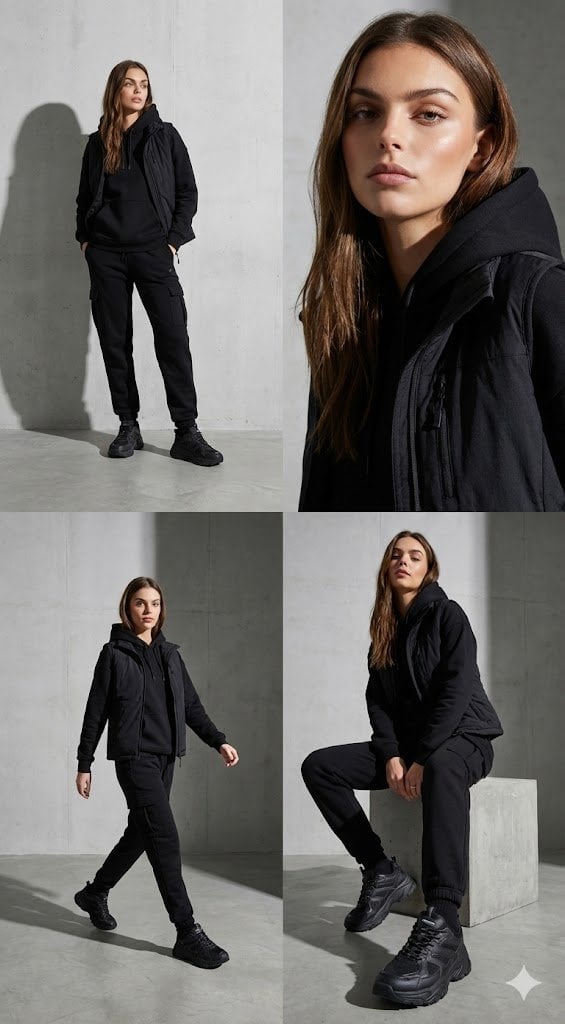
Four-Panel Streetwear Advertisement Grid
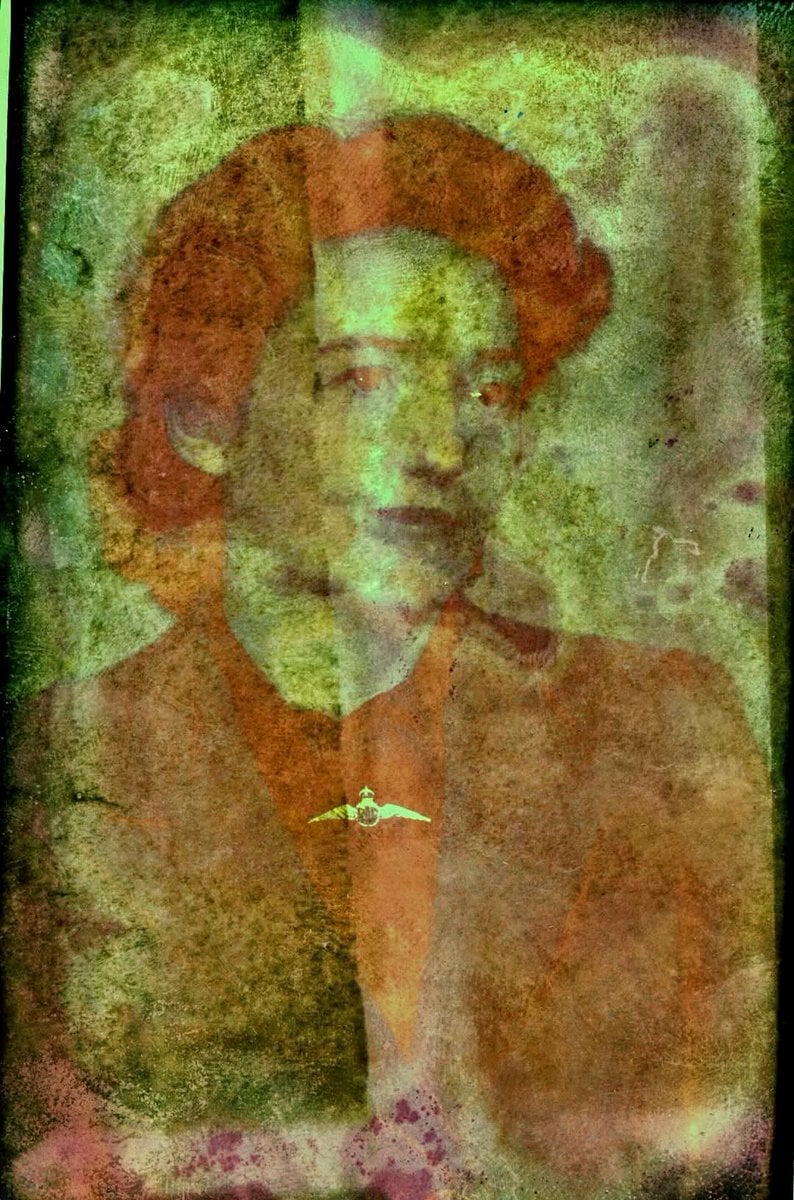
Old Photo Restoration to DSLR Quality
Browse template categories
Modern MPLUS Link UI Redesign questions
How do I use the Modern MPLUS Link UI Redesign template?
Add your photo if the template asks for one, edit the prompt if you like — the template's model and format are already selected — and press Generate. Your version opens in PicX Studio.
Can I customize the Modern MPLUS Link UI Redesign template?
Yes. You can change the subject, setting, lighting, mood, format, and available model controls before creating your image.
Is the Modern MPLUS Link UI Redesign template free?
Opening and editing this template is free. Generating uses credits, shown on the Generate button when you are signed in.
Which AI model should I use?
Start with GPT Image 2, which is the model associated with this template. You can compare another compatible model for a different finish.
Looking for something else? Browse all templates.

Your photo, any look
Thousands of ready templates for every top image and video model, from one credit balance.