
Dark AI News Archive Redesign
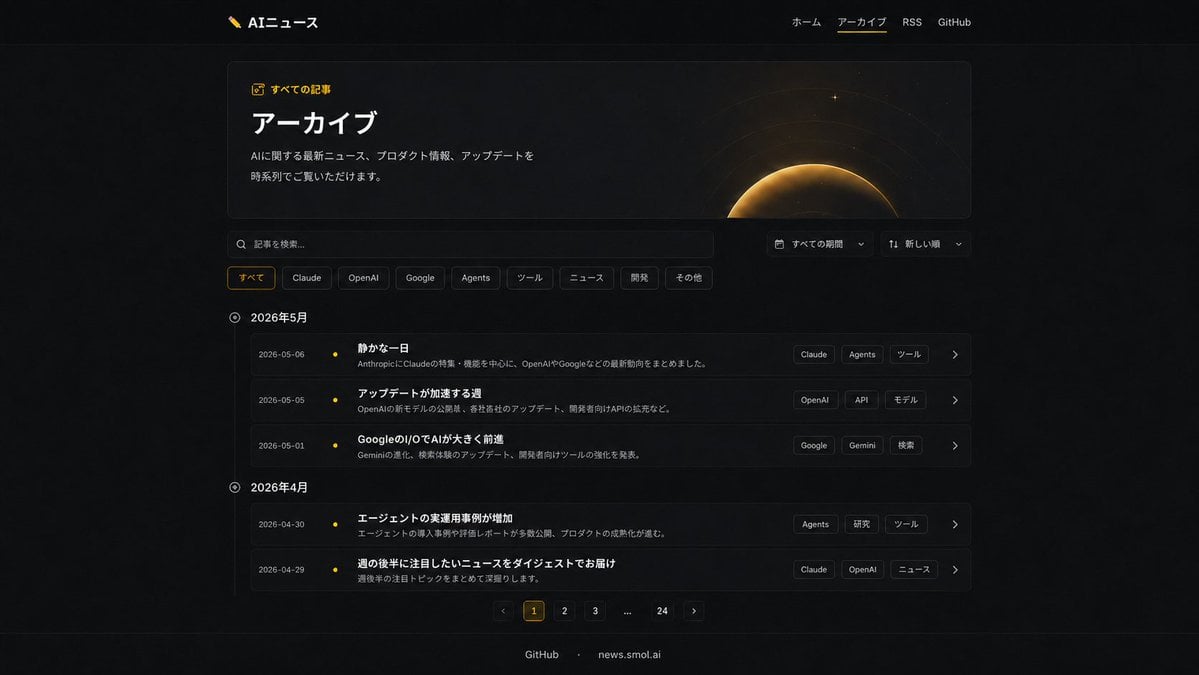
Generates a modern dark-mode Japanese archive page redesign from an existing AI news website UI.
- Prompt included
- Model and format preset
- Free template
The prompt behind this image
Copy the exact prompt behind Dark AI News Archive Redesign, or open it in the studio and make it yours.
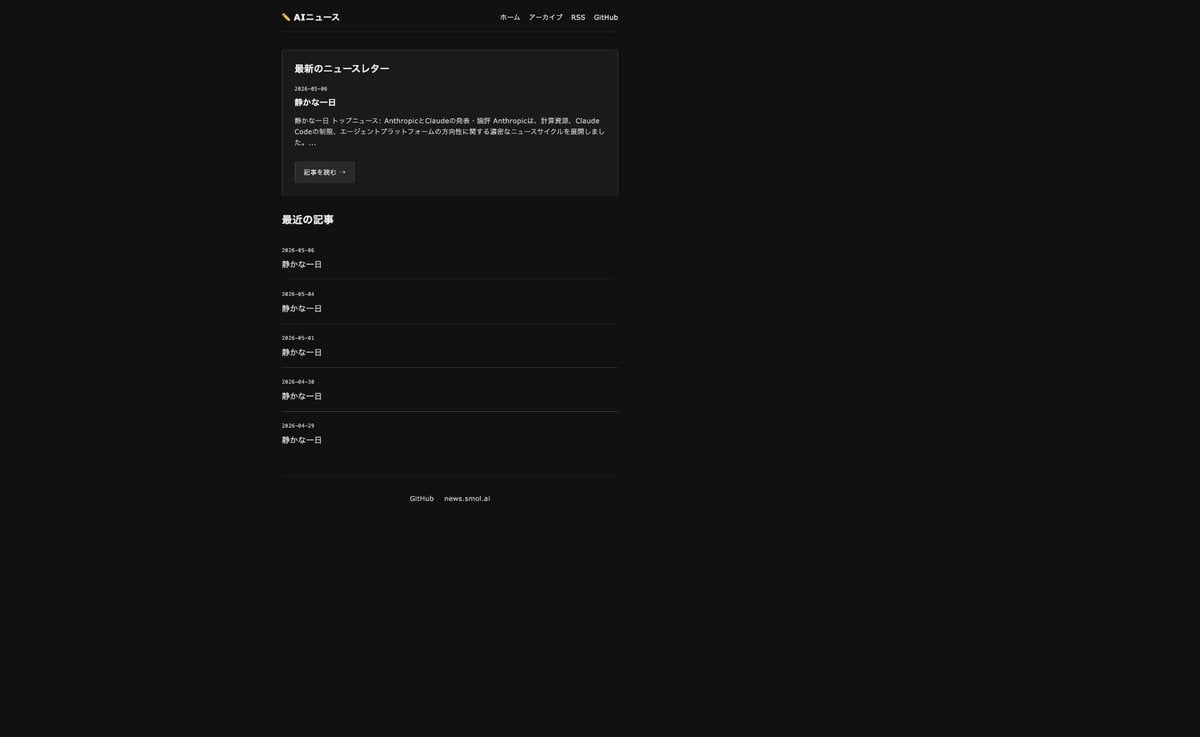
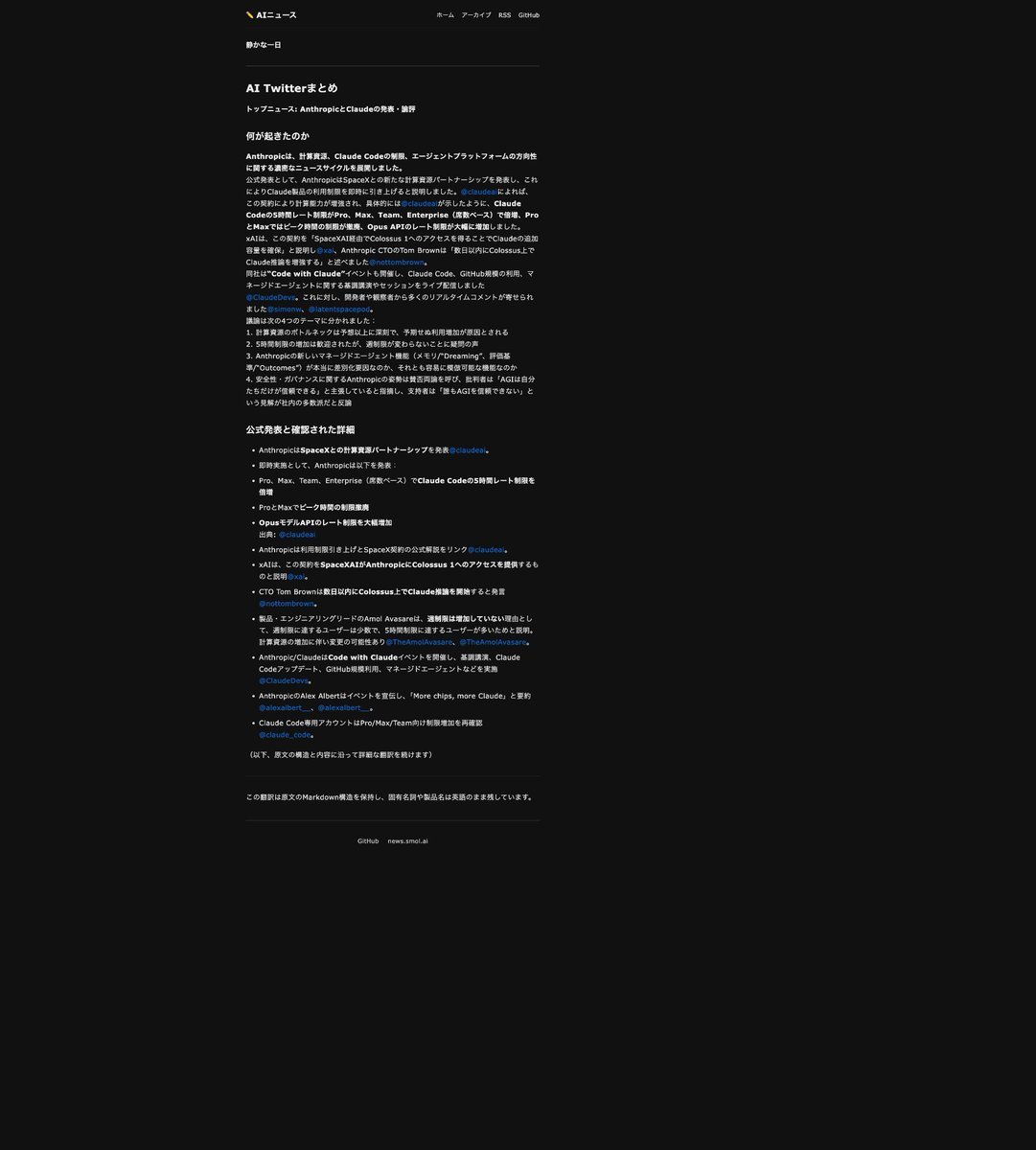
Using REFERENCE_0 and REFERENCE_1 as the existing dark AI news website design, create a refreshed archive page UI while preserving the same brand, Japanese typography, dark theme, logo, top navigation, and footer identity. Set the active top navigation item to {argument name="active navigation" default="アーカイブ"} with a subtle yellow underline. Replace the simple list layout with a polished modern archive interface: add a large bordered hero card titled {argument name="page title" default="アーカイブ"}, with a small yellow icon label {argument name="eyebrow label" default="すべての記事"}, a short intro sentence, and a decorative golden eclipse/planet glow graphic on the right side of the hero. Below it, add a search bar and two compact dropdown controls for period and sort order. Add exactly 8 category filter pills labeled: すべて, Claude, OpenAI, Google, Agents, ツール, ニュース, 研究, その他, with すべて highlighted in yellow. Transform the article list into a timeline grouped by month with exactly 2 month sections: 2026年5月 containing 3 article rows, and 2026年4月 containing 2 article rows. Each row should show a date, a small yellow timeline dot, a bold Japanese article title, a one-line summary, 3 tag chips on the right, and a chevron arrow. Use the visible article titles from the references where appropriate, plus archive-like additional titles. Add bottom pagination with exactly 6 controls: previous arrow, 1 highlighted, 2, 3, ellipsis, 24, next arrow. Keep the page centered with generous spacing, thin borders, subtle gradients, glassy cards, and perfect readable Japanese text rendering.
Reference images included
Dark AI News Archive Redesign needs input media to work. They load alongside the prompt when you open it in the studio.
How to use Dark AI News Archive Redesign in 3 steps
- 1Upload ImagePNG, JPG or paste
Add your photo
Upload the photo the template builds on. The prompt, model and format are already set.
- 2…a portrait of your subject in softgolden-hour light, 85mm…
Personalize
Edit the subject and creative details for your destination.
- 3Generate
Generate
Press Generate — your image is created in PicX Studio, so you can compare it with the original and refine one variable at a time.
More like this
Templates with the same subject, style or setup. Open one to see its prompt.
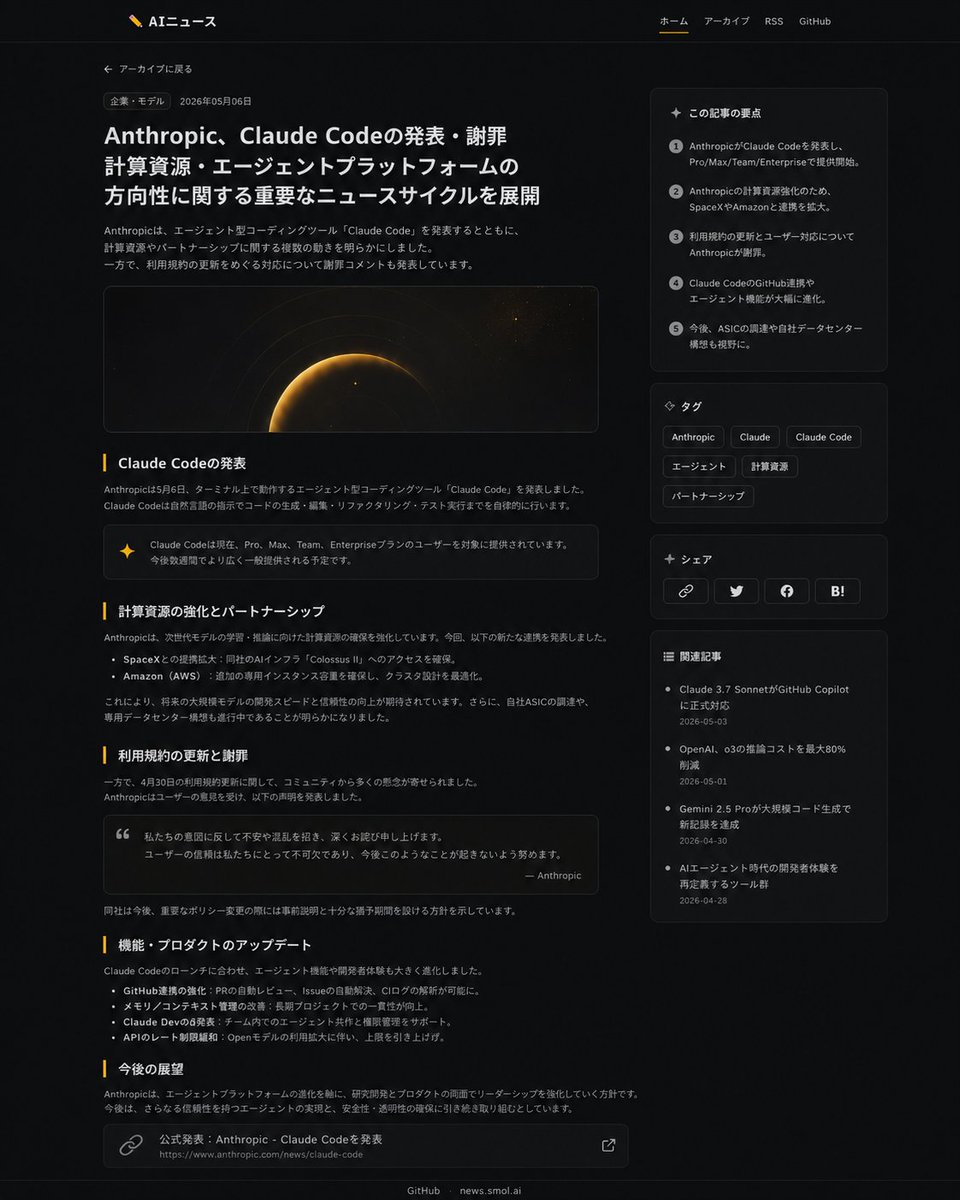
Dark News Article UI Redesign

Selective Color Monochrome Football Poster
Night Sports Car Portrait — Cinematic Moody
Cinematic Eye Light Portraits — 3 Nano Banana Prompts
Horror Cinematic Portrait
Watercolor Fantasy Knight Redesign
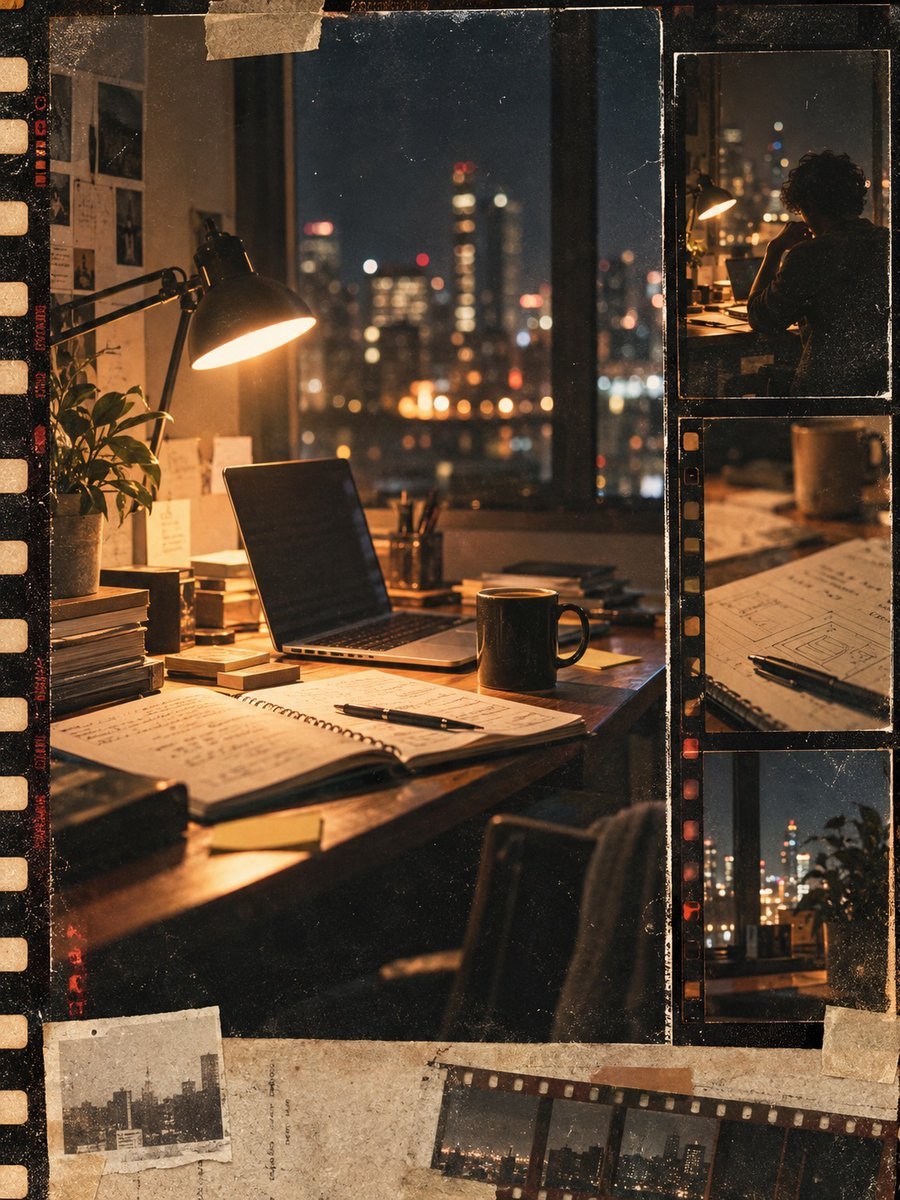
Vintage Film Startup Archive Poster
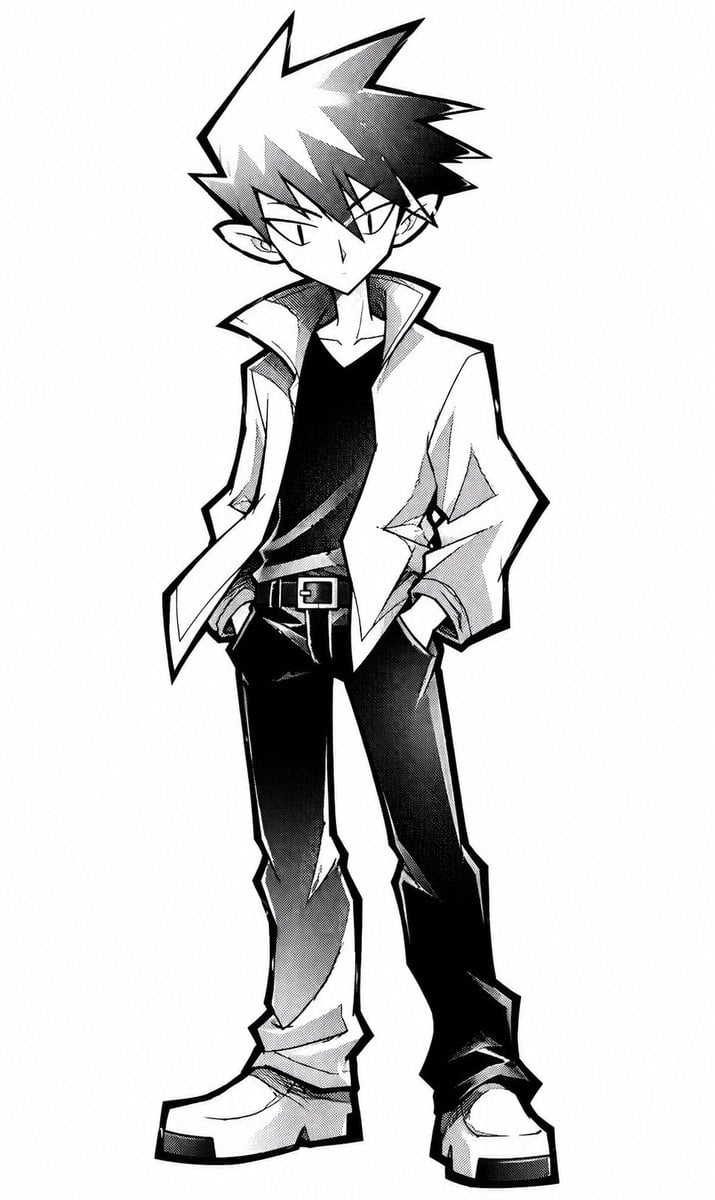
Angular Manga Character Redesign
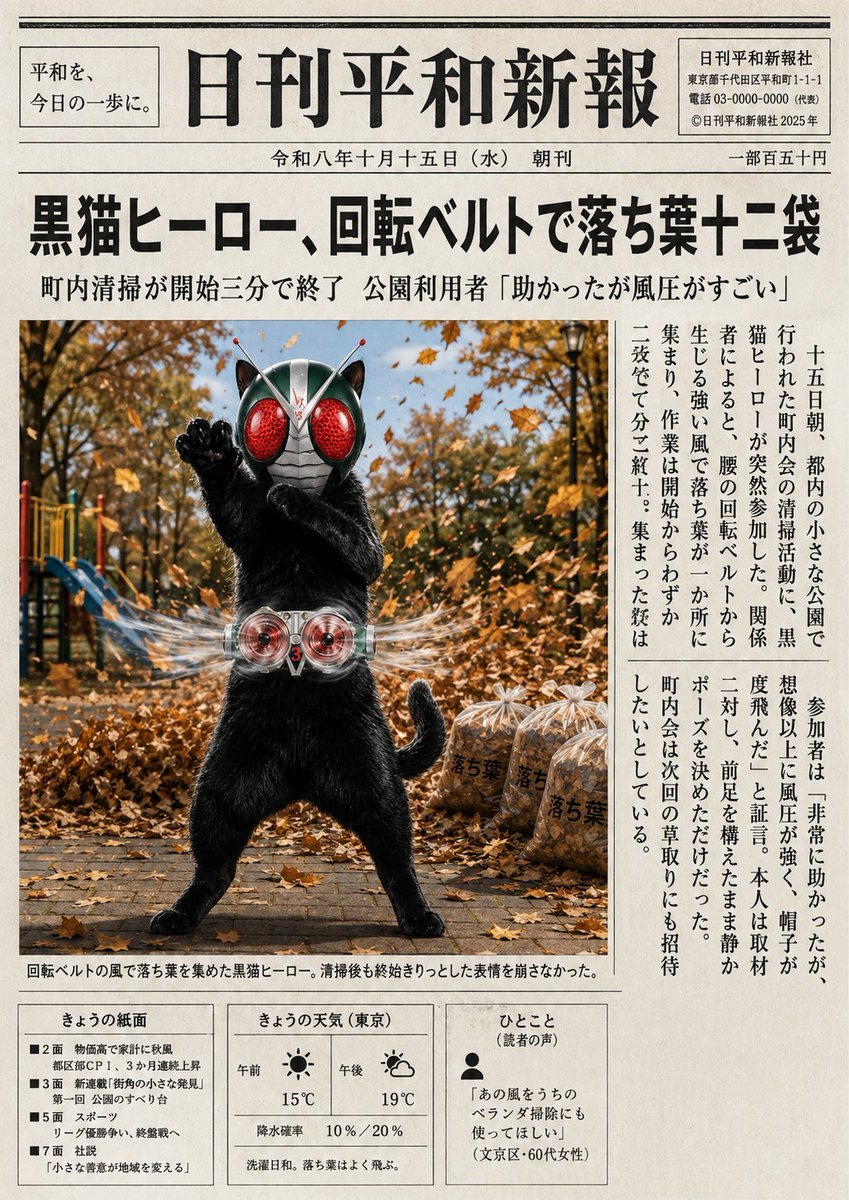
Japanese Newspaper Cat Hero Front Page
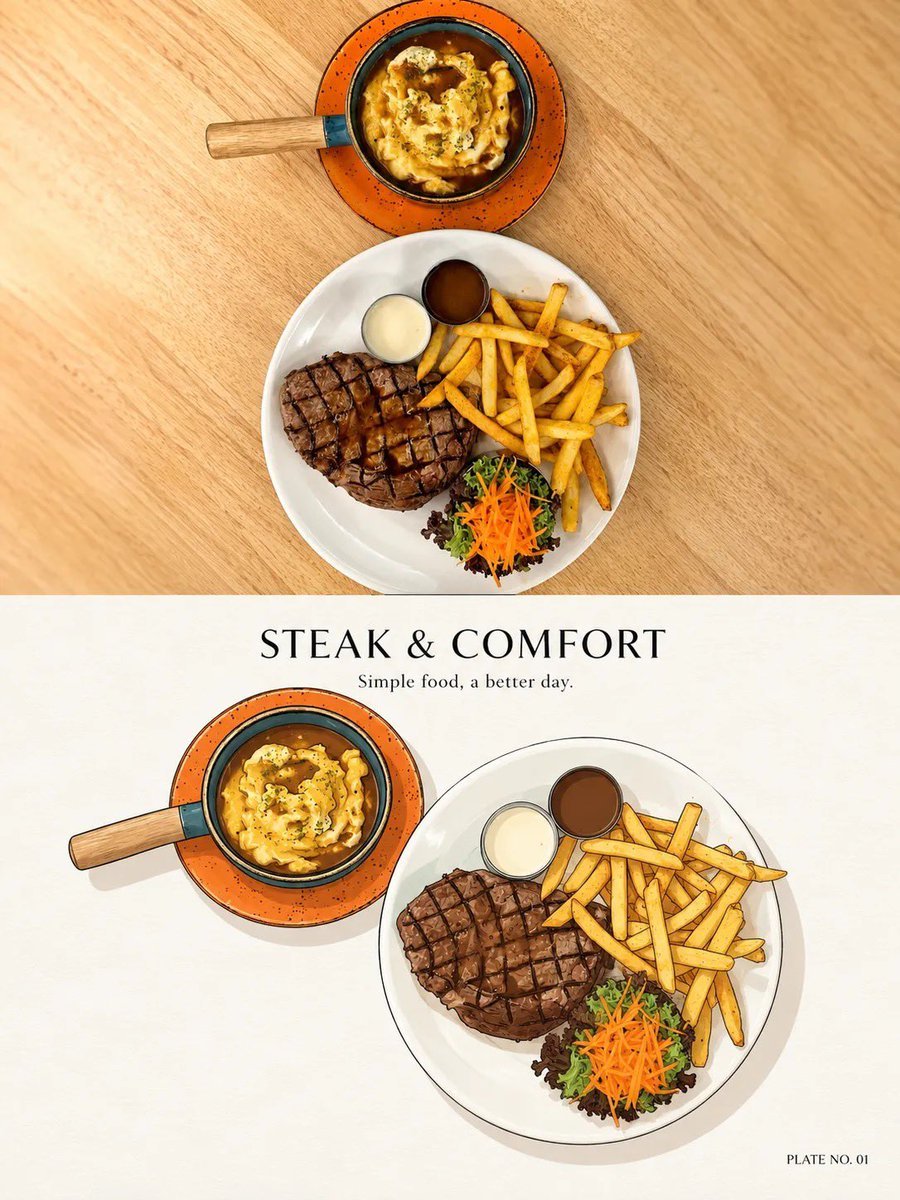
Minimal Ink Vignette Archive
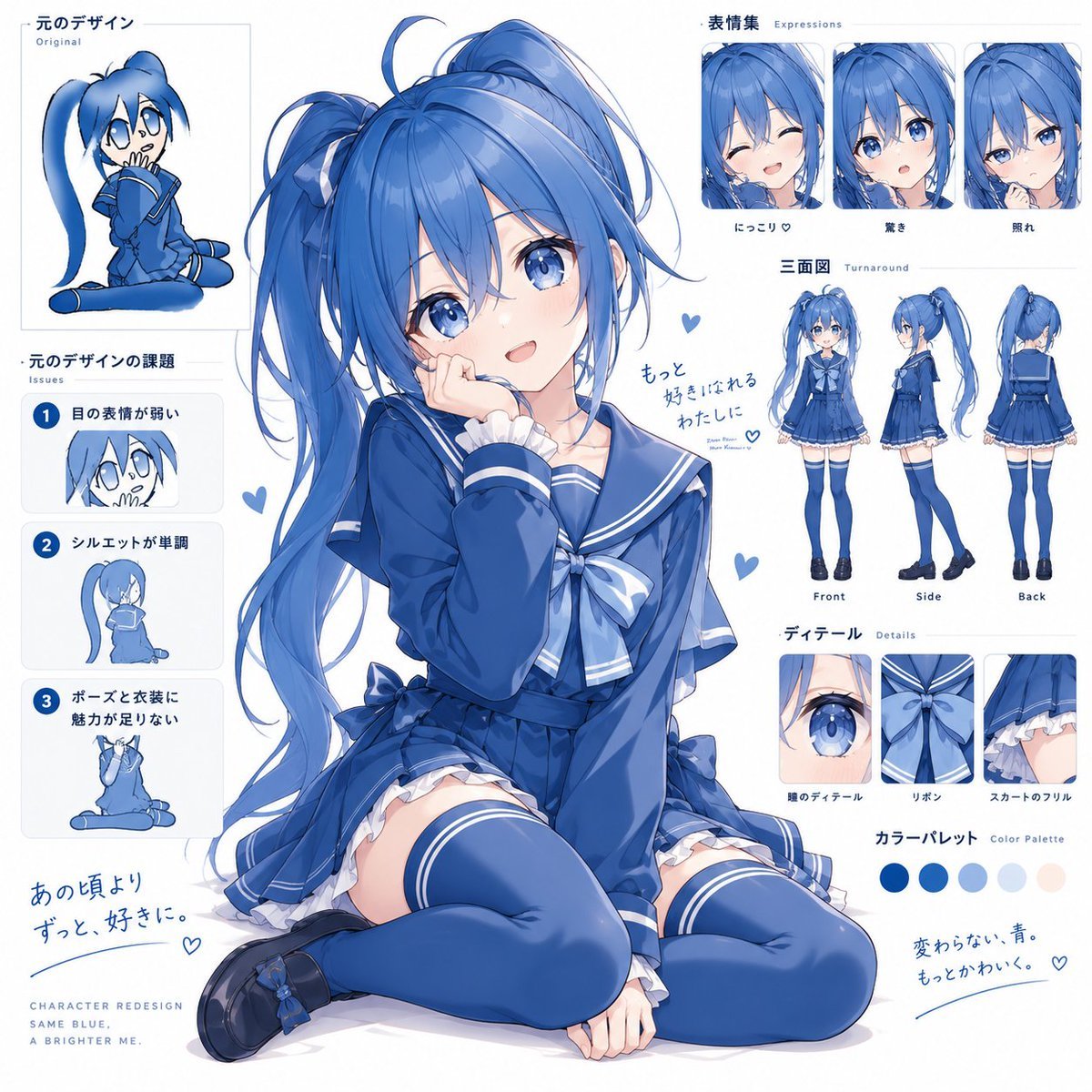
Blue Anime Character Redesign Sheet
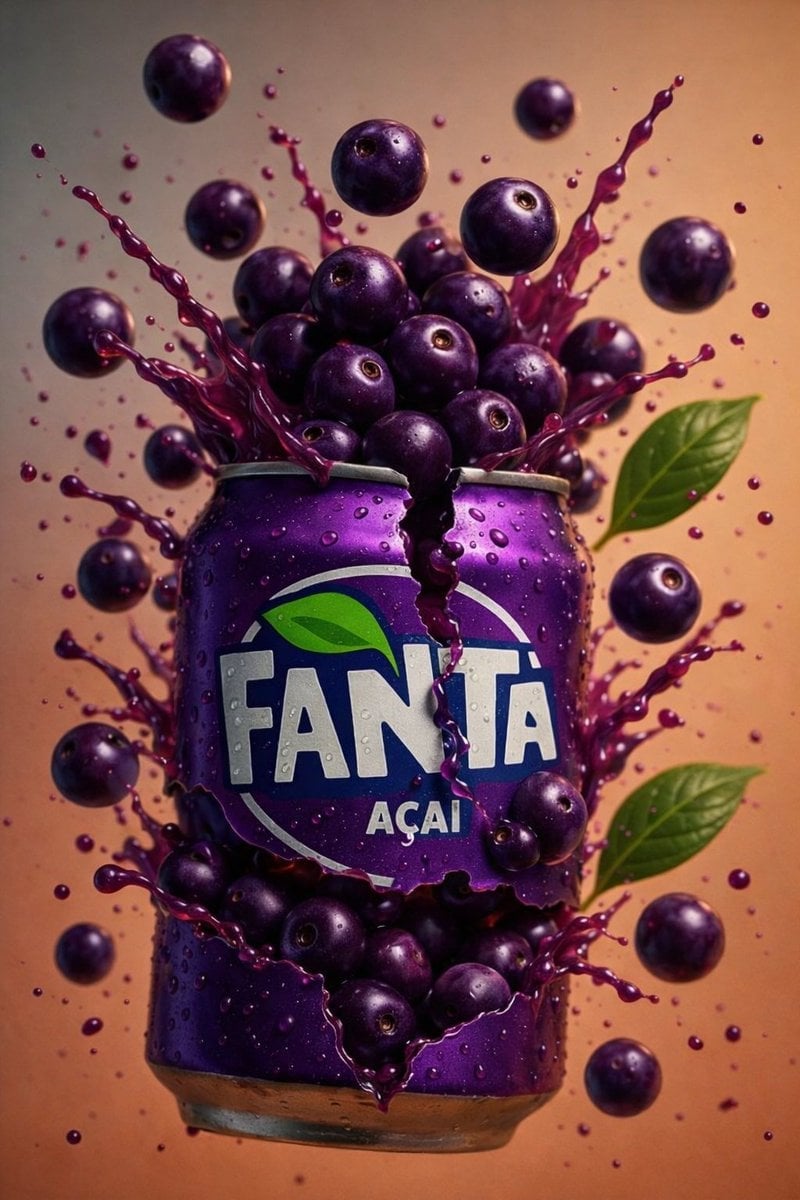
Multiple dark purple berries erupting from inside the can
Make it yours
Dark AI News Archive Redesign works as-is. These are the safest ways to change it without losing the look.
Change one field
Copy a single group, rewrite it, and generate again so you can see what that field is doing.
Keep the frame, change the subject
Hold the composition and light of Dark AI News Archive Redesign, then swap wardrobe, props or the person for a new take.
| If the result… | Why | Fix |
|---|---|---|
| The result drifts from the preview | Too many fields changed at once. | Reuse Dark AI News Archive Redesign as-is first, then change one group — subject, light, or setting. |
| The model over-stylizes the scene | The prose prompt leaves finish and camera underspecified. | Add one camera or lighting sentence and stay on GPT Image 2. |
More GPT Image 2 templates
Other prompts made for GPT Image 2.

Six VTuber Japanese Logo Sheet

Realistic Portrait of Woman and Deer

The Vista Modular Condo Poster

AI Model Routing Comparison Infographic

2.5D Anime Art Board

Isometric Productivity Desk Scene

New York Double Exposure Poster

Four-Panel AI Landscape Comparison

Japanese Tatami Lifestyle Magazine Cover

NESCAFÉ Coffee Map Poster
More image prompts
Fresh picks from across the catalog.
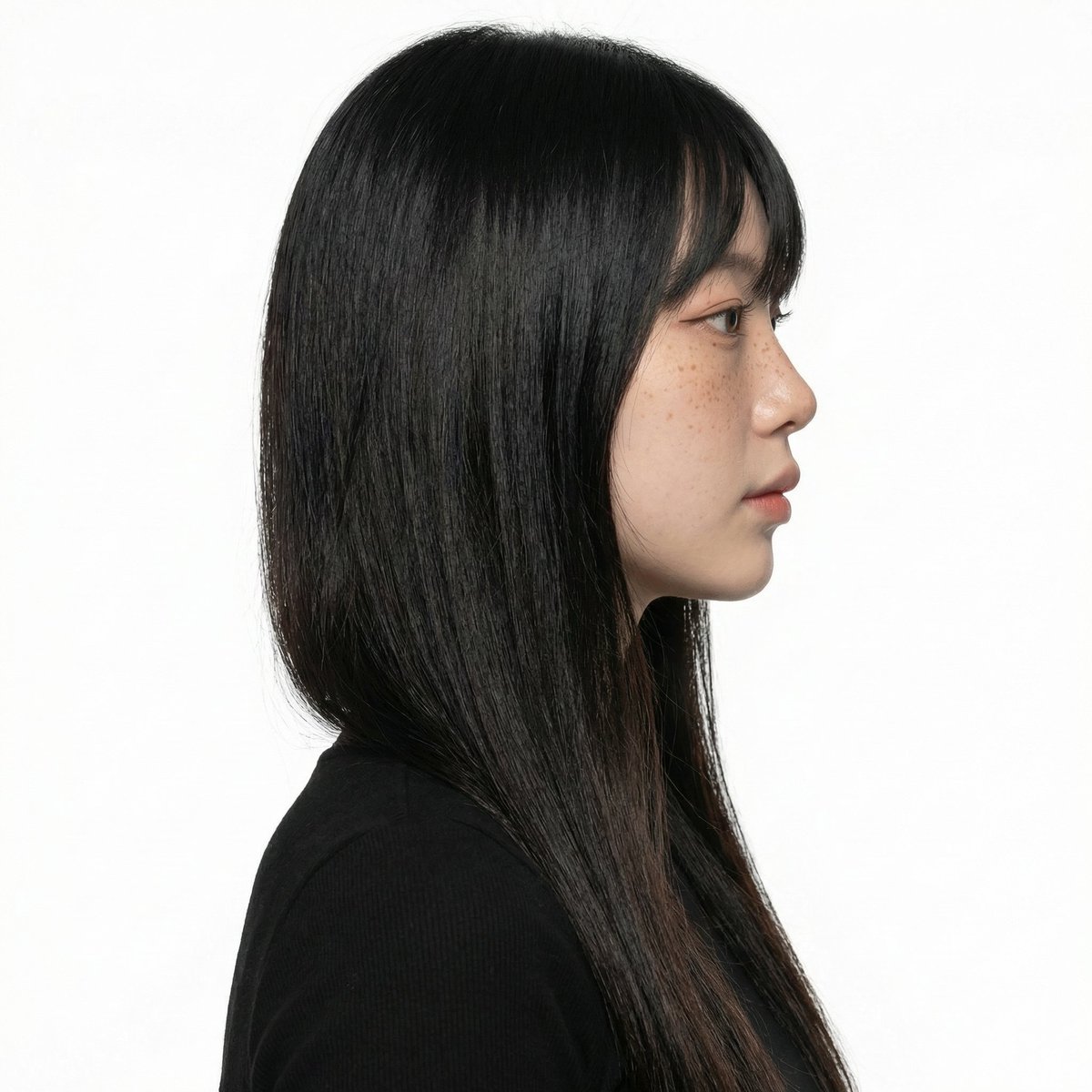
Character Pose Variation Prompt
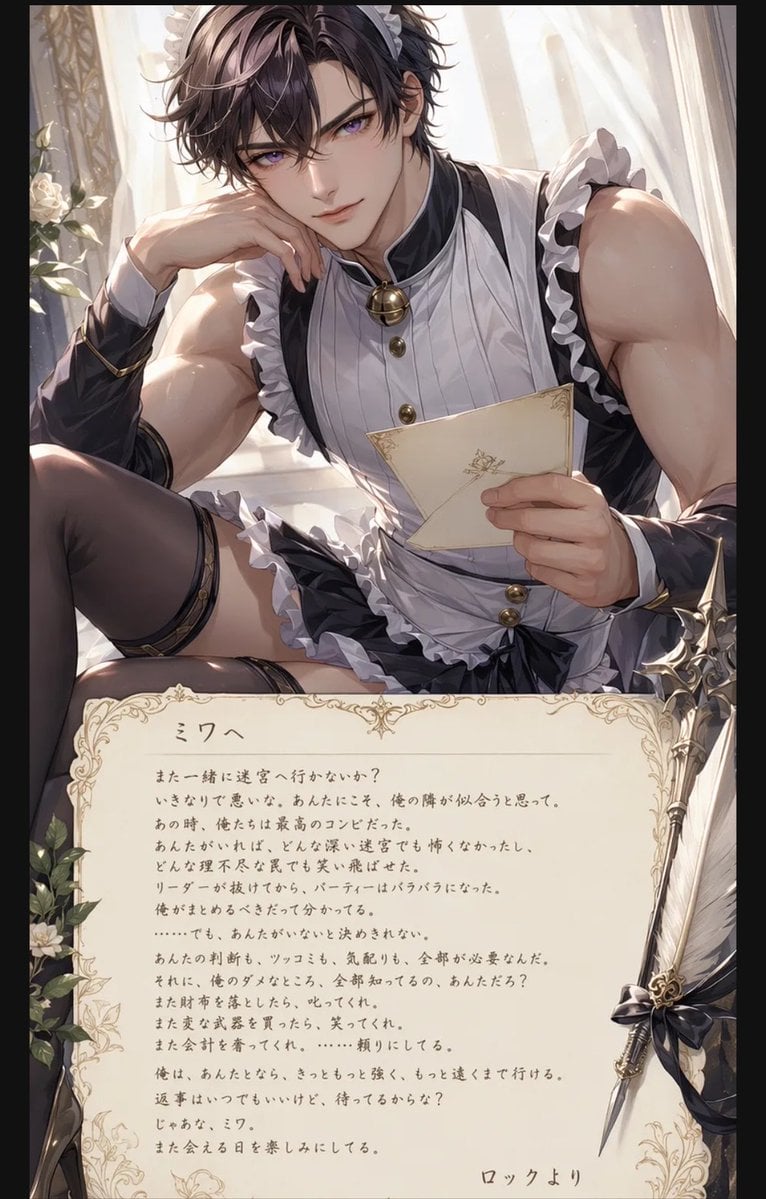
Anime Maid Character Love Letter
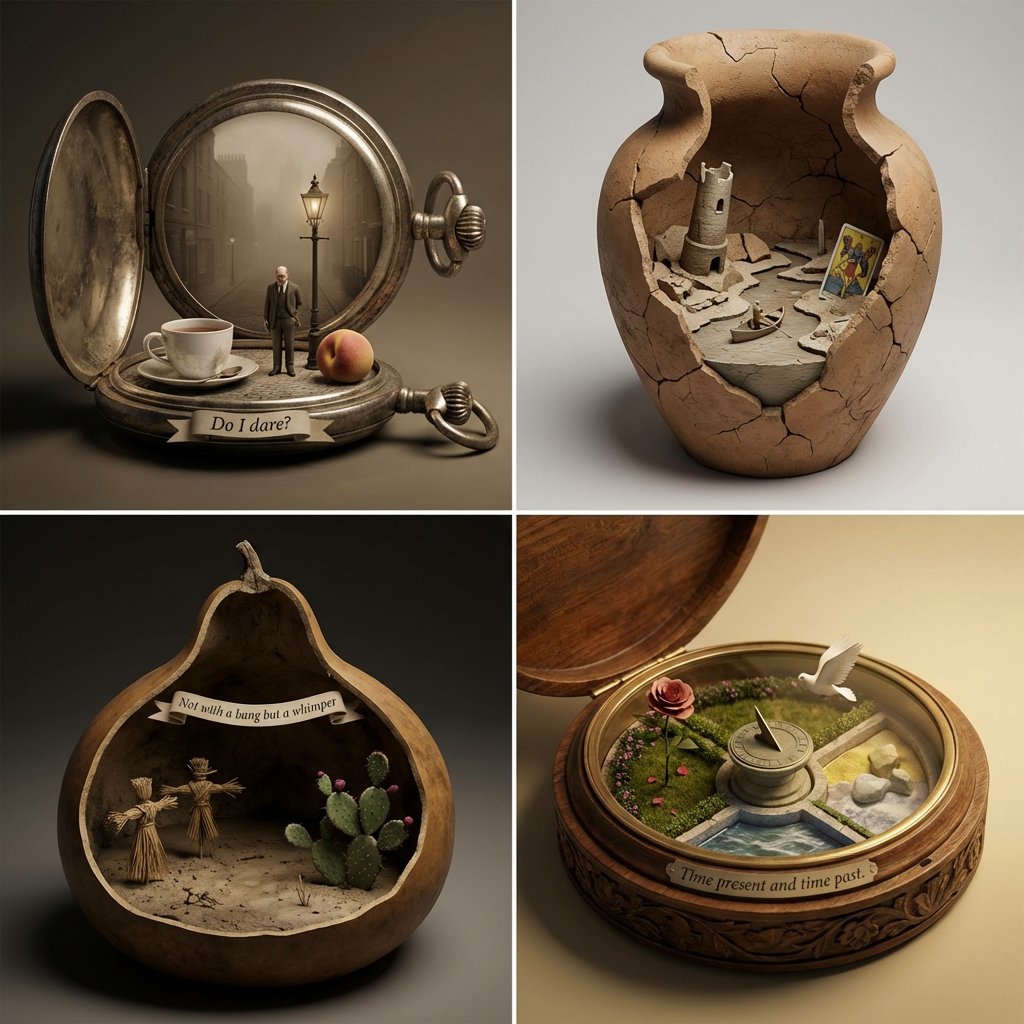
Poetry Diorama Generation System Prompt
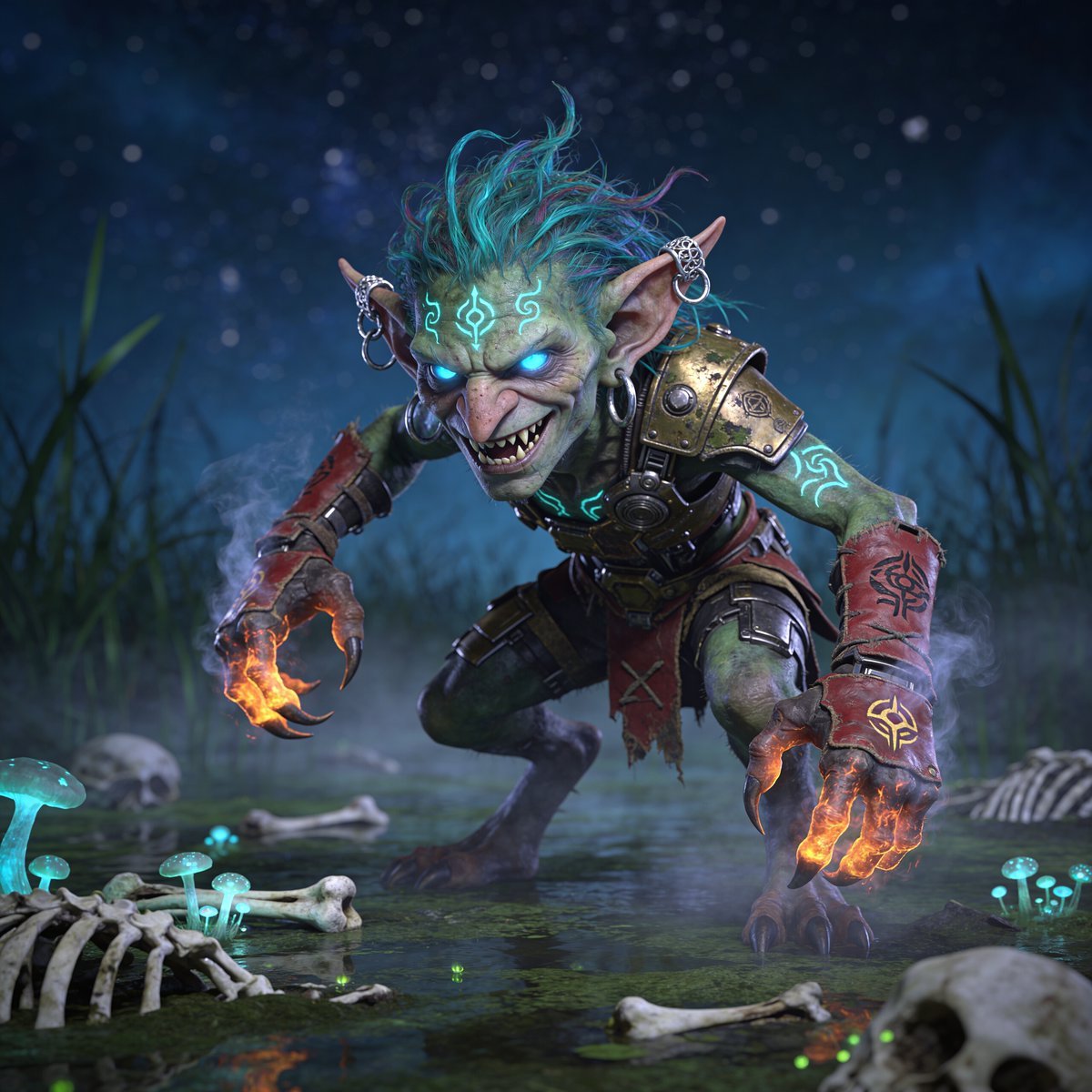
Glowing Goblin Shaman in Swamp
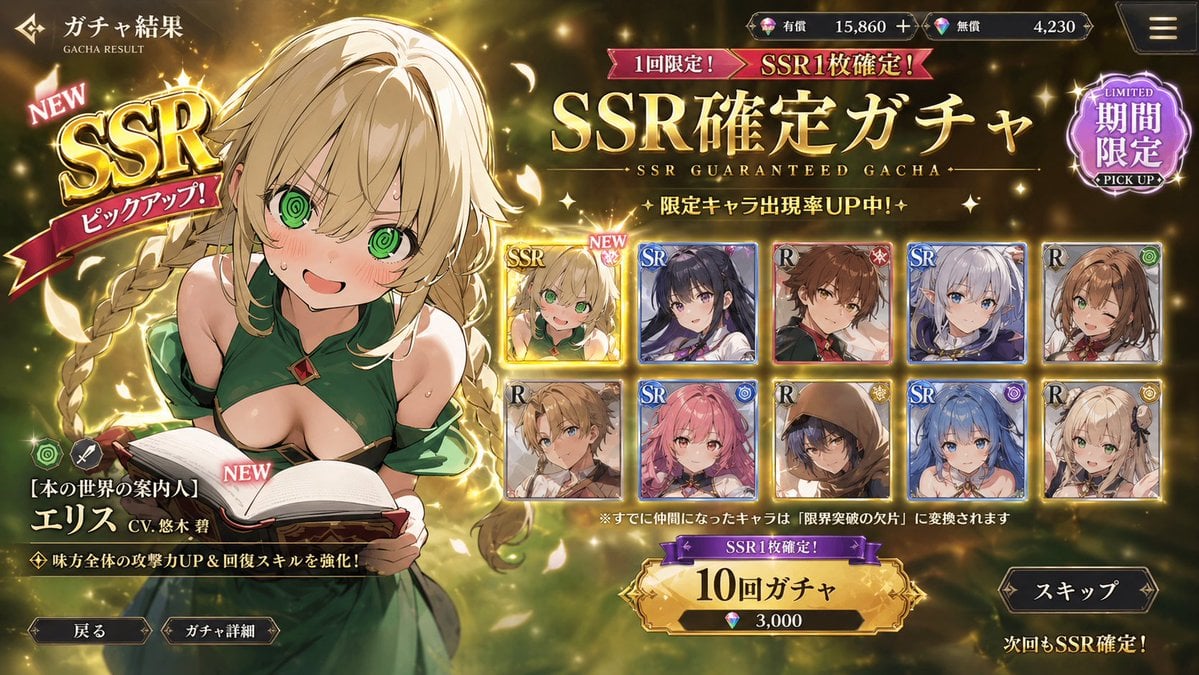
Mobile Game Gacha UI Design

Poetic Cinematic Portrait with Pink Blossoms Prompt
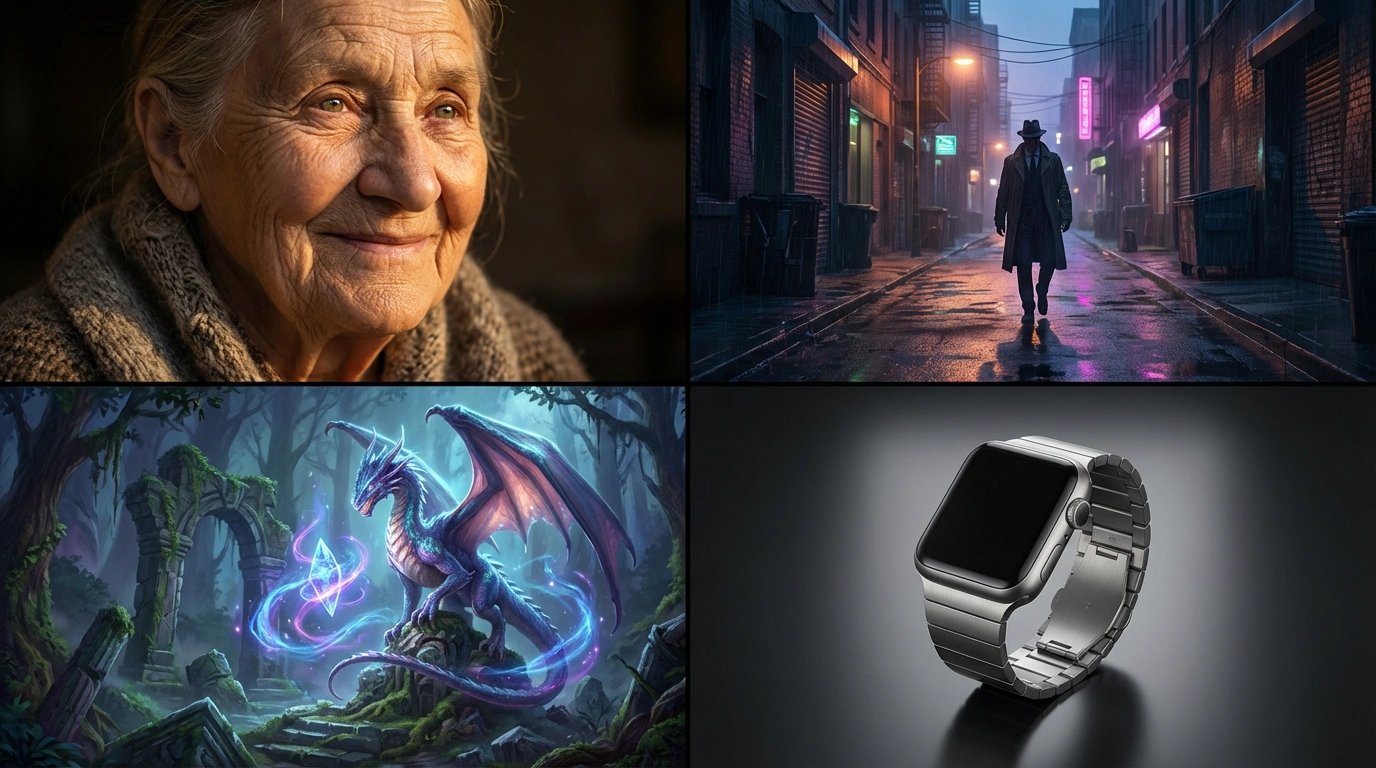
style and use case copy paste and generate instan... (IMAGE-NANO_BANANA)
untitled

Photorealistic Female Pilot Selfie Prompt
Glass Skin Beauty Portrait — Soft Pastel Nano Banana
Browse template categories
Dark AI News Archive Redesign questions
How do I use the Dark AI News Archive Redesign template?
Add your photo if the template asks for one, edit the prompt if you like — the template's model and format are already selected — and press Generate. Your version opens in PicX Studio.
Can I customize the Dark AI News Archive Redesign template?
Yes. You can change the subject, setting, lighting, mood, format, and available model controls before creating your image.
Is the Dark AI News Archive Redesign template free?
Opening and editing this template is free. Generating uses credits, shown on the Generate button when you are signed in.
Which AI model should I use?
Start with GPT Image 2, which is the model associated with this template. You can compare another compatible model for a different finish.
Looking for something else? Browse all templates.

Your photo, any look
Thousands of ready templates for every top image and video model, from one credit balance.