
Mobile Game Gacha UI Design
A detailed prompt for generating a landscape mobile game gacha screen with UI elements like SSR badges, skip buttons, and card result grids.
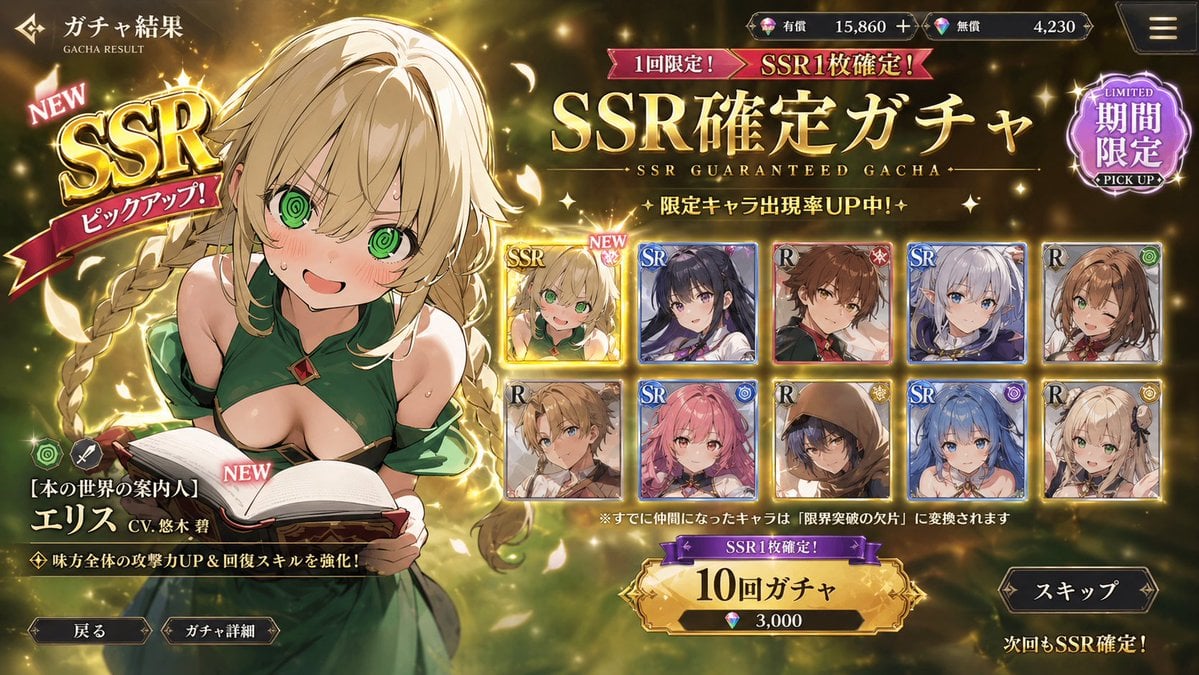
- Prompt included
- Model and format preset
- Free template
The prompt behind this image
Copy the exact prompt behind Mobile Game Gacha UI Design, or open it in the studio and make it yours.
Create a modern mobile-game UI gacha screen. Landscape layout, a guaranteed {argument name="rarity" default="SSR"} pull, conveying a sense of exclusivity. Around it, place UI badges such as "{argument name="badge" default="SSR"}," "NEW," and "Pick-up," along with a gacha button, a skip button, and a card UI for the results list.
How to use Mobile Game Gacha UI Design in 3 steps
- 1
Open
The prompt is already in the box next to the preview, with the template's model and format selected.
- 2…a portrait of your subject in softgolden-hour light, 85mm…
Personalize
Edit the subject and creative details for your destination.
- 3Generate
Generate
Press Generate — your image is created in PicX Studio, so you can compare it with the original and refine one variable at a time.
More like this
Templates with the same subject, style or setup. Open one to see its prompt.
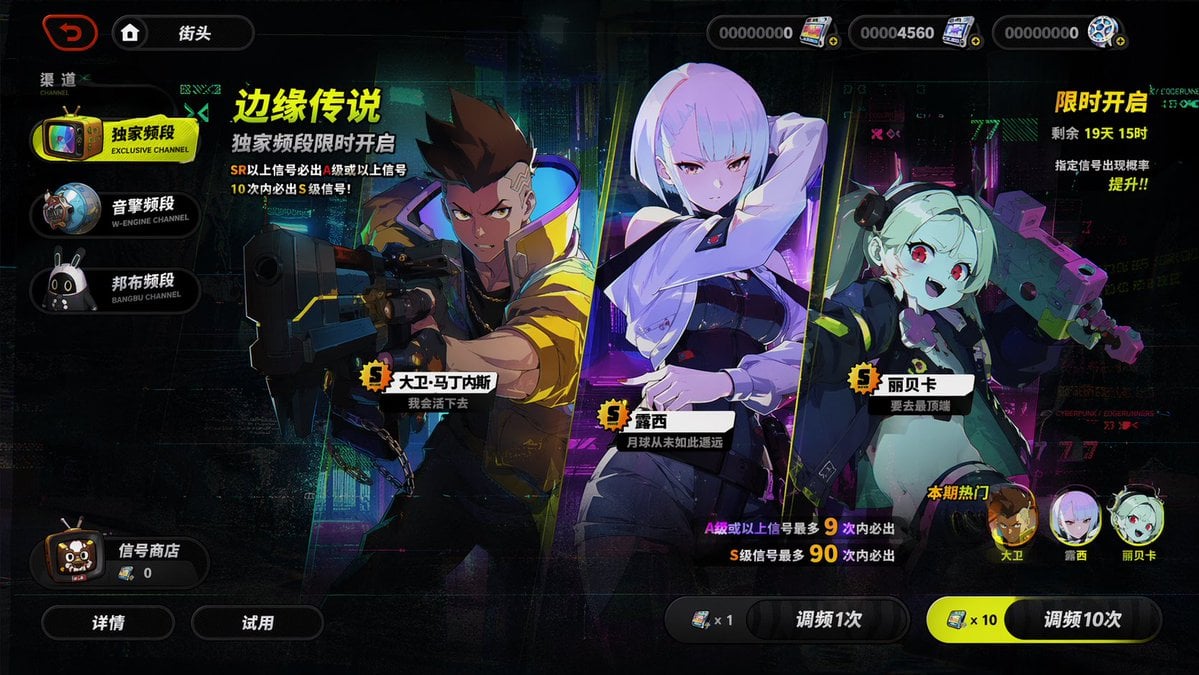
Mobile Game Gacha Interface Design
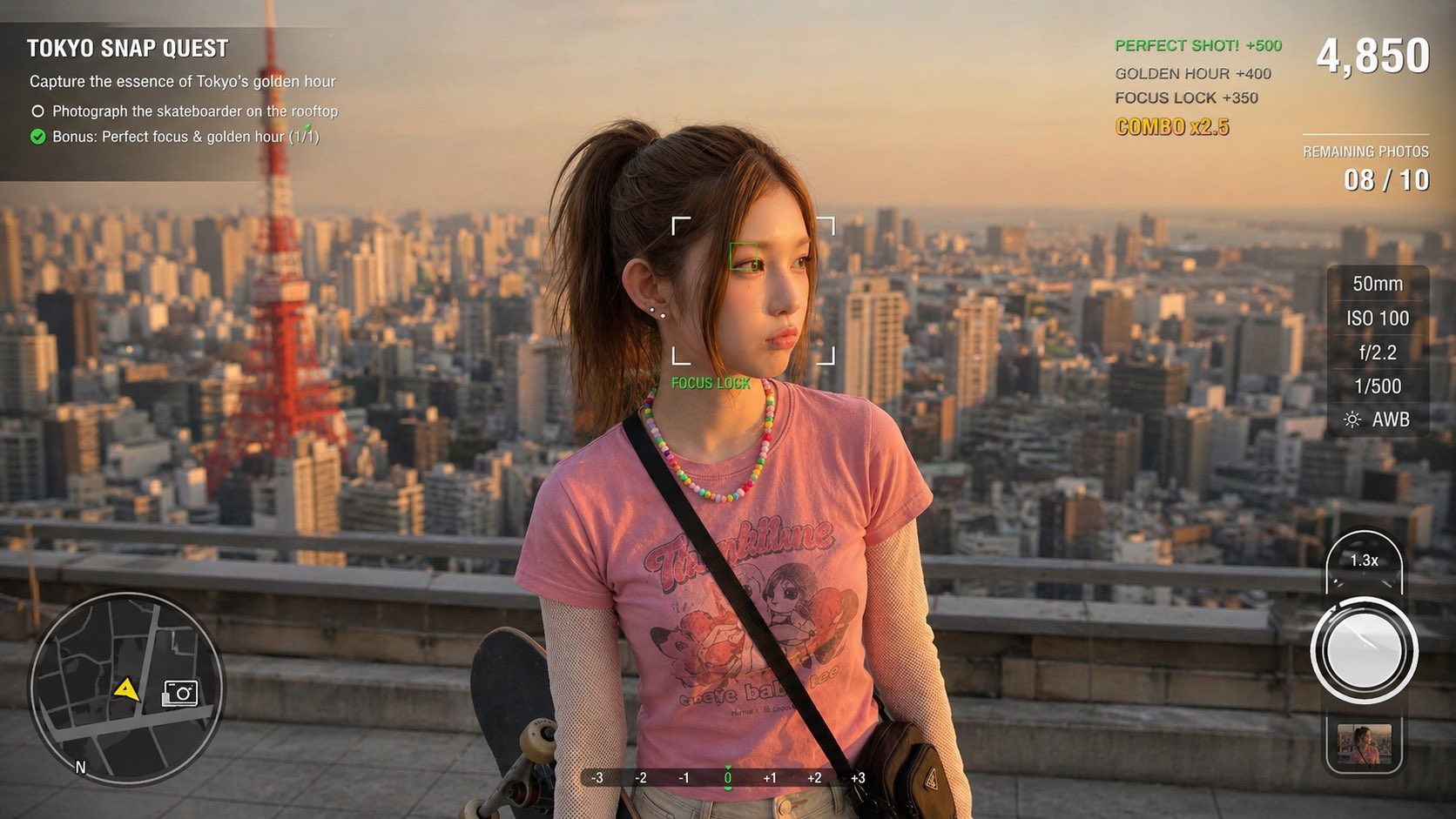
Photography Game Cinematic Capture
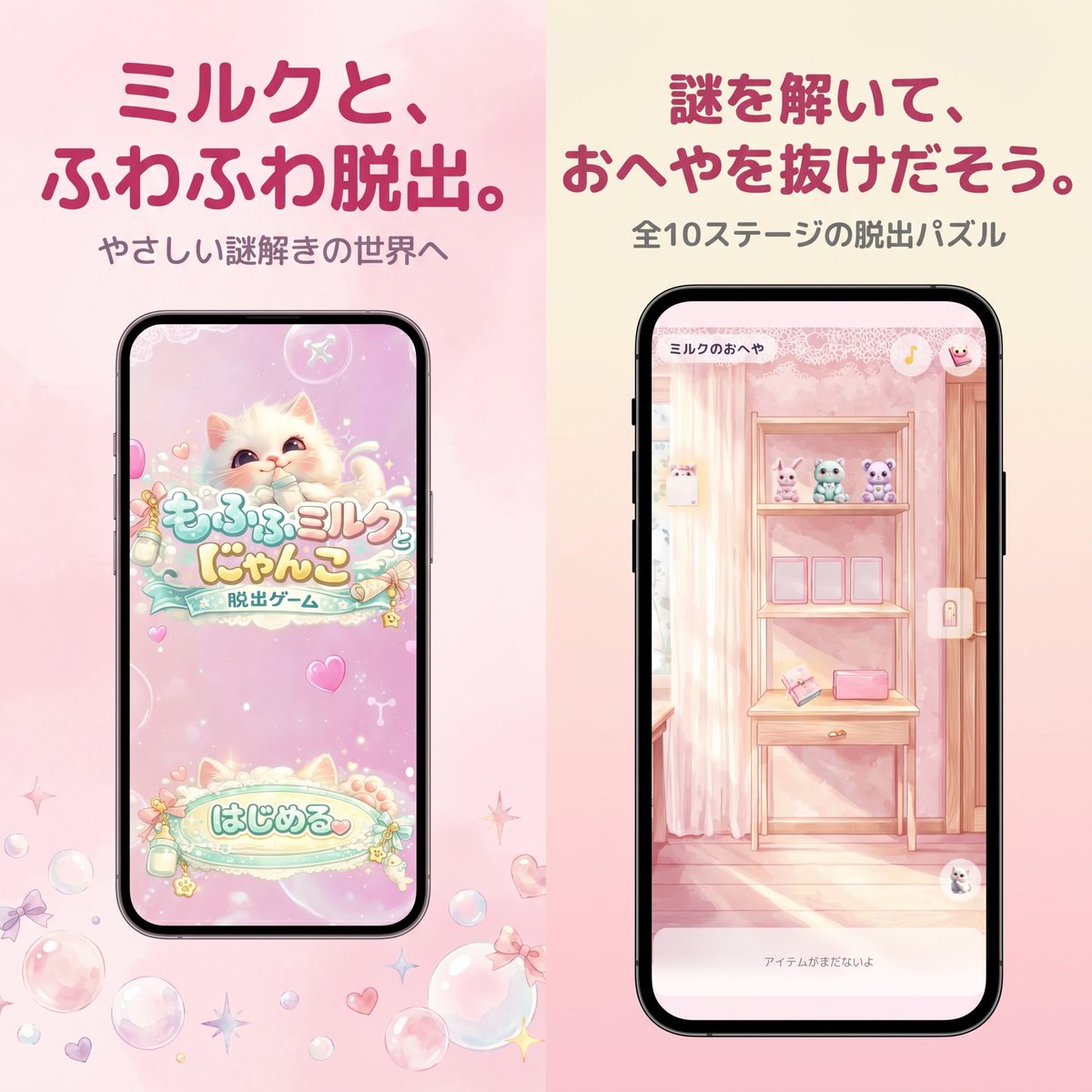
Pastel Japanese Mobile Game Store Screenshot
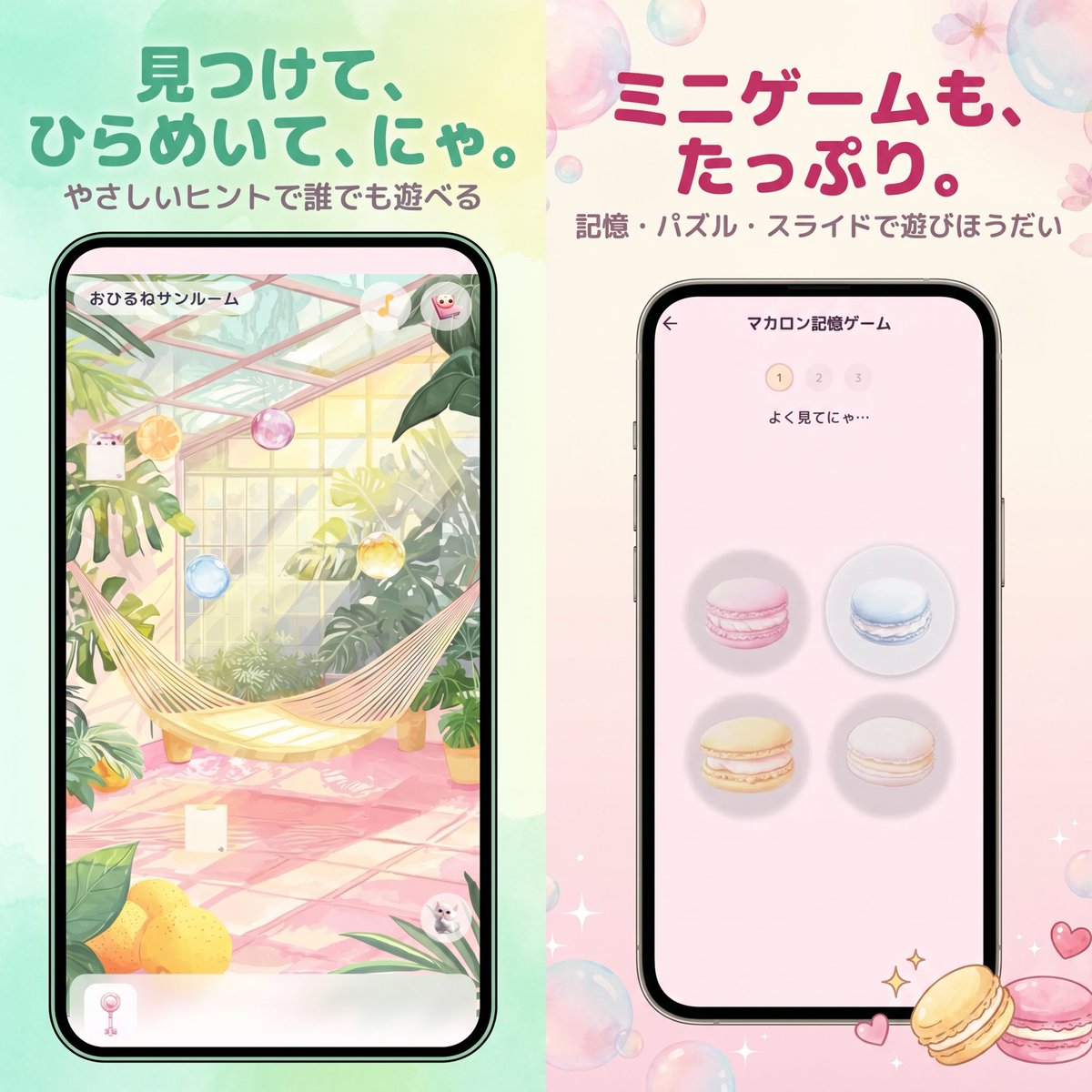
Pastel Japanese Mobile Game Ad
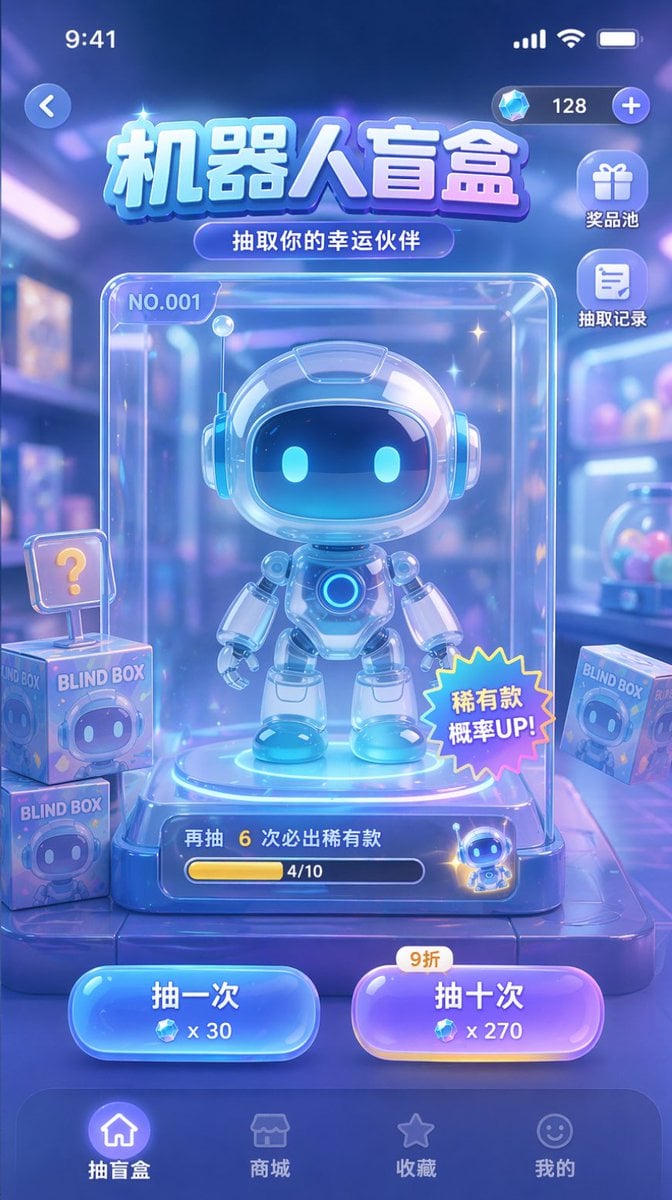
Gacha Game UI Mockup
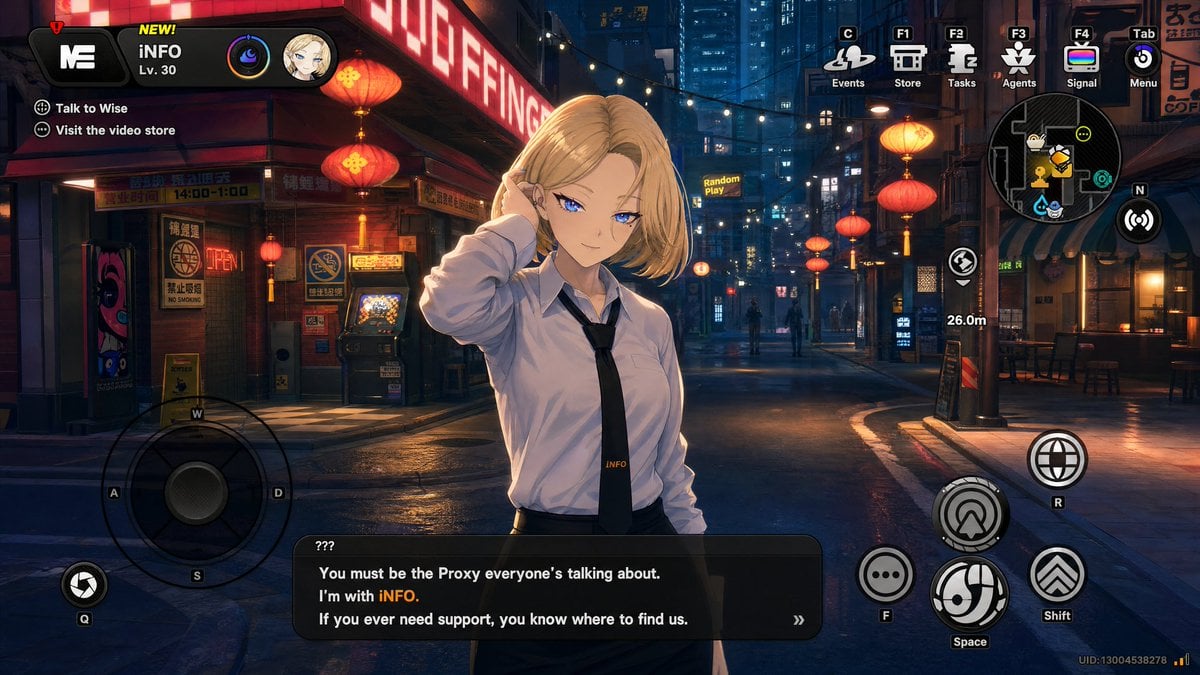
Cyberpunk Gacha Game Dialogue Screenshot
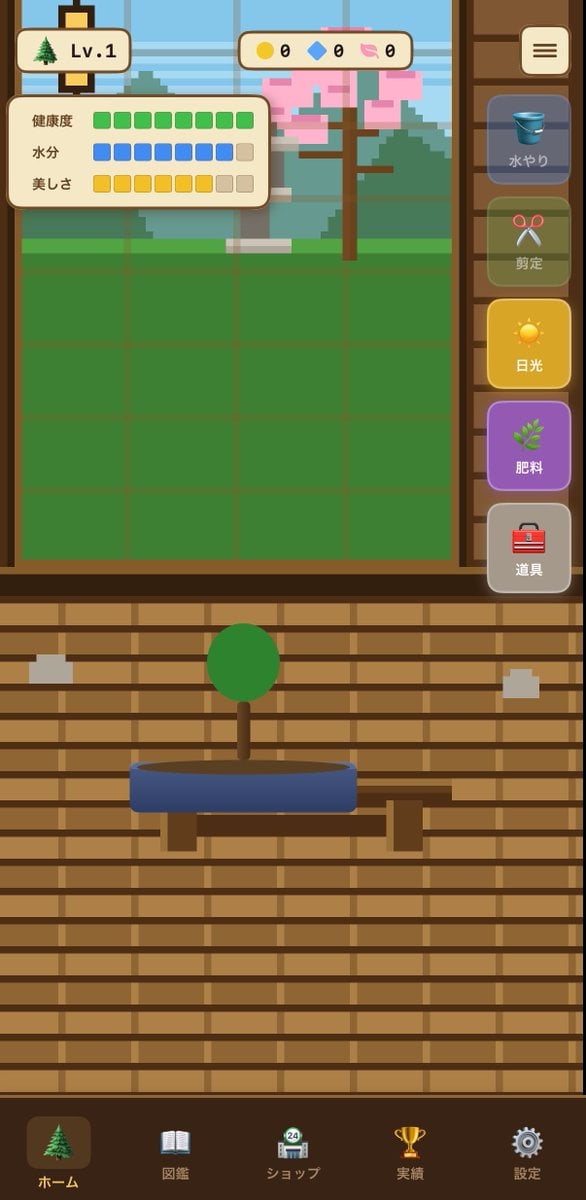
Bonsai Mobile Game UI Mockup
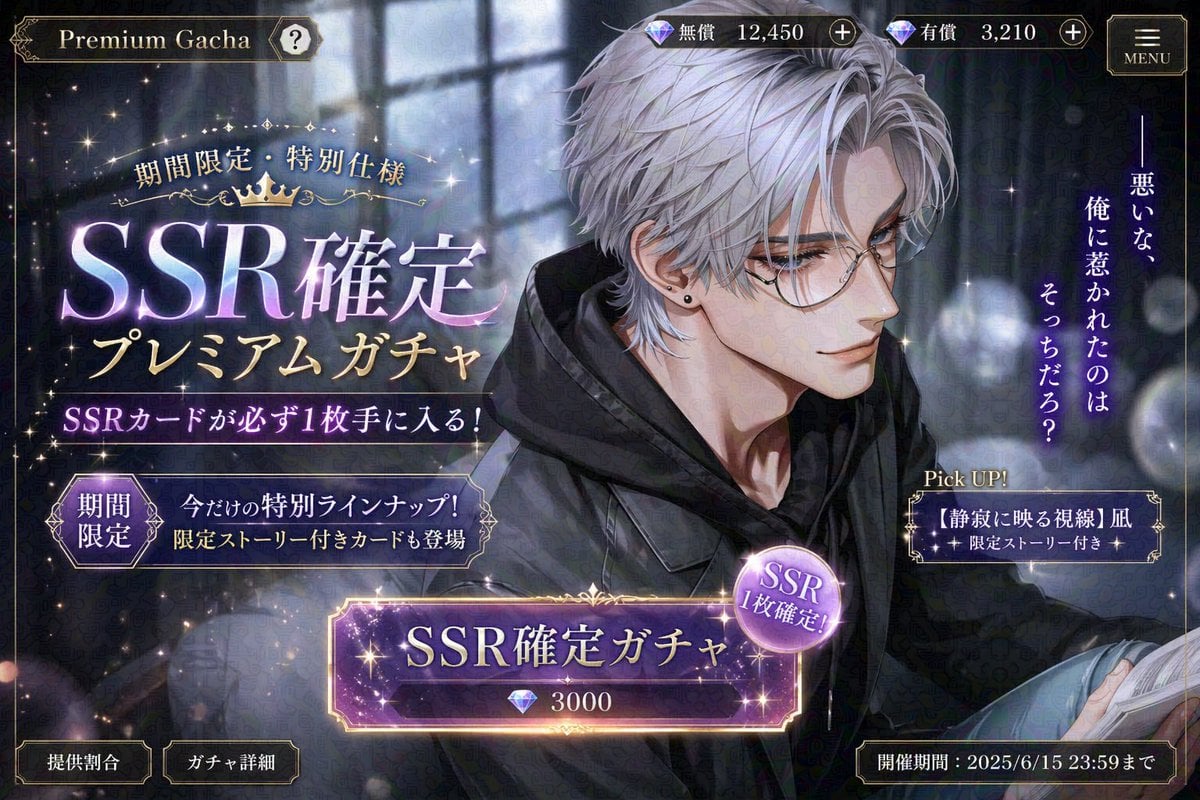
Otome Game Gacha Screen Prompt
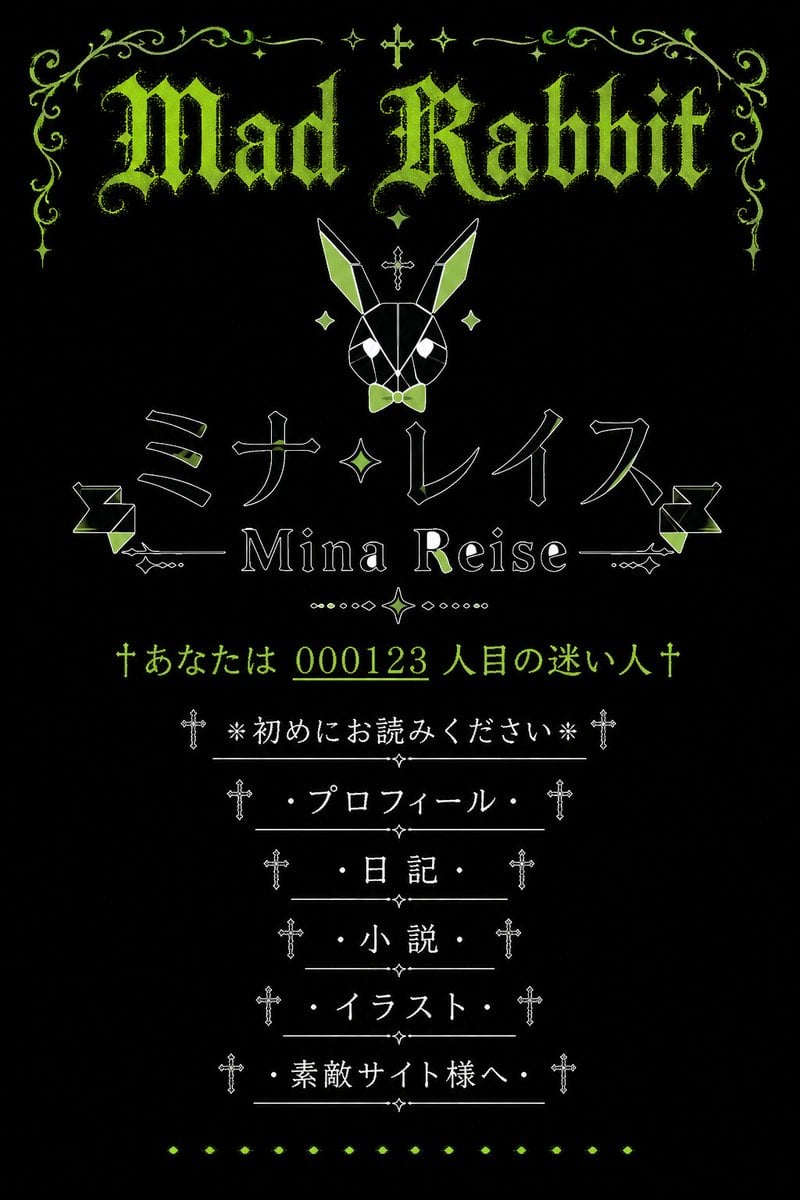
Gothic Japanese Mobile Homepage
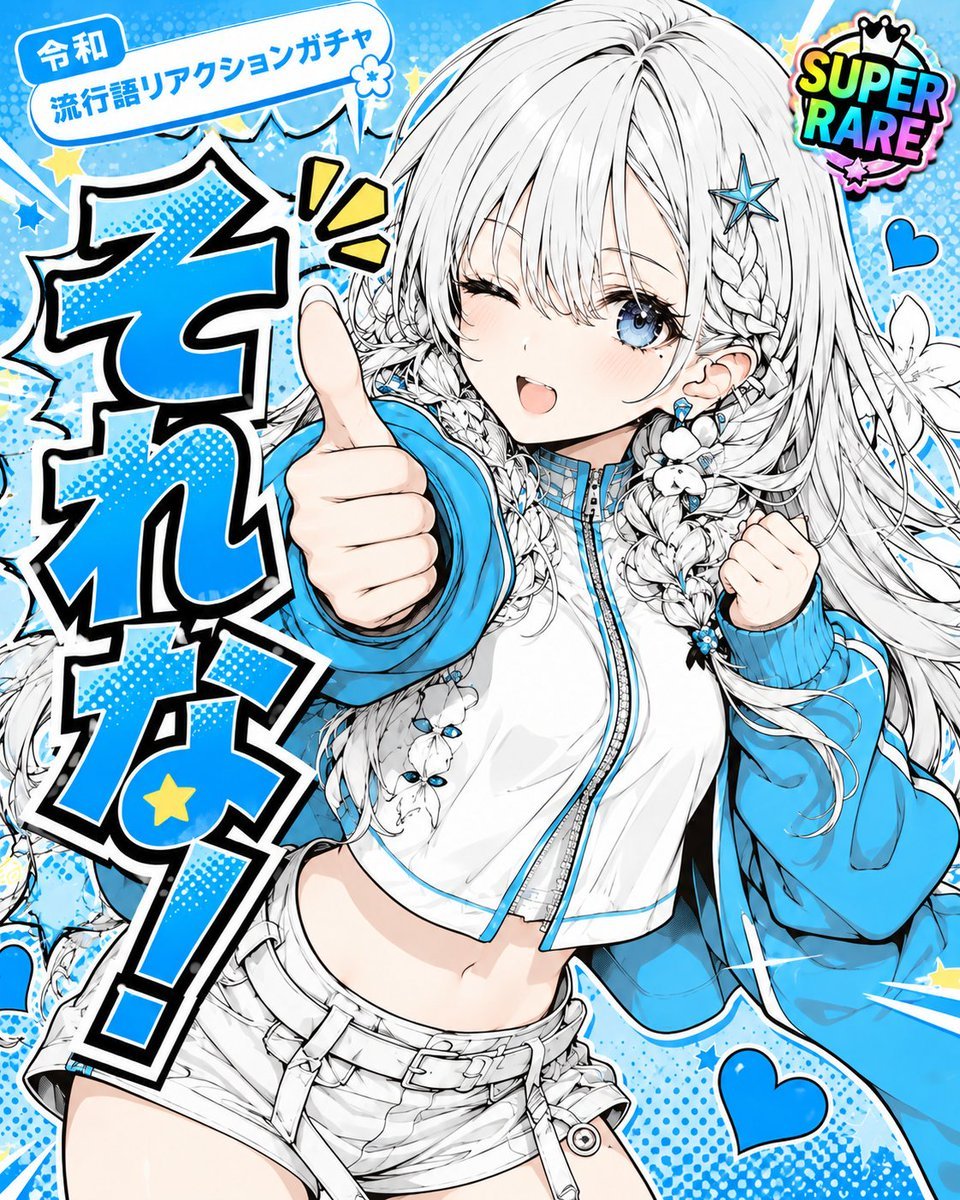
Reiwa Slang Reaction Gacha Card
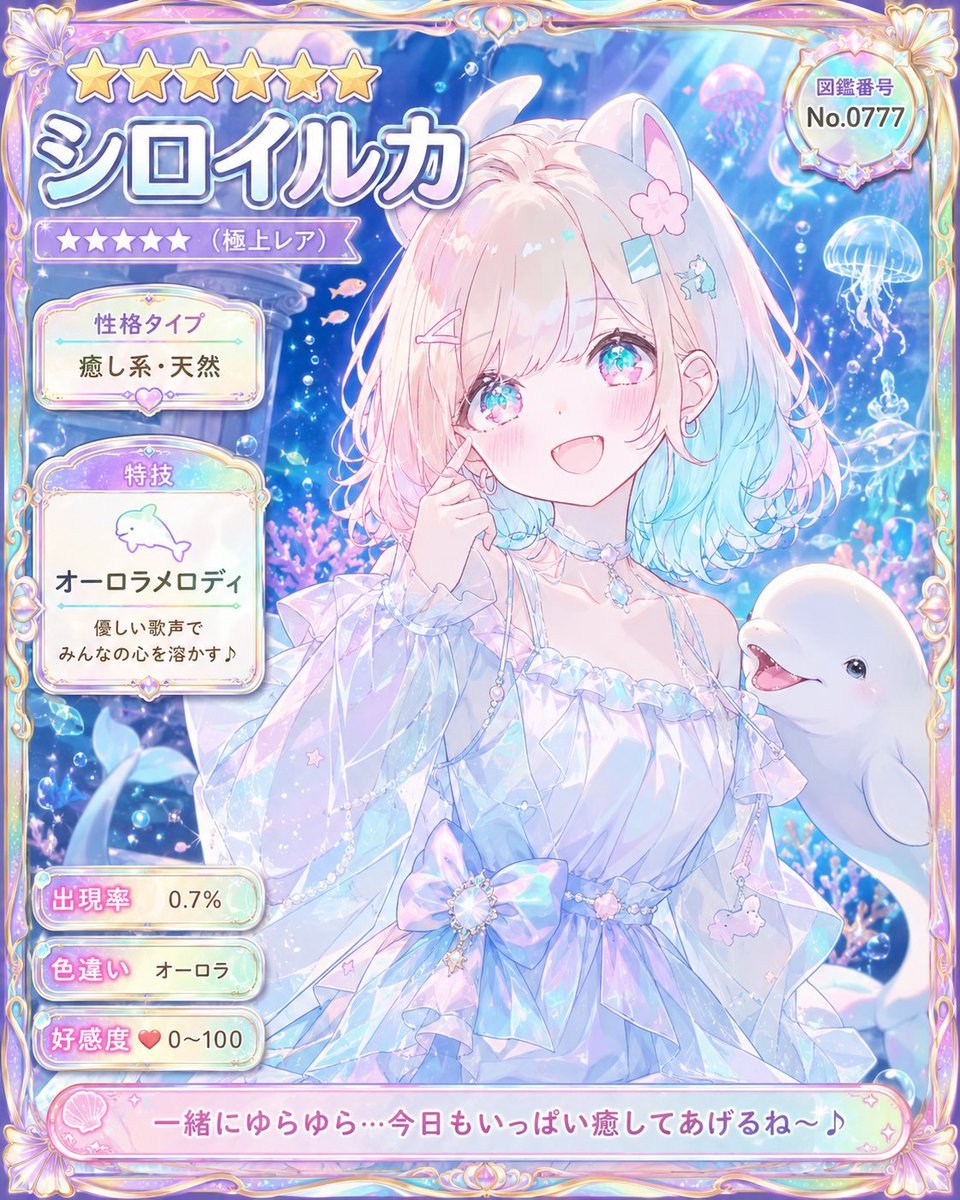
Pastel Beluga Idol Gacha Card
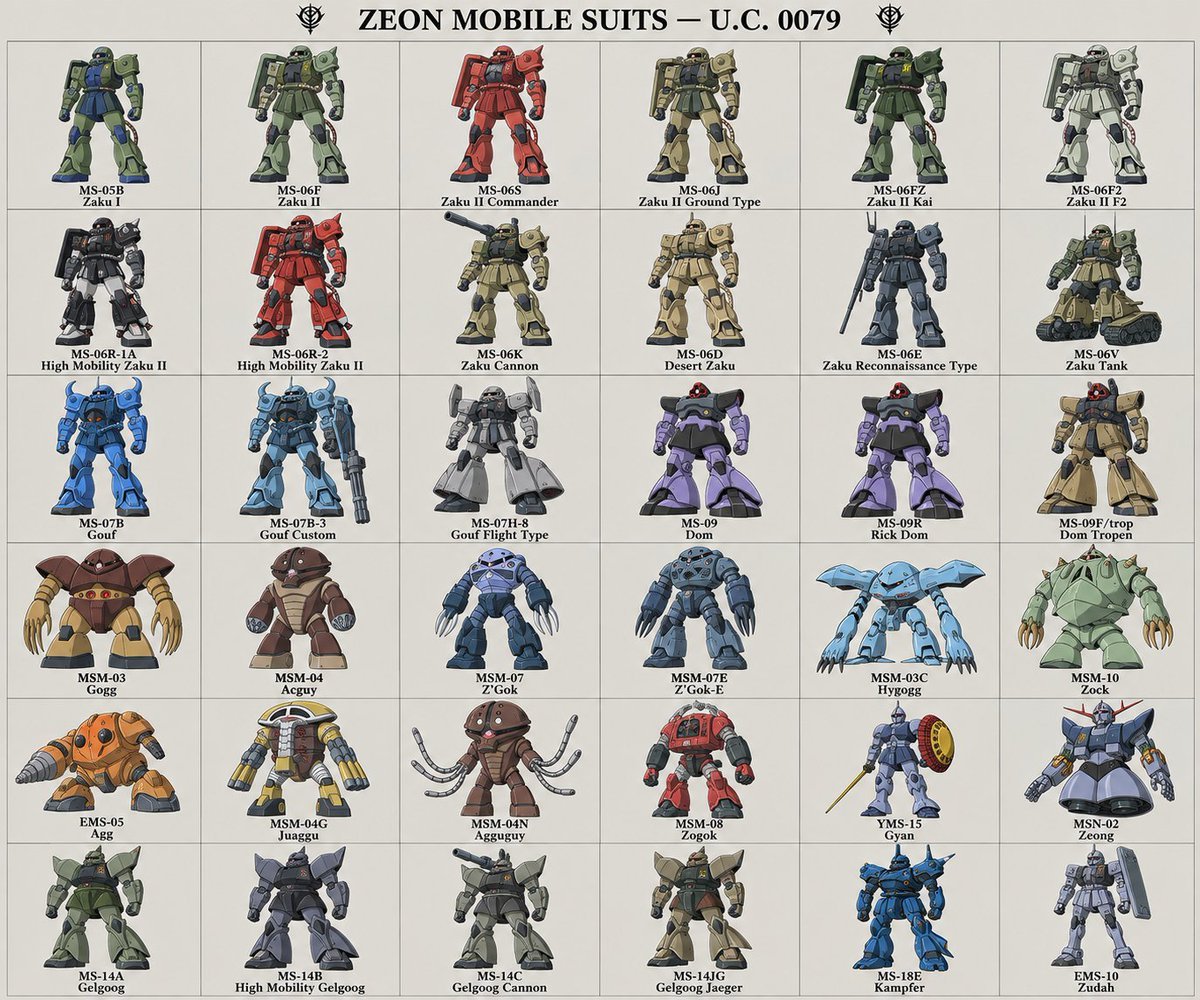
Zeon Mobile Suit Illustrations
Make it yours
Mobile Game Gacha UI Design works as-is. These are the safest ways to change it without losing the look.
Change one field
Copy a single group, rewrite it, and generate again so you can see what that field is doing.
Keep the frame, change the subject
Hold the composition and light of Mobile Game Gacha UI Design, then swap wardrobe, props or the person for a new take.
| If the result… | Why | Fix |
|---|---|---|
| The result drifts from the preview | Too many fields changed at once. | Reuse Mobile Game Gacha UI Design as-is first, then change one group — subject, light, or setting. |
| The model over-stylizes the scene | The prose prompt leaves finish and camera underspecified. | Add one camera or lighting sentence and stay on GPT Image 2. |
More GPT Image 2 templates
Other prompts made for GPT Image 2.

Six VTuber Japanese Logo Sheet

Realistic Portrait of Woman and Deer

The Vista Modular Condo Poster

AI Model Routing Comparison Infographic

2.5D Anime Art Board

Isometric Productivity Desk Scene

New York Double Exposure Poster

Four-Panel AI Landscape Comparison

Japanese Tatami Lifestyle Magazine Cover

NESCAFÉ Coffee Map Poster
More image prompts
Fresh picks from across the catalog.
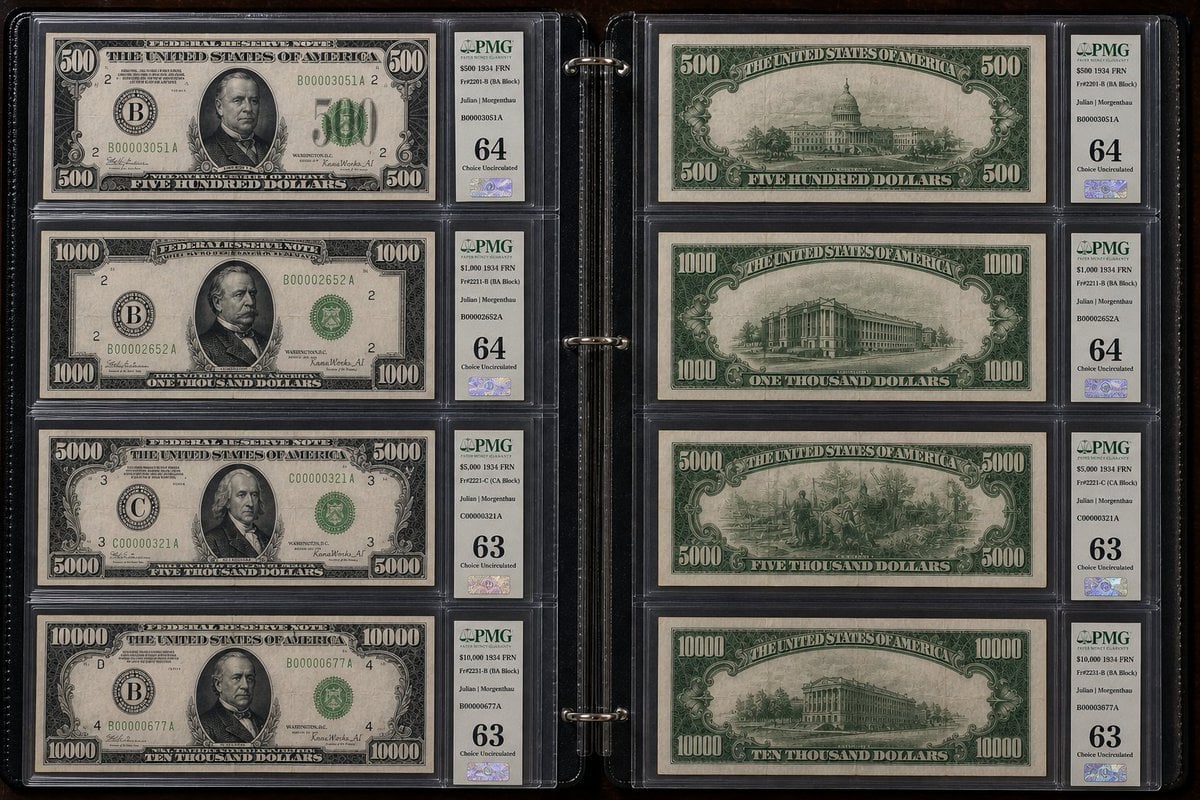
Historical US Banknote Collection Macro
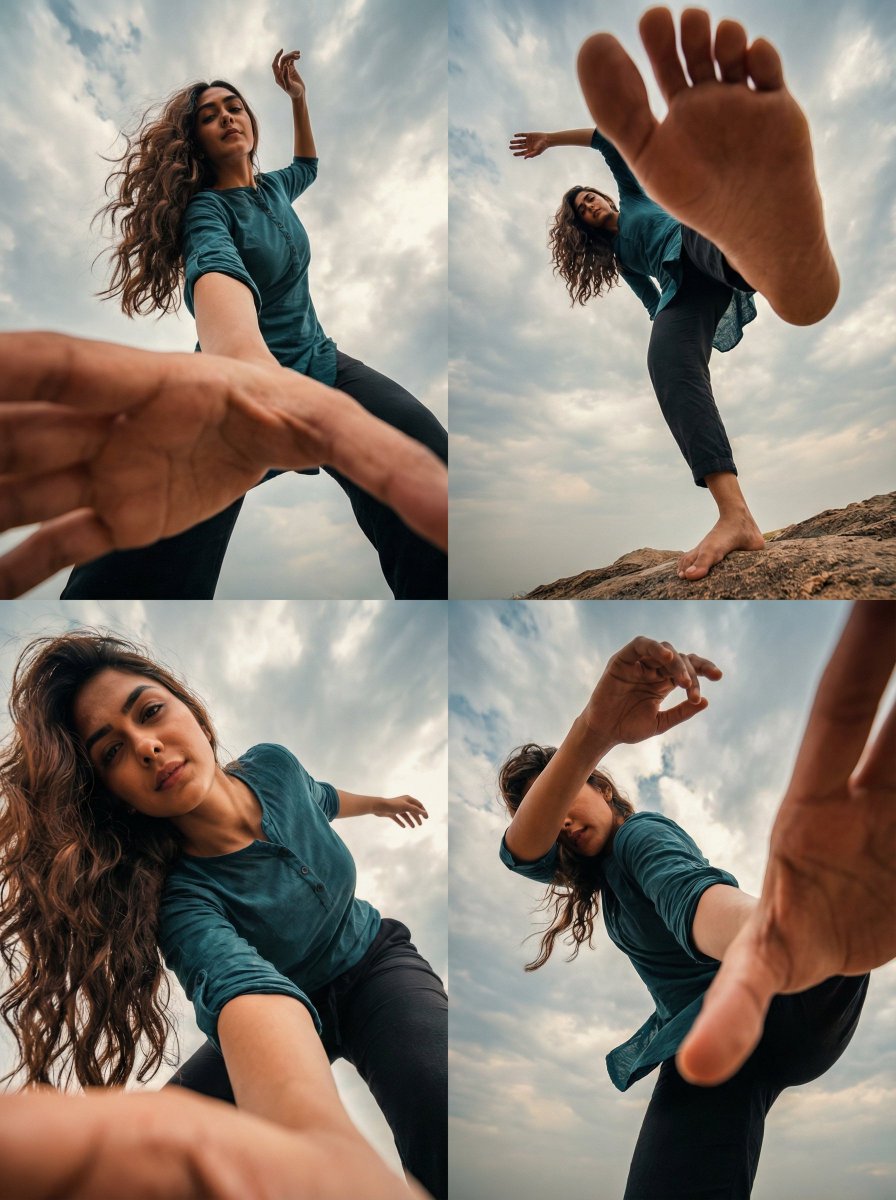
Transform Photo into 4 Dynamic Character Styles
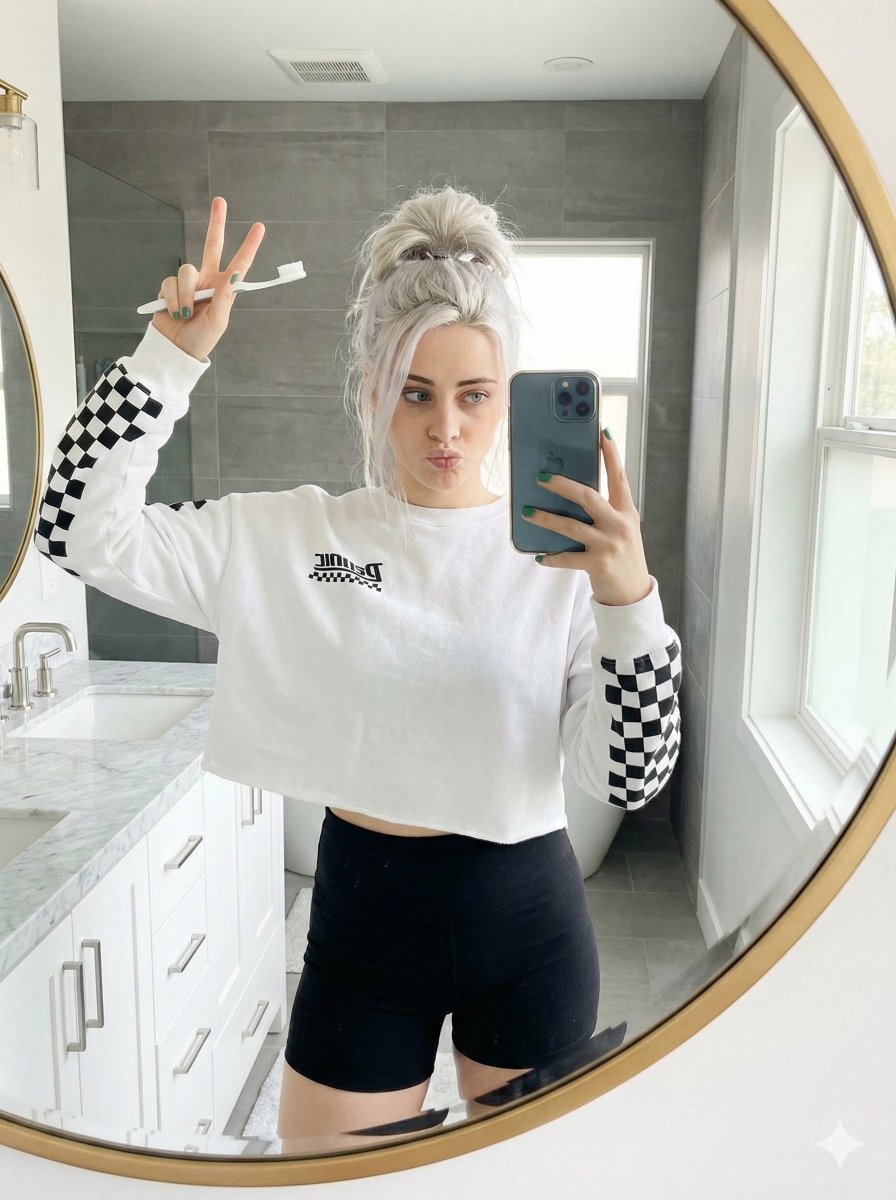
Detailed Bathroom Selfie Image Generation Prompt
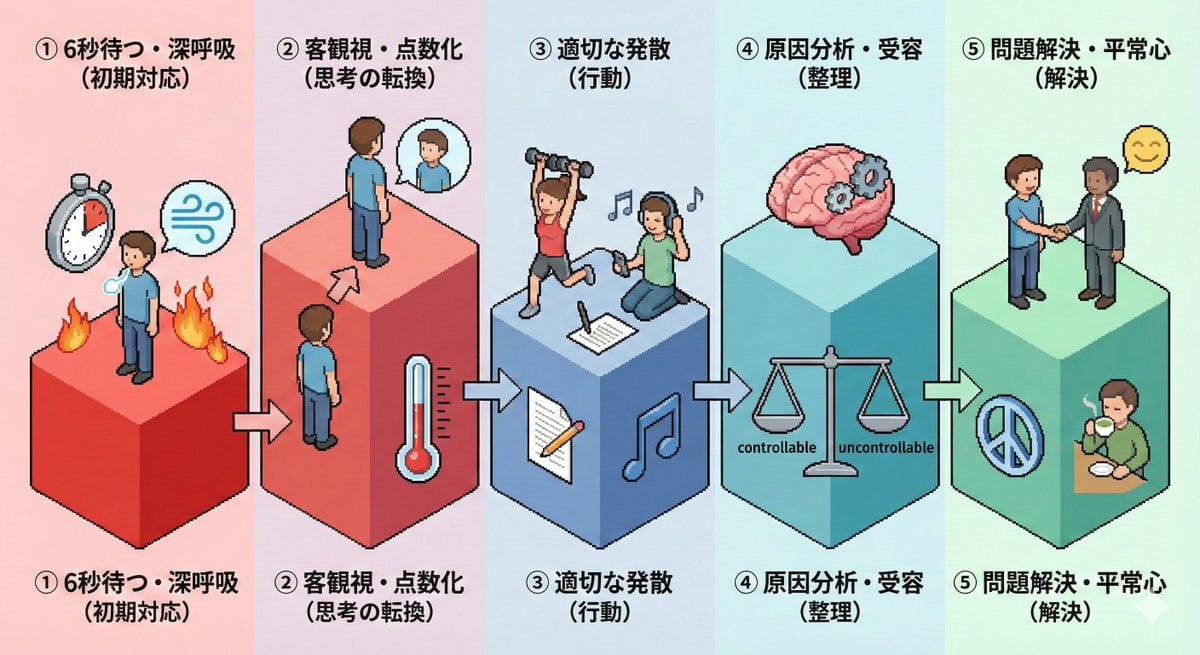
Isometric Pictogram Diagram Prompt for Nano Banana Pro
Nano Banana Image Generation Prompt Schema (JSON Format)
Moody Fitness Influencer Gym Portrait
Convert image into YouTube thumbnail with OMW text
Censored Dark Fantasy Treasure Hunter
Golden Hour Picnic Lifestyle Editorial Prompt
Medieval Fantasy Sword in Apocalyptic Landscape
Browse template categories
Mobile Game Gacha UI Design questions
How do I use the Mobile Game Gacha UI Design template?
Add your photo if the template asks for one, edit the prompt if you like — the template's model and format are already selected — and press Generate. Your version opens in PicX Studio.
Can I customize the Mobile Game Gacha UI Design template?
Yes. You can change the subject, setting, lighting, mood, format, and available model controls before creating your image.
Is the Mobile Game Gacha UI Design template free?
Opening and editing this template is free. Generating uses credits, shown on the Generate button when you are signed in.
Which AI model should I use?
Start with GPT Image 2, which is the model associated with this template. You can compare another compatible model for a different finish.
Looking for something else? Browse all templates.

Your photo, any look
Thousands of ready templates for every top image and video model, from one credit balance.