
Graffiti Sketch Style AI Builder
A detailed prompt for creating stylized graffiti-style sketches of subjects, focusing on expressive lines and rough color blocks with a personalized signature.
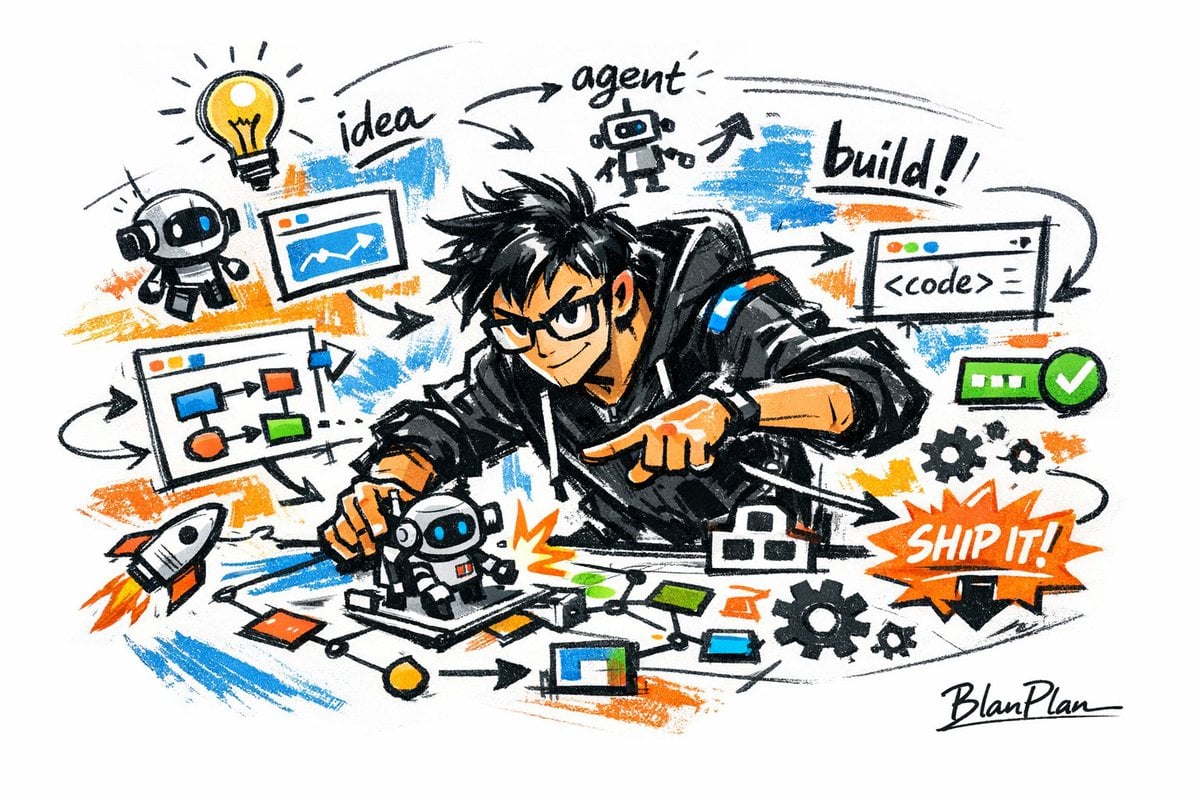
- Prompt included
- Model and format preset
- Free template
The prompt behind this image
Copy the exact prompt behind Graffiti Sketch Style AI Builder, or open it in the studio and make it yours.
Depict [{argument name="Subject" default="an awesome AI builder"}] in a doodle-sketch style, presenting an overall visual effect of quick sketching, free deformation, improvised hand-drawing, and a draft-like look. The lines should be casual and exaggerated, varying in thickness, slightly messy but rhythmic and expressive, emphasizing simplification, exaggeration, fun, and spontaneity rather than strict realism or fine detail. Colors should use rough, visibly dry-brushed block shading, retaining uneven smudges, brush strokes, dry-brush streaks, and overlapping marks; the colors should automatically adapt based on [{argument name="Theme" default="an awesome AI builder"}], while the overall expression stays doodle-like, sketch-like, and simplified. No transparent watercolor bleeding effects, no fine watercolor gradients, no paper texture, no soft blur, no dreamy texture. The background should mainly be blank space, keeping things simple, relaxed, unfinished-looking, and design-conscious; a small number of auxiliary symbols, arrows, marks, circling, repeated lines, casually handwritten text, or other doodle elements may be added to enhance the sketchbook or note-like visual language, but it should not become too crowded and must not disrupt the subject or the sense of blank space. The content of the image does not need to be spelled out in advance; based on [{argument name="Subject image" default="an awesome AI builder"}], automatically infer and generate the most fitting subject image, pose, related elements, symbols, or simplified scene, keeping an overall unified doodle-sketch style and exaggerated, simplified expression, avoiding complex realistic backgrounds and excessive elaboration. A signature "BlanPlan" should be naturally worked into the image as part of the composition, placed subtly but clearly, positioned in the bottom-left, bottom-right, or near the title; its style should match the overall layout, like an artist's signature or a design credit; the signature font should be refined, restrained, and premium, not too large, must not disrupt the main composition, and must not look out of place or cheap.
How to use Graffiti Sketch Style AI Builder in 3 steps
- 1
Open
The prompt is already in the box next to the preview, with the template's model and format selected.
- 2…a portrait of your subject in softgolden-hour light, 85mm…
Personalize
Edit the subject and creative details for your destination.
- 3Generate
Generate
Press Generate — your image is created in PicX Studio, so you can compare it with the original and refine one variable at a time.
More like this
Templates with the same subject, style or setup. Open one to see its prompt.
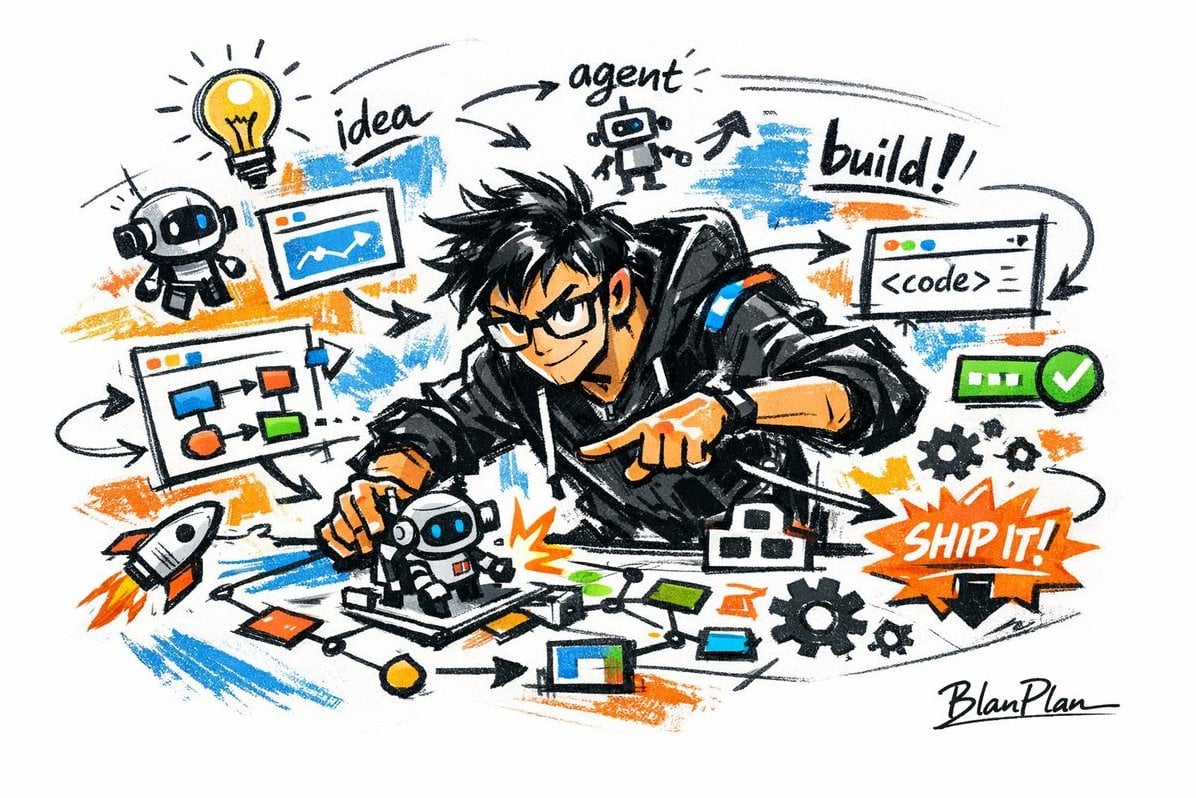
Graffiti Sketch AI Builder Style
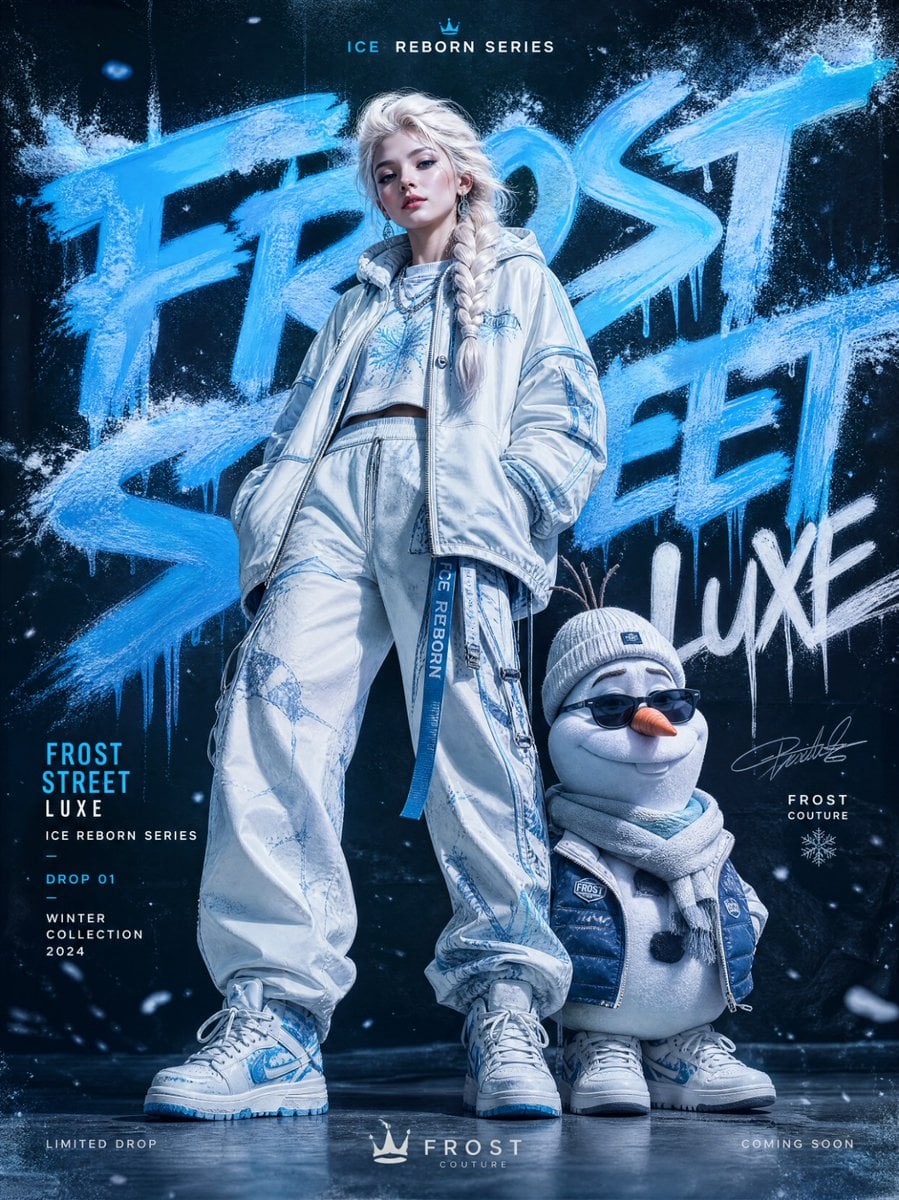
Frozen Street Luxe Graffiti Fashion Campaign
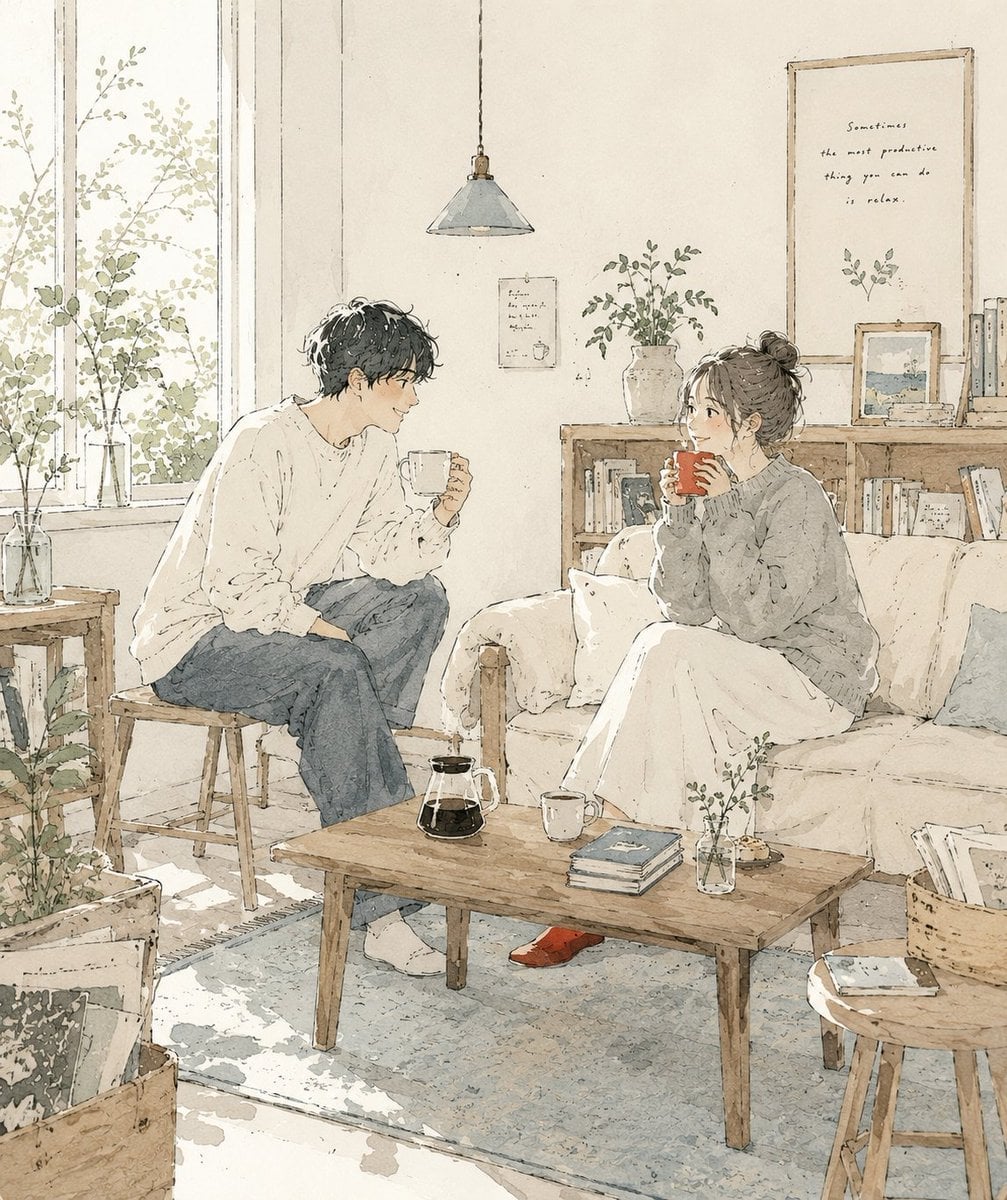
Japanese Café Sketch Duo Illustration
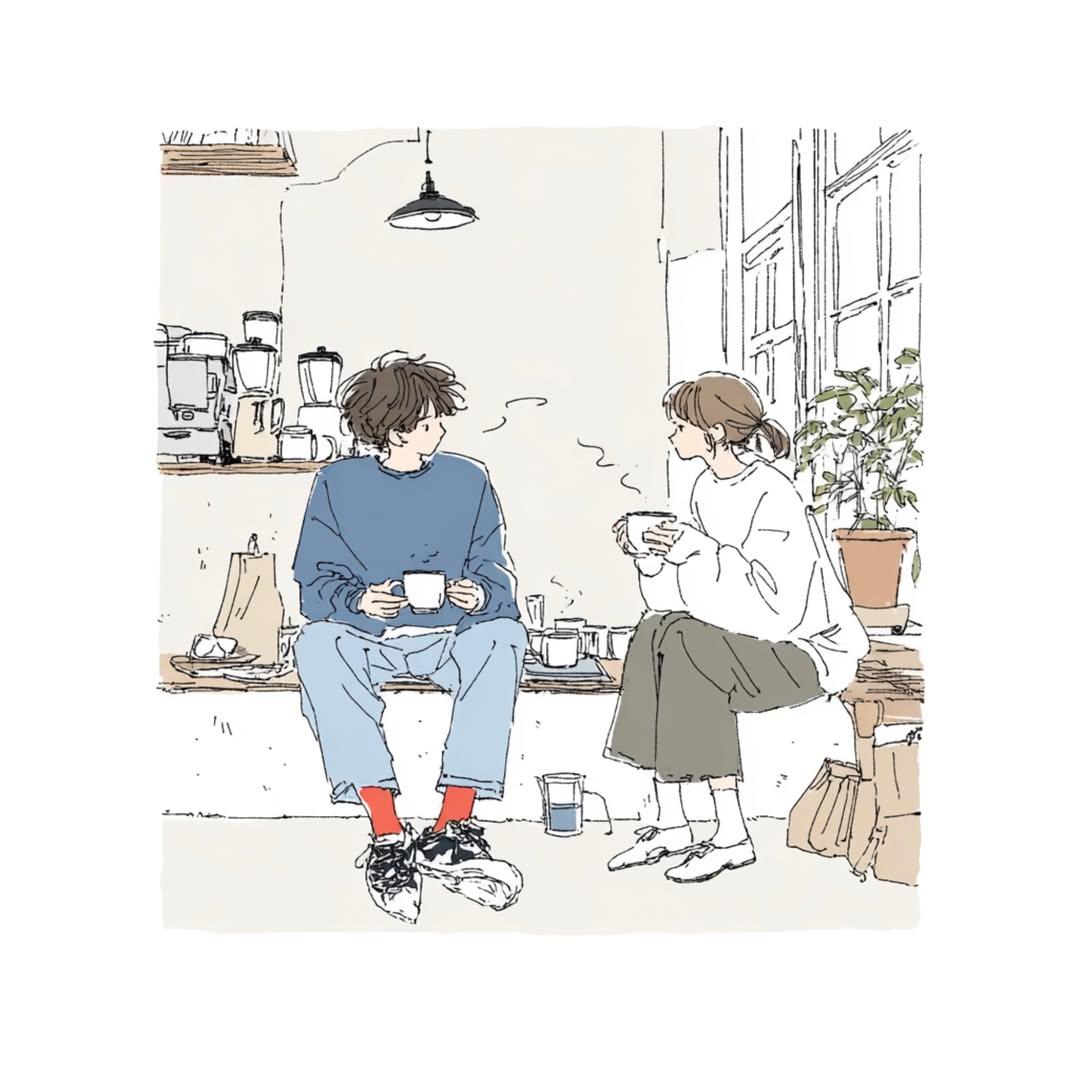
Delicate Japanese Café Lifestyle Illustration
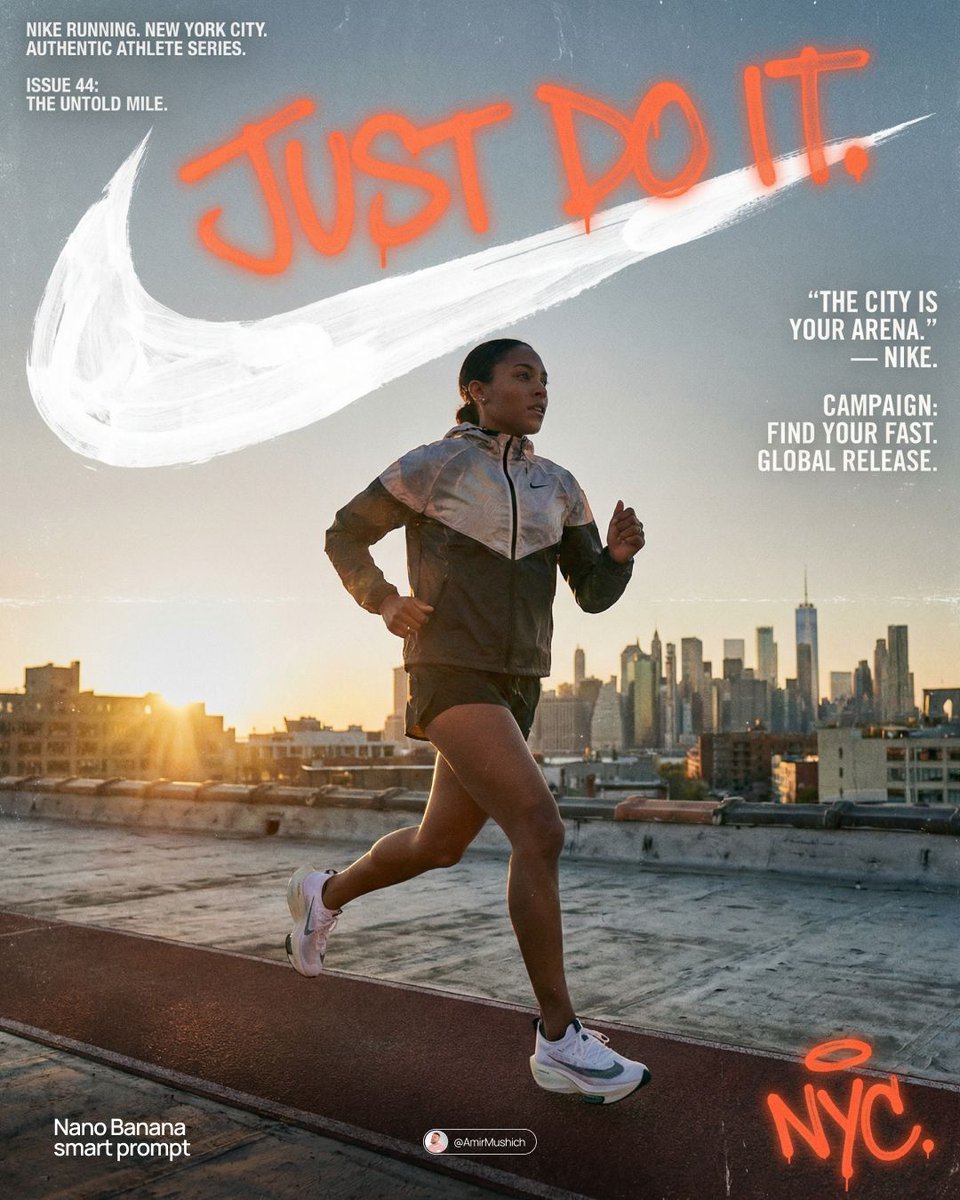
Miles Morales Spider-Man Brooklyn Graffiti
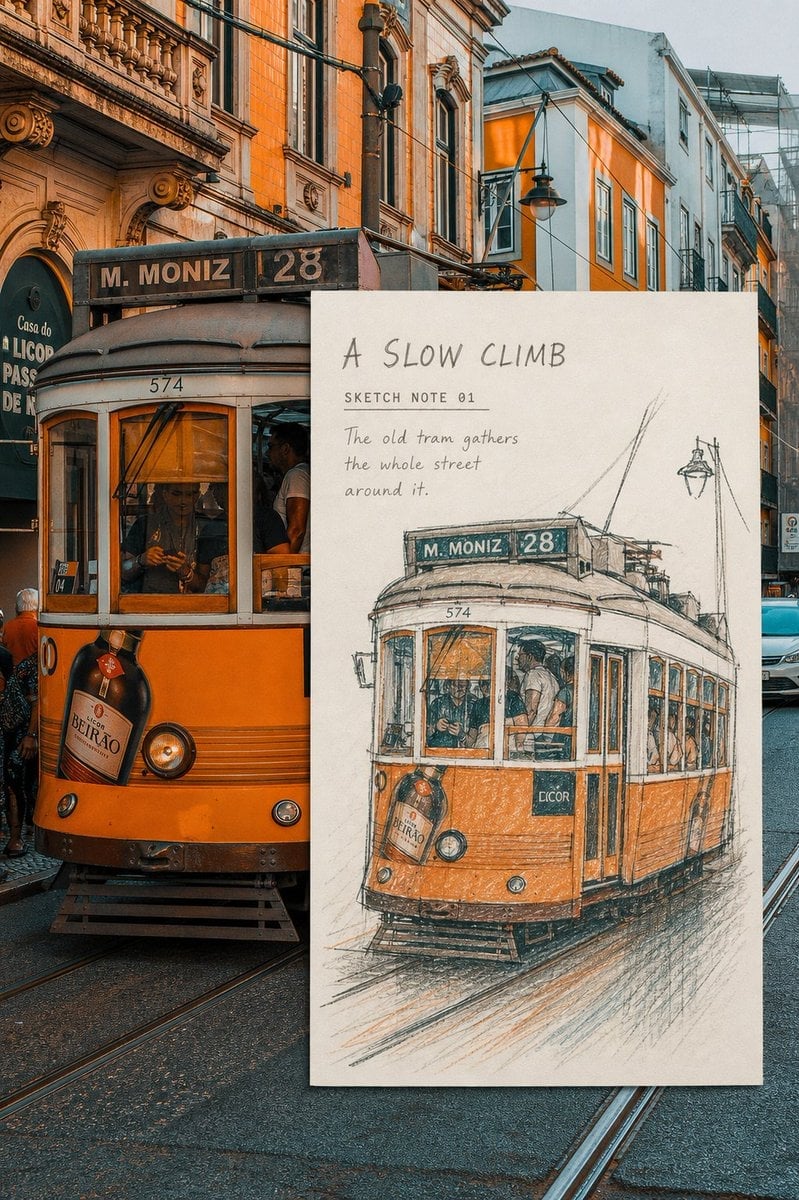
Real-Scene Inset Sketch Poster
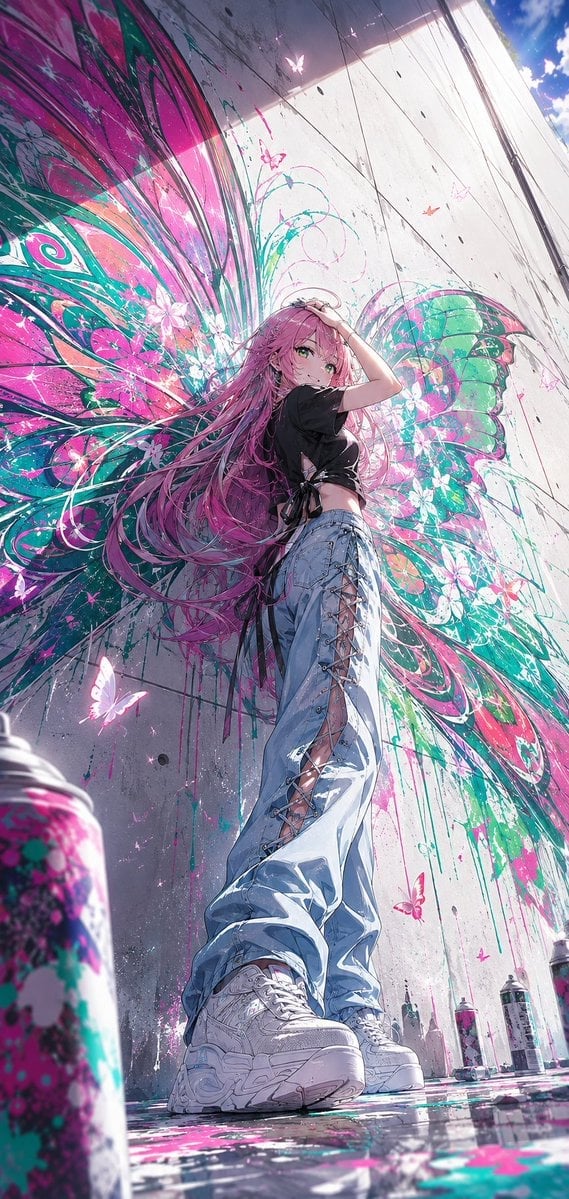
Anime Graffiti Butterfly Girl
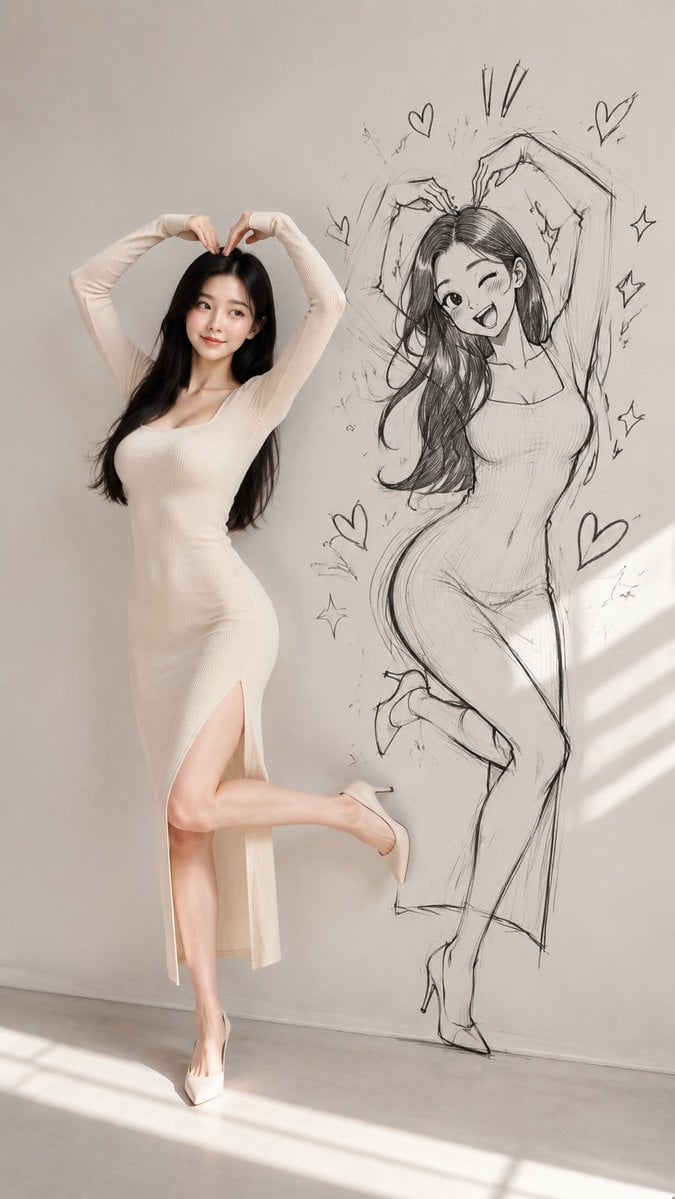
Model With Manga Wall Sketch
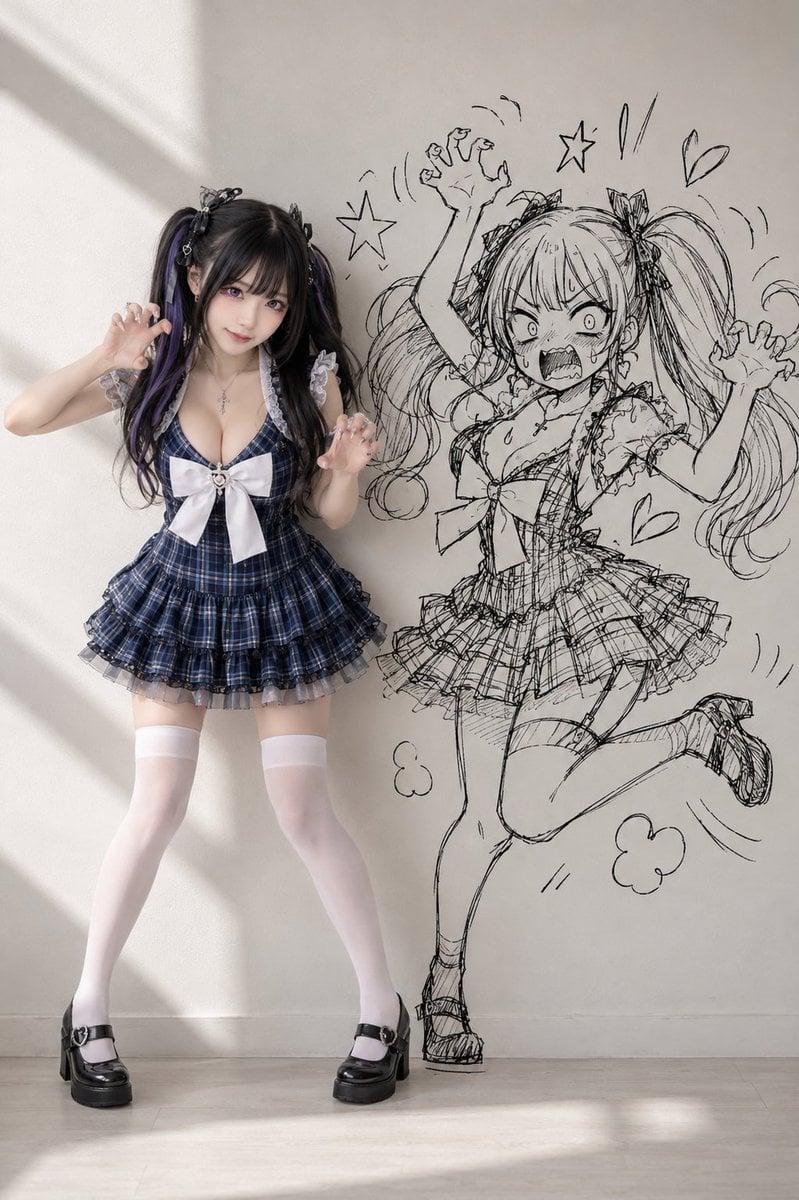
Cosplay Girl with Manga Graffiti Shadow
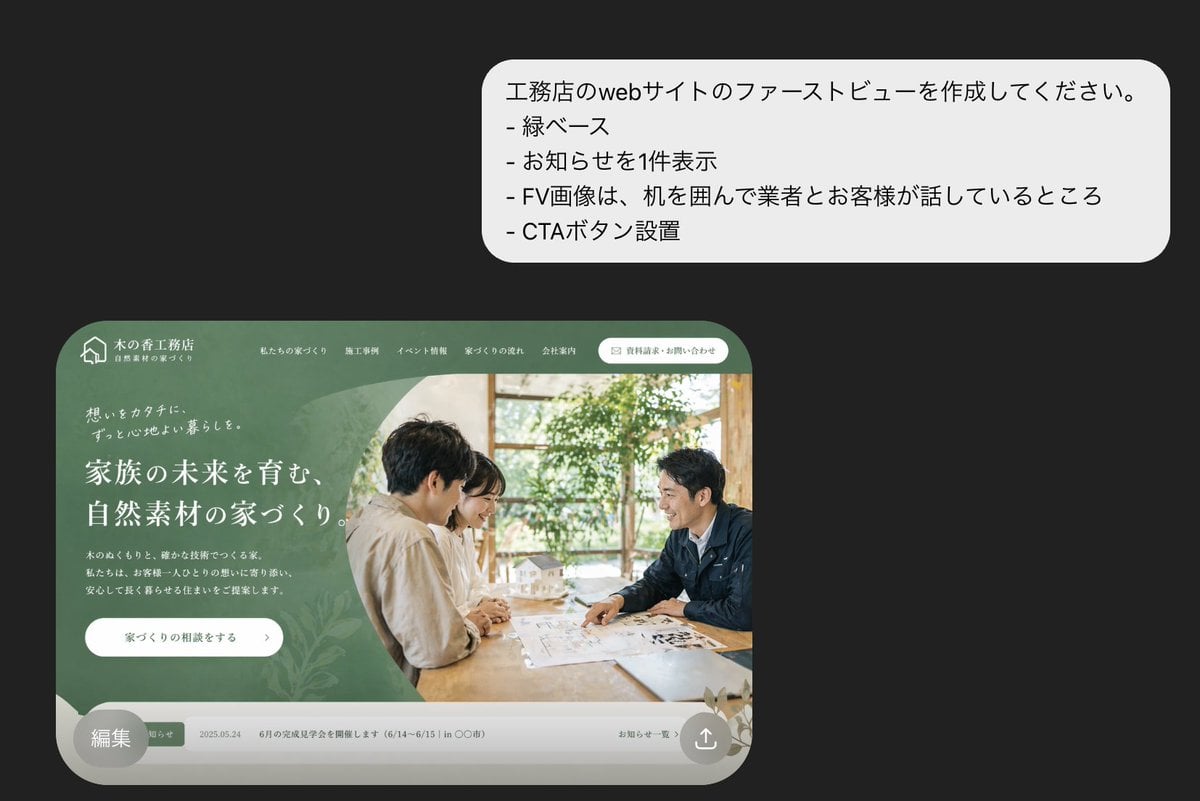
Japanese Builder Website Hero Mockup
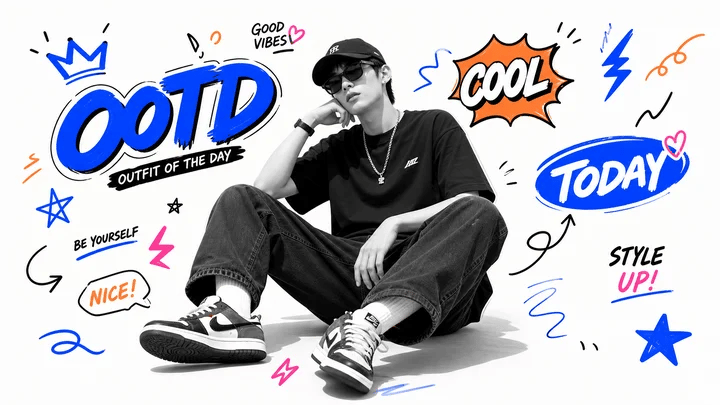
Blue Graffiti OOTD Sticker Poster
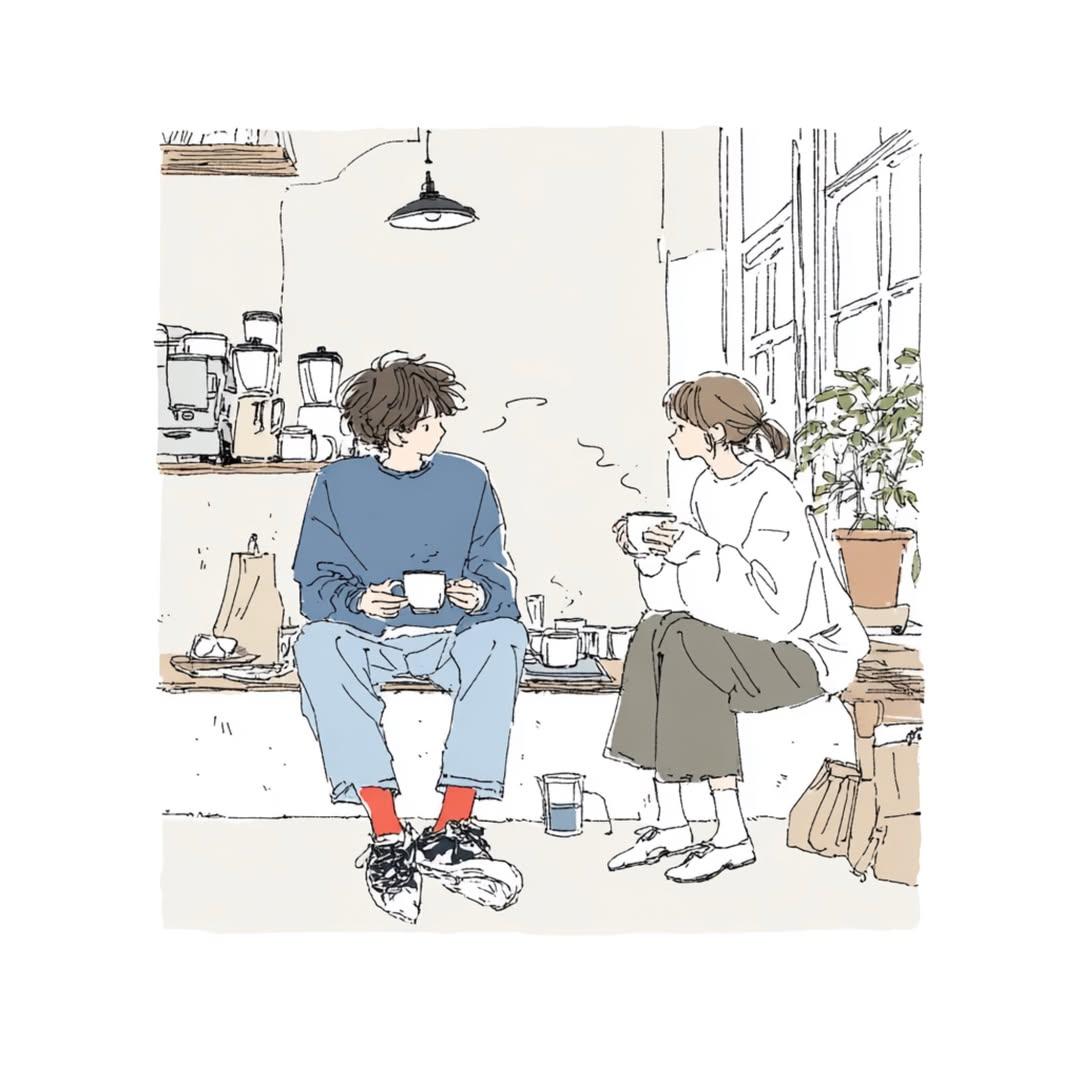
Japanese Lifestyle Sketch Illustration
Make it yours
Graffiti Sketch Style AI Builder works as-is. These are the safest ways to change it without losing the look.
Change one field
Copy a single group, rewrite it, and generate again so you can see what that field is doing.
Keep the frame, change the subject
Hold the composition and light of Graffiti Sketch Style AI Builder, then swap wardrobe, props or the person for a new take.
| If the result… | Why | Fix |
|---|---|---|
| The result drifts from the preview | Too many fields changed at once. | Reuse Graffiti Sketch Style AI Builder as-is first, then change one group — subject, light, or setting. |
| The model over-stylizes the scene | The prose prompt leaves finish and camera underspecified. | Add one camera or lighting sentence and stay on GPT Image 2. |
More GPT Image 2 templates
Other prompts made for GPT Image 2.

Six VTuber Japanese Logo Sheet

Realistic Portrait of Woman and Deer

The Vista Modular Condo Poster

AI Model Routing Comparison Infographic

2.5D Anime Art Board

Isometric Productivity Desk Scene

New York Double Exposure Poster

Four-Panel AI Landscape Comparison

Japanese Tatami Lifestyle Magazine Cover

NESCAFÉ Coffee Map Poster
More image prompts
Fresh picks from across the catalog.
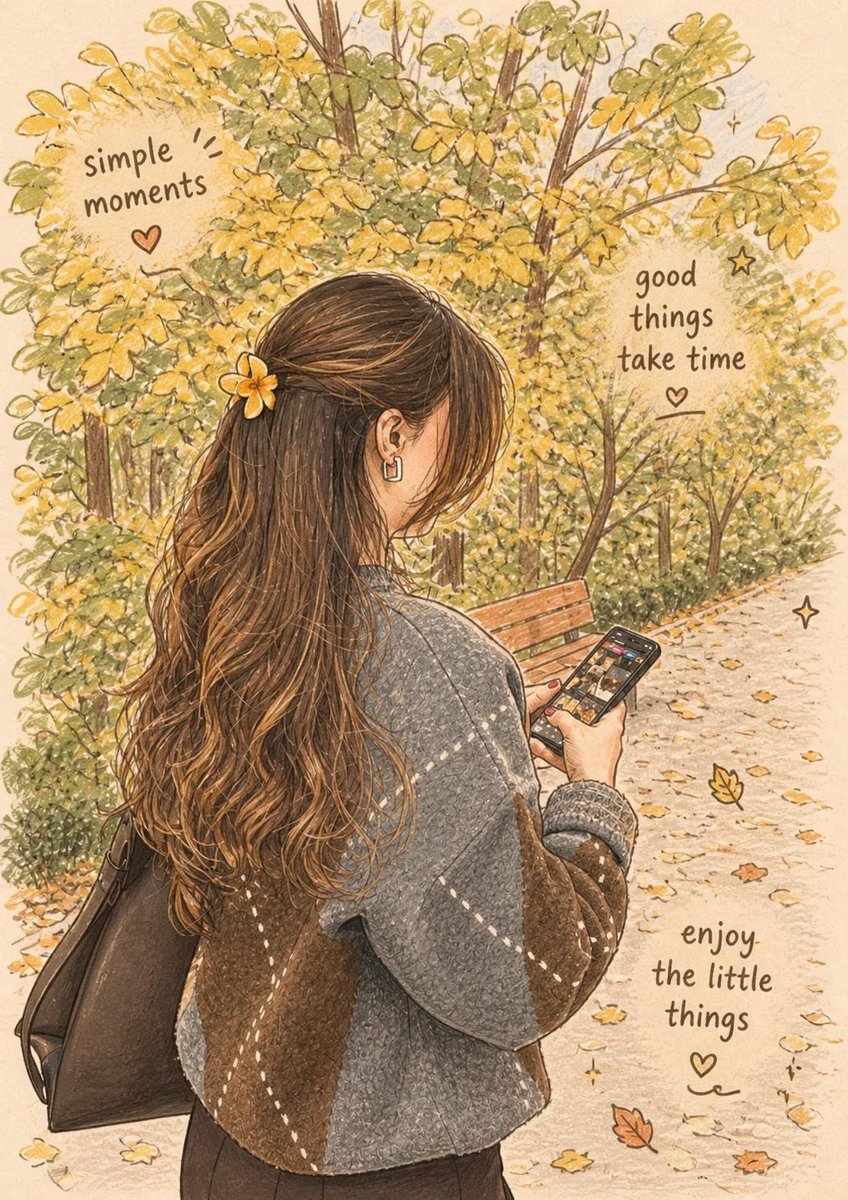
Cozy Autumn Lifestyle Collection
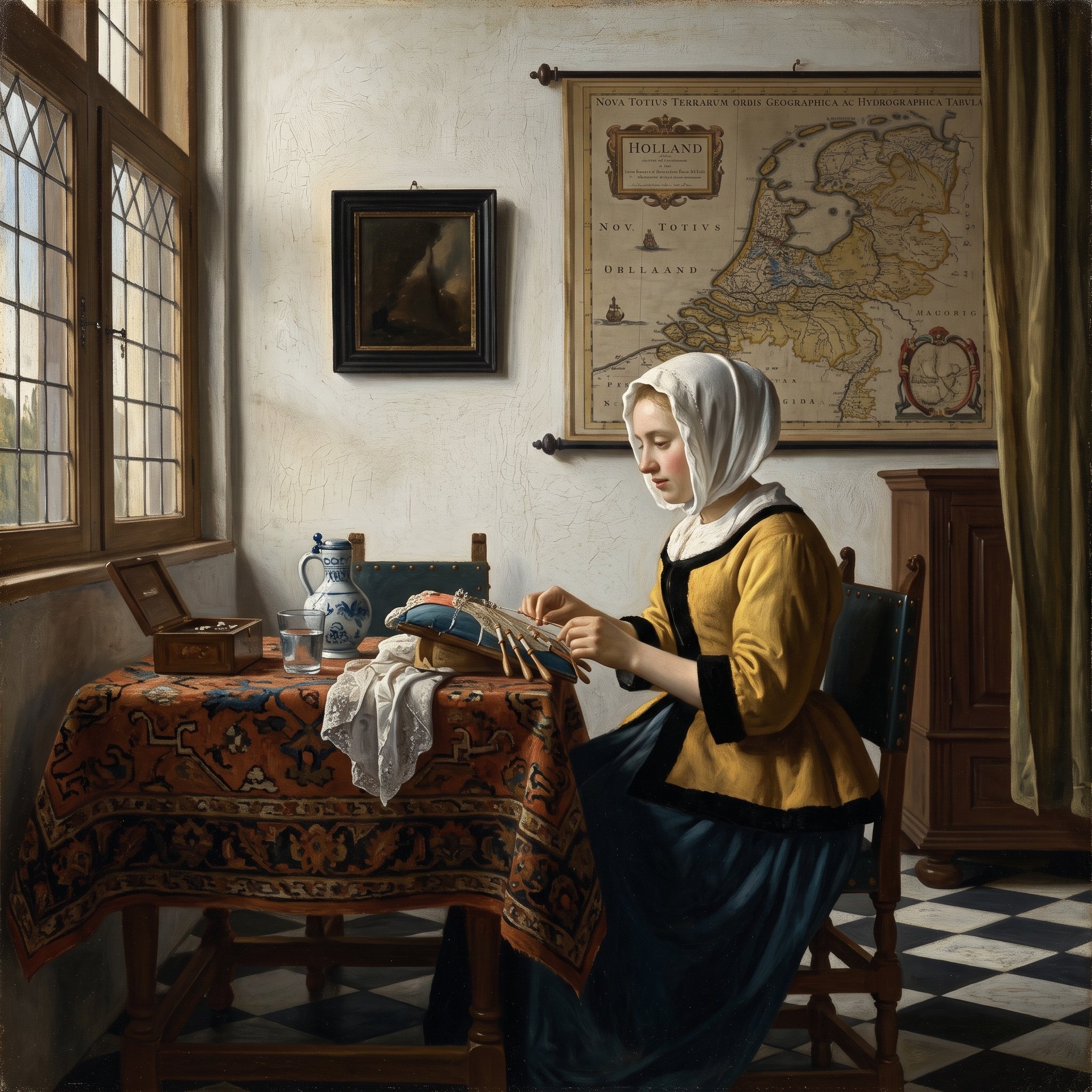
Vermeer Style Image Generation
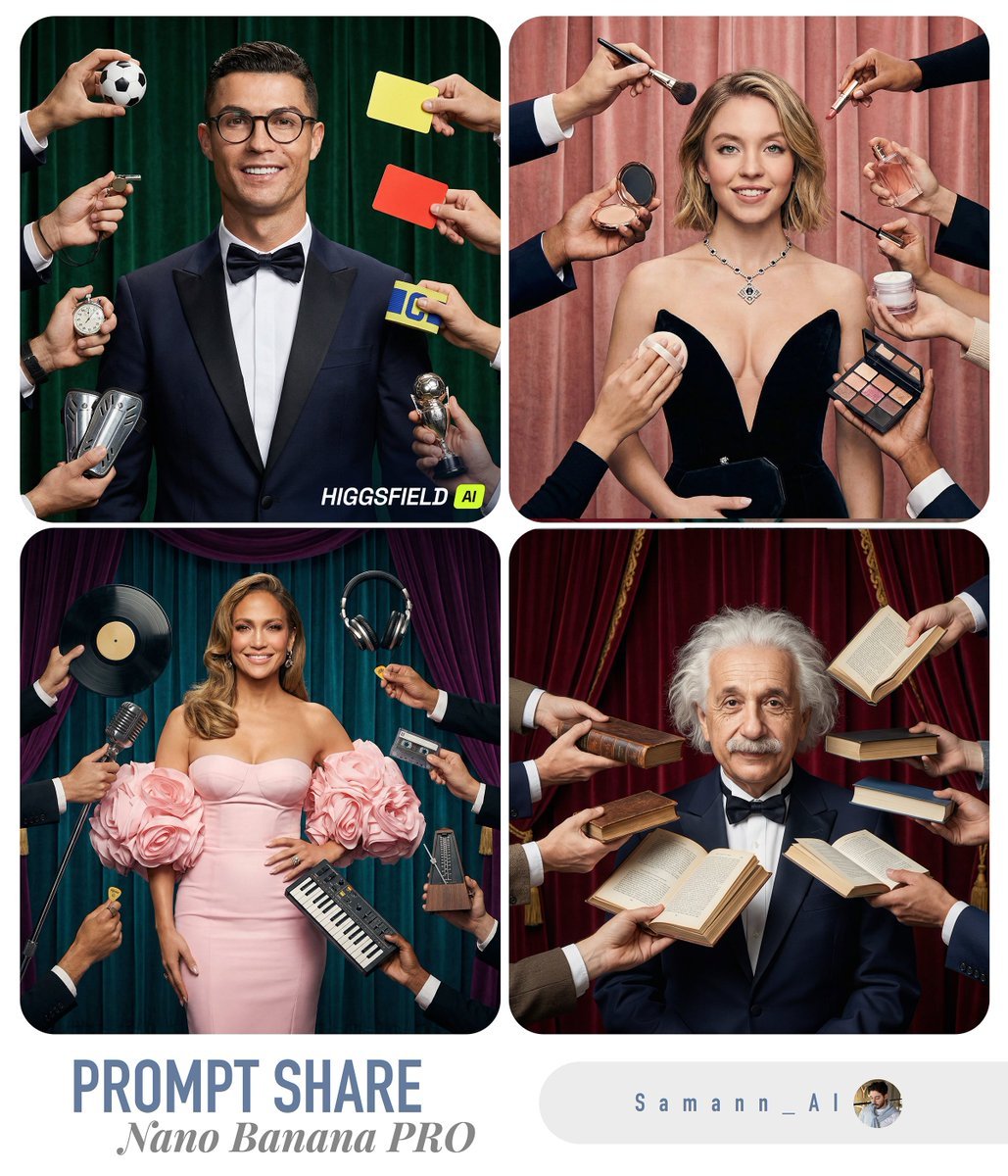
Hyper-Real Studio Portrait Poster Art Generator Prompt
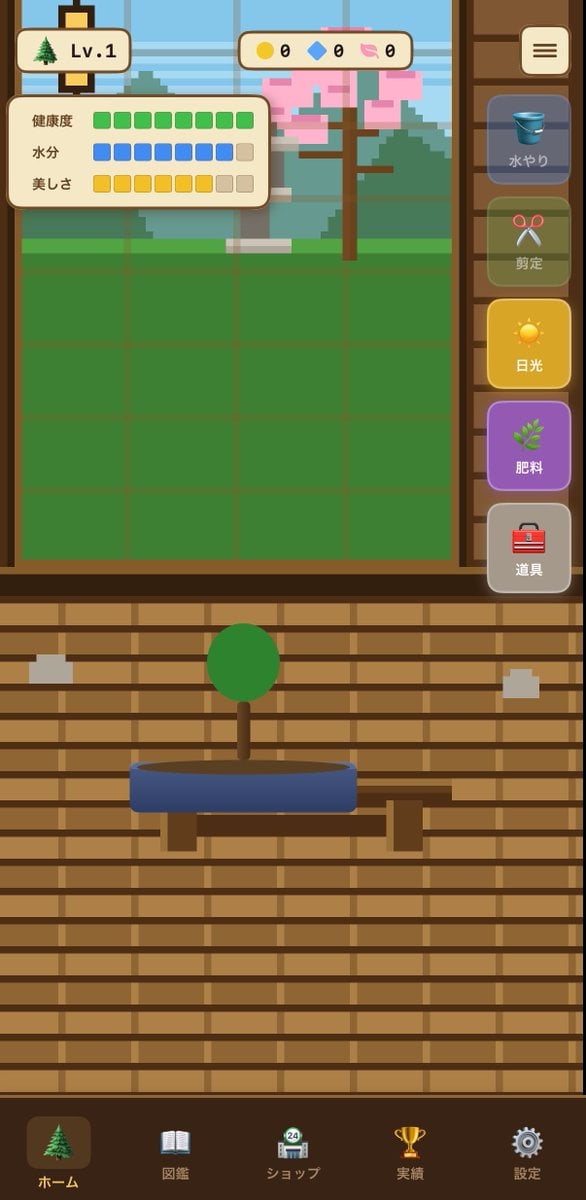
Bonsai Mobile Game UI Mockup
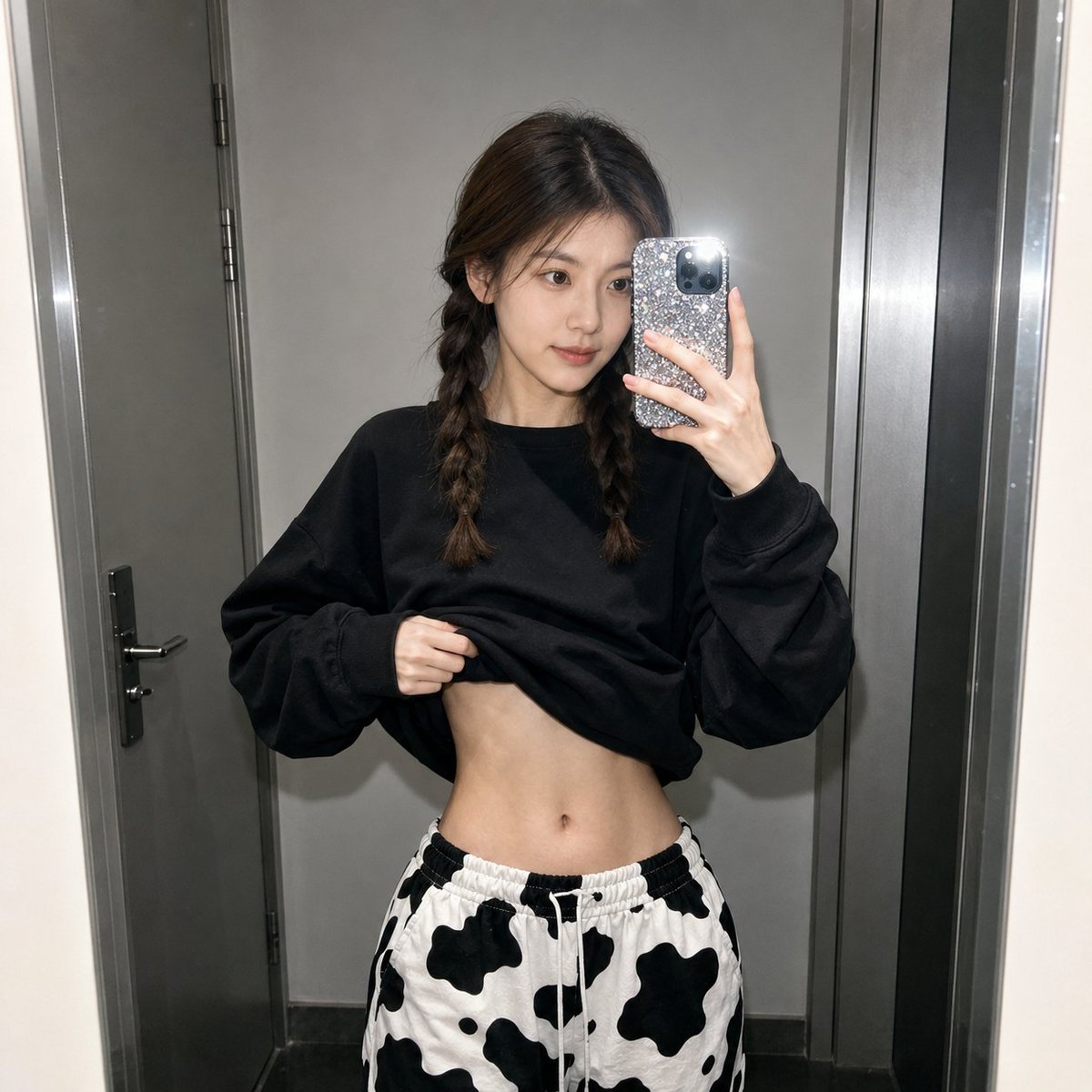
Realistic Raw Flash Mirror Selfie
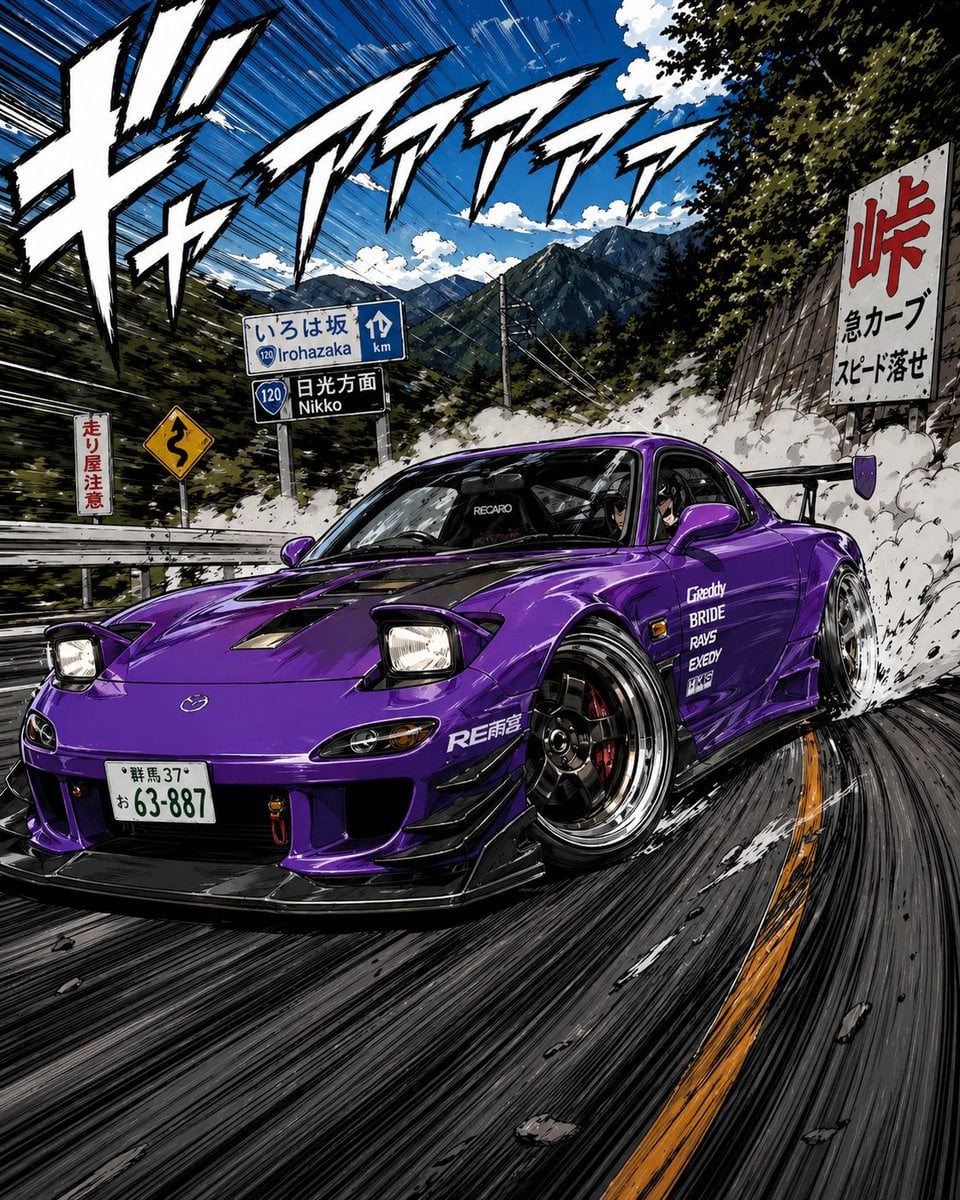
Manga Street Racing Illustration
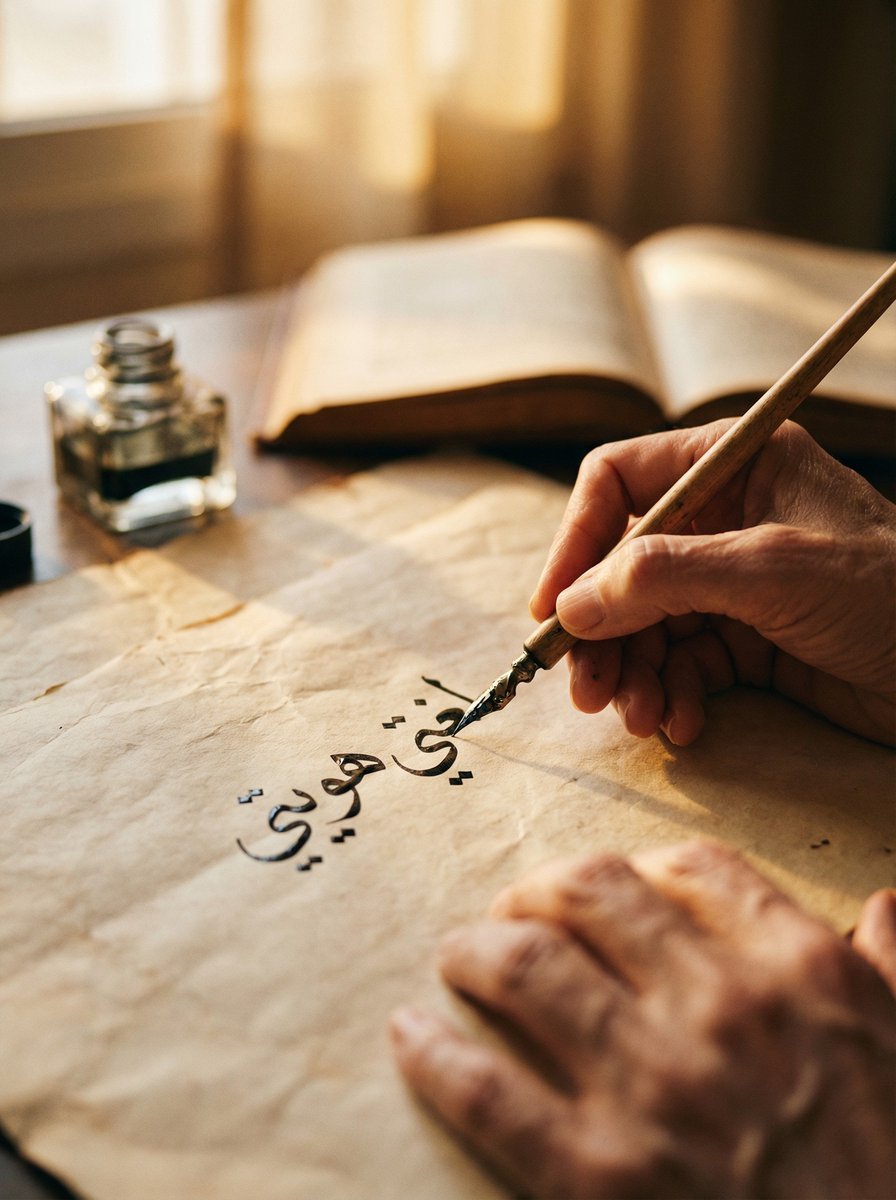
Cinematic Arabic Calligraphy Image Generation Prompt
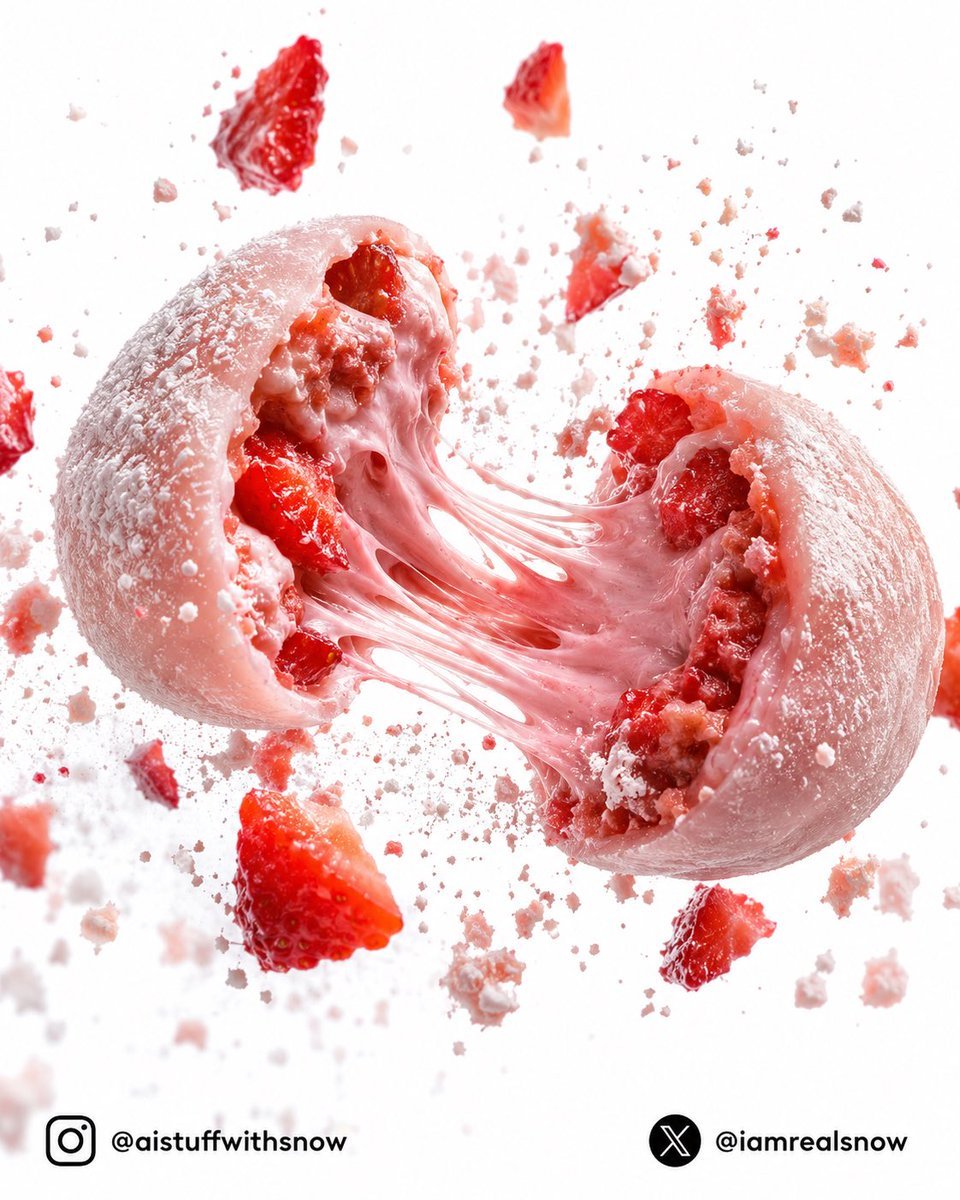
Strawberry Lava Mochi Explosion Photography
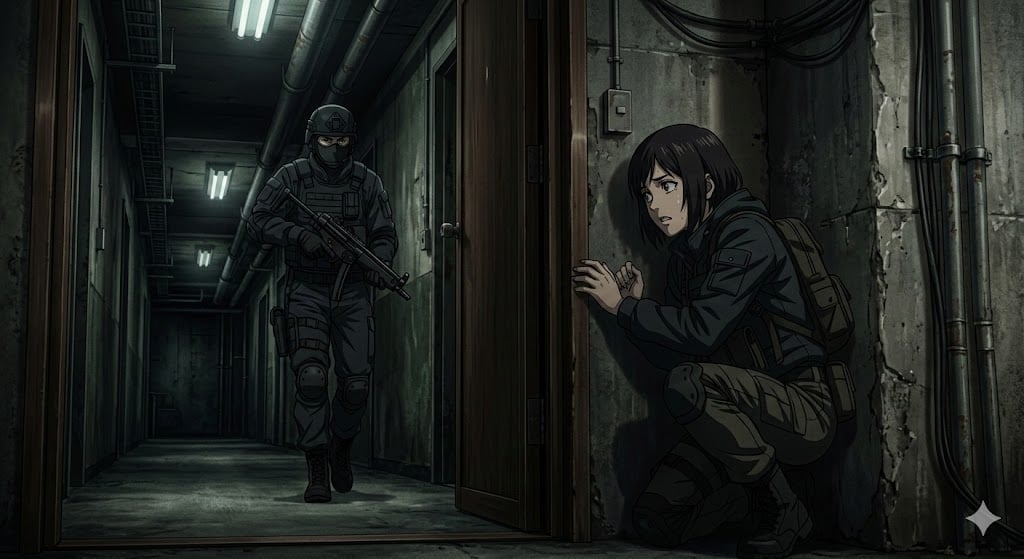
Anime Stealth Scene with Keystoning Angle
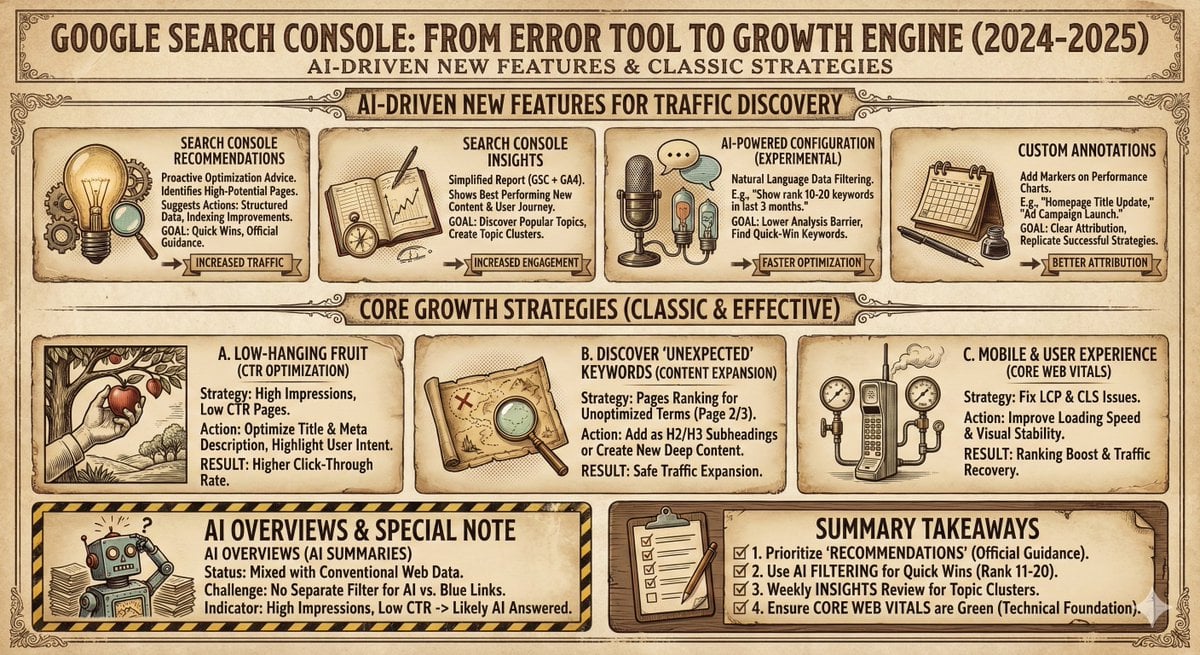
Infographic and Cover Design Style Templates
Browse template categories
Graffiti Sketch Style AI Builder questions
How do I use the Graffiti Sketch Style AI Builder template?
Add your photo if the template asks for one, edit the prompt if you like — the template's model and format are already selected — and press Generate. Your version opens in PicX Studio.
Can I customize the Graffiti Sketch Style AI Builder template?
Yes. You can change the subject, setting, lighting, mood, format, and available model controls before creating your image.
Is the Graffiti Sketch Style AI Builder template free?
Opening and editing this template is free. Generating uses credits, shown on the Generate button when you are signed in.
Which AI model should I use?
Start with GPT Image 2, which is the model associated with this template. You can compare another compatible model for a different finish.
Looking for something else? Browse all templates.

Your photo, any look
Thousands of ready templates for every top image and video model, from one credit balance.