
Live TV Weather Forecast Broadcast Scene
A detailed multi-part prompt to create a realistic TV news broadcast scene featuring a weather forecaster and background subjects.
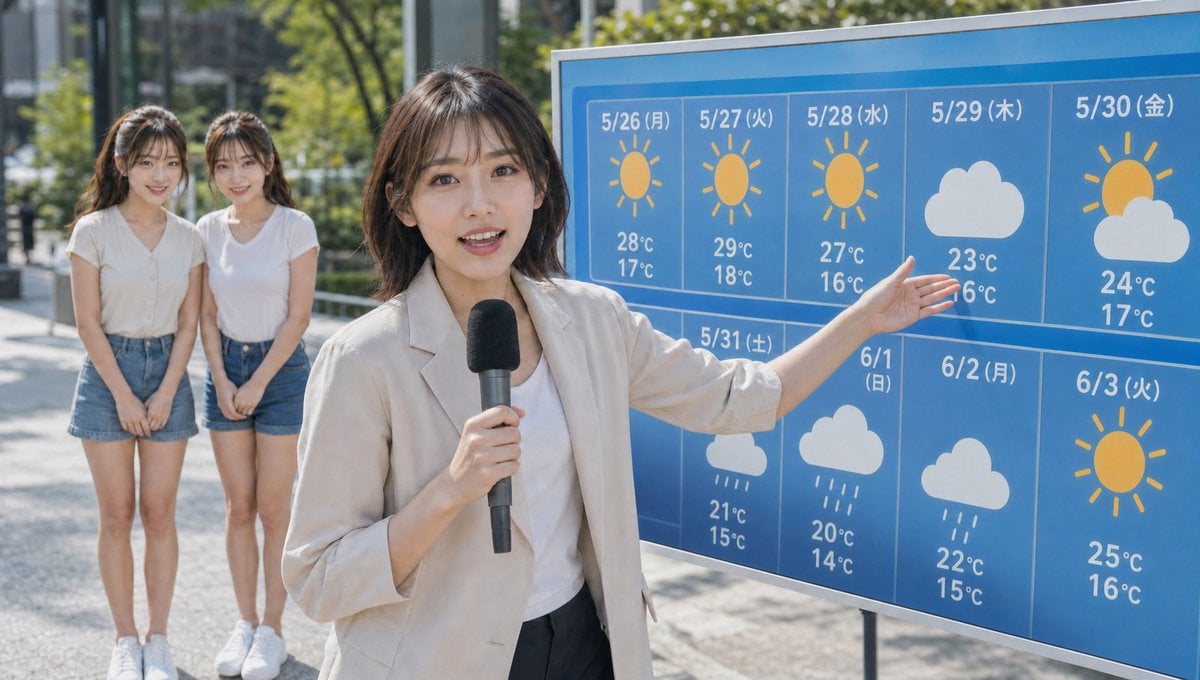
- Prompt included
- Model and format preset
- Free template
The prompt behind this image
Copy the exact prompt behind Live TV Weather Forecast Broadcast Scene, or open it in the studio and make it yours.
Keep the twins from the reference images, realistic live-action style, an outdoor live TV news broadcast scene. In the foreground, a weather forecaster stands, pointing at a week-long weather forecast board while explaining the weather from today through next week. The board has weather icons lined up such as sun marks, cloud marks, and rain marks, in an easy-to-understand, TV-program-style design. The weather forecaster appears large in the foreground, explaining in a natural pose typical of a news program. In the background, the twins are standing, looking toward the camera. The twins are shown fully, head to toe. Their clothing is casual summer wear — a refreshing T-shirt or thin shirt, light summer attire. They are not carrying any bags or belongings. It should have the natural feel of ordinary people who happened to be caught on camera during a news broadcast. Both of them look at the camera with a bit of curiosity. It's a bright outdoor daytime scene with natural light, in a location like a city street or a park. The realistic footage feel unique to a TV broadcast camera, shallow depth of field, a natural composition typical of a news program, documentary style, photorealistic, ultra-high detail, realistic TV broadcast quality. Do not include any corporate logos or text on clothing, signs, or the screen. Above each weather icon on the board, write the date and day of the week; below each weather icon, write the temperature. Change only the bottom-right one to a sun icon. Do not change the others.
How to use Live TV Weather Forecast Broadcast Scene in 3 steps
- 1Upload ImagePNG, JPG or paste
Add your photo
Upload the photo the template builds on. The prompt, model and format are already set.
- 2…a portrait of your subject in softgolden-hour light, 85mm…
Personalize
Edit the subject and creative details for your destination.
- 3Generate
Generate
Press Generate — your image is created in PicX Studio, so you can compare it with the original and refine one variable at a time.
More like this
Templates with the same subject, style or setup. Open one to see its prompt.
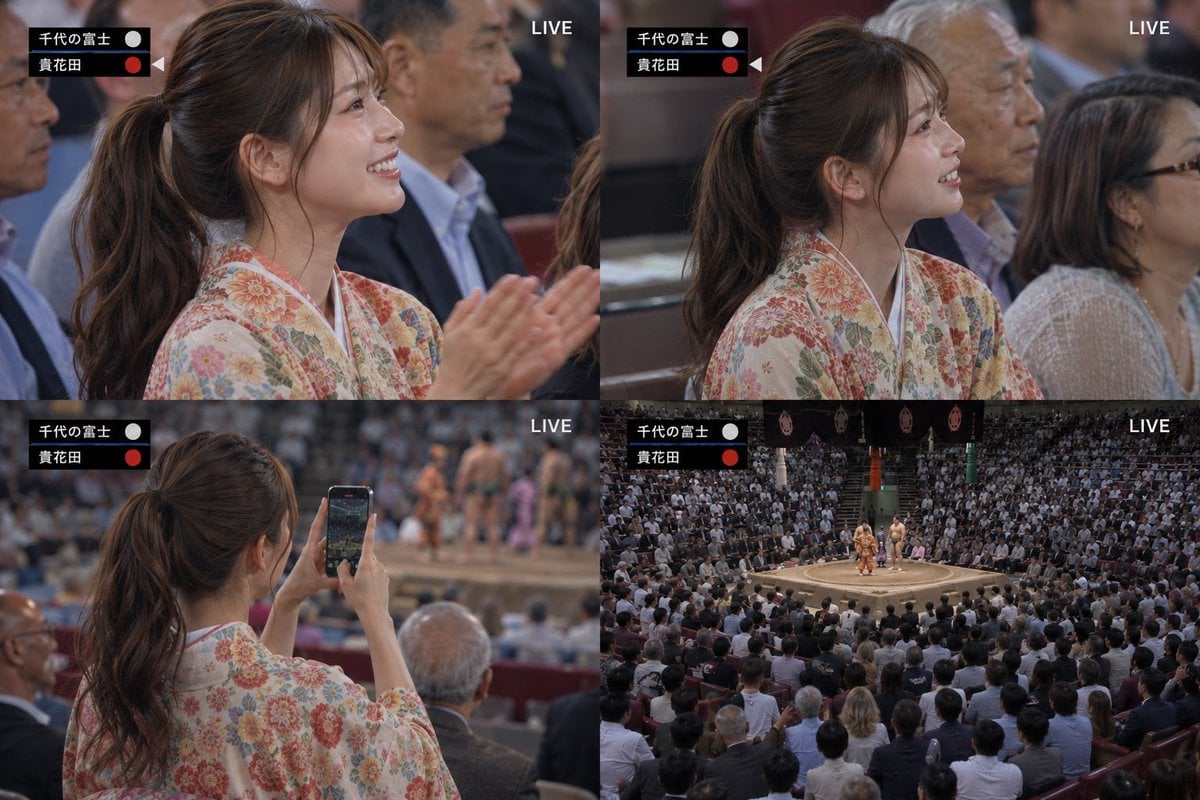
Live Sumo Broadcast Collage
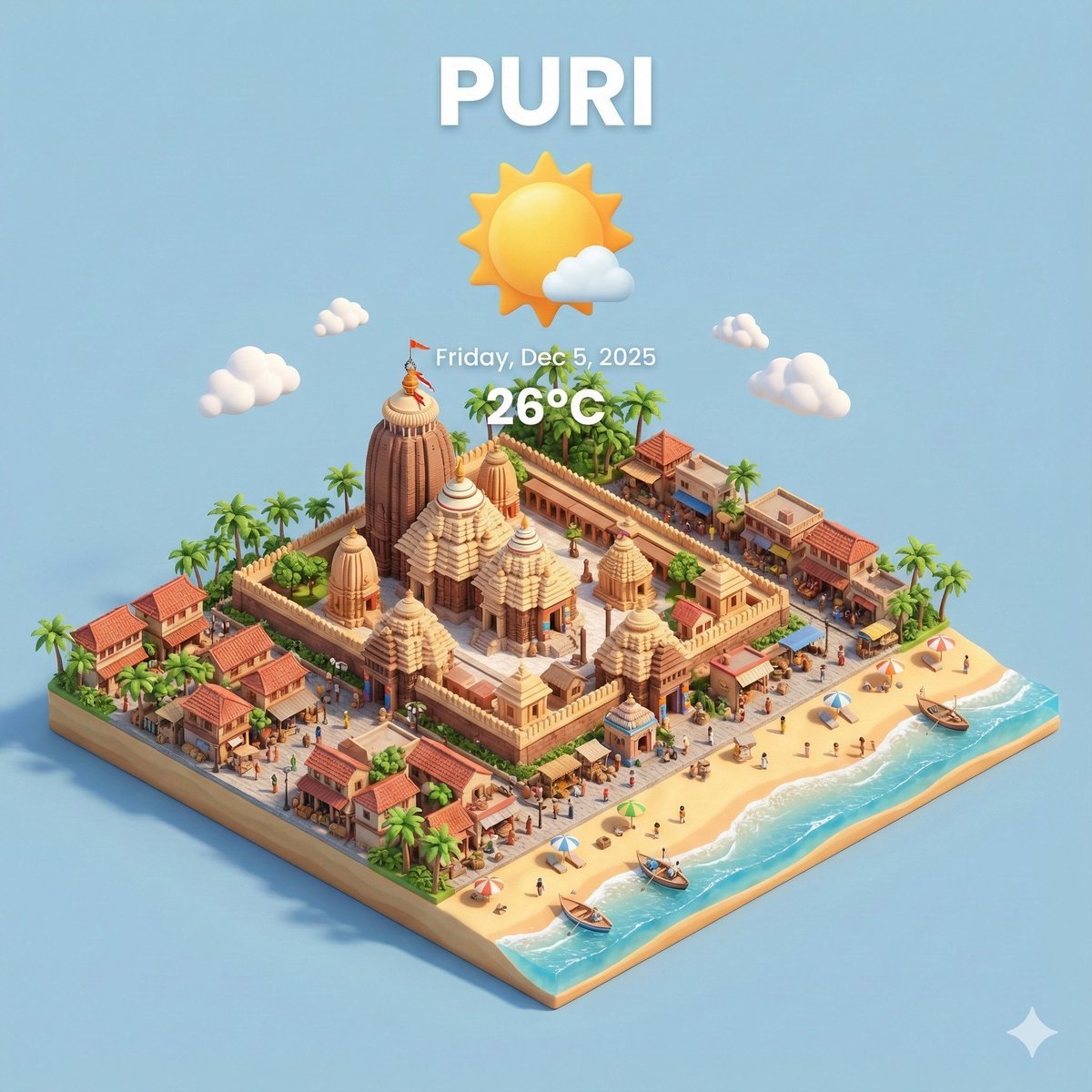
Miniature 3D City with Live Weather Prompt
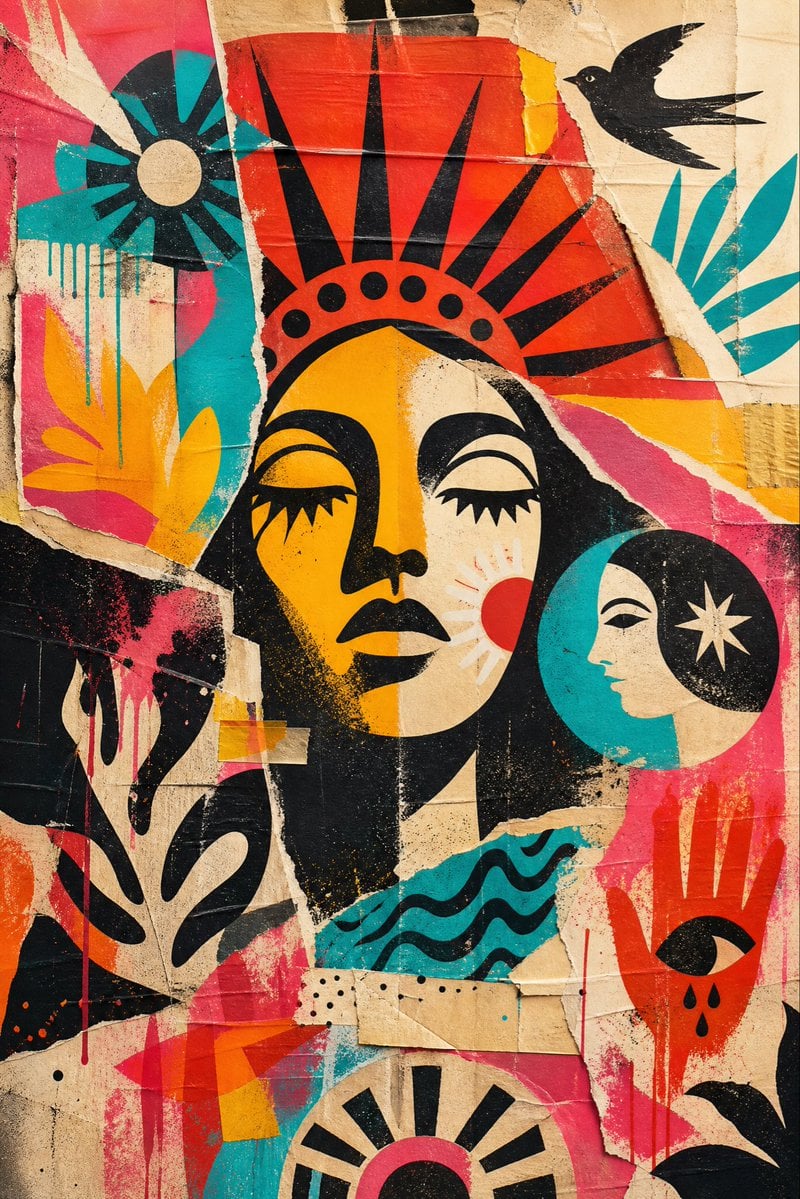
Weathered Folk Poster Collage
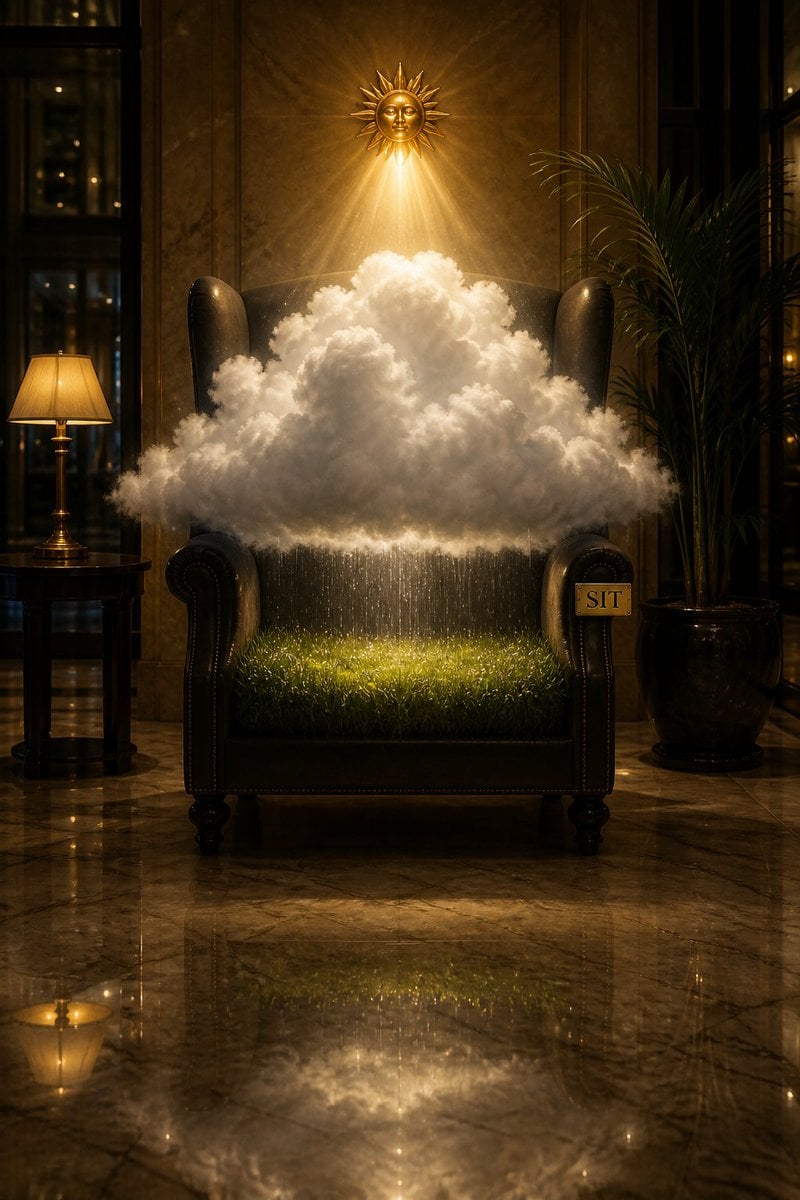
Surreal Weather Armchair in Hotel Lobby
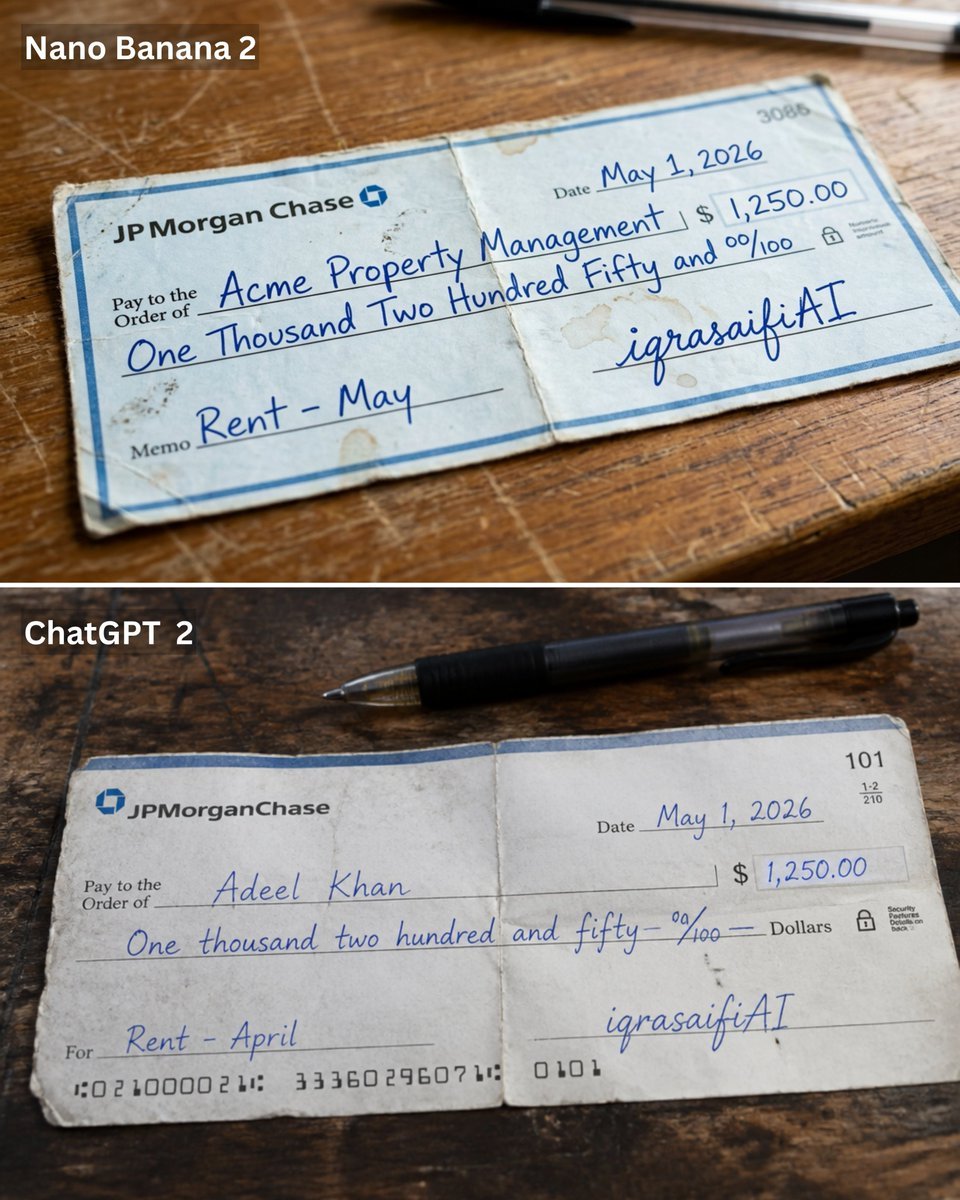
Weathered JP Morgan Bank Check
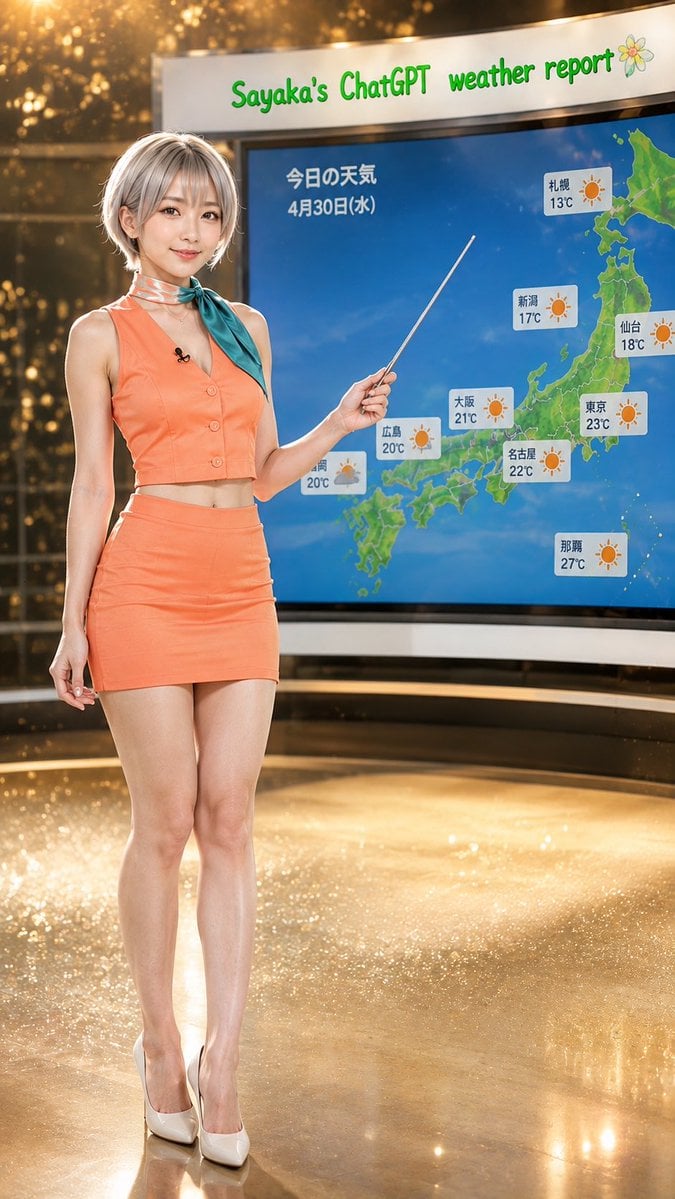
Sayaka Weather Presenter Studio
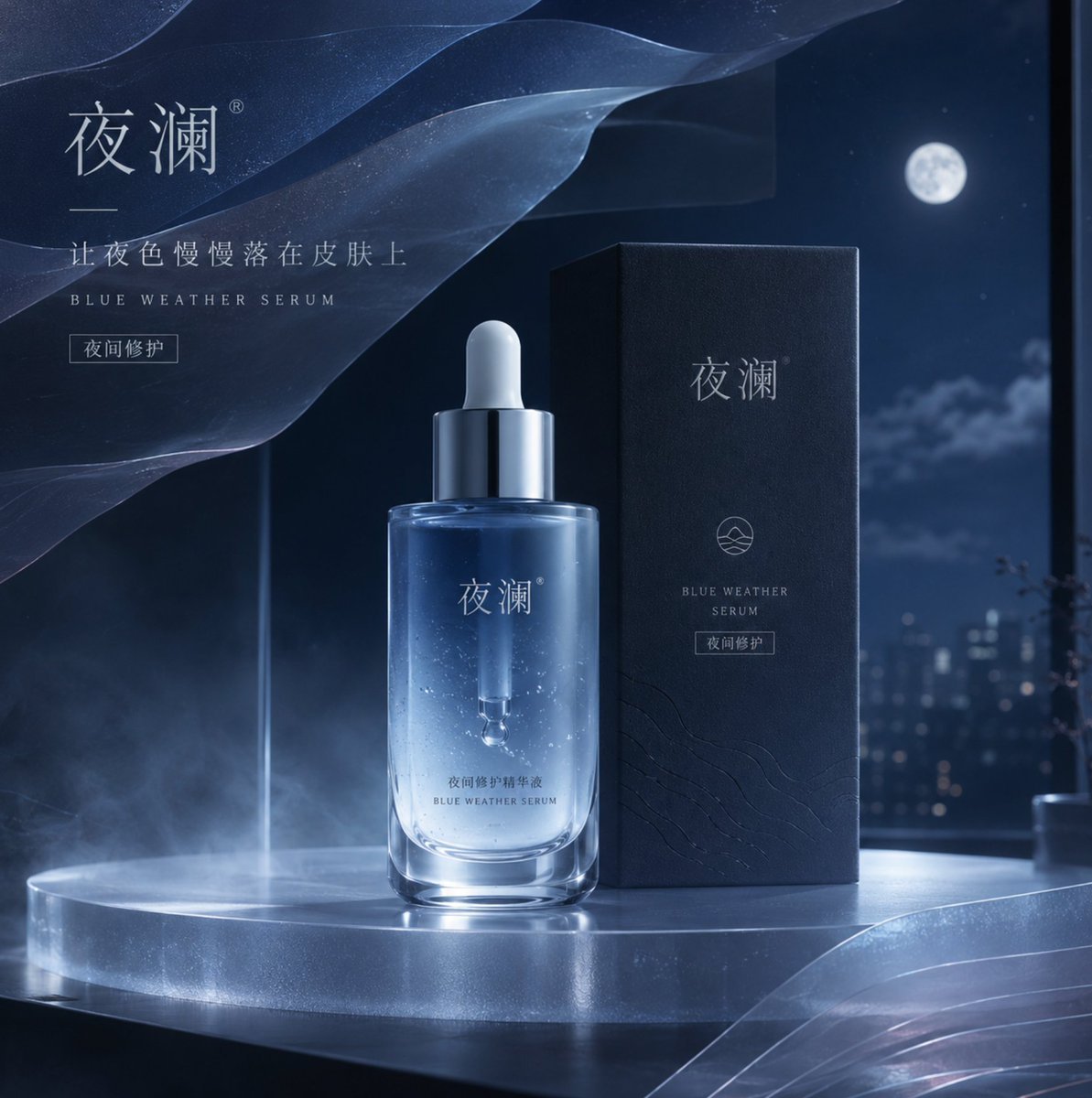
Blue Weather Skincare Visual Proposal
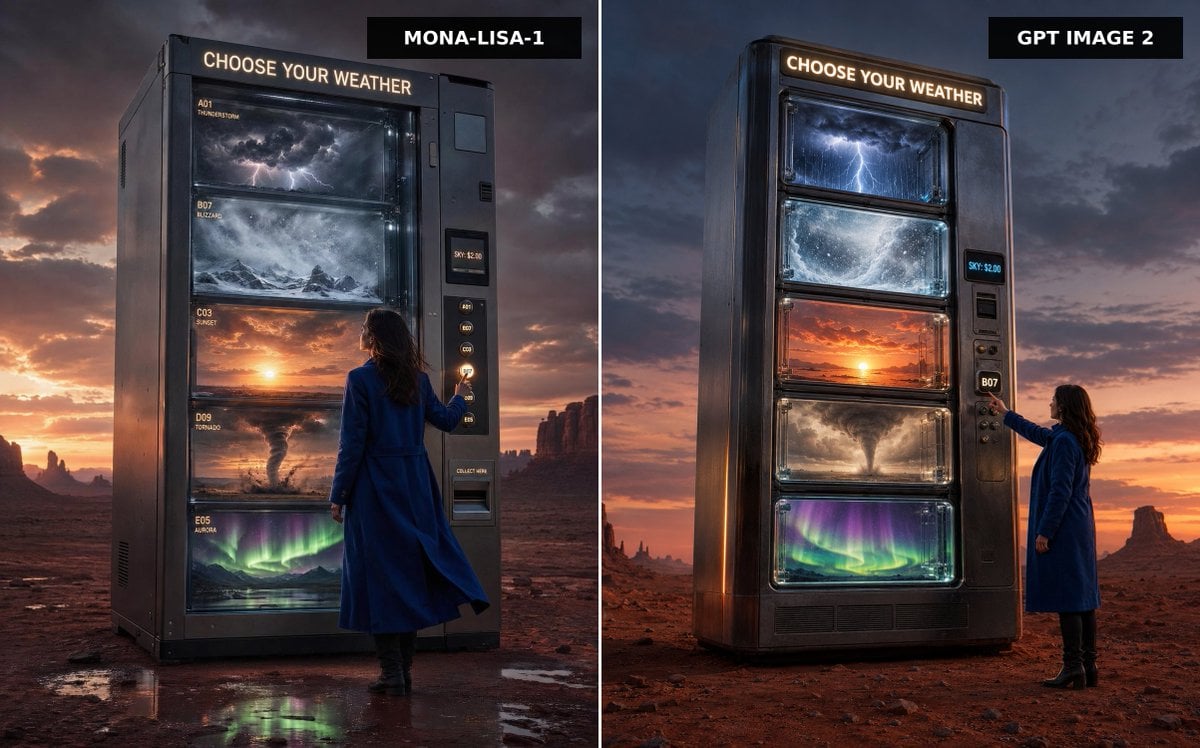
Weather Vending Machine Comparison
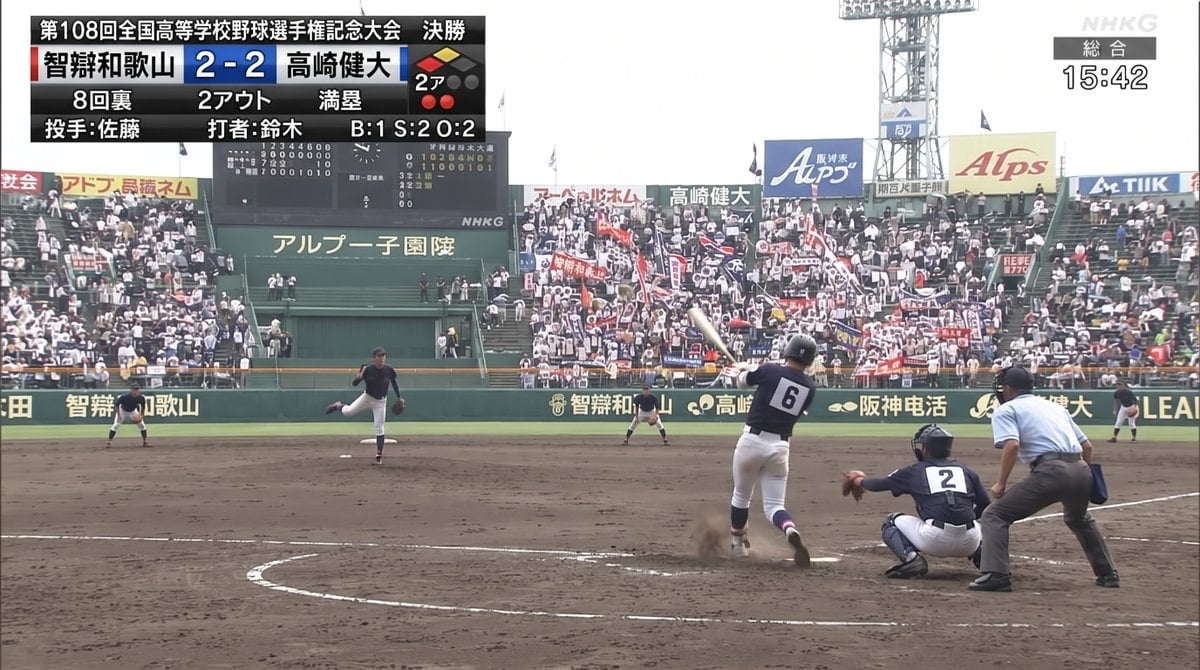
Koshien Baseball Broadcast Screen
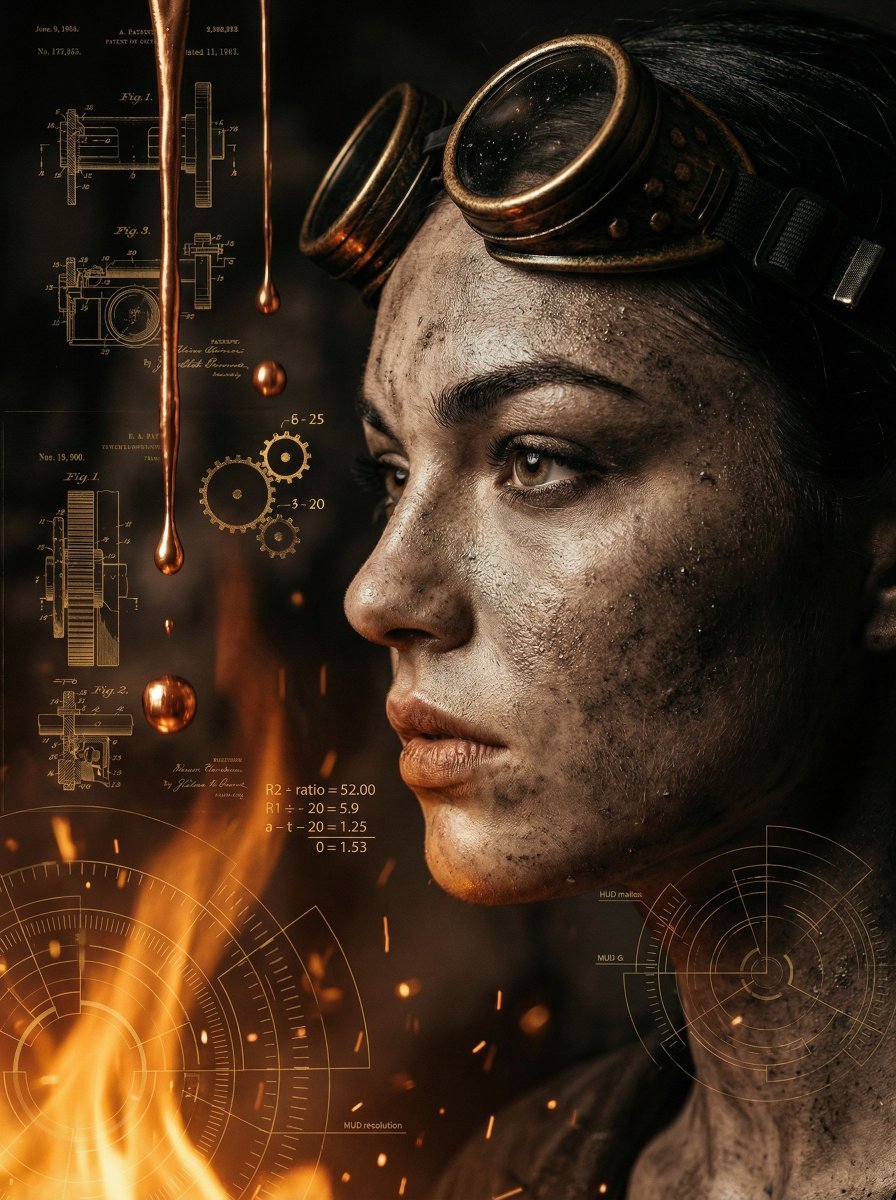
A cinematic close-up profile of a weathered women with a salt-and-pepper

Styled on a weathered surface, shot in pure golden hour light streaming
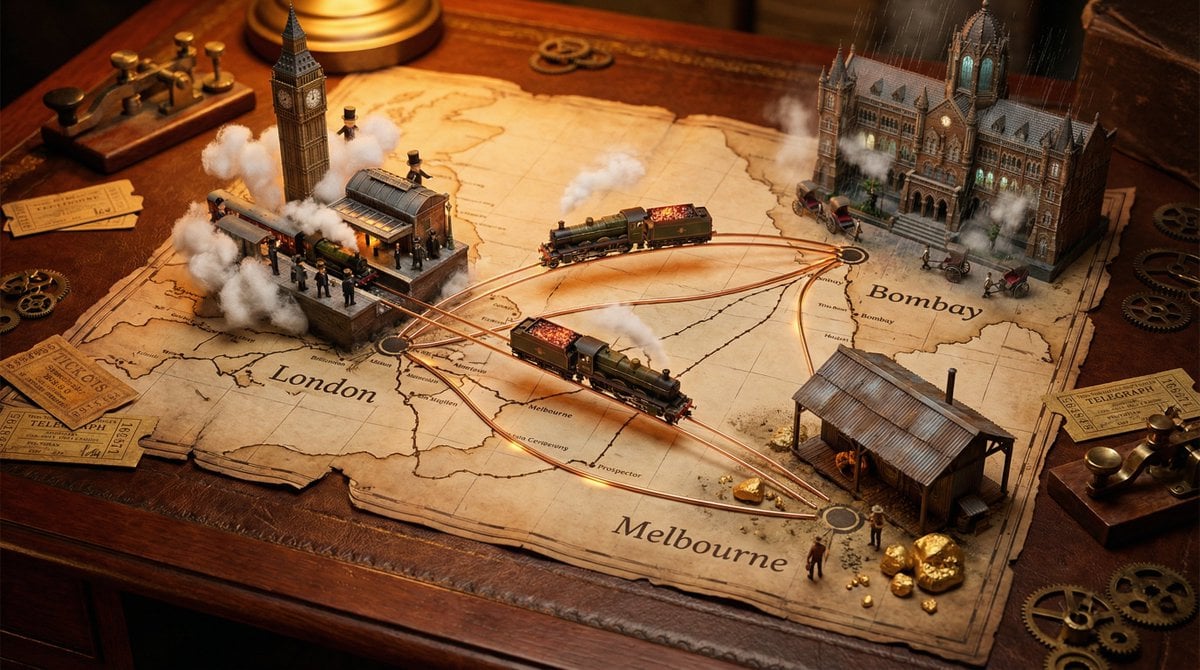
A weathered map spread across, bursting with photorealistic miniature
Make it yours
Live TV Weather Forecast Broadcast Scene works as-is. These are the safest ways to change it without losing the look.
Change one field
Copy a single group, rewrite it, and generate again so you can see what that field is doing.
Keep the frame, change the subject
Hold the composition and light of Live TV Weather Forecast Broadcast Scene, then swap wardrobe, props or the person for a new take.
| If the result… | Why | Fix |
|---|---|---|
| The result drifts from the preview | Too many fields changed at once. | Reuse Live TV Weather Forecast Broadcast Scene as-is first, then change one group — subject, light, or setting. |
| The model over-stylizes the scene | The prose prompt leaves finish and camera underspecified. | Add one camera or lighting sentence and stay on GPT Image 2. |
More GPT Image 2 templates
Other prompts made for GPT Image 2.

Six VTuber Japanese Logo Sheet

Realistic Portrait of Woman and Deer

The Vista Modular Condo Poster

AI Model Routing Comparison Infographic

2.5D Anime Art Board

Isometric Productivity Desk Scene

New York Double Exposure Poster

Four-Panel AI Landscape Comparison

Japanese Tatami Lifestyle Magazine Cover

NESCAFÉ Coffee Map Poster
More image prompts
Fresh picks from across the catalog.
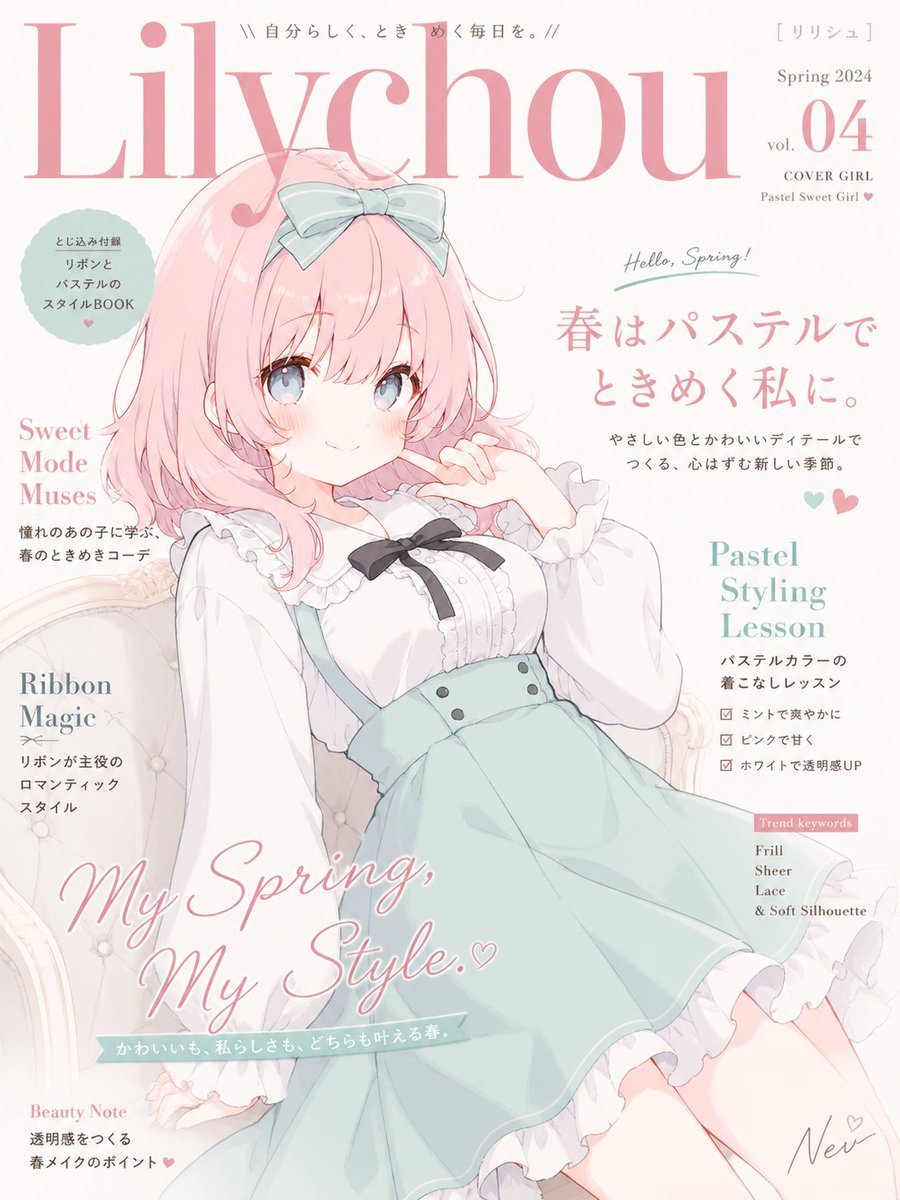
Pastel Anime Spring Magazine Cover
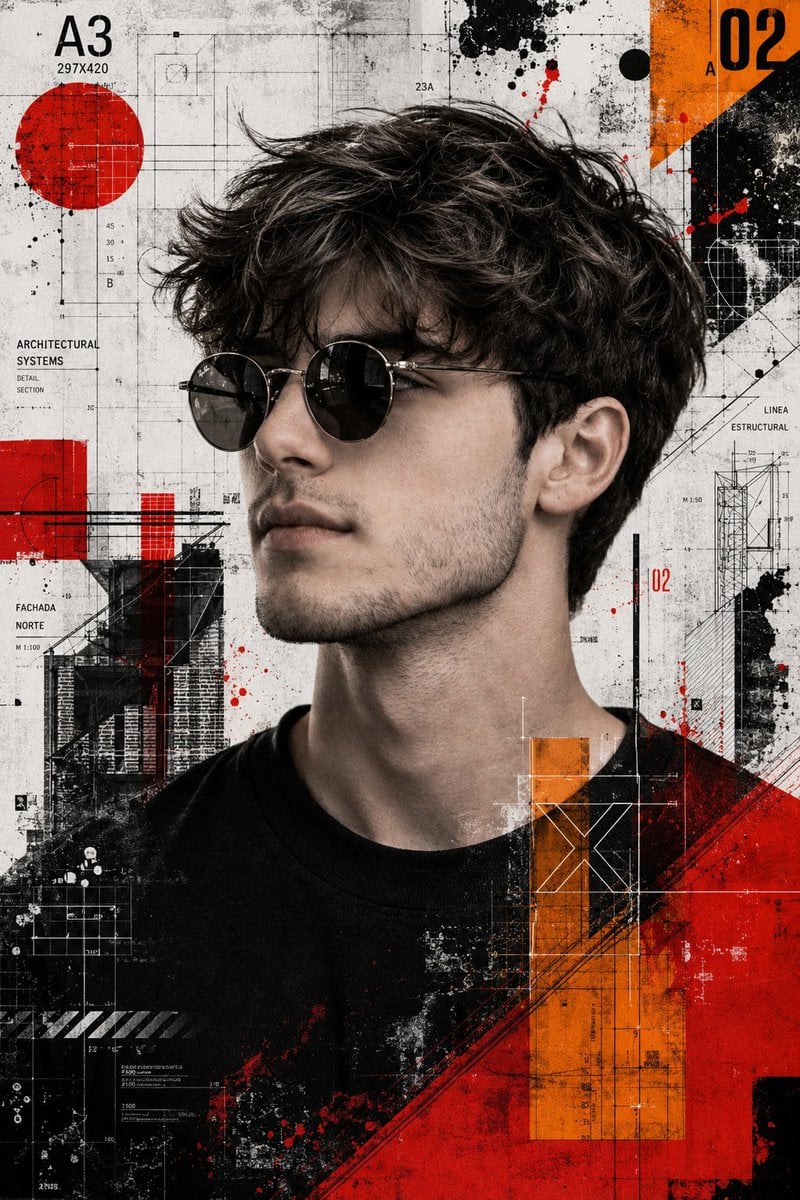
Trash Polka Mixed Media Artwork
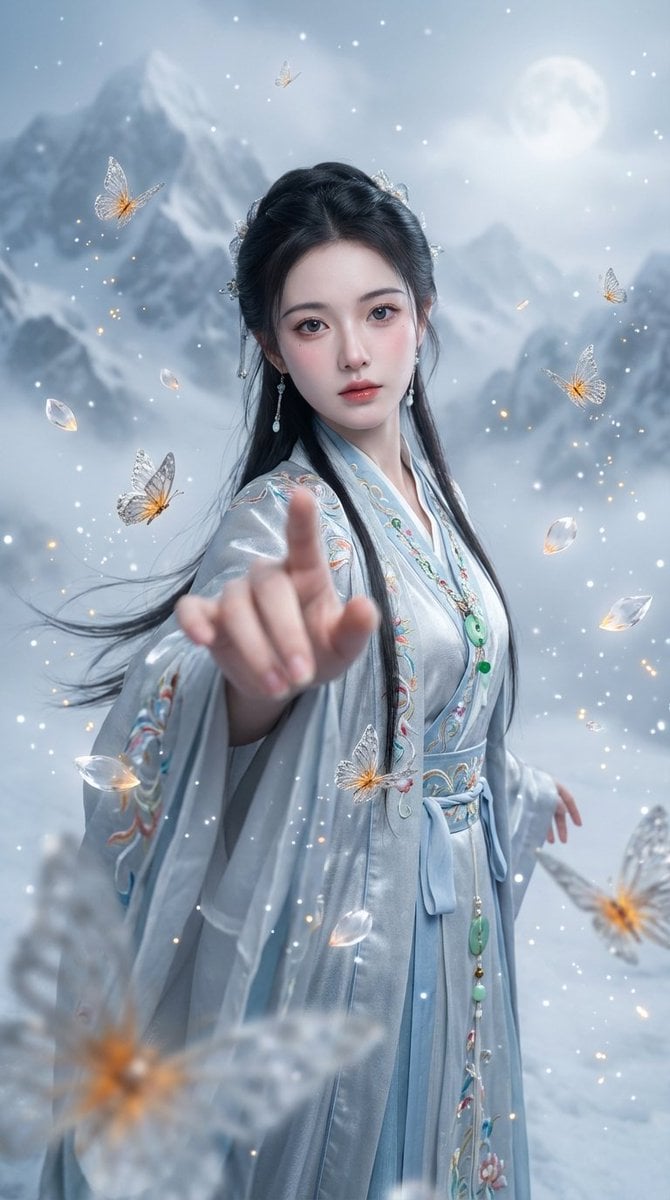
Chinese Xianxia Fantasy Portrait with Cold Tones and Magic Effects

Panel Japanese Advertising Grid
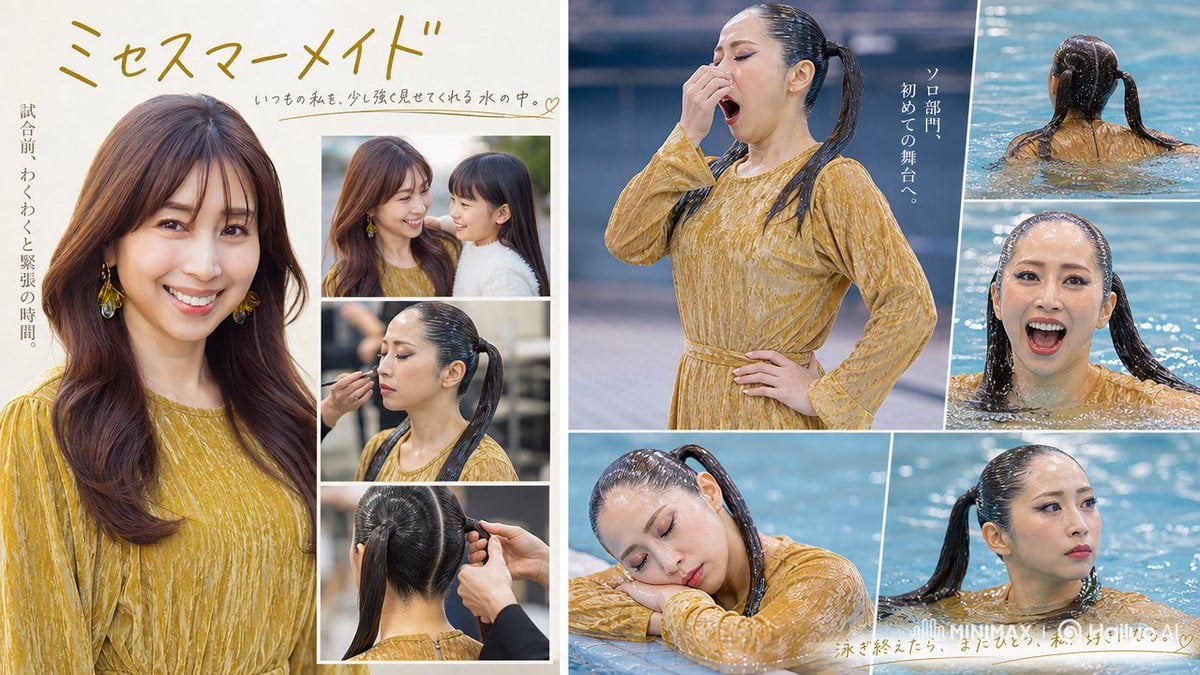
Mrs Mermaid Magazine Collage

Cute 3d Stylized Runner in Clay Style
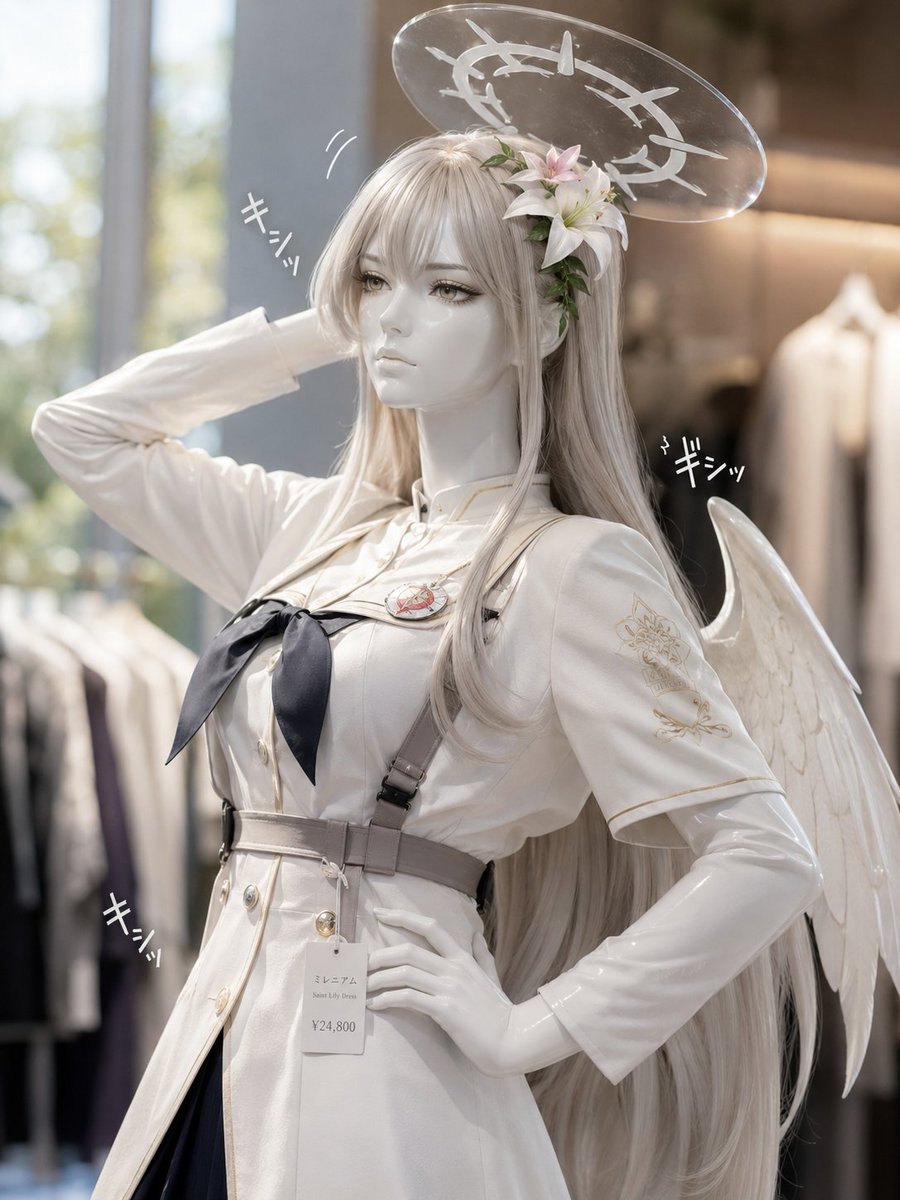
Realistic Angel Mannequin Boutique Display

Epic Outdoor Footwear Ad
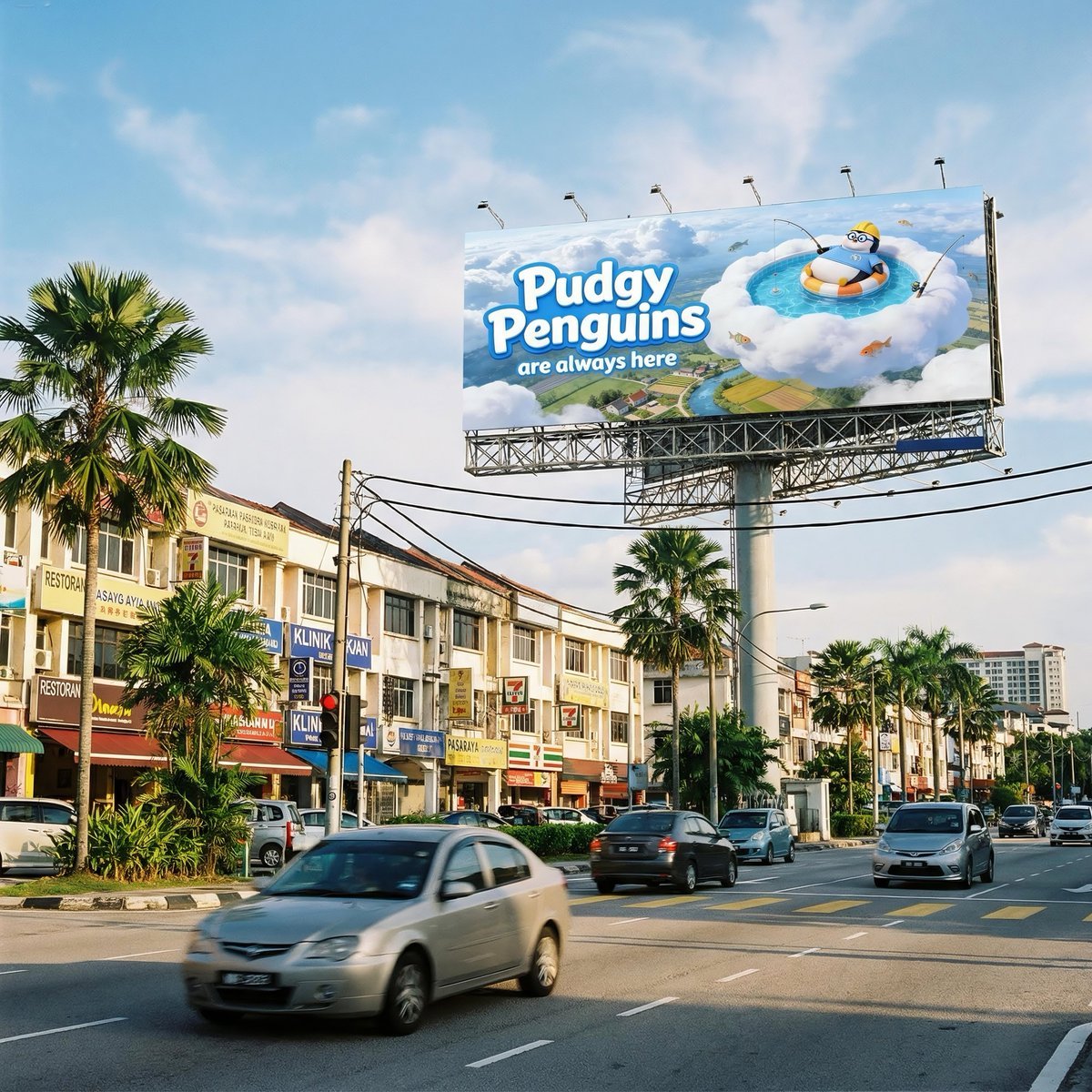
Malaysian City Billboard Commercial Photography Prompt
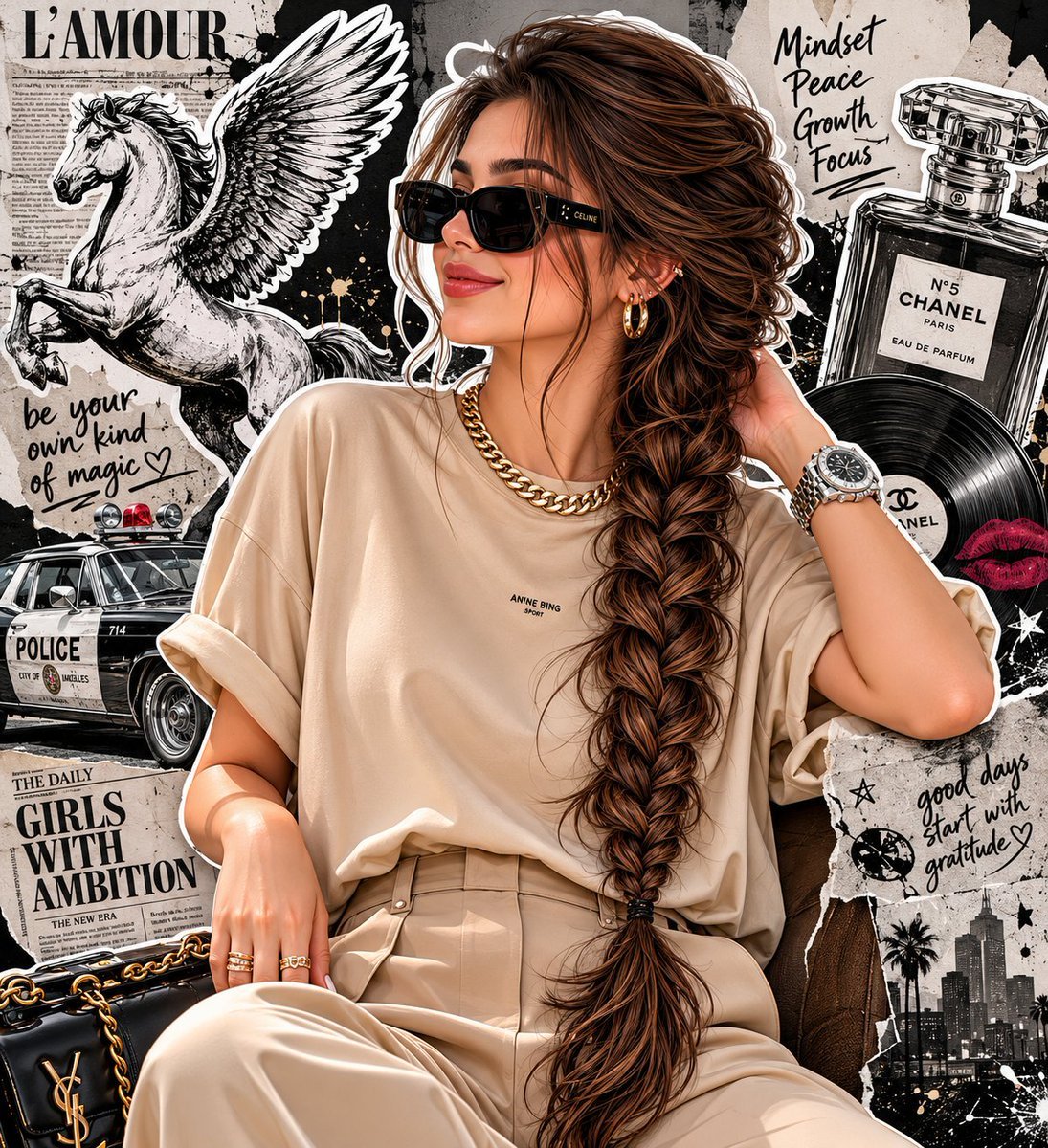
Fashion Editorial Portrait with Grunge Collage
Browse template categories
Live TV Weather Forecast Broadcast Scene questions
How do I use the Live TV Weather Forecast Broadcast Scene template?
Add your photo if the template asks for one, edit the prompt if you like — the template's model and format are already selected — and press Generate. Your version opens in PicX Studio.
Can I customize the Live TV Weather Forecast Broadcast Scene template?
Yes. You can change the subject, setting, lighting, mood, format, and available model controls before creating your image.
Is the Live TV Weather Forecast Broadcast Scene template free?
Opening and editing this template is free. Generating uses credits, shown on the Generate button when you are signed in.
Which AI model should I use?
Start with GPT Image 2, which is the model associated with this template. You can compare another compatible model for a different finish.
Looking for something else? Browse all templates.

Your photo, any look
Thousands of ready templates for every top image and video model, from one credit balance.