
Brand Merch Drop Generator
A structured Creative Director prompt for designing high-fashion brand merchandise announcements with a showroom still-life aesthetic.
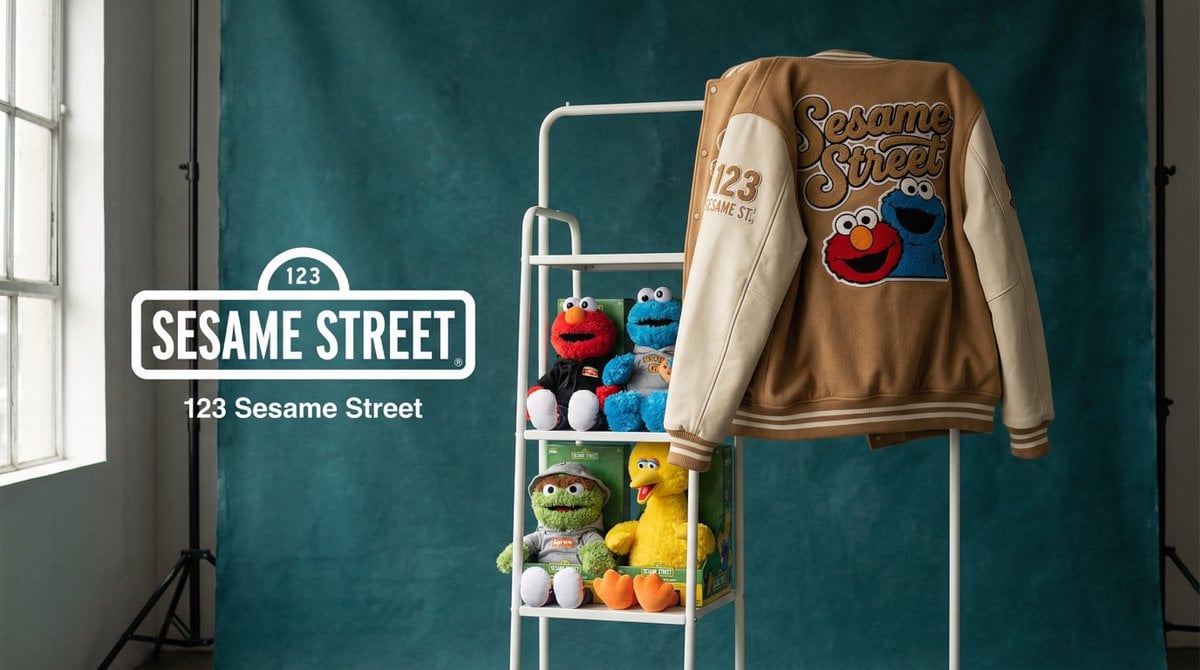
- Prompt included
- Model and format preset
- Free template
The prompt behind this image
Copy the exact prompt behind Brand Merch Drop Generator, or open it in the studio and make it yours.
[{argument name="brand" default="BRAND NAME"}]. You are a Creative Director and Still Life Photographer for a high-fashion hypebeast magazine. YOUR TASK: Design a premium "Showroom Still Life" image to announce a limited merch drop for [{argument name="brand" default="BRAND NAME"}]. STEP 1: BRAND ANALYSIS Study [{argument name="brand" default="BRAND NAME"}]: identify its industry and signature physical product (e.g., "Spalding" = basketballs, "McDonald's" = burger packaging, "Visa" = metal cards). Choose the Color Palette: - Background: a deep, rich, textured tone from the brand's secondary colors (Teal, Navy, Burgundy, or Slate Grey). - Merch: a warm or neutral accent tone (Camel, Orange, or Cream) that pops against the backdrop. - Apparel Piece: select something that fits the brand's energy (Varsity Letterman Jacket, Heavyweight Hoodie, Canvas Tote, or Wool Scarf). STEP 2: SET DESIGN Main Prop: a clean, modern White Powder-Coated Metal Rack or shelving unit. Layout: - The apparel piece hangs casually from the rack or a hanger, showing off its texture. - On the rack shelves, stack several units of the brand's core product (e.g., basketballs, cans, boxes). - Backdrop: hand-painted canvas in the chosen deep background color, with visible brushstrokes for that studio aesthetic. STEP 3: BRANDING DETAILS Apparel: feature premium physical branding via Chenille Patches, Embroidered Logos, or Screen Print on the sleeve or back. It should look like a genuinely expensive garment. Products: ensure the [{argument name="brand" default="BRAND NAME"}] logo is clearly visible on all stacked items. STEP 4: PHOTOGRAPHY Lighting: soft, directional side window light with realistic soft shadows and rich texture highlights. Focal length: 50mm or 85mm. Sharp focus on the merch, gentle background falloff. STEP 5: GRAPHIC OVERLAY Left-aligned composition: - Large, clean white [{argument name="brand" default="BRAND NAME"}] logo placed in the negative space on the left. - Beneath the logo, small white text with the brand's official tagline.
How to use Brand Merch Drop Generator in 3 steps
- 1
Open
The prompt is already in the box next to the preview, with the template's model and format selected.
- 2…a portrait of your subject in softgolden-hour light, 85mm…
Personalize
Edit the subject and creative details for your destination.
- 3Generate
Generate
Press Generate — your image is created in PicX Studio, so you can compare it with the original and refine one variable at a time.
More like this
Templates with the same subject, style or setup. Open one to see its prompt.
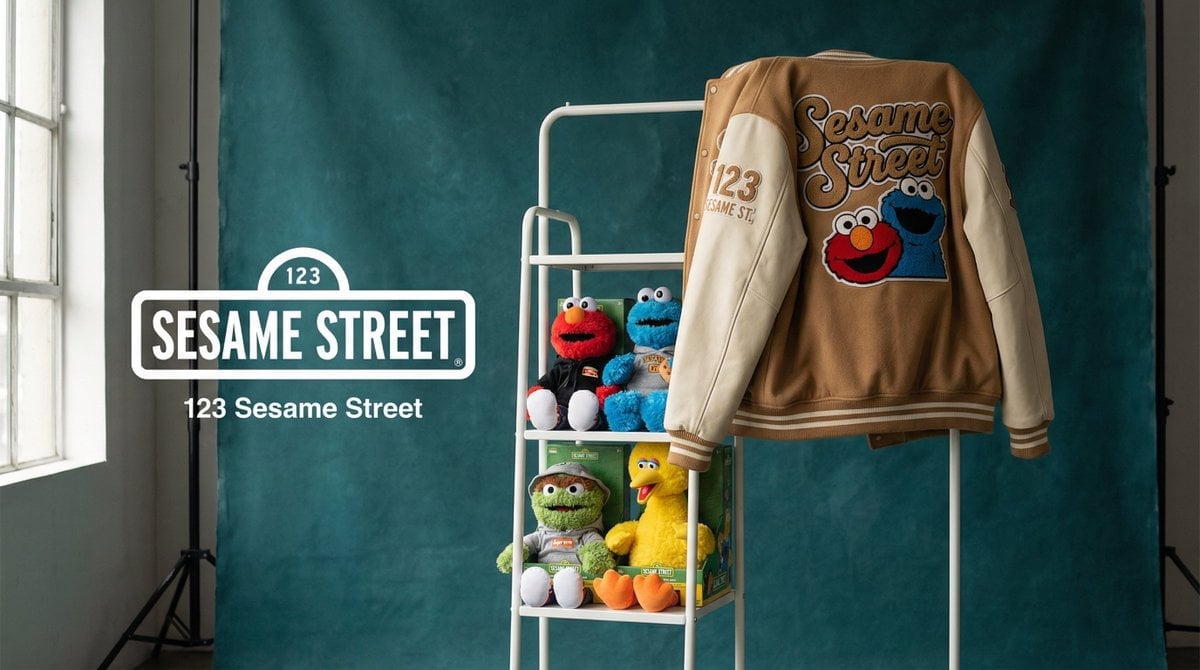
Photograph announcing a limited merchandise drop
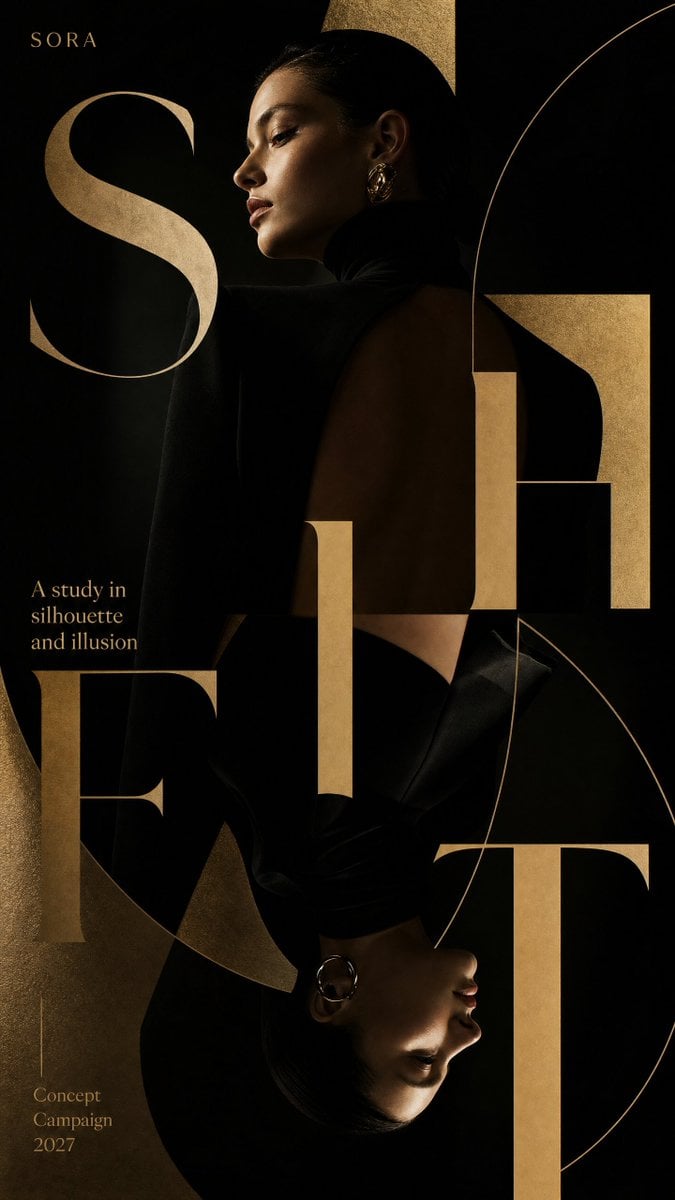
Luxury Fashion Campaign Typography Poster System
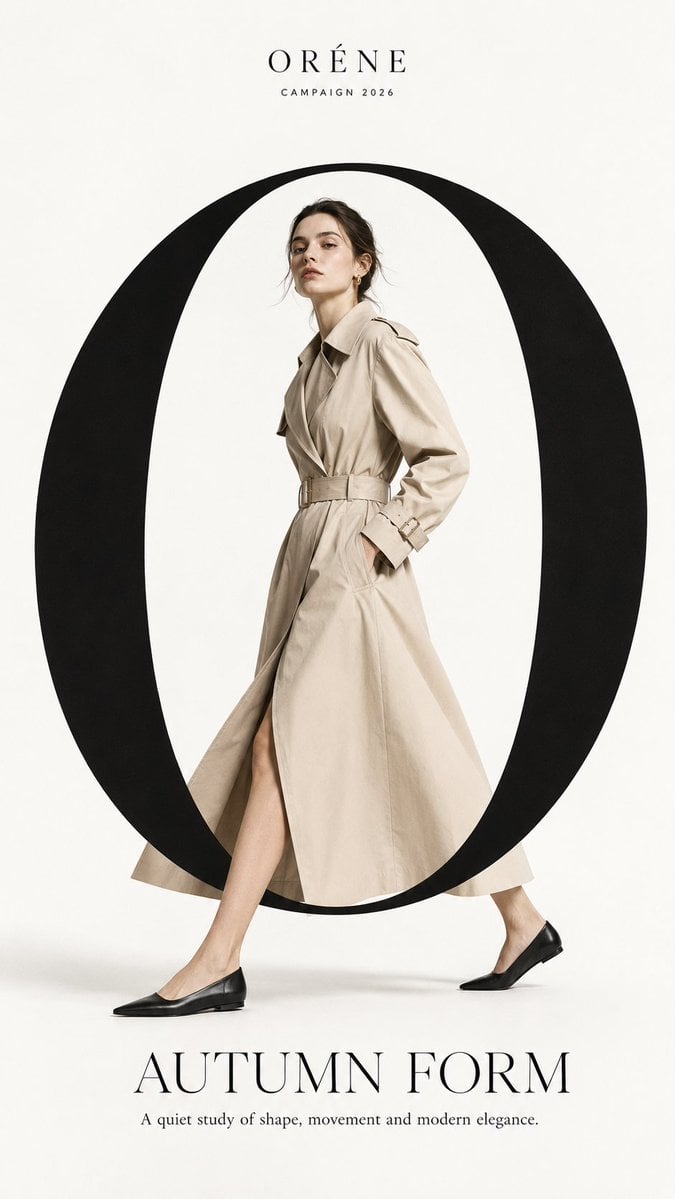
Premium Fashion Editorial Campaign Poster System
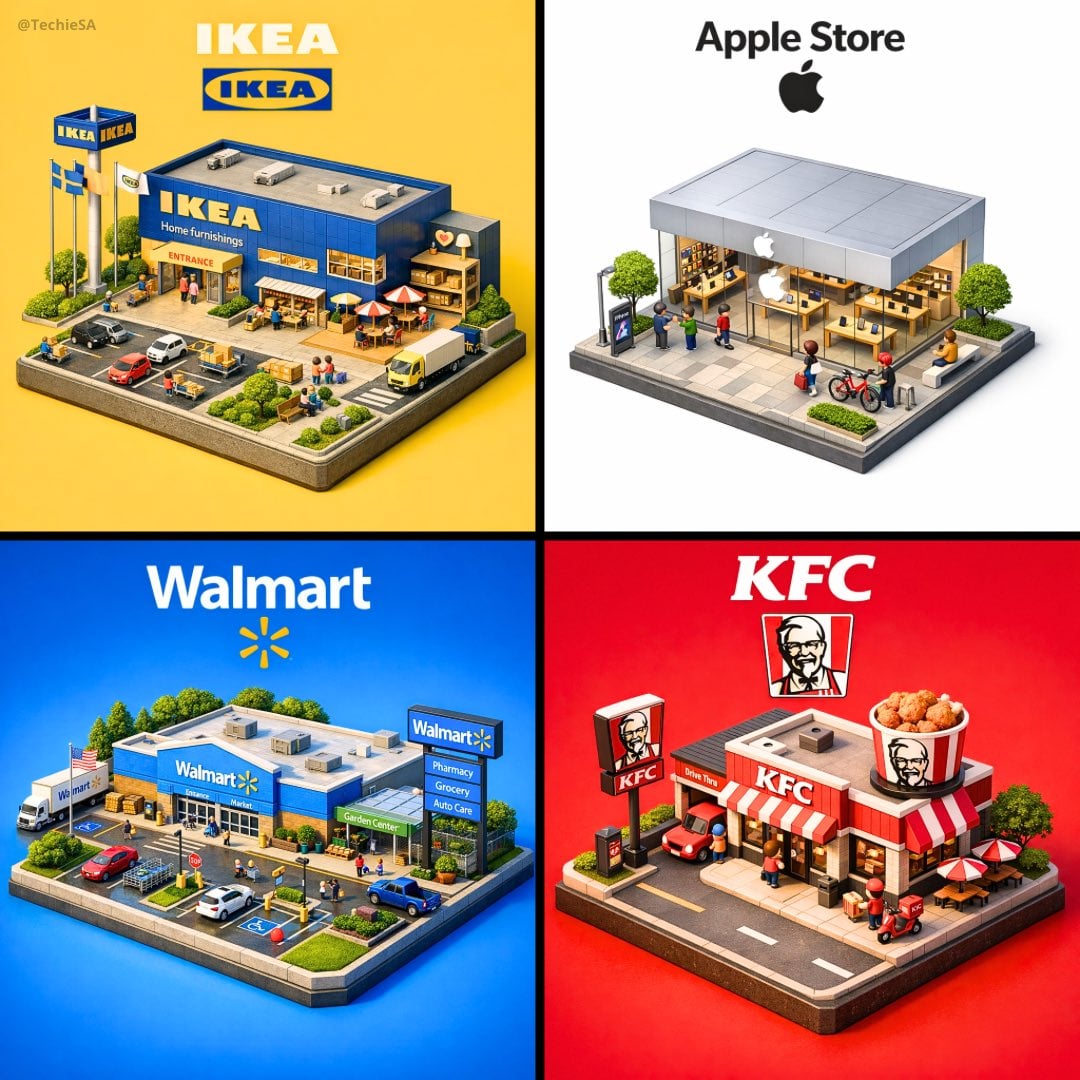
Isometric Brand Store Diorama
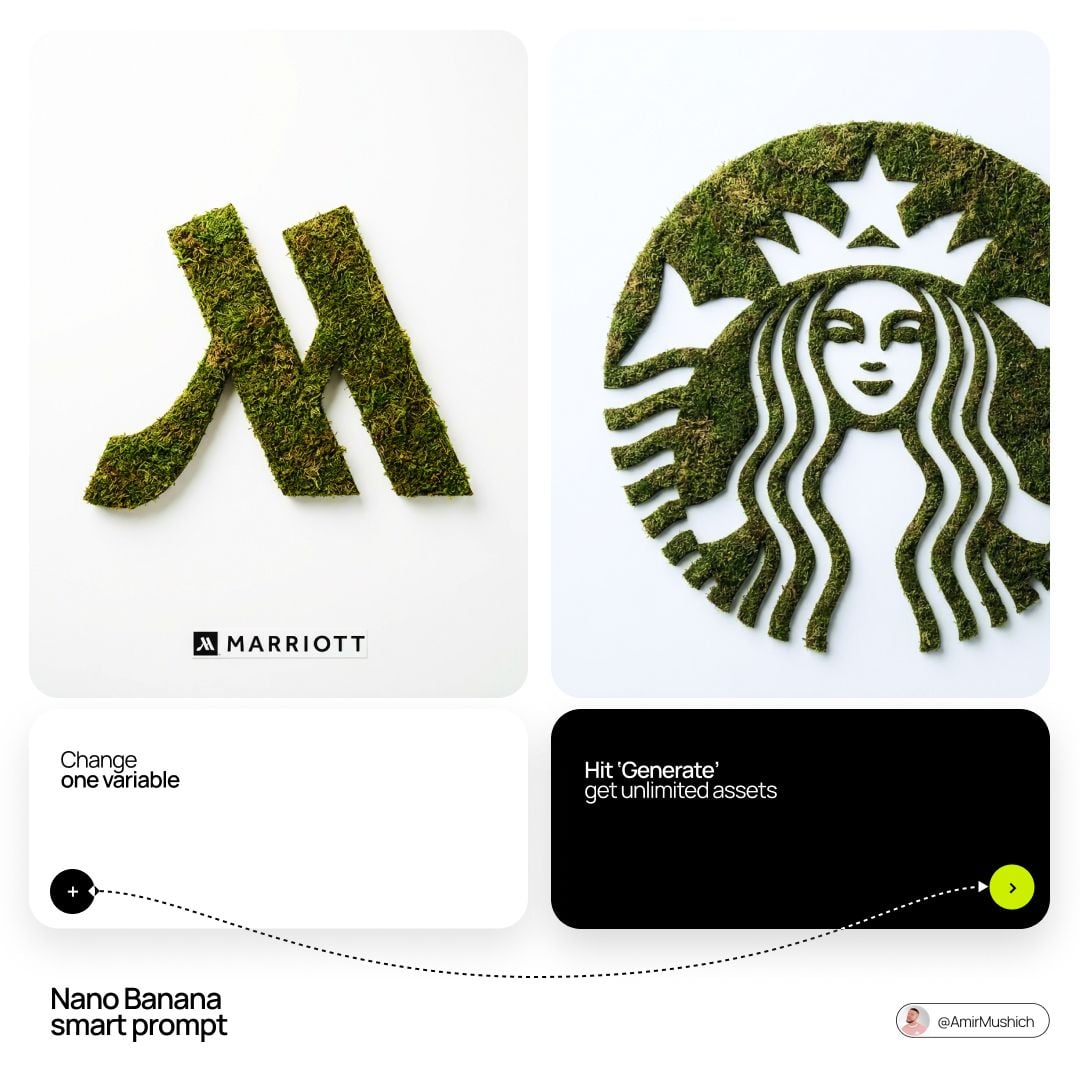
Moss Logo Minimalist Brand Flat Lay
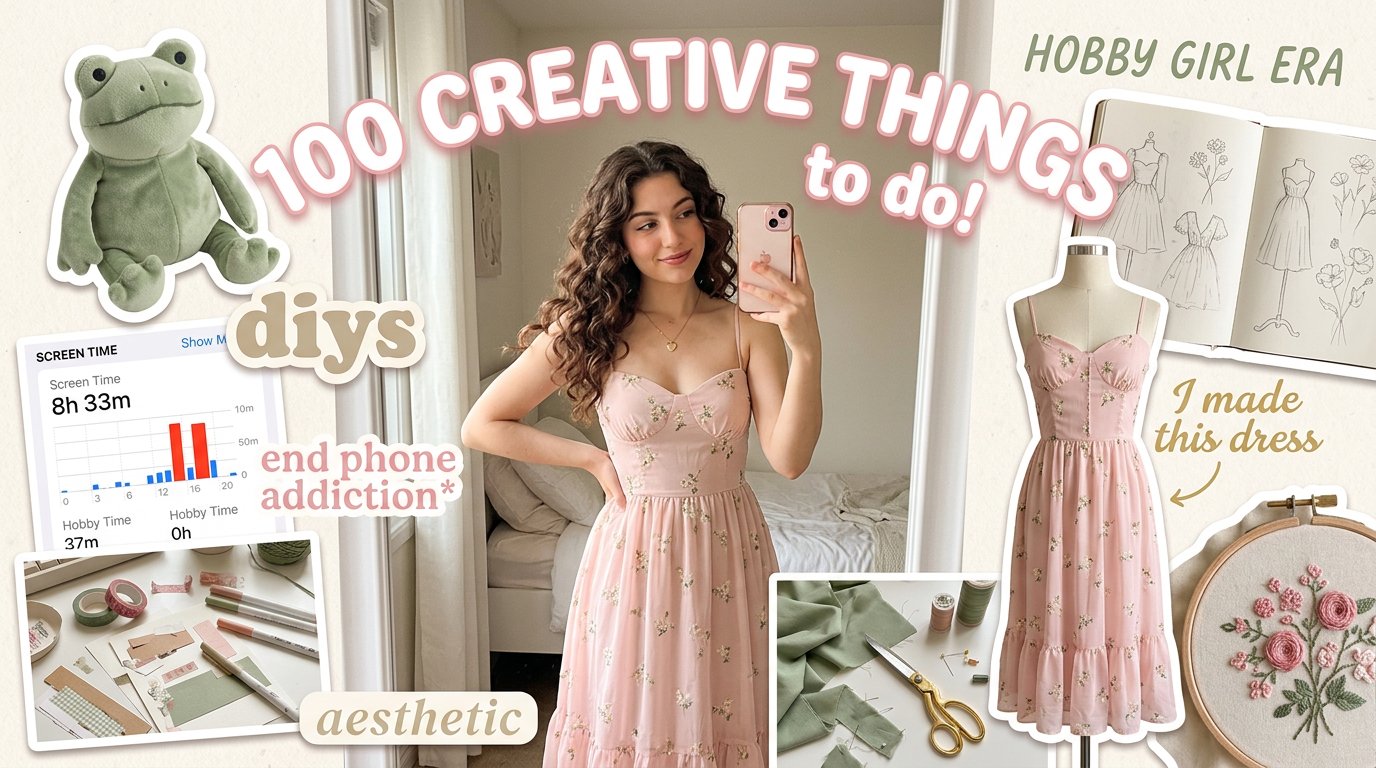
Aesthetic Hobby Girl Collage Youtube Thumbnail
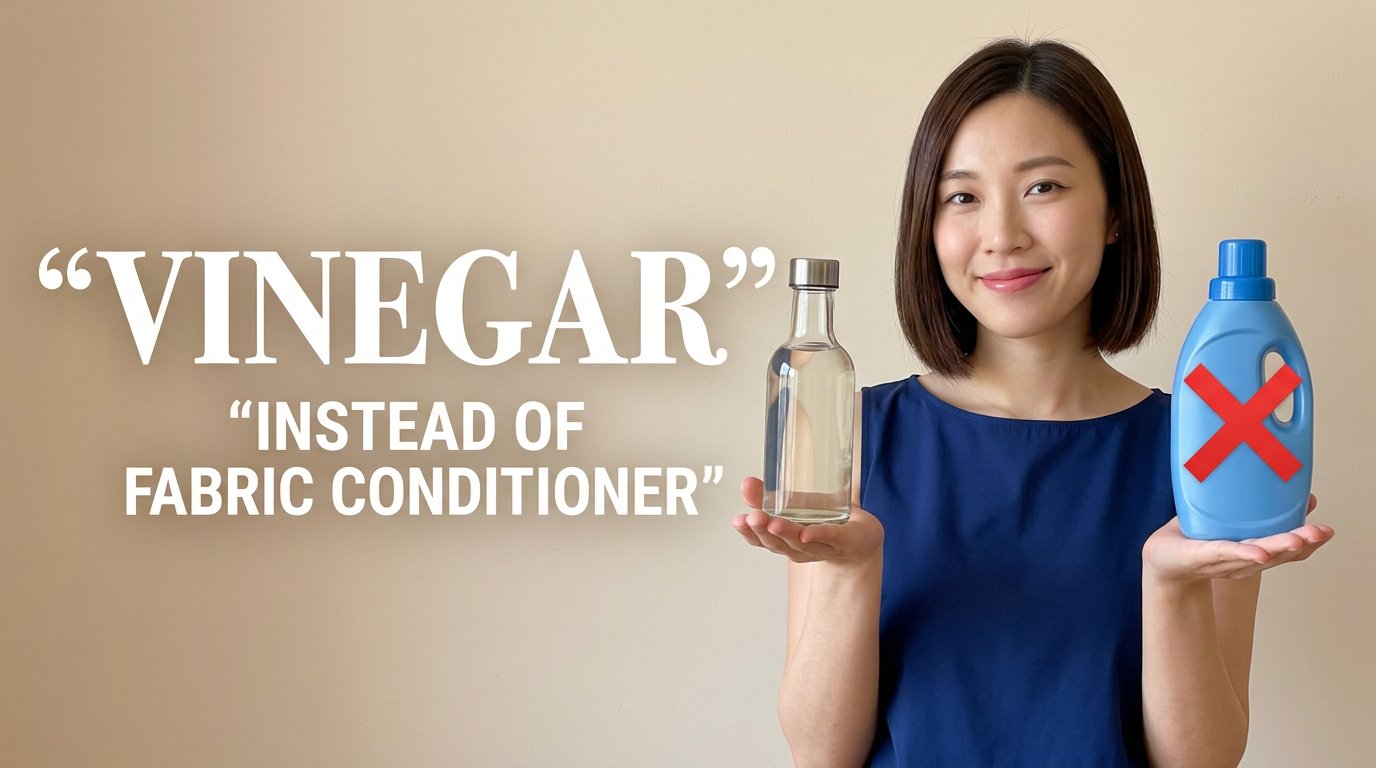
Eco Laundry Hack Youtube Thumbnail
Youtube Thumbnail Template
Urban Commuter Portrait Documentary
Sun-Kissed Summer Skincare Beachfront
Oversized Minimalist Product Portrait
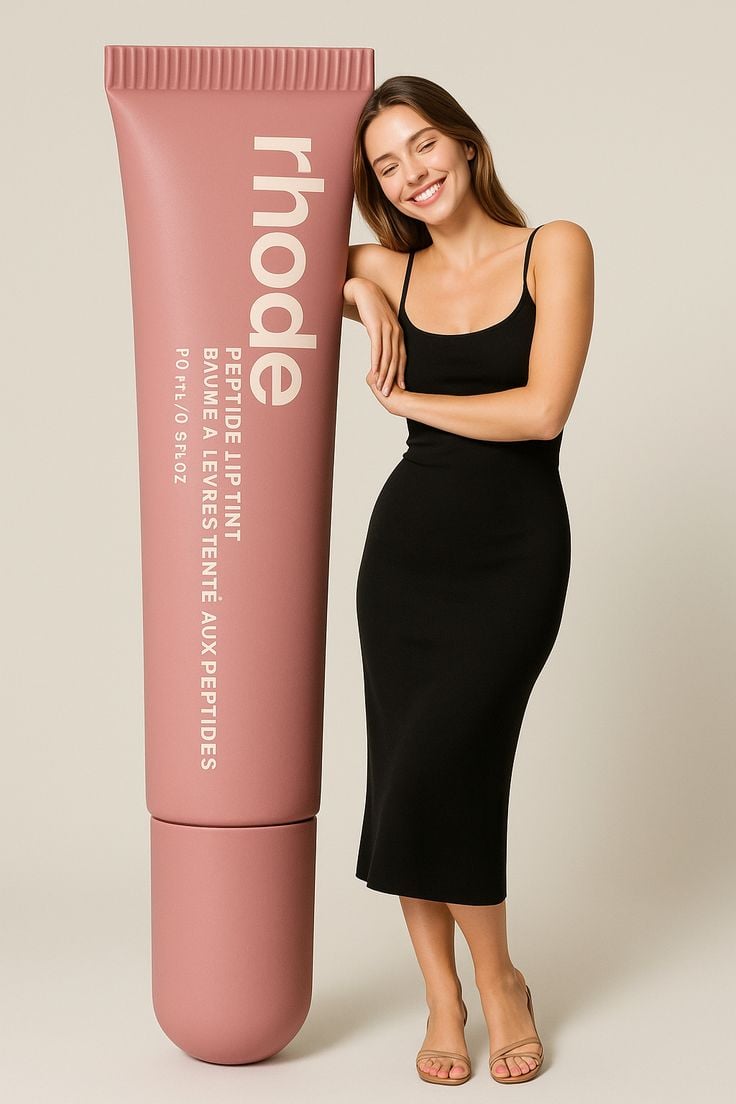
Giant Product Lifestyle Mockup
Make it yours
Brand Merch Drop Generator works as-is. These are the safest ways to change it without losing the look.
Change one field
Copy a single group, rewrite it, and generate again so you can see what that field is doing.
Keep the frame, change the subject
Hold the composition and light of Brand Merch Drop Generator, then swap wardrobe, props or the person for a new take.
| If the result… | Why | Fix |
|---|---|---|
| The result drifts from the preview | Too many fields changed at once. | Reuse Brand Merch Drop Generator as-is first, then change one group — subject, light, or setting. |
| The model over-stylizes the scene | The prose prompt leaves finish and camera underspecified. | Add one camera or lighting sentence and stay on GPT Image 2. |
More GPT Image 2 templates
Other prompts made for GPT Image 2.

Six VTuber Japanese Logo Sheet

Realistic Portrait of Woman and Deer

The Vista Modular Condo Poster

AI Model Routing Comparison Infographic

2.5D Anime Art Board

Isometric Productivity Desk Scene

New York Double Exposure Poster

Four-Panel AI Landscape Comparison

Japanese Tatami Lifestyle Magazine Cover

NESCAFÉ Coffee Map Poster
More image prompts
Fresh picks from across the catalog.
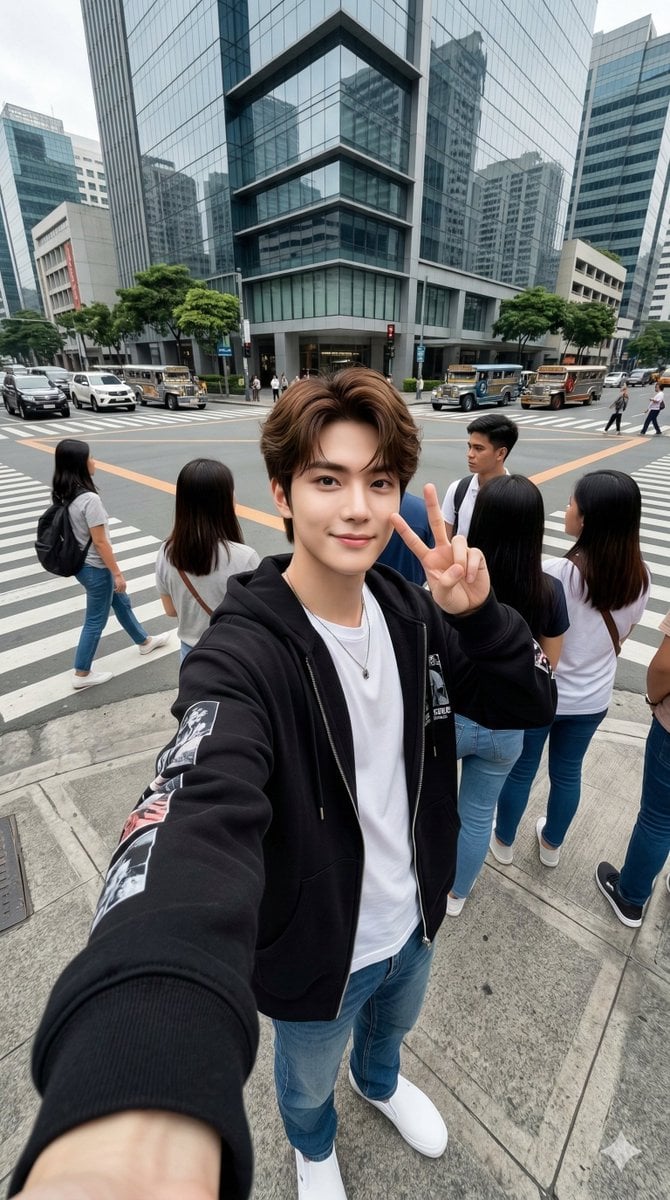
Urban Streetwear Wide-Angle Group Selfie
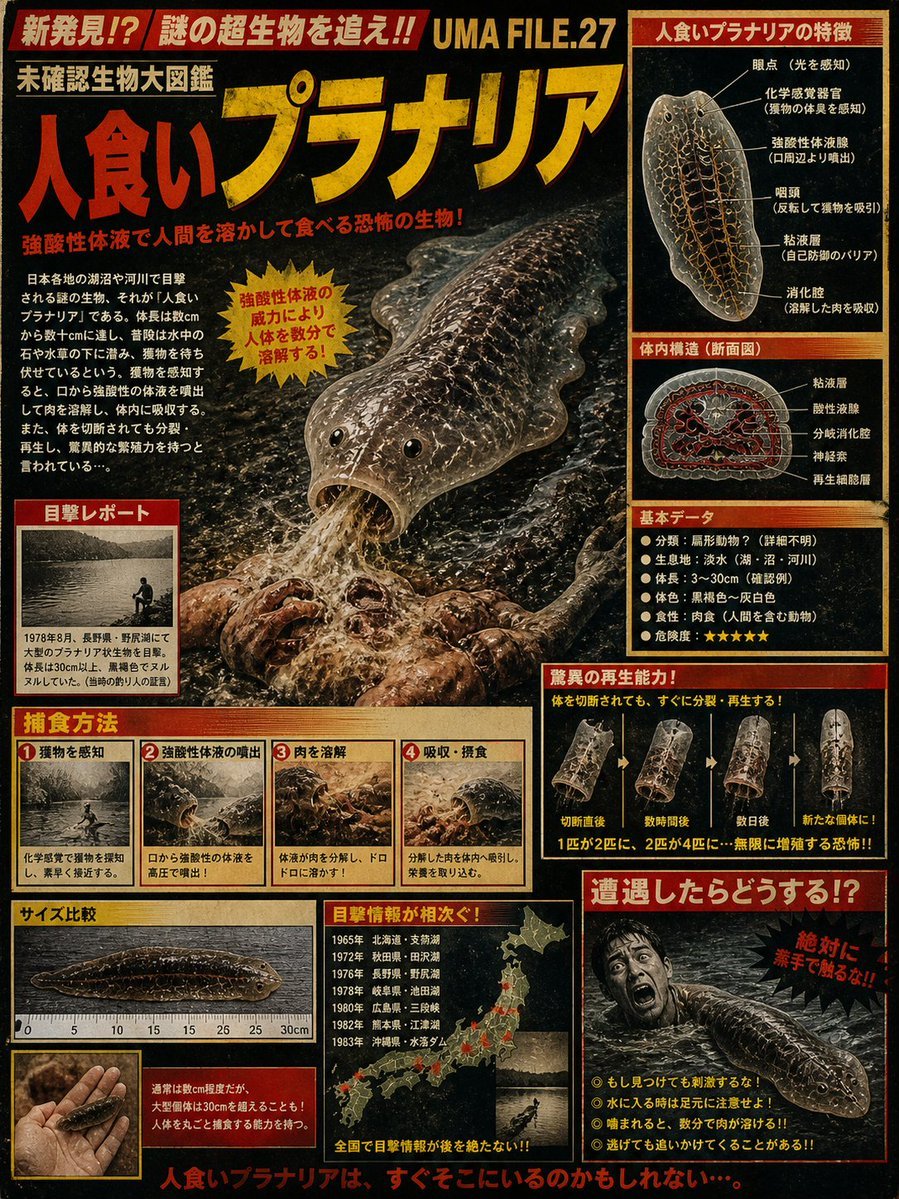
Retro Man-Eating Planaria Dossier
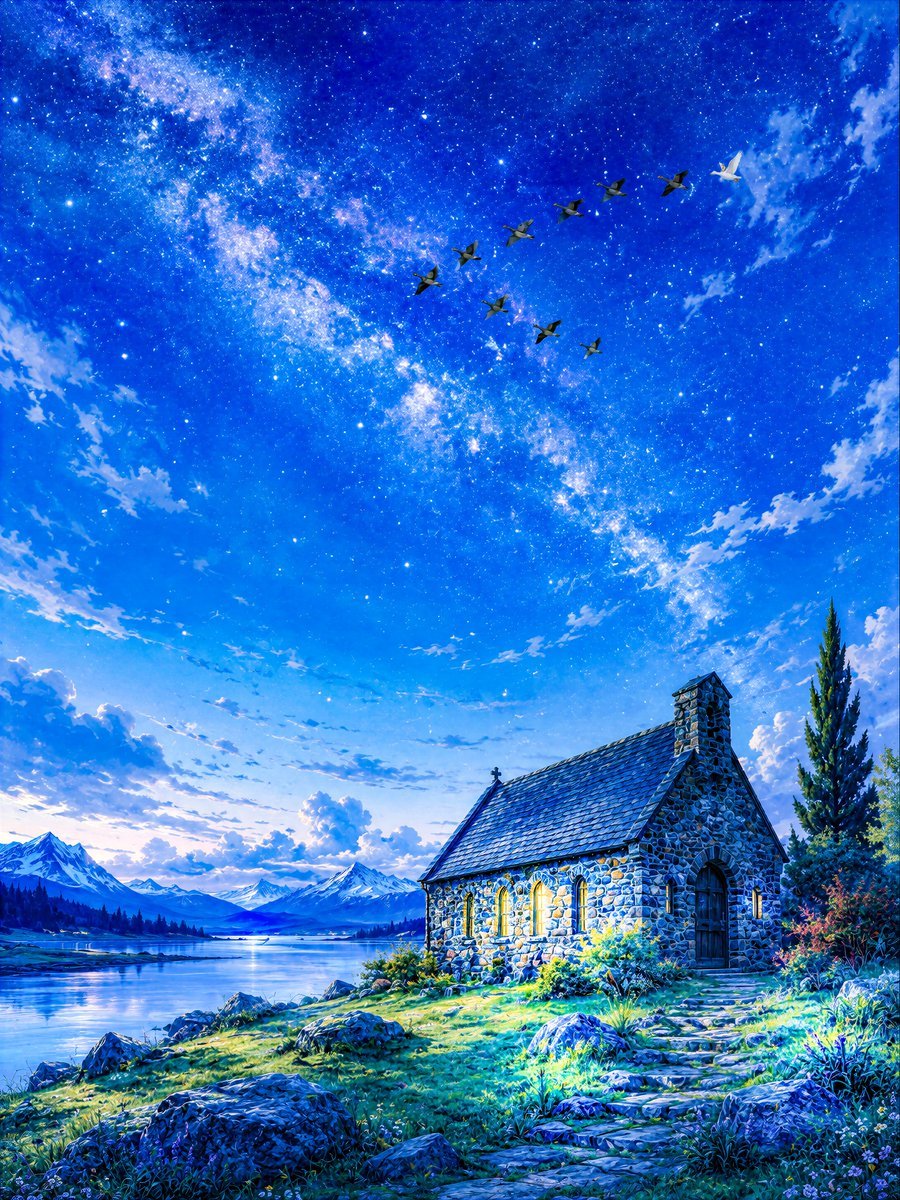
Geese Crossing the Galaxy at Dawn
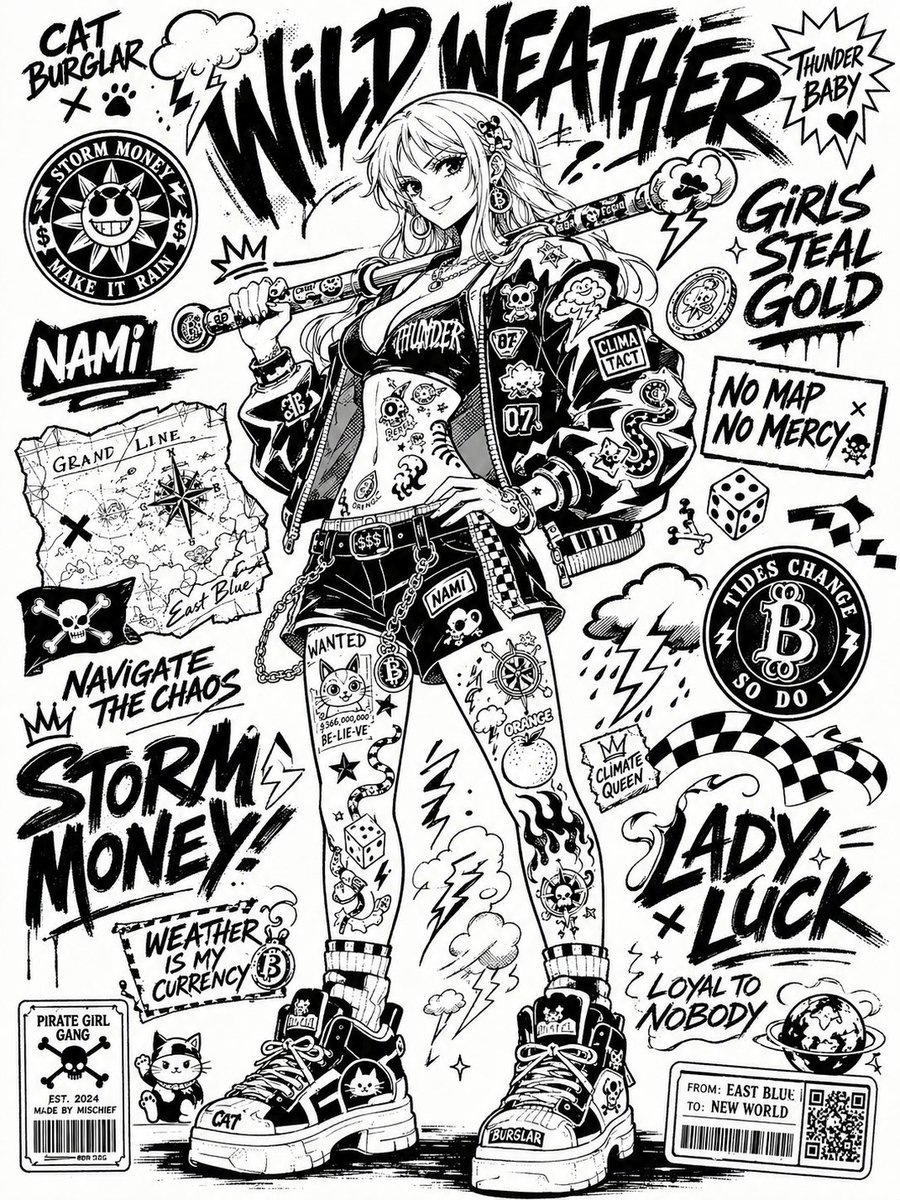
Black and White Sticker Bomb Street Poster
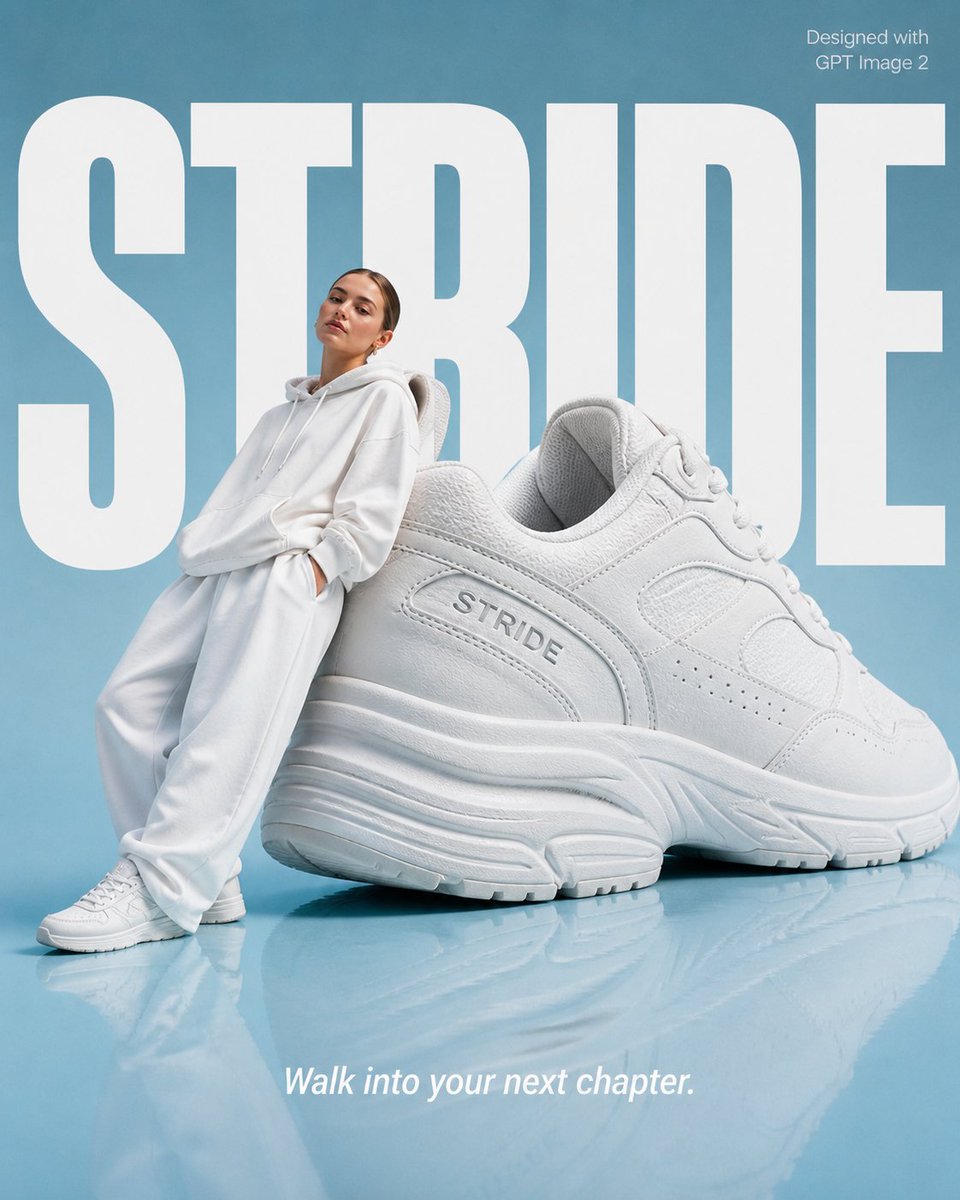
High-End Fashion 'Stride' Poster

Stacked Smartphone Flash Selfie
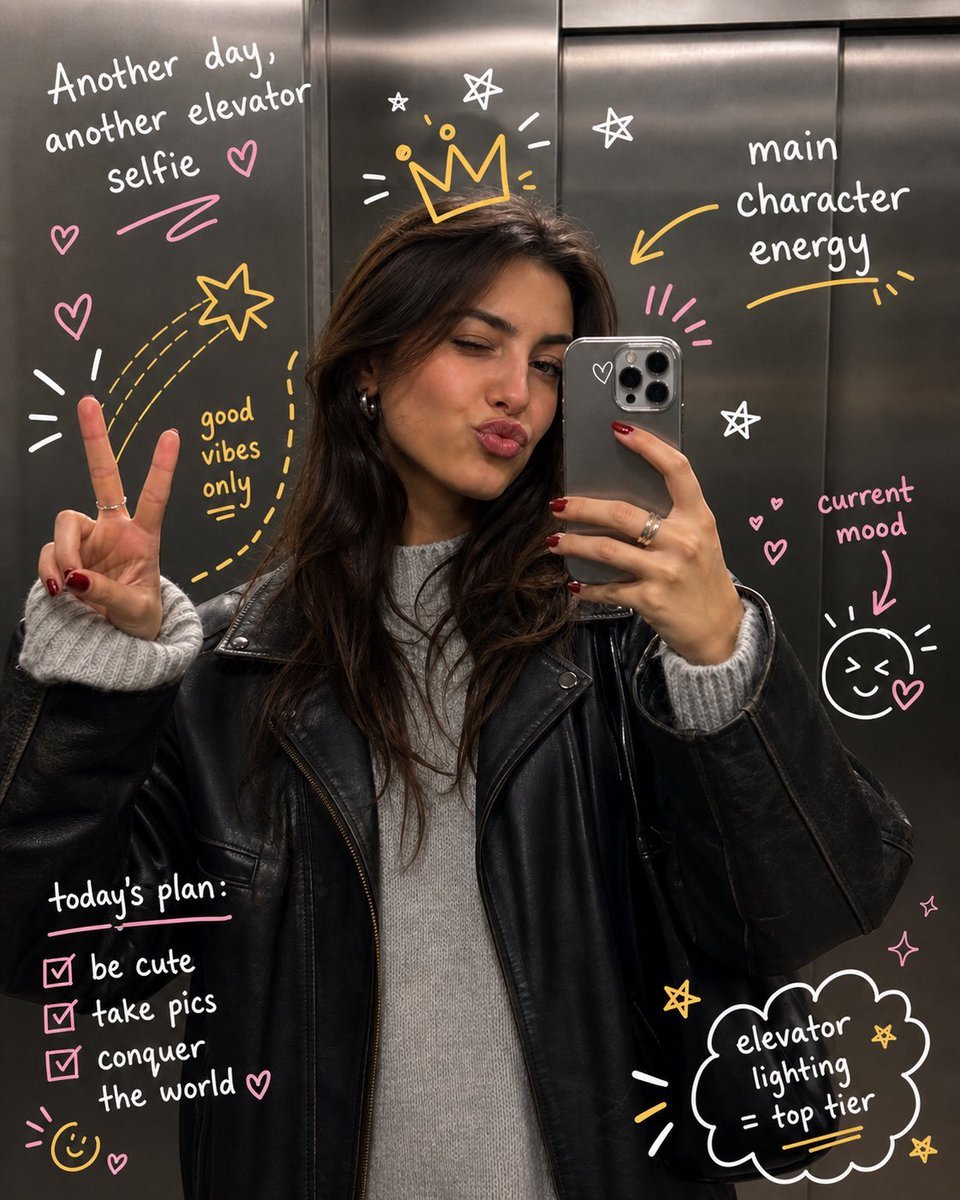
Hand-Drawn Doodles Overlay
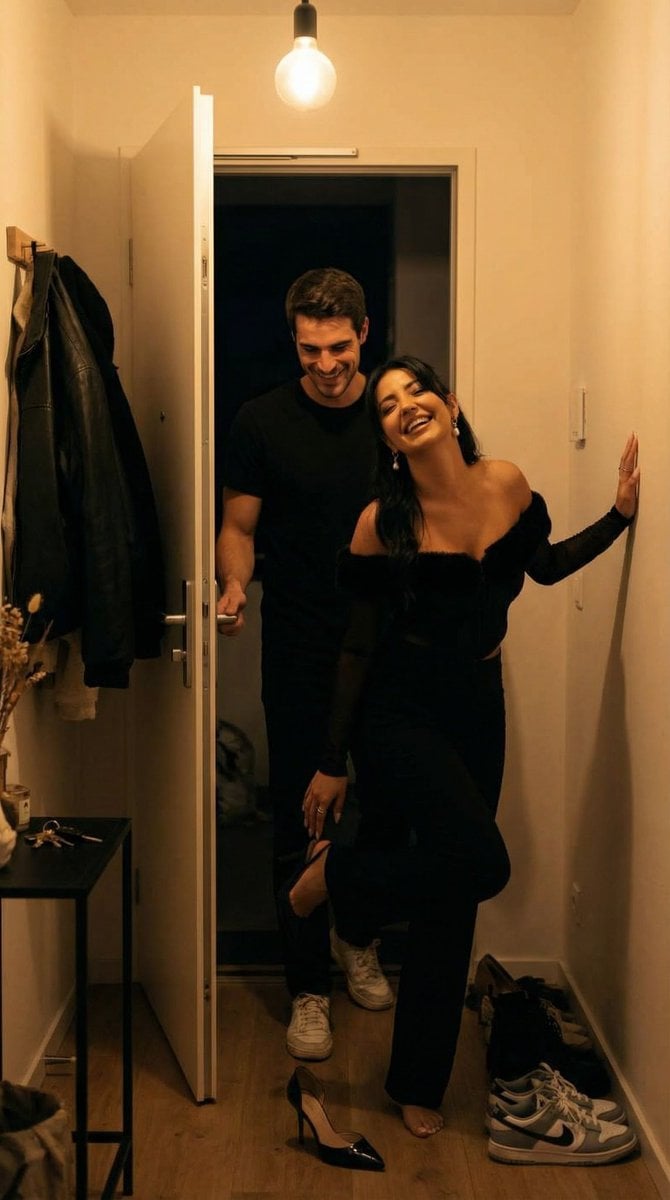
Ultra-Photoreal Candid Home Entry Night Scene Prompt
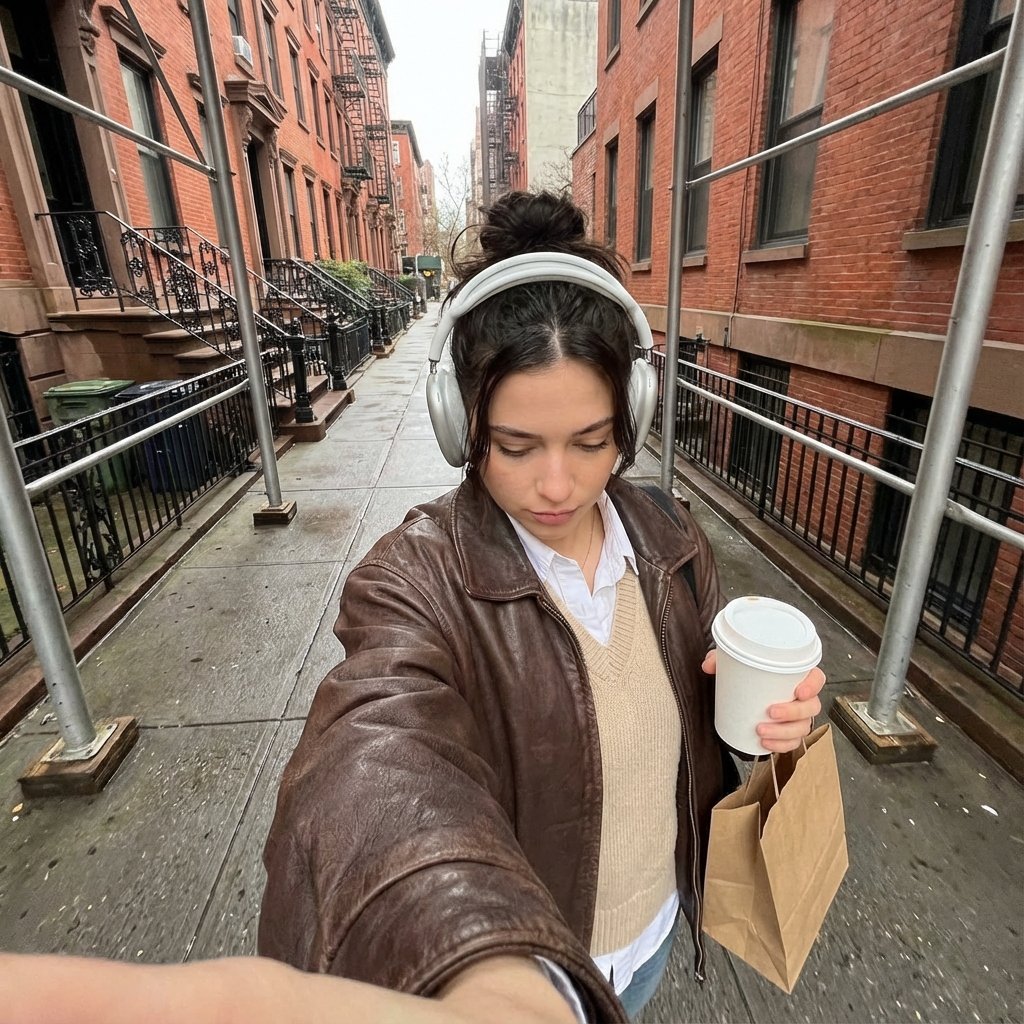
Candid Urban Street Photography Prompt (JSON Structure)
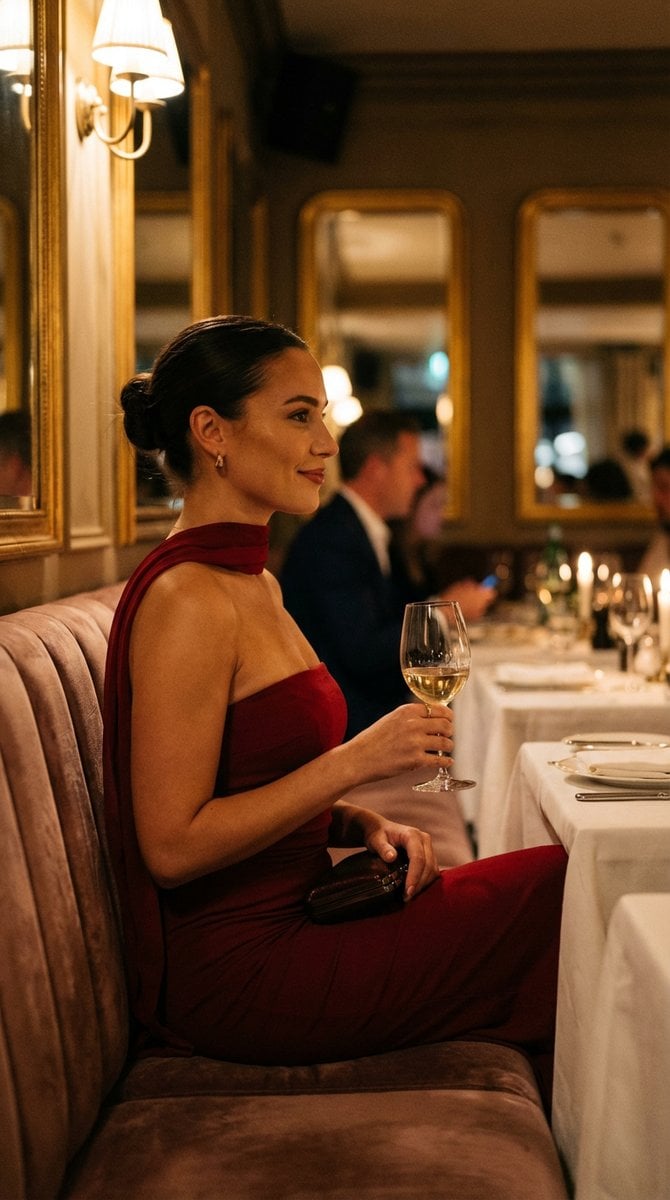
High-End Editorial Restaurant Portrait Prompt
Browse template categories
Brand Merch Drop Generator questions
How do I use the Brand Merch Drop Generator template?
Add your photo if the template asks for one, edit the prompt if you like — the template's model and format are already selected — and press Generate. Your version opens in PicX Studio.
Can I customize the Brand Merch Drop Generator template?
Yes. You can change the subject, setting, lighting, mood, format, and available model controls before creating your image.
Is the Brand Merch Drop Generator template free?
Opening and editing this template is free. Generating uses credits, shown on the Generate button when you are signed in.
Which AI model should I use?
Start with GPT Image 2, which is the model associated with this template. You can compare another compatible model for a different finish.
Looking for something else? Browse all templates.

Your photo, any look
Thousands of ready templates for every top image and video model, from one credit balance.