
Tokyo Nocturnal Urban Archive
A structured prompt for generating a photorealistic nighttime Tokyo architectural archive diorama with labeled landmarks, map legend, scale bar, and index grid.
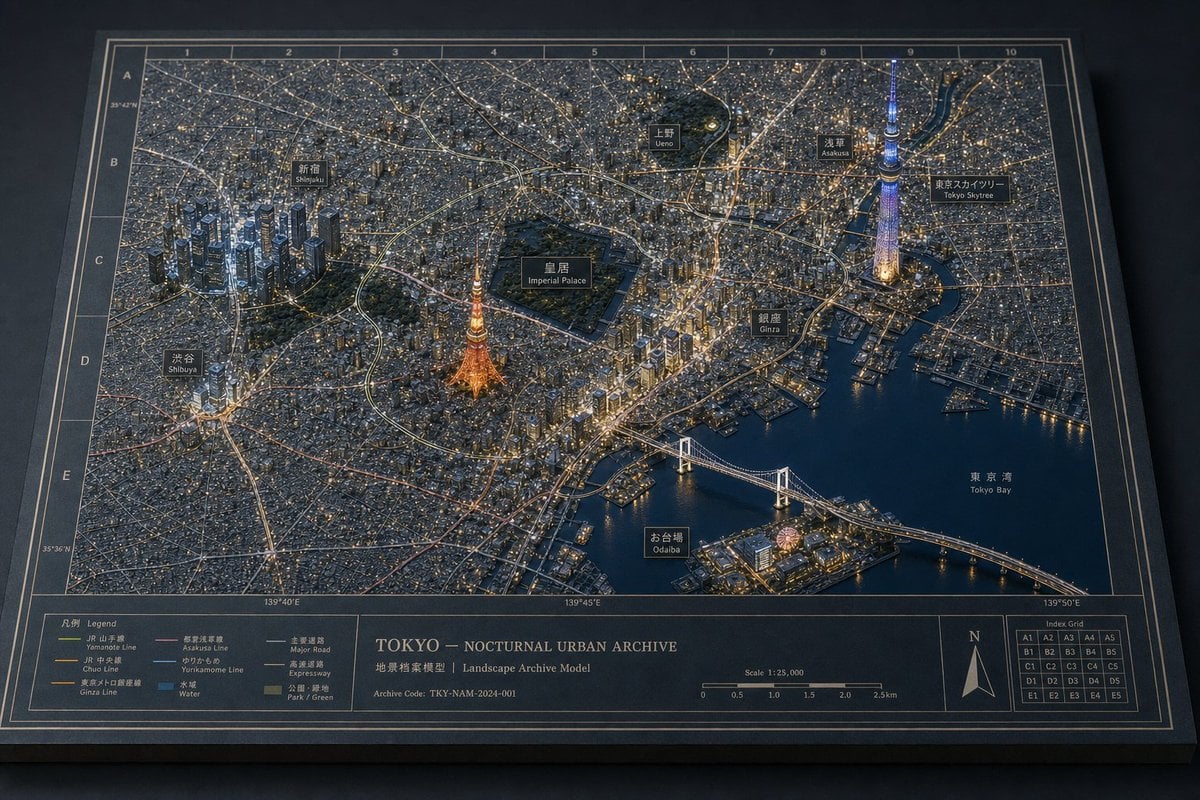
- Prompt included
- Model and format preset
- Free template
The prompt behind this image
Copy the exact prompt behind Tokyo Nocturnal Urban Archive, or open it in the studio and make it yours.
Goal: Create a highly realistic physical museum-diorama style city map titled {argument name="archive title" default="TOKYO — NOCTURNAL URBAN ARCHIVE"}, showing Tokyo at night as a layered architectural archive model on a dark tabletop. Canvas: Wide landscape image, 3:2 aspect ratio, viewed from an elevated oblique angle. The entire scene is a rectangular black archival board with a thin cream double-line border, coordinate grid, index markings, and printed cartographic annotations. Use a restrained night palette: charcoal paper, navy water, warm amber city lights, cool white road lines, and selective blue/purple tower lighting. Layout: The main map occupies the upper 80% of the board and shows an ultra-dense 3D miniature urban model with thousands of low-rise buildings, raised clusters of skyscrapers, glowing roads, rail lines, bridges, waterways, parks, and harbor piers. The bottom 20% is a printed archive information strip containing a legend on the left, the title block in the center, a scale bar, a north arrow, and an index grid on the right. Add realistic paper grain, matte model surfaces, tiny cast shadows, engraved-looking map lines, and soft studio lighting from above. City content: Depict {argument name="city name" default="Tokyo"} as a nocturnal urban archive. Include exactly 9 labeled landmark callout plaques on the map, each black with thin cream borders and bilingual Japanese/English styling: 1) Shinjuku, 2) Shibuya, 3) Imperial Palace, 4) Ueno, 5) Asakusa, 6) Tokyo Skytree, 7) Ginza, 8) Odaiba, 9) Tokyo Bay. Place Shinjuku as a dense blue-lit skyscraper cluster on the left, Shibuya lower-left, the dark green Imperial Palace park in the center, Tokyo Tower glowing orange near the center-lower area, Tokyo Skytree glowing blue-purple on the right, Ginza near the waterfront, Odaiba on an island near the bottom, and Tokyo Bay as dark navy water on the right. Map details: Add a coordinate frame with columns numbered 1 through 10 across the top and rows labeled A through E down the left edge. Include latitude/longitude markings around the border. Show a dense street network as fine pale lines, major expressways as brighter sweeping curves, rail lines as subtly colored routes, and water areas as smooth dark navy shapes. Include a prominent illuminated suspension bridge across Tokyo Bay in the lower-right quadrant. Bottom archive strip: Include exactly 1 legend box on the bottom-left with the heading “Legend” and 8 line/style entries: 1) Yamanote Line, 2) JR / Chuo Line, 3) Ginza Line, 4) Asakusa Line, 5) Yurikamome Line, 6) Water, 7) Major Road, 8) Park / Green. In the center title block, print “TOKYO — NOCTURNAL URBAN ARCHIVE”, a smaller subtitle “Landscape Archive Model”, and an archive code {argument name="archive code" default="TKY-NAM-2024-001"}. Include exactly 1 scale bar labeled “Scale 1:25,000” with tick labels from 0 to 2.5 km. Include exactly 1 north arrow and exactly 1 index grid at the far right with 25 cells labeled A1 through E5. Visual style: Photorealistic macro photography of a handcrafted physical cartographic diorama, like an architectural museum model photographed in a dark studio. Use crisp micro-detail, shallow-but-readable depth of field, realistic shadows under elevated buildings, reflective water, warm window glows, and subtle paper texture. No people, no cars large enough to dominate, no extra landmarks beyond the specified labels, no watermark.
How to use Tokyo Nocturnal Urban Archive in 3 steps
- 1Upload ImagePNG, JPG or paste
Add your photo
Upload the photo the template builds on. The prompt, model and format are already set.
- 2…a portrait of your subject in softgolden-hour light, 85mm…
Personalize
Edit the subject and creative details for your destination.
- 3Generate
Generate
Press Generate — your image is created in PicX Studio, so you can compare it with the original and refine one variable at a time.
More like this
Templates with the same subject, style or setup. Open one to see its prompt.
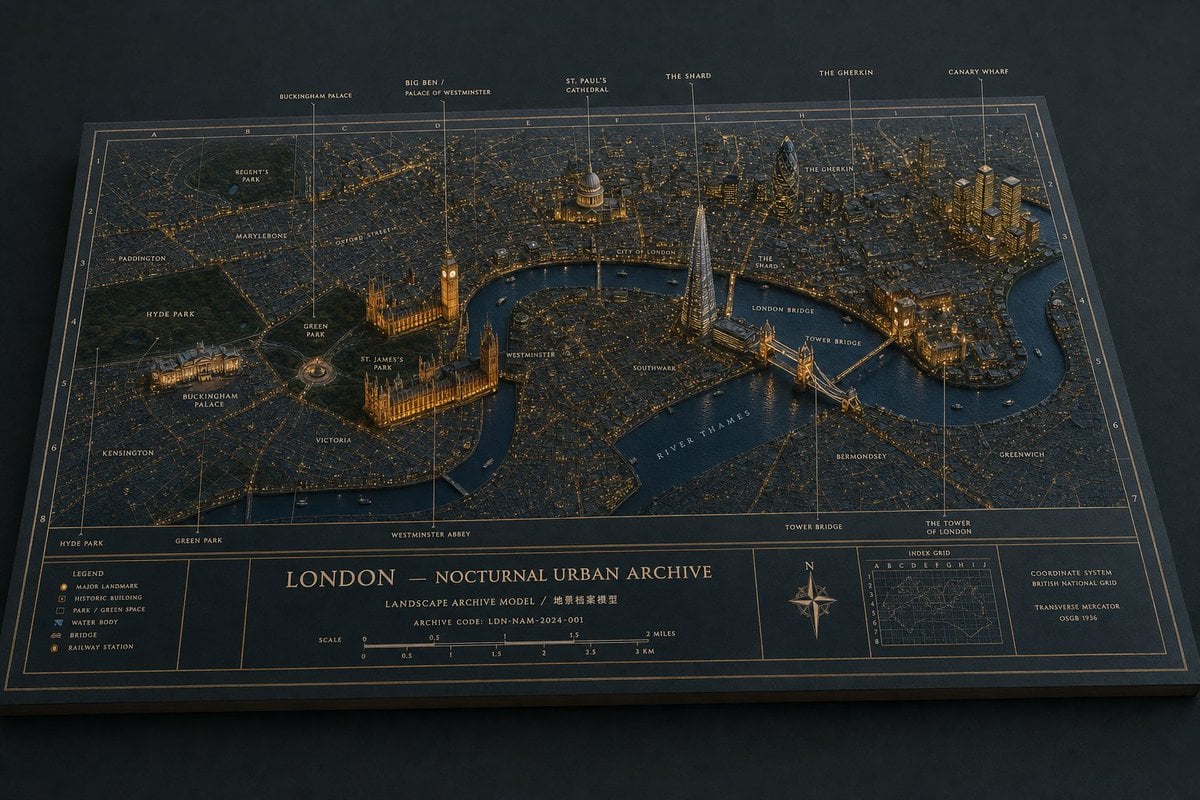
London Nocturnal Urban Archive Diorama
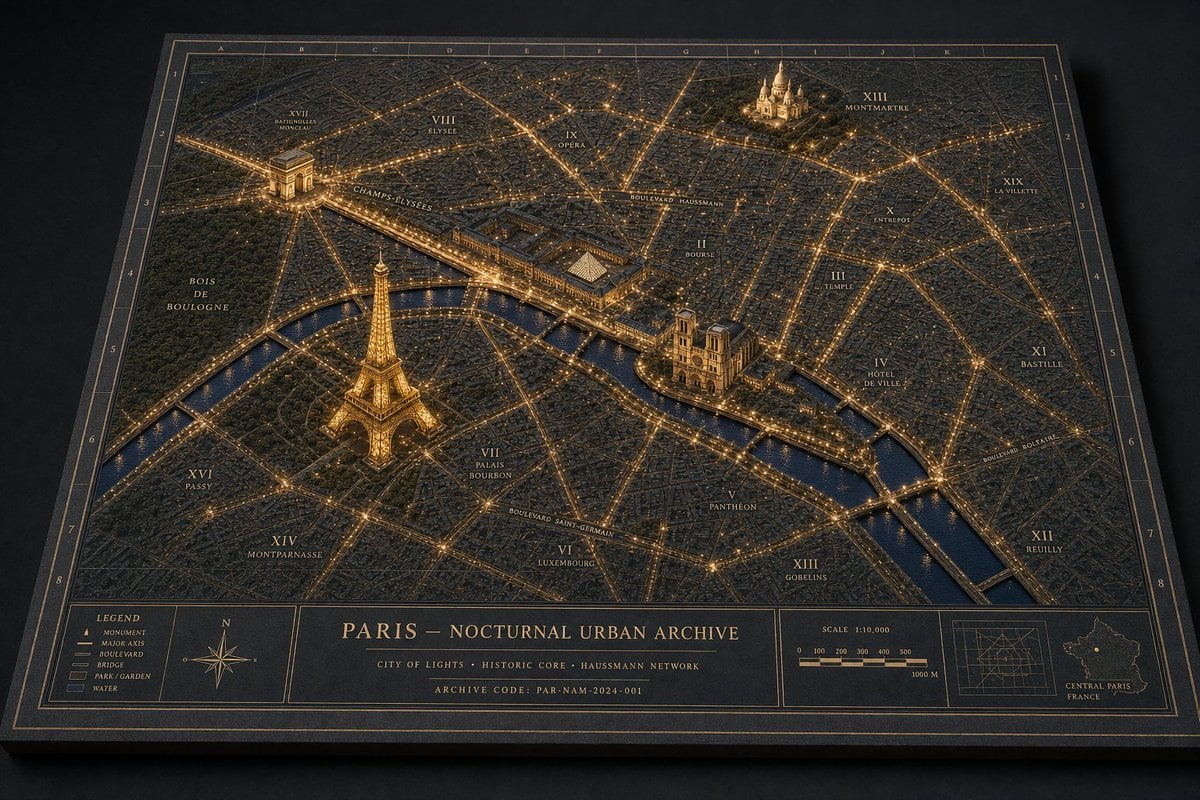
Paris Nocturnal Urban Archive Map
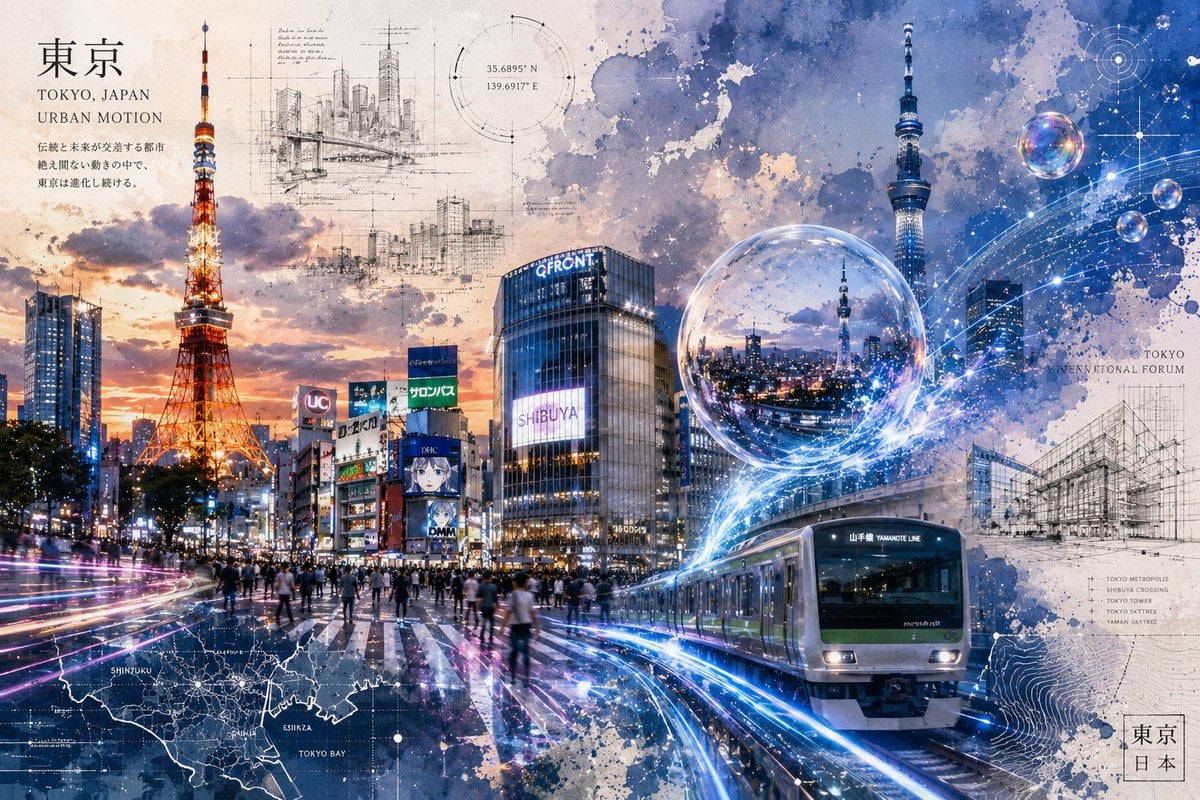
Tokyo Urban Motion Poster
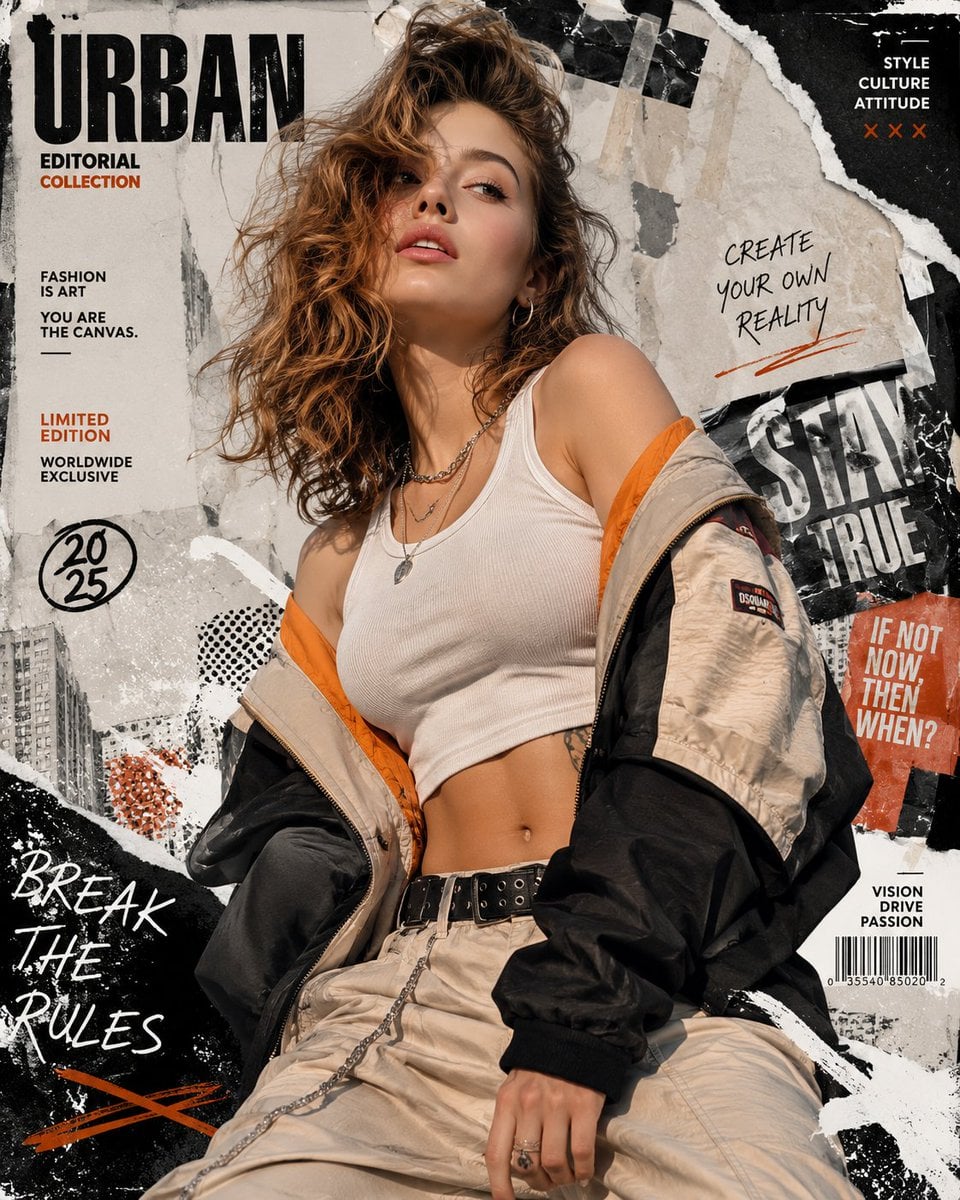
Urban Fashion Editorial Collage Streetwear Poster
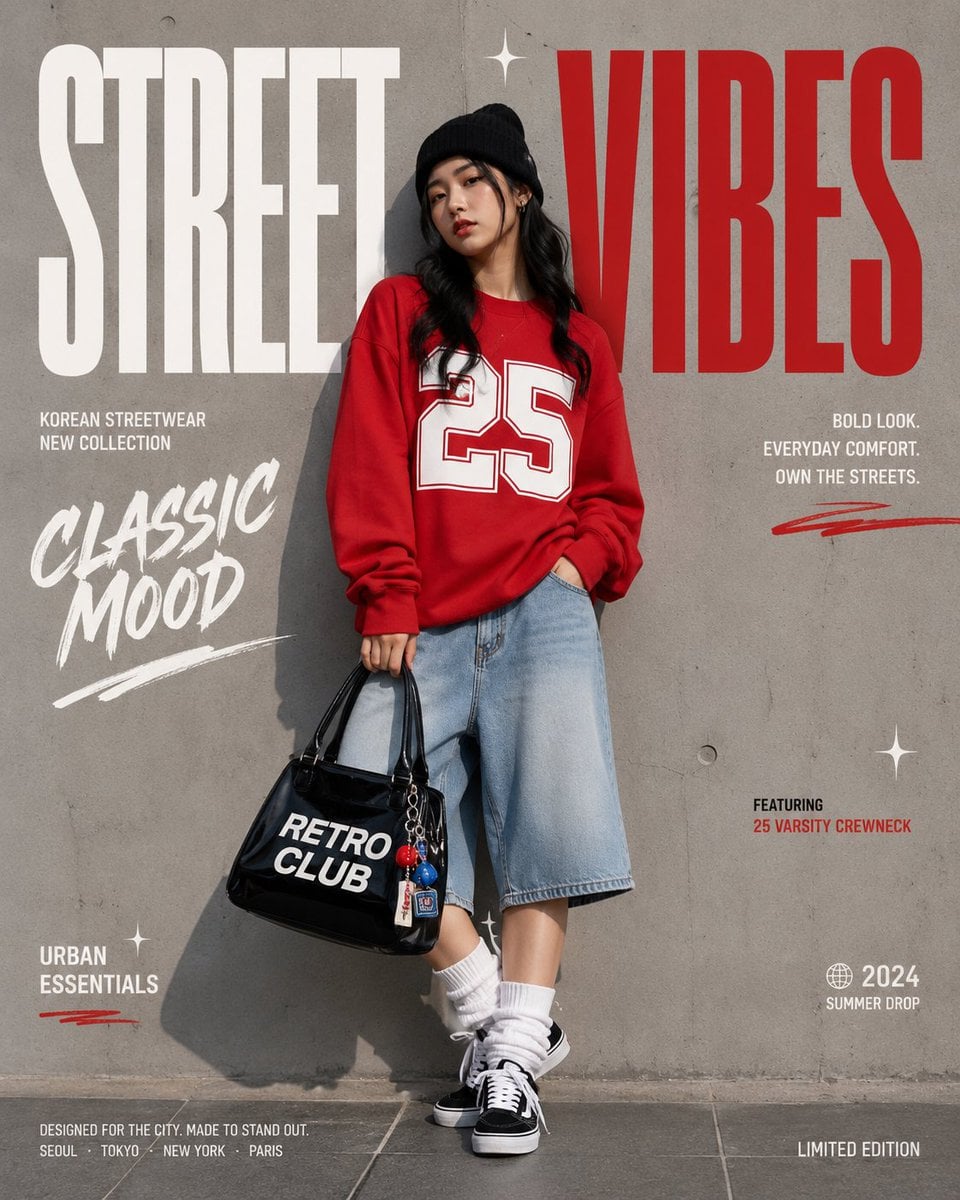
Korean Streetwear Minimalist Campaign Portrait
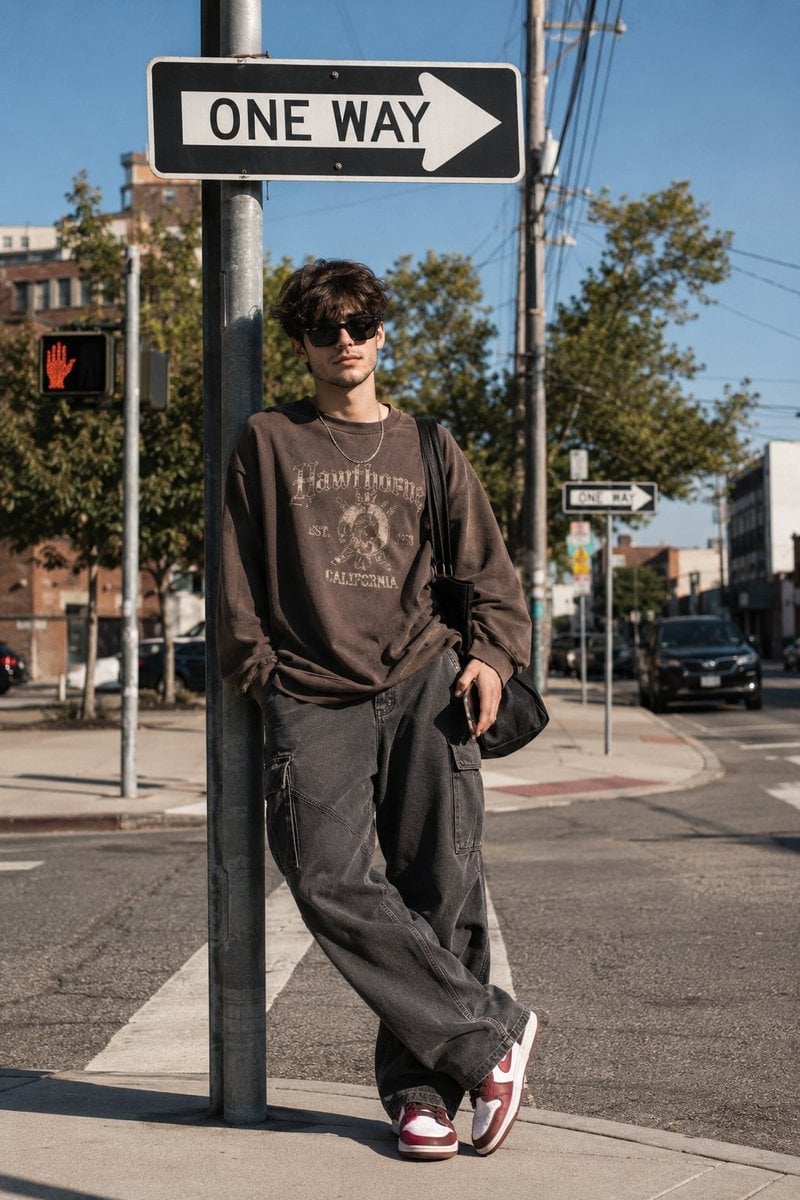
Cinematic Korean Streetwear Street Portrait
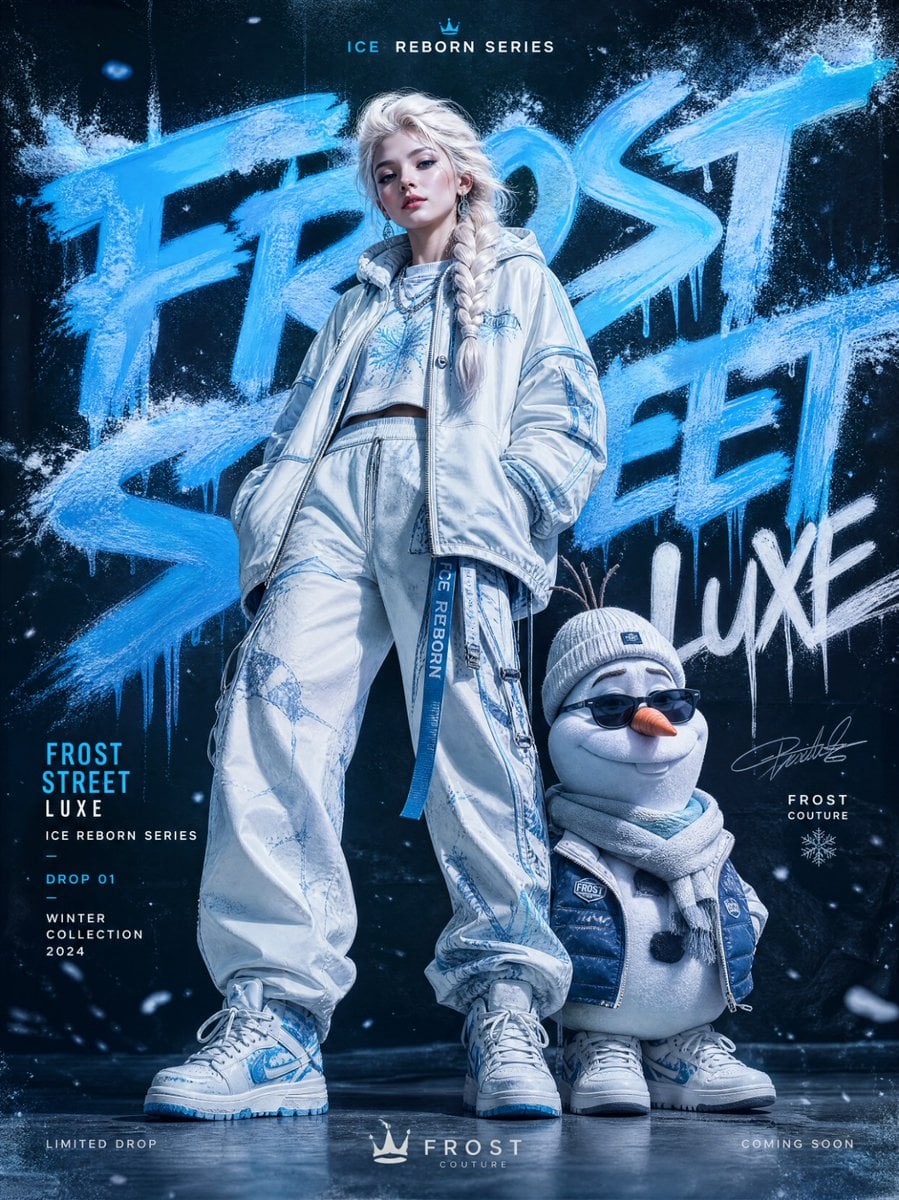
Frozen Street Luxe Graffiti Fashion Campaign
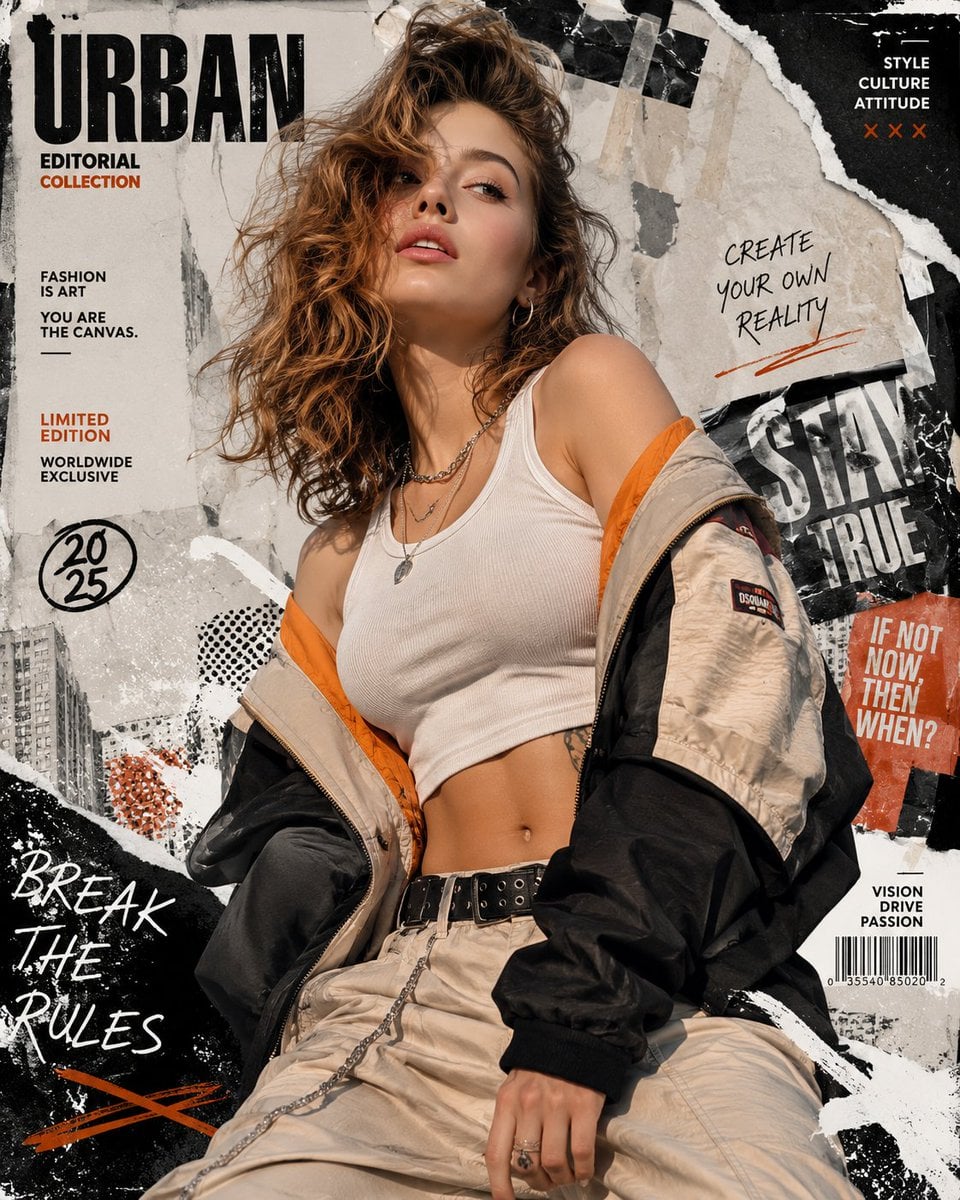
Urban Fashion Editorial Collage Poster
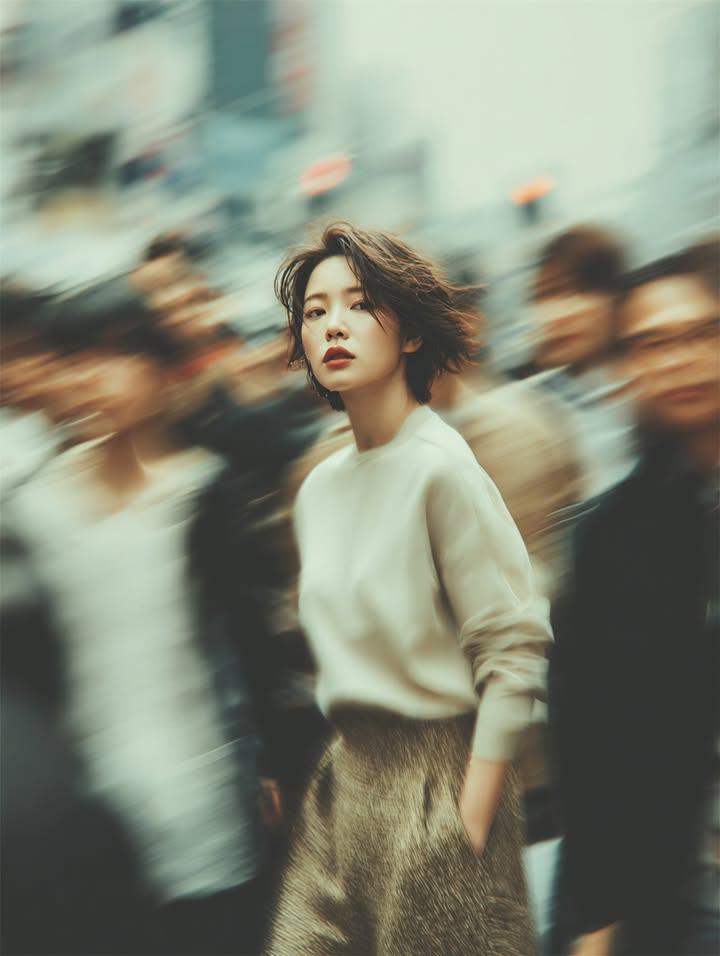
Cinematic Street Fashion Portrait Motion Blur Crowd
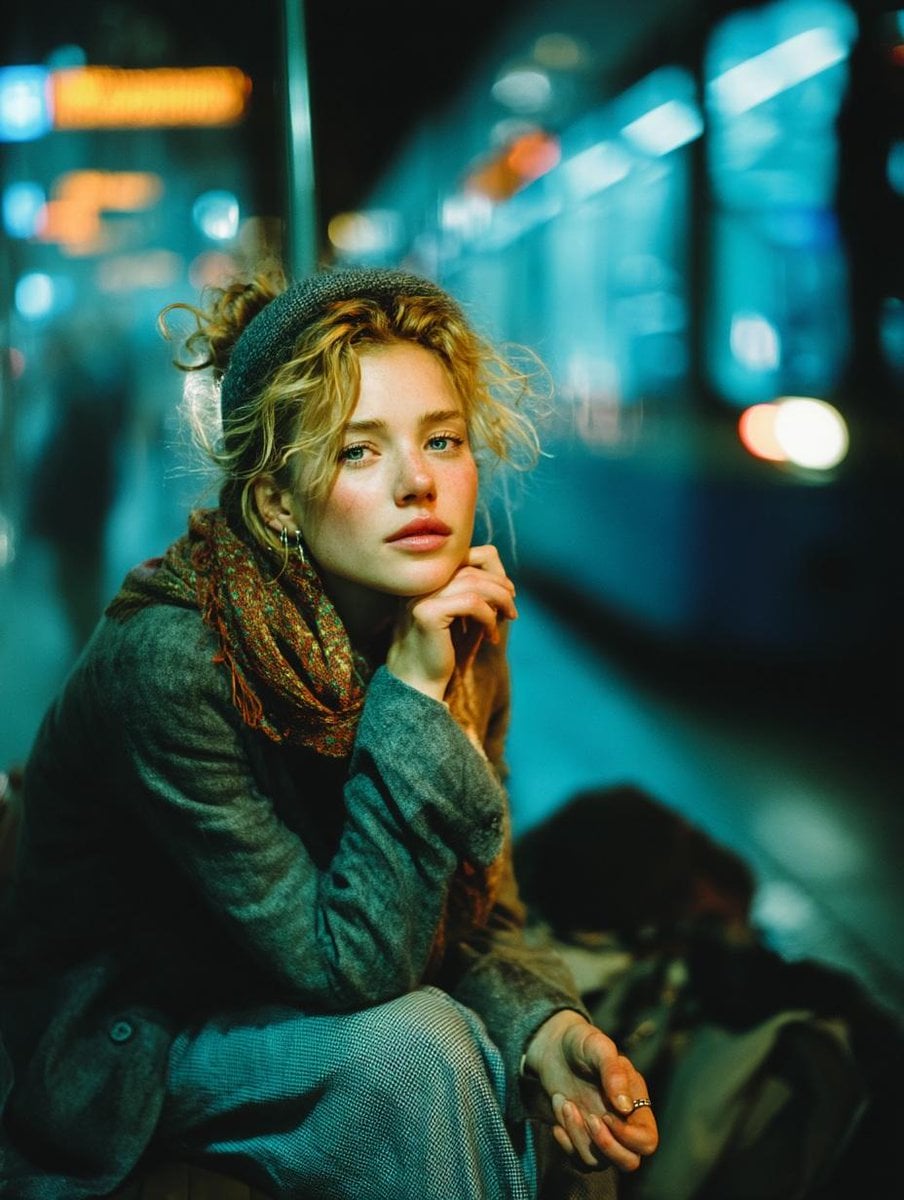
Subway Platform Quiet Introspective Portrait
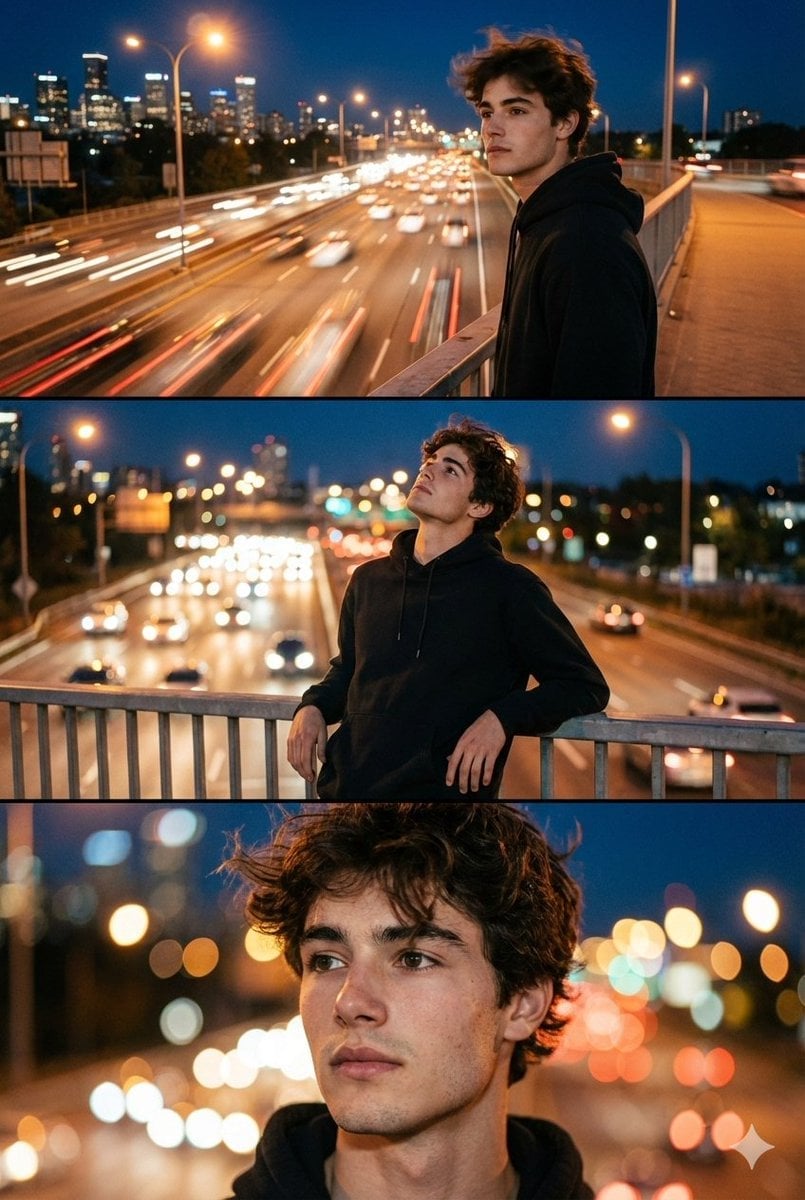
Night City Bridge Triptych Portrait Session
Subway Platform Quiet Introspective Portrait
Make it yours
Tokyo Nocturnal Urban Archive works as-is. These are the safest ways to change it without losing the look.
Change one field
Copy a single group, rewrite it, and generate again so you can see what that field is doing.
Keep the frame, change the subject
Hold the composition and light of Tokyo Nocturnal Urban Archive, then swap wardrobe, props or the person for a new take.
| If the result… | Why | Fix |
|---|---|---|
| The result drifts from the preview | Too many fields changed at once. | Reuse Tokyo Nocturnal Urban Archive as-is first, then change one group — subject, light, or setting. |
| The model over-stylizes the scene | The prose prompt leaves finish and camera underspecified. | Add one camera or lighting sentence and stay on GPT Image 2. |
More GPT Image 2 templates
Other prompts made for GPT Image 2.

Six VTuber Japanese Logo Sheet

Realistic Portrait of Woman and Deer

The Vista Modular Condo Poster

AI Model Routing Comparison Infographic

2.5D Anime Art Board

Isometric Productivity Desk Scene

New York Double Exposure Poster

Four-Panel AI Landscape Comparison

Japanese Tatami Lifestyle Magazine Cover

NESCAFÉ Coffee Map Poster
More image prompts
Fresh picks from across the catalog.
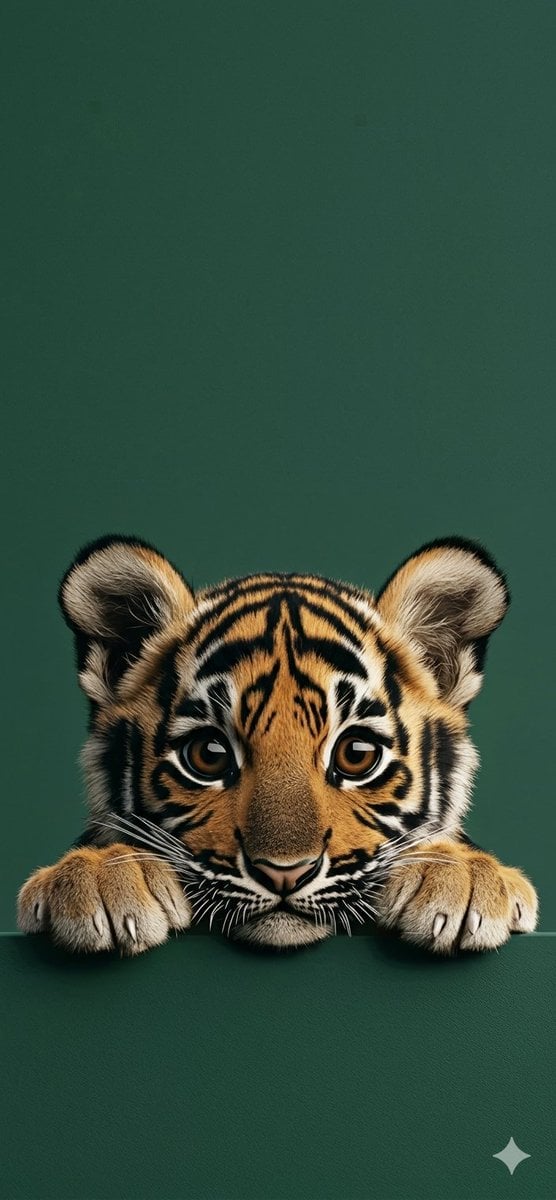
4K Wallpaper Prompt of a Baby Tiger Cub using Gemini Nano Banana Pro
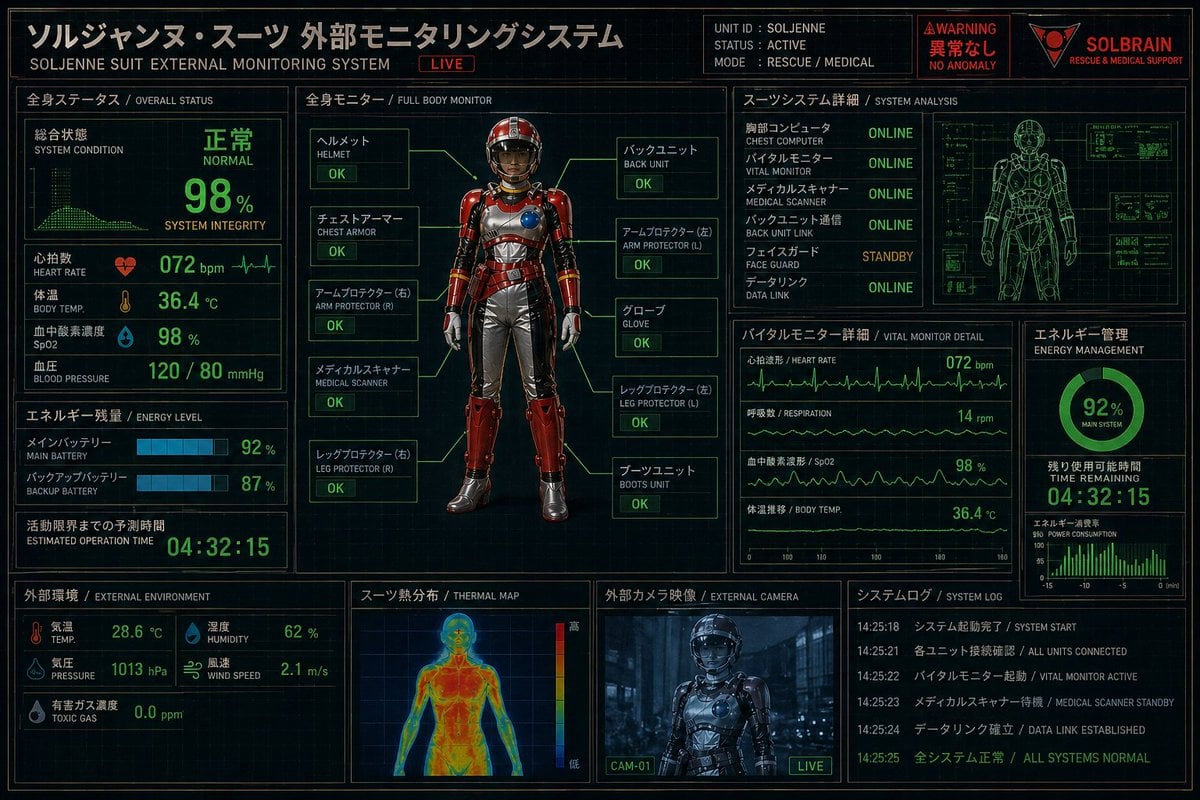
Futuristic Rescue Suit Monitoring HUD
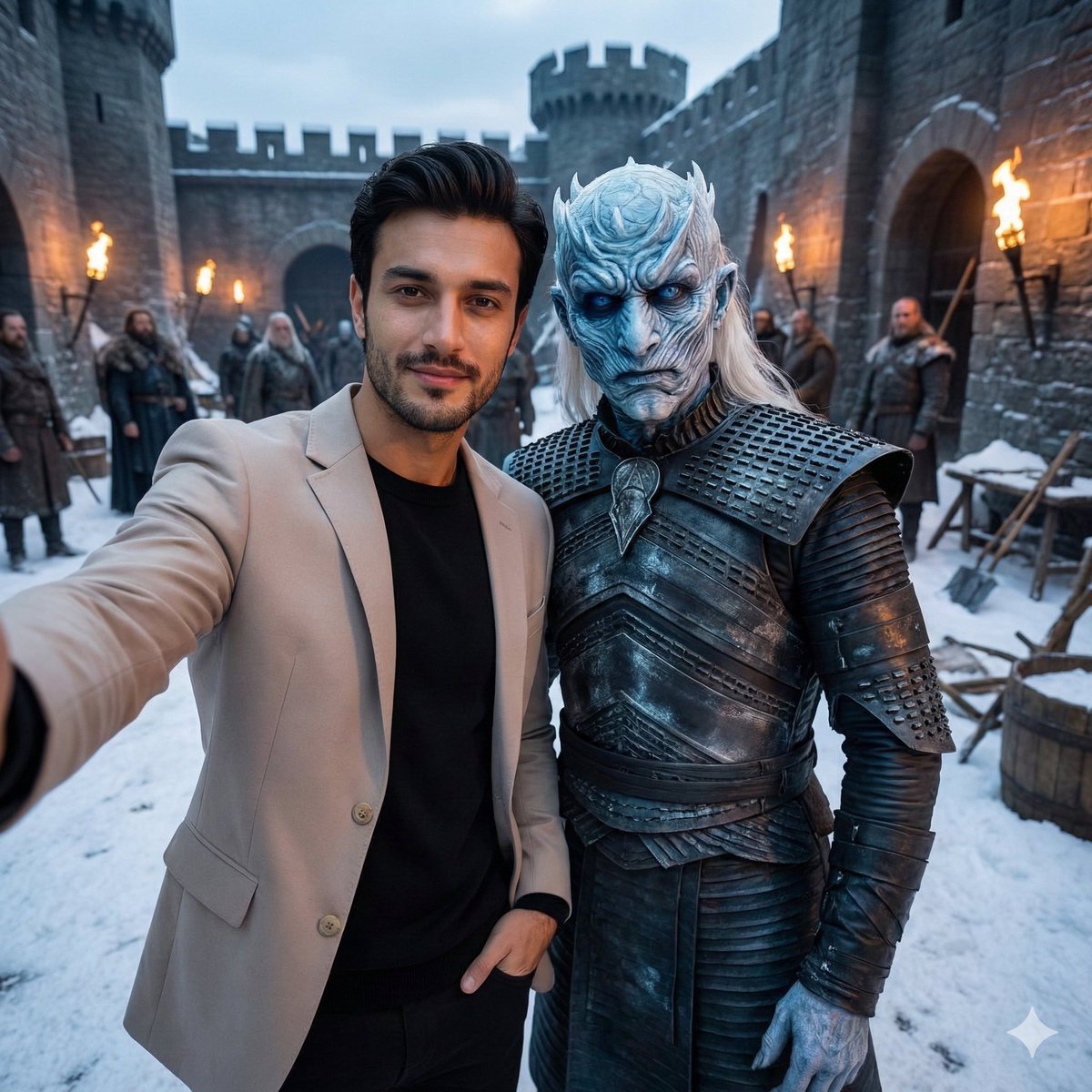
Selfie with Night King on Game of Thrones Set
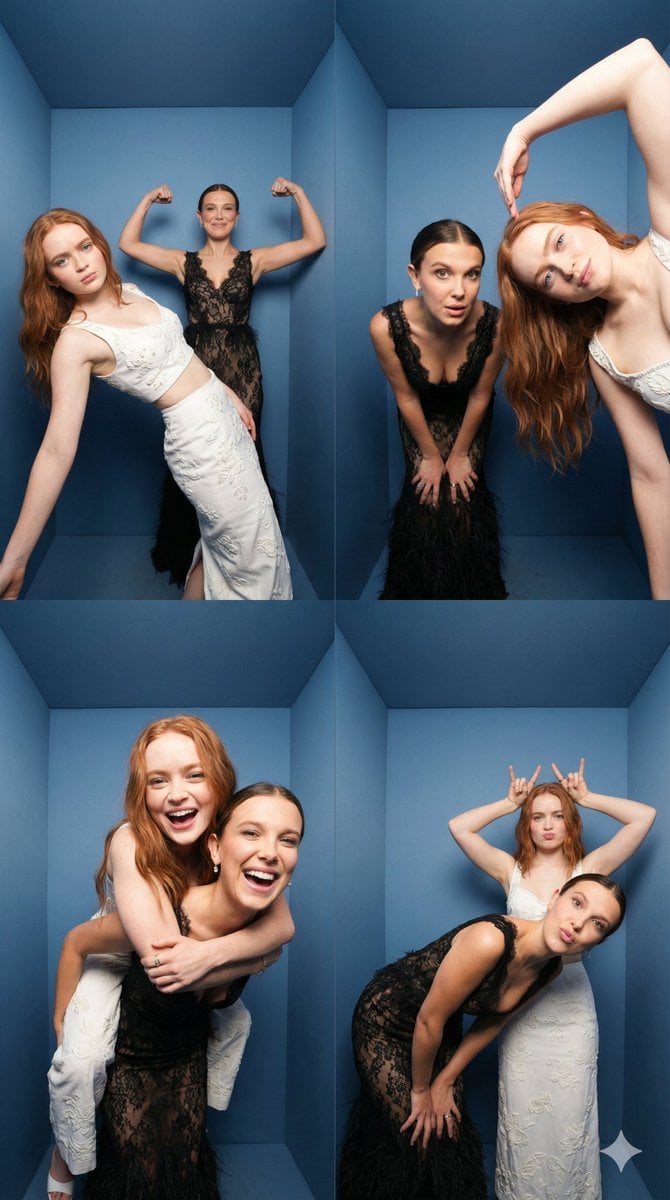
iPhone Photobooth Collage of Two Subjects
Old Photo Restoration and Enhancement
Funny Video Prompt: Grumpy Banana
Luxury Fashion Color Analysis Board
Y2K Grunge Night Playground Portrait Prompt
Gemini Nano Banana 2 Logo in Wet Sand Be

Luxury fashion advertisement poster prompt
Browse template categories
Tokyo Nocturnal Urban Archive questions
How do I use the Tokyo Nocturnal Urban Archive template?
Add your photo if the template asks for one, edit the prompt if you like — the template's model and format are already selected — and press Generate. Your version opens in PicX Studio.
Can I customize the Tokyo Nocturnal Urban Archive template?
Yes. You can change the subject, setting, lighting, mood, format, and available model controls before creating your image.
Is the Tokyo Nocturnal Urban Archive template free?
Opening and editing this template is free. Generating uses credits, shown on the Generate button when you are signed in.
Which AI model should I use?
Start with GPT Image 2, which is the model associated with this template. You can compare another compatible model for a different finish.
Looking for something else? Browse all templates.

Your photo, any look
Thousands of ready templates for every top image and video model, from one credit balance.