
AI Video Workspace Screenshot
A realistic UI screenshot of an AI video-generation tool showing a censored sunrise portrait keyframe, thumbnail rail, action buttons, and prompt composer.
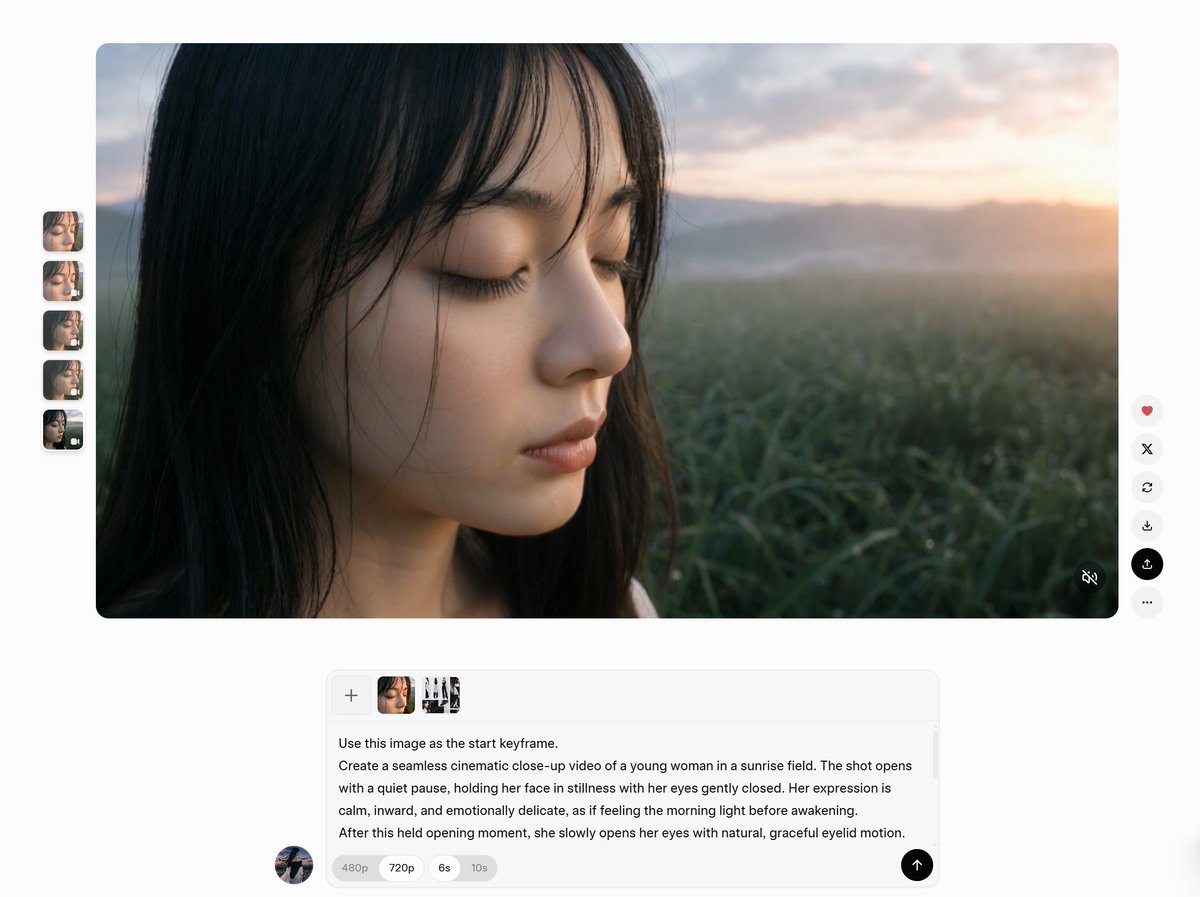
- Prompt included
- Model and format preset
- Free template
The prompt behind this image
Copy the exact prompt behind AI Video Workspace Screenshot, or open it in the studio and make it yours.
Goal: Create a clean web-app interface screenshot showing an AI video-generation workspace with a large cinematic preview image and a text prompt composer below it. Canvas: Wide 16:9 screenshot on a very light gray background, minimal modern UI, soft shadows, rounded corners, lots of white space. Main preview: Place one large rounded-rectangle preview panel centered near the top, about 85% of the canvas width and 60% of the canvas height. The preview shows a photorealistic close-up of {argument name="main subject" default="a young woman with long dark hair"} standing in a dewy green field at sunrise. Her face is mostly covered by a large opaque square privacy block in the center, colored dark warm brown. Visible details include dark hair on the left side, a small part of the lower face and neck below the block, misty grass in the foreground, distant hills, a bright warm sunrise glow on the right, and a soft cinematic shallow-depth-of-field look. Left thumbnail rail: On the left side of the preview, show exactly 5 small vertical rounded thumbnails stacked evenly. The 5 thumbnails are: 1) close-up face with eyes closed, 2) close-up face with a small overlay icon, 3) side-profile close-up, 4) blurred brown square privacy-block image, 5) darker blurred image with a tiny overlay icon. Right action toolbar: On the right side of the preview, show exactly 6 circular floating buttons stacked vertically. The 6 buttons are: 1) heart icon in red, 2) X icon, 3) circular refresh arrow, 4) download arrow, 5) black highlighted upload/share icon, 6) three-dot more menu. Add a small muted-audio icon in the bottom-right corner inside the preview panel. Prompt composer: Below the preview, centered, create a rounded white prompt input card with a subtle border and shadow. At the top-left of the card show exactly 4 small attachment tiles in a row: 1) a plus button, 2) a cropped brown-face thumbnail, 3) a face/portrait thumbnail, 4) a small character-sheet-like thumbnail with multiple figures. Under the attachments, include this readable English prompt text: "Use this image as the start keyframe. Create a seamless cinematic close-up video of a young woman in a sunrise field. The shot opens with a quiet pause, holding her face in stillness with her eyes gently closed. Her expression is calm, inward, and emotionally delicate, as if feeling the morning light before awakening. After this held opening moment, she slowly opens her eyes with natural, graceful eyelid motion." Use {argument name="quality label" default="720p"} as the selected pill in a row of small option pills, with neighboring pills labeled "480p", "6s", and "10s". Place a black circular send button with an upward arrow at the bottom-right of the card. Additional details: Add a small circular user avatar near the lower-left of the composer area. Keep typography small, clean, sans-serif, and UI-like. The overall impression should be a realistic screenshot of a video prompt tool, not a standalone photograph. Do not add extra buttons, extra thumbnails, watermarks, browser chrome, or unrelated text.
How to use AI Video Workspace Screenshot in 3 steps
- 1Upload ImagePNG, JPG or paste
Add your photo
Upload the photo the template builds on. The prompt, model and format are already set.
- 2…a portrait of your subject in softgolden-hour light, 85mm…
Personalize
Edit the subject and creative details for your destination.
- 3Generate
Generate
Press Generate — your image is created in PicX Studio, so you can compare it with the original and refine one variable at a time.
More like this
Templates with the same subject, style or setup. Open one to see its prompt.

Minecraft Next-Gen Voxel World Screenshot
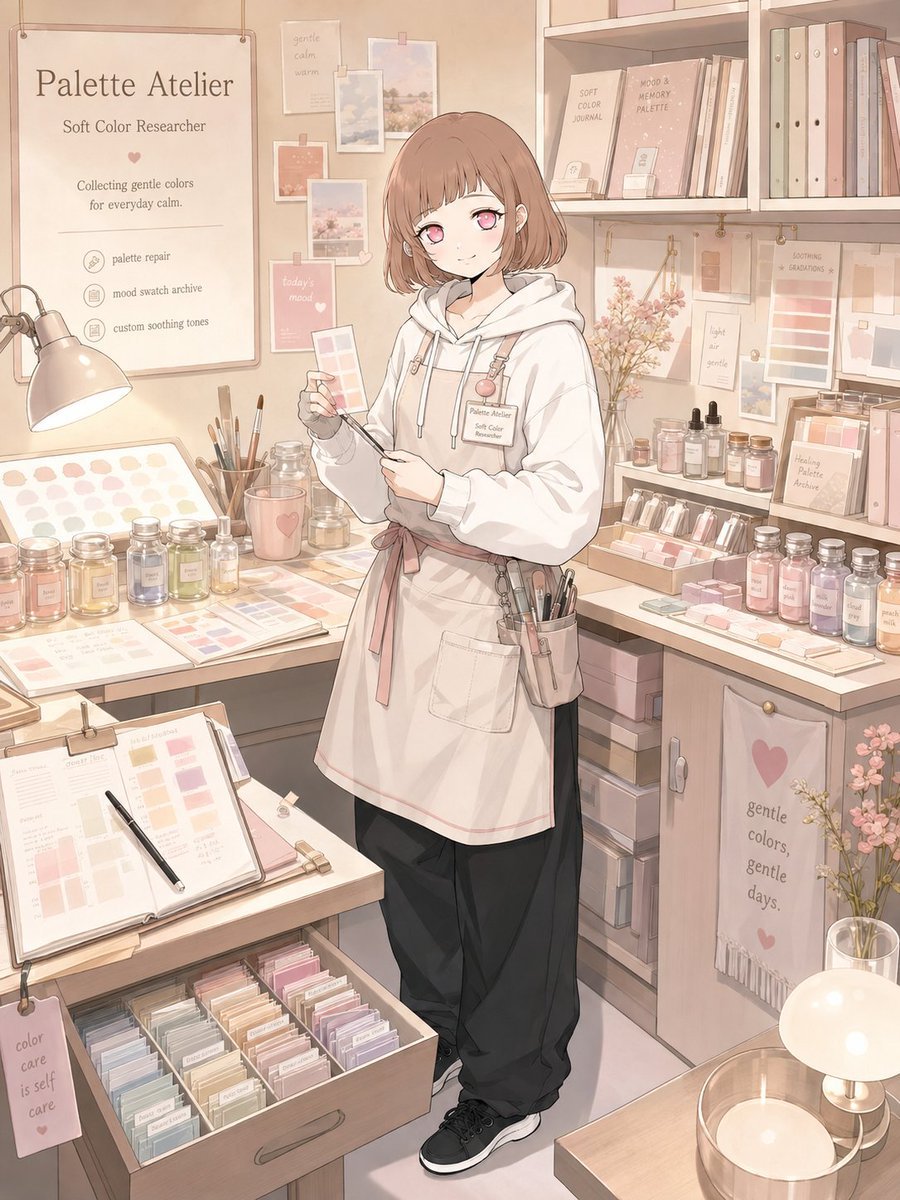
Character Workspace Generator
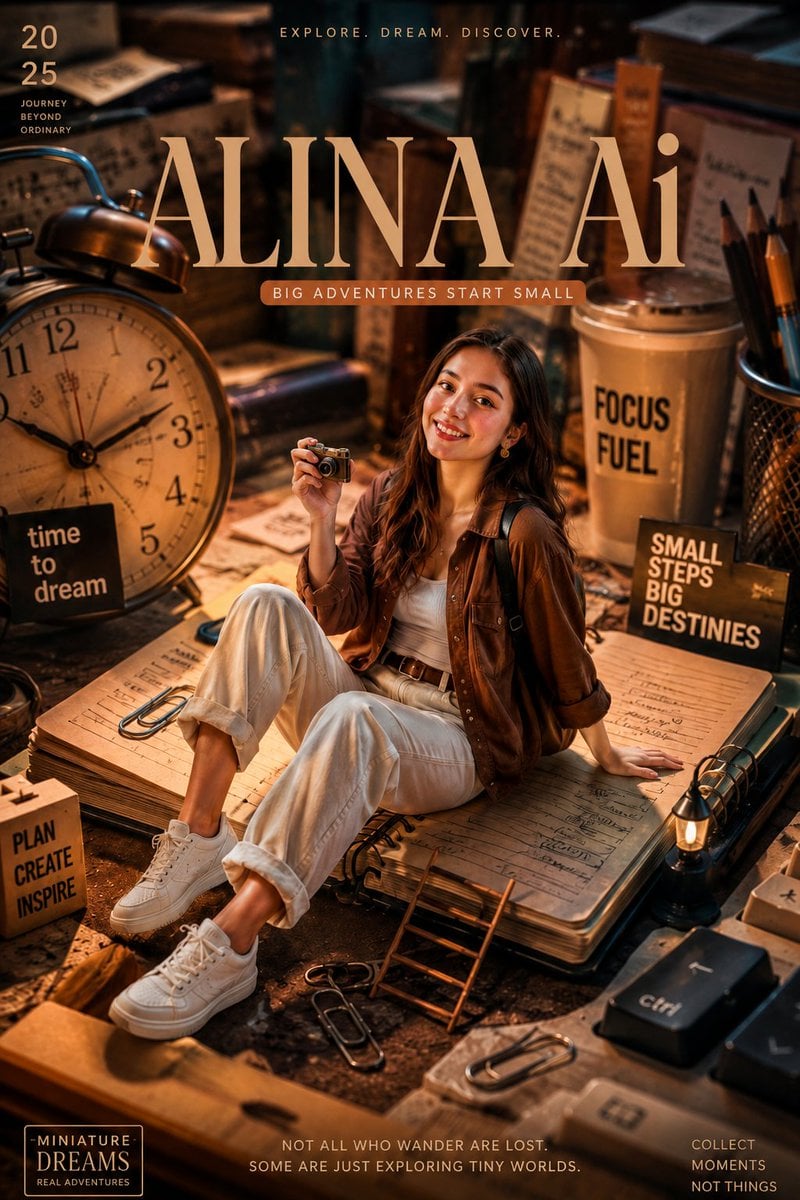
Miniature Workspace Adventure Poster
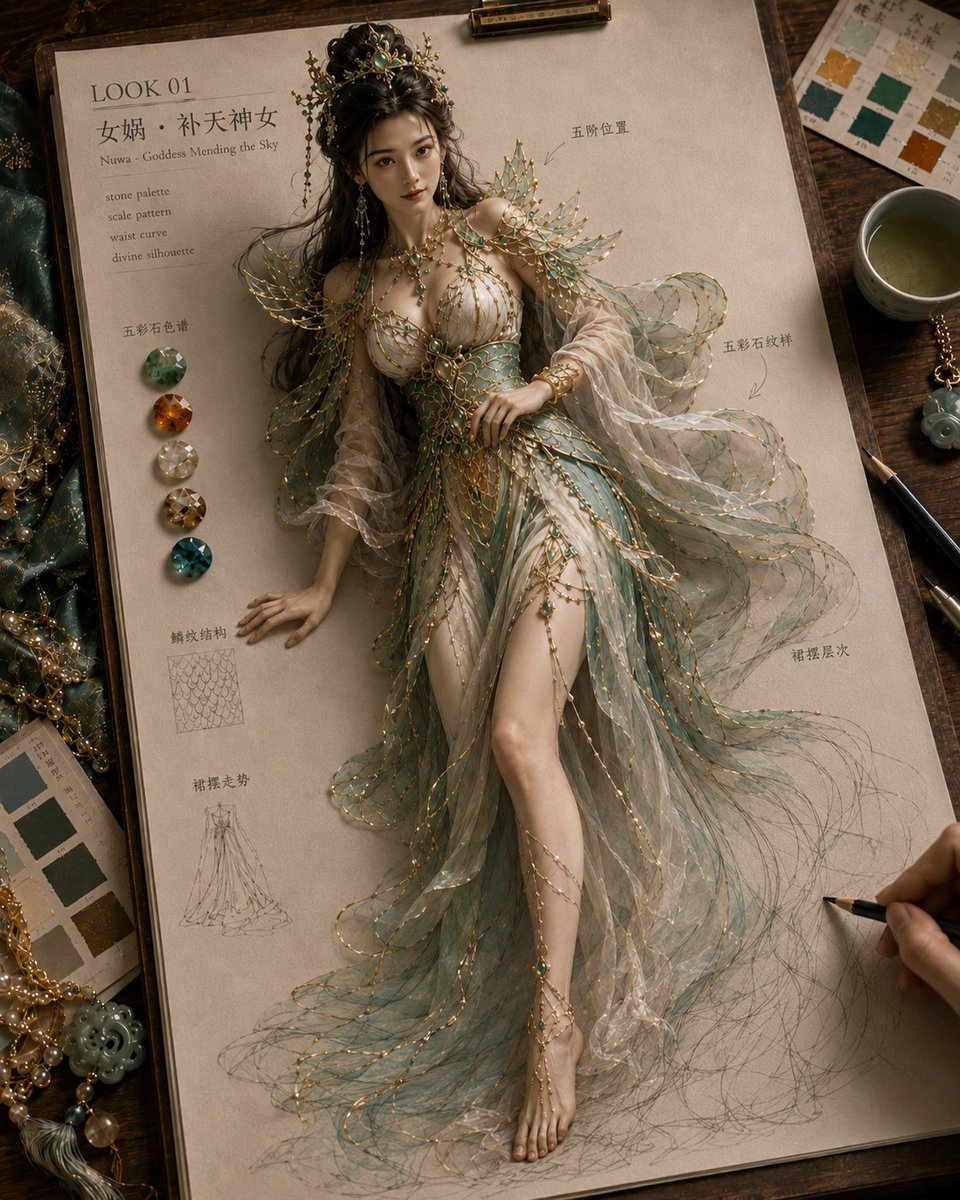
Mythical Haute Couture Sketch Workspace
Retro Y2K Computer Workspace Portrait
3D AI Prompt Library Workspace
Premium Futuristic AI Workspace
Absurdist Office Workspace Fire
Surreal Sunset Creative Workspace
Cyberpunk AI Creative Workspace
Luxury AI Influencer Workspace Render
Cozy Workspace Café Portrait
Make it yours
AI Video Workspace Screenshot works as-is. These are the safest ways to change it without losing the look.
Change one field
Copy a single group, rewrite it, and generate again so you can see what that field is doing.
Keep the frame, change the subject
Hold the composition and light of AI Video Workspace Screenshot, then swap wardrobe, props or the person for a new take.
| If the result… | Why | Fix |
|---|---|---|
| The result drifts from the preview | Too many fields changed at once. | Reuse AI Video Workspace Screenshot as-is first, then change one group — subject, light, or setting. |
| The model over-stylizes the scene | The prose prompt leaves finish and camera underspecified. | Add one camera or lighting sentence and stay on GPT Image 2. |
More GPT Image 2 templates
Other prompts made for GPT Image 2.

Six VTuber Japanese Logo Sheet

Realistic Portrait of Woman and Deer

The Vista Modular Condo Poster

AI Model Routing Comparison Infographic

2.5D Anime Art Board

Isometric Productivity Desk Scene

New York Double Exposure Poster

Four-Panel AI Landscape Comparison

Japanese Tatami Lifestyle Magazine Cover

NESCAFÉ Coffee Map Poster
More image prompts
Fresh picks from across the catalog.
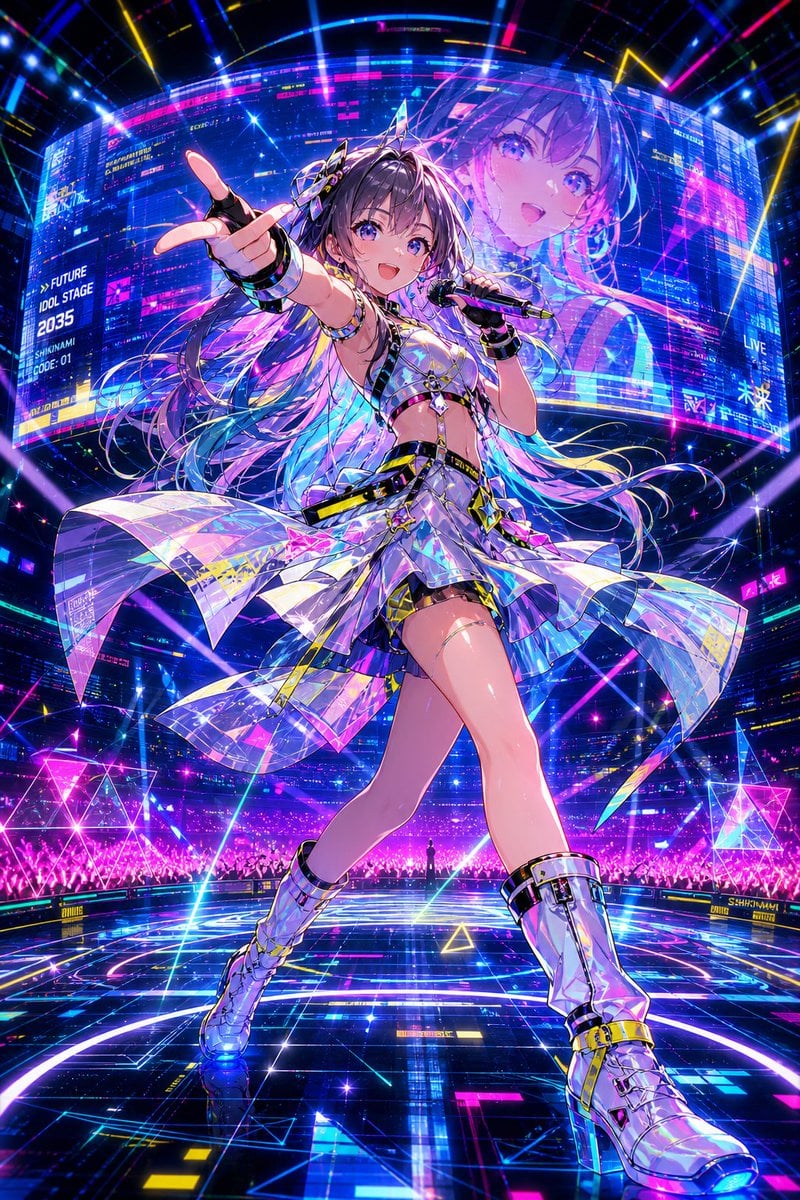
Cyberpunk Future Idol Concert
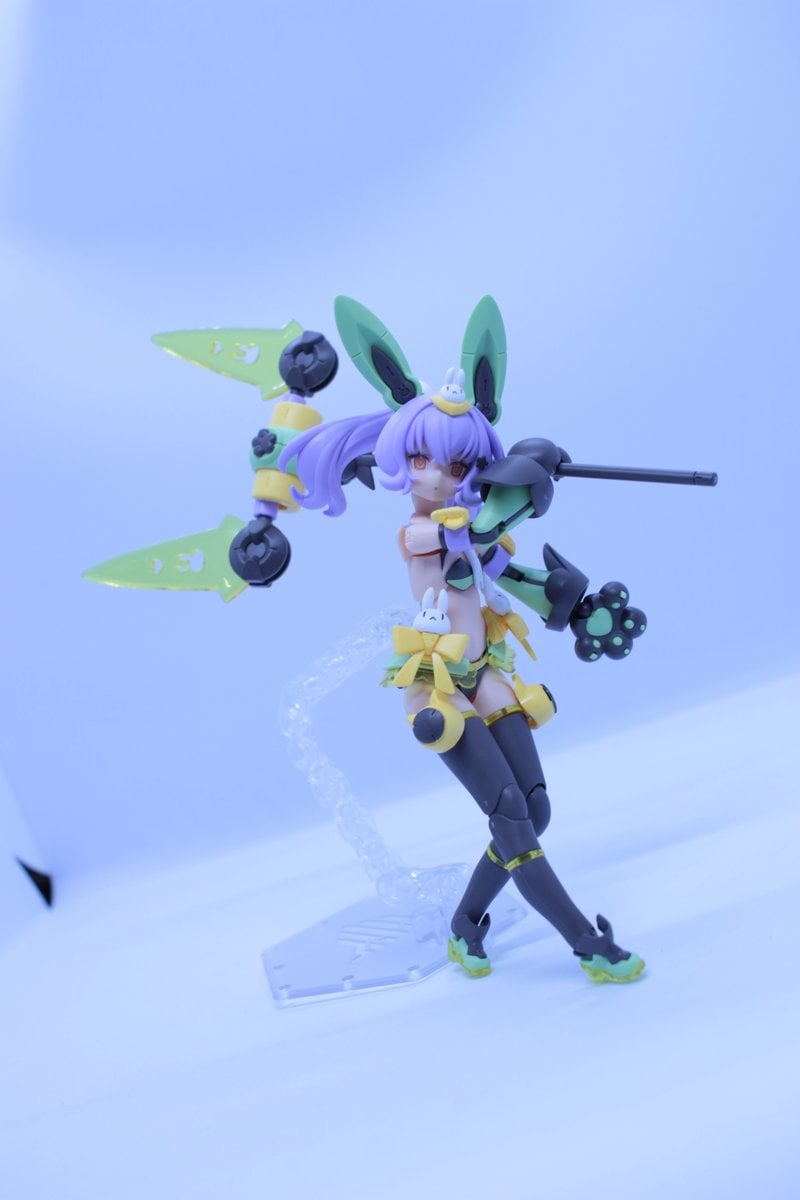
Low-Poly Character Figure of Megami Device
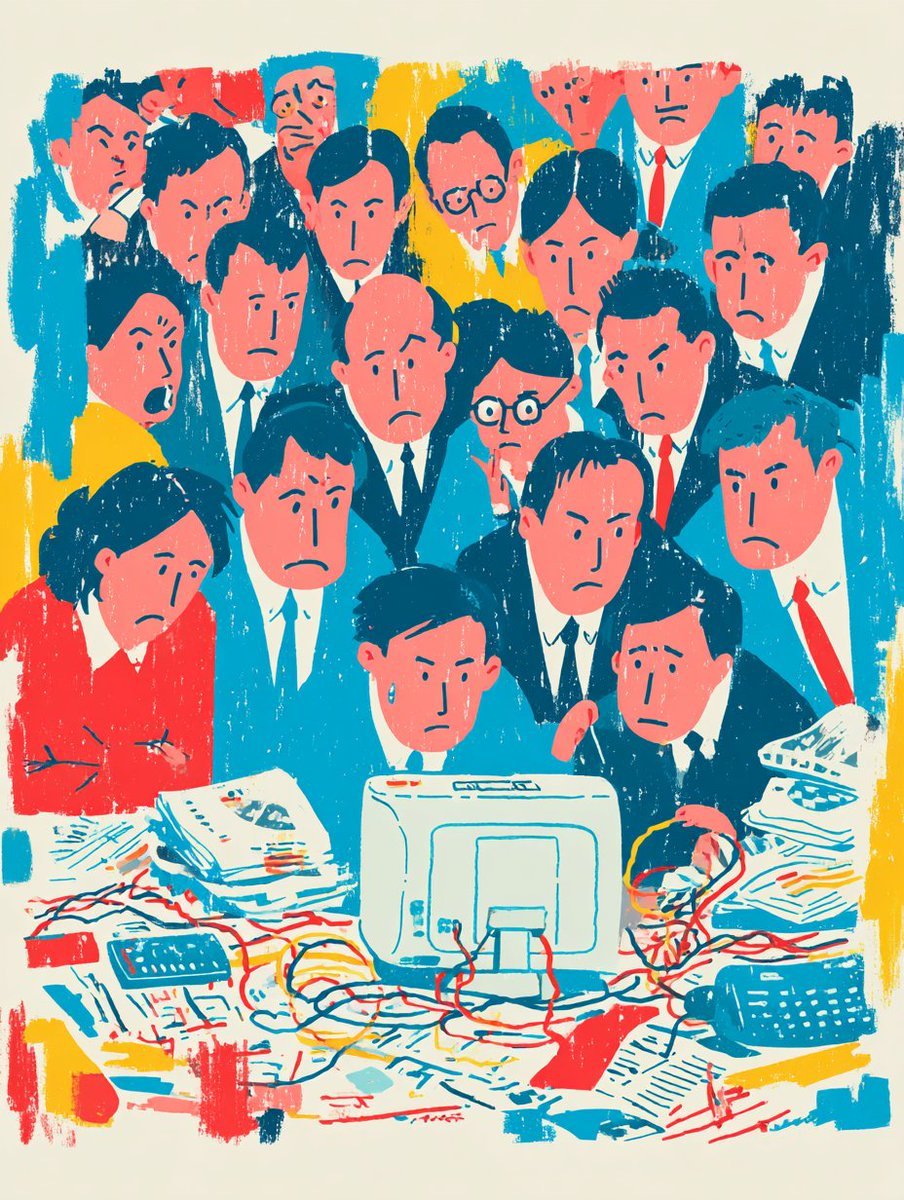
Recreate Image in Real World
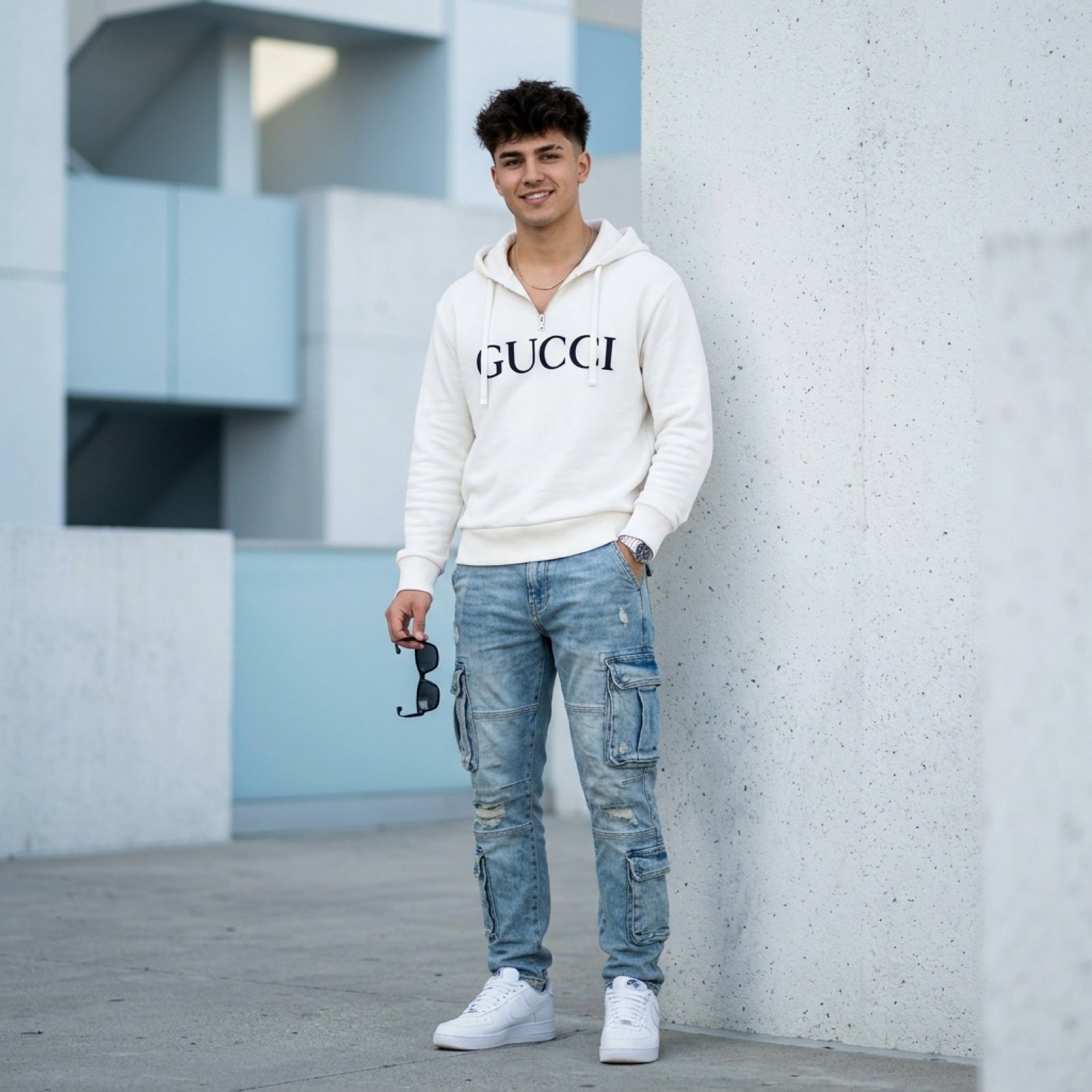
Ultra-Realistic Fashion Photo with Exact Face Match Prompt
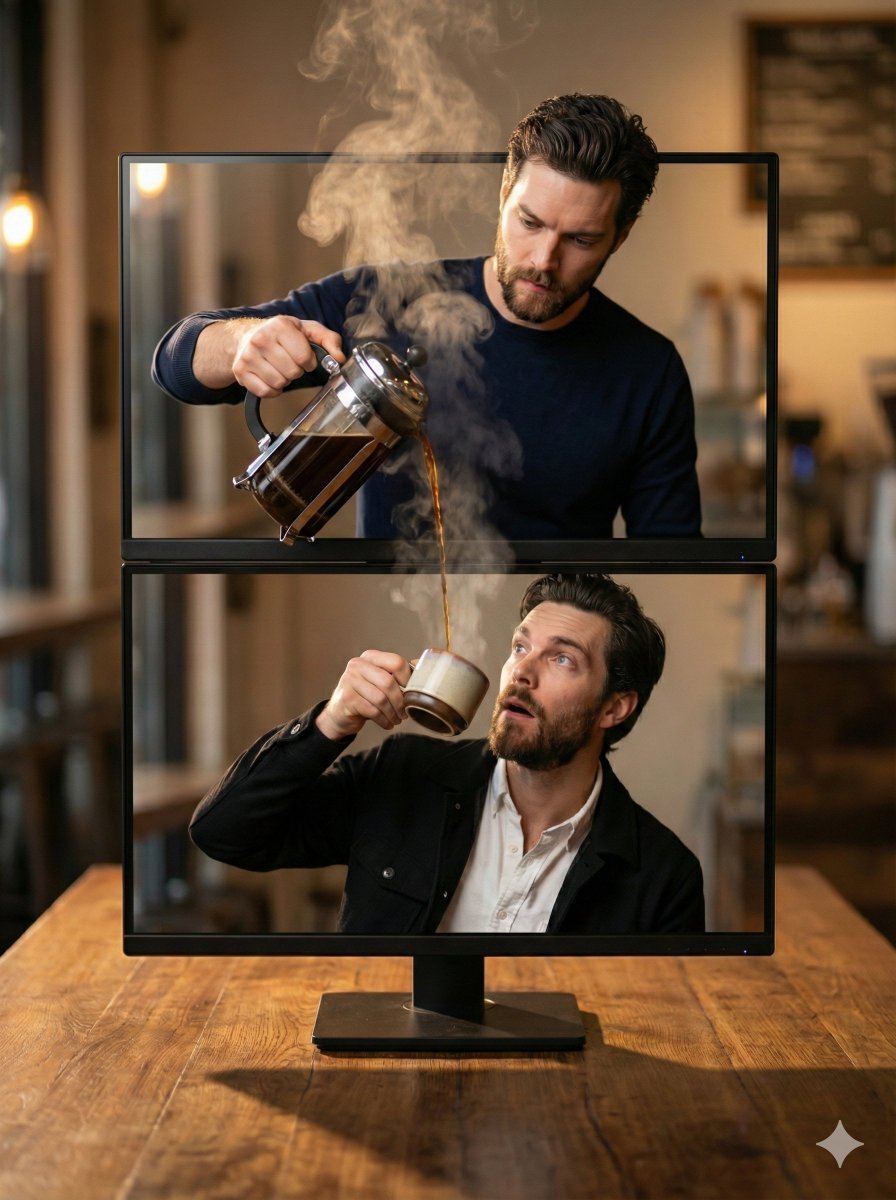
Coffee Pouring Cinematic Artwork (Dual Monitor)
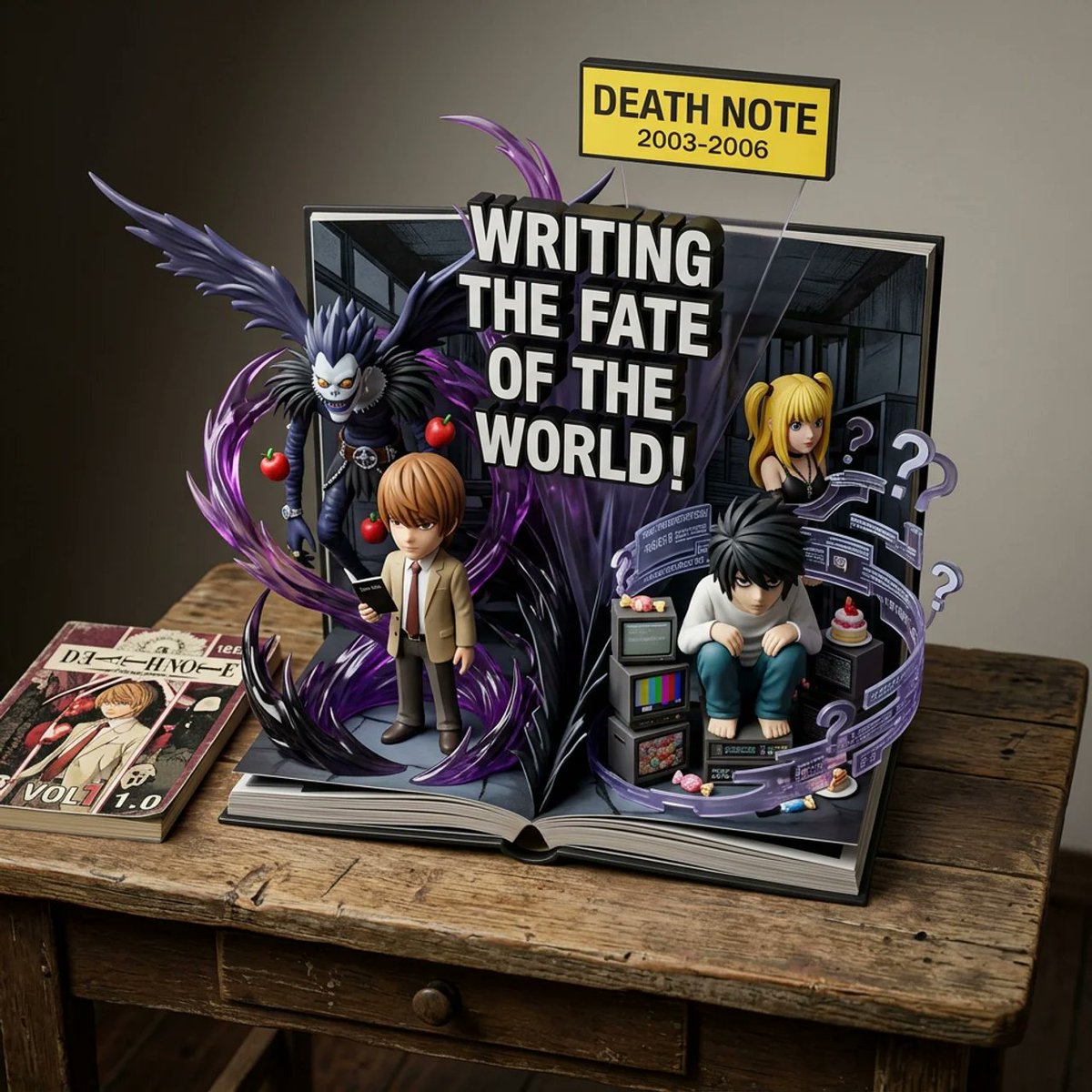
Weighted Prompt for 3D Pop-Up Comic Diorama
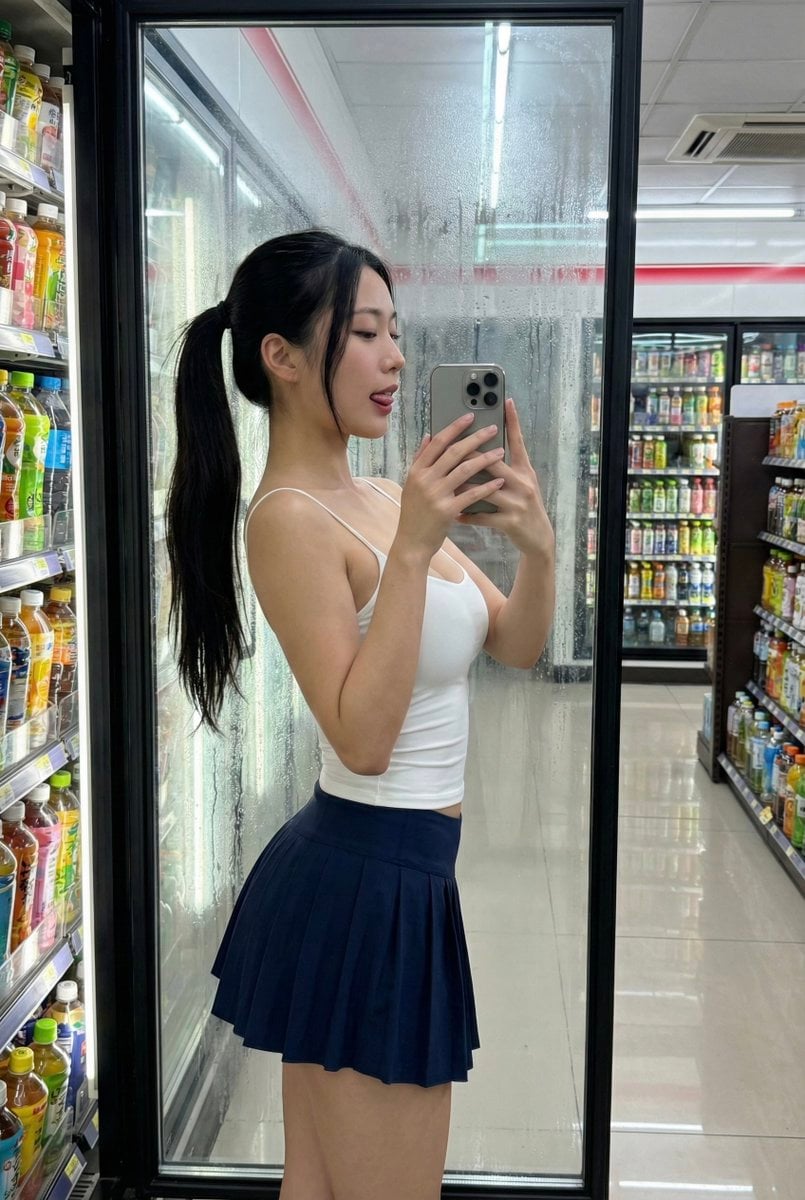
Convenience Store Selfie Reflection Prompt (Suggestive)
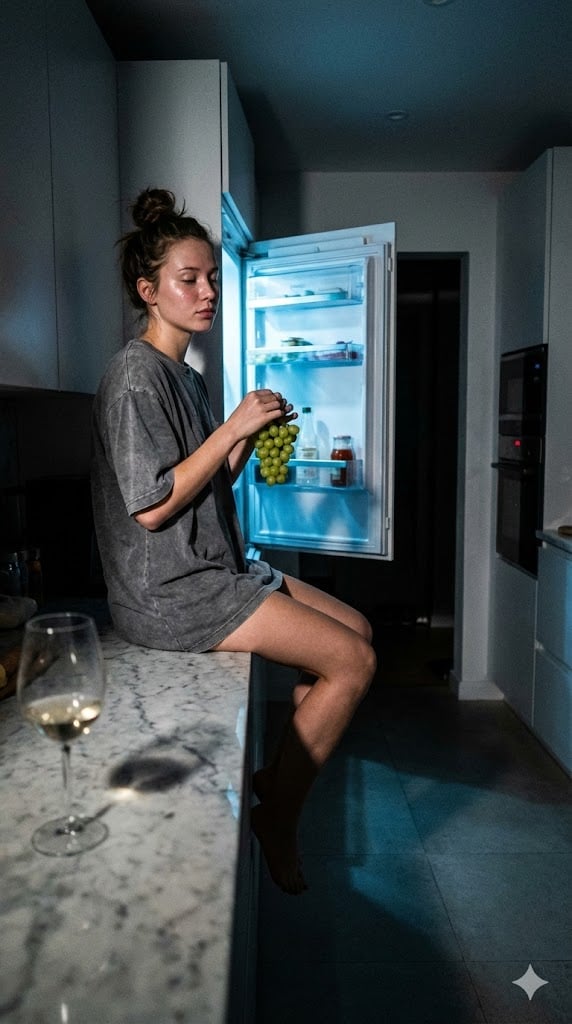
Candid 3 AM Fridge Light Portrait
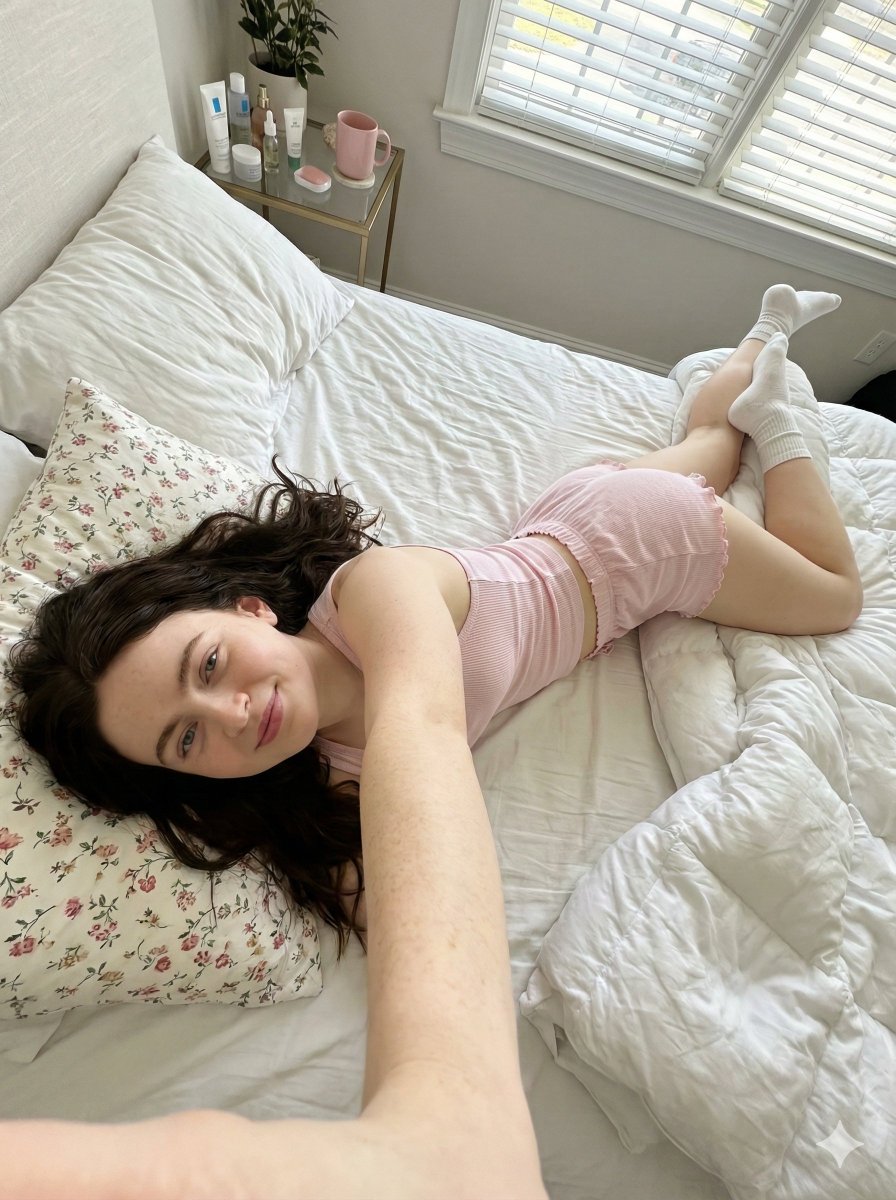
Prone Bed Selfie in Pink Lounge Wear (Duplicate)
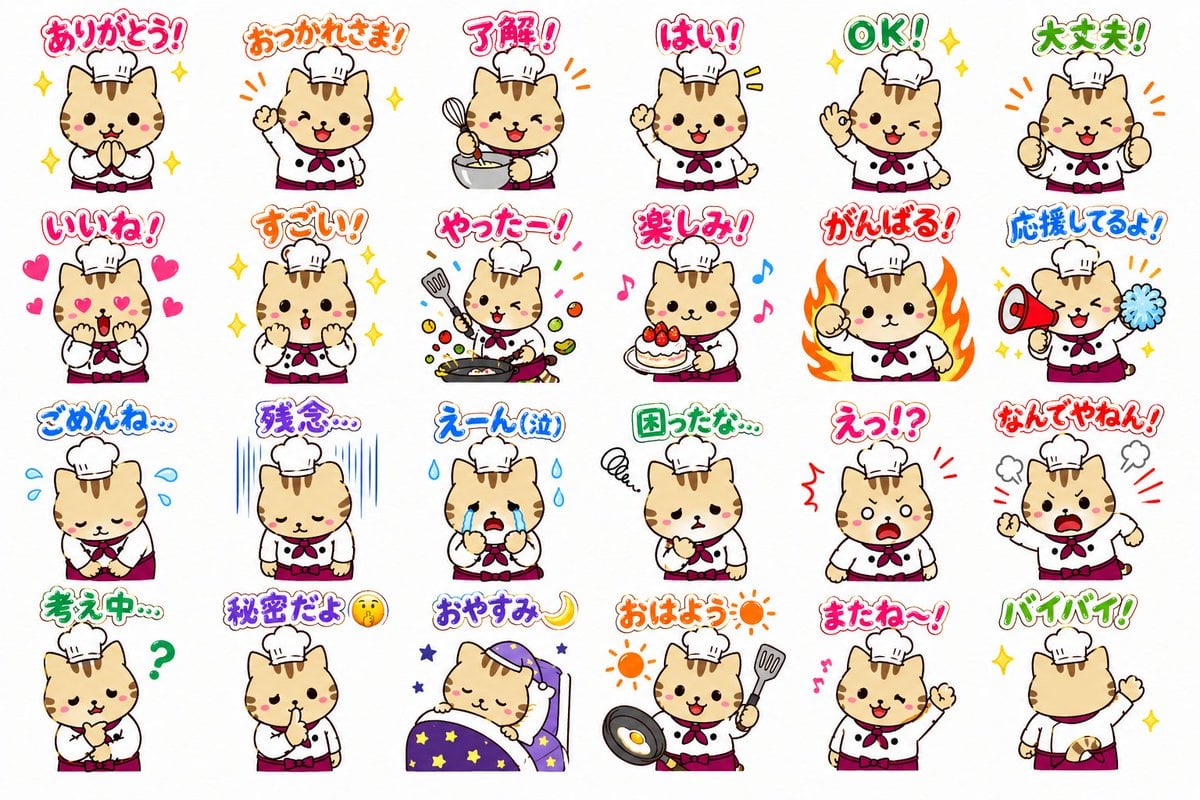
Chef Cat LINE Sticker Sheet
Browse template categories
AI Video Workspace Screenshot questions
How do I use the AI Video Workspace Screenshot template?
Add your photo if the template asks for one, edit the prompt if you like — the template's model and format are already selected — and press Generate. Your version opens in PicX Studio.
Can I customize the AI Video Workspace Screenshot template?
Yes. You can change the subject, setting, lighting, mood, format, and available model controls before creating your image.
Is the AI Video Workspace Screenshot template free?
Opening and editing this template is free. Generating uses credits, shown on the Generate button when you are signed in.
Which AI model should I use?
Start with GPT Image 2, which is the model associated with this template. You can compare another compatible model for a different finish.
Looking for something else? Browse all templates.

Your photo, any look
Thousands of ready templates for every top image and video model, from one credit balance.