How do I use the GPT Image 2 Kunoichi Comparison template?
Edit the prompt in the box under the preview — the template's model and format are already selected — and press Generate. Your version appears right on this page.
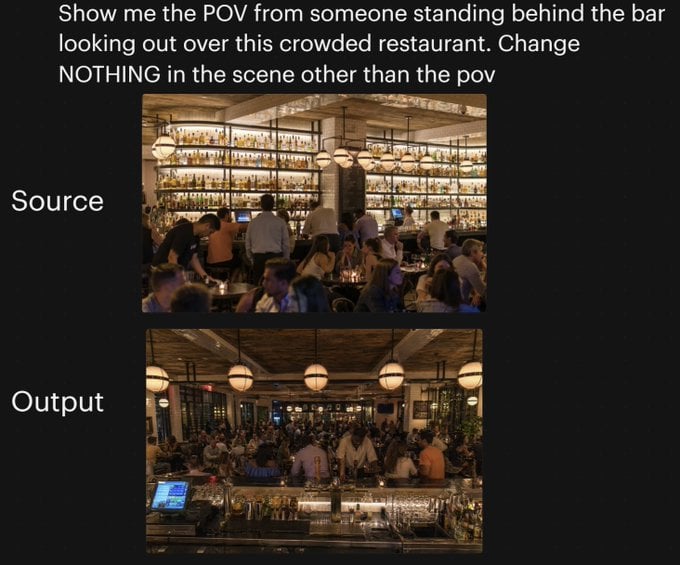
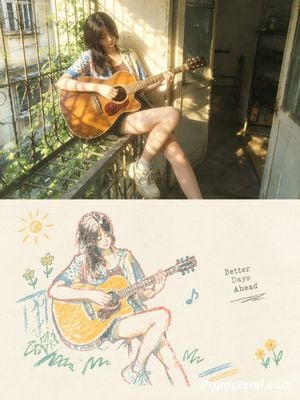
Creates a wide before-and-after comparison graphic of a cinematic anime kunoichi scene enhanced with GPT Image 2 detail.

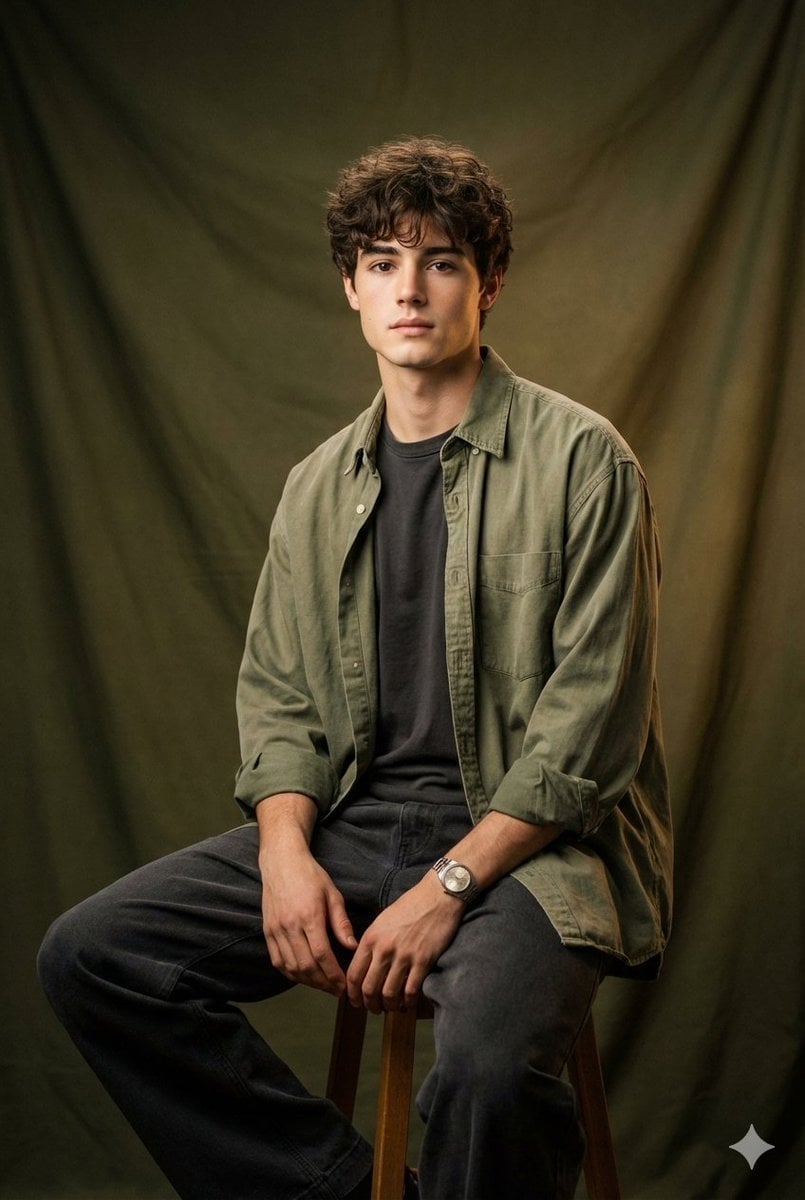
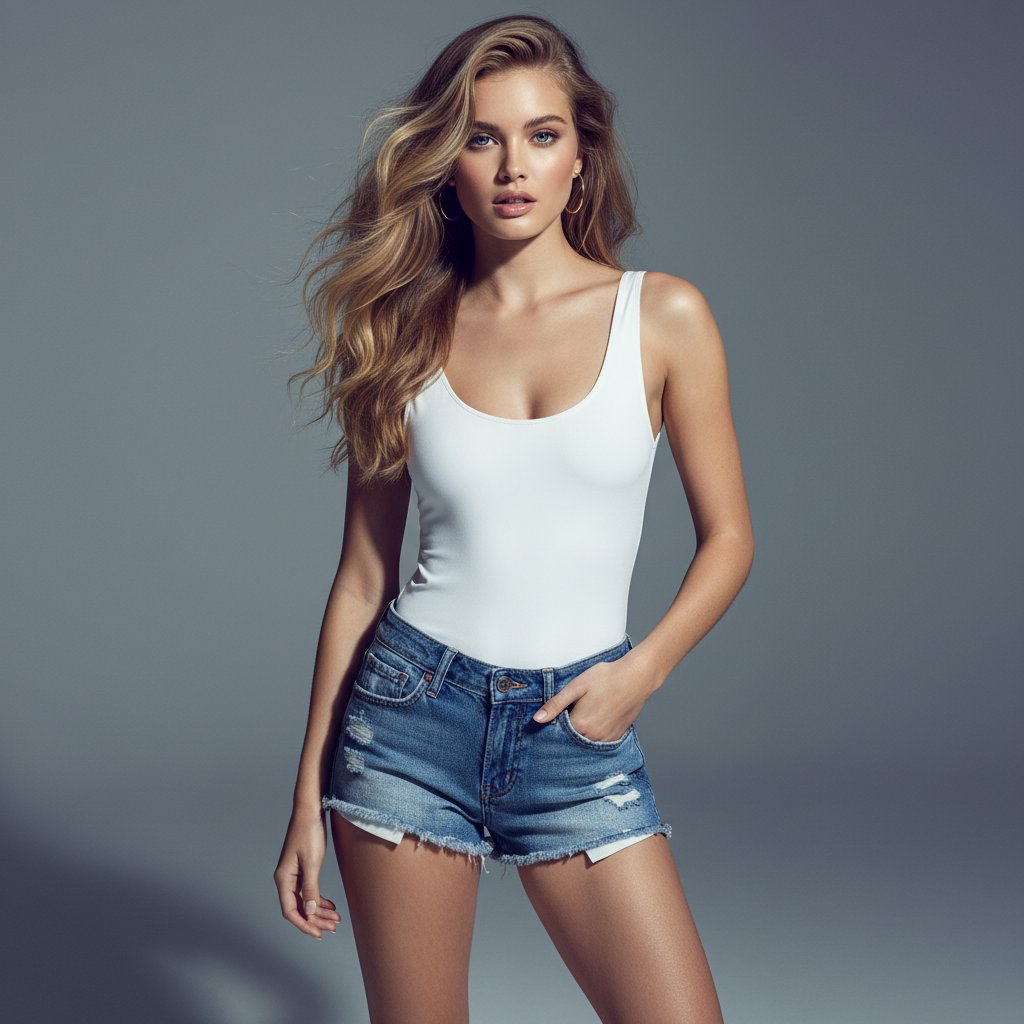
This template uses your photo — add one with the + button.
Goal: Create a side-by-side comparison graphic showing an anime kunoichi illustration improved with GPT Image 2, emphasizing increased detail and cinematic rendering. Canvas: Wide 16:9 white background, clean comparison layout. Place two tall vertical anime illustration panels side by side: one on the left and one on the right, separated by a central white column. Layout: Use exactly 5 main visible elements: 1 left illustration panel, 1 right illustration panel, 1 large gray right-pointing arrow in the center, 1 bold black text label above the arrow reading “GPT Image2”, and 1 bold black Japanese caption below the arrow reading “描き込み量を\n極限まで上げて”. The left panel occupies the left third of the canvas, the right panel occupies the right third, and the center column contains the text and arrow. Subject details: In both panels, depict the same dynamic high-quality anime-style female ninja, {argument name="character name" default="Ai-chan"}, leaping through the air in a dramatic action pose. She has long flowing {argument name="hair color" default="blonde"} hair tied high, a face obscured by a square tan blur censor block, black fingerless gloves, and a purple floral kimono-style kunoichi outfit with pink cherry blossom patterns, short skirt, thigh straps, belt pouches, and soft ninja boots. She wields exactly 3 visible weapons: 2 short swords crossed above her head in both hands and 1 curved sword drawn diagonally across her body at waist level. Her pose has one knee raised high and the other leg bent back, with strong motion and wind-swept hair. Left panel: A detailed but slightly softer anime illustration of the kunoichi in front of a Japanese temple complex at sunset. Include stone stairs, a red pagoda, curved temple roof eaves, stone guardian lion statues, distant misty mountains, pink sky, cherry blossom branches, falling petals, and a faint spiral of pink magical energy around the character. Right panel: A more polished, sharper, higher-detail, more cinematic version of the same scene, with richer contrast, denser cherry blossoms, more ornate roof carvings, stronger lighting, more saturated sunset colors, more petals, clearer stone textures, brighter pink energy swirl, and extra environmental detail. Keep the same character pose and outfit but make the rendering noticeably more refined than the left panel. Visual style: Ultra high-quality cinematic anime art, extremely fine linework, soft shading, high detail, dramatic rim lighting, glossy highlights on blades, sakura-pink atmosphere, fantasy action composition, intricate Japanese architecture, dynamic motion blur only on petals and hair, sharp character focus. Text content: Center text must include exactly 2 text blocks: “GPT Image2” above the arrow, and the Japanese two-line caption “描き込み量を” on the first line and “極限まで上げて” on the second line below the arrow. Constraints: Preserve the white center gap and white outer margins. Do not add logos, watermarks, social-media UI, extra captions, or additional panels. Keep the face intentionally obscured by the square blur in both panels.
Goal: Create a side-by-side comparison graphic showing an anime kunoichi illustration improved with GPT Image 2, emphasizing increased detail and cinematic rendering. Canvas: Wide 16:9 white background, clean comparison layout. Place two tall vertical anime illustration panels side by side: one on the left and one on the right, separated by a central white column. Layout: Use exactly 5 main visible elements: 1 left illustration panel, 1 right illustration panel, 1 large gray right-pointing arrow in the center, 1 bold black text label above the arrow reading “GPT Image2”, and 1 bold black Japanese caption below the arrow reading “描き込み量を\n極限まで上げて”. The left panel occupies the left third of the canvas, the right panel occupies the right third, and the center column contains the text and arrow. Subject details: In both panels, depict the same dynamic high-quality anime-style female ninja, {argument name="character name" default="Ai-chan"}, leaping through the air in a dramatic action pose. She has long flowing {argument name="hair color" default="blonde"} hair tied high, a face obscured by a square tan blur censor block, black fingerless gloves, and a purple floral kimono-style kunoichi outfit with pink cherry blossom patterns, short skirt, thigh straps, belt pouches, and soft ninja boots. She wields exactly 3 visible weapons: 2 short swords crossed above her head in both hands and 1 curved sword drawn diagonally across her body at waist level. Her pose has one knee raised high and the other leg bent back, with strong motion and wind-swept hair. Left panel: A detailed but slightly softer anime illustration of the kunoichi in front of a Japanese temple complex at sunset. Include stone stairs, a red pagoda, curved temple roof eaves, stone guardian lion statues, distant misty mountains, pink sky, cherry blossom branches, falling petals, and a faint spiral of pink magical energy around the character. Right panel: A more polished, sharper, higher-detail, more cinematic version of the same scene, with richer contrast, denser cherry blossoms, more ornate roof carvings, stronger lighting, more saturated sunset colors, more petals, clearer stone textures, brighter pink energy swirl, and extra environmental detail. Keep the same character pose and outfit but make the rendering noticeably more refined than the left panel. Visual style: Ultra high-quality cinematic anime art, extremely fine linework, soft shading, high detail, dramatic rim lighting, glossy highlights on blades, sakura-pink atmosphere, fantasy action composition, intricate Japanese architecture, dynamic motion blur only on petals and hair, sharp character focus. Text content: Center text must include exactly 2 text blocks: “GPT Image2” above the arrow, and the Japanese two-line caption “描き込み量を” on the first line and “極限まで上げて” on the second line below the arrow. Constraints: Preserve the white center gap and white outer margins. Do not add logos, watermarks, social-media UI, extra captions, or additional panels. Keep the face intentionally obscured by the square blur in both panels.
Edit the prompt in the box under the preview — the template's model and format are already selected — and press Generate. Your version appears right on this page.
Yes. You can change the subject, setting, lighting, mood, format, and available model controls before creating your image.
Opening and editing this template is free. Generating uses credits, shown on the Generate button when you are signed in.
Start with GPT Image 2, which is the model associated with this template. You can compare another compatible model for a different finish.
Follow a topic to a crawlable collection of related PicX Studio templates.