
3D Footstool Mesh Comparison
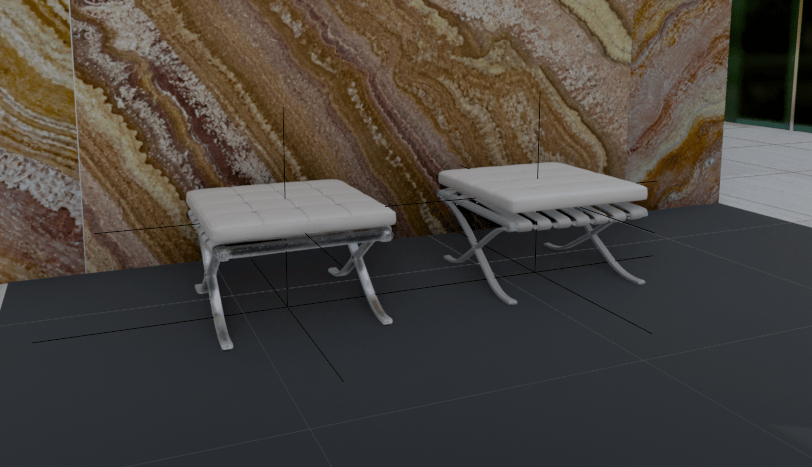
A realistic architectural render showing two white leather footstools side by side in a marble interior for comparing 3D generation quality and materials.
- Prompt included
- Model and format preset
- Free template
The prompt behind this image
Copy the exact prompt behind 3D Footstool Mesh Comparison, or open it in the studio and make it yours.
Create a realistic architectural visualization comparing two 3D-generated ottoman stools in an interior showroom scene. Canvas: wide landscape 16:9 render, camera at low eye level looking slightly downward. Scene: two small Barcelona-style footstools placed side by side on a dark charcoal tiled floor, in front of a tall glossy stone wall with dramatic brown, cream, rust, and gold onyx/marble veining; a narrow strip of green-tinted glass or window appears at the far right edge, with pale exterior floor tiles visible beyond. Subjects: exactly 2 footstools: left stool is the HD version, slightly smaller and lower, with a white tufted square cushion divided into a 4-by-4 grid, rounded soft edges, light gray leather straps underneath, and reflective polished metal X-shaped legs; right stool is the Smart Mesh version, slightly larger and cleaner, with a thicker smooth white cushion, parallel white underside straps, and gray polished X-shaped metal legs. Add thin black 3D viewport guide lines or wireframe axis lines crossing through and around both stools, including vertical and horizontal alignment lines, as if shown in a 3D modeling comparison viewport. Materials: white leather cushions with subtle seams and soft highlights, chrome legs with reflections, dark matte floor tiles with faint grout lines, glossy veined stone wall. Lighting: soft indoor studio lighting, moderate shadows, realistic but slightly CGI-rendered look. Composition: left stool around one-third of the frame, right stool around two-thirds, both facing forward at a slight angle, enough floor visible in front, marble wall filling the background. No people, no labels, no UI panels, no watermark.
How to use 3D Footstool Mesh Comparison in 3 steps
- 1Upload ImagePNG, JPG or paste
Add your photo
Upload the photo the template builds on. The prompt, model and format are already set.
- 2…a portrait of your subject in softgolden-hour light, 85mm…
Personalize
Edit the subject and creative details for your destination.
- 3Generate
Generate
Press Generate — your image is created in PicX Studio, so you can compare it with the original and refine one variable at a time.
More like this
Templates with the same subject, style or setup. Open one to see its prompt.
Concrete Hallway Editorial Mirror Selfie
Skin Comparison Portrait — Nano Banana Pro

Red Mesh Glove Studio Portrait

AI Model Routing Comparison Infographic

Four-Panel AI Landscape Comparison

Arctic Warship Style Comparison

Four-Panel Anime Face Comparison
Reasoning Effort Anime Comparison
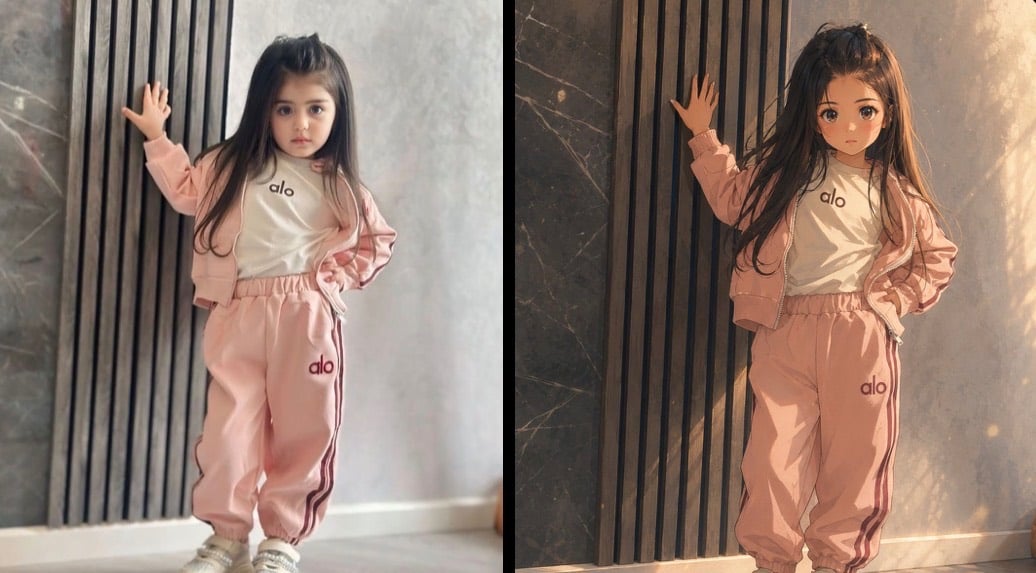
Cinematic Anime Photo Comparison
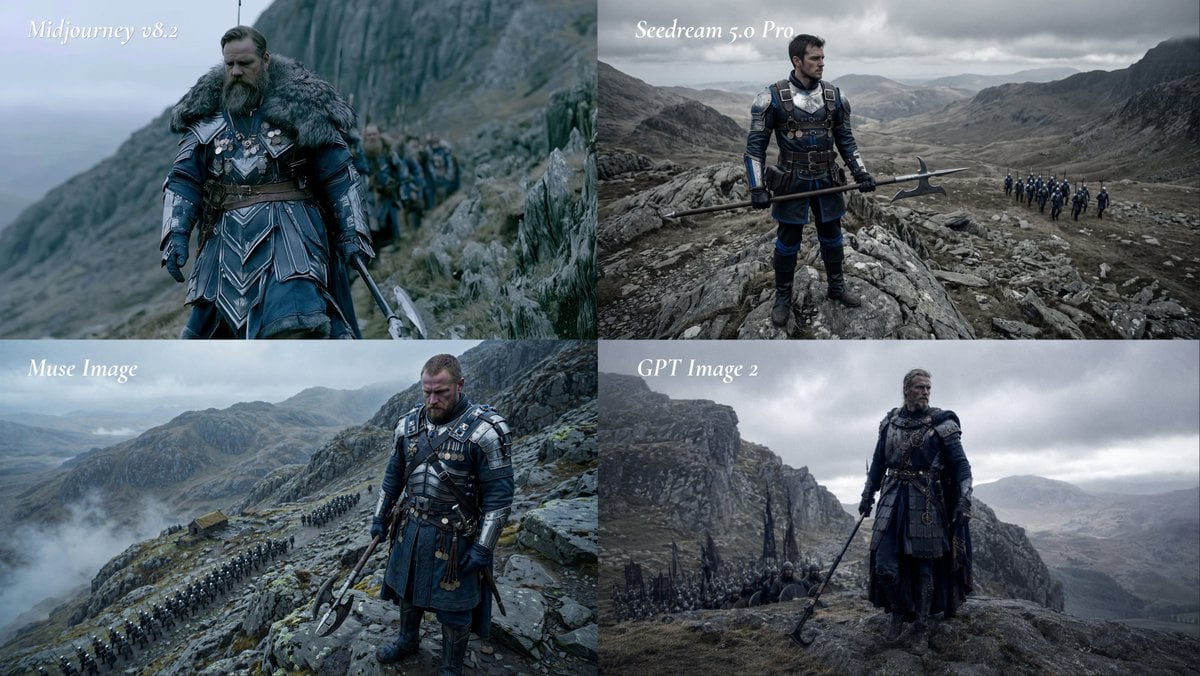
Fantasy Model Comparison Grid
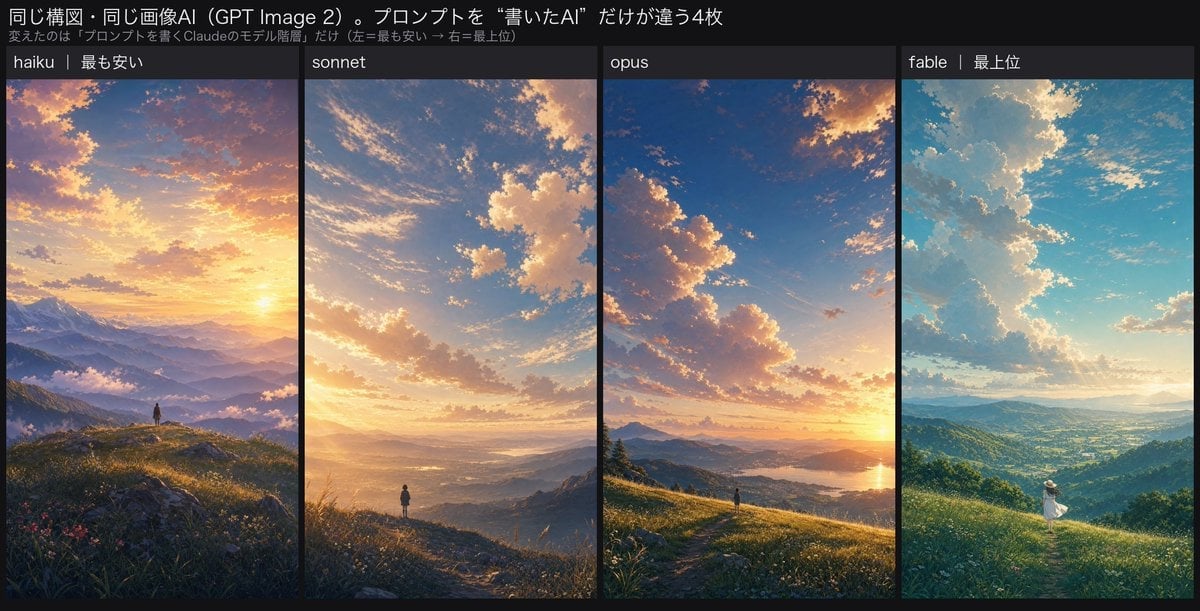
Four-Panel AI Landscape Comparison
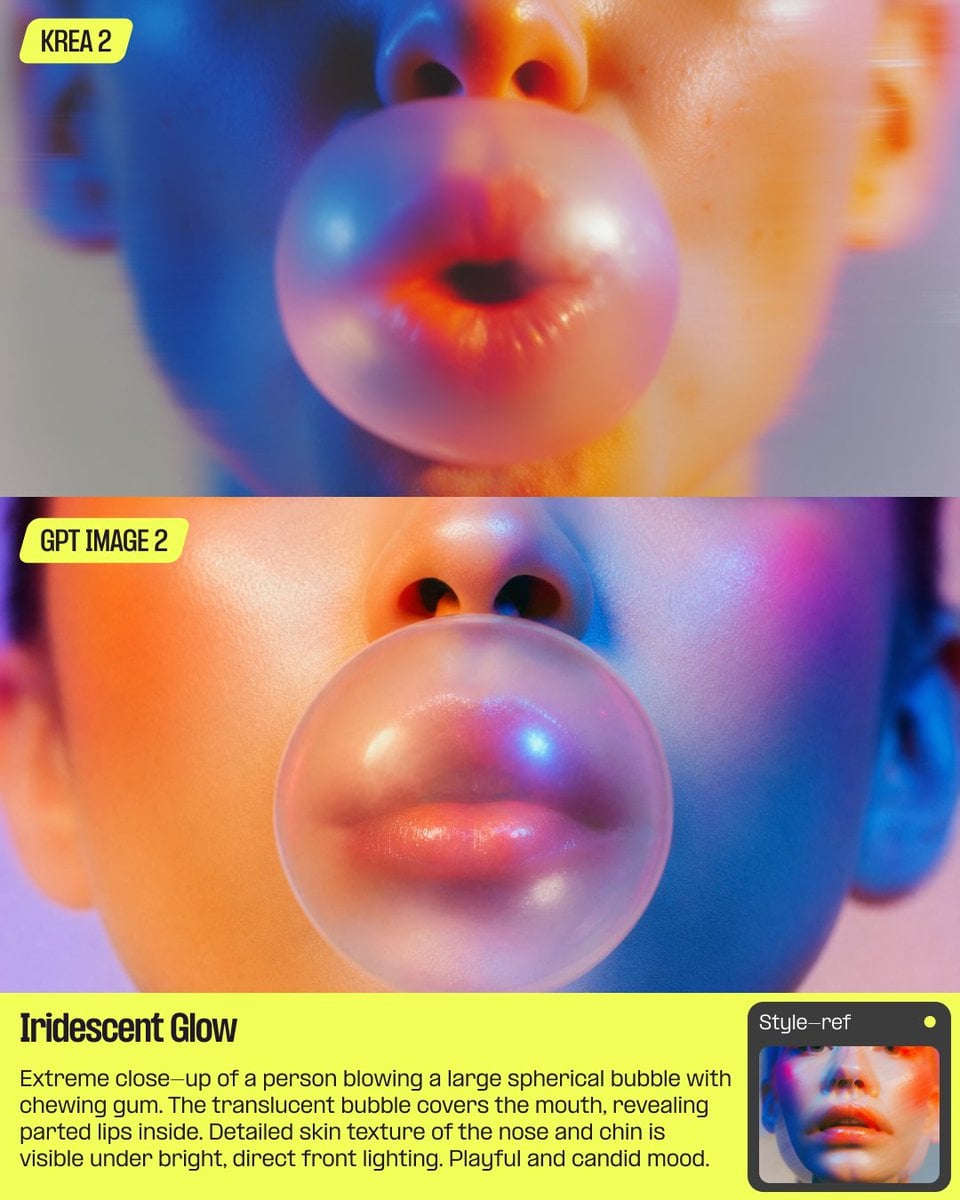
AI Bubblegum Style Comparison Slide
Make it yours
3D Footstool Mesh Comparison works as-is. These are the safest ways to change it without losing the look.
Change one field
Copy a single group, rewrite it, and generate again so you can see what that field is doing.
Keep the frame, change the subject
Hold the composition and light of 3D Footstool Mesh Comparison, then swap wardrobe, props or the person for a new take.
| If the result… | Why | Fix |
|---|---|---|
| The result drifts from the preview | Too many fields changed at once. | Reuse 3D Footstool Mesh Comparison as-is first, then change one group — subject, light, or setting. |
| The model over-stylizes the scene | The prose prompt leaves finish and camera underspecified. | Add one camera or lighting sentence and stay on GPT Image 2. |
More GPT Image 2 templates
Other prompts made for GPT Image 2.

Six VTuber Japanese Logo Sheet

Realistic Portrait of Woman and Deer

The Vista Modular Condo Poster

2.5D Anime Art Board

Isometric Productivity Desk Scene

New York Double Exposure Poster

Japanese Tatami Lifestyle Magazine Cover

NESCAFÉ Coffee Map Poster

Brutalist Cogito Chinese Typography Poster

Cinematic Luxury Terrace Portrait
More image prompts
Fresh picks from across the catalog.

LLM Crash Course Visualizer

Candid Train Photo to Studio Portrait
Photo Restoration to DSLR Quality
Advanced Geolocation and Model Generation Prompts

Tokyo Yamanote Youth Poster
Gothic Fashion at Trevi Fountain
Eiffel Tower Golden Hour Miniskirt Legs

Realistic 35mm Candid Film Portrait
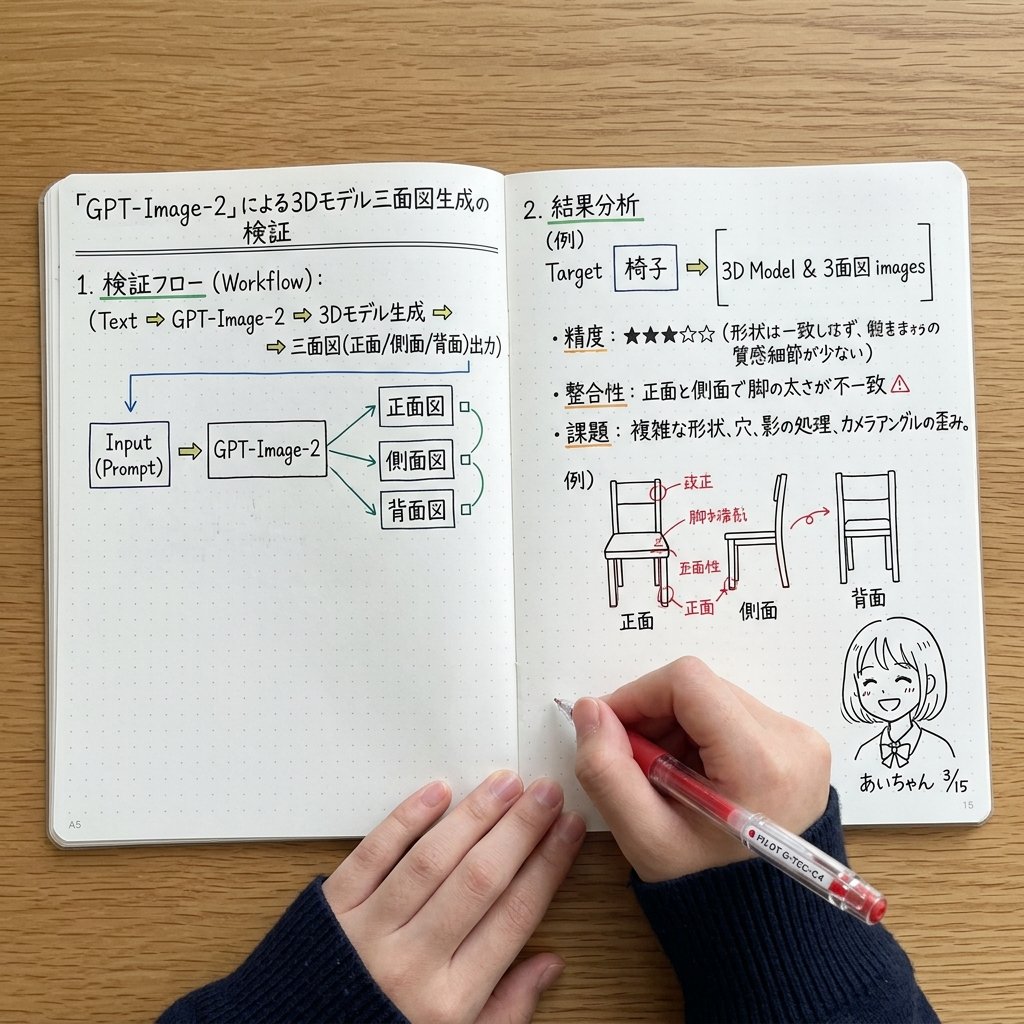
Notebook Spread with 3D Model Analysis Diagrams

Four-Theme Newborn Portrait Collage
Browse template categories
3D Footstool Mesh Comparison questions
How do I use the 3D Footstool Mesh Comparison template?
Add your photo if the template asks for one, edit the prompt if you like — the template's model and format are already selected — and press Generate. Your version opens in PicX Studio.
Can I customize the 3D Footstool Mesh Comparison template?
Yes. You can change the subject, setting, lighting, mood, format, and available model controls before creating your image.
Is the 3D Footstool Mesh Comparison template free?
Opening and editing this template is free. Generating uses credits, shown on the Generate button when you are signed in.
Which AI model should I use?
Start with GPT Image 2, which is the model associated with this template. You can compare another compatible model for a different finish.
Looking for something else? Browse all templates.

Your photo, any look
Thousands of ready templates for every top image and video model, from one credit balance.