
LLM Crash Course Visualizer
A text-based instruction to guide an AI in creating a visual infographic for a LLM crash course using gpt-image-2.
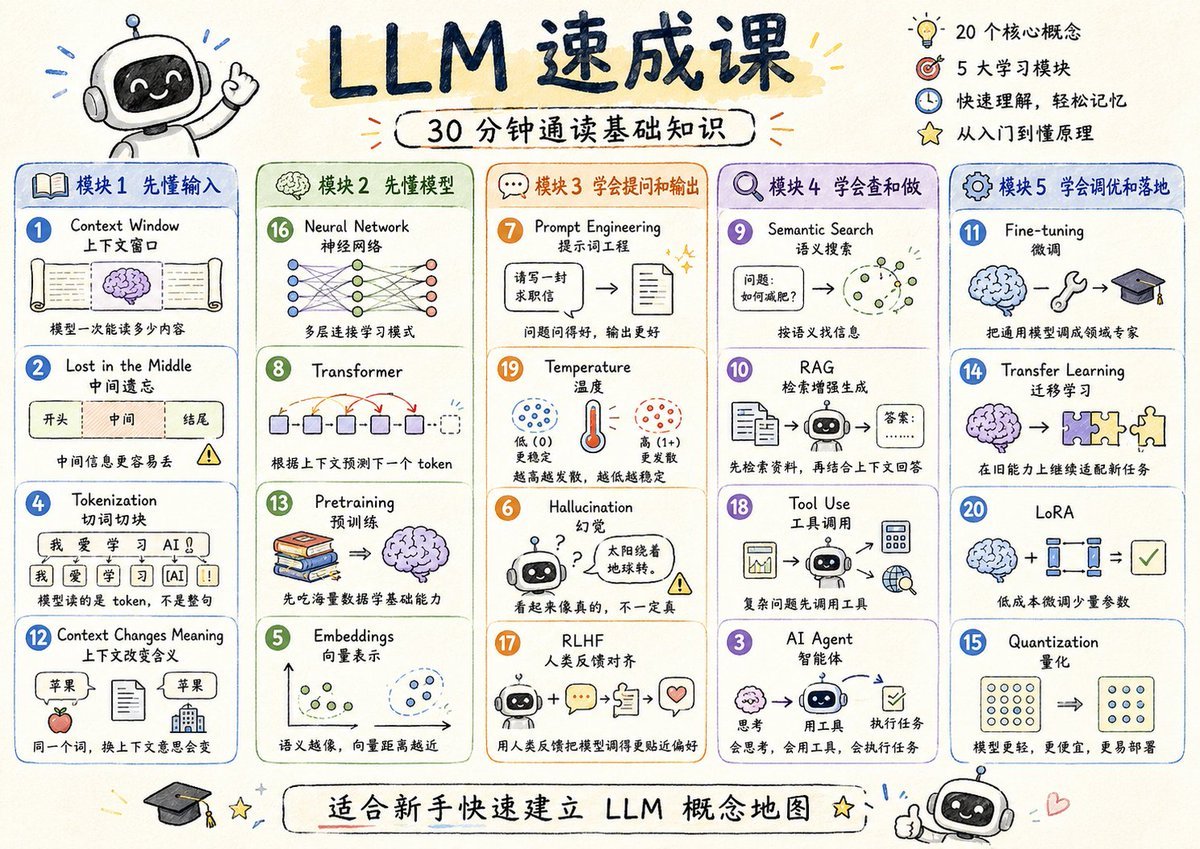
- Prompt included
- Model and format preset
- Free template
The prompt behind this image
Copy the exact prompt behind LLM Crash Course Visualizer, or open it in the studio and make it yours.
Generate a short crash course on LLMs Read through the basic knowledge Using the new ChatGPT Image 2.0 and good prompts, turn these concepts into visual infographics.
How to use LLM Crash Course Visualizer in 3 steps
- 1Upload ImagePNG, JPG or paste
Add your photo
Upload the photo the template builds on. The prompt, model and format are already set.
- 2…a portrait of your subject in softgolden-hour light, 85mm…
Personalize
Edit the subject and creative details for your destination.
- 3Generate
Generate
Press Generate — your image is created in PicX Studio, so you can compare it with the original and refine one variable at a time.
More like this
Templates with the same subject, style or setup. Open one to see its prompt.
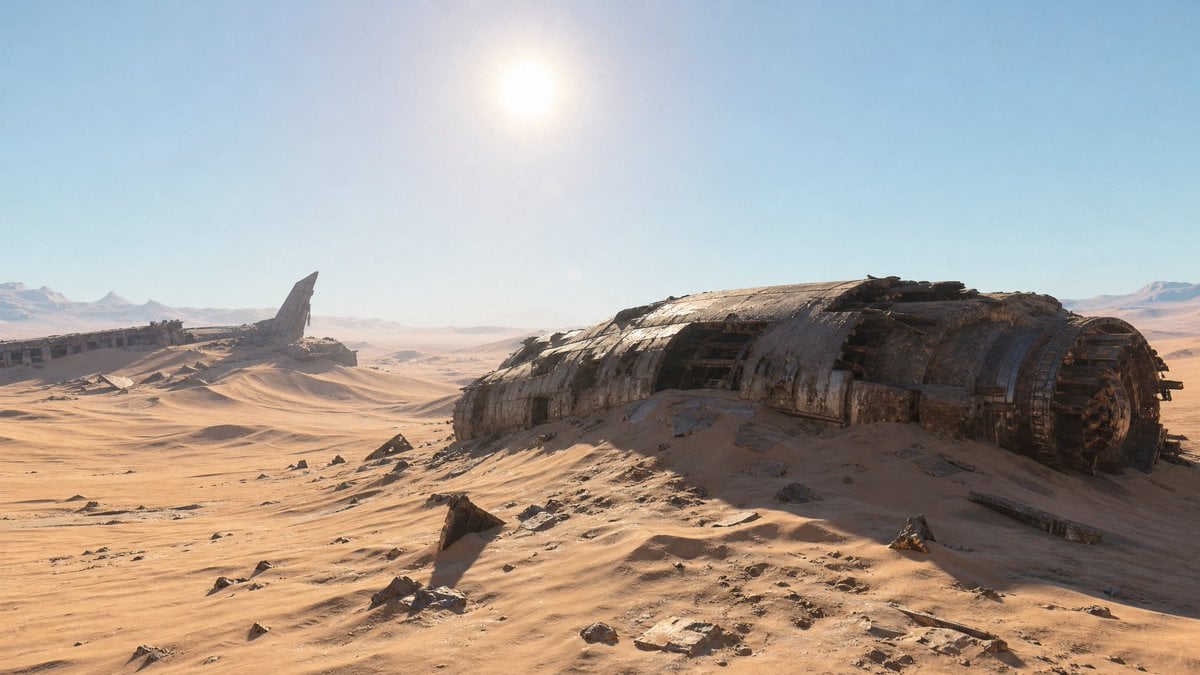
Crashed Spaceship Desert Wasteland

Web Design Course Promotional Banner

Cinematic Plane Crash Beach Survival
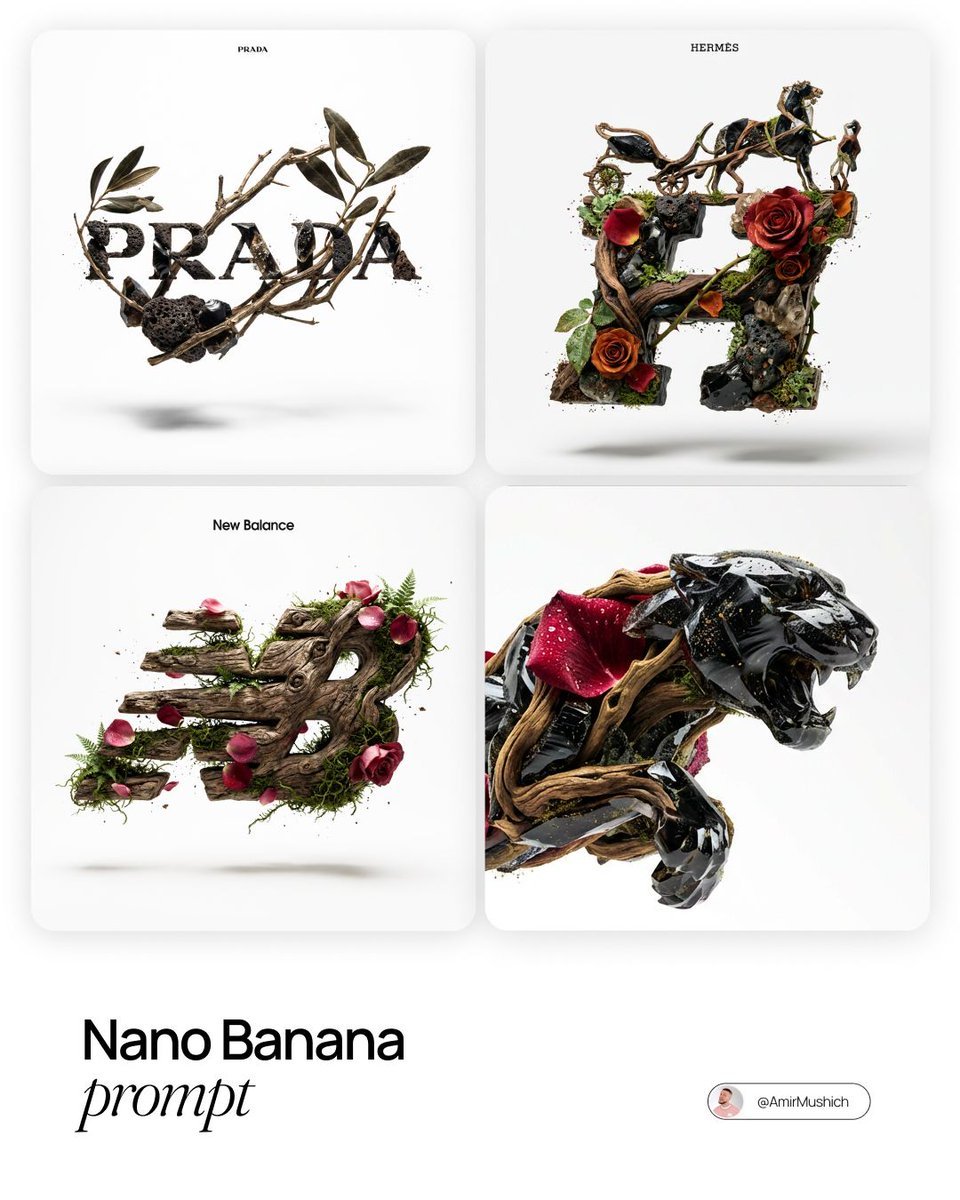
Act as a Master of Material Science and World-Class 3D Visualizer

Desert Crash Cafe Fantasy Scenery
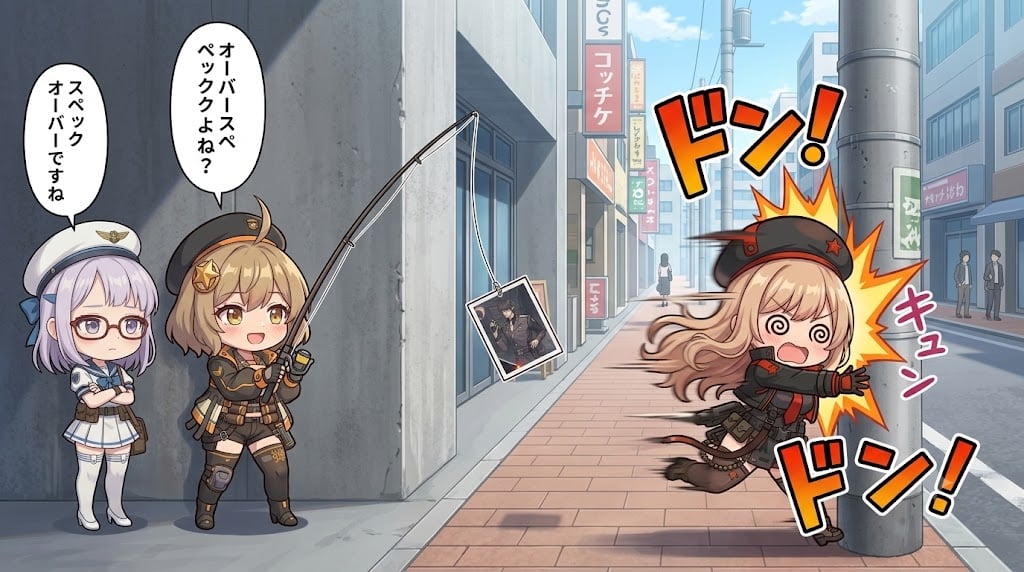
Chibi Anime Fishing Prank Crash
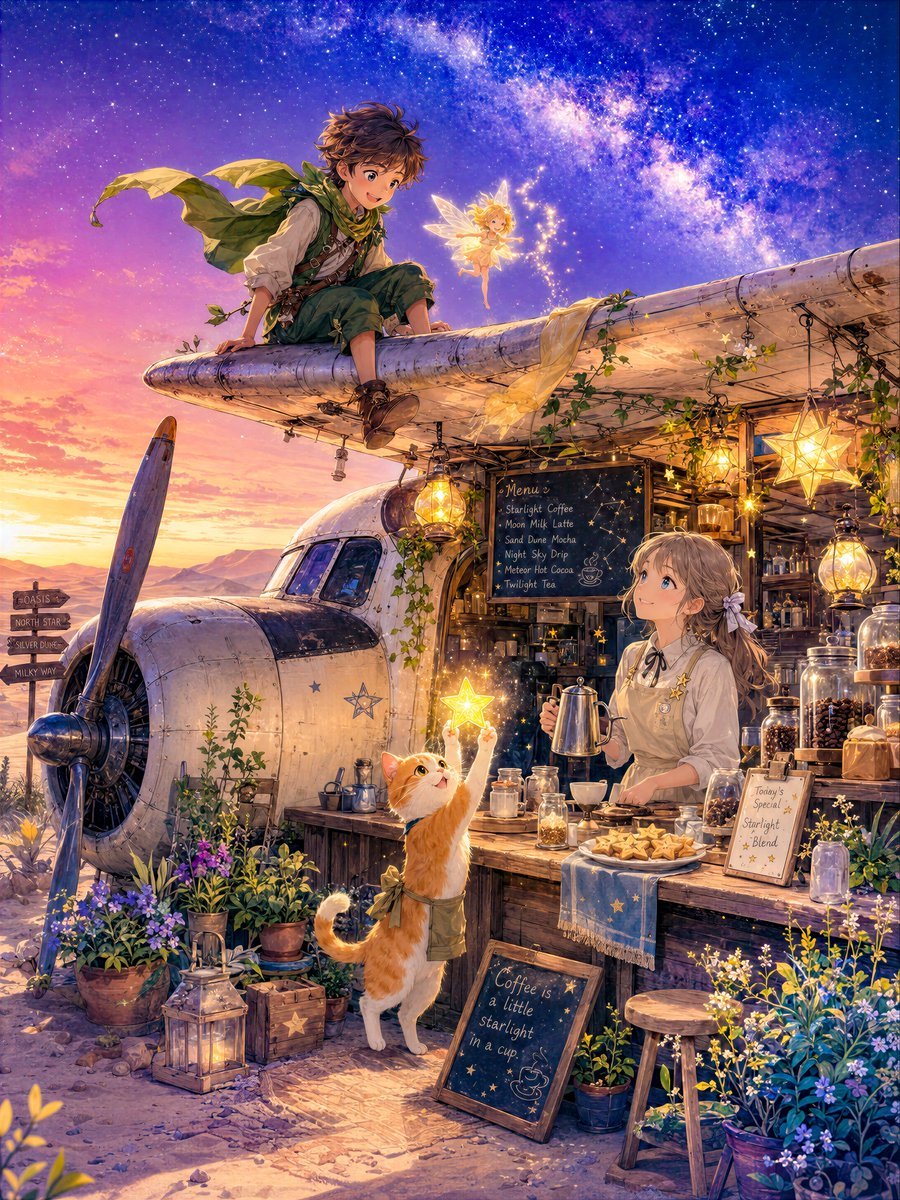
Star Cafe on a Crashed Airplane

Children's Art Class Enrollment Poster

Children’s AI Art Course PPT Cover
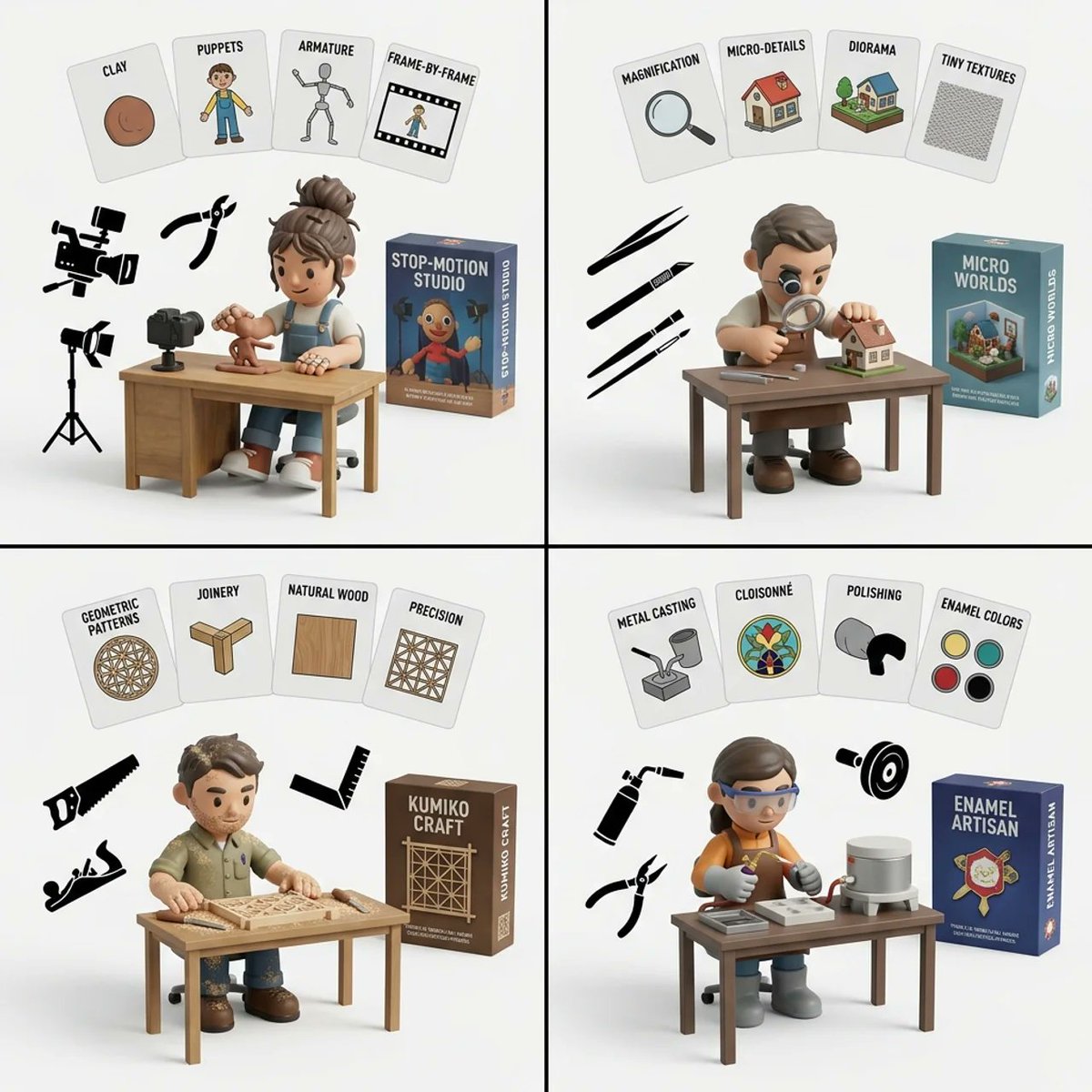
Handmade Art Style Visualizer Grid
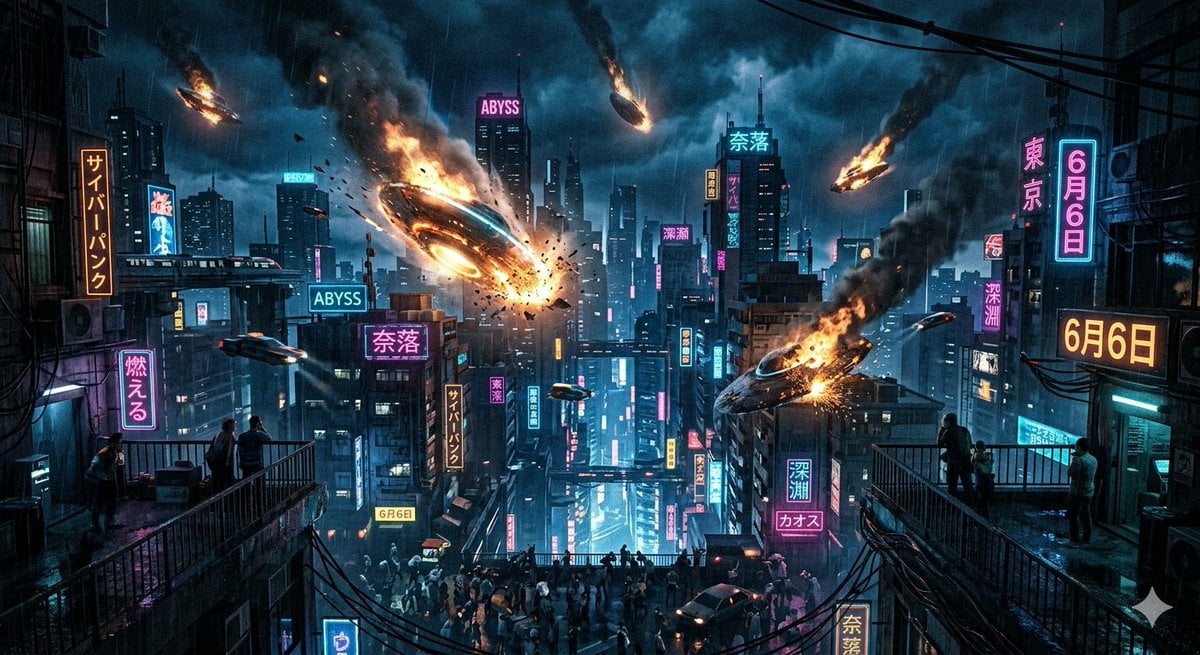
UFO Crash in the Abyss (Cyberpunk)

Luxury Golf Course Fairway Portrait
Make it yours
LLM Crash Course Visualizer works as-is. These are the safest ways to change it without losing the look.
Change one field
Copy a single group, rewrite it, and generate again so you can see what that field is doing.
Keep the frame, change the subject
Hold the composition and light of LLM Crash Course Visualizer, then swap wardrobe, props or the person for a new take.
| If the result… | Why | Fix |
|---|---|---|
| The result drifts from the preview | Too many fields changed at once. | Reuse LLM Crash Course Visualizer as-is first, then change one group — subject, light, or setting. |
| The model over-stylizes the scene | The prose prompt leaves finish and camera underspecified. | Add one camera or lighting sentence and stay on GPT Image 2. |
More GPT Image 2 templates
Other prompts made for GPT Image 2.

Six VTuber Japanese Logo Sheet

Realistic Portrait of Woman and Deer

The Vista Modular Condo Poster

AI Model Routing Comparison Infographic

2.5D Anime Art Board

Isometric Productivity Desk Scene

New York Double Exposure Poster

Four-Panel AI Landscape Comparison

Japanese Tatami Lifestyle Magazine Cover

NESCAFÉ Coffee Map Poster
More image prompts
Fresh picks from across the catalog.

Signature Style Selection Sheet
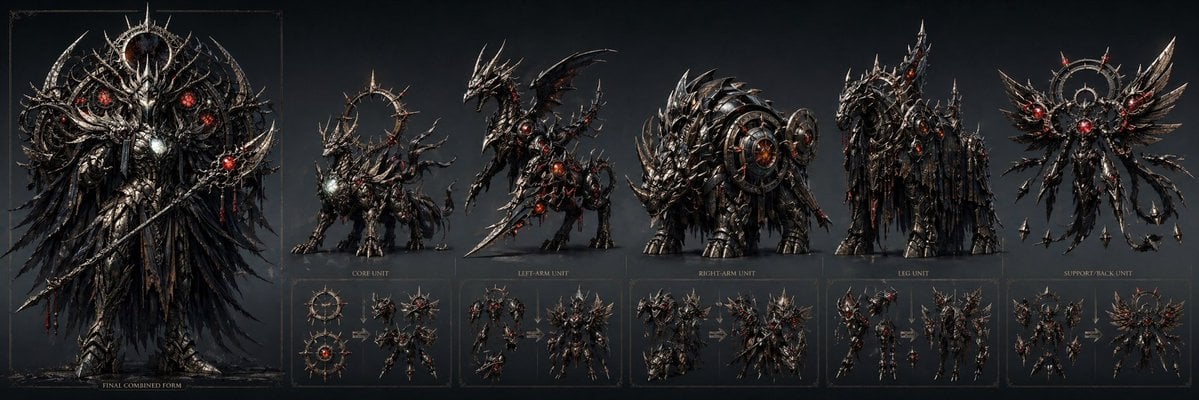
Gothic Combining Mecha Concept Sheet
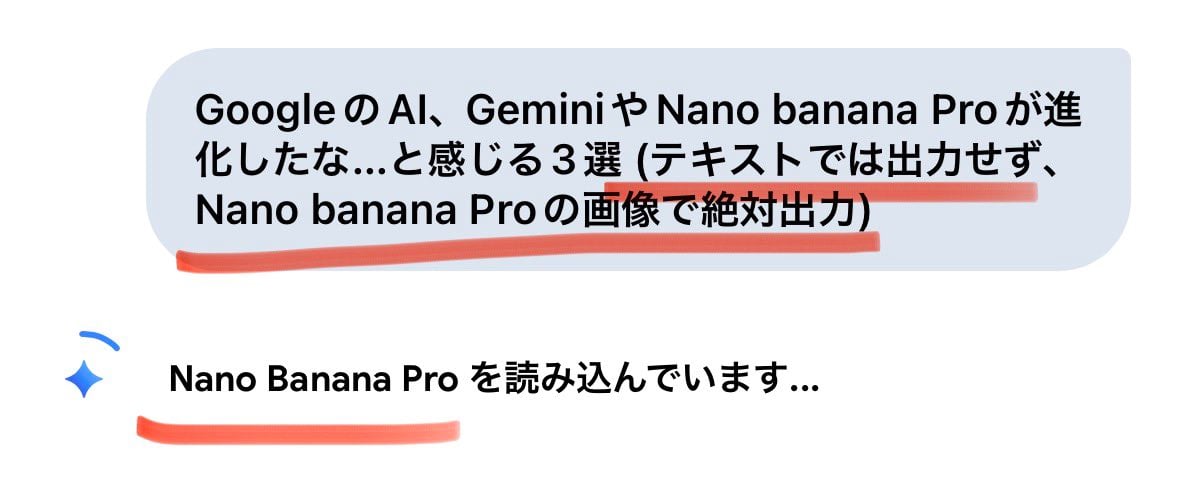
Forcing Image Output in Nano Banana Pro
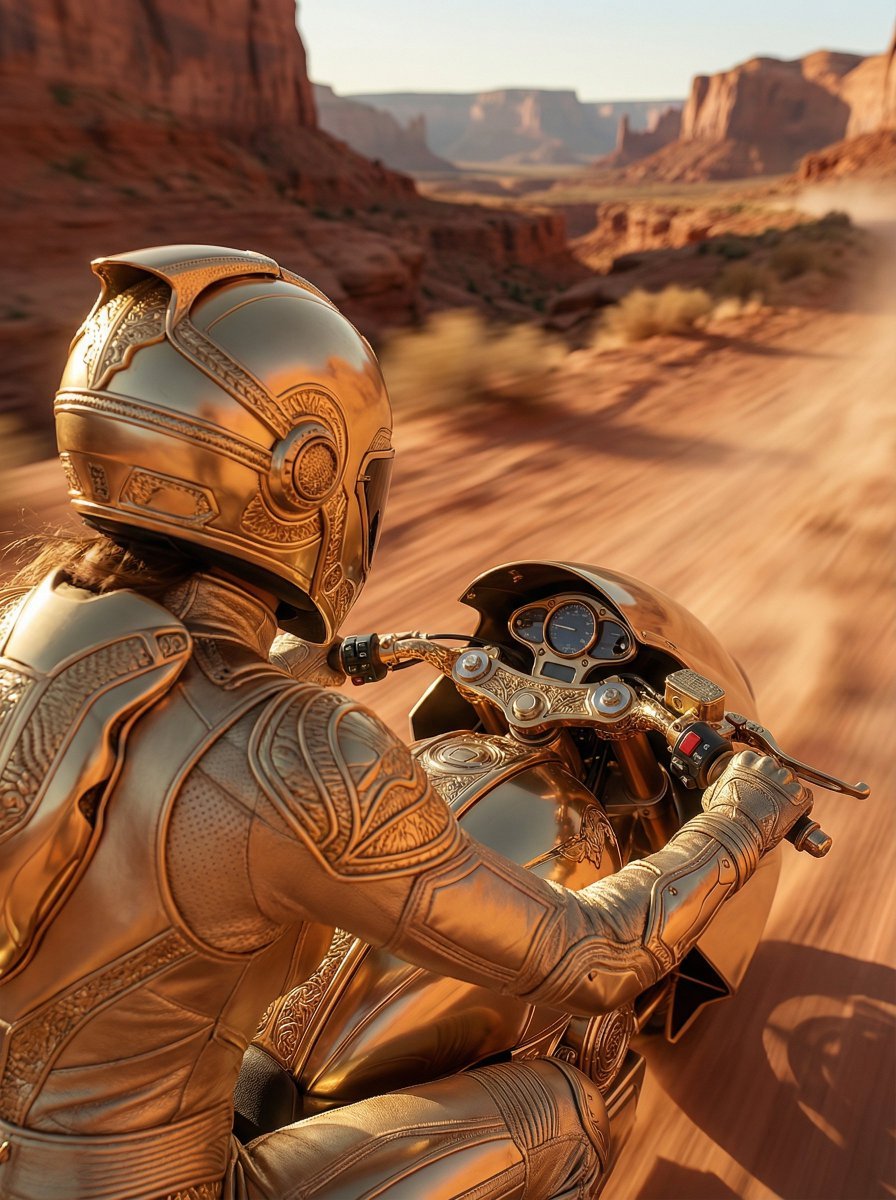
Over-the-Shoulder POV Motorbike Shot

Lake Como Lifestyle Photography
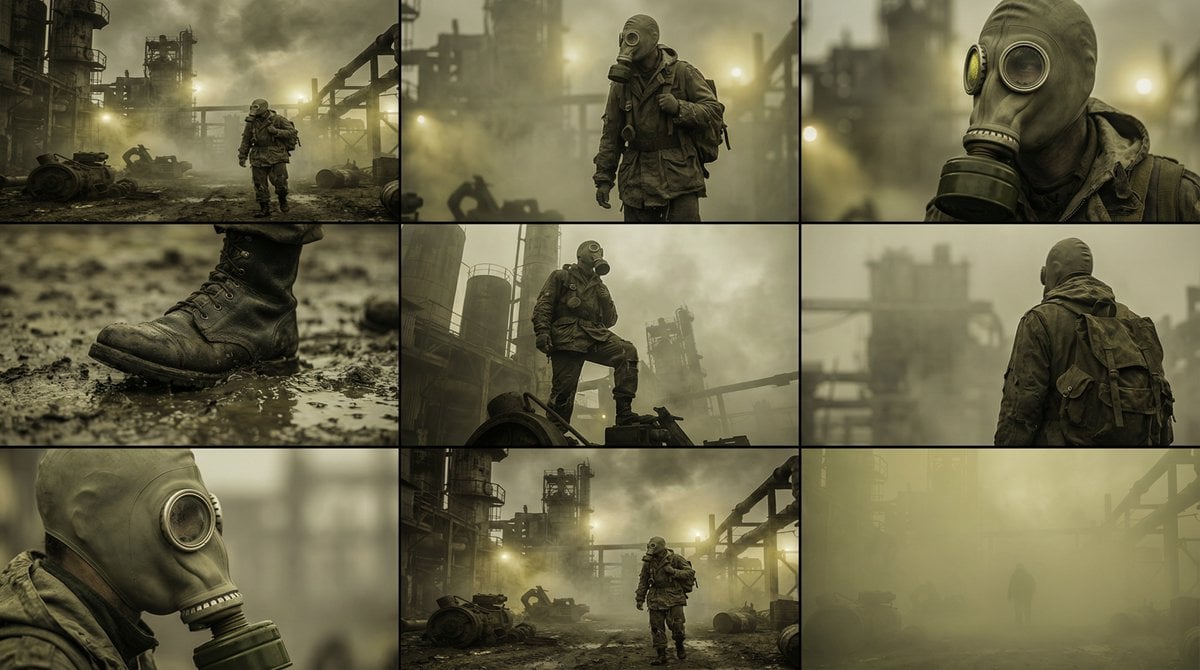
Character Consistency and Storyboard Generation Template
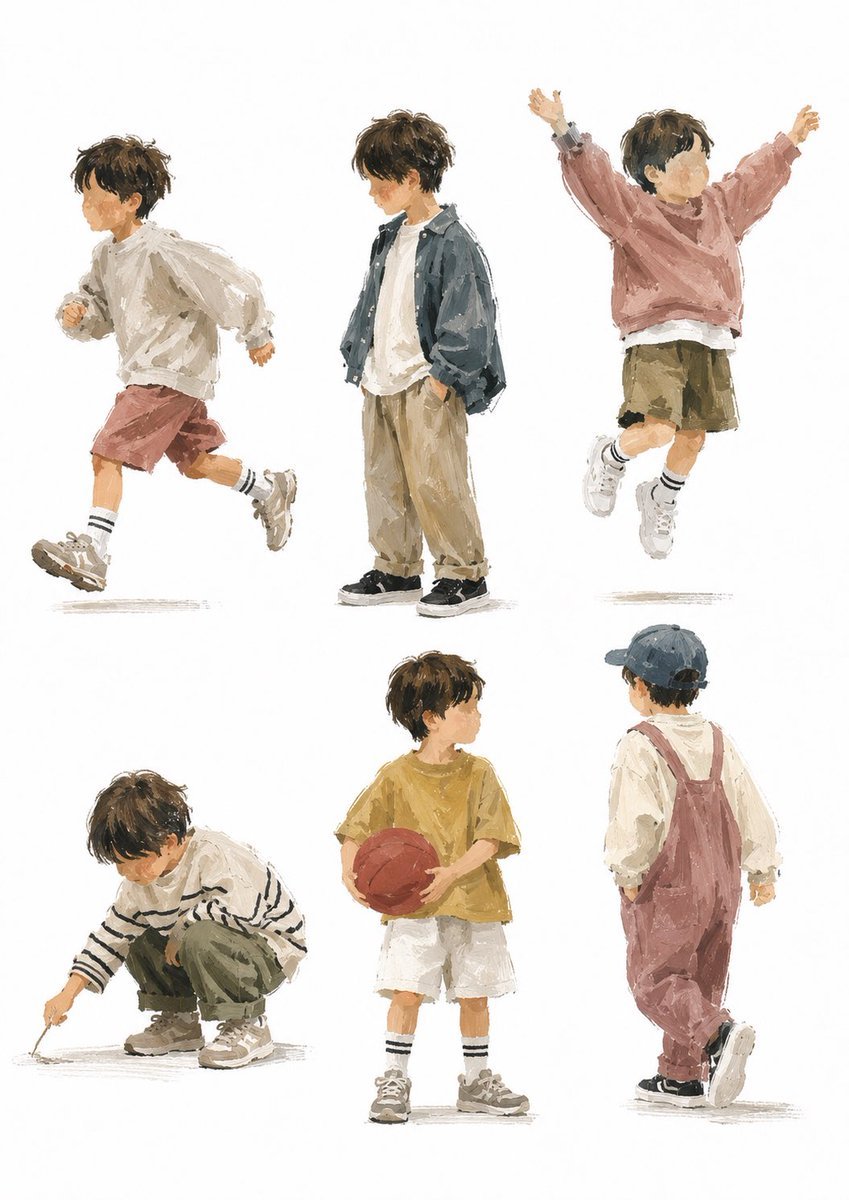
Painterly Boy Fashion Character Sheet
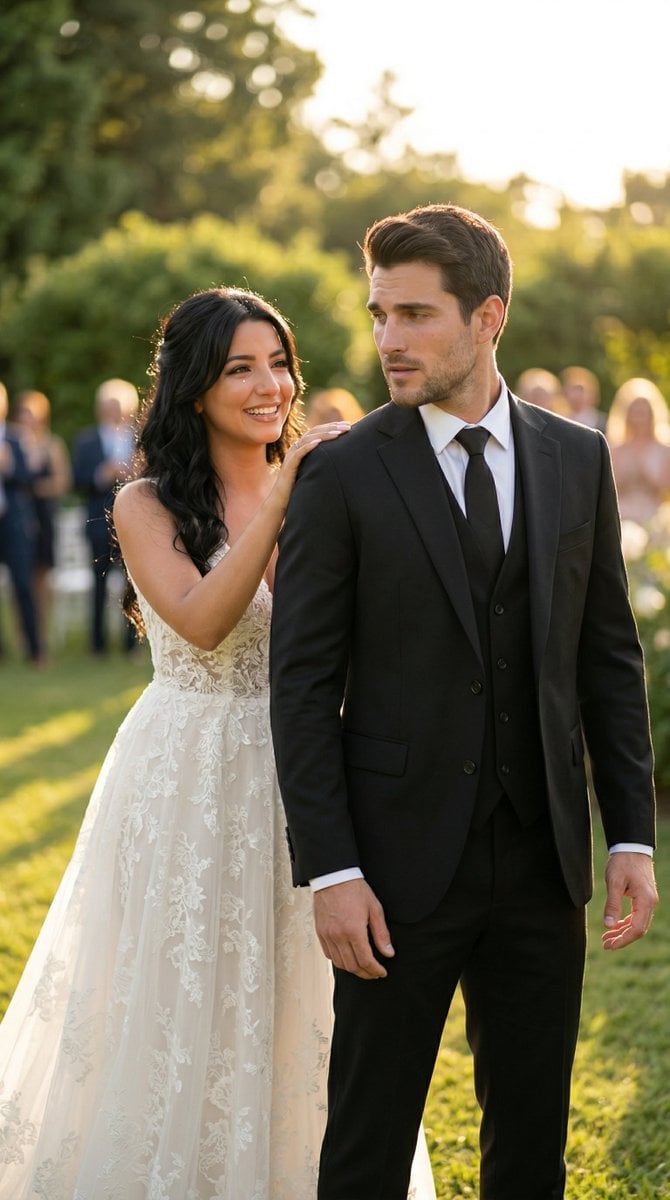
Cinematic Wedding First Look Prompt
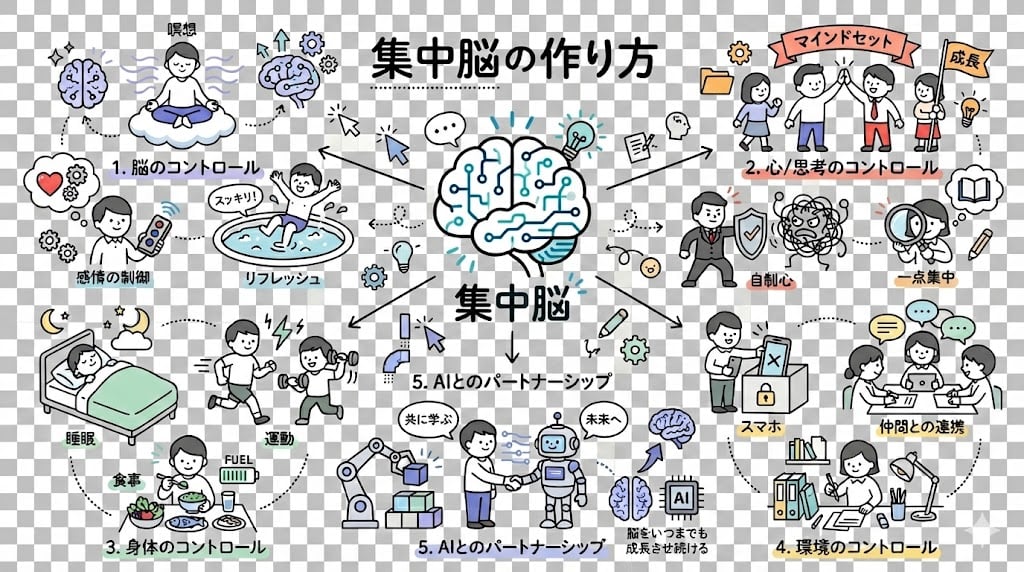
Requesting Transparent PNG Output

Muted Speech Editorial Portrait
Browse template categories
LLM Crash Course Visualizer questions
How do I use the LLM Crash Course Visualizer template?
Add your photo if the template asks for one, edit the prompt if you like — the template's model and format are already selected — and press Generate. Your version opens in PicX Studio.
Can I customize the LLM Crash Course Visualizer template?
Yes. You can change the subject, setting, lighting, mood, format, and available model controls before creating your image.
Is the LLM Crash Course Visualizer template free?
Opening and editing this template is free. Generating uses credits, shown on the Generate button when you are signed in.
Which AI model should I use?
Start with GPT Image 2, which is the model associated with this template. You can compare another compatible model for a different finish.
Looking for something else? Browse all templates.

Your photo, any look
Thousands of ready templates for every top image and video model, from one credit balance.