How do I use the Neon AI Image Workflow Infographic template?
Edit the prompt in the box under the preview — the template's model and format are already selected — and press Generate. Your version appears right on this page.
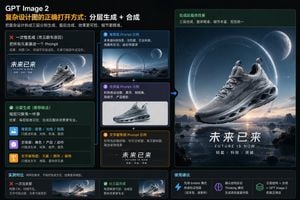
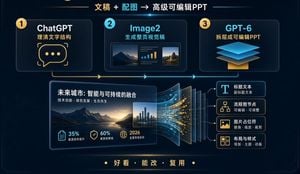
A sleek Japanese-language dark UI infographic showing a GPT-Image-Harness production workflow, suitable for tech presentations, product explainers, and social media posts about reproducible image-generation pipelines.

This template uses your photo — add one with the + button.
{"type":"dark tech workflow infographic","style":"clean futuristic presentation slide, black to deep navy gradient background, neon cyan glow accents, thin cyan connector arrows, modern UI cards with rounded corners, subtle shadows, high contrast white typography, polished startup branding aesthetic","canvas":{"aspect_ratio":"16:9","composition":"left-aligned title block with modular diagram on the right and bottom"},"branding":{"topline":"Codex × GPT-5.5 × ChatGPT Images 2.0","title":"GPT-Image-Harness","subtitle":"画像生成を、ガチャから制作フローへ。"},"layout":{"sections":[{"title":"left feature list","position":"left column","count":3,"labels":["素材を整理","指示を再利用","修正を積み上げ"]},{"title":"参照素材(入力)","position":"upper center-left","count":2,"labels":["キャラ設定画像","過去の漫画ページ"]},{"title":"プロンプト / ルール","position":"upper center-right","count":1,"labels":["# 出力ルール"]},{"title":"Codex / CLI","position":"middle left of center","count":3,"labels":["環境構築","CLI / スキル実行","自動化スクリプト"]},{"title":"GPT-Image-Harness","position":"center","count":6,"labels":["assets/","reference/","output/","prompts/","skills/","AGENTS.md","SPEC.md"]},{"title":"出力(漫画ページ)","position":"middle right","count":1,"labels":["漫画ページ"]},{"title":"bottom actions","position":"bottom row","count":2,"labels":["手動調整・微修正","ChatGPTで再修正プロンプト作成"]}]},"left_panel":{"headline_scale":"very large","title_weight":"bold extra-heavy","decorative_line":"short horizontal cyan line under title block","feature_items":[{"icon":"folder outline glowing cyan","title":"素材を整理","description":"キャラ設定や過去ページを一元管理"},{"icon":"terminal window outline glowing cyan","title":"指示を再利用","description":"プロンプトやルールをテンプレ化"},{"icon":"bar chart outline glowing cyan","title":"修正を積み上げ","description":"試行ログを残し、再現性を向上"}]},"diagram":{"nodes":[{"kind":"input card","title":"参照素材(入力)","visual":"two thumbnail areas, one anime character bust portrait with face softly blurred, one black-and-white manga page collage"},{"kind":"rule card","title":"プロンプト / ルール","visual":"bullet list inside code-like panel","body_text":["# 出力ルール","- キャラの一貫性を保つ","- コマ割りを指定通りに配置","- 背景の密度を前ページと合わせる","- 機械部のディテールを省略しない","- 吹き出し・文字は含めない"]},{"kind":"tool card","title":"Codex / CLI","visual":"terminal window with prompt symbol >_ and three bullet points"},{"kind":"repository card","title":"GPT-Image-Harness","visual":"large central file-tree panel with glowing cyan border"},{"kind":"output card","title":"出力(漫画ページ)","visual":"two manga page thumbnails side by side"},{"kind":"action card","title":"手動調整・微修正","visual":"circular pencil icon","description":"吹き出し・文字入れ・バランス調整は手作業"},{"kind":"action card","title":"ChatGPTで再修正プロンプト作成","visual":"speech bubble icon with three dots","description":"修正方針を詰めて、再出力を繰り返す"}],"connectors":"cyan glowing arrows connecting input, rules, and CLI into the central repository card; arrows from repository to output and downward to the two bottom action cards; dashed cyan feedback arrow looping from output back toward the bottom-right action area"},"typography":{"language":"Japanese","title_color":"white","accent_color":"bright cyan","body_color":"light gray-white"},"lighting":"soft neon edge glow around cards and icons","quality":"crisp vector-like infographic, presentation-ready, precise alignment, no watermarks"}
Edit the prompt in the box under the preview — the template's model and format are already selected — and press Generate. Your version appears right on this page.
Yes. You can change the subject, setting, lighting, mood, format, and available model controls before creating your image.
Opening and editing this template is free. Generating uses credits, shown on the Generate button when you are signed in.
Start with GPT Image 2, which is the model associated with this template. You can compare another compatible model for a different finish.
Follow a topic to a crawlable collection of related PicX Studio templates.