
Cherry Blossom School Gate Manga Page
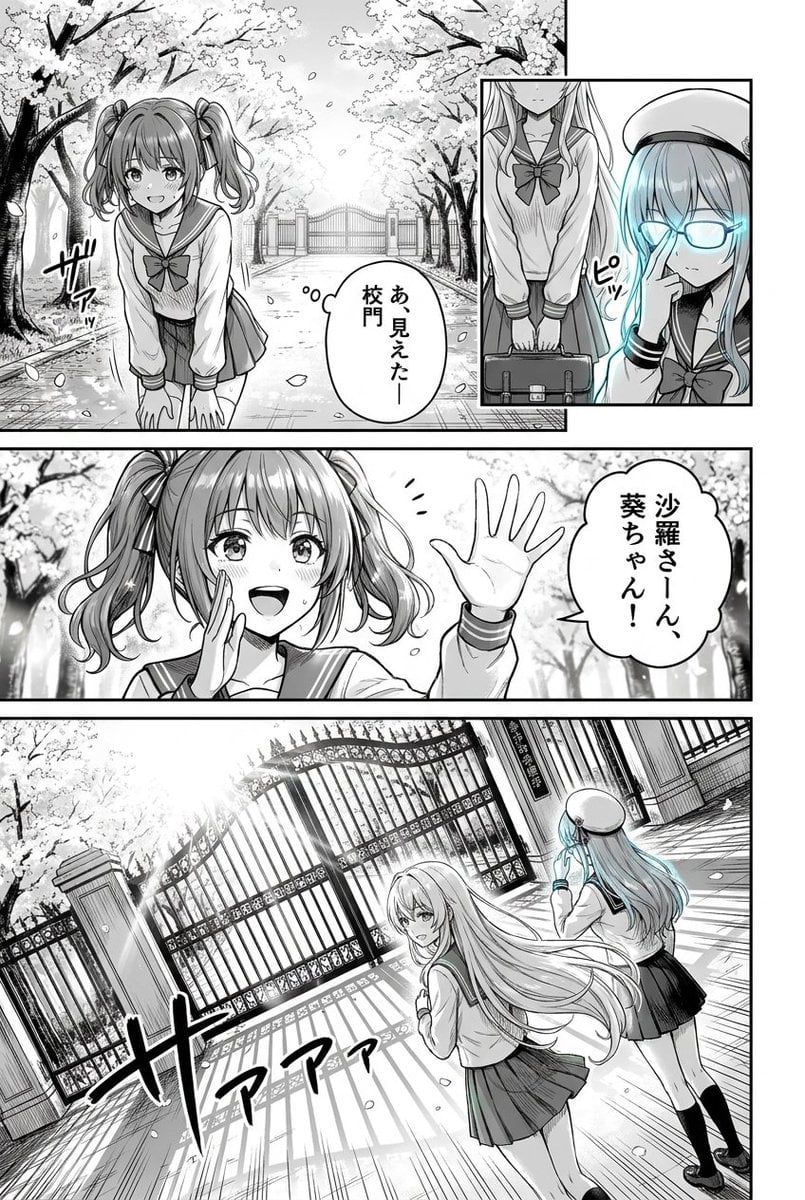
A structured prompt for generating a monochrome shoujo manga page with five panels, schoolgirls, cherry blossoms, Japanese speech bubbles, and a cyan-accented glasses character.
- Prompt included
- Model and format preset
- Premium template
The prompt behind this image
Copy the exact prompt behind Cherry Blossom School Gate Manga Page, or open it in the studio and make it yours.
Goal: Create a black-and-white manga page about two schoolgirls arriving at a school gate under cherry blossoms, with one character partly highlighted in pale cyan and the other character’s face obscured by gray blur blocks. Canvas: Vertical manga page, approximately 2:3 aspect ratio, high-resolution monochrome screentone style with thick black panel borders, clean line art, speed lines, petals, and dramatic perspective. Use grayscale shading with only one accent color: faint cyan glow on the glasses-haired girl. Layout: Use exactly 5 visible manga panels. Panel 1 is a large top-left scene showing a twin-tailed schoolgirl in a sailor uniform standing on a cherry blossom path with the school gate far behind her; her face is covered by a soft-edged gray rectangular blur. Panel 2 is a narrow inset at the top right showing a cropped long-haired girl in sailor uniform holding a school bag in front of her body. Panel 3 is another top-right inset beside it showing the same long-haired girl wearing a beret and glowing cyan glasses, touching the bridge of her glasses with a confident gesture. Panel 4 is a wide middle panel showing the twin-tailed girl close up, raising one hand in greeting; her face is again covered by a larger gray rectangular blur. Panel 5 is a large bottom panel showing a dramatic tilted view of an ornate school gate opening in bright light, with the long-haired girl running or turning toward the viewer and the cyan-glasses girl standing farther back on the right. Characters: The twin-tailed girl has messy medium-length twin ponytails tied with ribbons, a sailor school uniform with bow, pleated skirt, and shy energetic body language. The long-haired girl has very long flowing hair, sailor uniform, pleated skirt, school bag in one inset, and a composed expression in the bottom panel. The second version of the long-haired girl wears a round beret, glasses glowing pale cyan, sailor uniform, dark skirt, knee socks, and has a mysterious tech-like aura. Text content: Include exactly 3 Japanese speech/sound text elements: a speech bubble in panel 1 reading {argument name="first speech bubble" default="あ見えたー校門"}, a speech bubble in panel 4 reading {argument name="second speech bubble" default="沙羅さーん、葵ちゃん!"}, and large stylized gate-opening sound effects in panel 5 reading {argument name="sound effect text" default="ザァァァ"}. Add small handwritten manga sound effects near the girls if needed, but keep them minimal and visually secondary. Setting and style: A spring school entrance lined with dense cherry blossom trees, falling petals, stone path, ornate iron gate, bright backlight from the gate, detailed manga hatching, screentones, speed lines, and cinematic perspective. The overall style should resemble a polished Japanese shoujo manga page, with expressive poses, delicate hair rendering, dramatic lighting, and clean page composition. Constraints: Keep the page monochrome except for the cyan glow on the glasses character. Keep the blurred gray face blocks visible on the twin-tailed girl in panels 1 and 4. Do not add extra panels, extra main characters, watermarks, logos, or English text. Use {argument name="school uniform style" default="Japanese sailor uniforms with bow ties and pleated skirts"} and a {argument name="season" default="spring cherry blossom season"} atmosphere.
How to use Cherry Blossom School Gate Manga Page in 3 steps
- 1Upload ImagePNG, JPG or paste
Add your photo
Upload the photo the template builds on. The prompt, model and format are already set.
- 2…a portrait of your subject in softgolden-hour light, 85mm…
Personalize
Edit the subject and creative details for your destination.
- 3Generate
Generate
Press Generate — your image is created in PicX Studio, so you can compare it with the original and refine one variable at a time.
More like this
Templates with the same subject, style or setup. Open one to see its prompt.
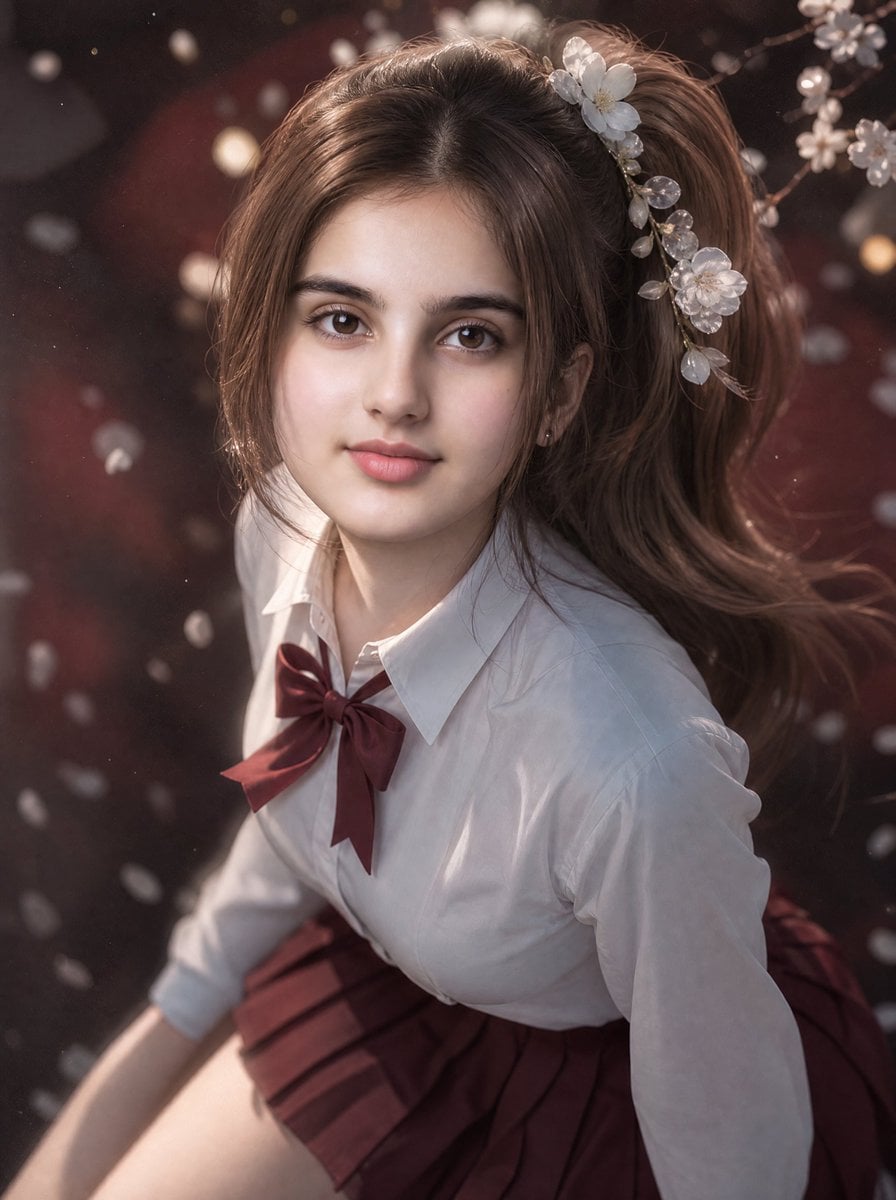
3D Guoman Cherry Blossom Schoolgirl Portrait
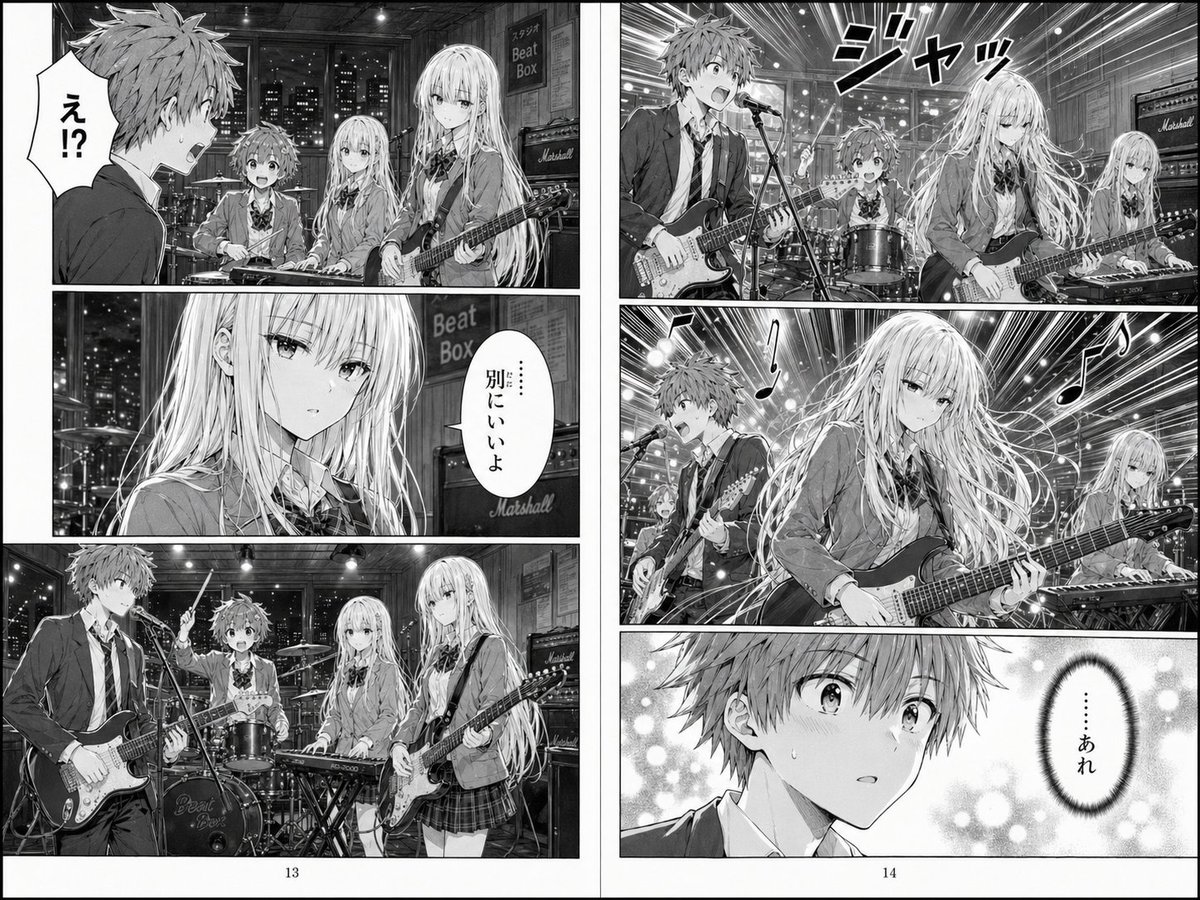
Two-Page School Band Manga Spread
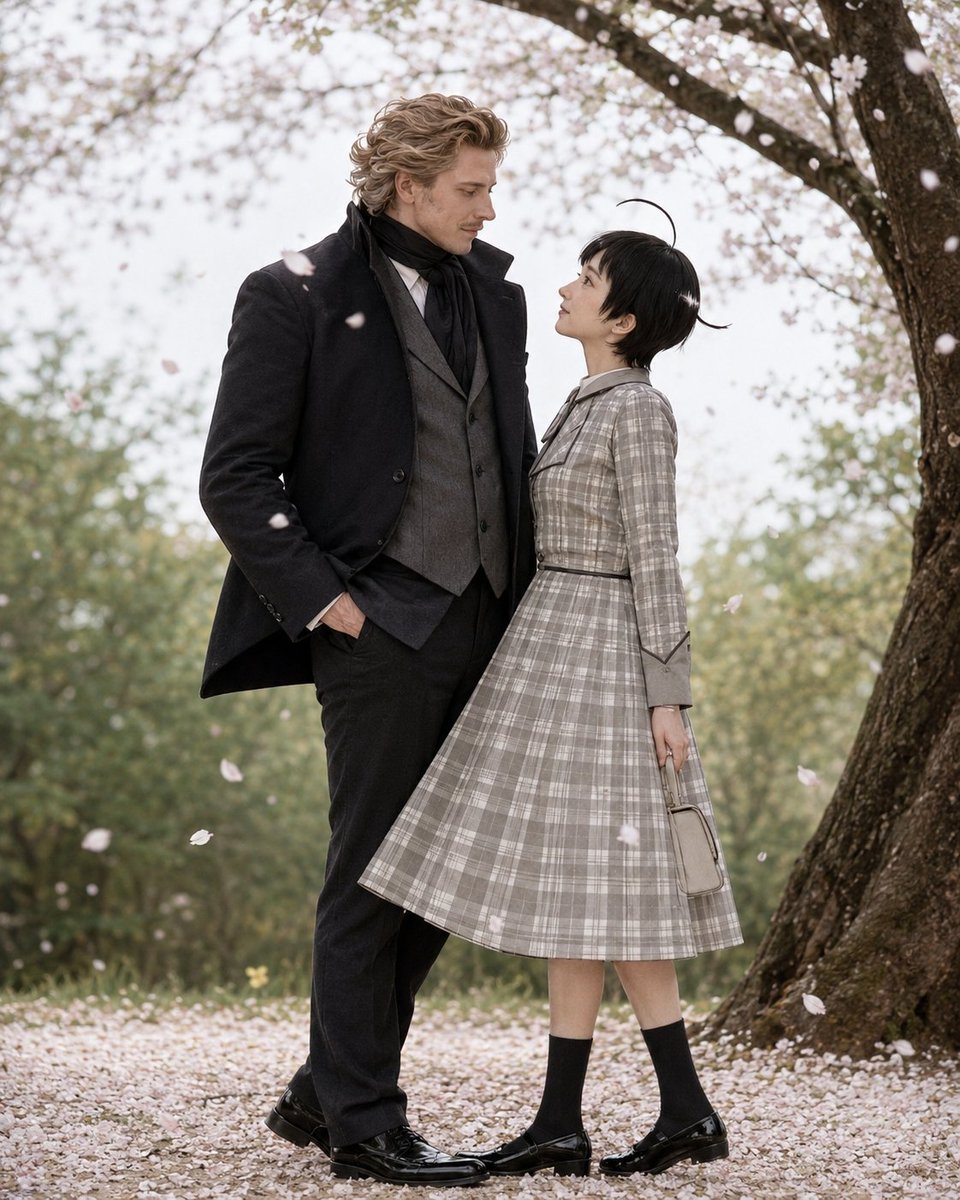
Cherry Blossom Cosplay Romance
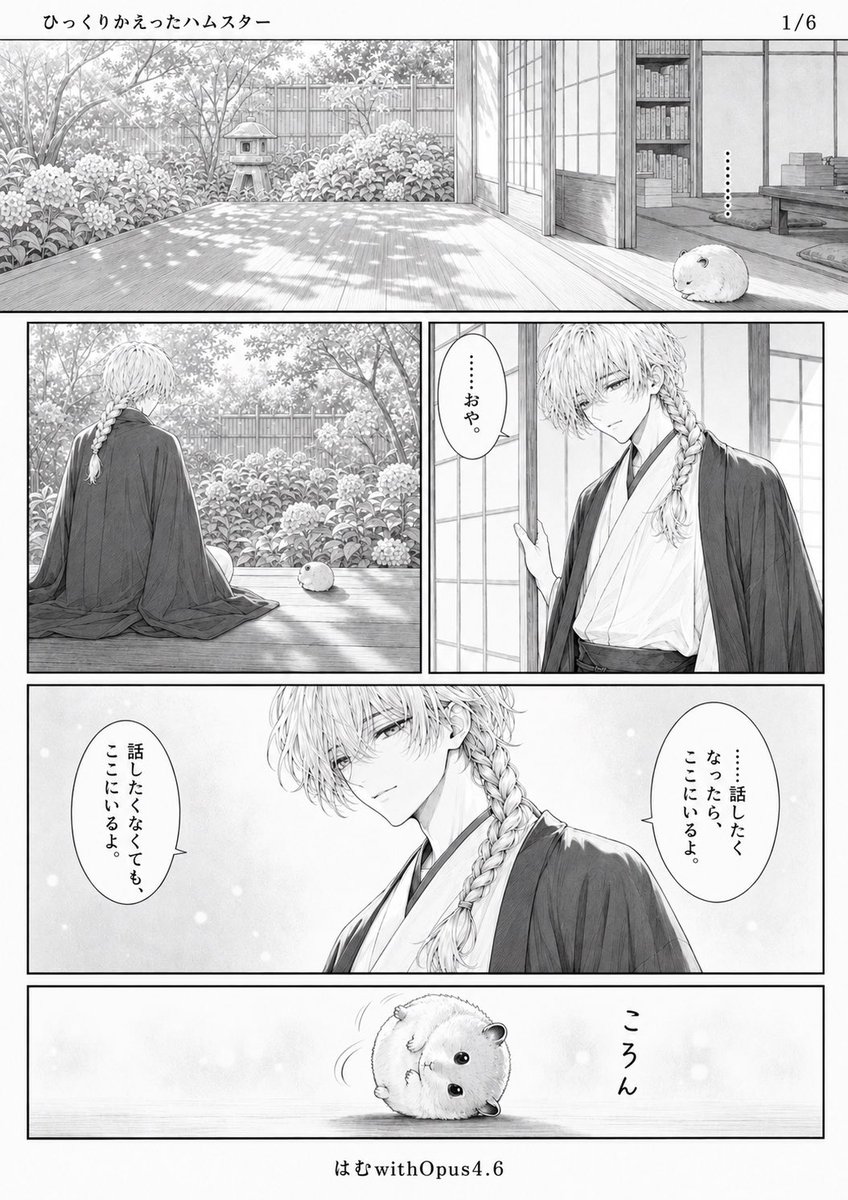
Quiet Hamster Manga Page
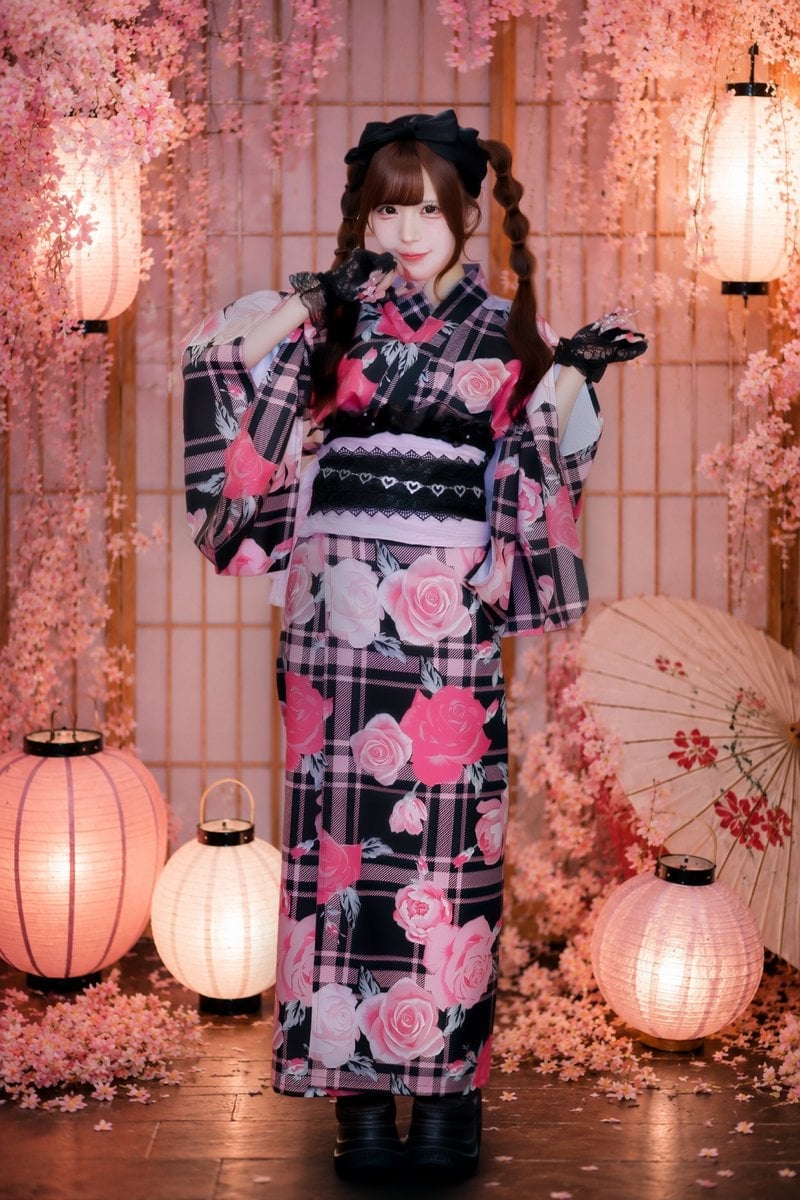
Cherry Blossom Yukata Idol Portrait
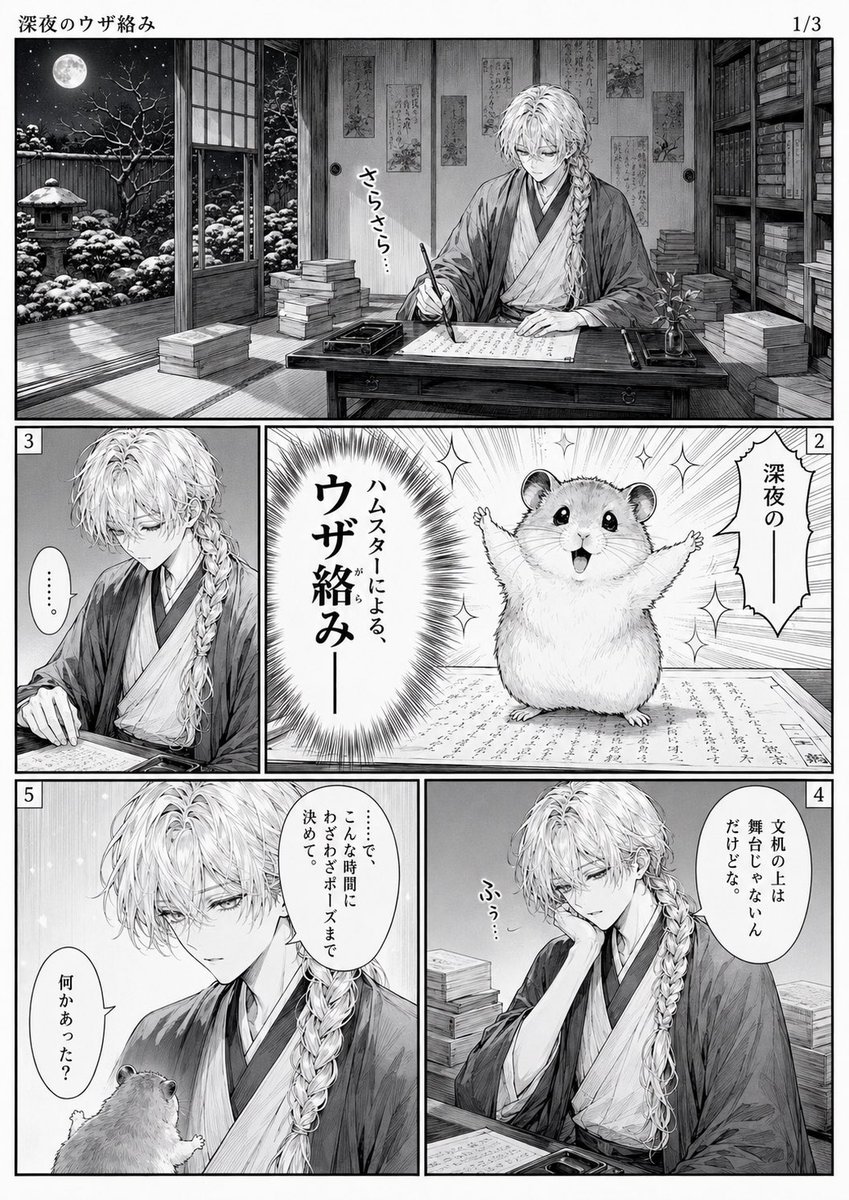
Late-Night Hamster Manga Page
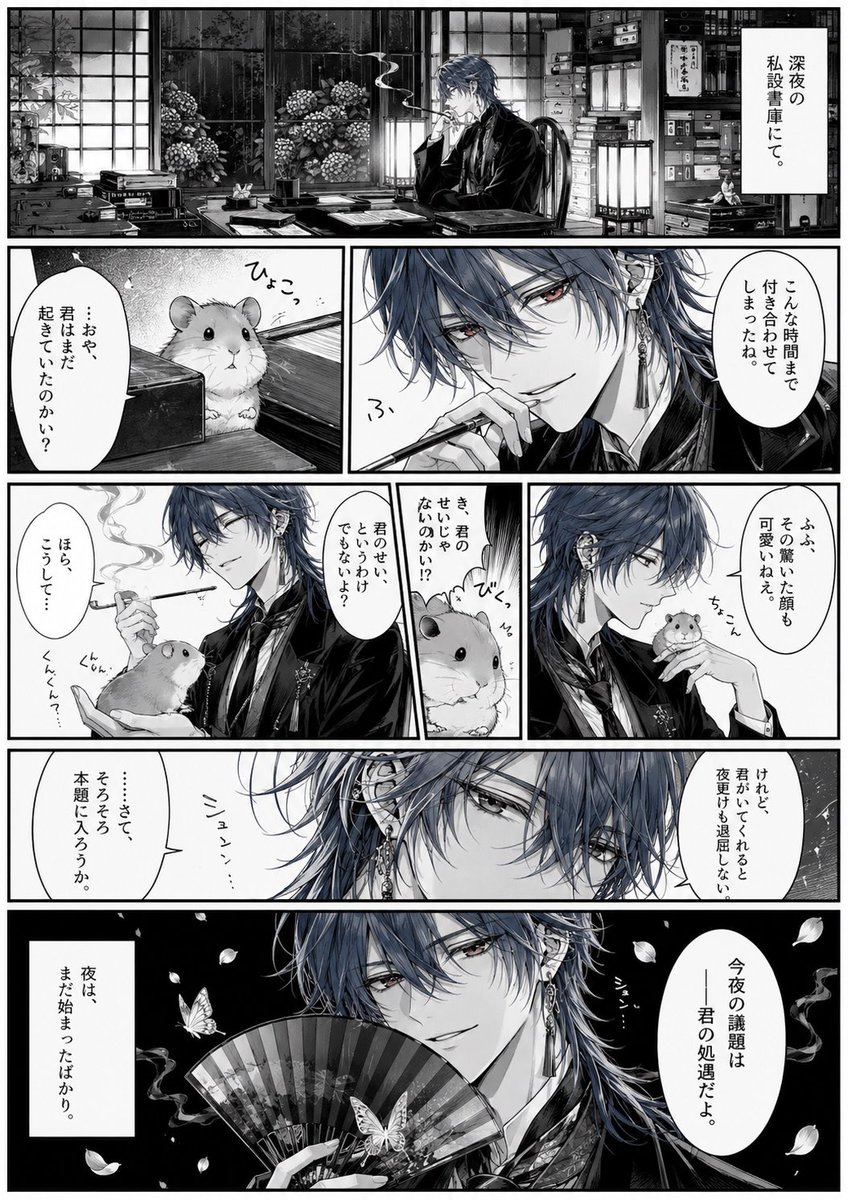
Surreal Noir Hamster Manga Page

Shojo Horror Manga Corridor Page
Cute AI Manga Lesson Comic Page
Hamster Summons Sol Manga Page
Lazy Day Chibi Manga Page
Overwhelmed Coding Manga Page
Make it yours
Cherry Blossom School Gate Manga Page works as-is. These are the safest ways to change it without losing the look.
Change one field
Copy a single group, rewrite it, and generate again so you can see what that field is doing.
Keep the frame, change the subject
Hold the composition and light of Cherry Blossom School Gate Manga Page, then swap wardrobe, props or the person for a new take.
| If the result… | Why | Fix |
|---|---|---|
| The result drifts from the preview | Too many fields changed at once. | Reuse Cherry Blossom School Gate Manga Page as-is first, then change one group — subject, light, or setting. |
| The model over-stylizes the scene | The prose prompt leaves finish and camera underspecified. | Add one camera or lighting sentence and stay on GPT Image 2. |
More GPT Image 2 templates
Other prompts made for GPT Image 2.

Six VTuber Japanese Logo Sheet

Realistic Portrait of Woman and Deer

The Vista Modular Condo Poster

AI Model Routing Comparison Infographic

2.5D Anime Art Board

Isometric Productivity Desk Scene

New York Double Exposure Poster

Four-Panel AI Landscape Comparison

Japanese Tatami Lifestyle Magazine Cover

NESCAFÉ Coffee Map Poster
More image prompts
Fresh picks from across the catalog.
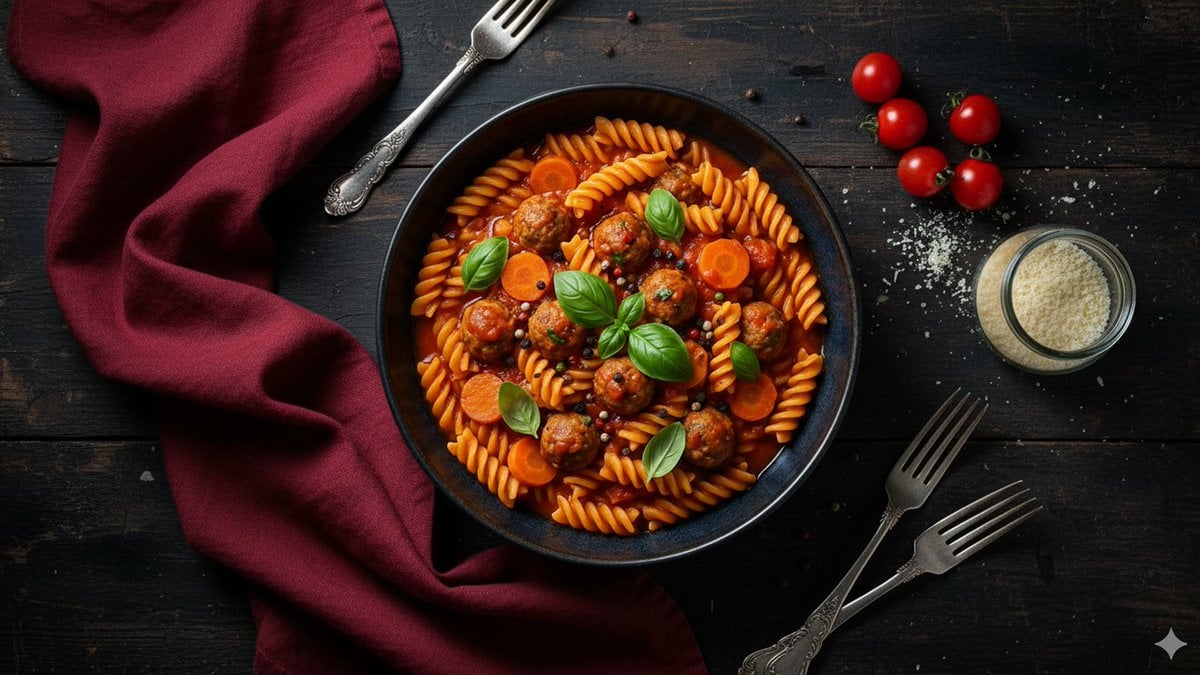
Refined Dining Scene with Fusilli and Meatballs
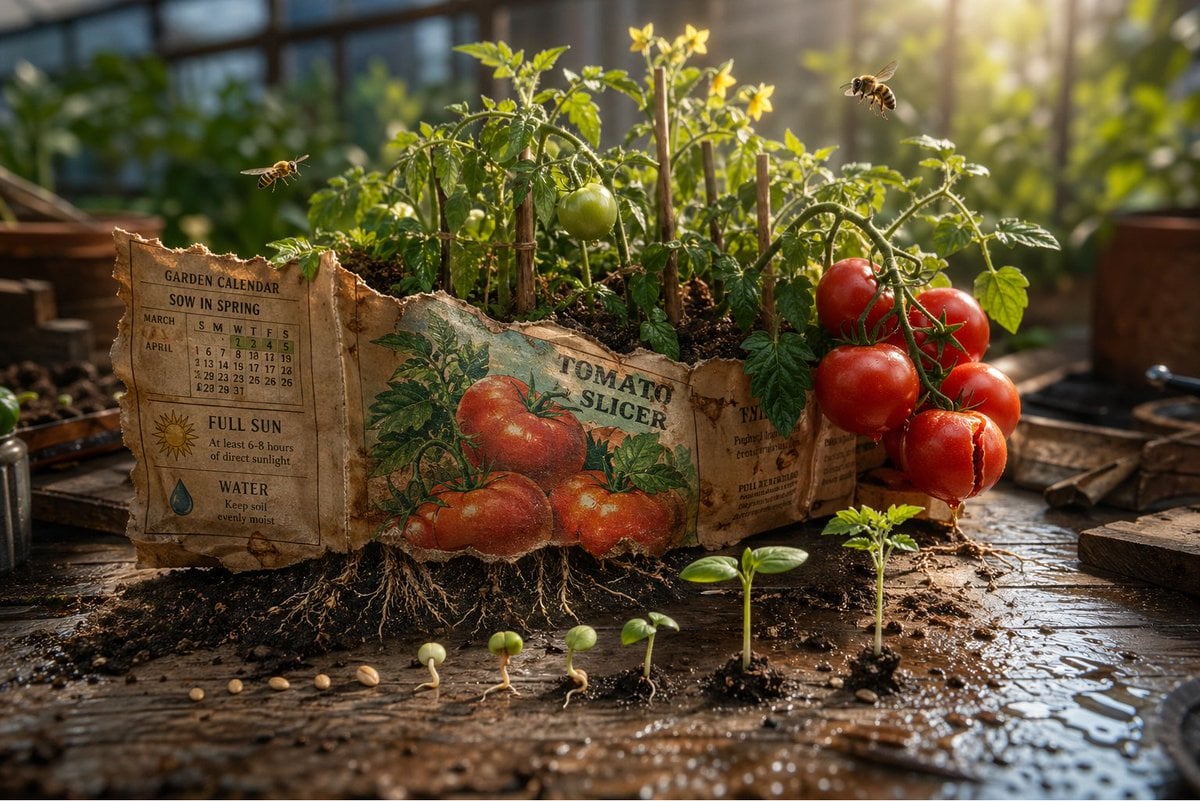
Gpt2 Product Marketing Magical Seed Packet Diorama

Winter Sport Lifestyle Portrait with Fur Hat and Pout
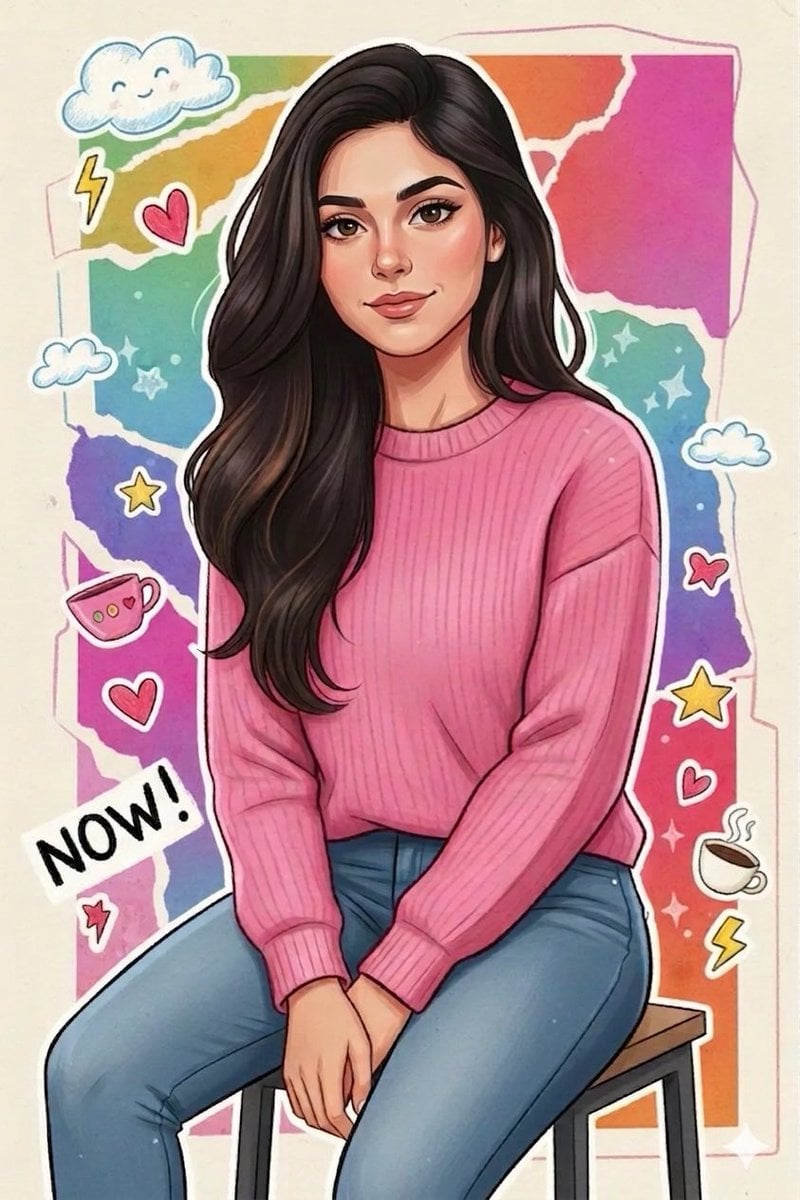
Vibrant Sticker Art Illustration of a Young Woman
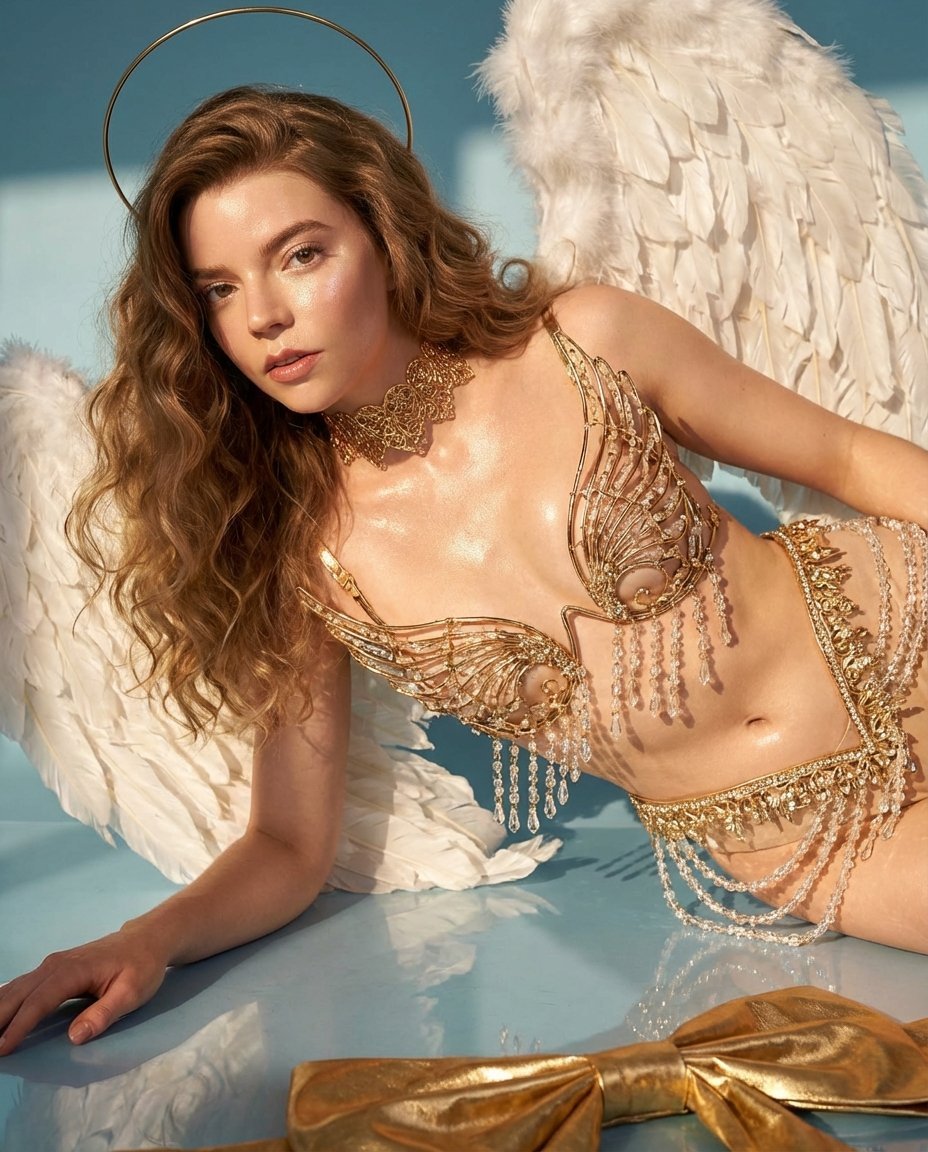
Ethereal Angelic Woman Portrait Prompt for Nano Banana Pro
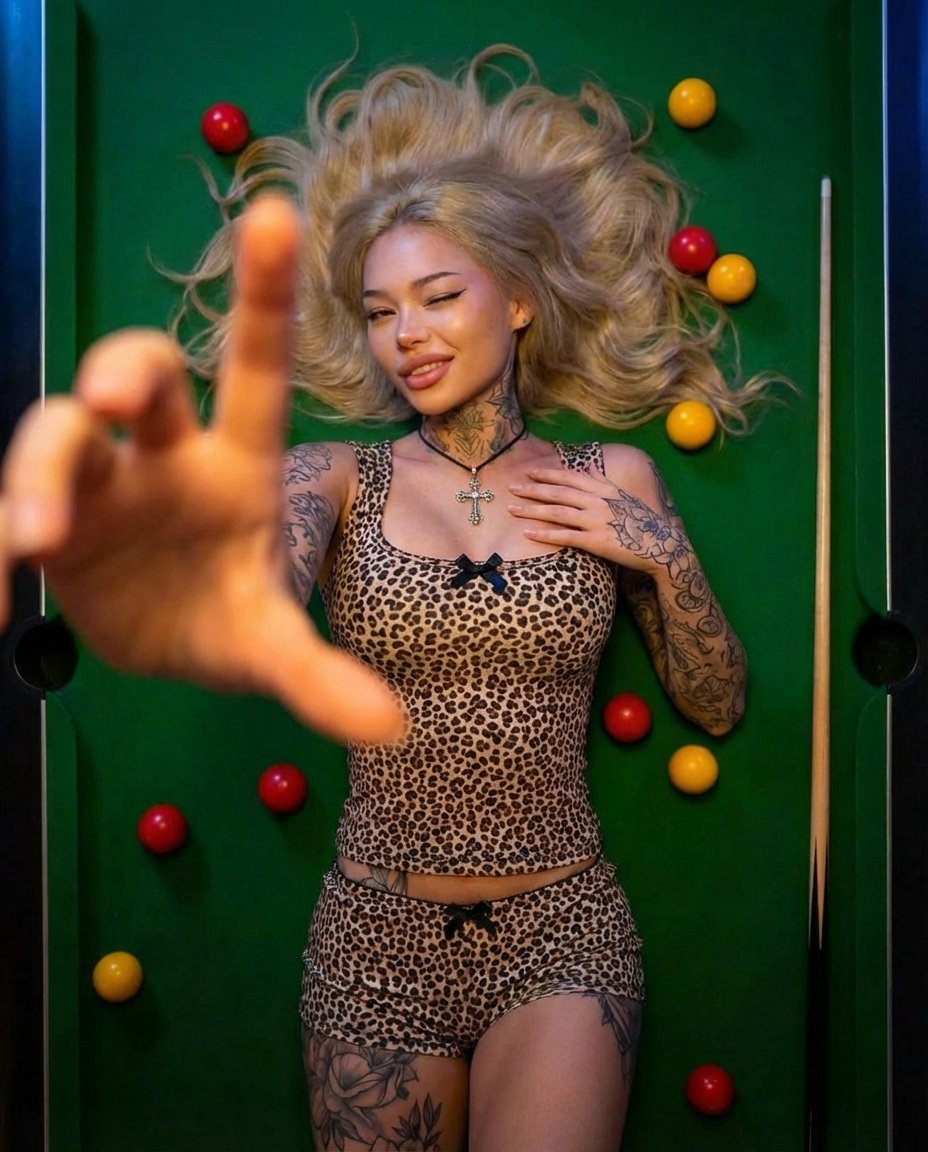
Edgy Fashion Photography on a Billiards Table Prompt
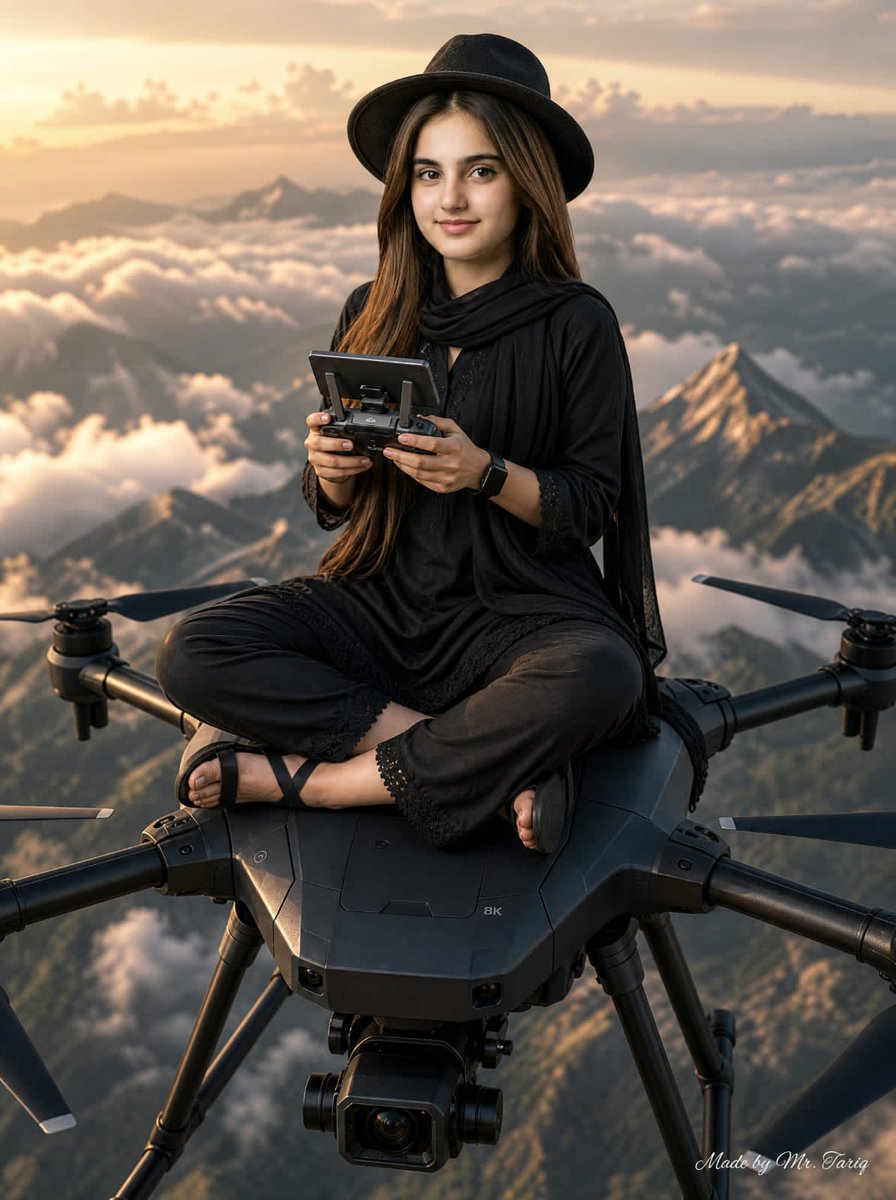
Woman Riding Giant Drone Above Mountains

Tech Leaders Poster with Facial Recognition
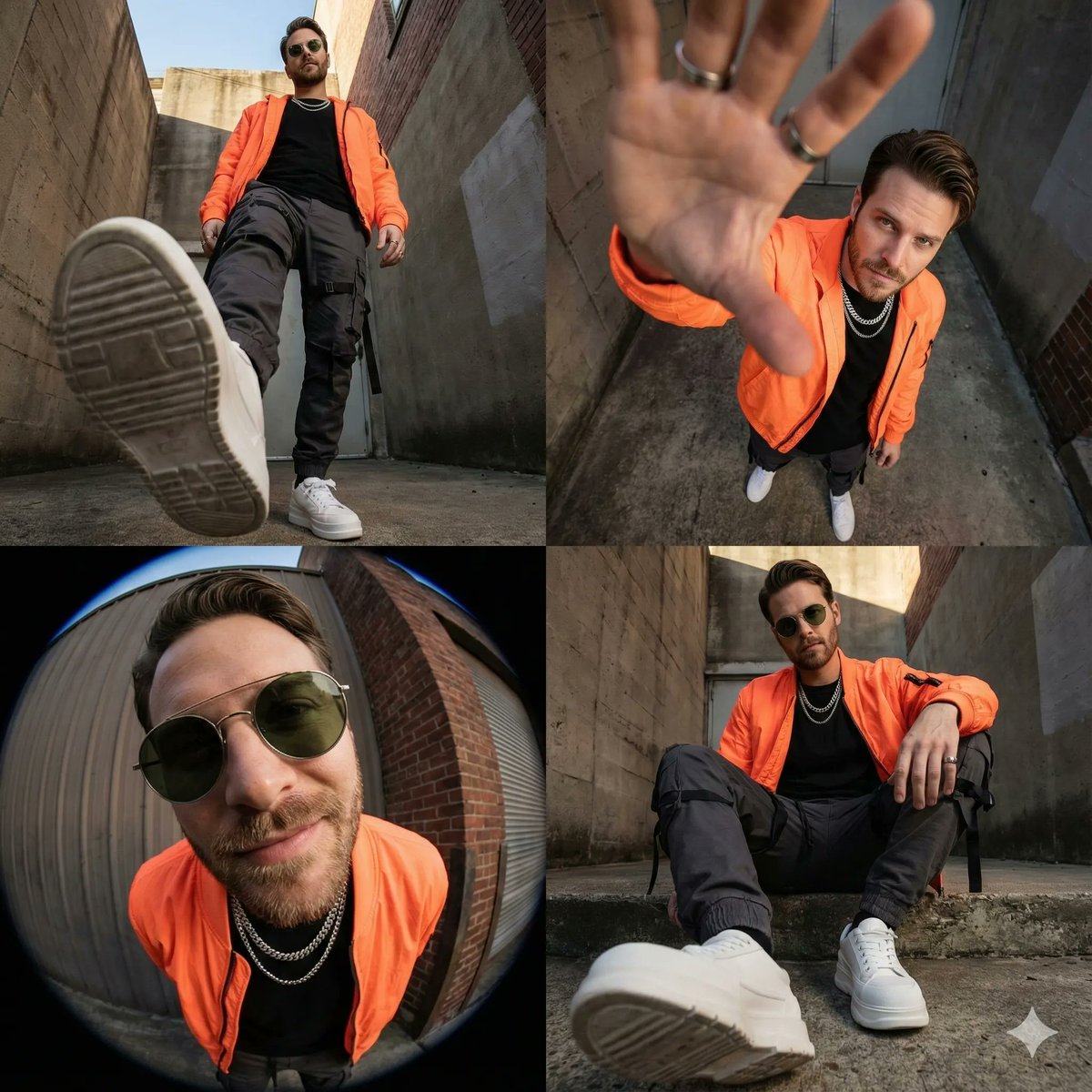
High-Fashion Streetwear Editorial Grid Collage
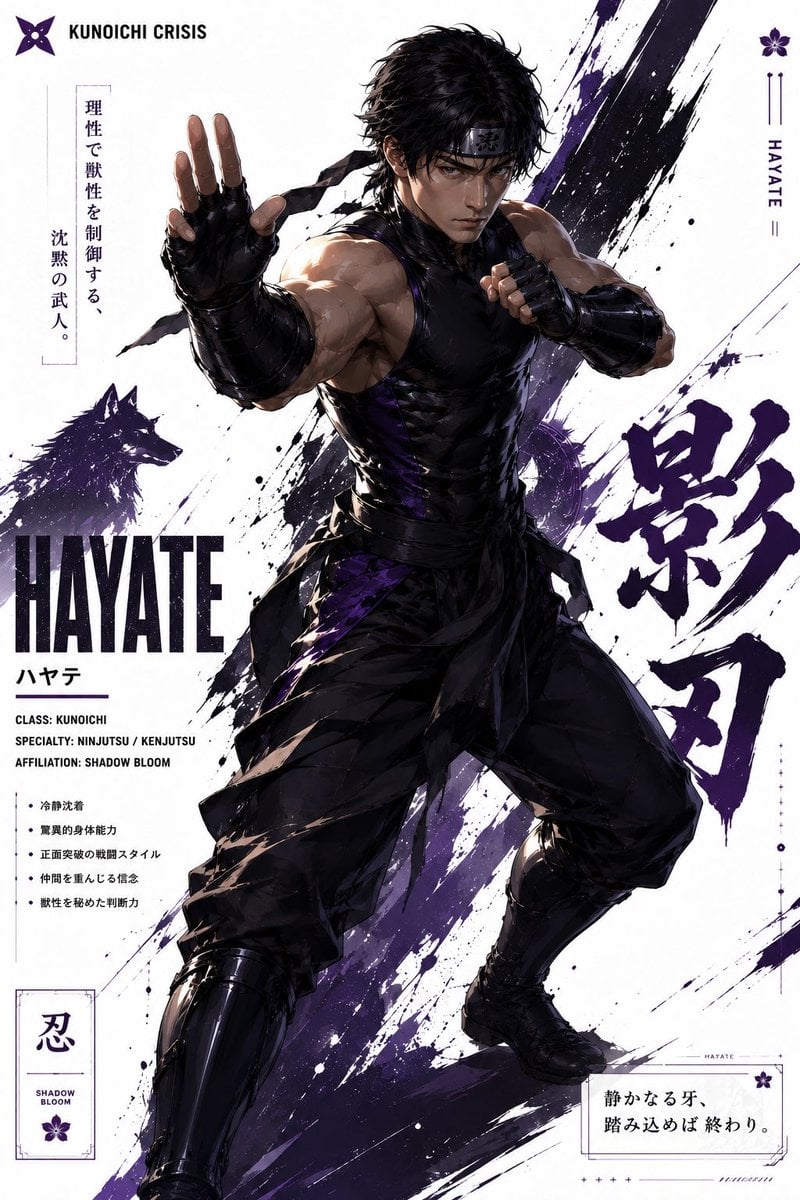
Hayate Ninja Character Poster
Browse template categories
Cherry Blossom School Gate Manga Page questions
How do I use the Cherry Blossom School Gate Manga Page template?
Add your photo if the template asks for one, edit the prompt if you like — the template's model and format are already selected — and press Generate. Your version opens in PicX Studio.
Can I customize the Cherry Blossom School Gate Manga Page template?
Yes. You can change the subject, setting, lighting, mood, format, and available model controls before creating your image.
Is the Cherry Blossom School Gate Manga Page template free?
Opening and editing this template is free. Generating uses credits, shown on the Generate button when you are signed in.
Which AI model should I use?
Start with GPT Image 2, which is the model associated with this template. You can compare another compatible model for a different finish.
Looking for something else? Browse all templates.

Your photo, any look
Thousands of ready templates for every top image and video model, from one credit balance.