How do I use the Pixel Risograph Noodle Diner template?
Choose the primary action to open PicX Studio with the available template settings. Review the model and format, personalize the creative direction, and generate when ready.
Generates a retro pixel-art risograph scene of a person eating noodles in a cozy restaurant setting. Change the subject, setting, or lighting one variable at a time.
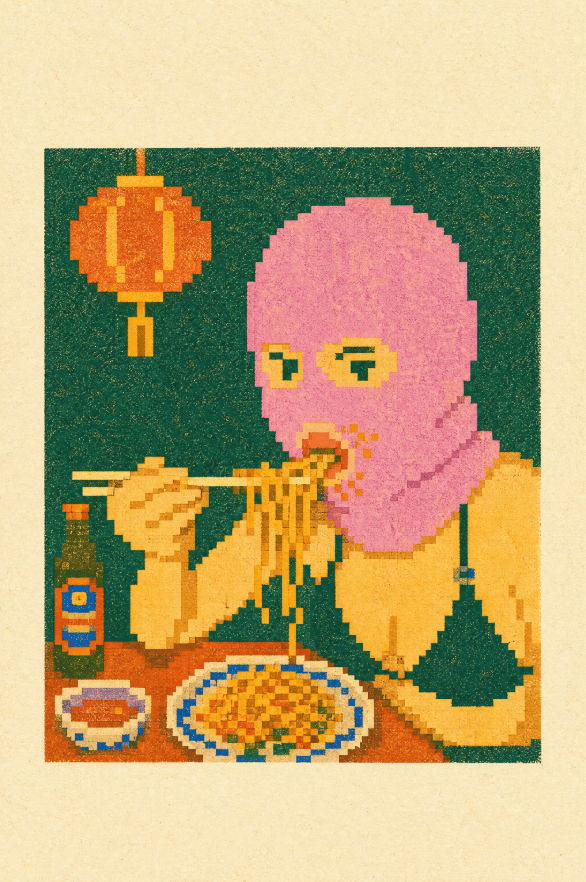
Create a retro pixel-art risograph print illustration on aged cream paper, showing {argument name="main subject" default="a person with a pink bob haircut eating noodles with chopsticks"} seated at a small restaurant table. Use a square dark teal-green background panel centered on the page with a thick cream paper margin, heavy risograph grain, imperfect ink registration, halftone speckles, and chunky low-resolution pixel edges. The subject should occupy the right half of the panel, wearing a {argument name="outfit" default="yellow sweater with a dark green pinafore-style apron"}; their face is intentionally hidden by a flat rectangular {argument name="face cover color" default="soft pink-to-tan gradient block"}. Show the person holding exactly 2 chopsticks horizontally in the left hand and lifting exactly 1 strand cluster of noodles with the right hand. Include exactly 4 main table items: 1 dark green bottle with a red-and-blue label on the left, 1 small oval side plate with a red rectangular food item, 1 large oval plate of yellow-orange fried noodles with blue rim details and small green garnish, and 1 brown tabletop spanning the bottom. Include exactly 1 hanging orange paper lantern in the upper left, attached by 1 thin vertical cord, with yellow highlights and pixelated edges. Use a limited risograph palette of deep teal, mustard yellow, orange, coral pink, red, cobalt blue, dark green, and cream paper, with no photorealism, no smooth vector lines, no extra people, no readable text, and no watermark.
Choose the primary action to open PicX Studio with the available template settings. Review the model and format, personalize the creative direction, and generate when ready.
Yes. You can change the subject, setting, lighting, mood, format, and available model controls before creating your image.
This template is free to open and customize. Generation usage is shown in PicX Studio before you create.
Start with GPT Image 2, which is the model associated with this template. You can compare another compatible model for a different finish.
© 2026 PicX Studio. All rights reserved.

Follow a topic to a crawlable collection of related PicX Studio templates.
43,474 public templates available. Verified via the PicX Studio public templates API; refreshed hourly.











![Minimalist Flat Vector Travel Poster — Premium minimalist flat-vector travel poster for {argument name="city name" default="[CITY_NAME]"}, 3:4 vertical format.](https://cms-assets.youmind.com/media/1787917359711_3ug846_HQX205cbMAA6F6S-300x400.jpg)
























![Couture Velvet Dress on Volcanic Rocks Prompt — [Main]
description = "{argument name="description" default="The same person, the same face, unaltere…](https://pbs.twimg.com/media/G8mqmSMXYAEpQpo.jpg)