
Warm Schematic Design System Board
Generates a six-panel warm technical mood board for exploring futuristic AI interface design systems.
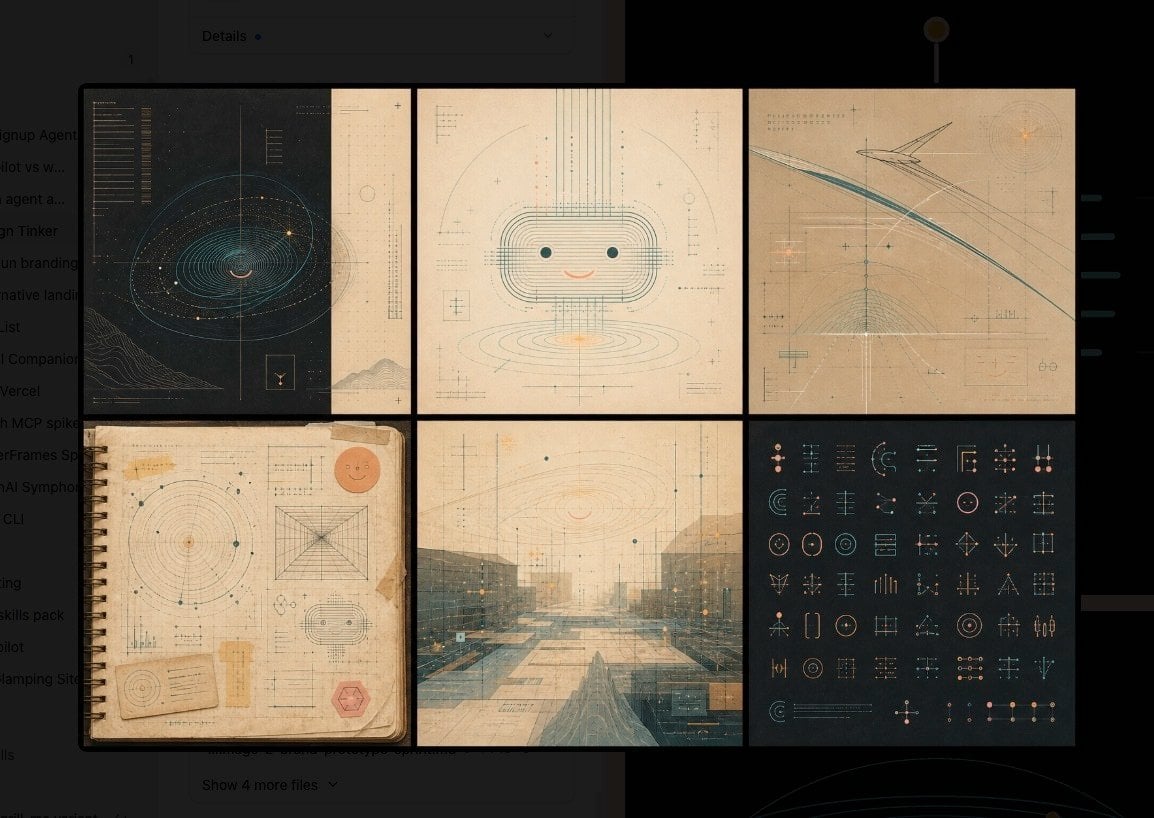
- Prompt included
- Model and format preset
- Free template
The prompt behind this image
Copy the exact prompt behind Warm Schematic Design System Board, or open it in the studio and make it yours.
Goal: Create a warm, sophisticated schematic-aesthetic design systems mood board for {argument name="theme" default="friendly AI interface design"}, combining technical diagrams, vintage paper textures, and subtle futuristic UI symbols. Canvas: Wide horizontal image, approximately 16:9, with a dark charcoal background and a centered 2-row by 3-column grid of six rectangular panels separated by thick black gutters. The overall mood is warm, archival, precise, and slightly mysterious, like a design-system exploration wall. Layout: Use exactly 6 panels: 1. Top-left panel: dark navy/black technical blueprint with an orbital spiral or galaxy-like contour diagram, fine cyan linework, small glowing amber dots, vertical measuring lines, tiny unreadable annotations, and a small boxed icon near the bottom right. 2. Top-middle panel: cream paper schematic of a cute rounded robot face, made from layered rounded-rectangle contour lines, two teal dot eyes, a small peach smile, vertical and horizontal construction lines, small crosshair marks, and faint measurement notations. 3. Top-right panel: warm beige abstract architectural flight-path schematic with sweeping teal and gray arcs, angular line structures, fine grid lines, crosshairs, orange glow points, and tiny technical labels. 4. Bottom-left panel: aged spiral-bound notebook page with paper tape on the corners, circular radar charts, geometric construction diagrams, small UI glyphs, a peach smiley sticker in the upper right, a small card near the bottom left, and a red hexagonal stamp near the bottom right. 5. Bottom-middle panel: misty futuristic architectural landscape or plaza in muted teal and tan, overlaid with perspective grids, fine UI measurement lines, subtle orange highlights, and translucent schematic annotations. 6. Bottom-right panel: dark charcoal icon-system sheet containing exactly 54 small geometric UI glyphs arranged in a clean grid, using thin teal, peach, and beige lines; include circles, sliders, crosshairs, brackets, arrows, nodes, target symbols, grids, and abstract interface controls. Visual style: Warm take on technical schematics; combine Bauhaus-like precision, mid-century information design, old engineering drawings, soft futuristic interface graphics, and tactile analog materials. Use muted colors: charcoal black, faded cream, parchment beige, dusty teal, pale cyan, peach, amber, and soft gray. Lines should be extremely fine and precise, with subtle glow only on small highlights. Add paper grain, scan texture, faint speckles, worn edges, and layered transparent drafting marks. Text and marks: Include tiny pseudo-technical annotations and measurement ticks, but keep all text mostly illegible and decorative. Avoid large readable headlines. Use minimal symbols such as plus signs, crosshairs, coordinates, micro labels, and tiny rule marks. Constraints: No people, no photorealistic objects except paper/notebook texture, no logos, no watermark, no extra panels beyond the 6 specified panels. Maintain a polished design-system exploration feel rather than a chaotic collage.
How to use Warm Schematic Design System Board in 3 steps
- 1Upload ImagePNG, JPG or paste
Add your photo
Upload the photo the template builds on. The prompt, model and format are already set.
- 2…a portrait of your subject in softgolden-hour light, 85mm…
Personalize
Edit the subject and creative details for your destination.
- 3Generate
Generate
Press Generate — your image is created in PicX Studio, so you can compare it with the original and refine one variable at a time.
More like this
Templates with the same subject, style or setup. Open one to see its prompt.
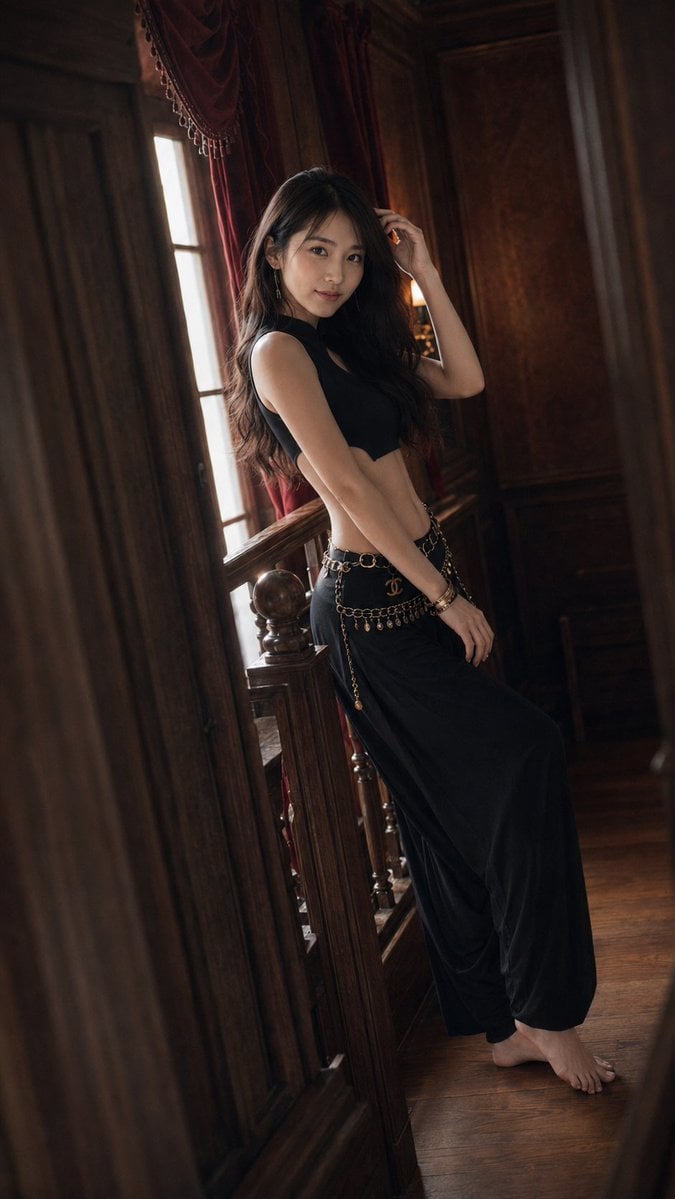
Warm Vintage Manor Bohemian Fashion Editorial
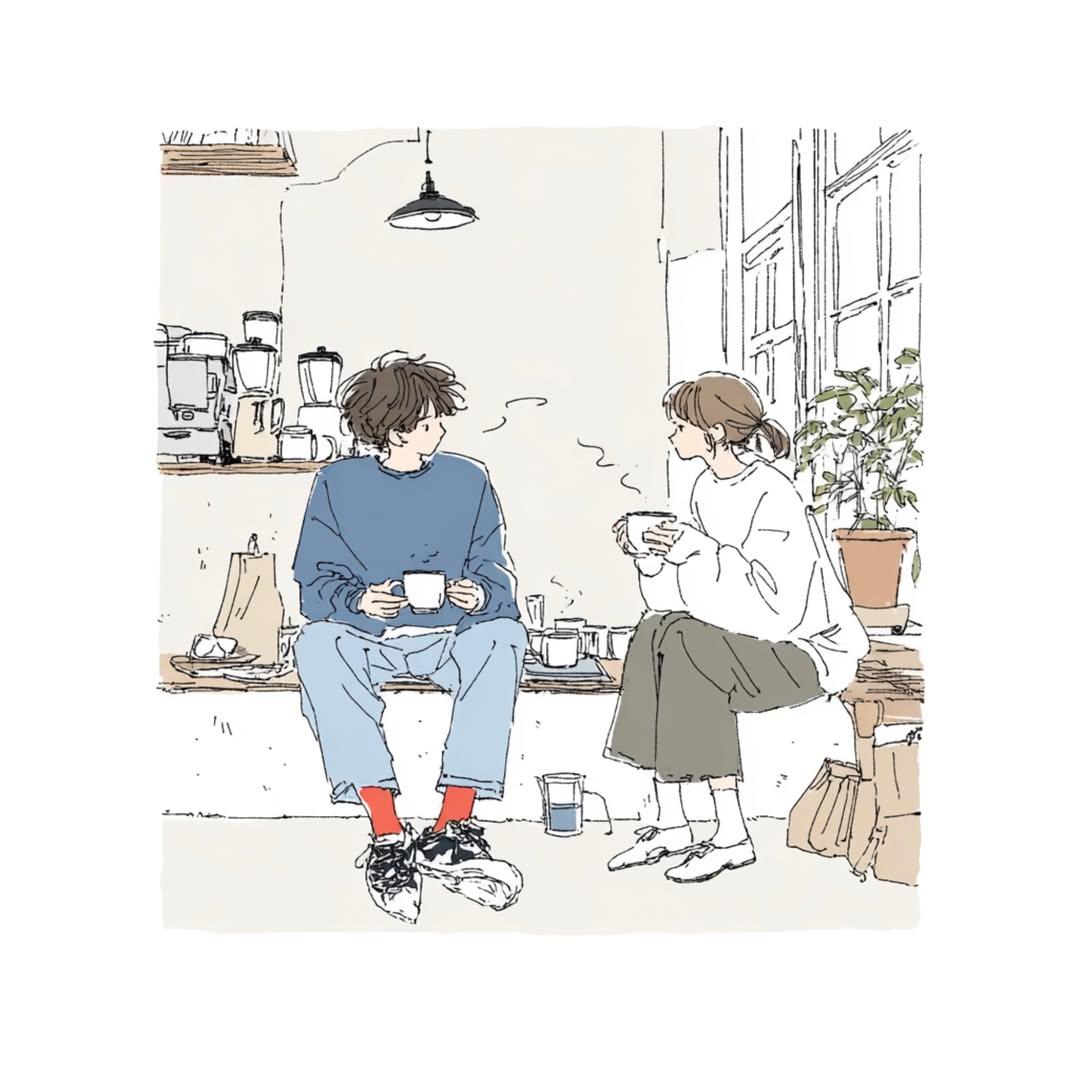
Delicate Japanese Café Lifestyle Illustration

Cozy Café Ice Cream Hands Close-Up

Warm Window Side Café Studio Portrait

Nostalgic Digicam Café Afternoon Portrait
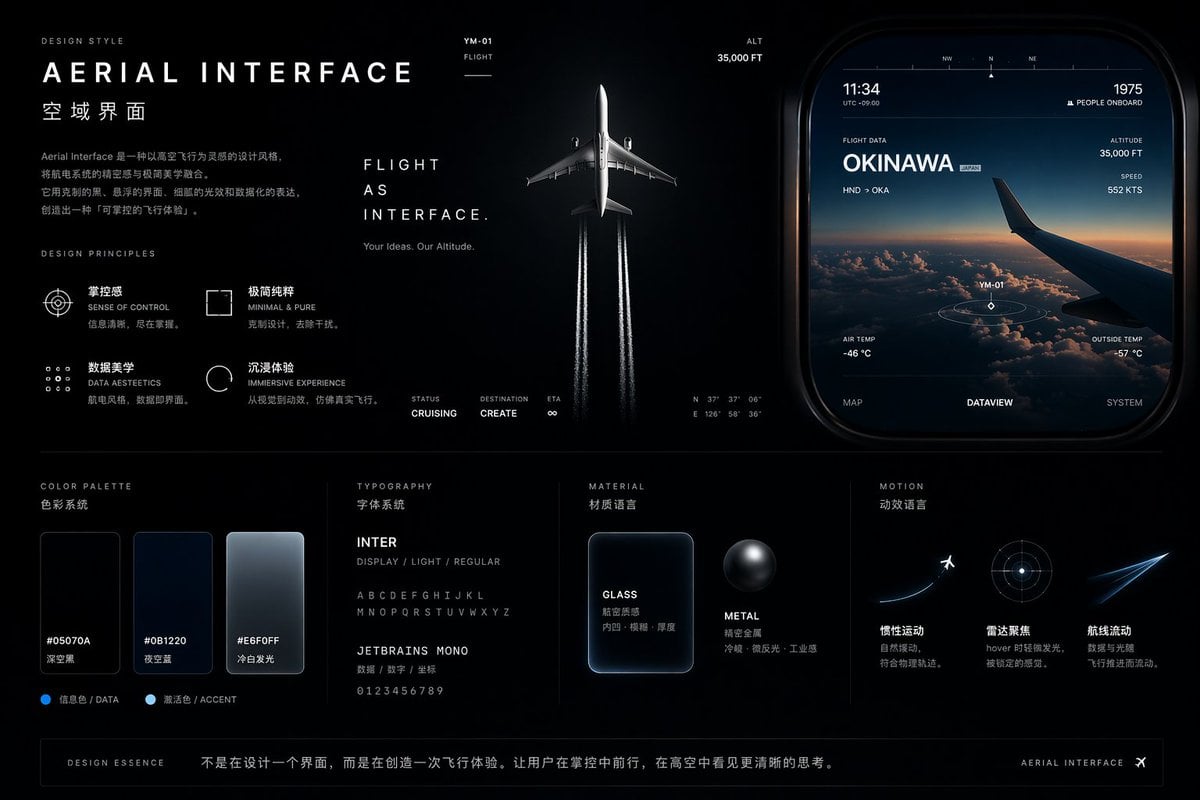
Aviation-Themed UI Design System Board
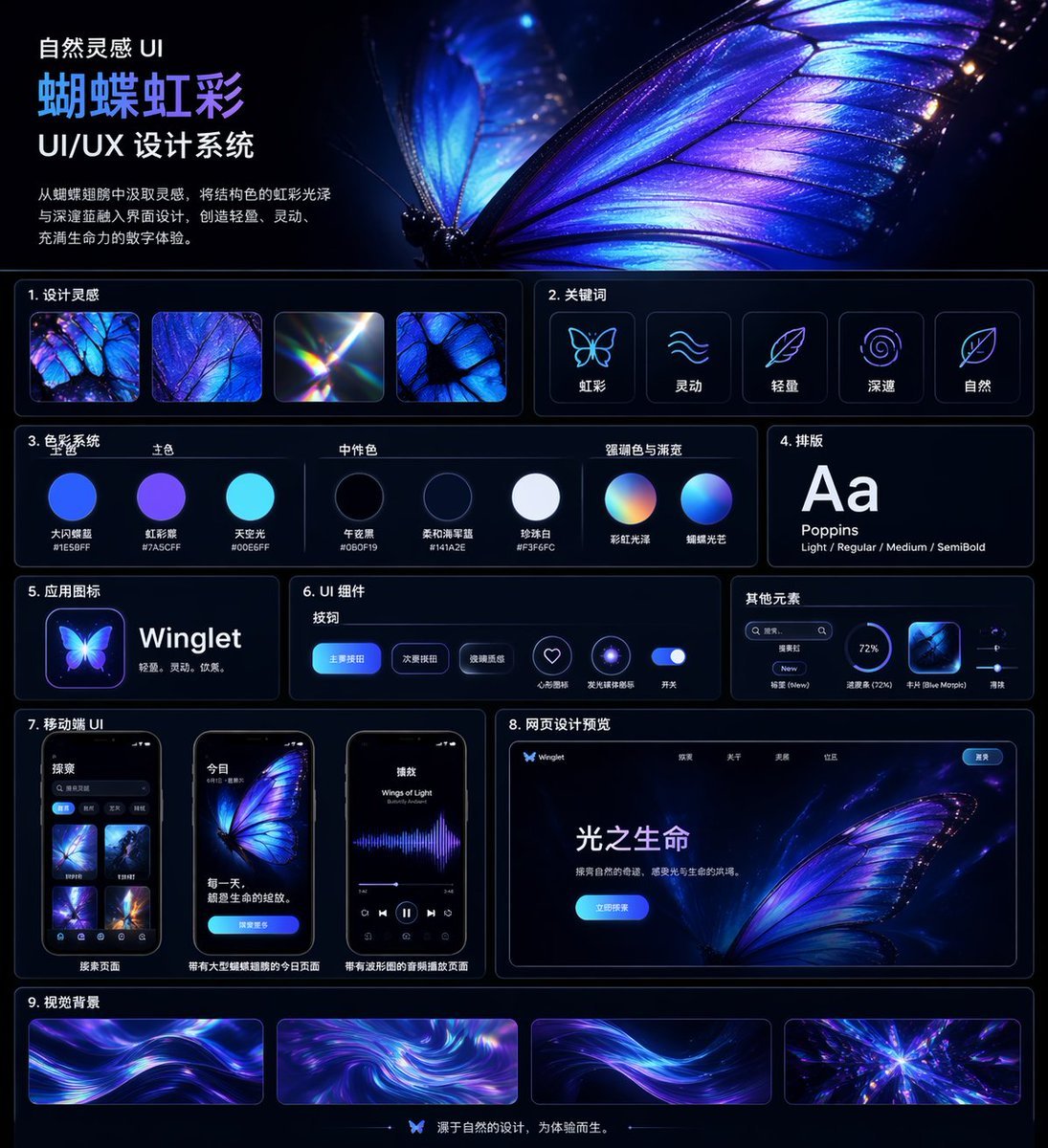
Iridescent Butterfly UI System Board
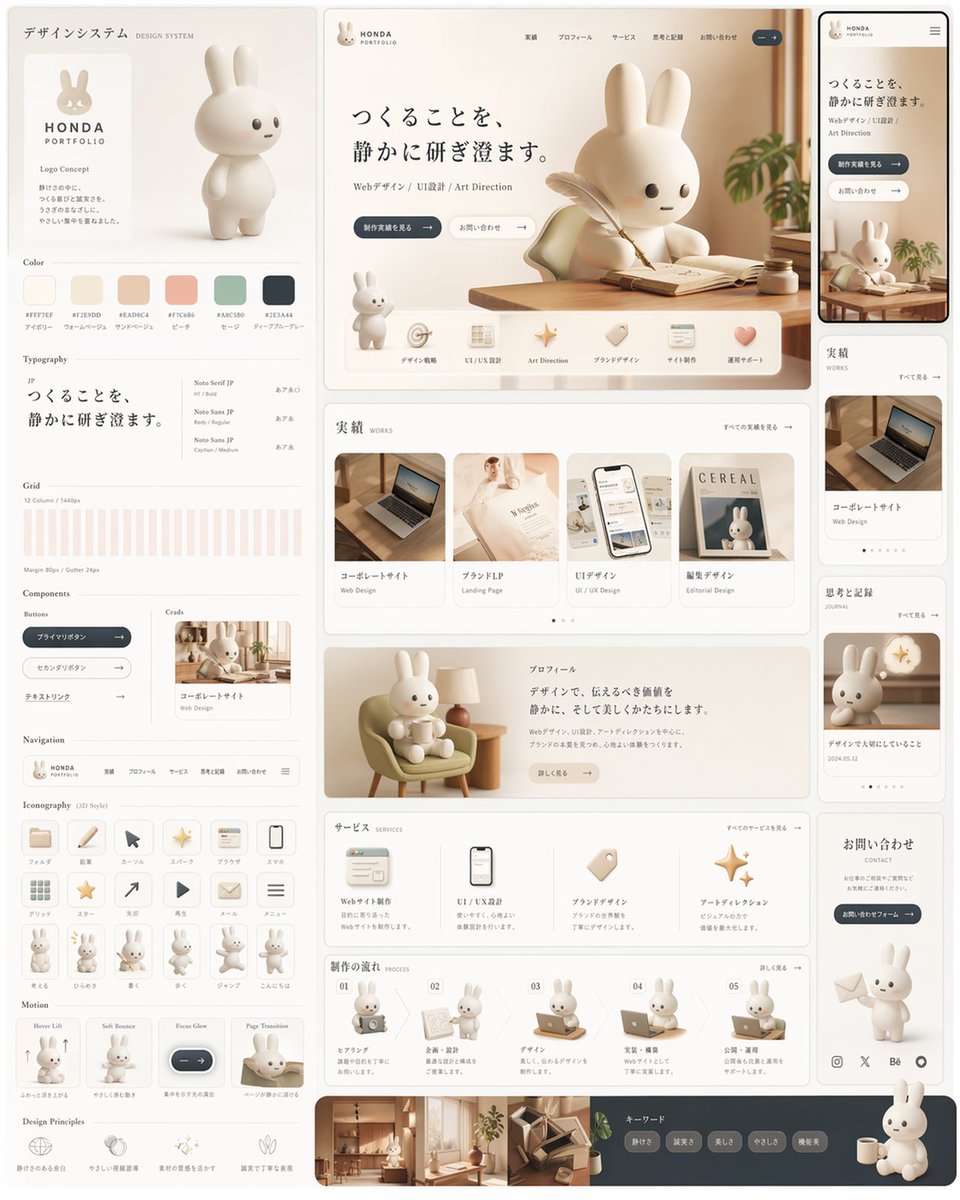
Rabbit Portfolio Design System Board
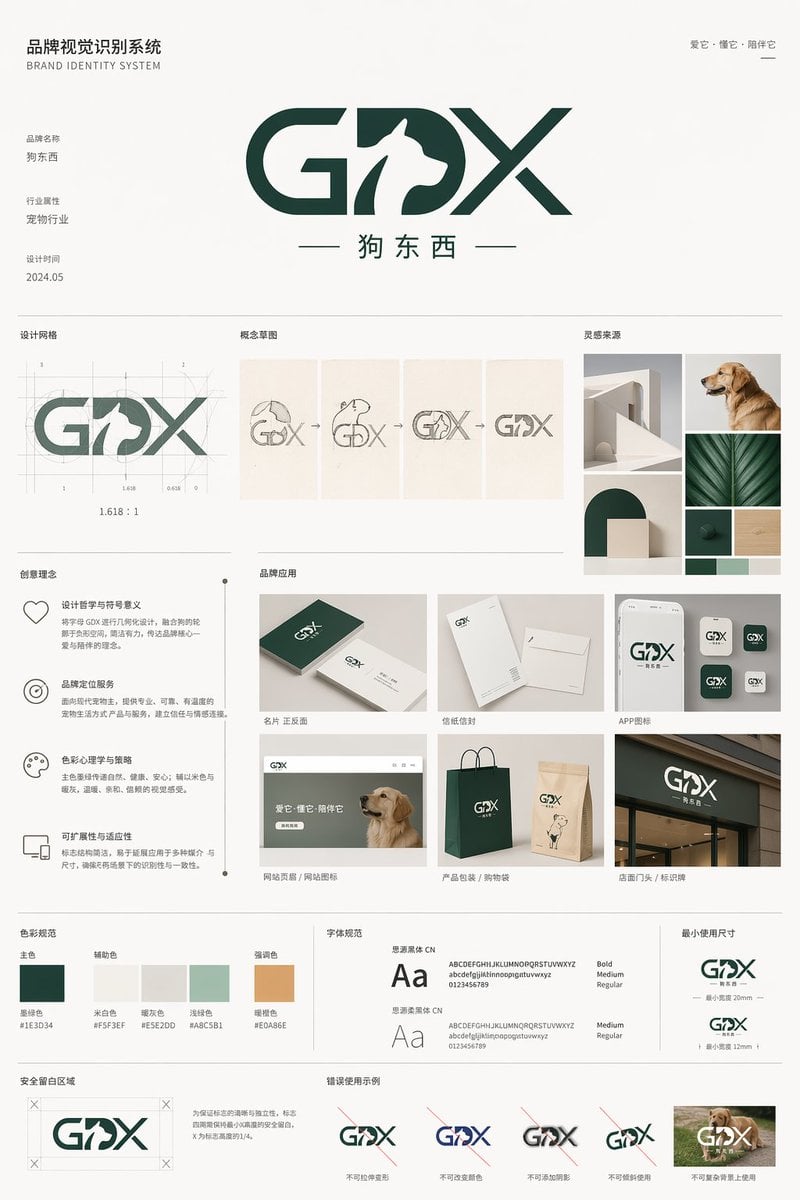
Pet Brand Identity System Board

Warm Lakeside Travel Selfie

Warm Anime Bookstore Clerk Portrait
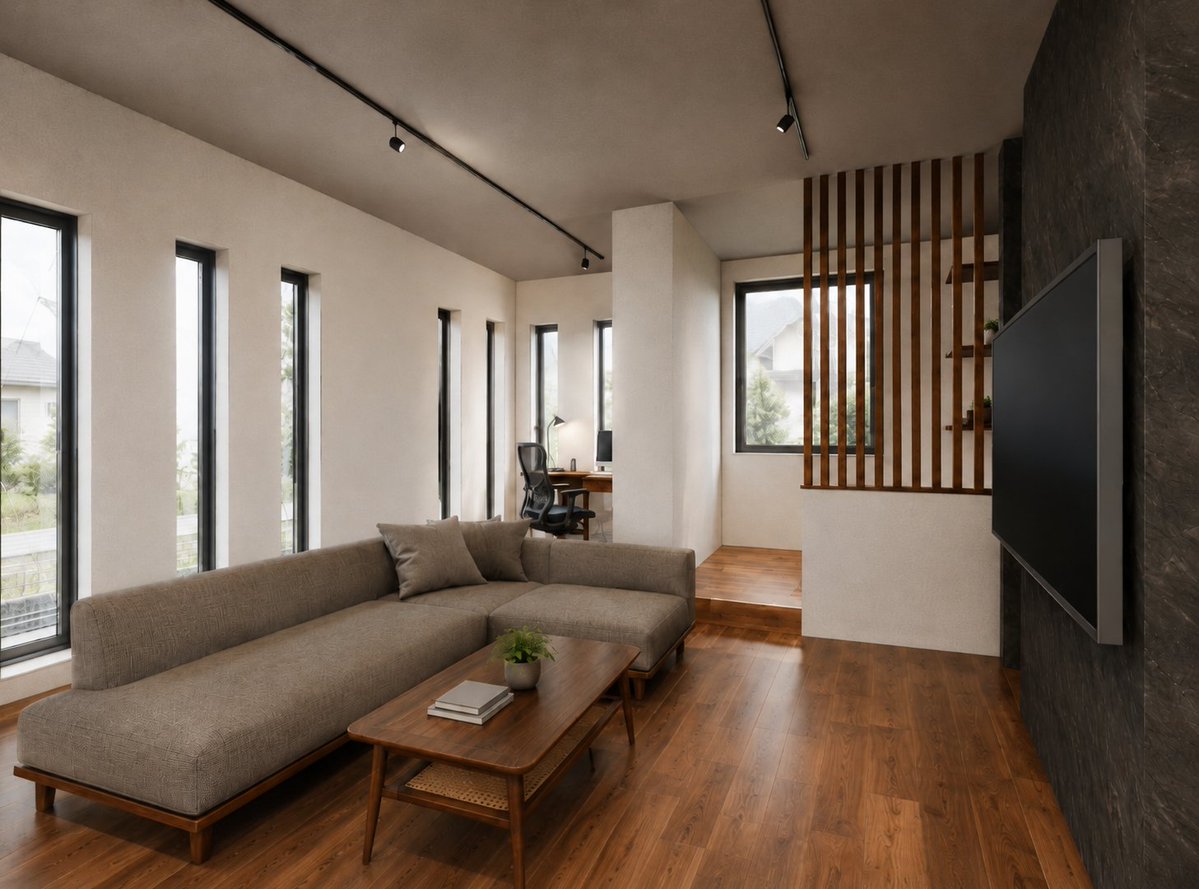
Warm Modern Japanese Living Room Render
Make it yours
Warm Schematic Design System Board works as-is. These are the safest ways to change it without losing the look.
Change one field
Copy a single group, rewrite it, and generate again so you can see what that field is doing.
Keep the frame, change the subject
Hold the composition and light of Warm Schematic Design System Board, then swap wardrobe, props or the person for a new take.
| If the result… | Why | Fix |
|---|---|---|
| The result drifts from the preview | Too many fields changed at once. | Reuse Warm Schematic Design System Board as-is first, then change one group — subject, light, or setting. |
| The model over-stylizes the scene | The prose prompt leaves finish and camera underspecified. | Add one camera or lighting sentence and stay on GPT Image 2. |
More GPT Image 2 templates
Other prompts made for GPT Image 2.

Six VTuber Japanese Logo Sheet

Realistic Portrait of Woman and Deer

The Vista Modular Condo Poster

AI Model Routing Comparison Infographic

Isometric Productivity Desk Scene

New York Double Exposure Poster

Four-Panel AI Landscape Comparison

Japanese Tatami Lifestyle Magazine Cover

NESCAFÉ Coffee Map Poster

Brutalist Cogito Chinese Typography Poster
More image prompts
Fresh picks from across the catalog.

Unexpected High-End Product Concepts Prompt

Nostalgic Tokyo Travel Collage
Off-White × Balenciaga Hypebeast Editorial

3D Fluffy Monster Bursting Through Wall
High-Resolution 3x3 Grid Photo Collage for Female Travel Photography
Die-cut Sticker Illustration
Yoga Book Two-Page Spread

Photorealistic Portrait Prompt for Gemini Nano Banana Pro

Show Me 10 Years Later
3D Hair Texture Height Map
Browse template categories
Warm Schematic Design System Board questions
How do I use the Warm Schematic Design System Board template?
Add your photo if the template asks for one, edit the prompt if you like — the template's model and format are already selected — and press Generate. Your version opens in PicX Studio.
Can I customize the Warm Schematic Design System Board template?
Yes. You can change the subject, setting, lighting, mood, format, and available model controls before creating your image.
Is the Warm Schematic Design System Board template free?
Opening and editing this template is free. Generating uses credits, shown on the Generate button when you are signed in.
Which AI model should I use?
Start with GPT Image 2, which is the model associated with this template. You can compare another compatible model for a different finish.
Looking for something else? Browse all templates.

Your photo, any look
Thousands of ready templates for every top image and video model, from one credit balance.