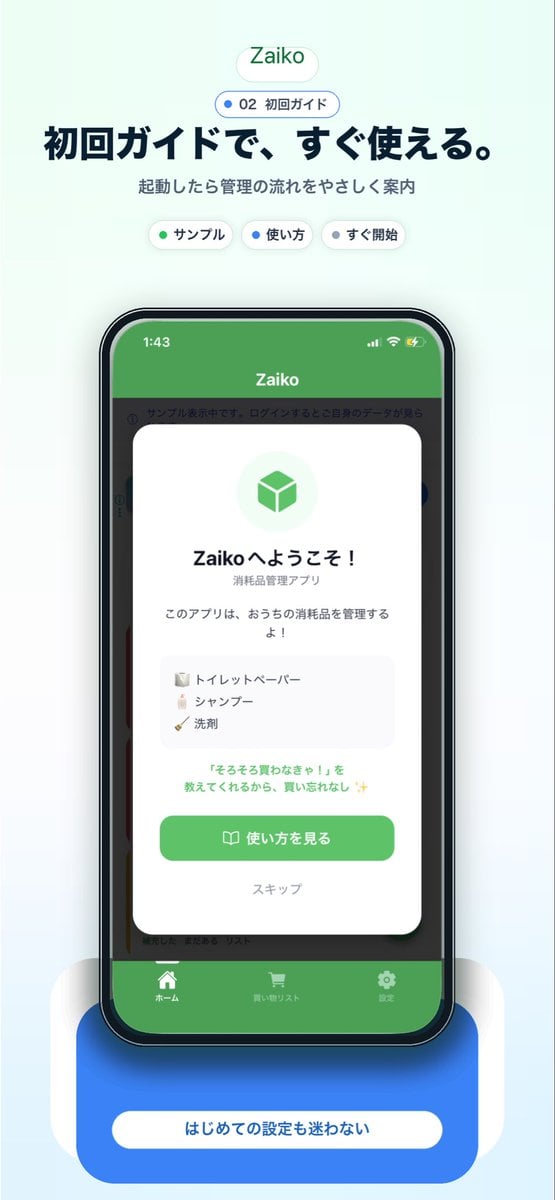
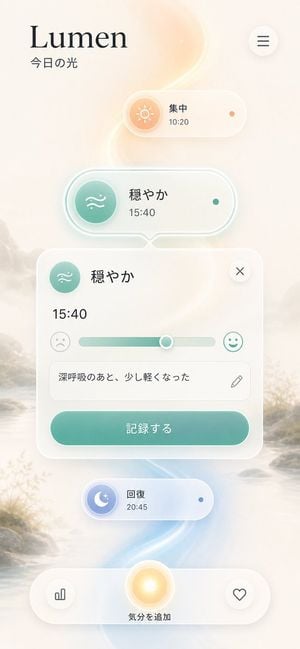
How do I use the Japanese AI Report Correction App Mockup template?
Edit the prompt in the box under the preview — the template's model and format are already selected — and press Generate. Your version appears right on this page.
A polished Japanese SaaS-style UI mockup for an AI report correction app, ideal for social media demand testing or startup concept validation.

This template uses your photo — add one with the + button.
Goal: Create a clean, realistic mobile app mockup for a Japanese AI report-checking app, shown as a rounded white modal card on a light gray background, suitable for testing demand on social media. The app name should be {argument name="app title" default="レポート添削AI"} and the screen should look like a finished product UI. Canvas: Wide horizontal image, approximately 16:7 aspect ratio. Center a large rounded rectangle app window with a soft shadow, thin light-gray border, and bright white background. Add subtle vertical divider lines and very light gradients to make it feel like a polished SaaS/mobile web interface. Layout: Use exactly 2 main content panels inside the app window. Left panel is the report input area. Right panel is the AI correction results area. Place a dark circular close button with a white “×” in the top-right corner of the modal. Add two floating dark pill buttons near the bottom-left overlapping the modal: one labeled “+ ALT” and one labeled “編集”. A partial dark rounded bar is barely visible at the bottom-right edge, cropped by the image frame. Left panel details: At the top center, show the heading “レポート添削AI” and a smaller subtitle “AIがあなたのレポートを改善します”. Below, add the section label “レポートを入力してください”. Show a large textarea card with a sample Japanese report paragraph about SNS usage among young people; include a small character counter “128/3000” at the lower right of the textarea. Under the textarea, place one prominent purple rounded button labeled “添削する”. Beneath the button, add a tiny caption “AIによる添削開始”. Right panel details: Add the title “AIによる添削結果”. Show a rating row with label “総合評価” and a small green rounded badge labeled “B+”. Then create an “改善ポイント” section containing exactly 3 checklist items, each preceded by a green circular check icon: 1) “具体例があると説得力が増します”, 2) “データや根拠を加えるとより良くなります”, 3) “結論を明確にすると締まりが良くなります”. Below that, add an “改善例” section with a paragraph of Japanese corrected text beginning with “近年、SNSの利用者数は増加しており、2023年の総務省の調査によると、10代の約90%がSNSを利用している。” and continuing in small readable Japanese body text. Visual style: Minimal Japanese product UI, Apple-like rounded corners, crisp sans-serif Japanese typography, black and dark-gray text, green success accents, purple primary CTA button with slight gradient, generous whitespace, realistic soft shadows, high-resolution screenshot aesthetic. Constraints: Keep the UI text in Japanese exactly where specified, use no extra panels beyond the 2 main panels, include exactly 3 checklist improvement items, no people, no illustrations, no watermark, no browser chrome, no phone frame.
Goal: Create a clean, realistic mobile app mockup for a Japanese AI report-checking app, shown as a rounded white modal card on a light gray background, suitable for testing demand on social media. The app name should be {argument name="app title" default="レポート添削AI"} and the screen should look like a finished product UI. Canvas: Wide horizontal image, approximately 16:7 aspect ratio. Center a large rounded rectangle app window with a soft shadow, thin light-gray border, and bright white background. Add subtle vertical divider lines and very light gradients to make it feel like a polished SaaS/mobile web interface. Layout: Use exactly 2 main content panels inside the app window. Left panel is the report input area. Right panel is the AI correction results area. Place a dark circular close button with a white “×” in the top-right corner of the modal. Add two floating dark pill buttons near the bottom-left overlapping the modal: one labeled “+ ALT” and one labeled “編集”. A partial dark rounded bar is barely visible at the bottom-right edge, cropped by the image frame. Left panel details: At the top center, show the heading “レポート添削AI” and a smaller subtitle “AIがあなたのレポートを改善します”. Below, add the section label “レポートを入力してください”. Show a large textarea card with a sample Japanese report paragraph about SNS usage among young people; include a small character counter “128/3000” at the lower right of the textarea. Under the textarea, place one prominent purple rounded button labeled “添削する”. Beneath the button, add a tiny caption “AIによる添削開始”. Right panel details: Add the title “AIによる添削結果”. Show a rating row with label “総合評価” and a small green rounded badge labeled “B+”. Then create an “改善ポイント” section containing exactly 3 checklist items, each preceded by a green circular check icon: 1) “具体例があると説得力が増します”, 2) “データや根拠を加えるとより良くなります”, 3) “結論を明確にすると締まりが良くなります”. Below that, add an “改善例” section with a paragraph of Japanese corrected text beginning with “近年、SNSの利用者数は増加しており、2023年の総務省の調査によると、10代の約90%がSNSを利用している。” and continuing in small readable Japanese body text. Visual style: Minimal Japanese product UI, Apple-like rounded corners, crisp sans-serif Japanese typography, black and dark-gray text, green success accents, purple primary CTA button with slight gradient, generous whitespace, realistic soft shadows, high-resolution screenshot aesthetic. Constraints: Keep the UI text in Japanese exactly where specified, use no extra panels beyond the 2 main panels, include exactly 3 checklist improvement items, no people, no illustrations, no watermark, no browser chrome, no phone frame.
Edit the prompt in the box under the preview — the template's model and format are already selected — and press Generate. Your version appears right on this page.
Yes. You can change the subject, setting, lighting, mood, format, and available model controls before creating your image.
Opening and editing this template is free. Generating uses credits, shown on the Generate button when you are signed in.
Start with GPT Image 2, which is the model associated with this template. You can compare another compatible model for a different finish.
Follow a topic to a crawlable collection of related PicX Studio templates.