
Japanese SaaS Form Builder Banner
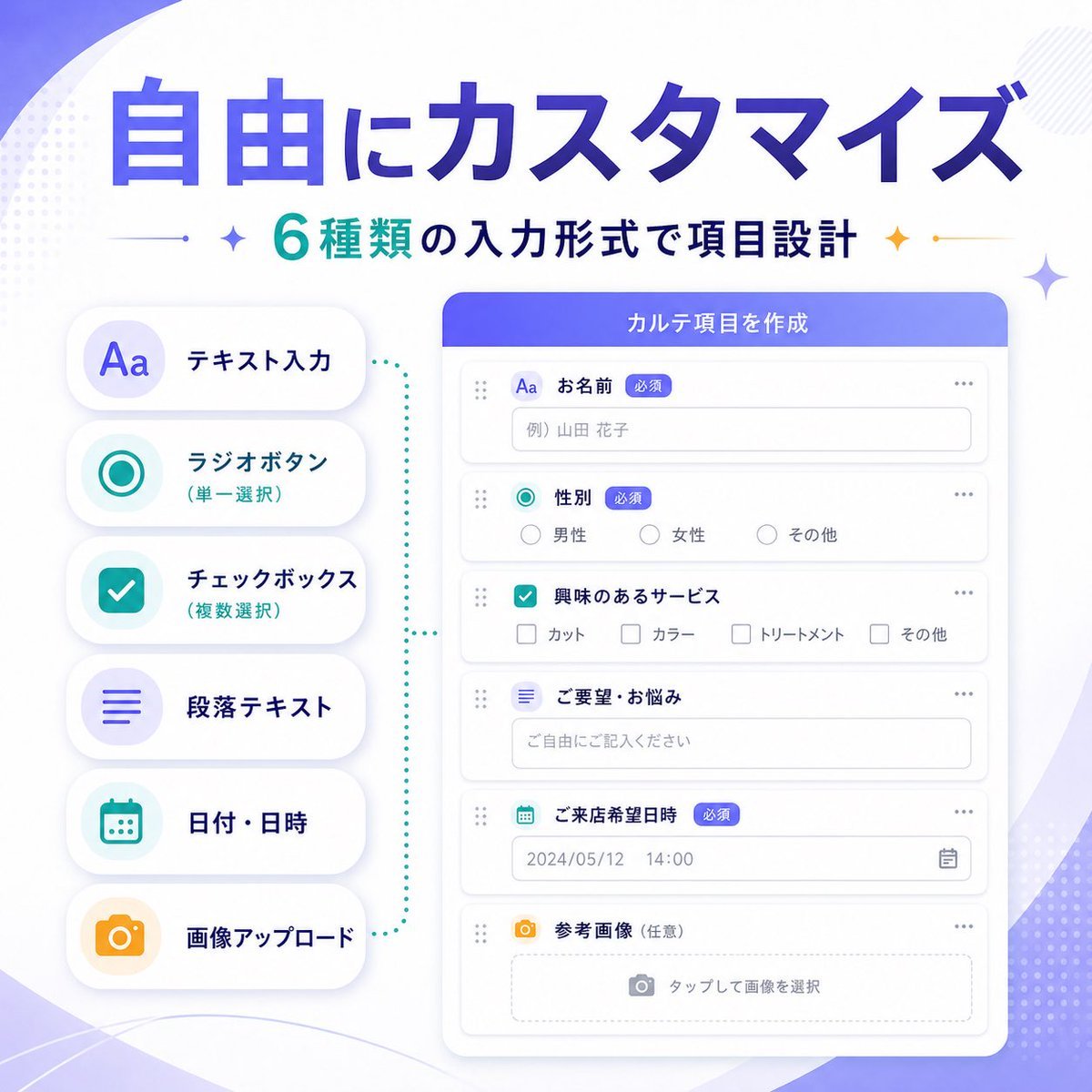
A polished Japanese SaaS marketing infographic banner showcasing six customizable form input types for promoting a product feature update.
- Prompt included
- Model and format preset
- Free template
The prompt behind this image
Copy the exact prompt behind Japanese SaaS Form Builder Banner, or open it in the studio and make it yours.
- Type
- SaaS feature update banner infographic
- Style
- clean modern Japanese tech marketing visual, soft gradient abstract background, premium UI showcase, minimal flat illustration, rounded cards, subtle shadows, crisp typography
- Language
- Japanese
- Canvas › Aspect Ratio
- 1:1
- Canvas › Background
- white base with soft purple gradient waves, faint dotted halftone accents, light geometric sparkles in the corners
- Headline › Main
- {argument name="headline text" default="自由にカスタマイズ"}
- Headline › Sub
- {argument name="subheadline text" default="6種類の入力形式で項目設計"}
- Headline › Main Style
- very large bold Japanese sans-serif, deep blue to violet gradient fill
- Headline › Sub Style
- medium bold Japanese sans-serif, teal and dark navy text with small decorative sparkle icons and thin divider lines on both sides
- Layout › Composition
- two-column product feature banner
- Layout › Sections › 0 › Title
- input type list
- Layout › Sections › 0 › Position
- left
- Layout › Sections › 0 › Count
- 6
- Layout › Sections › 0 › Labels
- テキスト入力, ラジオボタン(単一選択), チェックボックス(複数選択), 段落テキスト, 日付・日時, 画像アップロード
- Layout › Sections › 0 › Container
- vertical stack of 6 rounded white pill cards with soft shadow
- Layout › Sections › 0 › Icon Style
- large simple colored icons inside pale circular badges
- Layout › Sections › 0 › Colors
- purple, teal, teal, purple, teal, orange
- Layout › Sections › 1 › Title
- form builder UI
- Layout › Sections › 1 › Position
- right
- Layout › Sections › 1 › Count
- 6
- Layout › Sections › 1 › Labels
- お名前, 性別, 興味のあるサービス, ご要望・お悩み, ご来店希望日時, 参考画像(任意)
- Layout › Sections › 1 › Container
- large rounded white application window with purple-blue header bar
- Layout › Sections › 1 › Header Text
- {argument name="panel title" default="カルテ項目を作成"}
- Layout › Sections › 1 › Field Types
- single-line text input, radio buttons, checkbox group, multiline text area, date and time picker, image upload dropzone
Raw JSON
{"type":"SaaS feature update banner infographic","style":"clean modern Japanese tech marketing visual, soft gradient abstract background, premium UI showcase, minimal flat illustration, rounded cards, subtle shadows, crisp typography","language":"Japanese","canvas":{"aspect_ratio":"1:1","background":"white base with soft purple gradient waves, faint dotted halftone accents, light geometric sparkles in the corners"},"headline":{"main":"{argument name=\"headline text\" default=\"自由にカスタマイズ\"}","sub":"{argument name=\"subheadline text\" default=\"6種類の入力形式で項目設計\"}","main_style":"very large bold Japanese sans-serif, deep blue to violet gradient fill","sub_style":"medium bold Japanese sans-serif, teal and dark navy text with small decorative sparkle icons and thin divider lines on both sides"},"layout":{"composition":"two-column product feature banner","sections":[{"title":"input type list","position":"left","count":6,"labels":["テキスト入力","ラジオボタン(単一選択)","チェックボックス(複数選択)","段落テキスト","日付・日時","画像アップロード"],"container":"vertical stack of 6 rounded white pill cards with soft shadow","icon_style":"large simple colored icons inside pale circular badges","colors":["purple","teal","teal","purple","teal","orange"]},{"title":"form builder UI","position":"right","count":6,"labels":["お名前","性別","興味のあるサービス","ご要望・お悩み","ご来店希望日時","参考画像(任意)"],"container":"large rounded white application window with purple-blue header bar","header_text":"{argument name=\"panel title\" default=\"カルテ項目を作成\"}","field_types":["single-line text input","radio buttons","checkbox group","multiline text area","date and time picker","image upload dropzone"]}],"connector":"teal dotted bracket-like guide visually linking the left feature list to the form builder panel"},"ui_details":{"badges_count":3,"badges":["必須","必須","必須"],"sample_values":{"name_placeholder":"例) 山田 花子","radio_options":["男性","女性","その他"],"checkbox_options":["カット","カラー","トリートメント","その他"],"textarea_placeholder":"ご自由にご記入ください","date_value":"2024/05/12","time_value":"14:00","upload_hint":"タップして画像を選択"},"window_controls":"minimal dots and drag handles, clean form rows with thin light gray borders"},"color_palette":{"primary":"violet to royal blue gradient","secondary":"teal","accent":"orange","surface":"white","text":"navy and gray"},"quality":"high-resolution polished startup marketing graphic, balanced spacing, elegant Japanese SaaS promotional banner for announcing customizable form input types"}How to use Japanese SaaS Form Builder Banner in 3 steps
- 1Upload ImagePNG, JPG or paste
Add your photo
Upload the photo the template builds on. The prompt, model and format are already set.
- 2…a portrait of your subject in softgolden-hour light, 85mm…
Personalize
Edit the subject and creative details for your destination.
- 3Generate
Generate
Press Generate — your image is created in PicX Studio, so you can compare it with the original and refine one variable at a time.
More like this
Templates with the same subject, style or setup. Open one to see its prompt.
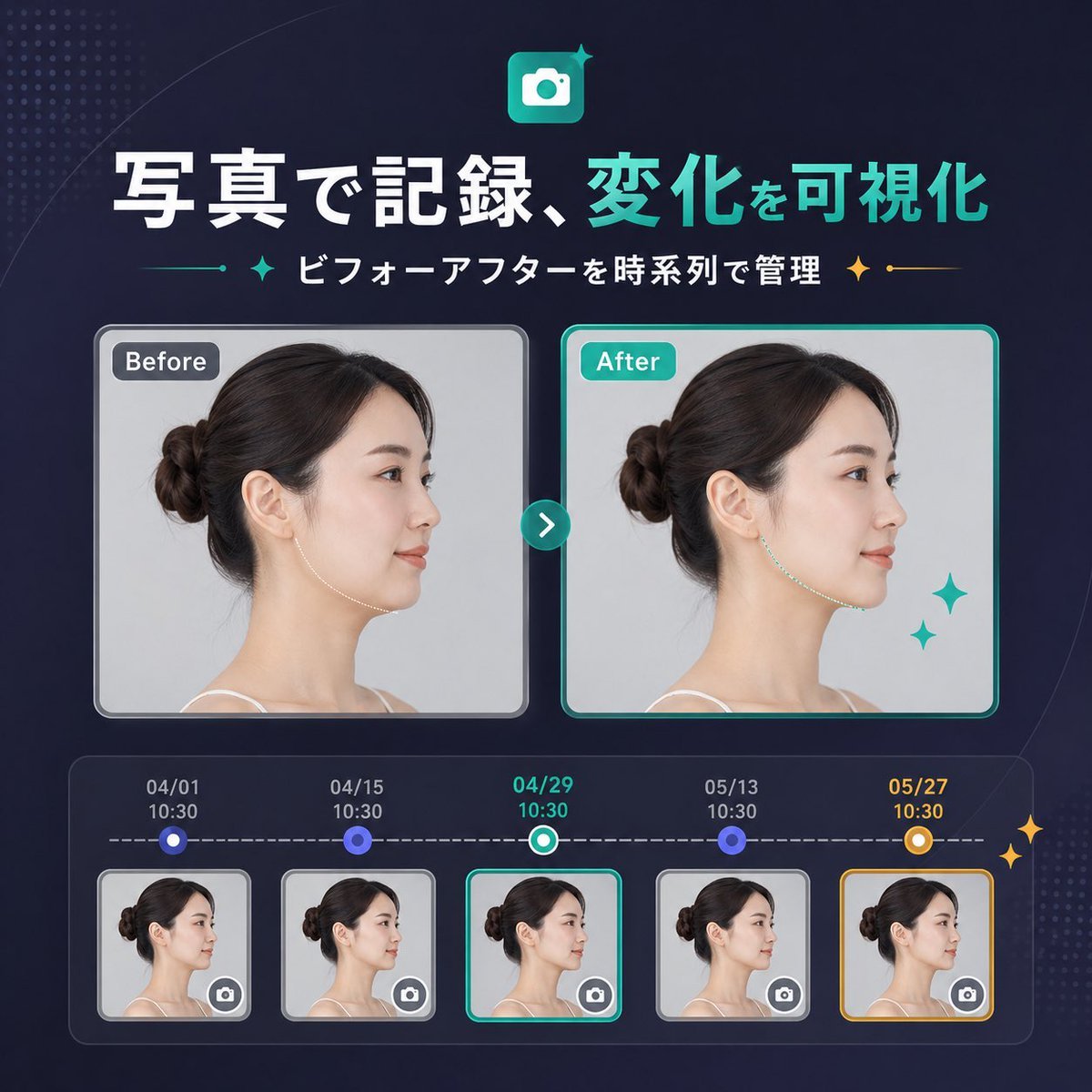
Japanese SaaS Before-After Banner
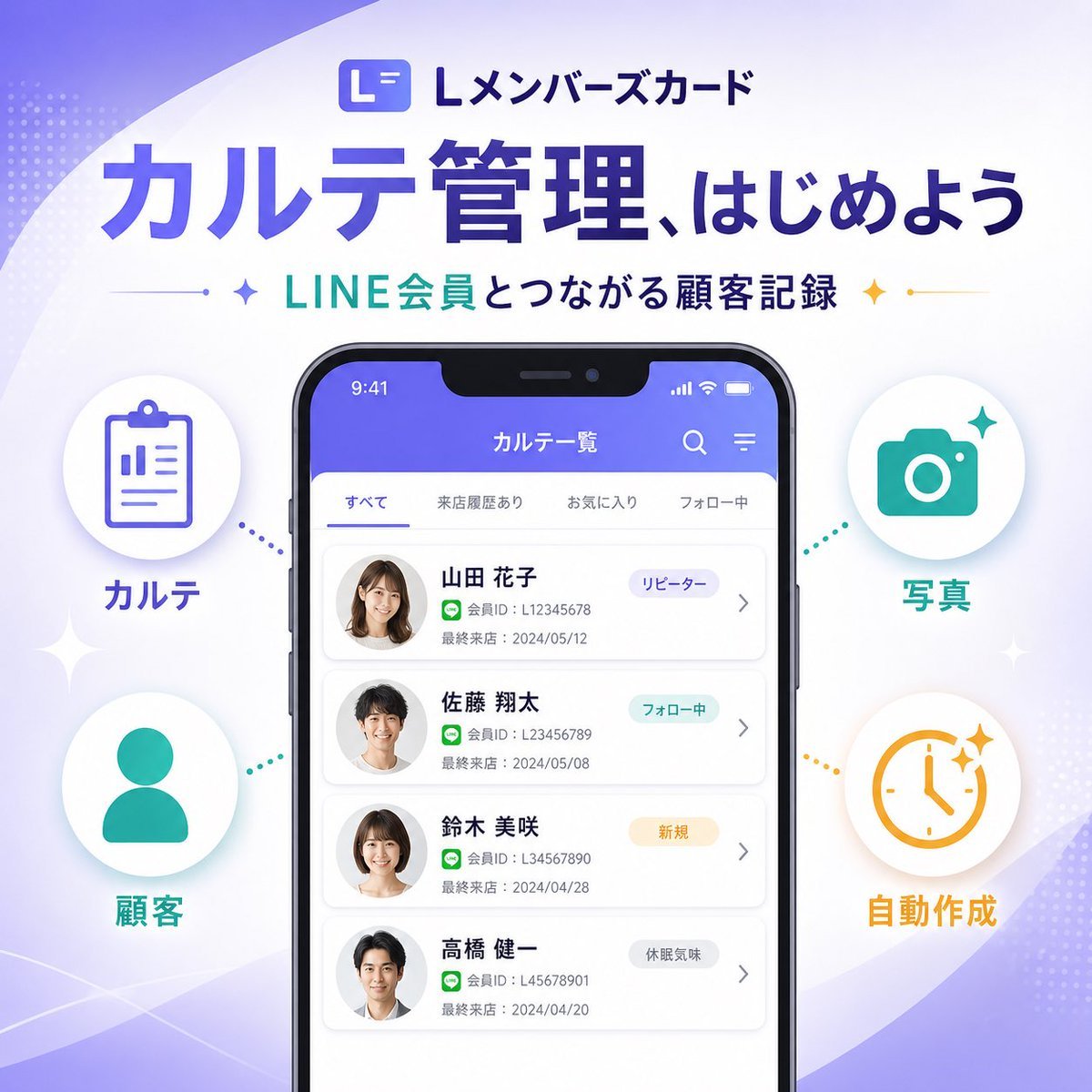
Japanese SaaS Feature Banner
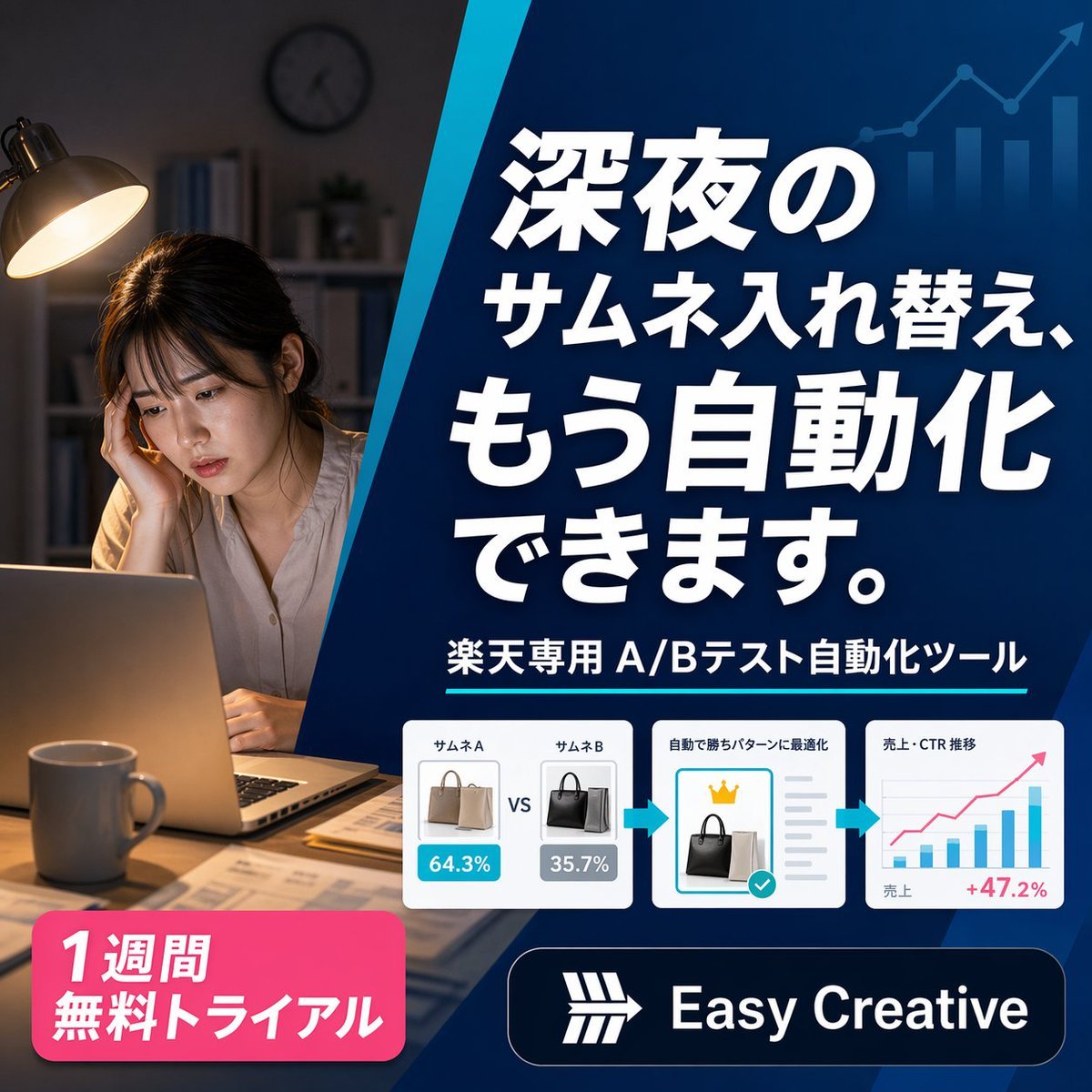
Japanese SaaS Ad Banner at Night
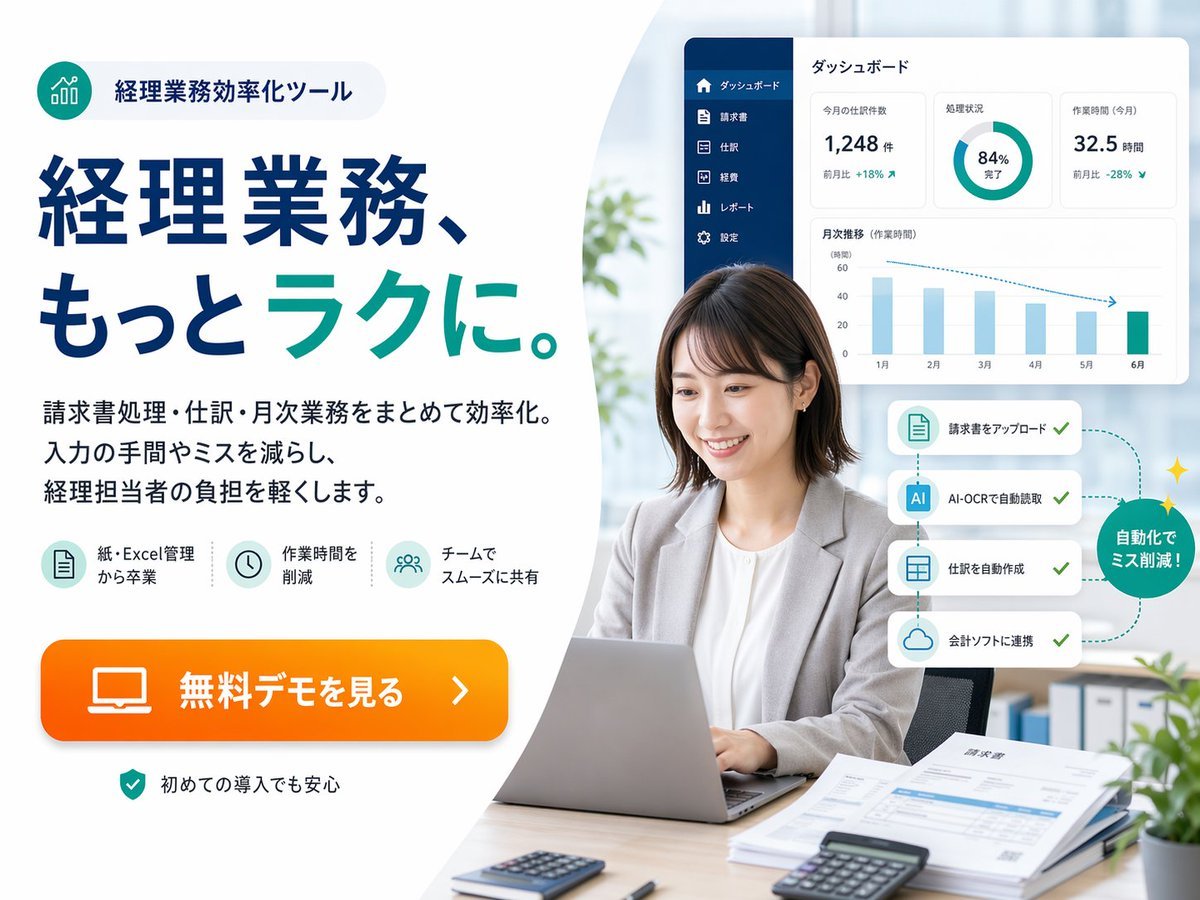
Japanese Accounting SaaS Hero Banner

Minecraft Japanese Research Lab Exploration
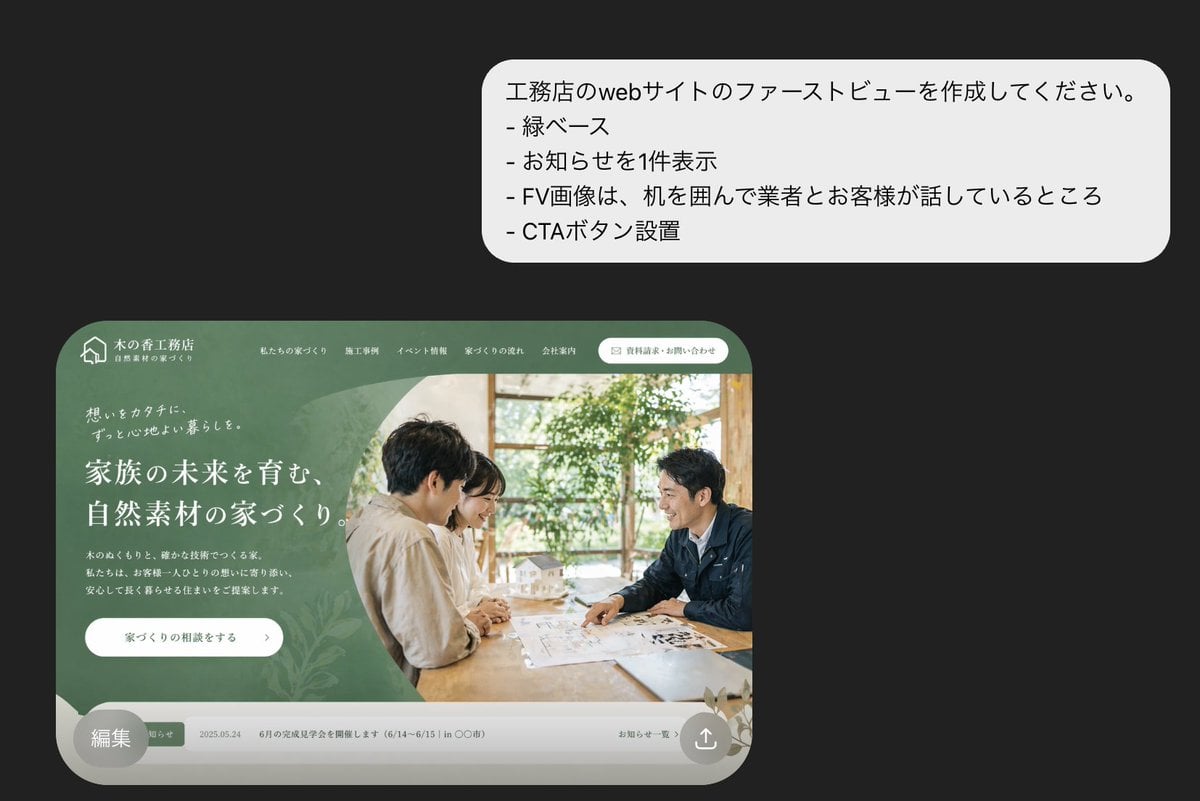
Japanese Builder Website Hero Mockup
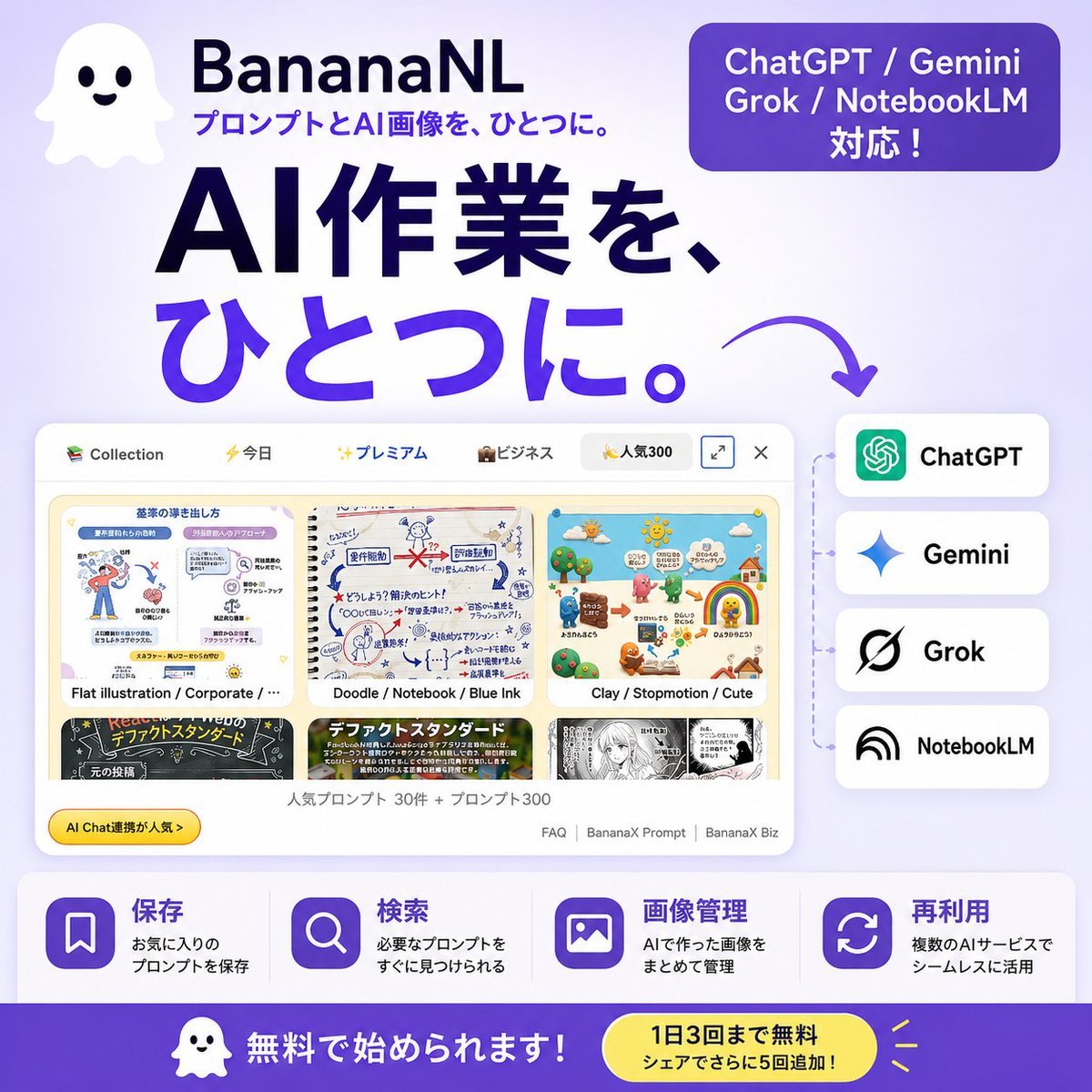
Japanese SaaS AI Prompt Manager Ad

Japanese Architectural Concrete Studio Fashion Campaign

Japanese Minimalist Concrete Studio Fashion Editorial

Blue Backdrop Luxury Fashion Portrait Campaign
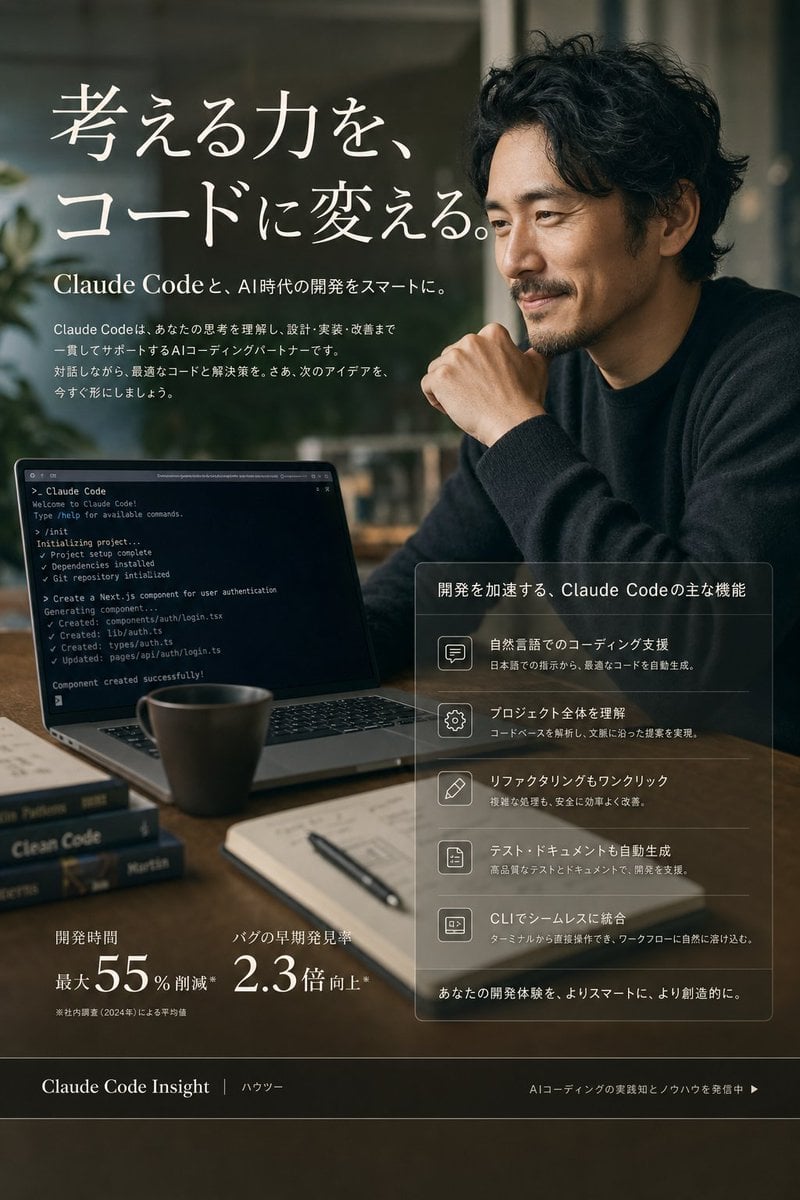
Claude Code Japanese SaaS Poster
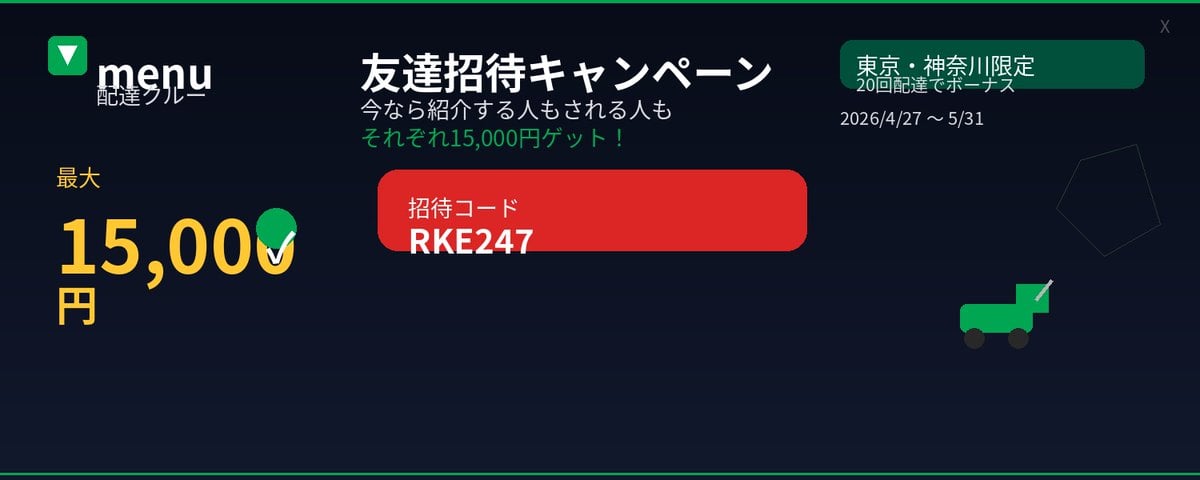
Japanese Delivery Referral Banner
Make it yours
Japanese SaaS Form Builder Banner works as-is. These are the safest ways to change it without losing the look.
Swap the setting
Keep the rest of the prompt and replace the location block. The current setting is “white base with soft purple gradient waves, faint dotted halftone accents, light”.
Change one field
Copy a single group, rewrite it, and generate again so you can see what that field is doing.
Keep the frame, change the subject
Hold the composition and light of Japanese SaaS Form Builder Banner, then swap wardrobe, props or the person for a new take.
| If the result… | Why | Fix |
|---|---|---|
| The result drifts from the preview | Too many fields changed at once. | Reuse Japanese SaaS Form Builder Banner as-is first, then change one group — subject, light, or setting. |
| GPT Image 2 ignores part of the JSON | Some models flatten or skip nested keys. | Keep the same values and paste them as a short paragraph instead. |
More GPT Image 2 templates
Other prompts made for GPT Image 2.

Six VTuber Japanese Logo Sheet

Realistic Portrait of Woman and Deer

The Vista Modular Condo Poster

AI Model Routing Comparison Infographic

2.5D Anime Art Board

Isometric Productivity Desk Scene

New York Double Exposure Poster

Four-Panel AI Landscape Comparison

Japanese Tatami Lifestyle Magazine Cover

NESCAFÉ Coffee Map Poster
More image prompts
Fresh picks from across the catalog.
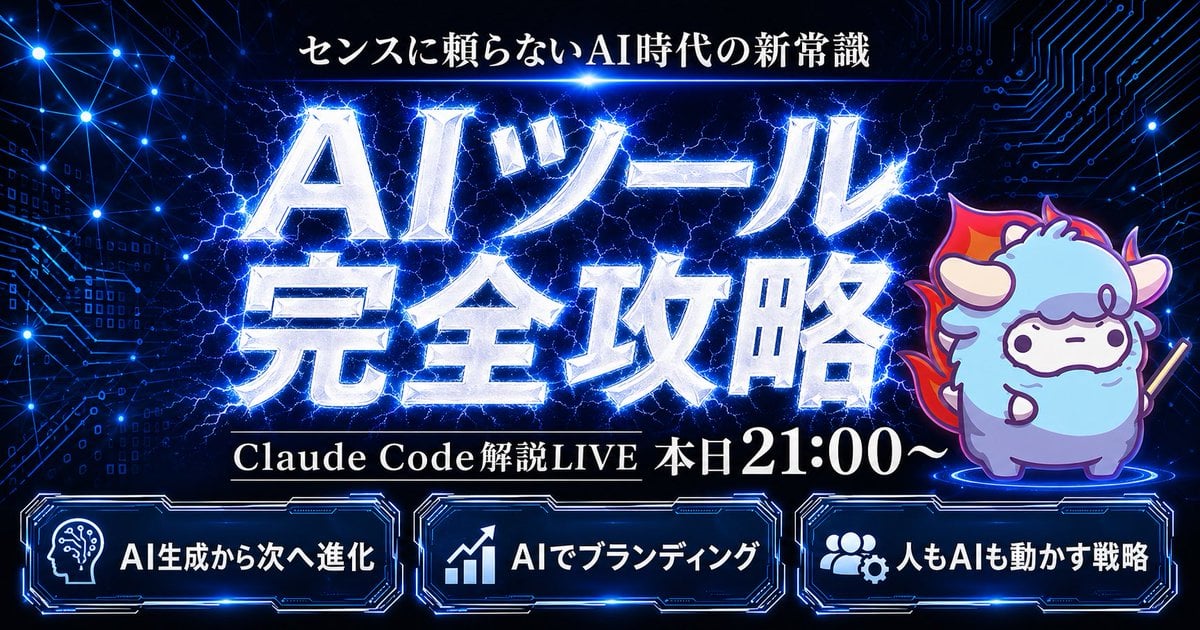
Cyber AI Webinar Thumbnail
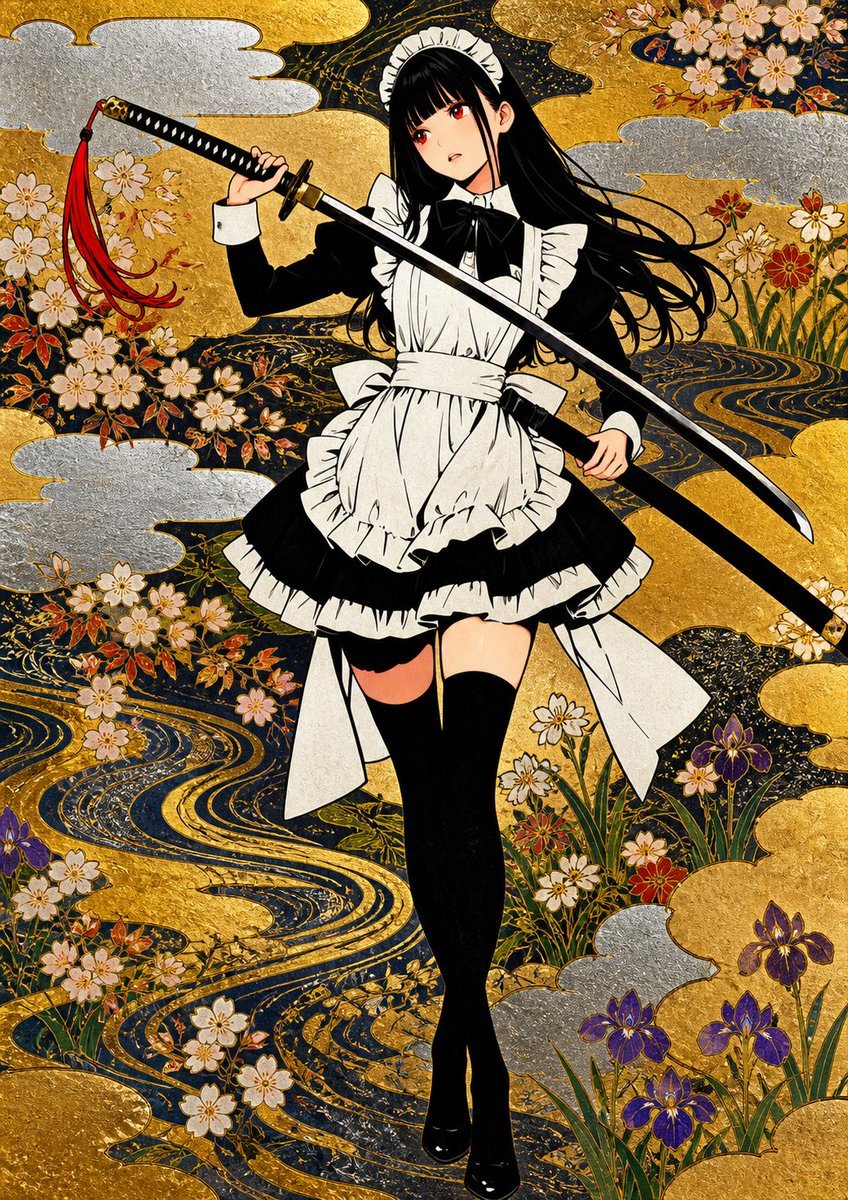
Rimpa Style Decorative Art
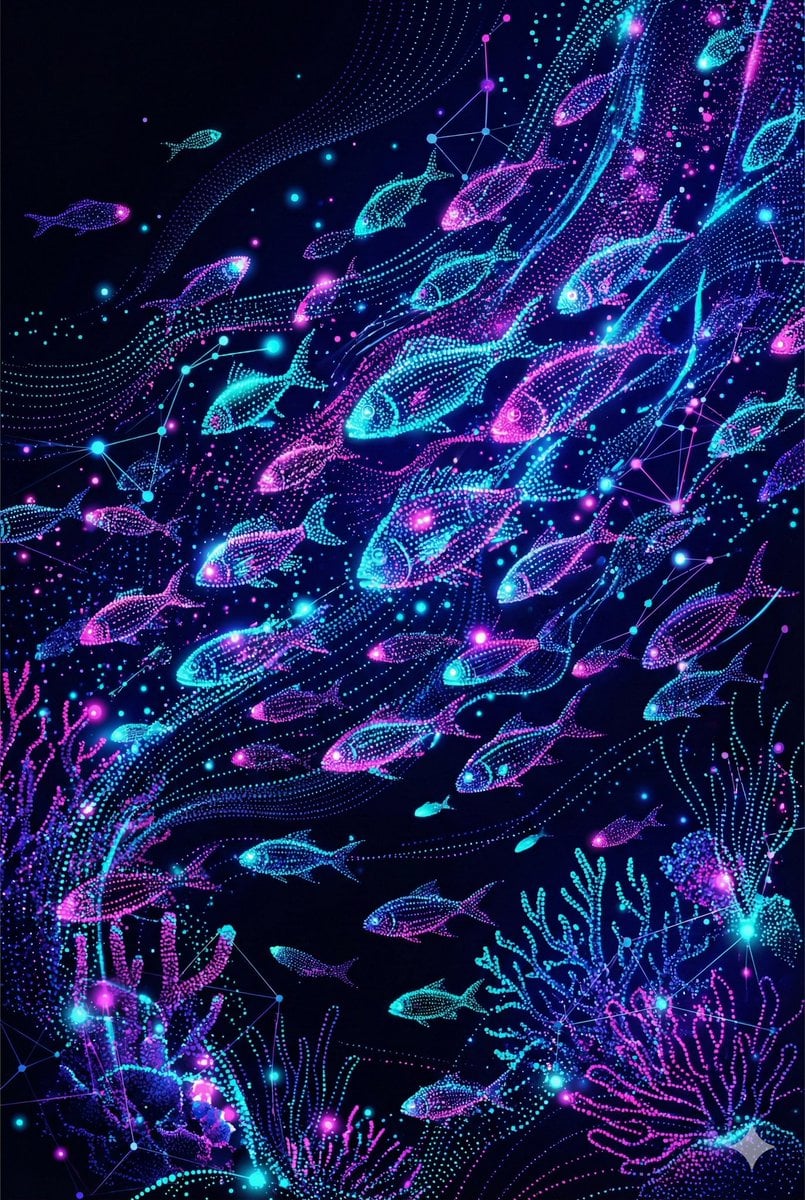
Neon Pointillism Cyberpunk Illustration
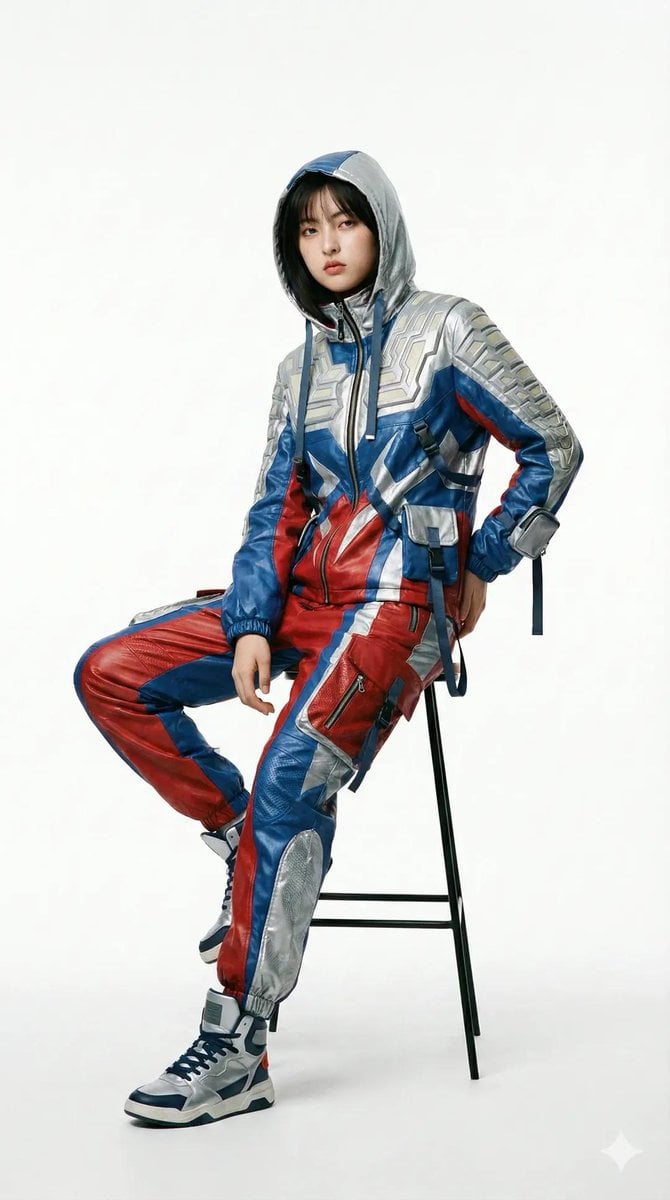
Editorial Fashion Photography with Structural Mimicry Prompt

Ultra-Detailed 3D Plush Cartoon Character Rendering
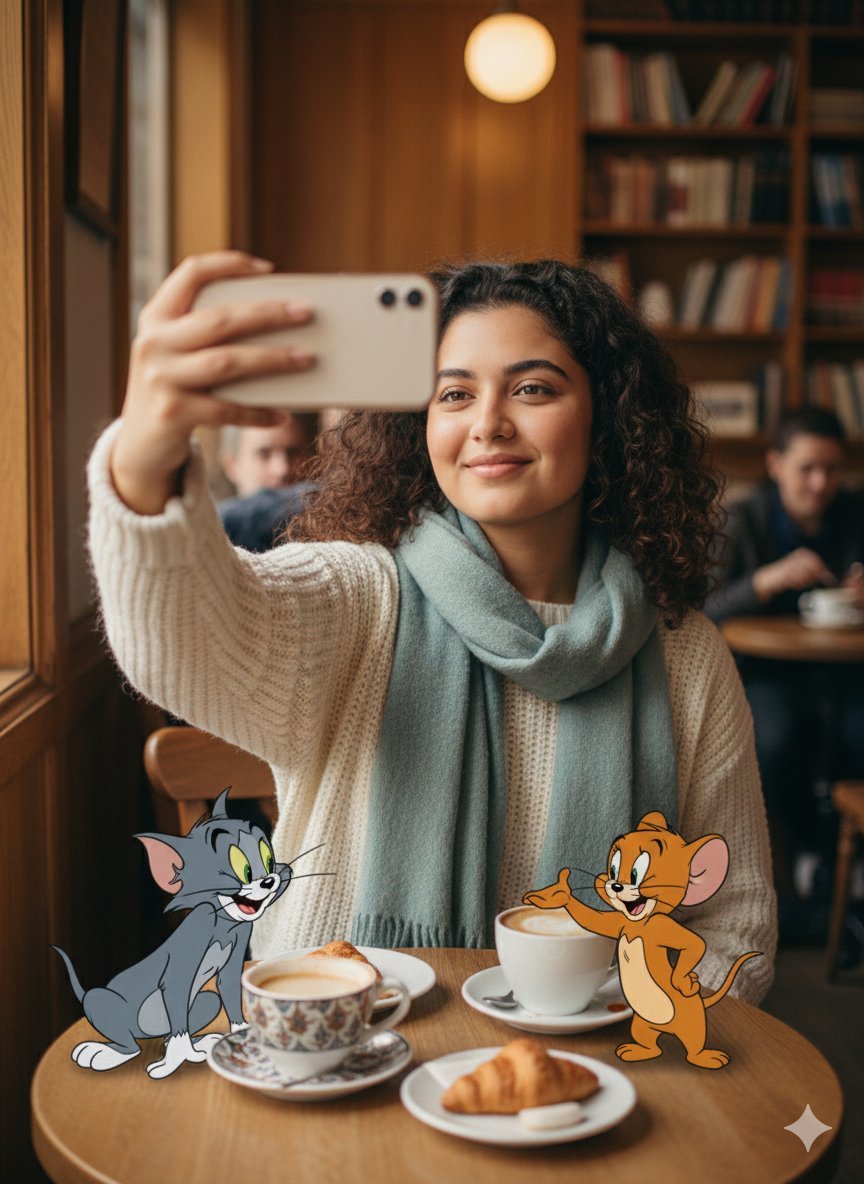
Photorealistic Selfie with Cartoon Crossover
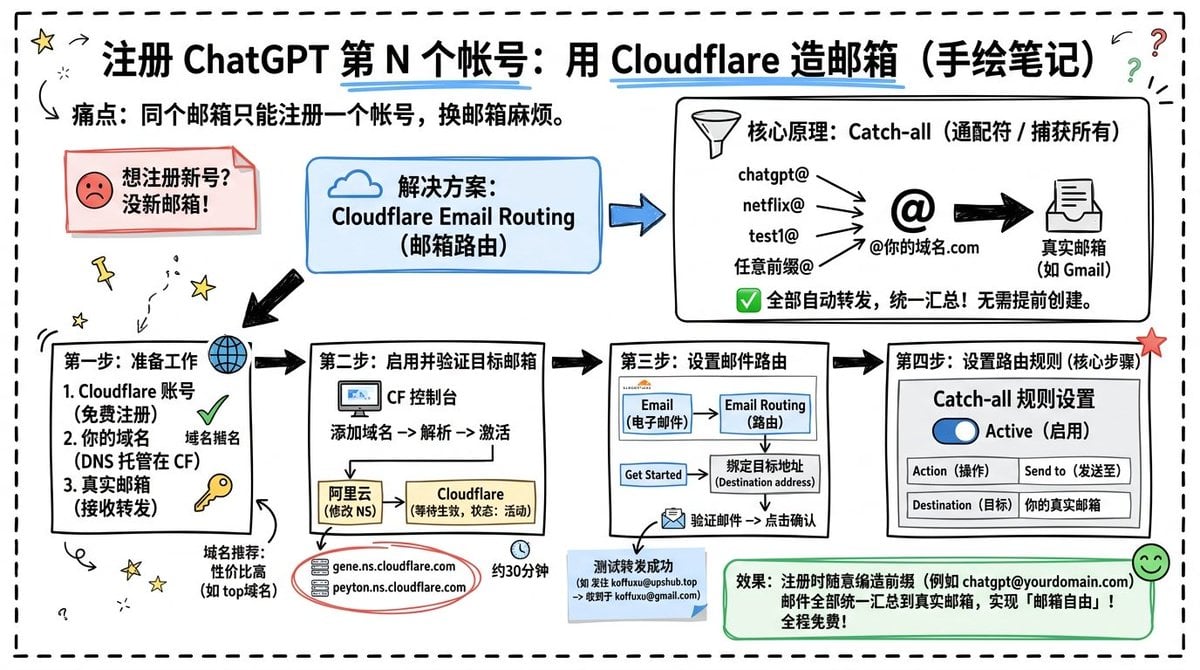
Cloudflare Catch-All Email Routing Infographic
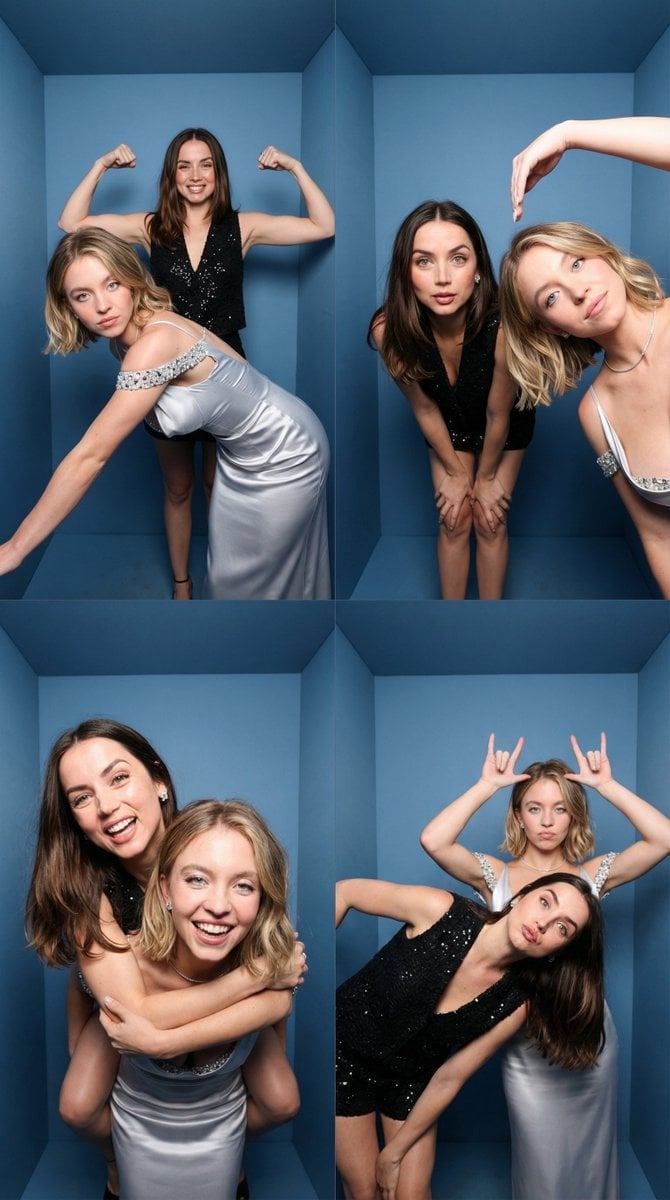
iPhone-Realistic 2x2 Photobooth Collage
Magical Girl Starstorm on Bubble
Crusader propaganda fresco painting
Browse template categories
Japanese SaaS Form Builder Banner questions
How do I use the Japanese SaaS Form Builder Banner template?
Add your photo if the template asks for one, edit the prompt if you like — the template's model and format are already selected — and press Generate. Your version opens in PicX Studio.
Can I customize the Japanese SaaS Form Builder Banner template?
Yes. You can change the subject, setting, lighting, mood, format, and available model controls before creating your image.
Is the Japanese SaaS Form Builder Banner template free?
Opening and editing this template is free. Generating uses credits, shown on the Generate button when you are signed in.
Which AI model should I use?
Start with GPT Image 2, which is the model associated with this template. You can compare another compatible model for a different finish.
Looking for something else? Browse all templates.

Your photo, any look
Thousands of ready templates for every top image and video model, from one credit balance.