
LartAI Download Step Tutorial
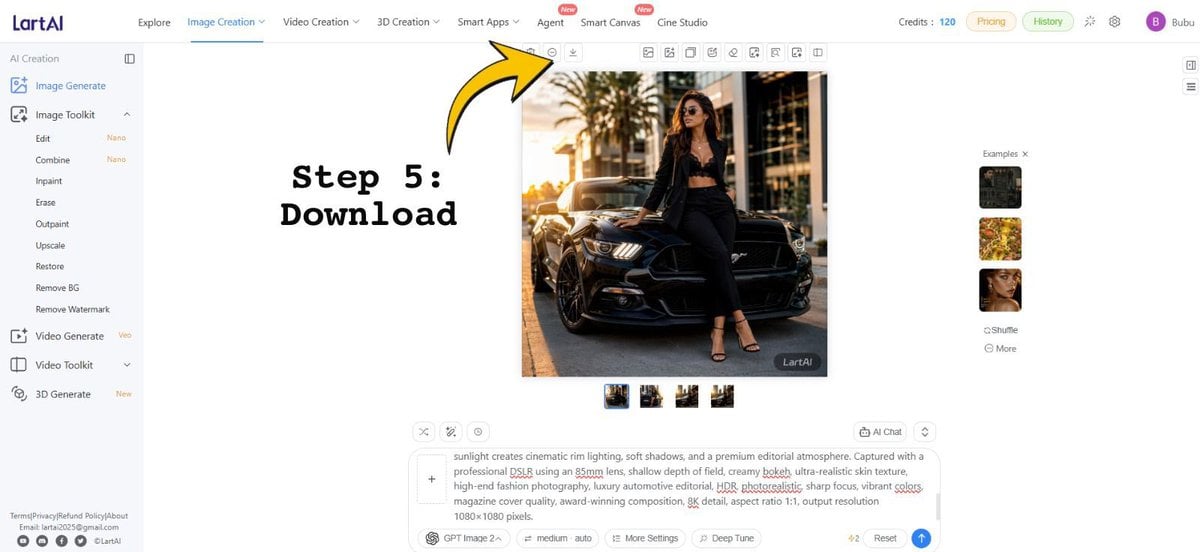
Creates a tutorial screenshot of the LartAI image generation interface with a bold Step 5 Download arrow annotation.
- Prompt included
- Model and format preset
- Premium template
The prompt behind this image
Copy the exact prompt behind LartAI Download Step Tutorial, or open it in the studio and make it yours.
Goal: Create a wide tutorial-style screenshot graphic showing the LartAI image generation web app interface with an instructional overlay for downloading a generated image. Canvas: 1200×552 horizontal screen capture composition, bright white UI, clean SaaS dashboard look, thin gray dividers, small icons, and lots of empty white space. Layout: Full browser-app interface. A left sidebar occupies about 12% of the width, a top navigation bar spans the full width, the central workspace contains one large generated square image, and a right examples strip contains small thumbnails. Add a bold annotation on the left-center reading “Step 5: Download” in a black typewriter/monospace font, with a large curved yellow arrow outlined in black pointing upward toward the small download icon in the top toolbar above the generated image. Top navigation: Show the LartAI logo at top left. Include exactly 7 main navigation items across the top: “Explore”, “Image Creation” highlighted/underlined in blue, “Video Creation”, “3D Creation”, “Smart Apps”, “Agent”, “Smart Canvas”, and “Cine Studio”; place small red “New” badges near Agent and Smart Canvas. On the right, show “Credits: 120”, pill buttons “Pricing” and “History”, small utility icons, and a purple circular avatar with the letter “B” followed by the username {argument name="user name" default="Bubu"}. Left sidebar: Under the “AI Creation” heading, show exactly 14 visible tool entries: “Image Generate” selected in blue, “Image Toolkit”, “Edit” with a small “Nano” tag, “Combine” with a small “Nano” tag, “Inpaint”, “Erase”, “Outpaint”, “Upscale”, “Restore”, “Remove BG”, “Remove Watermark”, “Video Generate” with a small “Veo” tag, “Video Toolkit”, and “3D Generate” with a small “New” tag. At the bottom, include tiny footer text links and social icons, resembling Terms/Privacy/Refund Policy/About and contact details. Central generated image: Display a square fashion editorial photo of {argument name="main subject" default="a stylish woman wearing sunglasses, a black blazer, black crop top, black trousers, and strappy heels"} leaning against the front of {argument name="vehicle" default="a glossy black Ford Mustang"} on a city street at golden hour. The subject sits on the car hood/front corner with one leg bent, palm trees and modern buildings in the background, warm cinematic sunlight, realistic shadows, high-end fashion and luxury automotive photography. Add a small dark “LartAI” watermark in the lower-right corner of this generated image. Toolbar and controls: Above the square image, show a row of small square action icons, with the yellow arrow specifically pointing at the download icon. Beneath the large image, show exactly 4 small square result thumbnails in a row, with the first thumbnail selected using a blue border. Right examples panel: Show the heading “Examples ×” and exactly 3 stacked example thumbnails: a dark car/fashion image, a yellow floral image, and a woman’s face portrait. Below them show exactly 2 small text controls: “Shuffle” and “More”. Bottom prompt area: Include a large prompt input box with a plus button at its left and a visible text prompt beginning with “sunlight creates cinematic rim lighting, soft shadows, and a premium editorial atmosphere...” and containing underlined red spellcheck marks on some words. Below it, show controls including “GPT Image 2”, “medium auto”, “More Settings”, “Deep Tune”, a “4/2” indicator, “Reset”, and a blue circular send button. Text overlay: The annotation text must read exactly {argument name="step label" default="Step 5:\nDownload"}. Use very large black bold typewriter lettering. The arrow should be bright yellow with a thick black outline, curved, and point from the text region toward the top toolbar download button. Constraints: Preserve the clean web-app screenshot style, keep all UI text in English, use crisp small interface typography, no browser chrome, no extra popups, and no additional instructional steps.
How to use LartAI Download Step Tutorial in 3 steps
- 1Upload ImagePNG, JPG or paste
Add your photo
Upload the photo the template builds on. The prompt, model and format are already set.
- 2…a portrait of your subject in softgolden-hour light, 85mm…
Personalize
Edit the subject and creative details for your destination.
- 3Generate
Generate
Press Generate — your image is created in PicX Studio, so you can compare it with the original and refine one variable at a time.
More like this
Templates with the same subject, style or setup. Open one to see its prompt.
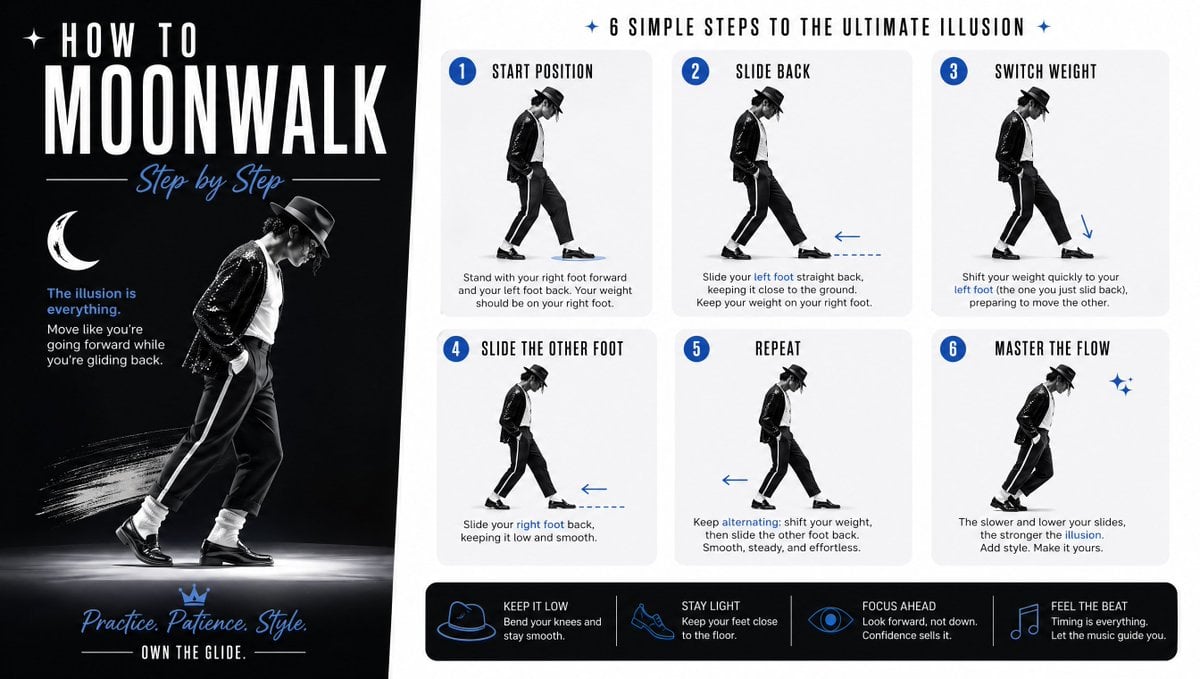
Moonwalk Step-by-Step Tutorial Poster
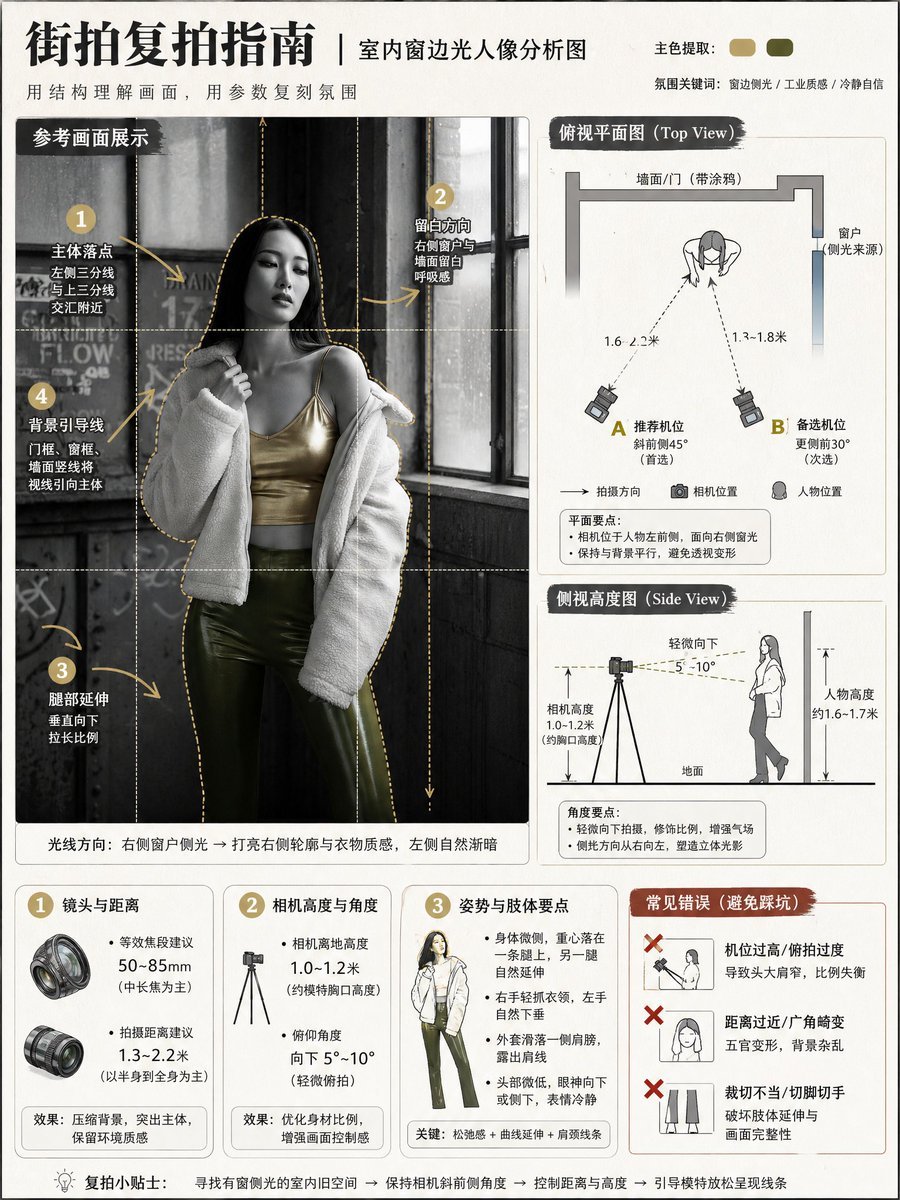
Photography Tutorial and Camera Setup Infographic
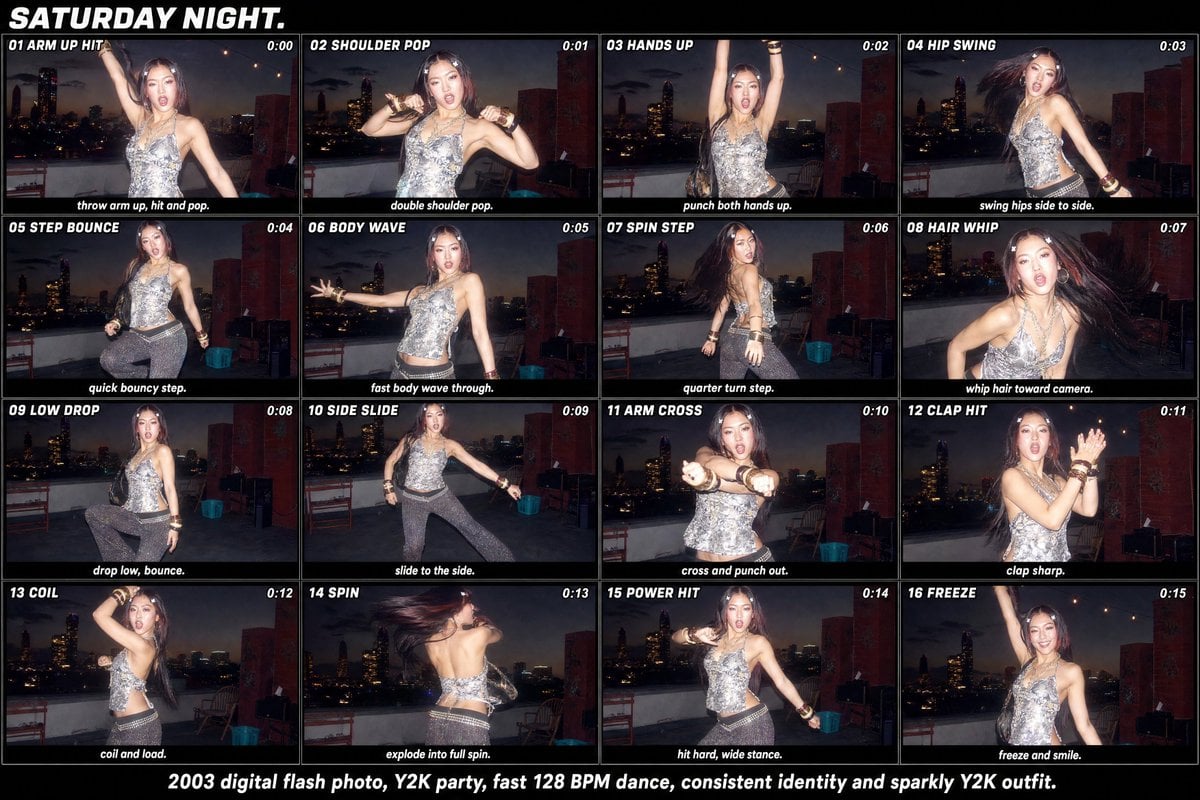
Y2K Rooftop Dance Tutorial Sheet
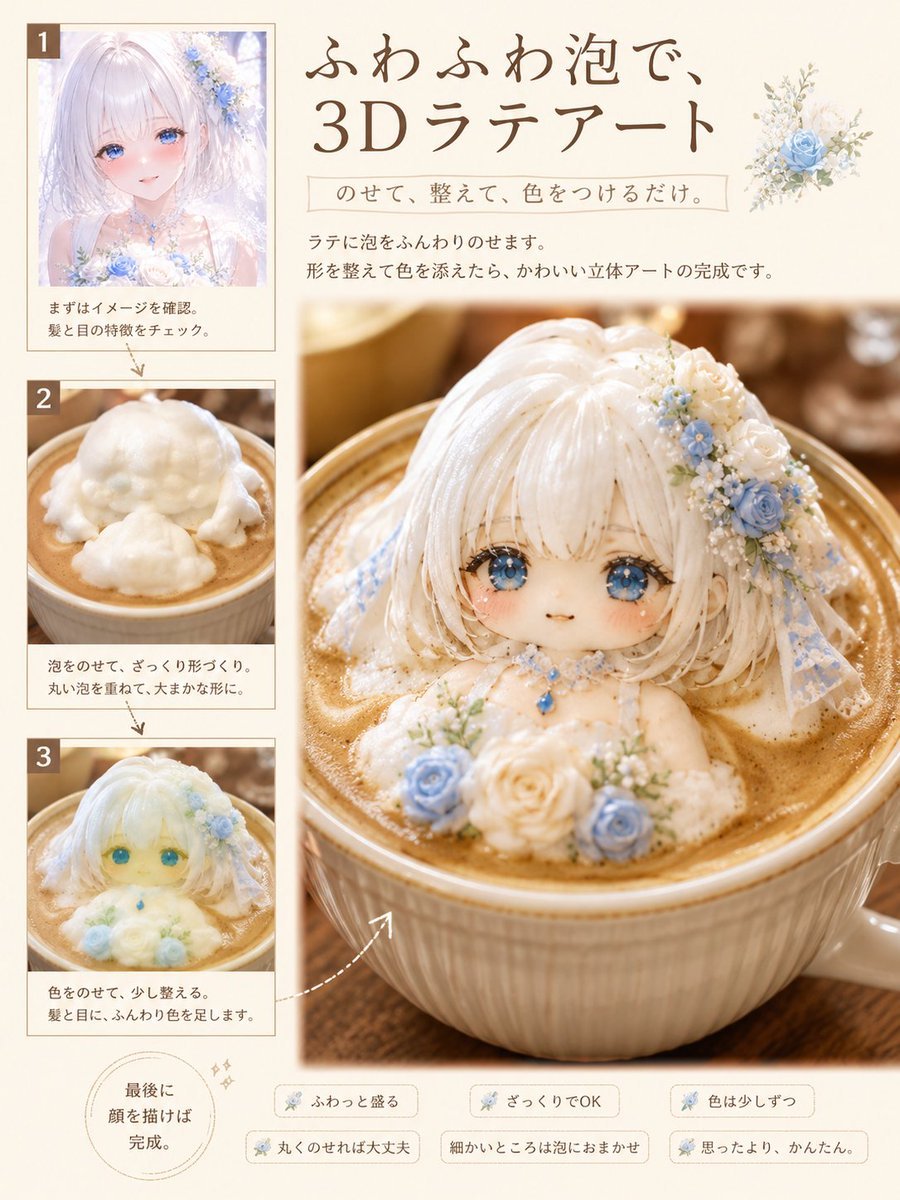
3D Latte Art Magazine Tutorial Layout
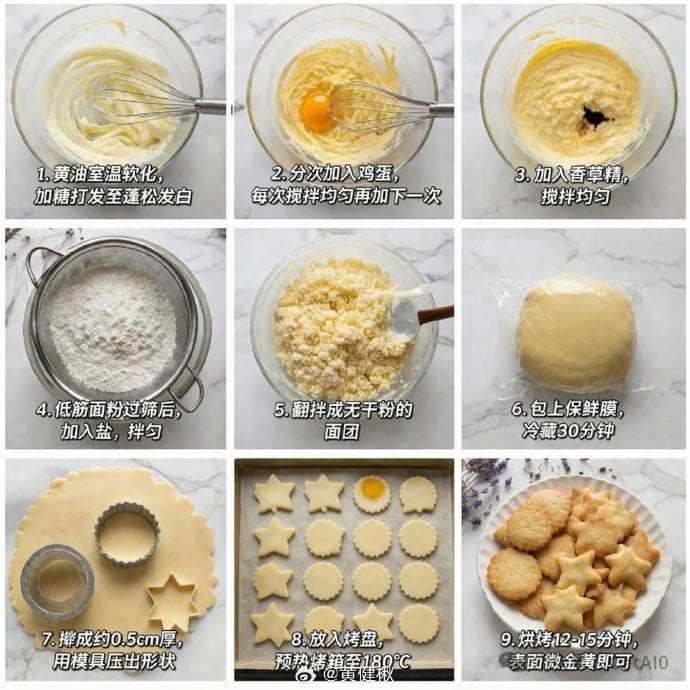
Panel Cookie Baking Tutorial Grid
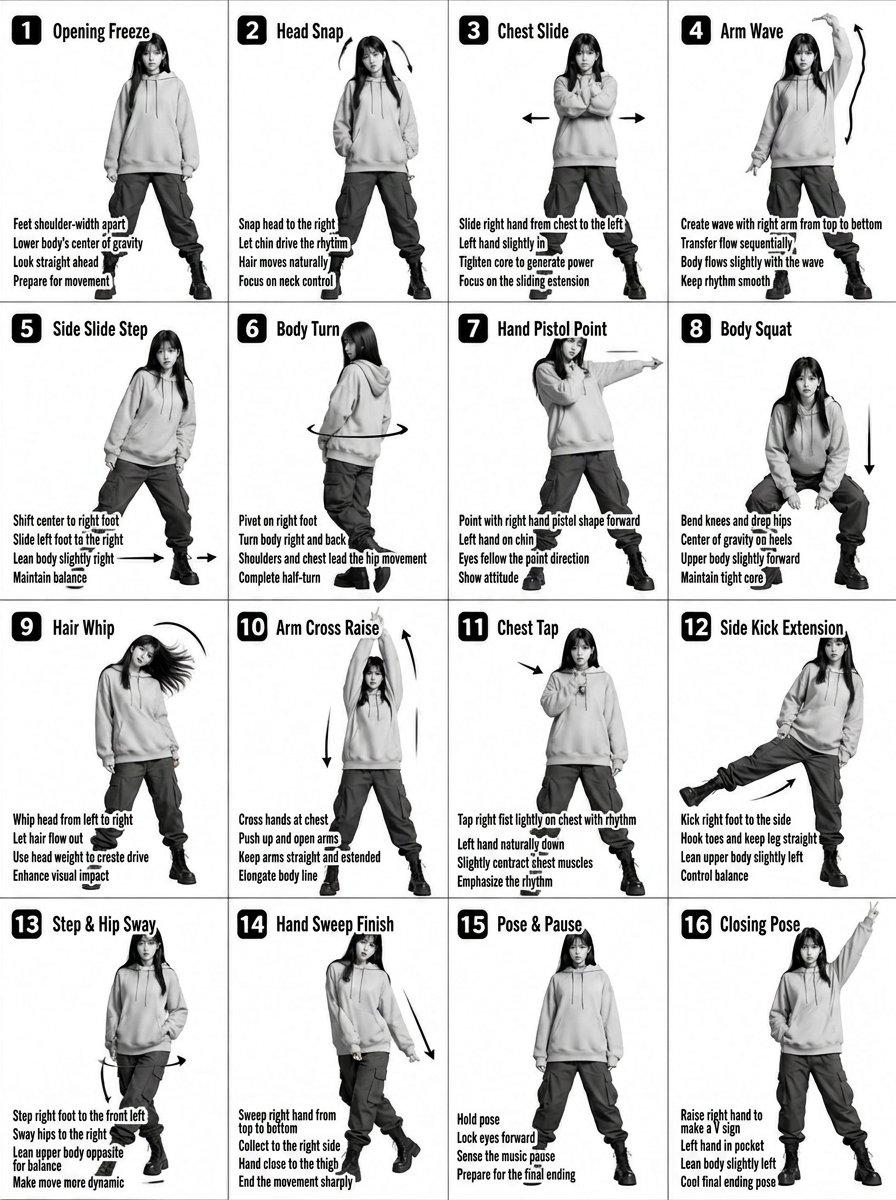
K-pop Dance Tutorial Poster Generator
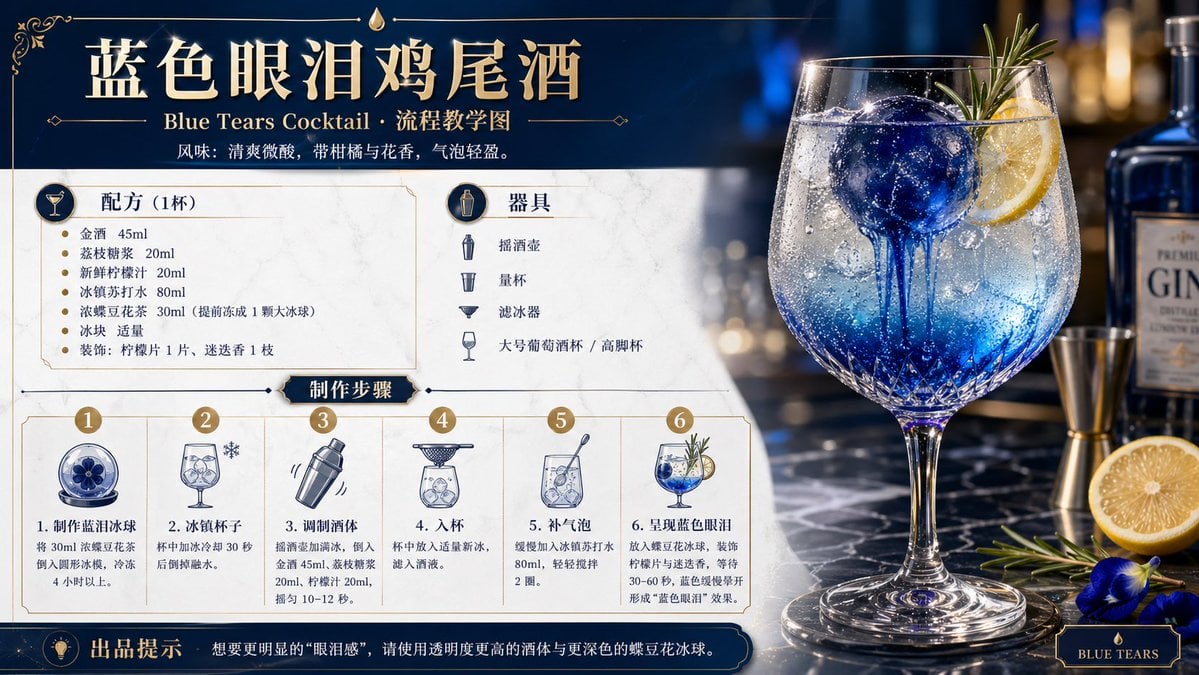
Cocktail Recipe Tutorial and Concept Poster
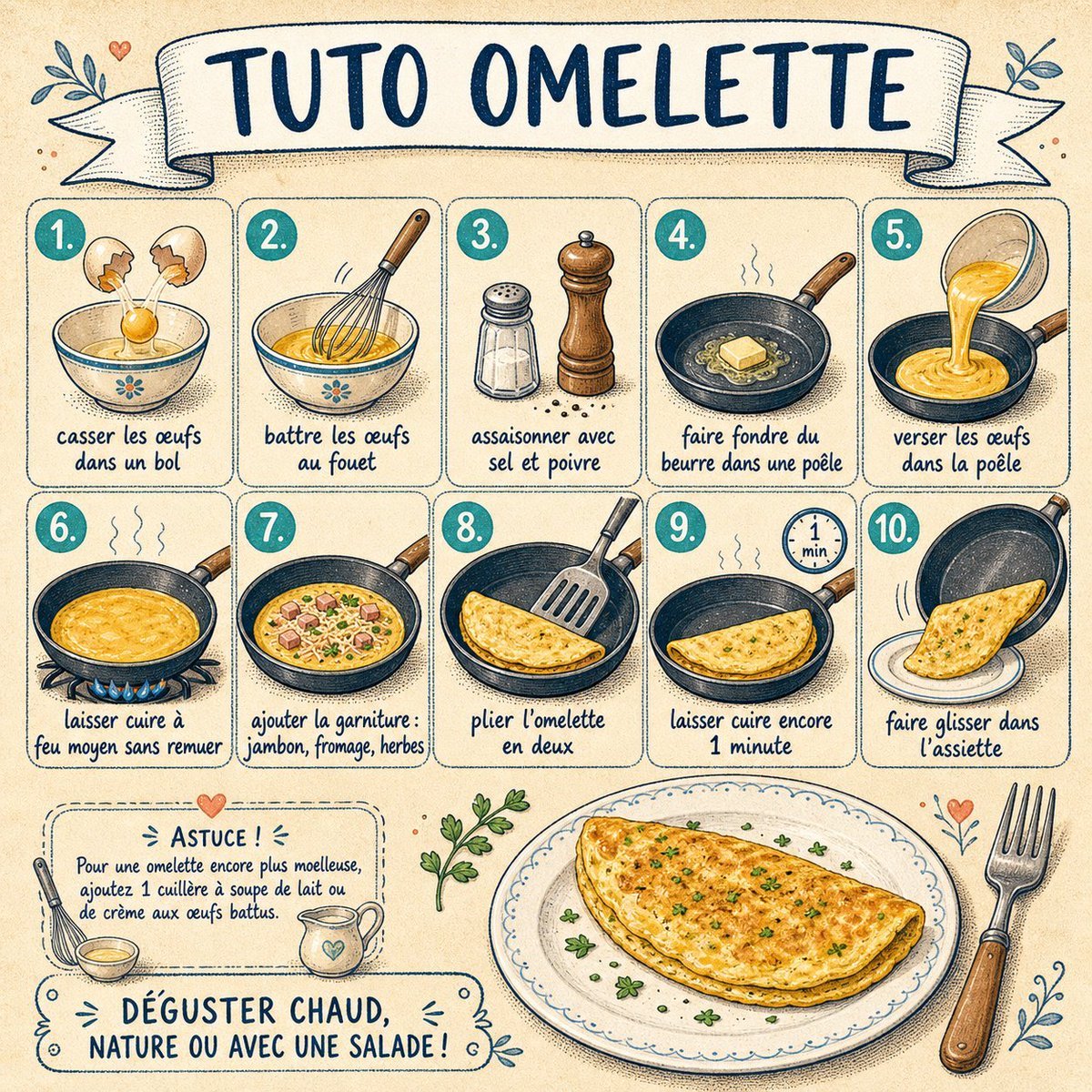
French Omelette Tutorial Poster

Anachronistic Beauty Tutorial
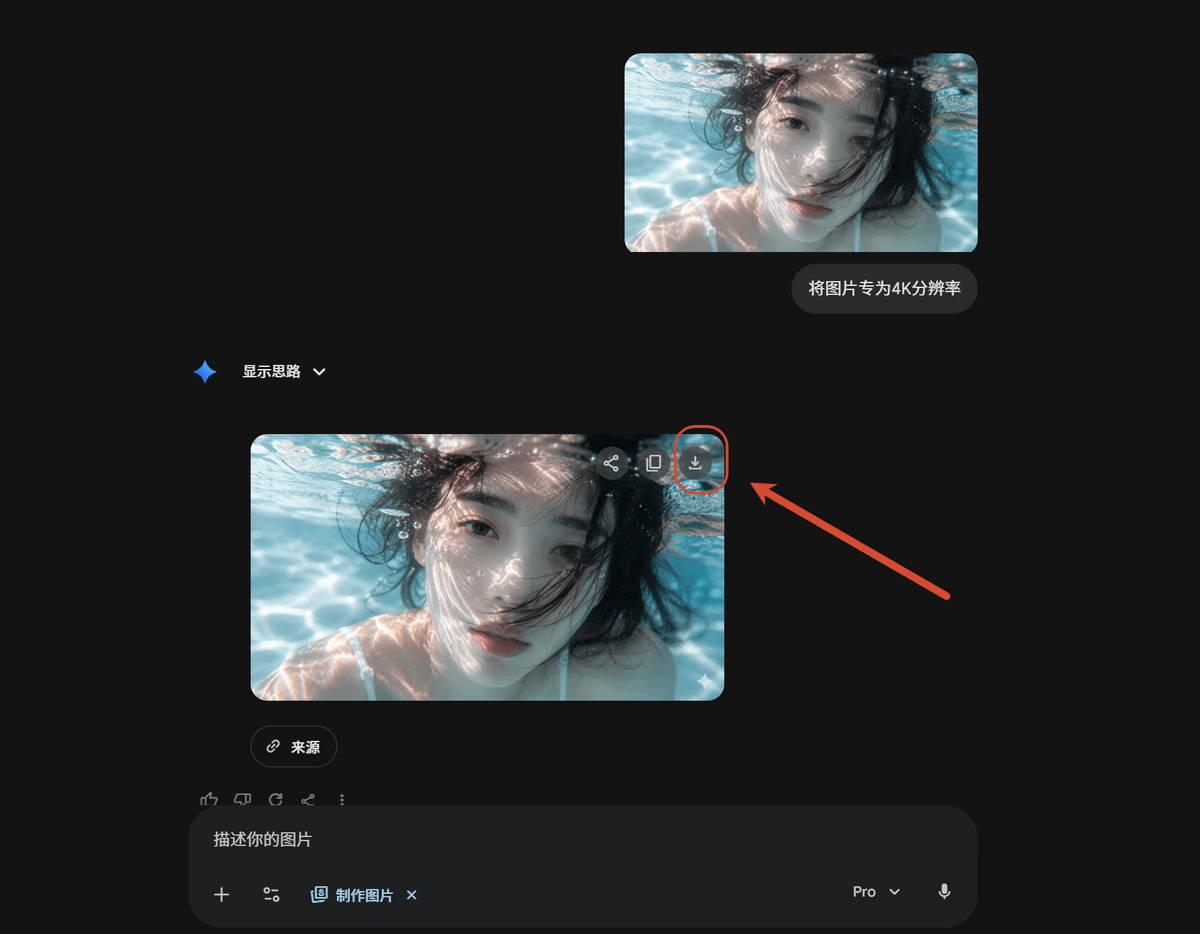
Dark AI Chat 4K Upscale Tutorial
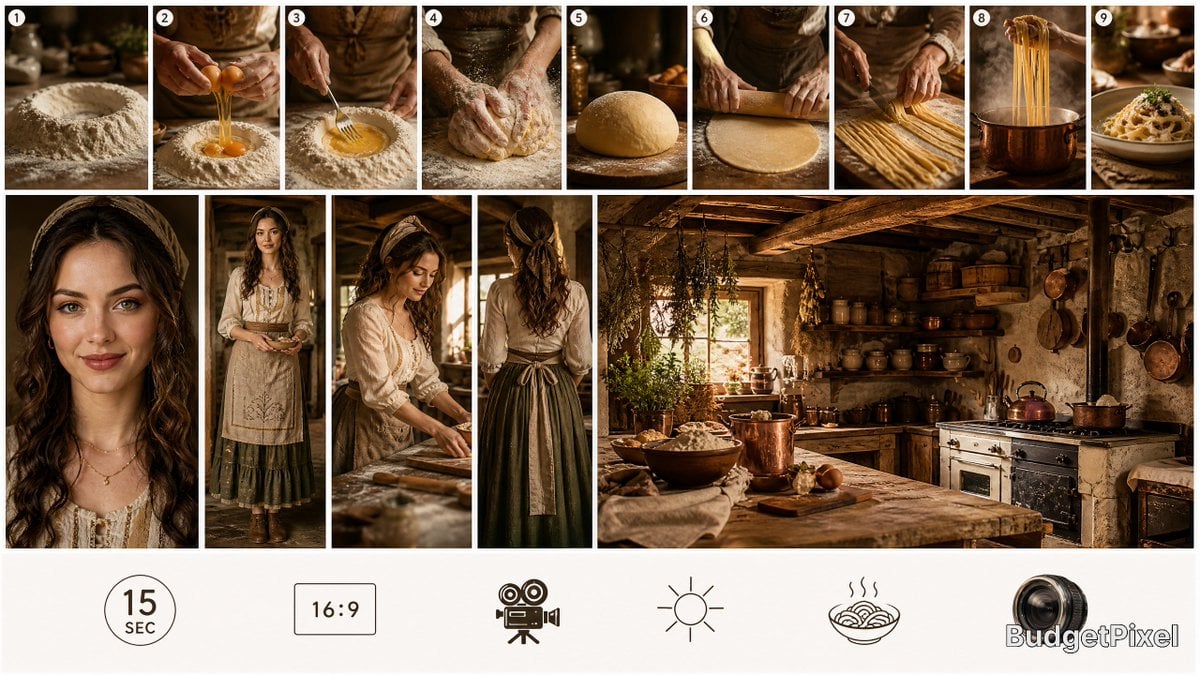
Rustic Pasta Tutorial Reference Sheet
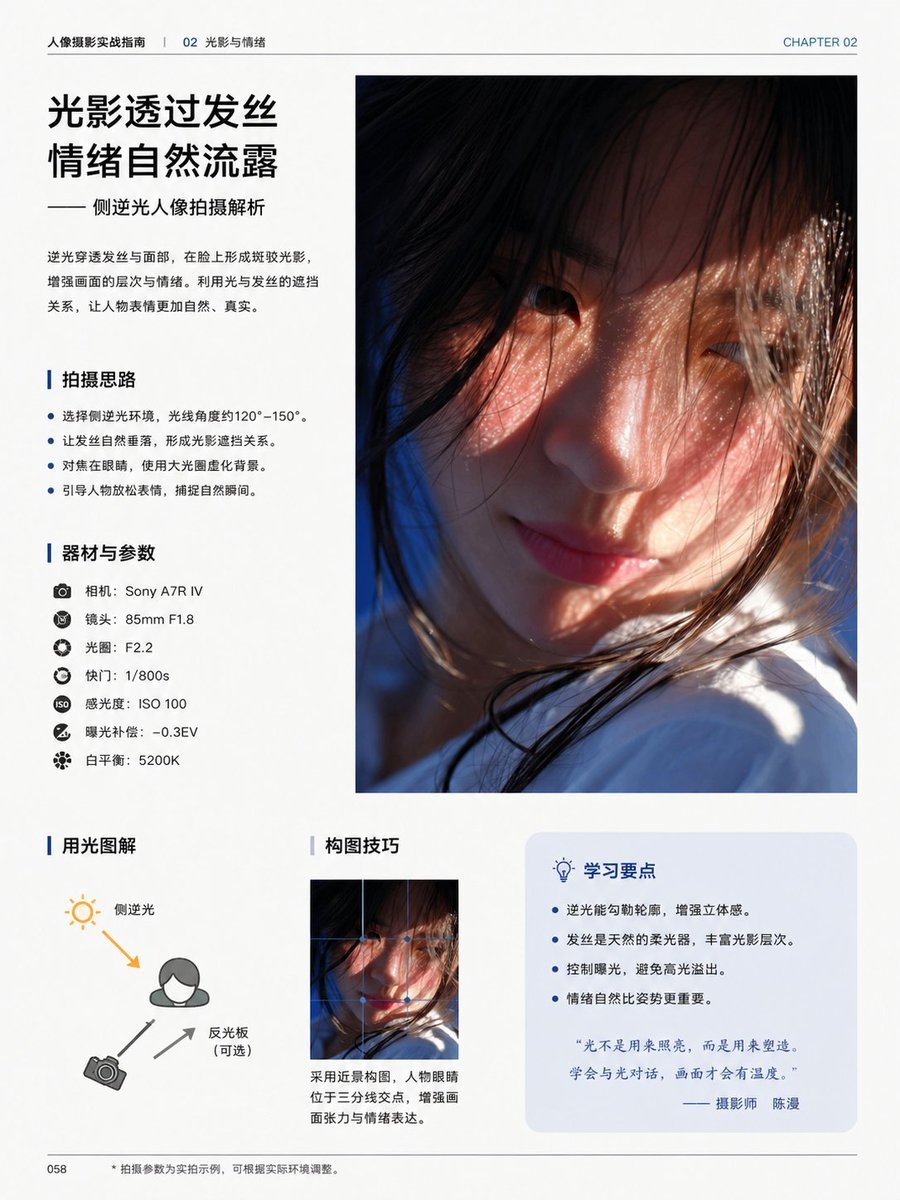
Chinese Photography Tutorial Book Page
Make it yours
LartAI Download Step Tutorial works as-is. These are the safest ways to change it without losing the look.
Change one field
Copy a single group, rewrite it, and generate again so you can see what that field is doing.
Keep the frame, change the subject
Hold the composition and light of LartAI Download Step Tutorial, then swap wardrobe, props or the person for a new take.
| If the result… | Why | Fix |
|---|---|---|
| The result drifts from the preview | Too many fields changed at once. | Reuse LartAI Download Step Tutorial as-is first, then change one group — subject, light, or setting. |
| The model over-stylizes the scene | The prose prompt leaves finish and camera underspecified. | Add one camera or lighting sentence and stay on GPT Image 2. |
More GPT Image 2 templates
Other prompts made for GPT Image 2.

Six VTuber Japanese Logo Sheet

Realistic Portrait of Woman and Deer

The Vista Modular Condo Poster

AI Model Routing Comparison Infographic

2.5D Anime Art Board

Isometric Productivity Desk Scene

New York Double Exposure Poster

Four-Panel AI Landscape Comparison

Japanese Tatami Lifestyle Magazine Cover

NESCAFÉ Coffee Map Poster
More image prompts
Fresh picks from across the catalog.
AI Cosplay Expo Cat Girls
Pastel Goth Girl Playing Cards
Moody Cinematic Portrait with Lighter Flame
Engineering Assembly Documentation Layout
Pastel Coastal Building with Dramatic Cumulus Cloud Prompt
Cinematic Urban Commute Fashion Editorial
Base Prompt with Uploaded Image
Luxury Fashion Book Spread
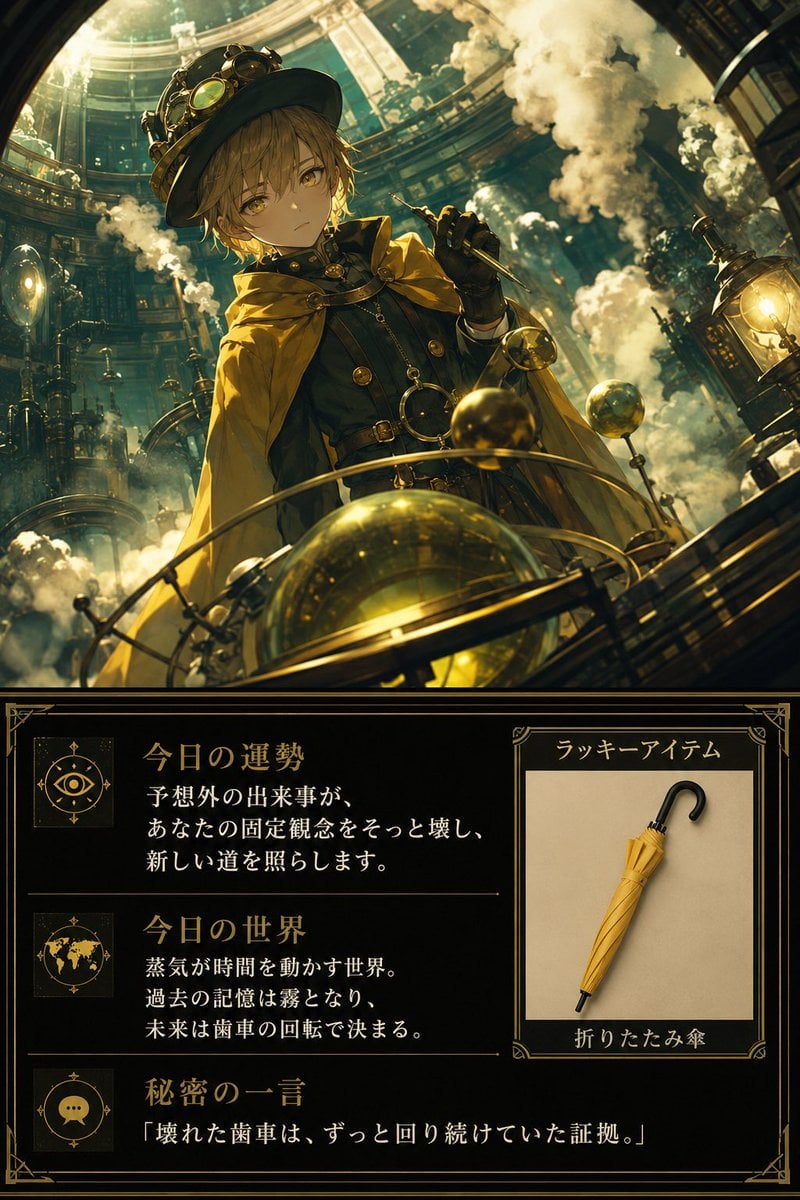
Steampunk Daily Fortune Card
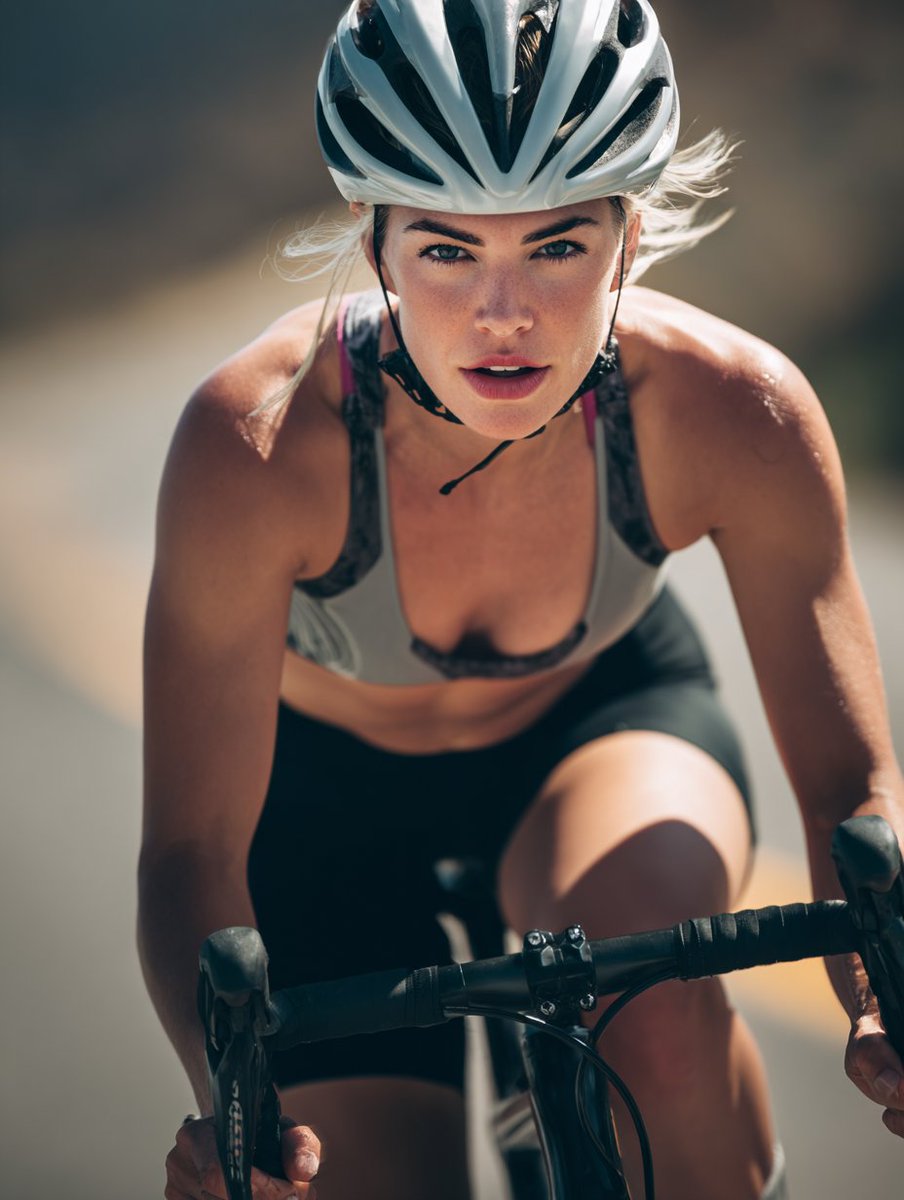
High-End Sports Photography: Competitive Road Cyclist
Browse template categories
LartAI Download Step Tutorial questions
How do I use the LartAI Download Step Tutorial template?
Add your photo if the template asks for one, edit the prompt if you like — the template's model and format are already selected — and press Generate. Your version opens in PicX Studio.
Can I customize the LartAI Download Step Tutorial template?
Yes. You can change the subject, setting, lighting, mood, format, and available model controls before creating your image.
Is the LartAI Download Step Tutorial template free?
Opening and editing this template is free. Generating uses credits, shown on the Generate button when you are signed in.
Which AI model should I use?
Start with GPT Image 2, which is the model associated with this template. You can compare another compatible model for a different finish.
Looking for something else? Browse all templates.

Your photo, any look
Thousands of ready templates for every top image and video model, from one credit balance.