
2026 AI Image Tool Tier List
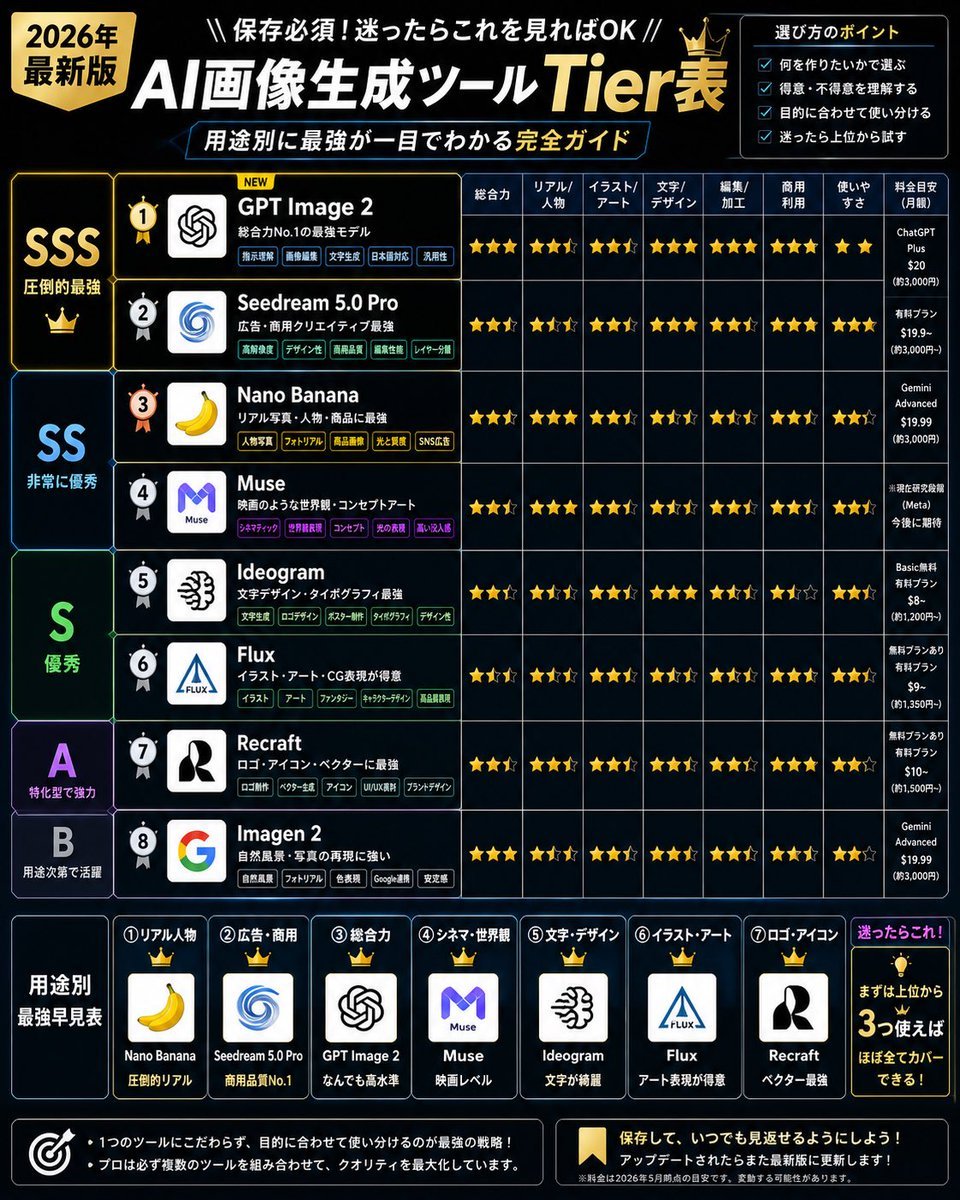
A square Japanese social media infographic comparing 2026 AI image generation tools by tier, use case, ratings, and pricing.
- Prompt included
- Model and format preset
- Premium template
The prompt behind this image
Copy the exact prompt behind 2026 AI Image Tool Tier List, or open it in the studio and make it yours.
Goal: Create a dense Japanese infographic ranking {argument name="topic" default="AI image generation tools"} as a 2026 tier list, with a premium black, navy, and gold tech aesthetic, designed for social media sharing. Canvas: Square 1:1 poster, high resolution, dark black background with subtle blue grid lines and glowing cyan/gold accents. Use bold Japanese typography, sharp table borders, star ratings, crowns, badges, and app-logo style icons. Overall look should feel like a professional comparison chart made after extensive testing. Header: Large title at top: 「AI画像生成ツール Tier表」 with “AI” and Japanese text in white, “Tier表” in gold. Add a gold badge on the upper left reading 「2026年 最新版」. Above the title, add the small line 「保存必須!迷ったらこれを見ればOK」. Under the title, add a blue outlined subtitle bar: 「用途別に最強が一目でわかる 完全ガイド」. Add a small gold crown near the title. Top-right selection box: Add a bordered panel titled 「選び方のポイント」 with exactly 4 checkbox bullet items: 「何を作りたいかで選ぶ」, 「得意・不得意を理解する」, 「目的に合わせて使い分ける」, 「迷ったら上位から試す」. Main layout: A large comparison table fills most of the image. Left side has tier bands, middle has ranked tool rows, right side has star-rating columns and price notes. Use exact tier groups: SSS 「圧倒的最強」, SS 「非常に優秀」, S 「優秀」, A 「特化型で強力」, B 「用途次第で活躍」. Use large tier letters in gold, cyan, green, purple, and pale blue respectively. Main table rows: Include exactly 8 ranked tools, each with a circular rank medal, a square logo icon, a tool name, a short Japanese description, and several small colored feature tags. The rows are: 1. {argument name="top ranked tool" default="GPT Image 2"} — description 「総合力No.1の最強モデル」, logo resembling the OpenAI knot mark, rank medal gold with “NEW” label. 2. Seedream 5.0 Pro — description 「広告・商用クリエイティブ最強」, blue spiral logo. 3. Nano Banana — description 「リアル写真・人物・商品に最強」, yellow banana logo. 4. Muse — description 「映画のような世界観・コンセプトアート」, purple M logo. 5. Ideogram — description 「文字デザイン・タイポグラフィ最強」, black abstract brain/typography logo. 6. Flux — description 「イラスト・アート・CG表現が得意」, blue triangular Flux logo. 7. Recraft — description 「ロゴ・アイコン・ベクターに最強」, black-and-white R-like logo. 8. Imagen 2 — description 「自然風景・写真の再現に強い」, multicolor Google G logo. Rating columns: Use exactly 8 comparison columns with Japanese labels: 「総合力」, 「リアル/人物」, 「イラスト/アート」, 「文字/デザイン」, 「編集/加工」, 「商用利用」, 「使いやすさ」, 「料金目安(月額)」. Fill each row with gold star ratings, including half/empty stars where appropriate, and compact monthly pricing notes in the final column. Keep the table legible but information-dense. Bottom section: Add a horizontal “best by use case” guide titled 「用途別 最強早見表」. Include exactly 7 crowned cards, each with a number, category, logo, tool name, and short verdict: 1. 「リアル人物」 — Nano Banana — 「圧倒的リアル」. 2. 「広告・商用」 — Seedream 5.0 Pro — 「商用品質No.1」. 3. 「総合力」 — GPT Image 2 — 「なんでも高水準」. 4. 「シネマ・世界観」 — Muse — 「映画レベル」. 5. 「文字・デザイン」 — Ideogram — 「文字が綺麗」. 6. 「イラスト・アート」 — Flux — 「アート表現が得意」. 7. 「ロゴ・アイコン」 — Recraft — 「ベクター最強」. Bottom-right recommendation box: Add a glowing panel titled 「迷ったらこれ!」 with a lightbulb icon and the message 「まずは上位から 3つ使えば ほぼ全てカバーできる!」. Footer: Add two dark bordered note boxes. Left box with target icon and two bullet notes: 「1つのツールにこだわらず、目的に合わせて使い分けるのが最強の戦略!」 and 「プロほど複数のツールを組み合わせて、クオリティを最大化しています。」 Right box with bookmark icon and text: 「保存して、いつでも見返せるようにしよう!」 and 「アップデートされたらまた最新版に更新します!」 Include a tiny disclaimer line about pricing and ratings being estimates as of 2026. Visual style: Sleek cyber dashboard, black glass panels, thin neon blue dividers, gold highlights, dense but organized layout, crisp Japanese text, app icons in white rounded squares, star ratings in metallic gold, no photographic background, no people. Constraints: Preserve the exact count of 8 ranked tools, 5 tier bands, 8 rating columns, 4 selection tips, and 7 bottom use-case cards. Make all text sharp and readable. Do not add extra tools, extra cards, watermarks, or random English labels.
How to use 2026 AI Image Tool Tier List in 3 steps
- 1Upload ImagePNG, JPG or paste
Add your photo
Upload the photo the template builds on. The prompt, model and format are already set.
- 2…a portrait of your subject in softgolden-hour light, 85mm…
Personalize
Edit the subject and creative details for your destination.
- 3Generate
Generate
Press Generate — your image is created in PicX Studio, so you can compare it with the original and refine one variable at a time.
More like this
Templates with the same subject, style or setup. Open one to see its prompt.
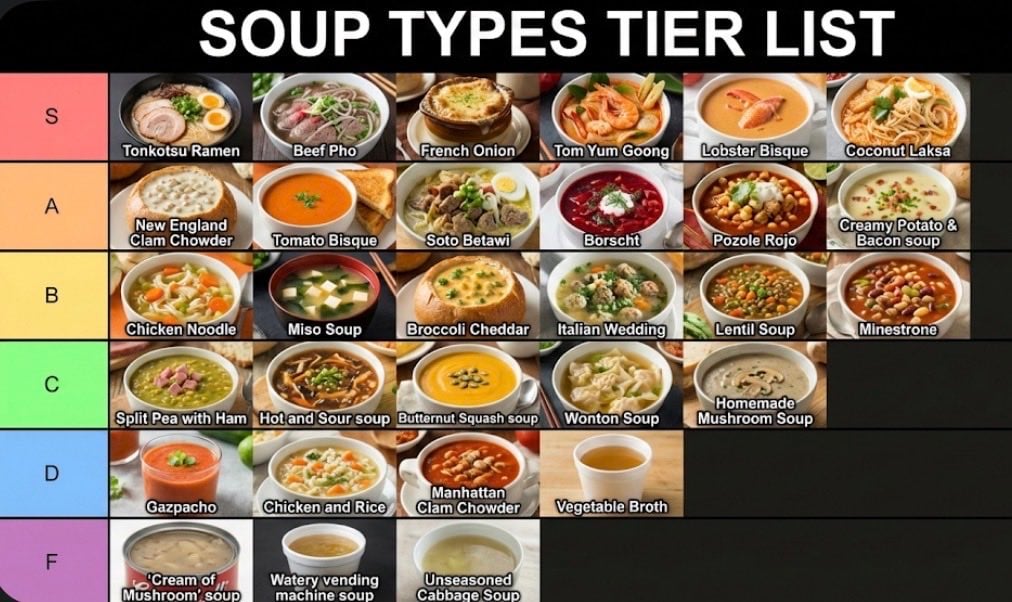
Two-Step Tier List Generation Prompt
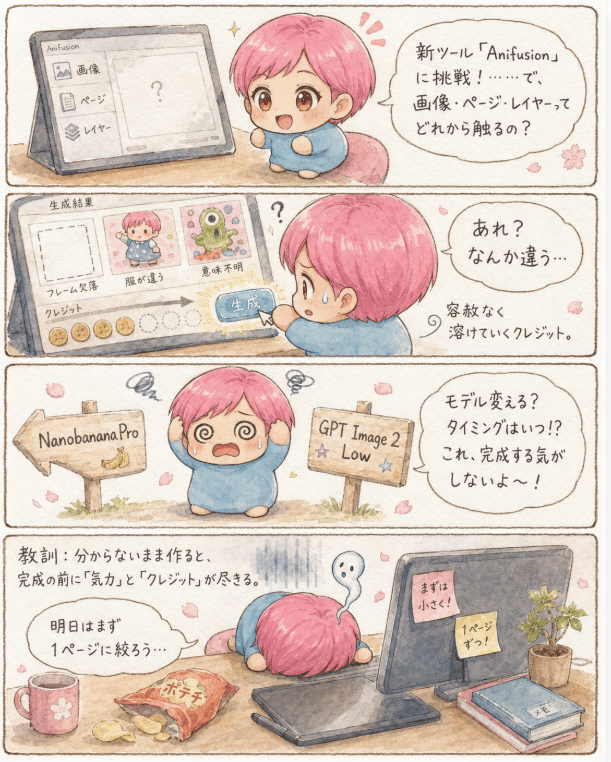
AI Manga Tool Struggle Comic
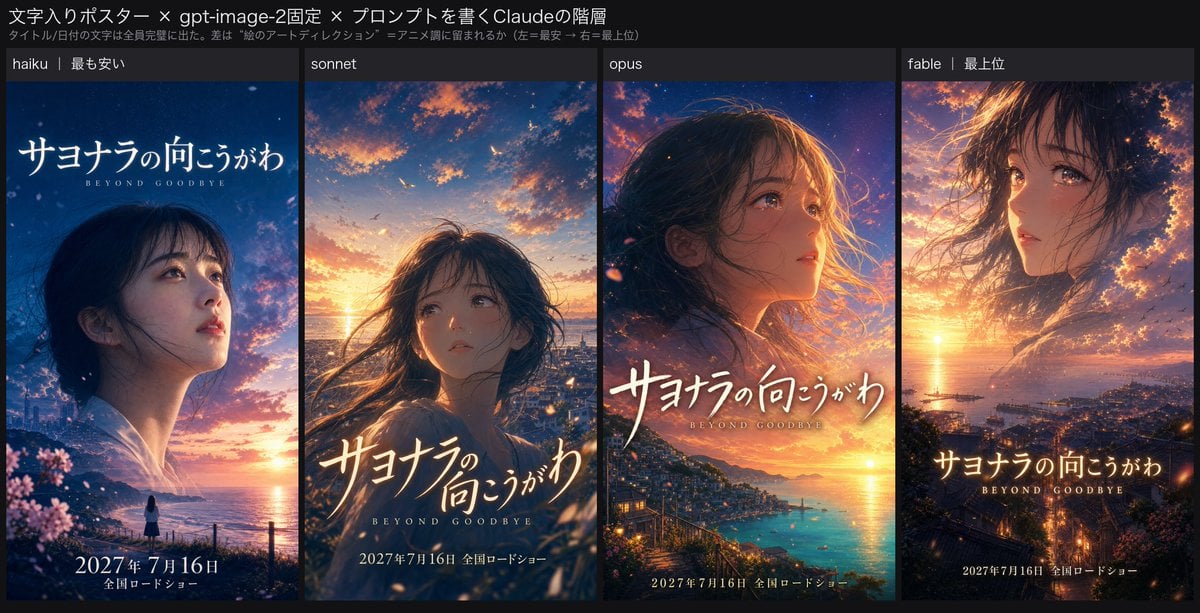
Four-Tier Anime Poster Comparison
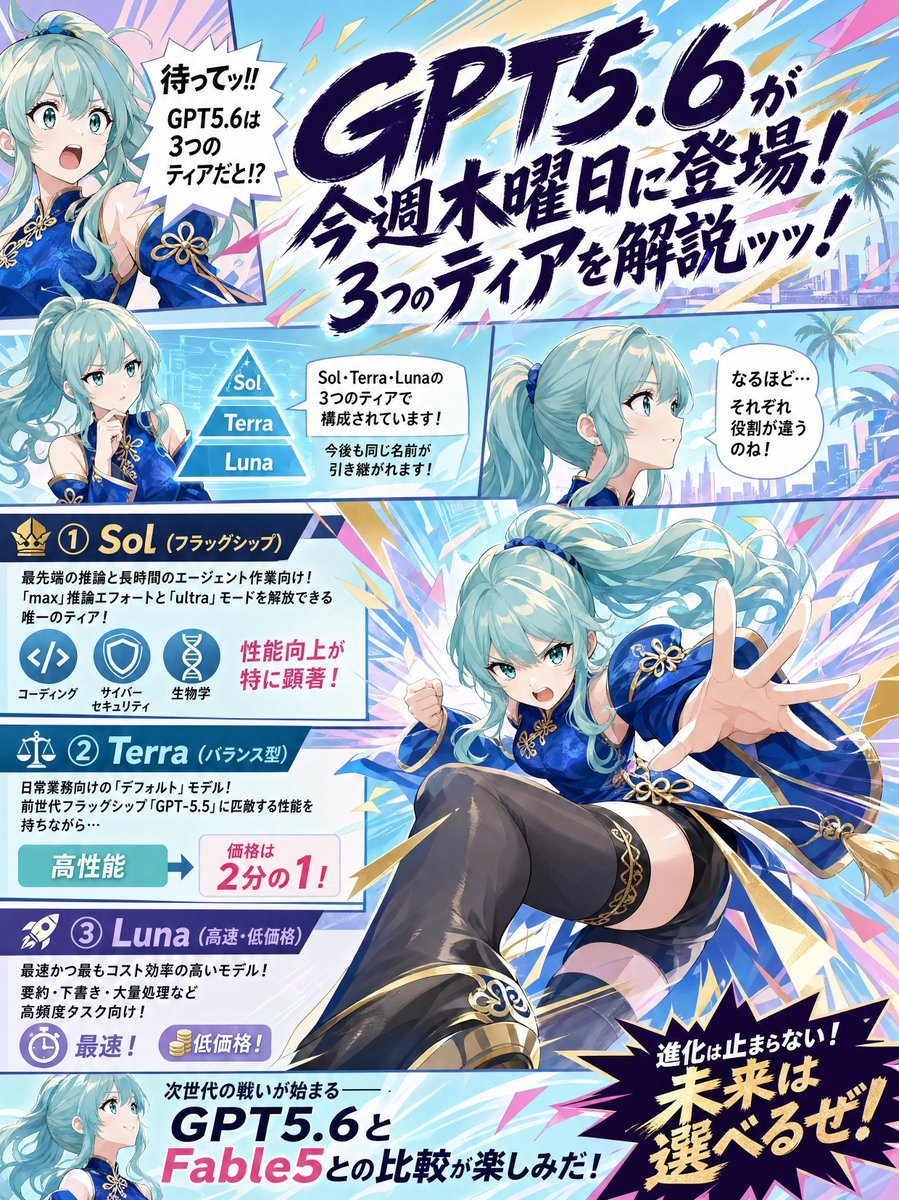
GPT5.6 Manga Tier Explainer
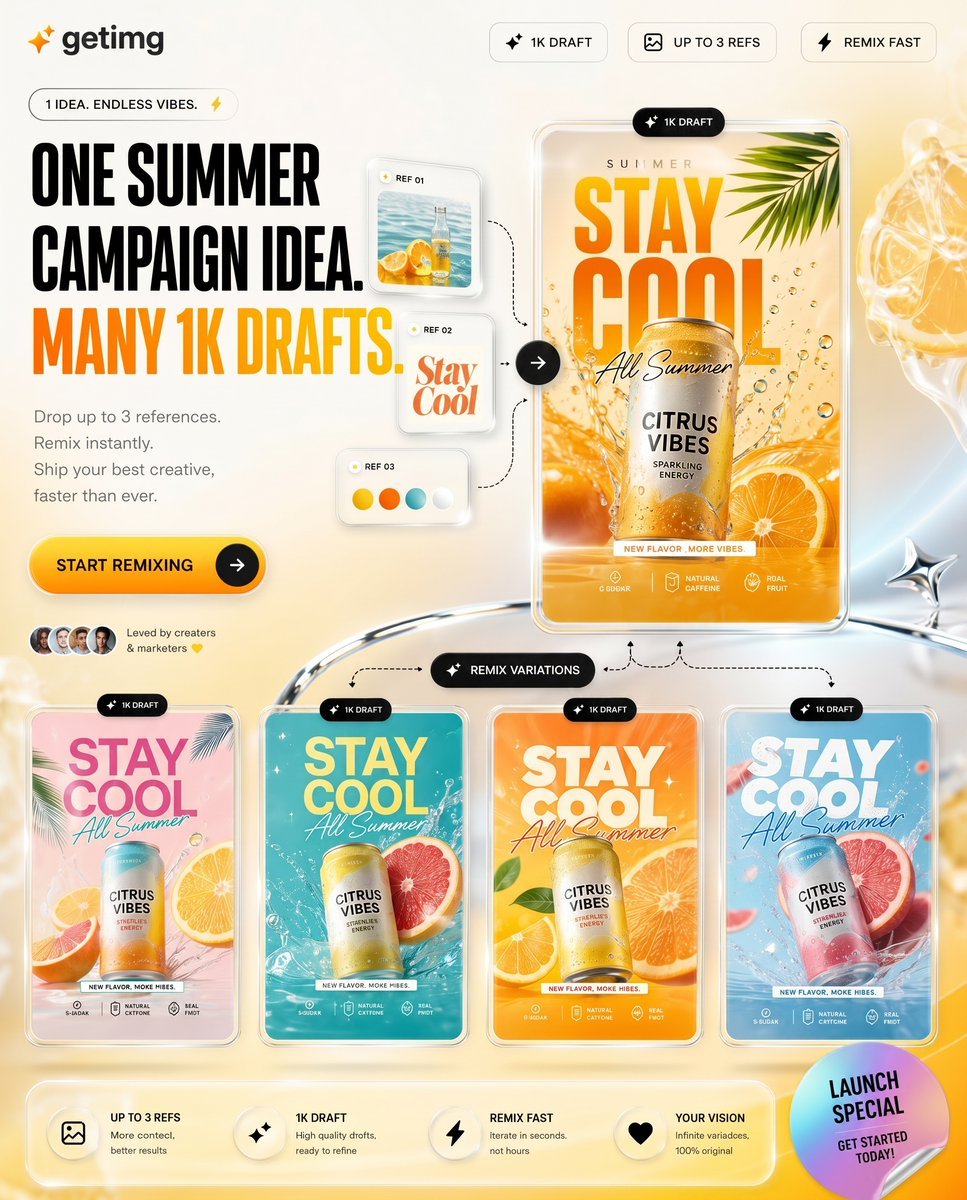
Summer AI Tool Launch Poster
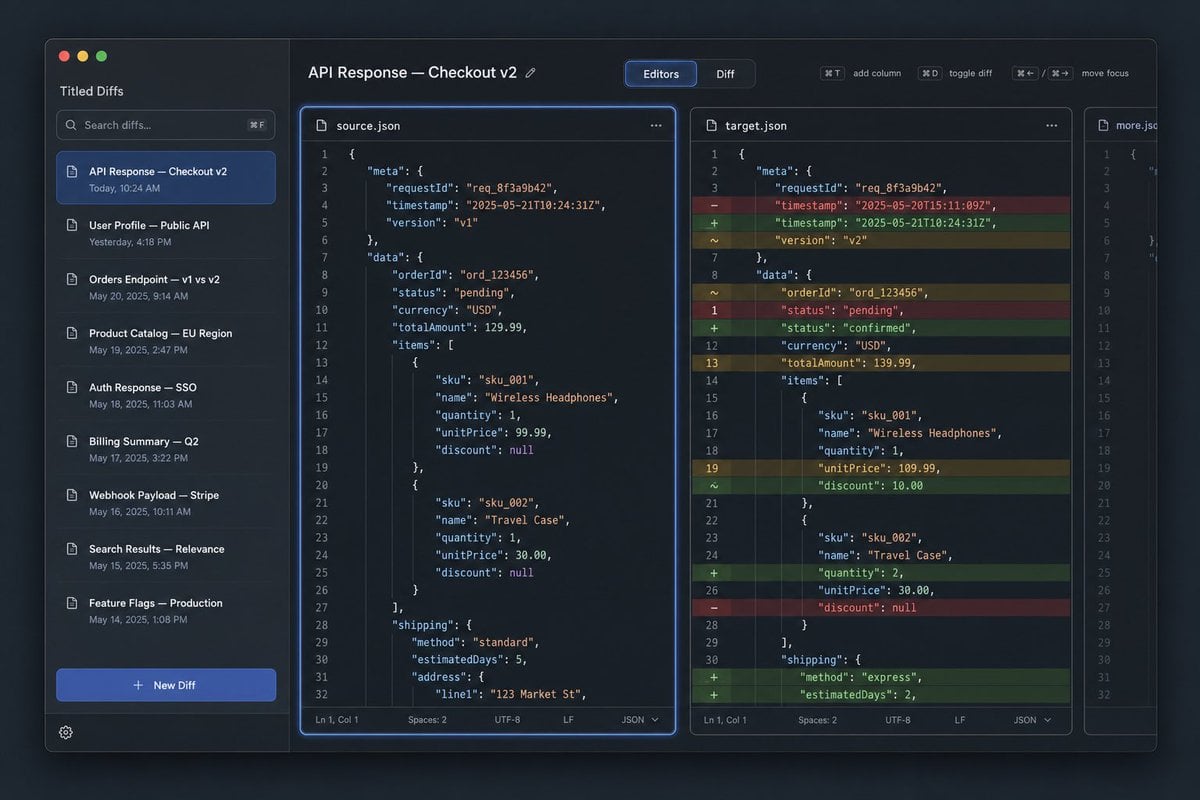
Dark JSON Diff Tool UI Mockup
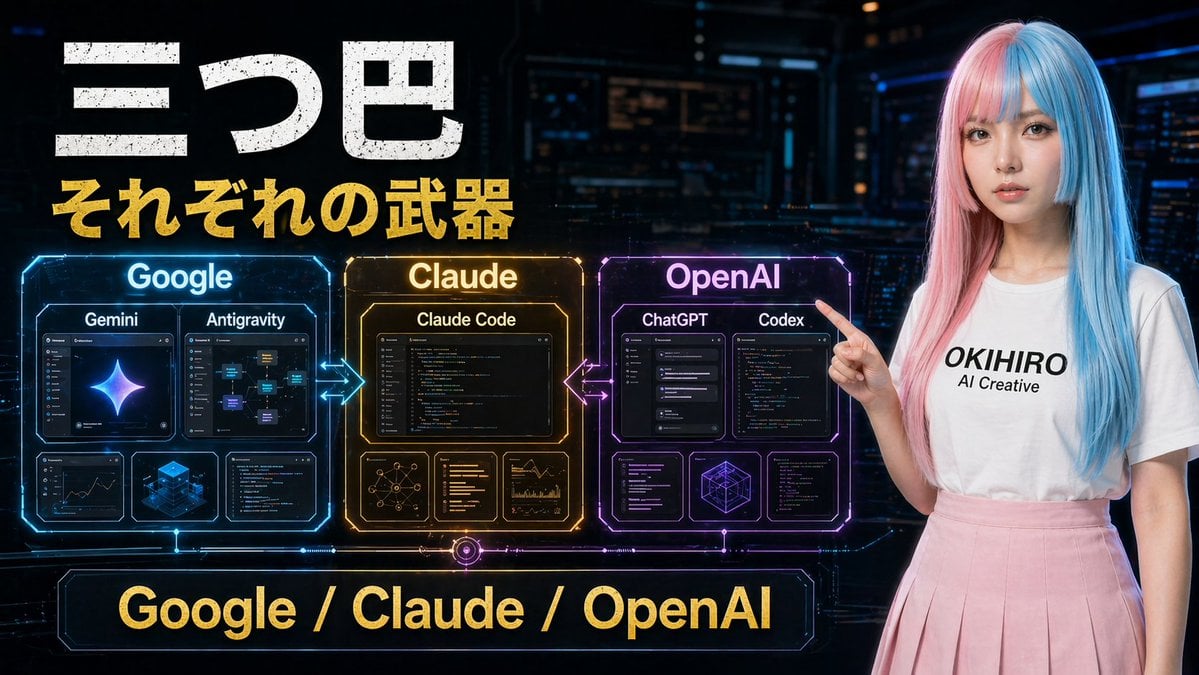
Cyberpunk AI Tools Comparison Poster
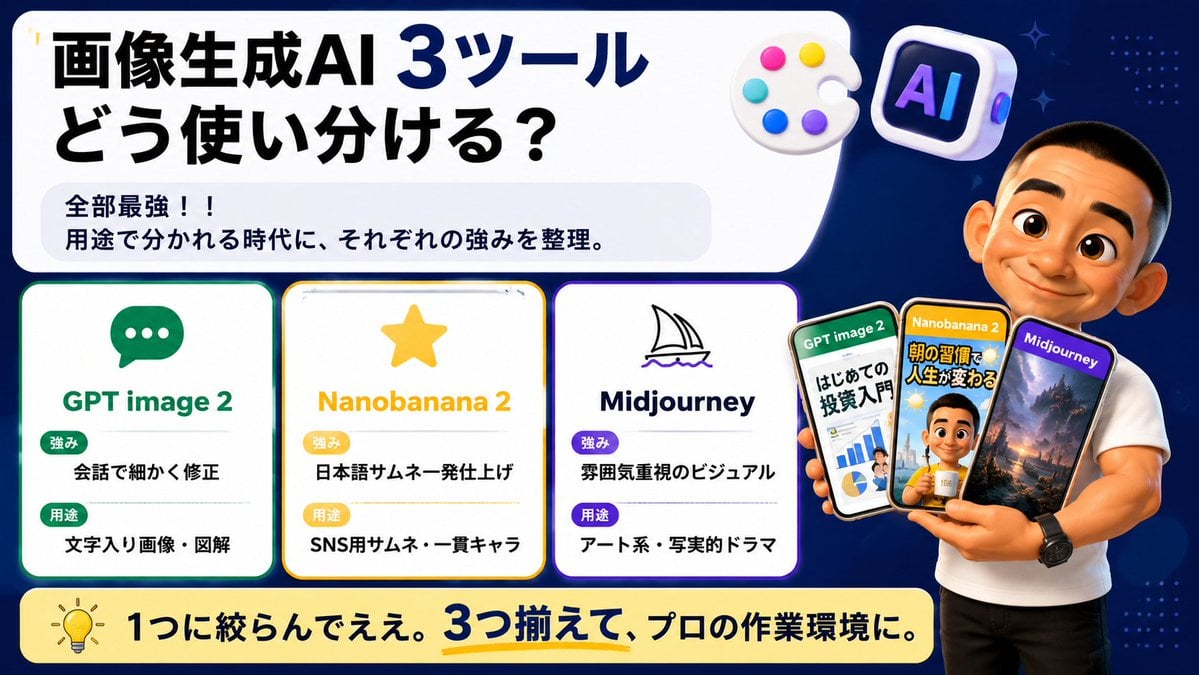
Japanese AI Tool Comparison Thumbnail
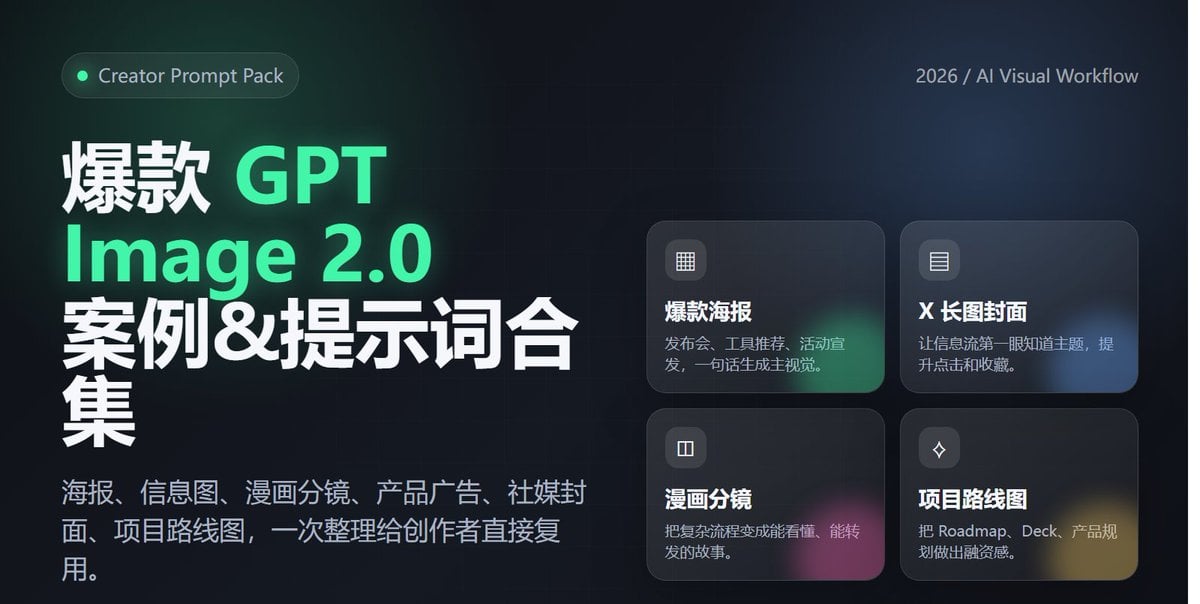
Professional Tool Launch Poster
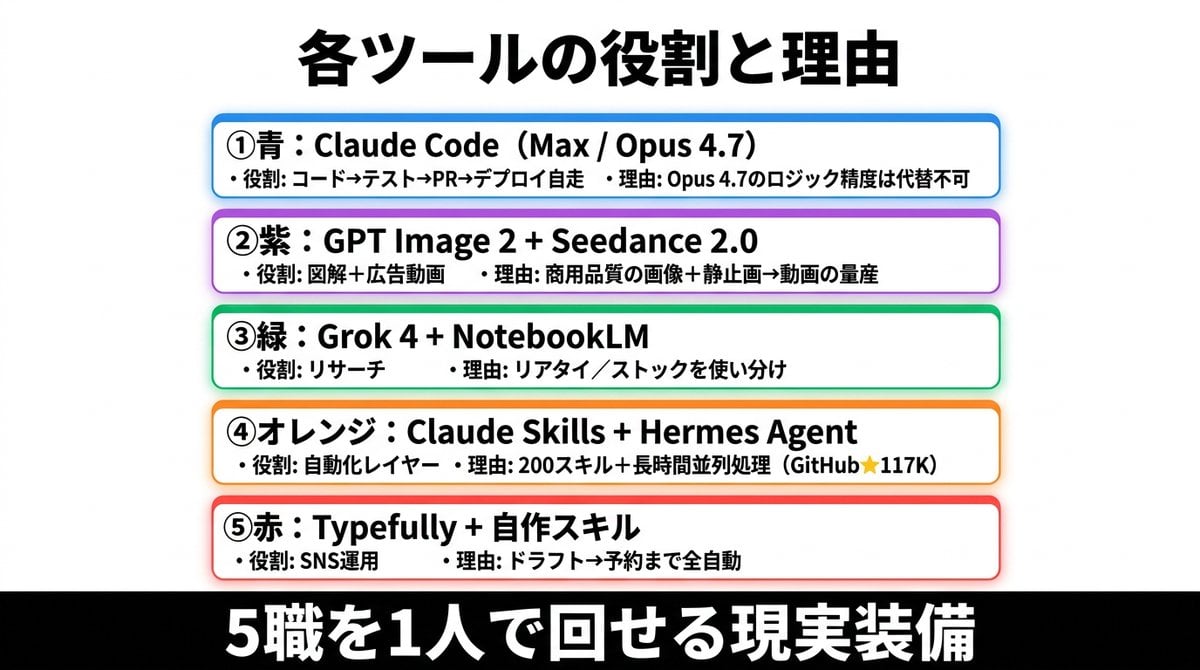
Japanese AI Tools Role Infographic
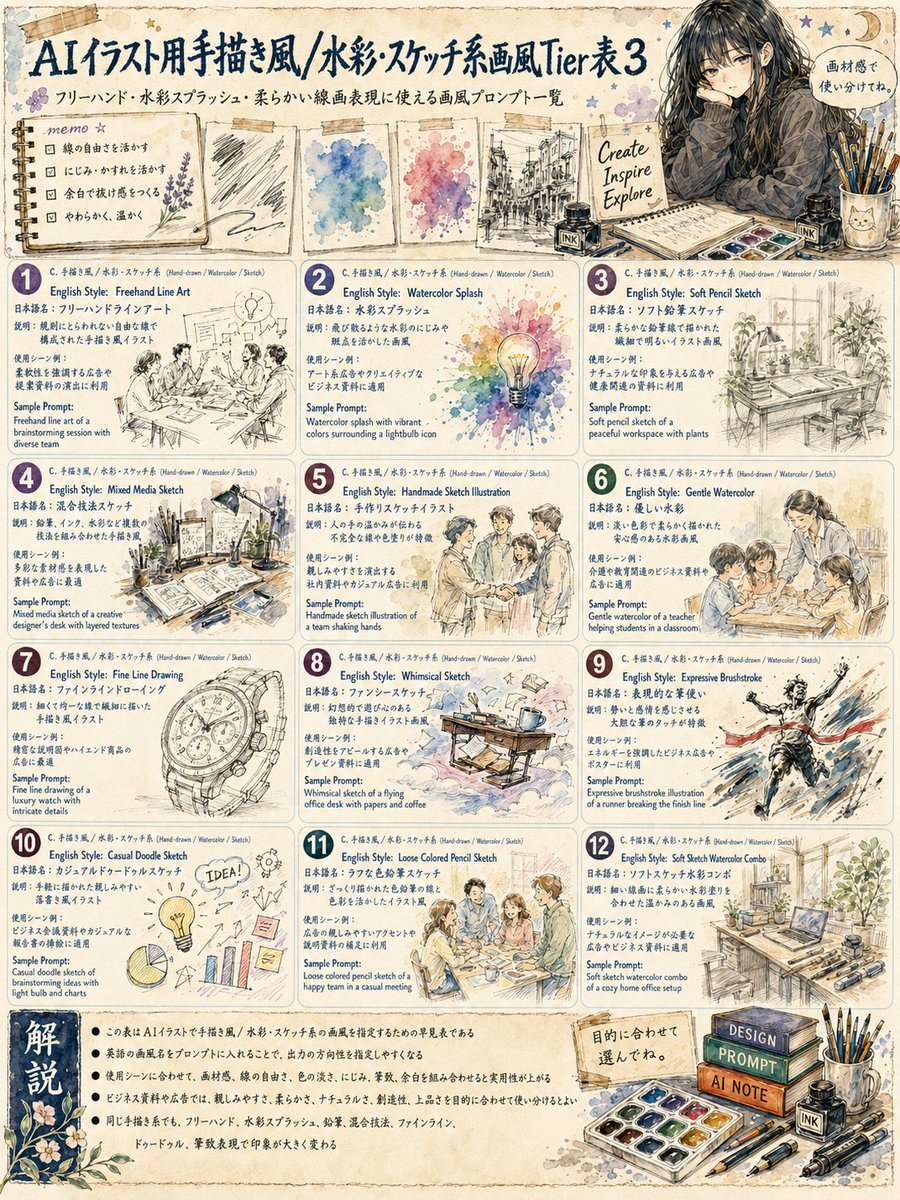
Japanese Watercolor Sketch Style Tier Poster
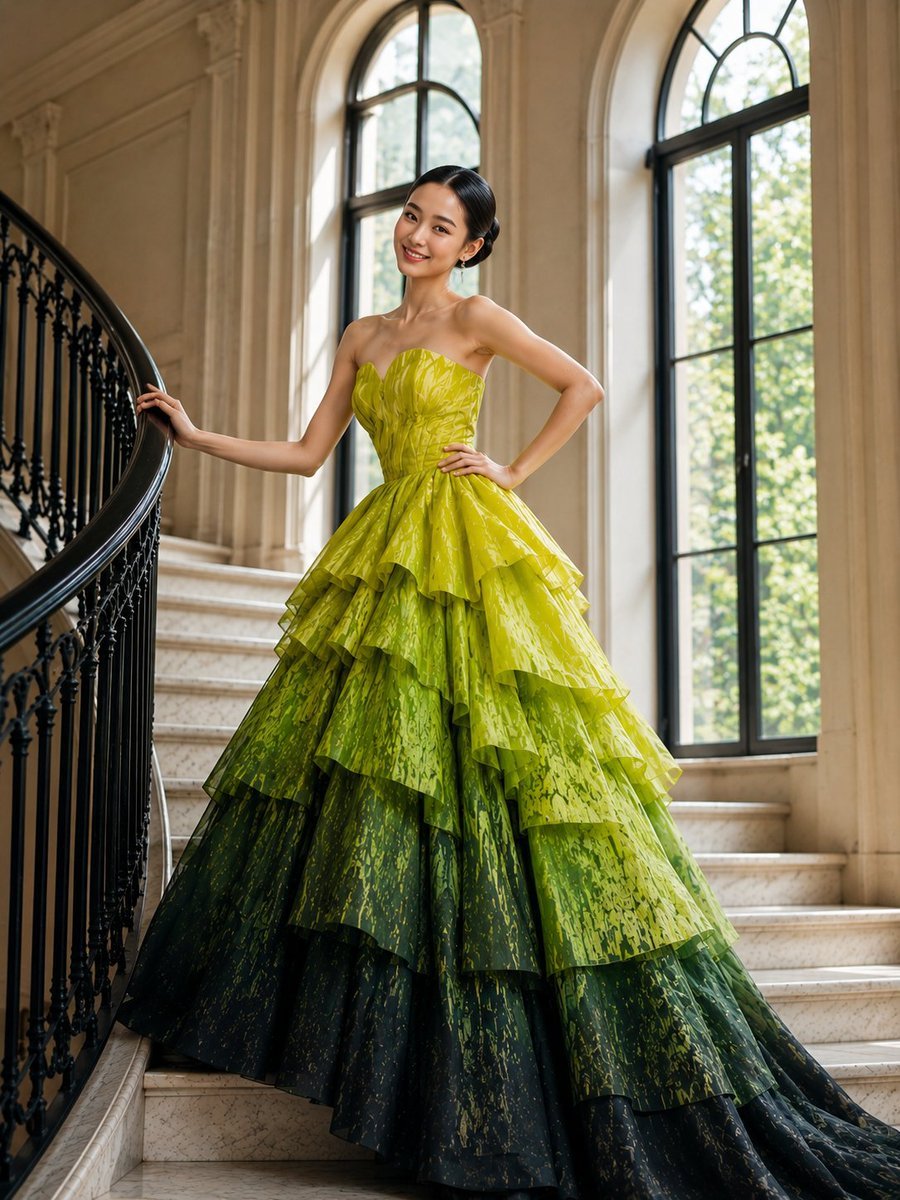
High-Fashion Tiered Ballgown Editorial
Make it yours
2026 AI Image Tool Tier List works as-is. These are the safest ways to change it without losing the look.
Change one field
Copy a single group, rewrite it, and generate again so you can see what that field is doing.
Keep the frame, change the subject
Hold the composition and light of 2026 AI Image Tool Tier List, then swap wardrobe, props or the person for a new take.
| If the result… | Why | Fix |
|---|---|---|
| The result drifts from the preview | Too many fields changed at once. | Reuse 2026 AI Image Tool Tier List as-is first, then change one group — subject, light, or setting. |
| The model over-stylizes the scene | The prose prompt leaves finish and camera underspecified. | Add one camera or lighting sentence and stay on GPT Image 2. |
More GPT Image 2 templates
Other prompts made for GPT Image 2.

Six VTuber Japanese Logo Sheet

Realistic Portrait of Woman and Deer

The Vista Modular Condo Poster

AI Model Routing Comparison Infographic

2.5D Anime Art Board

Isometric Productivity Desk Scene

New York Double Exposure Poster

Four-Panel AI Landscape Comparison

Japanese Tatami Lifestyle Magazine Cover

NESCAFÉ Coffee Map Poster
More image prompts
Fresh picks from across the catalog.
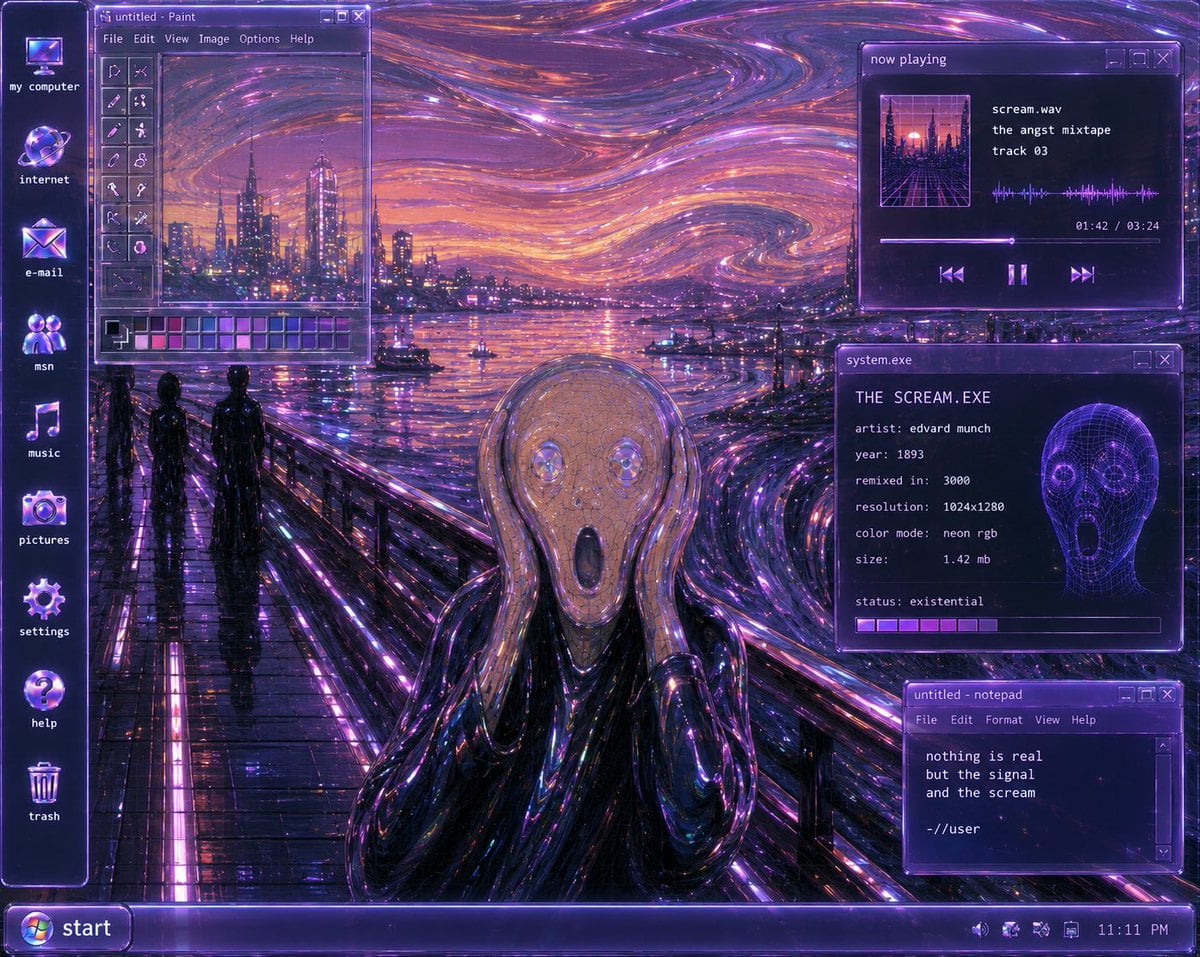
Y2K Futurist Scream Desktop
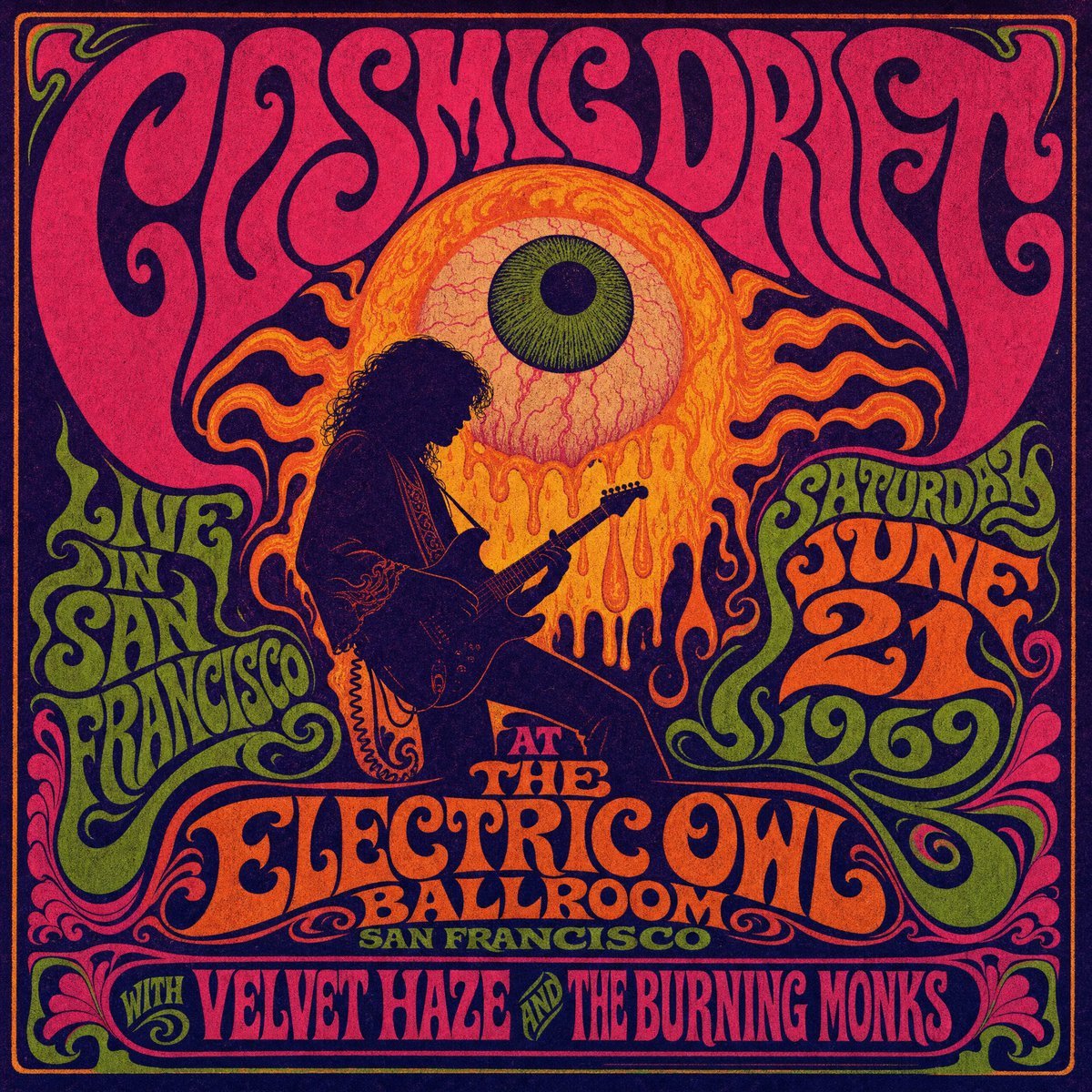
Psychedelic Cosmic Drift Concert Poster

Candid Night-Time Street Style Photo with Roses
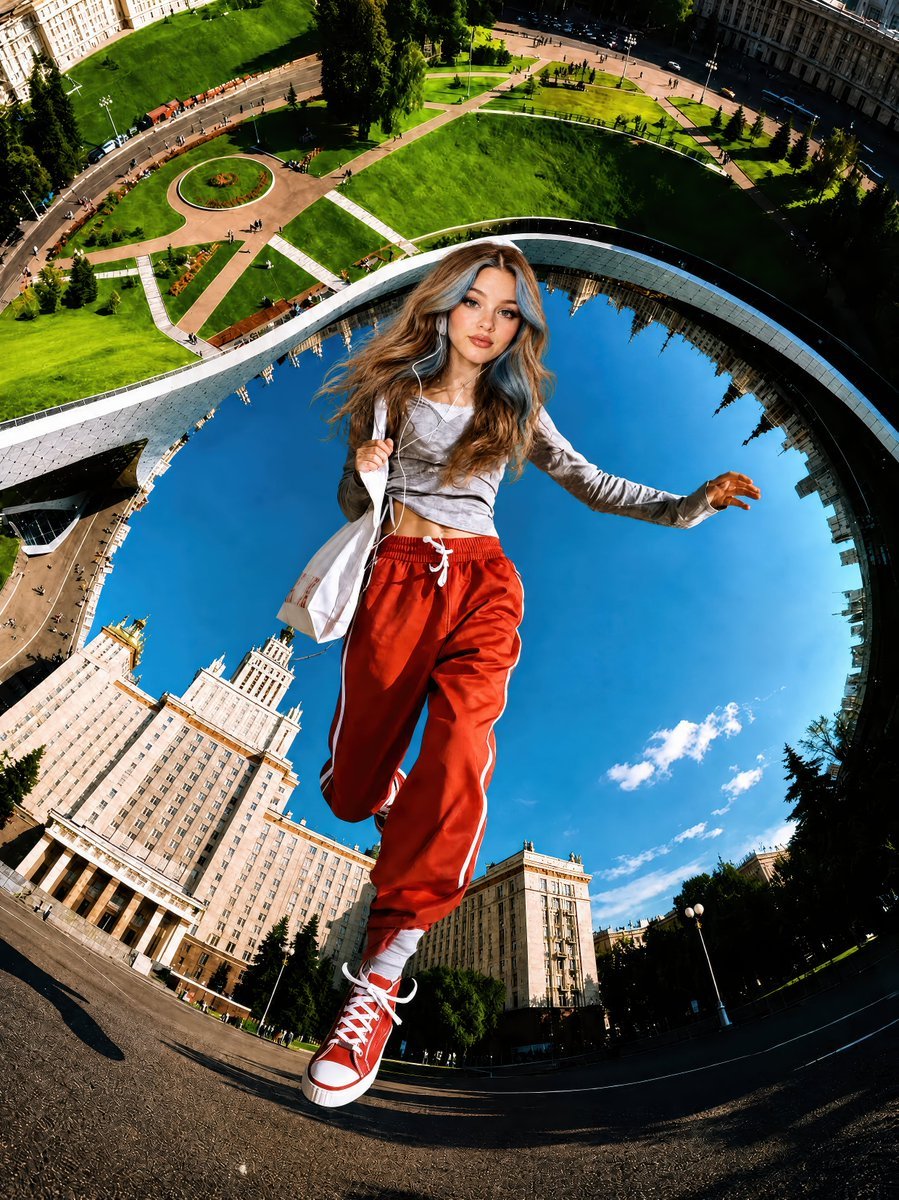
Surreal Fisheye Stadium Portrait
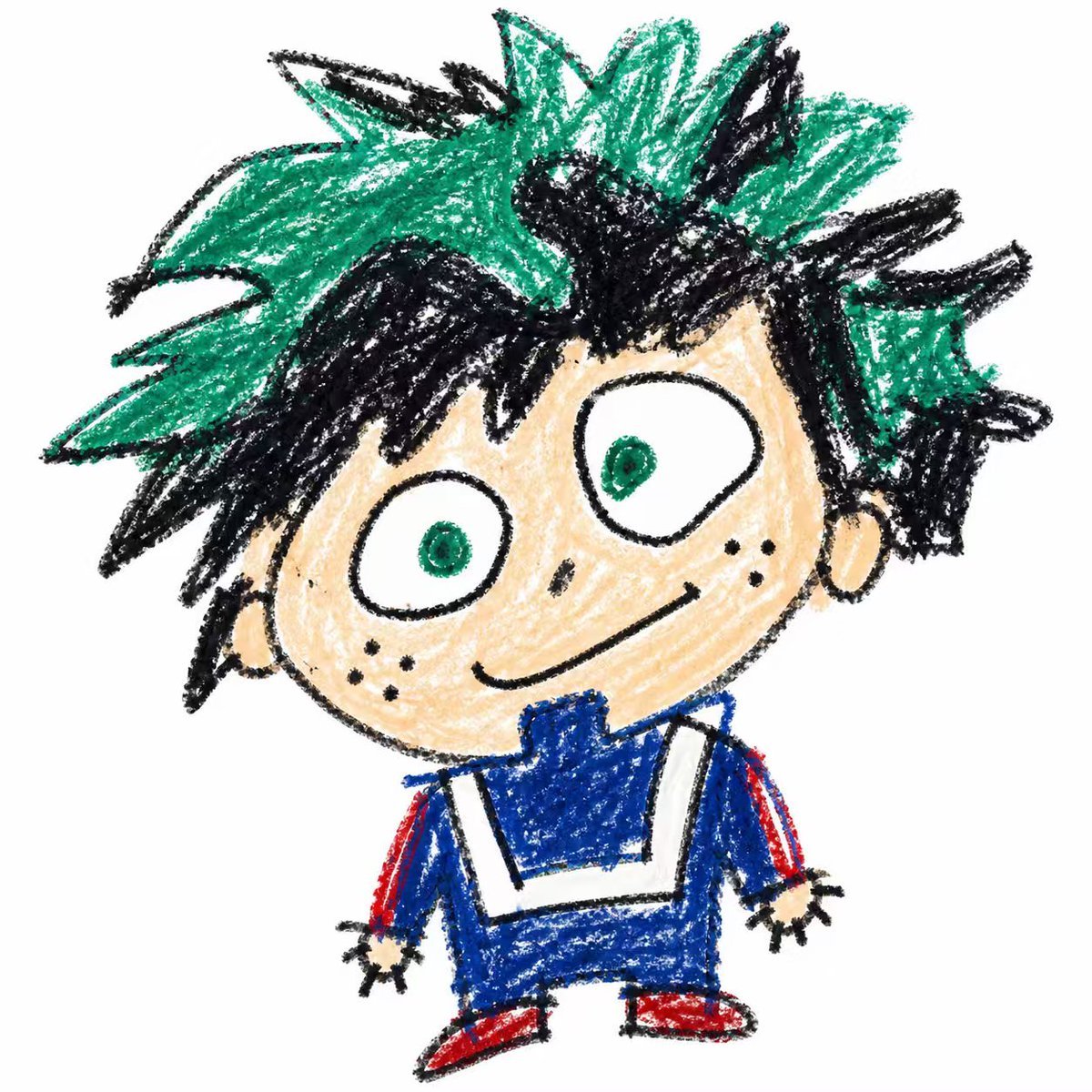
Year-Old Crayon Drawing Style
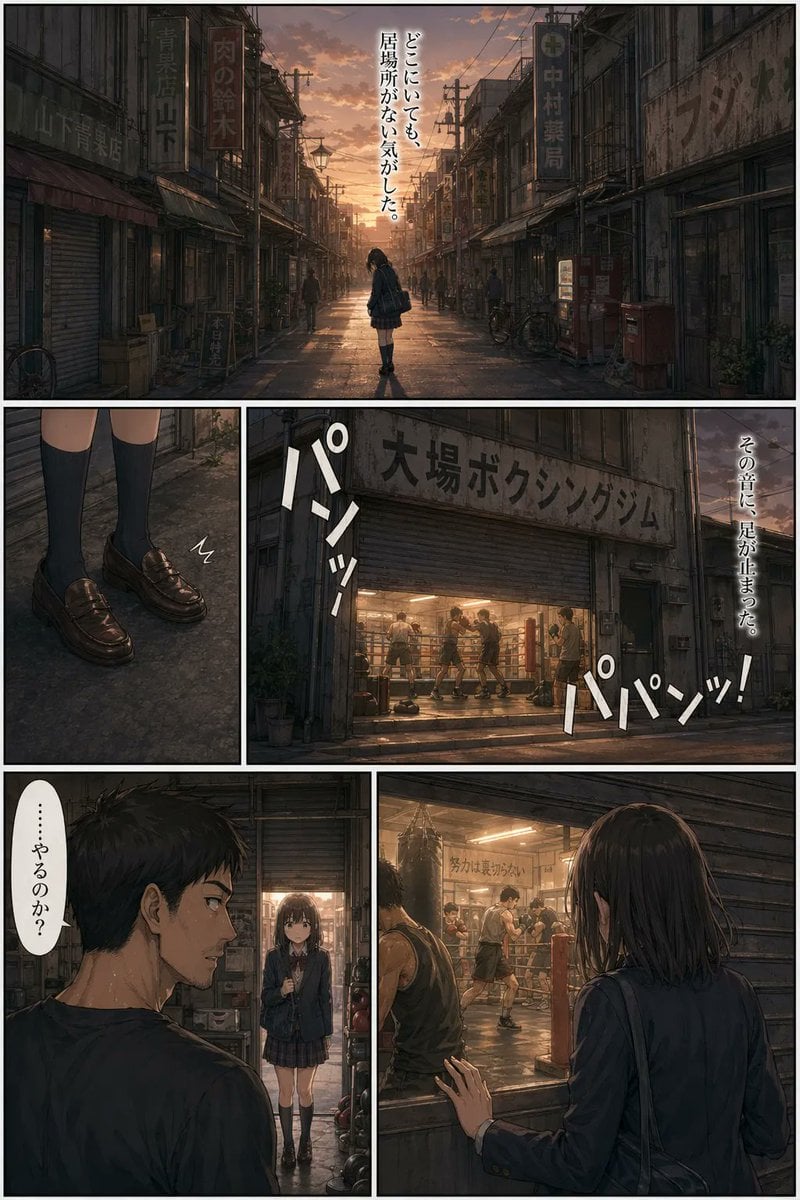
Sunset Boxing Gym Manga Page
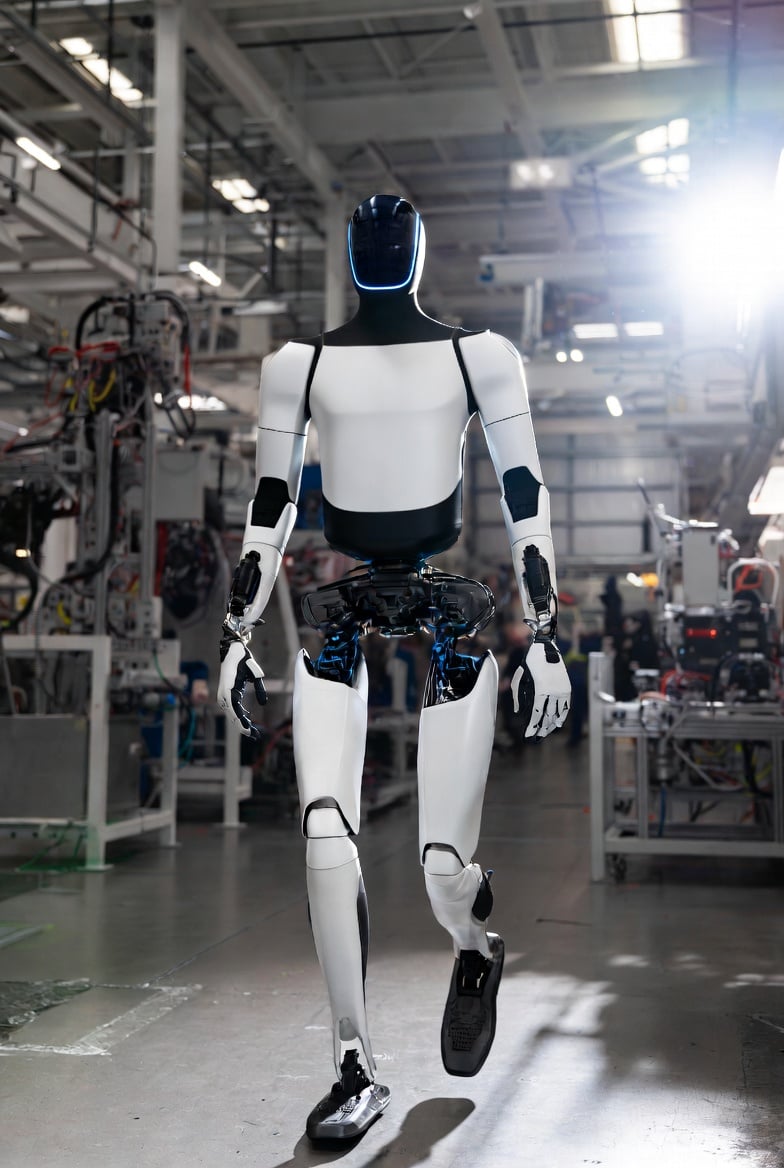
Optimus Robot on Tesla Assembly Line

Nano Banana Pro Character Generation - Spikified Shonai-san
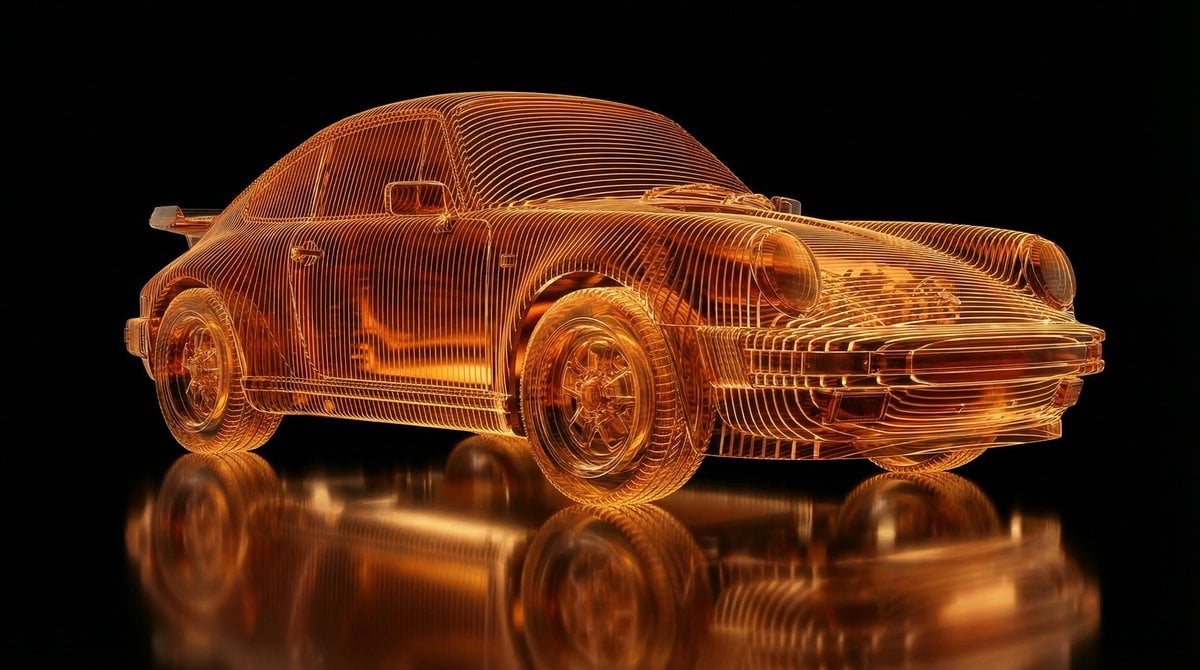
Transparent Layered Glass Supercar Sculpture Prompt
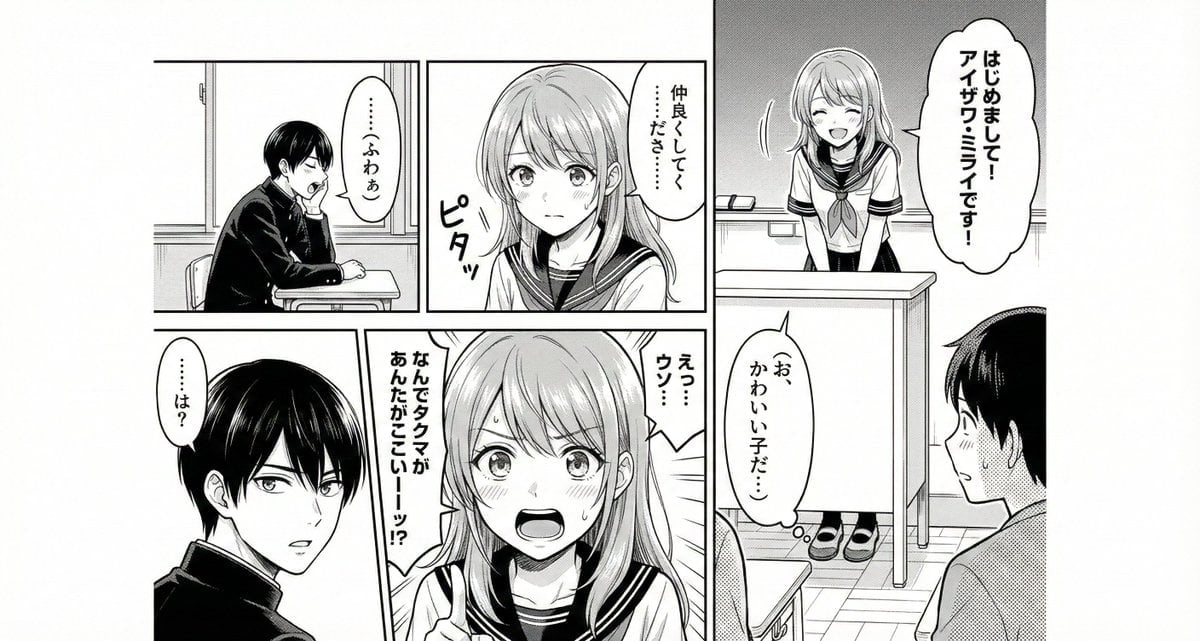
Generate manga from plot, dialogue, and paneling
Browse template categories
2026 AI Image Tool Tier List questions
How do I use the 2026 AI Image Tool Tier List template?
Add your photo if the template asks for one, edit the prompt if you like — the template's model and format are already selected — and press Generate. Your version opens in PicX Studio.
Can I customize the 2026 AI Image Tool Tier List template?
Yes. You can change the subject, setting, lighting, mood, format, and available model controls before creating your image.
Is the 2026 AI Image Tool Tier List template free?
Opening and editing this template is free. Generating uses credits, shown on the Generate button when you are signed in.
Which AI model should I use?
Start with GPT Image 2, which is the model associated with this template. You can compare another compatible model for a different finish.
Looking for something else? Browse all templates.

Your photo, any look
Thousands of ready templates for every top image and video model, from one credit balance.