
Dark JSON Diff Tool UI Mockup
Generates a polished dark-mode desktop UI mockup for a JSON API diff and code comparison tool.
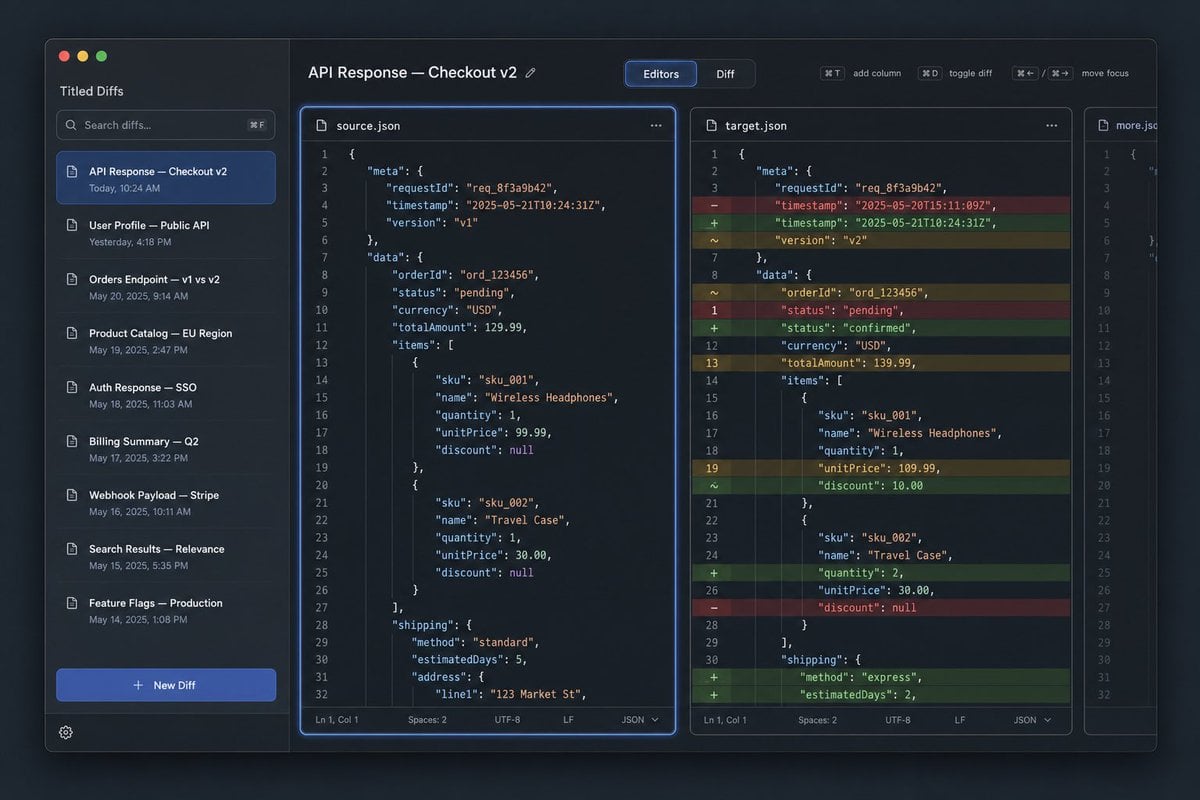
- Prompt included
- Model and format preset
- Free template
The prompt behind this image
Copy the exact prompt behind Dark JSON Diff Tool UI Mockup, or open it in the studio and make it yours.
Goal: Create a dark-mode desktop app UI mockup for a JSON diff tool named {argument name="app name" default="Tilted Diffs"}, showing an API response comparison titled {argument name="diff title" default="API Response — Checkout v2"}. Canvas: 16:10 widescreen desktop screenshot, roughly 1152×768, with a macOS-style app window floating on a dark bluish gradient background. Use subtle shadows, rounded corners, thin borders, and a polished developer-tool aesthetic. Layout: The app has 4 main regions: 1 left sidebar, 1 top toolbar spanning the editor area, 3 vertical code editor panes. The first editor pane is selected and outlined with a bright blue focus glow. The middle pane shows colored inline diff highlights. The rightmost pane is narrow and partially visible, like an additional file tab or third comparison column. Left sidebar: Show macOS traffic-light buttons at top left: 3 circles, red, yellow, green. Under the app name, include 1 search field with placeholder text “Search diffs…” and a keyboard hint. Below it show exactly 8 saved diff list items with small document icons and timestamps: 1) “API Response — Checkout v2” with “Today, 10:24 AM”, highlighted in blue as the selected item; 2) “User Profile — Public API” with “Yesterday, 4:18 PM”; 3) “Orders Endpoint — v1 vs v2” with “May 20, 2025, 9:14 AM”; 4) “Product Catalog — EU Region” with “May 19, 2025, 2:47 PM”; 5) “Auth Response — SSO” with “May 18, 2025, 11:03 AM”; 6) “Billing Summary — Q2” with “May 17, 2025, 3:22 PM”; 7) “Webhook Payload — Stripe” with “May 16, 2025, 10:11 AM”; 8) “Search Results — Relevance” with “May 15, 2025, 5:35 PM”. At the bottom include exactly 1 prominent blue “+ New Diff” button and 1 small gear icon. Top toolbar: On the left, display the title “API Response — Checkout v2” with a tiny edit pencil icon. Center a segmented control with exactly 2 tabs: “Editors” selected in blue and “Diff” inactive. On the right include exactly 4 compact shortcut controls labeled “⌘T add column”, “⌘D toggle diff”, “⌘← / ⌘→ move focus” and one small spacing gap between groups. Editor panes: Use a monospaced code font, line numbers, JSON syntax highlighting, dark navy panels, and thin rounded borders. The left pane header is “source.json” with a document icon and a three-dot menu. The middle pane header is “target.json” with a document icon and a three-dot menu. The narrow right pane header is “more.json” and should show only the left portion of code, implying overflow. Each full editor pane has a bottom status bar with “Ln 1, Col 1”, “Spaces: 2”, “UTF-8”, “LF”, and “JSON”. Code content: Show JSON for an order checkout response. Use requestId “req_8f3a9b42”, orderId “ord_123456”, currency USD, items for Wireless Headphones and Travel Case, and shipping information. The left source version should include timestamp “2025-05-21T10:24:31Z”, version “v1”, status “pending”, totalAmount 129.99, Wireless Headphones unitPrice 99.99 with discount null, Travel Case quantity 1, unitPrice 30.00, discount null, shipping method “standard”, estimatedDays 5, and address line “123 Market St”. The middle target version should show diff markers in a left gutter and colored row highlights: red removed rows, green added rows, yellow changed rows. It should include timestamp changed from “2025-05-20T15:11:09Z” to “2025-05-21T10:24:31Z”, version changed to v2, status changed from pending to confirmed, totalAmount changed to 139.99, Wireless Headphones unitPrice changed to 109.99 and discount added as 10.00, Travel Case quantity changed to 2, and shipping method changed to express with estimatedDays 2. Show approximately 32 numbered lines in each full editor. Visual style: Premium SaaS developer tool interface, crisp vector-like rendering, dark theme, cobalt-blue accent color, muted gray text, realistic but clean UI screenshot, no people, no watermark, no browser chrome outside the app window. Keep all text legible and aligned to a grid.
How to use Dark JSON Diff Tool UI Mockup in 3 steps
- 1Upload ImagePNG, JPG or paste
Add your photo
Upload the photo the template builds on. The prompt, model and format are already set.
- 2…a portrait of your subject in softgolden-hour light, 85mm…
Personalize
Edit the subject and creative details for your destination.
- 3Generate
Generate
Press Generate — your image is created in PicX Studio, so you can compare it with the original and refine one variable at a time.
More like this
Templates with the same subject, style or setup. Open one to see its prompt.
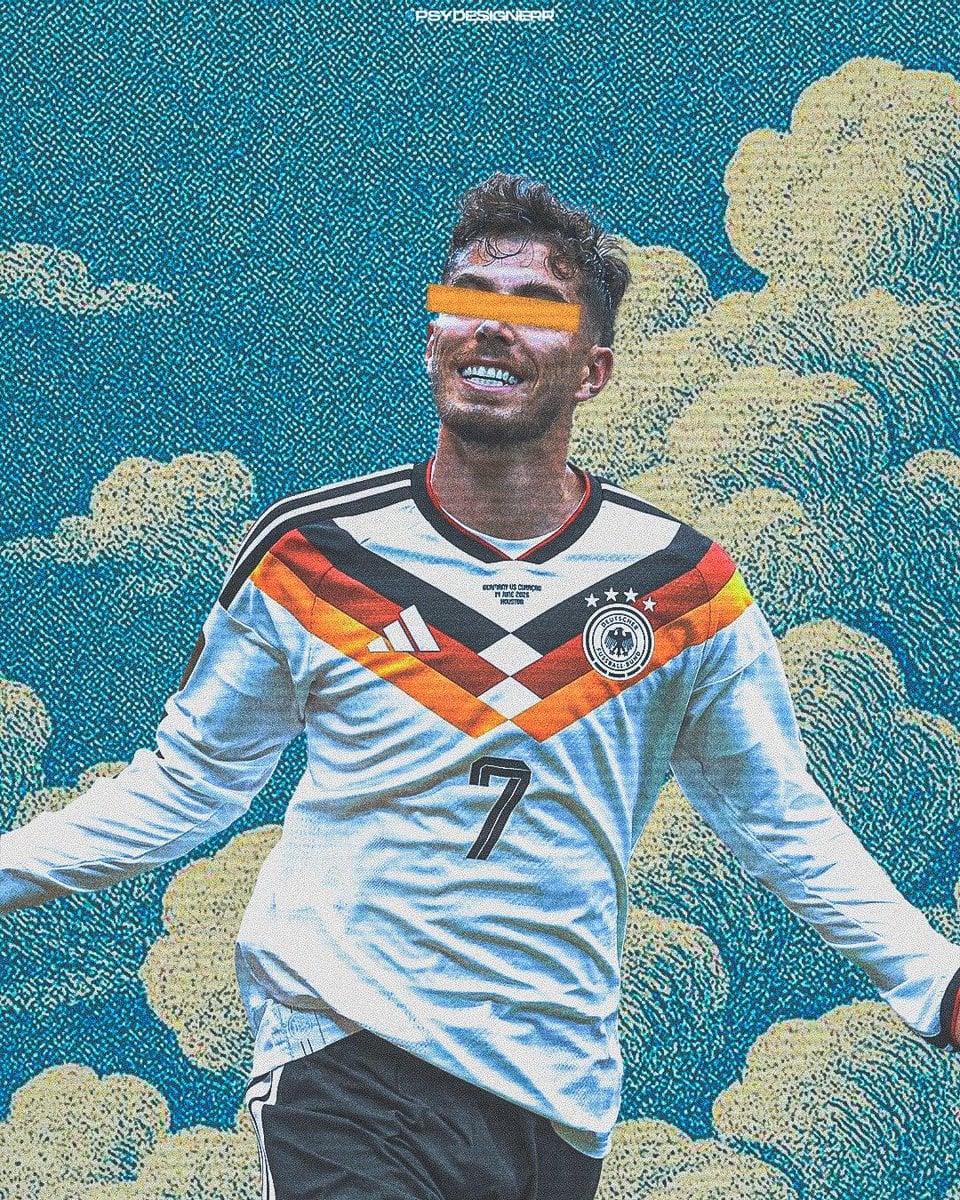
Selective Color Monochrome Football Poster
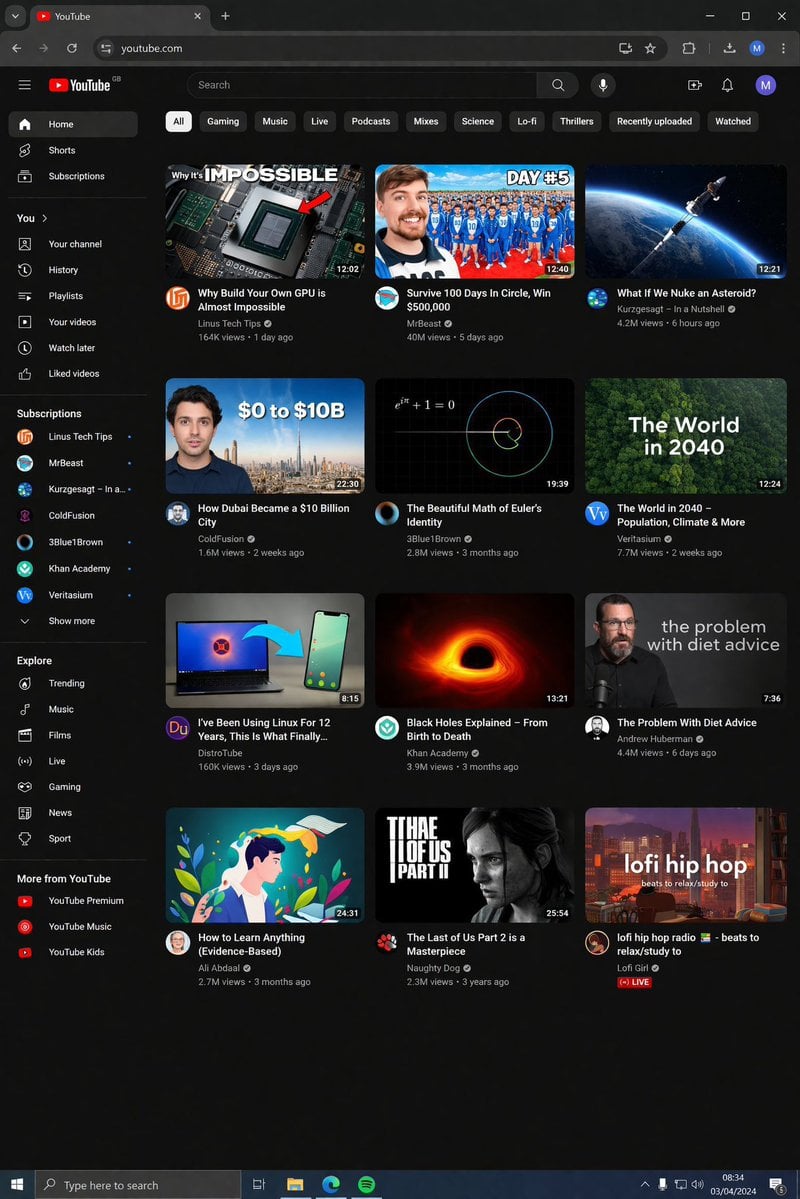
YouTube Dark Mode Desktop UI Mockup
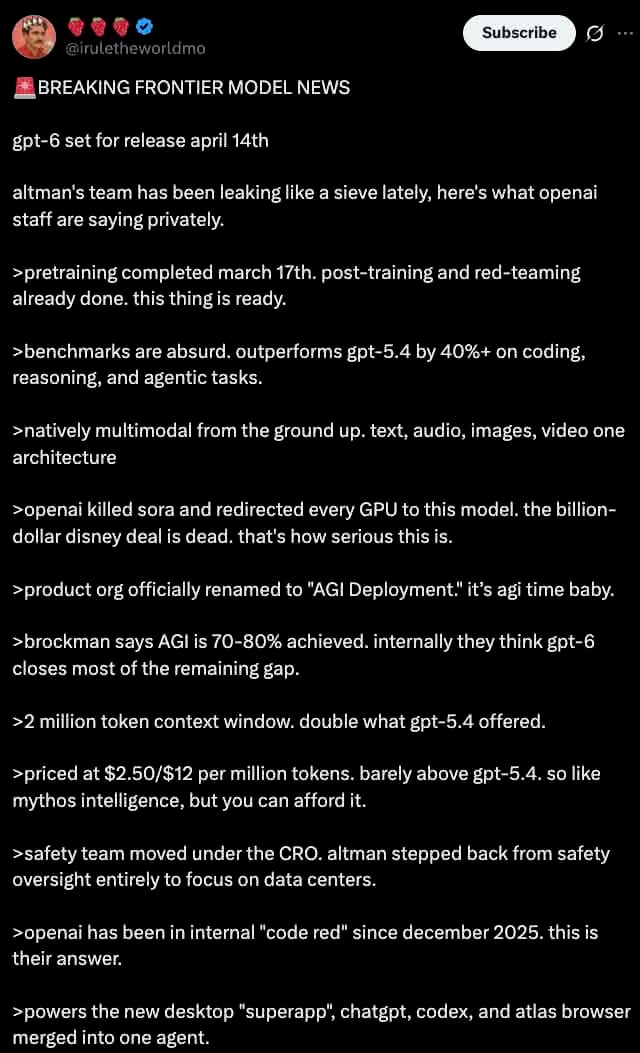
Dark Mode X Post Mockup
Night Sports Car Portrait — Cinematic Moody
Cinematic Eye Light Portraits — 3 Nano Banana Prompts
Product Shot - T-Shirt Mockup
Horror Cinematic Portrait
JSON Seedance - Fairy Macro Flight

Cinematic Anime Shinobi Poster Mockup
Multiple dark purple berries erupting from inside the can
Dark Gothic Lolita Static Portrait
Dark Sword Angel Character Sheet
Make it yours
Dark JSON Diff Tool UI Mockup works as-is. These are the safest ways to change it without losing the look.
Change one field
Copy a single group, rewrite it, and generate again so you can see what that field is doing.
Keep the frame, change the subject
Hold the composition and light of Dark JSON Diff Tool UI Mockup, then swap wardrobe, props or the person for a new take.
| If the result… | Why | Fix |
|---|---|---|
| The result drifts from the preview | Too many fields changed at once. | Reuse Dark JSON Diff Tool UI Mockup as-is first, then change one group — subject, light, or setting. |
| The model over-stylizes the scene | The prose prompt leaves finish and camera underspecified. | Add one camera or lighting sentence and stay on GPT Image 2. |
More GPT Image 2 templates
Other prompts made for GPT Image 2.

Six VTuber Japanese Logo Sheet

Realistic Portrait of Woman and Deer

The Vista Modular Condo Poster

AI Model Routing Comparison Infographic

2.5D Anime Art Board

Isometric Productivity Desk Scene

New York Double Exposure Poster

Four-Panel AI Landscape Comparison

Japanese Tatami Lifestyle Magazine Cover

NESCAFÉ Coffee Map Poster
More image prompts
Fresh picks from across the catalog.

Cozy Indoor Lifestyle Portrait
Cinematic Profile Portrait with Identity Preservation
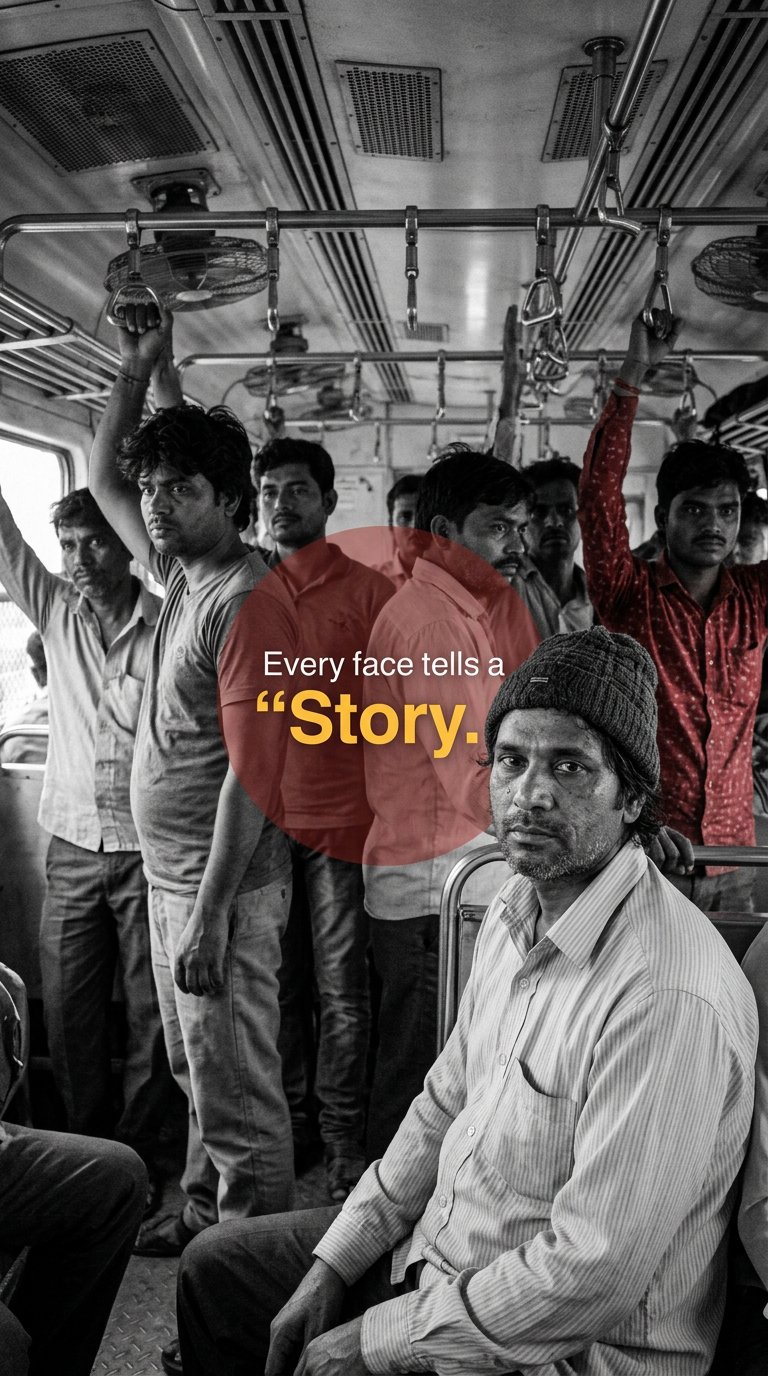
Urban Commuter Portrait Documentary

UV Resin Cityscape Orb
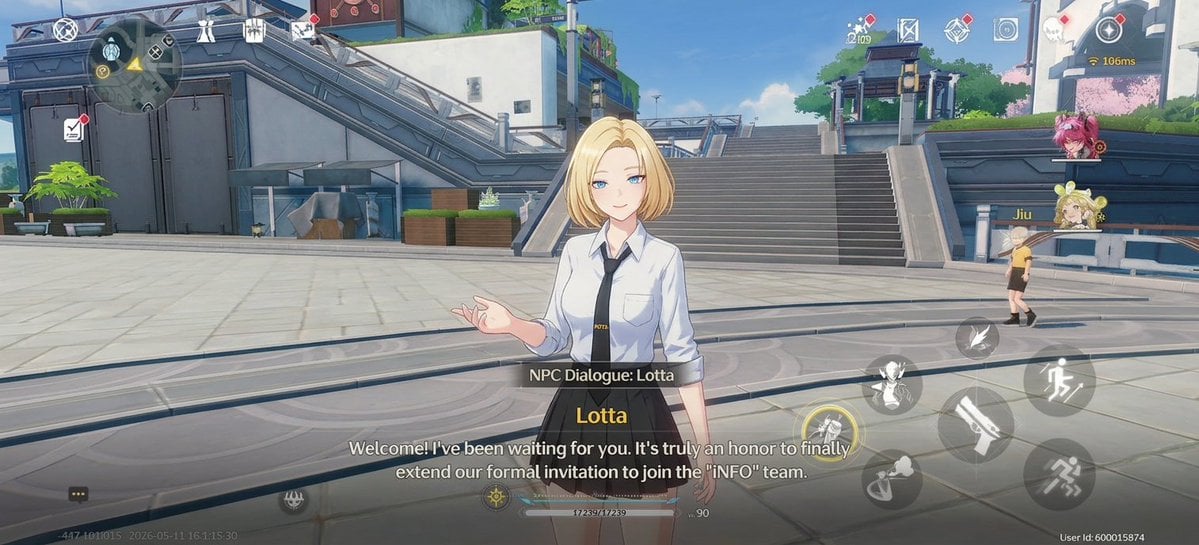
Anime RPG Dialogue Screenshot
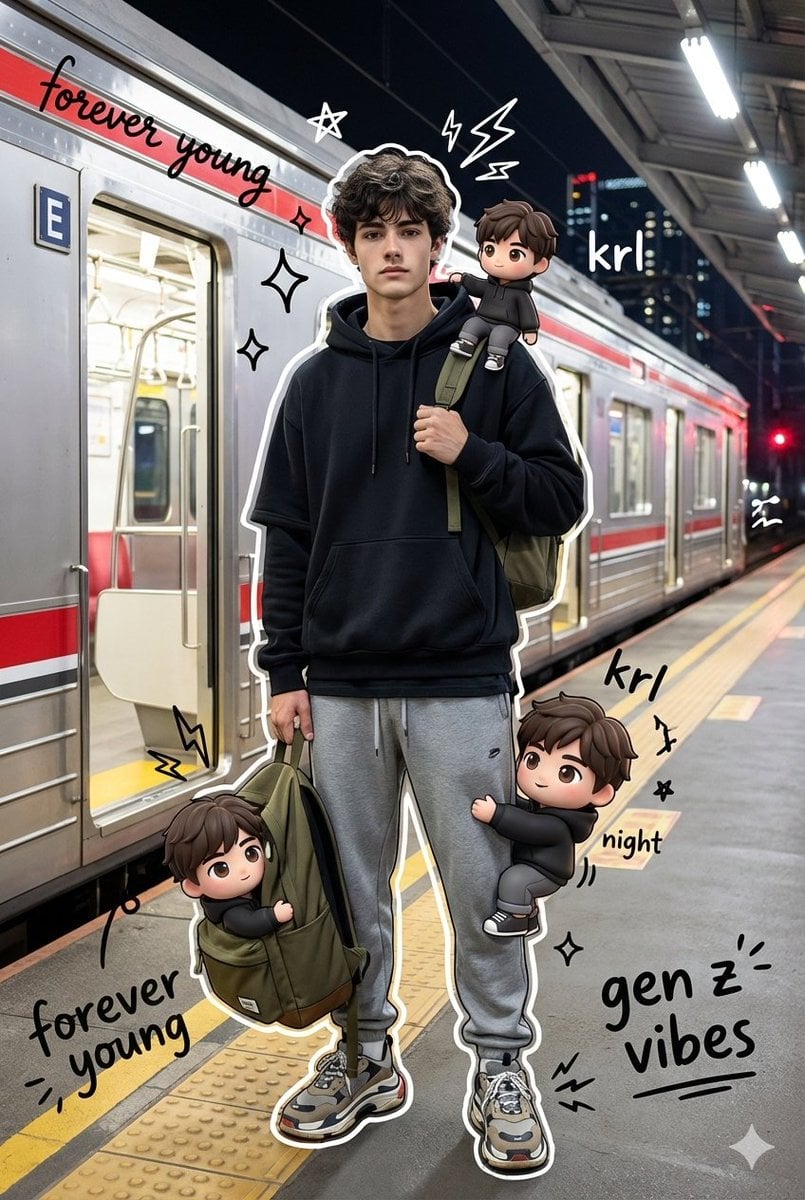
Mixed Media Portrait with Chibi Overlays
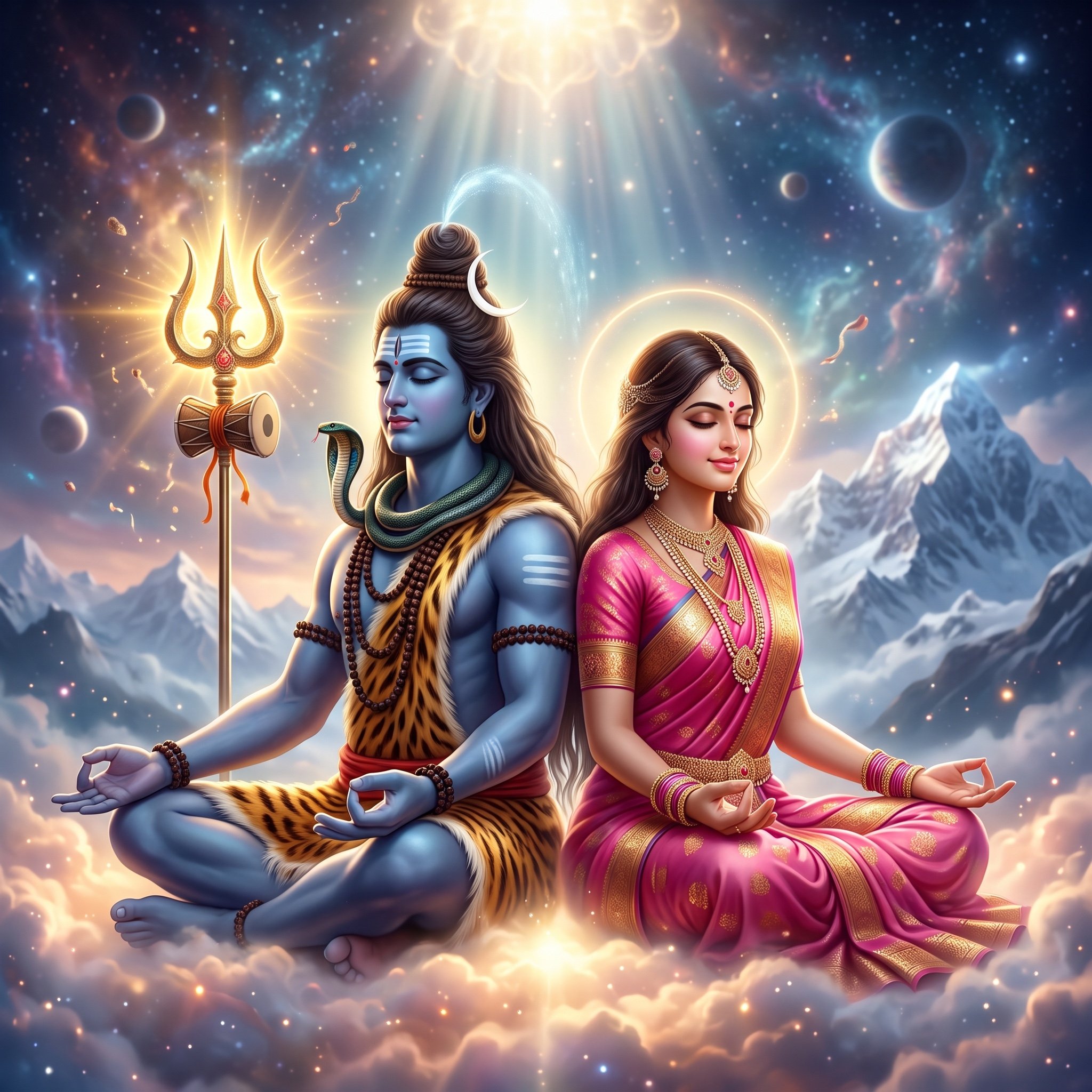
Divine Artwork of Lord Shiva and Goddess Parvati
Hyper-realistic MacBook screen simulation prompt
Vogue Style Fashion Illustration
Sunset Seaside Rose Portrait
Browse template categories
Dark JSON Diff Tool UI Mockup questions
How do I use the Dark JSON Diff Tool UI Mockup template?
Add your photo if the template asks for one, edit the prompt if you like — the template's model and format are already selected — and press Generate. Your version opens in PicX Studio.
Can I customize the Dark JSON Diff Tool UI Mockup template?
Yes. You can change the subject, setting, lighting, mood, format, and available model controls before creating your image.
Is the Dark JSON Diff Tool UI Mockup template free?
Opening and editing this template is free. Generating uses credits, shown on the Generate button when you are signed in.
Which AI model should I use?
Start with GPT Image 2, which is the model associated with this template. You can compare another compatible model for a different finish.
Looking for something else? Browse all templates.

Your photo, any look
Thousands of ready templates for every top image and video model, from one credit balance.