
Japanese AI Telop Thumbnail
A bold Japanese YouTube thumbnail layout promoting AI-powered automatic caption creation using Vrew and Claude Code.

- Prompt included
- Model and format preset
- Premium template
The prompt behind this image
Copy the exact prompt behind Japanese AI Telop Thumbnail, or open it in the studio and make it yours.
Goal: Create a high-impact Japanese YouTube thumbnail about automatically generating video captions/telops with AI, featuring a dramatic comparison from Vrew to Claude Code. Canvas: 16:9 horizontal thumbnail, 1200×675 style, optimized for YouTube. Use a dark blurred video-editing timeline interface as the full background, with purple and blue timeline tracks and small clip blocks visible but out of focus. Layout: Put a huge bold Japanese headline across the top reading {argument name="top headline" default="AIでテロップを自動作成"}. The letters should be white with thick black outline and an additional thin white outer stroke, slightly tilted and tightly spaced for maximum impact. Place one large white speech-bubble complaint box on the left-middle with a black outline and a small pointer at the bottom right. Inside it, use bold black Japanese text for the complaint and a red emphasized final line with a yellow underline: {argument name="complaint text" default="誤字脱字多すぎるし、テロップはズレまくってるし、変なところで改行するし、そのくせにそれ以外のことは何もできないって...\nVrewマジで使えんw"}. Place two app-style logo tiles in the center-right: exactly 2 logos total. Logo 1 is a cyan-blue rounded square Vrew-like icon with a white V mark, located near the center, partially overlapped by a small orange pixelated mascot/bug shape. Logo 2 is a larger orange-red rounded square Claude-like icon with a white radial starburst, located to the upper right, with a shiny gold crown tilted on its top-right corner. Add a small white label under the orange icon reading {argument name="tool label" default="Claude Code"} in bold black text. Between the two logos, add exactly 1 curved red arrow with a white outline pointing from the blue logo toward the orange logo. Bottom text: Fill the bottom third with one enormous Japanese conclusion phrase reading {argument name="bottom headline" default="これで全て解決"}. Make it thick rounded display lettering with a bright yellow gradient fill, heavy black outline, and glowing white outer stroke. The text should overlap the background and partly sit in front of the center graphics, creating a loud thumbnail composition. Visual style: Japanese viral tech thumbnail, extremely bold contrast, dense composition, exaggerated outlines, drop shadows, white glow effects, saturated colors, black background atmosphere, urgent and humorous tone. Make all Japanese text crisp, legible, and correctly spelled. Discrete elements to include: exactly 1 top headline, exactly 1 speech bubble, exactly 2 app logos, exactly 1 orange mascot/bug shape, exactly 1 red curved arrow, exactly 1 gold crown, exactly 1 Claude Code label, and exactly 1 huge bottom headline. Do not add extra logos, people, watermarks, or unrelated text.
How to use Japanese AI Telop Thumbnail in 3 steps
- 1Upload ImagePNG, JPG or paste
Add your photo
Upload the photo the template builds on. The prompt, model and format are already set.
- 2…a portrait of your subject in softgolden-hour light, 85mm…
Personalize
Edit the subject and creative details for your destination.
- 3Generate
Generate
Press Generate — your image is created in PicX Studio, so you can compare it with the original and refine one variable at a time.
More like this
Templates with the same subject, style or setup. Open one to see its prompt.

Minecraft Japanese Research Lab Exploration

Japanese Architectural Concrete Studio Fashion Campaign

Japanese Minimalist Concrete Studio Fashion Editorial

Blue Backdrop Luxury Fashion Portrait Campaign
Japanese Film Reflection Idol

Japanese SNS Automation Thumbnail
Surreal Japanese Meme Thumbnail at Pyramid
Japanese AI Tool Comparison Thumbnail

Explosive Japanese X Monetization Thumbnail

Japanese X Monetization Thumbnail

Japanese Udemy Course Sale Thumbnail
Explosive Japanese AI Threat Thumbnail
Make it yours
Japanese AI Telop Thumbnail works as-is. These are the safest ways to change it without losing the look.
Change one field
Copy a single group, rewrite it, and generate again so you can see what that field is doing.
Keep the frame, change the subject
Hold the composition and light of Japanese AI Telop Thumbnail, then swap wardrobe, props or the person for a new take.
| If the result… | Why | Fix |
|---|---|---|
| The result drifts from the preview | Too many fields changed at once. | Reuse Japanese AI Telop Thumbnail as-is first, then change one group — subject, light, or setting. |
| The model over-stylizes the scene | The prose prompt leaves finish and camera underspecified. | Add one camera or lighting sentence and stay on GPT Image 2. |
More GPT Image 2 templates
Other prompts made for GPT Image 2.

Six VTuber Japanese Logo Sheet

Realistic Portrait of Woman and Deer

The Vista Modular Condo Poster

AI Model Routing Comparison Infographic

2.5D Anime Art Board

Isometric Productivity Desk Scene

New York Double Exposure Poster

Four-Panel AI Landscape Comparison

Japanese Tatami Lifestyle Magazine Cover

NESCAFÉ Coffee Map Poster
More image prompts
Fresh picks from across the catalog.
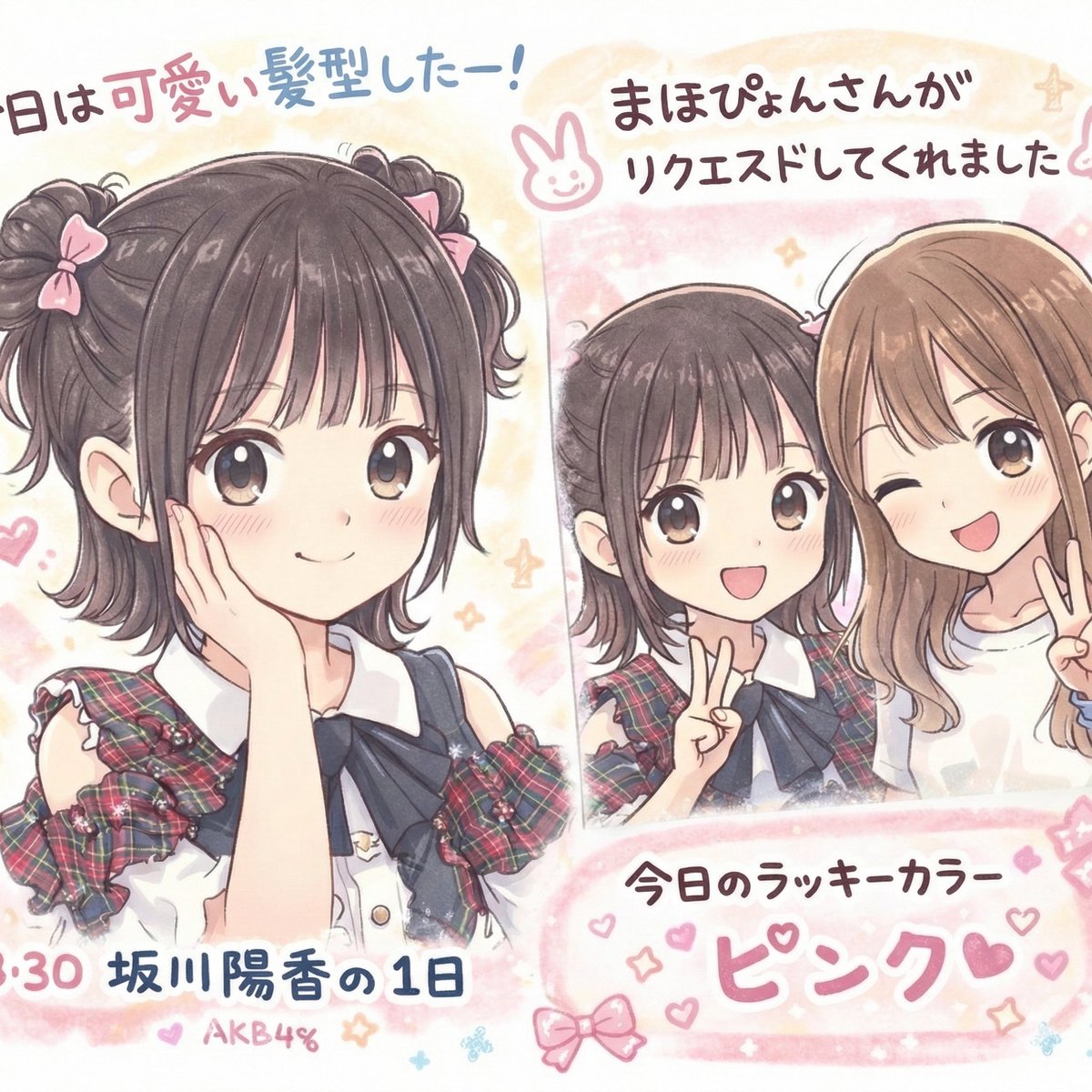
Text Correction and Replacement Prompt
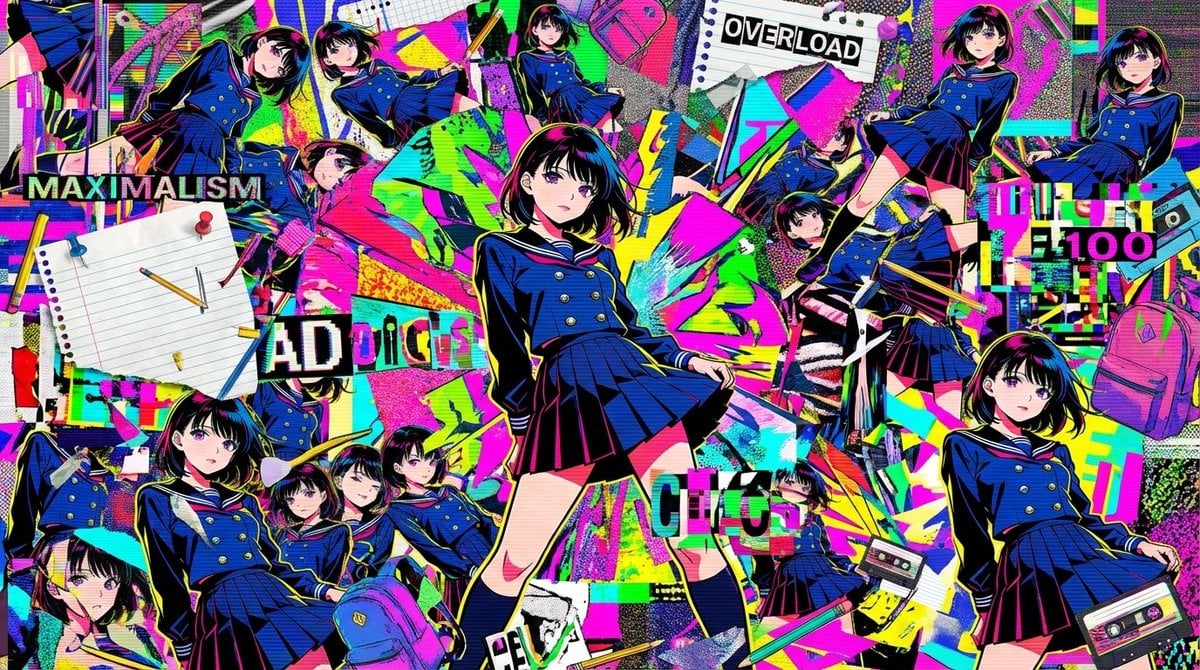
Chaotic Maximalist Anime Poster Prompt (100 Girls)

High-Speed Cinematic Cyberpunk Scene Prompt

Cinematic Desert Explorer Scene Documentation
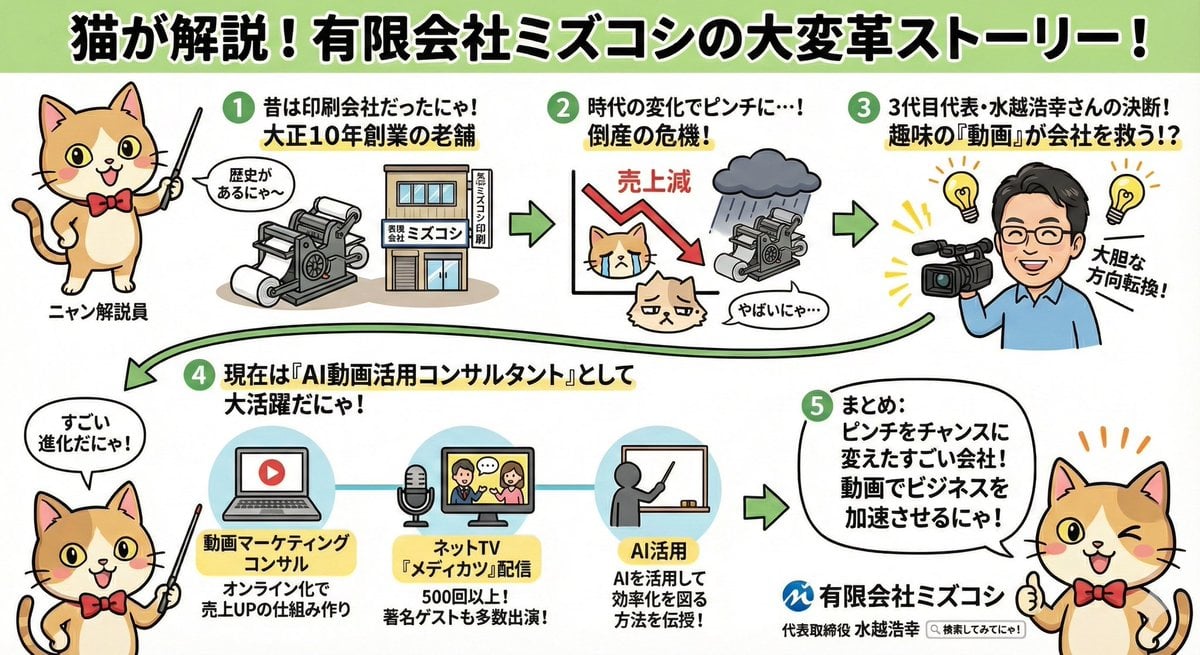
Anime-style Graphic Recording from Web Search Results

Cottagecore Picnic Portrait in Dappled Sunlight
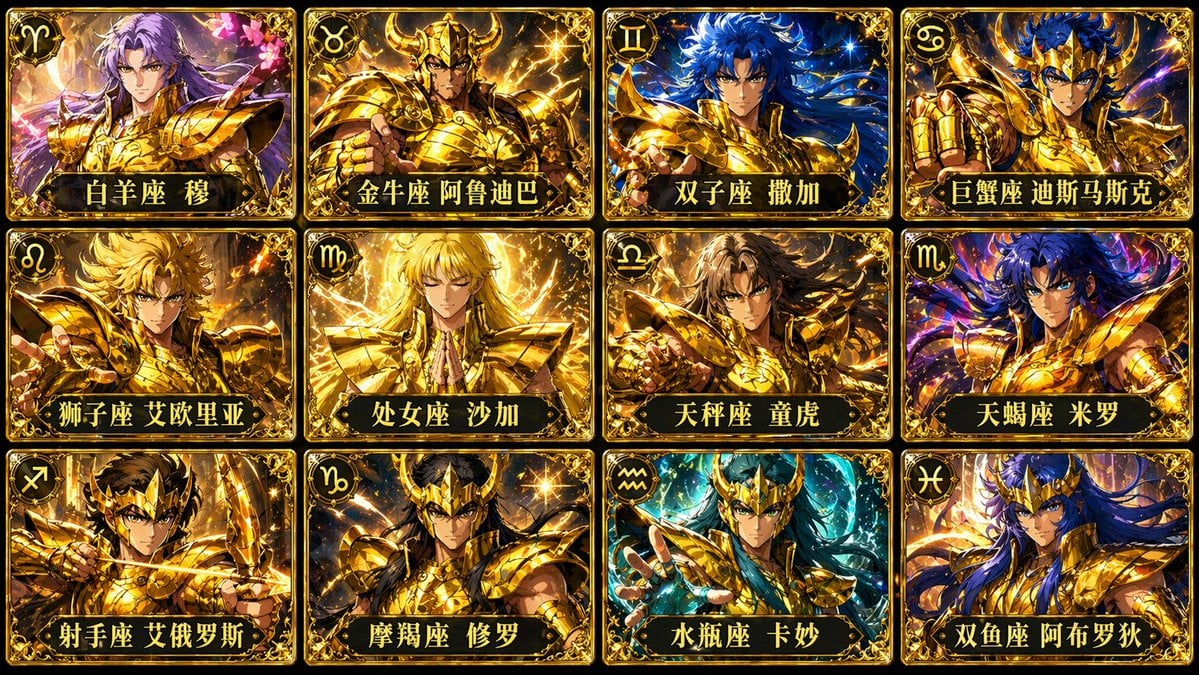
Twelve Gold Saints Card Grid
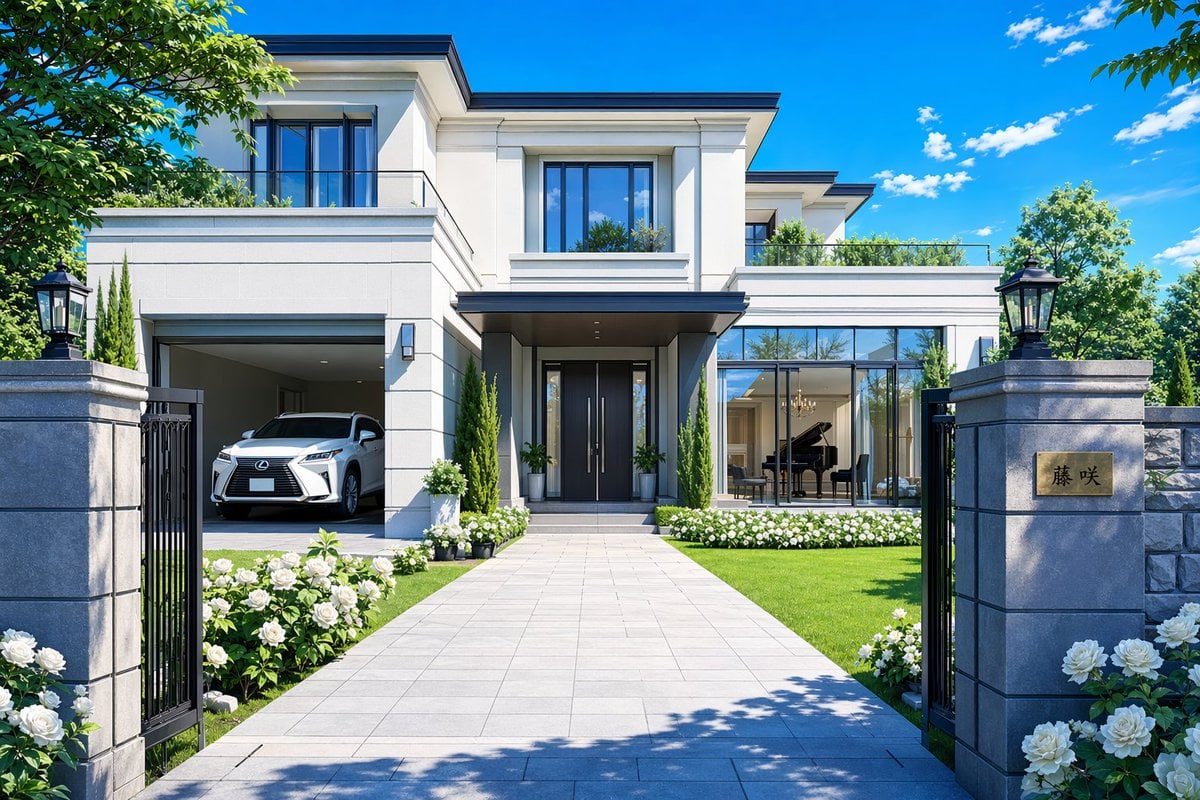
Modern Luxury Mansion Exterior

Pistachio Rose Latte Scrapbook Poster
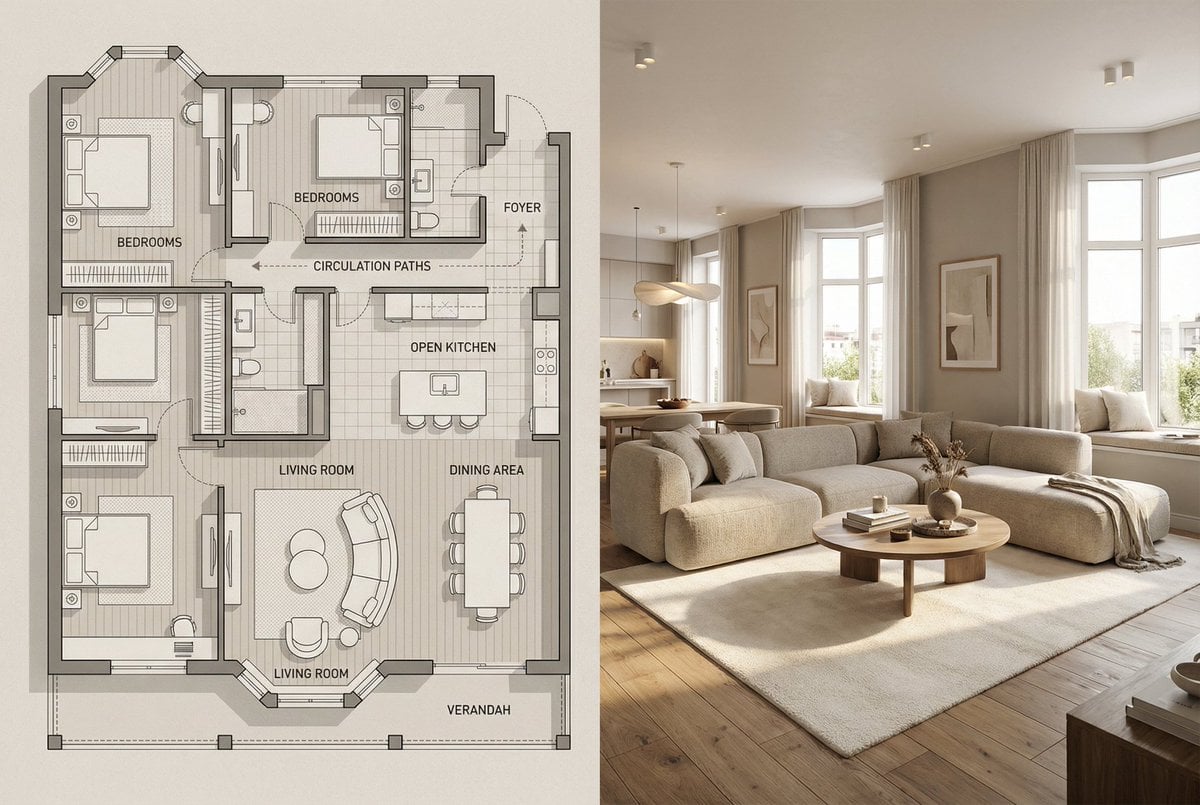
Architectural Floor Plan and Realistic Interior Photo Generation
Browse template categories
Japanese AI Telop Thumbnail questions
How do I use the Japanese AI Telop Thumbnail template?
Add your photo if the template asks for one, edit the prompt if you like — the template's model and format are already selected — and press Generate. Your version opens in PicX Studio.
Can I customize the Japanese AI Telop Thumbnail template?
Yes. You can change the subject, setting, lighting, mood, format, and available model controls before creating your image.
Is the Japanese AI Telop Thumbnail template free?
Opening and editing this template is free. Generating uses credits, shown on the Generate button when you are signed in.
Which AI model should I use?
Start with GPT Image 2, which is the model associated with this template. You can compare another compatible model for a different finish.
Looking for something else? Browse all templates.

Your photo, any look
Thousands of ready templates for every top image and video model, from one credit balance.