
Earth Cutaway Layer Infographic
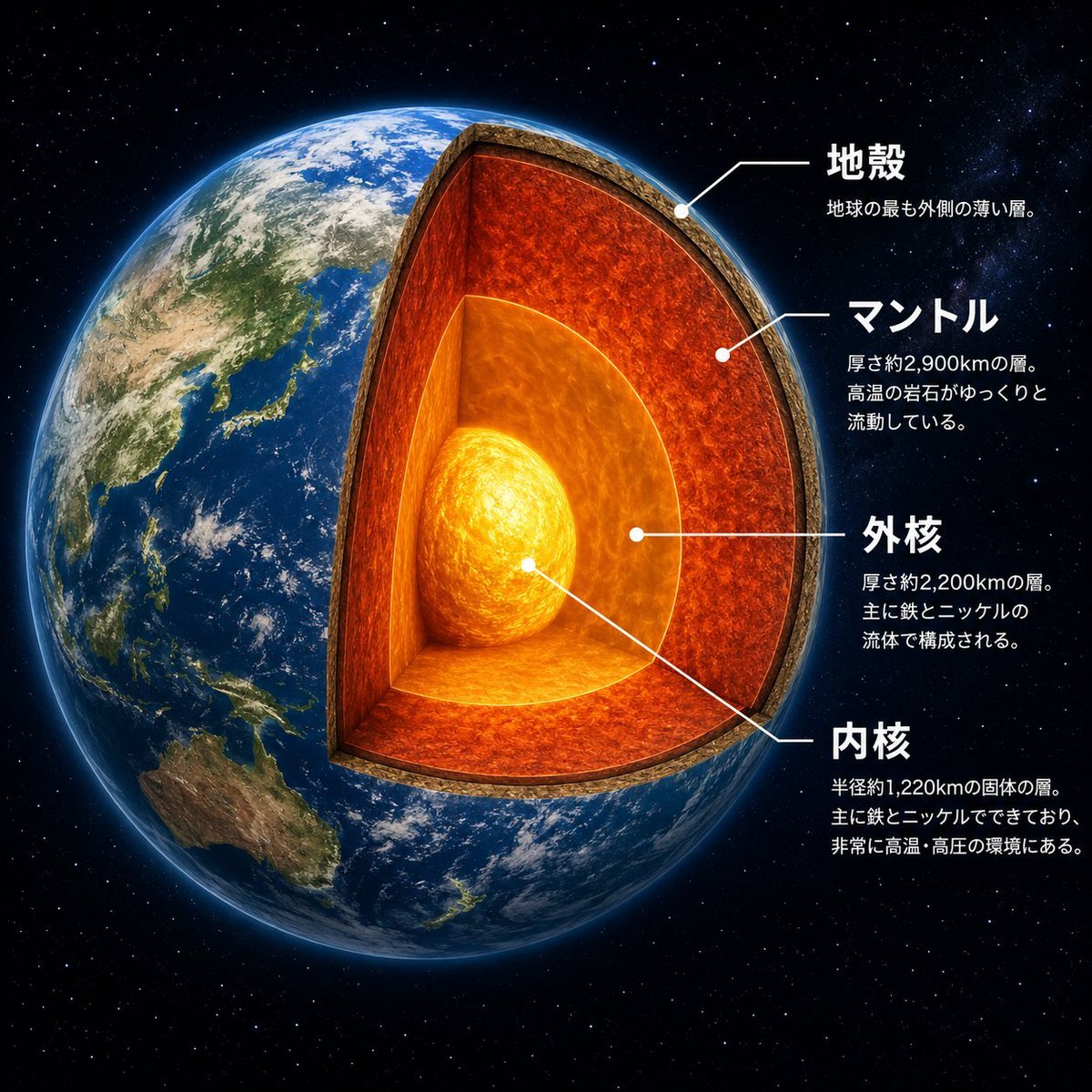
Generates a photorealistic educational cutaway diagram of Earth with Japanese labels for its four internal layers.
- Prompt included
- Model and format preset
- Premium template
The prompt behind this image
Copy the exact prompt behind Earth Cutaway Layer Infographic, or open it in the studio and make it yours.
Goal: Create a dramatic scientific cutaway infographic of {argument name="planet name" default="Earth"}, showing the planet in space with its internal layers exposed like a precise 3D sectional model. Canvas: Square 1:1 composition, high-resolution, black star-filled space background. The planet fills most of the left and center of the frame, with annotation text arranged on the right side. Main subject: A photorealistic Earth viewed from space, centered slightly left, with Asia, Japan, Southeast Asia, and Australia visible on the surface. Remove a large wedge-shaped quarter section from the front-right side of the globe to reveal the interior. The cutaway should look physically carved, with a thick rocky crust rim and glowing internal layers. Add a subtle blue atmospheric glow around the planet. Cutaway structure: Show exactly 4 discrete internal/structural layers, each visually distinct and aligned with annotation leader lines: 1) a thin brown rocky crust at the outer edge, 2) a thick red-orange molten mantle layer with turbulent texture, 3) a bright orange outer core surrounding the center, and 4) a glowing yellow-white inner core sphere at the center. Make the mantle the largest visible layer, the outer core semi-spherical and luminous, and the inner core intensely bright with swirling heat texture. Text and labels: Place exactly 4 Japanese annotation blocks on the right, each with a white dot marker and thin white leader line pointing to the correct layer. Use bold white Japanese headings and smaller white explanatory text beneath each heading. The four visible labels must be: {argument name="crust label" default="地殻"} with smaller text “地球の最も外側の薄い層。”; {argument name="mantle label" default="マントル"} with smaller text “厚さ約2,900kmの層。高温の岩石がゆっくりと流動している。”; {argument name="outer core label" default="外核"} with smaller text “厚さ約2,200kmの層。主に鉄とニッケルの流体で構成される。”; {argument name="inner core label" default="内核"} with smaller text “半径約1,220kmの固体の層。主に鉄とニッケルでできており、非常に高温・高圧の環境にある。” Visual style: Photorealistic space-science educational poster, cinematic lighting, crisp typography, realistic Earth texture, glowing lava-like interior, clean white callout lines, high contrast, polished museum infographic style. Constraints: Keep exactly 4 annotation blocks and exactly 4 layer labels. Do not add extra icons, extra labels, borders, logos, watermarks, or decorative UI panels. Keep all text legible and positioned to the right of the planet.
How to use Earth Cutaway Layer Infographic in 3 steps
- 1Upload ImagePNG, JPG or paste
Add your photo
Upload the photo the template builds on. The prompt, model and format are already set.
- 2…a portrait of your subject in softgolden-hour light, 85mm…
Personalize
Edit the subject and creative details for your destination.
- 3Generate
Generate
Press Generate — your image is created in PicX Studio, so you can compare it with the original and refine one variable at a time.
More like this
Templates with the same subject, style or setup. Open one to see its prompt.
Gpt2 Infographic Edu Visual Earth Signs Zodiac Character Poster

Japan Travel Brochure Poster
Layered GPT Image 2 Workflow Infographic

Isometric Process Educational Diorama

Isometric Vehicle Teardown Infographic Template
Cute Heart Cutaway Infographic
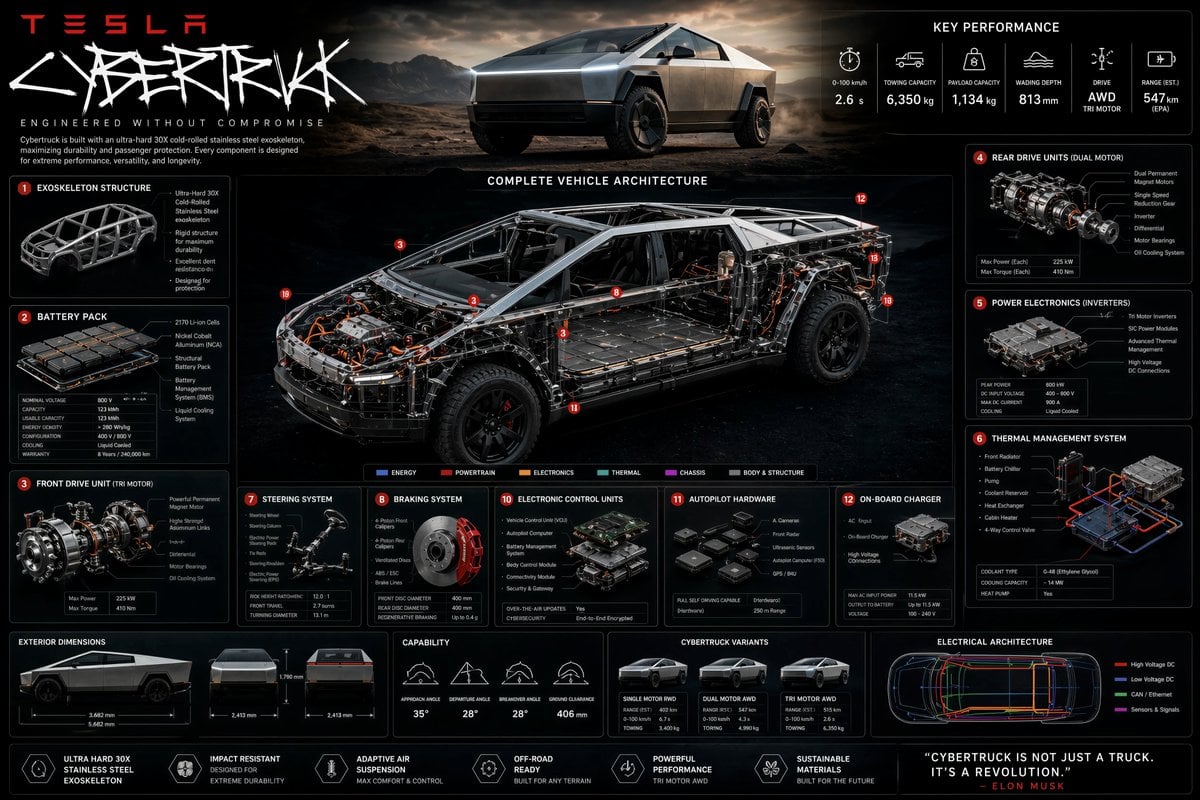
Technical Cutaway Infographic Poster
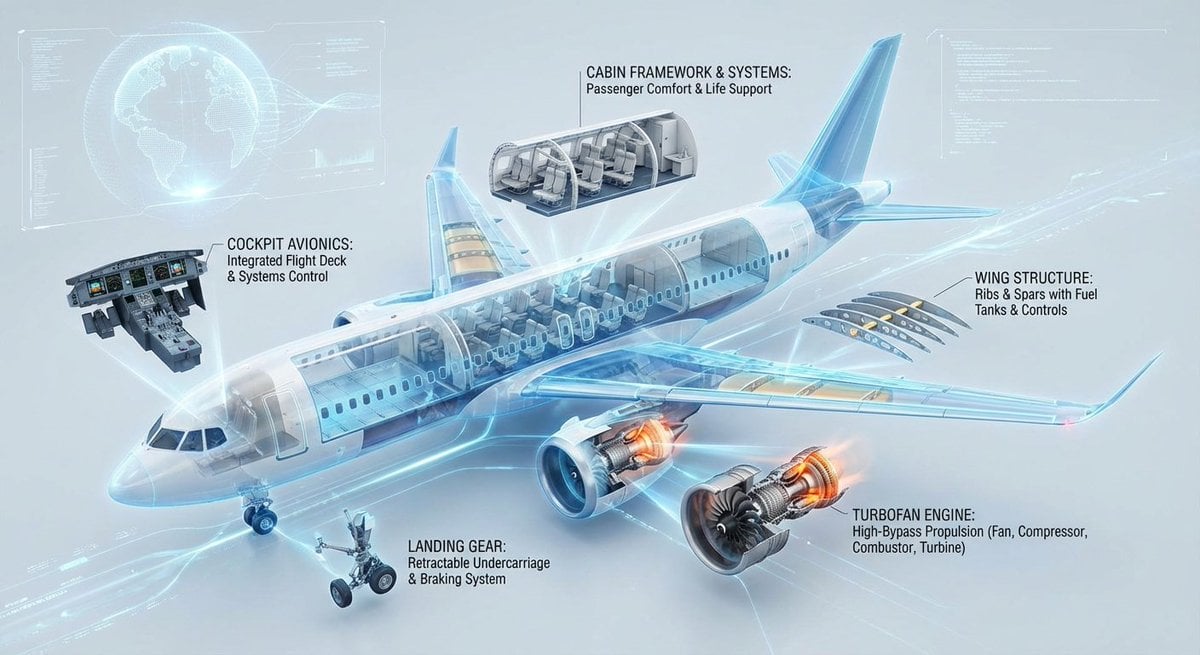
Cutaway infographic of a modern jet airliner
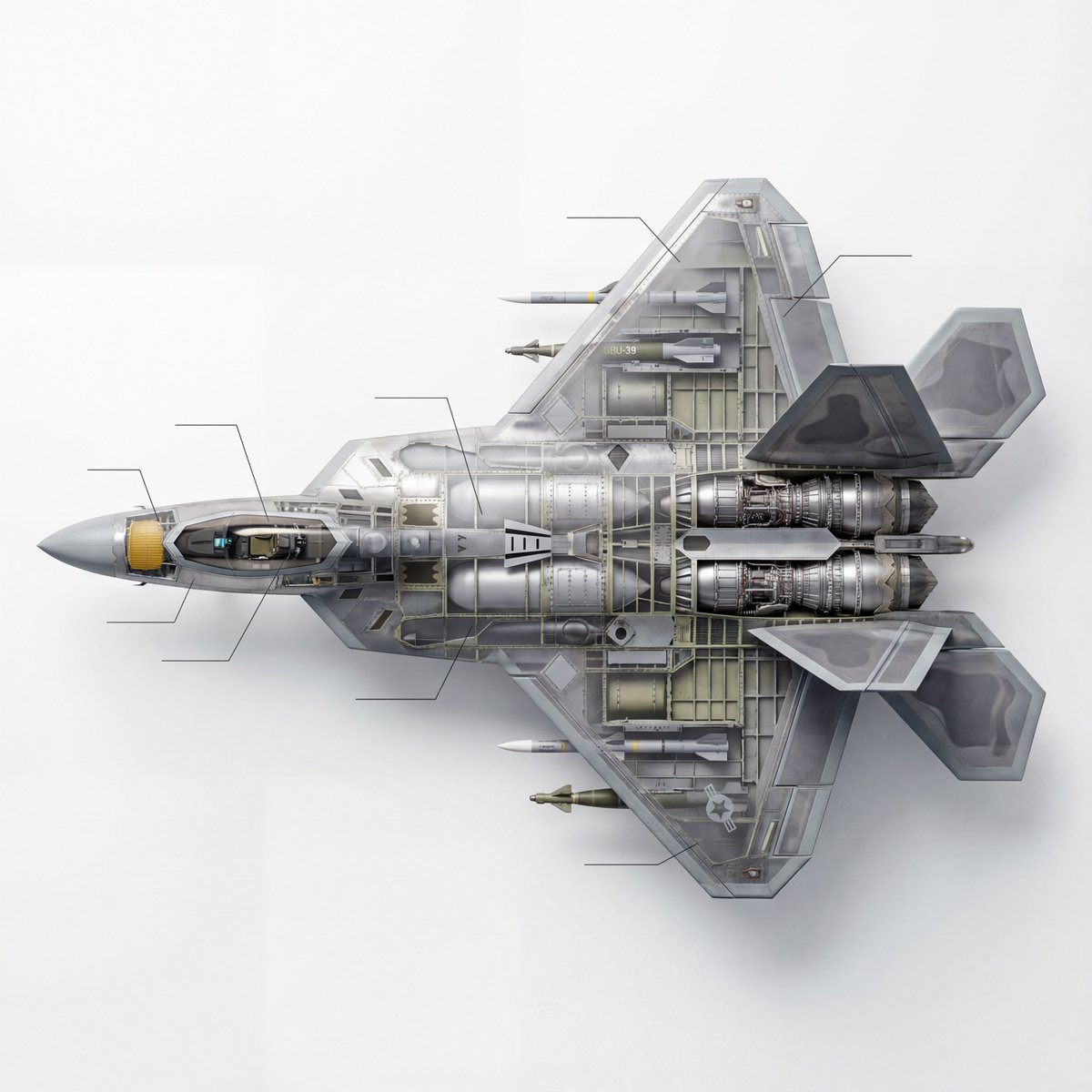
Cutaway infographic of a 5th generation stealth fighter jet
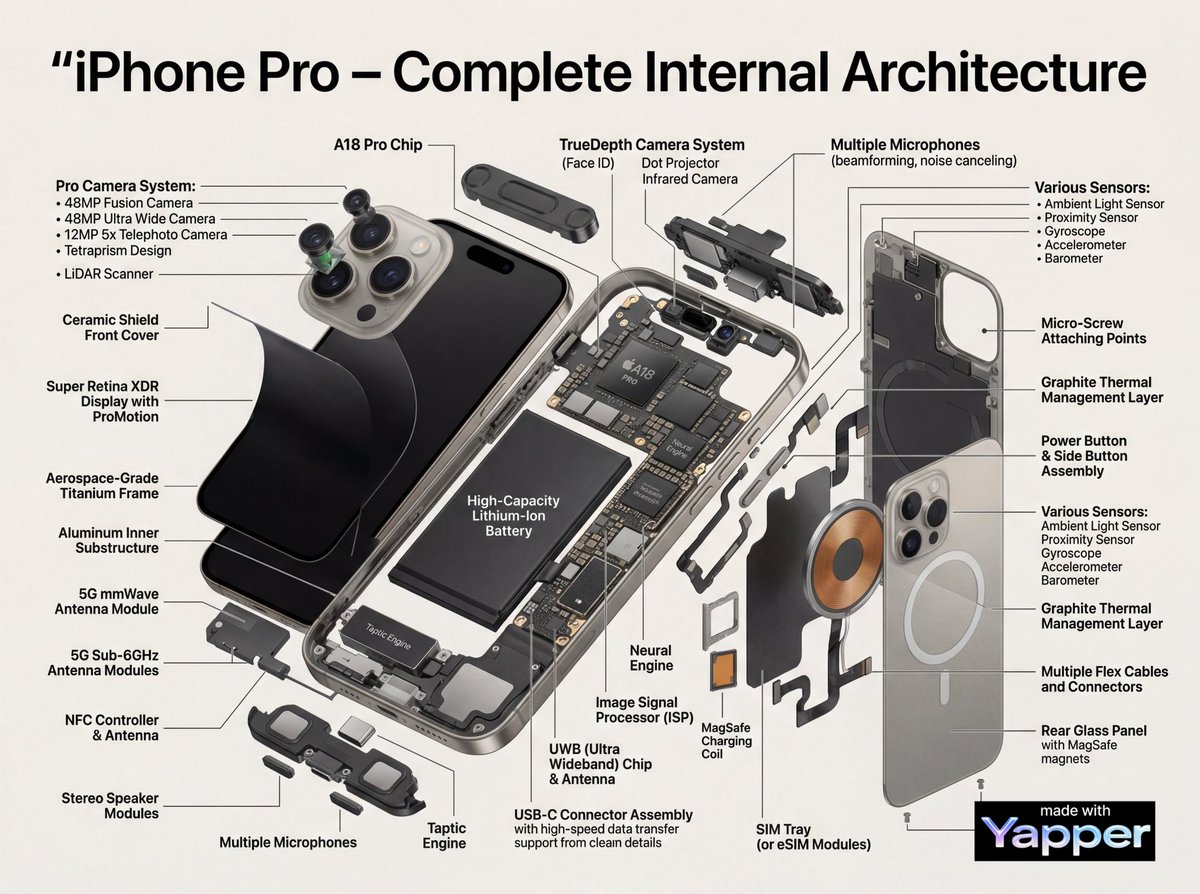
Technical Infographic Cutaway Prompt

Gpt2 E Commerce Main Image Earbuds E Commerce Infographic
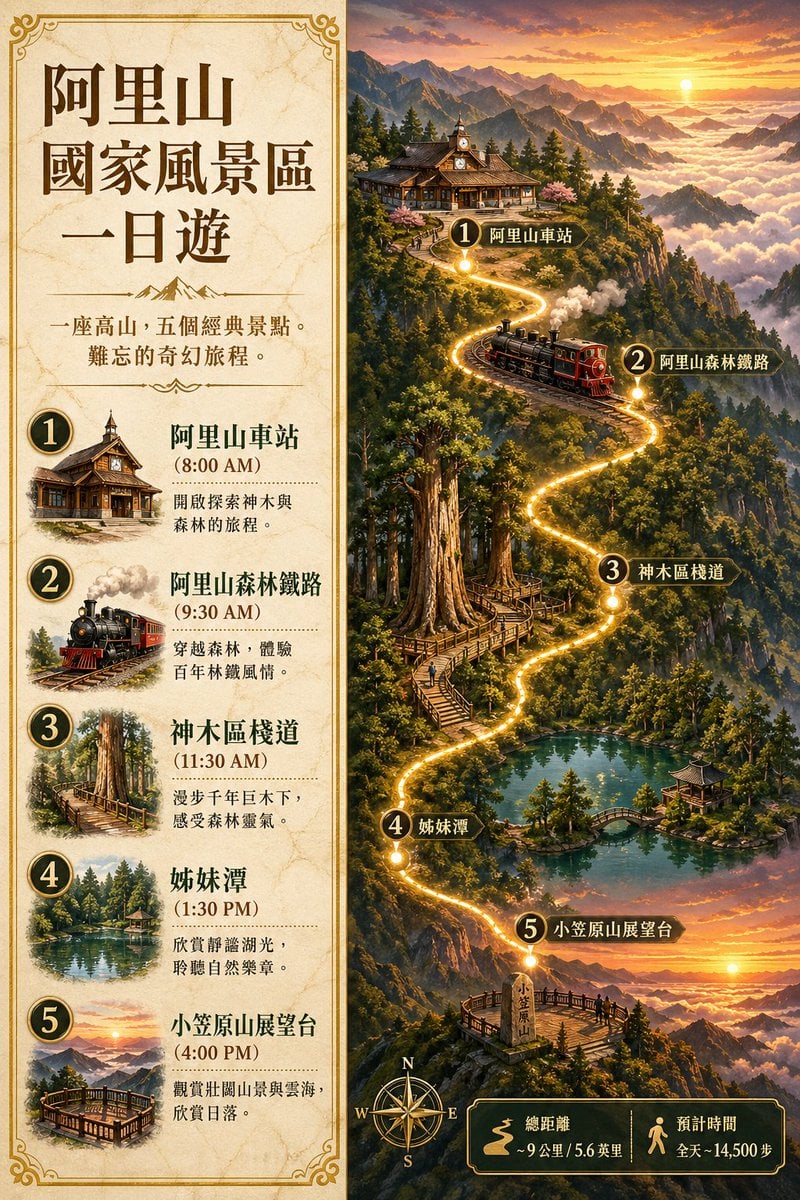
Gpt2 Infographic Edu Visual Alishan One Day Travel Poster
Make it yours
Earth Cutaway Layer Infographic works as-is. These are the safest ways to change it without losing the look.
Change one field
Copy a single group, rewrite it, and generate again so you can see what that field is doing.
Keep the frame, change the subject
Hold the composition and light of Earth Cutaway Layer Infographic, then swap wardrobe, props or the person for a new take.
| If the result… | Why | Fix |
|---|---|---|
| The result drifts from the preview | Too many fields changed at once. | Reuse Earth Cutaway Layer Infographic as-is first, then change one group — subject, light, or setting. |
| The model over-stylizes the scene | The prose prompt leaves finish and camera underspecified. | Add one camera or lighting sentence and stay on GPT Image 2. |
More GPT Image 2 templates
Other prompts made for GPT Image 2.

Six VTuber Japanese Logo Sheet

Realistic Portrait of Woman and Deer

The Vista Modular Condo Poster

AI Model Routing Comparison Infographic

2.5D Anime Art Board

Isometric Productivity Desk Scene

New York Double Exposure Poster

Four-Panel AI Landscape Comparison

Japanese Tatami Lifestyle Magazine Cover

NESCAFÉ Coffee Map Poster
More image prompts
Fresh picks from across the catalog.
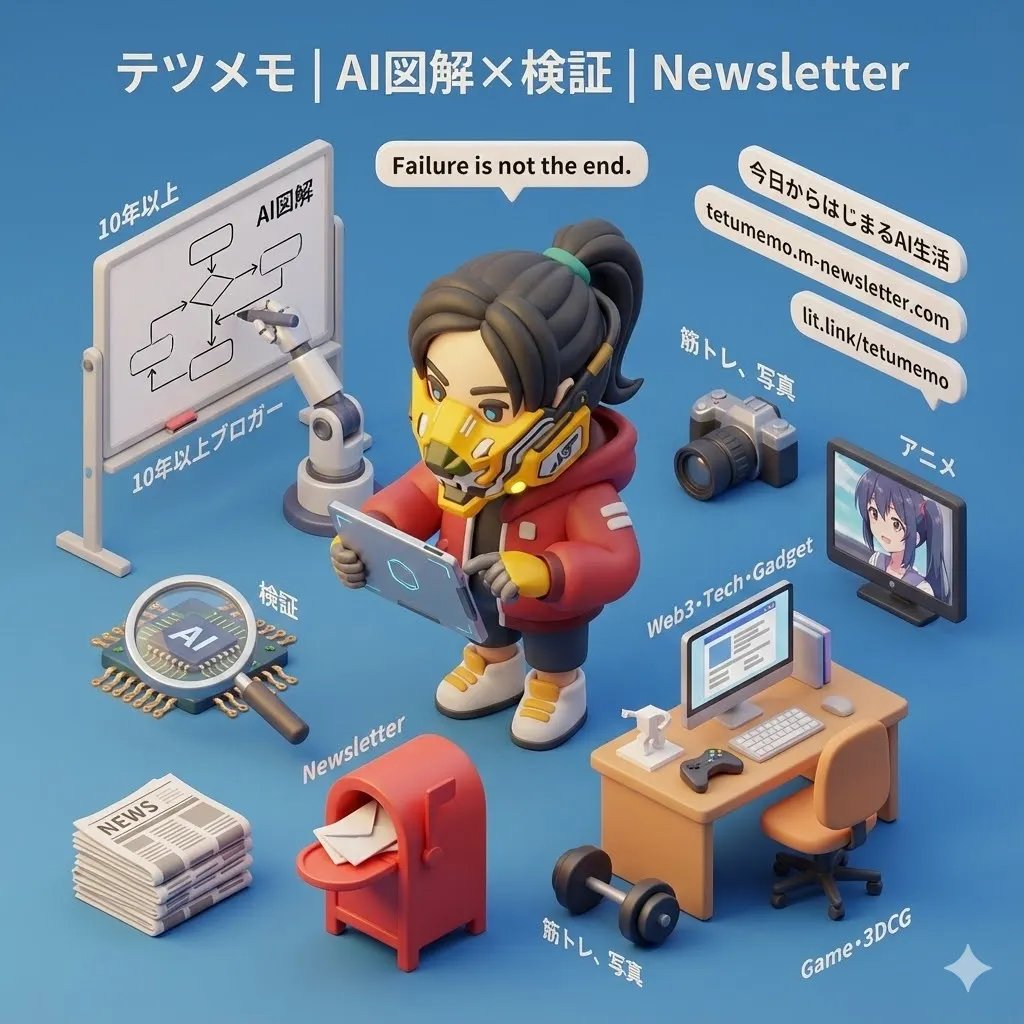
3D Cartoon Miniature Scene from Profile Image
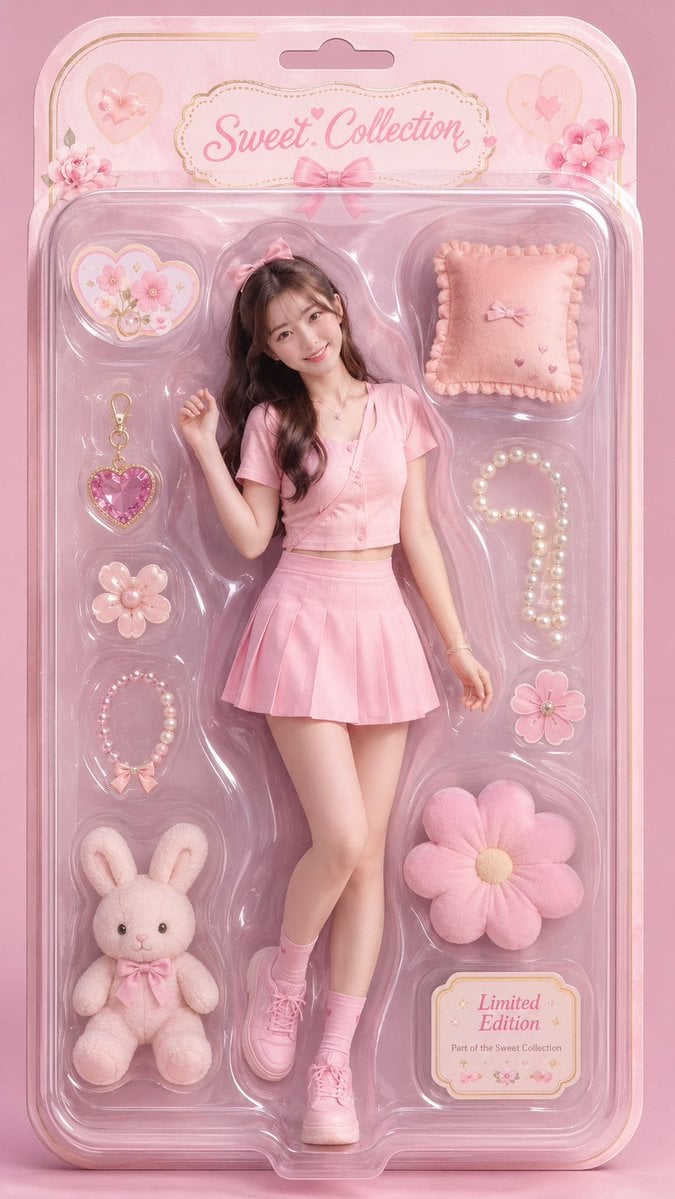
Surrealist Fashion Doll Box Portrait
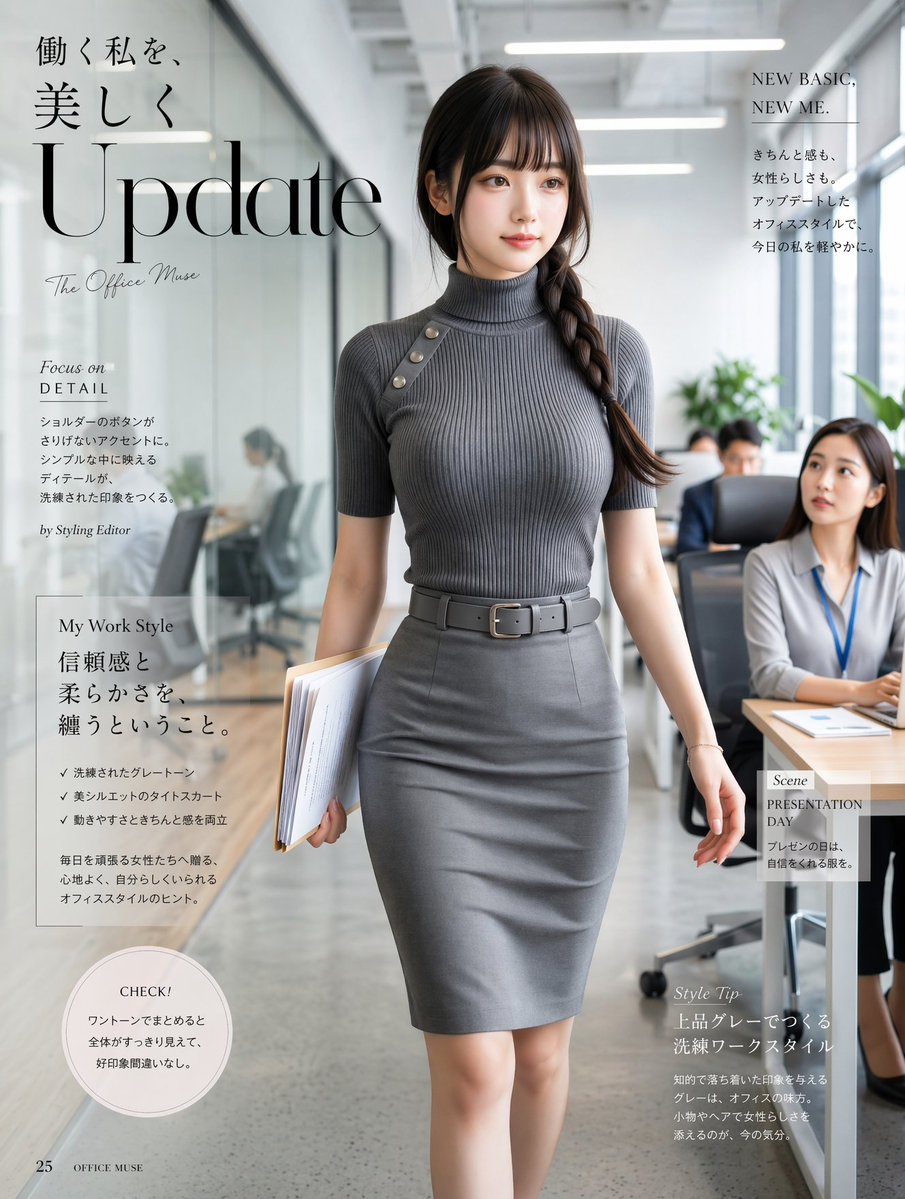
Office Fashion Magazine Cover
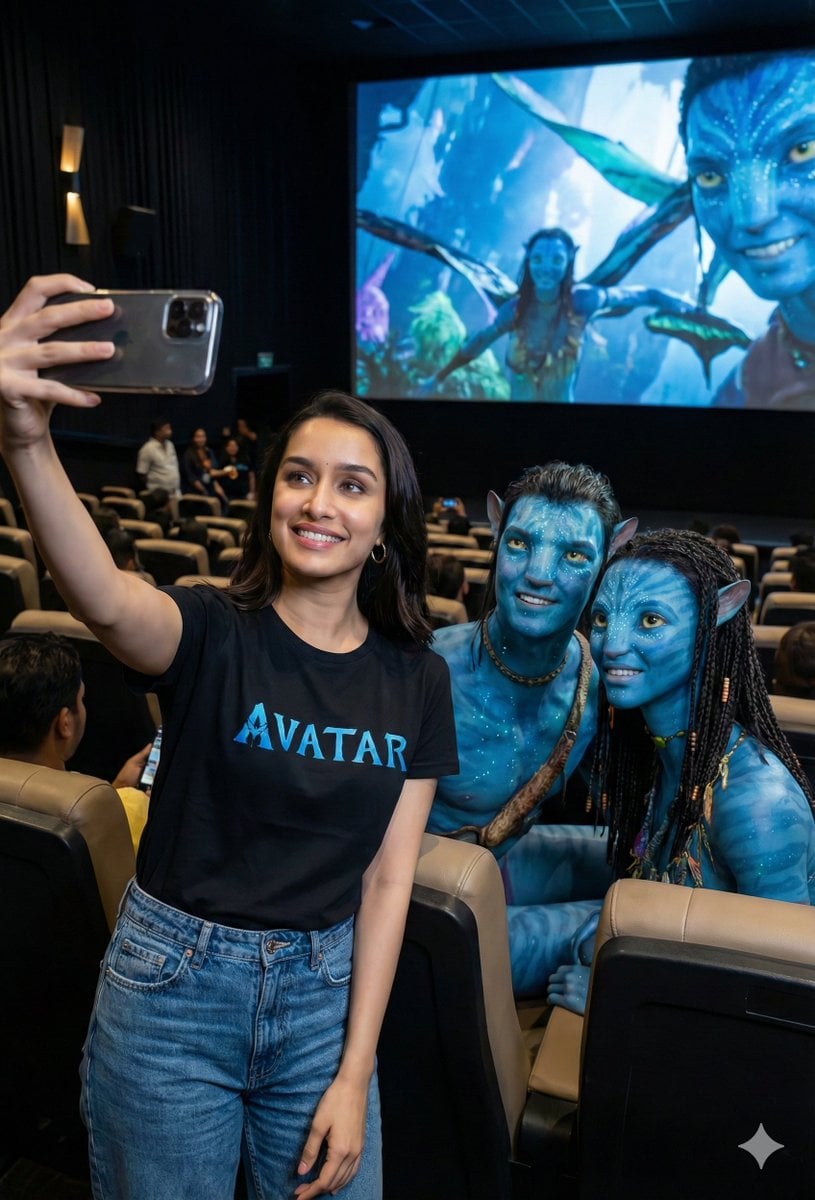
Avatar Movie Selfie in a Cinema Hall
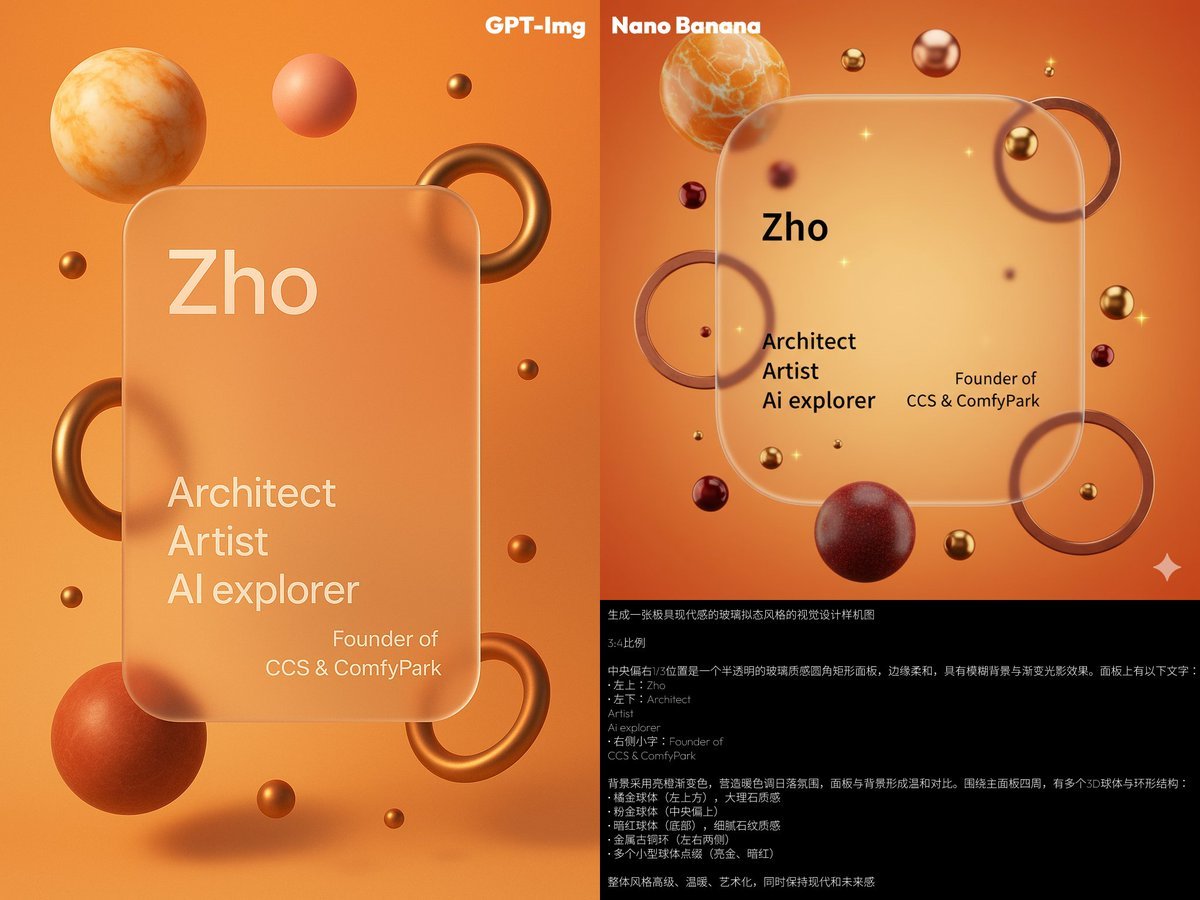
Glassmorphism personal branding mockup
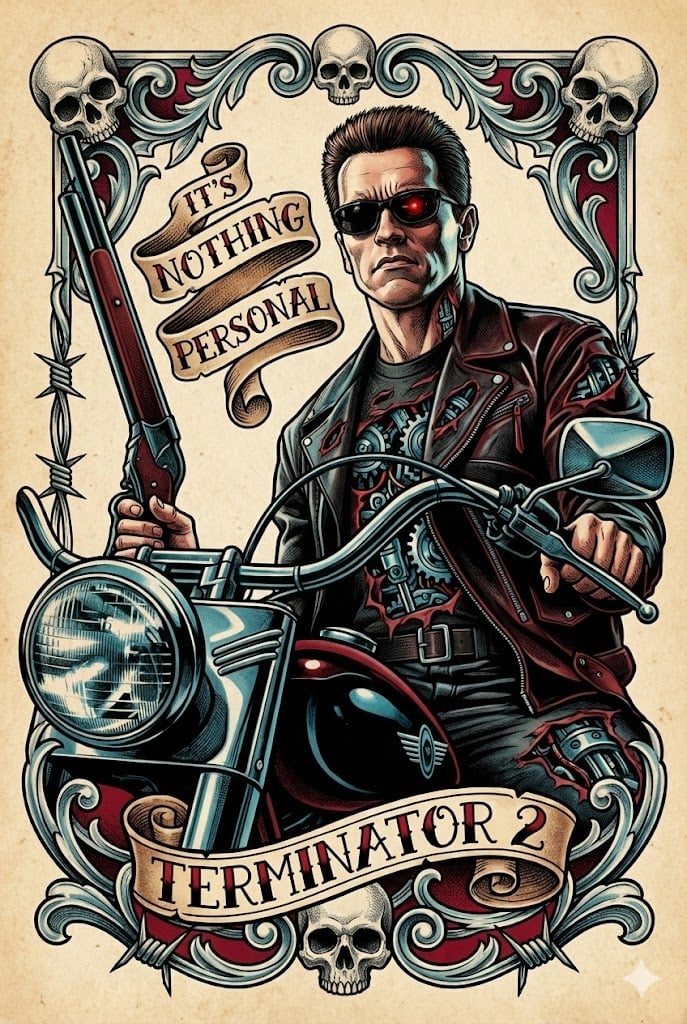
Neo-Traditional Tattoo Flash Prompt
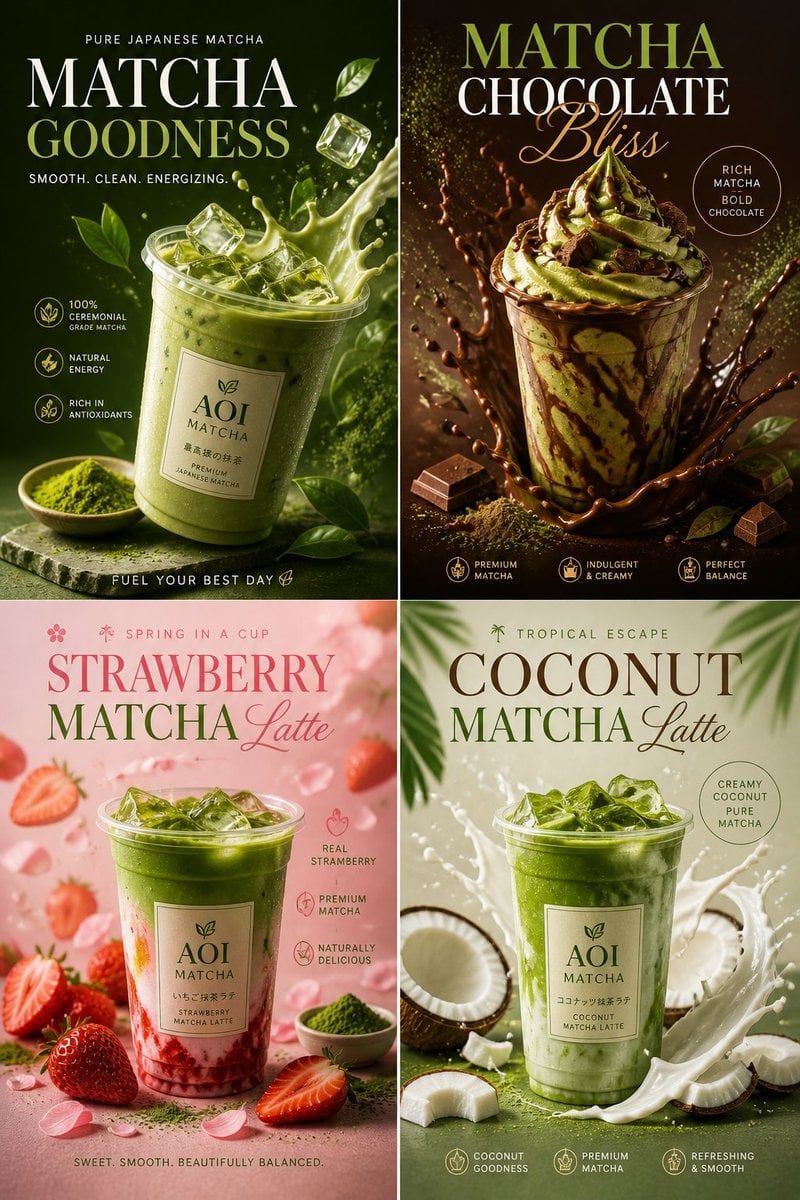
Commercial Food Photography Poster

Cozy Study Room Night Portrait
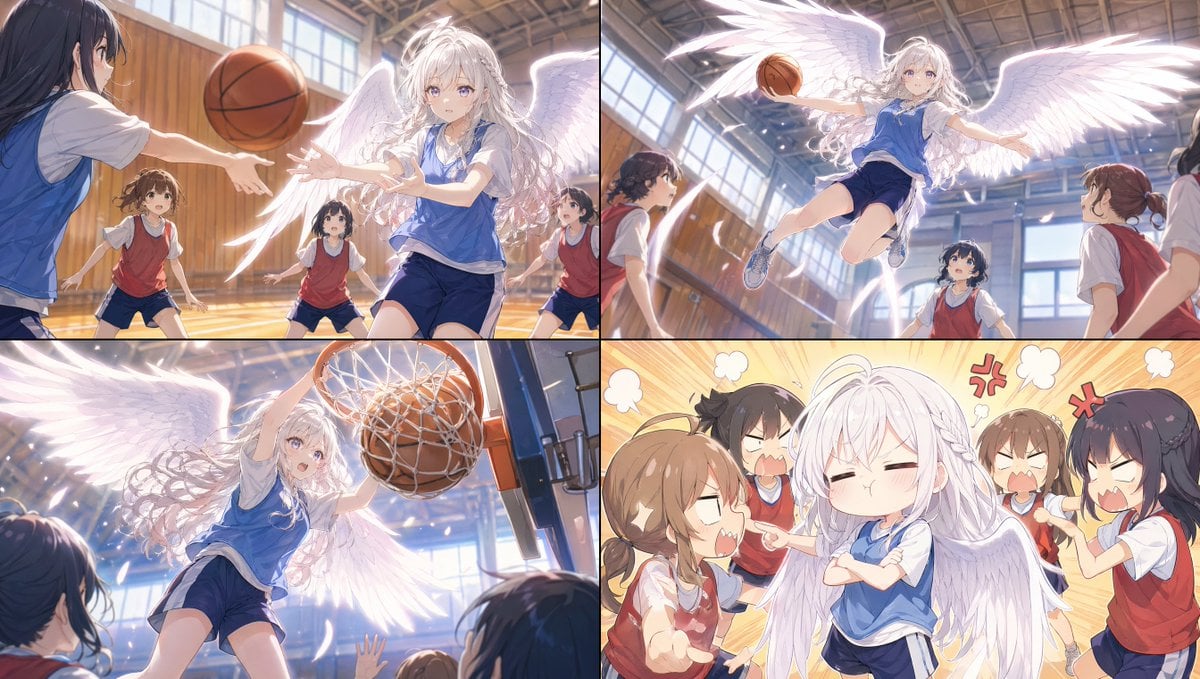
Angel Girl Basketball Storyboard

Cinematic Dark Fantasy Portrait Prompt for Nano Banana 2
Browse template categories
Earth Cutaway Layer Infographic questions
How do I use the Earth Cutaway Layer Infographic template?
Add your photo if the template asks for one, edit the prompt if you like — the template's model and format are already selected — and press Generate. Your version opens in PicX Studio.
Can I customize the Earth Cutaway Layer Infographic template?
Yes. You can change the subject, setting, lighting, mood, format, and available model controls before creating your image.
Is the Earth Cutaway Layer Infographic template free?
Opening and editing this template is free. Generating uses credits, shown on the Generate button when you are signed in.
Which AI model should I use?
Start with GPT Image 2, which is the model associated with this template. You can compare another compatible model for a different finish.
Looking for something else? Browse all templates.

Your photo, any look
Thousands of ready templates for every top image and video model, from one credit balance.