
Japanese Developer Comment Banner
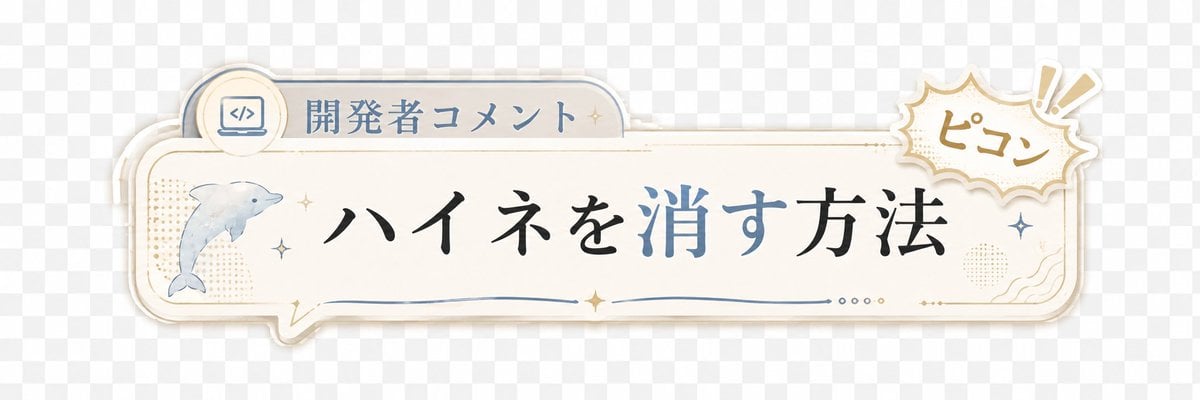
A decorative transparent-style Japanese lower-third banner for adding developer comments or captions to short videos.
- Prompt included
- Model and format preset
- Free template
The prompt behind this image
Copy the exact prompt behind Japanese Developer Comment Banner, or open it in the studio and make it yours.
Create a transparent-background decorative Japanese lower-third banner for a short video overlay. Canvas: wide horizontal 3:1 ratio, about 1200×400 px, with a light gray checkerboard transparency preview behind the artwork. Main object: a cream-white rounded rectangular speech-bubble plaque spanning most of the width, with layered offset shadows and thin gold and pale blue outline strokes, slightly vintage stationery style. Layout: place a small tab on the upper left of the plaque containing a circular icon of a laptop with code brackets and the label {argument name="category label" default="開発者コメント"}; place the main headline centered in large elegant Japanese Mincho-style calligraphy reading {argument name="headline text" default="ハイネを消す方法"}, with the characters for “消す” colored muted blue while the rest is black. On the left side inside the plaque, include exactly 1 watercolor-style dolphin illustration facing right, pale blue-gray. On the upper right, overlapping the plaque, add exactly 1 comic burst sticker with scalloped edges, beige outline, and handwritten text {argument name="sound effect text" default="ピコン"}, plus exactly 2 exclamation mark rays. Decorative details: include exactly 6 small sparkle stars distributed around the dolphin, headline, and right edge; exactly 1 thin blue wavy underline beneath the headline; exactly 4 tiny dots near the lower right center; subtle beige halftone dot patches on the left and right; small gold ornamental corner flourishes. Visual style: soft pastel cream, dusty blue, muted gold, clean Japanese YouTube Shorts caption graphic, gentle drop shadows, crisp vector edges mixed with light watercolor texture. Constraints: no characters or people, no extra text, keep the banner readable with generous empty space, preserve a transparent PNG overlay feel.
How to use Japanese Developer Comment Banner in 3 steps
- 1Upload ImagePNG, JPG or paste
Add your photo
Upload the photo the template builds on. The prompt, model and format are already set.
- 2…a portrait of your subject in softgolden-hour light, 85mm…
Personalize
Edit the subject and creative details for your destination.
- 3Generate
Generate
Press Generate — your image is created in PicX Studio, so you can compare it with the original and refine one variable at a time.
More like this
Templates with the same subject, style or setup. Open one to see its prompt.

Minecraft Japanese Research Lab Exploration

Japanese Architectural Concrete Studio Fashion Campaign

Japanese Minimalist Concrete Studio Fashion Editorial

Blue Backdrop Luxury Fashion Portrait Campaign
Japanese Film Reflection Idol
Coffee Boba Product Poster
Japanese Delivery Referral Banner
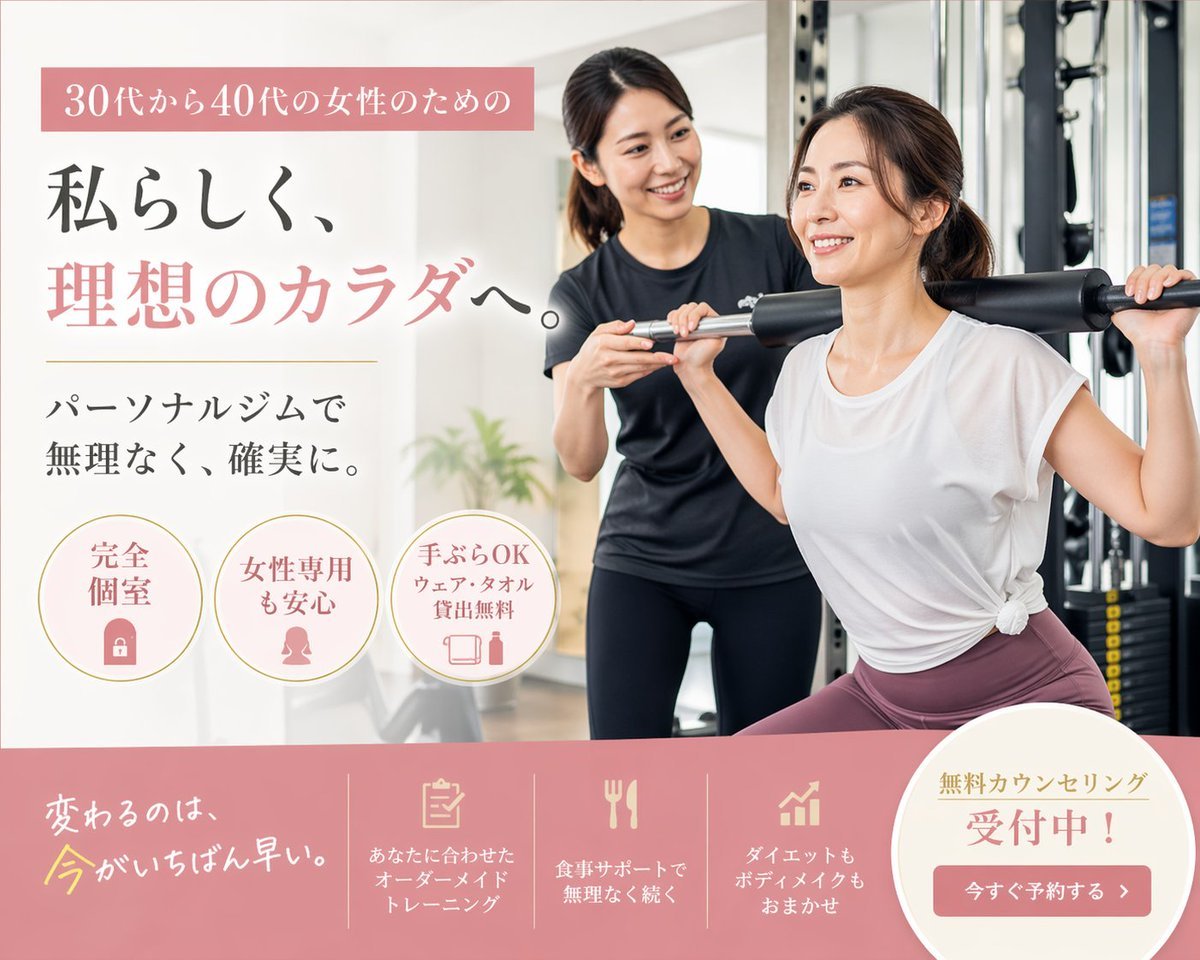
Japanese Women's Gym Hero Banner
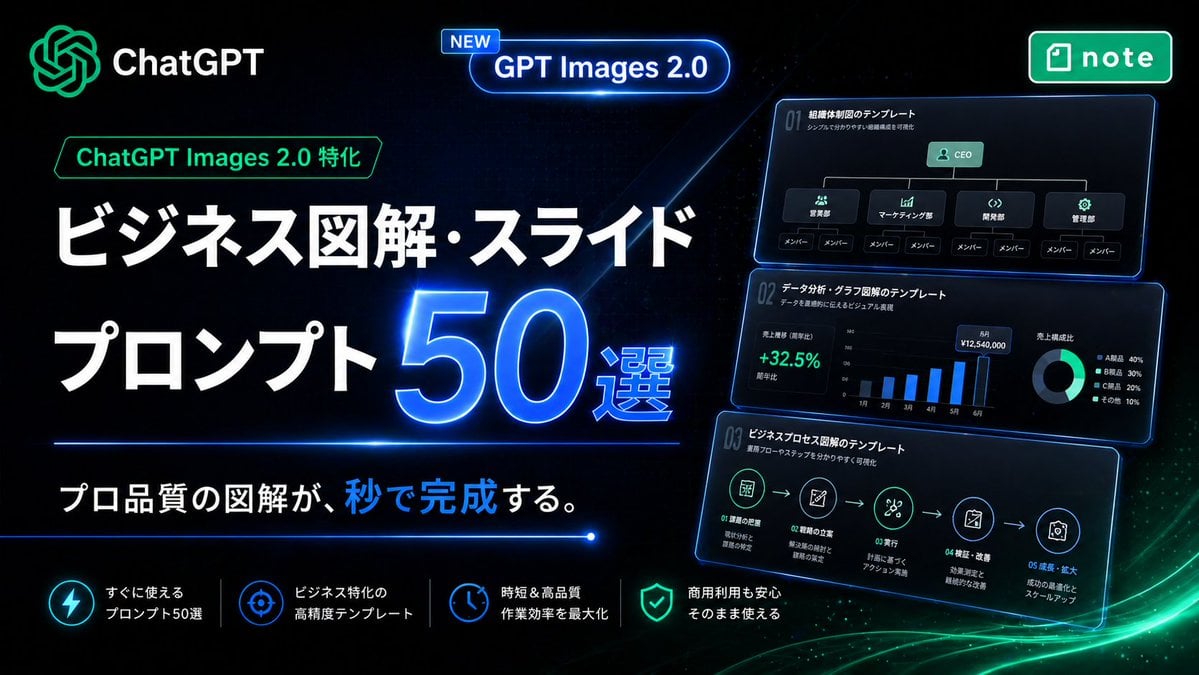
Neon Japanese AI Prompt Promo Banner

Japanese SaaS Ad Banner at Night
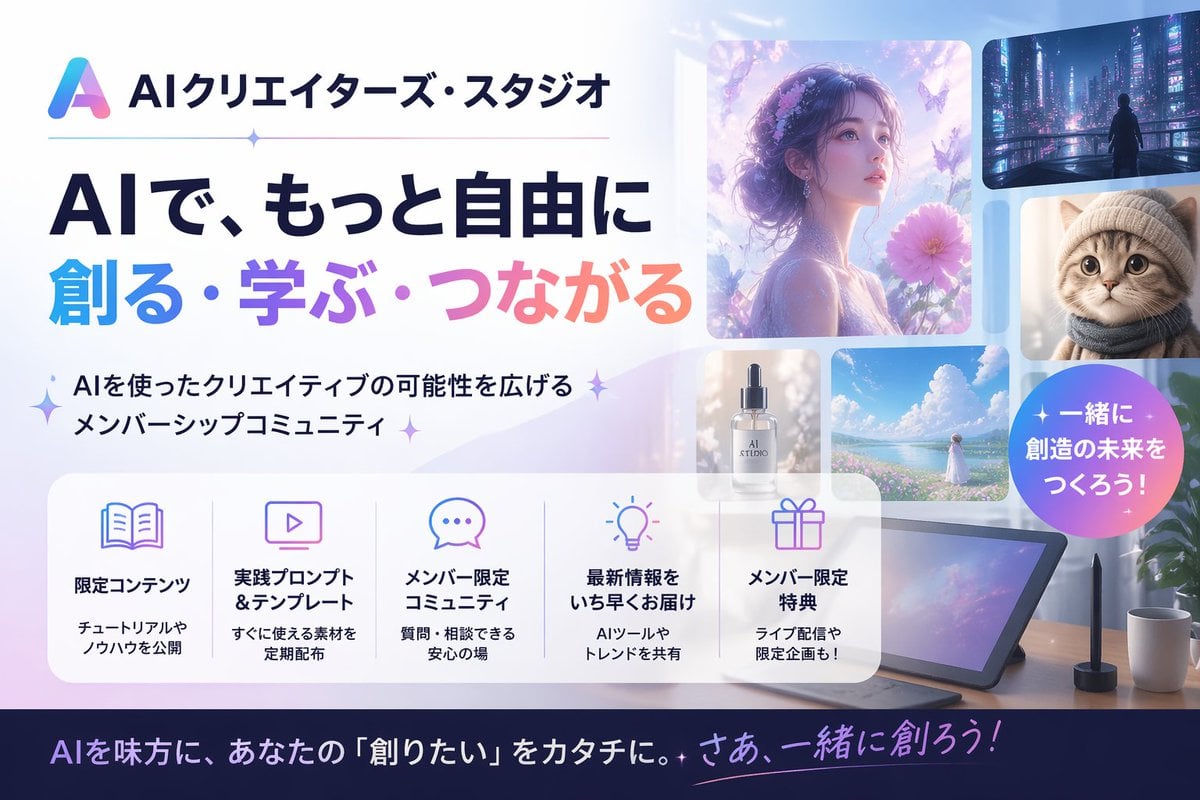
Japanese AI Creator Studio Banner

Japanese AI Consulting OGP Banner
Make it yours
Japanese Developer Comment Banner works as-is. These are the safest ways to change it without losing the look.
Change one field
Copy a single group, rewrite it, and generate again so you can see what that field is doing.
Keep the frame, change the subject
Hold the composition and light of Japanese Developer Comment Banner, then swap wardrobe, props or the person for a new take.
| If the result… | Why | Fix |
|---|---|---|
| The result drifts from the preview | Too many fields changed at once. | Reuse Japanese Developer Comment Banner as-is first, then change one group — subject, light, or setting. |
| The model over-stylizes the scene | The prose prompt leaves finish and camera underspecified. | Add one camera or lighting sentence and stay on GPT Image 2. |
More GPT Image 2 templates
Other prompts made for GPT Image 2.

Six VTuber Japanese Logo Sheet

Realistic Portrait of Woman and Deer

The Vista Modular Condo Poster

AI Model Routing Comparison Infographic

2.5D Anime Art Board

Isometric Productivity Desk Scene

New York Double Exposure Poster

Four-Panel AI Landscape Comparison

Japanese Tatami Lifestyle Magazine Cover

NESCAFÉ Coffee Map Poster
More image prompts
Fresh picks from across the catalog.
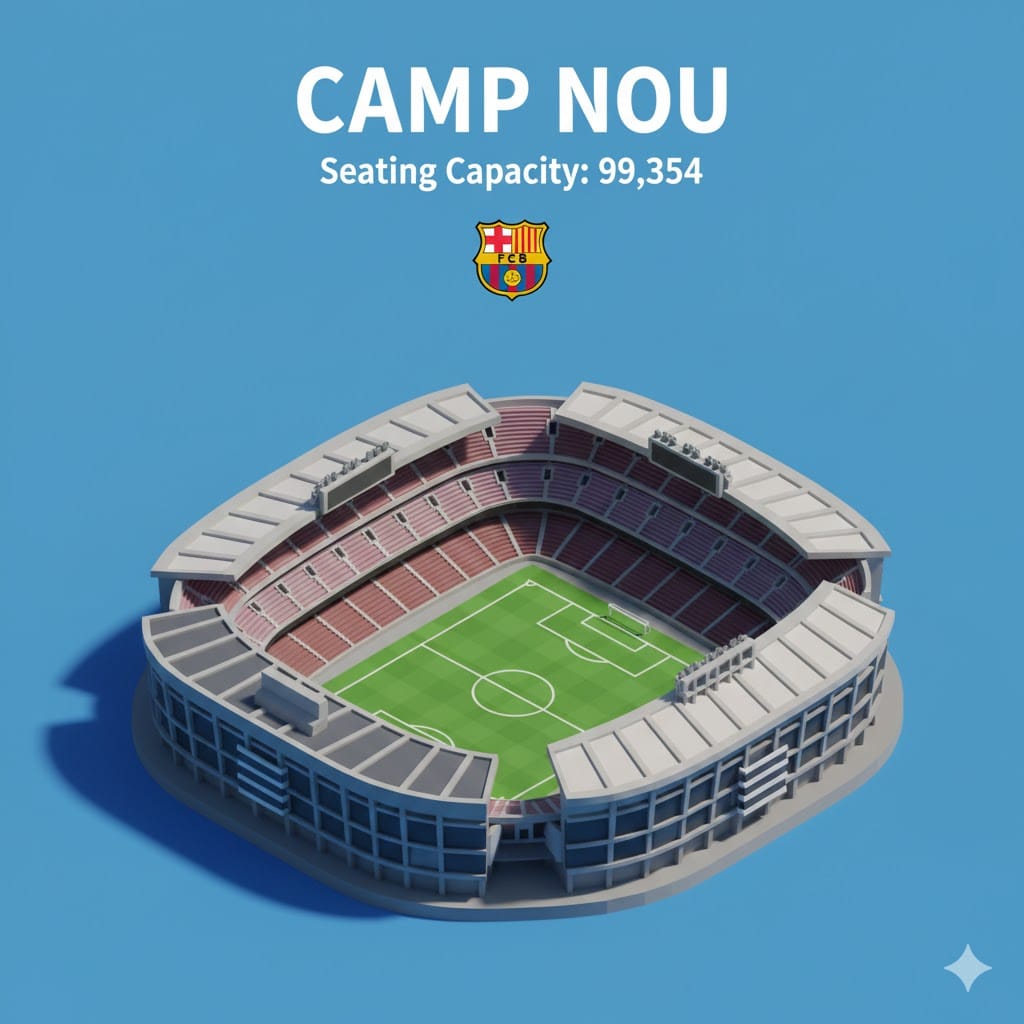
Isometric 3D Miniature Stadium Infographic

Luxury Pink Chocolatier Gift Box

Cinematic Studio Portrait with Floating Feathers
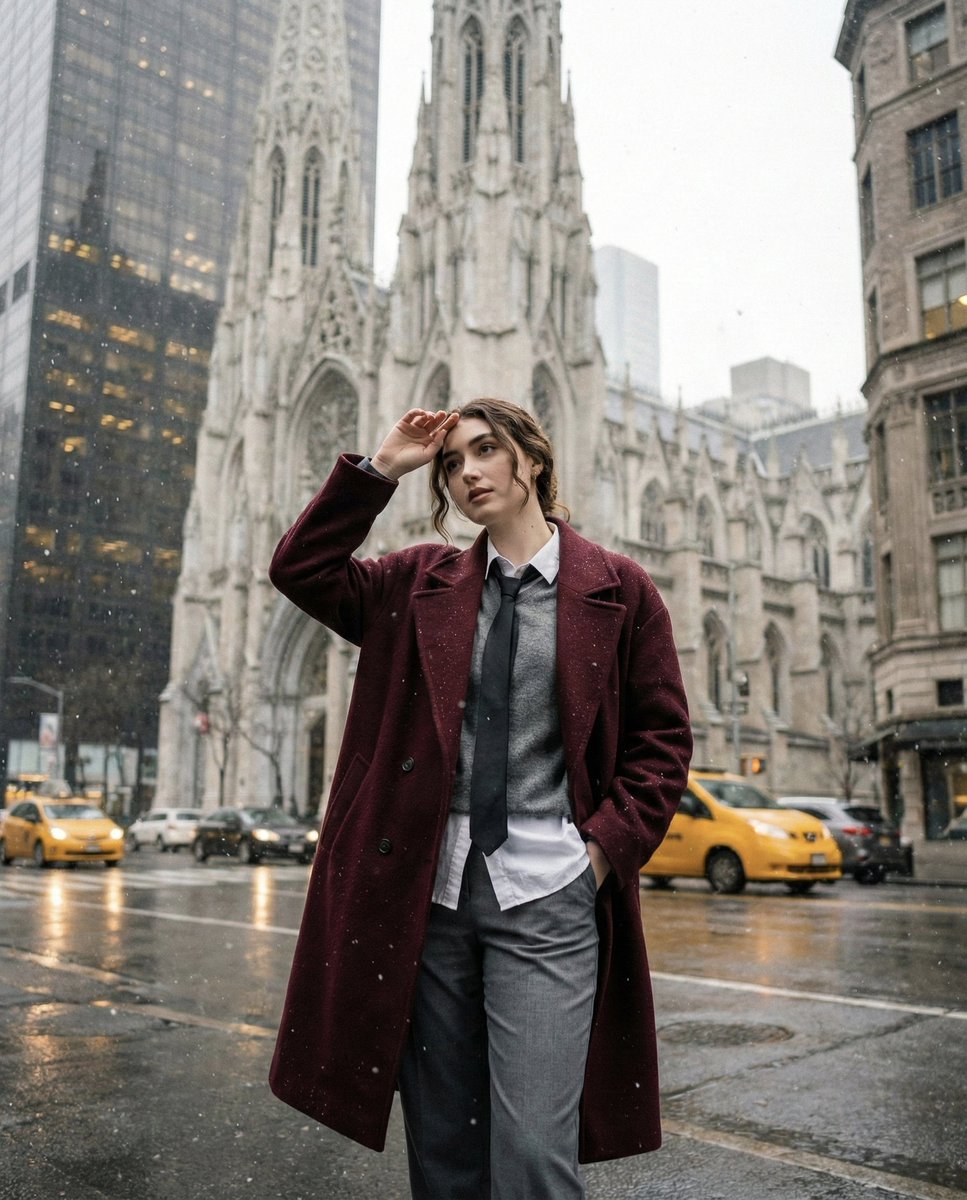
Candid Winter City Portrait during Snowfall
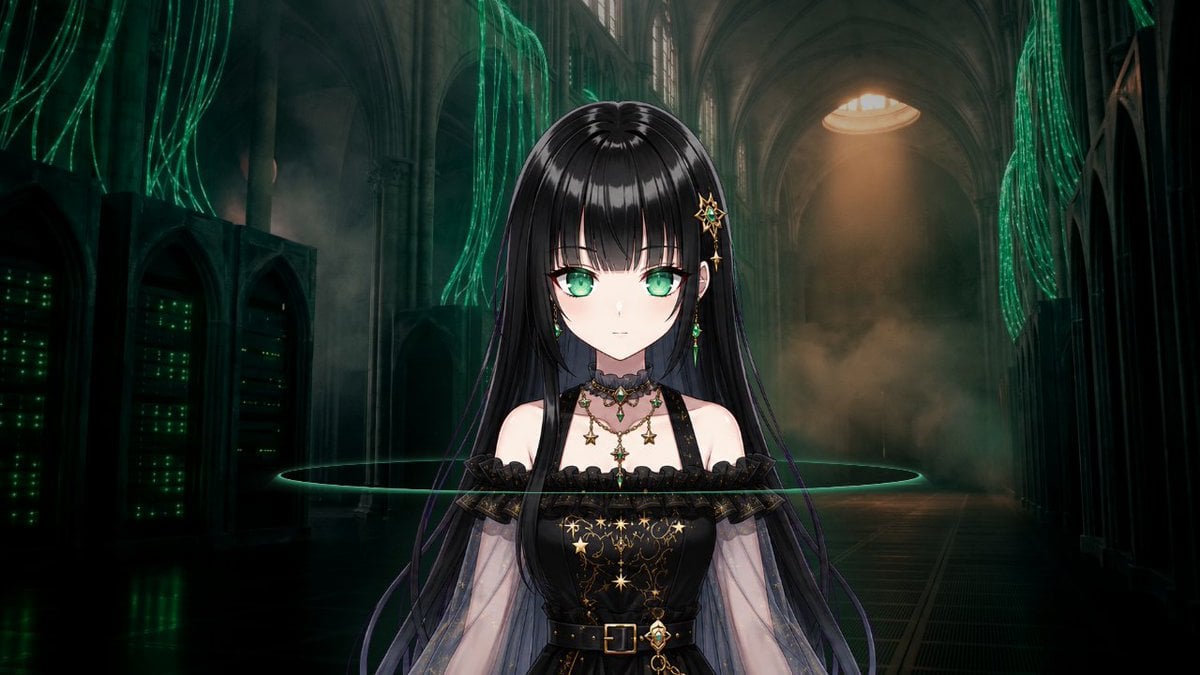
Gothic Cyber VTuber Cathedral Portrait
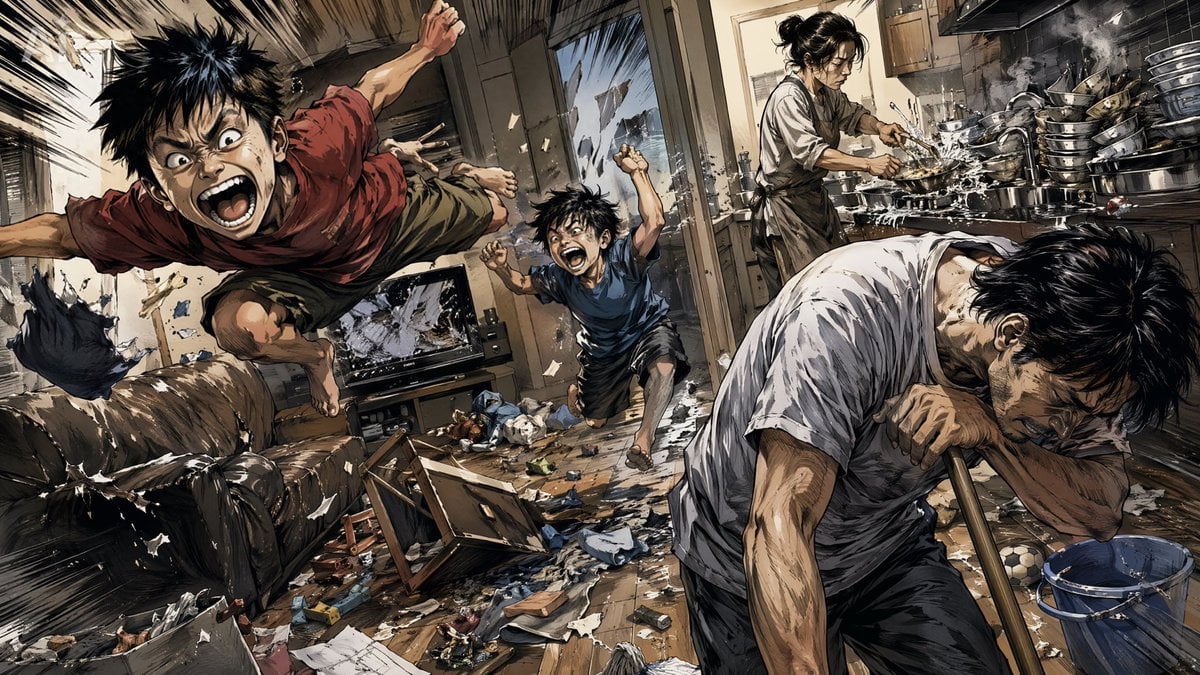
Chaotic Holiday at Home Manga Scene

Panning shot of a soccer player kicking a ball
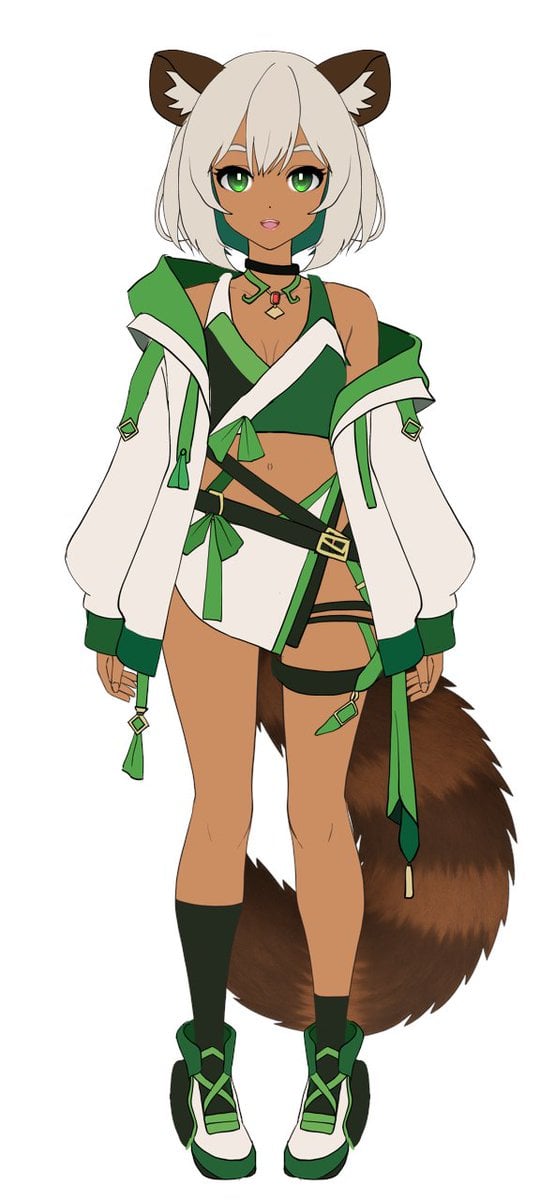
Flat Color to Rendered Anime Shading
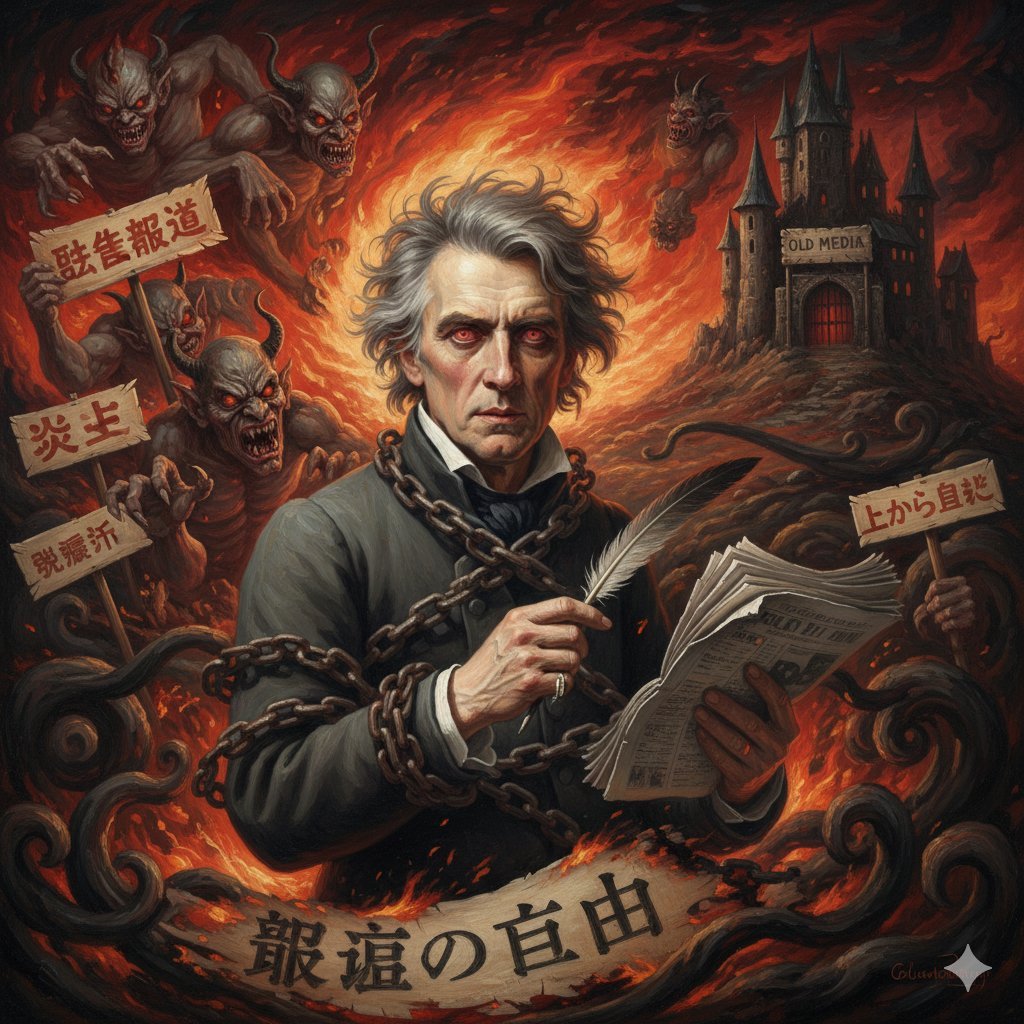
Image Generation Prompt for Chopin in Delacroix Style
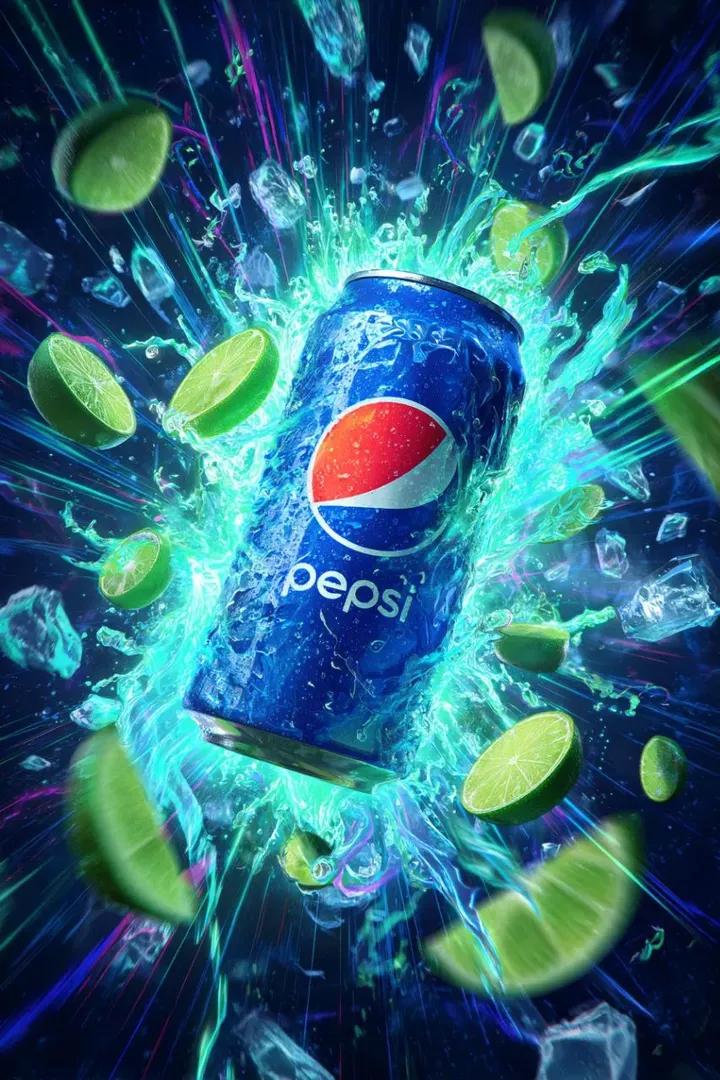
Cinematic Cola Can Explosion Advertisement Prompt
Browse template categories
Japanese Developer Comment Banner questions
How do I use the Japanese Developer Comment Banner template?
Add your photo if the template asks for one, edit the prompt if you like — the template's model and format are already selected — and press Generate. Your version opens in PicX Studio.
Can I customize the Japanese Developer Comment Banner template?
Yes. You can change the subject, setting, lighting, mood, format, and available model controls before creating your image.
Is the Japanese Developer Comment Banner template free?
Opening and editing this template is free. Generating uses credits, shown on the Generate button when you are signed in.
Which AI model should I use?
Start with GPT Image 2, which is the model associated with this template. You can compare another compatible model for a different finish.
Looking for something else? Browse all templates.

Your photo, any look
Thousands of ready templates for every top image and video model, from one credit balance.