How do I use the Real Person and Ink-Twin Doodle template?
Choose the primary action to open PicX Studio with the available template settings. Review the model and format, personalize the creative direction, and generate when ready.
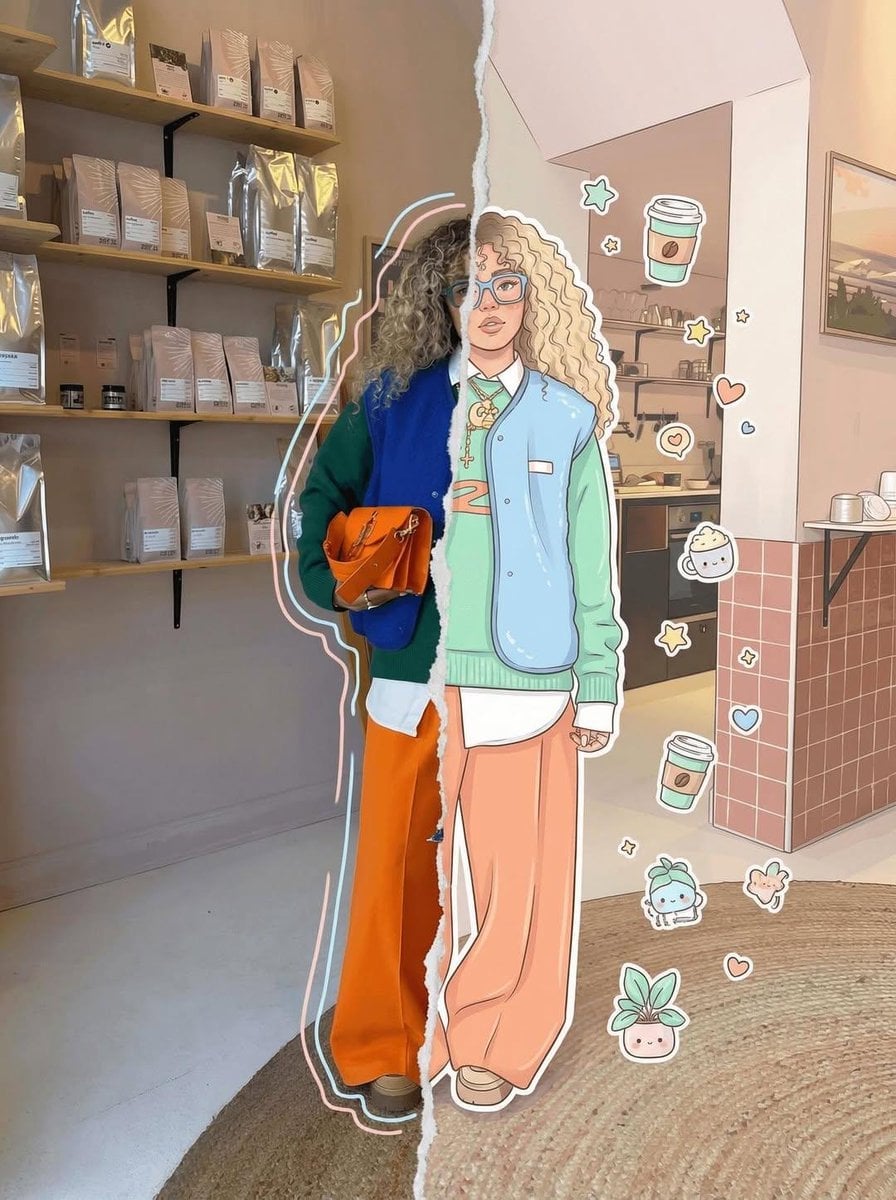
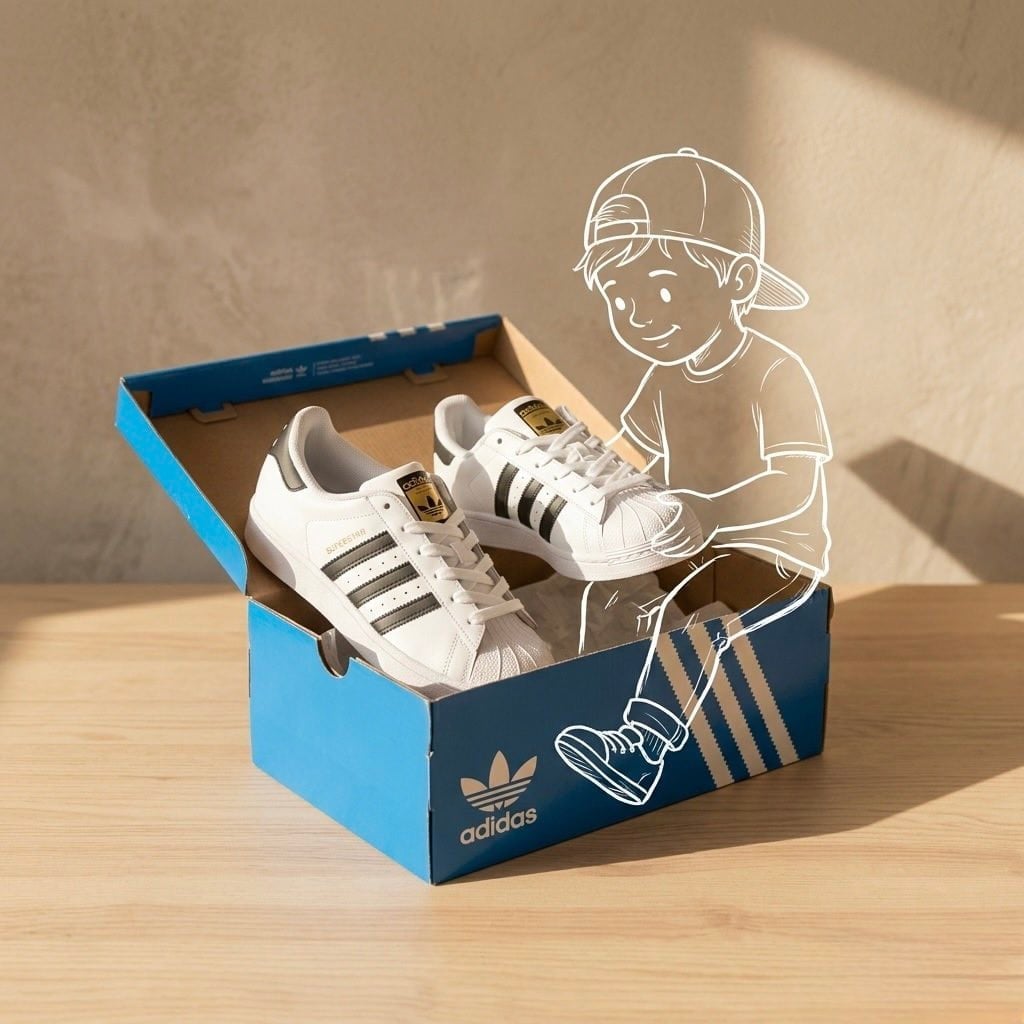
A creative prompt that generates a photorealistic portrait of a person standing next to a hand-drawn charcoal sketch version of themselves.
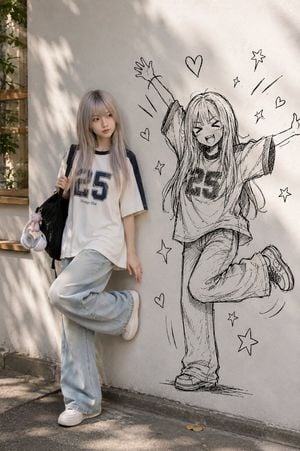
Use the uploaded photo as the exact identity reference. Keep the face, skin tone, hairstyle, accessories, and outfit exactly the same. Create a vertical full-body image of the real person standing beside their {argument name="twin style" default="ink-twin doodle"}. The real person should look photorealistic with a playful, slightly embarrassed expression and a natural pose. The {argument name="doodle type" default="ink twin"} should be a rough black charcoal sketch on a clean white or light gray wall, matching the person's hairstyle, outfit, and pose only as a silhouette, but with exaggerated, chaotic energy. Add a few simple doodle effects like {argument name="effects" default="motion lines, stars, or hearts"}. Use soft natural daylight with a clean minimal background. Do not change the person's appearance or outfit. Do not make the twin a real person, colored cartoon, or flat shadow. Avoid repeated poses, bad hands, extra limbs, clutter, text, or watermarks.
Choose the primary action to open PicX Studio with the available template settings. Review the model and format, personalize the creative direction, and generate when ready.
Yes. You can change the subject, setting, lighting, mood, format, and available model controls before creating your image.
This template is free to open and customize. Generation usage is shown in PicX Studio before you create.
Start with GPT Image 2, which is the model associated with this template. You can compare another compatible model for a different finish.
Follow a topic to a crawlable collection of related PicX Studio templates.