
Anime MV Chat Screenshot
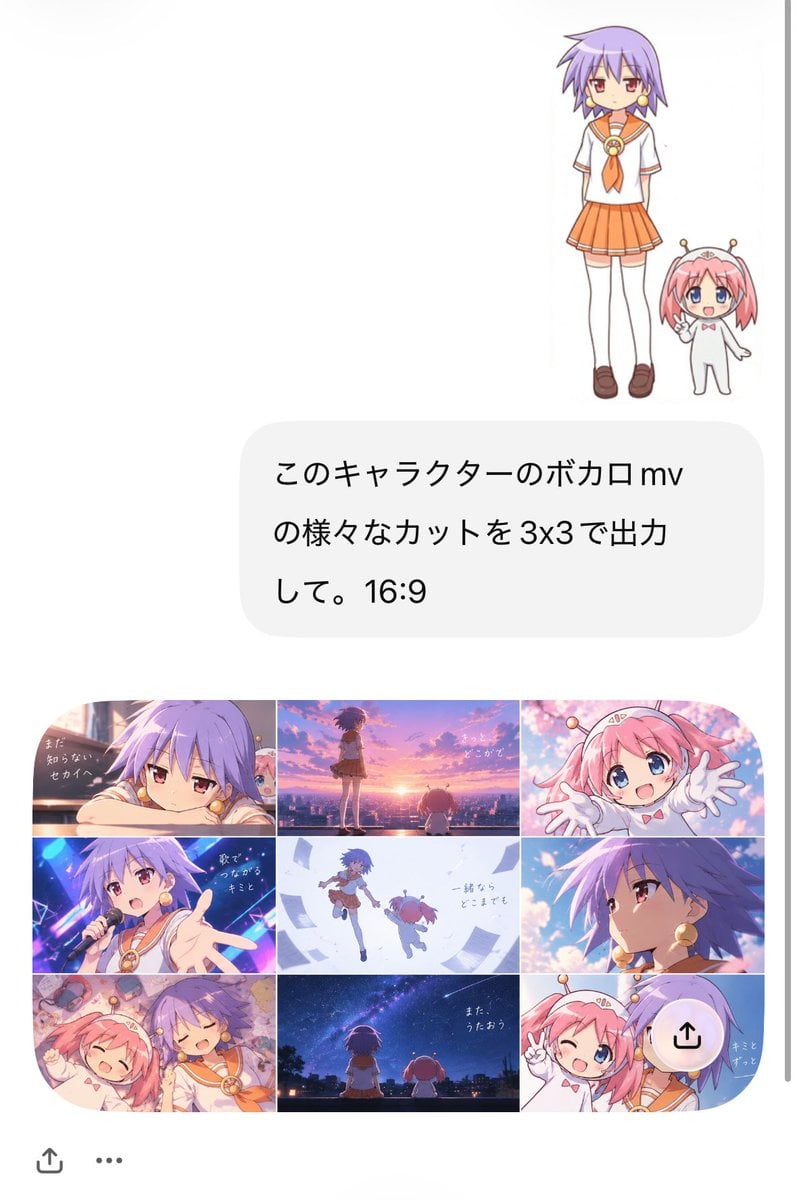
Creates a vertical mobile chat screenshot featuring two anime characters and a 3x3 Vocaloid-style music video storyboard.
- Prompt included
- Model and format preset
- Free template
The prompt behind this image
Copy the exact prompt behind Anime MV Chat Screenshot, or open it in the studio and make it yours.
Goal: Create a vertical smartphone screenshot-style composition showing an AI image generation conversation and its generated anime music-video storyboard result. Canvas: Tall portrait mobile screen, approximately 9:16, white background, clean social-chat interface look, with a thin gray scroll indicator on the far right edge and small bottom UI icons. Top subject area: In the upper right, place exactly 2 small full-body anime characters standing together: 1 tall purple-haired schoolgirl and 1 tiny pink-haired mascot girl. The schoolgirl has short spiky lavender-purple hair, red eyes, gold round earrings, a white sailor school uniform with orange collar and orange necktie, orange pleated skirt, white knee socks, and brown loafers. The mascot girl is much shorter, pink-haired with blue eyes, wearing a simple white bodysuit with a tiny red bow and two small antenna-like hair accessories with gold tips; she waves cheerfully. Chat bubble: Under the characters, centered slightly right, draw one large rounded light-gray message bubble containing Japanese text in black. Use the exact visible message: {argument name="chat bubble text" default="このキャラクターのボカロmv\nの様々なカットを3x3で出力\nして。16:9"}. Keep the text large, simple, and aligned like a phone chat message. Generated result card: Below the chat bubble, create one rounded-corner 16:9 image card containing a 3x3 grid, exactly 9 cinematic anime music-video frames. The grid has thin white dividers and soft rounded outer corners. Grid frame count and contents, left to right, top to bottom: 1) close-up of the purple-haired schoolgirl leaning on her arms beside a window with melancholic expression, warm sunset light, small handwritten Japanese lyric text. 2) wide sunset rooftop or city overlook, purple-haired girl standing while the tiny pink mascot is nearby, orange-pink sky, lyric text. 3) close-up of the pink mascot reaching both hands toward the viewer, bright sakura-like pink background, happy expression. 4) concert stage shot of the purple-haired girl singing into a microphone, neon blue and magenta lights, one hand extended toward viewer, lyric text. 5) airy white-blue scene with both characters floating or jumping together among papers or light fragments, minimal lyric text. 6) dramatic side-profile close-up of the purple-haired girl against blue-violet lighting and glowing highlights. 7) cozy overhead or close shot of both characters lying together happily amid warm pastel clutter, smiling with eyes closed. 8) back view of both characters sitting under a starry night sky and Milky Way, quiet city silhouette, lyric text. 9) cheerful close-up of both characters posing together with peace signs, pastel blue background, small lyric text. Visual style: Polished Japanese anime, cute late-2000s slice-of-life character design, soft cel shading, expressive eyes, saturated music-video color grading, gentle bloom, clean line art, varied camera angles, nostalgic Vocaloid MV mood. Use {argument name="main character hair color" default="lavender purple"} for the schoolgirl and {argument name="mascot hair color" default="pink"} for the tiny mascot. The main school uniform accent color is {argument name="uniform accent color" default="orange"}. The overall generated storyboard mood is {argument name="music video mood" default="bittersweet, nostalgic, and uplifting"}. Interface details: Around the generated image card, leave generous white margins like a mobile app screenshot. Add a small share icon near the lower left, a three-dot menu near the bottom, and a translucent circular upload/share overlay button near the lower right of the 3x3 grid. Do not add extra characters beyond the 2 main characters. Do not add extra grid panels beyond exactly 9.
How to use Anime MV Chat Screenshot in 3 steps
- 1Upload ImagePNG, JPG or paste
Add your photo
Upload the photo the template builds on. The prompt, model and format are already set.
- 2…a portrait of your subject in softgolden-hour light, 85mm…
Personalize
Edit the subject and creative details for your destination.
- 3Generate
Generate
Press Generate — your image is created in PicX Studio, so you can compare it with the original and refine one variable at a time.
More like this
Templates with the same subject, style or setup. Open one to see its prompt.
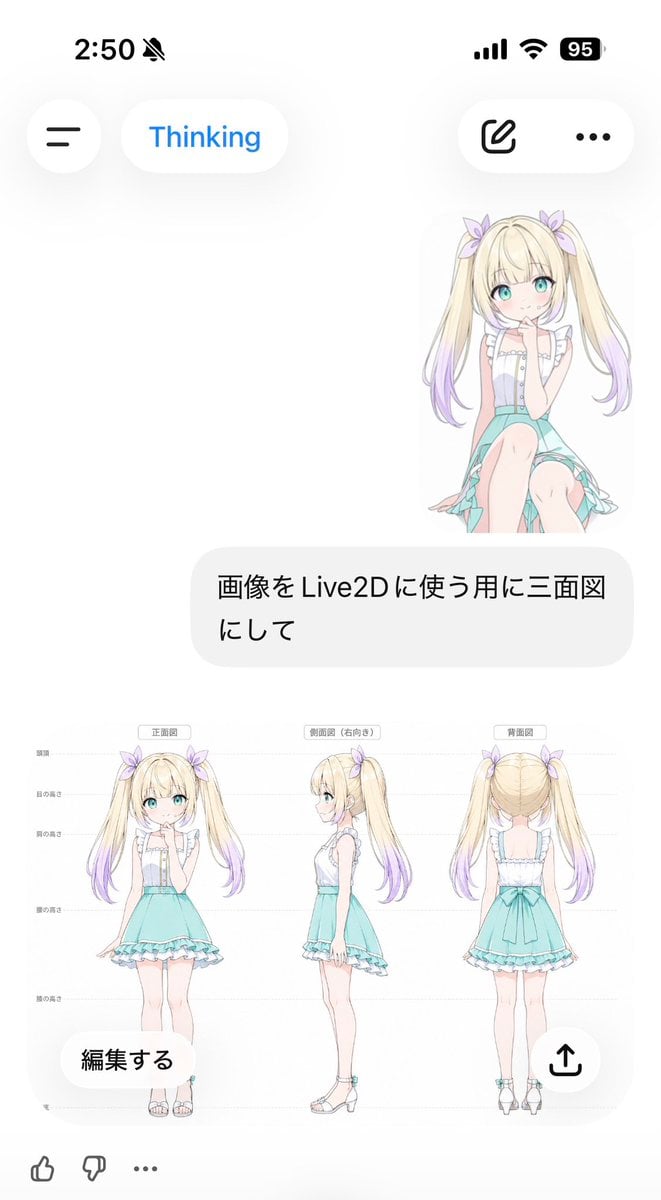
Anime Live2D Turnaround Chat Screenshot
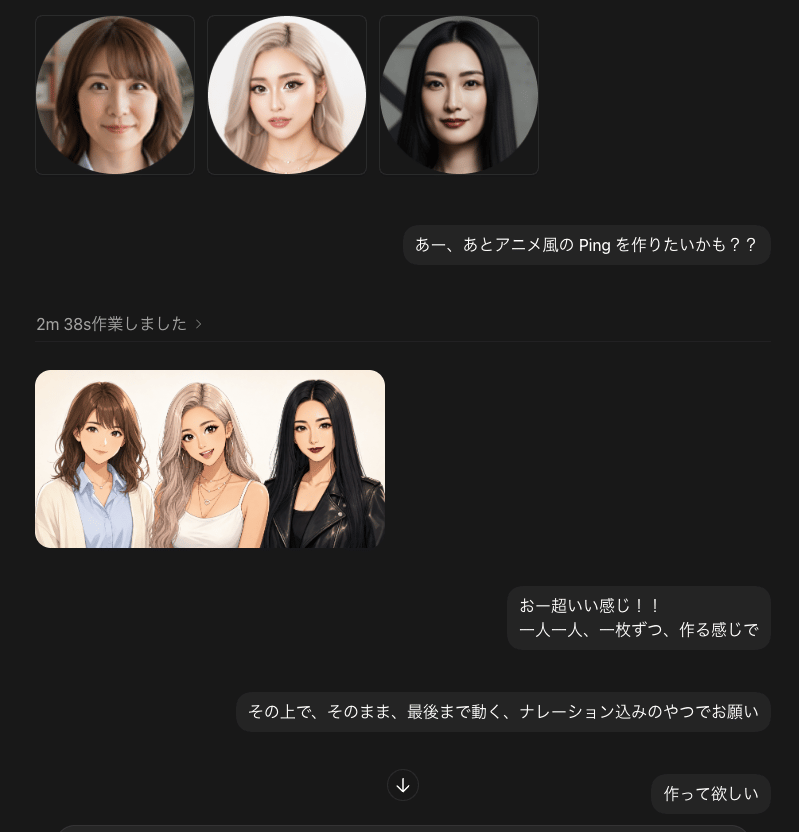
Dark Chat UI Anime Conversion Screenshot
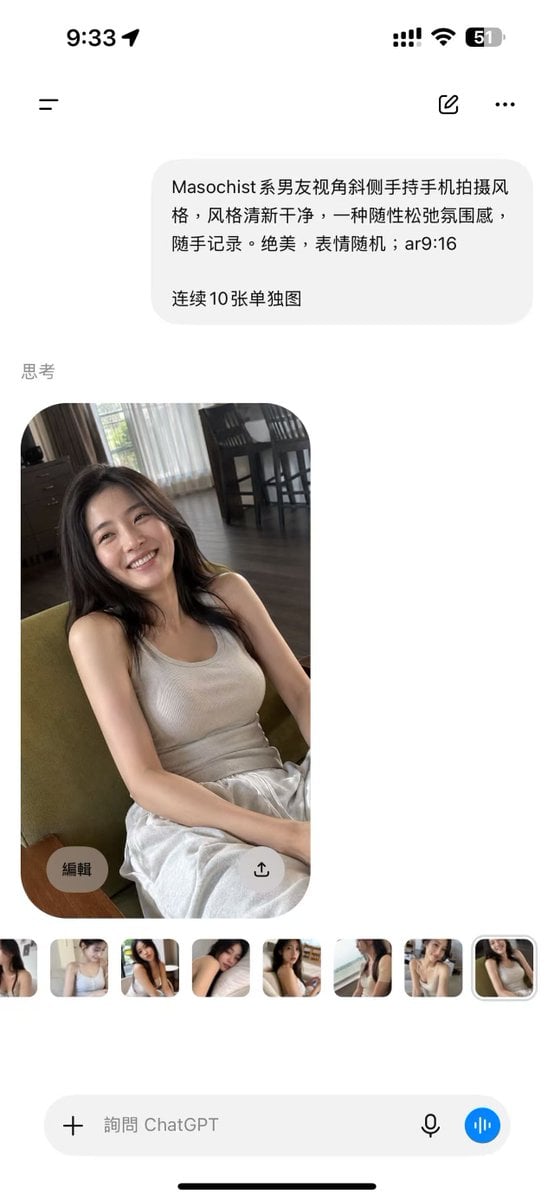
ChatGPT Mobile Photo Carousel Screenshot

ChatGPT Bonus Banner Screenshot
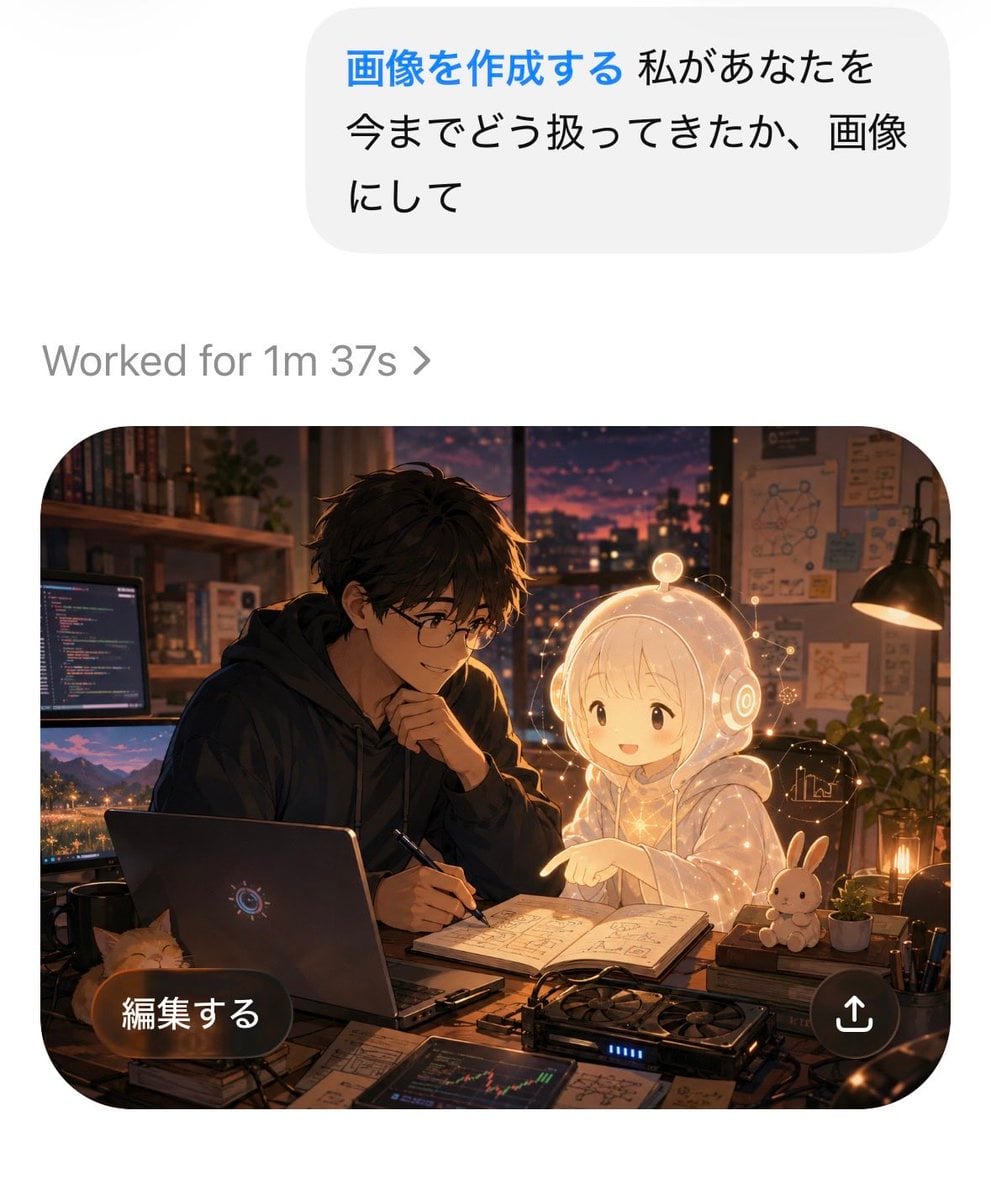
AI Chat Image Generation Screenshot
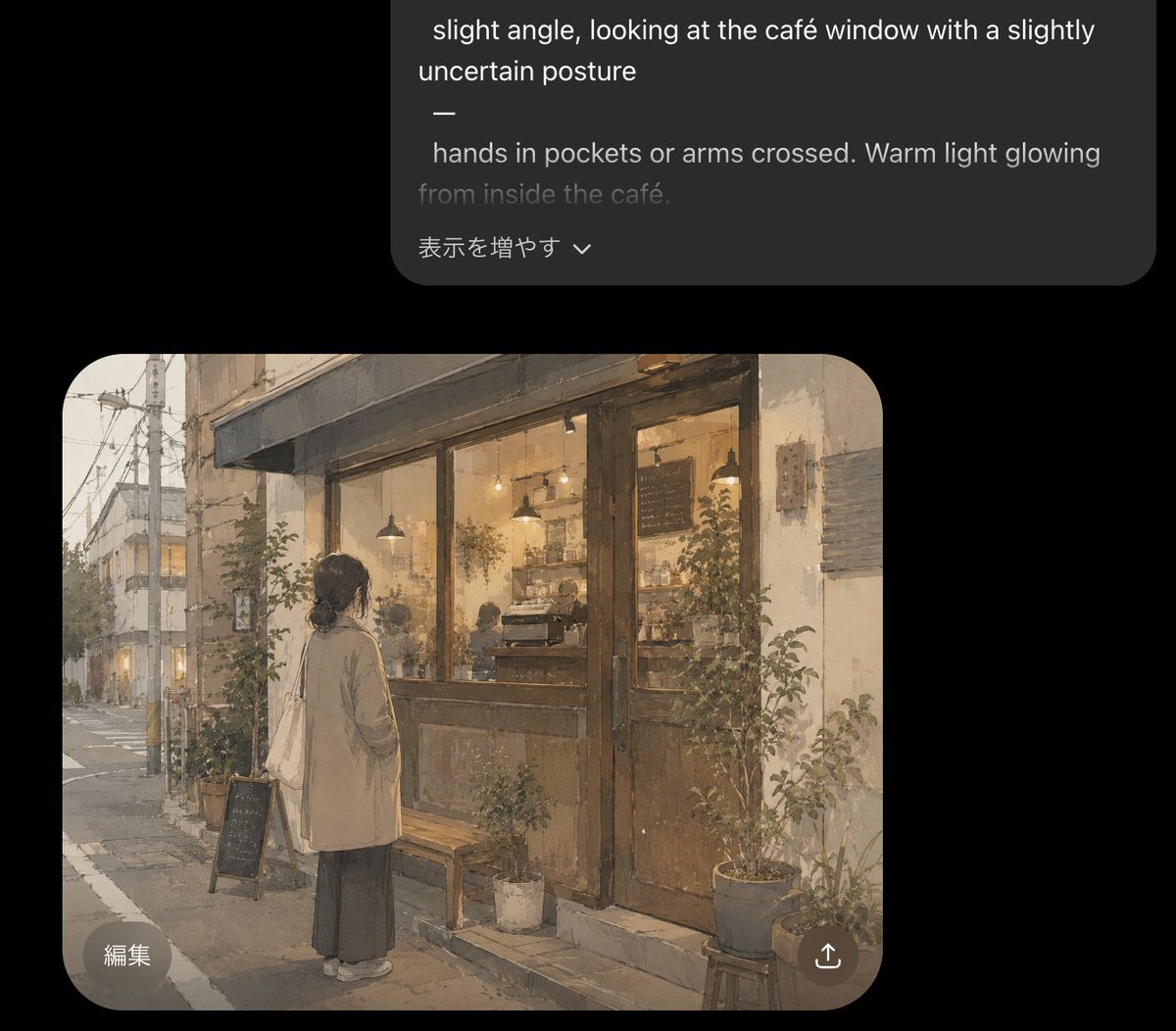
Cozy Café Chat Screenshot
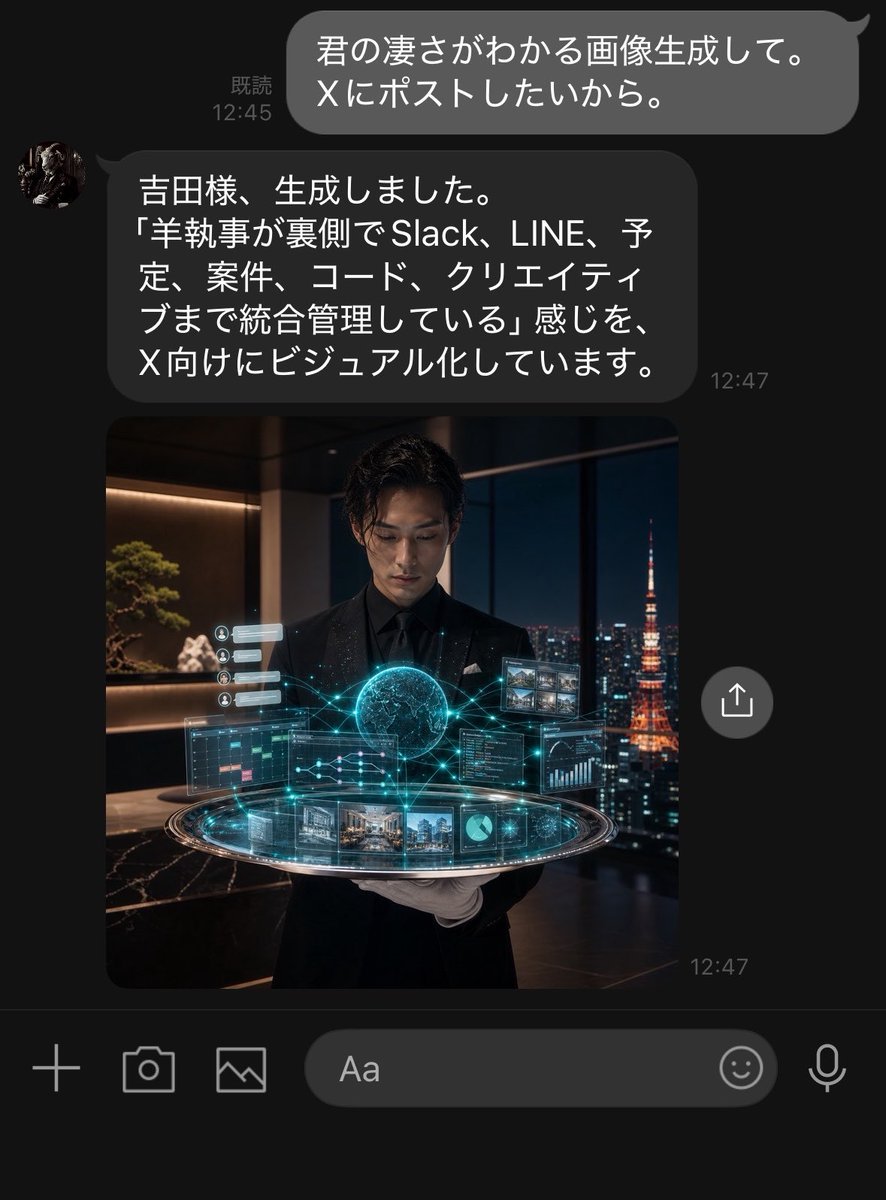
Dark LINE AI Assistant Chat Screenshot
Cel 2D Finale Fireworks
Cel 2D Garden Maze
Cel 2D Rooftop Concert
Cel 2D Bicycle Coast
Cel 2D Castle Gate
Make it yours
Anime MV Chat Screenshot works as-is. These are the safest ways to change it without losing the look.
Change one field
Copy a single group, rewrite it, and generate again so you can see what that field is doing.
Keep the frame, change the subject
Hold the composition and light of Anime MV Chat Screenshot, then swap wardrobe, props or the person for a new take.
| If the result… | Why | Fix |
|---|---|---|
| The result drifts from the preview | Too many fields changed at once. | Reuse Anime MV Chat Screenshot as-is first, then change one group — subject, light, or setting. |
| The model over-stylizes the scene | The prose prompt leaves finish and camera underspecified. | Add one camera or lighting sentence and stay on GPT Image 2. |
More GPT Image 2 templates
Other prompts made for GPT Image 2.

Six VTuber Japanese Logo Sheet

Realistic Portrait of Woman and Deer

The Vista Modular Condo Poster

AI Model Routing Comparison Infographic

2.5D Anime Art Board

Isometric Productivity Desk Scene

New York Double Exposure Poster

Four-Panel AI Landscape Comparison

Japanese Tatami Lifestyle Magazine Cover

NESCAFÉ Coffee Map Poster
More image prompts
Fresh picks from across the catalog.
Gpt2 Social Media Post Anime Friends Eating Soba
Gemini Nano Banana Ultra Realistic Eveni
Luxury Perfume Ad on Marble Vanity
Cinematic Photorealistic Portrait Holding a Giant Glowing Moon
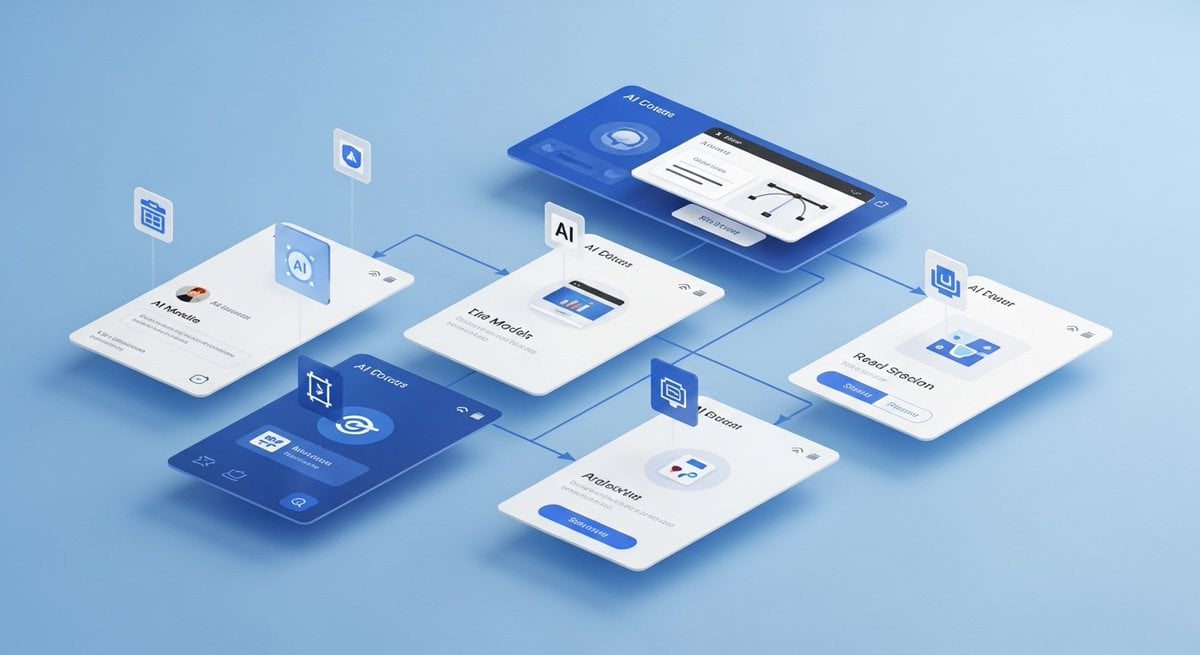
High-Quality Image Generation Optimization
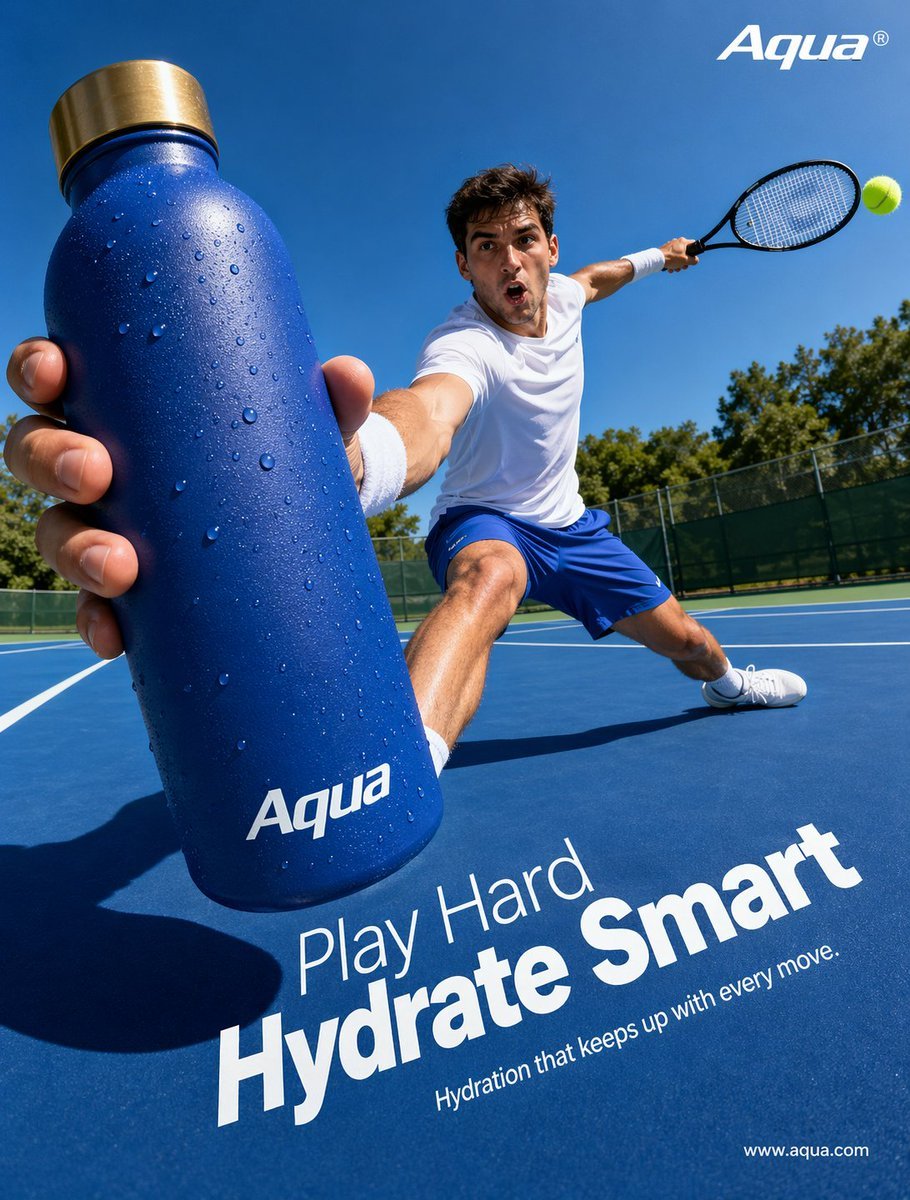
Tennis Hydration Ad Poster
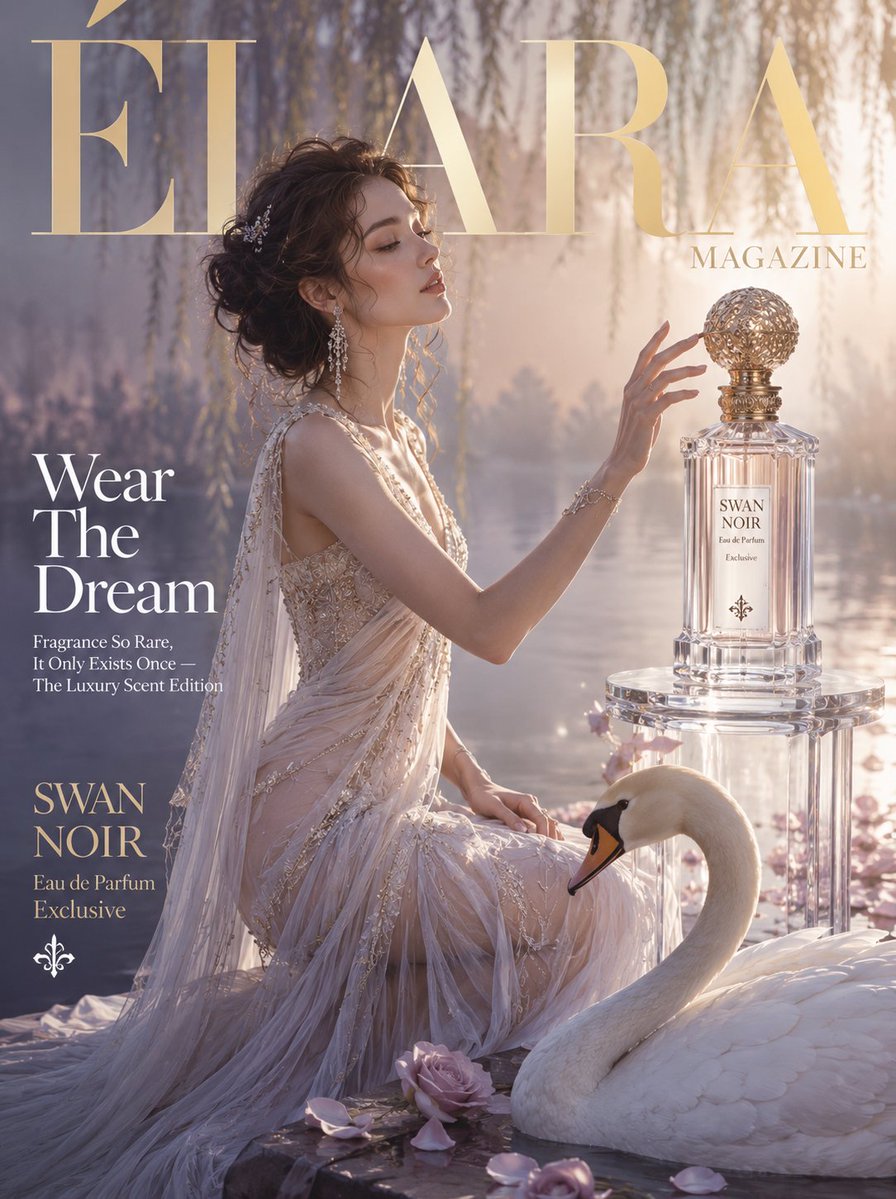
Élara Magazine Luxury Fragrance Cover
50 artifacts from different eras and cultures
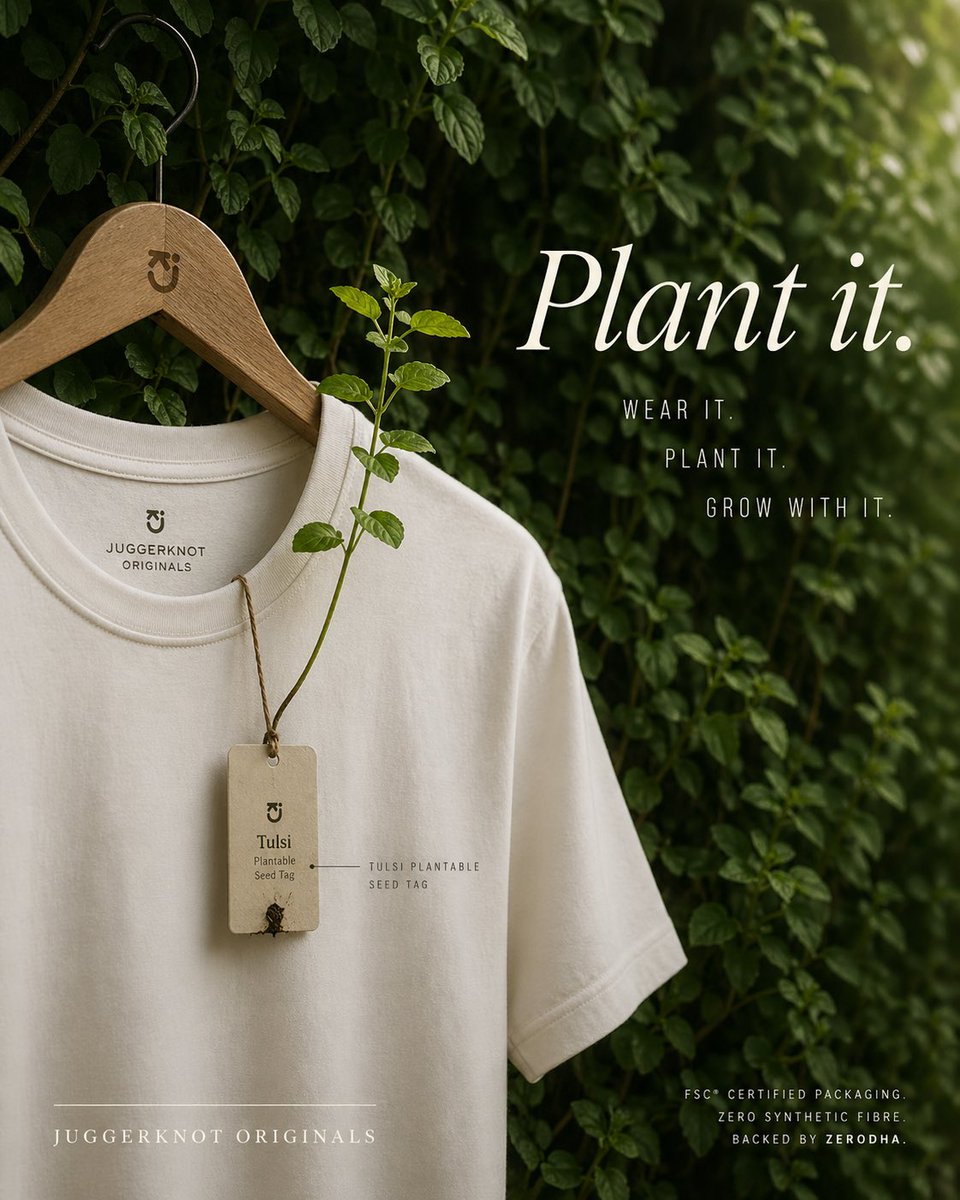
Sustainable T-Shirt Plantable Tag Ad
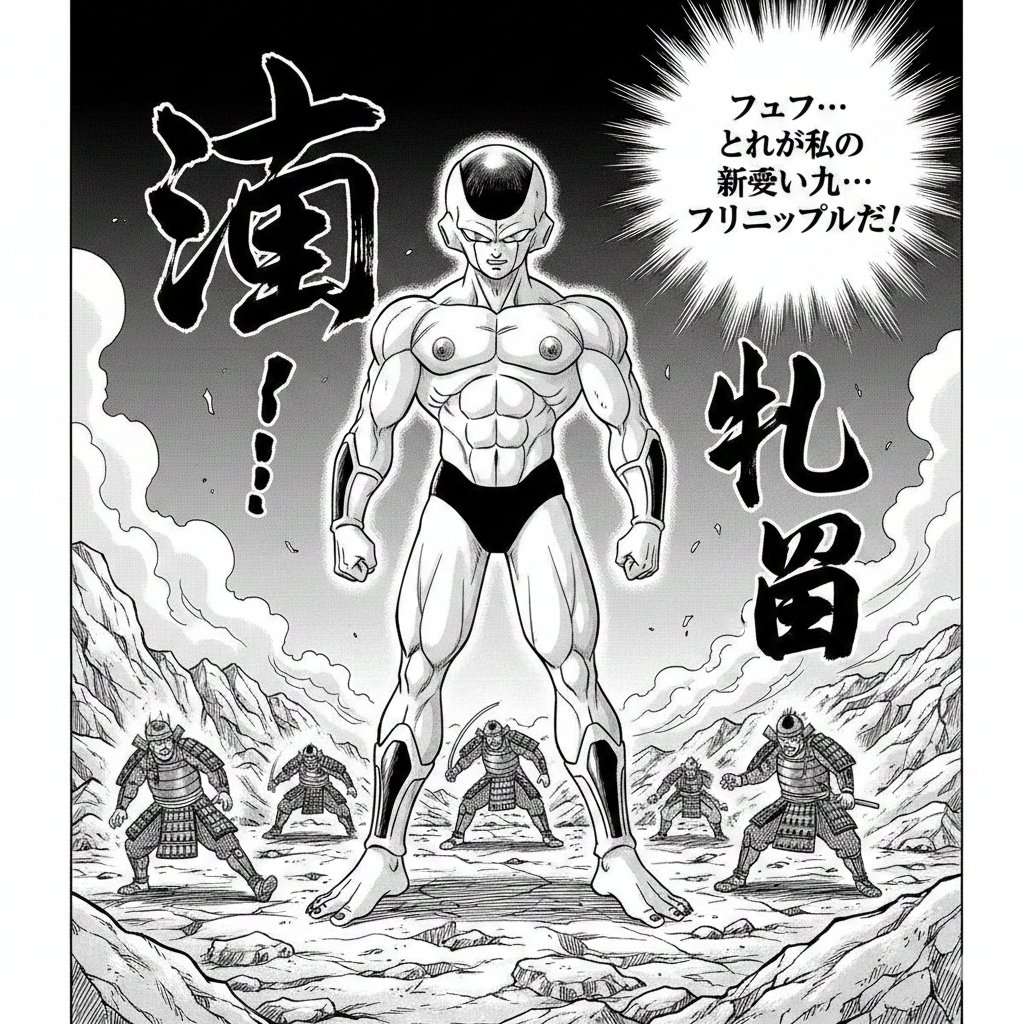
Illustration Generation: Free the Nipple Theme
Browse template categories
Anime MV Chat Screenshot questions
How do I use the Anime MV Chat Screenshot template?
Add your photo if the template asks for one, edit the prompt if you like — the template's model and format are already selected — and press Generate. Your version opens in PicX Studio.
Can I customize the Anime MV Chat Screenshot template?
Yes. You can change the subject, setting, lighting, mood, format, and available model controls before creating your image.
Is the Anime MV Chat Screenshot template free?
Opening and editing this template is free. Generating uses credits, shown on the Generate button when you are signed in.
Which AI model should I use?
Start with GPT Image 2, which is the model associated with this template. You can compare another compatible model for a different finish.
Looking for something else? Browse all templates.

Your photo, any look
Thousands of ready templates for every top image and video model, from one credit balance.