
Neon Chibi Cyber Samurai Pixel Art
Generates a detailed chibi cyber-samurai sprite with glowing armor and a cyan energy katana for game character art or avatar concepts.
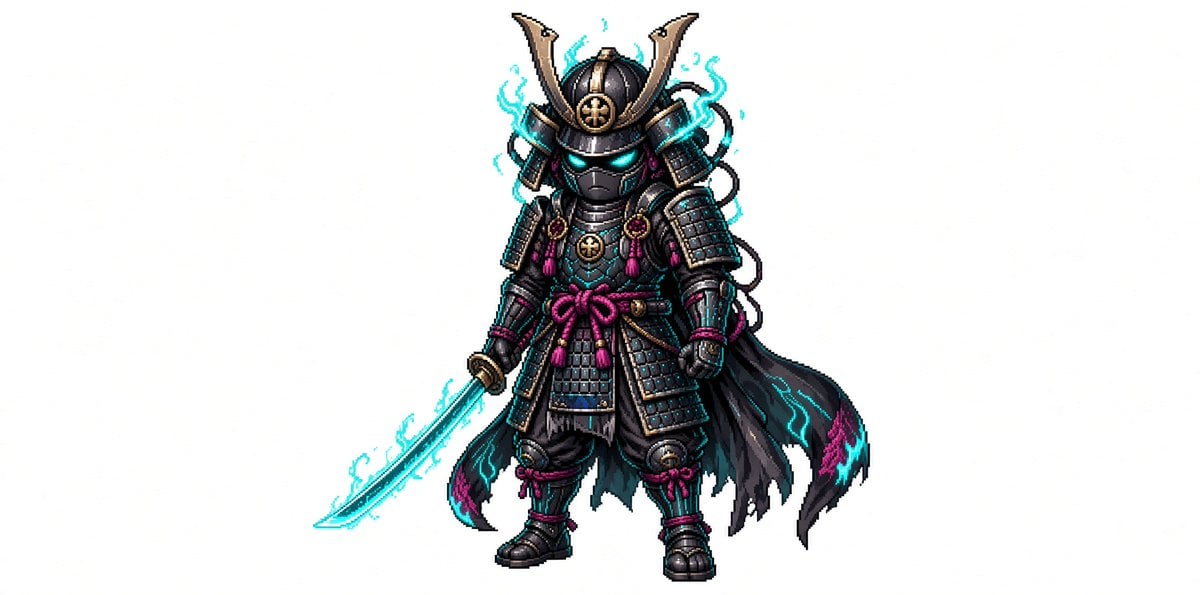
- Prompt included
- Model and format preset
- Free template
The prompt behind this image
Copy the exact prompt behind Neon Chibi Cyber Samurai Pixel Art, or open it in the studio and make it yours.
Create a full-body chibi pixel art character on a plain white background: a tiny cyber-samurai warrior named {argument name="character name" default="neon shadow samurai"}, centered with lots of empty space around him. The character has a large helmeted head and small body proportions, wearing ornate black samurai armor with dark gunmetal plates, gold trim, and magenta cord knots. The helmet has a tall crescent-shaped golden maedate, side armor flaps, a circular gold crest on the forehead, and a black face mask with glowing cyan eyes. Add exactly one glowing katana held downward in the left hand, with a cyan energy blade and light electric aura. The armor includes layered shoulder guards, chest plates, skirt plates, shin guards, boots, gauntlets, braided cords, small tassels, and a magenta waist bow. Behind him is exactly one tattered black cloak flowing to the right, edged with cyan and magenta flame-like markings. Add cyan electrical wisps around the helmet, sword, shoulders, and cloak, but keep the silhouette readable. Style should be crisp retro game sprite art with detailed pixel shading, high contrast outlines, subtle dithering, and a fantasy RPG character-sheet feel. Use {argument name="armor color" default="black and gunmetal"} as the dominant armor palette, {argument name="accent color" default="cyan"} for all glow effects, and {argument name="secondary accent color" default="magenta"} for cords and decorative highlights. No text, no logo, no scenery, no shadow-heavy background, no extra characters.
Reference images included
Neon Chibi Cyber Samurai Pixel Art needs input media to work. They load alongside the prompt when you open it in the studio.
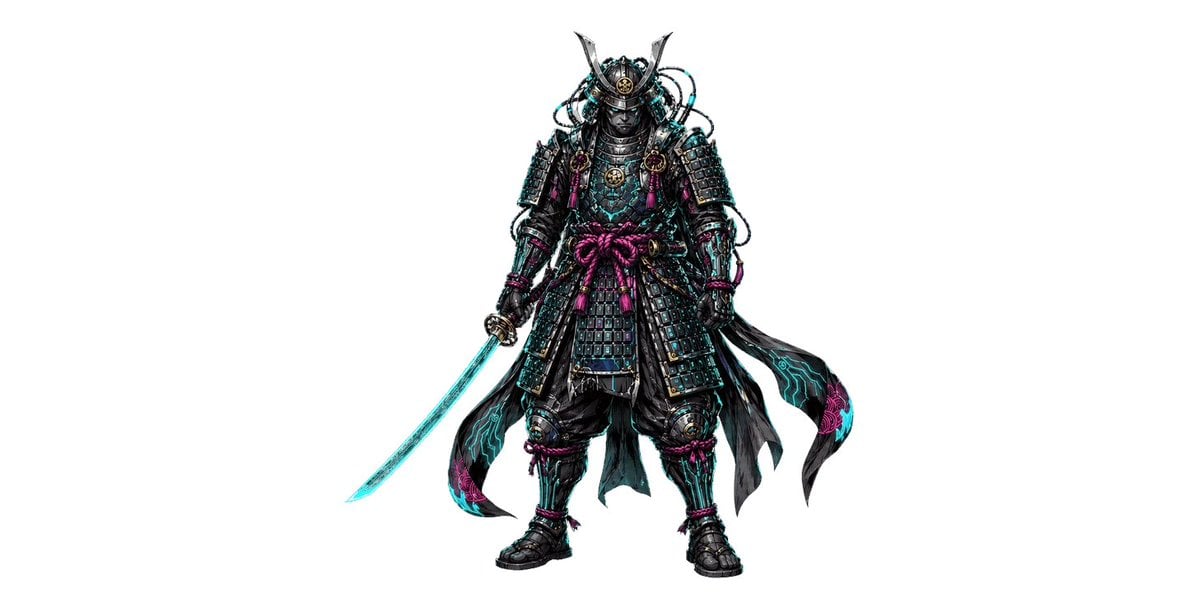
How to use Neon Chibi Cyber Samurai Pixel Art in 3 steps
- 1Upload ImagePNG, JPG or paste
Add your photo
Upload the photo the template builds on. The prompt, model and format are already set.
- 2…a portrait of your subject in softgolden-hour light, 85mm…
Personalize
Edit the subject and creative details for your destination.
- 3Generate
Generate
Press Generate — your image is created in PicX Studio, so you can compare it with the original and refine one variable at a time.
More like this
Templates with the same subject, style or setup. Open one to see its prompt.
Rainy Night Android Cyberpunk Portrait
Cyberpunk Neon Profile Fashion Portrait
Rainy Night Android Cyberpunk Portrait
Low-Angle Cyberpunk Neon Profile Portrait
Neon Glitch Cyber Symbiote Music Poster
Spider-Man 2099 Cyberpunk Neon Future City
Cyberpunk Neon Brazil World Cup Poster
80s Neon Disco Night
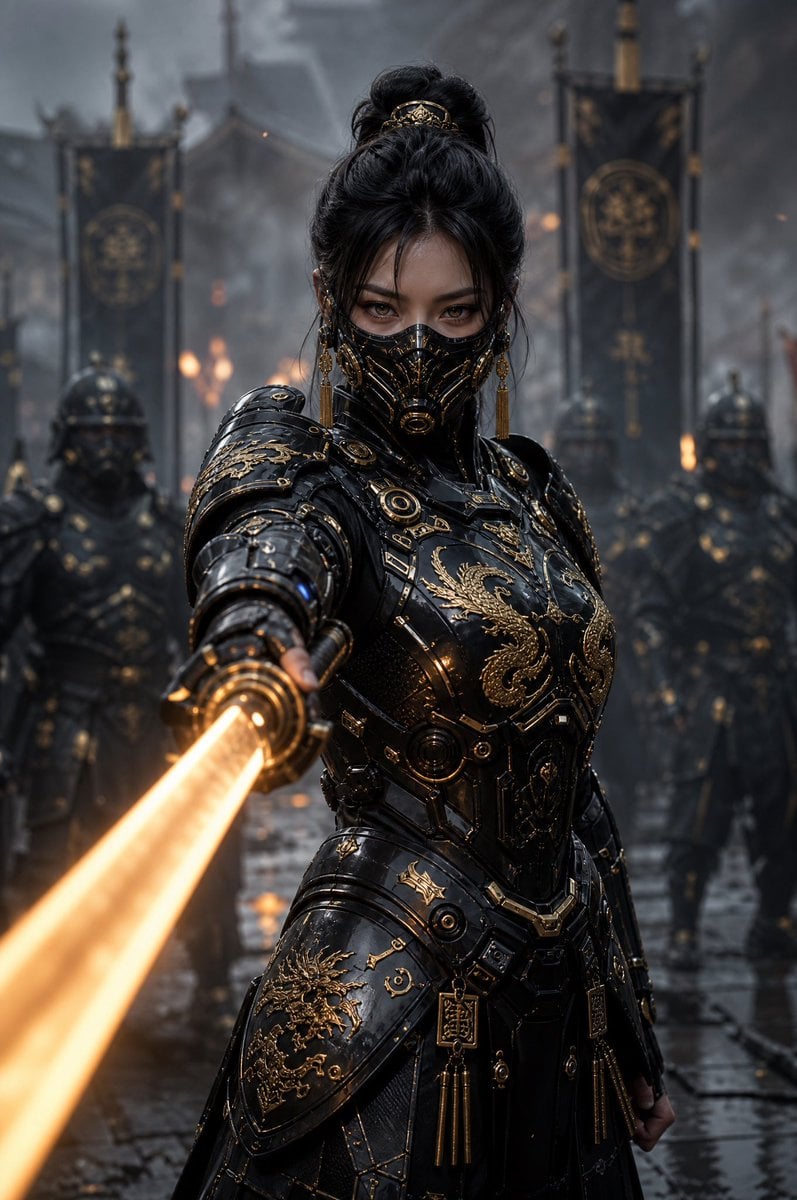
Cyber Samurai Empress Portrait
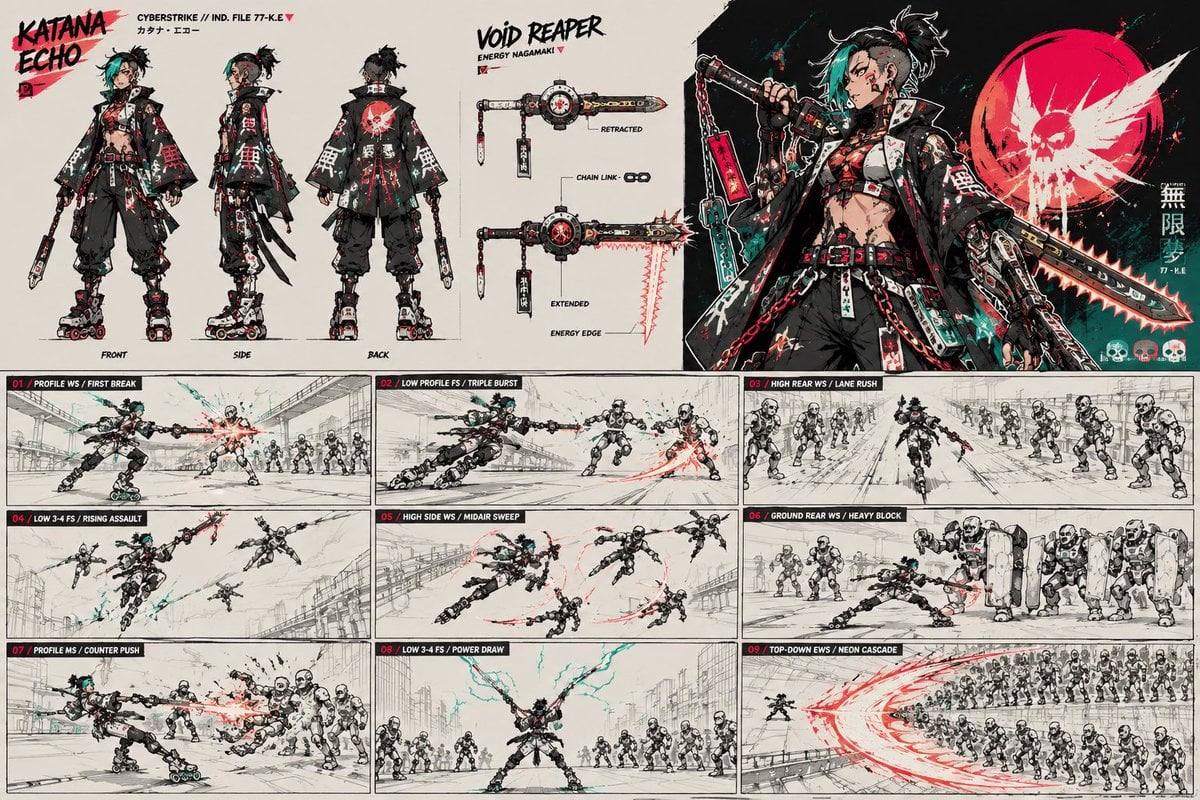
Cyberpunk Samurai Character Sheet
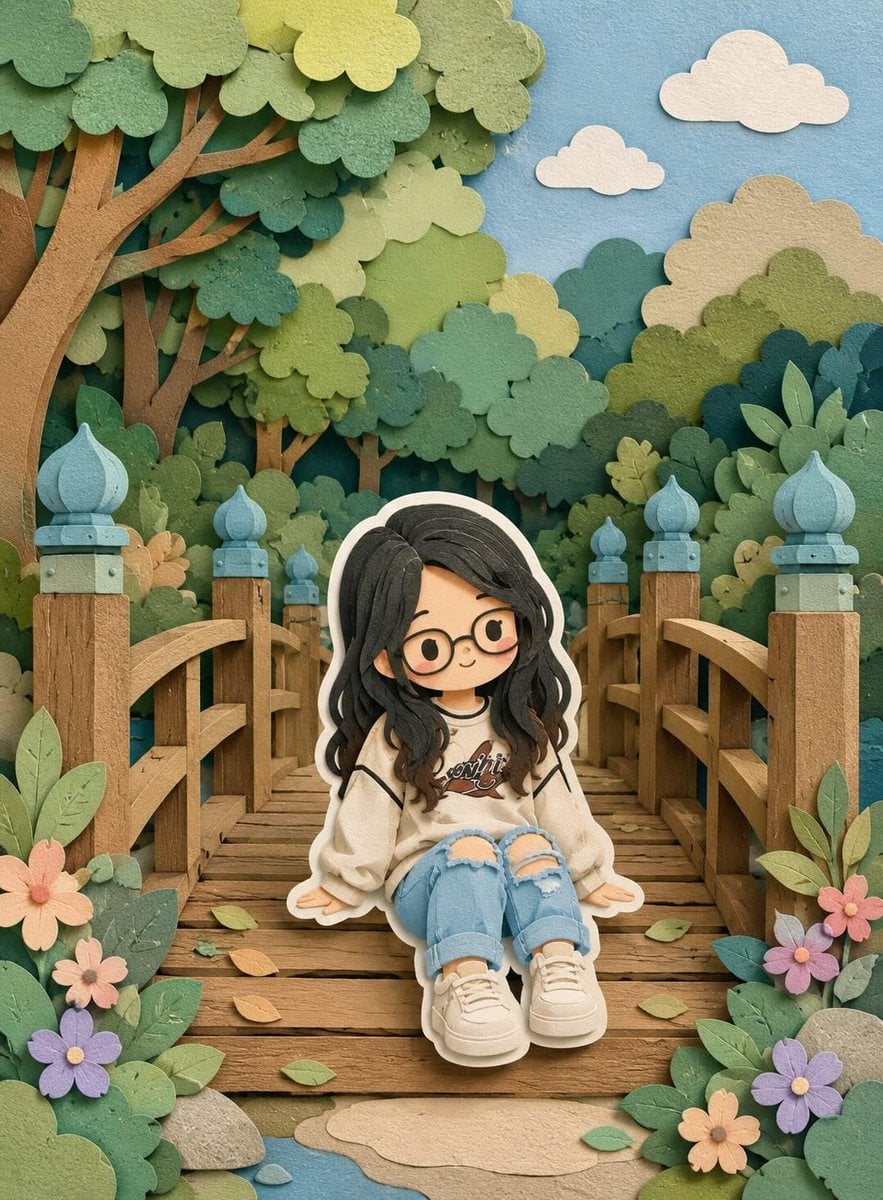
Cute Layered Paper Cut Chibi Girl
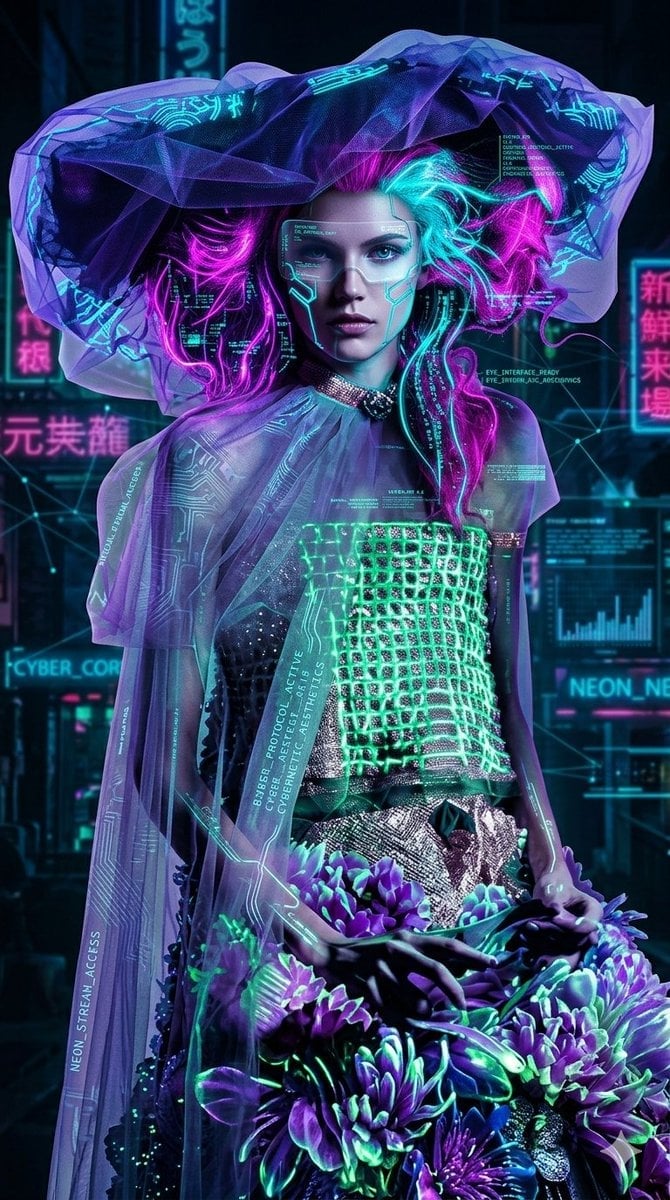
Cyberpunk Neon Floral Portrait
Make it yours
Neon Chibi Cyber Samurai Pixel Art works as-is. These are the safest ways to change it without losing the look.
Change one field
Copy a single group, rewrite it, and generate again so you can see what that field is doing.
Keep the frame, change the subject
Hold the composition and light of Neon Chibi Cyber Samurai Pixel Art, then swap wardrobe, props or the person for a new take.
| If the result… | Why | Fix |
|---|---|---|
| The result drifts from the preview | Too many fields changed at once. | Reuse Neon Chibi Cyber Samurai Pixel Art as-is first, then change one group — subject, light, or setting. |
| The model over-stylizes the scene | The prose prompt leaves finish and camera underspecified. | Add one camera or lighting sentence and stay on GPT Image 2. |
More GPT Image 2 templates
Other prompts made for GPT Image 2.

Six VTuber Japanese Logo Sheet

Realistic Portrait of Woman and Deer

The Vista Modular Condo Poster

AI Model Routing Comparison Infographic

2.5D Anime Art Board

Isometric Productivity Desk Scene

New York Double Exposure Poster

Four-Panel AI Landscape Comparison

Japanese Tatami Lifestyle Magazine Cover

NESCAFÉ Coffee Map Poster
More image prompts
Fresh picks from across the catalog.
Authentic Hotel Sleep Snapshot
Character Expression Sheet Generation (Anime Style)
Cinematic Portrait with 3D Mini Character
Signed Marker Portrait on Shikishi

Nano Banana 2 Eastern Dragon Prompt
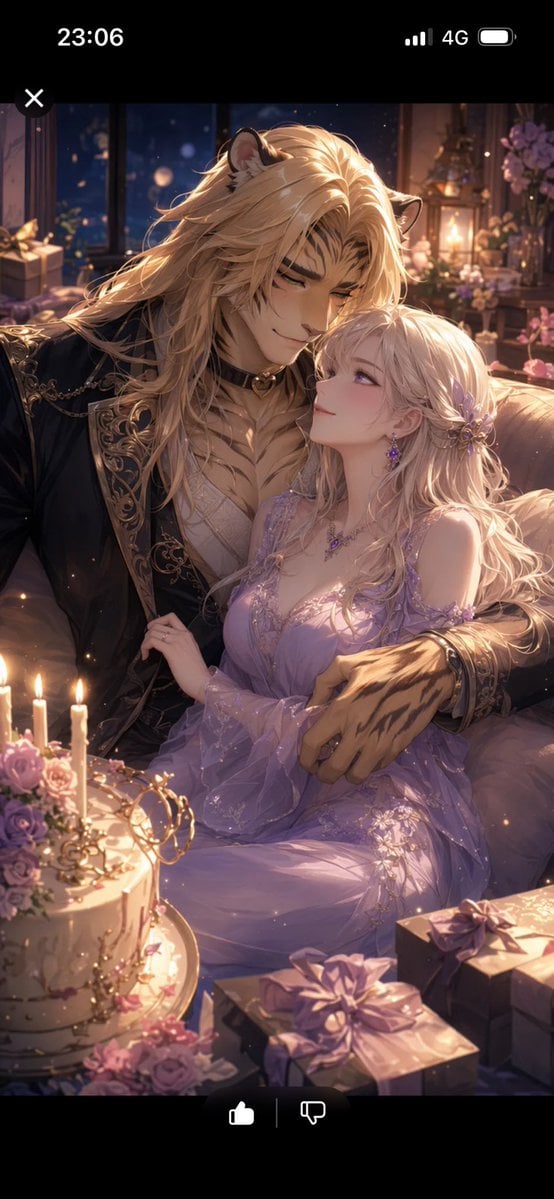
Romantic Beastman Anniversary Screenshot
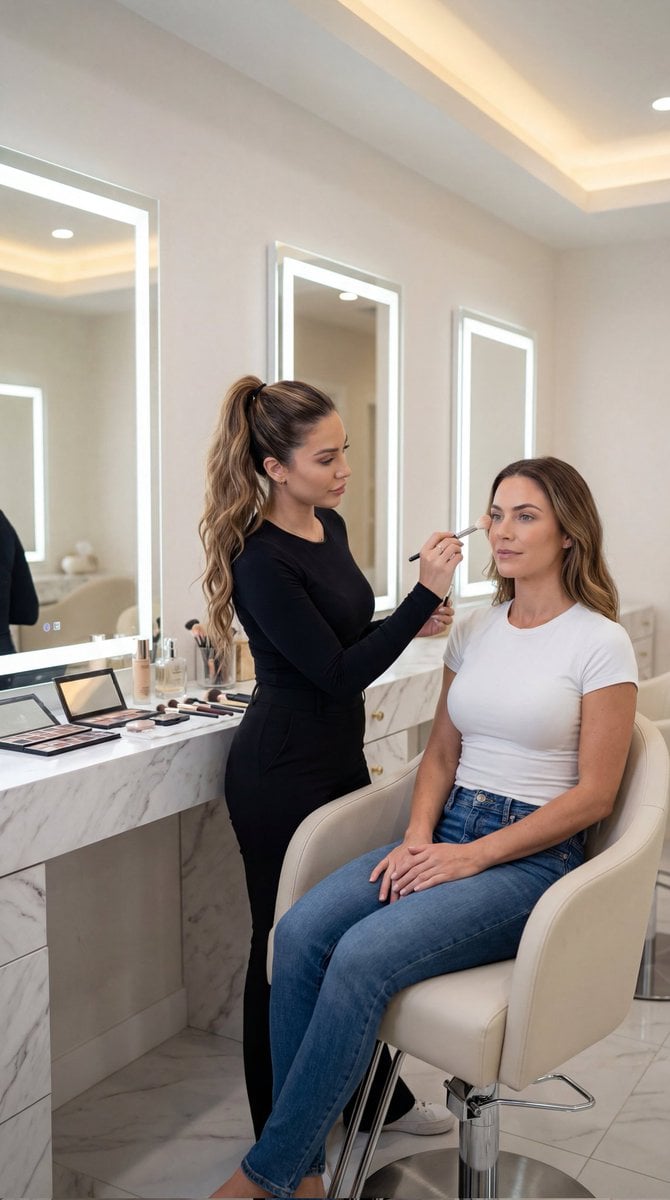
Luxury Salon Portrait with Identity Lock Prompt
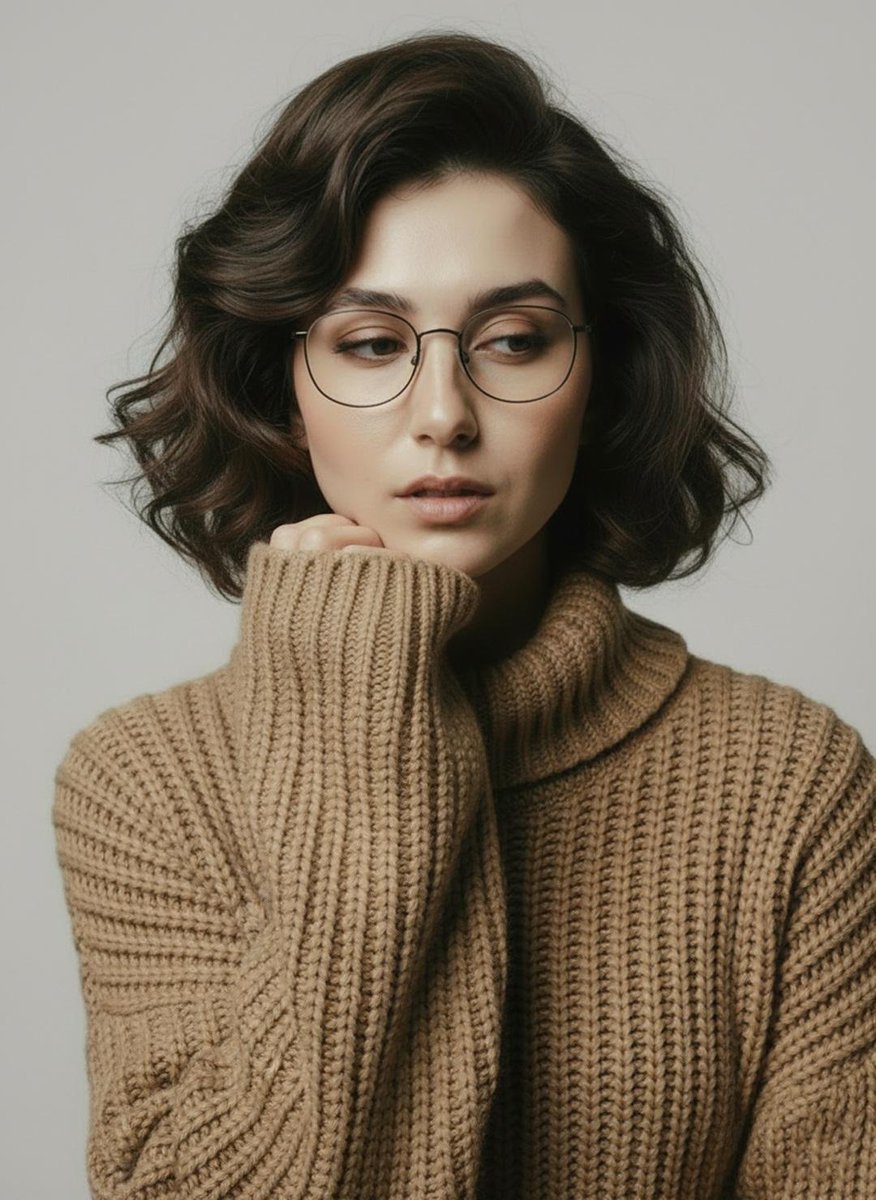
Minimalist Scandinavian Editorial Portrait Series
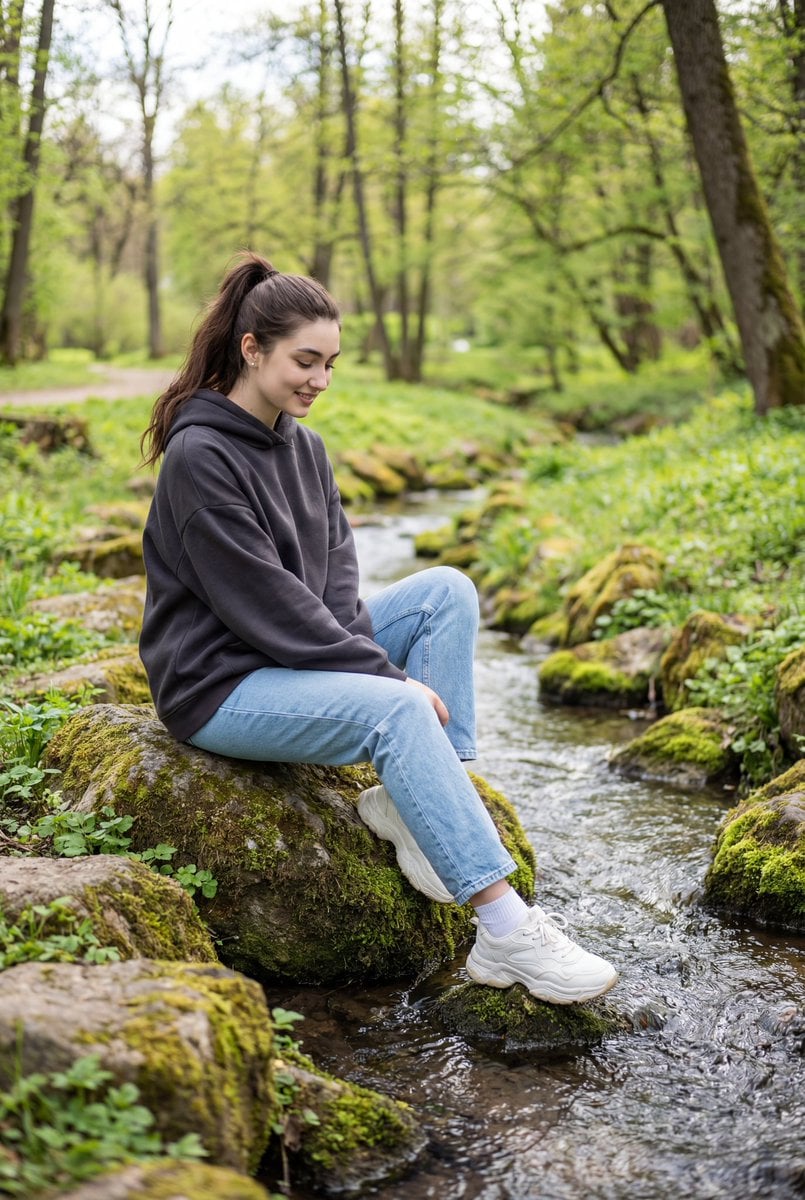
Candid Outdoor Portrait by a Creek
untitled
Browse template categories
Neon Chibi Cyber Samurai Pixel Art questions
How do I use the Neon Chibi Cyber Samurai Pixel Art template?
Add your photo if the template asks for one, edit the prompt if you like — the template's model and format are already selected — and press Generate. Your version opens in PicX Studio.
Can I customize the Neon Chibi Cyber Samurai Pixel Art template?
Yes. You can change the subject, setting, lighting, mood, format, and available model controls before creating your image.
Is the Neon Chibi Cyber Samurai Pixel Art template free?
Opening and editing this template is free. Generating uses credits, shown on the Generate button when you are signed in.
Which AI model should I use?
Start with GPT Image 2, which is the model associated with this template. You can compare another compatible model for a different finish.
Looking for something else? Browse all templates.

Your photo, any look
Thousands of ready templates for every top image and video model, from one credit balance.