
AI Generation UI with Anime 3x3 Storyboard
Creates a realistic web-app screenshot showing an anime character prompt and a completed 3x3 cinematic Vocaloid-style MV storyboard grid.
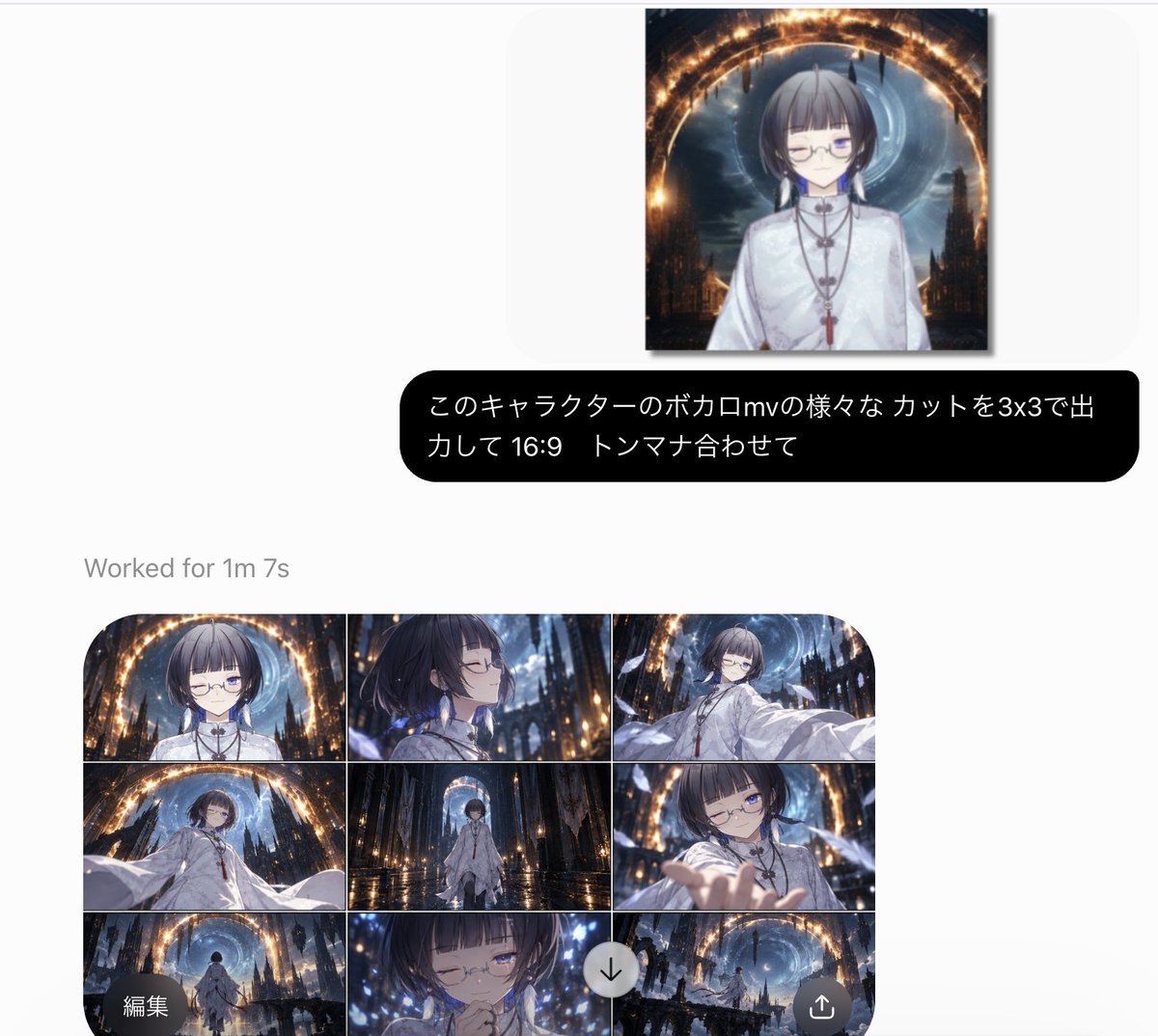
- Prompt included
- Model and format preset
- Free template
The prompt behind this image
Copy the exact prompt behind AI Generation UI with Anime 3x3 Storyboard, or open it in the studio and make it yours.
Goal: Create a clean social-media screenshot of an AI image generation interface showing a completed anime music-video storyboard request and its 3x3 output grid. Canvas: Horizontal screenshot, approximately 1200x884 px, white/light-gray background with lots of empty margin. Use a modern minimal web-app UI style with rounded cards, soft shadows, and gray system text. Top area: Near the upper center, show one rectangular reference image preview with a subtle shadow. The preview contains an anime character: a short-haired androgynous young person with {argument name="hair color" default="dark ash-brown bob haircut with straight bangs"}, pale skin, thin round glasses, one eye closed in a wink, one blue visible eye, wearing a white high-collar ceremonial robe with necklaces and a red tassel. Behind them is a dark fantasy cathedral city with a glowing golden circular arch and a blue vortex moon-like sky. Prompt bubble: Below the preview, place a wide black rounded speech bubble with white Japanese text, reading exactly {argument name="prompt text" default="このキャラクターのボカロmvの様々なカットを3x3で出力して 16:9 トンマナ合わせて"}. The bubble should span most of the center width and have large rounded corners. Status text: Under the bubble, aligned left above the output grid, add gray text reading {argument name="status text" default="Worked for 1m 7s"}. Output grid: Show exactly 9 cinematic panels arranged in a 3 columns by 3 rows grid, inside one large rounded rectangle with clipped rounded corners. Each panel is 16:9, separated by thin white grid lines, all sharing the same tone: dark blue, black, white, and warm gold, glossy anime/Vocaloid MV aesthetic, dramatic lighting, cathedral ruins, floating feathers or sparkles, wet reflective floor, glowing golden ring, blue vortex sky. The 9 panels are: 1. Top-left: frontal bust shot of the character under the glowing golden arch, calm expression, glasses, white robe. 2. Top-center: side-profile close-up with hair blowing, eyes closed, blue lights in the dark cathedral background. 3. Top-right: dynamic three-quarter shot, character extending a white sleeve toward the viewer, golden arch and blue vortex behind. 4. Middle-left: low-angle wide shot, character leaning or reaching forward with billowing white sleeves, cathedral towers around them. 5. Middle-center: full-body centered shot standing on a reflective wet floor, framed by a tall archway and distant glowing ring. 6. Middle-right: close shot of character reaching a hand toward the camera, one eye closed, foreshortened hand in foreground. 7. Bottom-left: rear wide shot of the character walking into the cathedral environment beneath the glowing arch. 8. Bottom-center: emotional close-up, character with eyes closed and hands near mouth or chest, surrounded by blue sparkles. 9. Bottom-right: very wide establishing shot of ruined gothic towers, glowing circular arch, blue vortex sky, tiny figure or distant character. Overlay controls: Add exactly 3 circular interface controls over the lower part of the grid: a dark circular button at bottom-left labeled {argument name="edit button text" default="編集"}, a light gray circular download button with a downward arrow near the lower center-right, and a dark circular share button with an upward arrow at bottom-right. Style constraints: The whole image should look like a real captured web UI, not a poster. Keep the interface text crisp, the grid slightly cropped by the bottom edge of the screenshot, and the anime panels high-detail, cinematic, consistent in character design and color grading.
How to use AI Generation UI with Anime 3x3 Storyboard in 3 steps
- 1Upload ImagePNG, JPG or paste
Add your photo
Upload the photo the template builds on. The prompt, model and format are already set.
- 2…a portrait of your subject in softgolden-hour light, 85mm…
Personalize
Edit the subject and creative details for your destination.
- 3Generate
Generate
Press Generate — your image is created in PicX Studio, so you can compare it with the original and refine one variable at a time.
More like this
Templates with the same subject, style or setup. Open one to see its prompt.
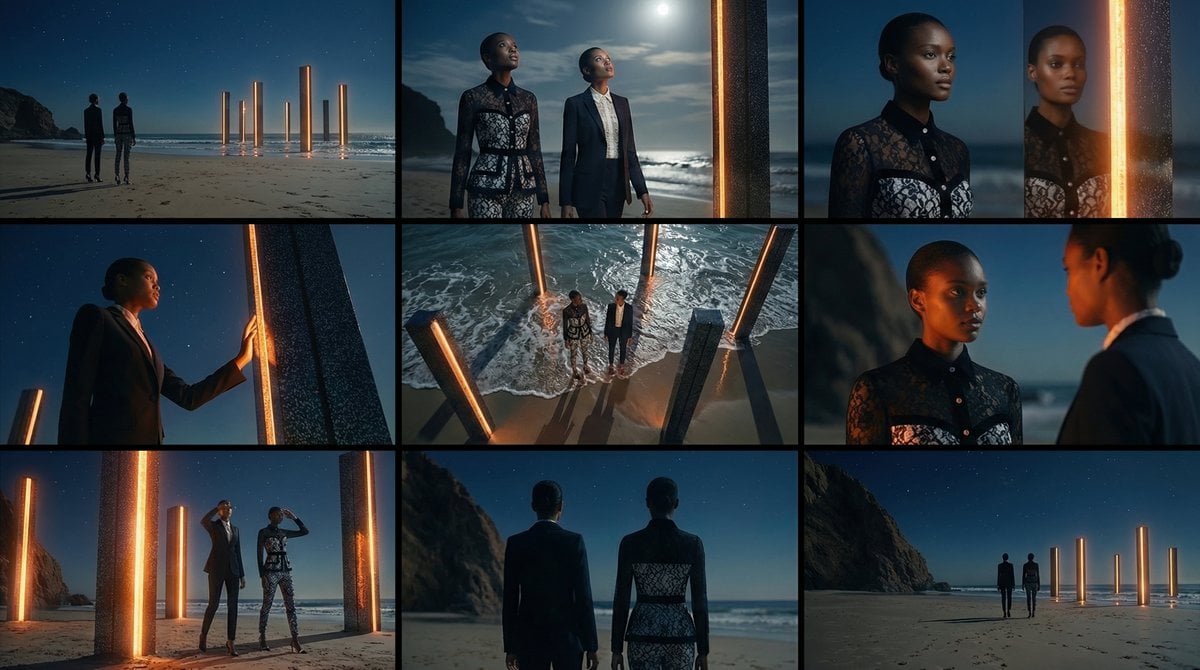
Storyboard Grid Generation Prompt (3x3)
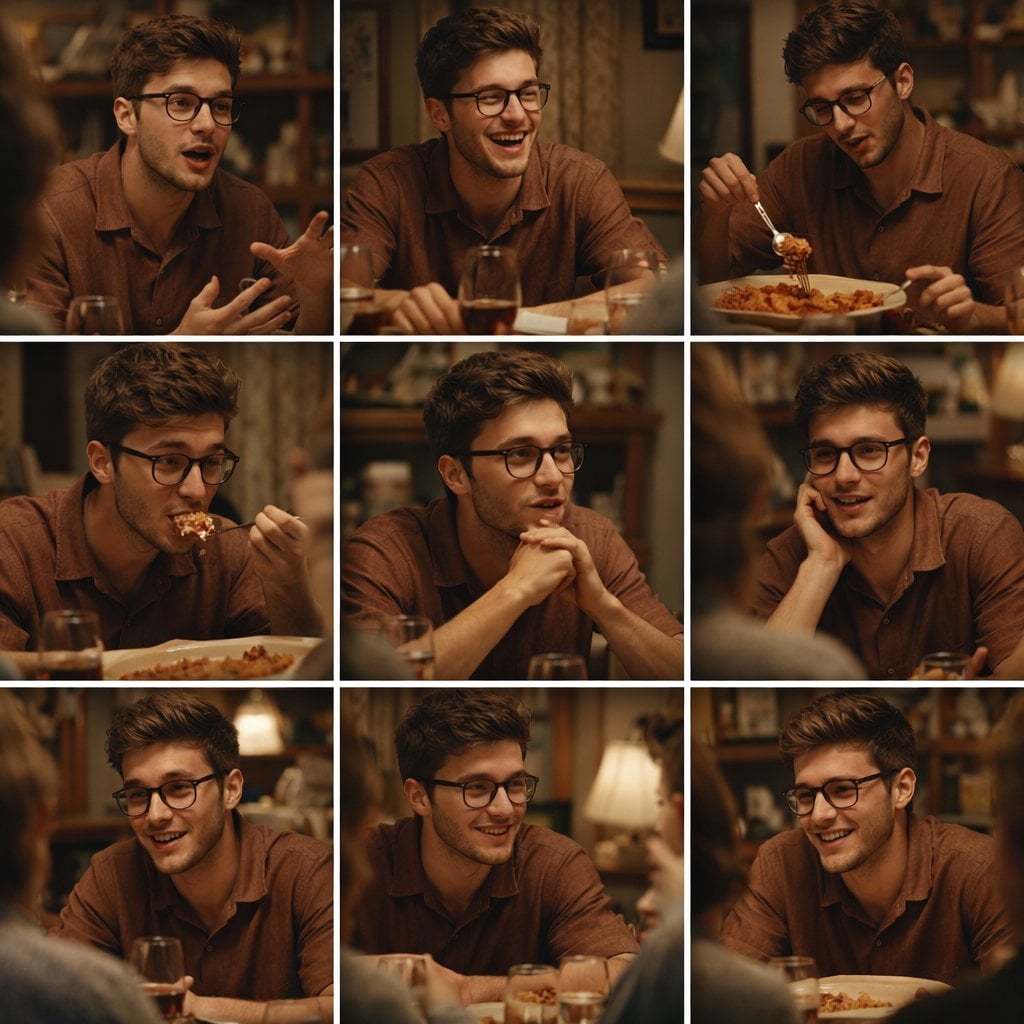
A 3x3 grid storyboard contact sheet comprised of nine candid, cinematic
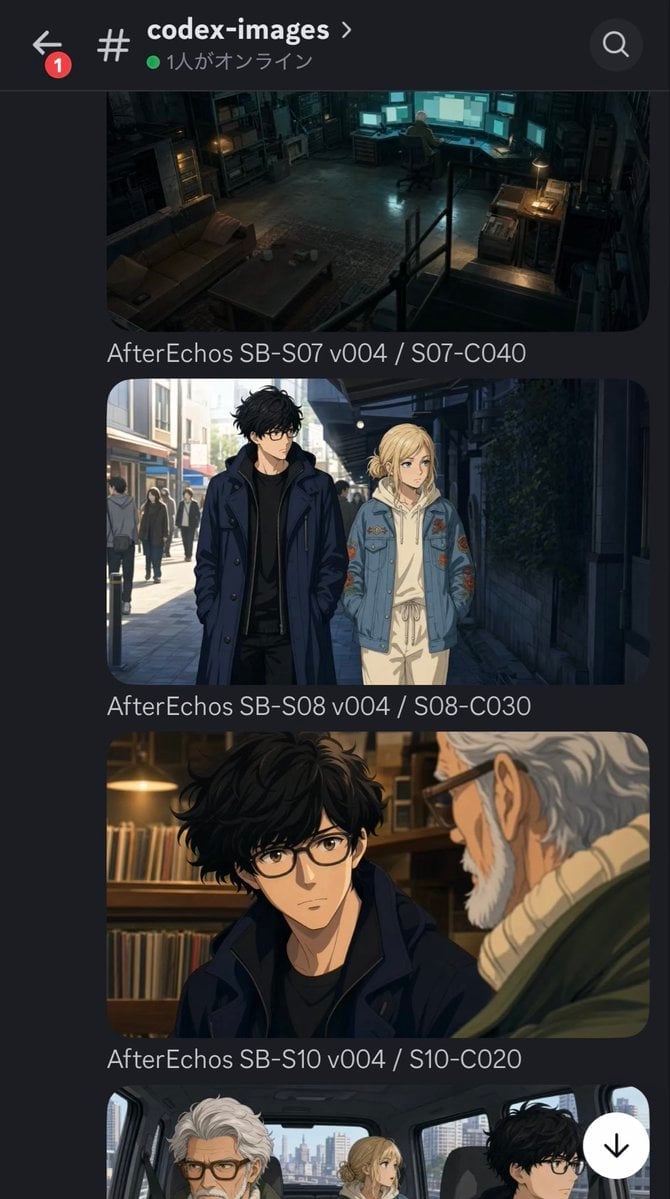
Discord Anime Storyboard Feed
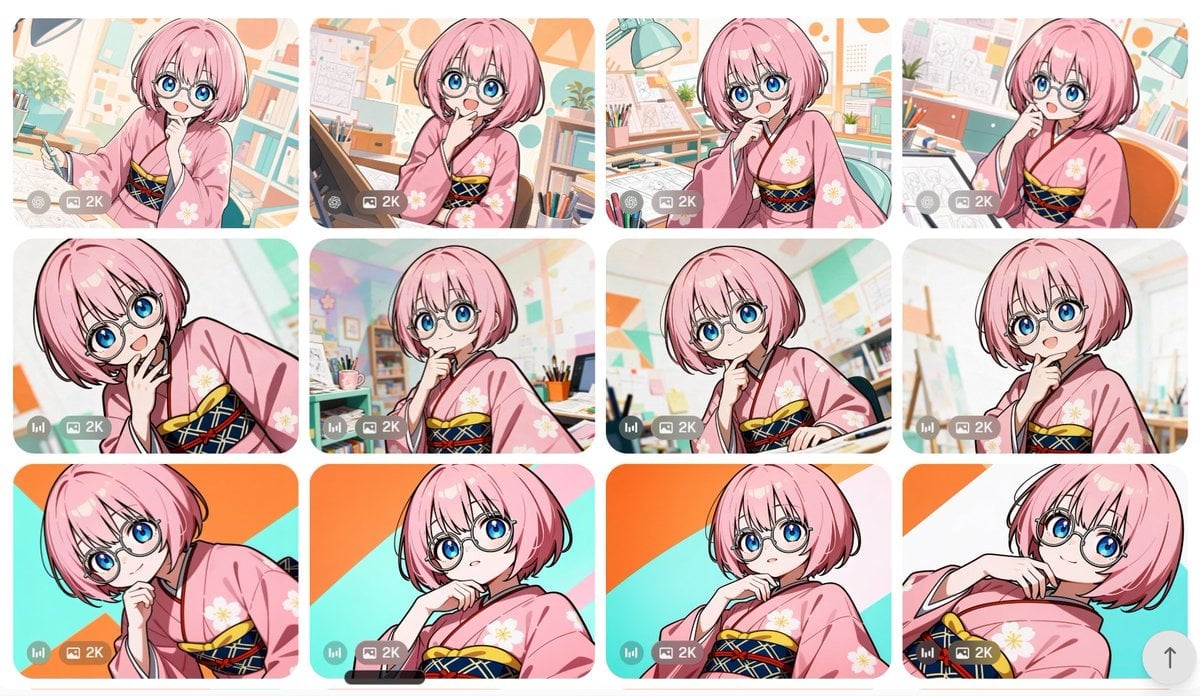
Anime Girl Generation Grid
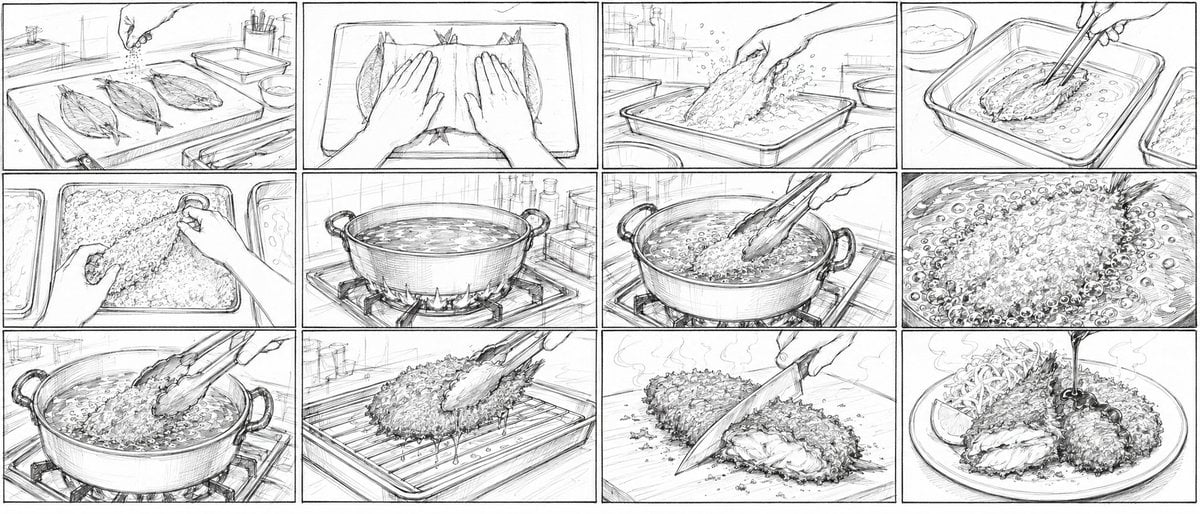
Aji Fry Anime Cooking Storyboard
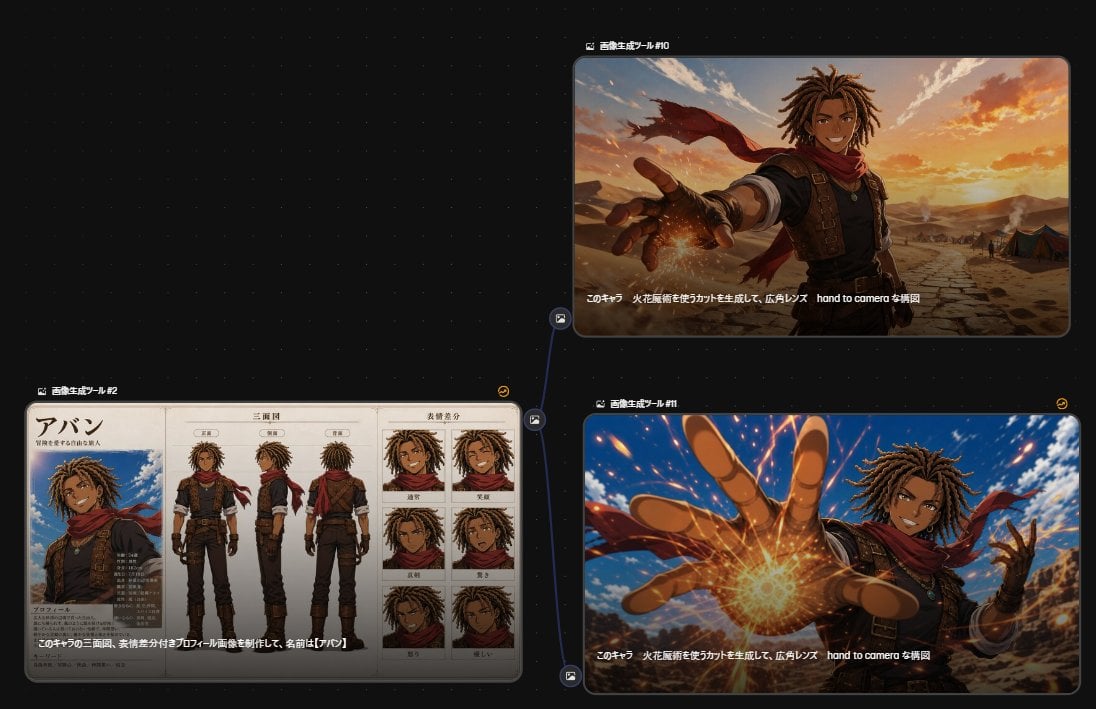
Anime Character Generation Workflow
Cel 2D Finale Fireworks
Cel 2D Garden Maze
Cel 2D Rooftop Concert
Cel 2D Bicycle Coast
Cel 2D Castle Gate
Cel 2D Kitchen Chaos
Make it yours
AI Generation UI with Anime 3x3 Storyboard works as-is. These are the safest ways to change it without losing the look.
Change one field
Copy a single group, rewrite it, and generate again so you can see what that field is doing.
Keep the frame, change the subject
Hold the composition and light of AI Generation UI with Anime 3x3 Storyboard, then swap wardrobe, props or the person for a new take.
| If the result… | Why | Fix |
|---|---|---|
| The result drifts from the preview | Too many fields changed at once. | Reuse AI Generation UI with Anime 3x3 Storyboard as-is first, then change one group — subject, light, or setting. |
| The model over-stylizes the scene | The prose prompt leaves finish and camera underspecified. | Add one camera or lighting sentence and stay on GPT Image 2. |
More GPT Image 2 templates
Other prompts made for GPT Image 2.

Six VTuber Japanese Logo Sheet

Realistic Portrait of Woman and Deer

The Vista Modular Condo Poster

AI Model Routing Comparison Infographic

2.5D Anime Art Board

Isometric Productivity Desk Scene

New York Double Exposure Poster

Four-Panel AI Landscape Comparison

Japanese Tatami Lifestyle Magazine Cover

NESCAFÉ Coffee Map Poster
More image prompts
Fresh picks from across the catalog.
Japanese Rainwear Catalog Layout
3D Cartographic City Diorama
Vintage North America Stamp Grid
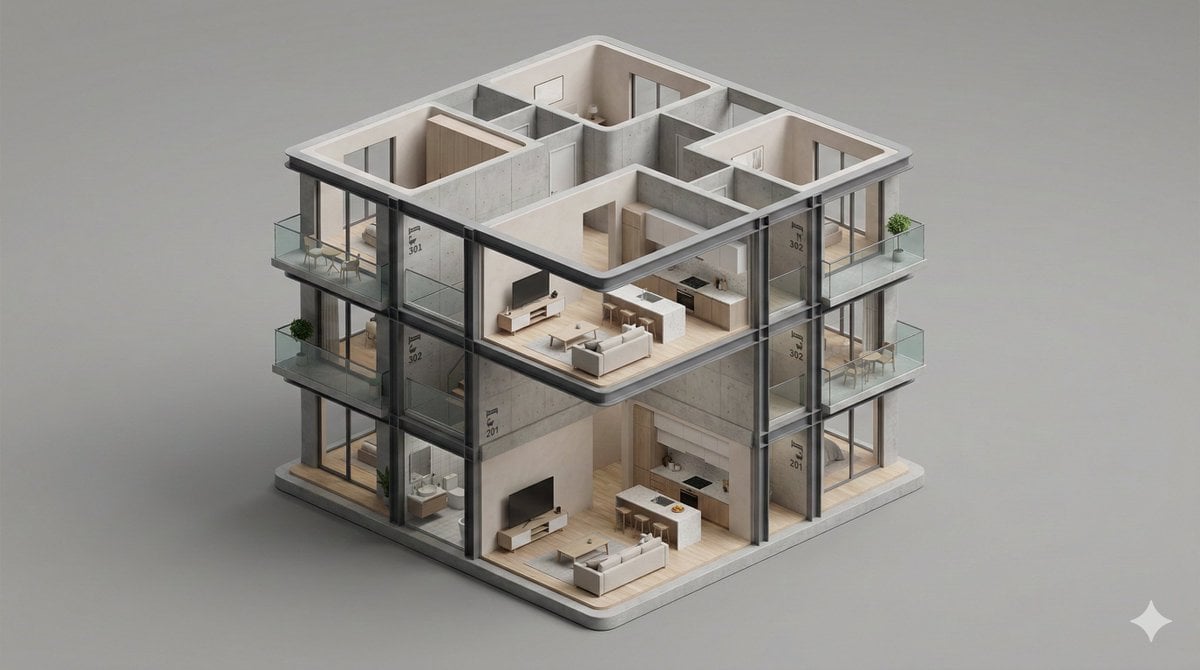
Minimalist 3D Isometric Architectural Diorama
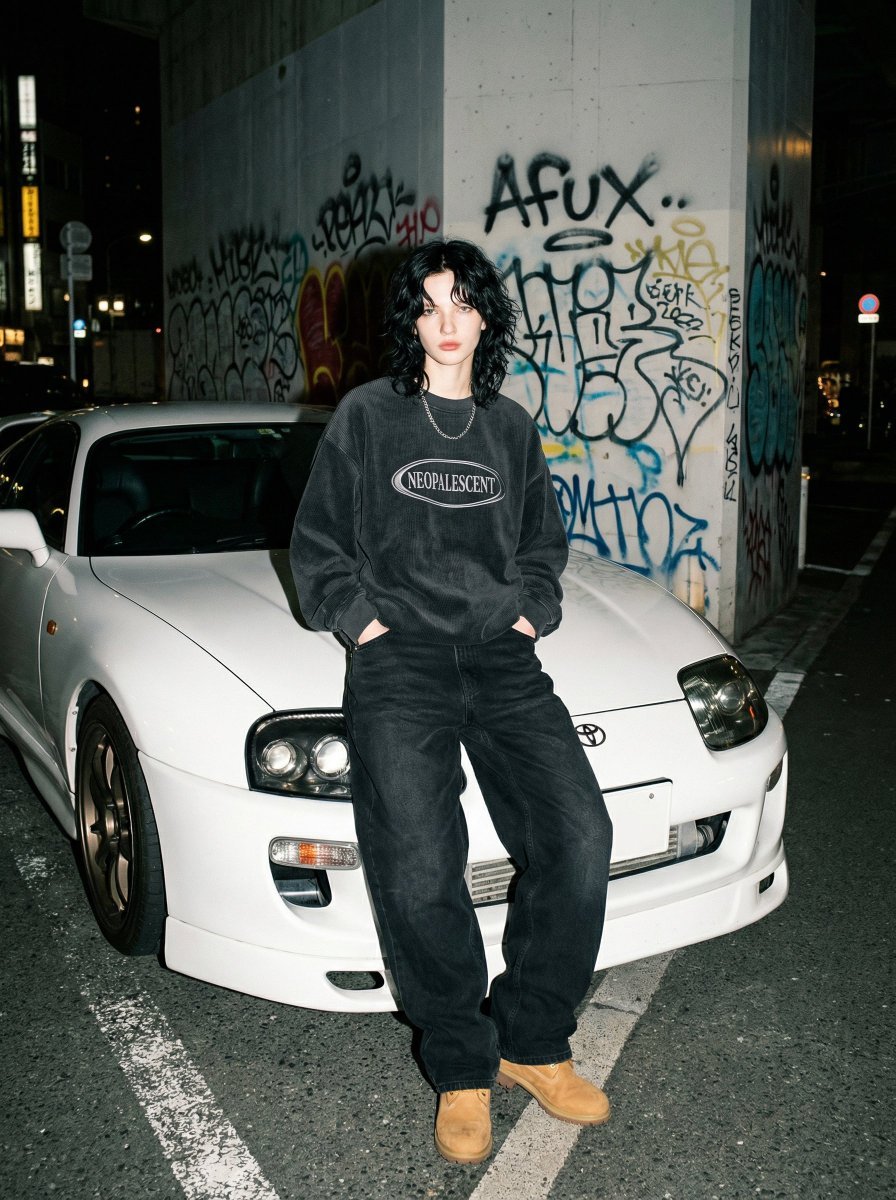
90s Streetwear Portrait with Toyota Supra MK4
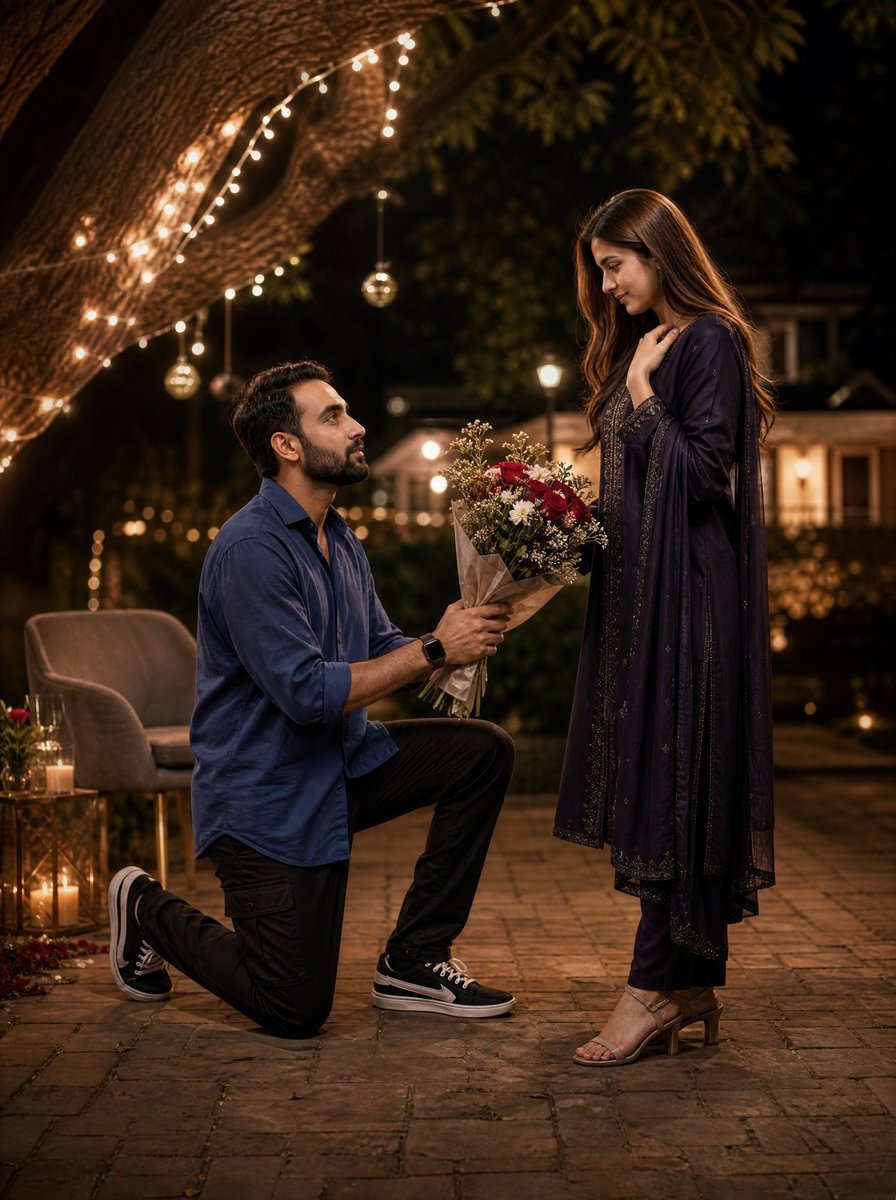
Night Park Proposal Portrait
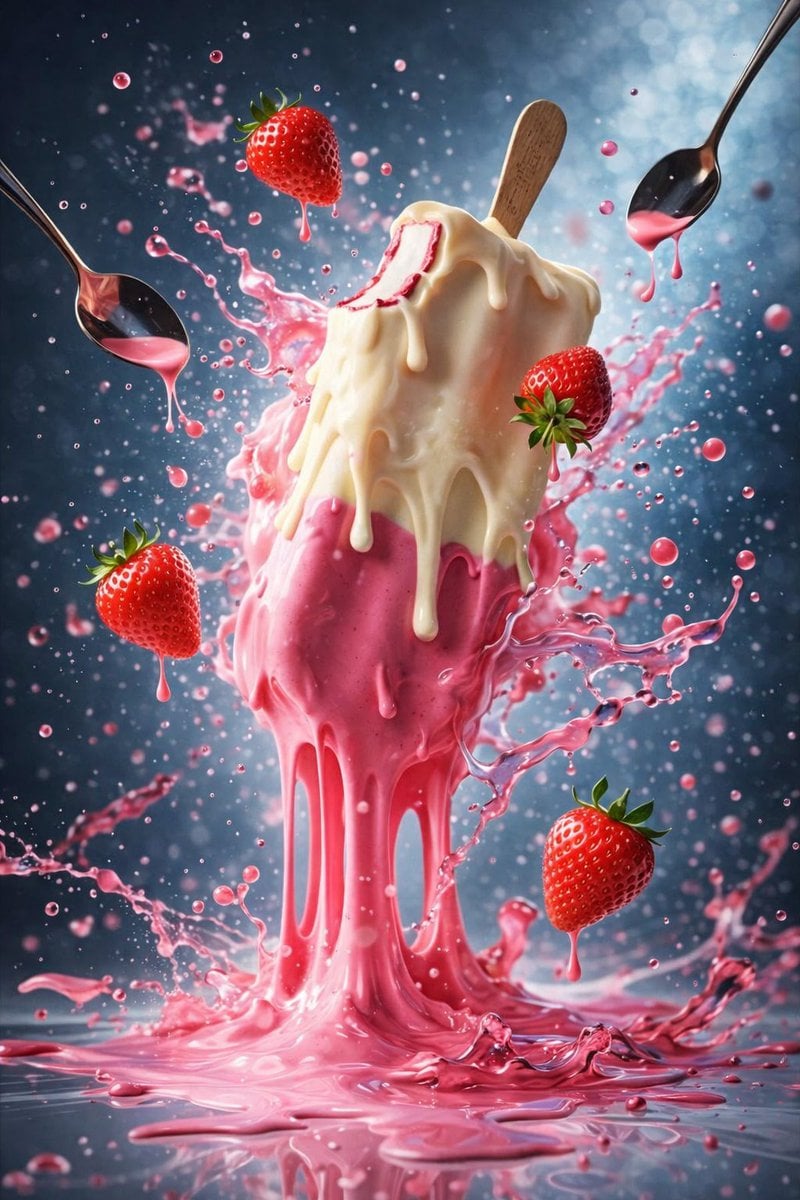
Hyper-Realistic Ice Cream Dessert Photography Prompt
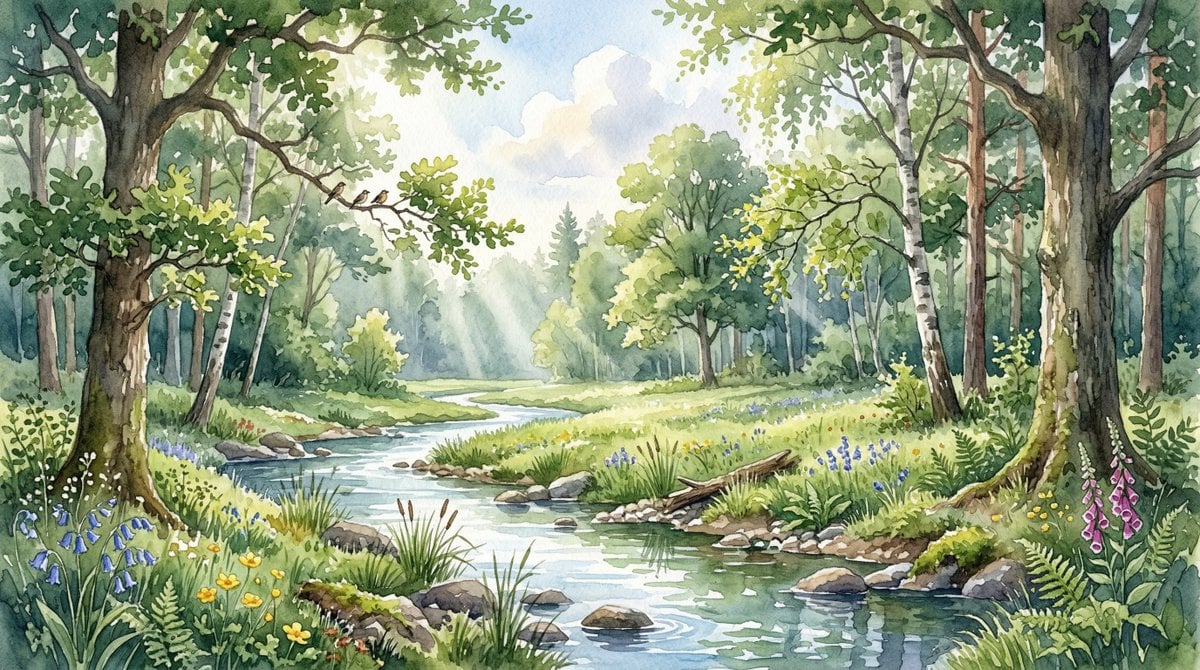
Watercolor Forest Clearing with Stream
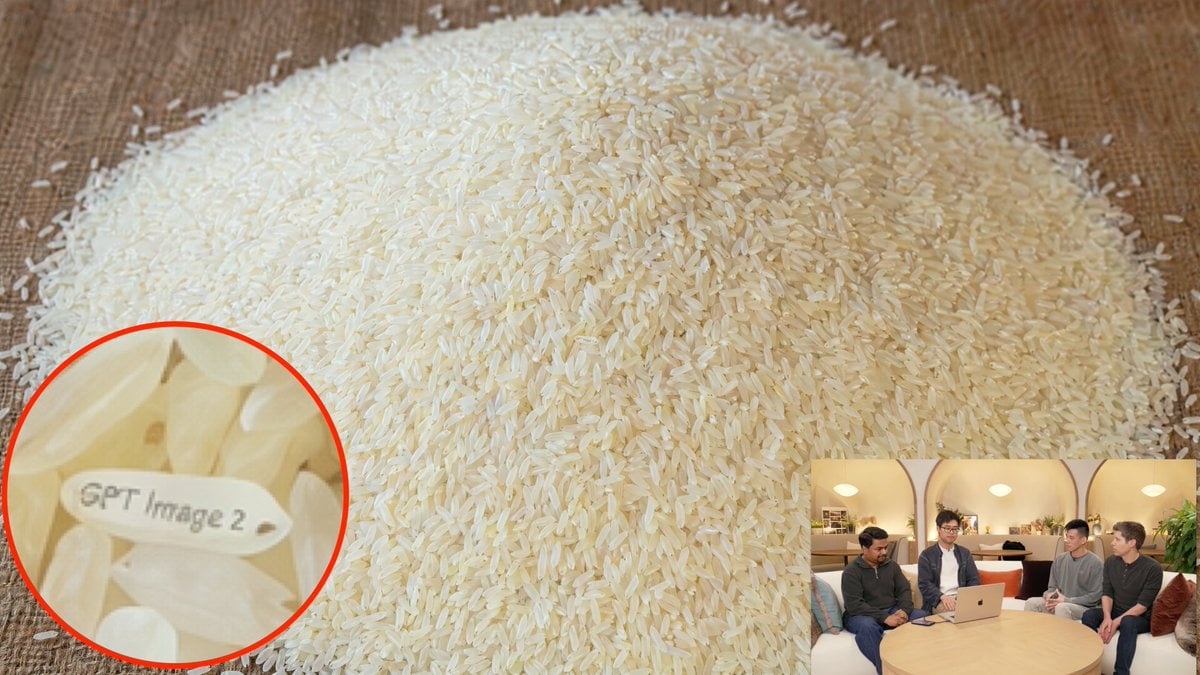
Hidden Engraved Rice Grain
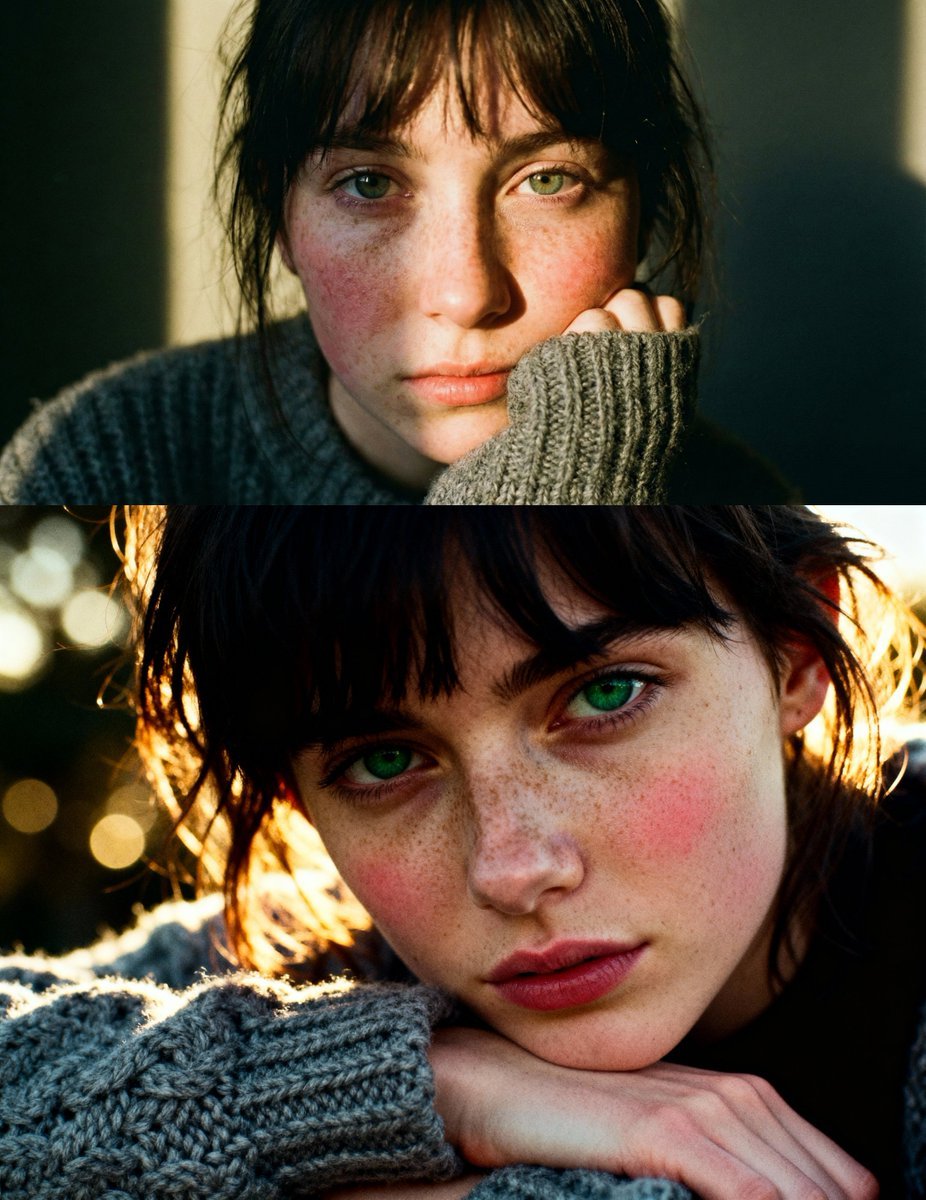
Cinematic close-up portrait with green eyes and knit sweater
Browse template categories
AI Generation UI with Anime 3x3 Storyboard questions
How do I use the AI Generation UI with Anime 3x3 Storyboard template?
Add your photo if the template asks for one, edit the prompt if you like — the template's model and format are already selected — and press Generate. Your version opens in PicX Studio.
Can I customize the AI Generation UI with Anime 3x3 Storyboard template?
Yes. You can change the subject, setting, lighting, mood, format, and available model controls before creating your image.
Is the AI Generation UI with Anime 3x3 Storyboard template free?
Opening and editing this template is free. Generating uses credits, shown on the Generate button when you are signed in.
Which AI model should I use?
Start with GPT Image 2, which is the model associated with this template. You can compare another compatible model for a different finish.
Looking for something else? Browse all templates.

Your photo, any look
Thousands of ready templates for every top image and video model, from one credit balance.