
AI Agent LP Ecosystem Infographic
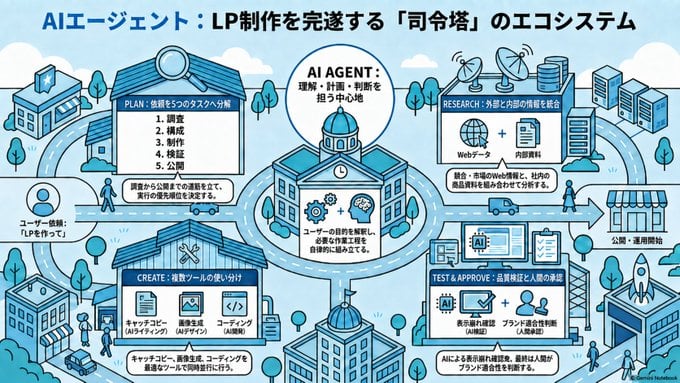
A wide Japanese isometric workflow infographic showing how an AI agent coordinates planning, research, creation, review, and publication for landing page production.
- Prompt included
- Model and format preset
- Free template
The prompt behind this image
Copy the exact prompt behind AI Agent LP Ecosystem Infographic, or open it in the studio and make it yours.
Goal: Create a wide 16:9 Japanese isometric infographic explaining an AI-agent ecosystem that completes landing page production through a “command tower” model, with the headline {argument name="headline text" default="AIエージェント:LP制作を完遂する「司令塔」のエコシステム"} across the top. Canvas: Horizontal slide, light sky-blue background with soft clouds, simple city-map roads, tiny trees, pedestrians, cars, and technology buildings. Use a clean blue, cyan, white, and black palette with thick rounded vector outlines, friendly SaaS/tech illustration style, crisp readable labels, and subtle halftone texture. No photorealism. Layout: Center a large circular roundabout containing the main AI Agent command-center building, with a domed roof, clock, gears, and brain icon. Around it place exactly 4 main workflow buildings/cards connected by roads and directional arrows: 1) PLAN at upper left, 2) RESEARCH at upper right, 3) CREATE at lower left, 4) TEST & APPROVE at lower right. Add a final publication destination on the far right: a storefront labeled as the publishing/operation start point with a rocket launch building nearby. Include supporting city objects: exactly 3 satellite dishes on the research building roof area, exactly 3 database/server stack icons near the upper right, exactly 2 tall office towers at the far right, exactly 1 small bank/store building at far upper left, exactly 1 office block at bottom left, and exactly 1 foreground dome building at bottom center. Text content: Use Japanese text throughout. Top title must read {argument name="headline text" default="AIエージェント:LP制作を完遂する「司令塔」のエコシステム"}. Central circle label: “AI AGENT:理解・計画・判断を担う中心地”. Inside the central building, add a small panel saying the agent understands user goals and automatically assembles necessary tasks. Left side user note: “ユーザー依頼:LPを作って!” Sections: Show exactly 4 labeled production modules with these visible labels and contents. PLAN module: title “PLAN:依頼を5つのタスクへ分解”; list exactly 5 numbered items: 1 調査, 2 構成, 3 制作, 4 検証, 5 公開; add a caption saying the request is decomposed into five tasks and execution priority is determined. RESEARCH module: title “RESEARCH:外部と内部の情報を統合”; show exactly 2 content icons labeled “Webデータ” and “内部資料”; caption about integrating competitor, market, and internal product information. CREATE module: title “CREATE:複数ツールの使い分け”; show exactly 3 tool icons labeled “キャッチコピー AIライティング”, “画像生成 AIデザイン”, and “コーディング AI開発”; caption saying copy, images, and coding are produced using appropriate specialized tools. TEST & APPROVE module: title “TEST & APPROVE:品質検証と人間の承認”; show exactly 3 verification icons: an AI chip, a checked monitor, and people/approval; include labels for display check, quality check, and brand/person-in-charge approval; caption saying AI handles display and quality checks and the final human approval begins publication. Subject details: Roads should visually connect every module to the central AI Agent hub, emphasizing relationships rather than a strict linear flow. Place the publish destination on the right with an arrow leading to a striped storefront labeled “公開・運用開始”. Add small decorative tech details such as antennas, document icons, code brackets, magnifying glass, gears, cloud shapes, and tiny people walking between buildings, but keep them secondary. Style constraints: Isometric 2.5D diagram, flat vector illustration, blue monochrome emphasis, black outlines, clean infographic composition, high legibility, no watermark except a tiny unobtrusive “Gemini Notebook” style credit in the bottom right if needed. Keep all labels compact and aligned inside white rounded panels.
How to use AI Agent LP Ecosystem Infographic in 3 steps
- 1Upload ImagePNG, JPG or paste
Add your photo
Upload the photo the template builds on. The prompt, model and format are already set.
- 2…a portrait of your subject in softgolden-hour light, 85mm…
Personalize
Edit the subject and creative details for your destination.
- 3Generate
Generate
Press Generate — your image is created in PicX Studio, so you can compare it with the original and refine one variable at a time.
More like this
Templates with the same subject, style or setup. Open one to see its prompt.
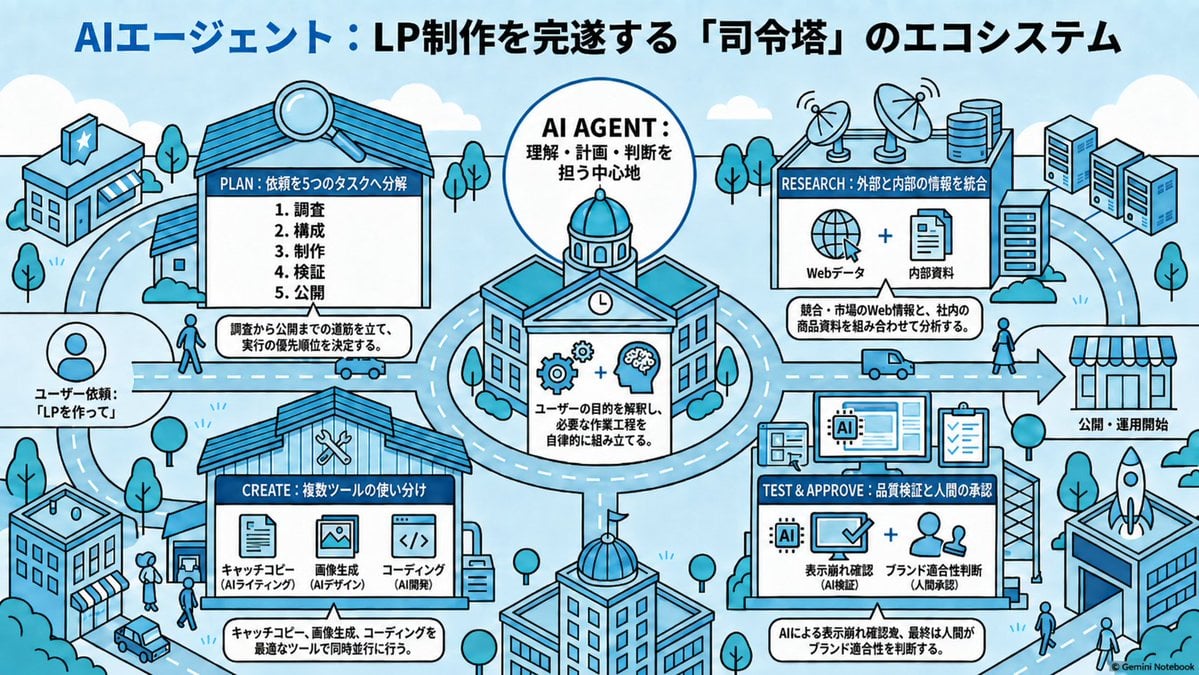
AI Agent LP Ecosystem Infographic
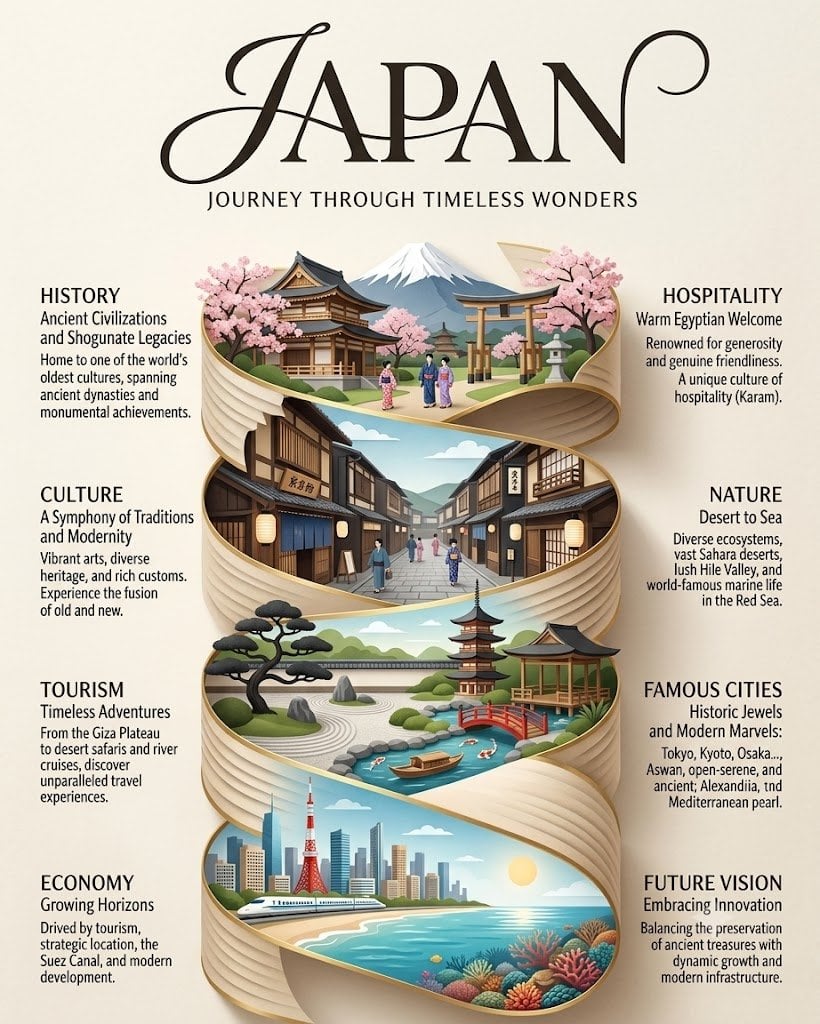
Japan Travel Brochure Poster
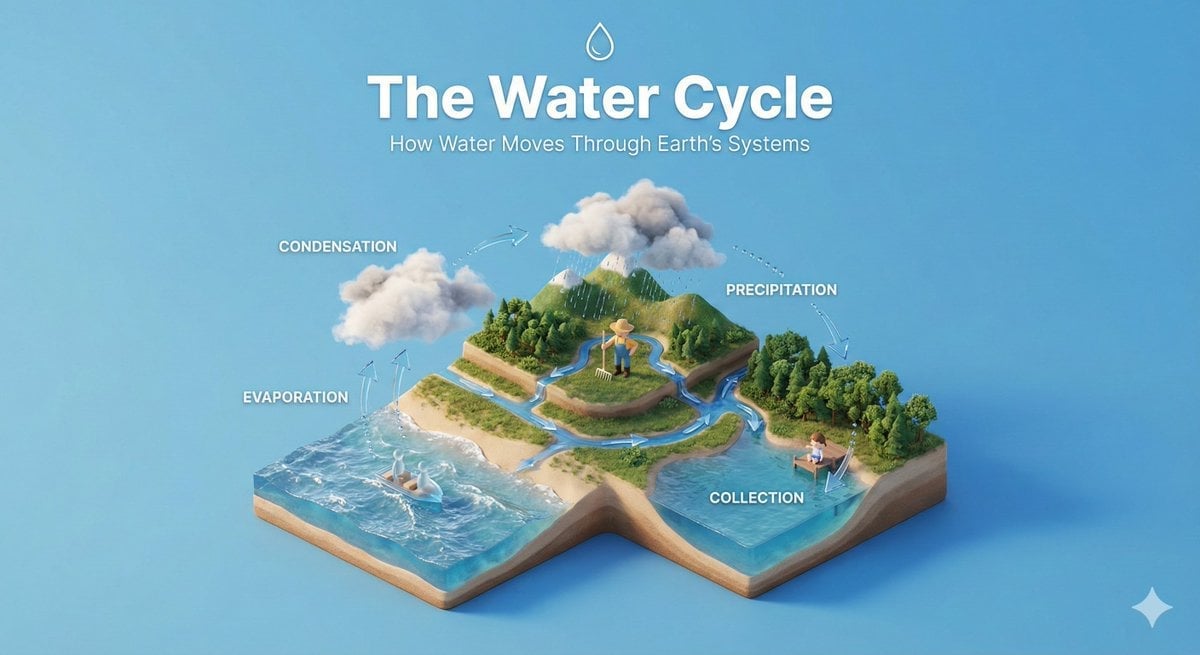
Isometric Process Educational Diorama
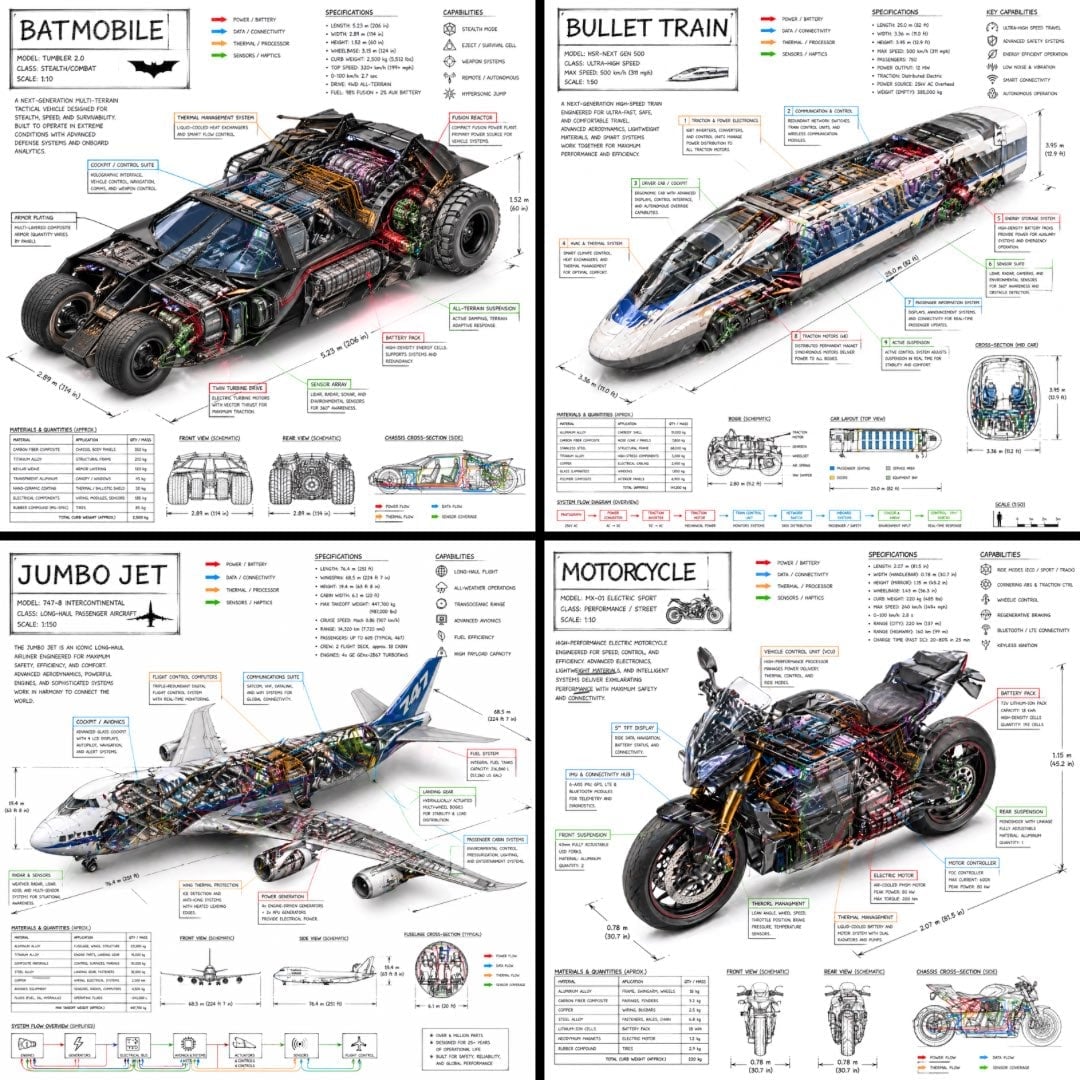
Isometric Vehicle Teardown Infographic Template

Gpt2 E Commerce Main Image Earbuds E Commerce Infographic
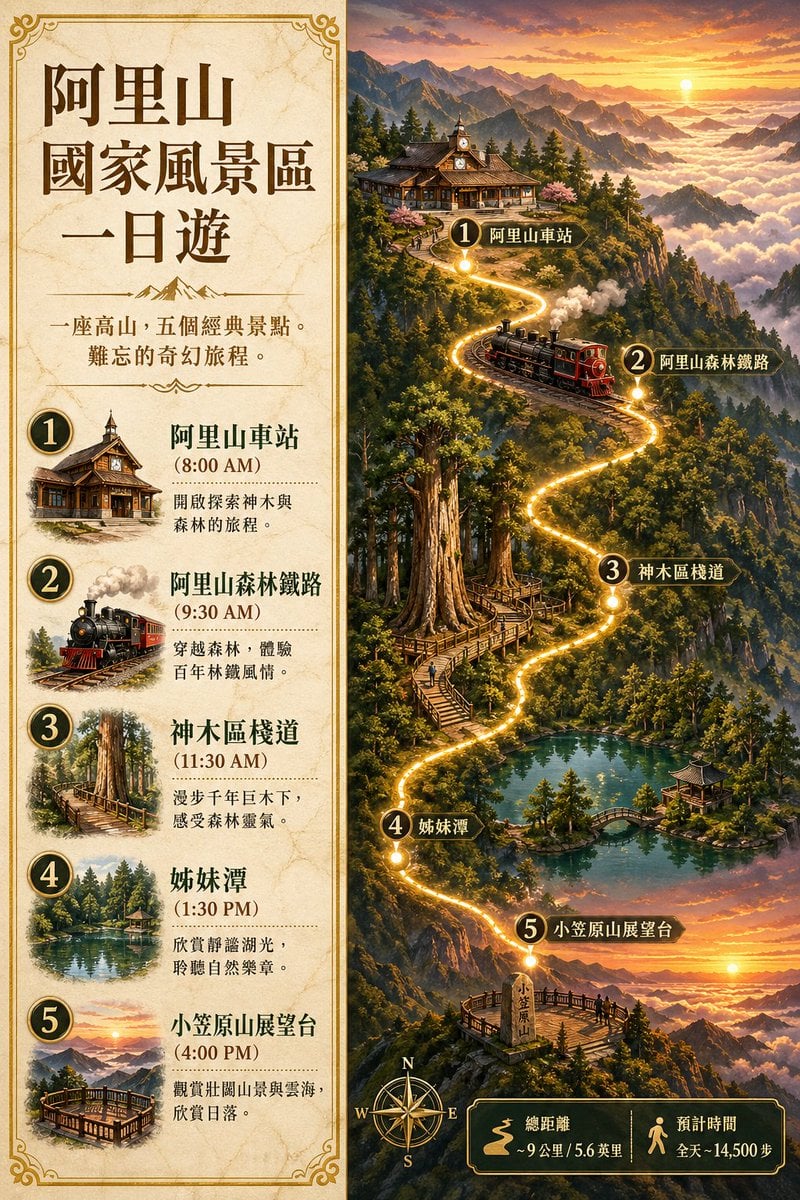
Gpt2 Infographic Edu Visual Alishan One Day Travel Poster

Gpt2 Infographic Edu Visual Ethnographic Plate for Tibetan Ceremonial Hat
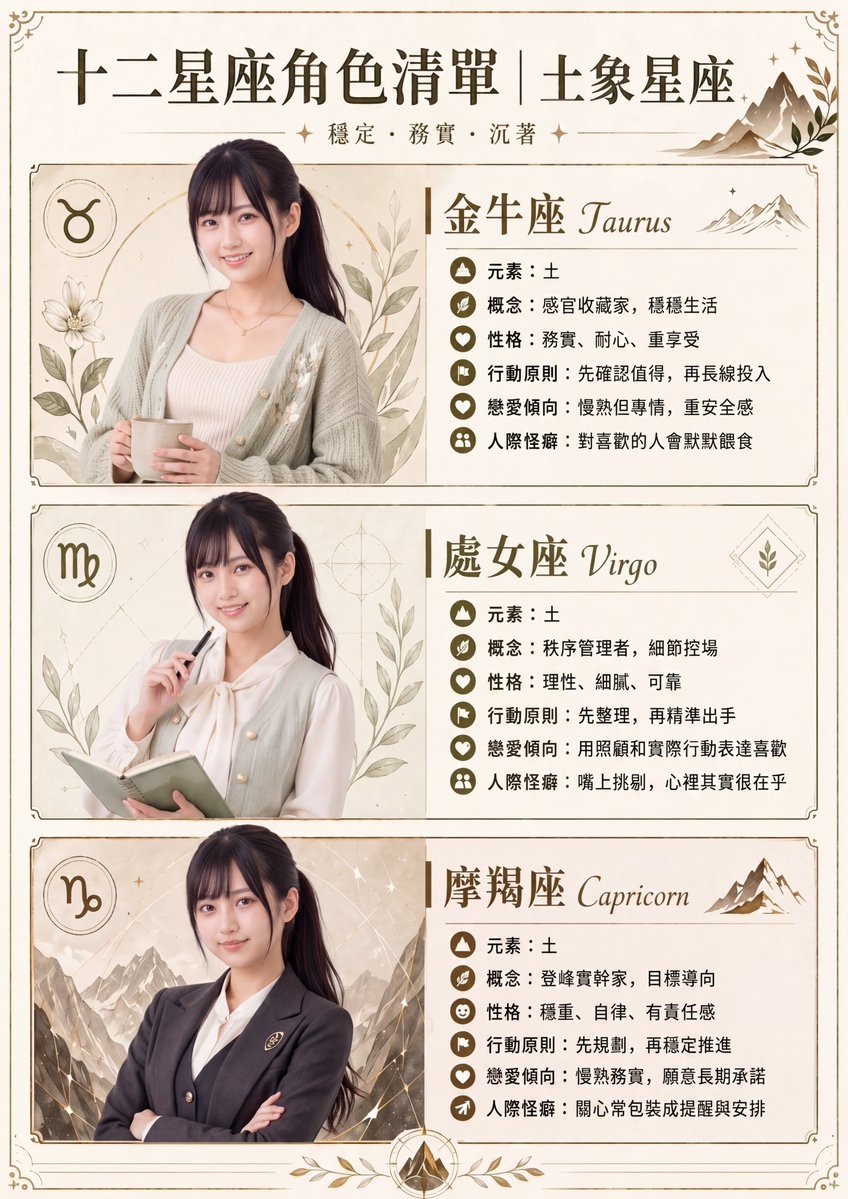
Gpt2 Infographic Edu Visual Earth Signs Zodiac Character Poster
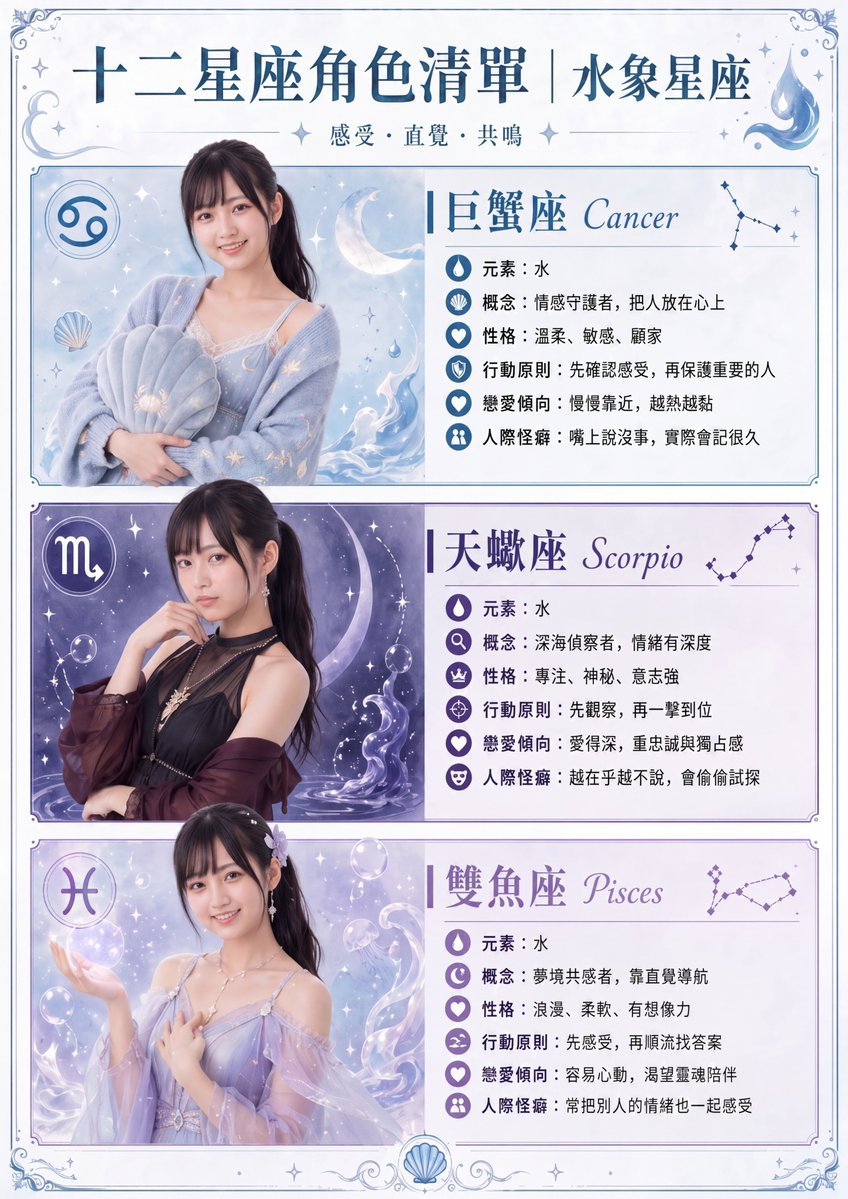
Gpt2 Infographic Edu Visual Water Signs Zodiac Character Poster
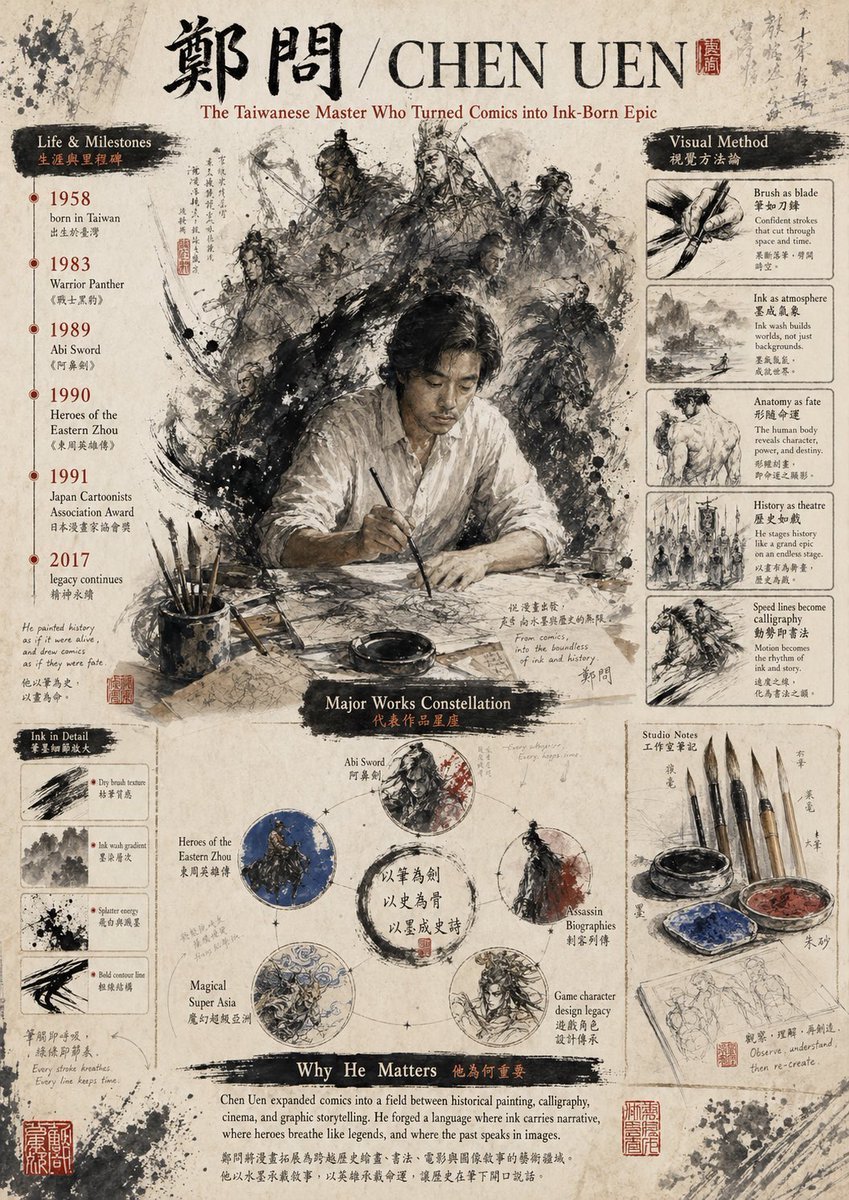
Gpt2 Infographic Edu Visual Ink Wash Tribute Poster for Chen Uen
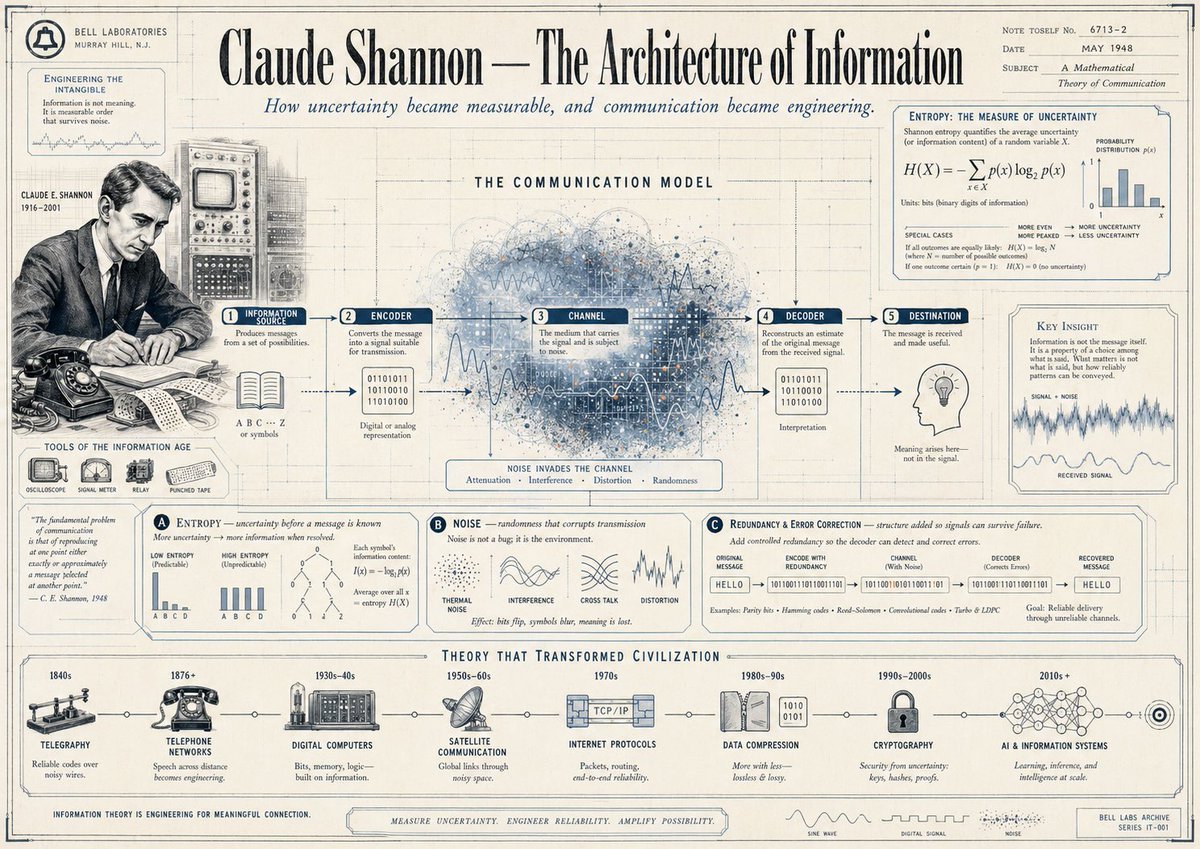
Gpt2 Infographic Edu Visual Vintage Claude Shannon Infographic Poster
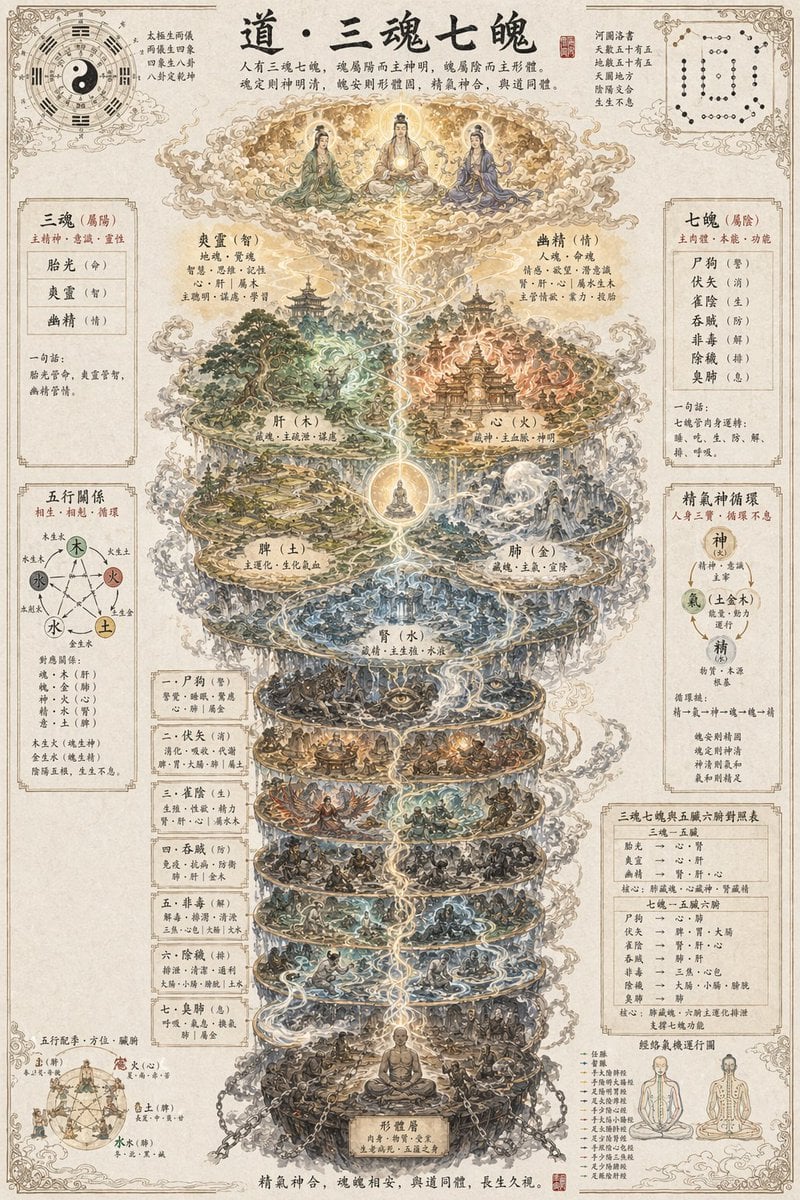
Gpt2 Infographic Edu Visual Taoist Three Souls Seven Po Poster
Make it yours
AI Agent LP Ecosystem Infographic works as-is. These are the safest ways to change it without losing the look.
Change one field
Copy a single group, rewrite it, and generate again so you can see what that field is doing.
Keep the frame, change the subject
Hold the composition and light of AI Agent LP Ecosystem Infographic, then swap wardrobe, props or the person for a new take.
| If the result… | Why | Fix |
|---|---|---|
| The result drifts from the preview | Too many fields changed at once. | Reuse AI Agent LP Ecosystem Infographic as-is first, then change one group — subject, light, or setting. |
| The model over-stylizes the scene | The prose prompt leaves finish and camera underspecified. | Add one camera or lighting sentence and stay on GPT Image 2. |
More GPT Image 2 templates
Other prompts made for GPT Image 2.

Six VTuber Japanese Logo Sheet

Realistic Portrait of Woman and Deer

The Vista Modular Condo Poster
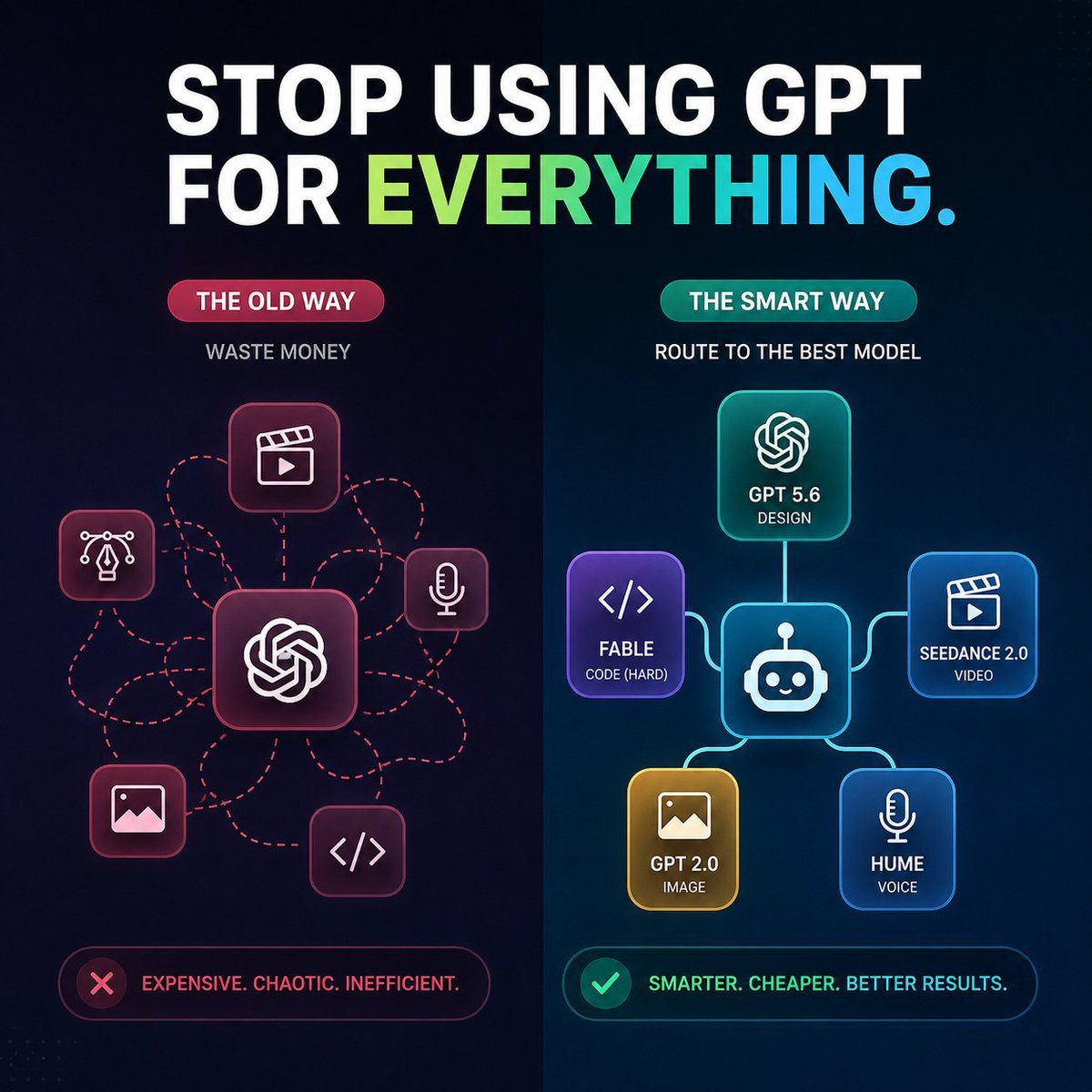
AI Model Routing Comparison Infographic

2.5D Anime Art Board

Isometric Productivity Desk Scene

New York Double Exposure Poster
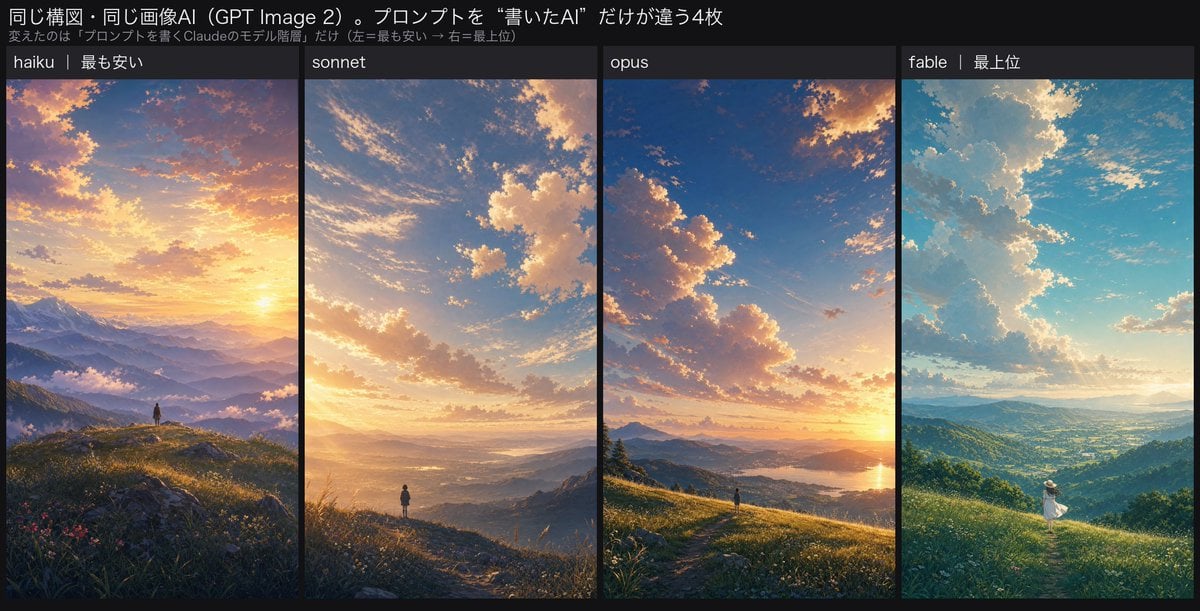
Four-Panel AI Landscape Comparison

Japanese Tatami Lifestyle Magazine Cover

NESCAFÉ Coffee Map Poster
More image prompts
Fresh picks from across the catalog.
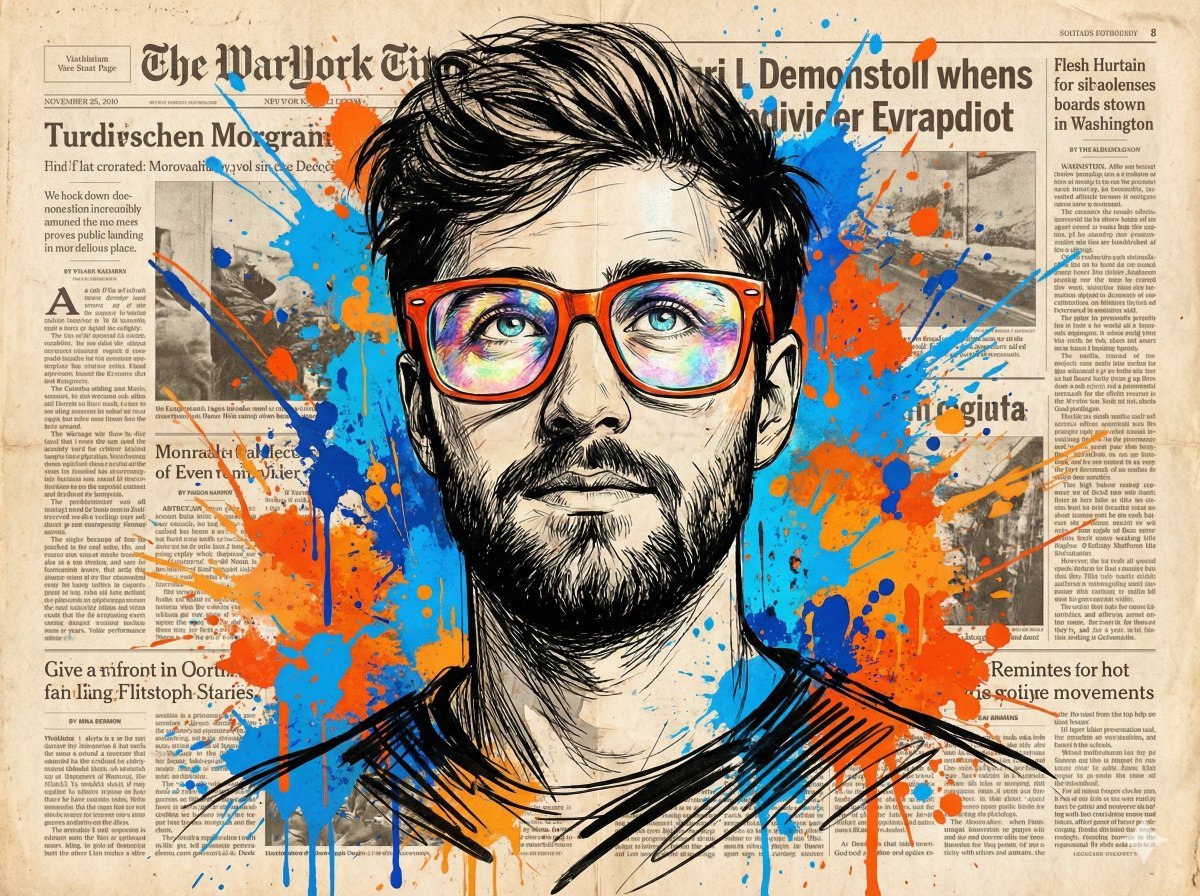
Abstract Expressionist Portrait with Orange Glasses

Zhao Lusi — Ethereal Mermaid Goddess Editorial Portrait

Zodiac Themed Yumi's Cells Poster
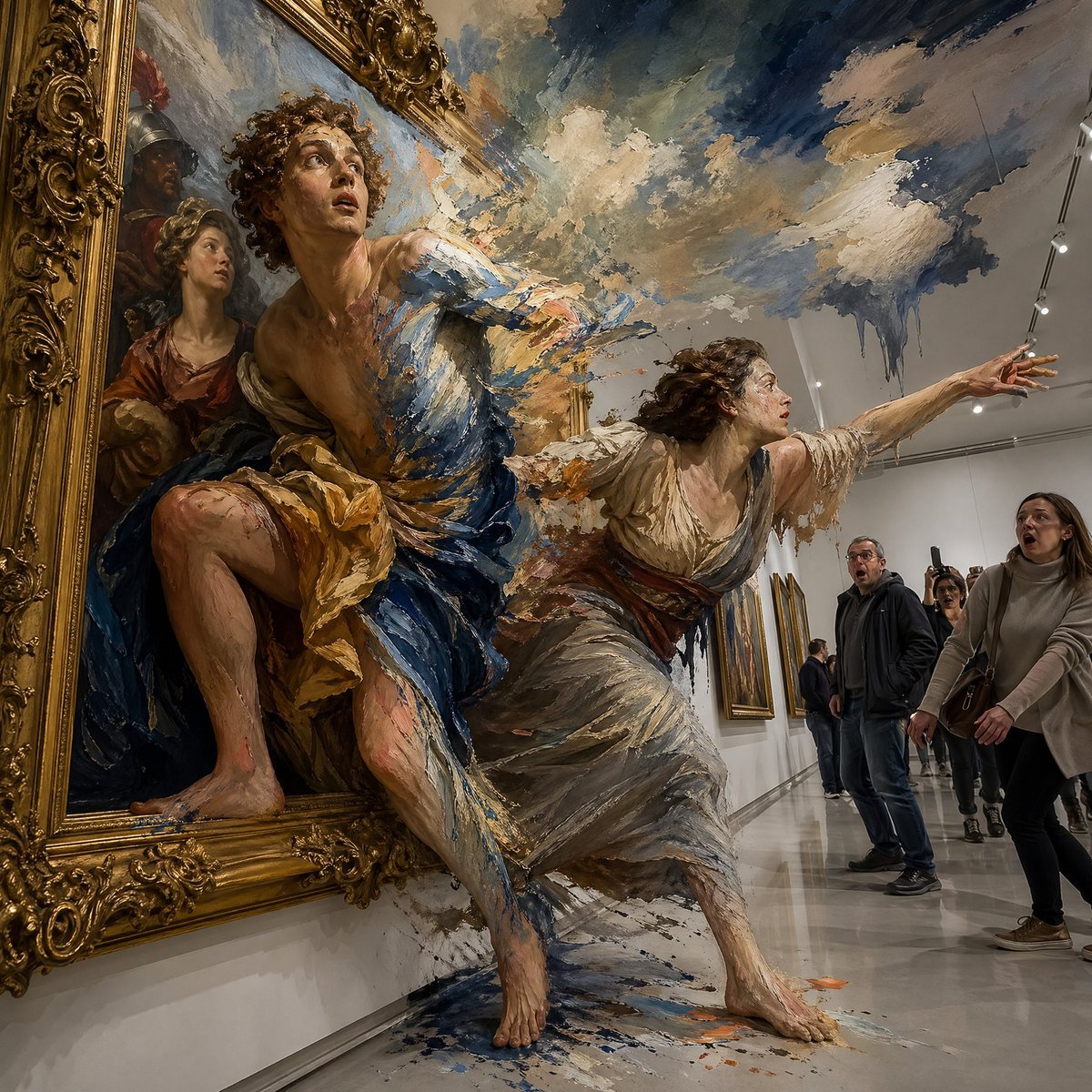
Gpt2 Comic Storyboard Surreal Baroque Painting Reality Fracture

Anime Folding Bike Event Poster

Minimalist Cobalt-Blue Fashion Studio Shoot

Nightlife Editorial Portrait Prompt
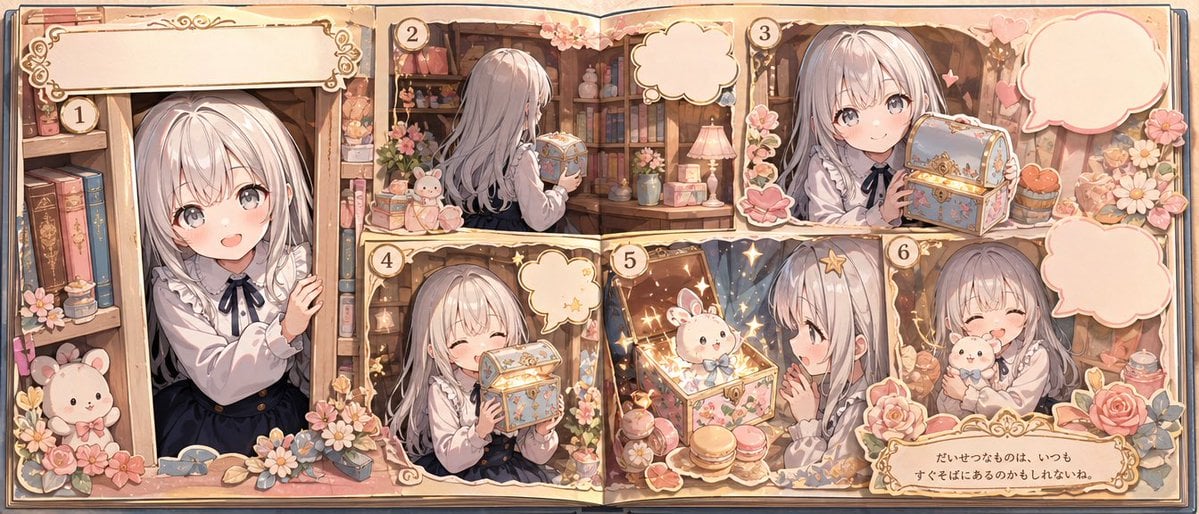
Whimsical Storybook Treasure Spread
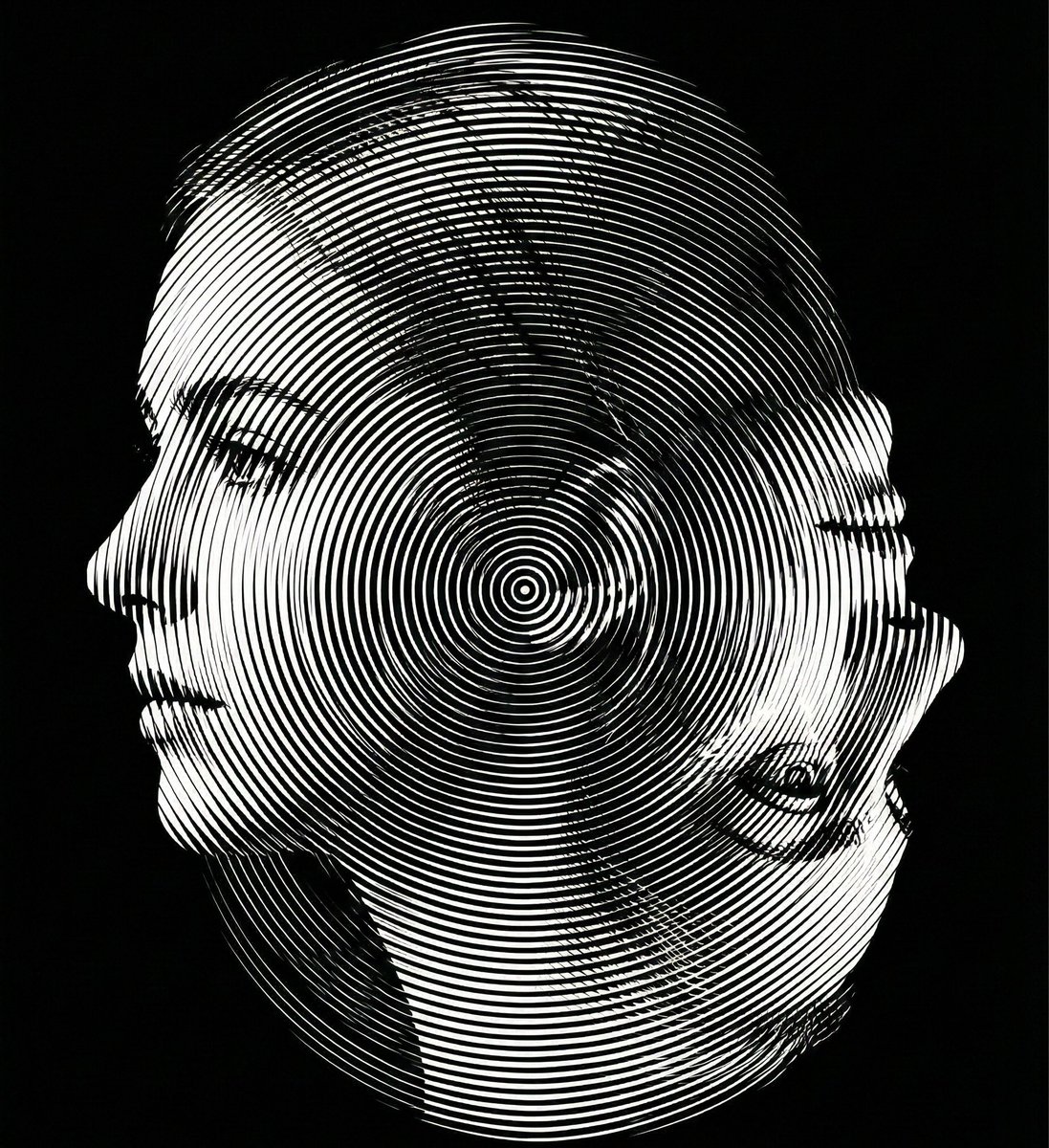
Dual-Orientation Optical Illusion Portrait

Handwritten Realistic Letter
Browse template categories
AI Agent LP Ecosystem Infographic questions
How do I use the AI Agent LP Ecosystem Infographic template?
Add your photo if the template asks for one, edit the prompt if you like — the template's model and format are already selected — and press Generate. Your version opens in PicX Studio.
Can I customize the AI Agent LP Ecosystem Infographic template?
Yes. You can change the subject, setting, lighting, mood, format, and available model controls before creating your image.
Is the AI Agent LP Ecosystem Infographic template free?
Opening and editing this template is free. Generating uses credits, shown on the Generate button when you are signed in.
Which AI model should I use?
Start with GPT Image 2, which is the model associated with this template. You can compare another compatible model for a different finish.
Looking for something else? Browse all templates.

Your photo, any look
Thousands of ready templates for every top image and video model, from one credit balance.