
Gothic AI Stack Diagram
Creates a dark gothic illustrated AI-tool stack diagram for social posts, tech commentary, or personal workflow branding.
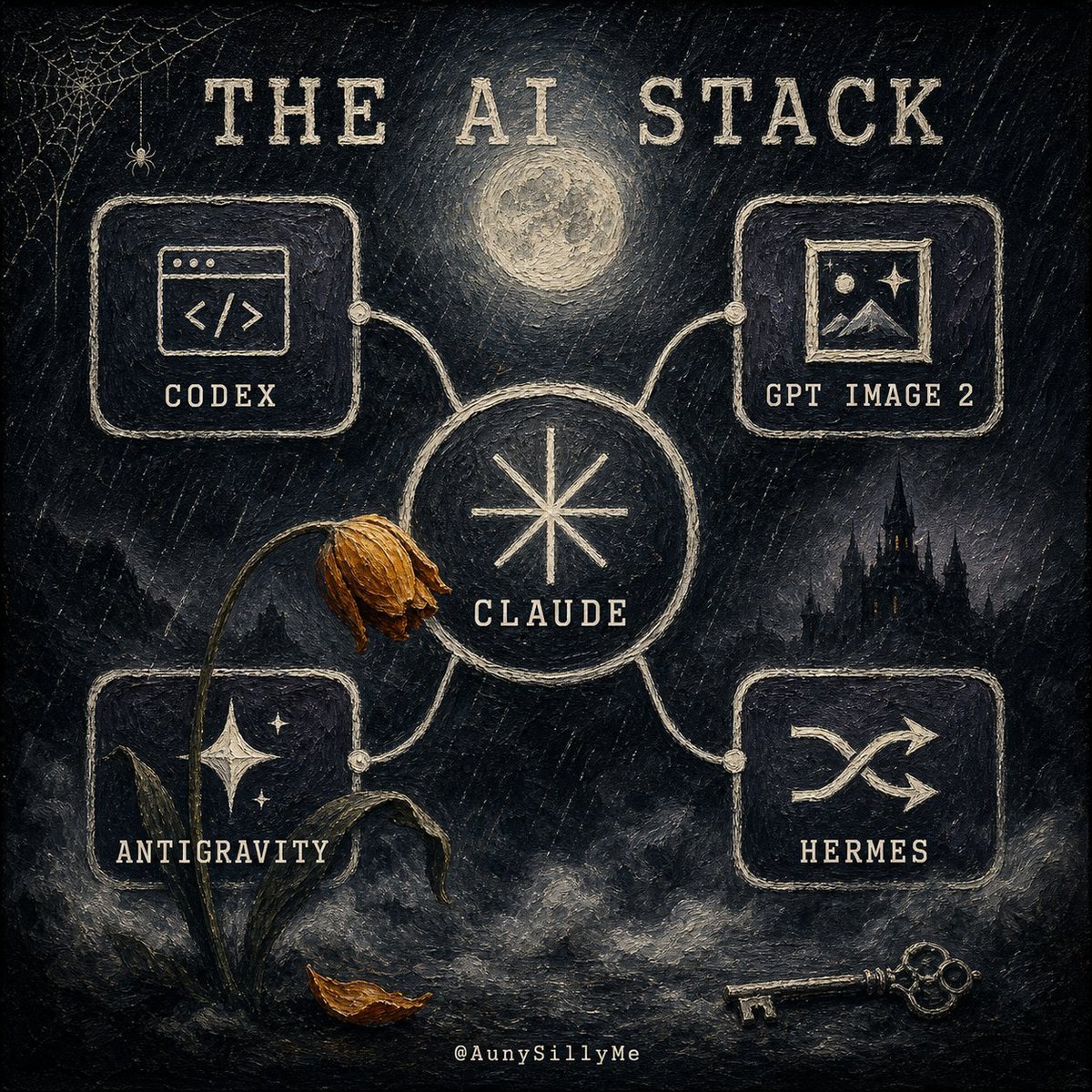
- Prompt included
- Model and format preset
- Free template
The prompt behind this image
Copy the exact prompt behind Gothic AI Stack Diagram, or open it in the studio and make it yours.
Goal: Create a dark gothic hand-painted infographic poster titled {argument name="headline text" default="THE AI STACK"}, showing an interconnected personal AI-tool stack as a mysterious occult network. Canvas: Square 1:1 composition, black and charcoal textured canvas with visible rough brush strokes, scratched chalk marks, muted cream ink, and subtle sepia highlights. The mood is eerie, nocturnal, vintage, and slightly haunted. Layout: Place a large central circular node labeled {argument name="main tool" default="CLAUDE"} with a simple eight-point starburst symbol inside it. Four rounded rectangular tool cards connect to the central node with pale hand-drawn cables and small circular connector dots. Use exactly 4 outer cards: top-left card labeled {argument name="tool 1" default="CODEX"} with a browser-window code icon, top-right card labeled {argument name="tool 2" default="GPT IMAGE 2"} with a framed landscape/image icon, bottom-left card labeled {argument name="tool 3" default="ANTIGRAVITY"} with a starry mountain or sparkling night icon, and bottom-right card labeled {argument name="tool 4" default="HERMES"} with a crossed-arrows or janitor-like routing symbol. Keep all text in uppercase, widely spaced, distressed serif/typewriter lettering. Scene details: Add a glowing full moon centered above the main node, a small spiderweb and tiny spider in the upper-left corner, a dark gothic castle silhouette in the right background, fog and smoky clouds along the bottom, a wilted flower with a bent stem leaning across the left side of the central node, one fallen brown leaf near the base of the flower, and an antique skeleton key lying at the bottom right. Include a tiny creator handle centered at the bottom: @AunySillyMe. Visual style: Painterly gothic chalkboard illustration, rough impasto texture, off-white linework on black, muted gold-brown accents on the dead flower and leaf, softly glowing moon, handmade imperfect borders, no clean vector polish. Constraints: Use exactly 1 central circle, exactly 4 connected outer cards, exactly 4 outer tool labels, exactly 1 moon, exactly 1 spiderweb, exactly 1 spider, exactly 1 wilted flower, exactly 1 fallen leaf, exactly 1 castle silhouette, and exactly 1 key. Do not add extra cards, extra tools, bright colors, modern UI gloss, or photorealism.
How to use Gothic AI Stack Diagram in 3 steps
- 1Upload ImagePNG, JPG or paste
Add your photo
Upload the photo the template builds on. The prompt, model and format are already set.
- 2…a portrait of your subject in softgolden-hour light, 85mm…
Personalize
Edit the subject and creative details for your destination.
- 3Generate
Generate
Press Generate — your image is created in PicX Studio, so you can compare it with the original and refine one variable at a time.
More like this
Templates with the same subject, style or setup. Open one to see its prompt.
Hyperrealistic Exploded Ingredient Stack Diagram
Gothic Japanese Mobile Homepage
Burning Gothic Flood Escape
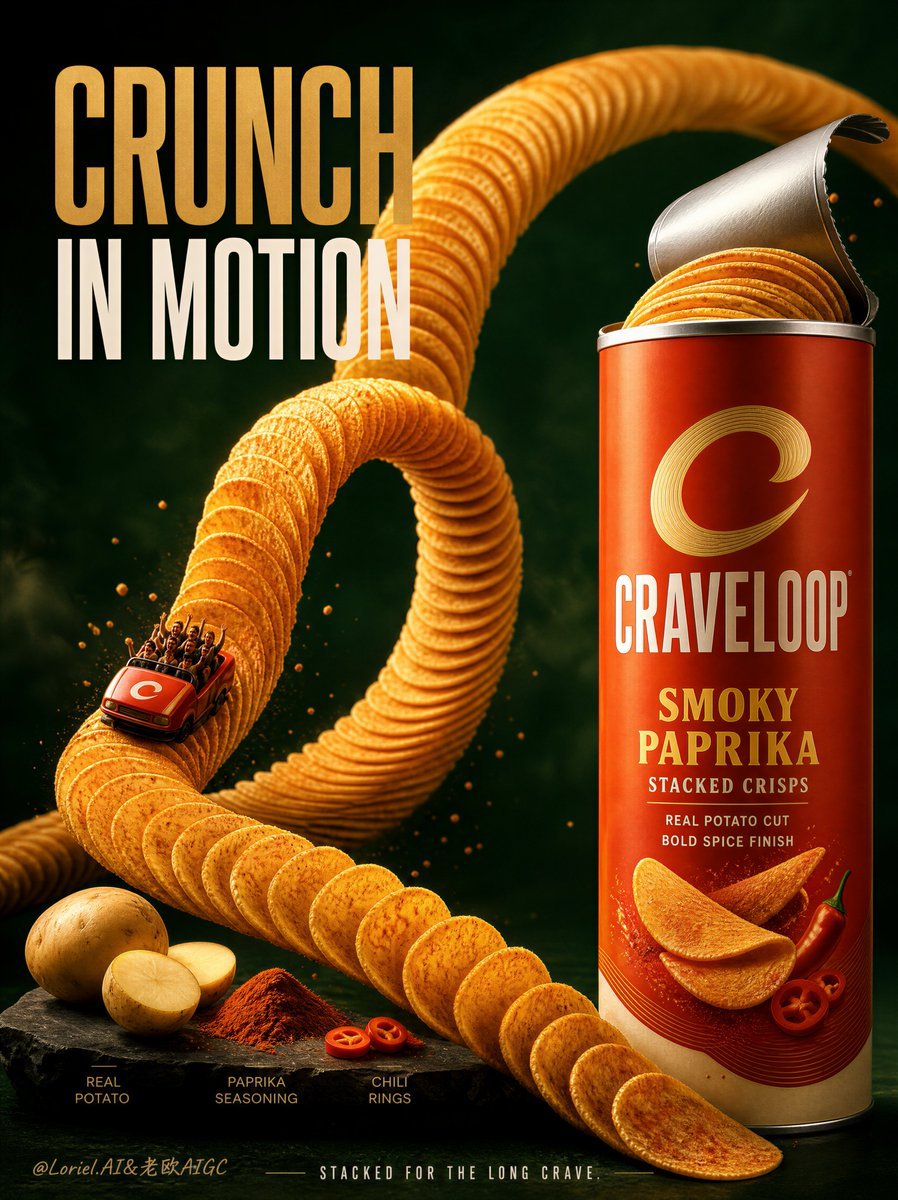
Premium Stacked Crisp Advertising Poster
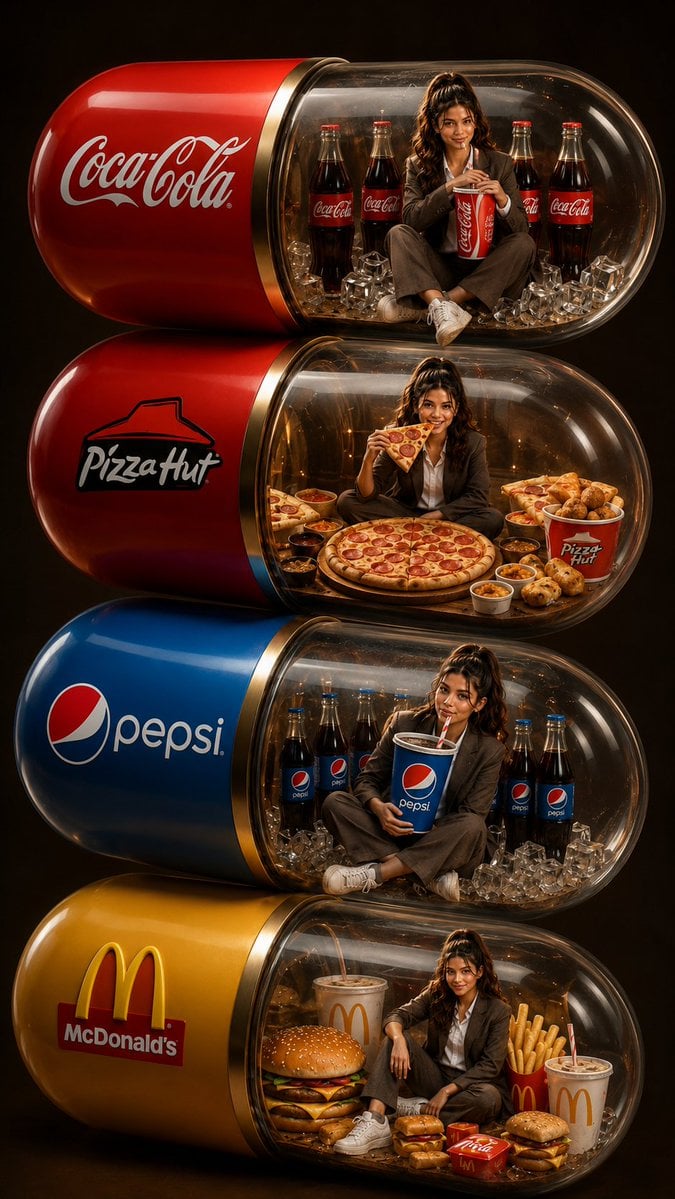
Stacked Fast Food Capsule Ads
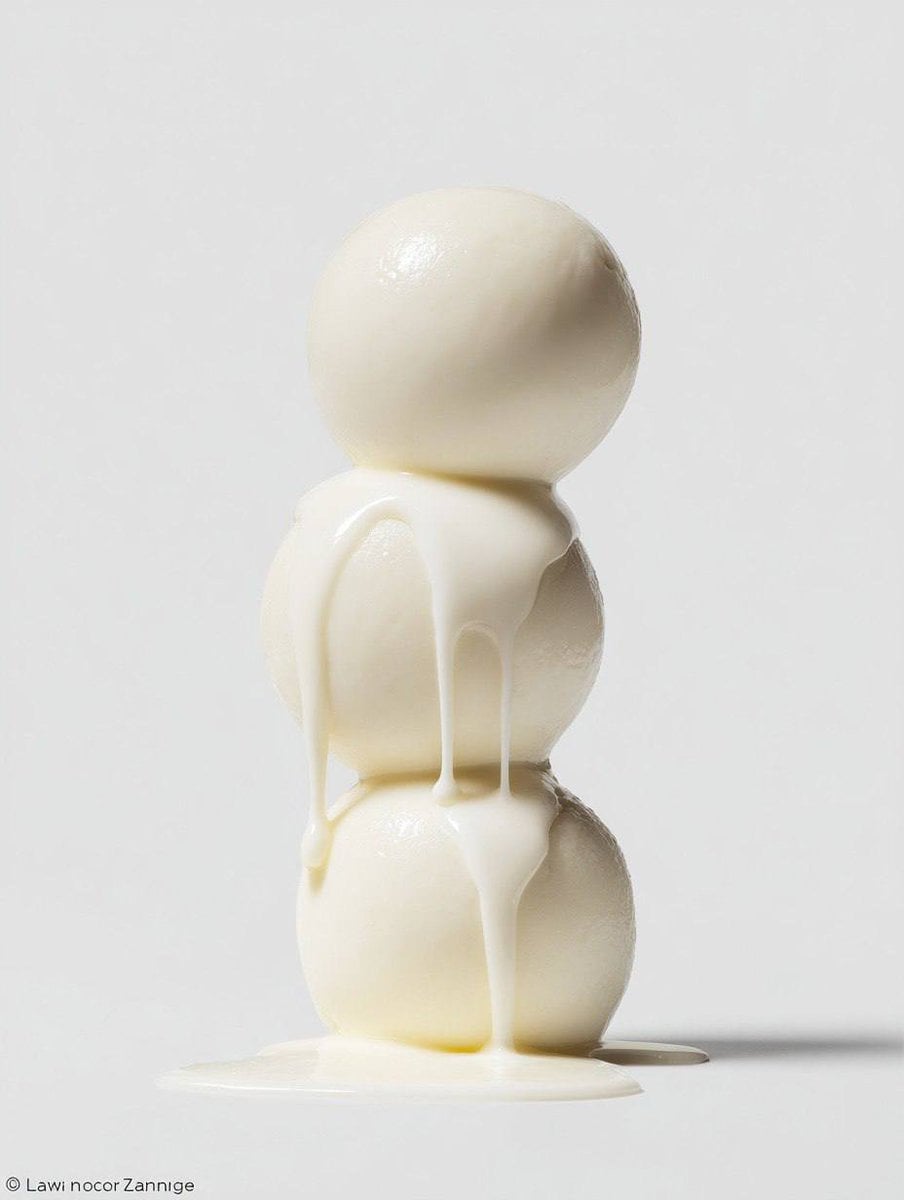
Food Photography Stack Macro
Advertising-style food photography of a stack of pancakes arranged
A stacked depth composition of ultra-detailed 16K 3D-scanned
A vertical stack of assorted cake slices floating above a white ceramic
Toddler Clones With Stacked Name Letters
Dark Gothic Lolita Static Portrait
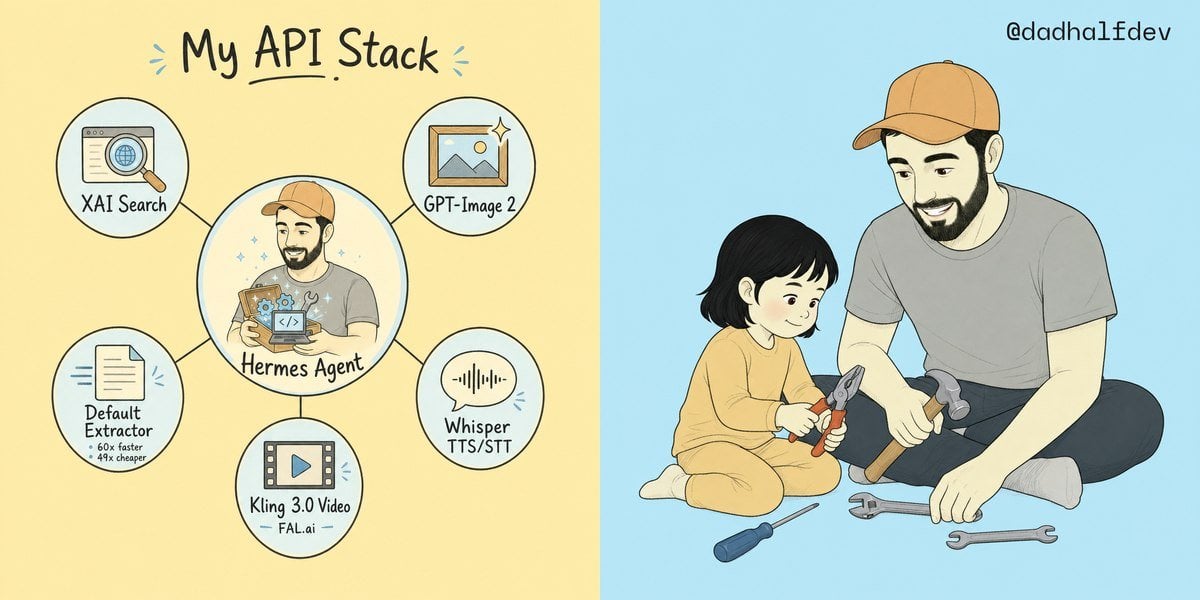
My API Stack Two-Panel Illustration
Make it yours
Gothic AI Stack Diagram works as-is. These are the safest ways to change it without losing the look.
Change one field
Copy a single group, rewrite it, and generate again so you can see what that field is doing.
Keep the frame, change the subject
Hold the composition and light of Gothic AI Stack Diagram, then swap wardrobe, props or the person for a new take.
| If the result… | Why | Fix |
|---|---|---|
| The result drifts from the preview | Too many fields changed at once. | Reuse Gothic AI Stack Diagram as-is first, then change one group — subject, light, or setting. |
| The model over-stylizes the scene | The prose prompt leaves finish and camera underspecified. | Add one camera or lighting sentence and stay on GPT Image 2. |
More GPT Image 2 templates
Other prompts made for GPT Image 2.

Six VTuber Japanese Logo Sheet

Realistic Portrait of Woman and Deer

The Vista Modular Condo Poster

AI Model Routing Comparison Infographic

2.5D Anime Art Board

Isometric Productivity Desk Scene

New York Double Exposure Poster

Four-Panel AI Landscape Comparison

Japanese Tatami Lifestyle Magazine Cover

NESCAFÉ Coffee Map Poster
More image prompts
Fresh picks from across the catalog.
Vibrant Abstract Pattern Prompt
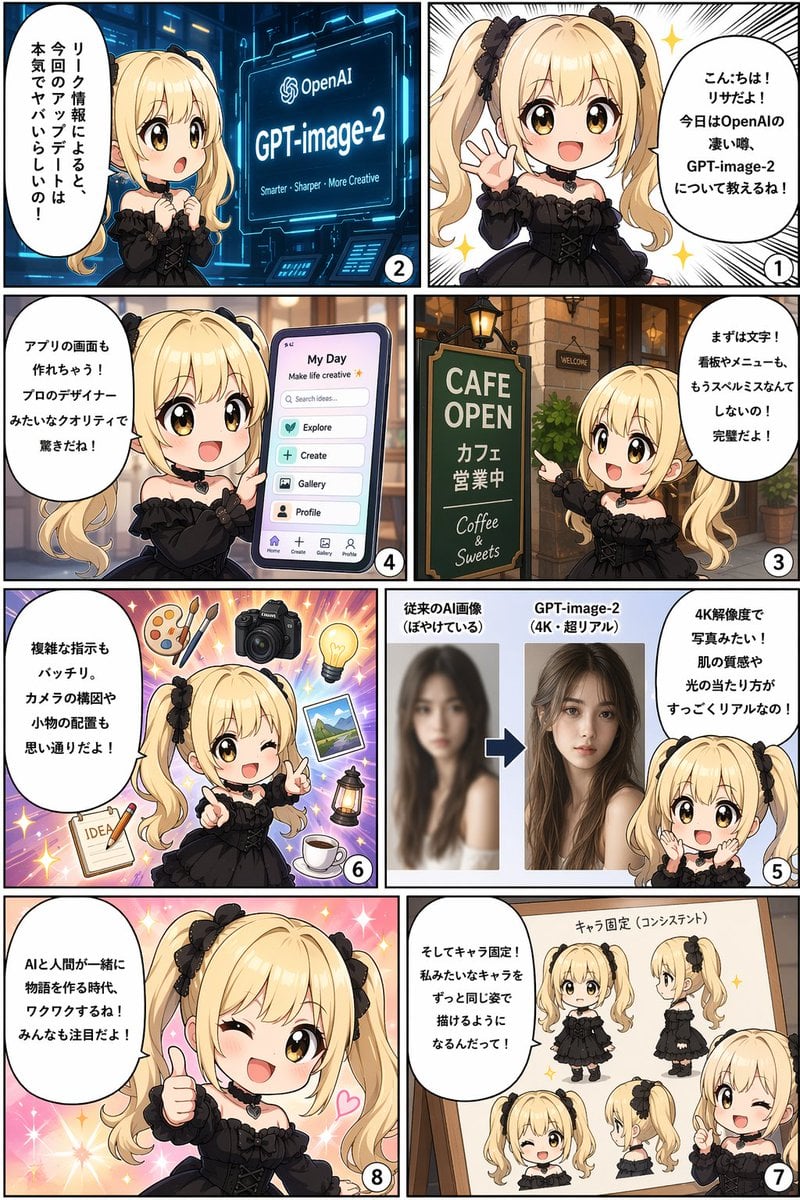
Panel AI Feature Explainer Manga
Five-Girl Anime Café Group Portrait
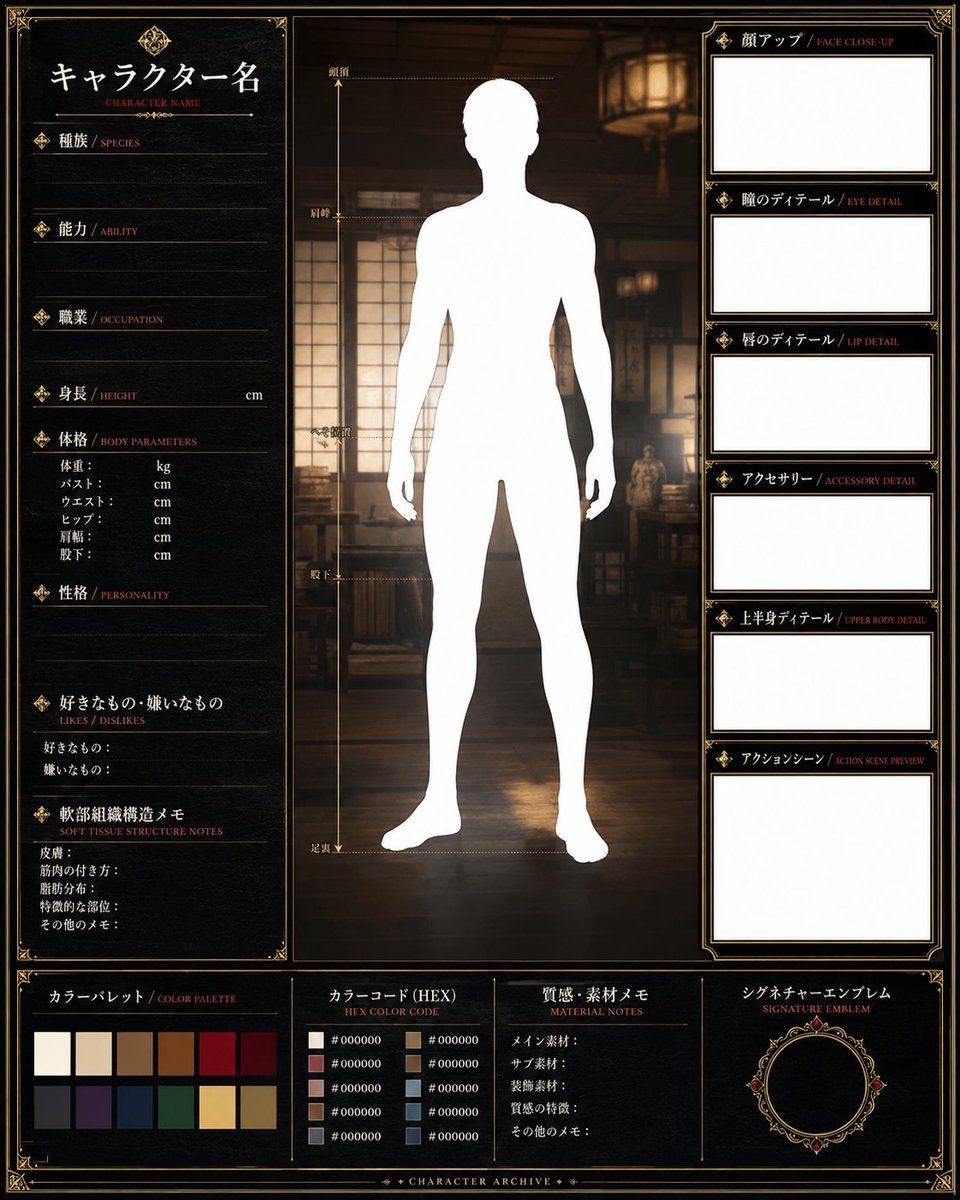
Fantasy Character Archive Sheet
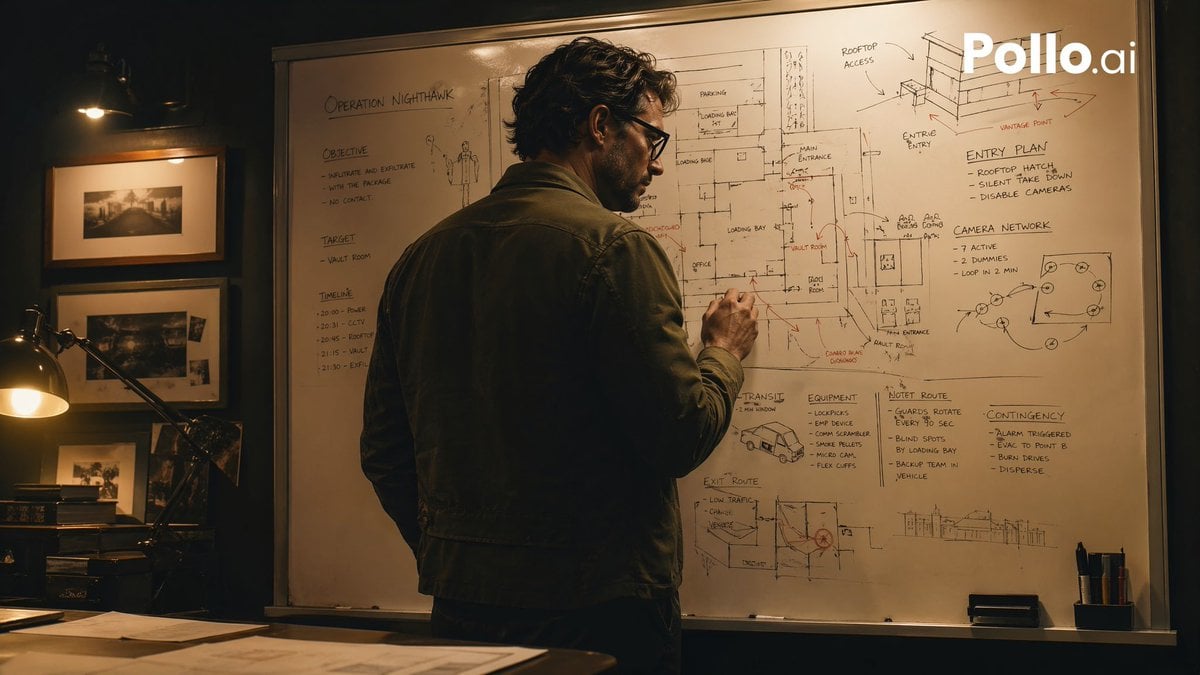
Cinematic Heist Mastermind at Whiteboard
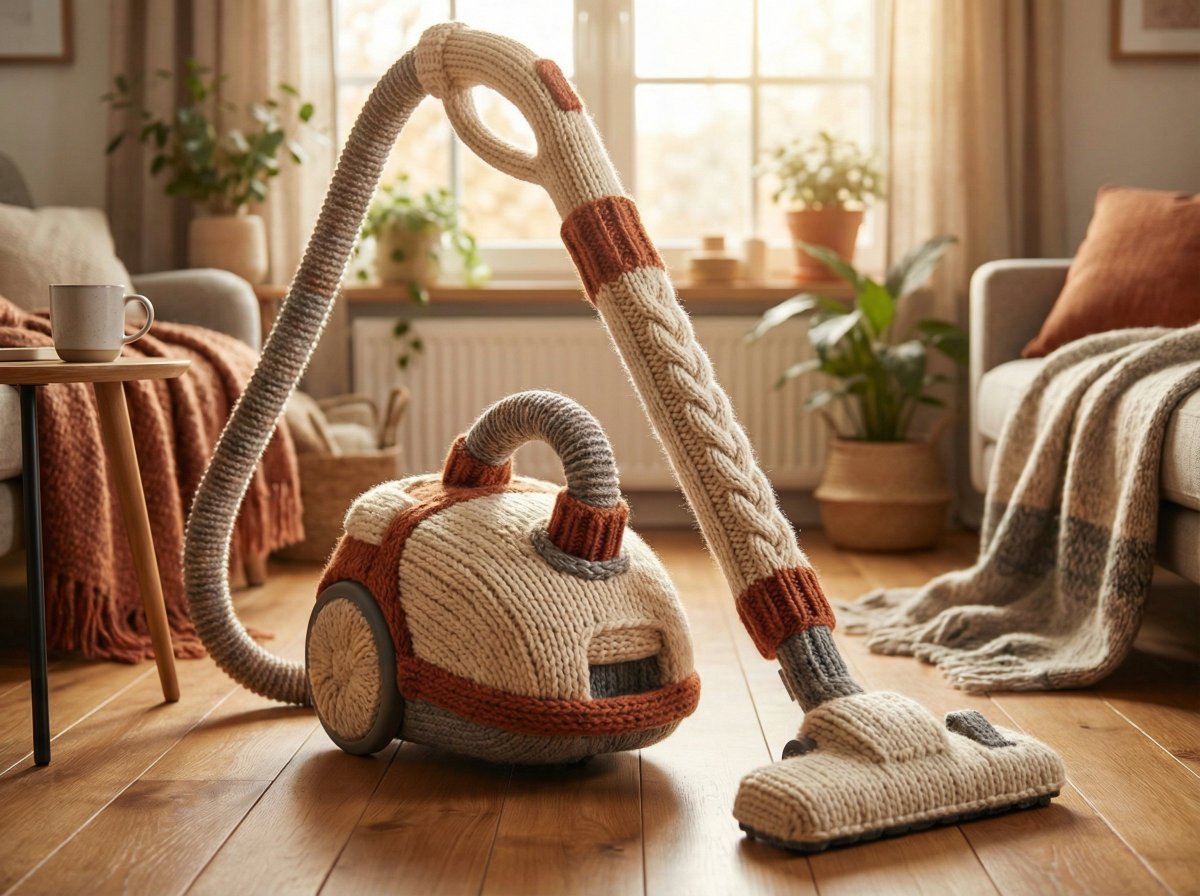
Cozy Knit Industrial Design Prompt
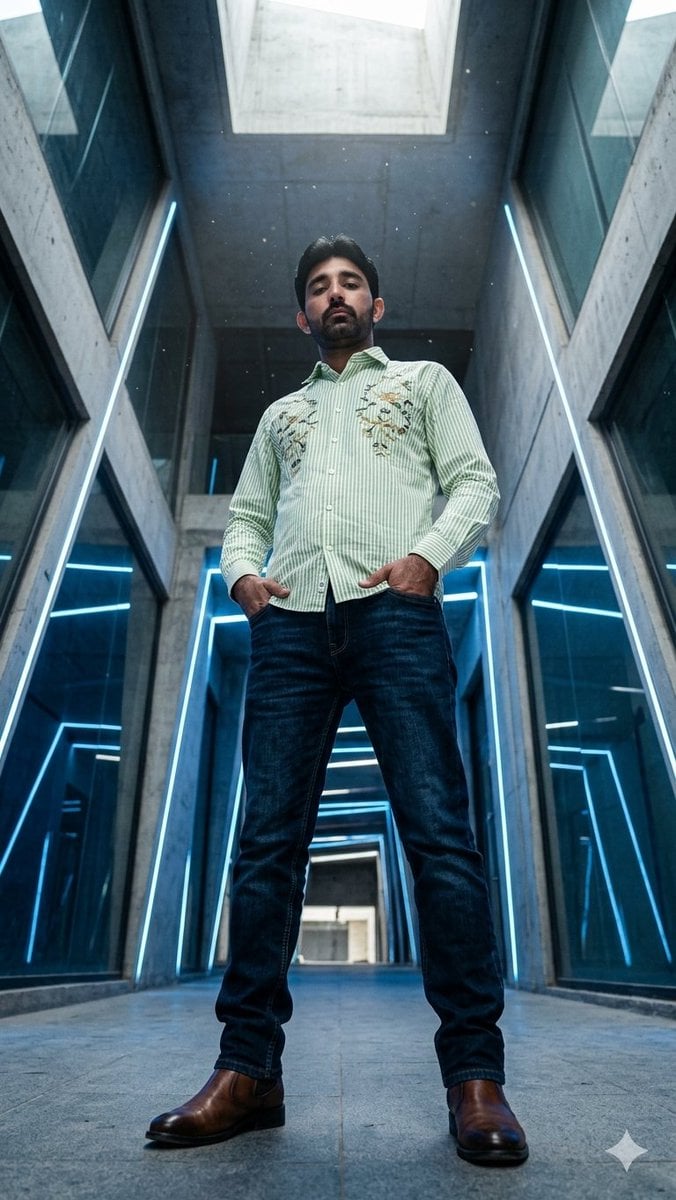
Low-Angle Futuristic Fashion Editorial
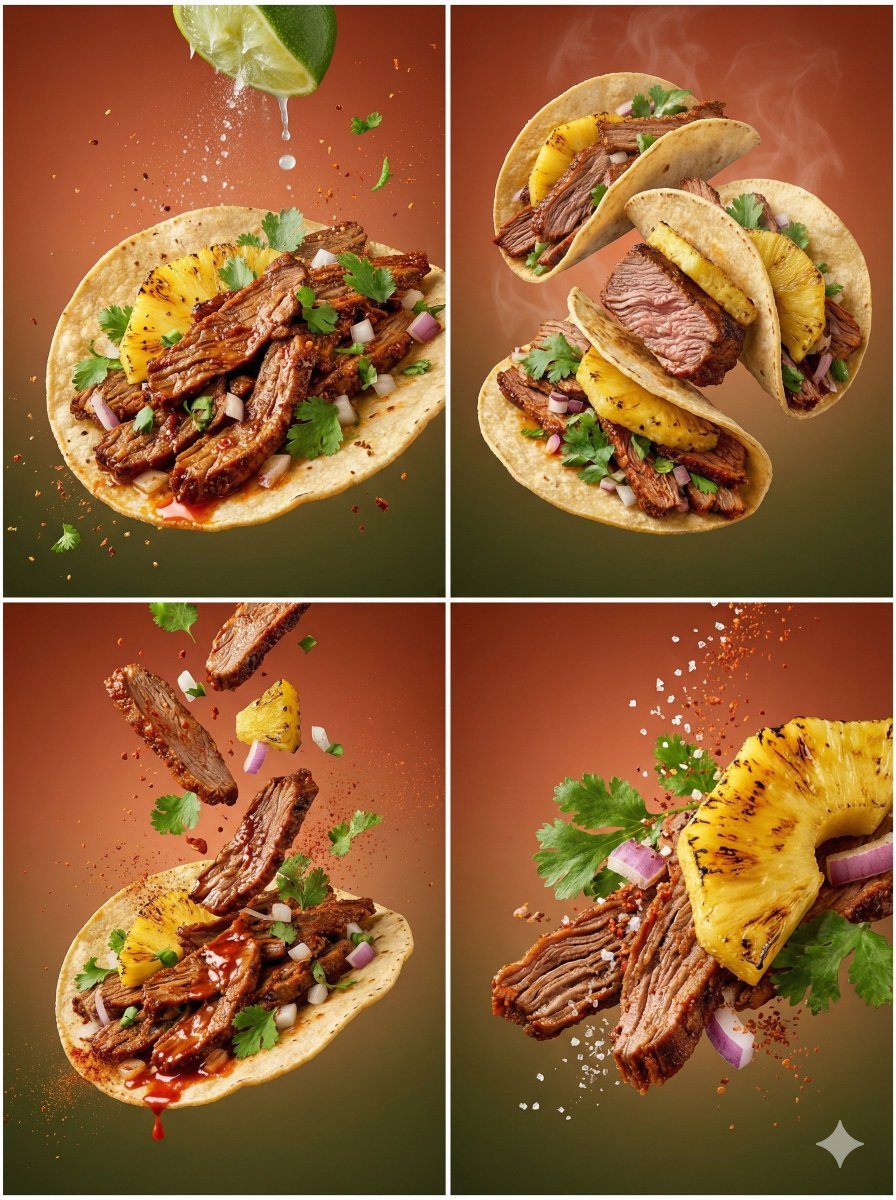
Cinematic Country Food Photography Prompt Template
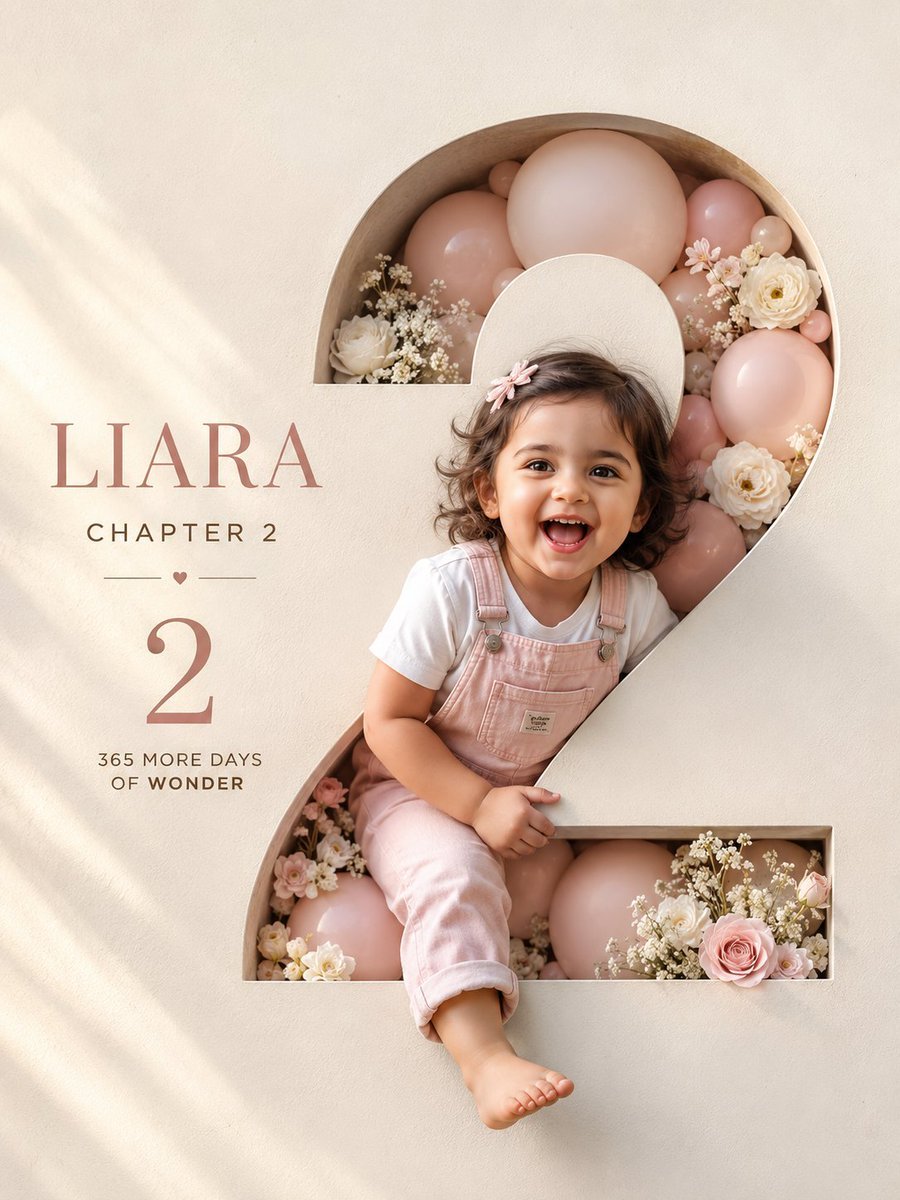
Luxury 3D Birthday Poster
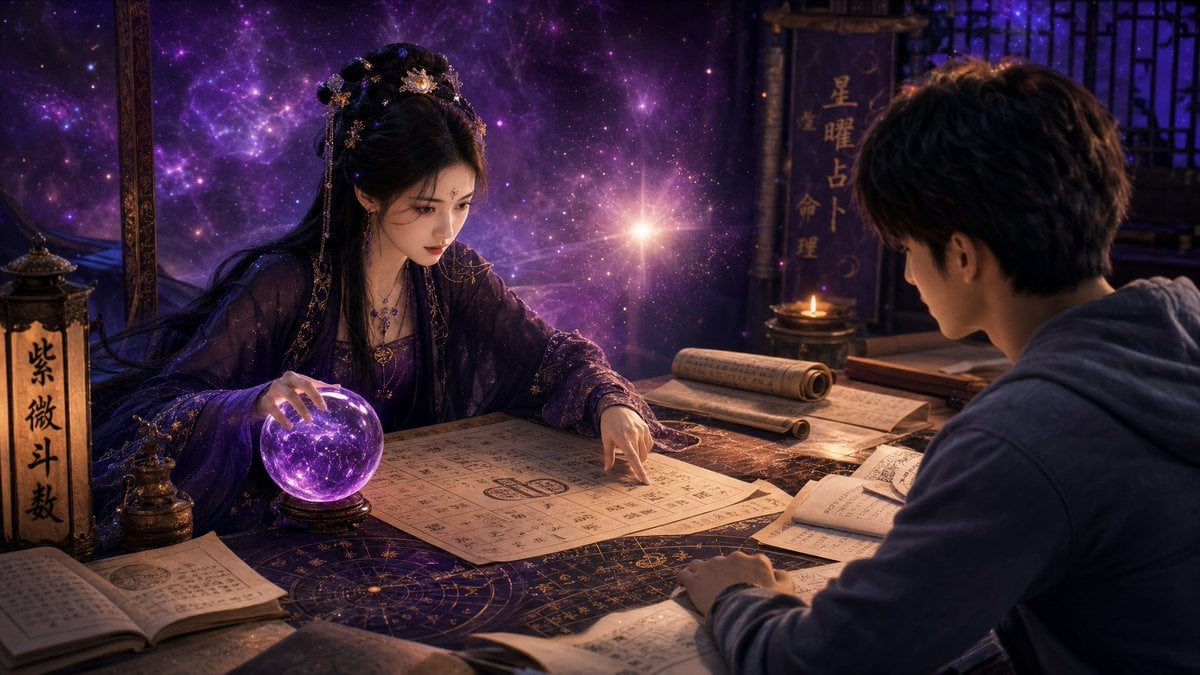
Mystic Fortune Telling Duo Scene
Browse template categories
Gothic AI Stack Diagram questions
How do I use the Gothic AI Stack Diagram template?
Add your photo if the template asks for one, edit the prompt if you like — the template's model and format are already selected — and press Generate. Your version opens in PicX Studio.
Can I customize the Gothic AI Stack Diagram template?
Yes. You can change the subject, setting, lighting, mood, format, and available model controls before creating your image.
Is the Gothic AI Stack Diagram template free?
Opening and editing this template is free. Generating uses credits, shown on the Generate button when you are signed in.
Which AI model should I use?
Start with GPT Image 2, which is the model associated with this template. You can compare another compatible model for a different finish.
Looking for something else? Browse all templates.

Your photo, any look
Thousands of ready templates for every top image and video model, from one credit balance.