
My API Stack Two-Panel Illustration
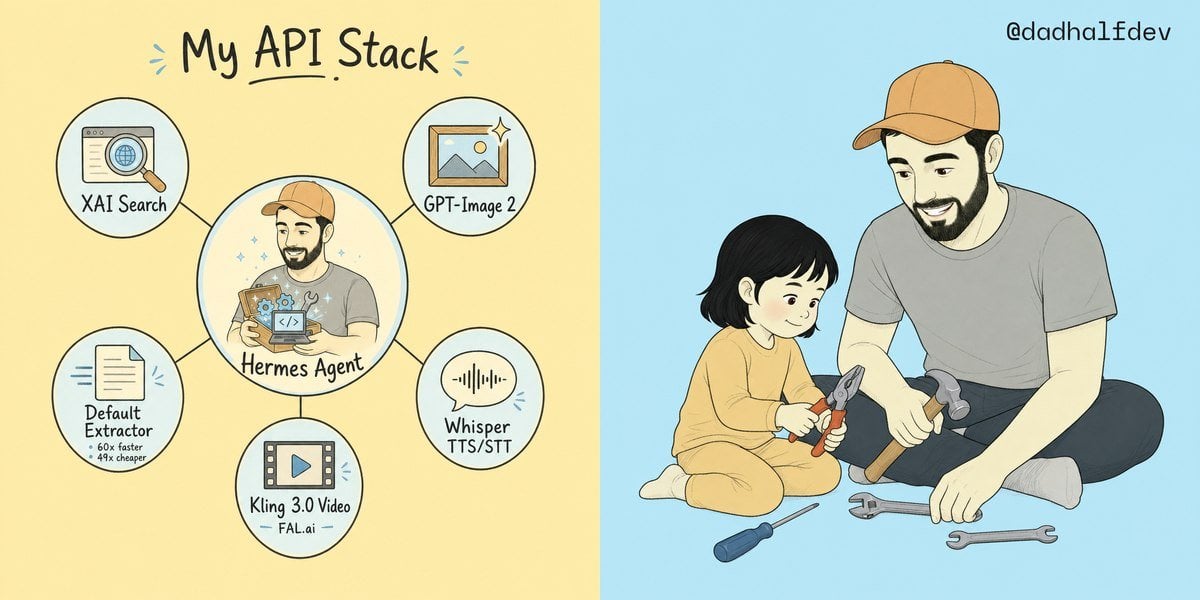
A friendly hand-drawn split-panel graphic showing an API tool stack diagram beside a parent-child tools scene for social media posts.
- Prompt included
- Model and format preset
- Premium template
The prompt behind this image
Copy the exact prompt behind My API Stack Two-Panel Illustration, or open it in the studio and make it yours.
Goal: Create a wide two-panel hand-drawn social media illustration explaining {argument name="headline text" default="My API Stack"} on the left and showing a warm parent-child repair scene on the right. Canvas: Horizontal 2:1 aspect ratio, split exactly down the center into two equal halves. Left half has a pale warm yellow background; right half has a pale sky blue background. Use clean ink outlines, soft pastel fills, subtle paper texture, and a friendly indie webcomic style. Left panel layout: At the top center, write the large handwritten headline “{argument name="headline text" default="My API Stack"}” in dark ink with a small underline under “API” and tiny blue accent marks on both sides. Below it, create a hub-and-spoke diagram with exactly 6 circular nodes connected by thin black lines: 1 large central circle and 5 smaller outer circles. Left panel node details, exactly 6 total: 1. Center large node: an illustrated bearded man in a tan baseball cap and gray shirt holding a glowing box full of small gears and a code icon, labeled “{argument name="central agent label" default="Hermes Agent"}”. Add tiny sparkles around him. 2. Upper-left small node: browser window with a magnifying glass over a globe, labeled “XAI Search”. 3. Upper-right small node: framed landscape image icon with a sparkle, labeled “GPT-Image 2”. 4. Lower-right small node: speech bubble with audio waveform, labeled “Whisper TTS/STT”. 5. Bottom small node: filmstrip/video icon with a play button, labeled “Kling 3.0 Video” with small sublabel “FAL.ai”. 6. Lower-left small node: document/page icon with speed lines, labeled “Default Extractor” with tiny subtext “60x faster” and “49x cheaper”. Right panel subject: Draw an adult bearded man wearing a tan baseball cap, gray T-shirt, dark pants, and light socks, sitting cross-legged and smiling down at a small child. The child has short black bobbed hair and wears a soft yellow long-sleeve outfit, sitting on the floor and holding red-handled pliers. The adult holds a hammer while another hammer rests near his leg. Add exactly 4 loose tools on the floor: 1 blue-handled screwdriver, 1 gray adjustable wrench, 1 gray open-ended wrench, and 1 extra hammer. The scene should feel gentle, instructional, and wholesome. Text: In the top-right corner of the blue panel, add the handle “{argument name="social handle" default="@dadhalfdev"}” in small dark handwritten text. Constraints: Keep the split background clean with no border line other than the color change. Maintain the same character design for the central Hermes Agent and the adult on the right: bearded, tan cap, gray shirt. Avoid photorealism, avoid 3D rendering, avoid extra nodes, avoid additional labels, and keep all text legible.
How to use My API Stack Two-Panel Illustration in 3 steps
- 1Upload ImagePNG, JPG or paste
Add your photo
Upload the photo the template builds on. The prompt, model and format are already set.
- 2…a portrait of your subject in softgolden-hour light, 85mm…
Personalize
Edit the subject and creative details for your destination.
- 3Generate
Generate
Press Generate — your image is created in PicX Studio, so you can compare it with the original and refine one variable at a time.
More like this
Templates with the same subject, style or setup. Open one to see its prompt.
Hero Portrait Comic Multi-Panel Poster
Multi-Panel Comic Illustration
Quiet Minimalist Anime Style Guide
Real Illustration Split Portrait Transition
Quiet Minimalist Anime Style Guide
Watercolor Café Cheesecake Editorial Illustration
Real Illustration Split Portrait Transition
Pixar 6-Panel Streethero Expression Grid
Bold Side Profile Superhero Poster
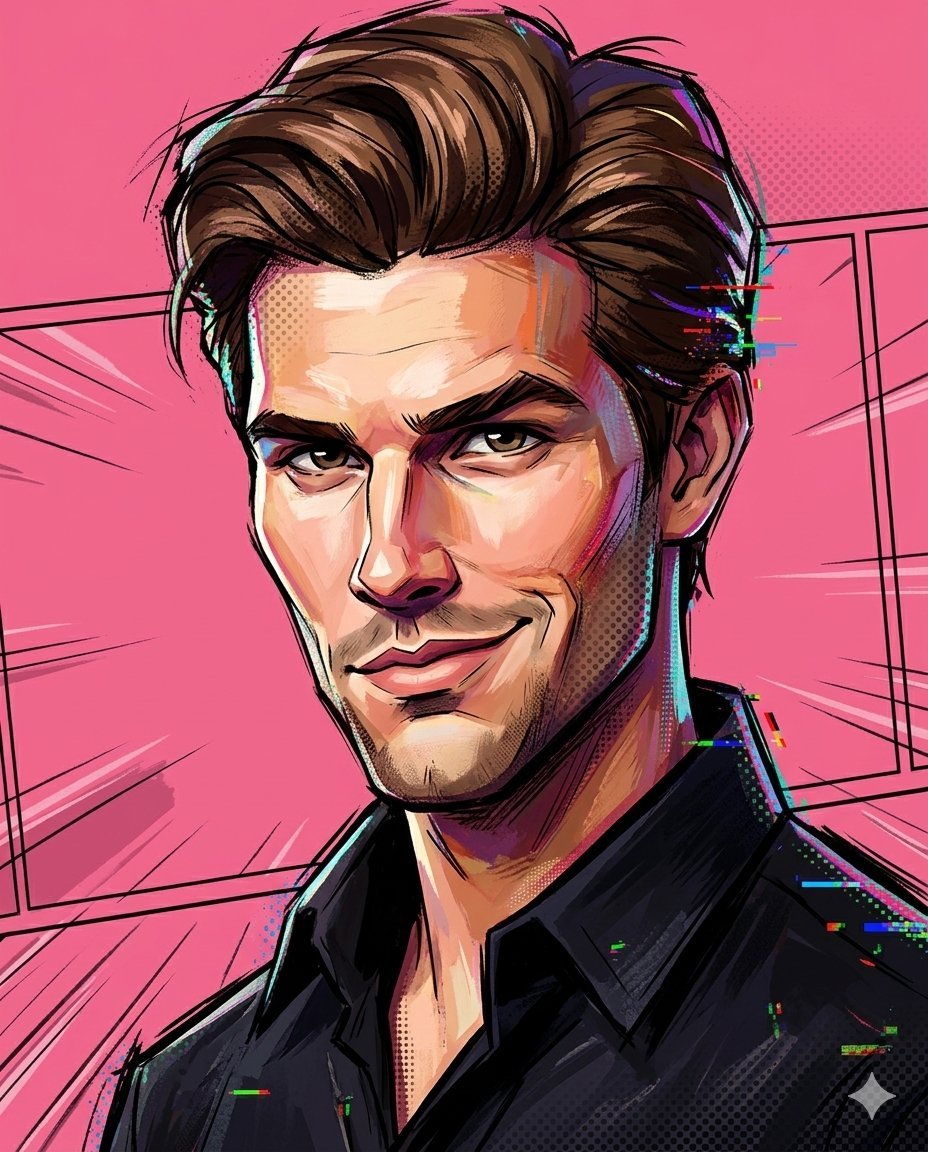
Spider-Verse Painterly Portrait Poster
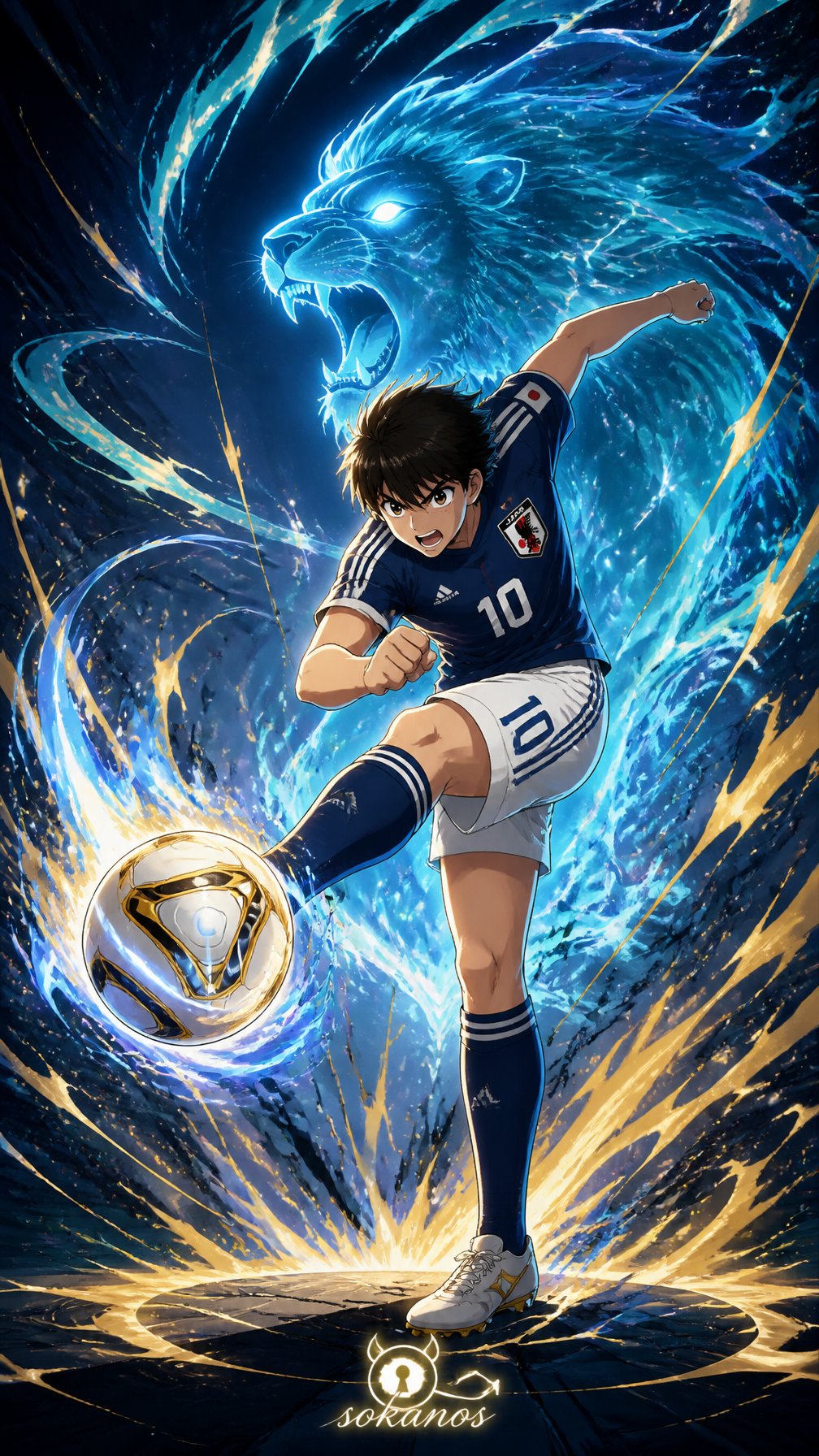
Captain Tsubasa Anime World Cup Poster
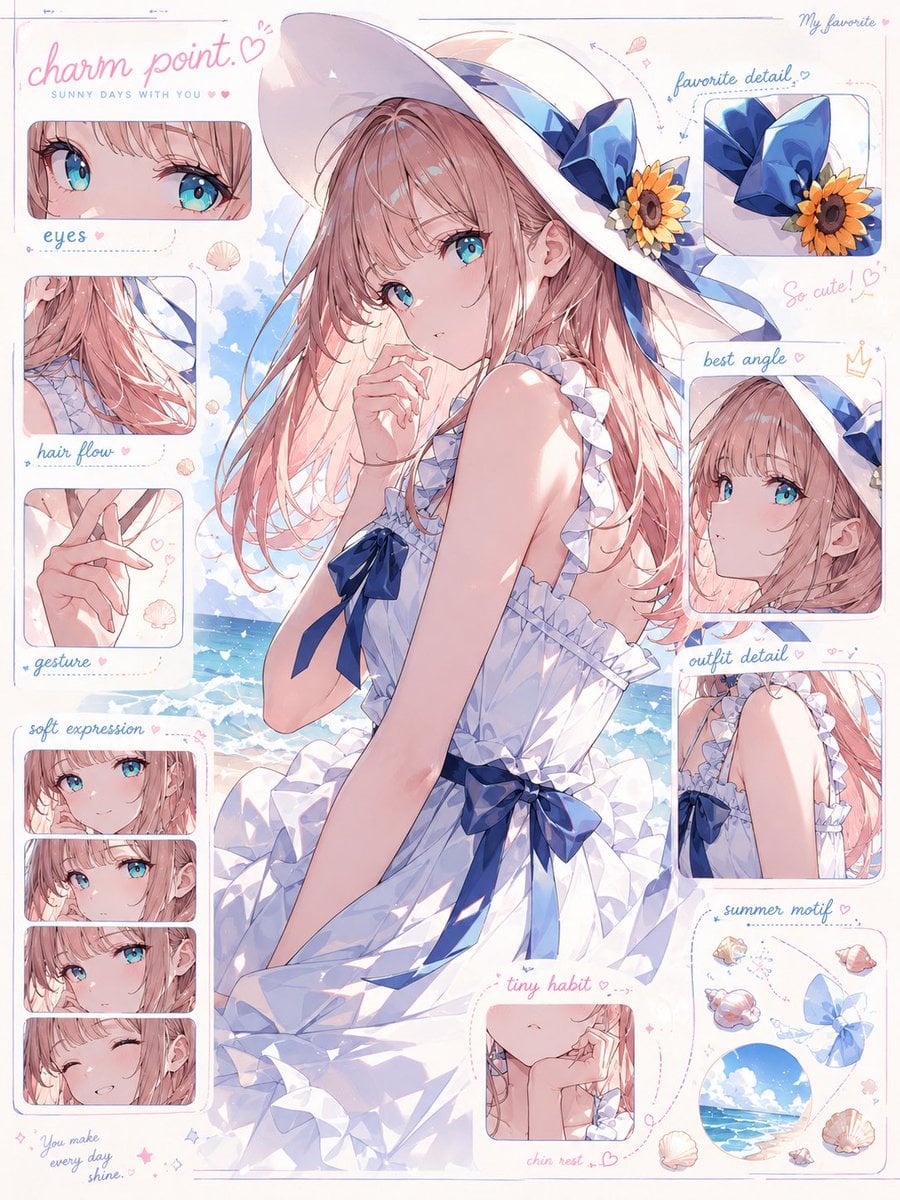
Anime Character Charm Analysis Sheet
Make it yours
My API Stack Two-Panel Illustration works as-is. These are the safest ways to change it without losing the look.
Change one field
Copy a single group, rewrite it, and generate again so you can see what that field is doing.
Keep the frame, change the subject
Hold the composition and light of My API Stack Two-Panel Illustration, then swap wardrobe, props or the person for a new take.
| If the result… | Why | Fix |
|---|---|---|
| The result drifts from the preview | Too many fields changed at once. | Reuse My API Stack Two-Panel Illustration as-is first, then change one group — subject, light, or setting. |
| The model over-stylizes the scene | The prose prompt leaves finish and camera underspecified. | Add one camera or lighting sentence and stay on GPT Image 2. |
More GPT Image 2 templates
Other prompts made for GPT Image 2.

Six VTuber Japanese Logo Sheet

Realistic Portrait of Woman and Deer

The Vista Modular Condo Poster

AI Model Routing Comparison Infographic

2.5D Anime Art Board

Isometric Productivity Desk Scene

New York Double Exposure Poster

Four-Panel AI Landscape Comparison

Japanese Tatami Lifestyle Magazine Cover

NESCAFÉ Coffee Map Poster
More image prompts
Fresh picks from across the catalog.
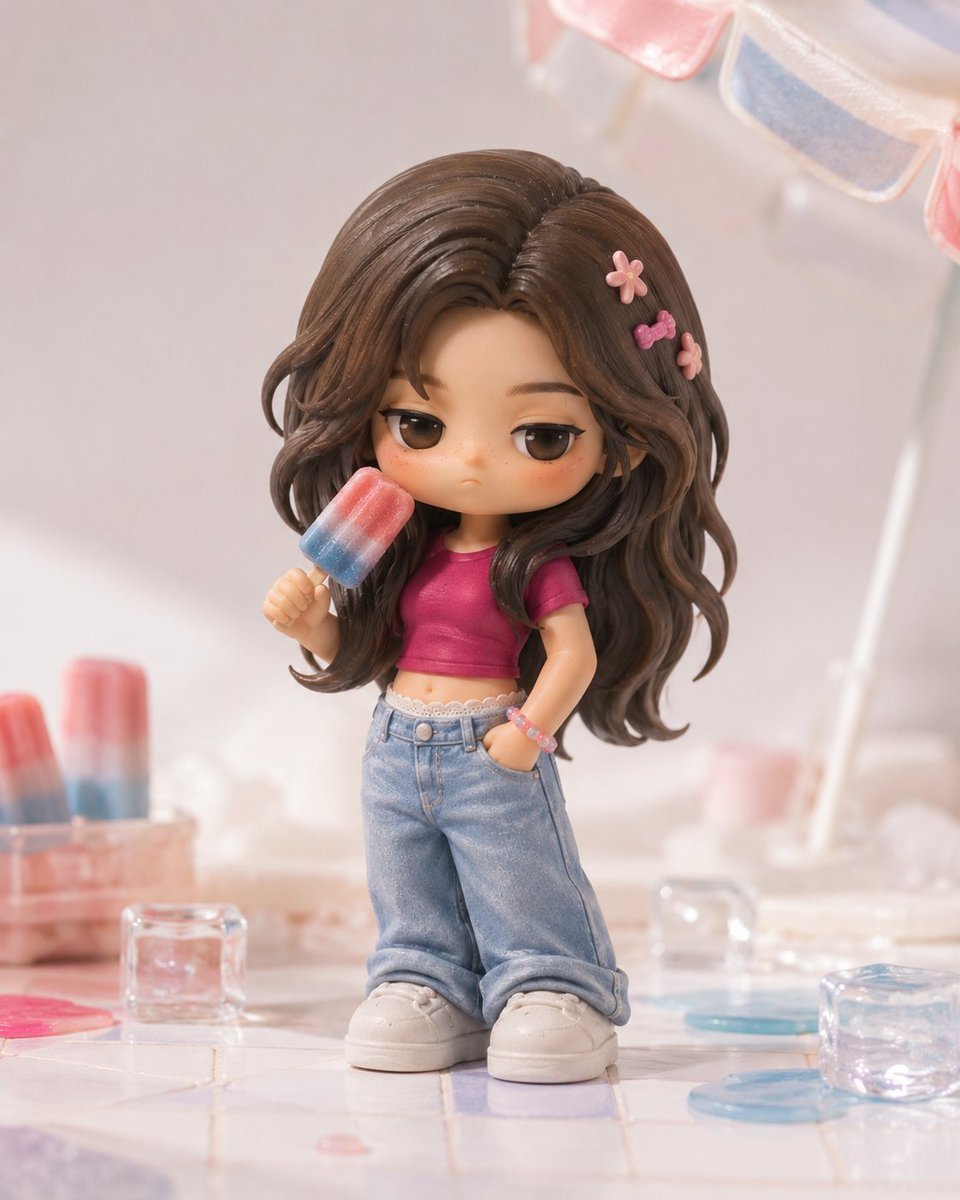
Pop Mart Hirono Style Custom Figure Prompt
Anime Dojo Shuriken Kick
Mellow Cup Opening Hoarding Poster
Korean Baseball Broadcast Fan Photo
Traditional Chinese Gongbi Art with Quote
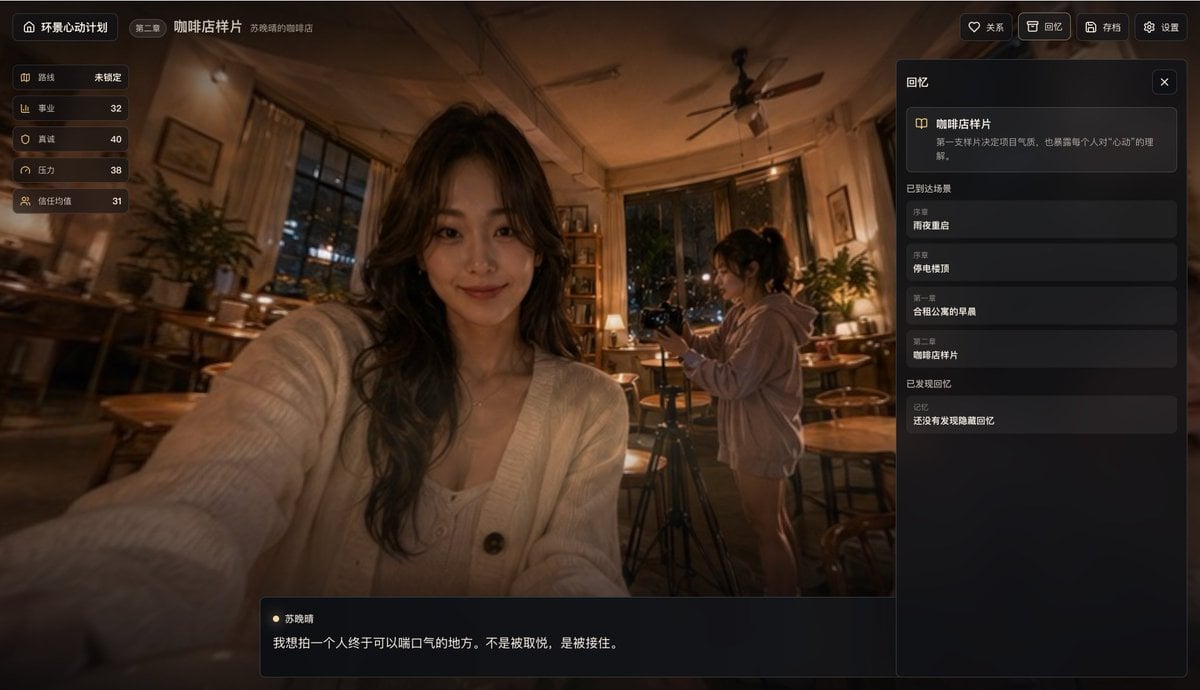
Cinematic Coffee Shop VN UI Mockup
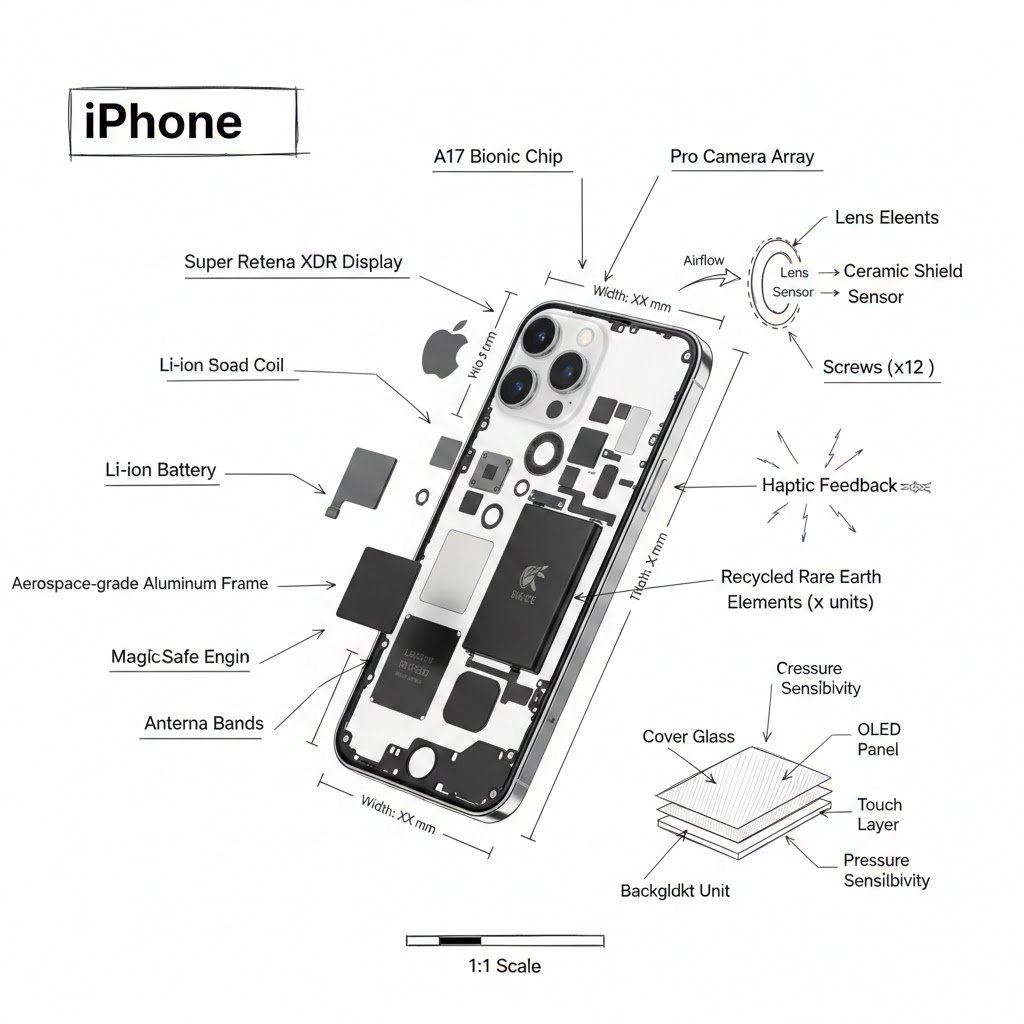
Hardcore Engineering Infographic Style
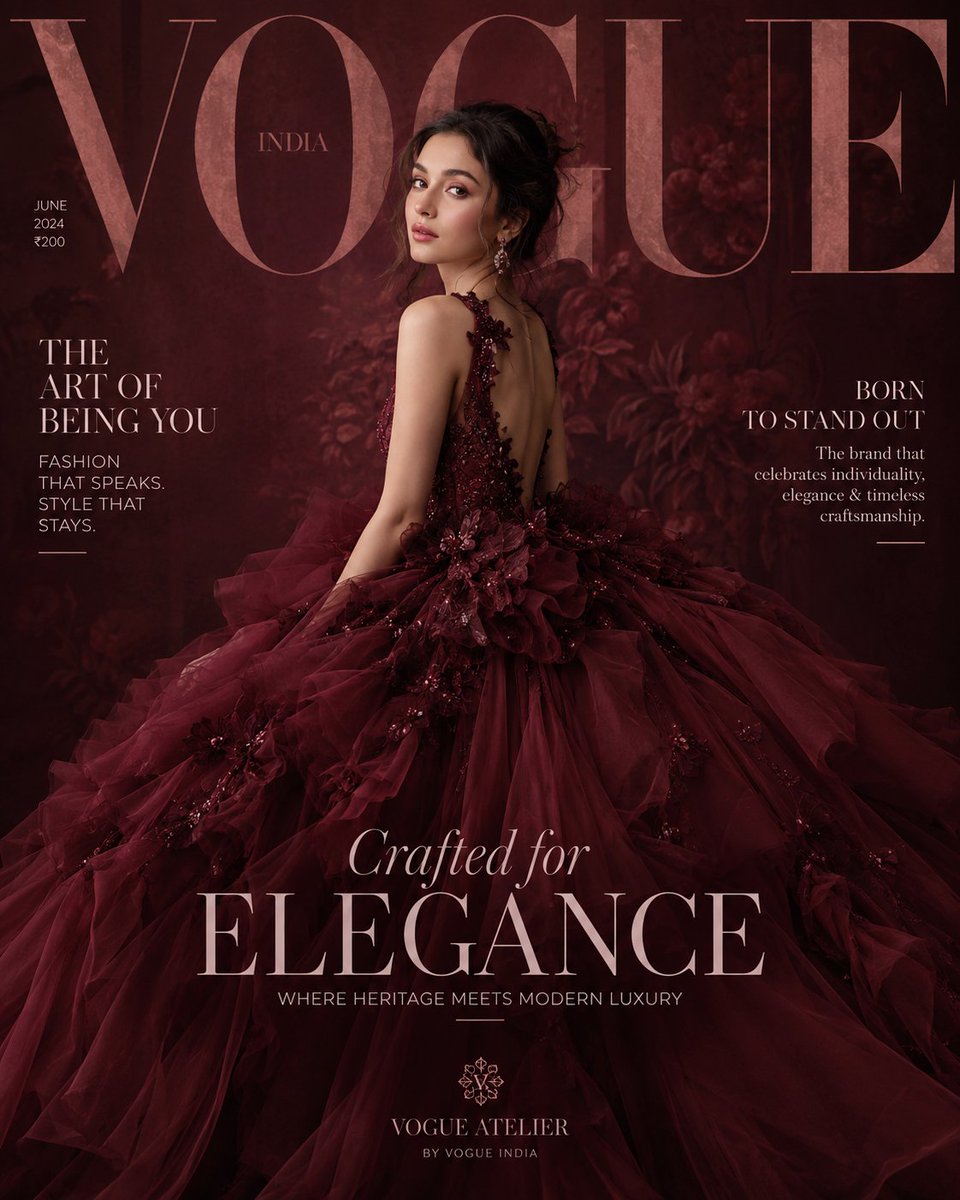
Maroon Dress Fashion Magazine Cover
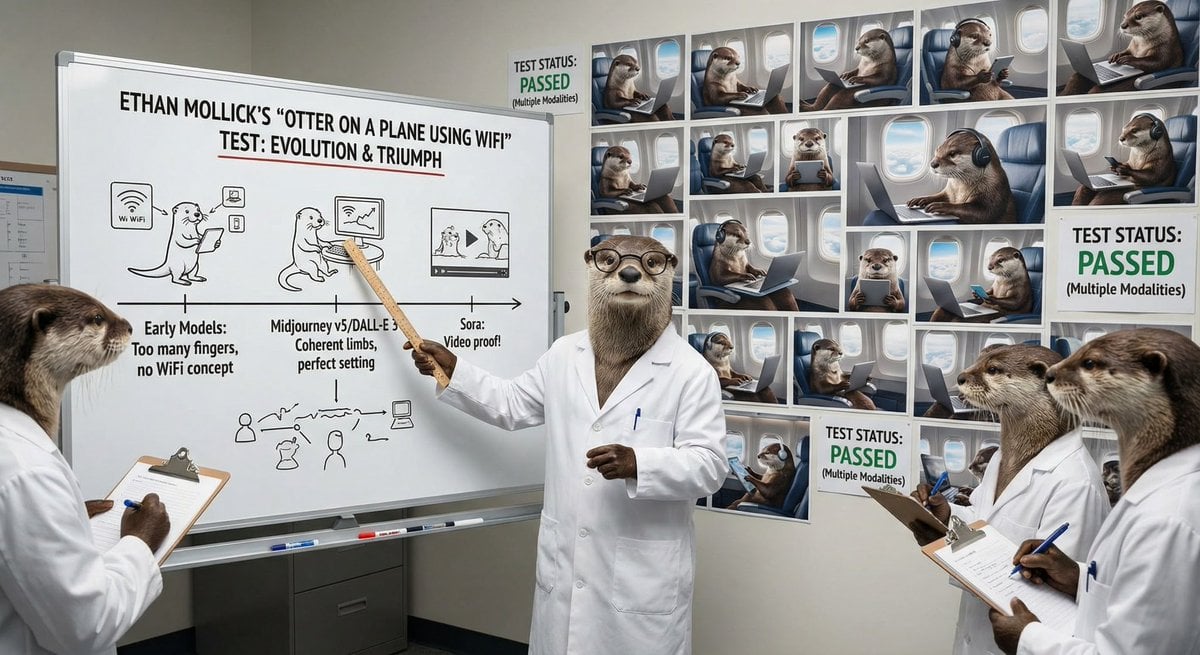
Otter scientists explaining the WiFi plane test
Playful Laundry Room Portrait Prompt
Browse template categories
My API Stack Two-Panel Illustration questions
How do I use the My API Stack Two-Panel Illustration template?
Add your photo if the template asks for one, edit the prompt if you like — the template's model and format are already selected — and press Generate. Your version opens in PicX Studio.
Can I customize the My API Stack Two-Panel Illustration template?
Yes. You can change the subject, setting, lighting, mood, format, and available model controls before creating your image.
Is the My API Stack Two-Panel Illustration template free?
Opening and editing this template is free. Generating uses credits, shown on the Generate button when you are signed in.
Which AI model should I use?
Start with GPT Image 2, which is the model associated with this template. You can compare another compatible model for a different finish.
Looking for something else? Browse all templates.

Your photo, any look
Thousands of ready templates for every top image and video model, from one credit balance.