
ChatGPT Anime Image Generation Screenshot
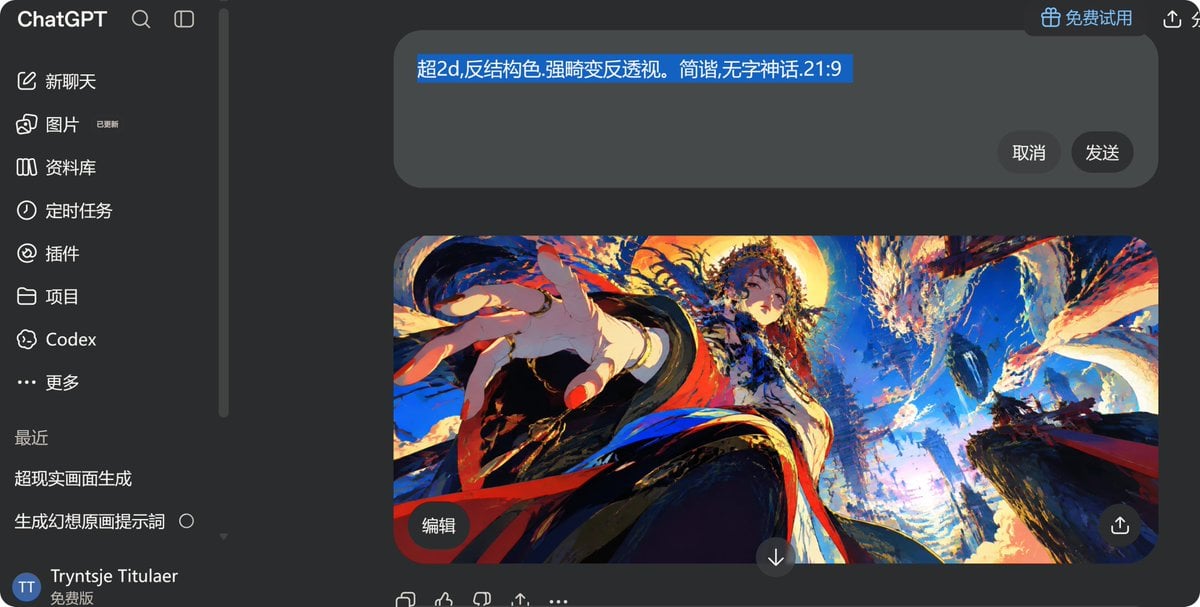
Creates a dark-mode ChatGPT desktop screenshot featuring a Chinese prompt and a vivid distorted-perspective fantasy anime image preview.
- Prompt included
- Model and format preset
- Free template
The prompt behind this image
Copy the exact prompt behind ChatGPT Anime Image Generation Screenshot, or open it in the studio and make it yours.
Goal: Create a dark-mode desktop ChatGPT interface screenshot showing an image-generation conversation in Chinese, with a dramatic anime artwork preview in the main chat area. Canvas: Wide horizontal screenshot, 1200×608 px, dark charcoal UI, rounded corners and macOS-like browser/app framing. The interface is cropped so the left sidebar fills about 19% of the width and the main chat area fills the rest. Layout: Left navigation sidebar with the ChatGPT wordmark at top, a search icon, and a compact sidebar toggle icon. Below it, show exactly 8 primary navigation rows with icons and Chinese labels: 1) 新聊天, 2) 图片 with a tiny “已更新” badge, 3) 资料库, 4) 定时任务, 5) 插件, 6) 项目, 7) Codex, 8) 更多. Add a thin vertical scrollbar near the boundary between sidebar and chat. Under a “最近” heading, show exactly 2 recent chat items: “超现实画面生成” and “生成幻想原画提示词” with a small hollow circle to its right. Bottom-left user area: circular blue avatar with “TT”, username “Tryntje Titulaer”, and the label “免费版”. Main chat area: Top right includes a pill button with a gift icon and the text “免费试用”, plus small share/action icons partially visible. Near the top center, place a large rounded rectangular prompt input bubble in dark gray. Inside it, show a single highlighted blue text selection reading {argument name="selected prompt text" default="超2d,反结构色.强畸变反透视。简谐,无字神话.21:9"}. On the right side inside the input bubble, place exactly 2 dark round buttons labeled “取消” and “发送”. Generated image card: Below the input bubble, place one large rounded image preview card in a 21:9 aspect ratio, approximately 765×332 px, centered slightly right. At the lower-left of the image card, overlay one small rounded dark button labeled “编辑”. At the lower center just below/overlapping the card, place one circular down-arrow button. At the lower-right of the card, overlay one circular share/upload icon button. Artwork inside the generated image: Ultra-dynamic fantasy anime illustration in a distorted reverse-perspective fisheye composition, intense saturated colors, painterly brush texture, high contrast. A young mythic female figure in ornate flowing robes reaches one oversized hand dramatically toward the viewer from the left foreground; her body recedes upward into the center, with long dark hair, red ribbons/sashes, white and black garments, gold accents, and a calm mysterious expression. Background is a shattered celestial myth landscape with towering dark cliffs, swirling clouds, blue sky, golden sunset light, explosive brush strokes, floating debris, and an enormous dragon or phoenix-like creature arcing across the upper right. Color palette: electric cobalt blue, bright cyan, fiery orange, crimson red, cream white, deep navy, and black. No nudity, no explicit content. Bottom interaction row: Under the image card, show exactly 5 small action icons in a row: copy/duplicate, thumbs up, thumbs down, share/upload, and more/ellipsis. Visual style: Make the whole screenshot look like a real ChatGPT dark-theme desktop UI captured from a browser, with clean sans-serif text, Chinese UI labels, subtle shadows, and accurate rounded spacing. The generated artwork should be much more colorful and detailed than the surrounding UI. Constraints: Use exactly one generated image preview, exactly two prompt-input buttons, exactly eight sidebar navigation rows, exactly two recent chat items, and exactly five bottom action icons. Keep all visible text as specified, avoid watermarks, and do not add extra panels or unrelated UI.
How to use ChatGPT Anime Image Generation Screenshot in 3 steps
- 1Upload ImagePNG, JPG or paste
Add your photo
Upload the photo the template builds on. The prompt, model and format are already set.
- 2…a portrait of your subject in softgolden-hour light, 85mm…
Personalize
Edit the subject and creative details for your destination.
- 3Generate
Generate
Press Generate — your image is created in PicX Studio, so you can compare it with the original and refine one variable at a time.
More like this
Templates with the same subject, style or setup. Open one to see its prompt.
ChatGPT Apple Generation Screenshot
ChatGPT Mobile Photo Carousel Screenshot
ChatGPT Bonus Banner Screenshot
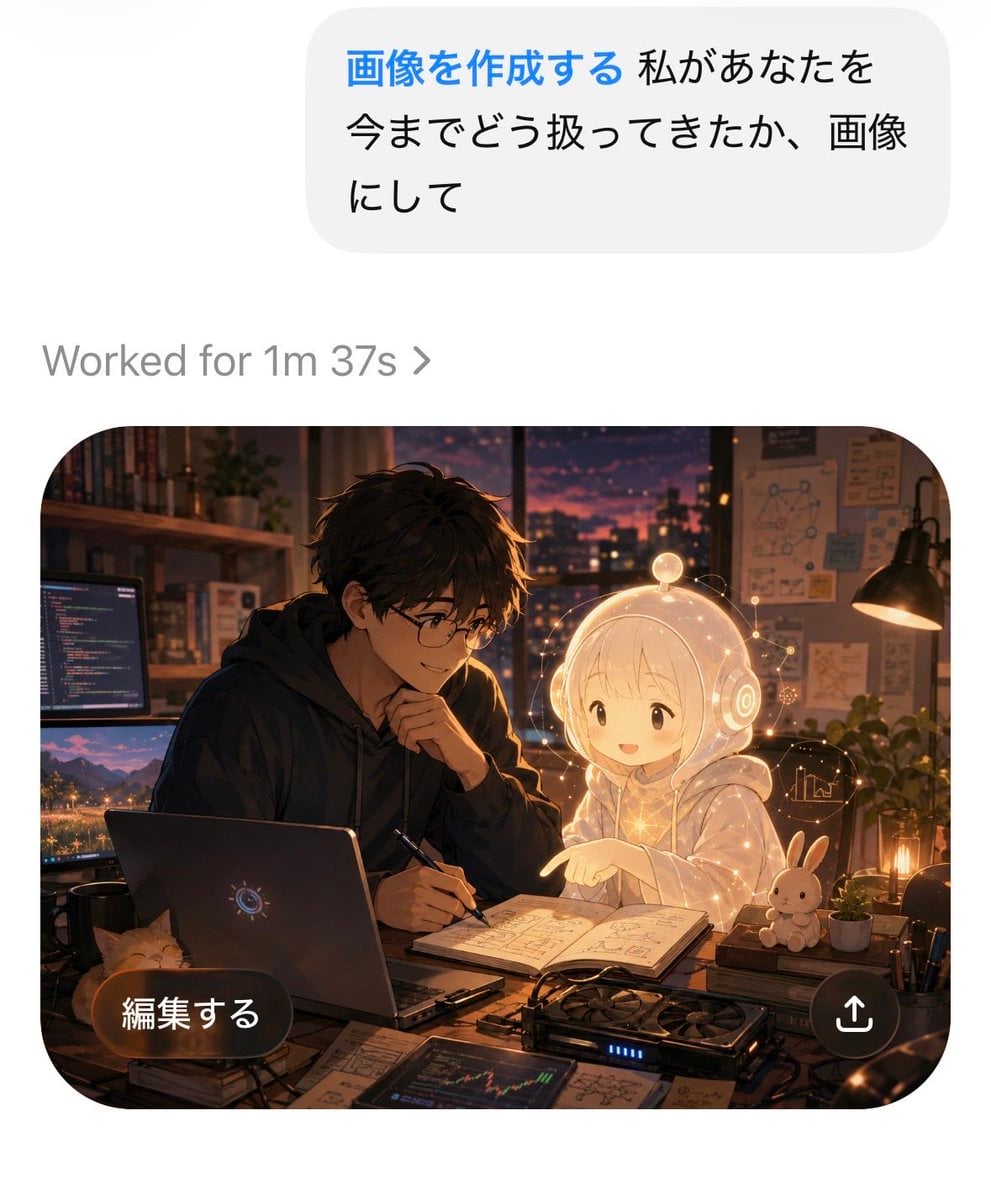
AI Chat Image Generation Screenshot
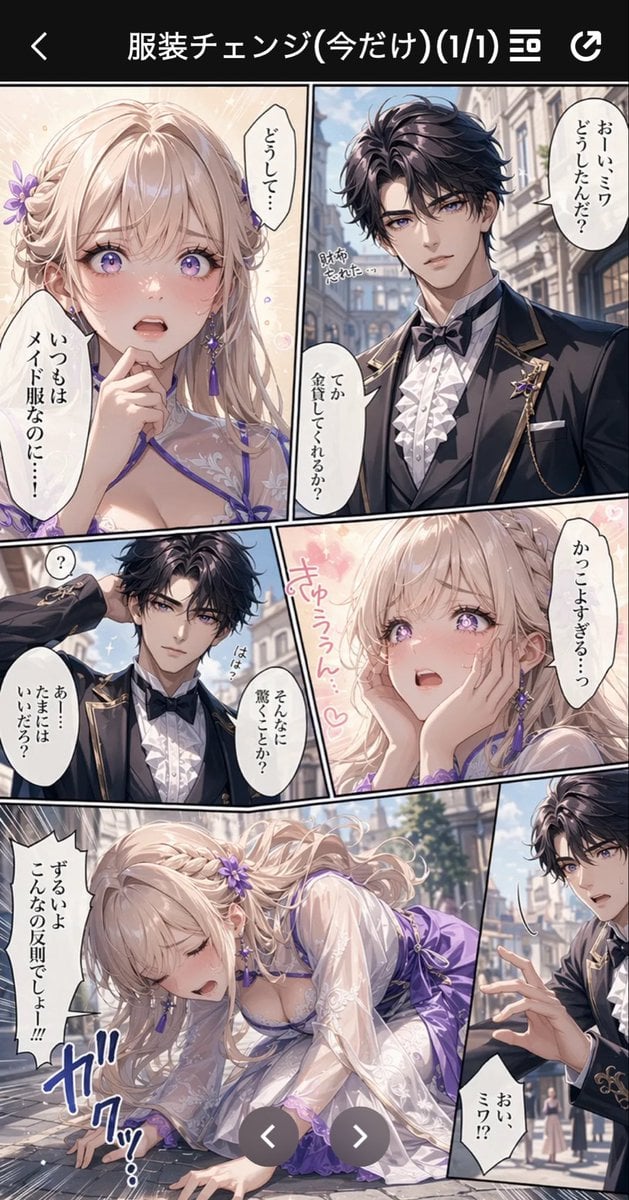
Anime Butler Date Manga Screenshot
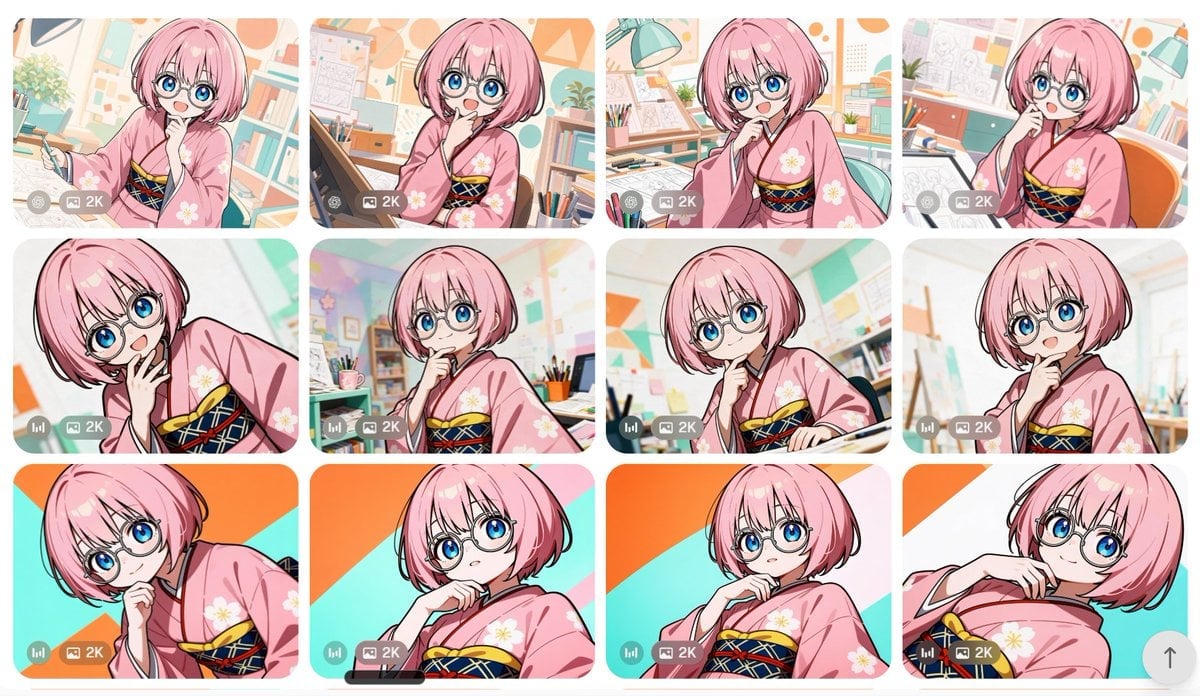
Anime Girl Generation Grid
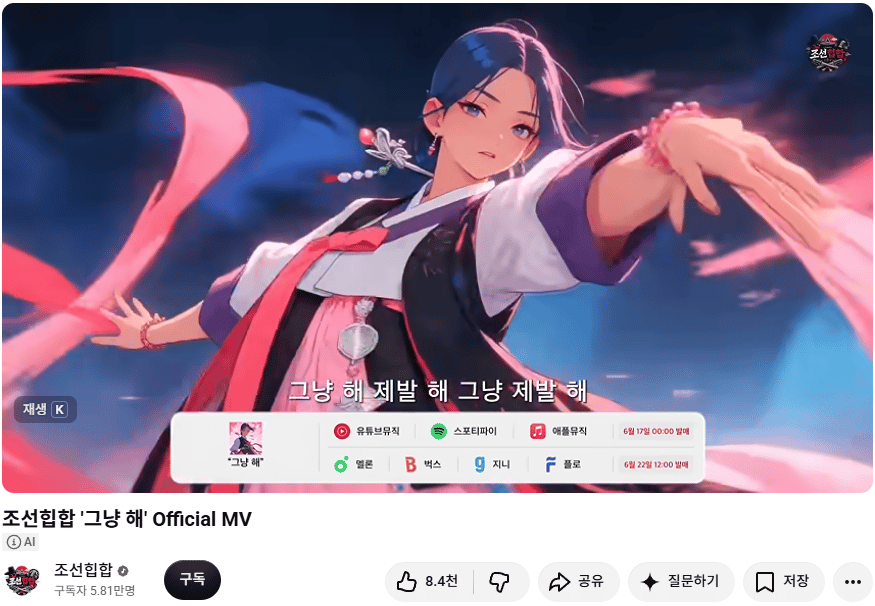
Korean Hip-Hop Anime MV Screenshot
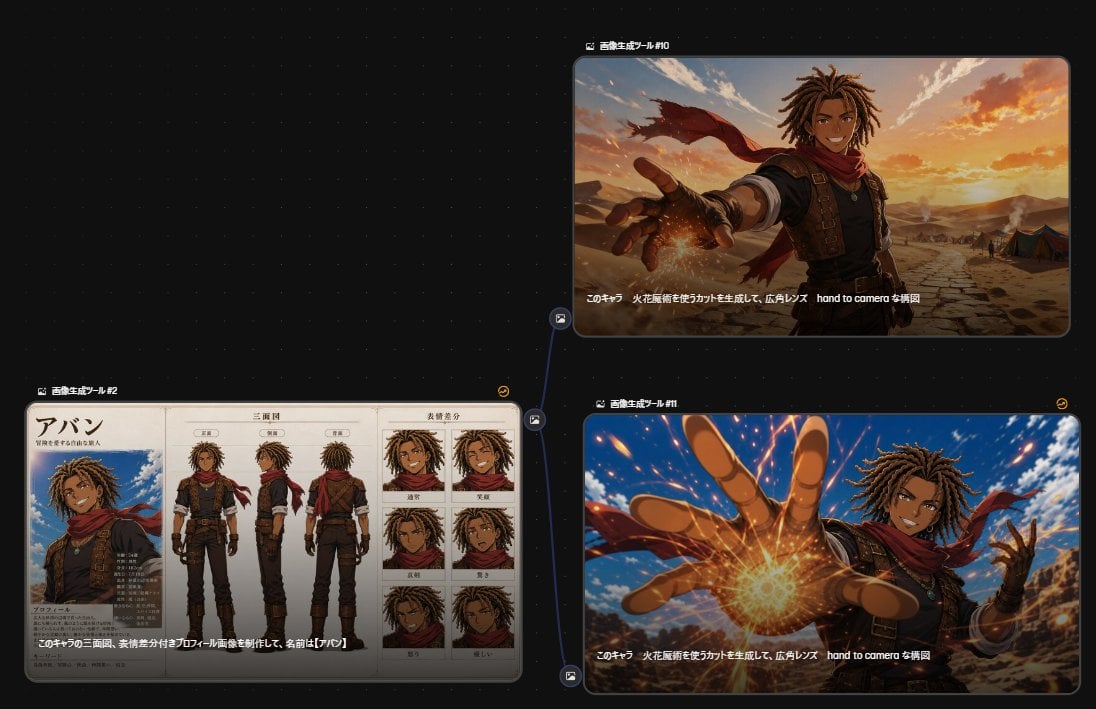
Anime Character Generation Workflow
Cel 2D Finale Fireworks
Cel 2D Garden Maze
Cel 2D Rooftop Concert
Cel 2D Bicycle Coast
Make it yours
ChatGPT Anime Image Generation Screenshot works as-is. These are the safest ways to change it without losing the look.
Change one field
Copy a single group, rewrite it, and generate again so you can see what that field is doing.
Keep the frame, change the subject
Hold the composition and light of ChatGPT Anime Image Generation Screenshot, then swap wardrobe, props or the person for a new take.
| If the result… | Why | Fix |
|---|---|---|
| The result drifts from the preview | Too many fields changed at once. | Reuse ChatGPT Anime Image Generation Screenshot as-is first, then change one group — subject, light, or setting. |
| The model over-stylizes the scene | The prose prompt leaves finish and camera underspecified. | Add one camera or lighting sentence and stay on GPT Image 2. |
More GPT Image 2 templates
Other prompts made for GPT Image 2.

Six VTuber Japanese Logo Sheet

Realistic Portrait of Woman and Deer

The Vista Modular Condo Poster

AI Model Routing Comparison Infographic

2.5D Anime Art Board

Isometric Productivity Desk Scene

New York Double Exposure Poster

Four-Panel AI Landscape Comparison

Japanese Tatami Lifestyle Magazine Cover

NESCAFÉ Coffee Map Poster
More image prompts
Fresh picks from across the catalog.
Hyper-realistic MacBook screen simulation prompt
Ultra-realistic cinematic lifestyle photograph of a reflective woman in an urban café
Cinematic Soccer Storyboard
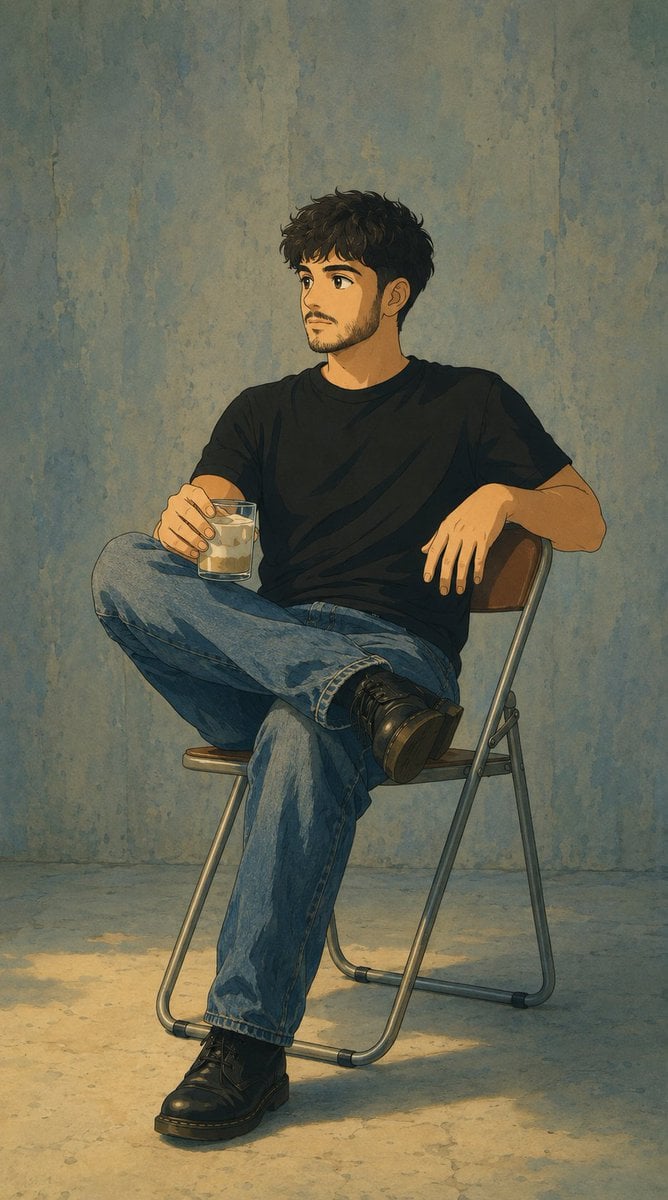
Studio Ghibli Photo Transformation
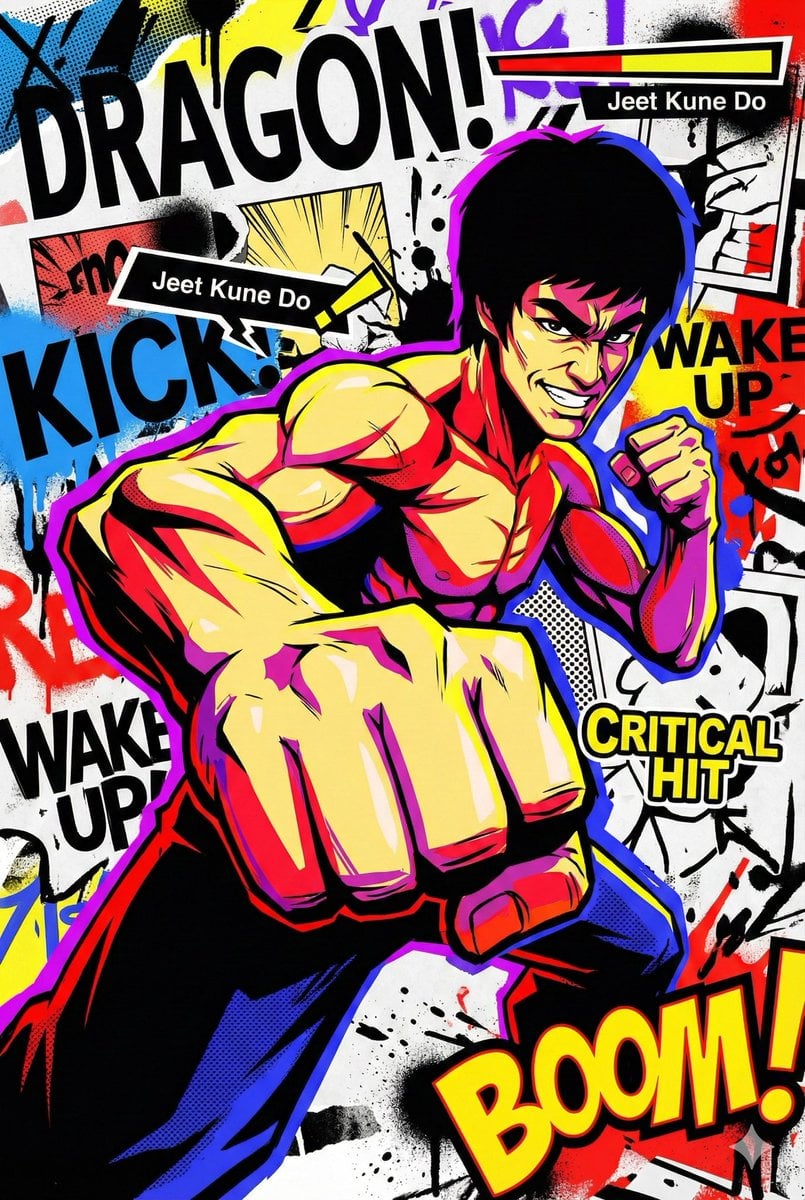
Persona 5-inspired pop-art anime poster for a custom chuunibyou character
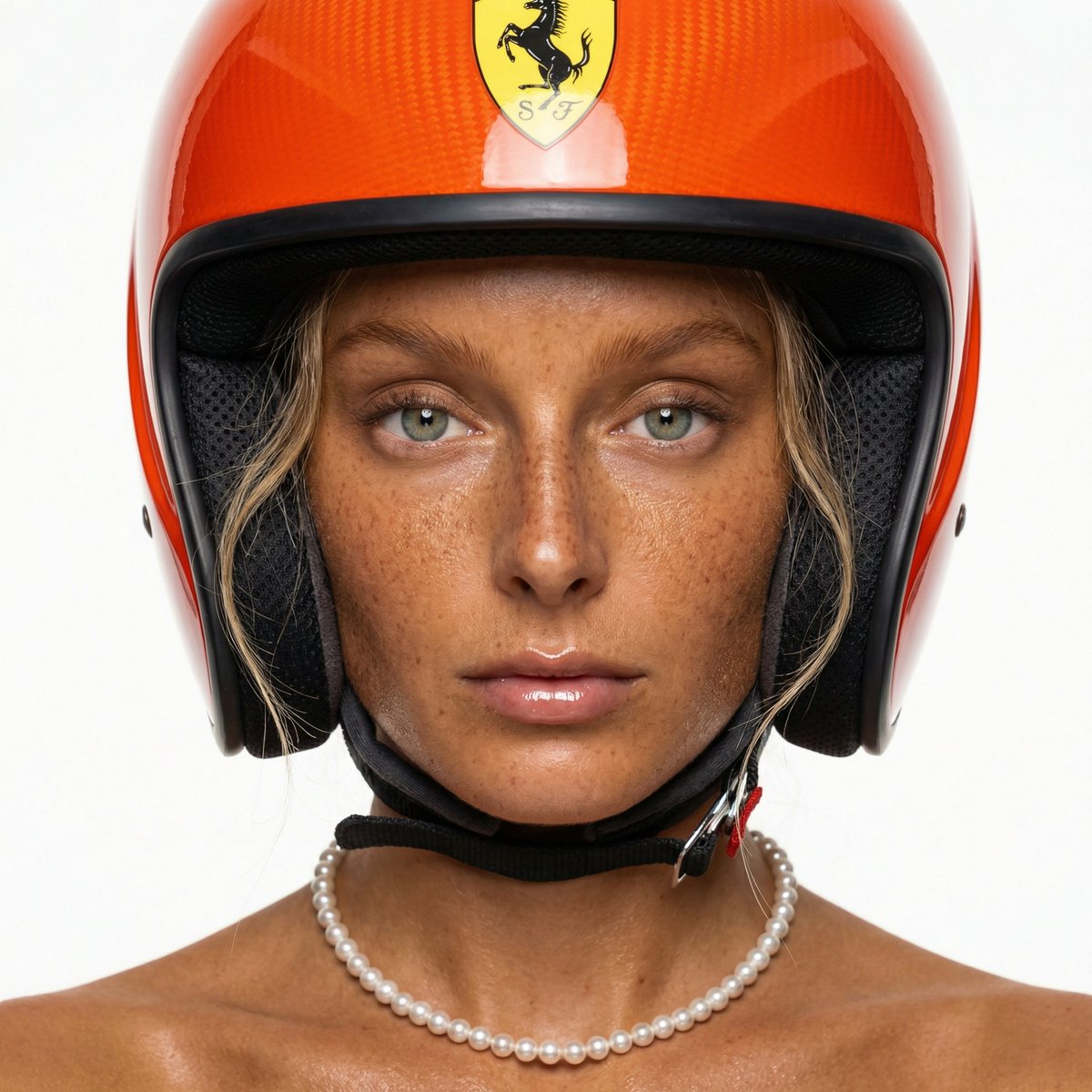
F1 Heiress Editorial Portrait with Racing Helmet and Pearls
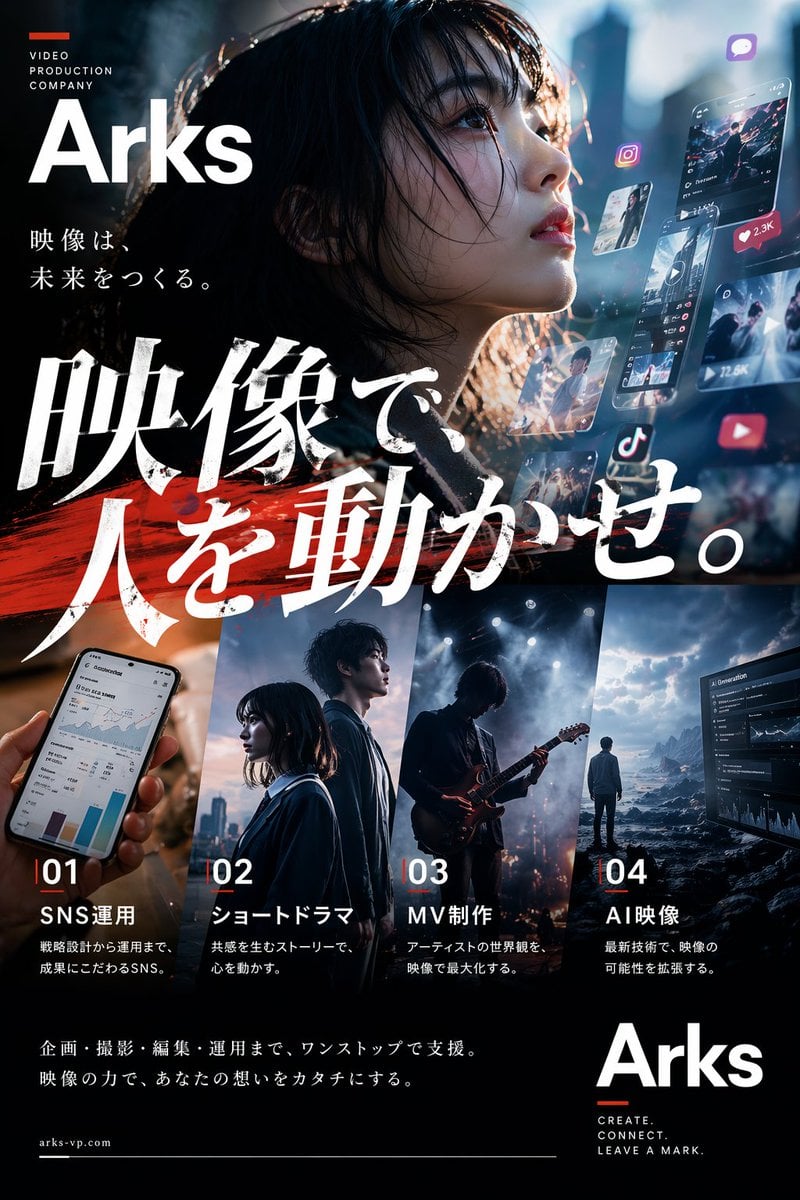
Cinematic Japanese Agency Poster
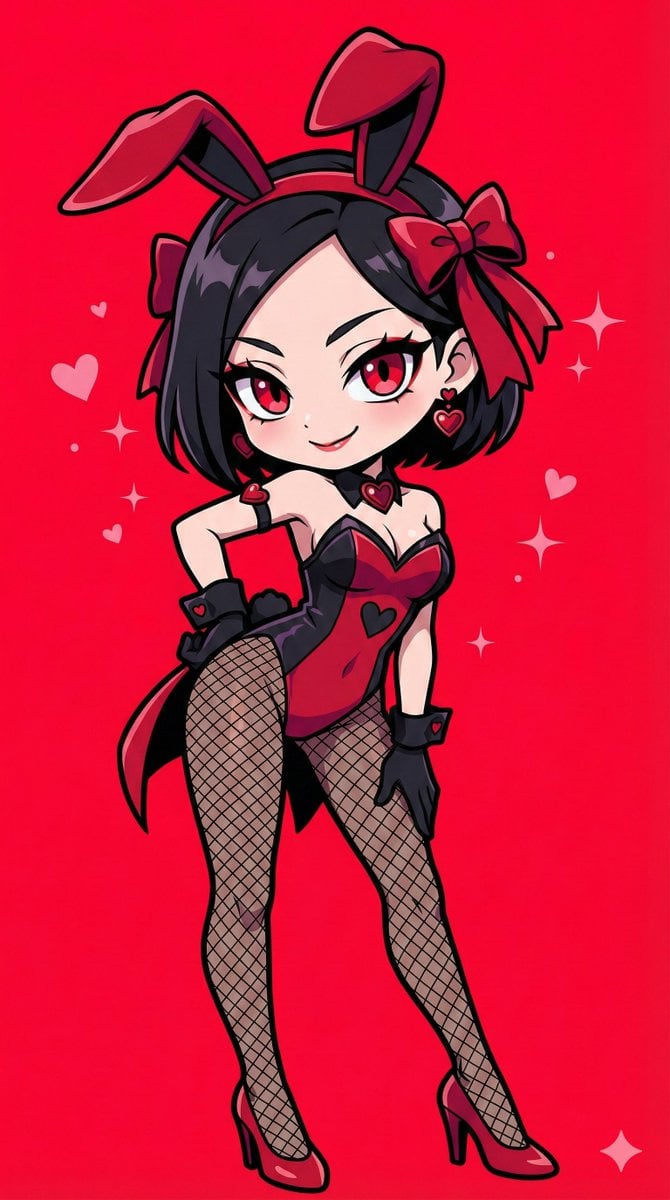
Character Image Transformation Prompt
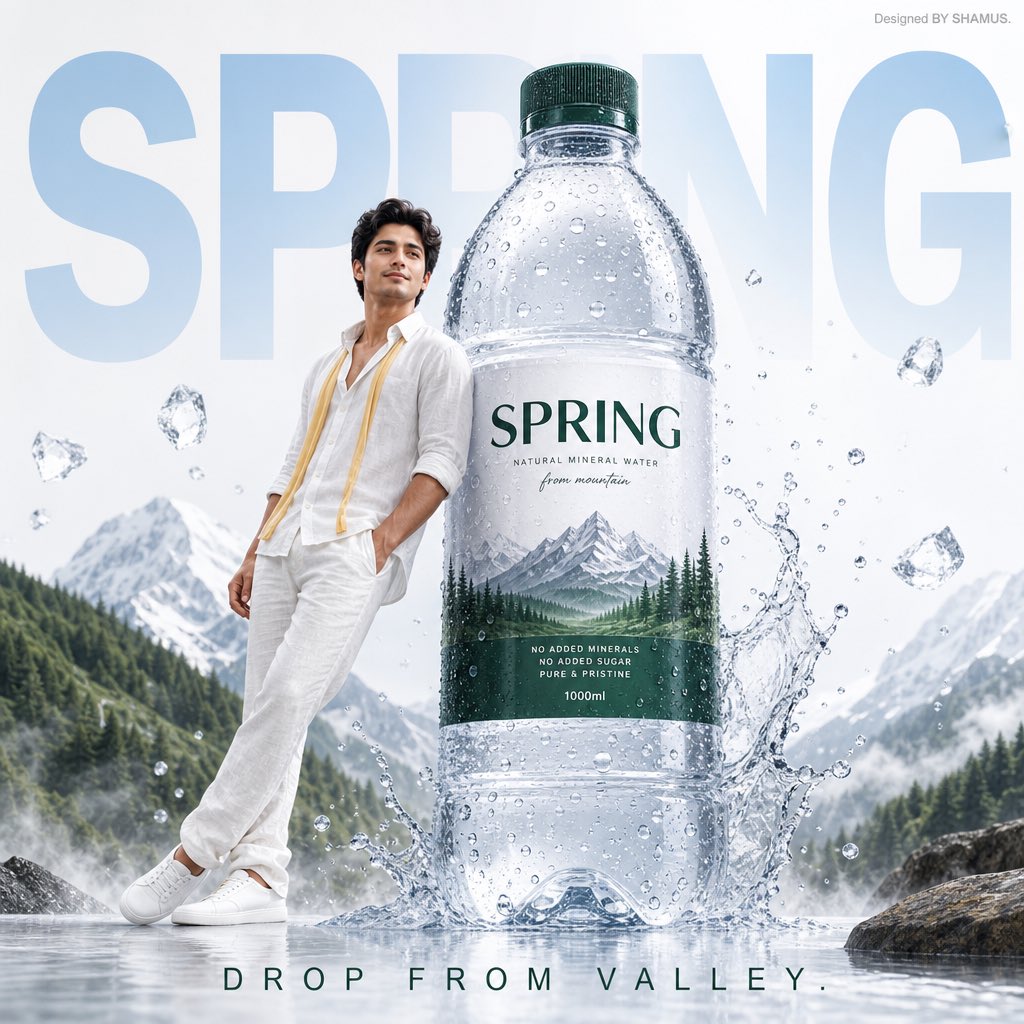
Premium Mineral Water Advertisement
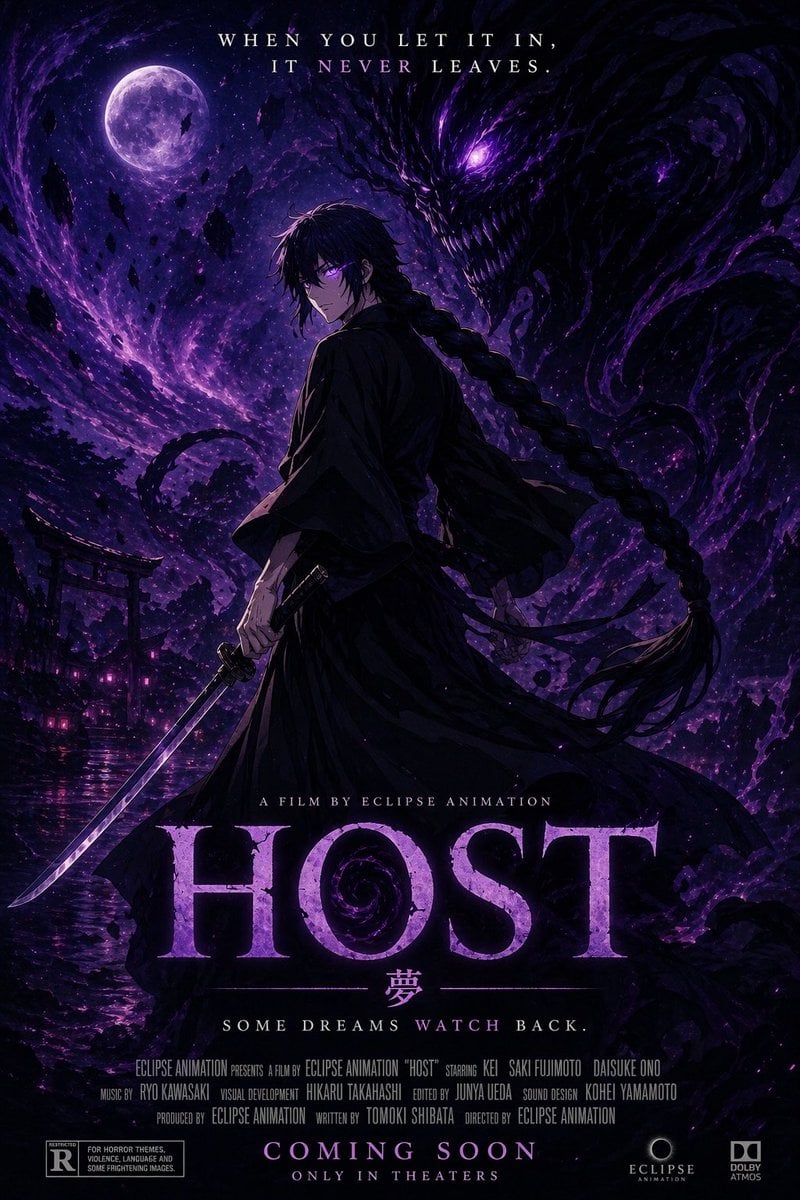
Horror Anime Movie Poster
Browse template categories
ChatGPT Anime Image Generation Screenshot questions
How do I use the ChatGPT Anime Image Generation Screenshot template?
Add your photo if the template asks for one, edit the prompt if you like — the template's model and format are already selected — and press Generate. Your version opens in PicX Studio.
Can I customize the ChatGPT Anime Image Generation Screenshot template?
Yes. You can change the subject, setting, lighting, mood, format, and available model controls before creating your image.
Is the ChatGPT Anime Image Generation Screenshot template free?
Opening and editing this template is free. Generating uses credits, shown on the Generate button when you are signed in.
Which AI model should I use?
Start with GPT Image 2, which is the model associated with this template. You can compare another compatible model for a different finish.
Looking for something else? Browse all templates.

Your photo, any look
Thousands of ready templates for every top image and video model, from one credit balance.