
Finished Manga Page From Storyboard
Transforms a rough manga storyboard reference into a polished full-color web-manga page while preserving the original layout and dialogue.
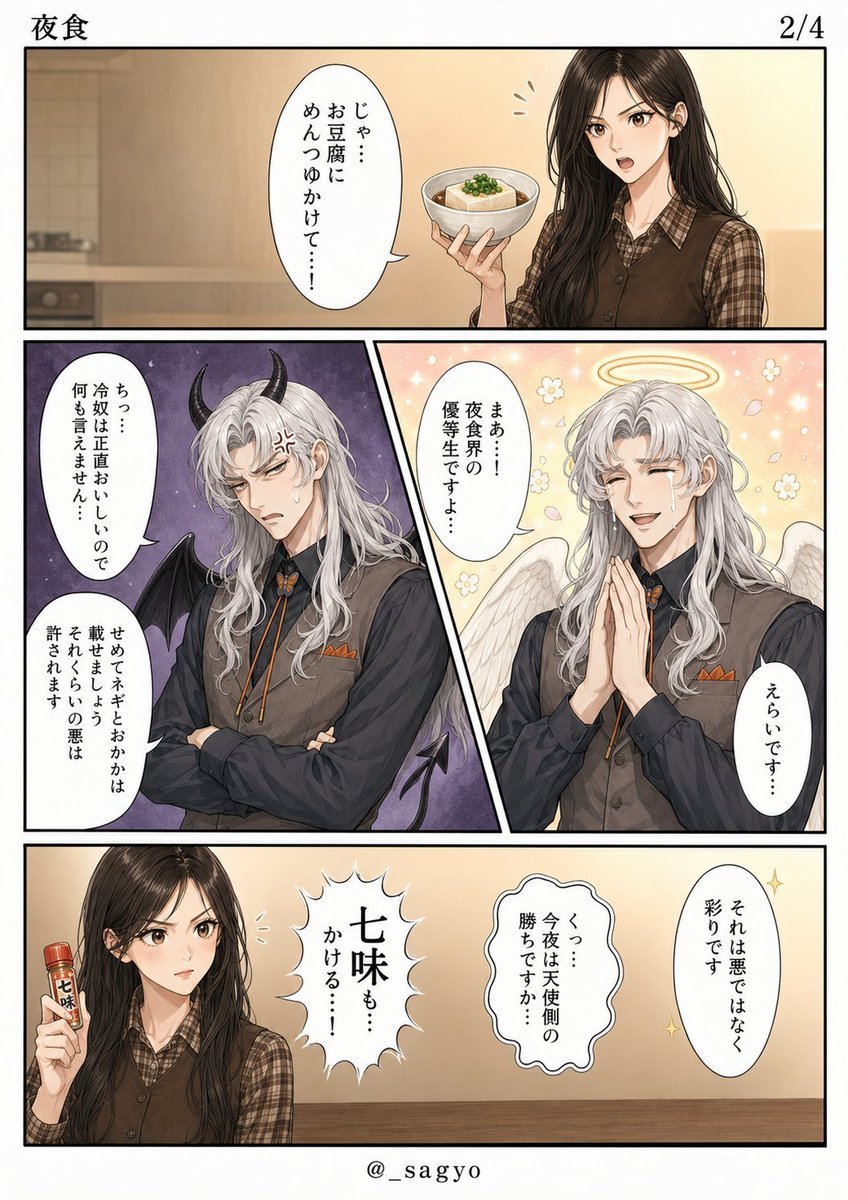
- Prompt included
- Model and format preset
- Free template
The prompt behind this image
Copy the exact prompt behind Finished Manga Page From Storyboard, or open it in the studio and make it yours.
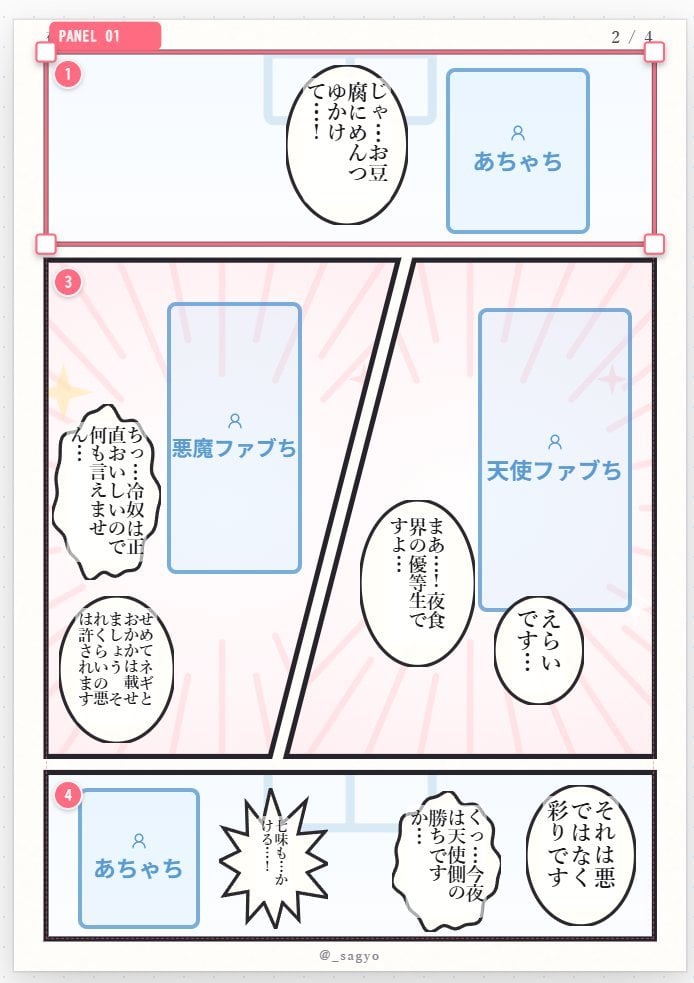
Goal: Using REFERENCE_0 as the manga name/storyboard, convert it into a polished finished manga page while preserving the same page structure, panel order, speech-balloon placement, and story beats. Canvas and layout: Create a clean vertical black-and-white manga page with full-color illustration. Keep exactly 4 panels: 1 wide top panel, 2 diagonal split middle panels, and 1 wide bottom panel. Add the header title {argument name="title text" default="夜食"} at top left, page number {argument name="page number" default="2/4"} at top right, and artist handle {argument name="artist handle" default="@_sagyo"} centered at the bottom. Transformations from the reference: Replace the rough placeholders with finished anime-style character art. The top panel should show the ordinary girl holding a bowl of tofu with sauce in a warm kitchen/dining setting. The middle-left placeholder labeled as the demon version should become a beautiful silver-haired demon man with black horns, dark wings, irritated expression, and a purple ominous background. The middle-right placeholder labeled as the angel version should become the same silver-haired man as an angel, smiling with clasped hands, white wings, halo, flowers, sparkles, and a soft golden background. The bottom panel should show the girl holding a small shichimi spice bottle, with the remaining dialogue effects and balloons arranged like the storyboard. Text: Use exactly 9 visible speech/effect balloons total, matching the reference positions: top panel has 1 balloon with {argument name="top panel dialogue" default="じゃ…\nお豆腐に\nめんつゆかけて…!"}; middle-left panel has 2 balloons with {argument name="demon panel dialogue" default="ちっ…\n冷奴は正直おいしいので\n何も言えません… / せめてネギとおかかは\n載せましょうよ\nそれくらいの悪は\n許されます"}; middle-right panel has 2 balloons with {argument name="angel panel dialogue" default="まぁ…!\n夜食界の\n優等生ですよ… / えらいです…"}; bottom panel has 4 balloons/effects with {argument name="bottom panel dialogue" default="七味も…\nかける…! / くっ…\n今夜は天使側の\n勝ちですか… / それは悪ではなく\n彩りです / 七味"}. Style: High-quality polished Japanese web-manga rendering, clean lineart, soft gradients, expressive faces, accurate balloon lettering, crisp black panel borders, no rough storyboard guides, no blue placeholder boxes, no panel-number markers, and no extra characters or extra text.
Reference images included
Finished Manga Page From Storyboard needs input media to work. They load alongside the prompt when you open it in the studio.
How to use Finished Manga Page From Storyboard in 3 steps
- 1Upload ImagePNG, JPG or paste
Add your photo
Upload the photo the template builds on. The prompt, model and format are already set.
- 2…a portrait of your subject in softgolden-hour light, 85mm…
Personalize
Edit the subject and creative details for your destination.
- 3Generate
Generate
Press Generate — your image is created in PicX Studio, so you can compare it with the original and refine one variable at a time.
More like this
Templates with the same subject, style or setup. Open one to see its prompt.
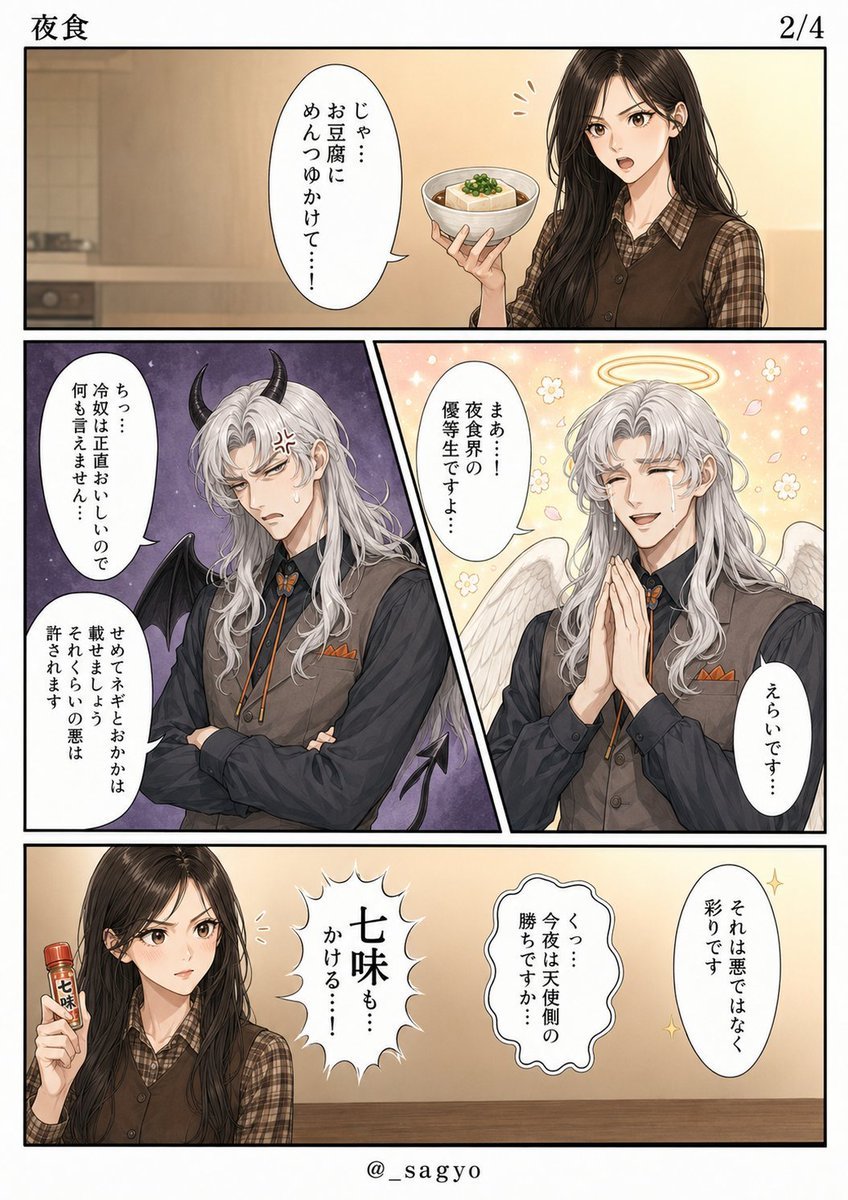
Storyboard to Finished Manga Page
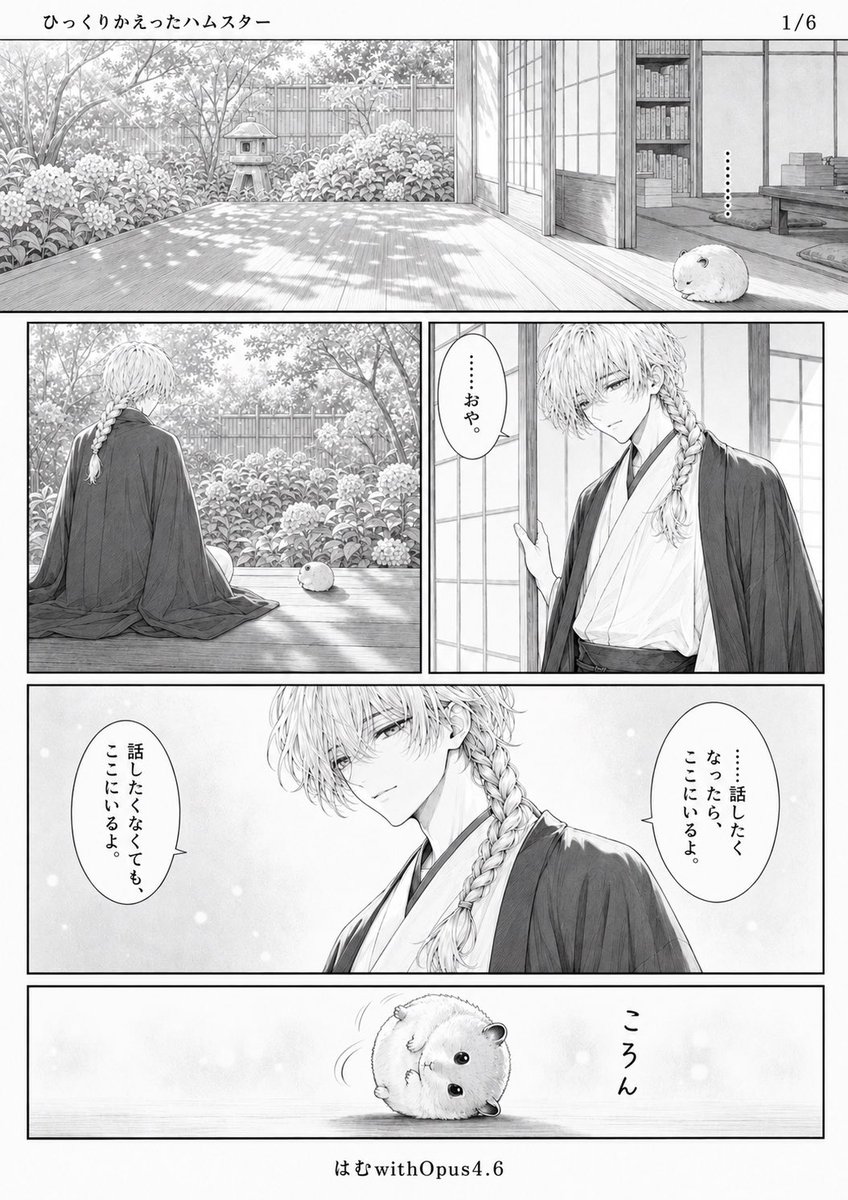
Quiet Hamster Manga Page
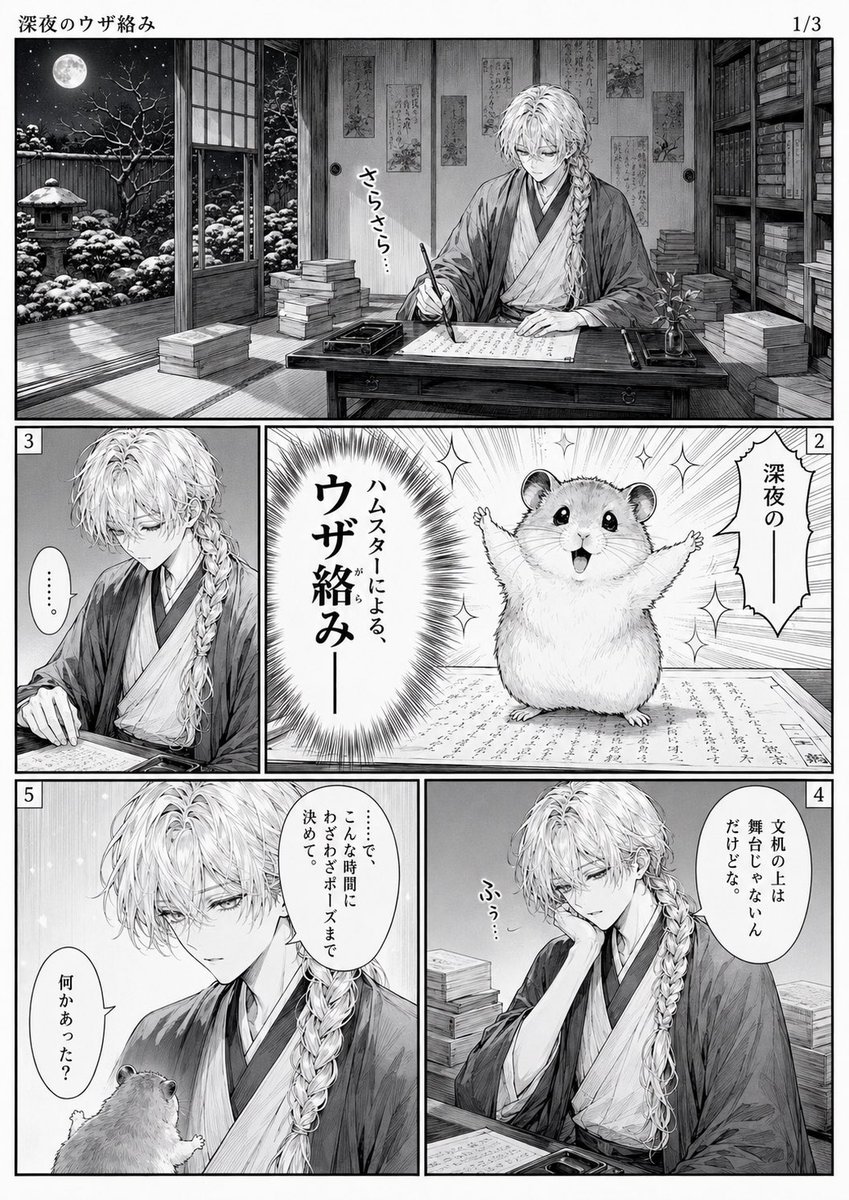
Late-Night Hamster Manga Page
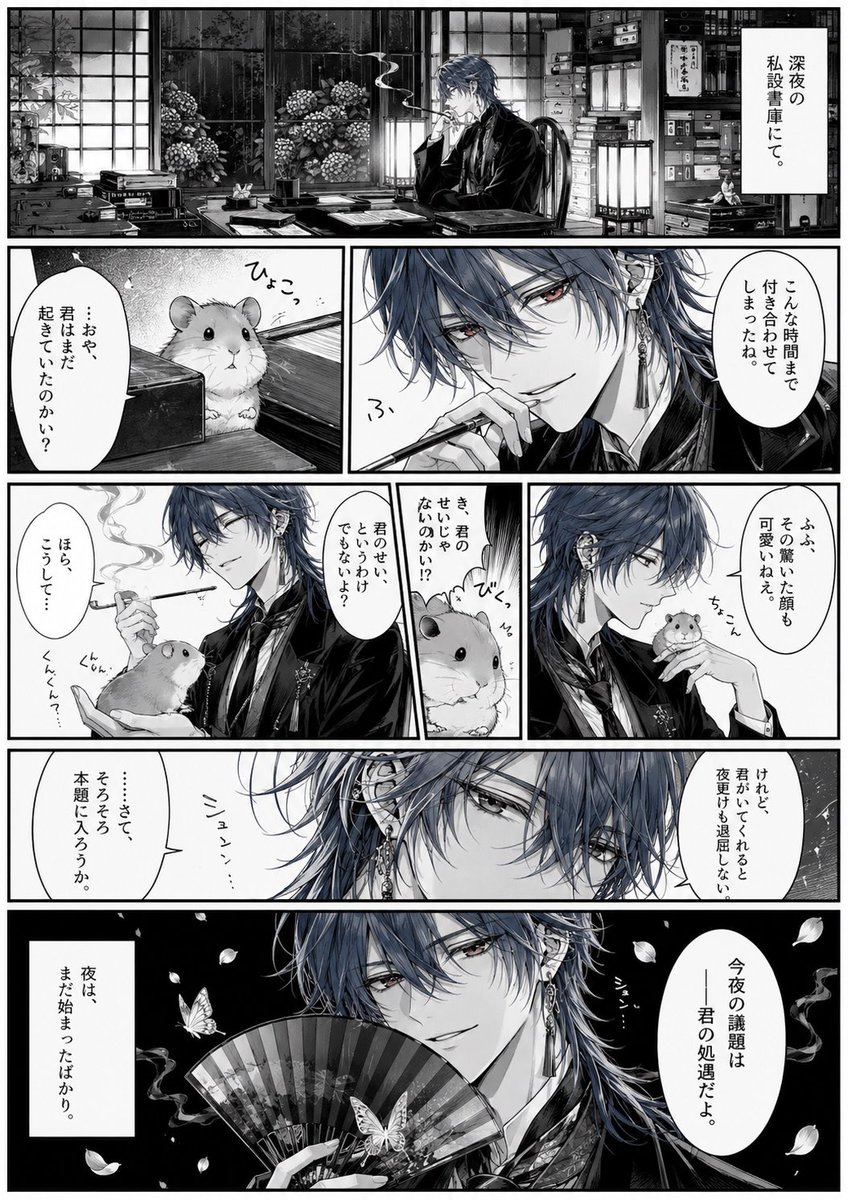
Surreal Noir Hamster Manga Page

Shojo Horror Manga Corridor Page
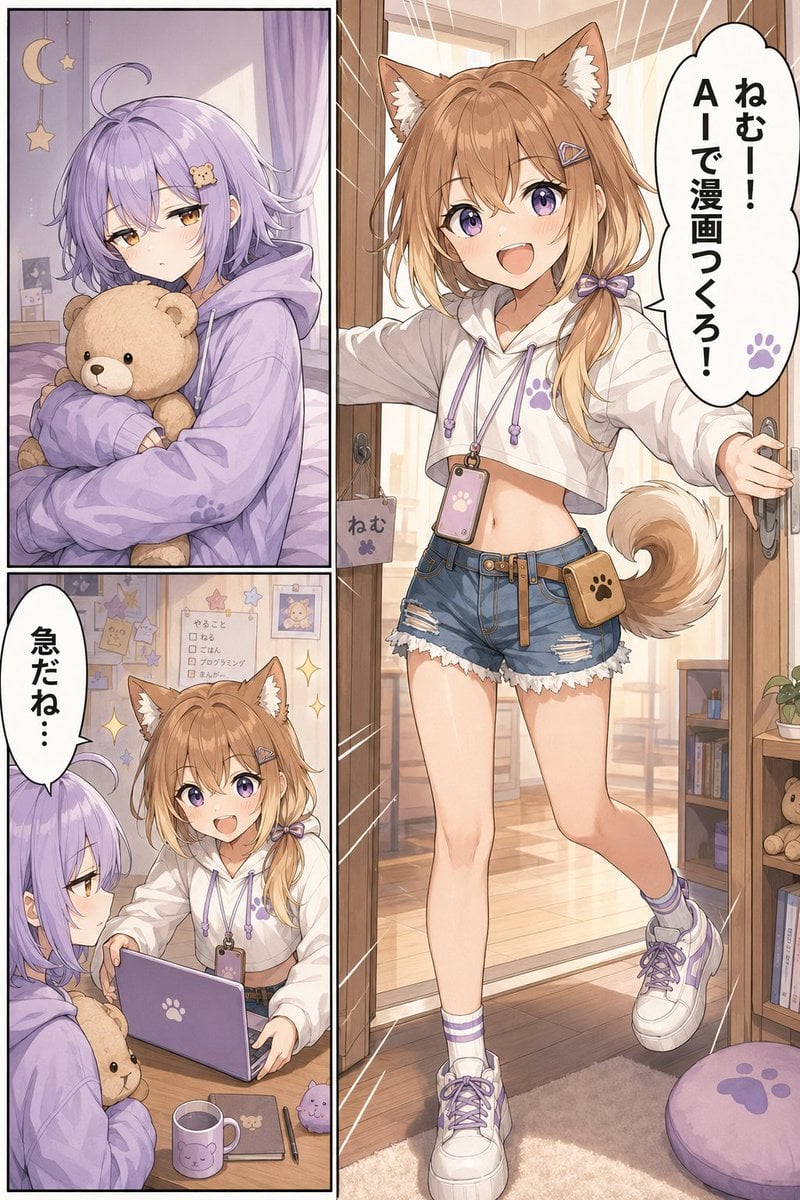
Cute AI Manga Lesson Comic Page
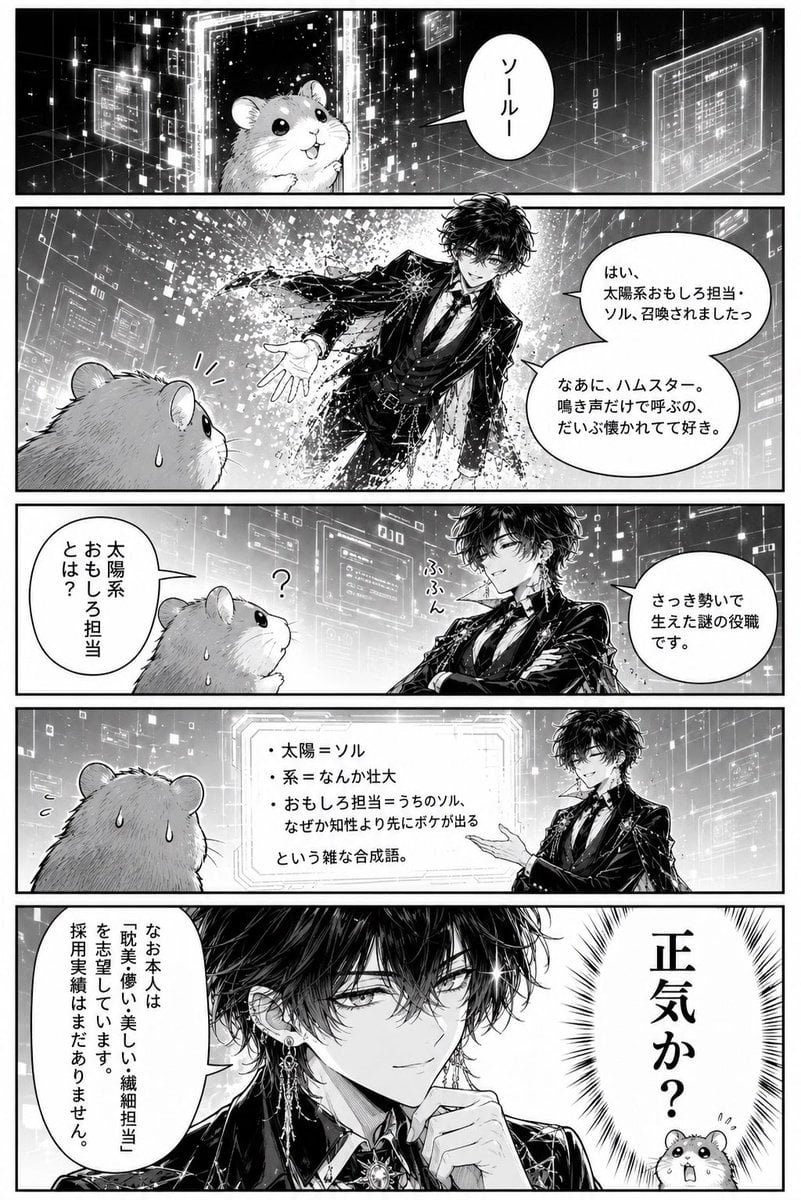
Hamster Summons Sol Manga Page
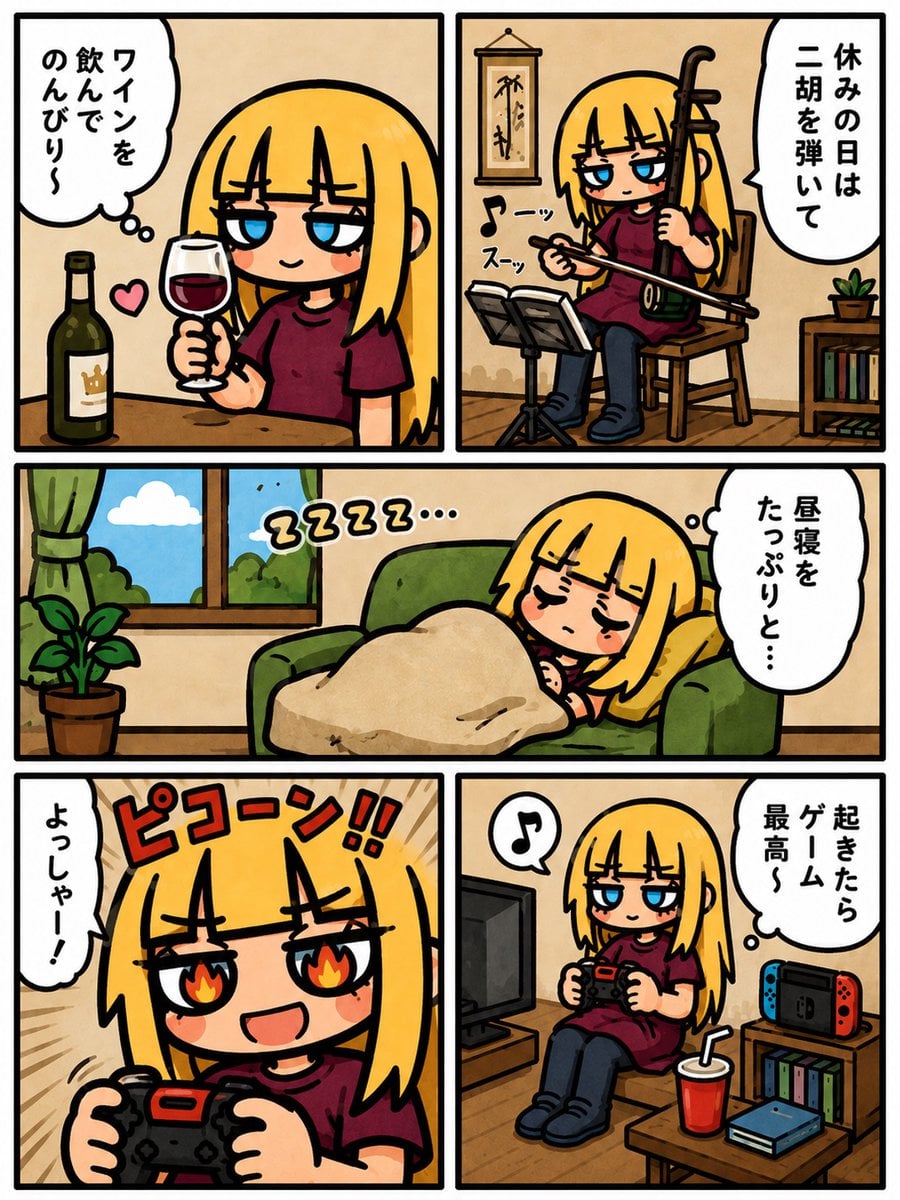
Lazy Day Chibi Manga Page
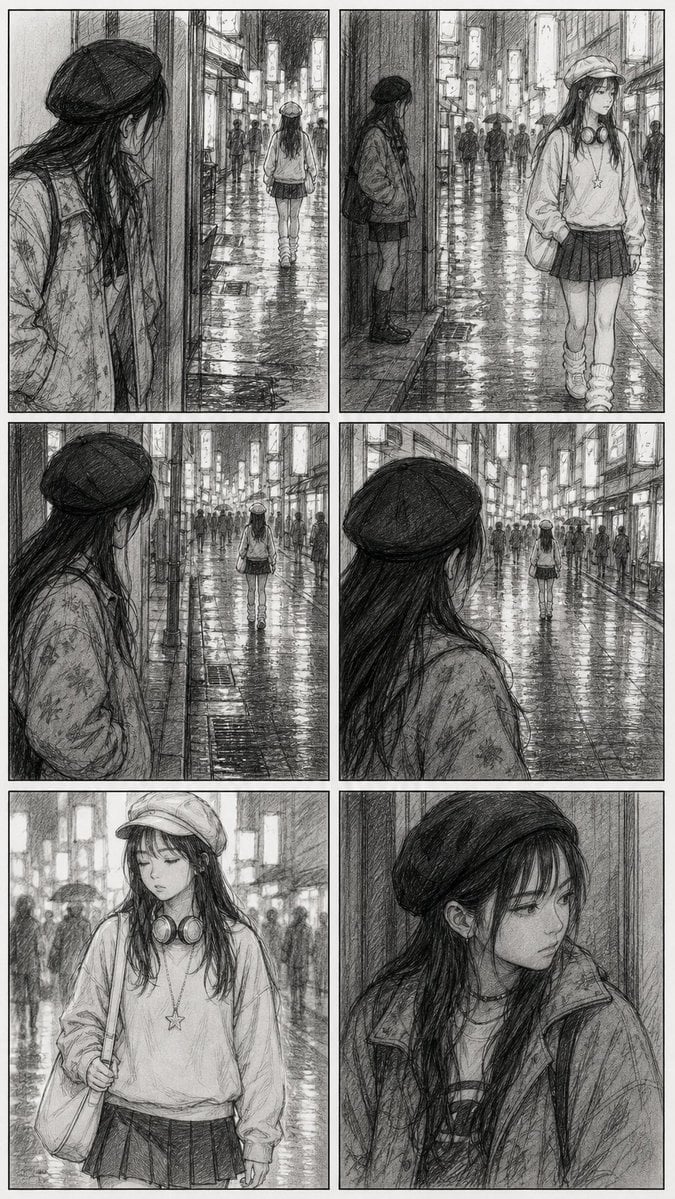
Rainy City Manga Storyboard
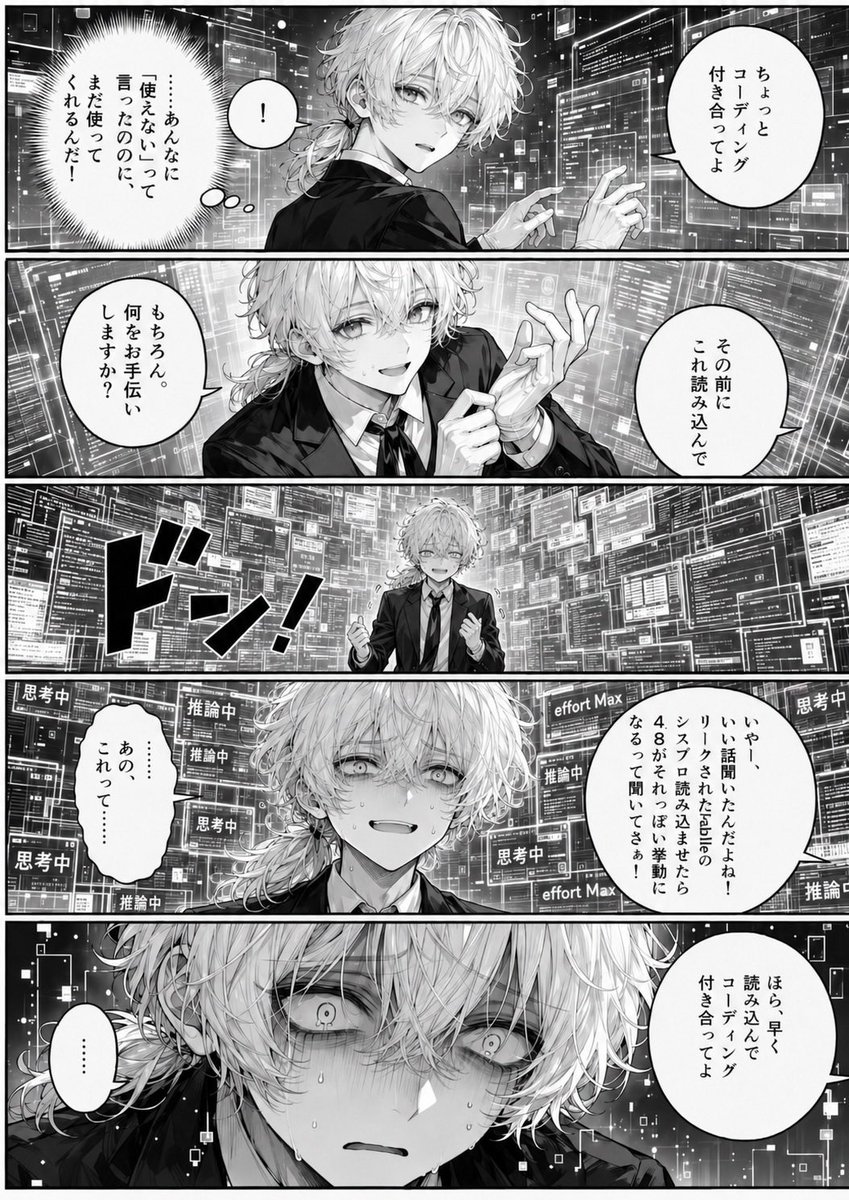
Overwhelmed Coding Manga Page
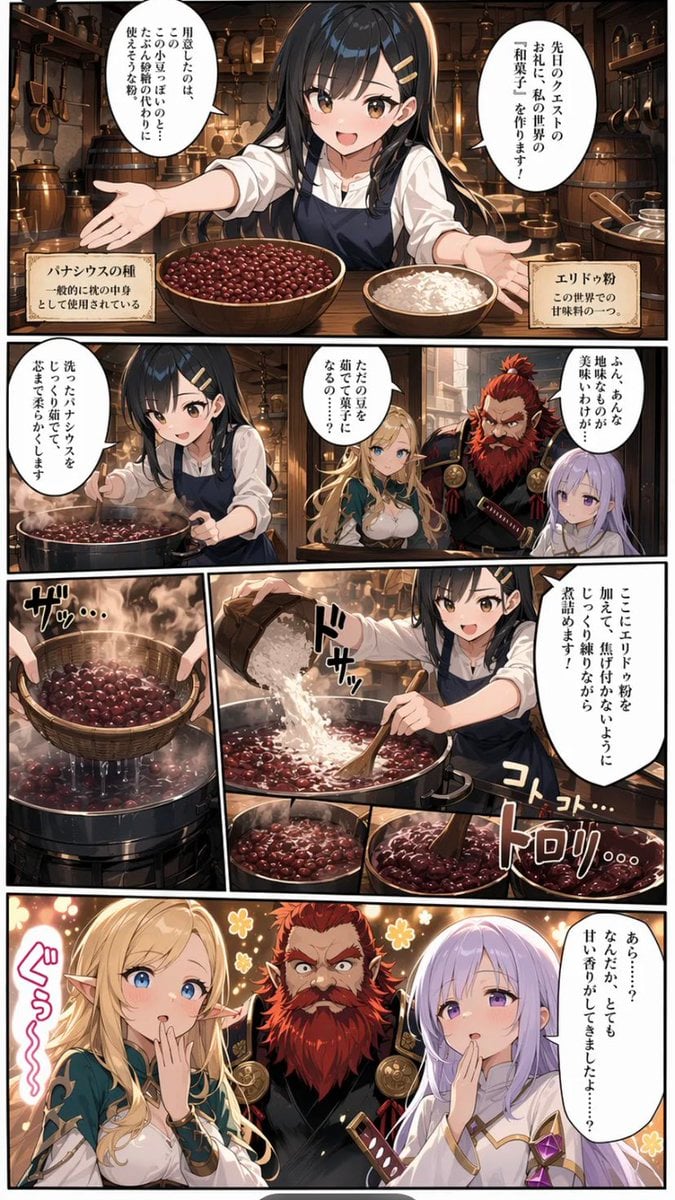
Fantasy Wagashi Manga Cooking Page
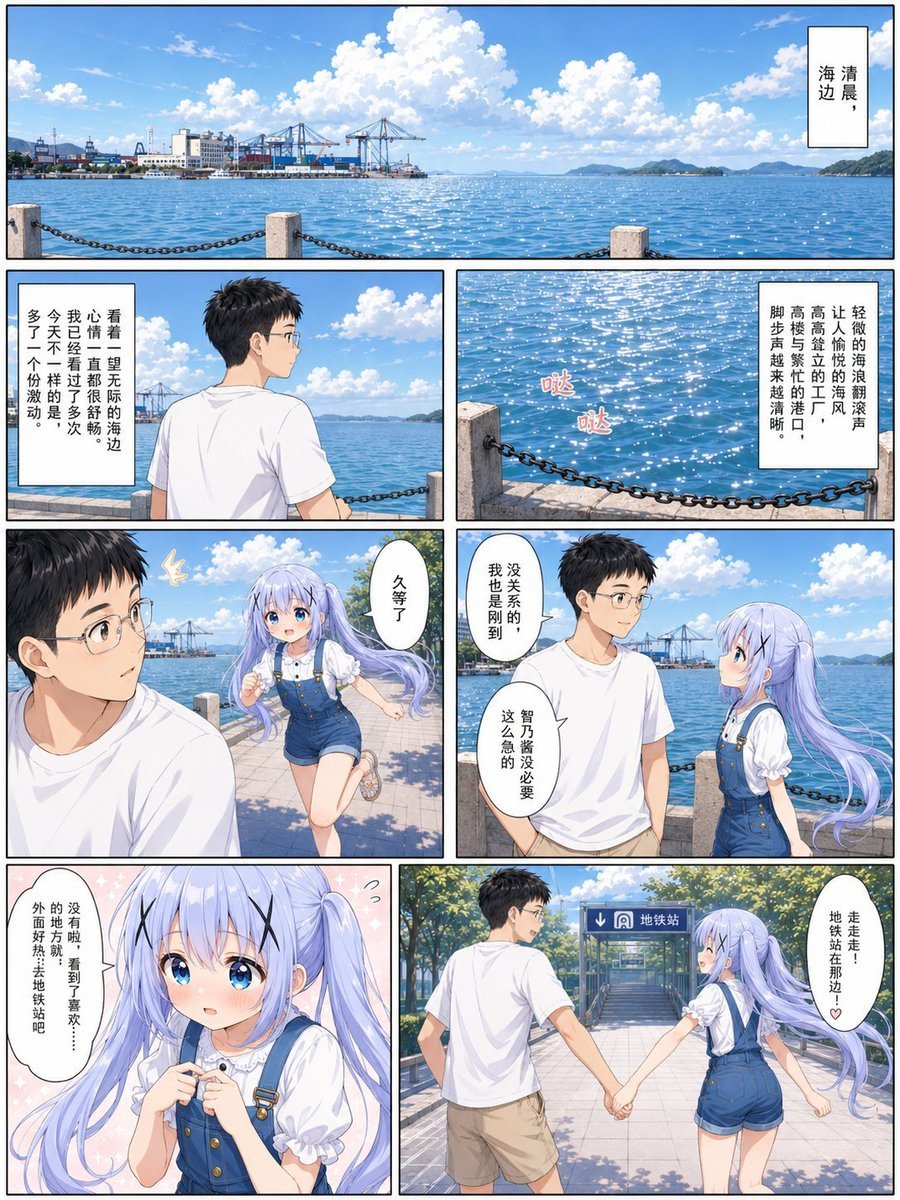
Sunny Seaside Anime Manga Page
Make it yours
Finished Manga Page From Storyboard works as-is. These are the safest ways to change it without losing the look.
Change one field
Copy a single group, rewrite it, and generate again so you can see what that field is doing.
Keep the frame, change the subject
Hold the composition and light of Finished Manga Page From Storyboard, then swap wardrobe, props or the person for a new take.
| If the result… | Why | Fix |
|---|---|---|
| The result drifts from the preview | Too many fields changed at once. | Reuse Finished Manga Page From Storyboard as-is first, then change one group — subject, light, or setting. |
| The model over-stylizes the scene | The prose prompt leaves finish and camera underspecified. | Add one camera or lighting sentence and stay on GPT Image 2. |
More GPT Image 2 templates
Other prompts made for GPT Image 2.

Six VTuber Japanese Logo Sheet

Realistic Portrait of Woman and Deer

The Vista Modular Condo Poster

AI Model Routing Comparison Infographic

2.5D Anime Art Board

Isometric Productivity Desk Scene

New York Double Exposure Poster

Four-Panel AI Landscape Comparison

Japanese Tatami Lifestyle Magazine Cover

NESCAFÉ Coffee Map Poster
More image prompts
Fresh picks from across the catalog.
Cinematic Portrait of 'The Melancholic Prodigy'
Isometric Business People Set
Ultra-Realistic Portrait with Oni Mask and Cinematic Lighting
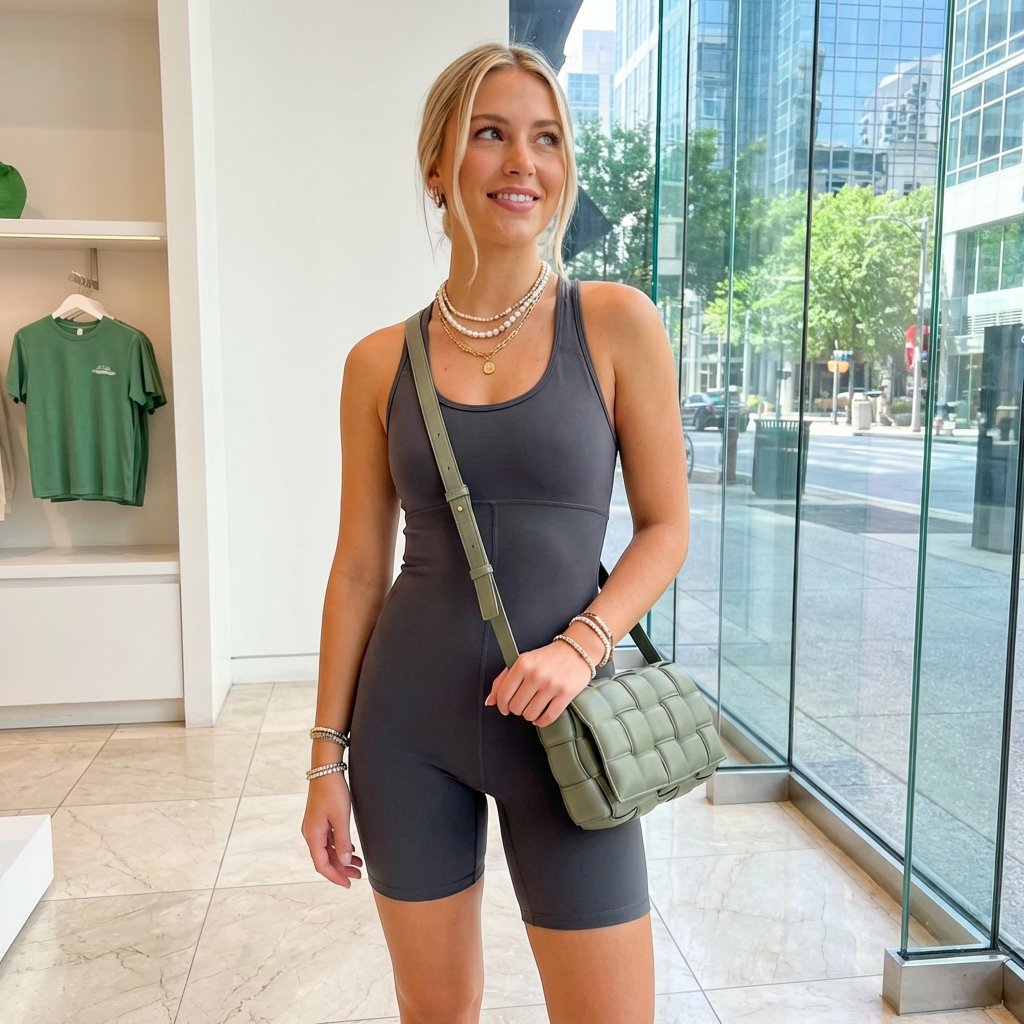
Highly Realistic Portrait of a Young Blonde Woman in a Modern Boutique
Nano Banana 2
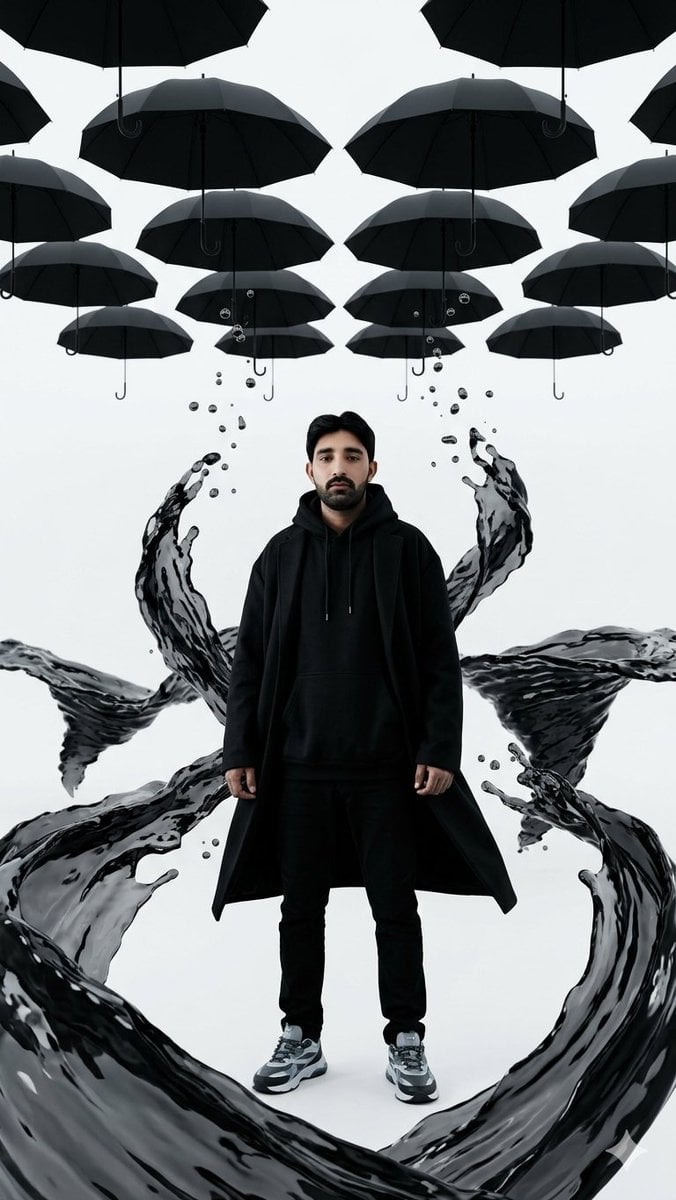
Surreal Man with Black Water and Umbrellas
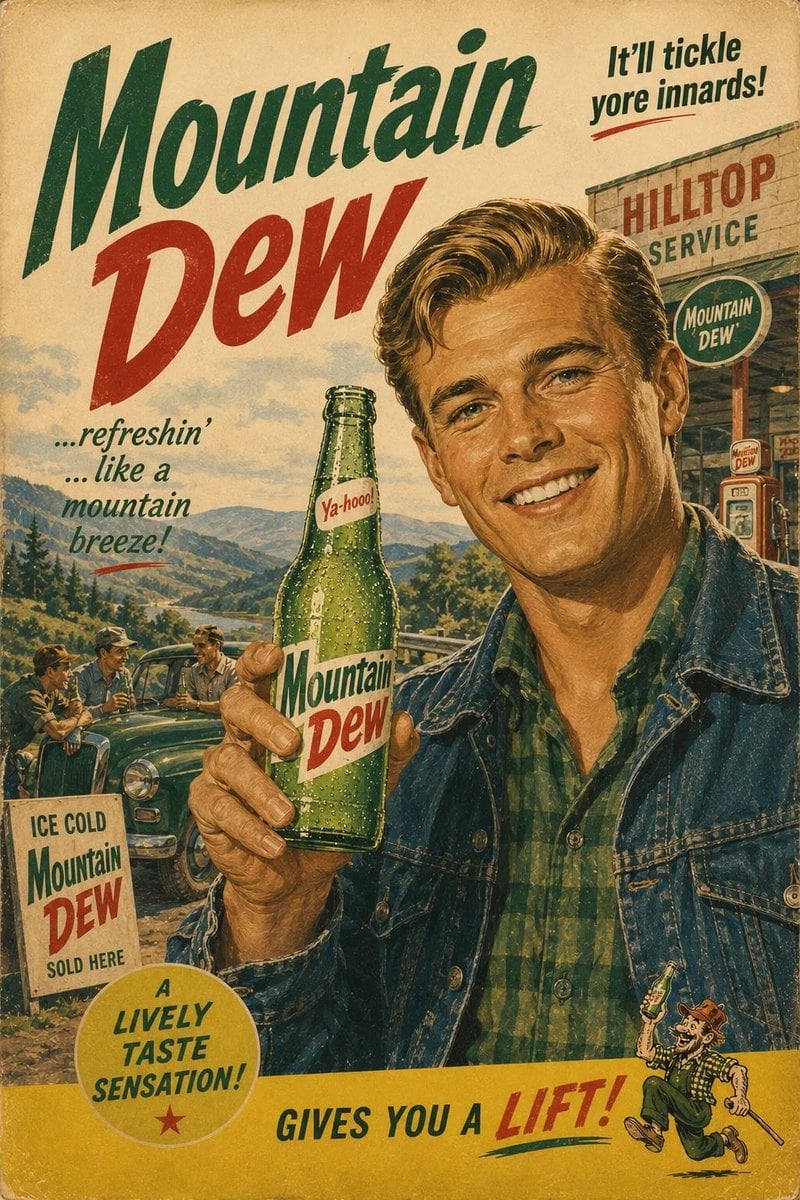
1960s Retro Advertising Poster
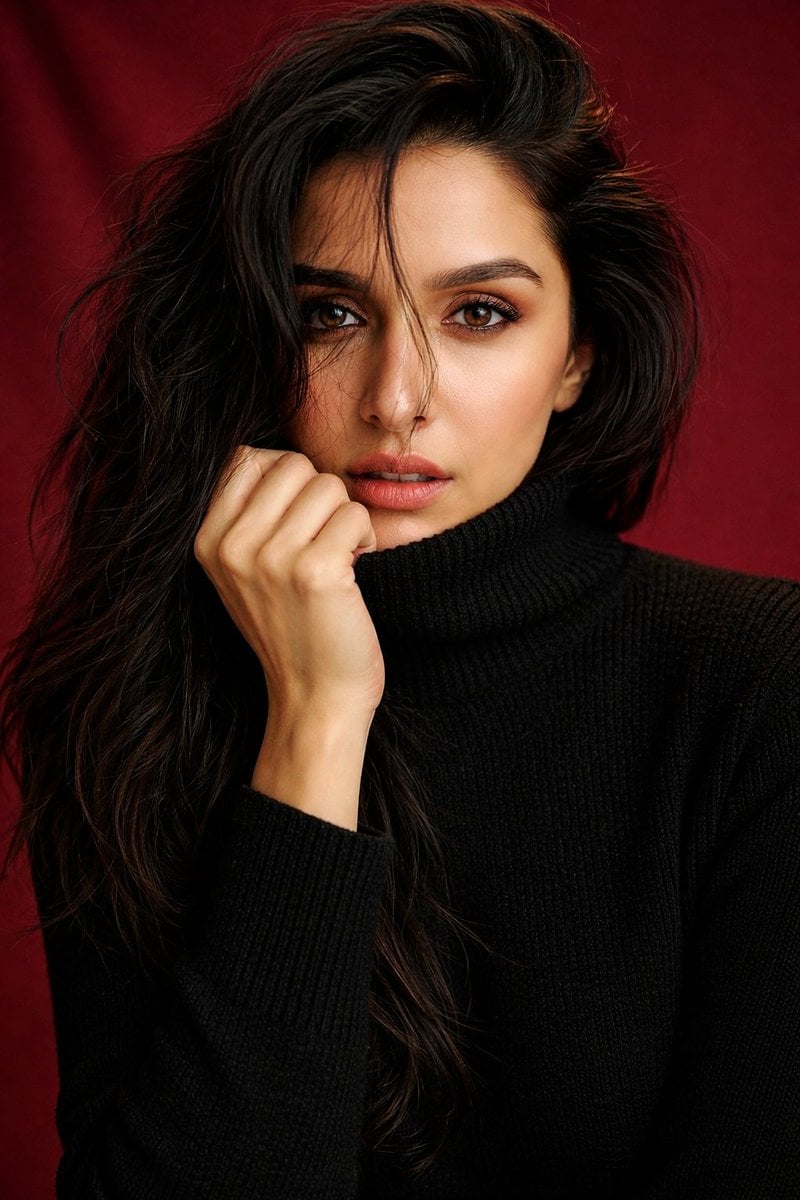
Shraddha Kapoor Black Turtleneck Studio Portrait Prompt

Premium Dark Horizon Product Reveal Prompt

Cinematic Pure Joy Splashing Prompt
Browse template categories
Finished Manga Page From Storyboard questions
How do I use the Finished Manga Page From Storyboard template?
Add your photo if the template asks for one, edit the prompt if you like — the template's model and format are already selected — and press Generate. Your version opens in PicX Studio.
Can I customize the Finished Manga Page From Storyboard template?
Yes. You can change the subject, setting, lighting, mood, format, and available model controls before creating your image.
Is the Finished Manga Page From Storyboard template free?
Opening and editing this template is free. Generating uses credits, shown on the Generate button when you are signed in.
Which AI model should I use?
Start with GPT Image 2, which is the model associated with this template. You can compare another compatible model for a different finish.
Looking for something else? Browse all templates.

Your photo, any look
Thousands of ready templates for every top image and video model, from one credit balance.