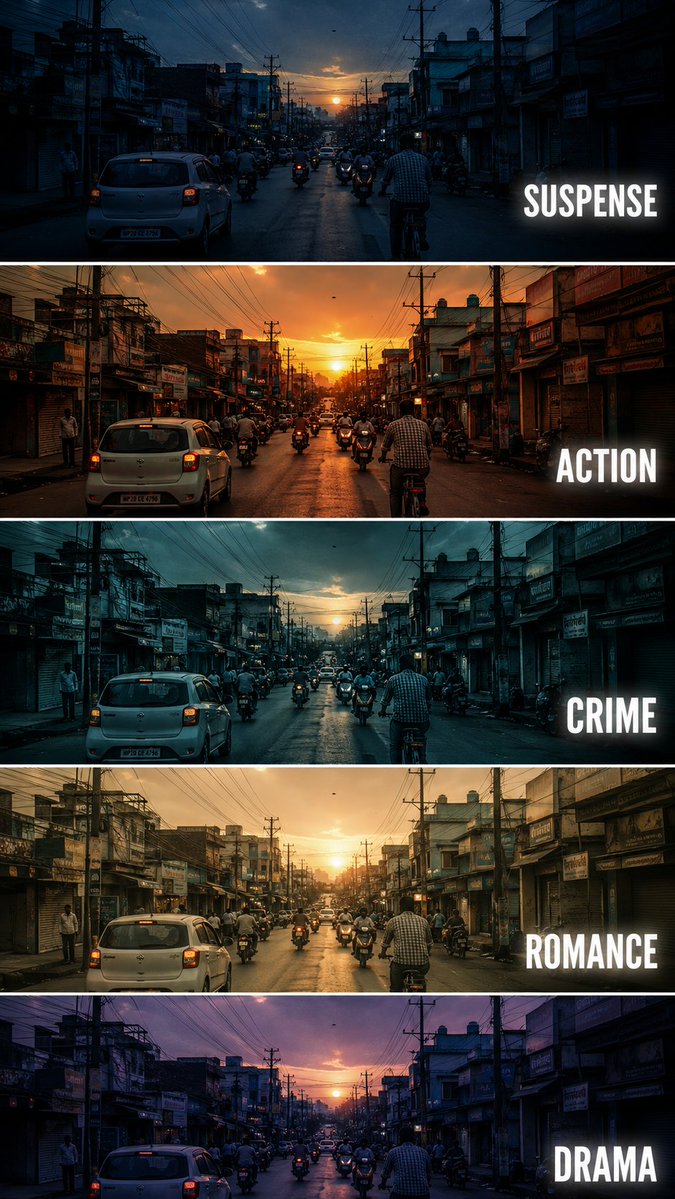
How do I use the Creative Composite for 'Follow' Button Promo template?
Choose the primary action to open PicX Studio with the available template settings. Review the model and format, personalize the creative direction, and generate when ready.
A complex JSON prompt designed for a creative composite edit, superimposing a character (from a reference image) onto a background image (a screenshot of a profile page). Change the subject, setting, or lighting one variable at a time.

{ "edit_type": "creative_composite_layering", "source": { "_hint": "Base logic: Character (Ref 1) superimposed ON TOP OF the Background Image (Ref 2).", "mode": "EDIT", "reference_images": { "first": "foreground_character_person", "second": "background_scenery_or_pattern" }, "preserve_from_first": { "same_person_or_group": true, "same_faces": true, "same_hairstyles": true, "same_outfits": true } }, "identity": { "keep_identity_consistent": true, "expression": "bright_engaging_smile_at_camera" }, "camera_effect": { "_hint": "High-angle selfie style, creating a sense of depth between the hand and face.", "perspective": "high_angle_shot_looking_down", "style": "social_media_call_to_action", "depth_of_field": "focus_on_face_and_pointing_finger", "framing": "character_centered_with_space_at_top_right" }, "pose": { "_hint": "Key action: Lying down but actively pointing to the 'Follow' button area (Top Right).", "pose_style": "lying_down_or_reclining_on_back", "face_direction": "looking_directly_up_into_lens", "hand_gestures": { "right_hand_action": "pointing_index_finger", "target_direction": "upper_right_corner_45_degrees", "purpose": "mimicking_pressing_subscribe_button", "arm_position": "extended_towards_camera_top_right" }, "body_language": "inviting_and_energetic", "style_tags": [ "kpop_idol_fan_service", "influencer_promo_style", "dynamic_perspective" ] }, "background_integration": { "_hint": "The second reference image is the background/floor.", "method": "full_background_replacement", "target_area": "entire_canvas_behind_character", "content_source": "reference_image_second", "perspective_match": "flat_lay_style", "rules": { "character_must_be_top_layer": true, "leave_space_in_upper_right_for_ui": true } }, "composition": { "_hint": "Ensure the pointing finger leads the viewer's eye to the top right corner.", "visual_flow": "diagonal_line_from_face_to_top_right_corner", "focal_points": [ "character_eyes", "pointing_finger_tip" ], "negative_space": "clear_area_at_top_right_45_degrees" }, "constraints": { "no_holding_phone_device": true,
Choose the primary action to open PicX Studio with the available template settings. Review the model and format, personalize the creative direction, and generate when ready.
Yes. You can change the subject, setting, lighting, mood, format, and available model controls before creating your image.
This template is free to open and customize. Generation usage is shown in PicX Studio before you create.
Start with Nano Banana 2, which is the model associated with this template. You can compare another compatible model for a different finish.
Follow a topic to a crawlable collection of related PicX Studio templates.
43,474 public templates available. Verified via the PicX Studio public templates API; refreshed hourly.






![Trendy Cafe Drink Promo Poster — Create a trendy 3:2 square promotional poster for "[PRODUCT NAME]" using the uploaded product image or generate a premium reali](/_next/image?url=https%3A%2F%2Fcdn.picxstudio.com%2Fuploads%2F0_908138d6-c2ce-479f-b50d-890fcdc0a491.jpg&w=828&q=100)







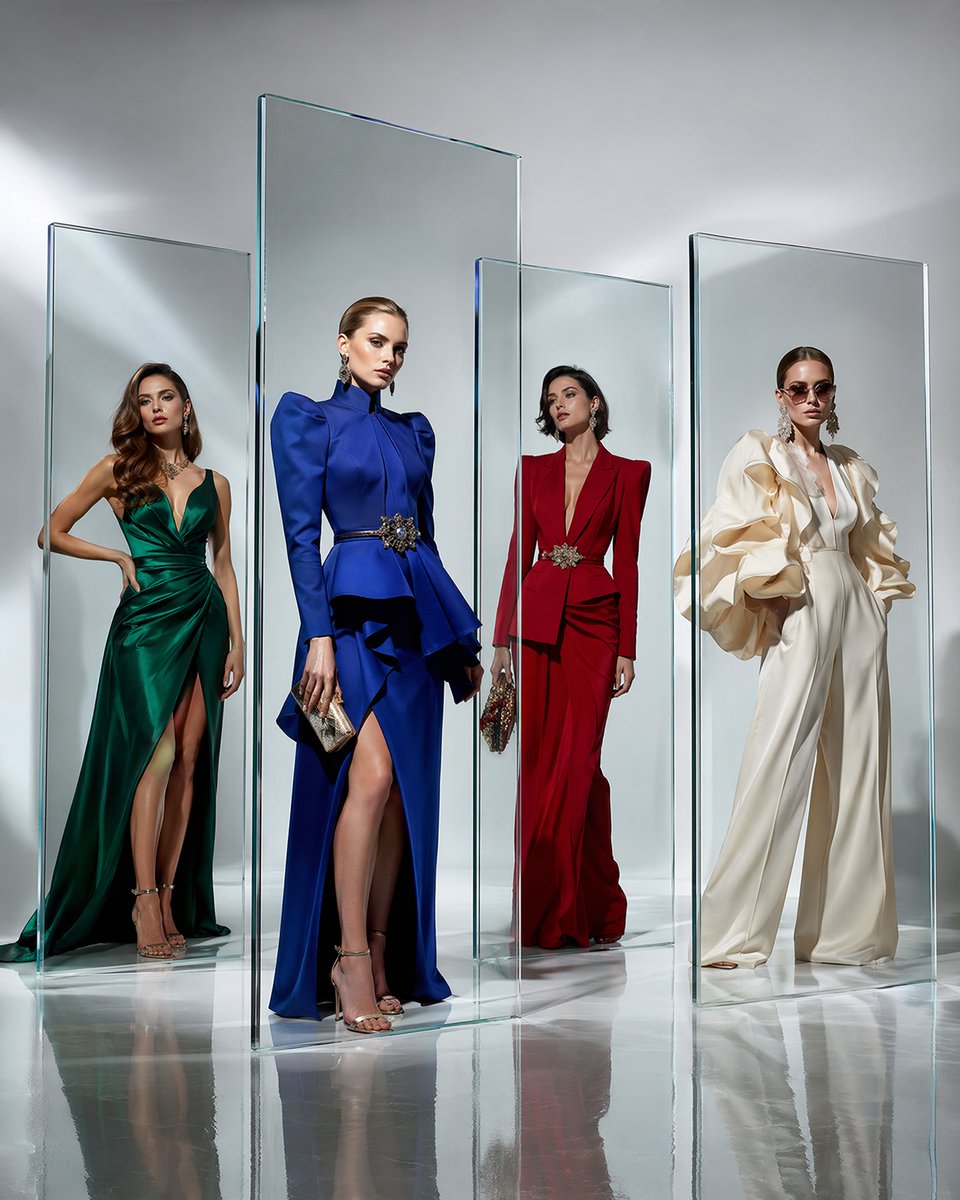
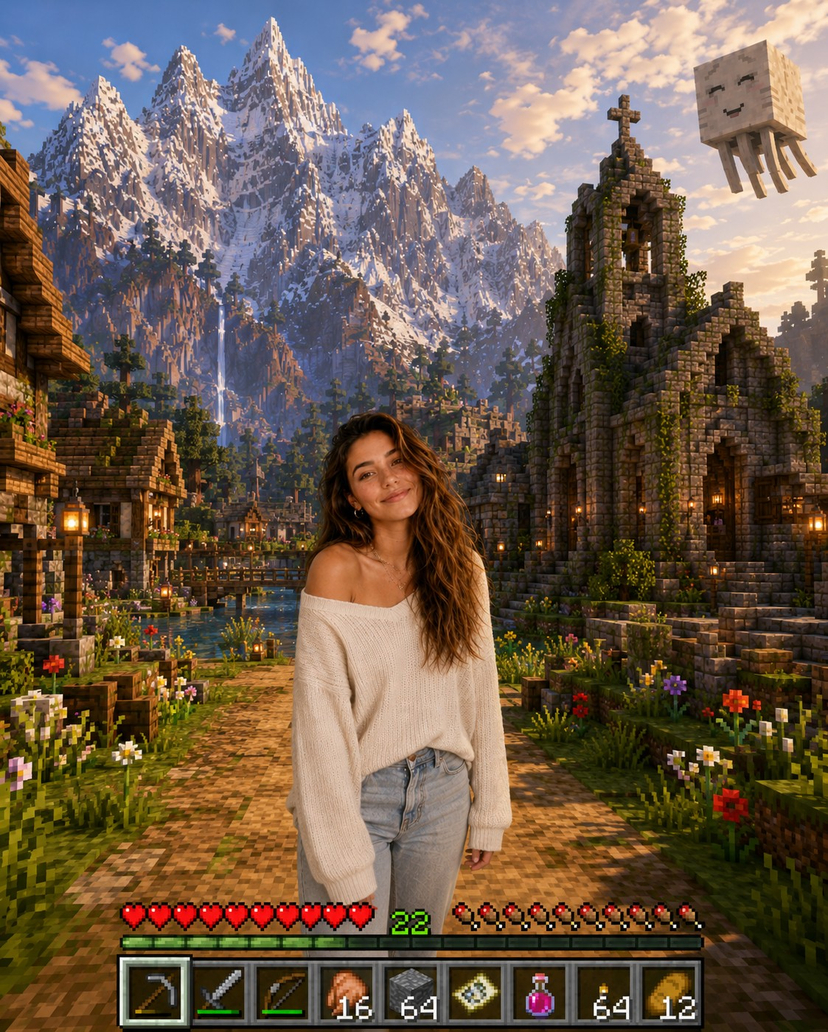


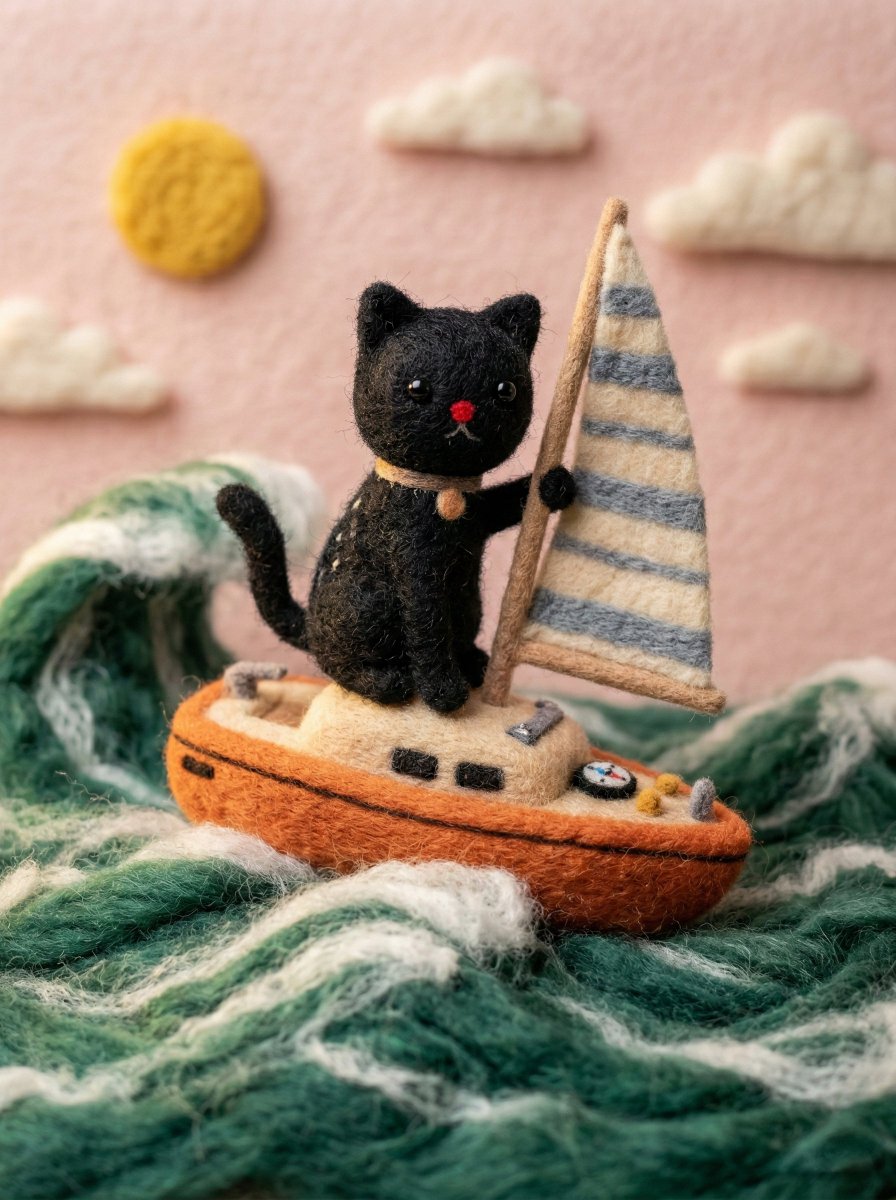



![Naive doodle-style subject illustration — A doodle-style {argument name="subject" default="[subject]"}, naive lines, humorous shape exaggeration](https://pbs.twimg.com/media/G6Wl2YxbsAARB2b.jpg)




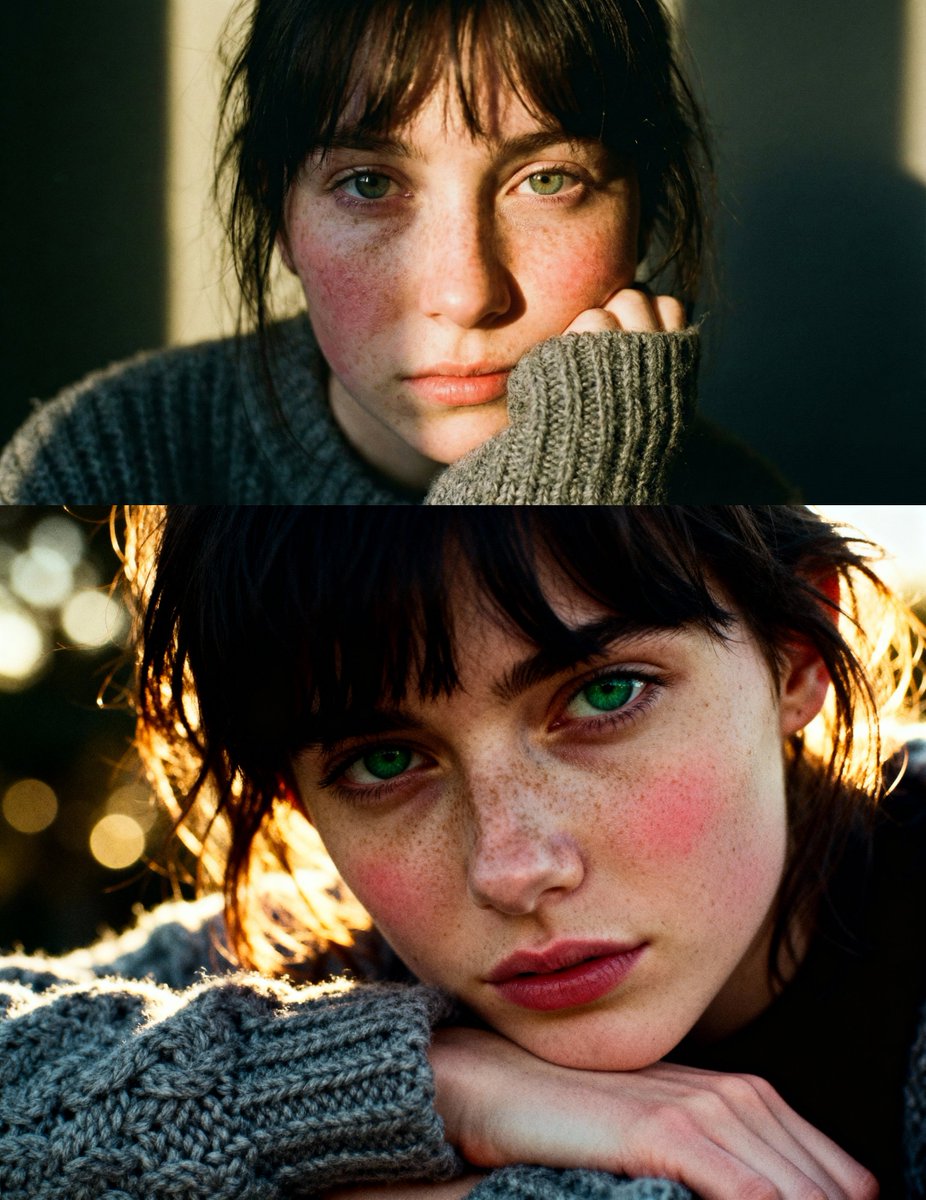


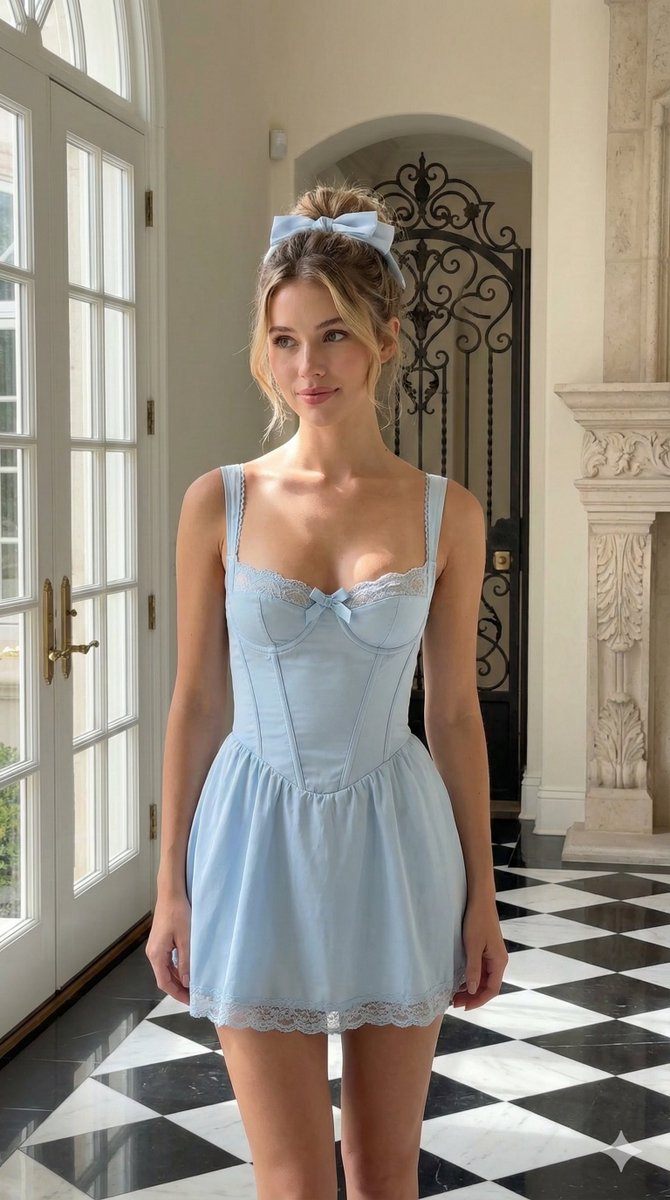




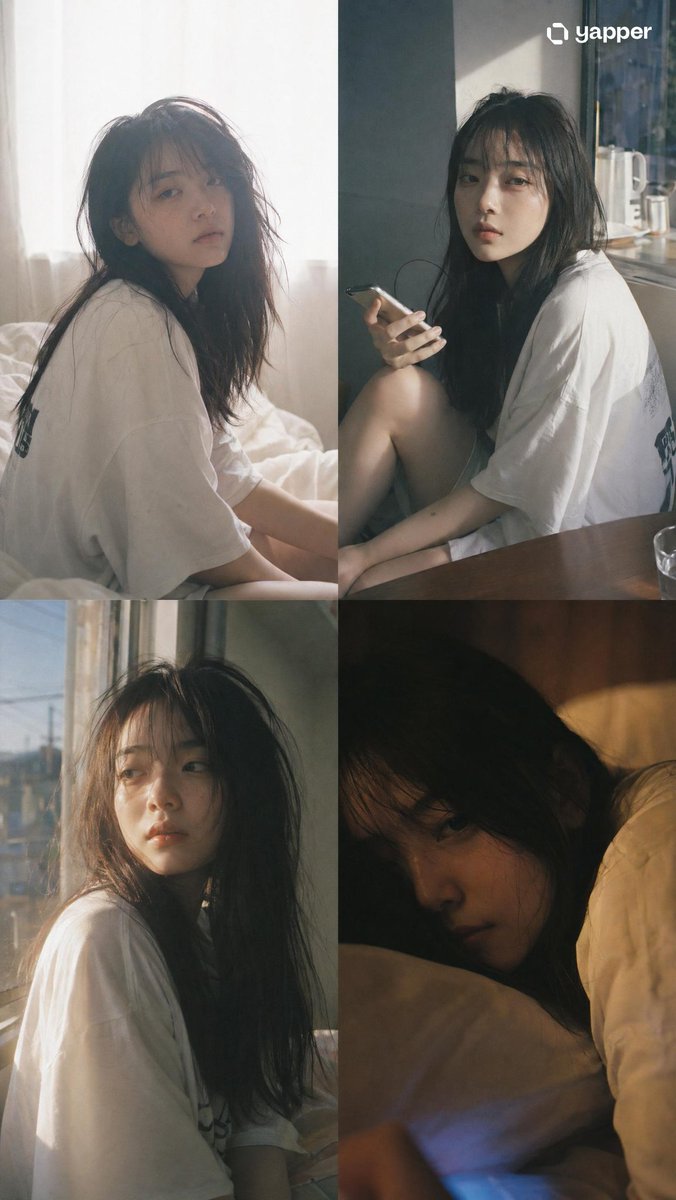





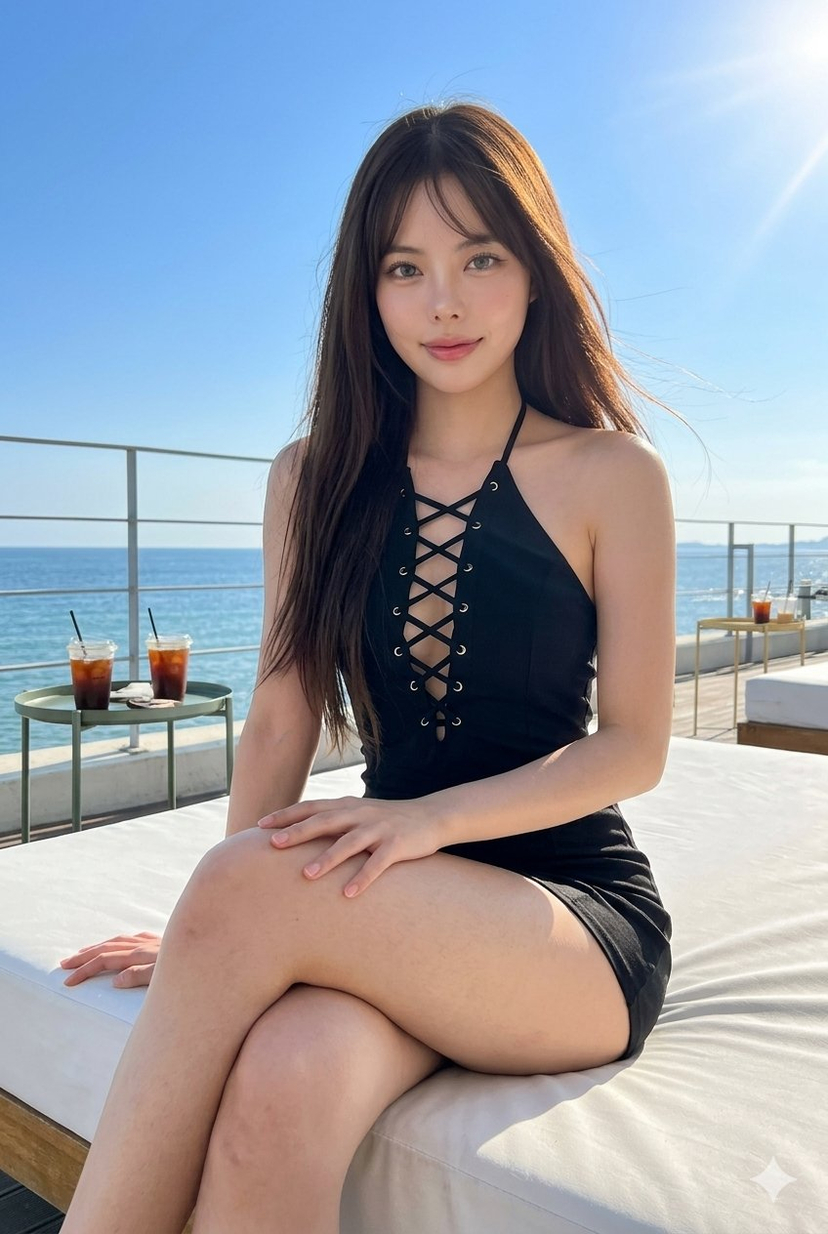






![Photorealistic Bikini Shot with Strict Identity Lock — [MODEL]
version = photorealistic_v6
quality = ultra
resolution = 8k
aspect_ratio = 3:4
style = cinematic_](https://pbs.twimg.com/media/G83M36RagAEhMV3.jpg)
![Typewriter Art Manifestation Scene — A vintage typewriter on a writer's desk, with the {argument name="subject" default="[SUBJECT]"} mate…](https://pbs.twimg.com/media/G_mDCO4bIAA1bL1.jpg)