
Cinematic Film Genre Color Grading Comparison
A detailed prompt for creating a cinematic vertical poster that compares five different film color grading styles for the same urban street scene.
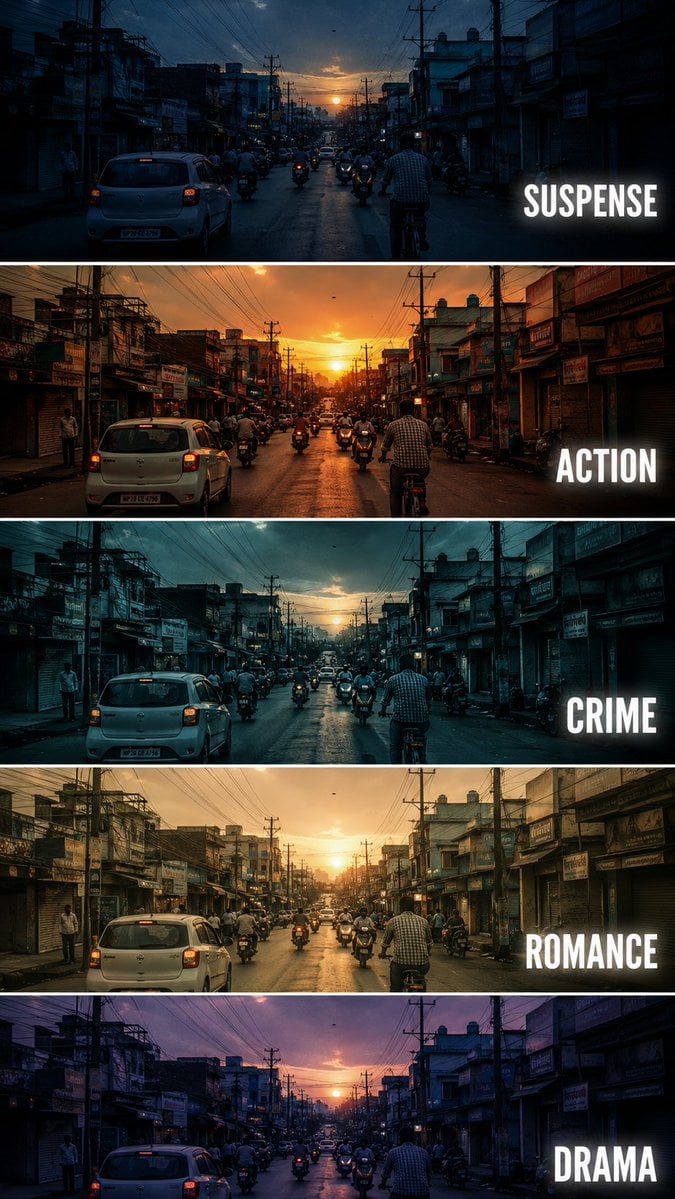
- Prompt included
- Model and format preset
- Free template
The prompt behind this image
Copy the exact prompt behind Cinematic Film Genre Color Grading Comparison, or open it in the studio and make it yours.
Create a {argument name="aspect" default="vertical"} cinematic tutorial comparison poster showing the same {argument name="subject" default="urban street scene"} repeated in five horizontal panels, each panel demonstrating a different film genre color grading style. The scene is a busy small city street at sunset, with cars, motorcycles, cyclists, shop buildings, electric poles, tangled overhead wires, and warm evening sky. Keep the camera angle exactly the same in every panel, like a fixed street photography shot. Each horizontal strip should have a different cinematic mood and color tone: Panel 1: SUSPENSE - cool blue shadows, dark contrast, slightly mysterious atmosphere, tense and moody lighting. Panel 2: ACTION - warm orange sunset tone, high contrast, energetic cinematic look, dramatic highlights. Panel 3: CRIME - cold teal blue grading, darker exposure, gritty urban feeling, realistic shadows. Panel 4: ROMANCE - soft golden warm tone, gentle contrast, nostalgic sunset mood, dreamy atmosphere. Panel 5: DRAMA - muted purple blue evening tone, emotional cinematic lighting, soft shadows and serious mood. Add bold white uppercase text on the right side of each panel: SUSPENSE, ACTION, CRIME, ROMANCE, DRAMA. Use clean modern sans serif typography with slight glow or subtle shadow. Separate each panel with thin white horizontal borders. Make it look like a professional filmmaking color grading tutorial thumbnail, cinematic, realistic, high detail, urban street photography, 9:16 vertical composition. Negative Prompt: cartoon, anime, painting, low quality, blurry, distorted buildings, extra text, wrong spelling, messy typography, overexposed, unrealistic colors, duplicated cars, warped street, bad perspective, random objects, low resolution, watermark
How to use Cinematic Film Genre Color Grading Comparison in 3 steps
- 1
Open
The prompt is already in the box next to the preview, with the template's model and format selected.
- 2…a portrait of your subject in softgolden-hour light, 85mm…
Personalize
Edit the subject and creative details for your destination.
- 3Generate
Generate
Press Generate — your image is created in PicX Studio, so you can compare it with the original and refine one variable at a time.
More like this
Templates with the same subject, style or setup. Open one to see its prompt.
Lifestyle photography, cinematic color grading, shallow depth of field

Stylized Anime Color Grading
Sepia Family Portrait Studio

Monogram Luggage Cart
Statue Garden Twilight
Opera Glasses Velvet Seat
Fountain Pen Ink Splash
Manor Garden Topiary Path

Black And White Piano Keys
Cigar Lounge Leather Smoke

Fountain Plaza Pigeons
Marble Staircase Fashion
Make it yours
Cinematic Film Genre Color Grading Comparison works as-is. These are the safest ways to change it without losing the look.
Change one field
Copy a single group, rewrite it, and generate again so you can see what that field is doing.
Keep the frame, change the subject
Hold the composition and light of Cinematic Film Genre Color Grading Comparison, then swap wardrobe, props or the person for a new take.
| If the result… | Why | Fix |
|---|---|---|
| The result drifts from the preview | Too many fields changed at once. | Reuse Cinematic Film Genre Color Grading Comparison as-is first, then change one group — subject, light, or setting. |
| The model over-stylizes the scene | The prose prompt leaves finish and camera underspecified. | Add one camera or lighting sentence and stay on GPT Image 2. |
More GPT Image 2 templates
Other prompts made for GPT Image 2.

Six VTuber Japanese Logo Sheet

Realistic Portrait of Woman and Deer

The Vista Modular Condo Poster

AI Model Routing Comparison Infographic

2.5D Anime Art Board

Isometric Productivity Desk Scene

New York Double Exposure Poster

Four-Panel AI Landscape Comparison

Japanese Tatami Lifestyle Magazine Cover

NESCAFÉ Coffee Map Poster
More image prompts
Fresh picks from across the catalog.

Comparing Nano Banana Pro and 2 with a Profile Flyer Prompt
Sophisticated Interior Design Photograph Prompt (Dining/Living Space)
Motion Blur Portrait in NYC at Golden Hour

Neon Censored Portrait Avatar

Hyper-realistic Cinematic Tarmac Photo
Four-Panel Manga Generation: Dawn of Strike Avoidance

Dark Fantasy Winter Creature Emerging from a Blizzard
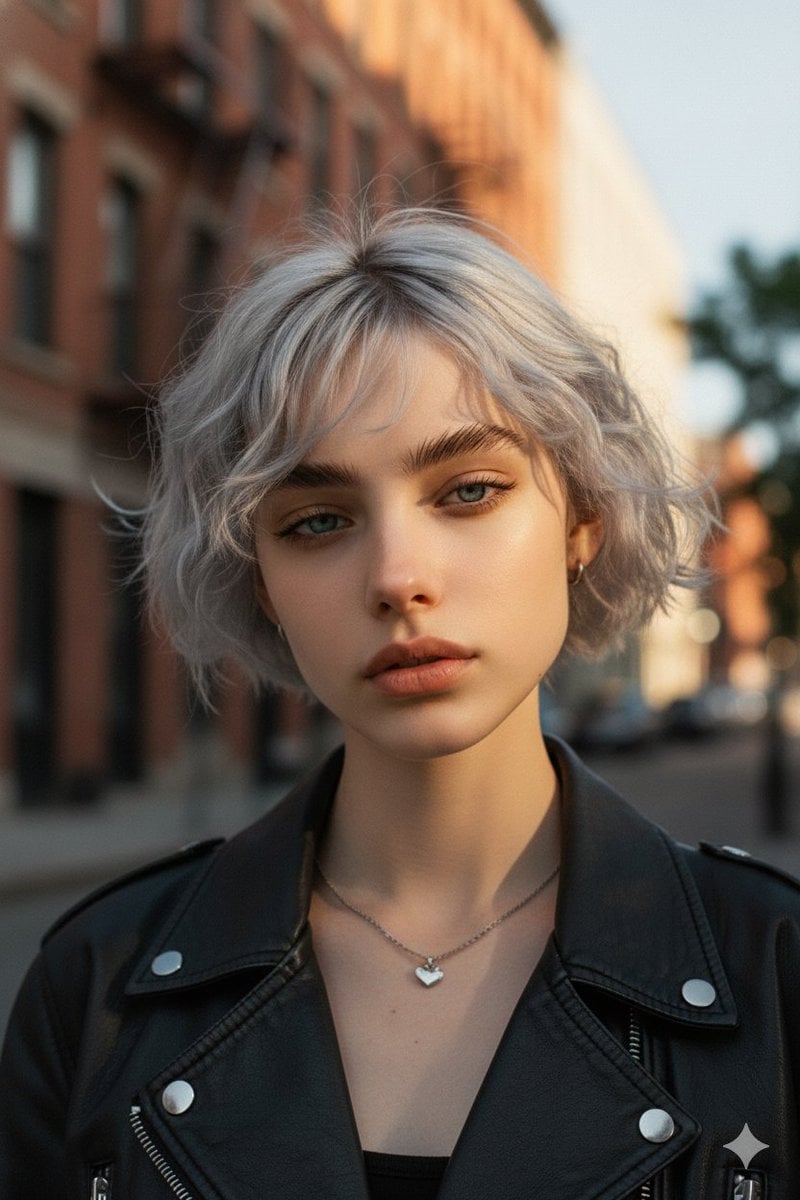
Moody Cinematic Platinum Blonde Portrait
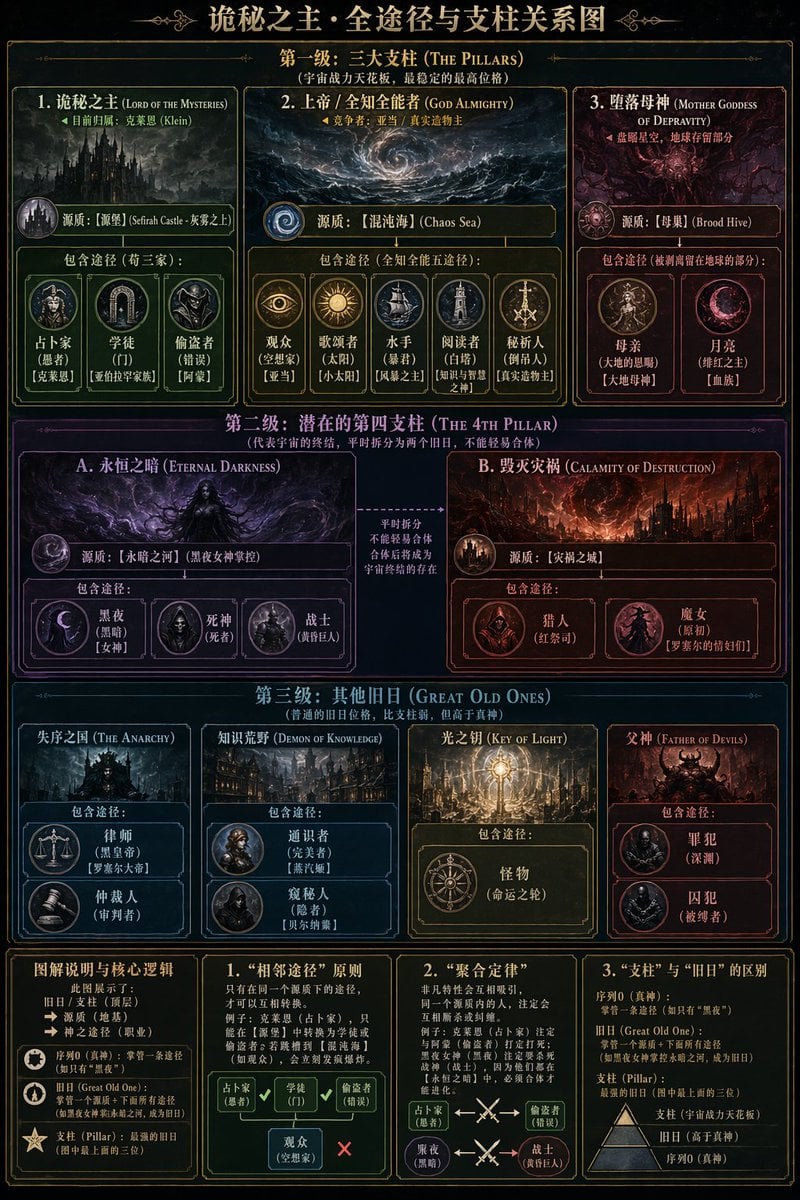
Dark Fantasy Lore Infographic Chart

Low-Resolution Motion-Blurred Selfie with Cat
Browse template categories
Cinematic Film Genre Color Grading Comparison questions
How do I use the Cinematic Film Genre Color Grading Comparison template?
Add your photo if the template asks for one, edit the prompt if you like — the template's model and format are already selected — and press Generate. Your version opens in PicX Studio.
Can I customize the Cinematic Film Genre Color Grading Comparison template?
Yes. You can change the subject, setting, lighting, mood, format, and available model controls before creating your image.
Is the Cinematic Film Genre Color Grading Comparison template free?
Opening and editing this template is free. Generating uses credits, shown on the Generate button when you are signed in.
Which AI model should I use?
Start with GPT Image 2, which is the model associated with this template. You can compare another compatible model for a different finish.
Looking for something else? Browse all templates.

Your photo, any look
Thousands of ready templates for every top image and video model, from one credit balance.