
Blueberry Courseware Cover Slide
Generates an elegant Chinese-style PPT cover slide with watercolor blueberries, editorial typography, and botanical annotation details.
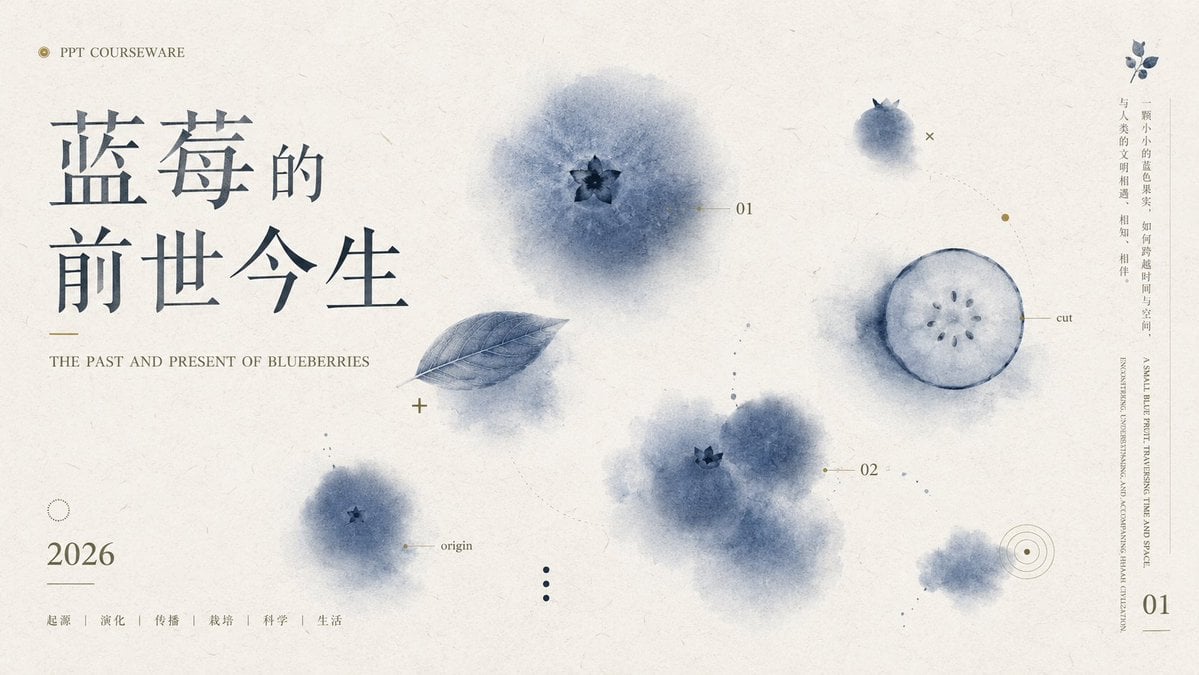
- Prompt included
- Model and format preset
- Free template
The prompt behind this image
Copy the exact prompt behind Blueberry Courseware Cover Slide, or open it in the studio and make it yours.
Goal: Create an elegant widescreen PPT courseware cover slide about {argument name="topic" default="the past and present of blueberries"}, blending Chinese editorial typography with soft watercolor botanical illustration. Canvas: 16:9 landscape presentation slide, warm off-white handmade paper texture background with subtle fibers, faint stains, and minimal ink speckles. Layout: Left third is dominated by a large Chinese title in dark blue-gray: {argument name="Chinese title" default="蓝莓的\n前世今生"}. Place the title in two stacked lines with generous spacing, using a refined Song/Ming-style serif font. Above it, small uppercase text reads “PPT COURSEWARE” preceded by a tiny gold circular icon. Under the title, add a short thin gold line and the English subtitle in small serif capitals: {argument name="English subtitle" default="THE PAST AND PRESENT OF BLUEBERRIES"}. Bottom left shows the year {argument name="year" default="2026"} in large serif numerals, with a thin horizontal line beneath, then five small Chinese category labels separated by vertical dividers: “起源 | 演化 | 传播 | 栽培 | 科学 | 生活”. Main imagery: Use exactly 6 visible blueberry-related watercolor elements across the slide: 1 large soft blue blueberry bloom near the upper center with a dark star-shaped calyx, 1 translucent blue leaf angled diagonally below-left of it, 1 small blueberry bloom near lower left labeled “origin”, 1 clustered pair of blurry blueberries near lower middle-right with one visible calyx, 1 circular blueberry cross-section on the right labeled “cut” with pale pulp and small seed dots, and 1 small fuzzy blueberry wash near the lower right. Keep all fruit elements desaturated indigo, smoky blue, and gray-blue, with feathered watercolor edges. Technical annotation details: Add fine gold and blue-gray diagram marks: tiny crosses, dotted guide lines, small circles, target rings, and thin leader lines. Include exactly 3 small numeric labels: “01” near the upper-center blueberry, “02” near the middle-right cluster, and “01” as a page number at the bottom right. Add the labels “origin” and “cut” in very small serif text. Right margin: Add a narrow vertical text column on the far right with small Chinese copy: {argument name="vertical quote" default="一颗小小的蓝色果实,如何跨越时间与空间,与人类的文明相遇、相知、相伴。"}. Beside or below it, add very small vertical English text in uppercase, decorative and partially editorial, about blueberries traversing time and space. Visual style: Minimal premium academic presentation design, Chinese new-literati aesthetic, botanical science notes, high negative space, soft ink-wash watercolor, muted navy-blue and gray palette with restrained antique-gold accents, crisp typography but organic painted fruit. No people, no photorealistic fruit, no bright colors, no watermark.
How to use Blueberry Courseware Cover Slide in 3 steps
- 1Upload ImagePNG, JPG or paste
Add your photo
Upload the photo the template builds on. The prompt, model and format are already set.
- 2…a portrait of your subject in softgolden-hour light, 85mm…
Personalize
Edit the subject and creative details for your destination.
- 3Generate
Generate
Press Generate — your image is created in PicX Studio, so you can compare it with the original and refine one variable at a time.
More like this
Templates with the same subject, style or setup. Open one to see its prompt.

Premium 4 3 presentation cover slide introducing Chronicle

Tang Lychee Courseware Cover

Retro Pop Art Blueberry Shake Poster

Blueberry Lemonade Advertisement Poster

Japanese Corporate Price Index Slide

Japanese Golden Egg Design Slide

Off Duty Fashion Magazine Cover

Japanese Tatami Lifestyle Magazine Cover

Z-Seven AI Product Matrix Slide

Chinese Growth Flywheel Strategy Cover

Cinematic Wuxia Fantasy Cover
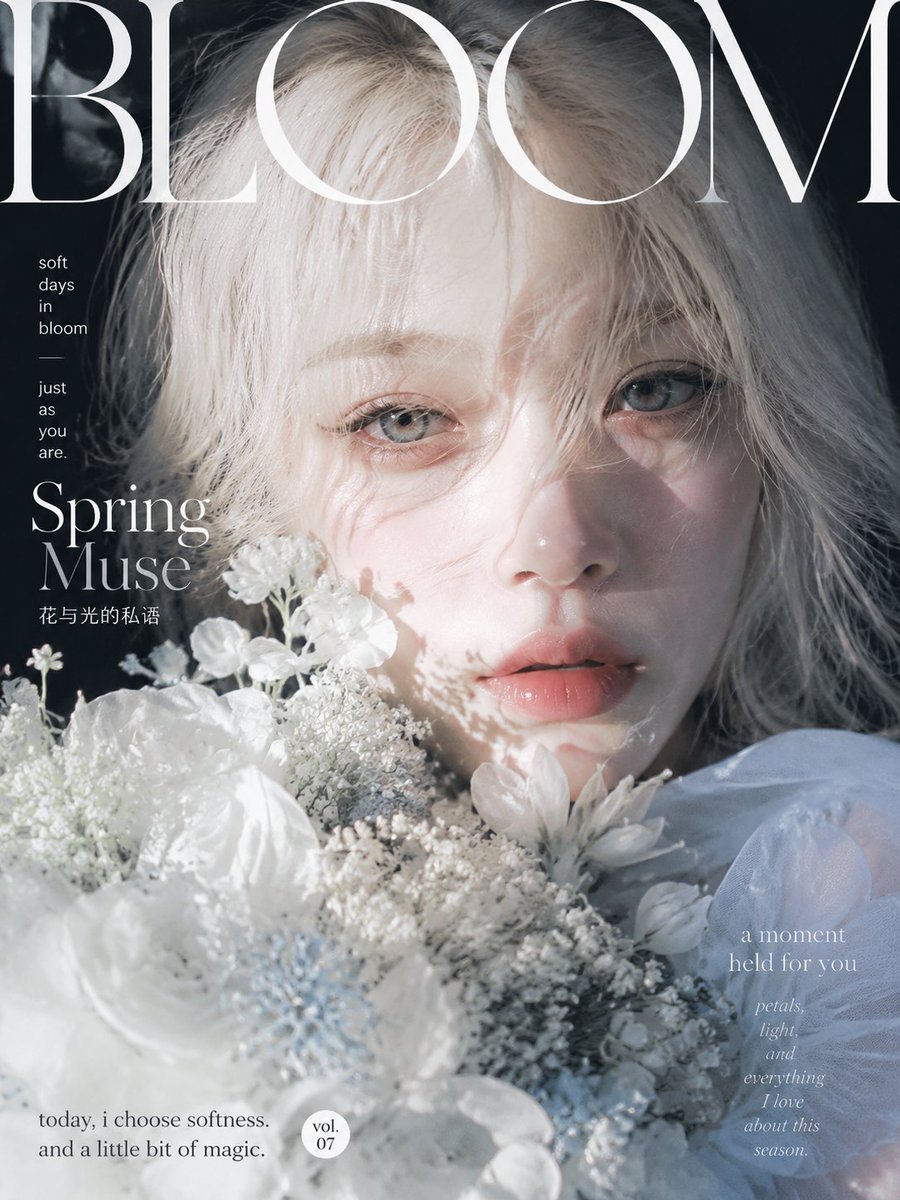
Ethereal Bloom Magazine Cover
Make it yours
Blueberry Courseware Cover Slide works as-is. These are the safest ways to change it without losing the look.
Change one field
Copy a single group, rewrite it, and generate again so you can see what that field is doing.
Keep the frame, change the subject
Hold the composition and light of Blueberry Courseware Cover Slide, then swap wardrobe, props or the person for a new take.
| If the result… | Why | Fix |
|---|---|---|
| The result drifts from the preview | Too many fields changed at once. | Reuse Blueberry Courseware Cover Slide as-is first, then change one group — subject, light, or setting. |
| The model over-stylizes the scene | The prose prompt leaves finish and camera underspecified. | Add one camera or lighting sentence and stay on GPT Image 2. |
More GPT Image 2 templates
Other prompts made for GPT Image 2.

Six VTuber Japanese Logo Sheet

Realistic Portrait of Woman and Deer

The Vista Modular Condo Poster

AI Model Routing Comparison Infographic

2.5D Anime Art Board

Isometric Productivity Desk Scene

New York Double Exposure Poster

Four-Panel AI Landscape Comparison

NESCAFÉ Coffee Map Poster

Brutalist Cogito Chinese Typography Poster
More image prompts
Fresh picks from across the catalog.

Sporty Outdoor Portrait with Turkey Soccer Kit

Dramatic Film Filter Processing

CZ Biography Infographic Poster

Cyberpunk Zero Second Promo Banner

Luxury Germany Travel Poster

Steganographic Text Embedding Prompt

Bright Morning Street Fashion Portrait

Ultra Photorealistic iPhone Mirror Selfie (JSON)

Personalized Sample ID Card Generation

Retro Magazine Reader Submission Page
Browse template categories
Blueberry Courseware Cover Slide questions
How do I use the Blueberry Courseware Cover Slide template?
Add your photo if the template asks for one, edit the prompt if you like — the template's model and format are already selected — and press Generate. Your version opens in PicX Studio.
Can I customize the Blueberry Courseware Cover Slide template?
Yes. You can change the subject, setting, lighting, mood, format, and available model controls before creating your image.
Is the Blueberry Courseware Cover Slide template free?
Opening and editing this template is free. Generating uses credits, shown on the Generate button when you are signed in.
Which AI model should I use?
Start with GPT Image 2, which is the model associated with this template. You can compare another compatible model for a different finish.
Looking for something else? Browse all templates.

Your photo, any look
Thousands of ready templates for every top image and video model, from one credit balance.