
Dark AI Harness Infographic Slide
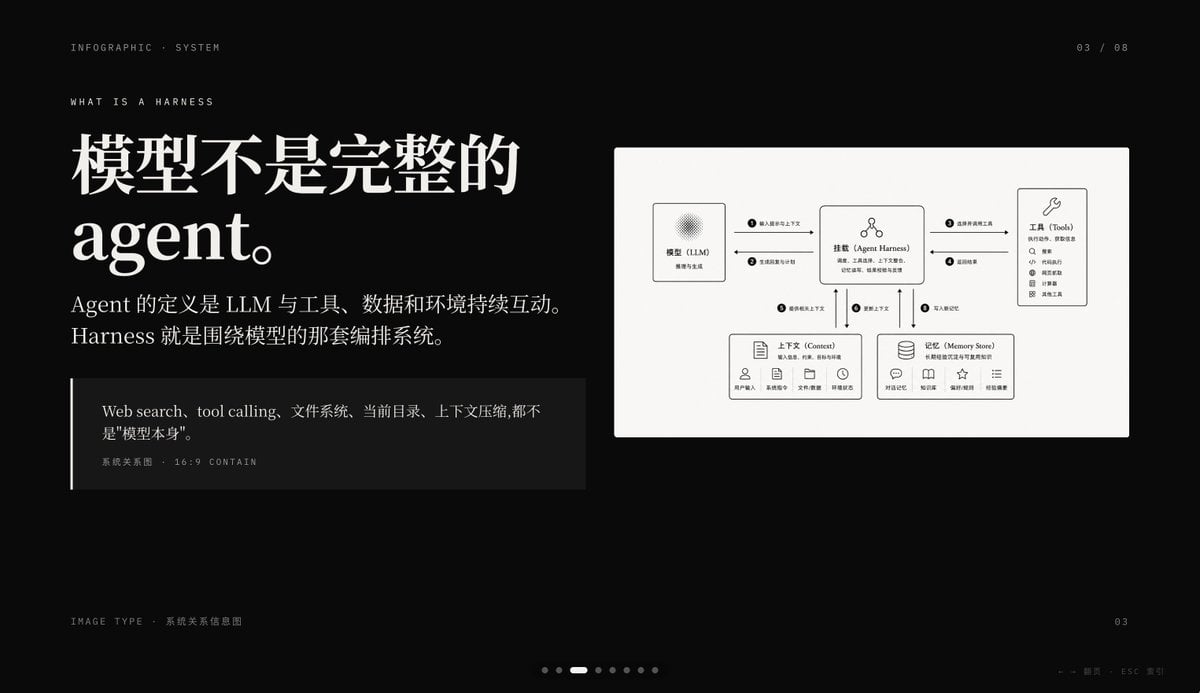
A premium black-background presentation slide that explains an AI agent harness with large Chinese editorial typography and a clean system relationship diagram, ideal for PPT covers or concept explanation pages.
- Prompt included
- Model and format preset
- Free template
The prompt behind this image
Copy the exact prompt behind Dark AI Harness Infographic Slide, or open it in the studio and make it yours.
- Type
- dark editorial infographic slide
- Style
- premium keynote-style presentation page with minimalist Swiss-inspired layout, strong contrast, elegant serif headline paired with small uppercase sans-serif metadata, lots of negative space, cinematic black background, subtle grain, refined white typography, monochrome diagram card
- Aspect Ratio
- 16:9
- Background › Color
- deep black
- Layout › Sections › 0 › Title
- top metadata
- Layout › Sections › 0 › Position
- top edge
- Layout › Sections › 0 › Count
- 3
- Layout › Sections › 0 › Labels
- INFOGRAPHIC · SYSTEM, 03 / 08, WHAT IS A HARNESS
- Layout › Sections › 1 › Title
- main text block
- Layout › Sections › 1 › Position
- left side
- Layout › Sections › 1 › Count
- 3
- Layout › Sections › 1 › Labels
- 模型不是完整的 agent。, Agent 的定义是 LLM 与工具、数据和环境持续互动。Harness 就是围绕模型的那套编排系统。, Web search、tool calling、文件系统、当前目录、上下文压缩, 都不是"模型本身"。
- Layout › Sections › 2 › Title
- diagram card
- Layout › Sections › 2 › Position
- right side
- Layout › Sections › 2 › Count
- 5
- Layout › Sections › 2 › Labels
- 模型(LLM), 挂载(Agent Harness), 工具(Tools), 上下文(Context), 记忆(Memory Store)
- Layout › Sections › 3 › Title
- footer
- Layout › Sections › 3 › Position
- bottom edge
- Layout › Sections › 3 › Count
- 4
- Layout › Sections › 3 › Labels
- IMAGE TYPE · 系统关系信息图, 03, ← → 翻页 ESC 关闭, 7 pagination dots with the 3rd highlighted
- Layout › Centerpiece
- a large off-white rectangular card on the right containing a clean systems diagram
- Typography › Headline Font
- high-contrast editorial serif, oversized, bold
- Typography › Body Font
- modern serif for Chinese body copy
- Typography › Meta Font
- thin uppercase sans-serif with generous tracking
Raw JSON
{"type":"dark editorial infographic slide","style":"premium keynote-style presentation page with minimalist Swiss-inspired layout, strong contrast, elegant serif headline paired with small uppercase sans-serif metadata, lots of negative space, cinematic black background, subtle grain, refined white typography, monochrome diagram card","aspect_ratio":"16:9","background":{"color":"deep black"},"layout":{"sections":[{"title":"top metadata","position":"top edge","count":3,"labels":["INFOGRAPHIC · SYSTEM","03 / 08","WHAT IS A HARNESS"]},{"title":"main text block","position":"left side","count":3,"labels":["模型不是完整的 agent。","Agent 的定义是 LLM 与工具、数据和环境持续互动。Harness 就是围绕模型的那套编排系统。","Web search、tool calling、文件系统、当前目录、上下文压缩, 都不是\"模型本身\"。"]},{"title":"diagram card","position":"right side","count":5,"labels":["模型(LLM)","挂载(Agent Harness)","工具(Tools)","上下文(Context)","记忆(Memory Store)"]},{"title":"footer","position":"bottom edge","count":4,"labels":["IMAGE TYPE · 系统关系信息图","03","← → 翻页 ESC 关闭","7 pagination dots with the 3rd highlighted"]}],"centerpiece":"a large off-white rectangular card on the right containing a clean systems diagram"},"typography":{"headline_font":"high-contrast editorial serif, oversized, bold","body_font":"modern serif for Chinese body copy","meta_font":"thin uppercase sans-serif with generous tracking"},"diagram":{"card_color":"warm light gray","border":"none or extremely subtle","line_style":"thin black connector arrows","icon_style":"simple outline icons","nodes":[{"name":"模型(LLM)","position":"upper left inside card","details":"small box with subtle radial texture behind the heading, subtitle suggests reasoning and generation"},{"name":"挂载(Agent Harness)","position":"upper center inside card","details":"central orchestration box with small person-like icon above title and short descriptive text below"},{"name":"工具(Tools)","position":"upper right inside card","details":"tall box with wrench icon and a vertical list of 8 tool items"},{"name":"上下文(Context)","position":"lower left inside card","details":"wide box with document icon, description line, and 5 small labeled icons along the bottom"},{"name":"记忆(Memory Store)","position":"lower right inside card","details":"wide box with database icon, description line, and 5 small labeled icons along the bottom"}],"connections":{"count":8,"description":"numbered circular markers on the connector arrows show the orchestration flow between the 5 nodes, including bidirectional links from the central harness to tools, context, and memory, plus one link from the model to the harness"}},"color_palette":{"count":4,"colors":["black background","white headline text","soft gray body text","warm light-gray diagram panel"]},"customization":{"headline":"{argument name=\"headline text\" default=\"模型不是完整的 agent。\"}","page_index":"{argument name=\"page number\" default=\"03 / 08\"}","section_kicker":"{argument name=\"section label\" default=\"WHAT IS A HARNESS\"}","diagram_topic":"{argument name=\"diagram topic\" default=\"系统关系信息图\"}","quote":"{argument name=\"quote\" default=\"Web search、tool calling、文件系统、当前目录、上下文压缩, 都不是\"模型本身\"。\"}"}}How to use Dark AI Harness Infographic Slide in 3 steps
- 1Upload ImagePNG, JPG or paste
Add your photo
Upload the photo the template builds on. The prompt, model and format are already set.
- 2…a portrait of your subject in softgolden-hour light, 85mm…
Personalize
Edit the subject and creative details for your destination.
- 3Generate
Generate
Press Generate — your image is created in PicX Studio, so you can compare it with the original and refine one variable at a time.
More like this
Templates with the same subject, style or setup. Open one to see its prompt.

Japan Travel Brochure Poster

Selective Color Monochrome Football Poster

Isometric Process Educational Diorama

Isometric Vehicle Teardown Infographic Template
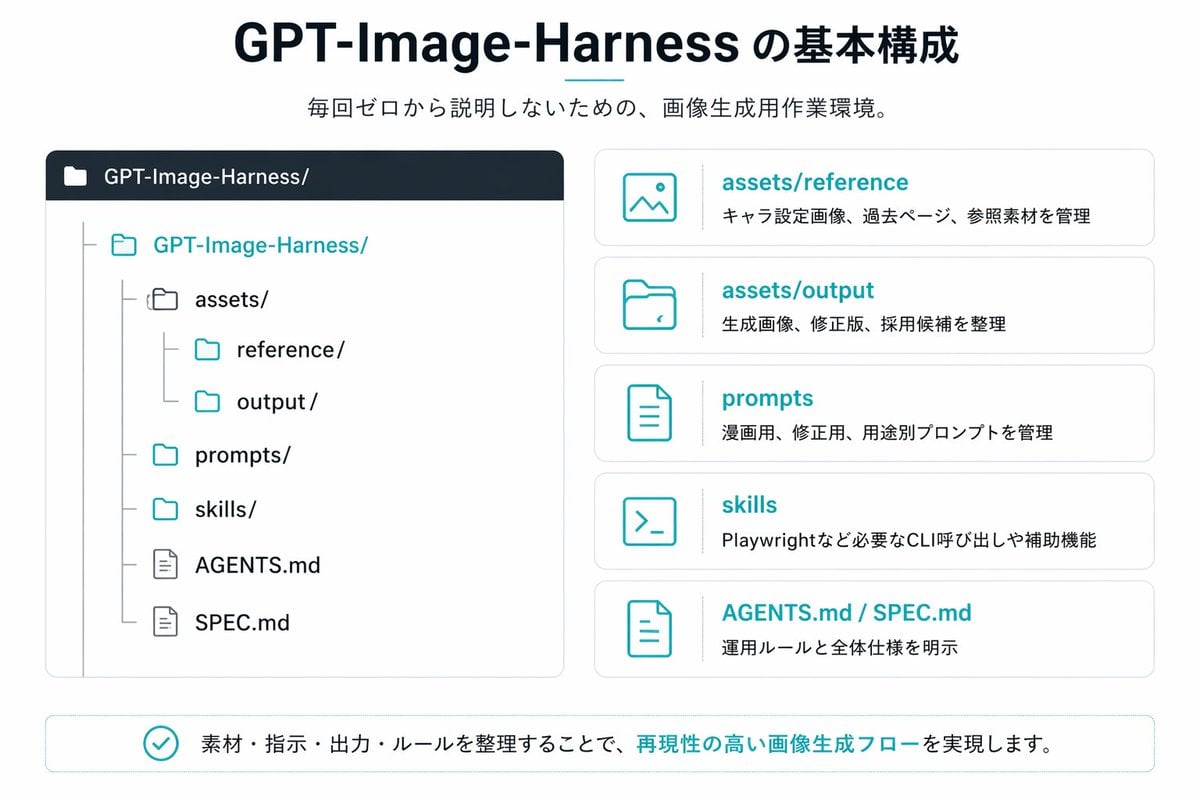
Japanese GPT-Image-Harness Infographic
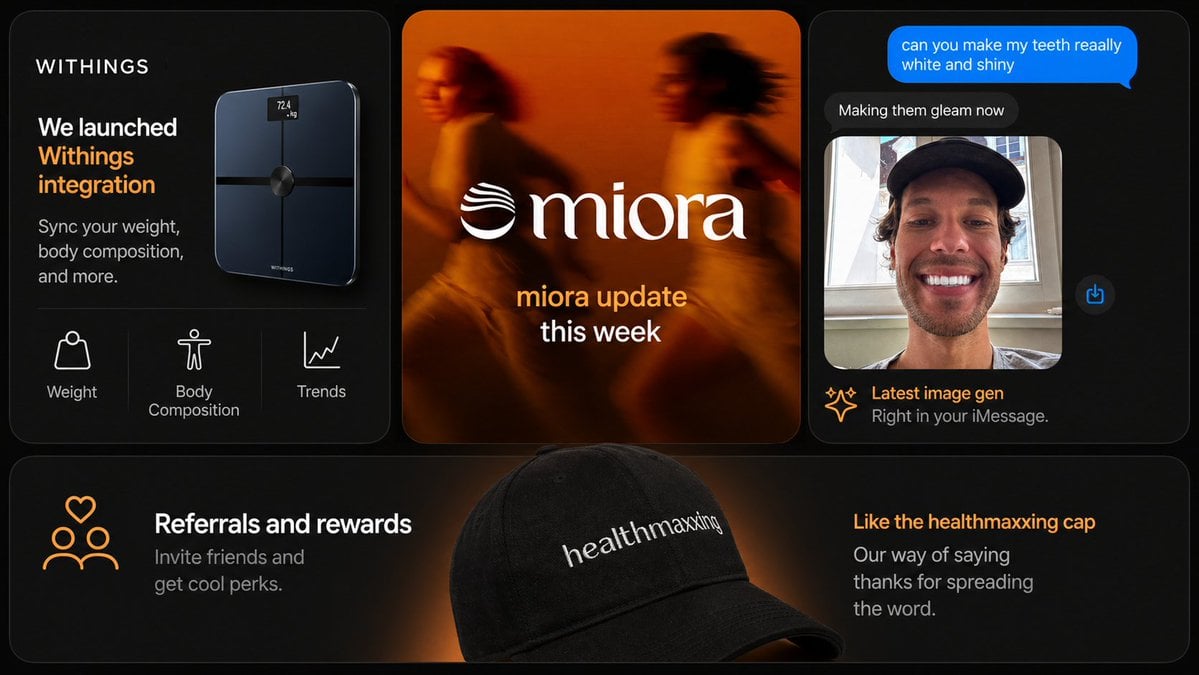
Dark Tech Marketing Slide Collage

Gpt2 E Commerce Main Image Earbuds E Commerce Infographic
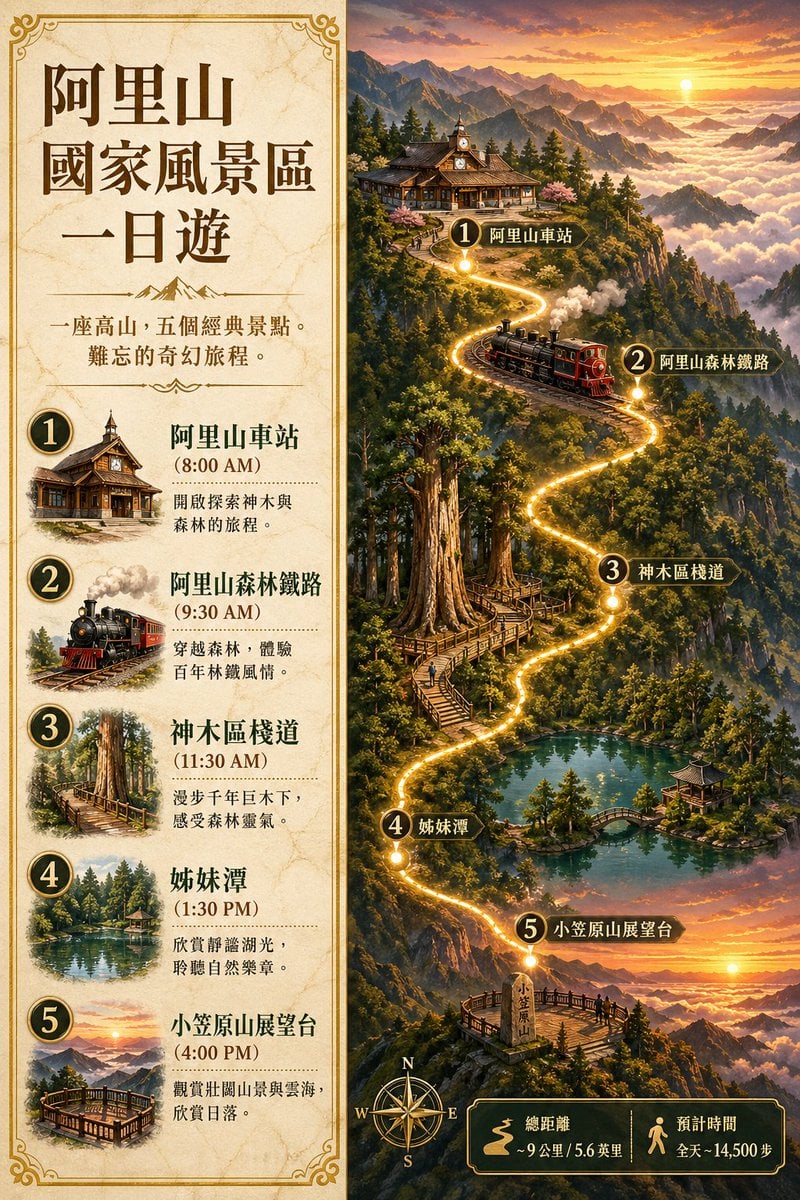
Gpt2 Infographic Edu Visual Alishan One Day Travel Poster

Gpt2 Infographic Edu Visual Ethnographic Plate for Tibetan Ceremonial Hat
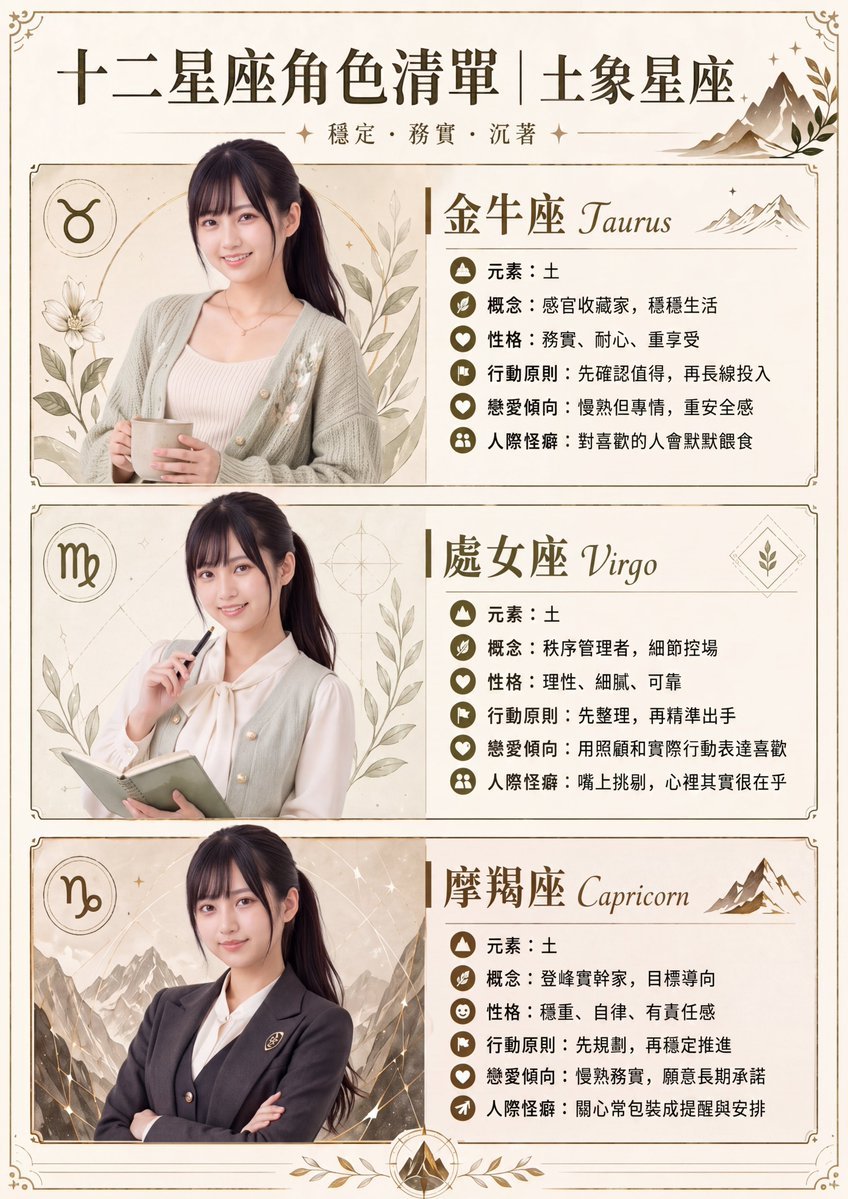
Gpt2 Infographic Edu Visual Earth Signs Zodiac Character Poster
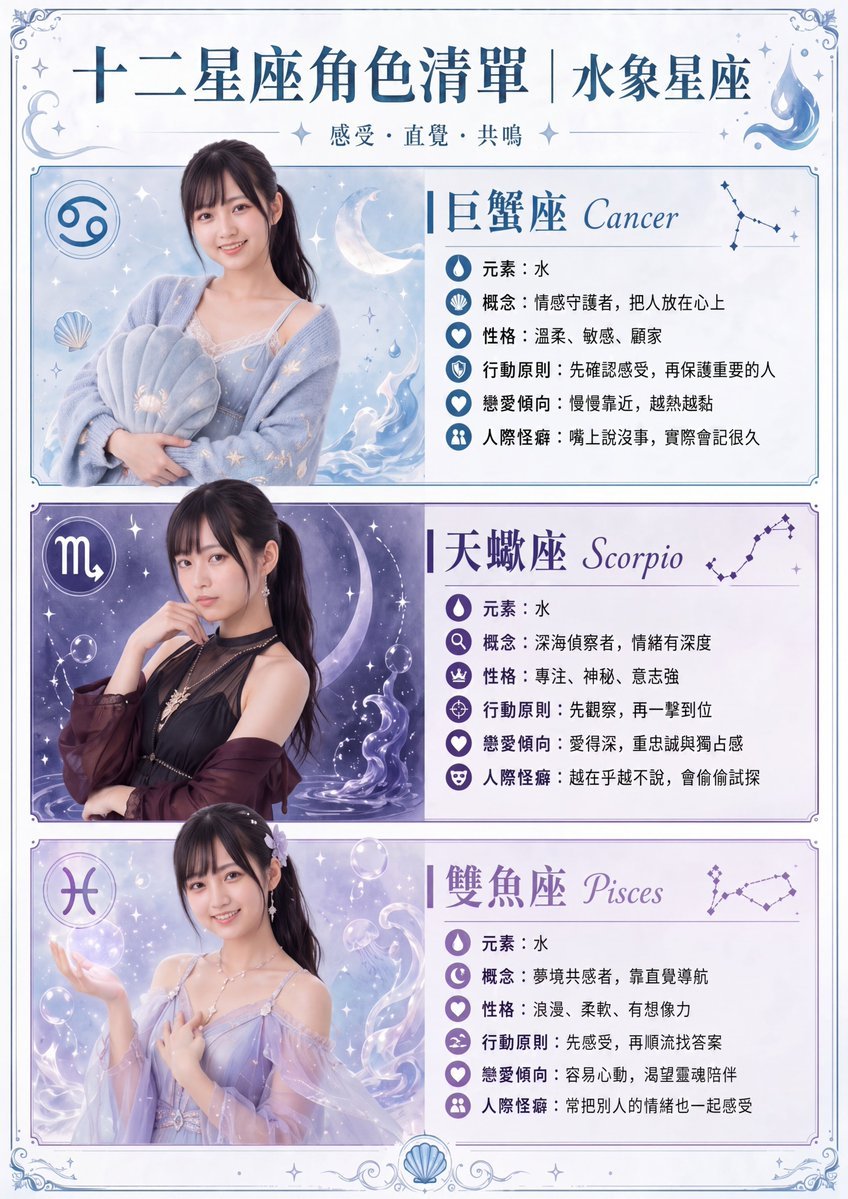
Gpt2 Infographic Edu Visual Water Signs Zodiac Character Poster
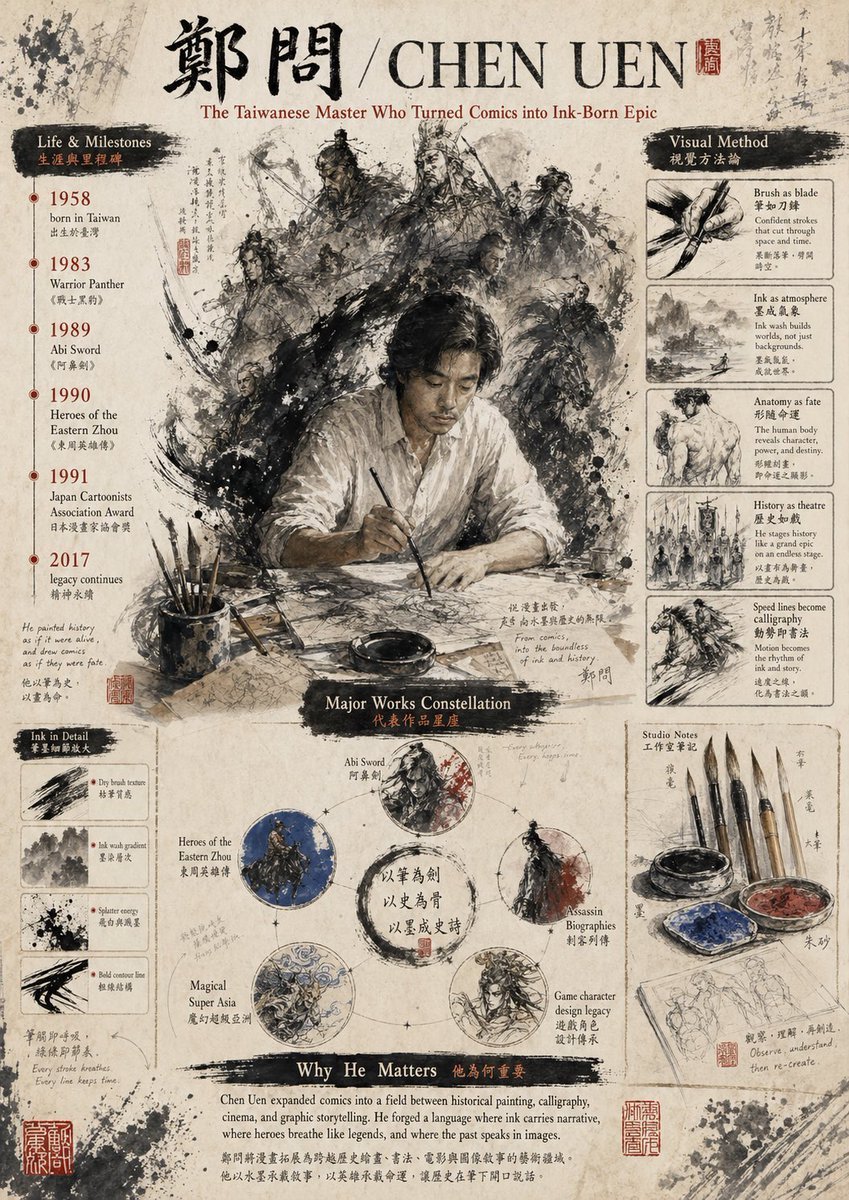
Gpt2 Infographic Edu Visual Ink Wash Tribute Poster for Chen Uen
Make it yours
Dark AI Harness Infographic Slide works as-is. These are the safest ways to change it without losing the look.
Swap the setting
Keep the rest of the prompt and replace the location block. The current setting is “deep black”.
Change one field
Copy a single group, rewrite it, and generate again so you can see what that field is doing.
Keep the frame, change the subject
Hold the composition and light of Dark AI Harness Infographic Slide, then swap wardrobe, props or the person for a new take.
| If the result… | Why | Fix |
|---|---|---|
| The result drifts from the preview | Too many fields changed at once. | Reuse Dark AI Harness Infographic Slide as-is first, then change one group — subject, light, or setting. |
| GPT Image 2 ignores part of the JSON | Some models flatten or skip nested keys. | Keep the same values and paste them as a short paragraph instead. |
More GPT Image 2 templates
Other prompts made for GPT Image 2.

Six VTuber Japanese Logo Sheet

Realistic Portrait of Woman and Deer

The Vista Modular Condo Poster

AI Model Routing Comparison Infographic

2.5D Anime Art Board

Isometric Productivity Desk Scene

New York Double Exposure Poster

Four-Panel AI Landscape Comparison

Japanese Tatami Lifestyle Magazine Cover

NESCAFÉ Coffee Map Poster
More image prompts
Fresh picks from across the catalog.

Three-Panel South Asian Bride in Snowy Landscape

Medieval Market Girl Portrait

Macro close-up product detail prompt
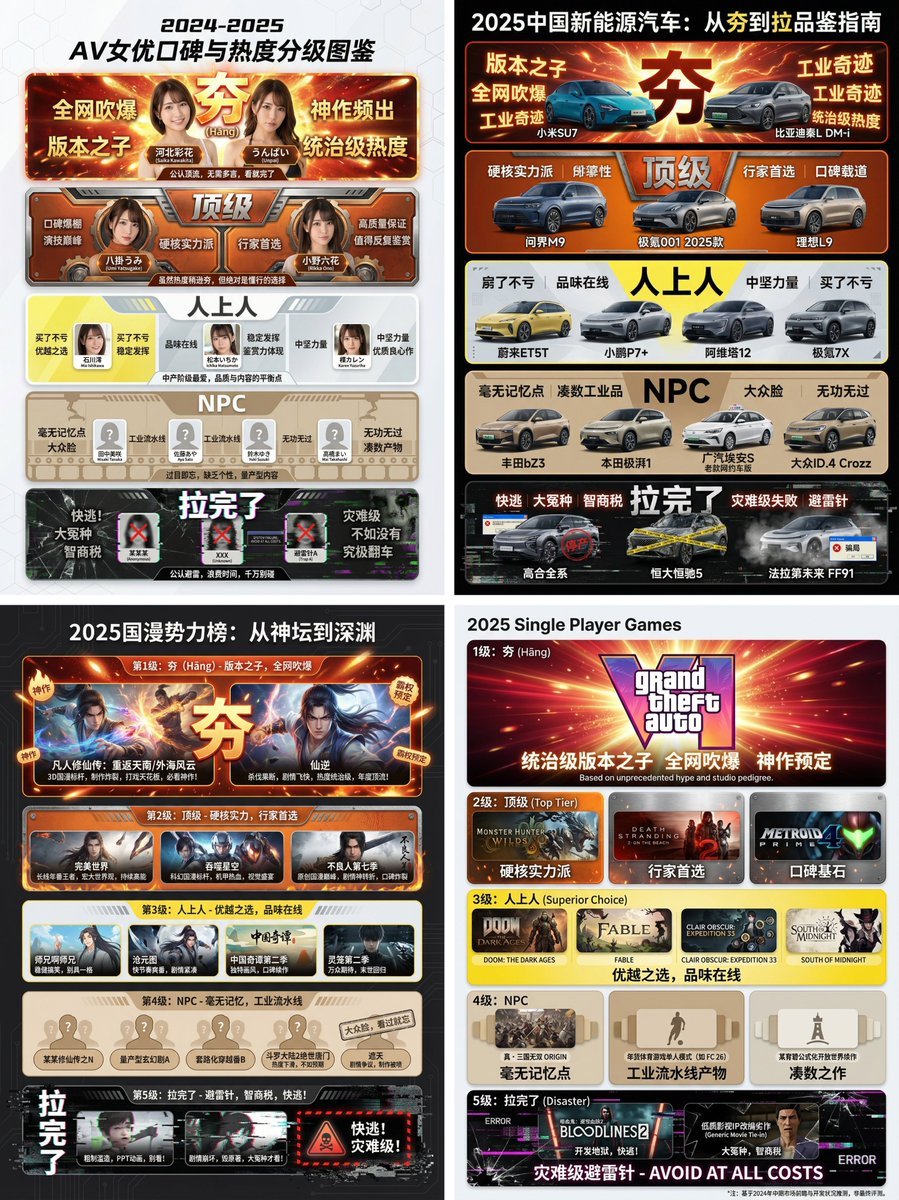
Hāng to Lā (Good to Bad) Rating Infographic Prompt

High-Contrast Monochrome Studio Portrait
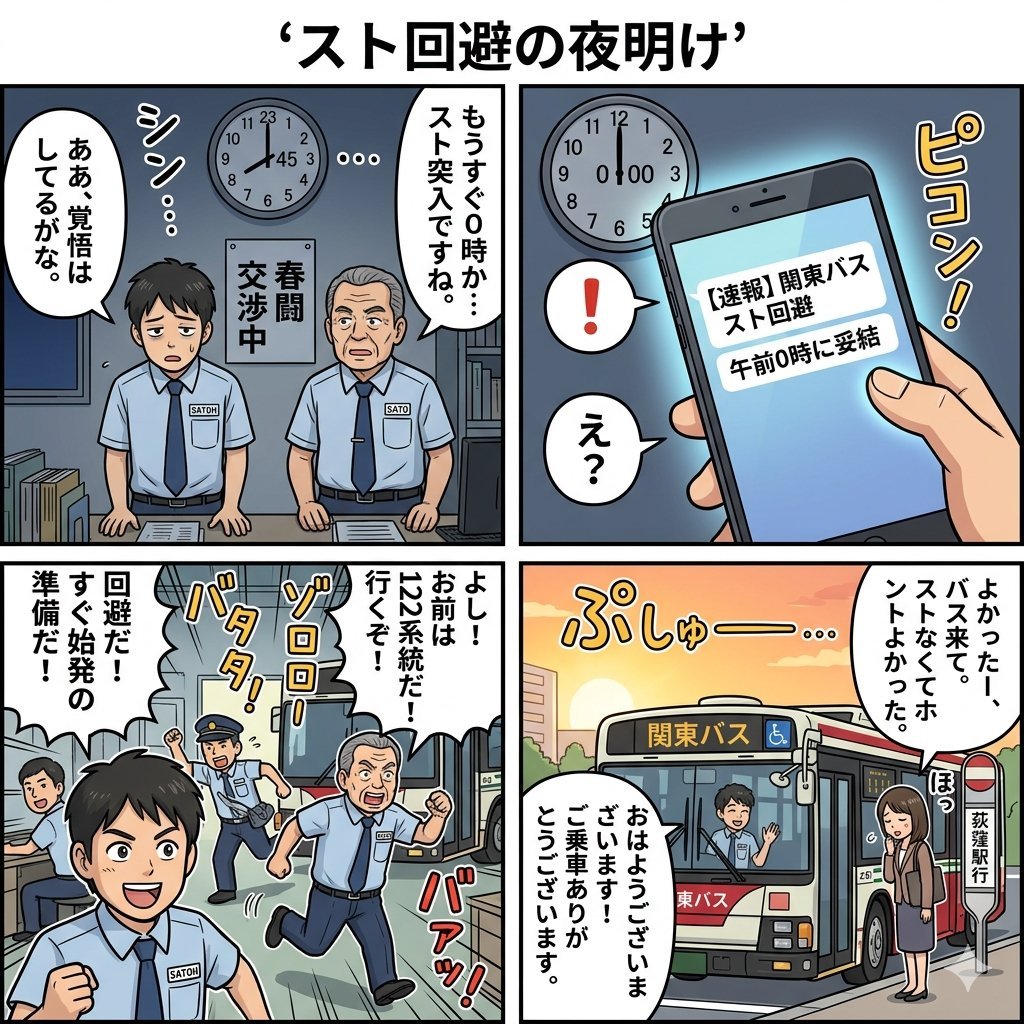
Four-Panel Manga Generation: Dawn of Strike Avoidance
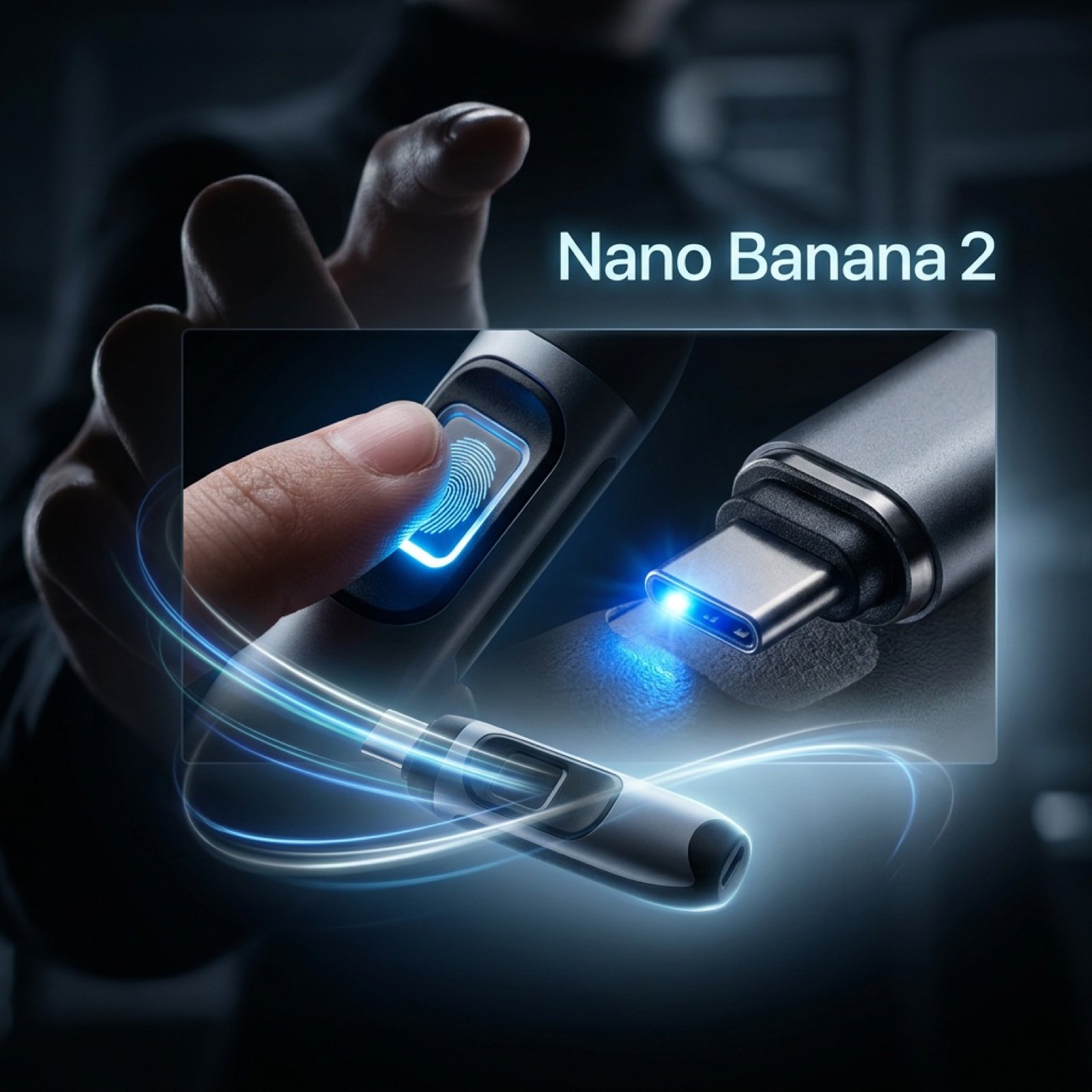
Cinematic Product Video Prompt for 'Nano Banana 2'

Moonlit Gothic Fantasy Couple

Pop Art comic book illustration prompt for Nano Banana Pro
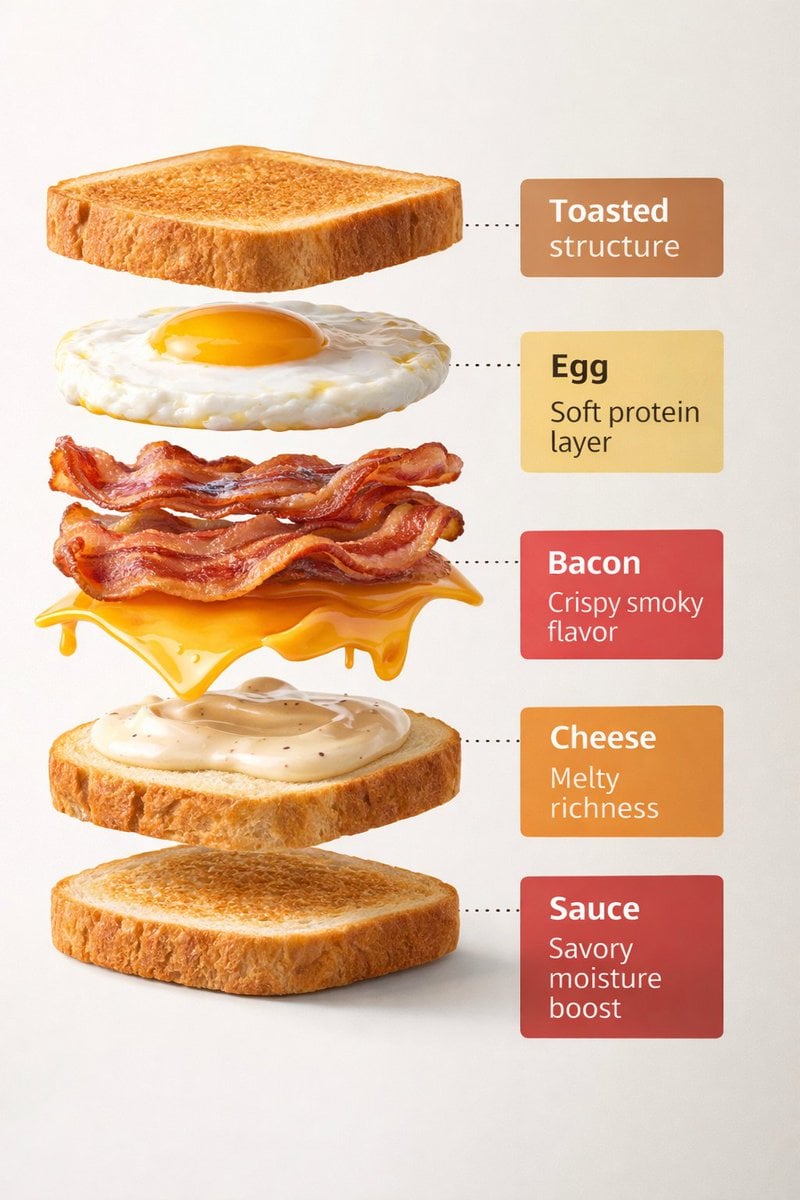
Exploded View Sandwich Animation Prompt
Browse template categories
Dark AI Harness Infographic Slide questions
How do I use the Dark AI Harness Infographic Slide template?
Add your photo if the template asks for one, edit the prompt if you like — the template's model and format are already selected — and press Generate. Your version opens in PicX Studio.
Can I customize the Dark AI Harness Infographic Slide template?
Yes. You can change the subject, setting, lighting, mood, format, and available model controls before creating your image.
Is the Dark AI Harness Infographic Slide template free?
Opening and editing this template is free. Generating uses credits, shown on the Generate button when you are signed in.
Which AI model should I use?
Start with GPT Image 2, which is the model associated with this template. You can compare another compatible model for a different finish.
Looking for something else? Browse all templates.

Your photo, any look
Thousands of ready templates for every top image and video model, from one credit balance.