
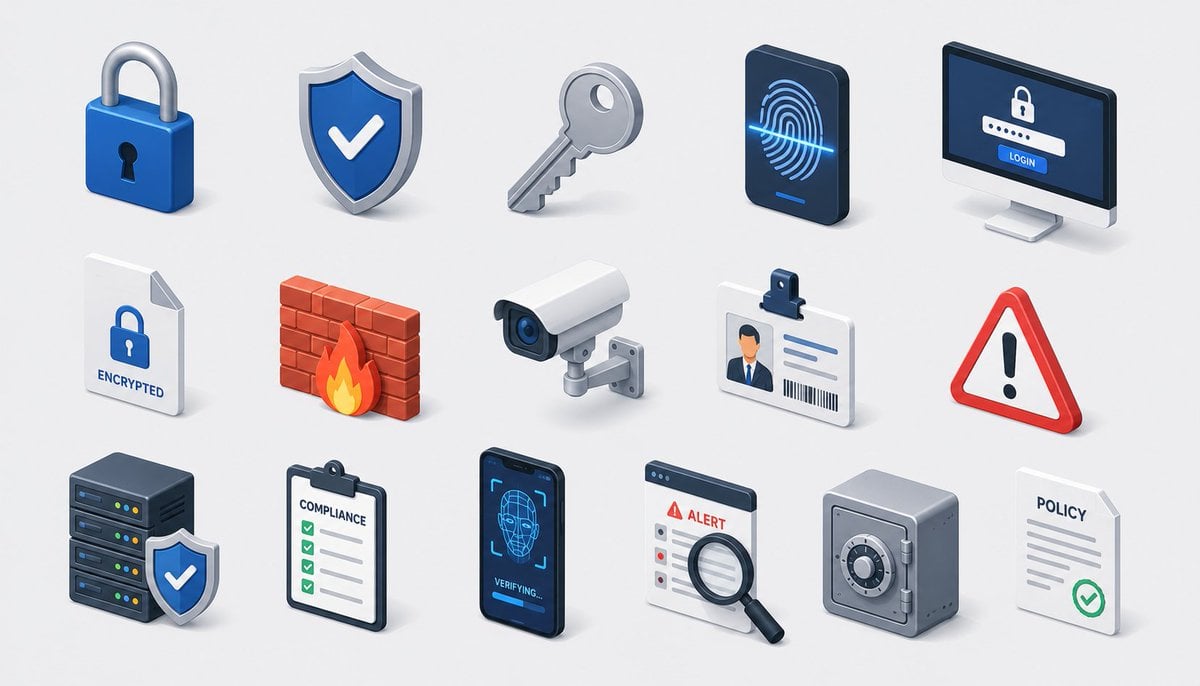
Isometric Security Icon Grid
A polished 3D isometric cybersecurity and compliance icon sheet for SaaS, security, or enterprise branding visuals.
- Prompt included
- Model and format preset
- Free template
The prompt behind this image
Copy the exact prompt behind Isometric Security Icon Grid, or open it in the studio and make it yours.
Create a modern isometric illustration sheet on a clean light gray background, showing a seamless grid of cybersecurity, privacy, and compliance icons with soft shadows, glossy 3D materials, rounded edges, and a blue, white, gray, red, and orange accent palette. Use a wide horizontal canvas, evenly spaced rows and columns, with no border or watermark. Include exactly 15 discrete icons arranged in a 3-row by 5-column grid: top row: 1) a blue padlock with silver shackle and black keyhole, 2) a blue shield badge with a white check mark and metallic rim, 3) a silver key angled diagonally, 4) a dark smartphone-like biometric panel showing a glowing blue fingerprint scan line, 5) a desktop monitor login screen with a lock icon, password dots, and a blue button labeled “LOGIN”; middle row: 6) a white document page with folded corner, blue lock icon, and label “ENCRYPTED”, 7) a red brick firewall with an orange flame in front, 8) a white surveillance camera with blue lens mounted on a small wall bracket, 9) an ID badge with clip, portrait thumbnail, text lines, and barcode, 10) a red triangular warning sign with black exclamation mark; bottom row: 11) a dark server stack with colored status lights and a blue shield check badge in front, 12) a clipboard checklist labeled “COMPLIANCE” with green checkboxes, 13) a dark smartphone facial-recognition screen showing a wireframe face, scan brackets, and “VERIFYING...” text, 14) an alert dashboard card labeled “ALERT” with a magnifying glass inspecting the list, 15) a gray safe/vault box with round combination dial beside a white policy document labeled “POLICY” with gray lines and green check mark. Keep all icons consistent in isometric perspective, miniature object scale, polished SaaS/security branding style, crisp edges, ambient occlusion, and subtle contact shadows. Text should be minimal and legible only where specified. Theme customization: {argument name="theme" default="security and compliance"}; primary color customization: {argument name="primary color" default="deep blue"}; background customization: {argument name="background color" default="light gray"}.
How to use Isometric Security Icon Grid in 3 steps
- 1Upload ImagePNG, JPG or paste
Add your photo
Upload the photo the template builds on. The prompt, model and format are already set.
- 2…a portrait of your subject in softgolden-hour light, 85mm…
Personalize
Edit the subject and creative details for your destination.
- 3Generate
Generate
Press Generate — your image is created in PicX Studio, so you can compare it with the original and refine one variable at a time.
More like this
Templates with the same subject, style or setup. Open one to see its prompt.
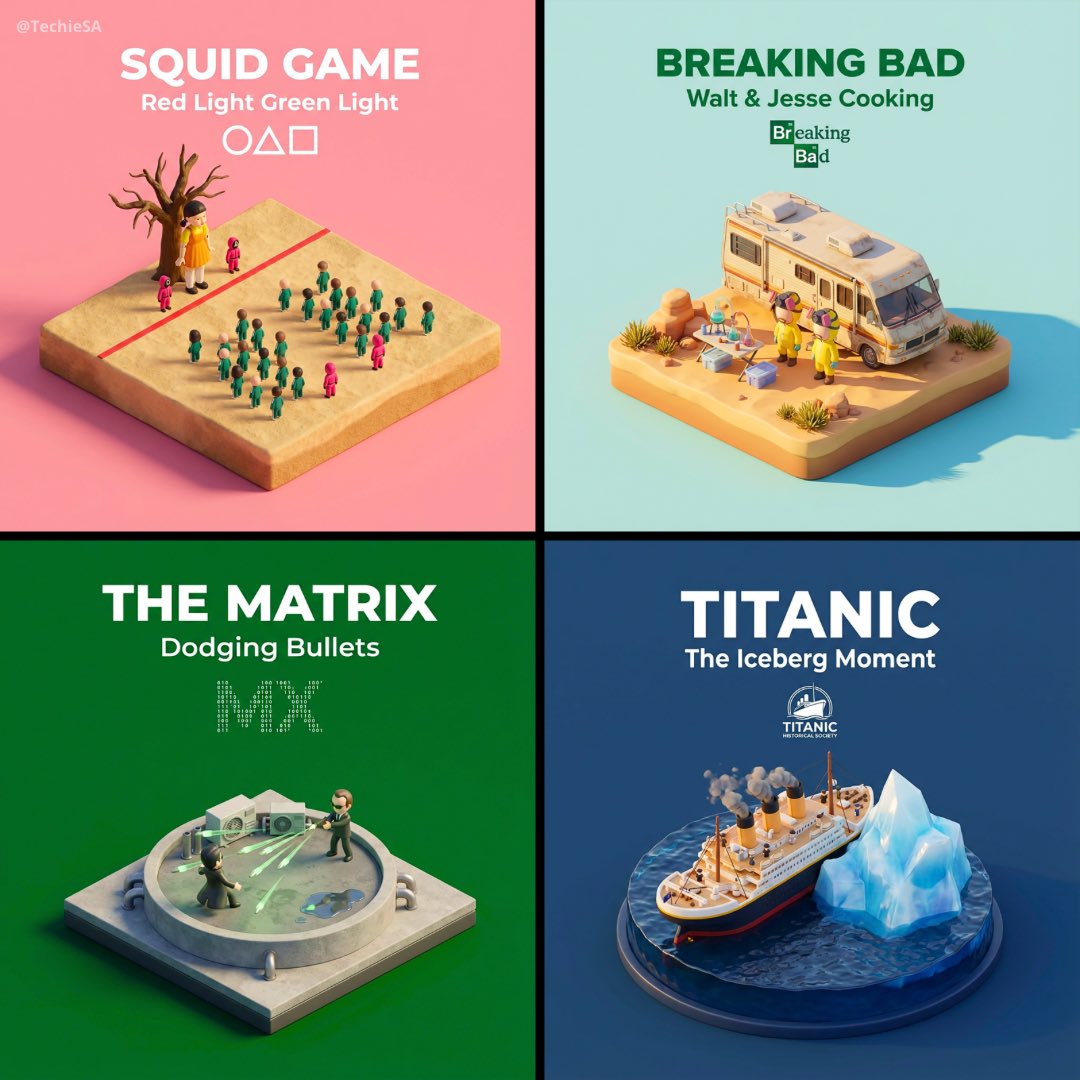
Clear, 45 top-down isometric miniature 3D cartoon scene of the iconic
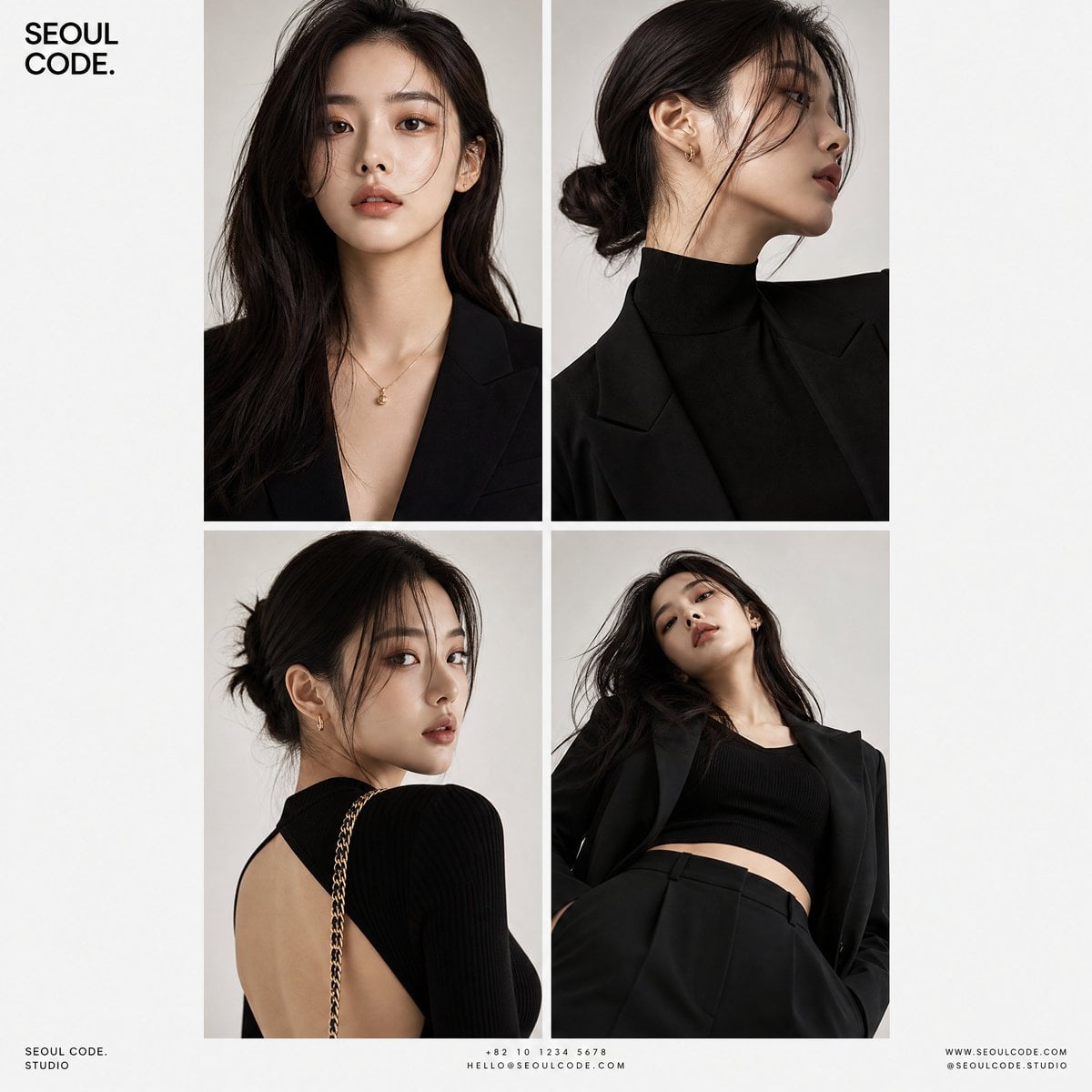
Korean Luxury Fashion Editorial 2x2 Grid Series
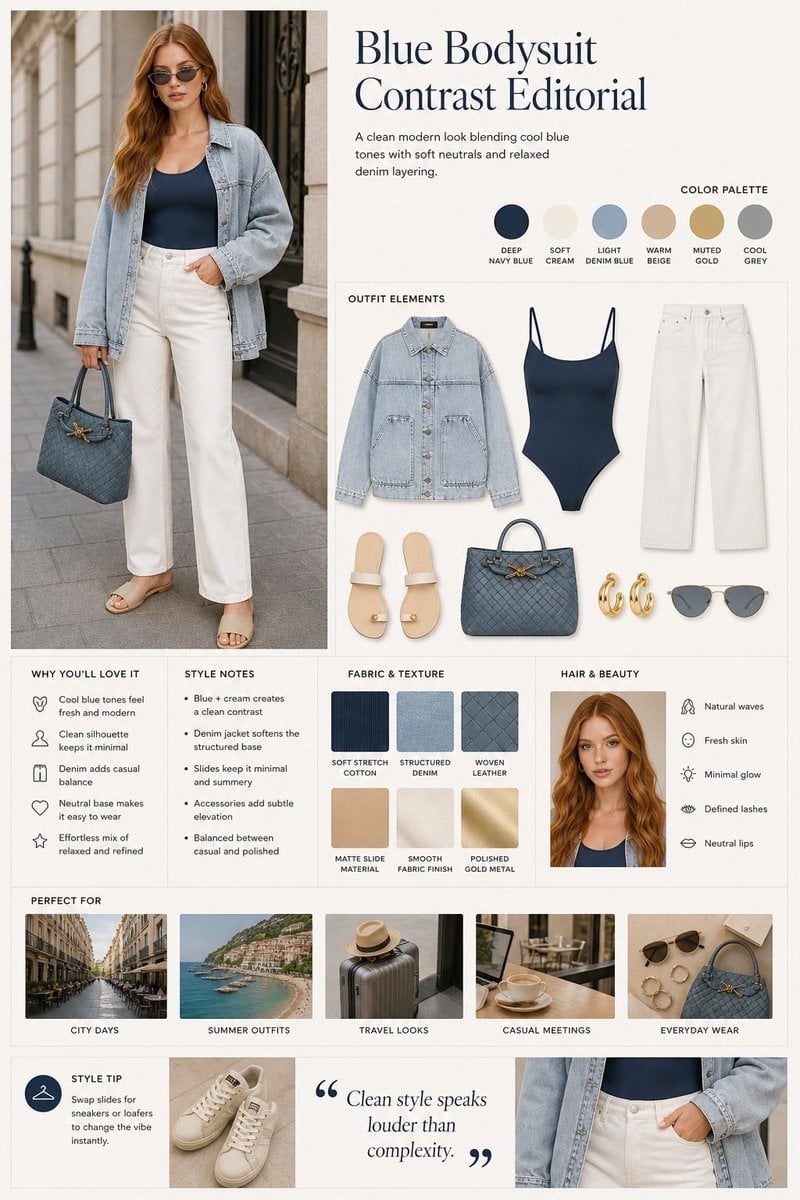
Minimalist Fashion Editorial Split Layout
Ultra-Realistic Vogue-Style Editorial Fashion Grid
Headphones Lifestyle Nine Panel Grid

Isometric Process Educational Diorama
Isometric Brand Store Diorama

Isometric Vehicle Teardown Infographic Template
Isometric Science Concept Diorama Grid
Soft 3D App Feature Icon Grid

Cute 3D App Mascot Icon Grid
4x4 Grid - Candid Nostalgic Vacation Selfies
Make it yours
Isometric Security Icon Grid works as-is. These are the safest ways to change it without losing the look.
Change one field
Copy a single group, rewrite it, and generate again so you can see what that field is doing.
Keep the frame, change the subject
Hold the composition and light of Isometric Security Icon Grid, then swap wardrobe, props or the person for a new take.
| If the result… | Why | Fix |
|---|---|---|
| The result drifts from the preview | Too many fields changed at once. | Reuse Isometric Security Icon Grid as-is first, then change one group — subject, light, or setting. |
| The model over-stylizes the scene | The prose prompt leaves finish and camera underspecified. | Add one camera or lighting sentence and stay on GPT Image 2. |
More GPT Image 2 templates
Other prompts made for GPT Image 2.

Six VTuber Japanese Logo Sheet

Realistic Portrait of Woman and Deer

The Vista Modular Condo Poster

AI Model Routing Comparison Infographic

2.5D Anime Art Board

Isometric Productivity Desk Scene

New York Double Exposure Poster

Four-Panel AI Landscape Comparison

Japanese Tatami Lifestyle Magazine Cover

NESCAFÉ Coffee Map Poster
More image prompts
Fresh picks from across the catalog.

Chinese Text Accuracy Infographic
Panel Manga Dialogue Prompt
Ultra-Realistic South Asian Woman in Saree Portrait
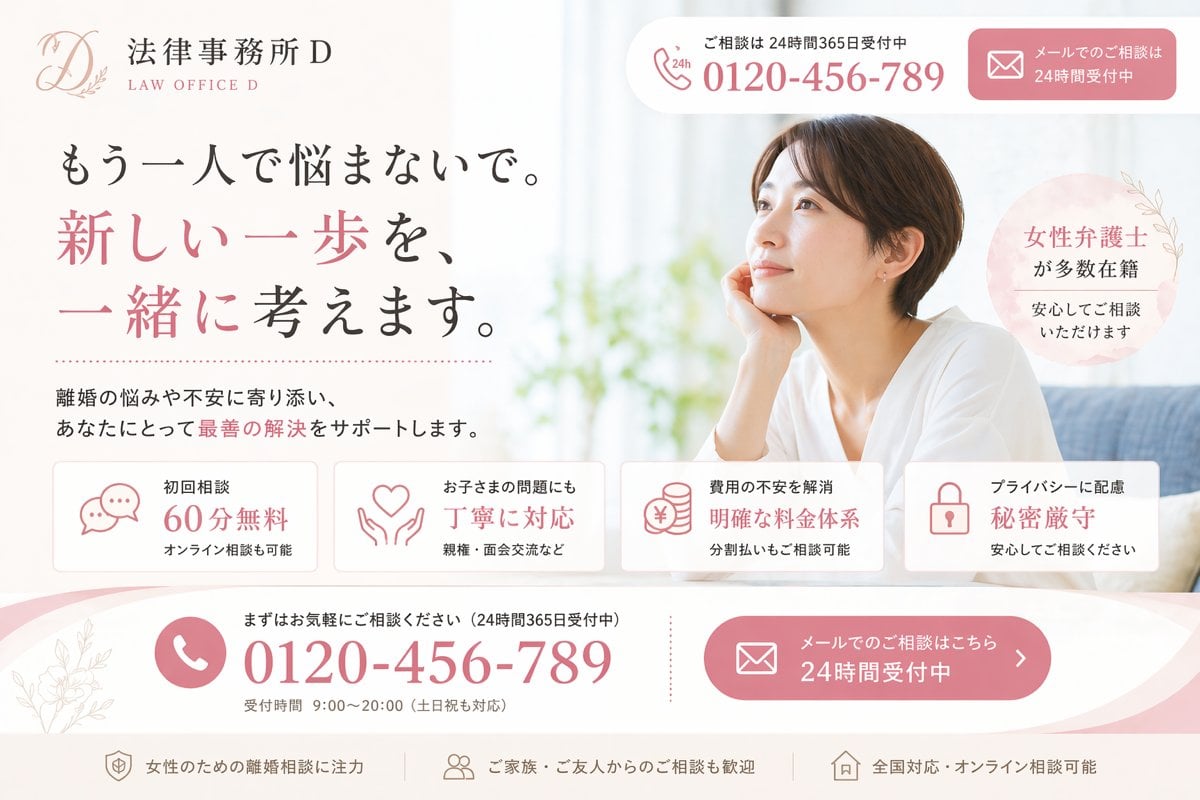
Elegant Japanese Divorce Law LP Hero
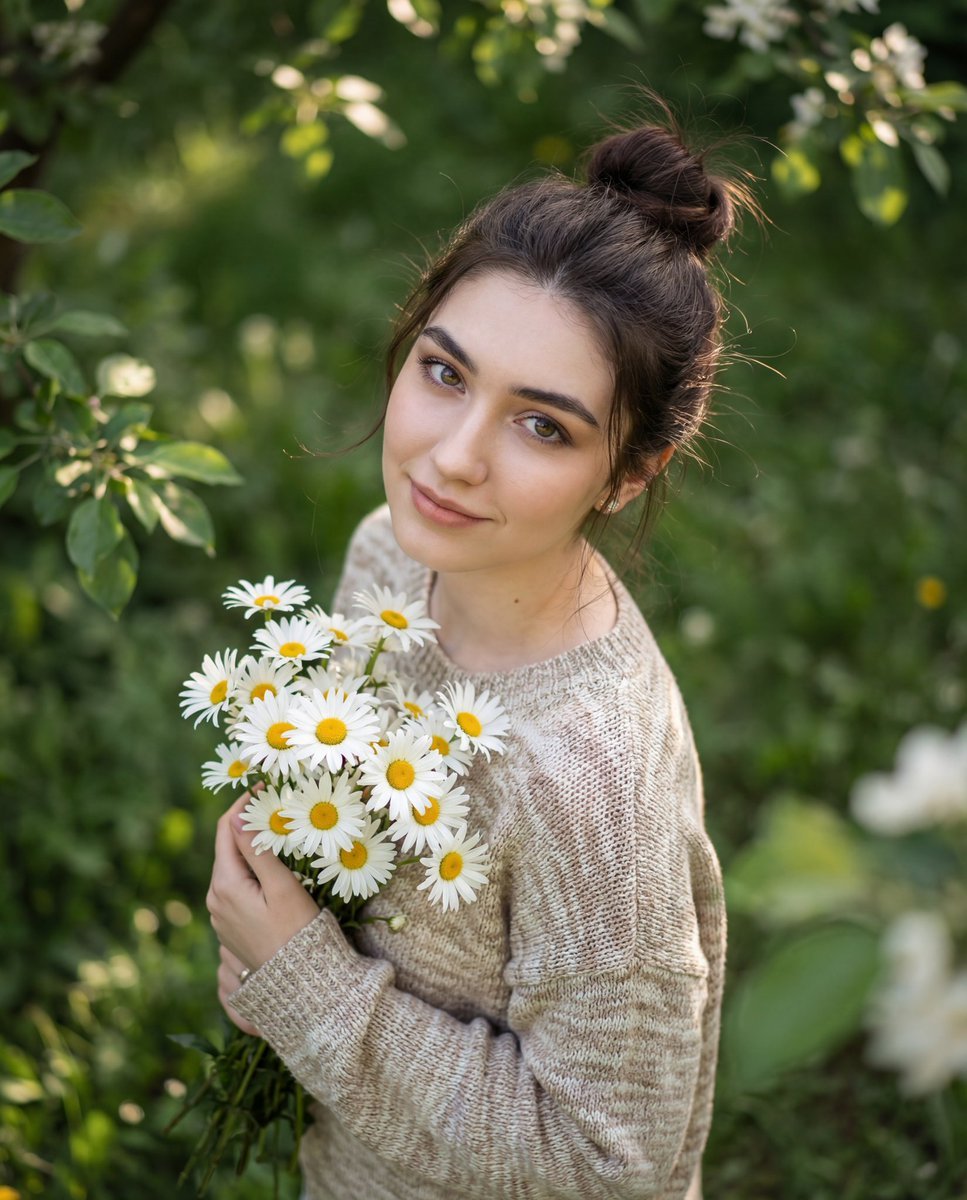
Luxury Editorial Candid Photo in a Garden
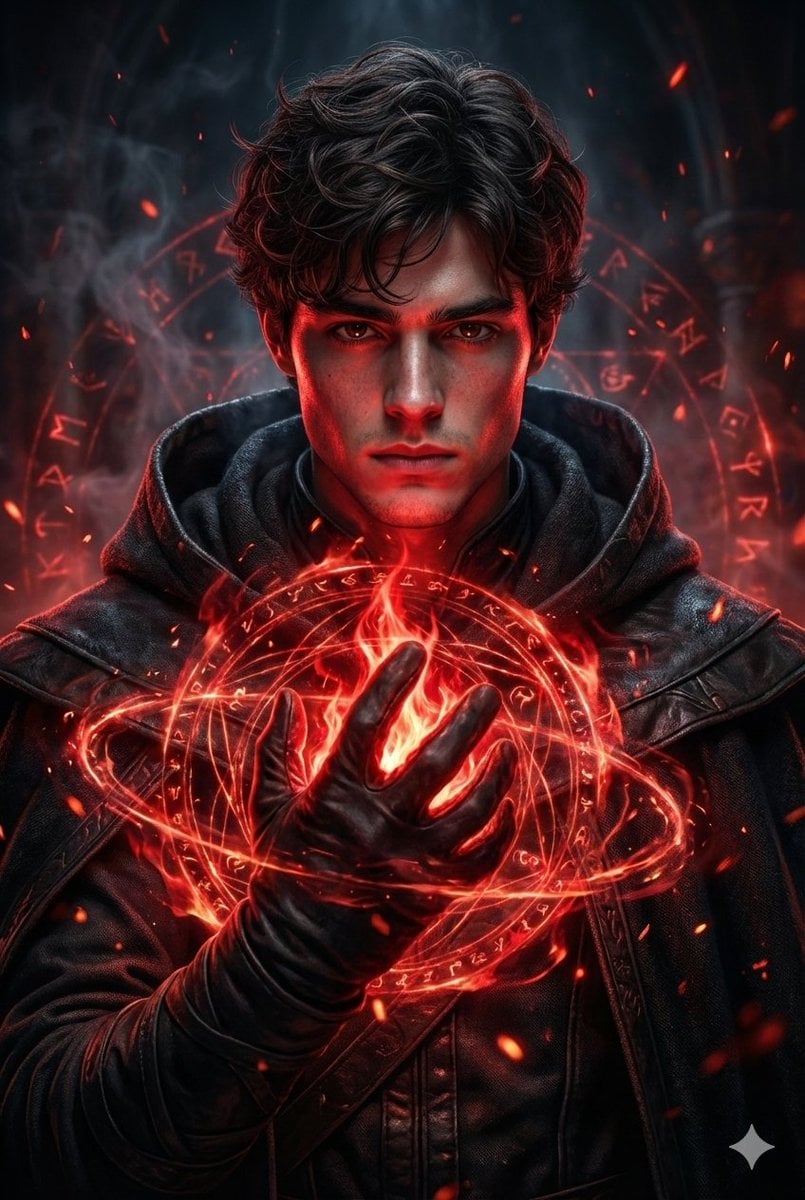
Hyperrealistic Dark Sorcerer Portrait
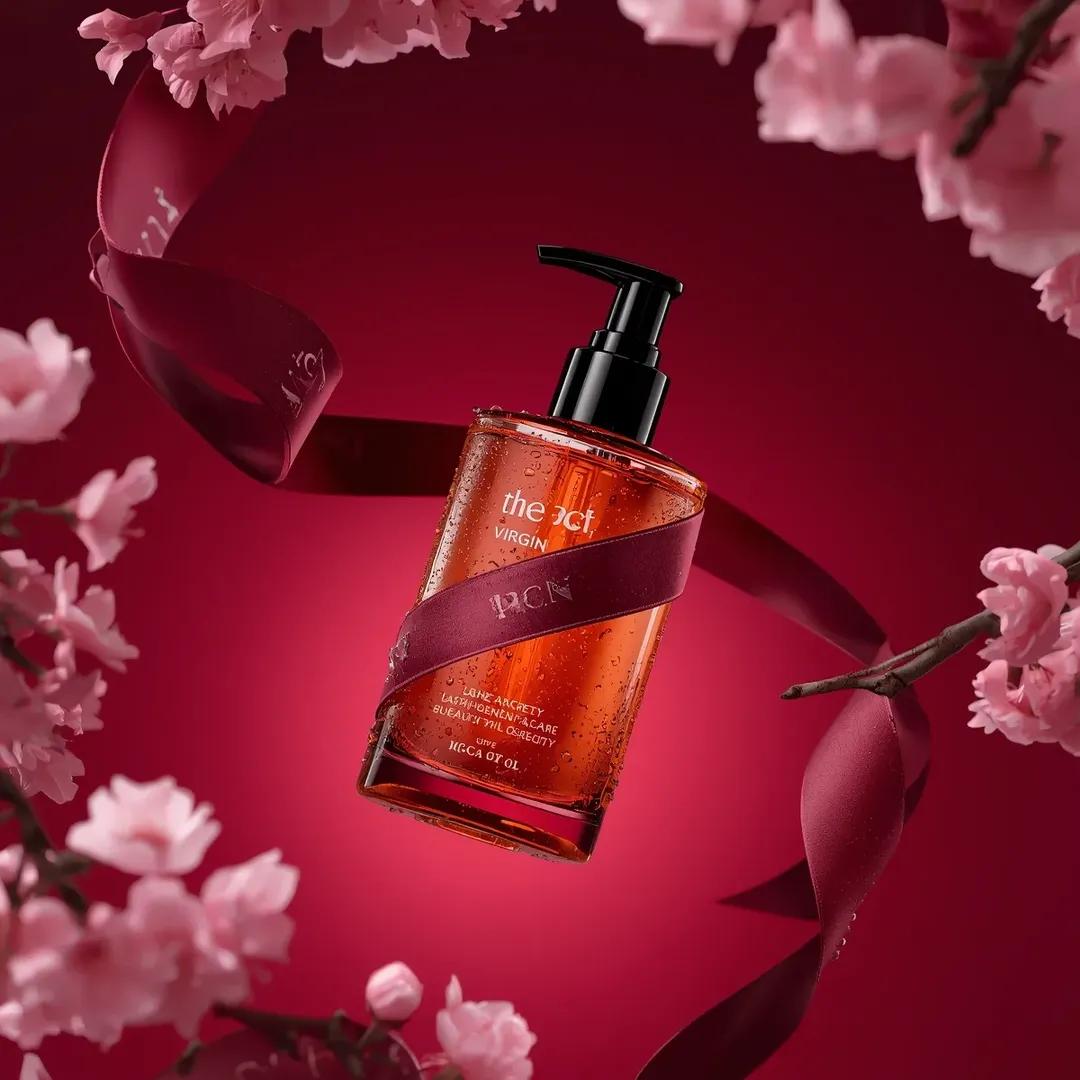
Luxury Beauty Product Photography Prompt
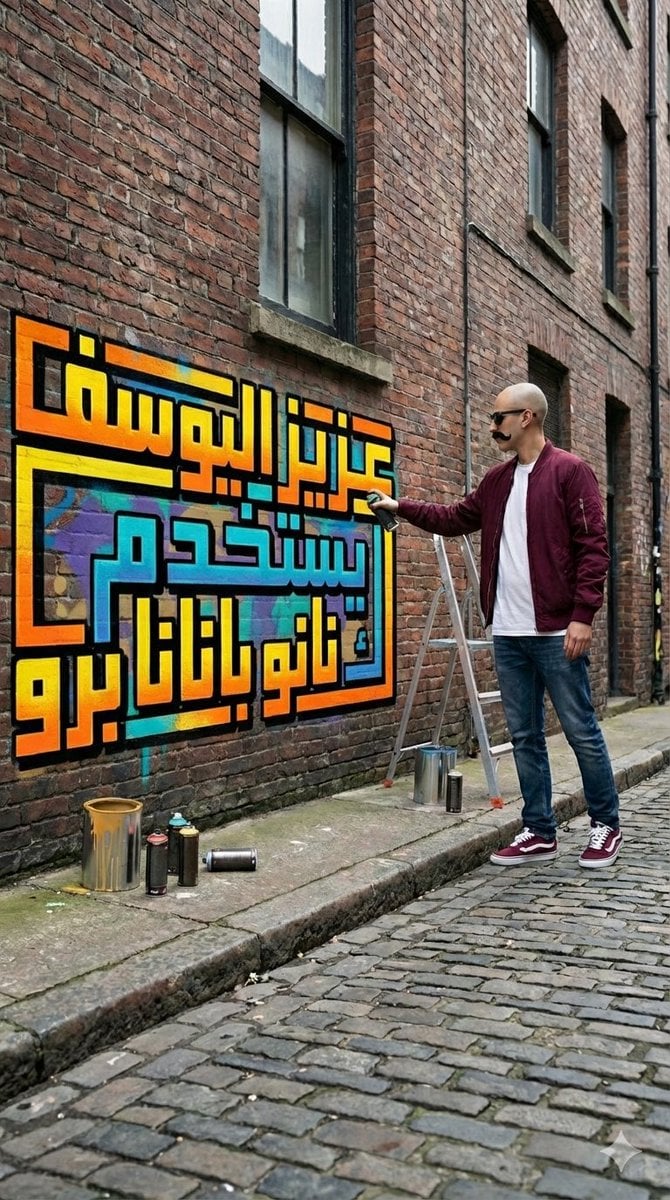
Portrait edit with sunglasses, mustache, and 9:16 ratio
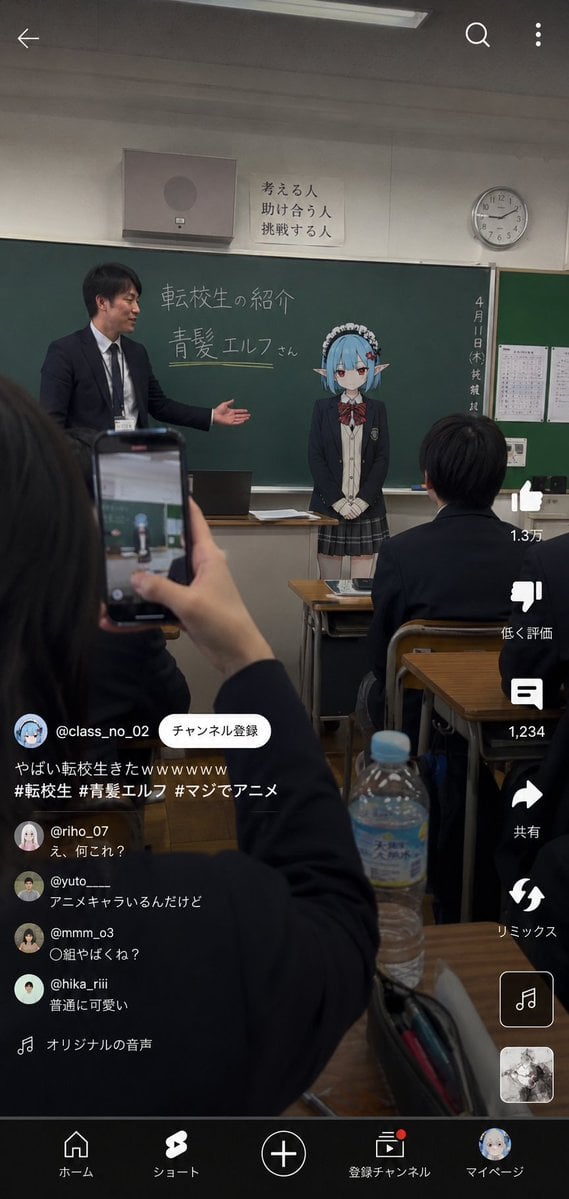
Anime Character Transfer to Reality
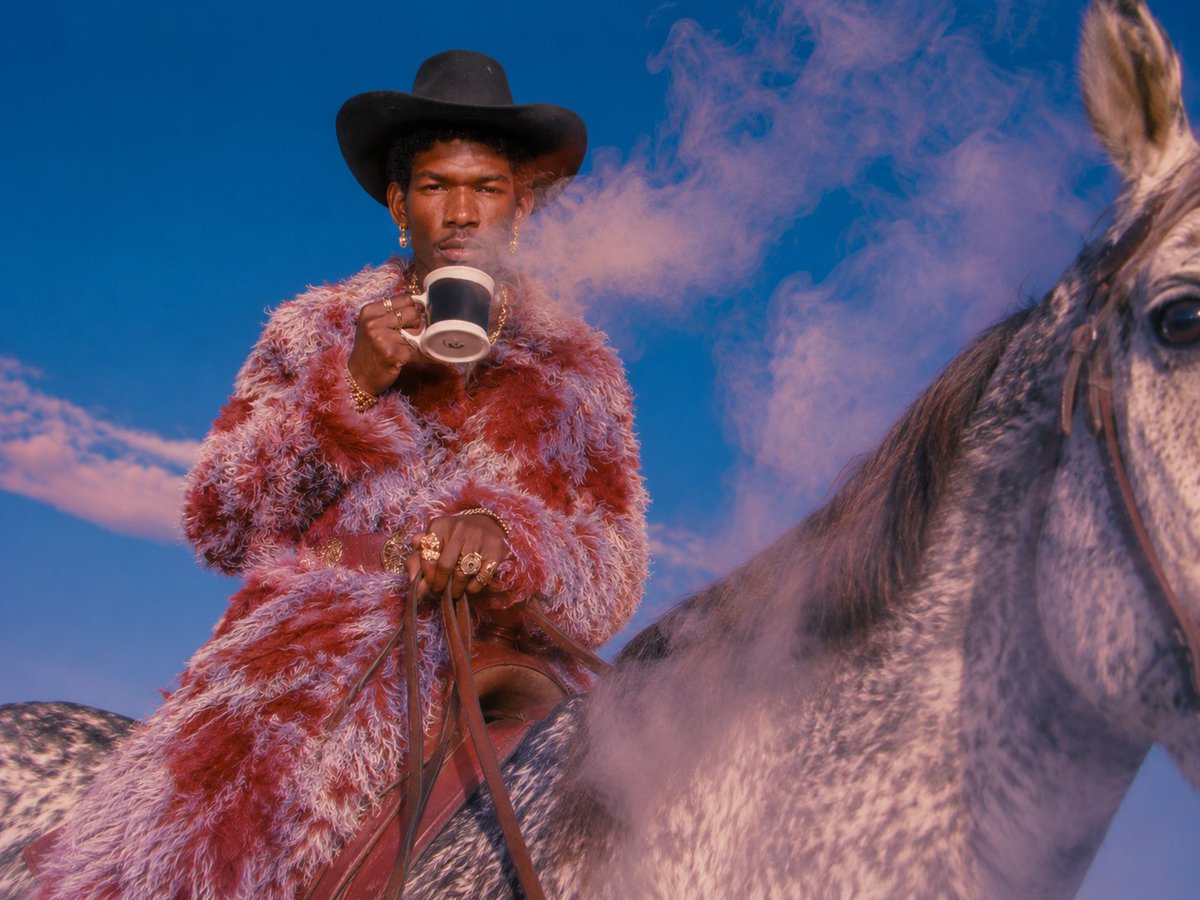
Surreal Cowboy Fashion Editorial
Browse template categories
Isometric Security Icon Grid questions
How do I use the Isometric Security Icon Grid template?
Add your photo if the template asks for one, edit the prompt if you like — the template's model and format are already selected — and press Generate. Your version opens in PicX Studio.
Can I customize the Isometric Security Icon Grid template?
Yes. You can change the subject, setting, lighting, mood, format, and available model controls before creating your image.
Is the Isometric Security Icon Grid template free?
Opening and editing this template is free. Generating uses credits, shown on the Generate button when you are signed in.
Which AI model should I use?
Start with GPT Image 2, which is the model associated with this template. You can compare another compatible model for a different finish.
Looking for something else? Browse all templates.

Your photo, any look
Thousands of ready templates for every top image and video model, from one credit balance.