
Visual Novel Rejected Routes UI
A creative prompt to generate a game-style selection screen displaying various 'what-if' or rejected story routes for a character.
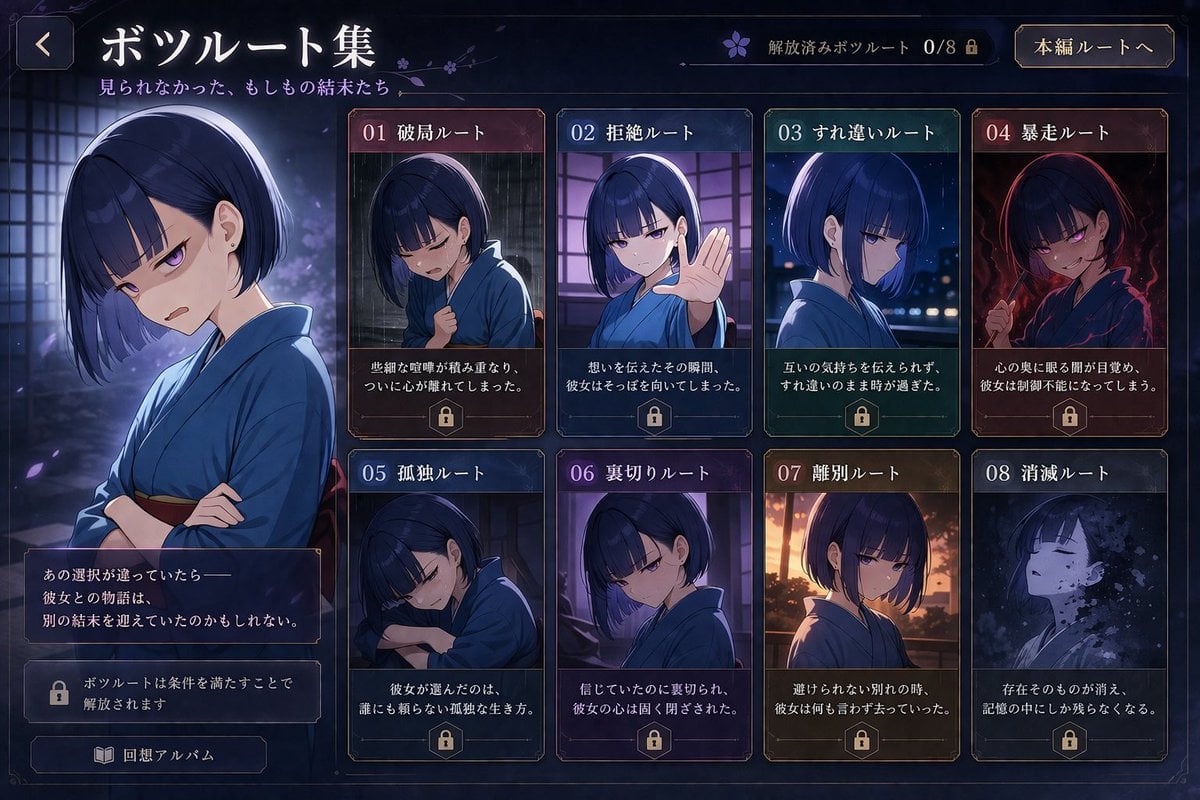
- Prompt included
- Model and format preset
- Free template
The prompt behind this image
Copy the exact prompt behind Visual Novel Rejected Routes UI, or open it in the studio and make it yours.
Create an image that displays a "Collection of Scrapped Routes" for {argument name="target character" default="this character"} in a game-UI style. Arrange the "if" developments that can't be seen in the main story ({argument name="scenario examples" default="breakup, rejection, missed connection, going berserk, etc."}) as multiple cards, each with a short title and a one-sentence description. Also change the character's expression and mood for each route. Styled like a scenario-selection screen from a mobile game or visual novel.
How to use Visual Novel Rejected Routes UI in 3 steps
- 1Upload ImagePNG, JPG or paste
Add your photo
Upload the photo the template builds on. The prompt, model and format are already set.
- 2…a portrait of your subject in softgolden-hour light, 85mm…
Personalize
Edit the subject and creative details for your destination.
- 3Generate
Generate
Press Generate — your image is created in PicX Studio, so you can compare it with the original and refine one variable at a time.
More like this
Templates with the same subject, style or setup. Open one to see its prompt.
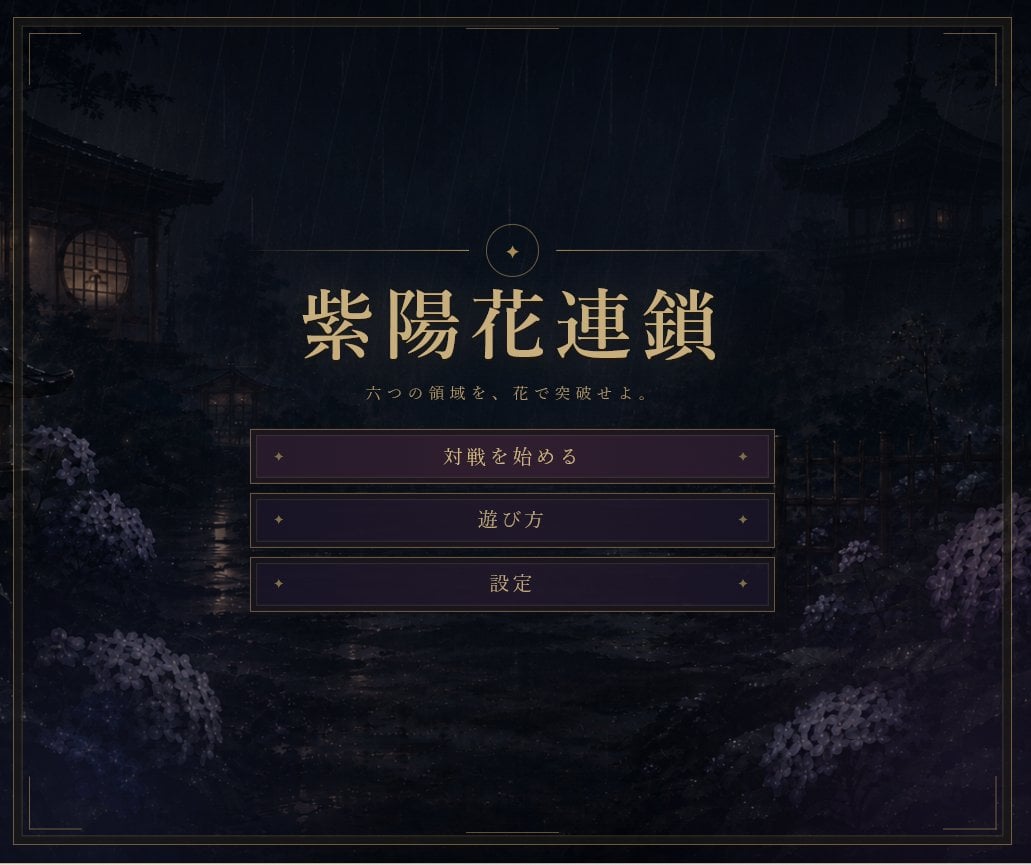
Rainy Japanese Visual Novel Title Screen
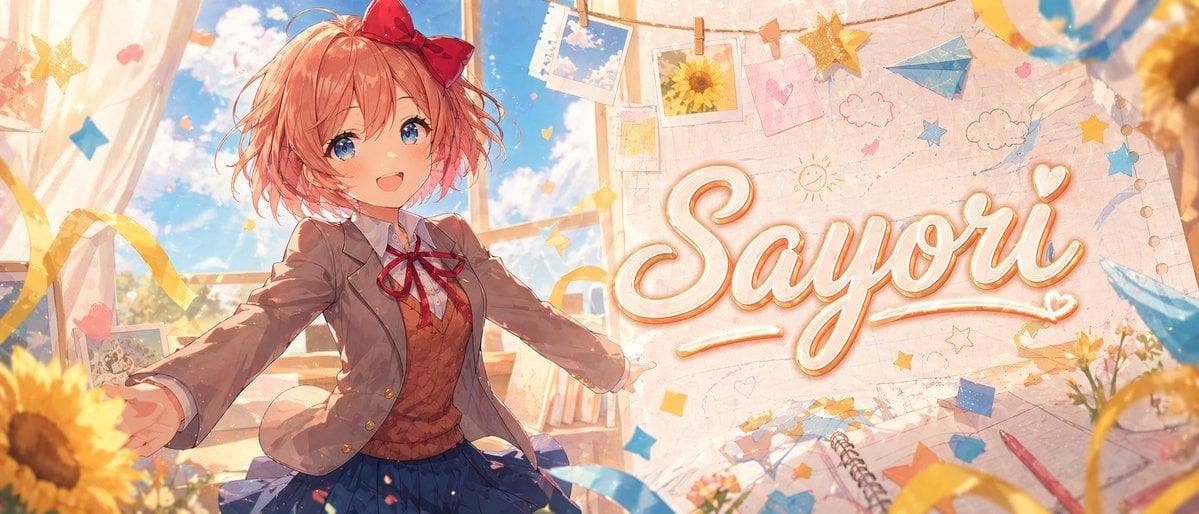
Anime Visual Novel Classroom Banner
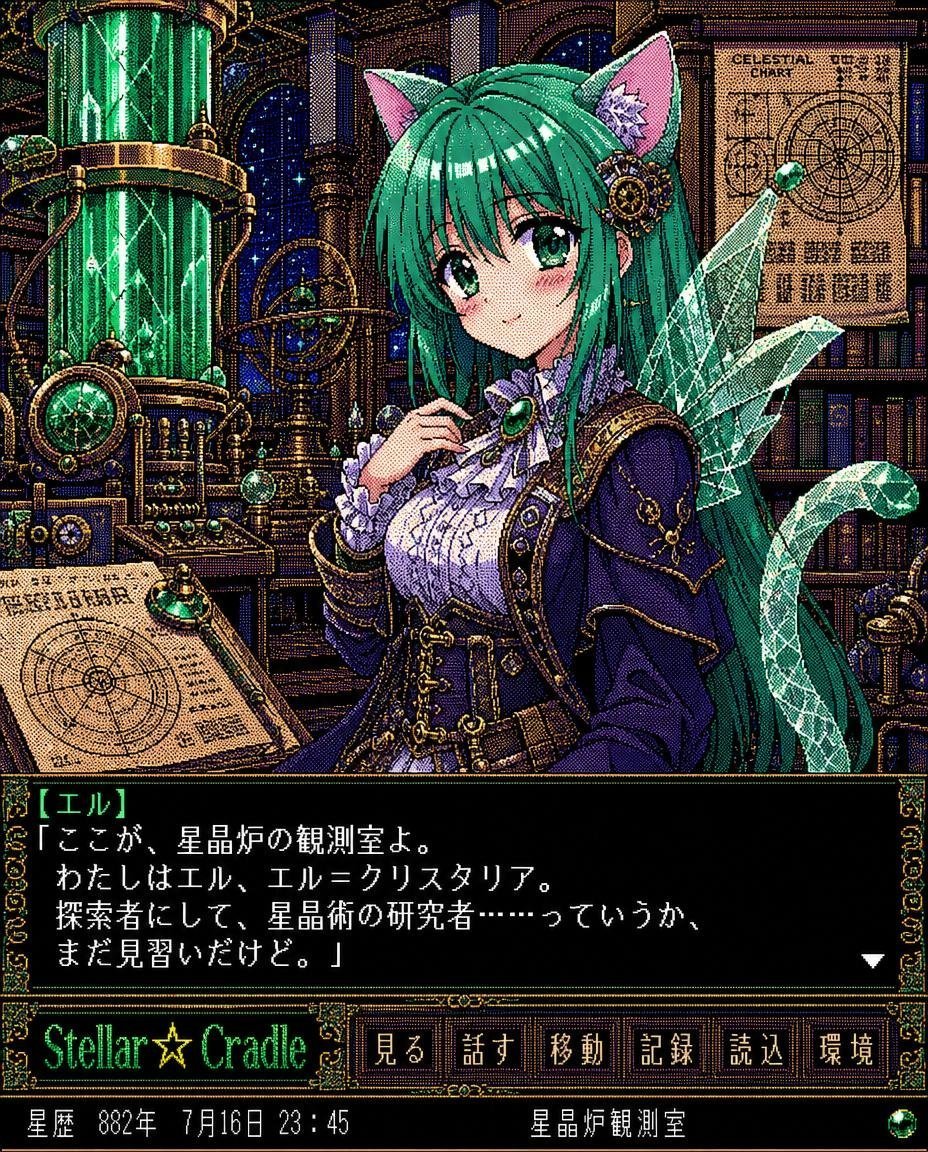
Retro Crystal Observatory Visual Novel
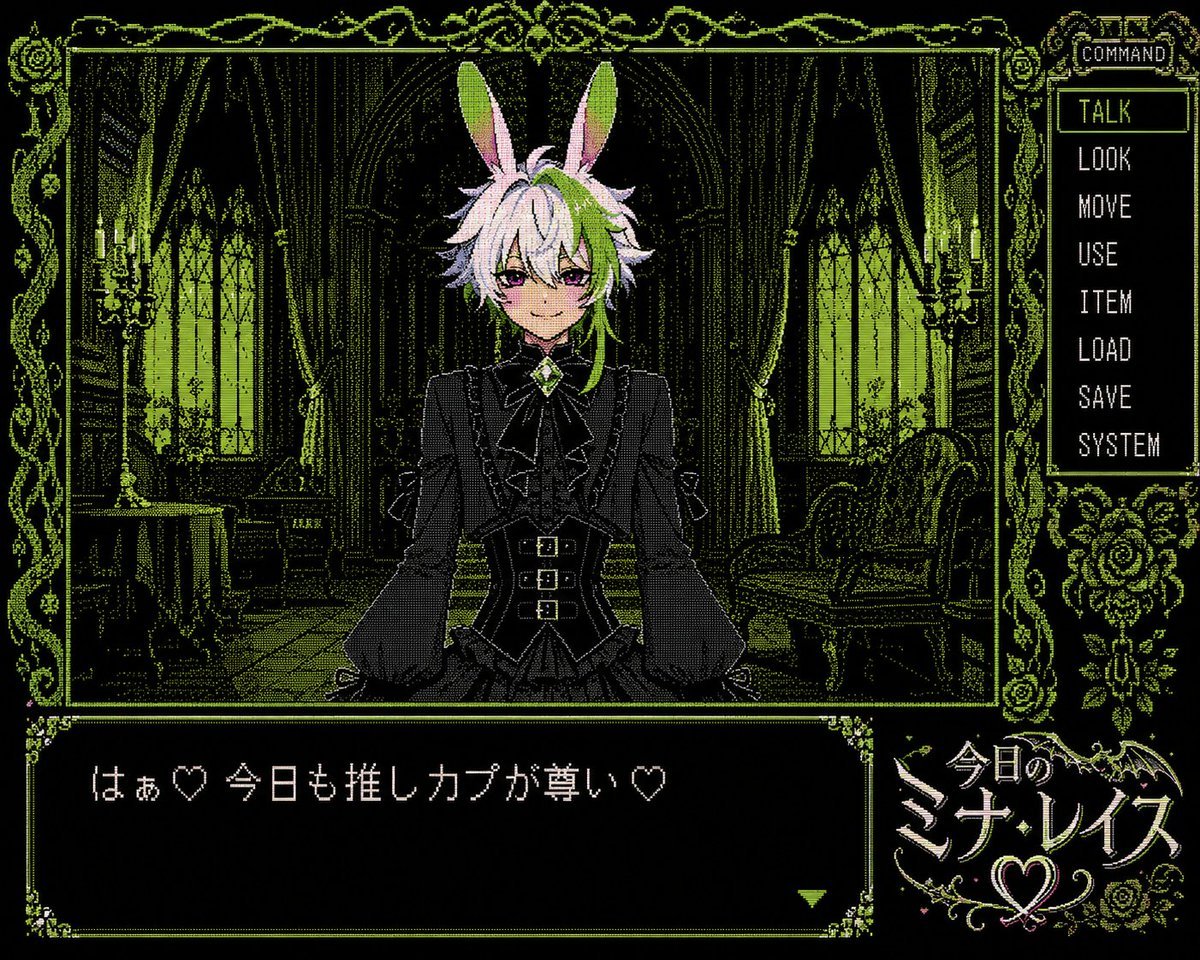
PC-98 Gothic Visual Novel UI
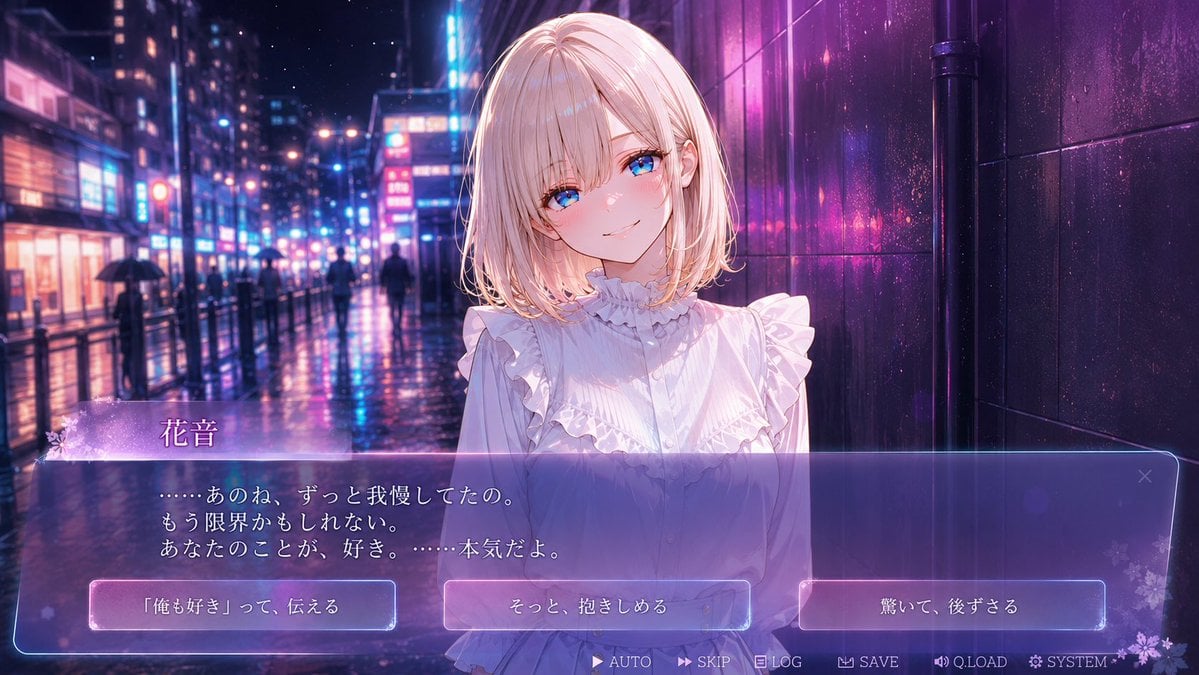
Rainy Neon Visual Novel Confession
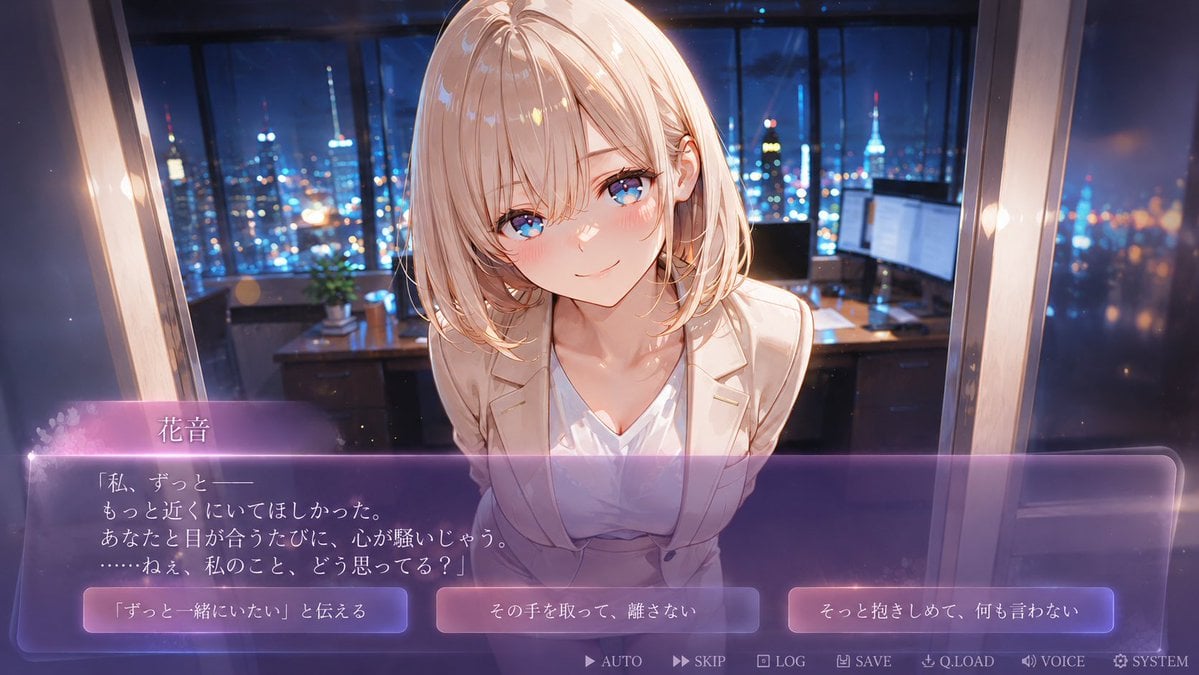
Faceless Romance Visual Novel CG
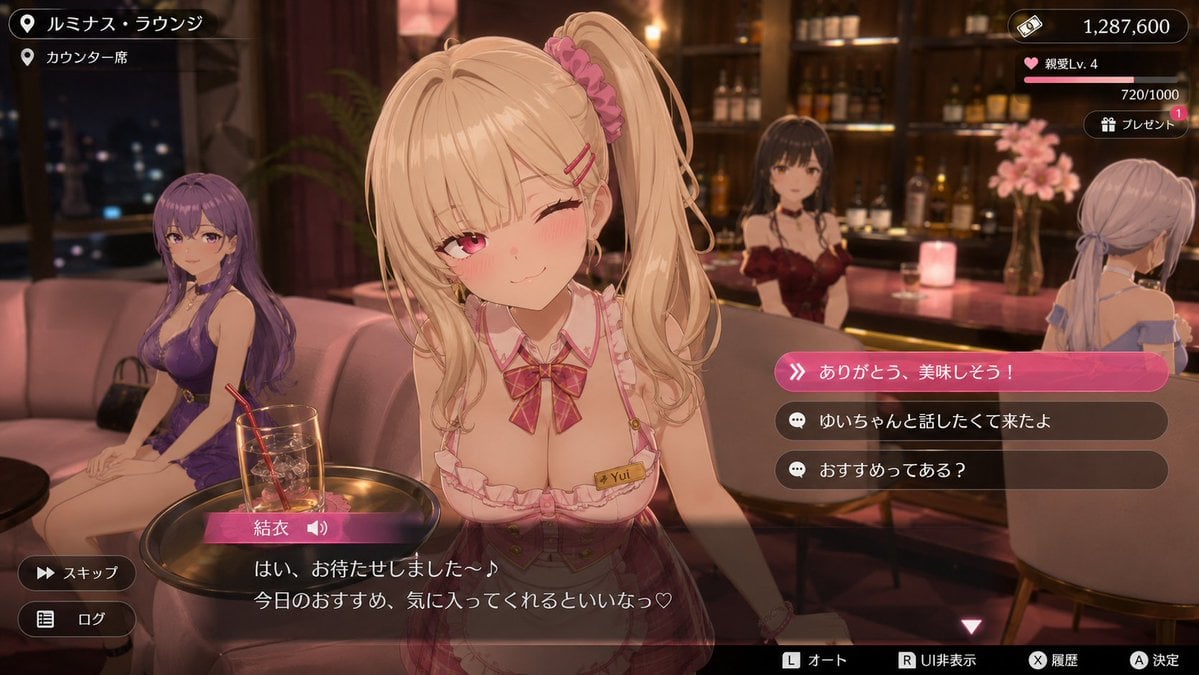
Anime Visual Novel Confession Scene
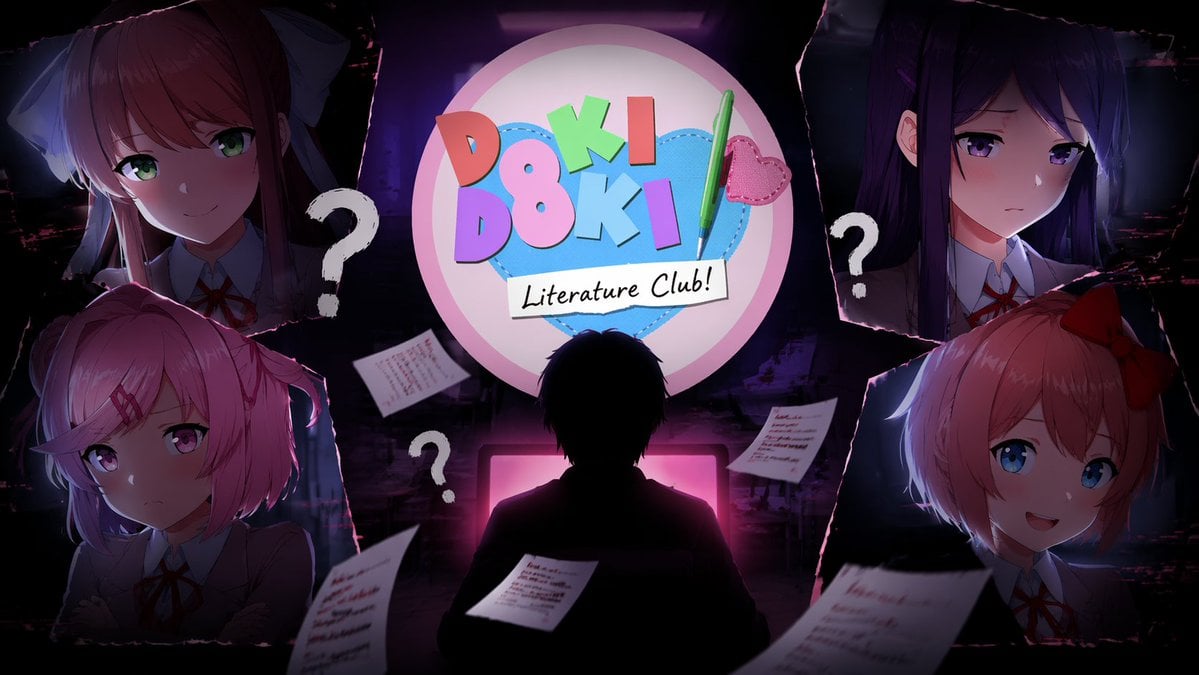
Visual Novel Composite Layout
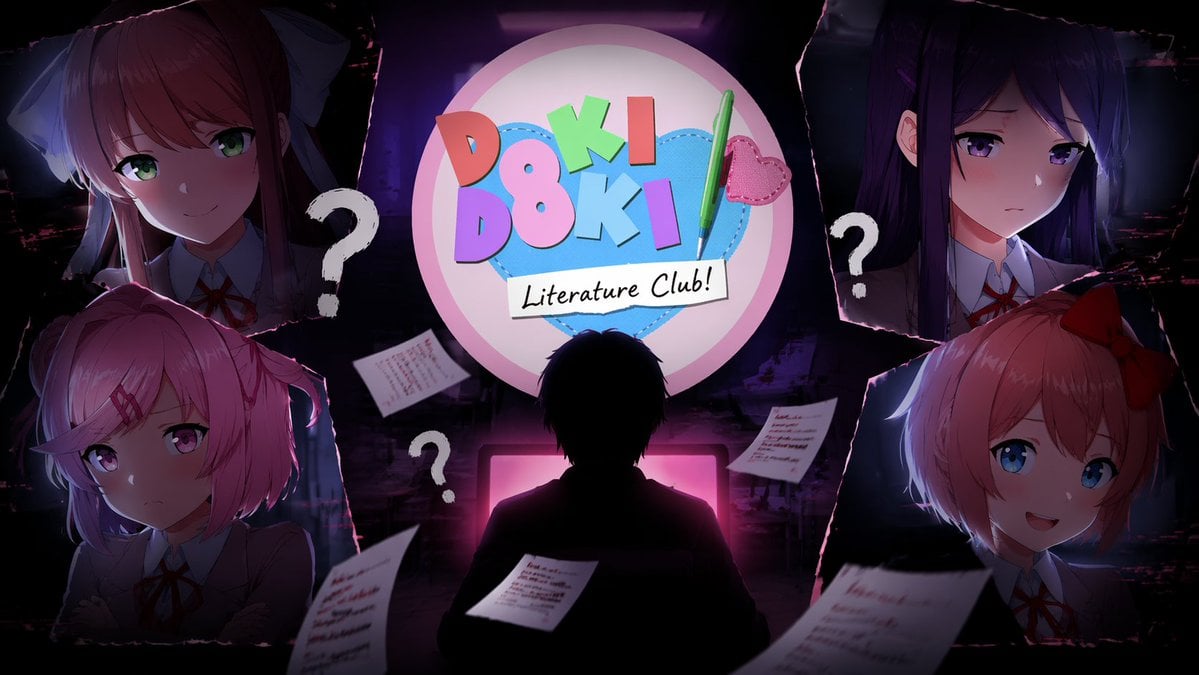
Visual Novel Psychological Horror Concept Art
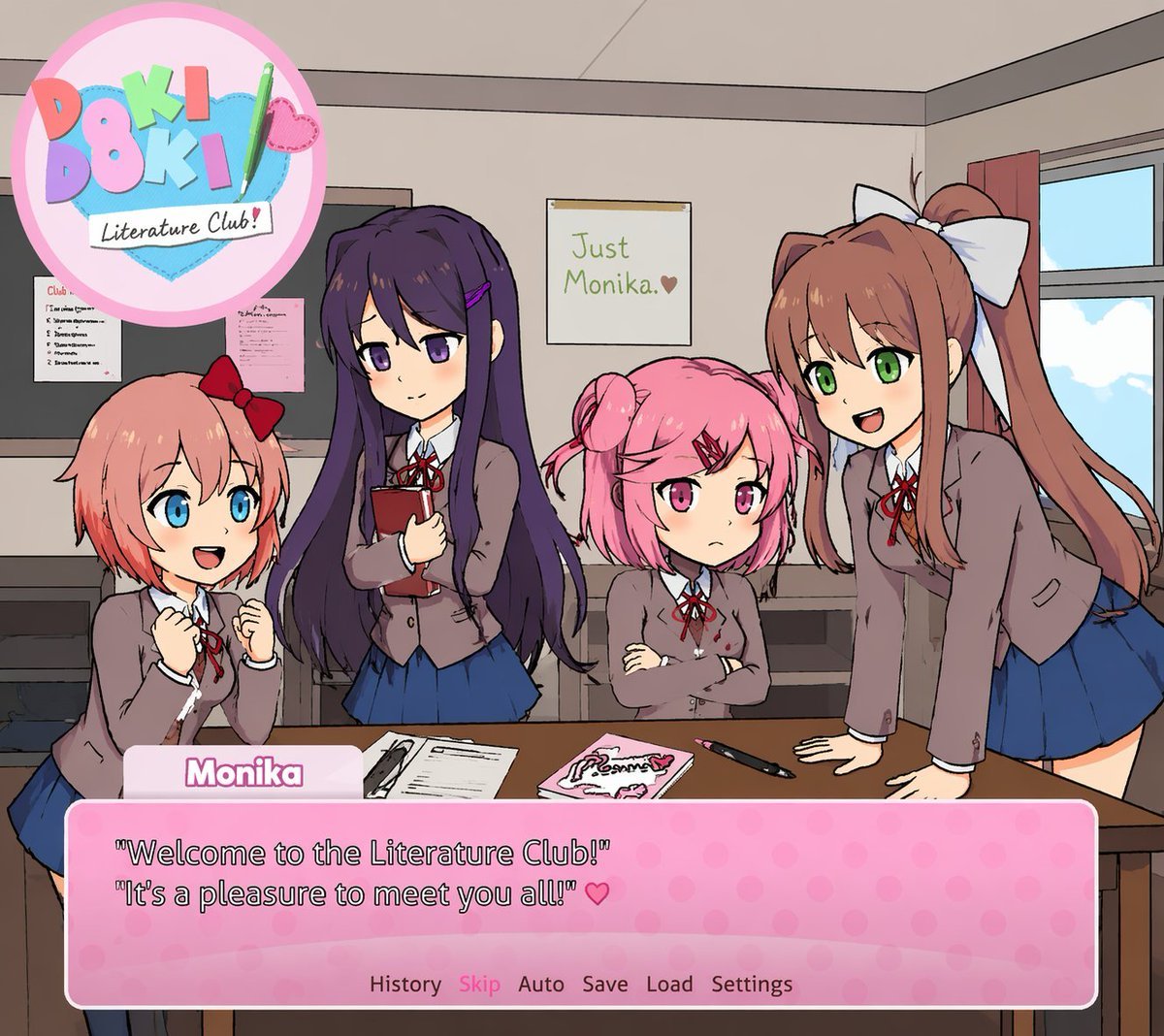
Visual Novel Screenshot Mockup
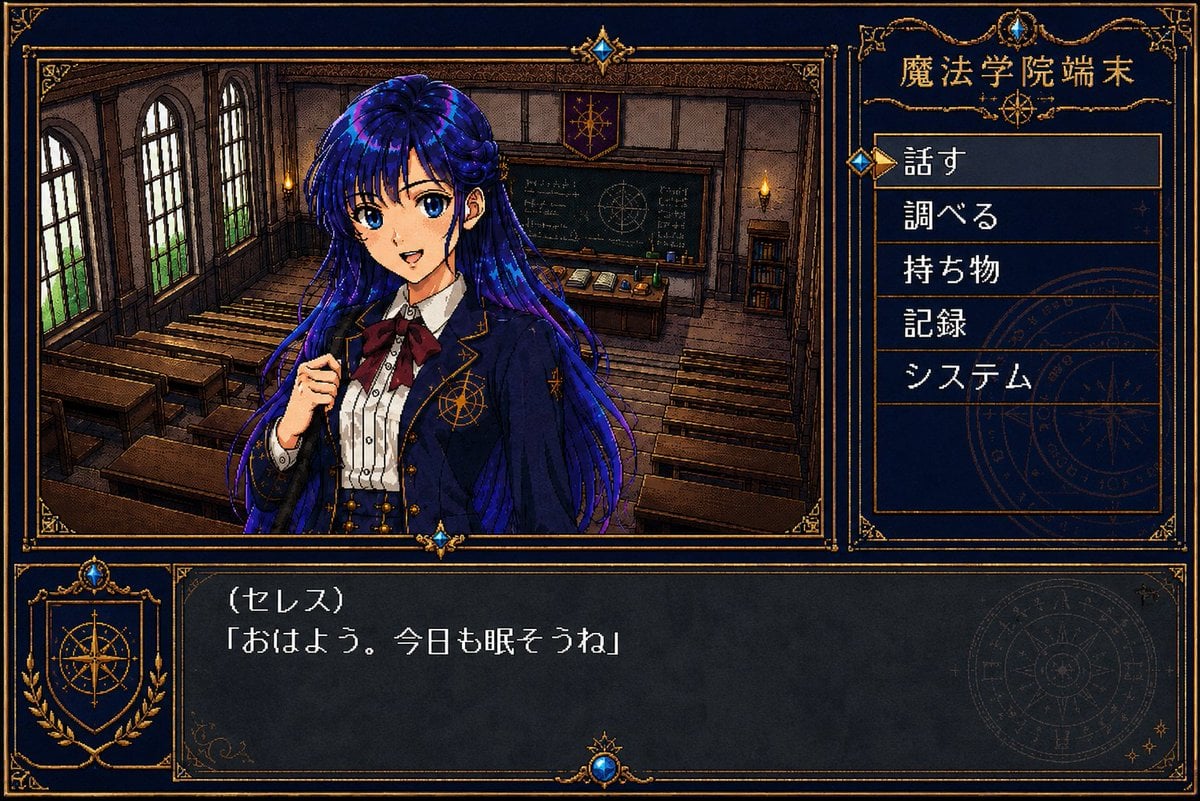
Retro Magic Academy Visual Novel UI
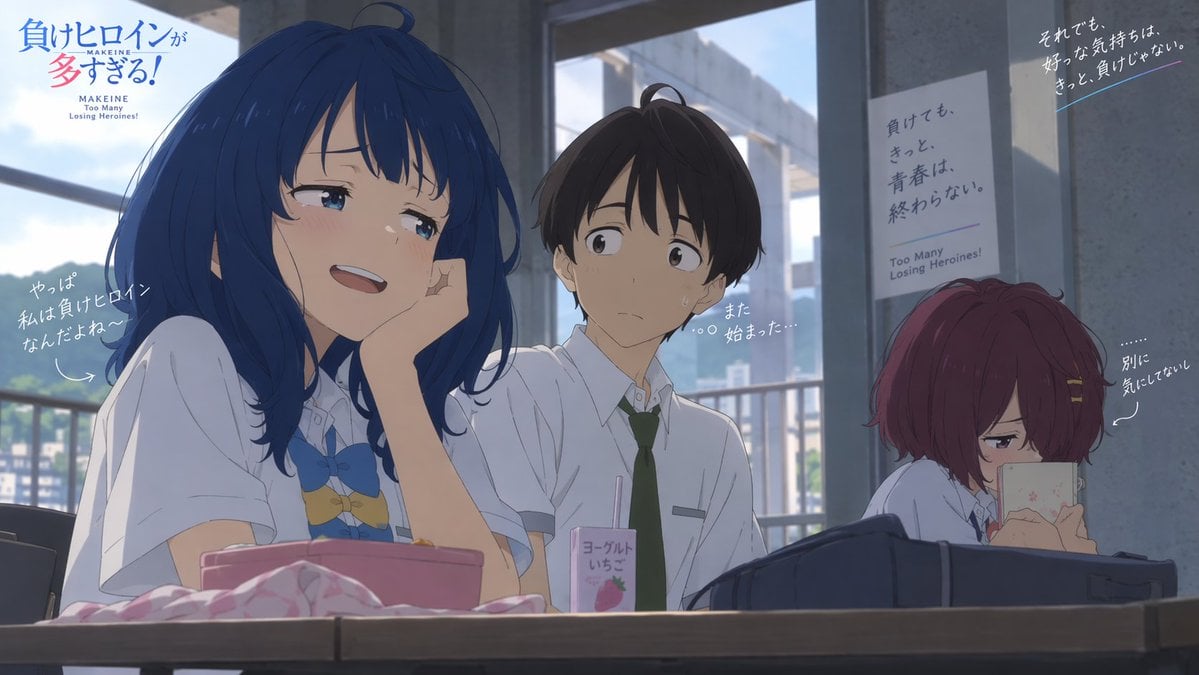
Anime Classroom Losing Heroines Key Visual
Make it yours
Visual Novel Rejected Routes UI works as-is. These are the safest ways to change it without losing the look.
Change one field
Copy a single group, rewrite it, and generate again so you can see what that field is doing.
Keep the frame, change the subject
Hold the composition and light of Visual Novel Rejected Routes UI, then swap wardrobe, props or the person for a new take.
| If the result… | Why | Fix |
|---|---|---|
| The result drifts from the preview | Too many fields changed at once. | Reuse Visual Novel Rejected Routes UI as-is first, then change one group — subject, light, or setting. |
| The model over-stylizes the scene | The prose prompt leaves finish and camera underspecified. | Add one camera or lighting sentence and stay on GPT Image 2. |
More GPT Image 2 templates
Other prompts made for GPT Image 2.

Six VTuber Japanese Logo Sheet

Realistic Portrait of Woman and Deer

The Vista Modular Condo Poster

AI Model Routing Comparison Infographic

2.5D Anime Art Board

Isometric Productivity Desk Scene

New York Double Exposure Poster

Four-Panel AI Landscape Comparison

Japanese Tatami Lifestyle Magazine Cover

NESCAFÉ Coffee Map Poster
More image prompts
Fresh picks from across the catalog.
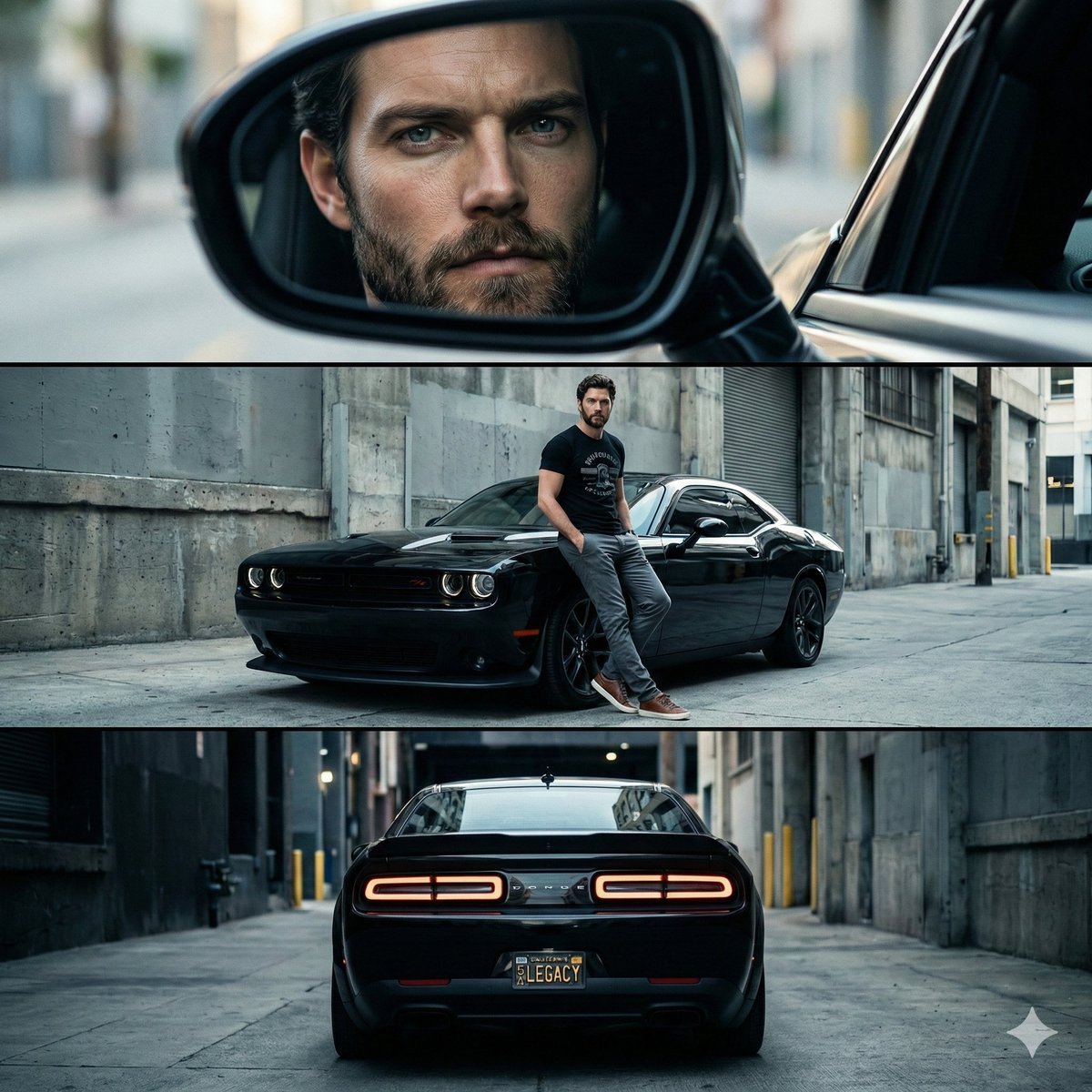
Cinematic Automotive Triptych Portrait Prompt
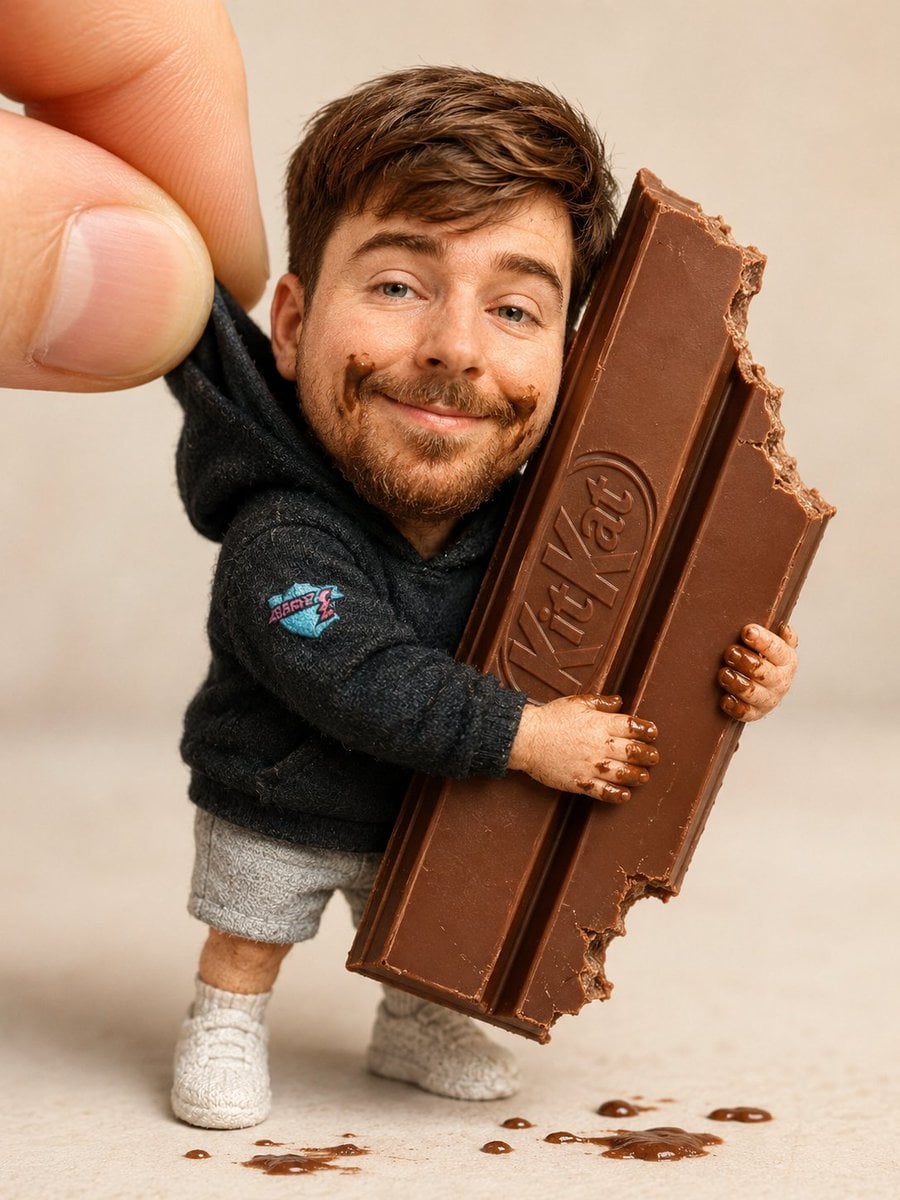
Handmade Collectible Male Doll
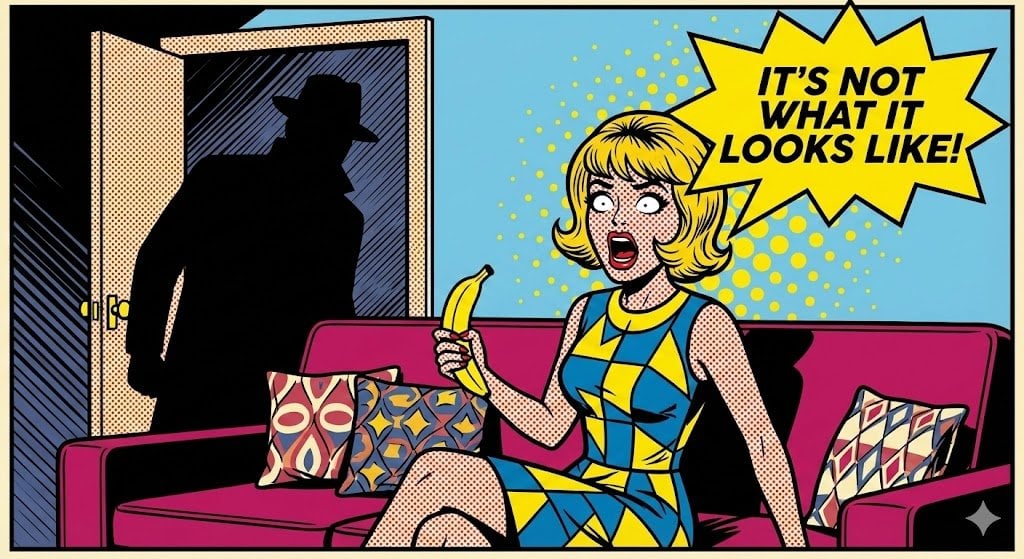
Pop Art comic book illustration prompt for Nano Banana Pro
Monochrome Fine Art Portrait with Dramatic Rim Lighting
Indoor Fitness Lifestyle Portrait Prompt
3D Paper-Cut Family Portrait
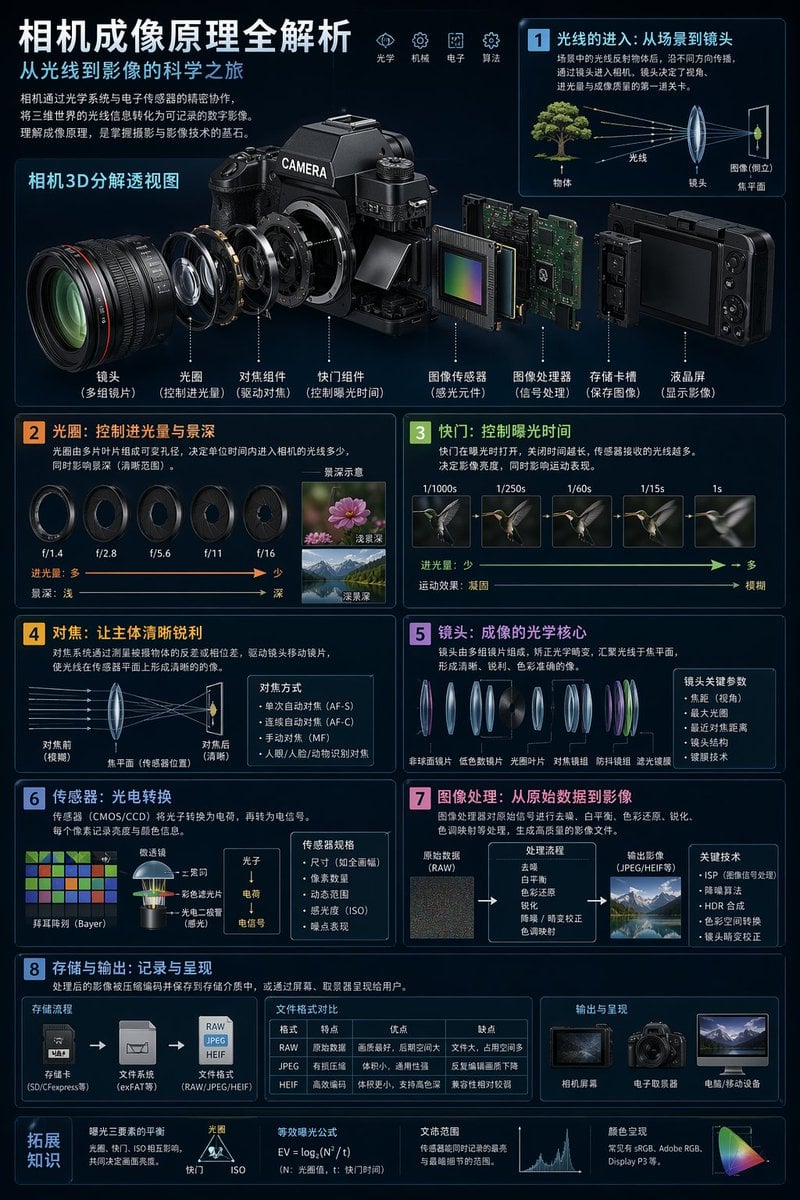
Camera Imaging Technology Infographic
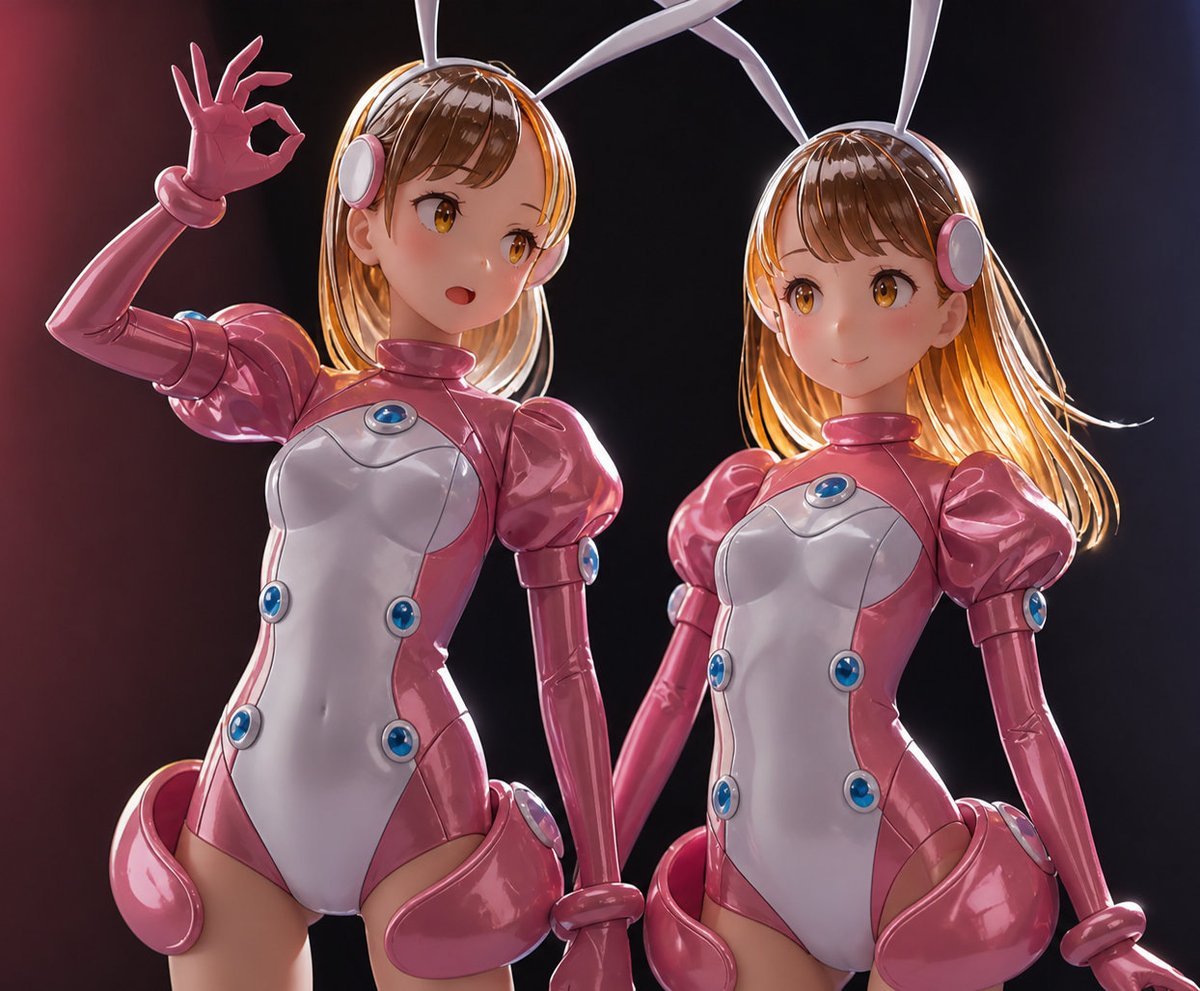
High-End Sofubi Figure Model
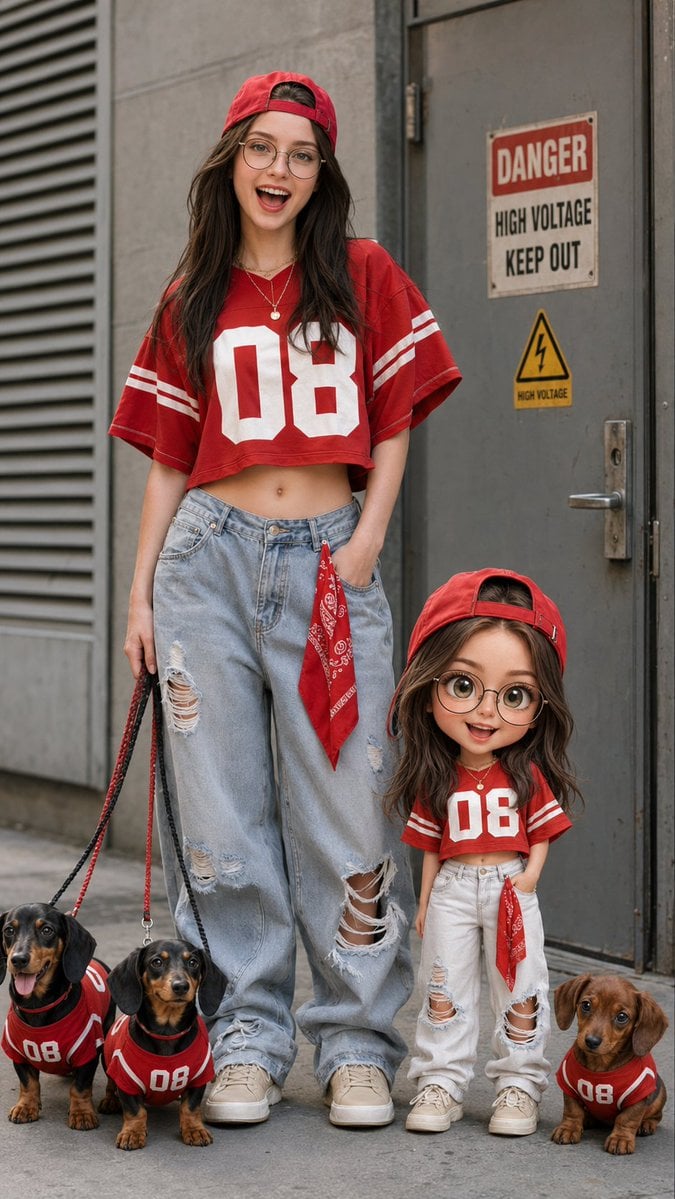
Urban Street Fashion with Chibi Version
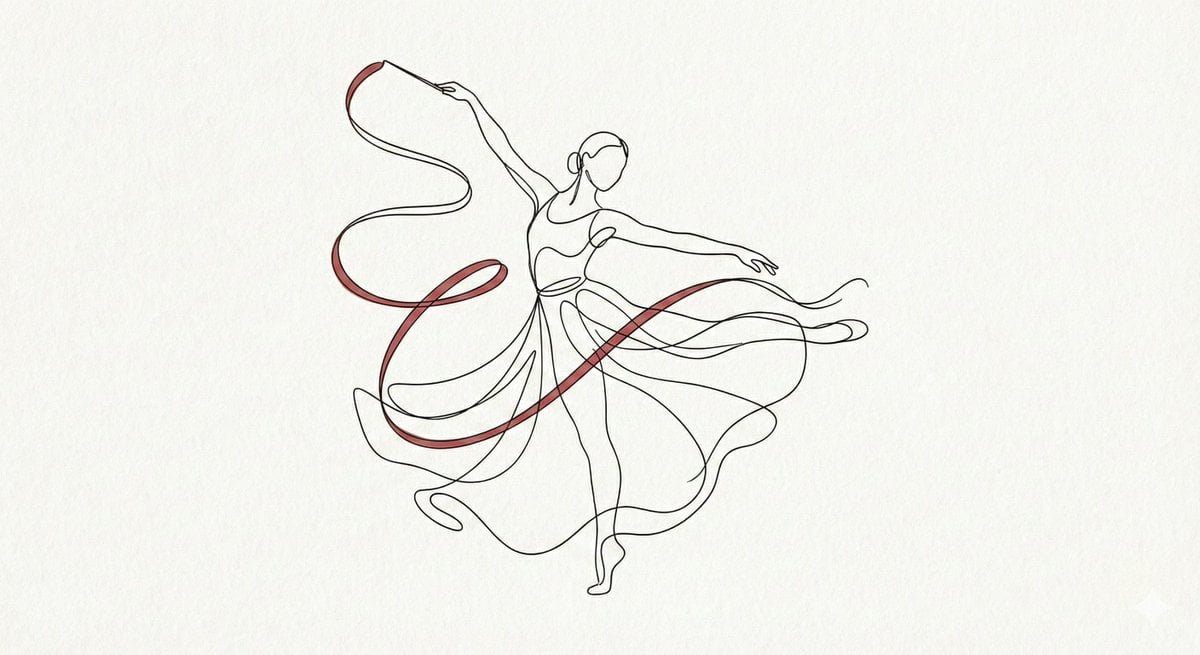
Minimalist Continuous Line Art Illustration
Browse template categories
Visual Novel Rejected Routes UI questions
How do I use the Visual Novel Rejected Routes UI template?
Add your photo if the template asks for one, edit the prompt if you like — the template's model and format are already selected — and press Generate. Your version opens in PicX Studio.
Can I customize the Visual Novel Rejected Routes UI template?
Yes. You can change the subject, setting, lighting, mood, format, and available model controls before creating your image.
Is the Visual Novel Rejected Routes UI template free?
Opening and editing this template is free. Generating uses credits, shown on the Generate button when you are signed in.
Which AI model should I use?
Start with GPT Image 2, which is the model associated with this template. You can compare another compatible model for a different finish.
Looking for something else? Browse all templates.

Your photo, any look
Thousands of ready templates for every top image and video model, from one credit balance.